With the help of WooCommerce Shopify Integration, use the WooCommerce Shopify Connector to sync products, categories, and orders between the platforms seamlessly.
With the help of the WooCommerce Shopify Connector module, merchants can import/export simple and variable types of products.
The admin can connect multiple Shopify accounts to exchange and synchronize the data between Shopify and WooCoomerce.
Note: WooCommerce Shopify connector is compatible with multisite.
This plugin is now compatible with WooCommerce’s latest High-Performance Order Storage (HPOS) and Cart and Checkout block.
If you require expert assistance or want to develop custom unique functionality, Hire WooCommerce Developers for your project.
We provide a production version of the plugin. If you want a development version then you can get it at an additional cost. Please contact [email protected] for it.
Note:
- Before importing products into your WooCommerce store, please ensure all required product details are correctly configured on your Shopify store. If any changes are made to a product on Shopify after import, such as switching from a single variant to multiple variants or vice versa, the sync process may not function correctly.
Features of WooCommerce Shopify Connector
- Map Shopify collections with WooCommerce categories.
- Easily import Shopify products to the WooCommerce store.
- The admin can set a default category for the imported products in the WooCommerce store.
- Easily import Simple as well as Variable product types.
- It will also import the product information like base image, additional images, name, price, SKU, description, quantity, weight, and super attributes along with the product.
- Imported Shopify product works the same as WooCommerce product.
- The admin with ease can manually update the imported products with just a single click.
- The admin can export WooCommerce store products to the Shopify store.
- Export Simple as well as Variable product types.
- Easily import Shopify orders to the WooCommerce store.
- Set the default order status for the imported orders in the WooCommerce store.
- Add multiple Shopify Accounts.
- The admin can view and manage the Shopify Accounts.
- Export Orders to the Shopify store with just one click.
- This module allows the admin to run real-time for auto-sync of the orders.
- The Admin can auto-sync category, product price, quantity, and SKU as well.
- Set price rules for the imported/exported products and will have real-time updates as well.
- Admin can easily sync the products from both sides wooCommerce and Shopify in Real-time.
- The Admin can import/export the products from both sides wooCommerce and Shopify in Real-time.
- Two Way Auto Product inventory reduction on new Orders(WooCommerce <-> Shopify)
- Sync Unlimited orders, Without Monthly Fees.
- The admin can import customers, pages, blogs and coupons from Shopify to WooCommerce.
- They can also import and manage shipping and tax from Shopify to WooCommerce.
- If the admin adds a tracking number at the Shopify end then that will be shown in the WooCommerce order at the Admin end.
- Real-Time Sync – Fields to Update setting (admins can now control which product fields will be synchronized in real time, both from Shopify to WooCommerce and WooCommerce to Shopify).
Note 1:
- On Shopify products, if the product is on sale then the price is entered in the Price section and the regular price is entered in the Compare at Price section. Or if the product is not on sale then the regular price in the Price section and in the Compare at Price section will not have to enter the price.
- It will only export those products from WooCommerce which has up to three variation attributes. As per Shopify’s listing policy, Products with more than three options for variation will not be a part of the list in Shopify.
- Shop Location should be configured for export in the general configuration.
- This module is compatible with GraphQL.
Check the overview of the Shopify Connector For WooCommerce –
Real Time Synchronization Features
The connector supports below Real Time Synchronization features and it will work both ways (Shopify to Woo store and vice-versa) according to the settings chosen-
- Automatic Creation: When any product is created in the Shopify store, its update will reflect in the Woo store. The details that will get updated will include the Category, Description, Title, SKU, Price, Stock, Image, and Attributes of the item.
- Automatic Update: When any product is edited in the Shopify store, its update will reflect in the Woo store. The details that will get updated will include the Category, Description, Title, SKU, Price, Stock, Image, and Attributes of the item.
- Automatic Deletion: When an item is deleted from the Shopify store, then the updates will get reflected in the Woo store.
Automatic Inventory Management
WooCommerce Shopify Integration features Automatic Inventory Management, streamlining inventory control and reducing manual work.
- When a product is sold or updated on Shopify, the stock levels in WooCommerce are automatically adjusted accordingly.
- Similarly, if a product goes out of stock on Shopify, it will be marked as out of stock in WooCommerce as well.
This automatic inventory management works both ways, depending on the settings configured in the Real-Time Sync options, ensuring that changes in WooCommerce are also reflected on Shopify.
Installation of WooCommerce Shopify Connector
The user will get a zip file that he has to upload in the “Add New” menu option in the WordPress admin panel.
For this, login to WordPress Admin Panel, and Under the Dashboard hover your mouse over the “Plugins” menu option which brings out a Sub-Menu and then select the “Add New” option.

After this, you will see an option on the top of your page that is “Upload Plugin”, click the option to upload the zip file.

By clicking on the “Upload Plugin” option, below that you will see a button “Choose File” click on the button to browse for the zip file as per the snapshot below.

After browsing the file, click the “Install Now” button to install the plugin as per the snapshot.

Now when the plugin is installed correctly, you will see the success message and an option to activate the plugin. Henceforth now, click on “Activate Plugin” to activate the installed plugin.

Thus, in this, the admin can install the module.
Configuration on WooCommerce Shopify connector
The admin can easily configure the module from the WooCommerce admin panel.

To manage and configure the module, the admin can click on the Webkul WC Addons. Here, the WooCommerce Shopify Connector will display and click on the settings to do the configuration.
Activate and Update Plugin
Check how to activate your WooCommerce plugin through the purchase code and get updates of webkul modules directly on the plugin page.
Shopify Account Settings
The admin can manage Shopify account settings here. They can add a new Shopify account or manage an existing one. Also, the admin can add multiple Shopify stores from here.
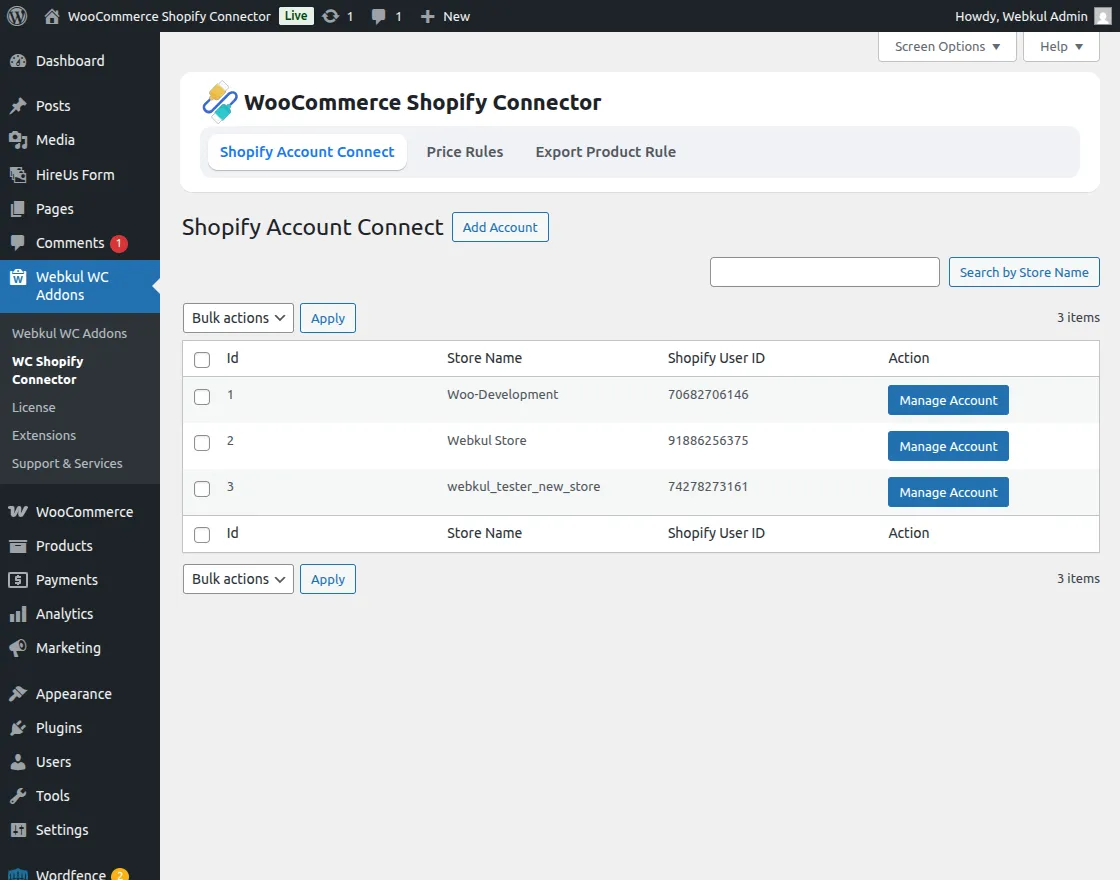
The admin can click on the Add Account button to add a new Shopify account then enter the store name, domain name, Client ID (API Key) & Client Secret Key.
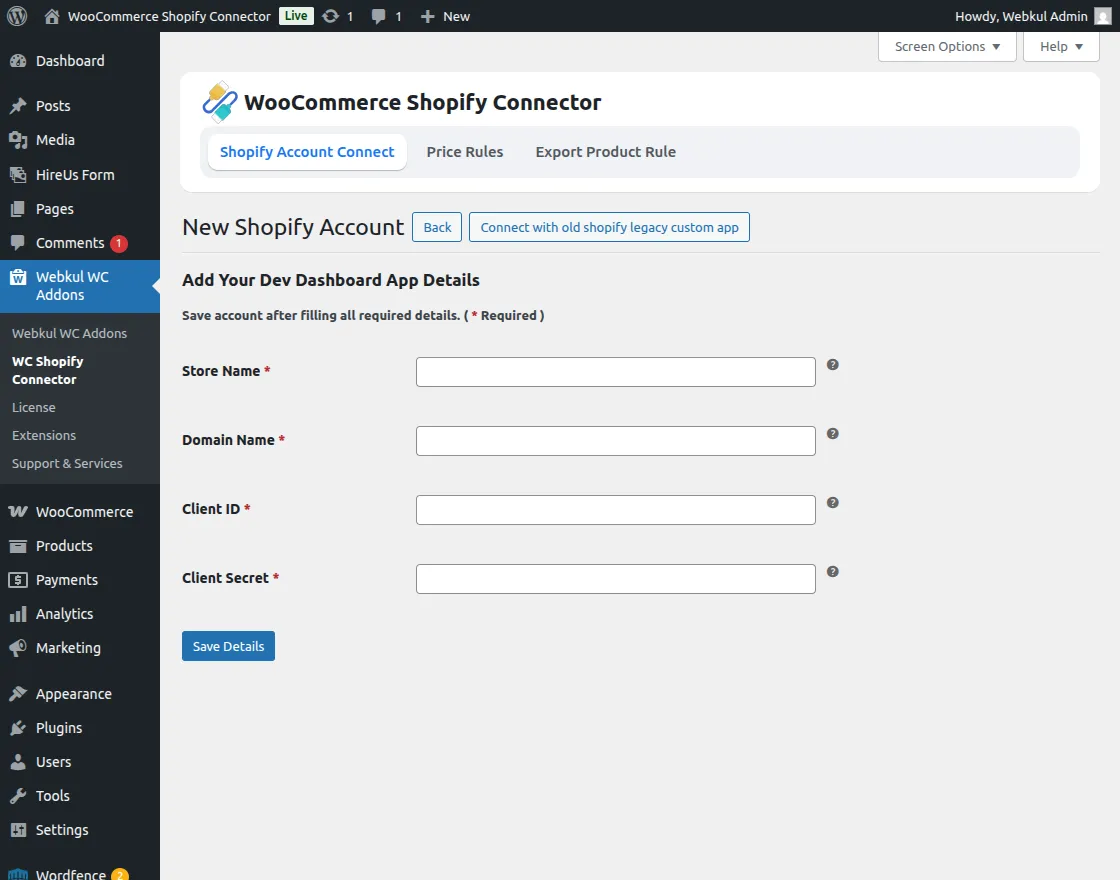
Note – The admin has to enter their exact Shopify Store name in the Store Name field.
Price Rule
The admin can manage the Price Rule from the admin panel easily. The admin not only can create but also edit the existing price rules.
Note: If the price rule is applied to imported products then it will work in a reverse manner for the exported product.
Add Price Rule
To create a new price rule, the admin can click on the Add New Price Rule and fill in the required details.
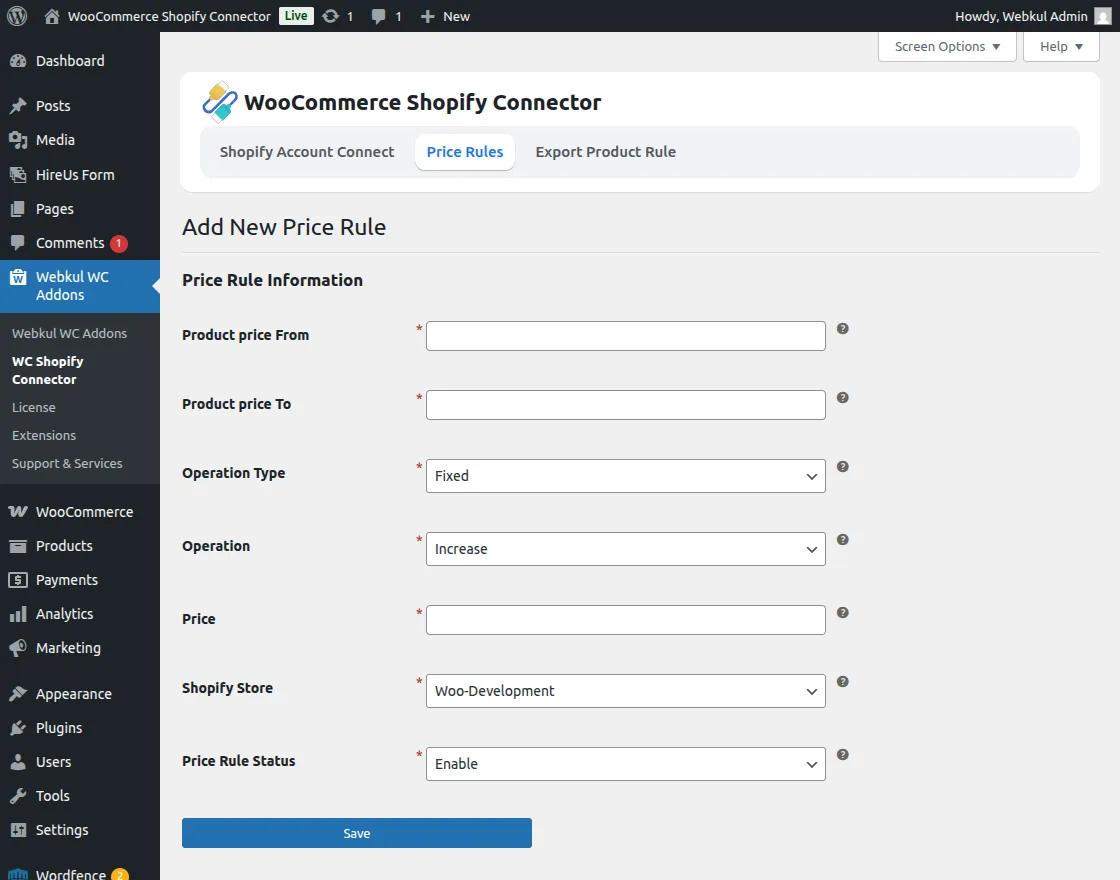
Here the admin can –
- Product Price From – Here, the admin can set the minimum price, for which the rule will be apply.
- Product Price To – The admin can set the maximum price for the rule.
- Operation Type – Set the operation type of the rule i.e Percentage or Fixed.
- Operation – The operation of the price rule can be manage from the operation. The admin can decide if the price of the product will be increase or decrease according to the rule applied.
- Price – The admin can set the price for the applied rule.
- Shopify Store– Select the Shopify store on which the price rule will be apply.
- Price Rule Status- The price rule can be enable or disable from here.
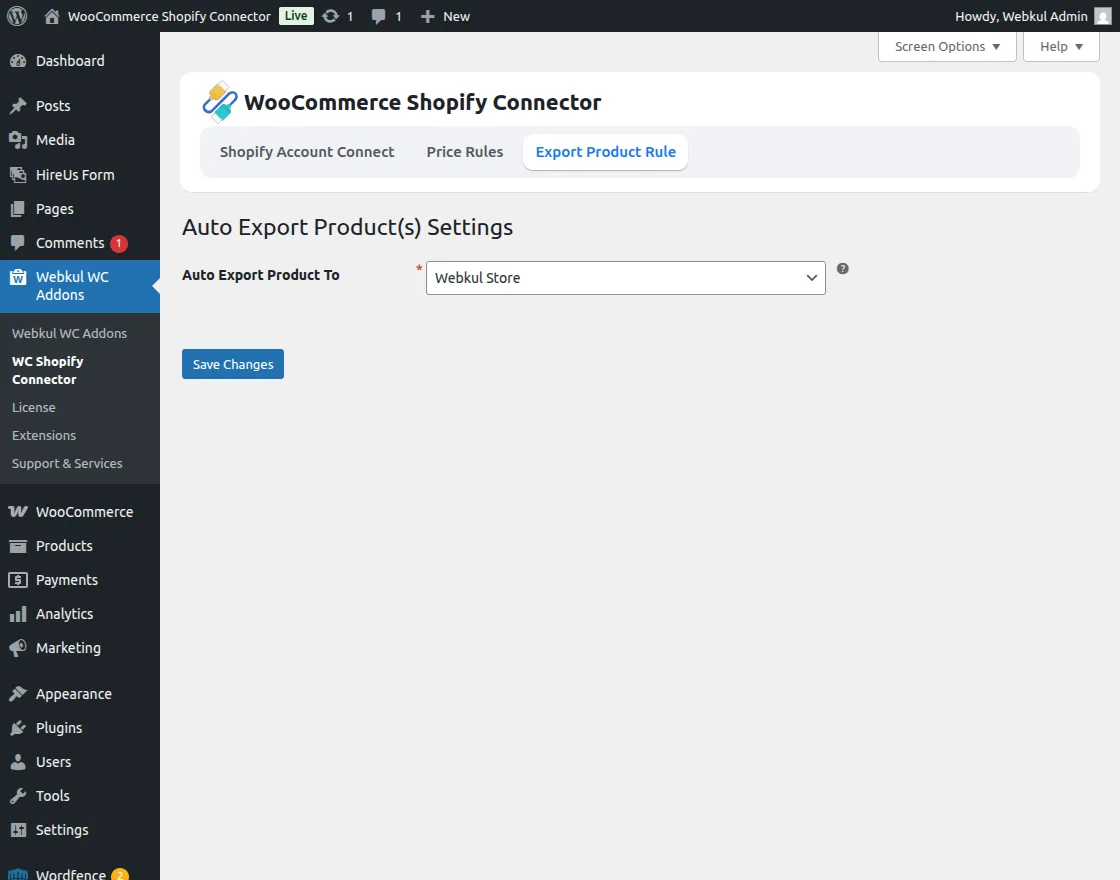
Export product Rule
With the help of this the admin can define on which Shopify store the products are to be export.
How to Get API Credential From Your Shopify Account
Note: If you are using the previous setup, click here to view the old process.
To get the API credentials the admin needs to generate the Shopify API credential first using the Shopify account.
The admin can visit the Shopify store for which the admin wants to connect and sync the WooCommerce store.
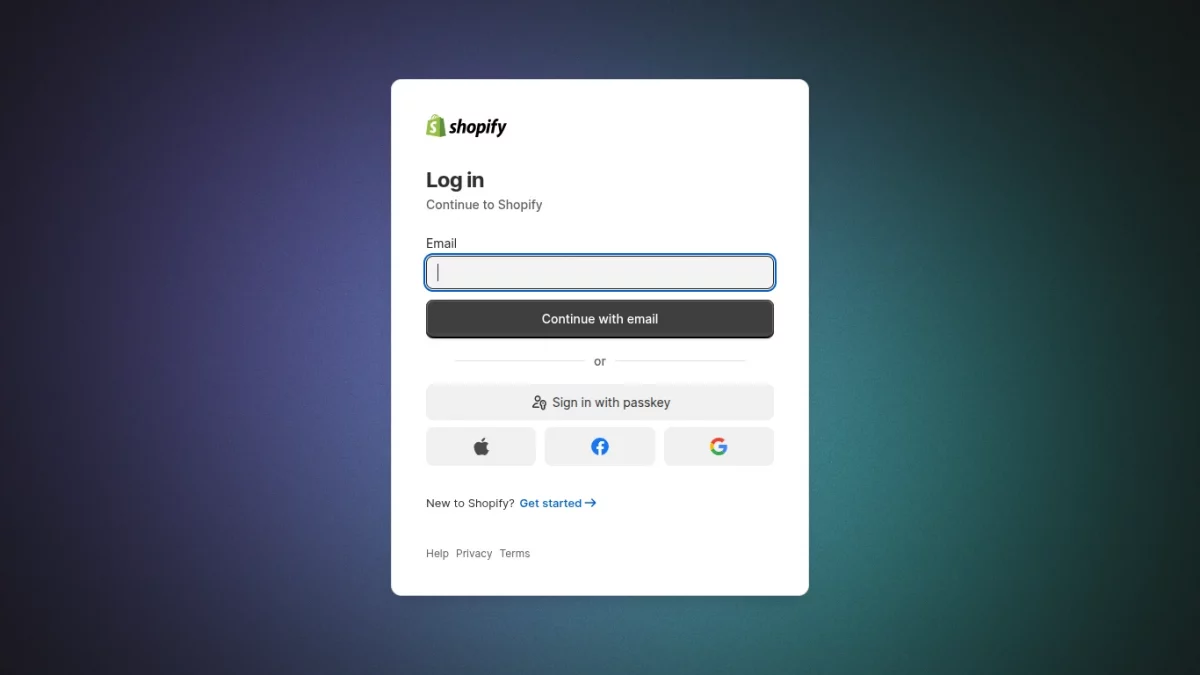
Step 1 – Log in to your Shopify Admin
First, log in to your Shopify store using:
Your store URL
Your admin username and password
Make sure you are logged in as a store owner or have app developer permissions.
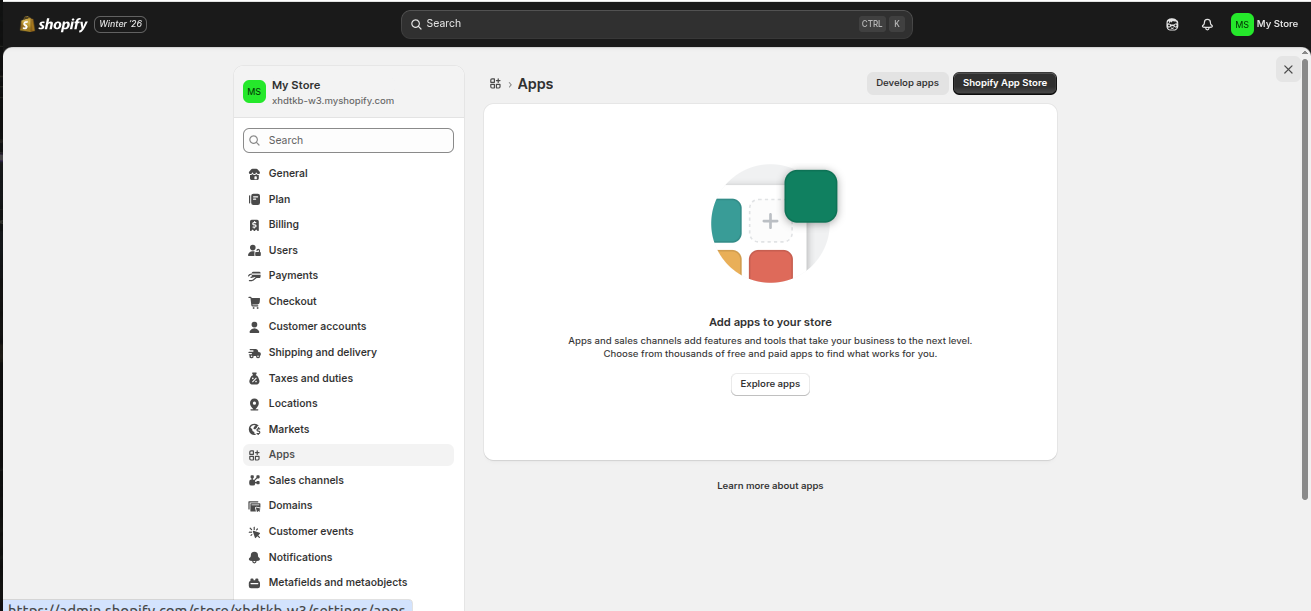
Step 2 – Navigate to “Apps ”
From the Shopify left sidebar menu:
Click Settings, then select Apps
This is where all integrations and custom apps are managed.
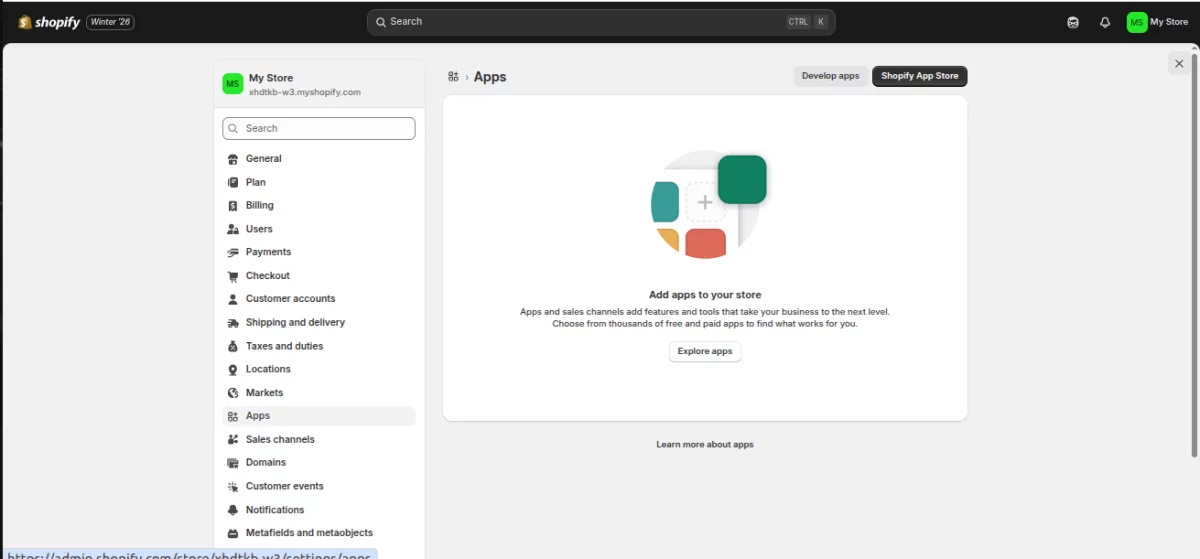
Step 3 – Open the “Develop Apps” Section
On the top-right corner of the Apps page, click:
Develop apps
This option allows you to create custom/private apps for API integrations.
Step 4 – Click on the “Build apps in the developer dashboard” option.
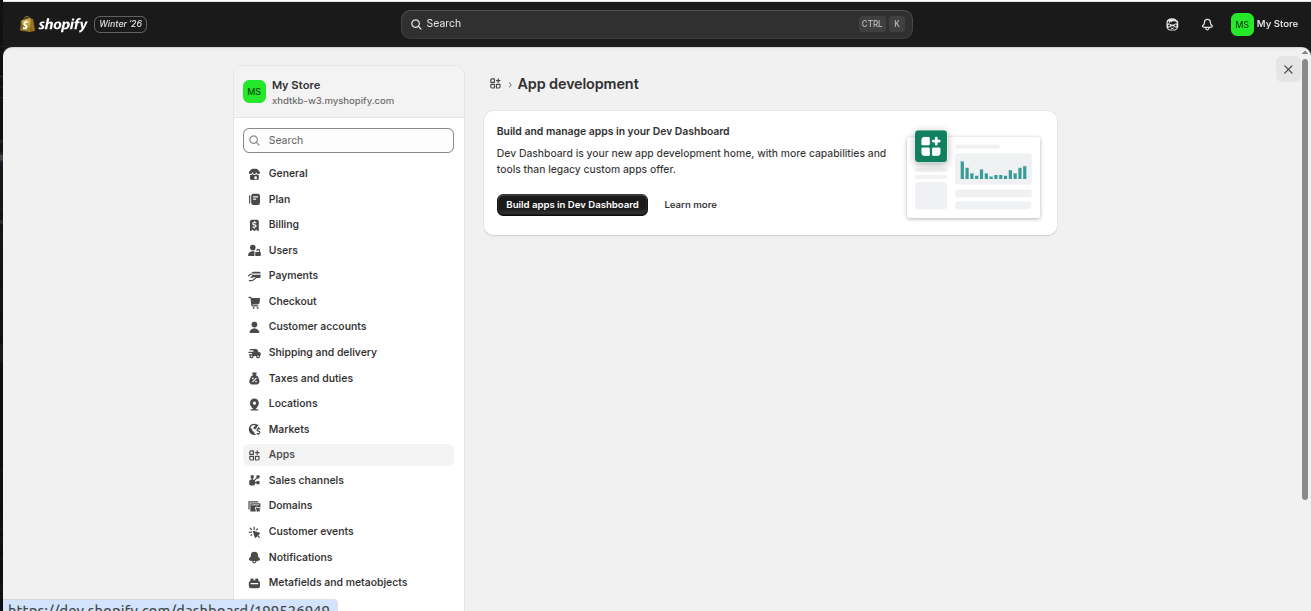
The dev dashboard opens as shown in the image below
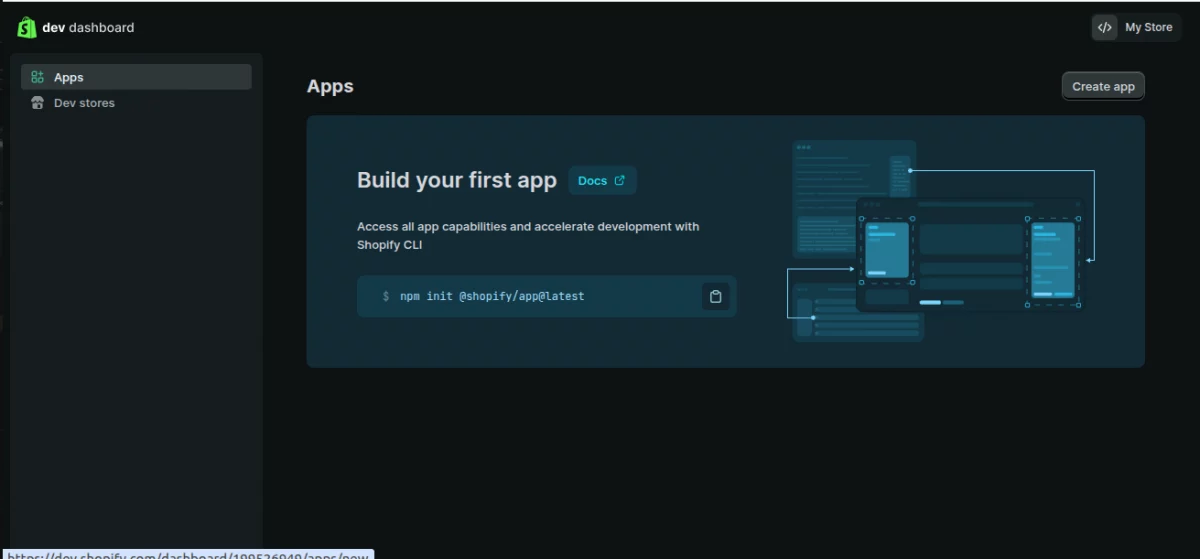
Step 5 – Create a New App
Next, click the button “Create app”
This will open the app creation pop-up.
Fill in the app name – Any name of your choice (In my case, I choose, “Webkul App”)
Then click Create
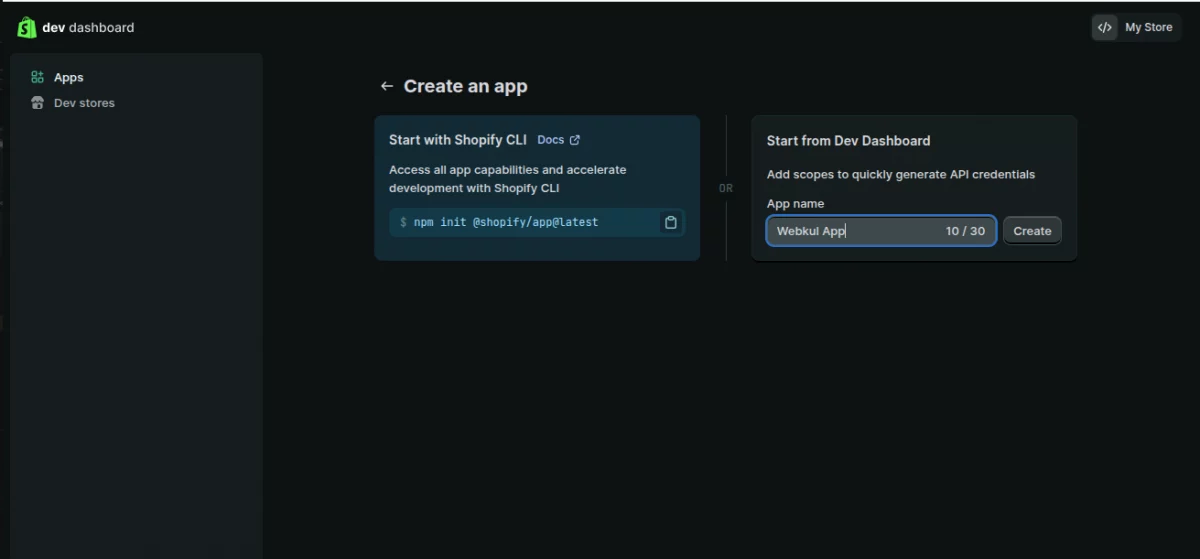
Now the App Integration and Configuration dashboard opens, where you can assign the required permissions to your app as shown in the image below.
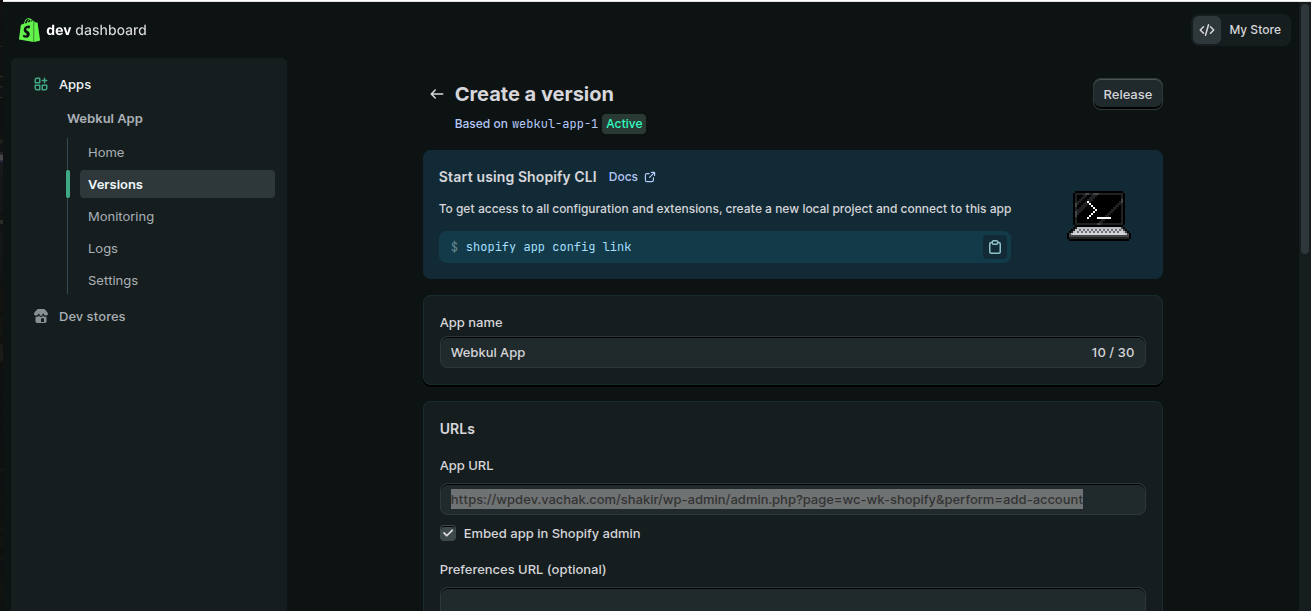
Step 6 – Configure Admin API Scopes
Fill the following details
App URL – This is the URL where your app is hosted or where Shopify should send users after installing or opening the app.
Now you need to assign permissions to your app.
Then go to the Access section
From here, select the required API scopes/permissions (for example: Products, Orders, Inventory, Customers etc.), depending on your module requirements.
Also, it should have Read and Write API permission for the following:
- Customer details and customer groups; inventory; orders, transactions, and fulfillment.
- Product information including products, variants, and collections.
- Locations
- Shipping rates
- Discounts
- Online Store Pages access via the GraphQL API.
Note: While making the Webhook Subscription, please make sure to select the latest Event Version.
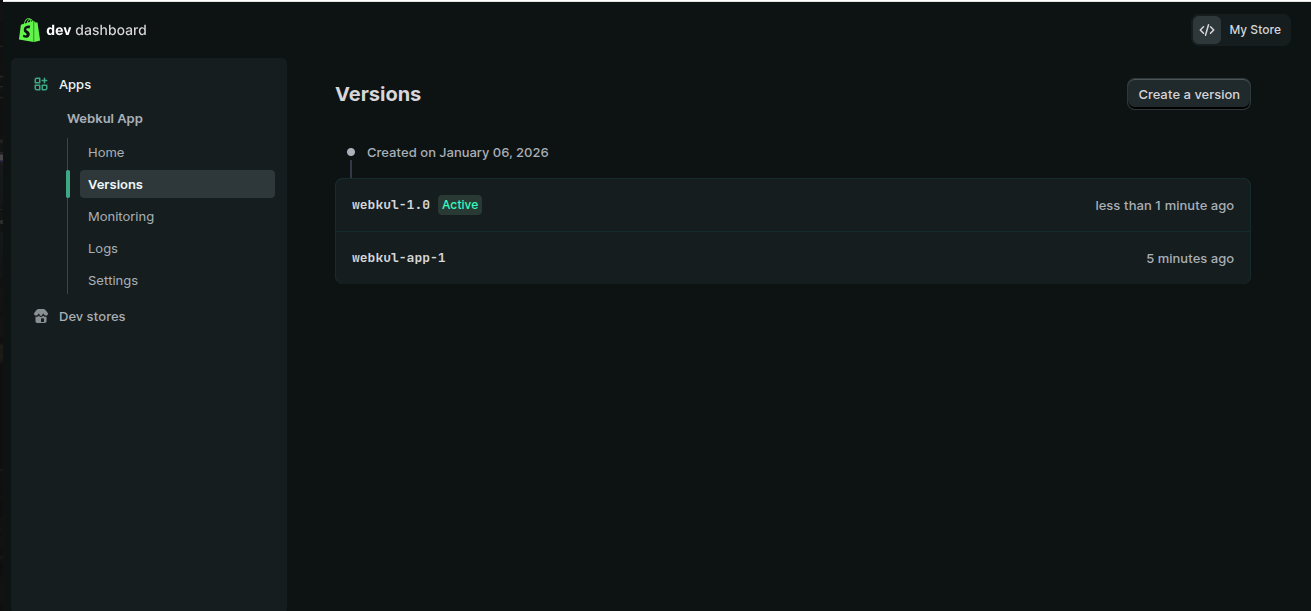
After selecting the scopes and Event version, click Release.
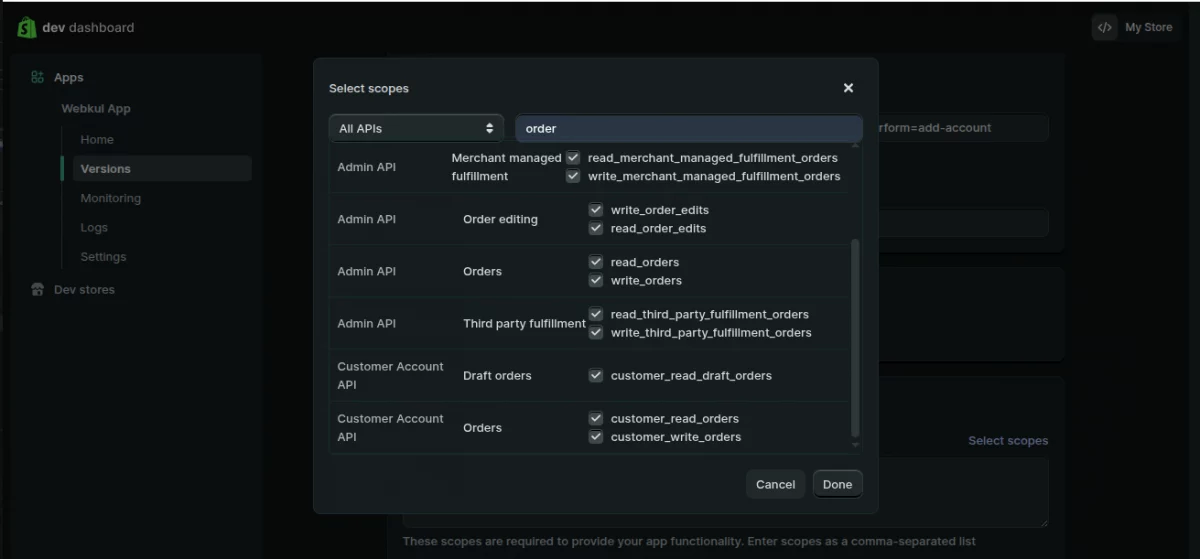
After successfully selecting all the required permissions, click the Release button again. A new version of the app will be created as shown in the image below.
Step 7 – Retrieve Your API Credentials
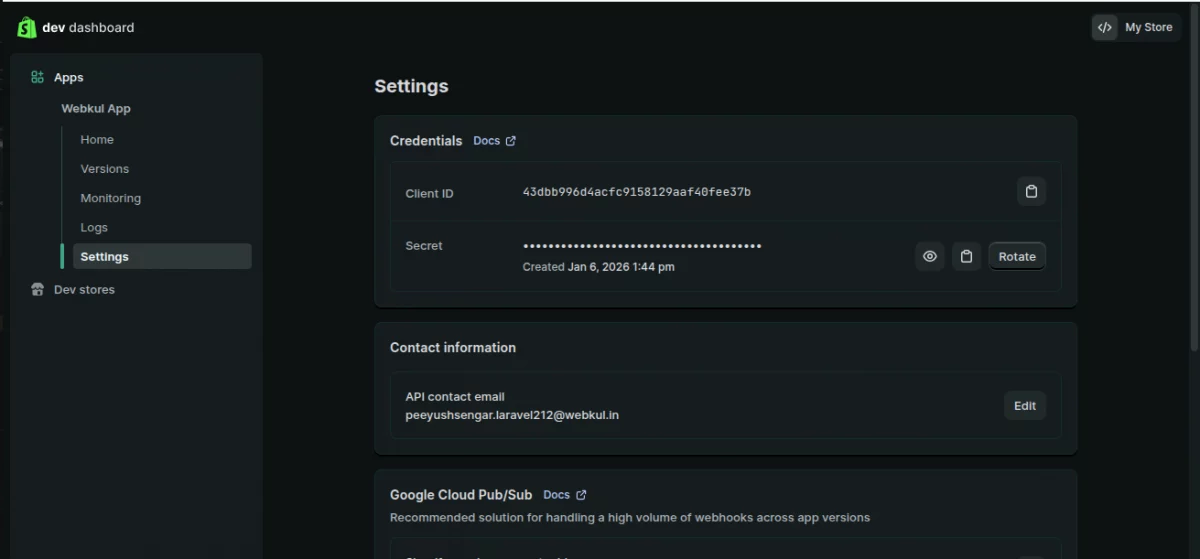
After that, go to the API Credentials section in the app settings, where you can view your generated keys.
You will be able to see:
- Client ID (API Key)
- Client Secret Key
Click Reveal to display the secret key.
Copy both values carefully and keep them stored in a secure location.
Step 8 – Install the App
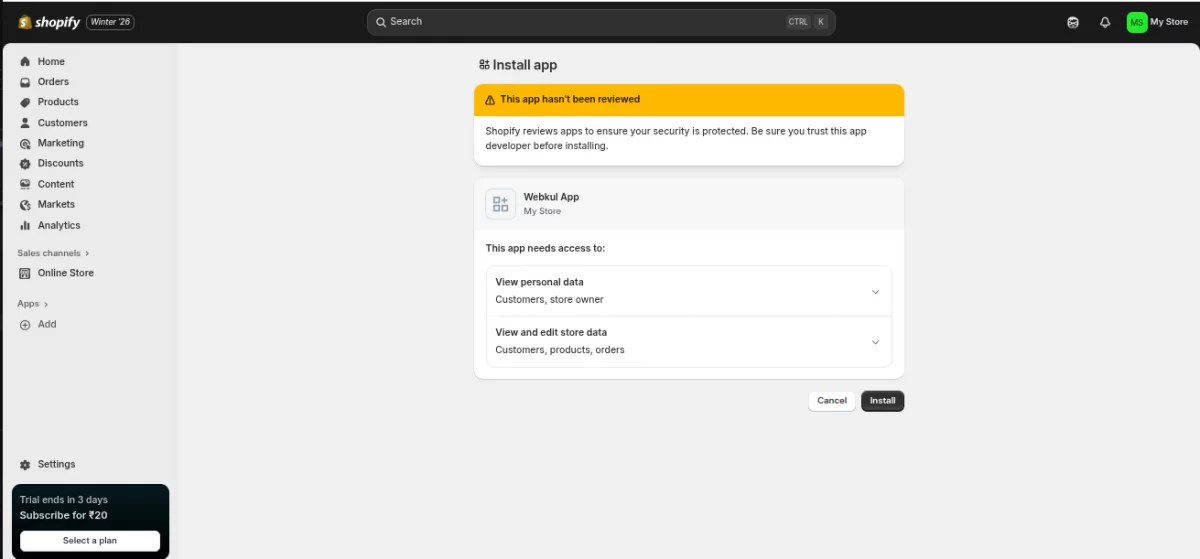
Once scopes are configured, install the app to activate API access.
Click on Install app and confirm the installation in the pop-up.
This generates your OAuth application credentials.
How To Integrate Shopify Credential With Your WooCommerce Store
The admin can copy the generated store name, domain name, Client ID (API Key) & Client Secret Key and then paste these credentials to the WooCommerce store.
Manage WooCommerce Shopify Connector-
From the WooCommerce Shopify Connector, the admin can manage Account Details, General Configuration, Map categories, Import Products, Import orders, and Export Products.
Account Details:
The admin can view the Shopify store name, domain name, Client ID (API Key) & Client Secret Key here.
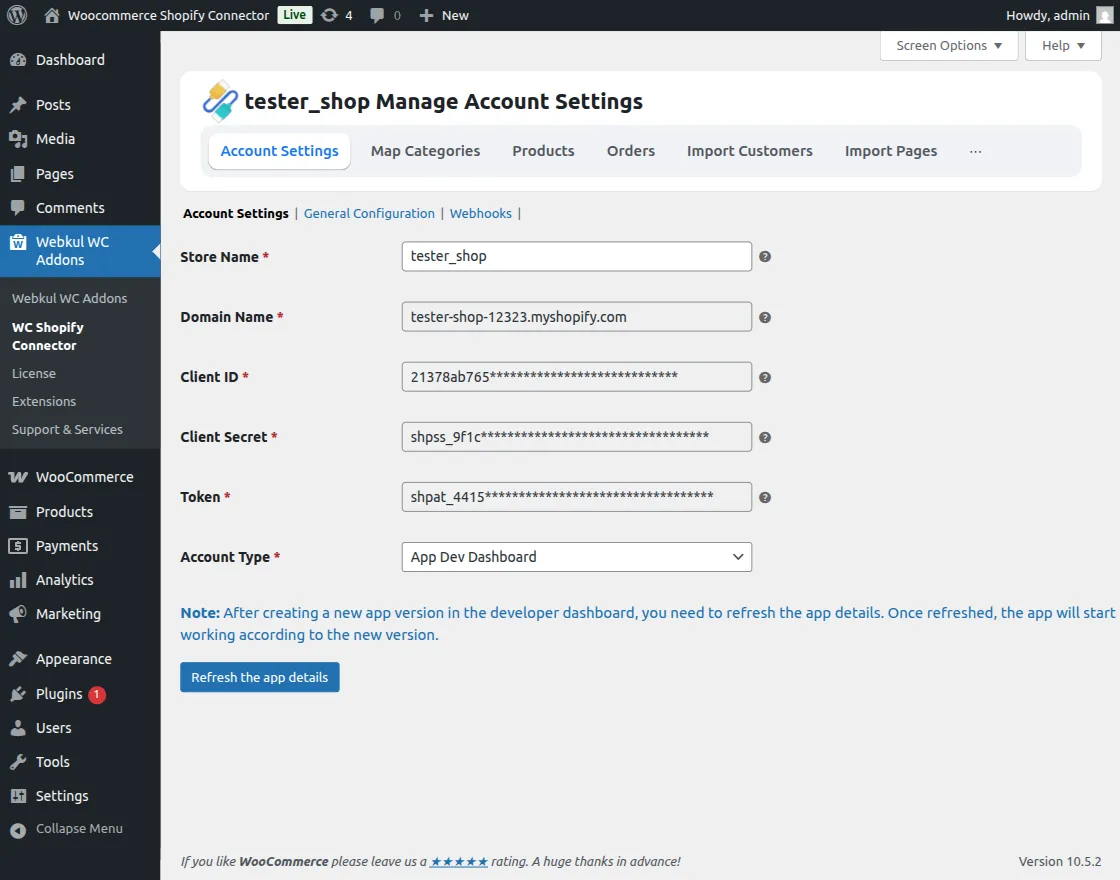
Note: After creating a new app version in the developer dashboard, you need to refresh the app details. Once refreshed, the app will start working according to the new version.
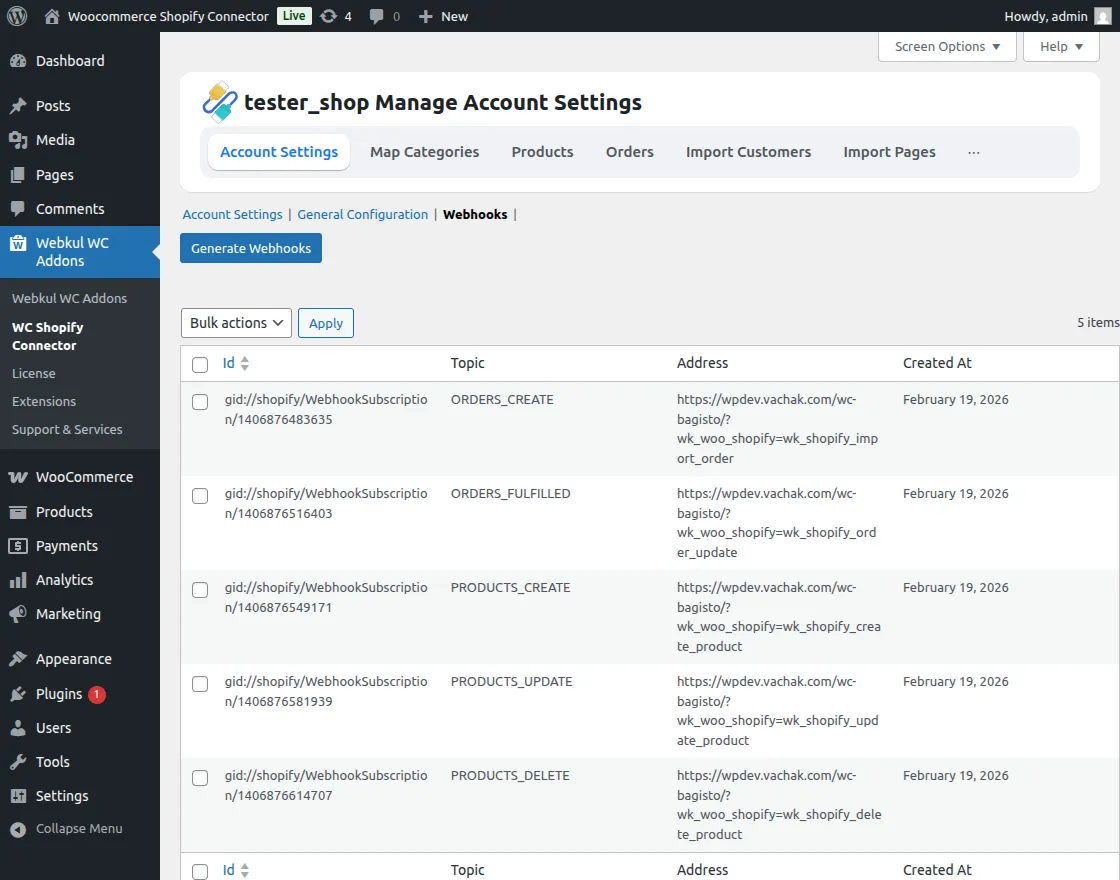
Webhooks:
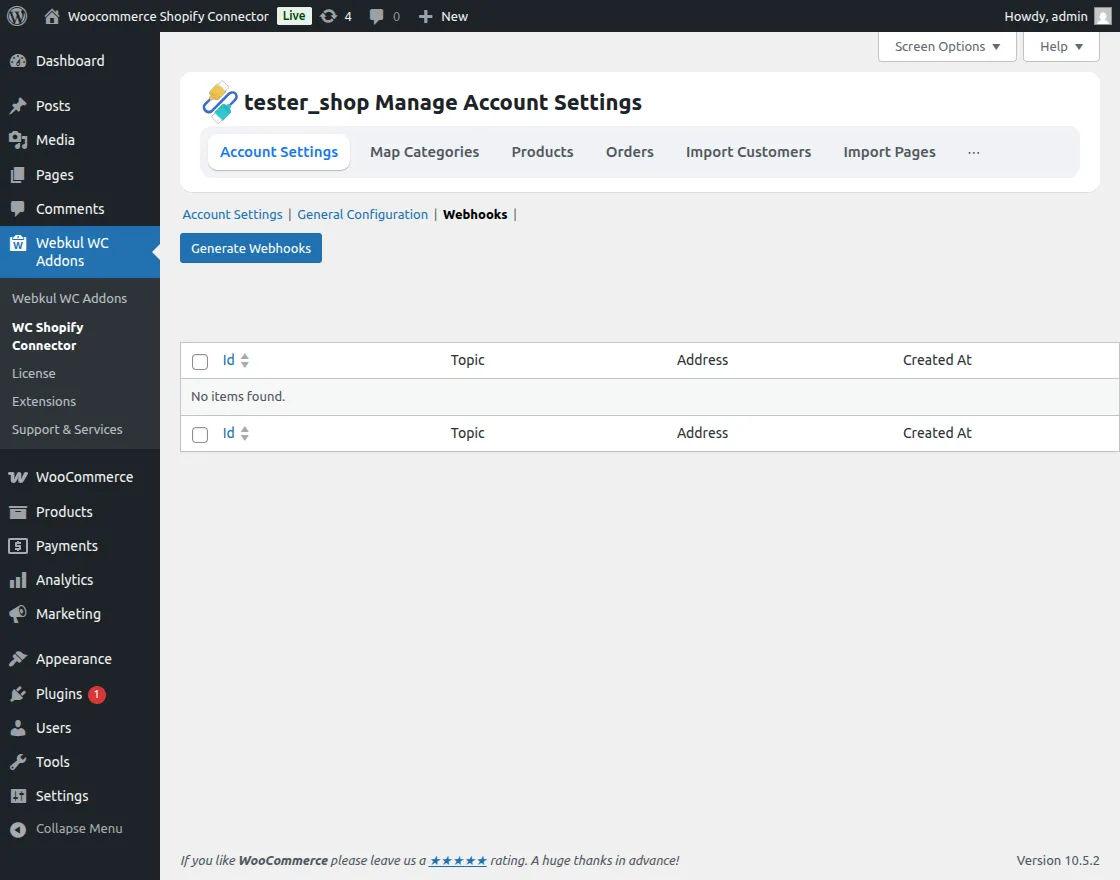
Now, To generate webhooks click on the Generate Webhooks button. then the webhooks are generated automatically.
General Configuration:
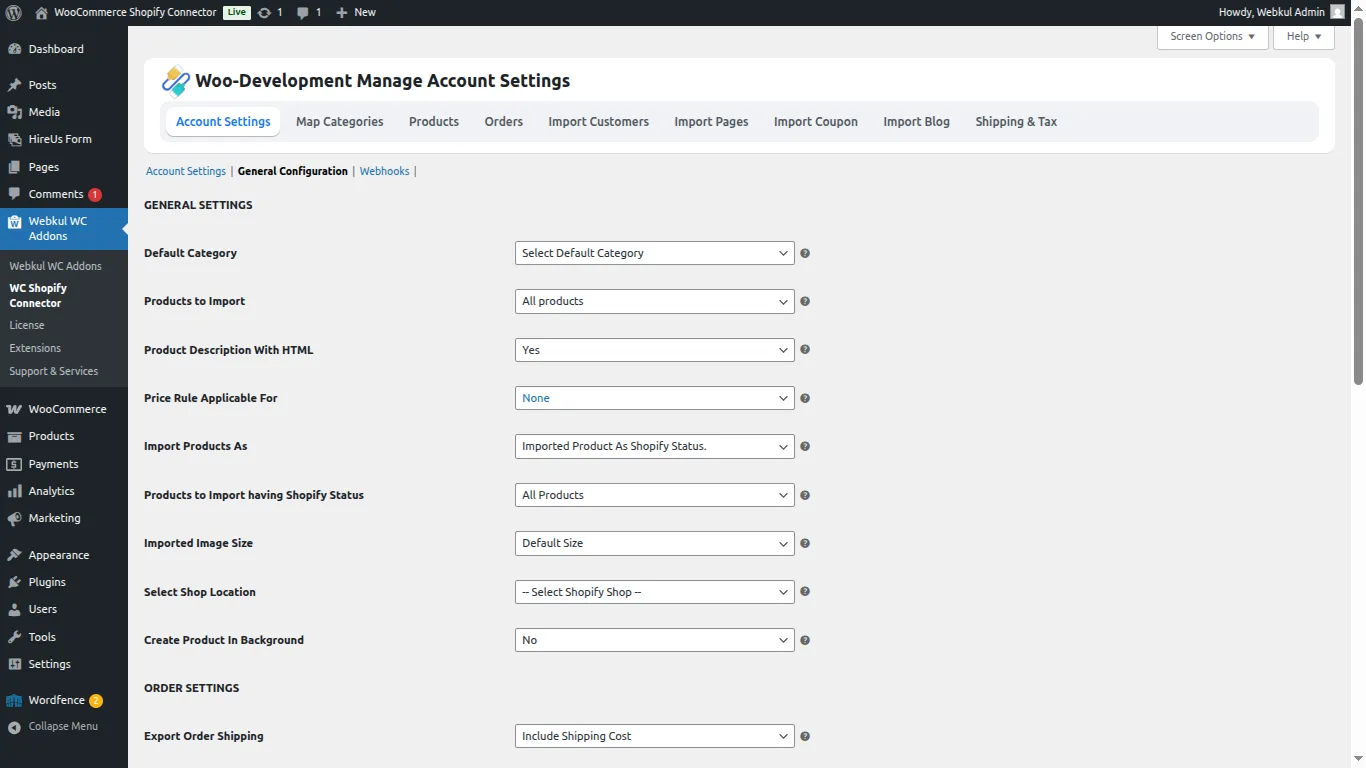
From the General Settings, the admin can control how products and orders are imported, exported, and synchronized between WooCommerce and Shopify.
- Default Category: Select a default WooCommerce category where imported Shopify products will be added.
- Products to Import: Choose whether to import all Shopify products or only products from mapped categories.
- Product Description With HTML: Enable this option to import product descriptions along with HTML formatting.
- Price Rule Applicable For: Define whether price rules should apply to imported products or exported products.
- Import Products: Set the status for imported products based on their Shopify status.
- Products to Import Having Shopify Status: Select which Shopify product statuses (All, Active, Archived, Pending) should be imported.
- Imported Image Size: Choose the image size for product images imported from Shopify.
- Select Shop Location: Configure the Shopify store location used for inventory and order exports.
- Create Product in Background: When enabled, products and images are created in the background, allowing the admin to continue working without waiting for the process to complete.
Thus, after the General Settings, the admin can configure the EXPORT ORDER SETTINGS.
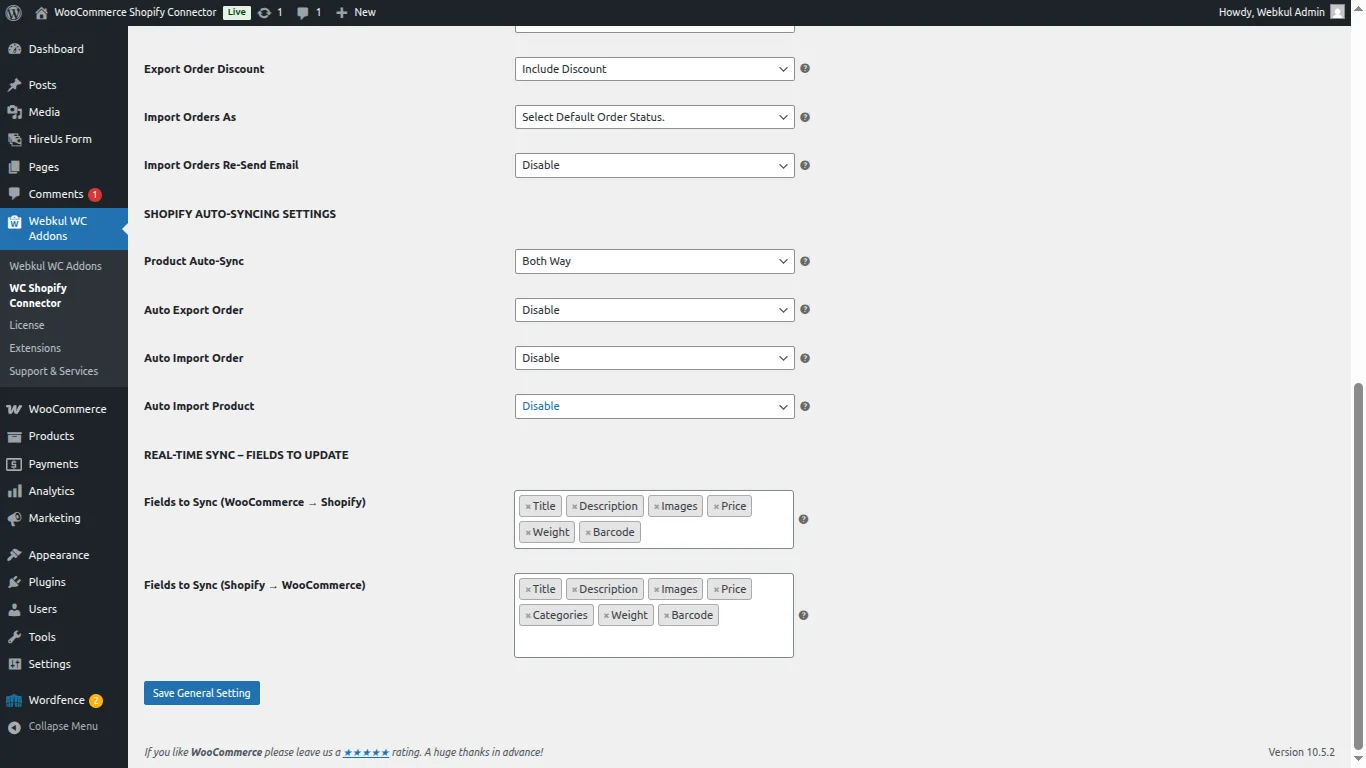
These settings control how orders are imported and exported between WooCommerce and Shopify.
- Export Order Shipping: Choose whether to include or exclude shipping costs when exporting orders.
- Export Order Tax: Select whether tax should be included or excluded during order export.
- Export Order Discount: Decide whether order discounts should be included during export.
- Import Orders As: Set the default WooCommerce order status for imported Shopify orders.
- Import Orders Re-Send Email: Enable or disable WooCommerce order emails when a Shopify order is created or updated.
Shopify Auto-Syncing Settings.
- Product Auto-Sync: By using this the admin can choose to disable Auto-Sync and can choose Woocommerce from Shopify or Shopify from Woocommerce for the products and both ways.By this admin can sync products(price, SKU, quantity, and other details) from Woocommerce to Shopify and Shopify to Woocommerce.
- Auto Export Orders: Select the Order Status (Disable, Pending Payment, Processing, On Hold, and Completed) to automatically export an order in real-time when a new order comes on WooCommerce.
- Auto Import Order: The admin can enable auto import of orders by selecting enable else select disable to disable the auto import of products.
- Auto Import Products: The admin can enable the auto import of products by selecting the enable option else select the disable option to disable the auto import of products.
Real-Time Sync – Fields to Update
Admins can now control which product fields are synchronized in real time between WooCommerce and Shopify.
This setting allows selective syncing of fields like price, images, categories, description, weight, barcode, SKU, and stock based on business needs. Only the selected fields will update according to the chosen Product Auto-Sync direction and webhook configuration.
Fields to Sync (WooCommerce → Shopify)
Configure which product fields will be synchronized in real time from WooCommerce to Shopify.
Only the selected fields will be updated on Shopify when changes are made to the product in WooCommerce.
Fields to Sync (Shopify → WooCommerce)
Configure which product fields will be synchronized in real time from Shopify to WooCommerce.
Only the selected fields will be updated in WooCommerce when changes are made to the product in Shopify.
To manage the product sync like product update, product delete, import order, and import product the admin will have to configure the webhooks on their Shopify account.
Map Categories –
The admin can click on the import Shopify Collections button to list the collections from the Shopify store.
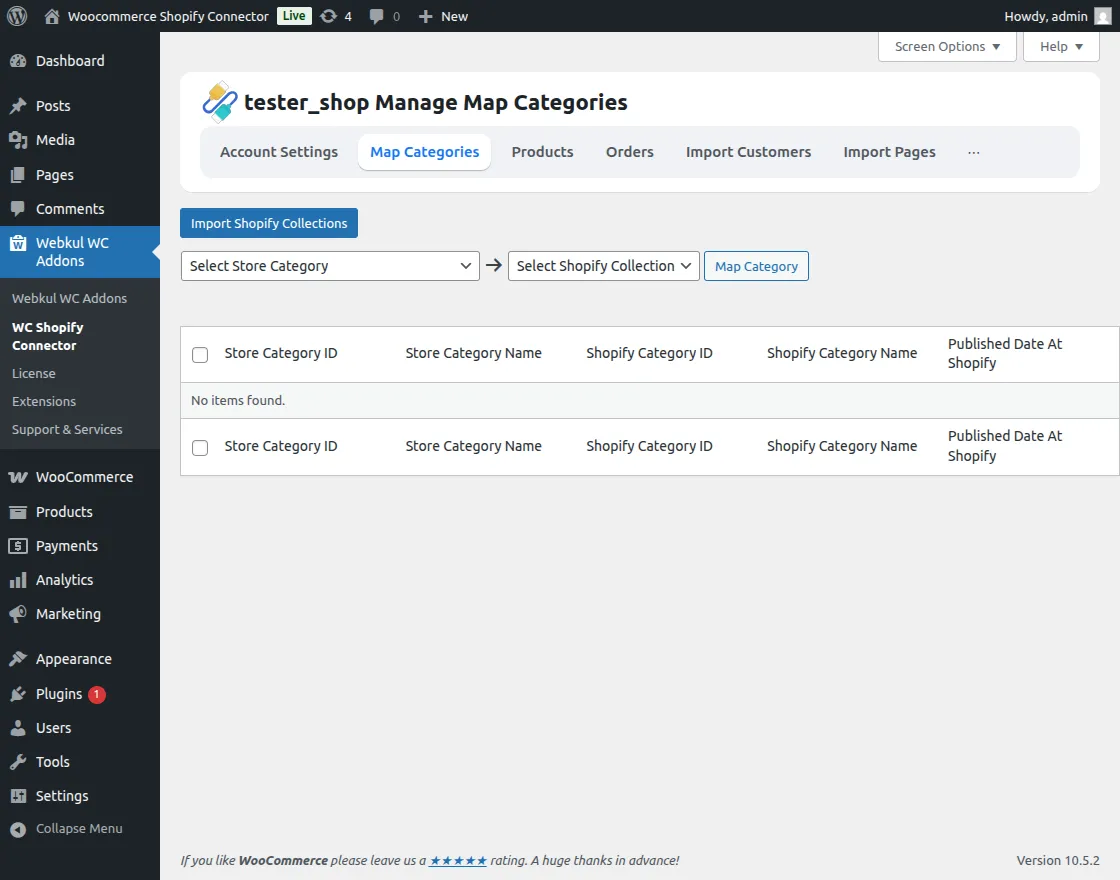
The admin can see the process on the screen while listing the collections as shown in the image below-
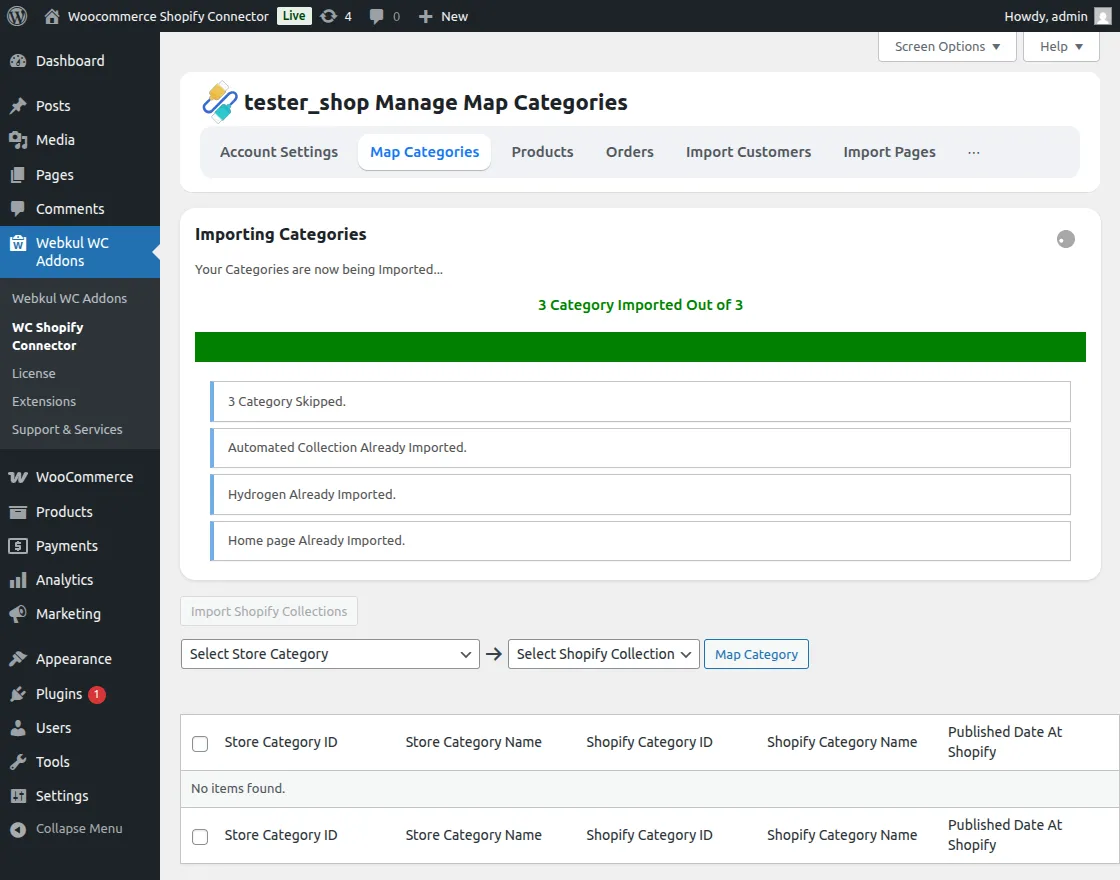
After listing the Shopify Collection in the dropdown, the admin can select the WooCommerce store category, select the Shopify category, and then click on the Map Category button.
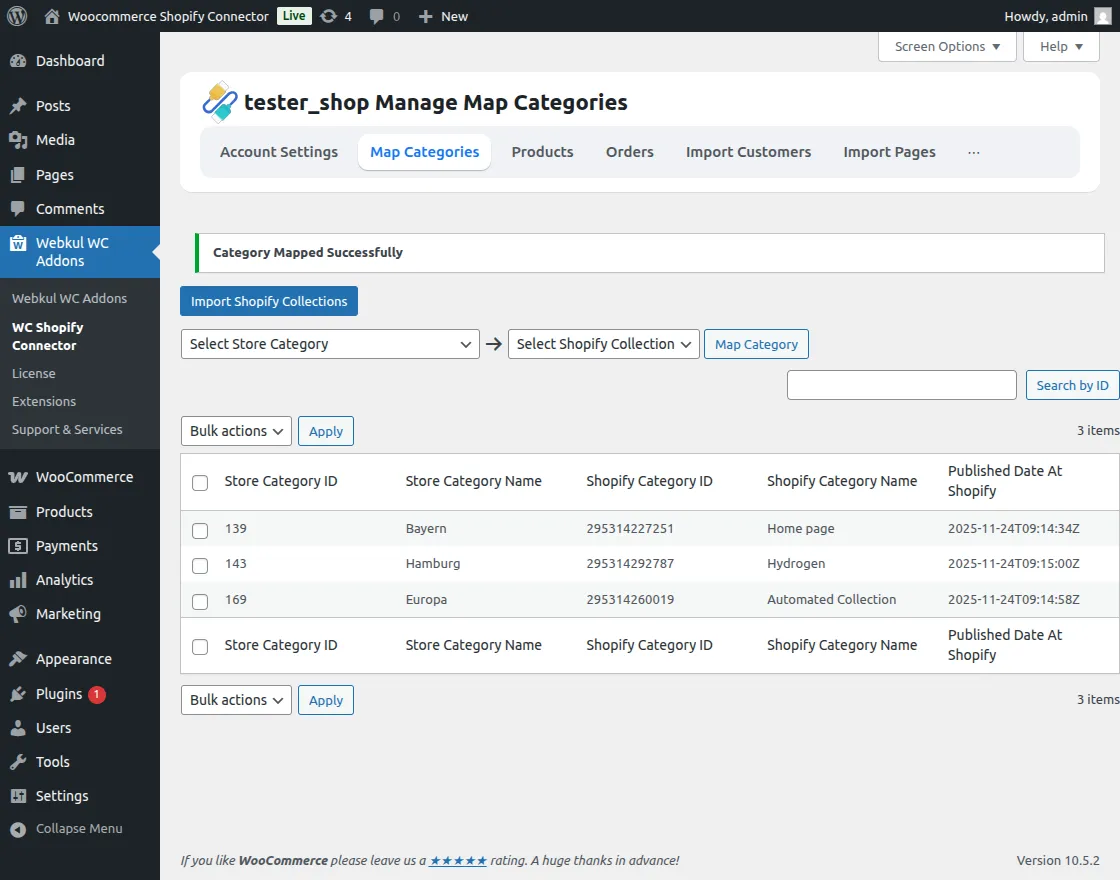
The select category gets map with the Shopify category.
The admin can view the Store Category, Store Category Name, Shopify Category ID, Shopify Category Name, Published Date at Shopify.
The admin can also delete and search for the collections from here.
Products
Import Products –
The admin can click on the import products and then create the products of those imported products from Shopify to the WooCommerce store.
The process bar can be seen from the screen while importing the products from Shopify, as shown in the image below-
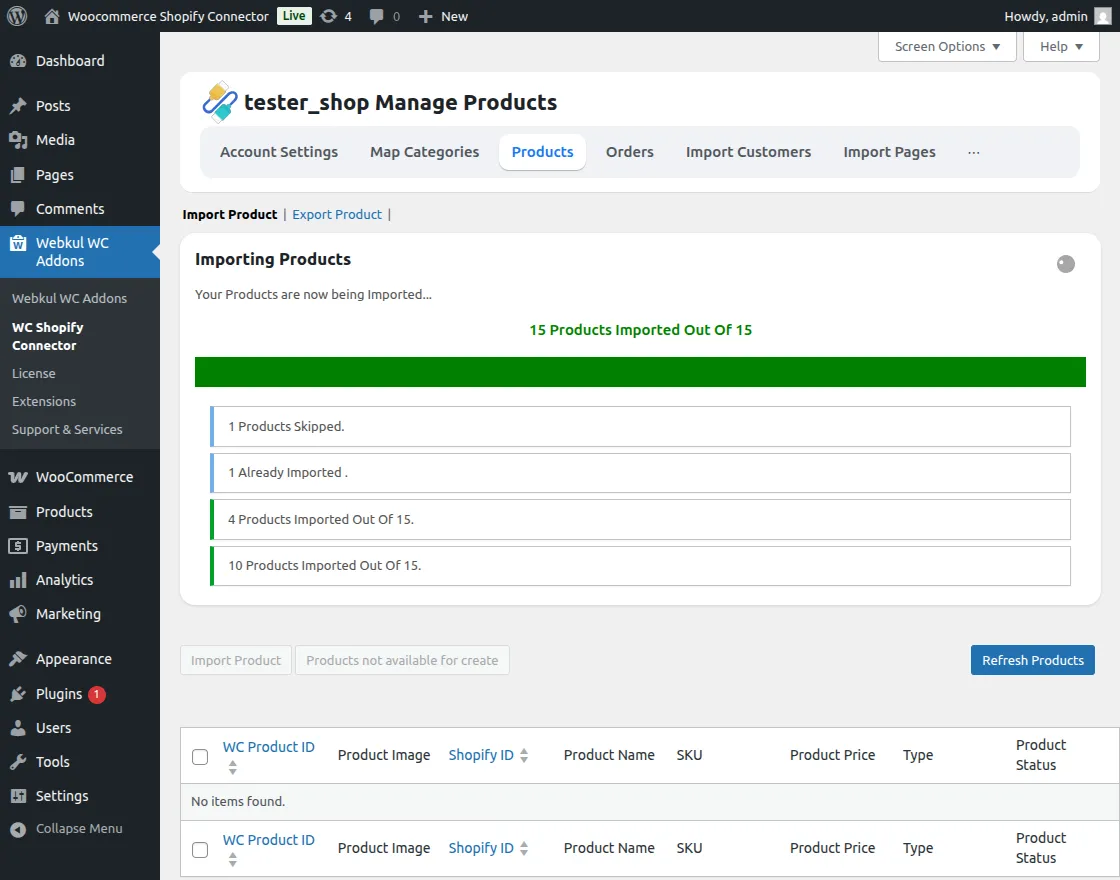
After importing Shopify products, click on Create imported products to create the products on the WooCommerce Store.
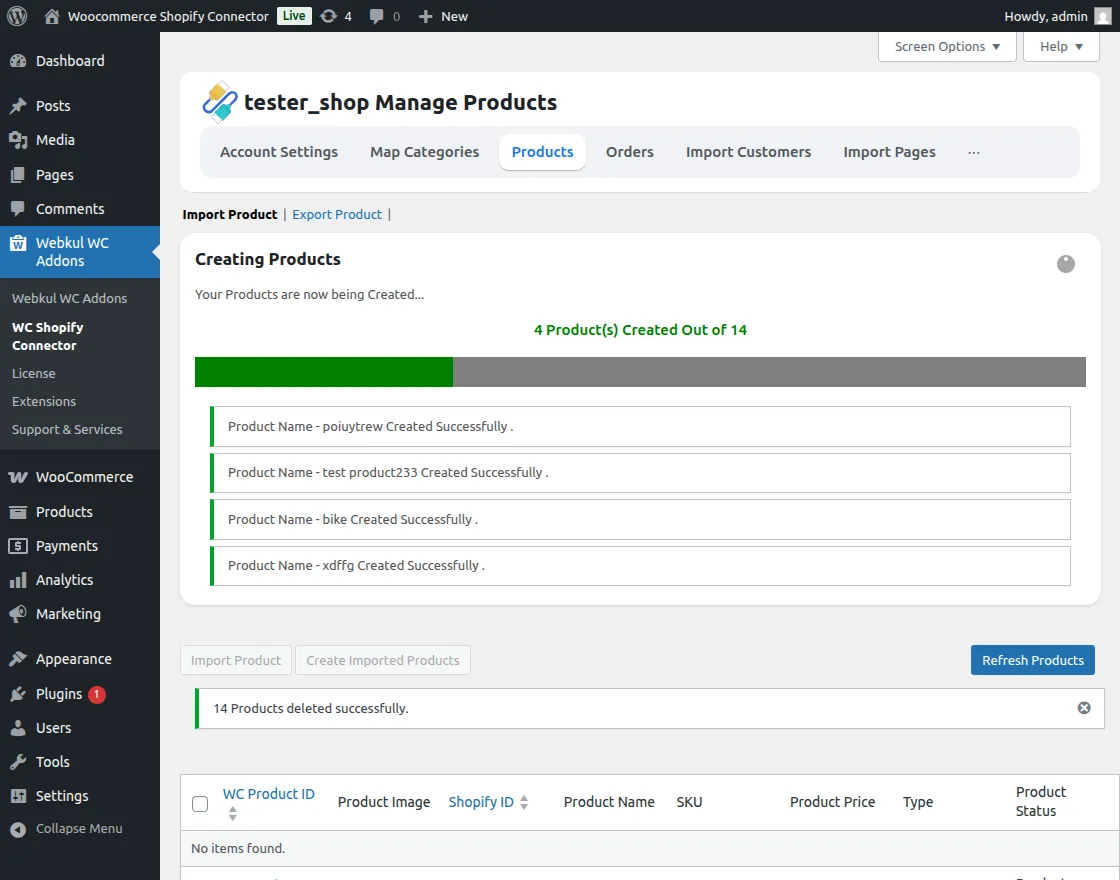
This is how it will appear once the after all the product created successfully.
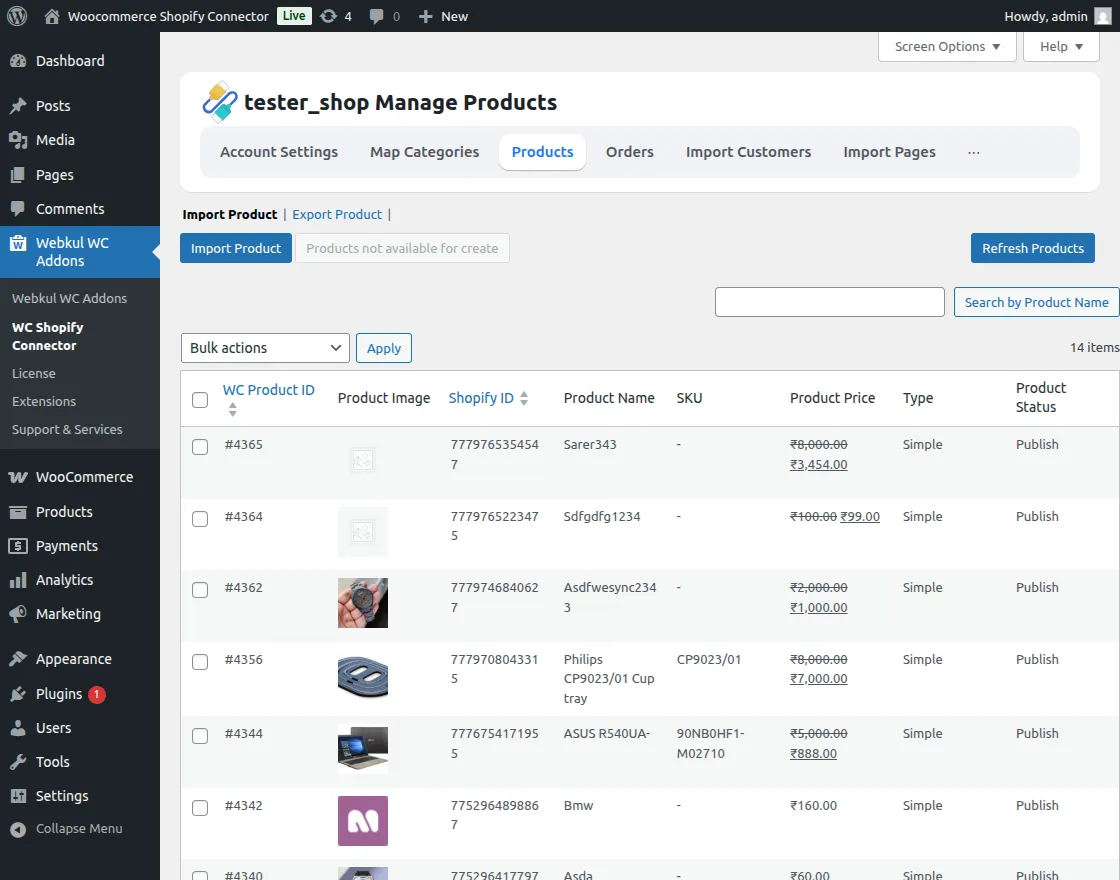
The admin can easily update the product with just a click on the update option available for each product.
Refresh Product:
The admin can click on the Refresh Product button to update products in the background directly from Shopify. This allows syncing the latest product data without re-importing, as shown in the reference image.
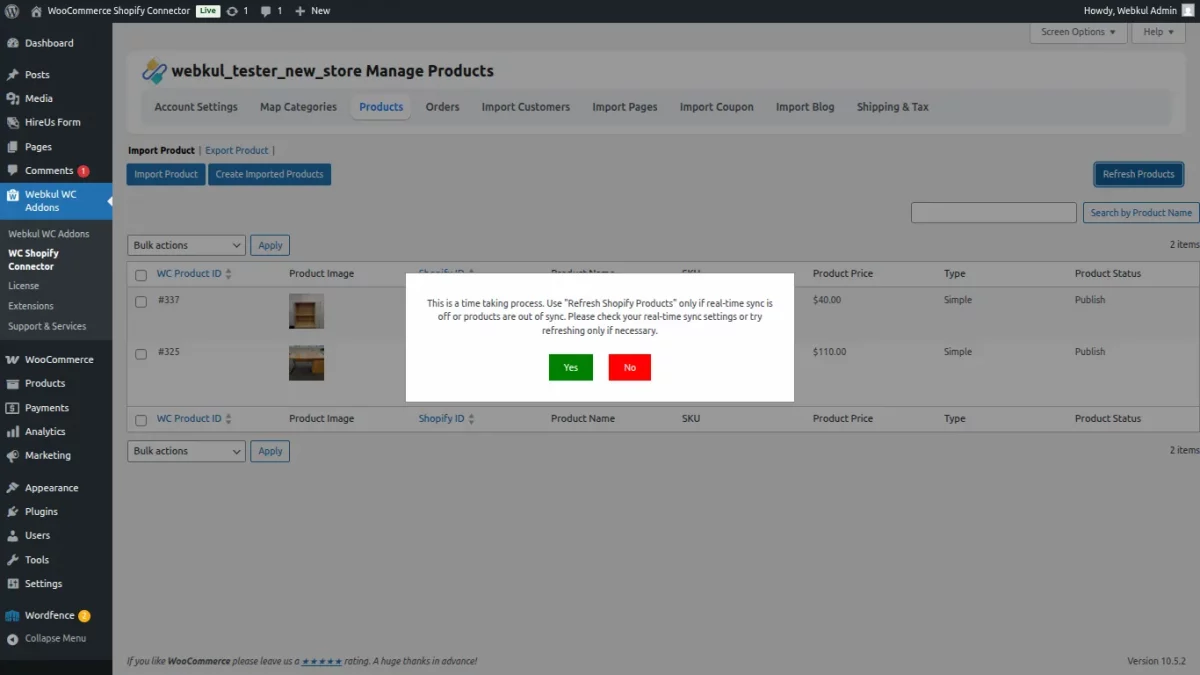
After clicking Yes button, a live product count is displayed, showing the number of products refreshed in real time, as shown in the reference image.
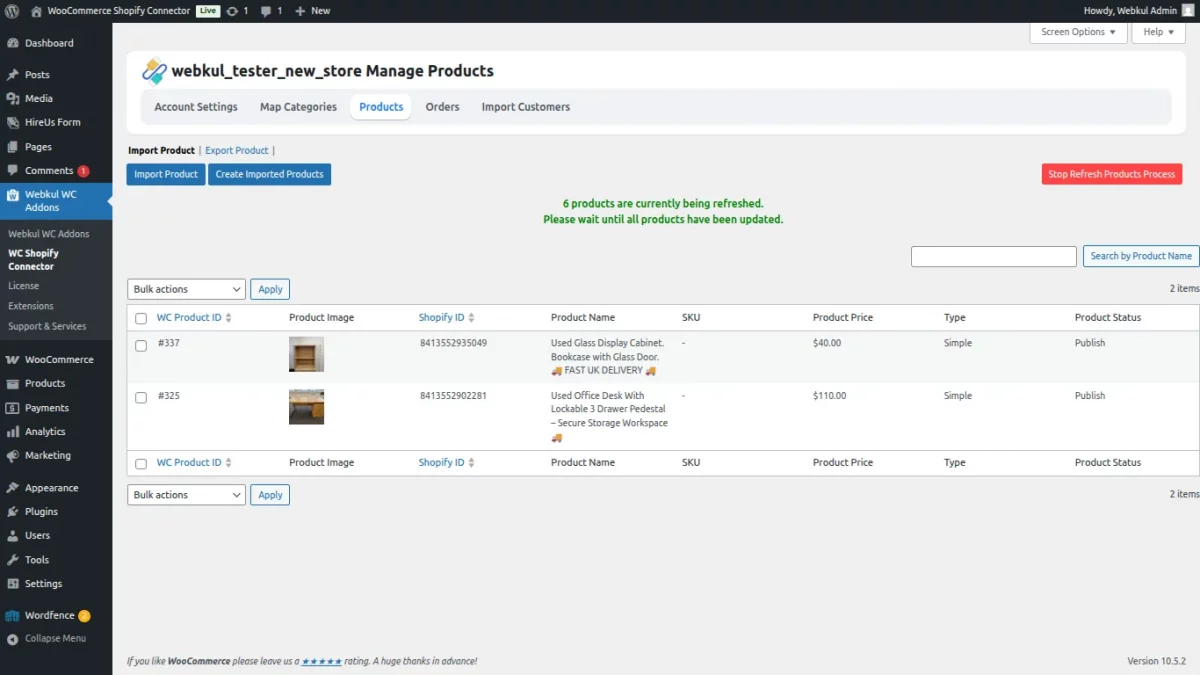
The admin can also update individual products with a single click using the Update option.
The admin can view all their Shopify products from the Shopify store.

Export Products –
The admin can easily export the WooCommerce products to the Shopify store.
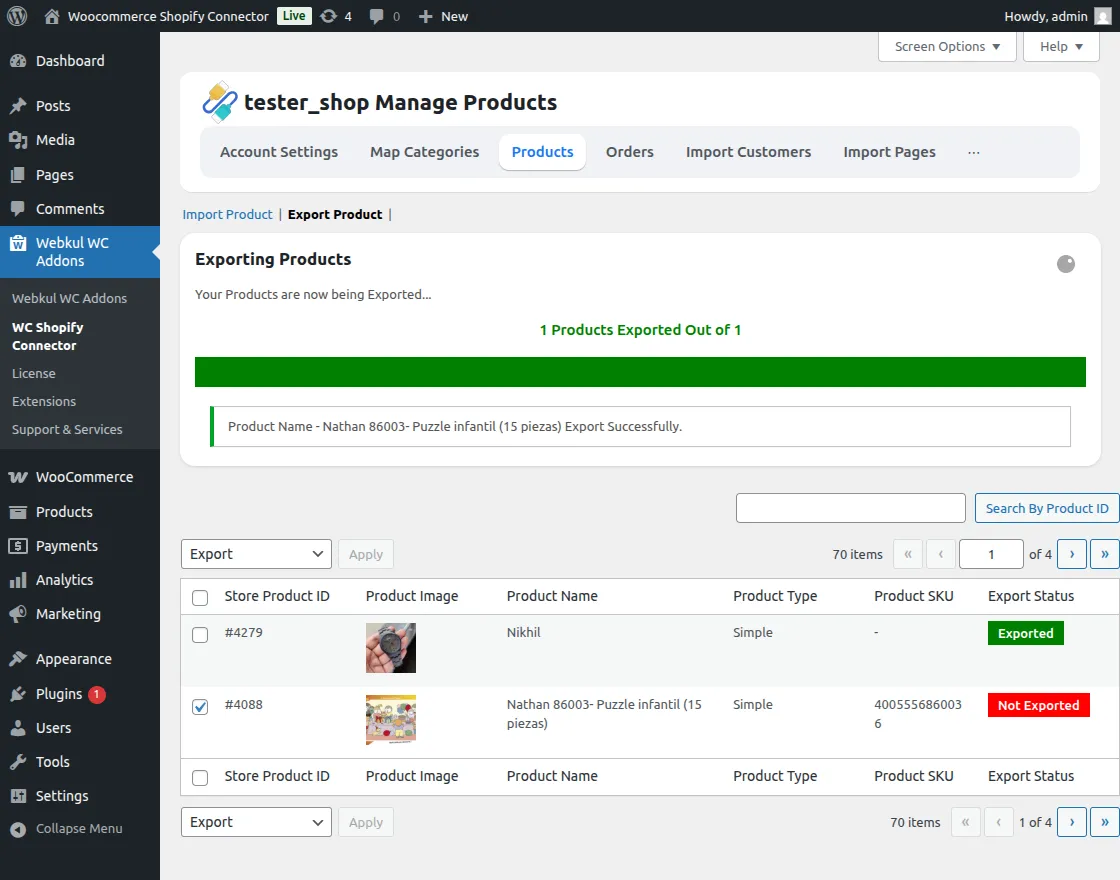
Also, the admin can export the products in bulk.
Note: The Export/Import feature will work for every product type except for group products.

Orders
Import Orders –
Here, the admin can import the orders from Shopify.

Shopify Orders:

Then create the same Shopify imported orders from the WooCommerce store.
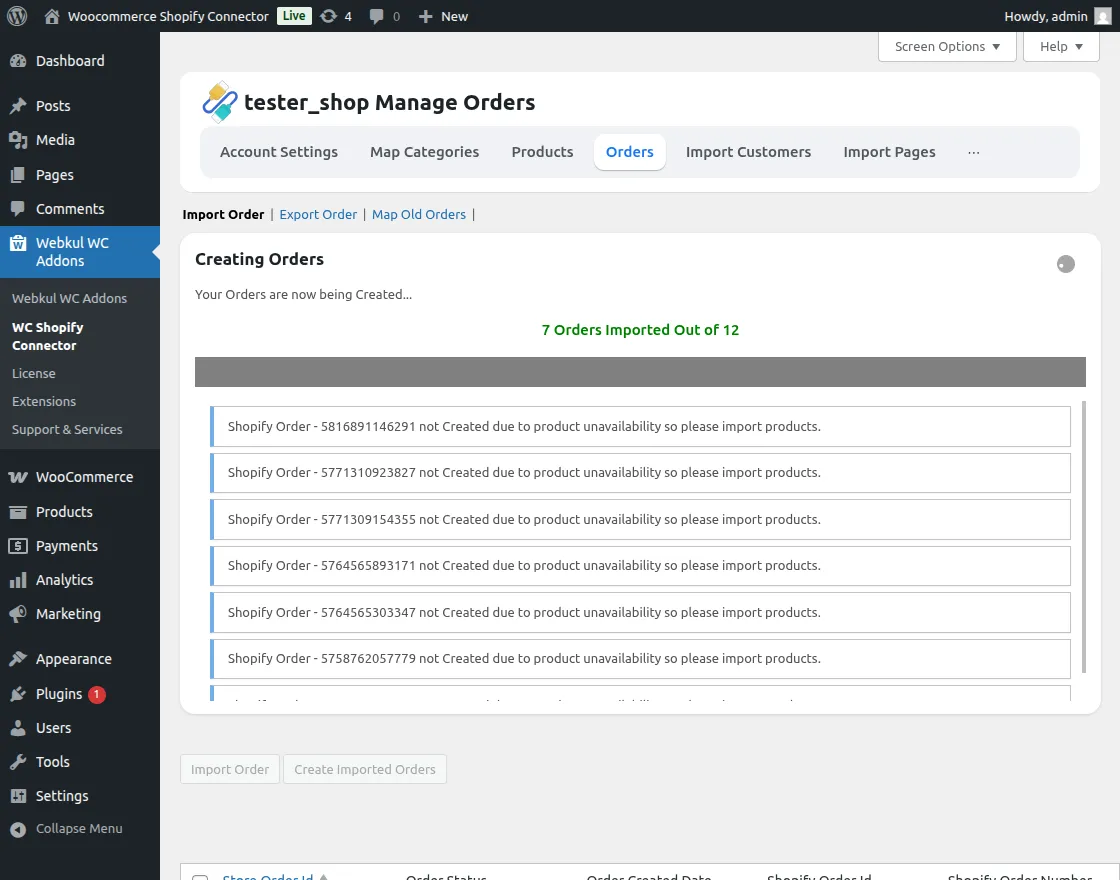
here, the admin can also view the store ID, order status, the order created date, and Shopify order ID.
The admin can also delete the order by selecting a single or multiple order.
After placing an order on Shopify, the admin adds the tracking order and view the real-time tracking details of the order.
Such as tracking Company name, Tracking Number, and Tracking URL under WooCommerce > Orders.

Export Order
This module allows the admin to Export Orders to the Shopify store by clicking on the Export button of the particular order.
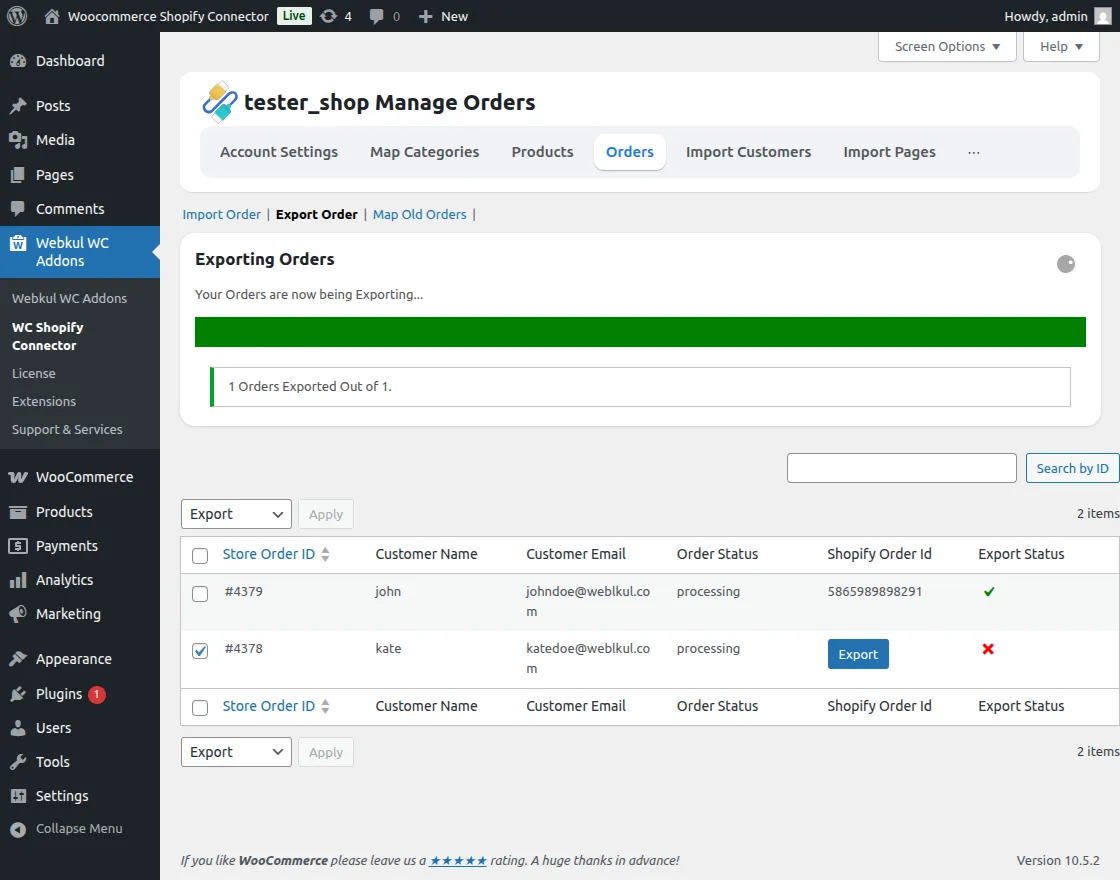
This export feature for the orders will work only for those orders whose products are import from the Shopify web store to the WooCommerce web store.
Import Customers
The admin can import the customers from Shopify to WooCommerce.
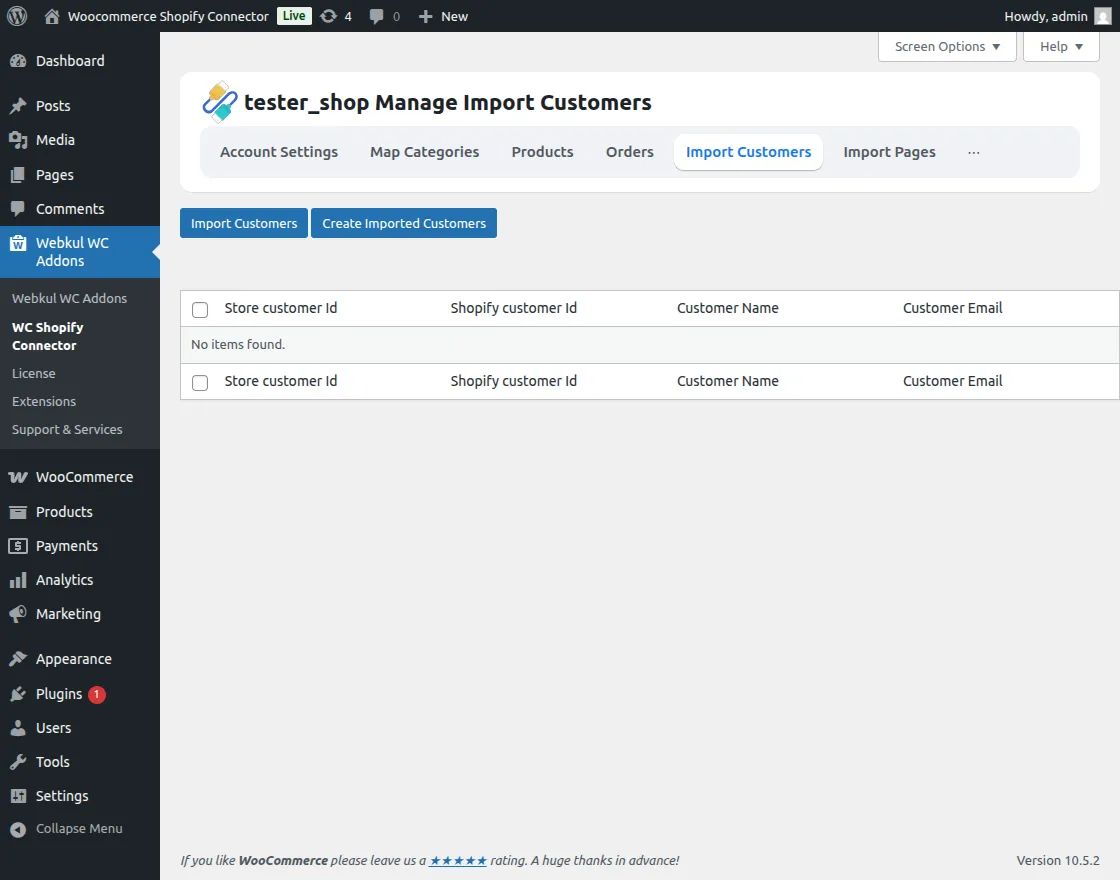
When the admin clicks on the import customer option a process bar will open and the customer will start importing from Shopify.
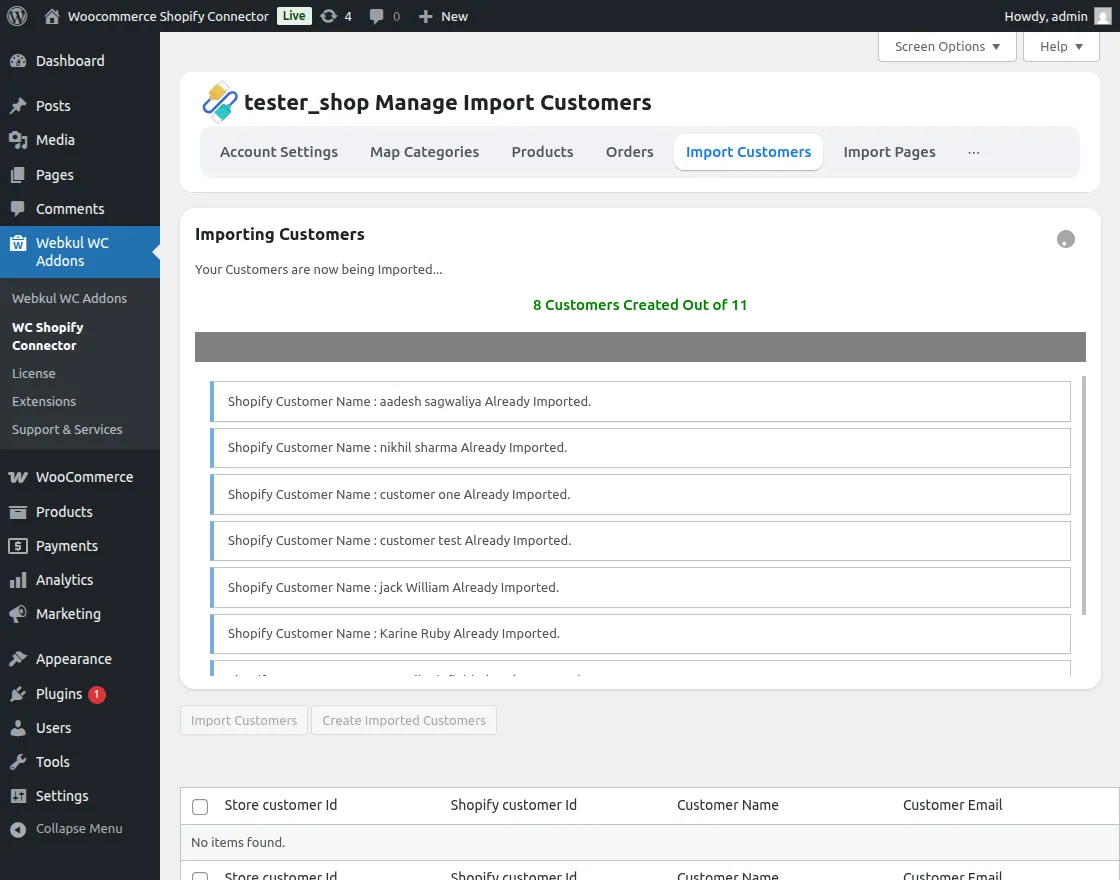
They can also create customers after importing them.
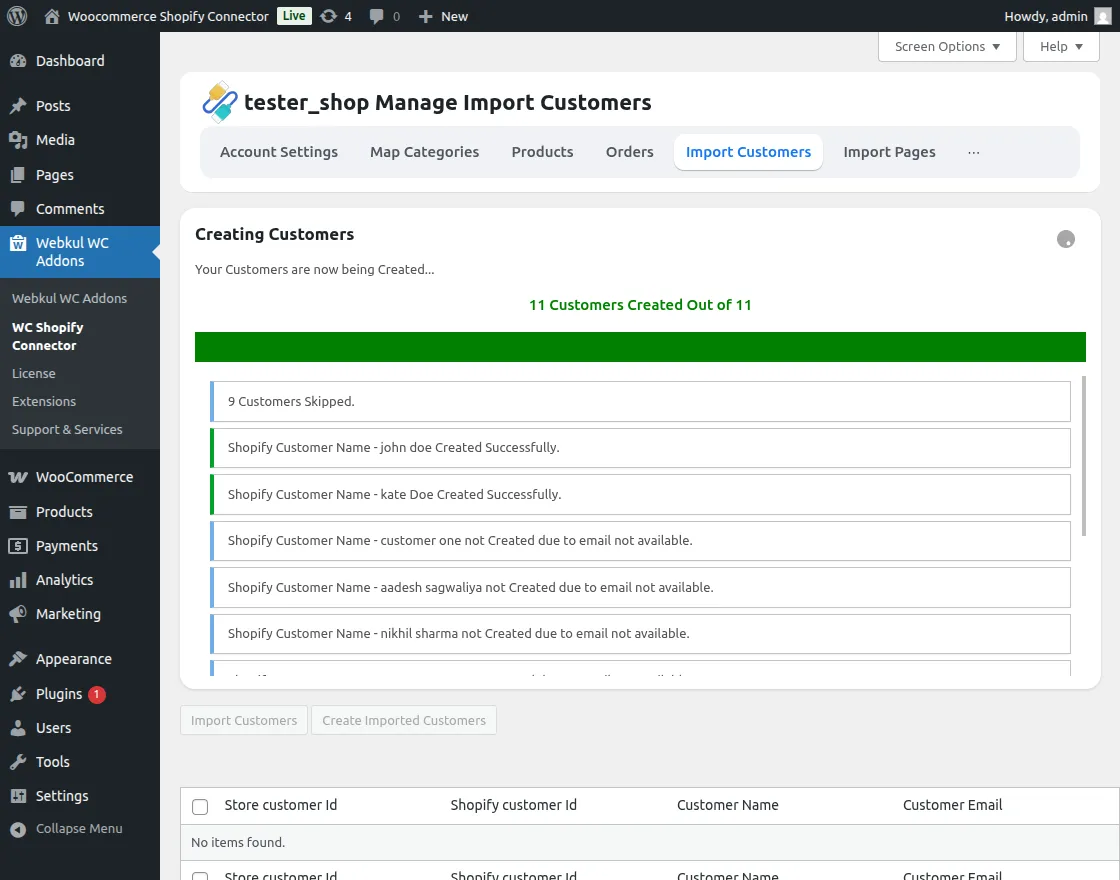
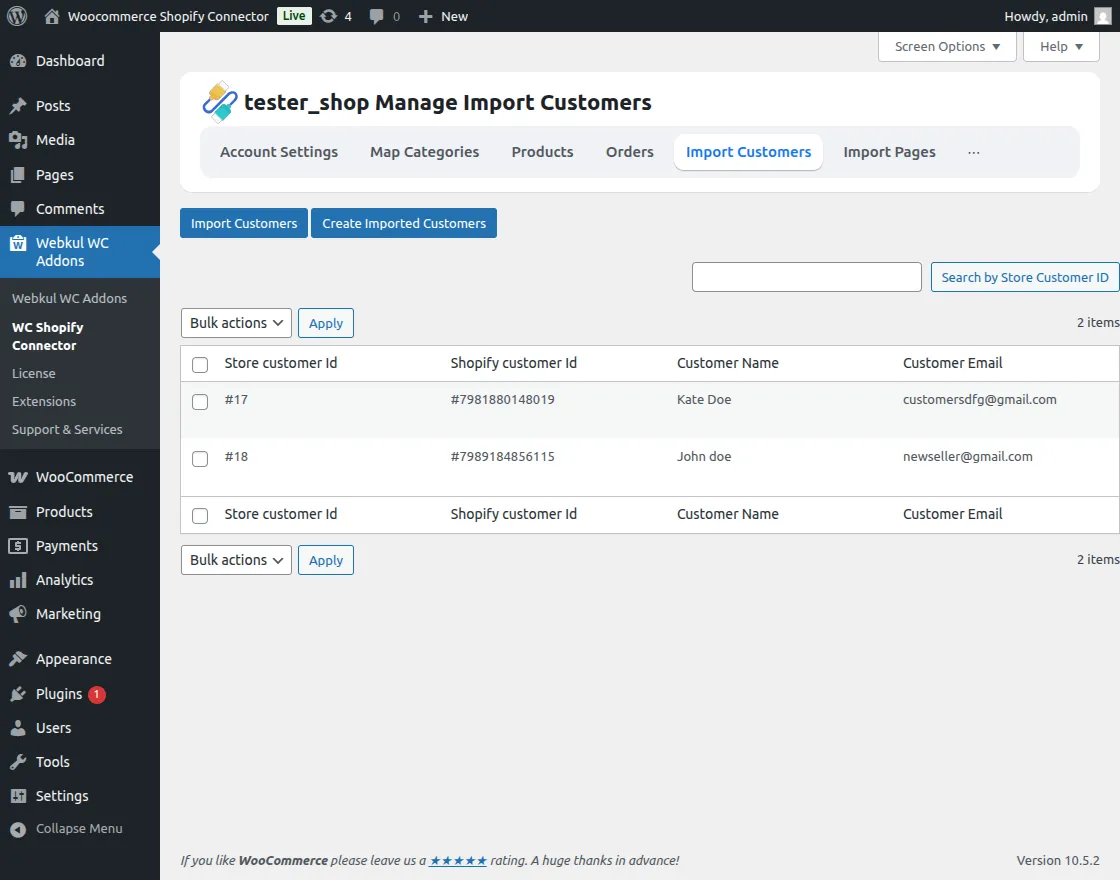
Now, They can see all the created customers.
Import Pages
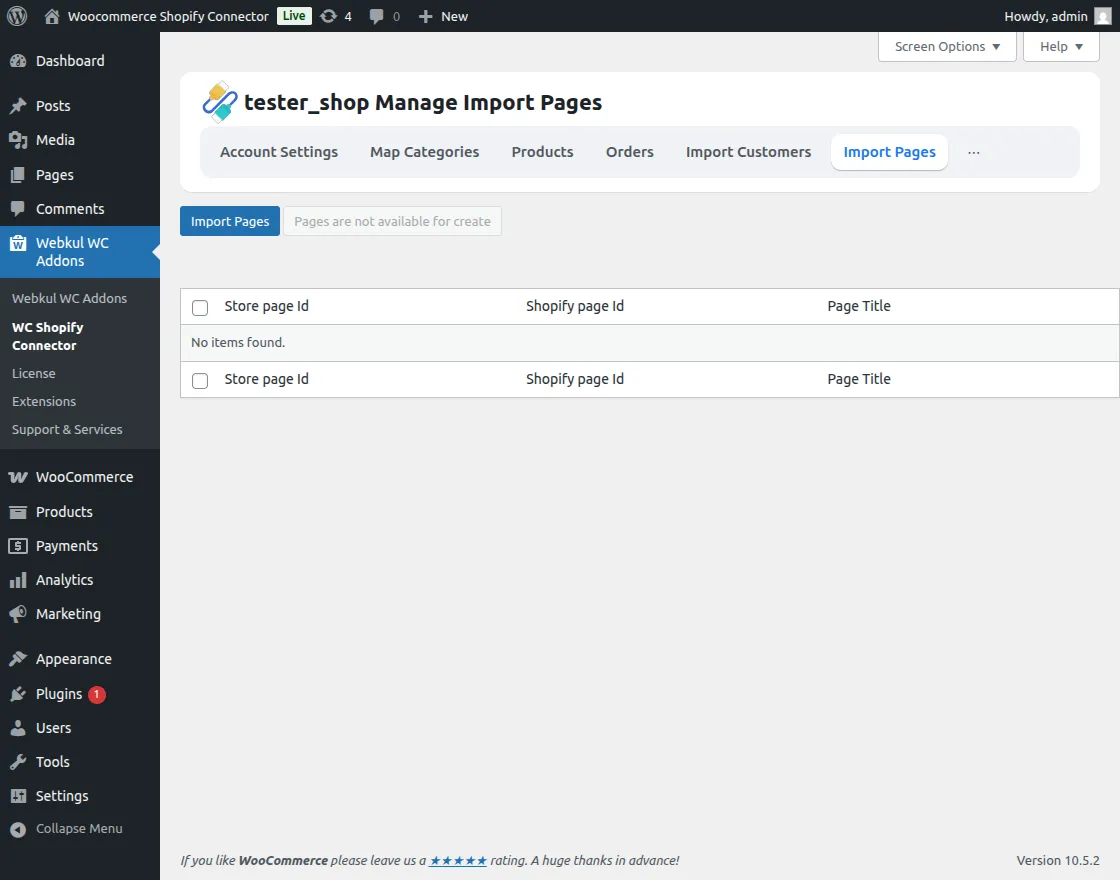
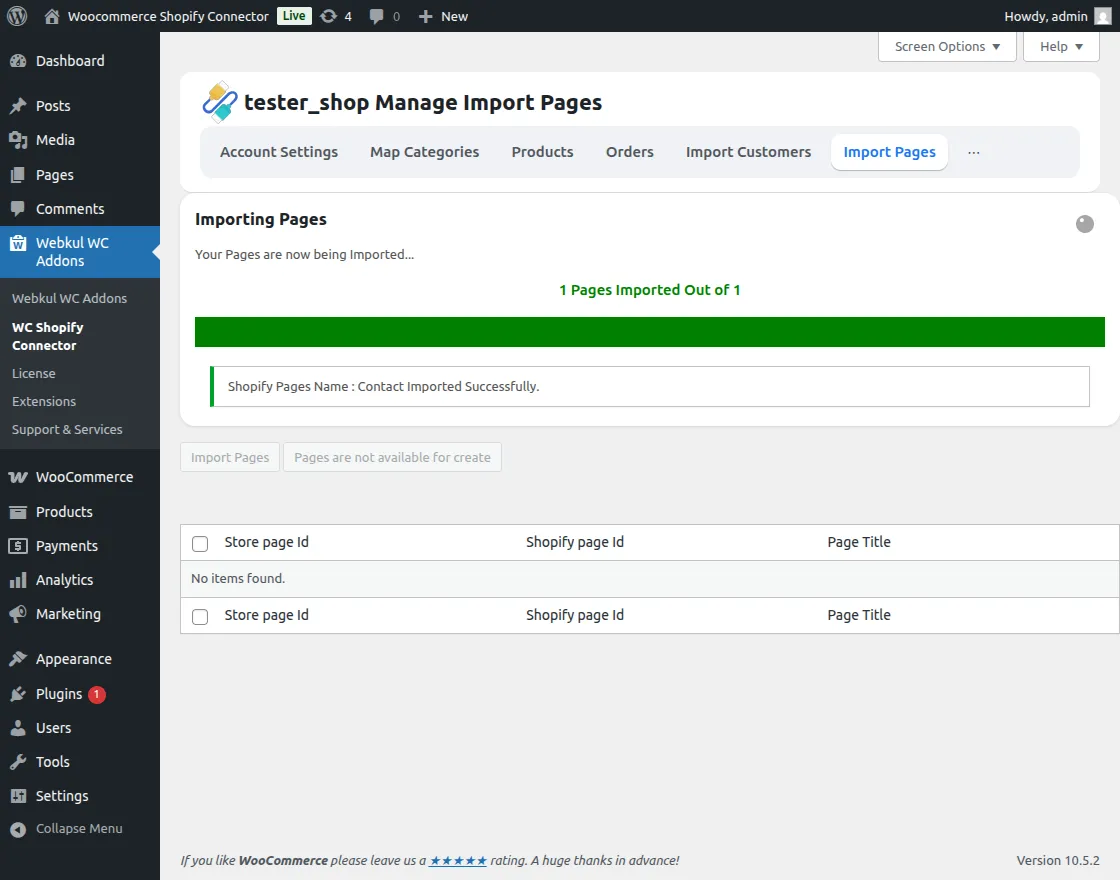
When click on the import page button the Shopify page will start importing.
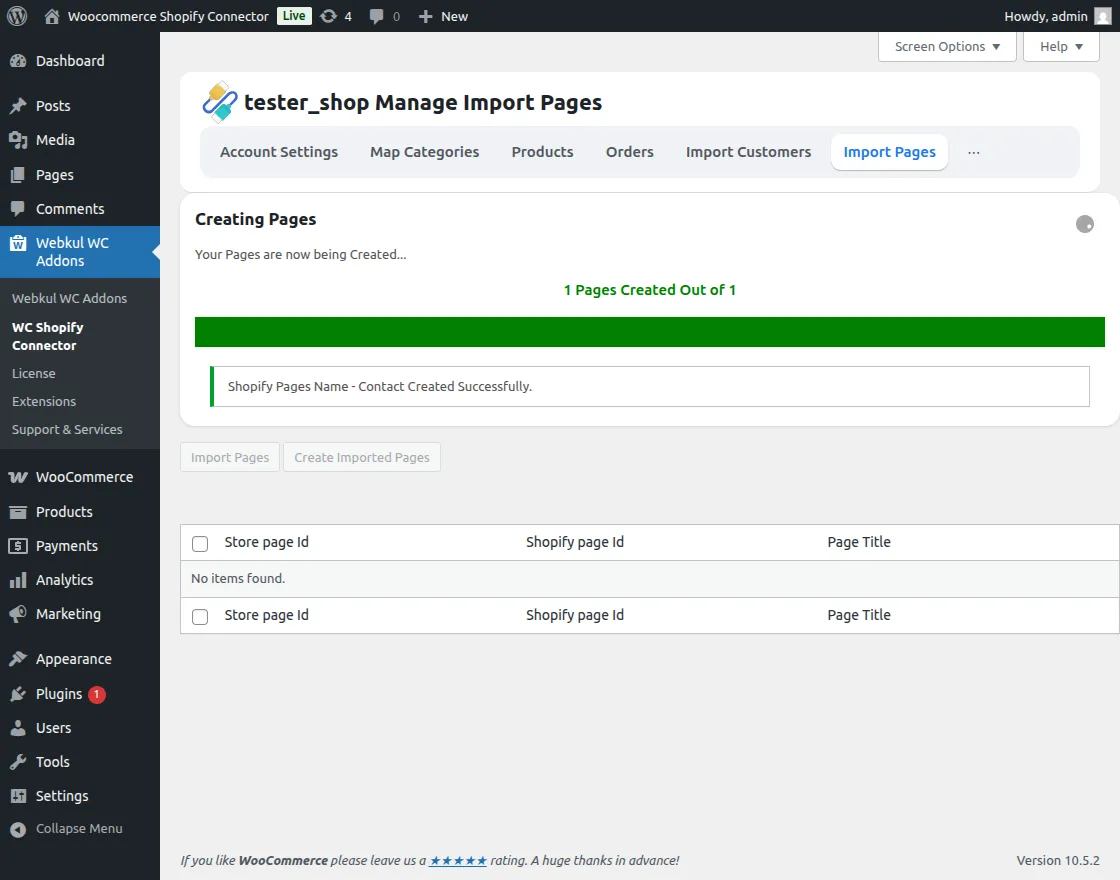
The admin can also create imported pages on the WooCommerce store.
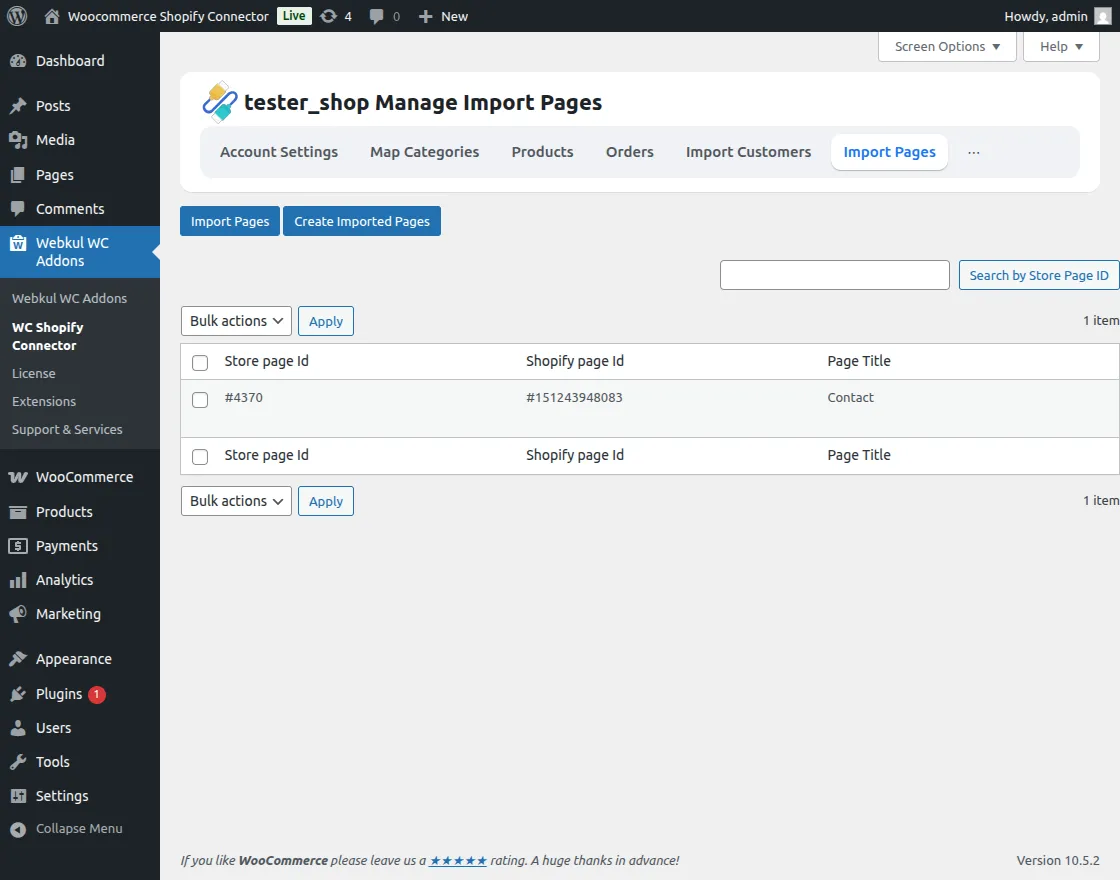
Now, Admin can view all the created Pages.
Import Coupons
The admin can also import coupons from Shopify.
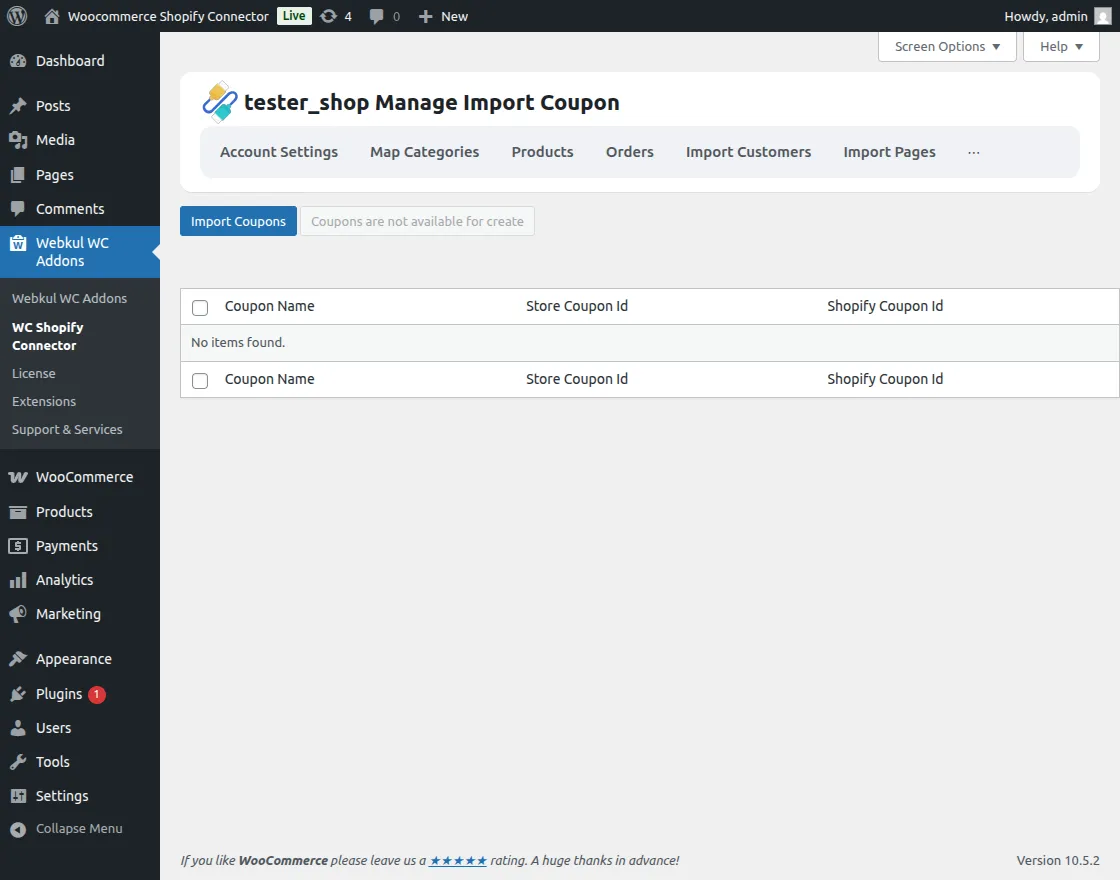
When they click on the import coupons option a process bar will show with importing coupons.
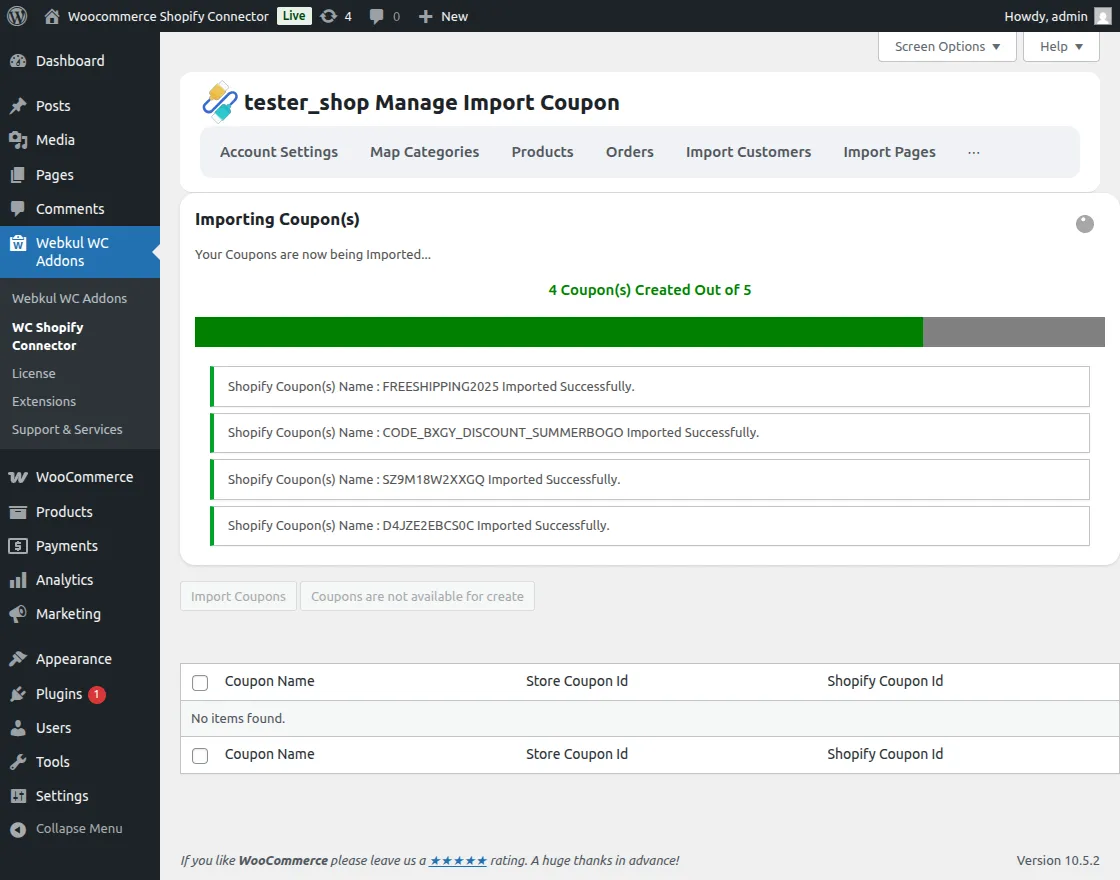
The admin can also create the coupons.
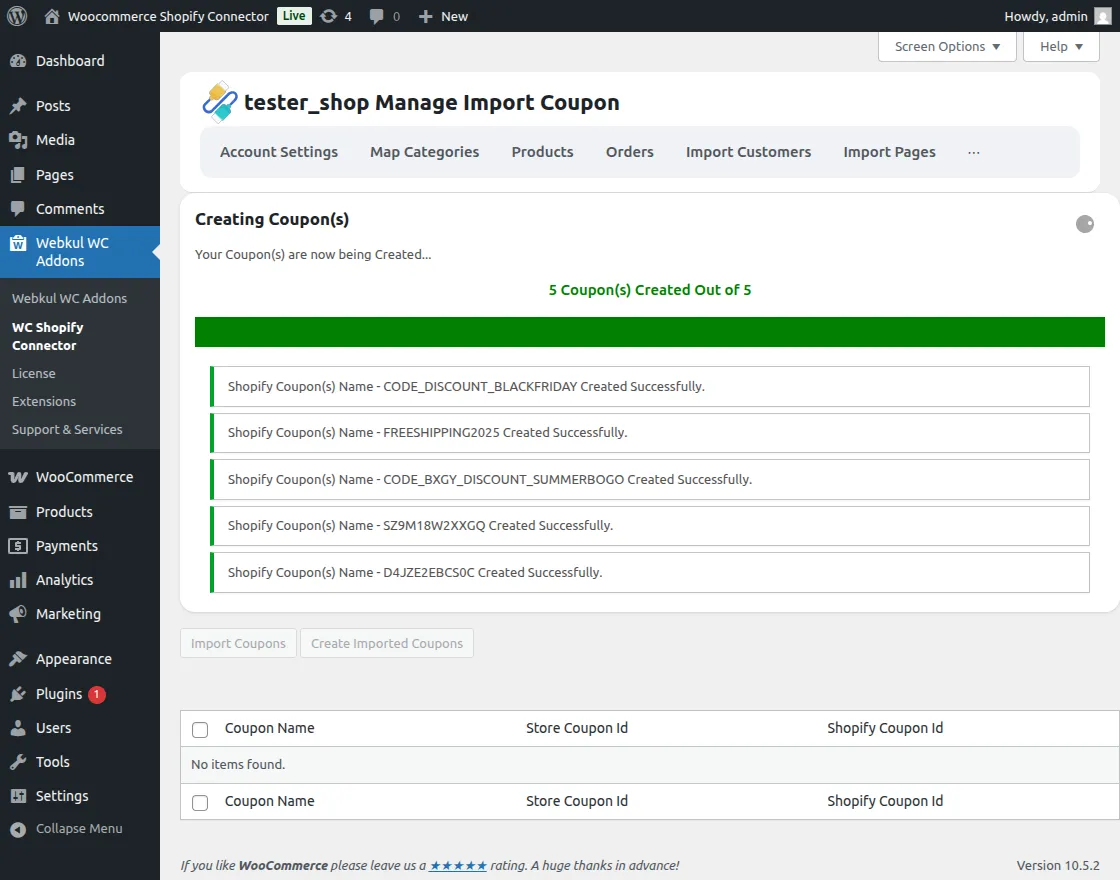
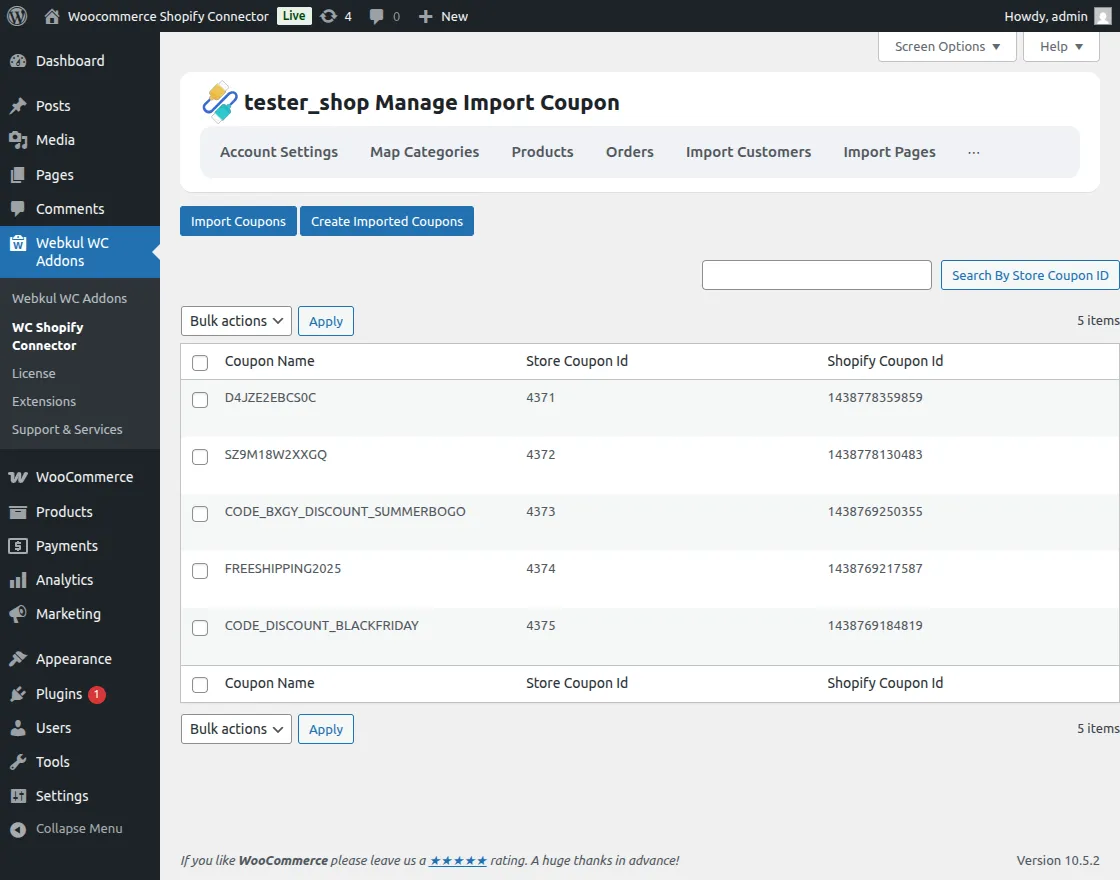
Now, Admin can view all the created coupons.
Import Blog
The admin can also import the blogs from Shopify to WooCommerce.
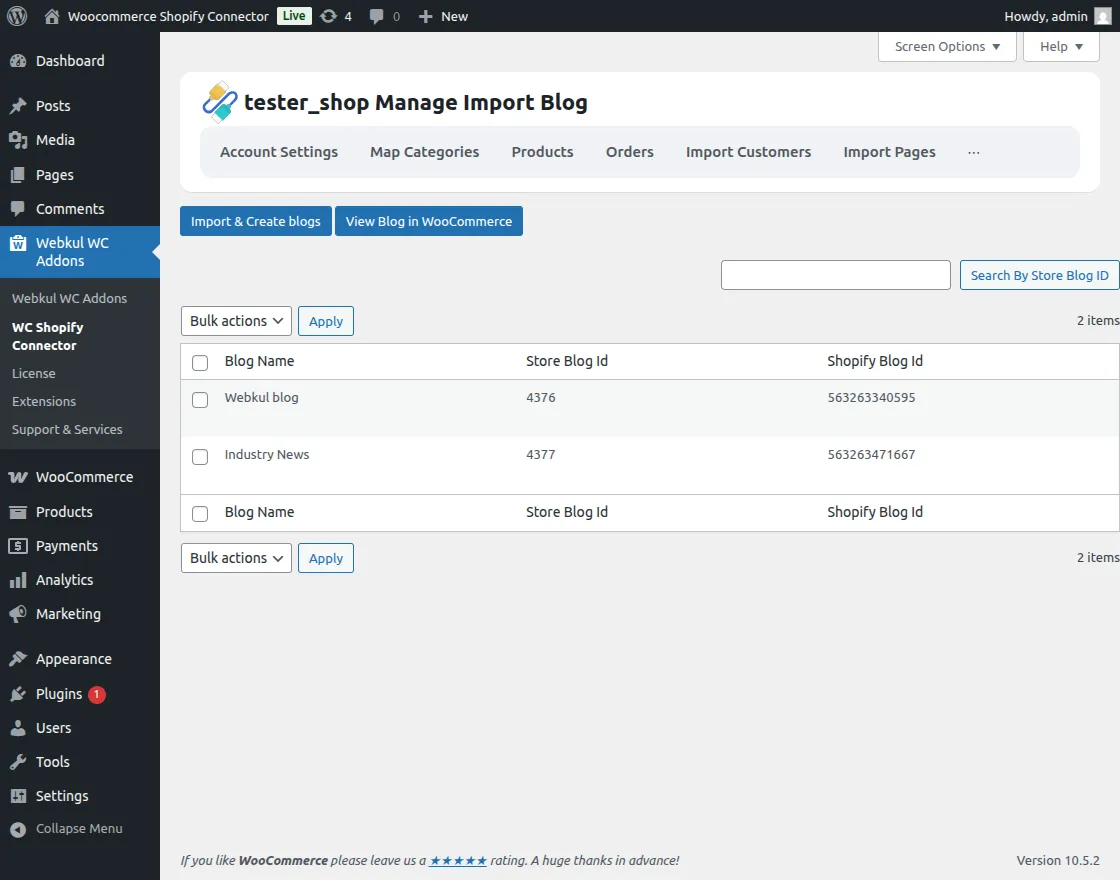
When click on the import & create blogs option the following window will open with created and imported blogs.
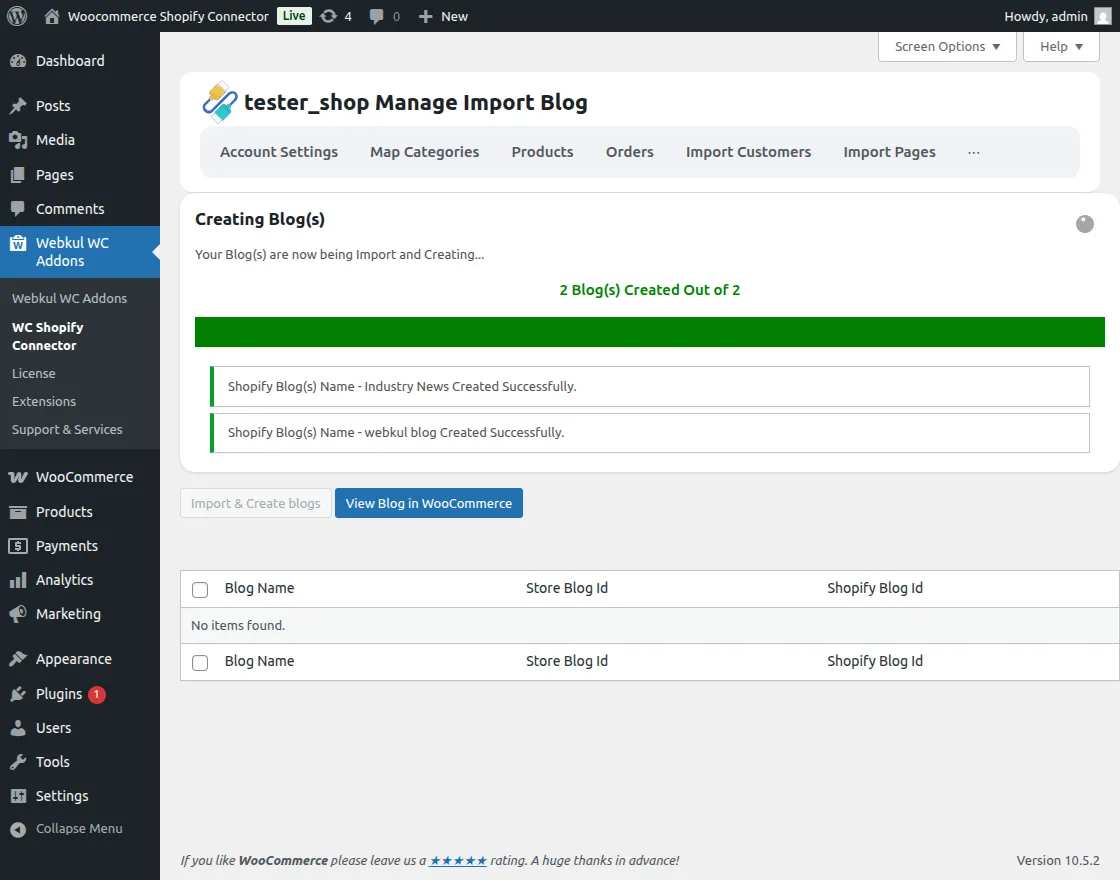
The admin can also view those blogs in their WooCommerce admin panel by clicking on the button.

Shipping & Tax
The admin can also manage shipping and tax in the WC Shopify connector.
Import Tax – The admin can import the tax by clicking on the import tax button.
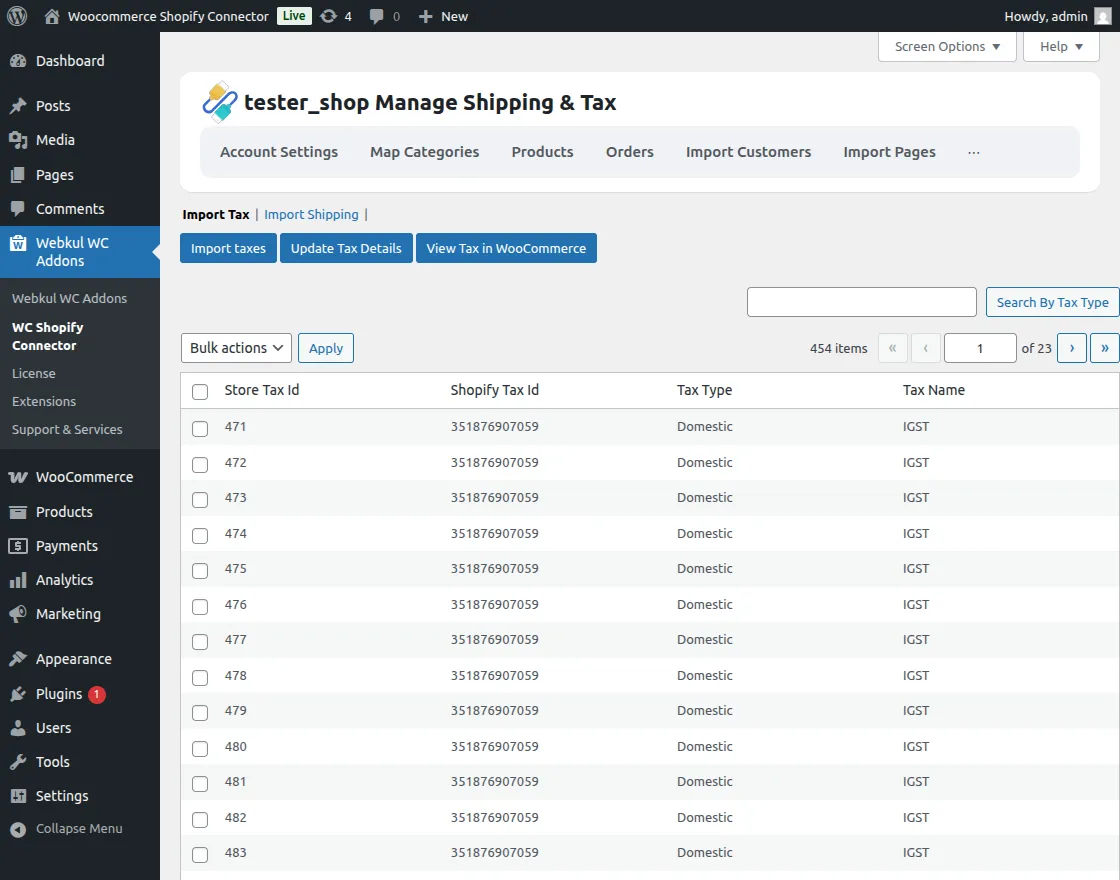
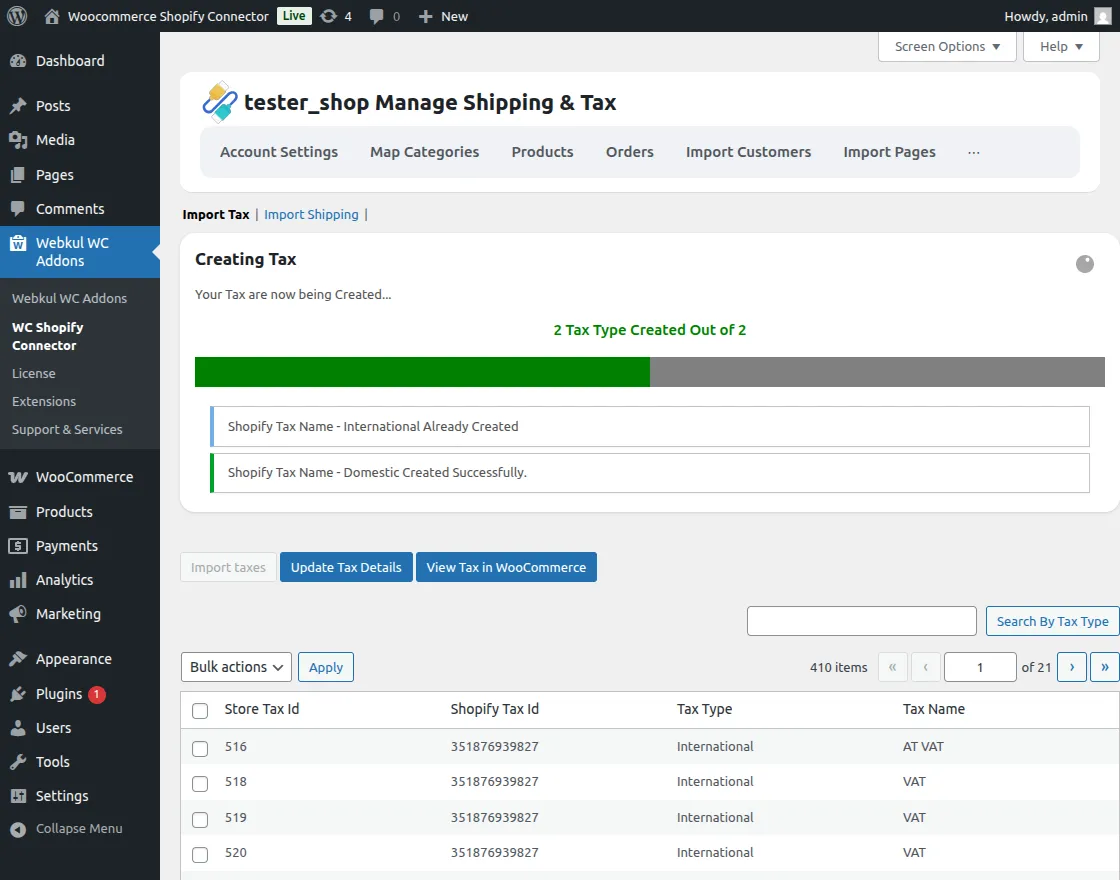
The process bar will show the created taxes.
When click on the update tax details button the created tax details will get update.
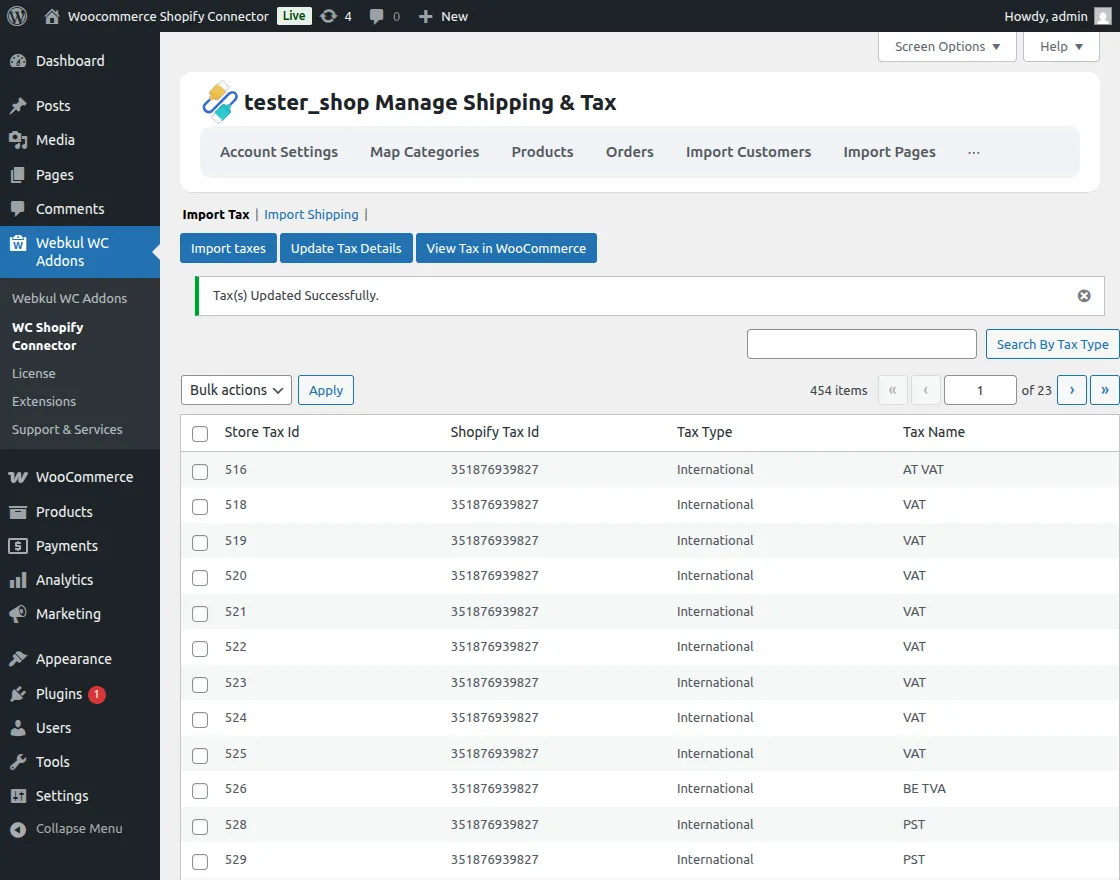
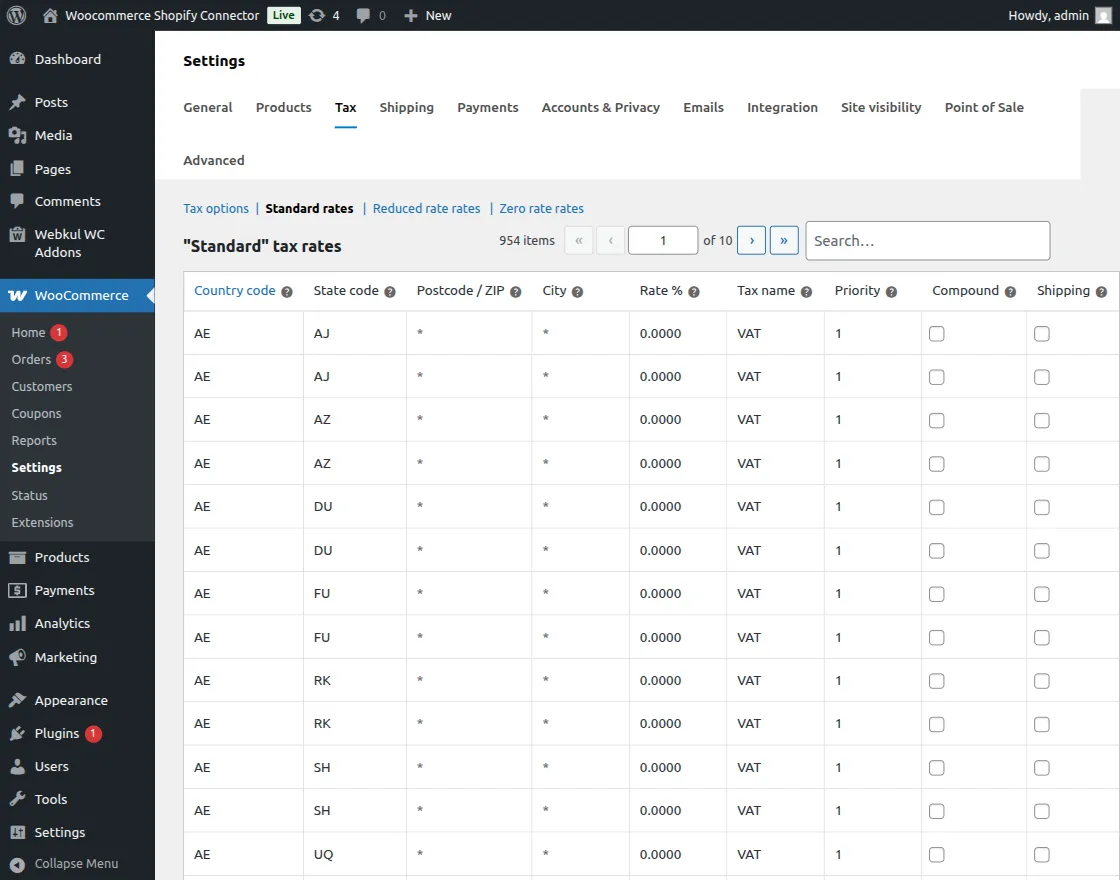
Lastly, the admin can view these taxes in the WooCommerce settings by directly clicking on the View Tax in WooCommerce button.
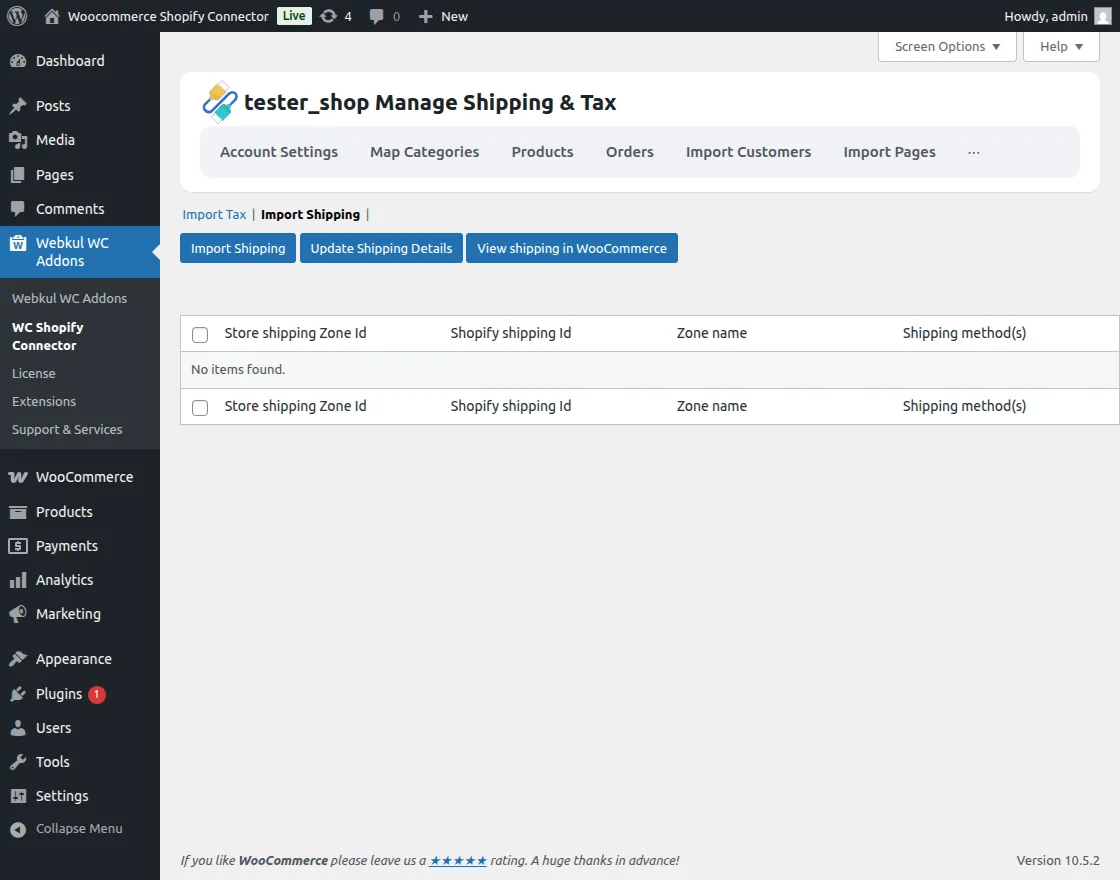
Import Shipping – The admin can also import the shipping from Shopify.
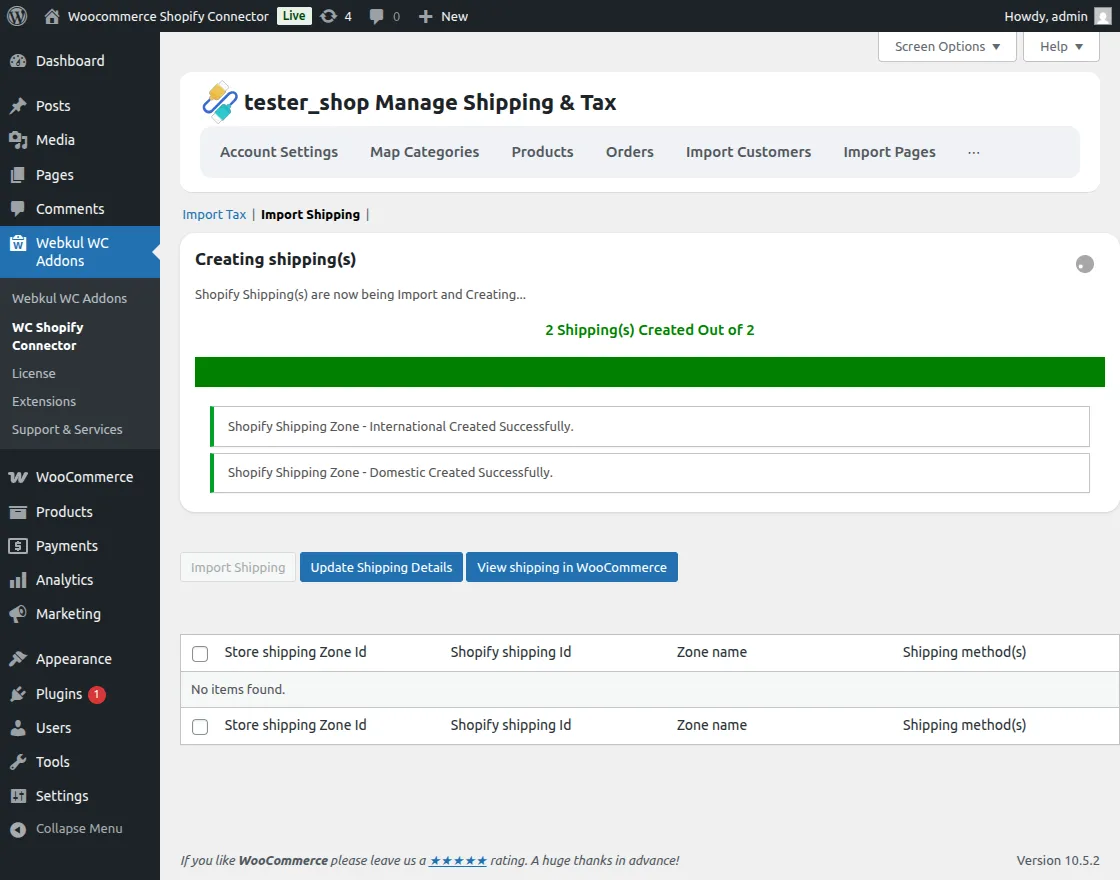
When the admin clicks on the import shipping option, a progress bar window will open with import and Create shipping details.
The admin will update the created shipping details by tapping the update shipping details button.
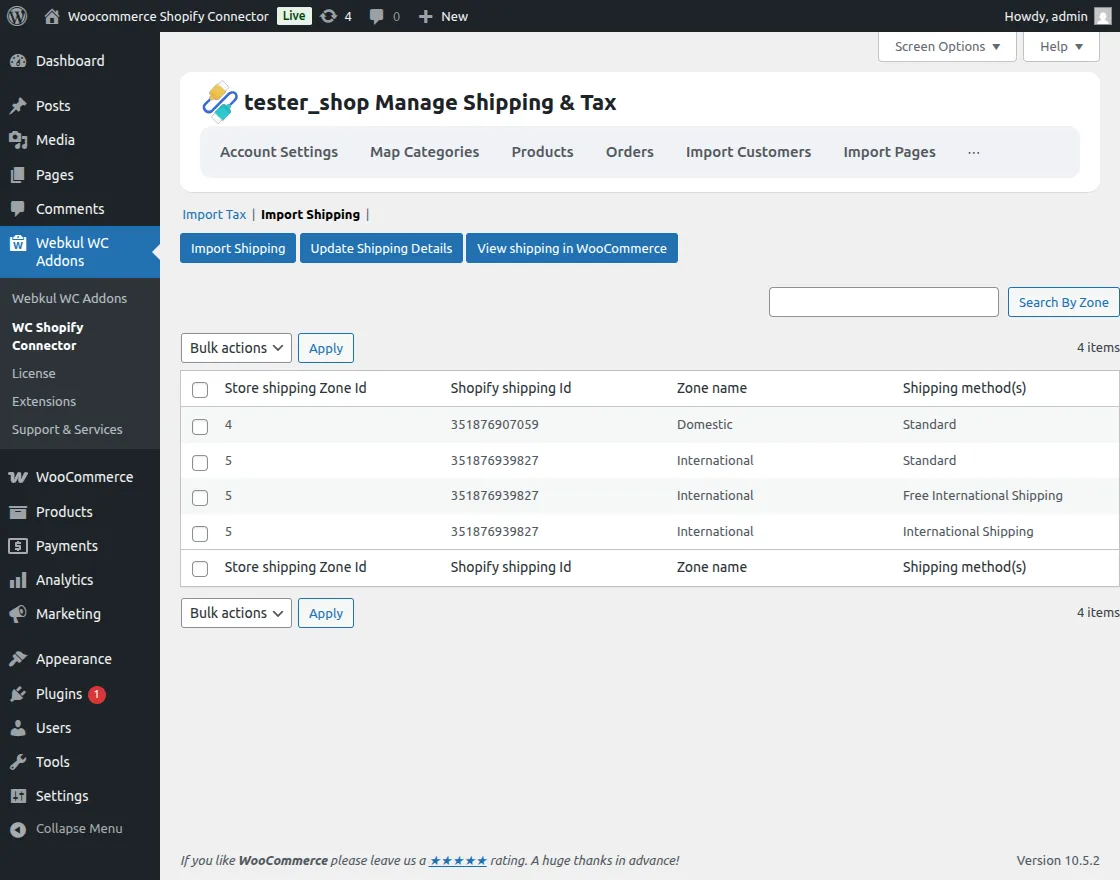
The admin can view the shipping options in the WooCommerce shipping section by clicking on the View shipping button.

How to Get API Credential For The Old Shopify Account
To get the API credentials the admin needs to generate the Shopify API credential first using the Shopify account.
The admin can visit the Shopify store for which the admin wants to connect and sync the WooCommerce store then click on the App menu and click on develop an app for your store.

Then the admin navigates to settings. Then click on Apps channels.

After the selection develop an app for your store and then click on Develop apps.

Please fill in the required credentials i.e.App name and click on create app.

Afterward, create a successful app and then go to the configuration and click on the configure for Admin API Integration.
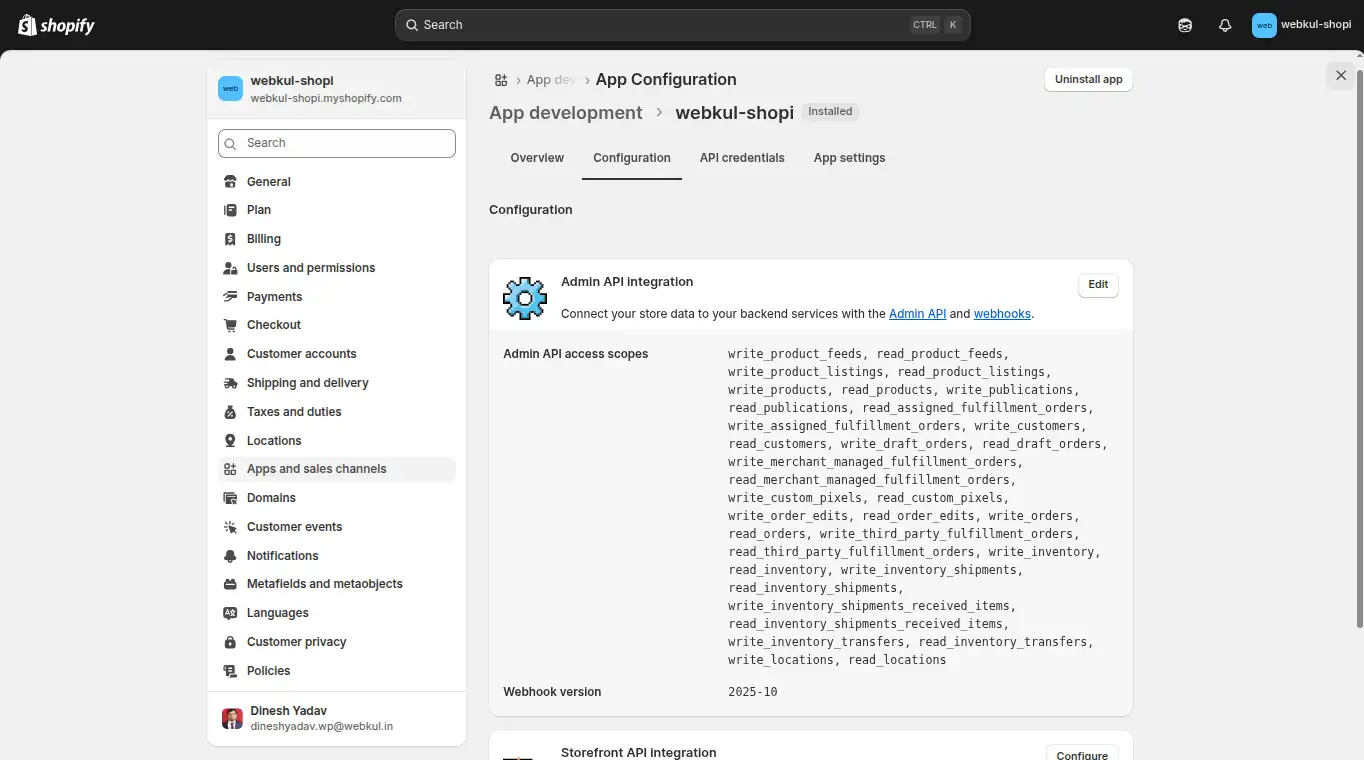
Also, it should have Read and Write API permission for the following:
- Customer Details and Customer Group
- Inventory
- Order, transaction, and fulfillment
- Product Information
- Product, variant, and collection
Note: While making the Webhook Subscription, please make sure to select the below highlighted Event Version – 2025-04 (Latest)
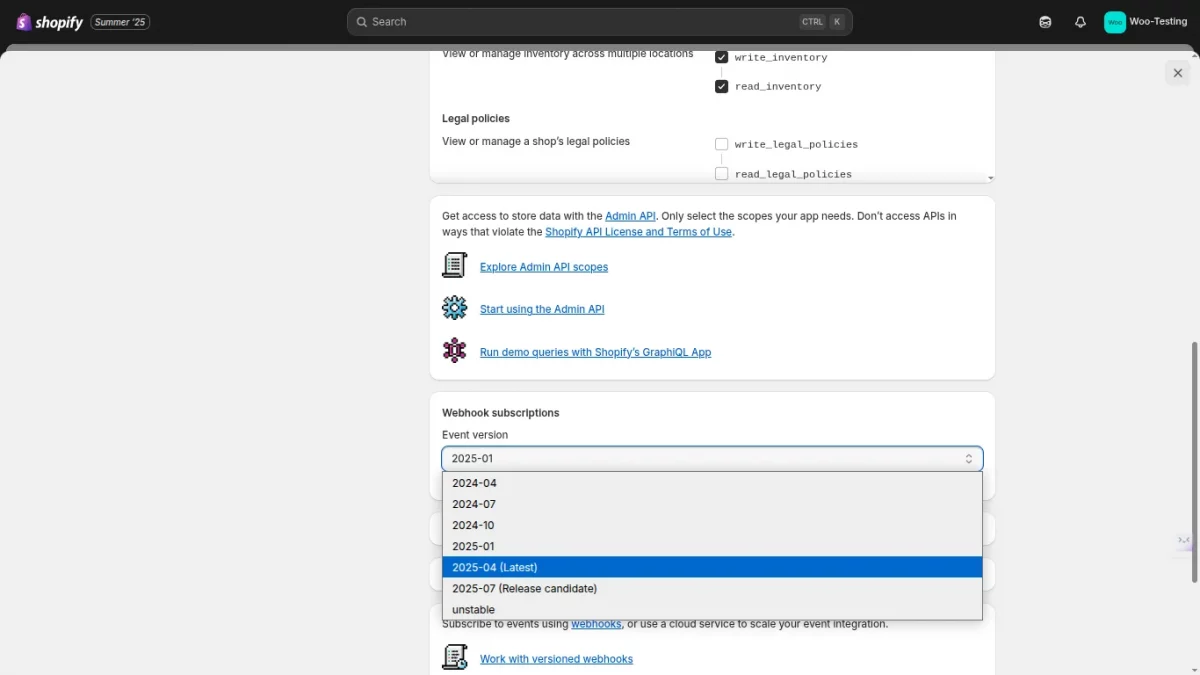
After successfully, fill in all the required permissions and then click on the Save button.

Afterward, go to the API credentials and click on the Install App button.
By clicking on the Reveal token once and getting the token key successfully.

Note- This token key is available only once, please copy and save your admin API token in a secure place.
Thus, that’s all for the WooCommerce Shopify Connector.
For any technical assistance kindly raise a ticket or reach us by email at [email protected]. Thanks for Your Time! Have a Good Day!
Also, discover various solutions to add more features and enhance your online store by visiting the WooCommerce plugins.
Current Product Version - 3.4.0
Supported Framework Version - WordPress: 6.9.1 WooCommerce: 10.5.2


Will the inventory of the product be synced on both platforms?
So that if I have 10 in stock, both Woocommerce and Shopify will have 10, and the stock number will reduce equally no matter where the orders come from?
Thanks.