Want to earn more and increase the revenue of your online store? Then you are at the right place.
Webkul is introducing you to the Product Auction App on Squarespace, with the help of which you can now apply auctions on your products quickly and efficiently.
The result of the app’s numerous capabilities, including starting and managing online auctions, has just made it simple.
Features –
- For each product, an admin can create and control auctions.
- An auction can be applied to physical products.
- The auction can be manually started and ended.
- Admin can even restart the unsuccessful auctions.
- Admin can configure their email settings to send notification emails to the customers.
- Set a reserve price, which is the lowest price that must be reached to win.
- Option to set Email Templates for different events of auctions.
- An admin can set up auctions for several products at once.
The Flow of Installation and Configuration
Auction Configuration:-
After connecting the auction app to your Squarespace store, go to App settings >> App Setup
And inject the code according to the instructions.
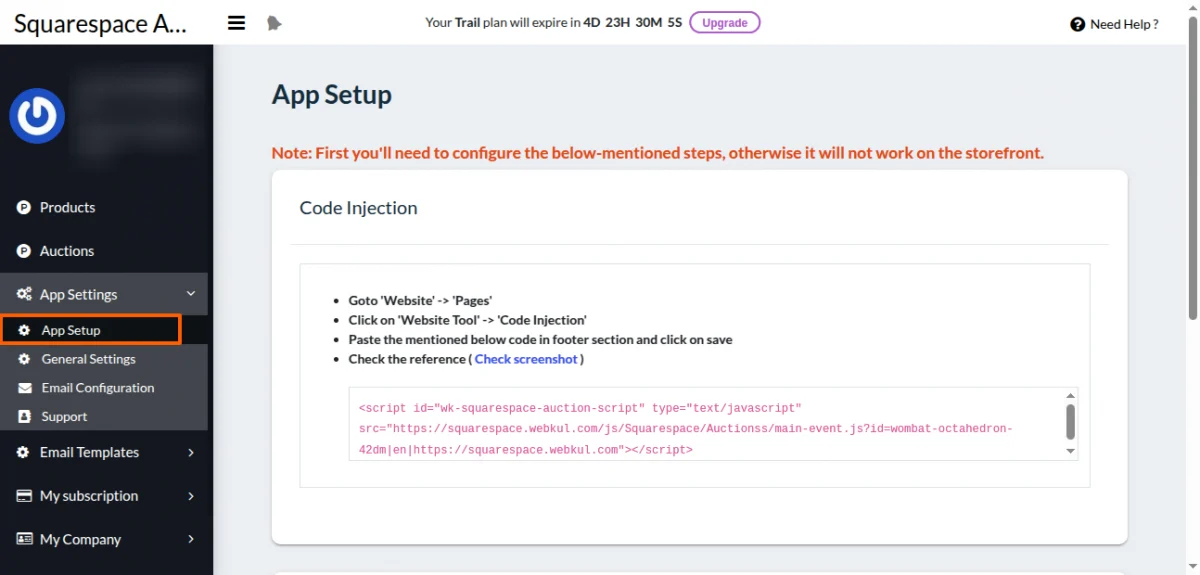
Next, enter your email address and turn on the toggle button if you want to get an email on every bid placed by the customers.


Visit here for the Email Configuration User Guide.
Next Admin needs to configure General Settings as follows:–
Show Current Bid:- After enabling this option, the current bid will be visible on the product page.
Show Bid Count:- After enabling this option, the total number of bid counts will be visible on the product page.
Restrict Reserve Price:- Admin can restrict the reserve price so that the purchase will not made if the last bid amount is less than the reserve price.
Amount Decimal:- Admin can allow bidders to enter bids in decimal value.
Outbid Functionality:- Enable this option to notify bidders when they are outbid.
Amount to be paid by Auction winner:- The amount to be paid by the auction winner can be set here.
- Winning Bid:- In case the admin selects this option, then the auction amount is the only amount the winner has to pay.
- Percentage of Winning Bid:- If the admin puts the percentage amount, then the customer will need to pay the winning bid amount plus the percentage amount that the admin has applied.
Save Settings once done.

Add Auction to Products
STEP 1:- After configuring the application, the Admin needs to sync the data by clicking on “Sync Products”.
Admin can also do selective sync to sync only selected products from Squarespace to the auction app end.

STEP 2:- Click on the plus icon “+” to add the auction to the products.

STEP 3:- After clicking on the plus icon, it opens up the page where you have to fill in the product auction details.
Click on Select Products on which you want to set the Auctions (You can select a maximum of 10 products at a time).
- If you want to start the auction on the product automatically, enable the “Automatic Start Auction” button.
- Now enter the following Pricing details:
- Base Price, i.e., the minimum price from which the bid will get started.
- Reserve Price i.e. the minimum auction price below which the admin will not sell the product.
- You need to set the time duration by specifying the auction start/end date and time.

STEP 4:- You can view complete auction details in the “Auctions” section of the app.
Also, you can edit the auction details as well as stop the auction on the product manually.

Note – You can delete those products from the auction app end on which you don’t want to apply auction via bulk/single delete option as shown below –

Also, you can delete those auctions that you don’t want anymore on the auction app end.

Email Template –
Under Email Template, go to Manage Template. Here admin can add/edit the email templates that get sent for each event.


Frontend View –

Declaration of Winner –
After the auction ends, the admin will be able to see information about the bidding and the winner’s details and can also notify the auction winner.
If somehow, the notified winner is not purchasing the product, then the admin will be able to notify the alternative winners.

The email is sent when the admin notifies the winner. The mail has the link to purchase the auction product that you have won.

Support
If you need any kind of support/assistance, then kindly raise a ticket at http://webkul.uvdesk.com/ or drop a mail at [email protected]


Be the first to comment.