CS-Cart Google Language Translator add-on helps store admin to add the Google translator dropdown on the storefront.
With the help of this add-on, the customers will be able to translate the complete website’s language into their native language.
And that will make their experience easy with the website.
Check a brief overview of the add-on –
Features
- Well integrated with CS-Cart, CS-Cart Multivendor, CS-Cart Multivendor-Plus, CS-Cart Multivendor Ultimate.
- Option available for the admin to enable translation feature for selected storefronts.
- Customers can view the whole website in their preferred language.
- Option to hide Google translator dropdown from the top frame after translation.
- The add-on translates posts and pages.
- The add-on translates categories and tags.
- Translates menus and widgets.
- Translates themes and plugins.
Installation
After downloading the CS-Cart Google Language Translator add-on, you’ll get one zip file, one install.txt file, and a relevant User Guide manual doc. Read it carefully for proper configuration.
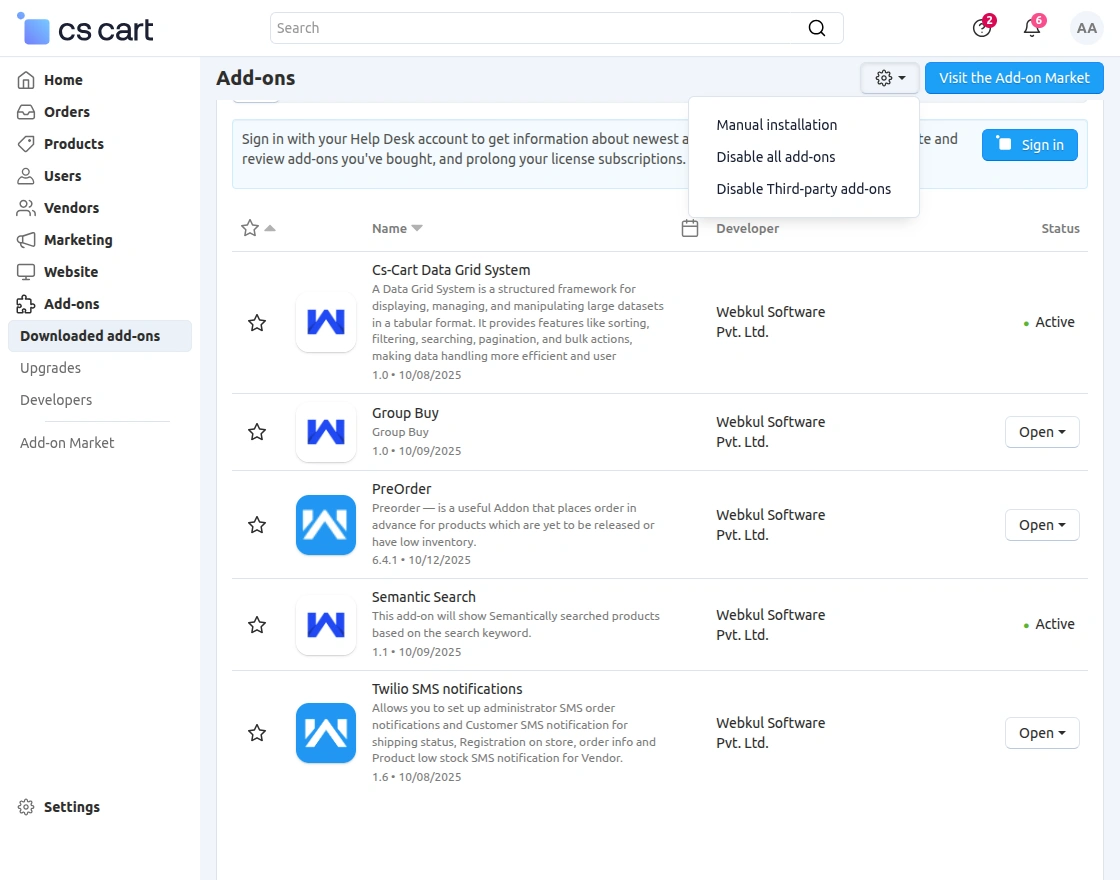
Go to Manage Add-ons, and click on “Manual Installation” as shown below in the snapshot.
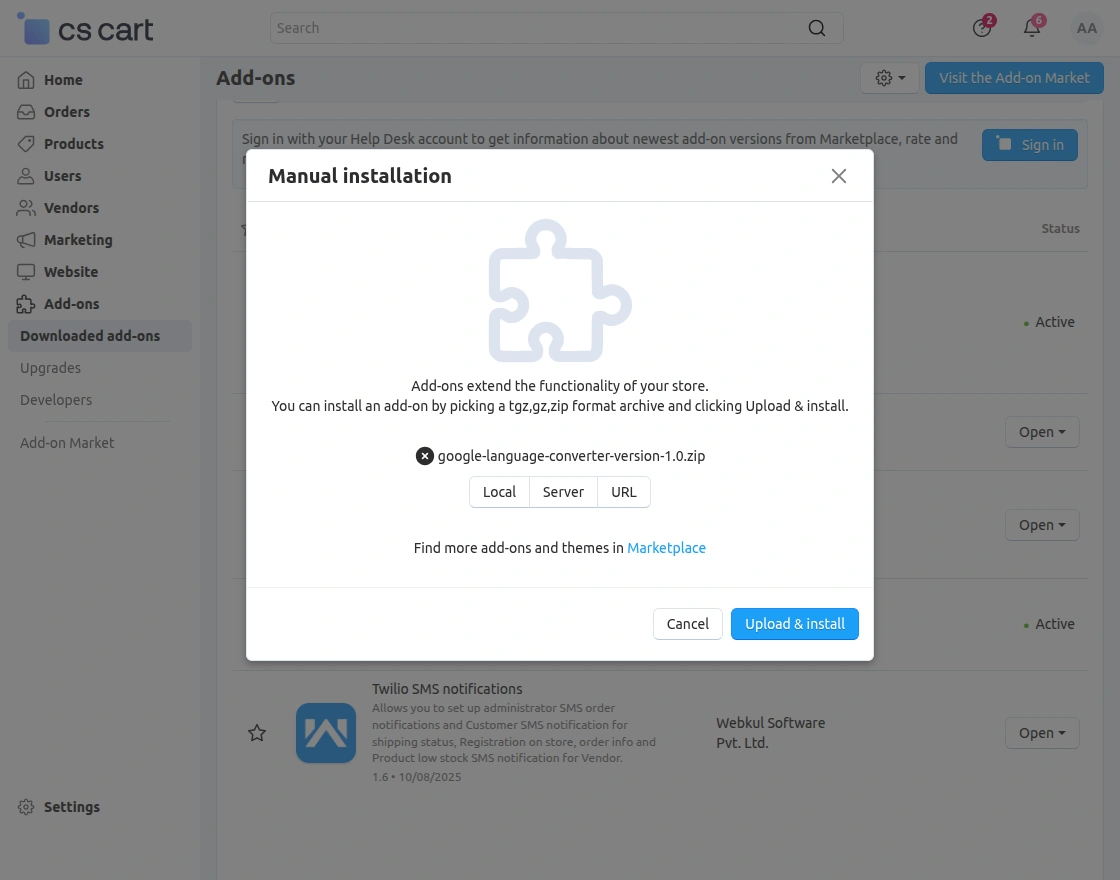
Click on “Local” to browse the zip file, and then click on “Upload & Install” as shown below in the snapshot.
Add-On Configuration
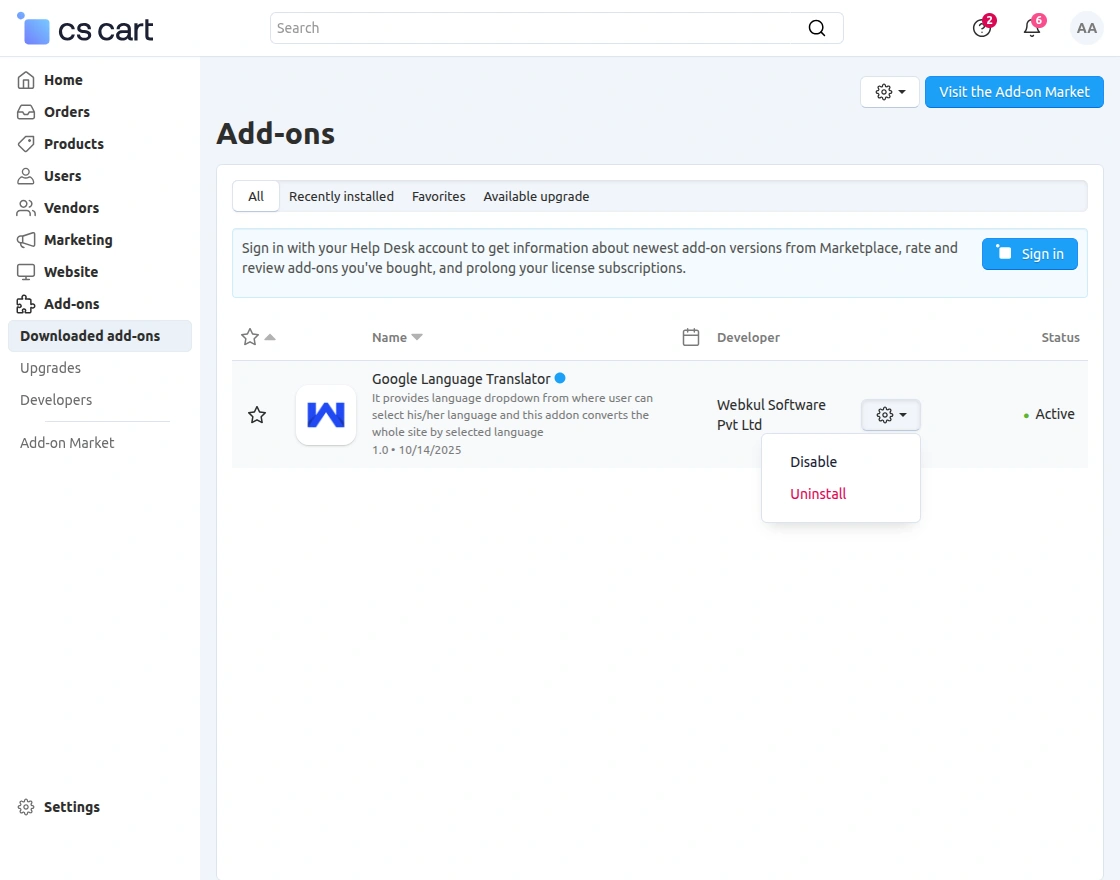
After installing the add-on, you will find CS-Cart Google Language Translator in the list of available add-ons. We will then configure the settings.
Click on “settings” to enable, disable, install, or refresh.
Make sure the add-on is activated, as shown in the snapshot below.
Module Configuration || Admin
To configure the module, go to the Add-Ons >> Developers >> Webkul Software Pvt Ltd. >> Google Language Translator >> Settings.
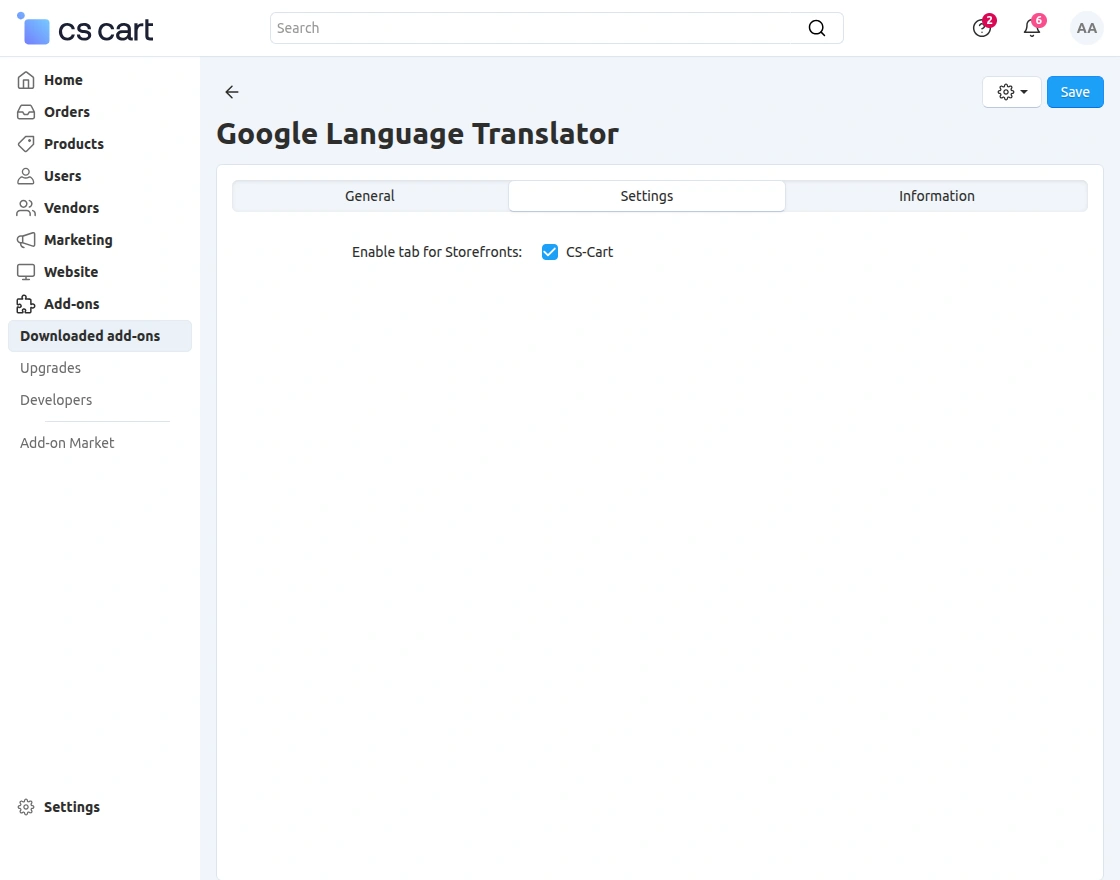
- Enable for Storefronts: Check this box to activate the Google Language Translator tab on your CS-Cart storefront, allowing visitors to translate site content.
CS-Cart Google Language Translator || Frontend
Google Language Translator enhances your store’s accessibility by translating content into multiple languages.
It allows customers to browse and shop in their preferred language effortlessly.
The Google Language Translator block is available on the front end as shown –
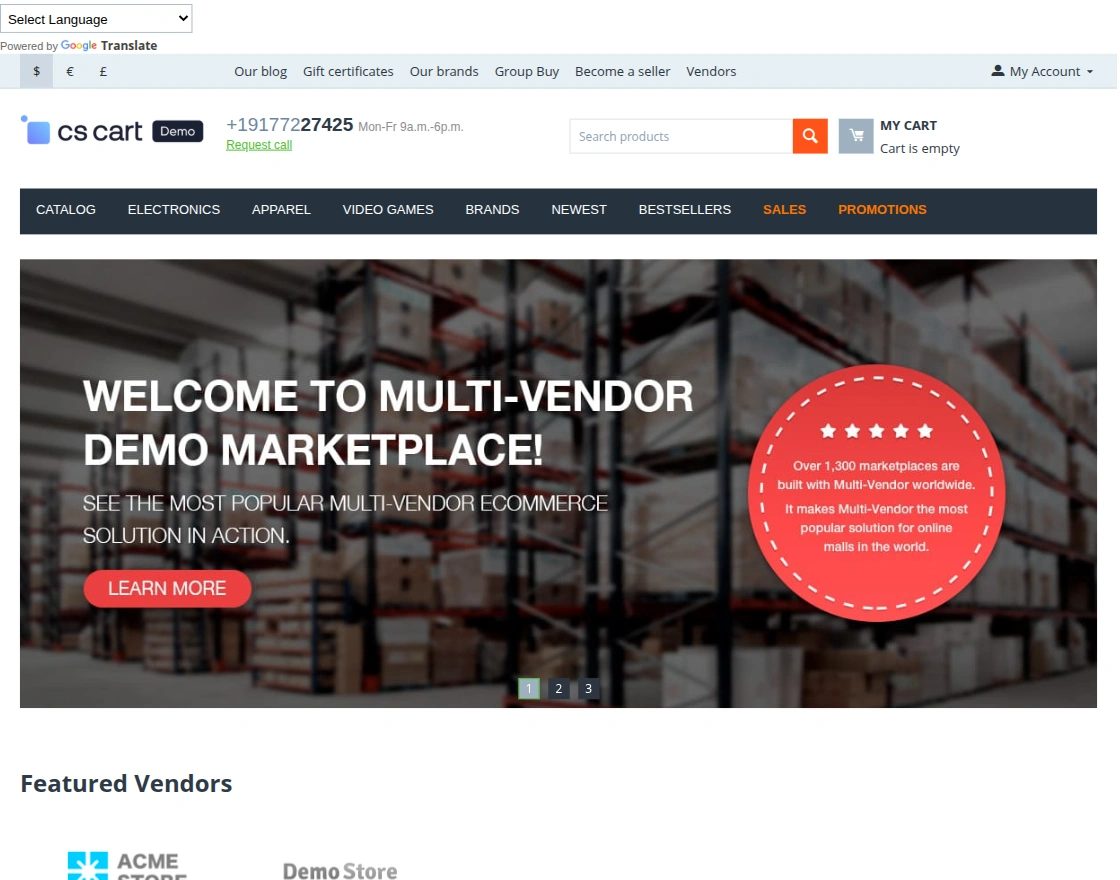
The customers will click on the dropdown, it will show the language menu on the left side of the storefront.
From here, the customers can check all the listed languages in which they can translate the website.
They can change the language of the storefront from the drop-down according to their choice.
And, the customer will be having an option to roll back to the original language of the storefront as shown below –
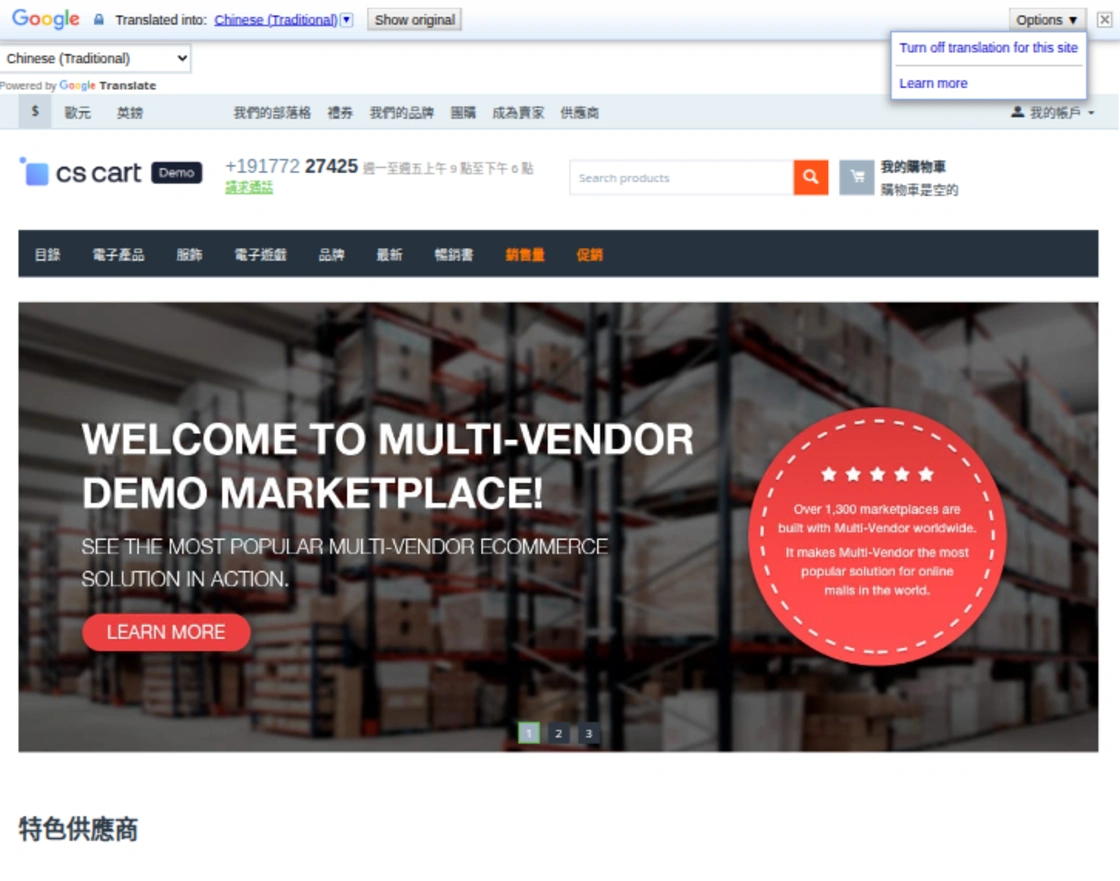
Support
If you have any questions, suggestions, or customization requests, feel free to contact us at [email protected] or submit a ticket at webkul.uvdesk.com.
Explore our premium-quality CS Cart Extensions to enhance your store functionality.
You can also explore our CS-Cart Development Services and Quality CS-Cart add-ons.
Current Product Version - 1.0
Supported Framework Version - 4.18


Be the first to comment.