We have come up with a ‘Product filter feature’ integration with the Mobikul mobile app for Shopify. Using this integration, customers can search for the product by applying multiple filter options.
To be more precise, the product filter is an easy process to search for any specific product from multiple products. Admin can create multiple filter options based on categories, subcategories, attributes, and so on.
With that said, let’s see how you can configure this integration within the Mobikul mobile app.
Product Filter Feature Installation
To enable this feature, you need to visit the Mobikul Mobile App backend & then, click on the Integration section > App Store. From here install the app as shown below.
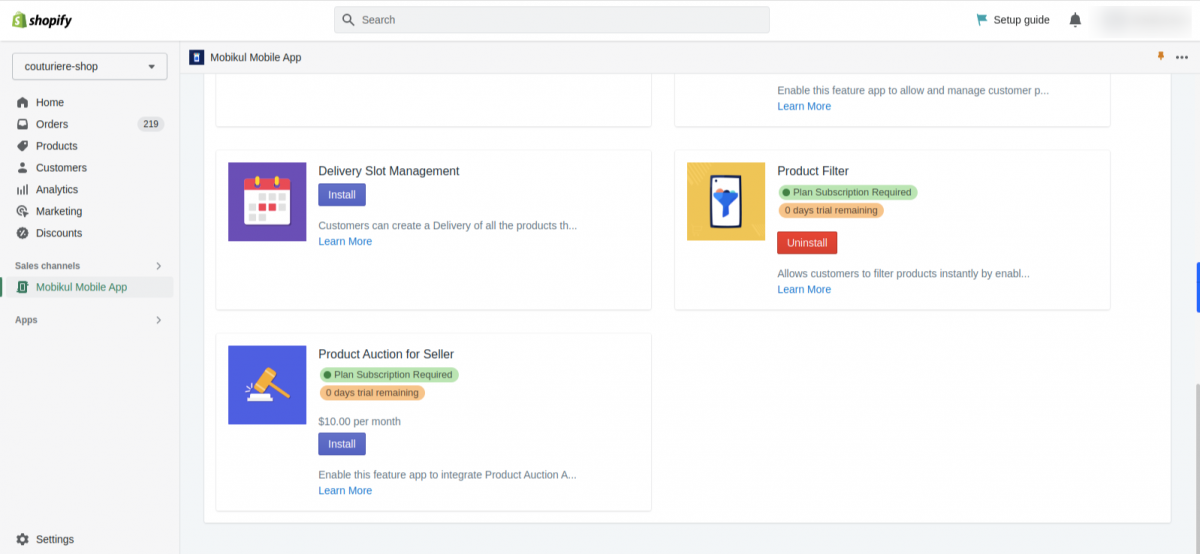
Charges: This product filter feature will have an additional charge of USD 40 per month over & above your current Mobikul plan.
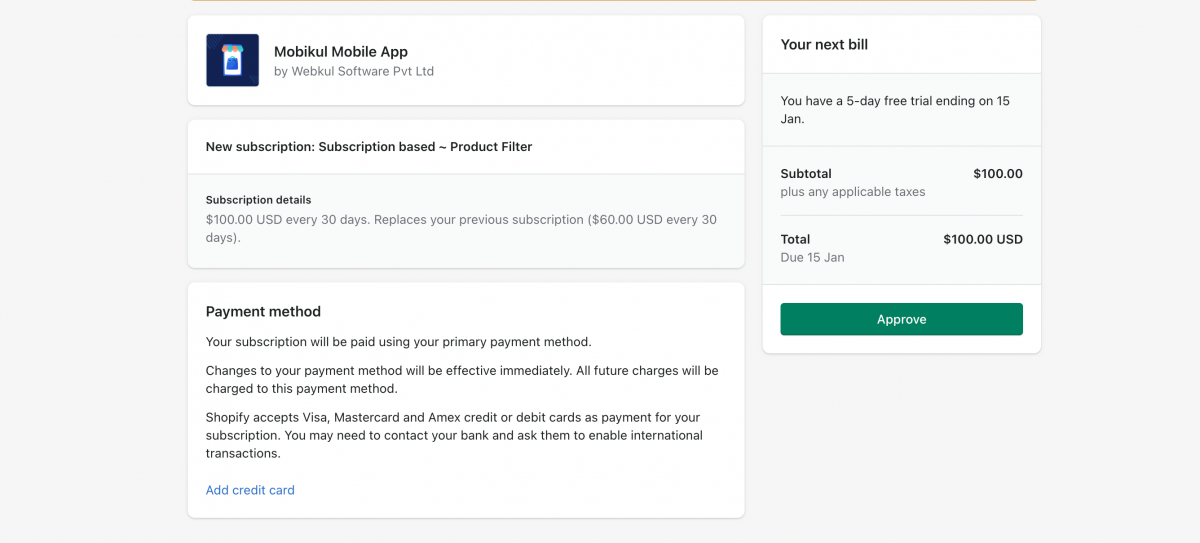
Once click on approve the filter feature will install on your Shopify app.
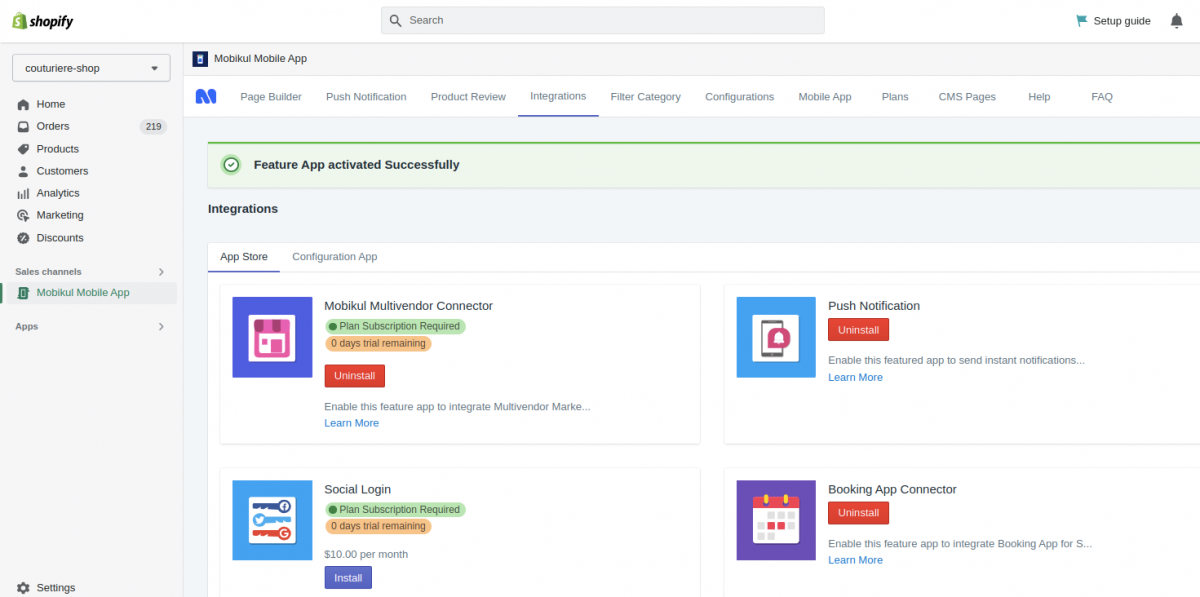
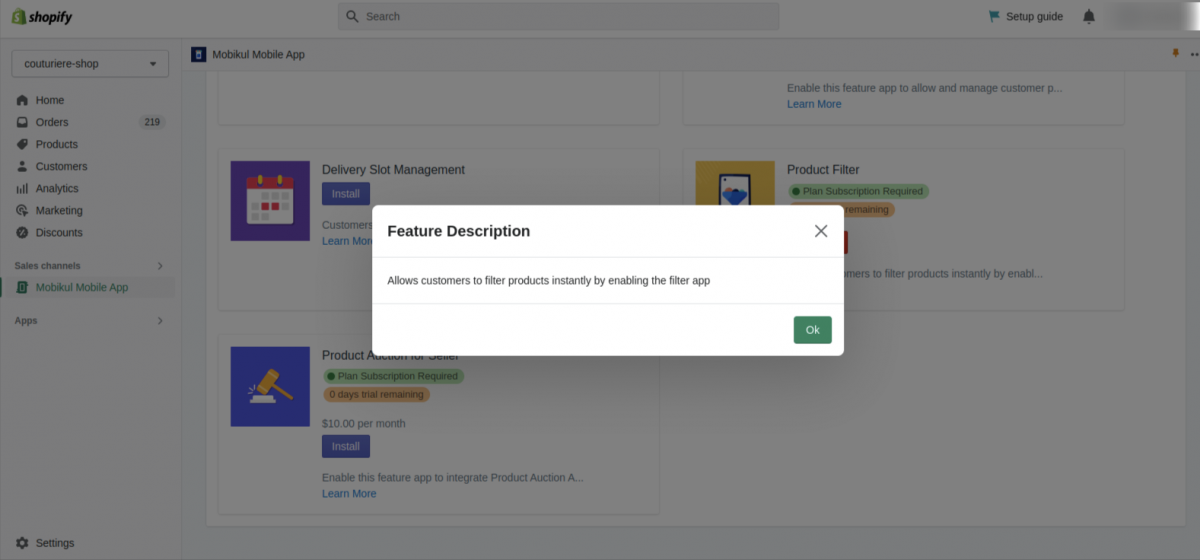
After enabling the feature, the admin can create the filter in the Shopify app.
Create Product Filter
The admin can create a filter from the “Filter Categories” section, Moreover the admin can configure and manage the filters from here.
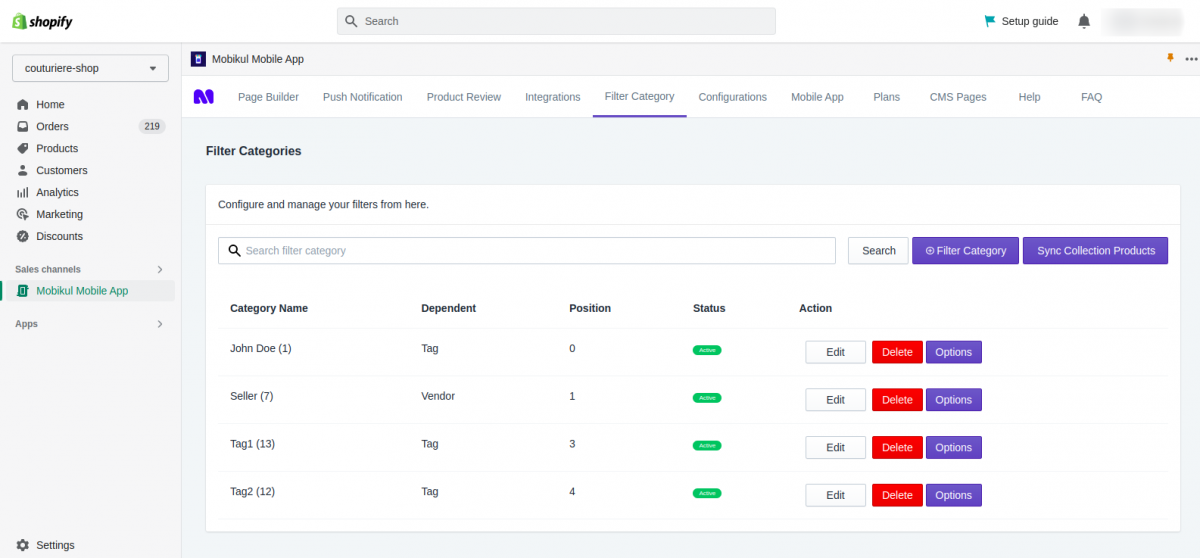
To add the filter category admin needs to click on the filter category.
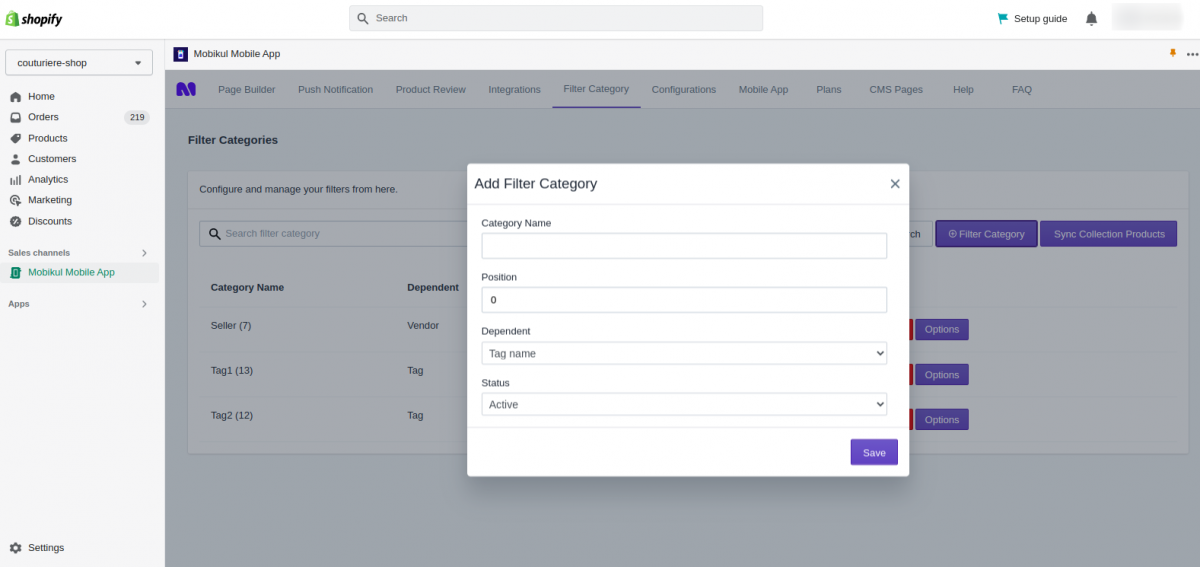
Once the details are added system clicks on the save button and the filter will add to the list.
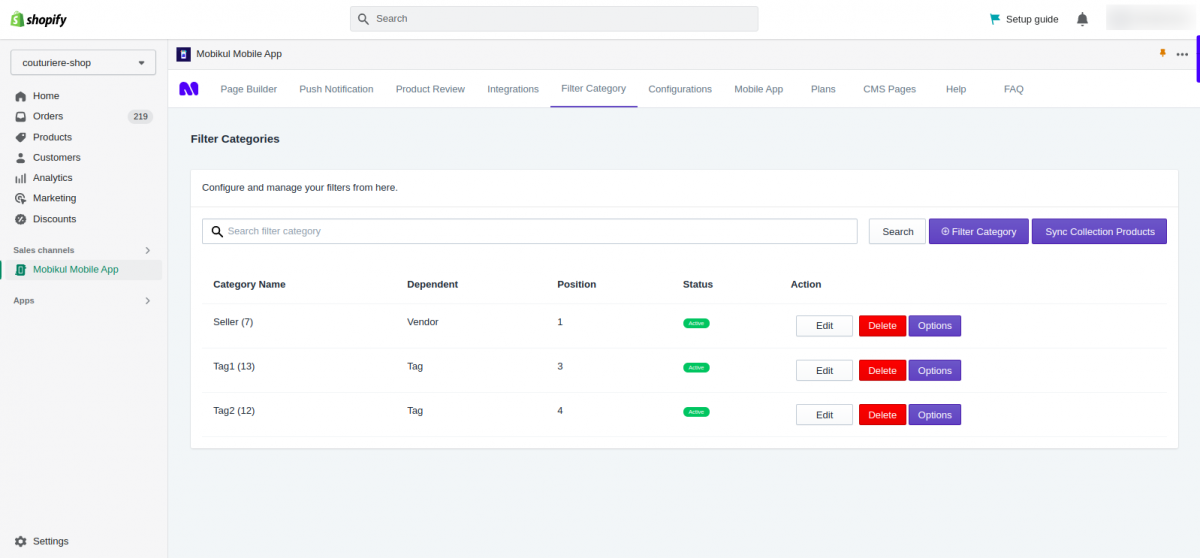
The admin must click the options button of any generated category filter in order to add filters for subcategories.
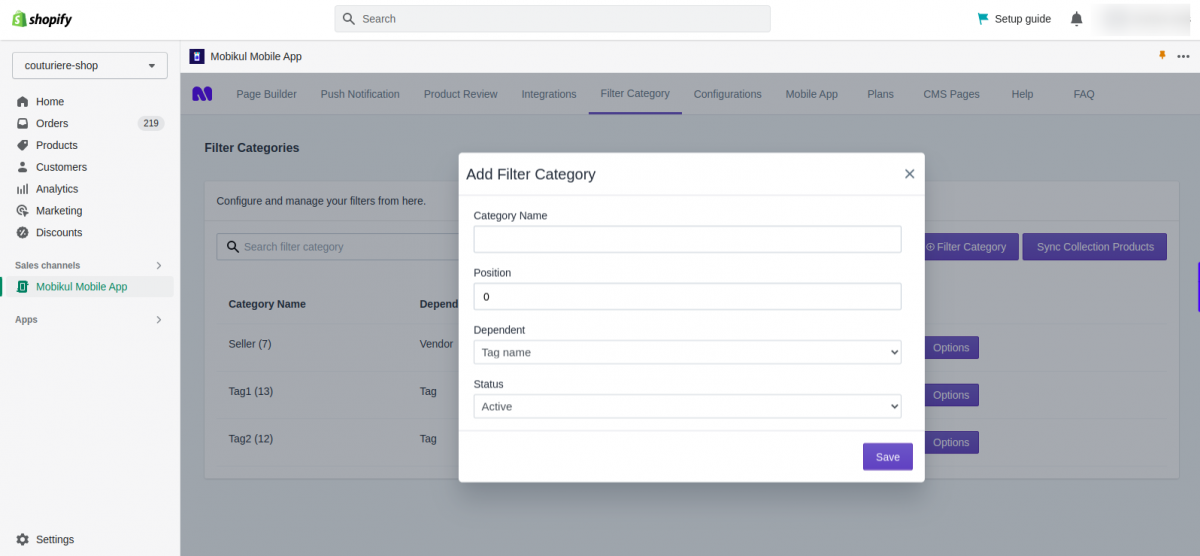
Now create the subcategory filter and it will display in the subcategory list.
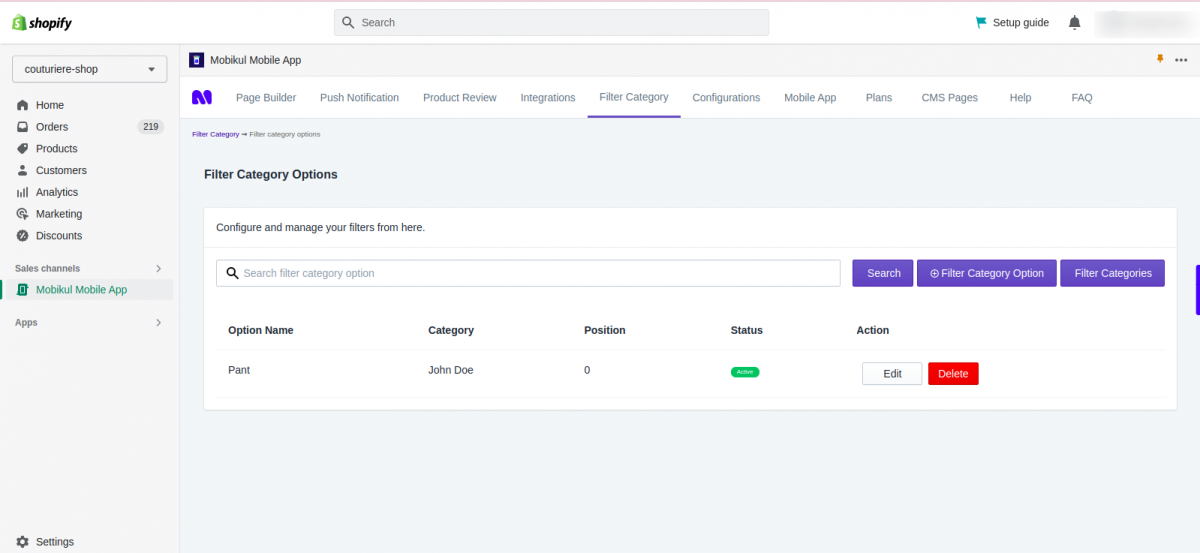
When all categories will be created they will display on the customer’s end mobile app.
Flow: Customer End
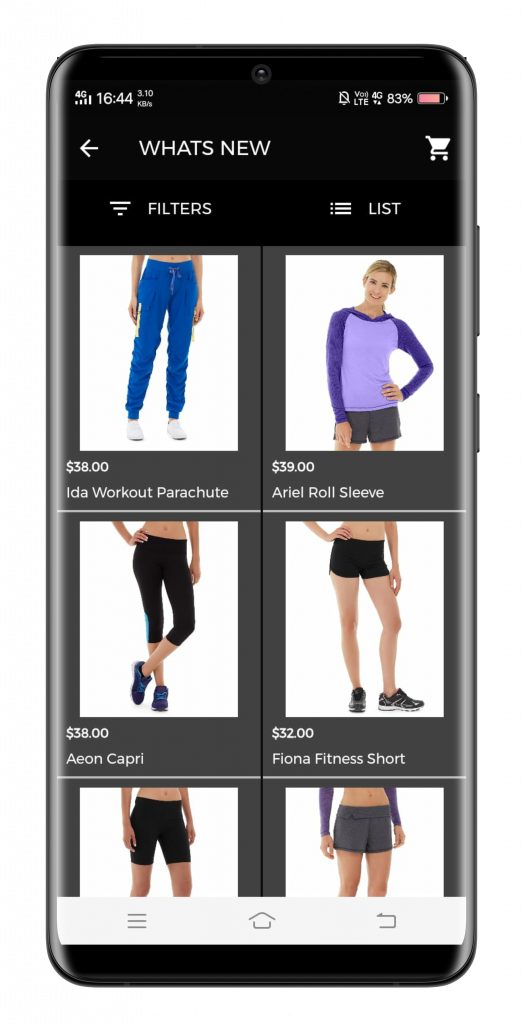
Customers can view and apply filters to products based on the Sellers as well as through Tags, as shown below.
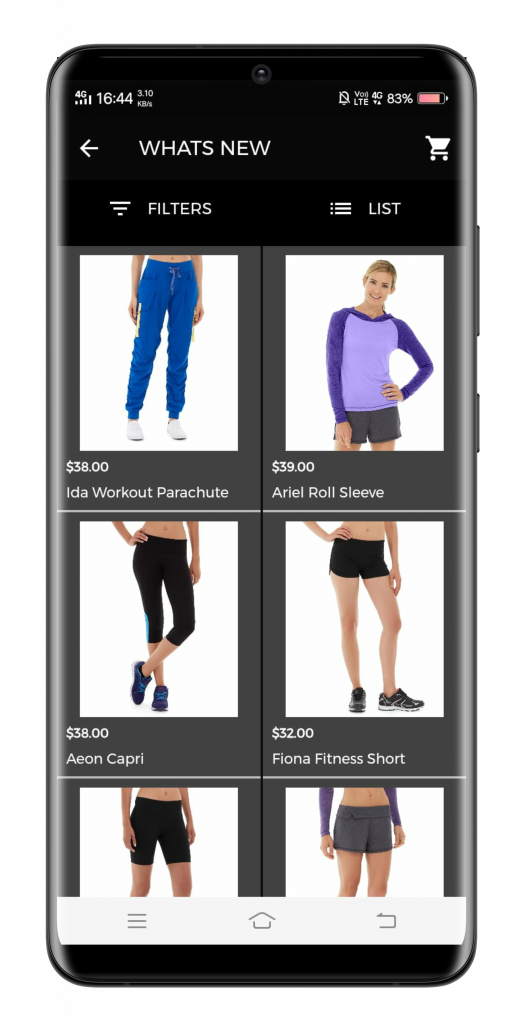
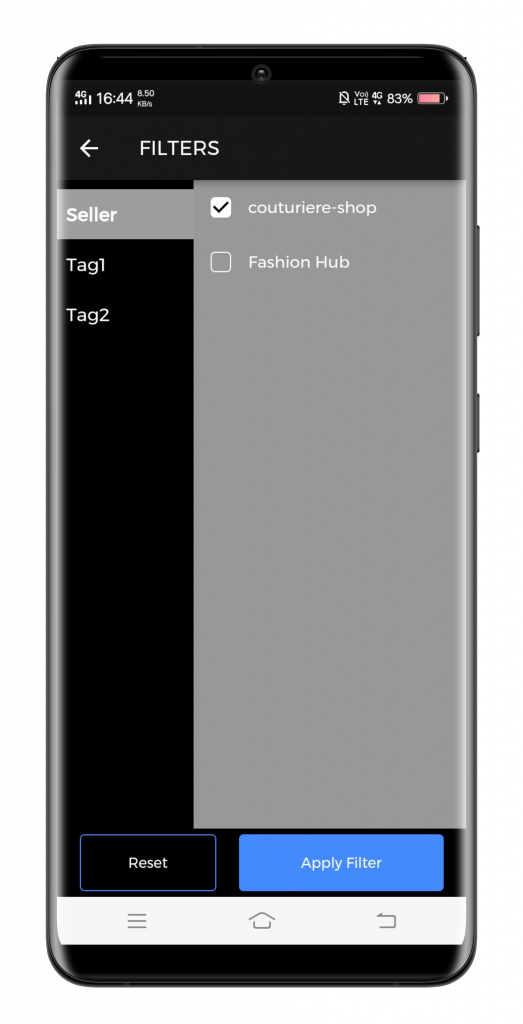
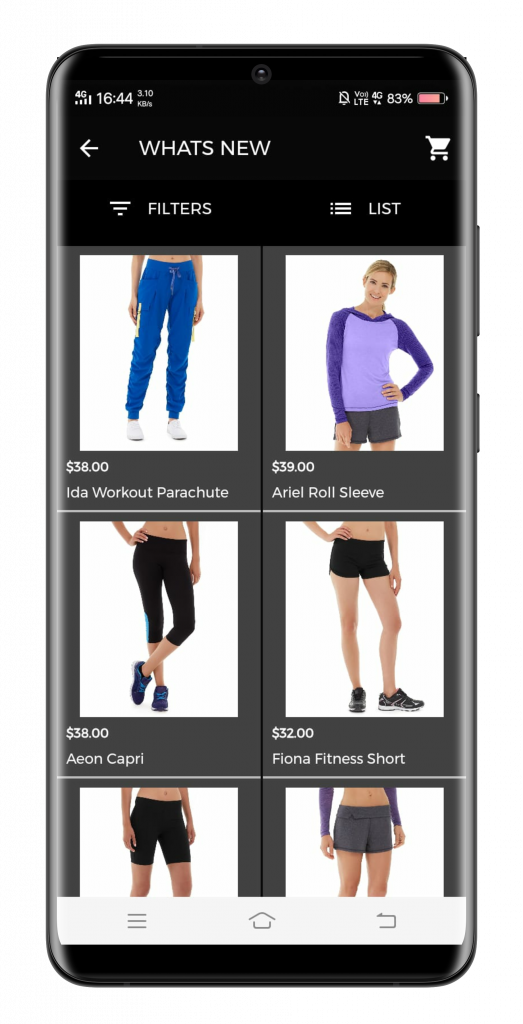
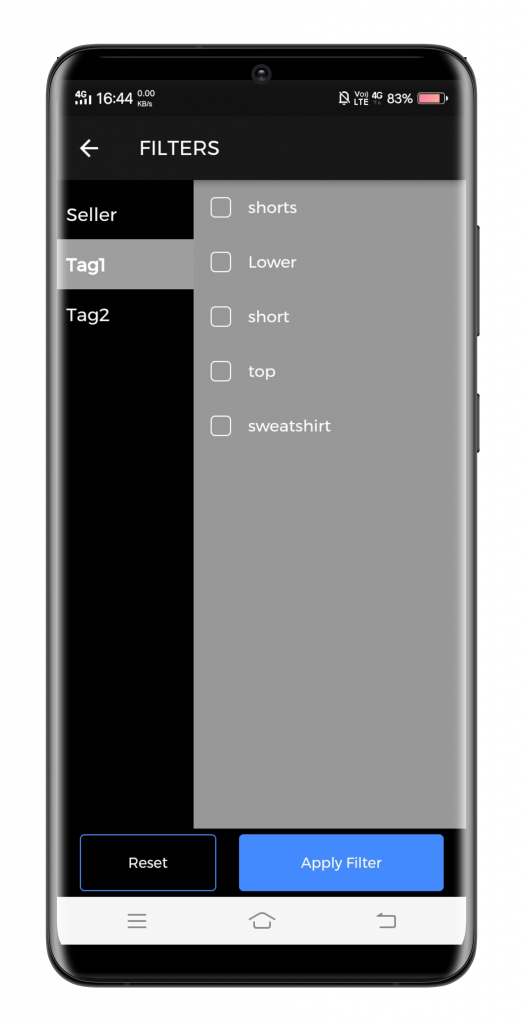
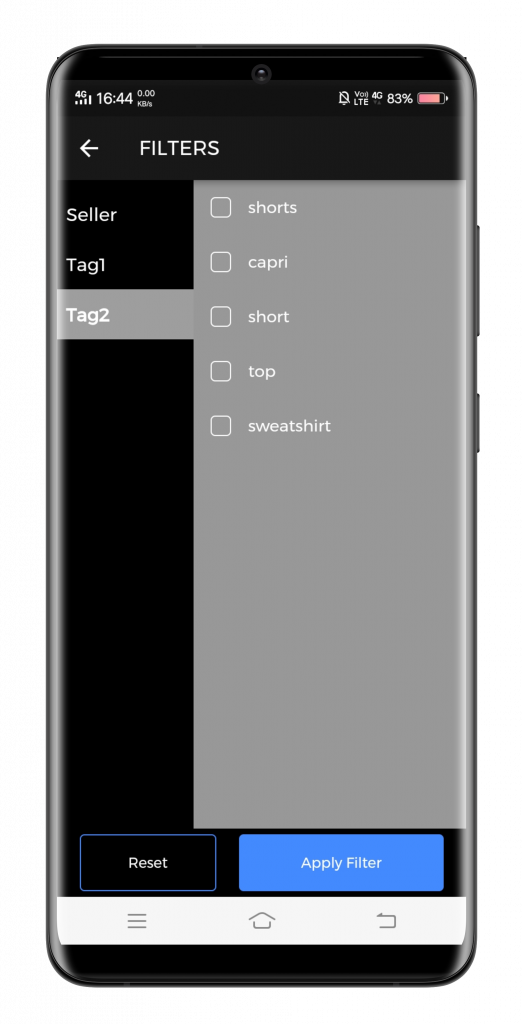
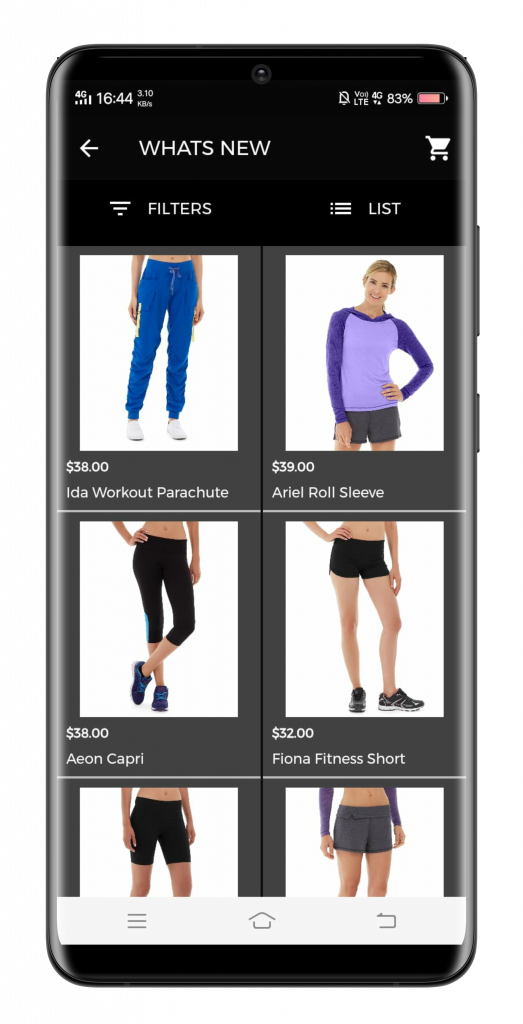
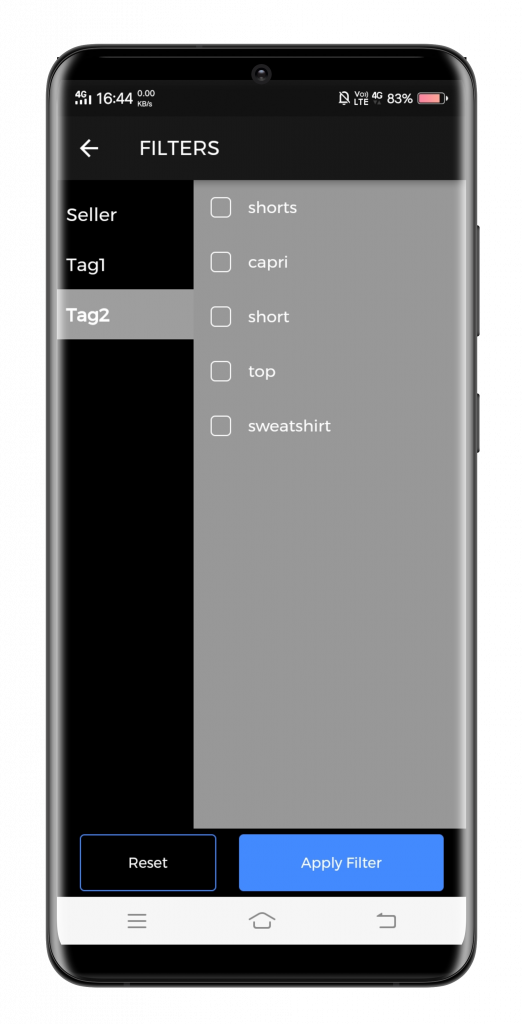
Moroever, Customers can also reset the filters as per their choice and preferences as shown below.
Need help?
Drop your query/suggestion at [email protected] or create your ticket at Webkul UV Desk.


Be the first to comment.