PrestaShop WooCommerce Connector is a comprehensive tool that allows you export products, orders, and customers from PrestaShop store to WooCommerce.
Also, import products, orders, and customers from WooCommerce to PrestaShop.
The extension simplifies the task of listing products on WooCommerce. Effortlessly export your entire product list to WooCommerce in just a few clicks.
Update product on PrestaShop when updated on WooCommerce and vice-versa.
Features of PrestaShop WooCommerce Connector
Import/Export Products
- Export PrestaShop store products to WooCommerce.
- Import products from WooCommerce to PrestaShop.
- Export all products from PrestaShop to WooCommerce at once.
- Import all products from WooCommerce to PrestaShop.
- Import products from WooCommerce to PrestaShop by product ID.
- Export specific products from PrestaShop to WooCommerce.
- Export all the new products from PrestaShop to WooCommerce.
- Export/Import the products created in a specific date range.
- Import all the products of a specific WooCommerce category to PrestaShop.
- Export all the products of a specific PrestaShop category to WooCommerce.
Export/Import Orders
- Import orders from WooCommerce to PrestaShop.
- Export PrestaShop orders to WooCommerce.
- Export all the orders from PrestaShop to WooCommerce.
- Import all the orders from WooCommerce to PrestaShop at once.
- Import individual orders one by one from WooCommerce to PrestaShop using order ID.
- Export specific orders from PrestaShop to WooCommerce.
Import/Export Customers
- Export PrestaShop customers to WooCommerce.
- Import customers from WooCommerce to PrestaShop.
- Import all the customers from WooCommerce to PrestaShop at once or specific customer by customer ID.
- Export all the customers from PrestaShop to WooCommerce at once or specific customers.
Real Time Updates
- Update product on PrestaShop when updated on WooCommerce and vice-versa.
- Synchronize product quantity from PrestaShop to WooCommerce and vice-versa.
- Synchronize products to WooCommerce when created on PrestaShop.
Mapping
- Map PrestaShop categories with WooCommerce categories.
- Map PrestaShop attributes with WooCommerce attributes.
- PrestaShop shipping methods and taxes can also be mapped with those of WooCommerce.
Configuration Settings
- Choose default category to be assigned WooCommerce products in case no category is found during product import.
- Select default tax that will be assigned to WooCommerce products and orders if no tax is found while importing the product.
- Choose default payment method, shipping method, and order status for orders imported from WooCommerce.
- Set limit of data to be fetched from WooCommerce during import.
- Set default product quantity to import to PrestaShop if stock is not managed in WooCommerce.
- Import all the attachments of WooCommerce virtual products.
- Allow customers to download attachment of virtual product of imported order.
- Delete product from catalog if mapped product is deleted.
How to install the Prestashop WooCommerce Connector
- Firstly, go to the module manager in the back office and click on ‘upload a module’.
- After that, drag and drop the module file or select the file from the system.
- In this way, the module installation will be successful.


Steps to generate WooCommerce API keys
Open the backend of WooCommerce store and go to “settings”.

Now, go to the advanced settings.

Under advanced settings, you can see an option of Rest API. Click on the rest API to generate new API credentials.

On proceeding further, click on ‘Add key’.

After clicking on ‘Add Key’ option, a form will open. Fill the details about API key & click on “Generate API Key”.

Now, the generation of the API key is successful. You can view & copy the API key.

View all the API keys under ‘REST API’ section available in the ‘Advanced’ section’.

By following the process explained above, you can easily create API keys.
Prestashop WooCommerce Connector Configuration
API Configuration
Under API Configuration, you need to enter the API keys that you have obtained from WooCommerce website.

Default Configuration
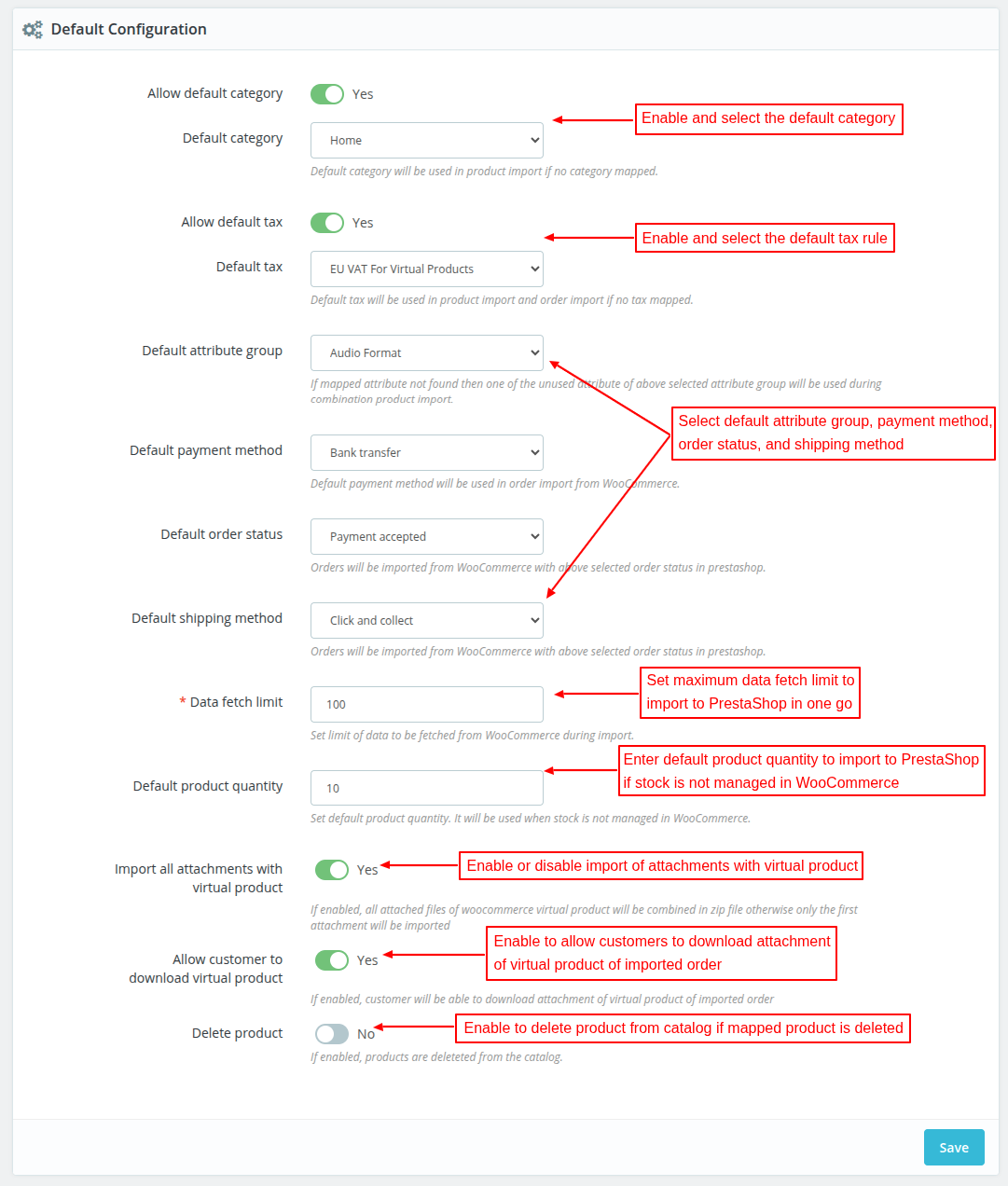
Under Default Settings, you can:
- Select default category that will be assigned to the WooCommerce products if no category is found while importing the product.
- Select default tax that will be assigned to the WooCommerce products/orders in case no tax found during import.
- Choose the default attribute group. If mapped attribute is not found, then one of the unused attributes of the above selected attribute group will be used during combination product import.
- Select default payment method, shipping method, and order status for orders imported from WooCommerce.
- Set maximum data limit that will fetch from WooCommerce during import.
- Set default product quantity to import to PrestaShop if the stock is not managed in WooCommerce.
- Enable the import of all the attachments with virtual product. If disabled, then only the first attachment will import.
- Allow customers to download the attachment of virtual products of imported order.
- Choose to delete product from catalog if mapped product is deleted
Real Time Update Settings
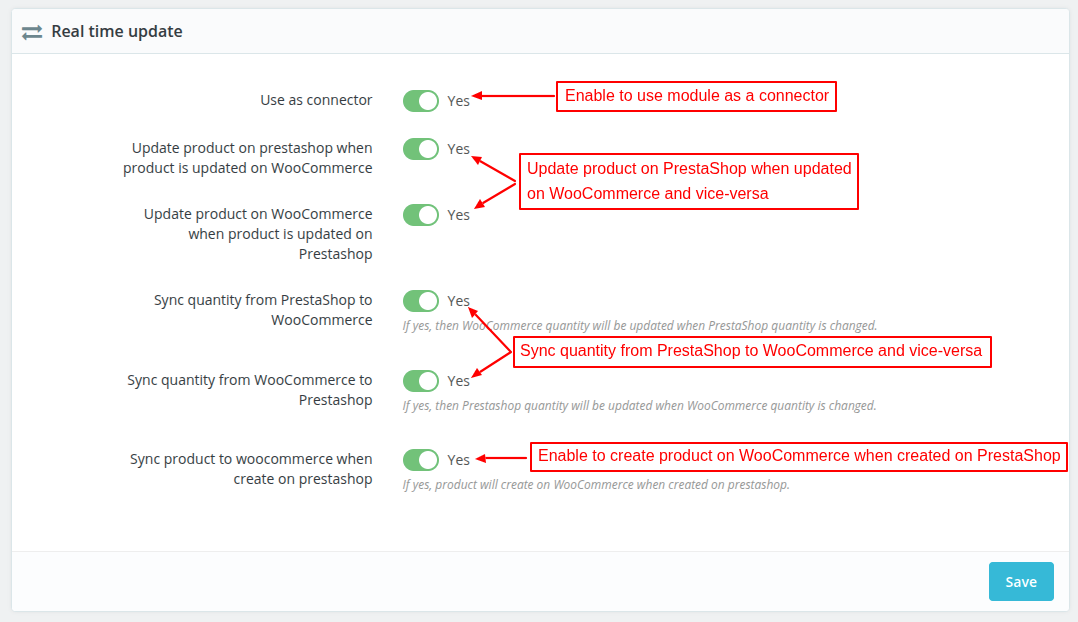
Under Real Time Update Settings, you can choose to:
- Use this module as a connector or migrator.
- Update product on PrestaShop when product is updated on WooCommerce and vice-versa.
- Synchronize product quantity from PrestaShop to WooCommerce and vice-versa.
- Synchronize product to WooCommerce when created on PrestaShop.
Category Mapping
Let’s suppose that an attempt to import product from the WooCommerce to Prestashop was successful. And, the product category(of WooCommerce) is not available at the Prestashop end.
Now, while importing the product, we need to put it into one or the other category.
To overcome this obstacle, either we need to create a new category or map the existing WooCommerce category to Prestashop.
And, if the mapping of WooCommerce categories & Prestashop categories is already complete, then the product will be put to that category.

Click on the ‘Map category’ button to map PrestaShop category with WooCommerce category.

Once mapped, you can view it under ‘Category’ tab.

Map Product Attributes
Map various attributes of WooCommerce with attributes of Prestashop. I’ll just explain why this is important.
Suppose you have a shirt of size “small” at WooCommerce store & you want that shirt to import to PrestaShop store. This should not be a problem though. But, here is the twist.
While importing the shirt, it will look for size: ‘small’ at your Prestashop store. And, if you have not created size by same word then that shirt will be put with the default attribute.
Let’s understand this with an example:
WooCommerce has size: ‘Small’ whereas PrestaShop has the size: ‘S’. Even though both represent the same size but the notation is different.
Hence, in this case, the product will be imported with the default attribute. Hence, it becomes even more important to map so that the product imports with the desired attribute.

Click on ‘Map attribute’ button to map PrestaShop attribute with WooCommerce attribute.

Once mapped, you can view it under ‘Attribute mapping’.

Map Shipping Methods and Taxes
While importing orders or products from WooCommerce, the shipping & tax applied on a product is also imported. Hence, it becomes necessary to map them as well.
If the shipping and tax are mapped beforehand then they will be automatically applied to the imported product.

Click on Map shipping button to map PrestaShop shipping method with WooCommerce shipping method.

Once mapped, you can view it under Shipping Mapping.

Click on ‘Map tax’ button to map tax of PrestaShop with tax of WooCommerce.


Customer

Import Customer
Click on ‘Import Customers’ button to import the customers from WooCommerce to PrestaShop. There are two ways to import customers to PrestaShop.
- Import all the customers in one go.
- Another way is to import a customer by a specific customer ID.


Once imported, you can view the list under Customers tab.

Export Customer
You can export all the customers from PrestaShop to WooCommerce at once or specific customers.
Export all customers

Export specific customers

Once exported, you can view the list customers under ‘Export customers’.

Product

Import Product
Click on ‘Import product’ button to import the products from WooCommerce to PrestaShop. There are 4 criteria to import a product.
- All products
- Import product by ID
- Import product from WooCommerce category
- Product created at specific time
All Products
Import all the products from WooCommerce to PrestaShop at once.

Import product by ID
You can import a specific products to PrestaShop by their ID.

Import product from WooCommerce category
This option allows you to import all the products of a specific WooCommerce category to PrestaShop.

Product created at specific time
You can also import the products created on WooCommerce in a specific date range. Select the dates in ‘Created after’ and ‘Created before’ fields.

Once imported, you can view the list under under Products.

Export Products
Click on Export Products button to export the products from PrestaShop to WooCommerce. There are 5 ways in which you can export products to WooCommerce.
1.New Products
Export all the new products from PrestaShop to WooCommerce. Please note that the products which are not exported yet will be exported.

2. Export product by selection

3. Products created in specific time
Export the products created in a specific date range. Select the dates in ‘created after’ and ‘created before’ fields to export products.

4. Export products from PrestaShop category
This option allows you export all the products of a specific category to WooCommerce.

5. All products
This option allows you to export all the PrestaShop store products to WooCommerce at once.

Order
Import Orders

There are two ways to import orders from WooCommerce to Prestashop.
- Import all the orders to Prestashop in one go.
- Import the orders one by one using order ID.


After importing the orders, you can view the list under ‘Order’ tab.

Export Orders
There are two ways to export orders from PrestaShop to WooCommerce.
- Export all the orders to WooCommerce at once.
- Export specific orders to WooCommerce.


Once exported, you can view a list under ‘Order’ tab.

This was all about the PrestaShop WooCommerce Connector module. I hope this document will help you in checking the functionality of the module in a better way.
Also, do let us know about your views in the comments.
Support
For any kind of technical assistance or query, please raise a ticket or send us a mail at [email protected]
Also, please explore our PrestaShop development services and vast range of quality PrestaShop addons.
Current Product Version - 2.1.2
Supported Framework Version - 9.x.x, 8.x.x, 1.7.x.x


Be the first to comment.