With the help of our Prestashop Testimonial module, you can provide this awesome functionality of writing testimonials to your customers and displaying them on your website.
This module gives you complete freedom over the customer testimonials and also allows you to create testimonials on behalf of your customers as well.
Features of PrestaShop Testimonial
- Allow customers to write testimonials.
- Option to display testimonials tab on the top menu.
- Display testimonials on the left and right columns on the category pages.
- Set the testimonial text color.
- Set the display sequence of the testimonials based on random testimonials, date or position.
- Control the number of testimonials to display on the testimonials page.
- Let’s you choose to display the testimonials normally or in a slider in the testimonials block.
- Control testimonial slider features such as auto-play slider, set time for each testimonial in the slider, set number of testimonials to display.
- Admin can also set testimonials on auto approval or manual approval.
- Get notified via email on whenever a customer add a new testimonial.
- Option to change or add multiple emails to get notified on.
- Email to customers when their testimonials get approved.
- When customer adds a testimonial, an email is sent to admin containing customer’s email address and testimonial name.
- Choose whether to allow customers to add rating to their testimonials.
- Choose whether registered customers can write testimonials or customers who have at least one order can write testimonials.
- Also, the admin can allow customers to add multiple testimonials.
- Choose whether to allow customers to add image to their testimonials.
- Choose whether to allow customers to add video url to their testimonials.
- Allow customers to add their own Avatar image on their testimonials.
- Add reCaptcha on testimonial form for customers to validate before submission.
- Control the minimum and maximum character length for writing a testimonial.
- Supports multi-language feature.
- PrestaShop Testimonial module is MultiShop Compatible.
How to Install PrestaShop Testimonial
- Firstly, go to the module manager in the back office and click on ‘upload a module’.
- After that, drag and drop the module file or select the file from the system.
- In this way, the module installation will be successful.


Testimonial Settings
The testimonial settings is divided into 3 sections:
- Display Settings
- Slider Settings
- Permission Settings
Display Settings
Under Display Settings, the admin can:
- Choose to show testimonial tab in navigation bar.
- Choose to show testimonials on left and right positions of category pages.
- Select the display sequence of testimonials i.e random, by date, or position.
- Configure the number of testimonials to be displayed on ‘All testimonial’ page.
- Set the text color of testimonial.

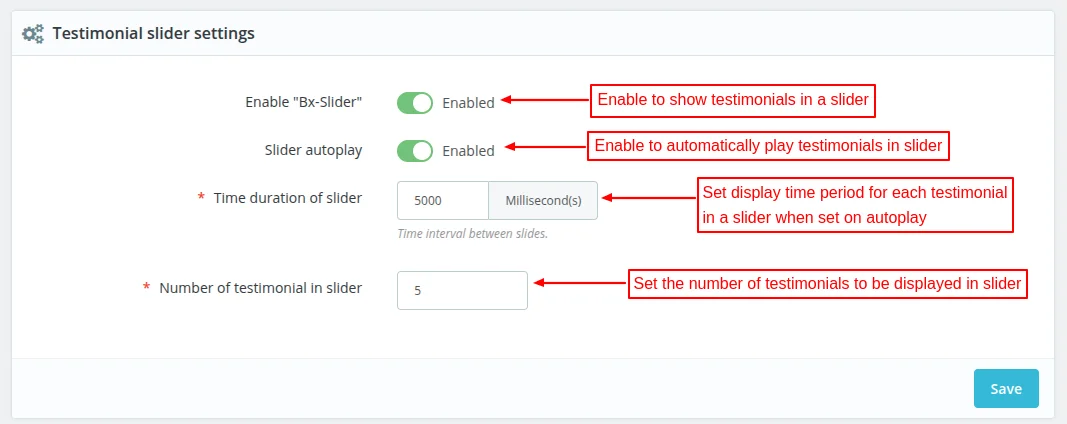
Testimonial Slider Settings
Under Testimonial Slider Settings, the admin can:
- Choose to show testimonials in a slider.
- Choose to automatically play testimonials in a slider.
- Set the time duration for which testimonial will display in a slider, when testimonials are set on autoplay.
- Configure the number of testimonials to display in a slider.
Testimonial Permission Settings
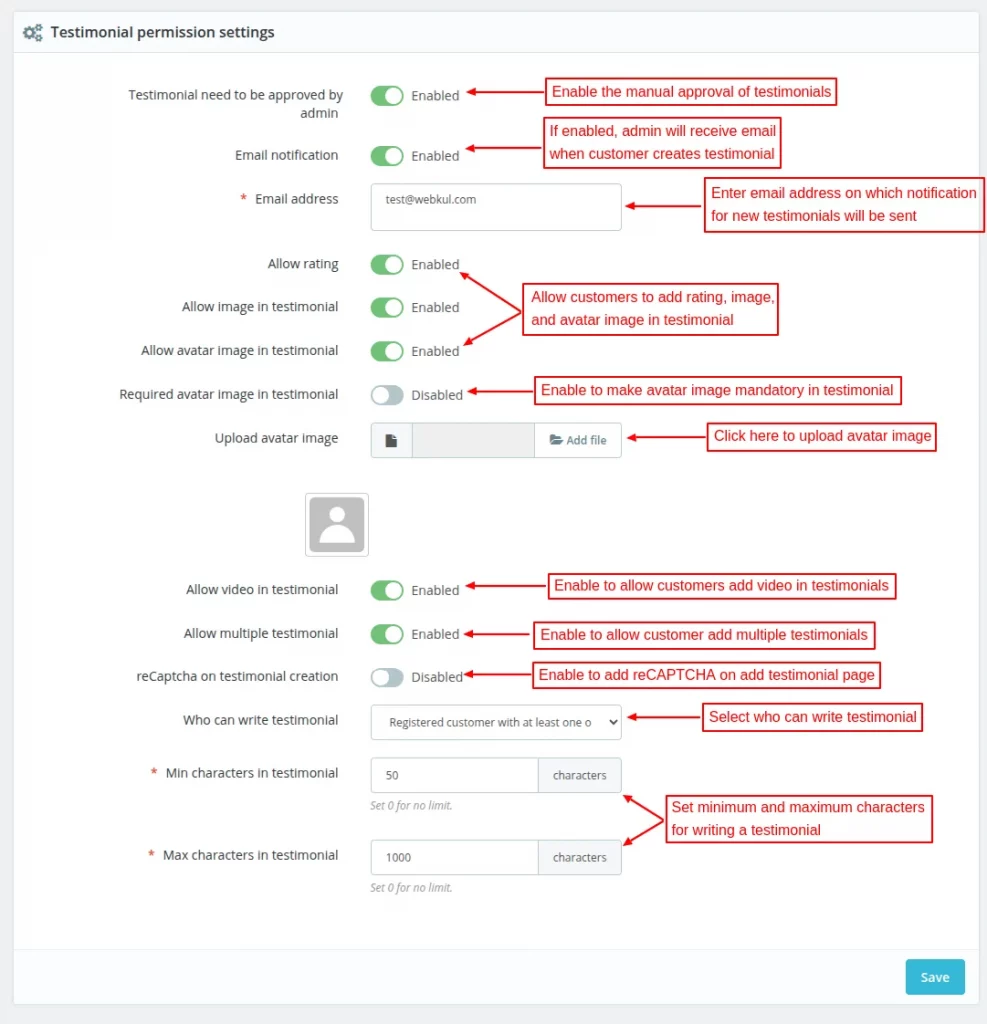
Under Testimonial Permission Settings, the admin can:
- Enable or disable the manual approval of testimonials.
- Choose to get notification when customers create new testimonial.
- Allow customer to add rating, image, avatar image, and video on testimonials.
- Allow customer to add multiple testimonials.
- Add reCAPTCHA on add testimonial page.
- Set minimum and maximum characters customers can write for testimonial.

On clicking ‘Delete this image’ button, a popup appears on the page asking for confirmation.

Who can write testimonial
Admin can choose whether registered customers with zero orders can write testimonials or registered customers with at least one order.

reCAPTCHA on testimonial creation
The admin can choose to add reCAPTCHA on testimonial creation page.

Front End Flow
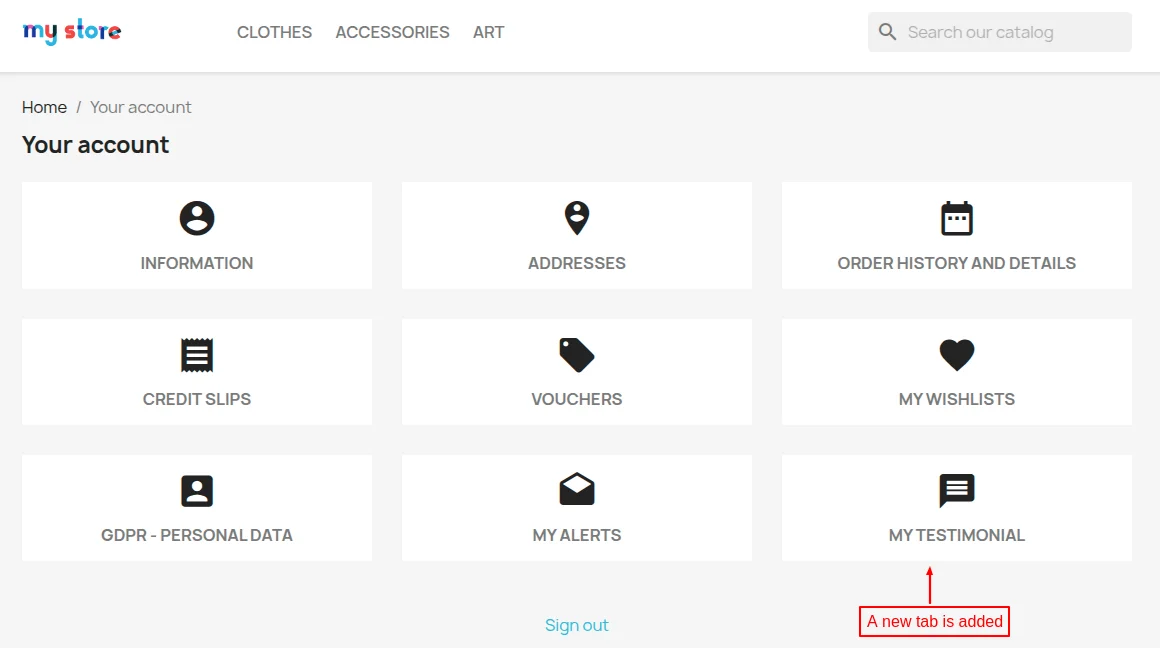
After the successful installation of the module, a new tab “MY TESTIMONIAL” gets available in customer’s account. From here, the admin can add, view, and manage testimonials.
Testimonial Tab on Top Menu
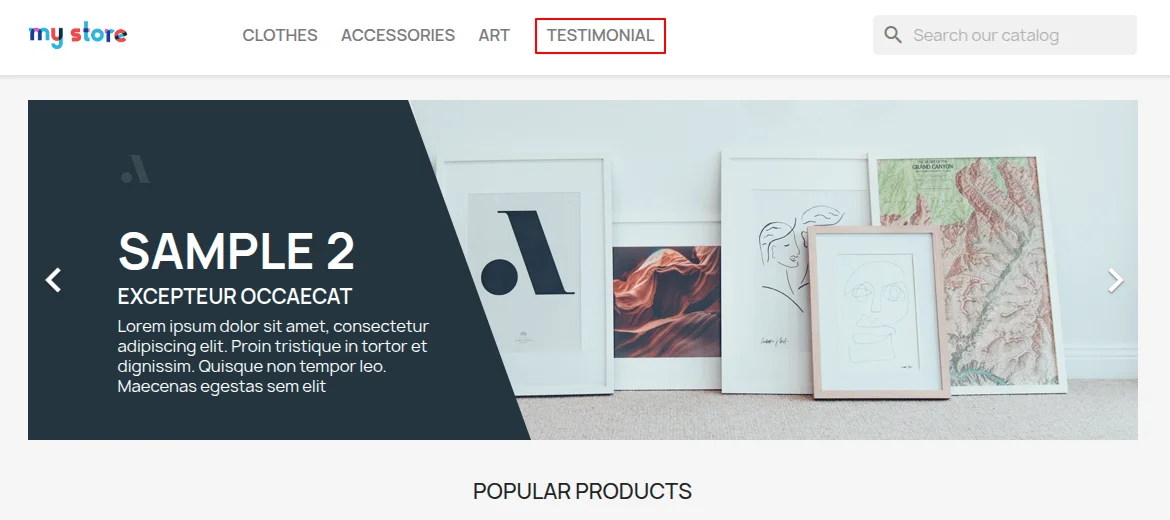
If enabled by the admin under “Testimonial display settings”, a testimonial tab will display on top.
Add Testimonial
As enabled by admin from the back office, customer can add rating, image, video, and avatar image while adding a testimonial.
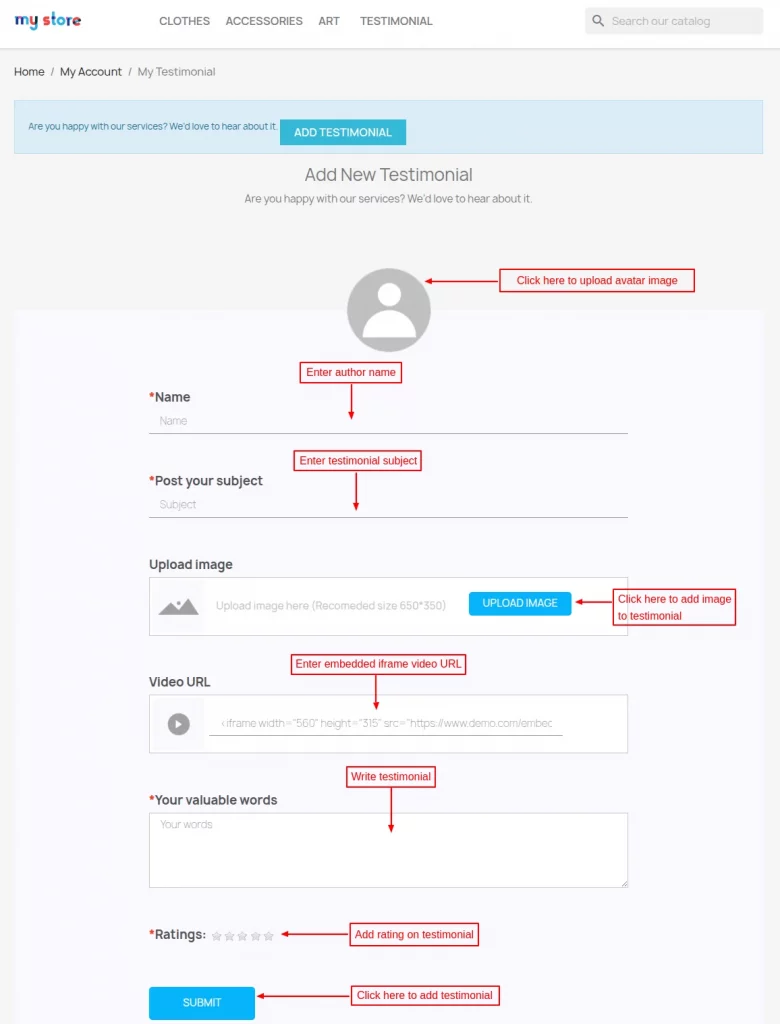
Customers need to fill in all the required details in this form and submit it.
If the testimonials have been set on manual approval by the admin, then it would show pending until the admin approves it.

When a customer submits a testimonial, they receive a confirmation mail with all the relevant details

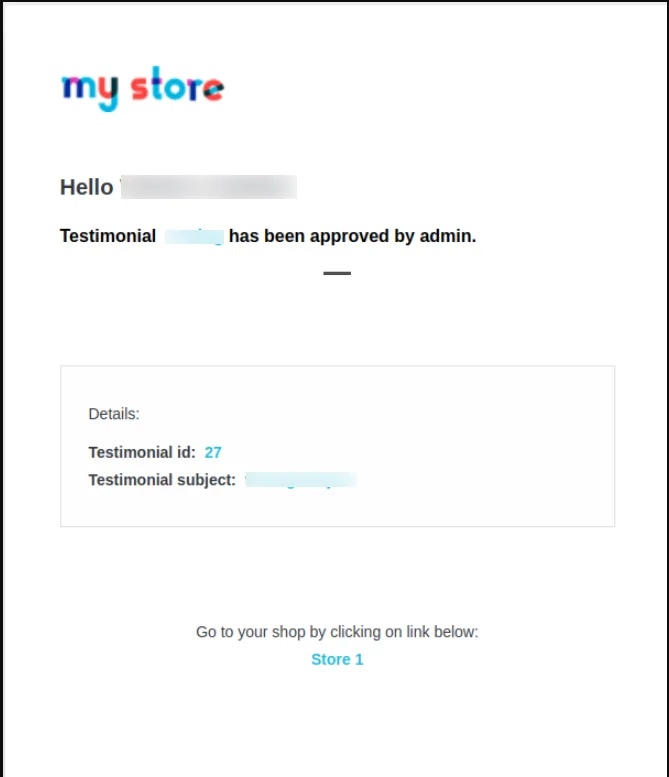
When a customer submits a testimonial that requires admin approval, they receive an mail when it gets approved
reCAPTHCA on testimonial creation form
If the admin has enabled reCAPTCHA on ‘add testimonial page’ in Testimonial permission settings, reCAPTCHA will display on the form as shown below:

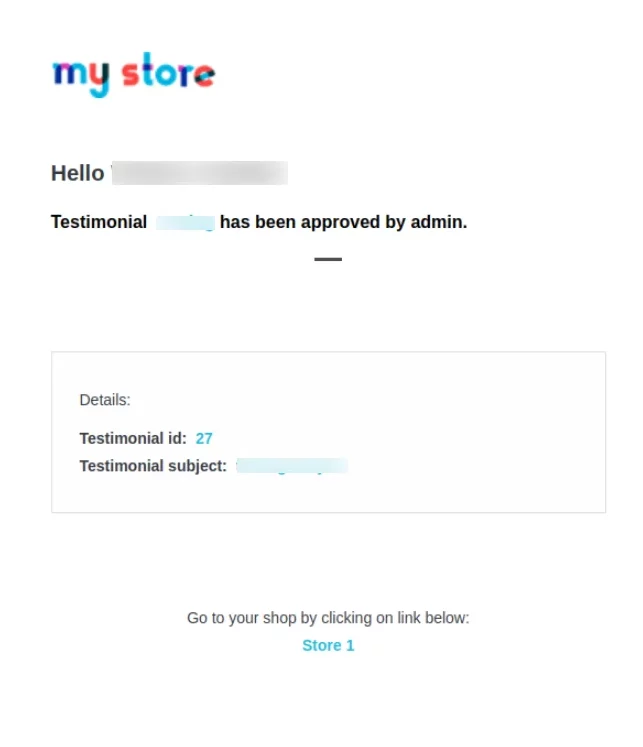
When an admin creates a testimonial on behalf of a customer, the customer receives a confirmation mail regarding its creation
Manage Testimonials
After the successful installation of the module, a new tab “Testimonials” gets available in the back office under Customers section.
From here, the admin can configure testimonial settings and manage testimonials.
Under Manage Testimonials tab, the admin can:
- View a list of all the testimonials submitted by customers.
- Approve or disapprove testimonial.
- Set position of testimonials.
- Edit or delete testimonial.
- Add testimonial on customer’s behalf.

The admin can add testimonial on customer’s behalf by clicking on ‘Add testimonial’ button.
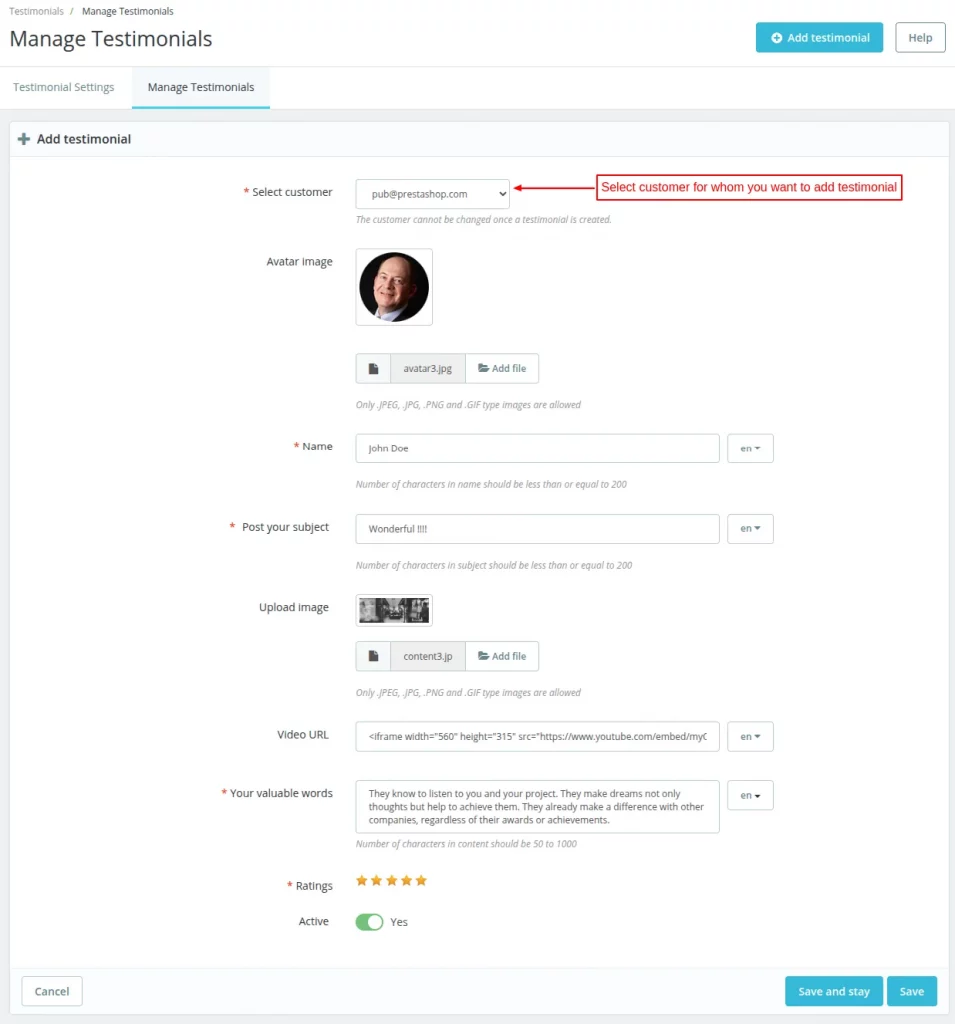

Edit Testimonial

Testimonials – Front View
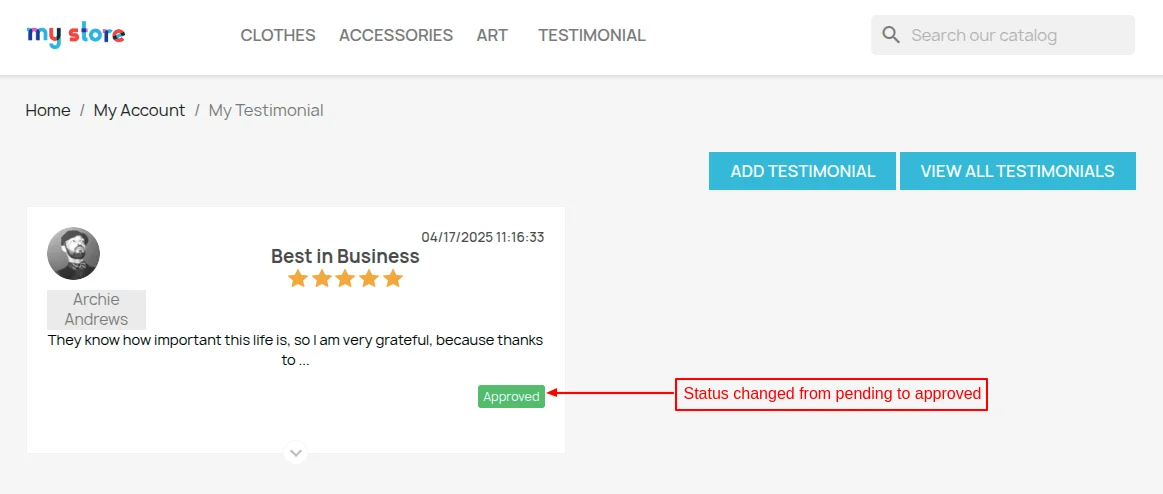
Once the admin approves the testimonials, the status gets changed from pending to approved and it will be added in the Testimonials section.
Testimonials View – Homepage

Slider Display of Testimonials

Category page view
Customers can click on view all or the Testimonials tab in top menu to view all the added Testimonials on the Testimonials page.
A list of all the added Testimonials will display here.

This was all about the Prestashop Testimonials module. I hope this document will help you in checking the functionality of the module in a better way.
Also, do let us know about your views in the comments.
Support
For any kind of technical assistance or query, please raise a ticket or send us a mail at [email protected]
Also, please explore our Prestashop development services and a vast range of quality Prestashop addons.
Current Product Version - 4.2.1
Supported Framework Version - 9.x.x, 8.x.x, 1.7.x.x


Be the first to comment.