Prestashop Product Barcode Label allows you to create product barcode labels using product codes like ISBN, UPC or EAN-13/JAN. You can add these product codes to the product from the backend.
These are unique codes that help you to identify a product on your shop. The barcode labels help you to identify, track the movement of product around the warehouse/shop.
These labels are also machine readable making the work much easier for merchants. The barcodes make the entry to the computer easy & remove the necessity of adding the details manually.
Note: Prestashop Product Barcode Label module is compatible with PrestaShop new catalog page V2.
Check the overview of the plugin in the video mentioned-below –
Now, let’s proceed further in the blog to know more about the workflow of the module.
Features of Prestashop Product Barcode Label module
- Print barcode labels of products as well as combinations.
- Select the barcode standard (ISBN, UPC, MPN, Product Reference JAN/EAN-13) to print on PDF.
- Choose to print barcode labels of products, products with their combinations, or only combinations from product listing page.
- Print barcode labels of products from Stock tab under Catalog.
- Option to print multiple barcodes in a single row is available.
- Set the number of barcodes you want to print for a product or combination.
- Also, customize the size/dimension of barcode to print on the page.
- Select the product details(product name, price, reference) that you want to print above and below the barcodes.
- Use a CSV file to print multiple barcodes in one attempt.
- Prestashop Product Barcode Label module is MultiShop compatible.
How to install the Prestashop Product Barcode Label module
- Firstly, go to the module manager in the back office and click on ‘upload a module’.
- After that, drag and drop the module file or select the file from the system.
- In this way, the module installation will be successful.


How to configure the Prestashop Product Barcode Label module
After the installation of the module, you will need to configure the module. There are multiple options in the configuration settings. So, let’s understand their significance one by one.

Barcode Type
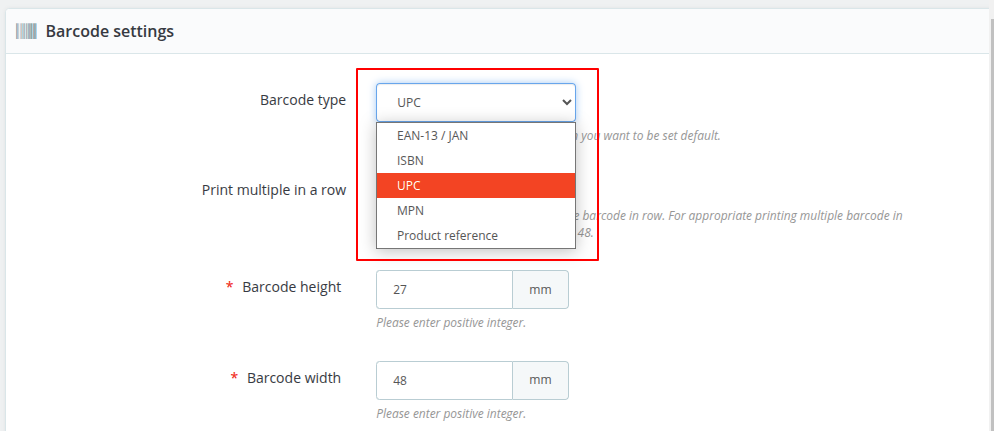
In this field, you can select the type of code you want to use to print barcode. You can choose from 5 types of codes i.e., ISBN, UPC, MPN, product reference, or JAN/EAN-13 to generate barcode.
Print multiple in a row: Use this option to enable or disable the printing of multiple barcodes in a single row.
Barcode height and width: Customize the size of barcodes that you want to print.
Paper height and width: Set the height and width of paper on which barcodes will print.
Detail above/below barcode: Select the product parameters(product name, price, and reference) that you want to print above & below the barcodes.
Also, preview the barcode after selecting the product details.
Rotate Barcode: Enable this option to print the barcodes in landscape mode. Otherwise the barcodes will print in their usual manner i.e., potrait mode.
CSV to Barcode Generation

You can also choose to print multiple barcodes at a time by uploading a CSV file.

Note: This module does not generate barcode itself. Instead, it helps you to generate the barcode labels using various product codes.
You will need to add those product codes in order to generate barcode label for the products.
Printing Barcode of a Product
The module also provides you to print barcodes of each & every product individually. For that, go to products in the catalog section.
Here on this page, a new option “Print Barcode” gets available under “three dots”. You can click on three dots available in front of every product & proceed to print the barcode individually.

On clicking ‘Print barcode’ button, a popup appears on the page where you can specify the number of barcodes you want to print.

Now, click on ‘Print barcode now’ button.

Print Barcode Label of Multiple Products and Combinations
Prestashop Product Barcode Label allows you to print bulk barcodes of:
- Products
- Products with their combinations
- Combinations
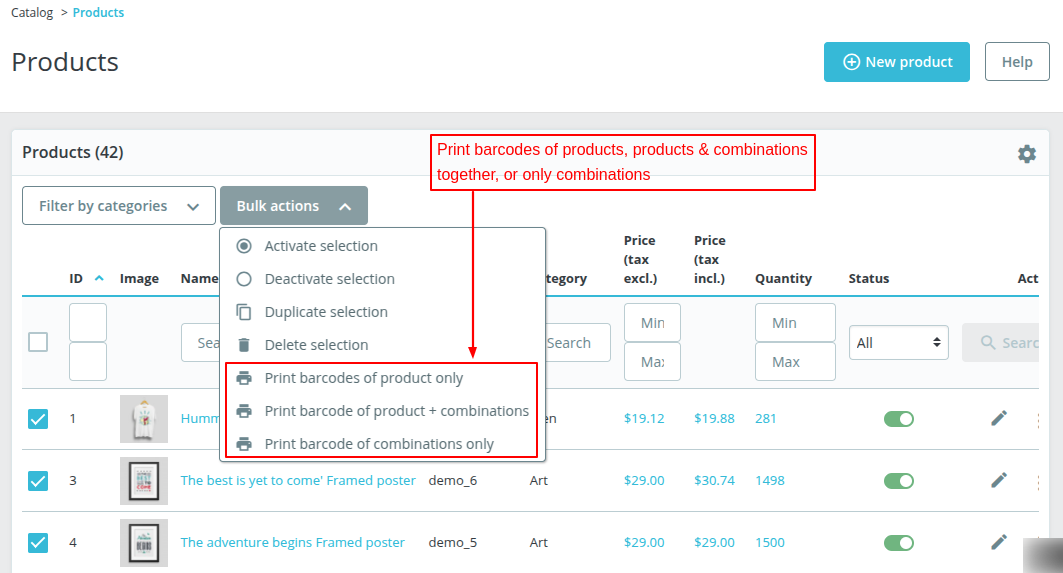
Firstly select the products on the product listing page and then choose the suitable bulk action.
Print barcodes of product only
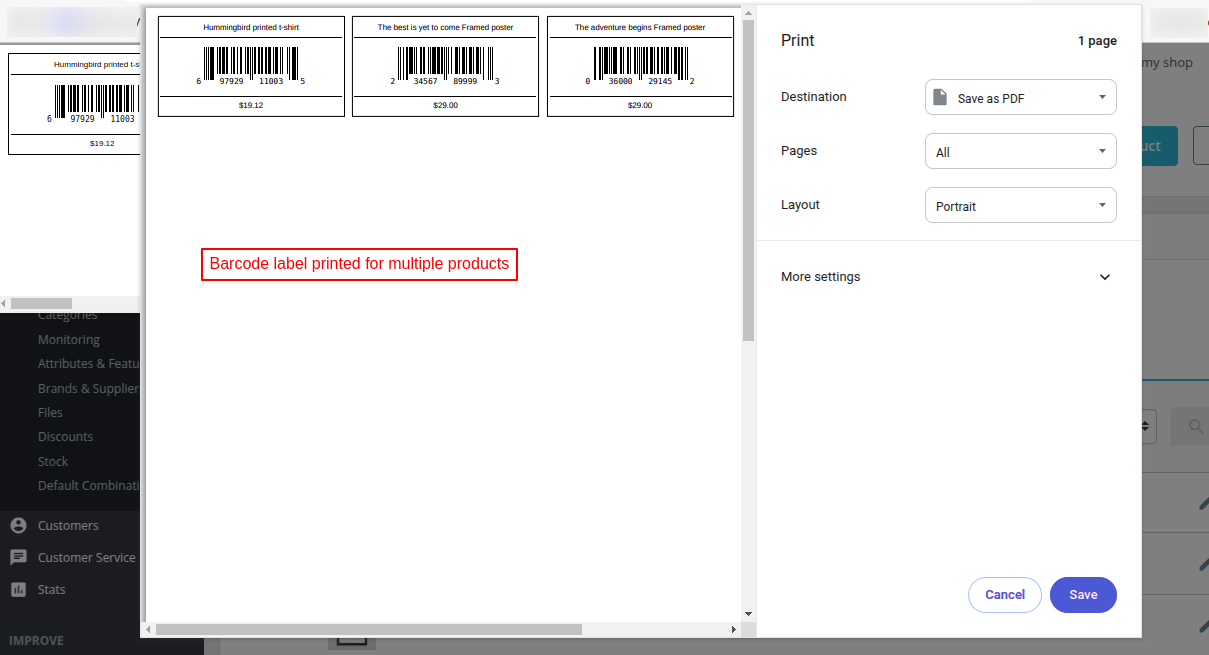
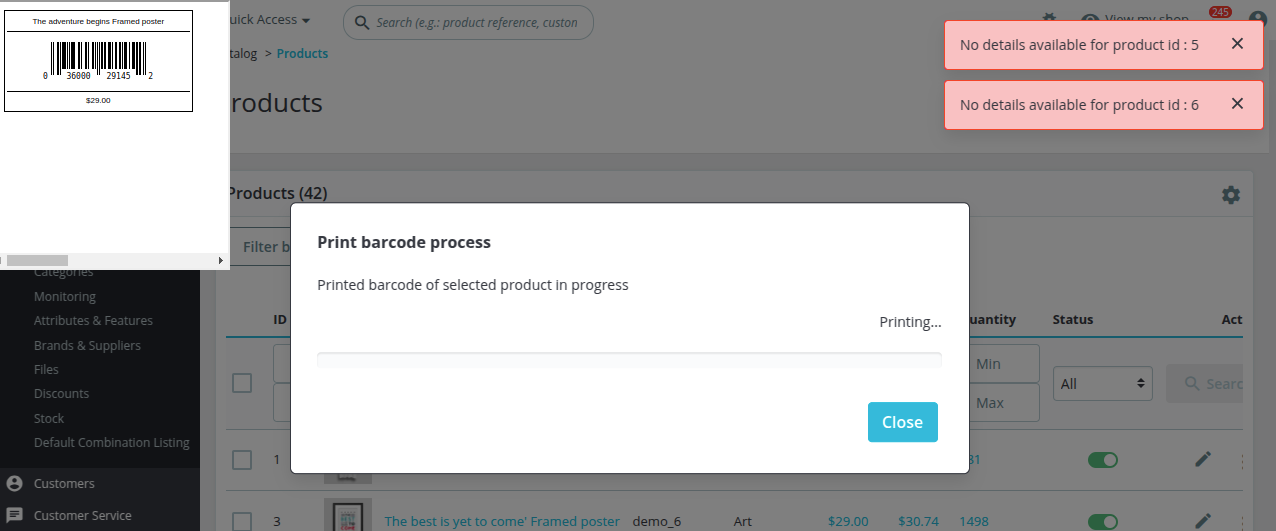
If the selected products do not contain the necessary information or have incorrect information, then an error will display on the screen. And, in this case, no barcodes will print.
Also, if some products out of the selected products contain any information then barcodes of product with information will be printed & others will be left out.
Print barcode of product + combinations
Click on this option to print barcodes of products as well as their combinations.
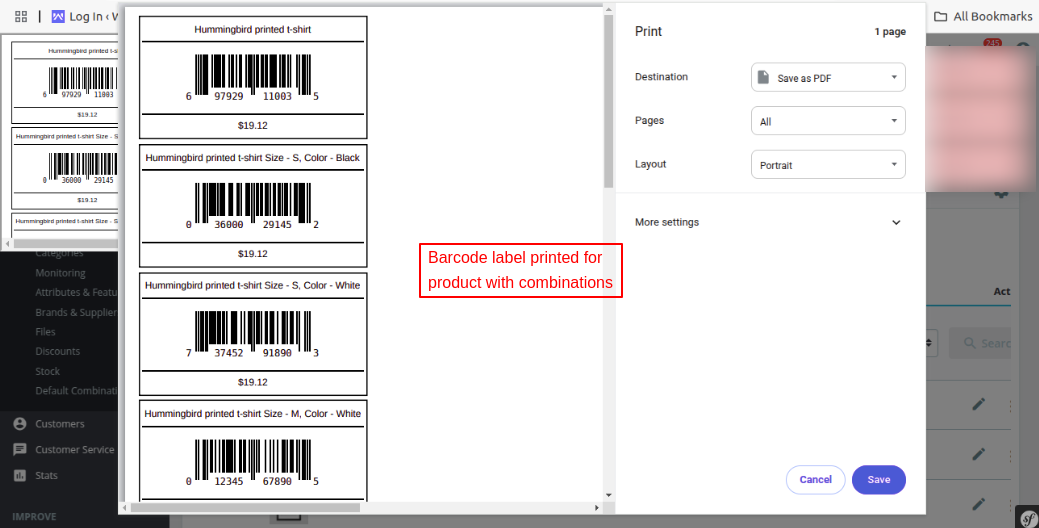
Print barcode of combinations only
Select this option to print barcodes of combinations only.
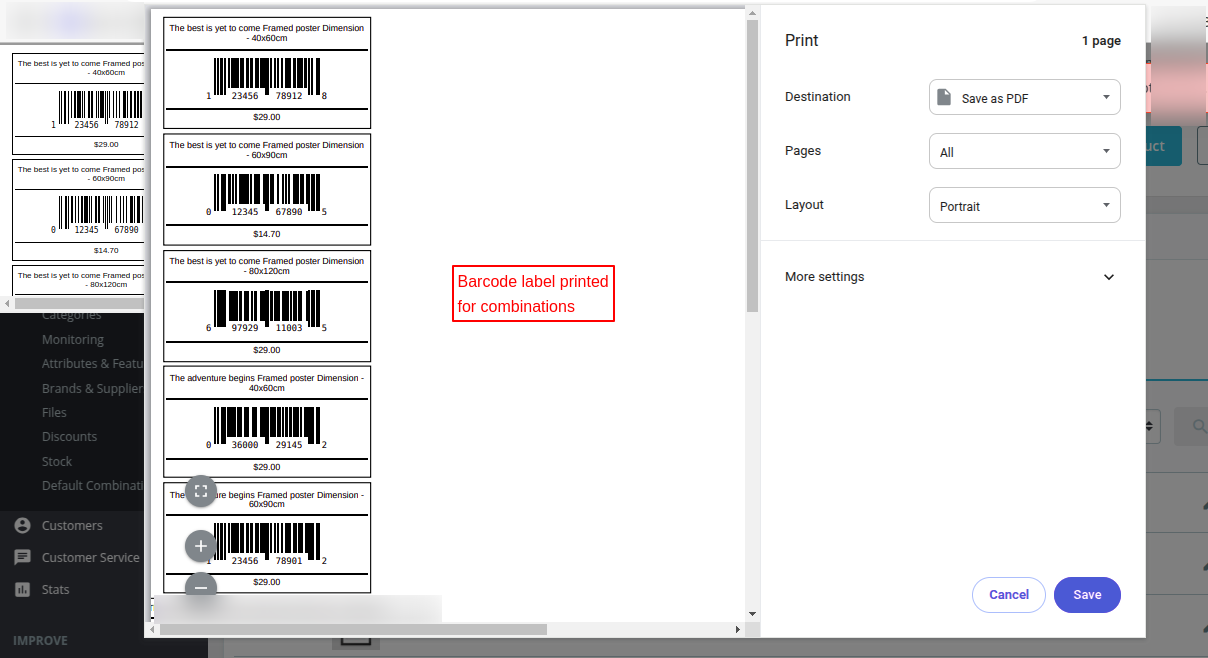
Print Barcodes of Combinations – Product Details Page
If you want, then you can also print barcode label of product combinations. After the installation of the module, a printer icon adds in front of each combination.
On clicking the icon, you will be able to print barcode label of each product combination.

On clicking ‘Print barcode’ button, a popup appears on the page where you can specify the number of barcodes you want to print for the product combination.

Now, click on ‘Print barcode’ button.

Print Barcode Label of Multiple Combinations
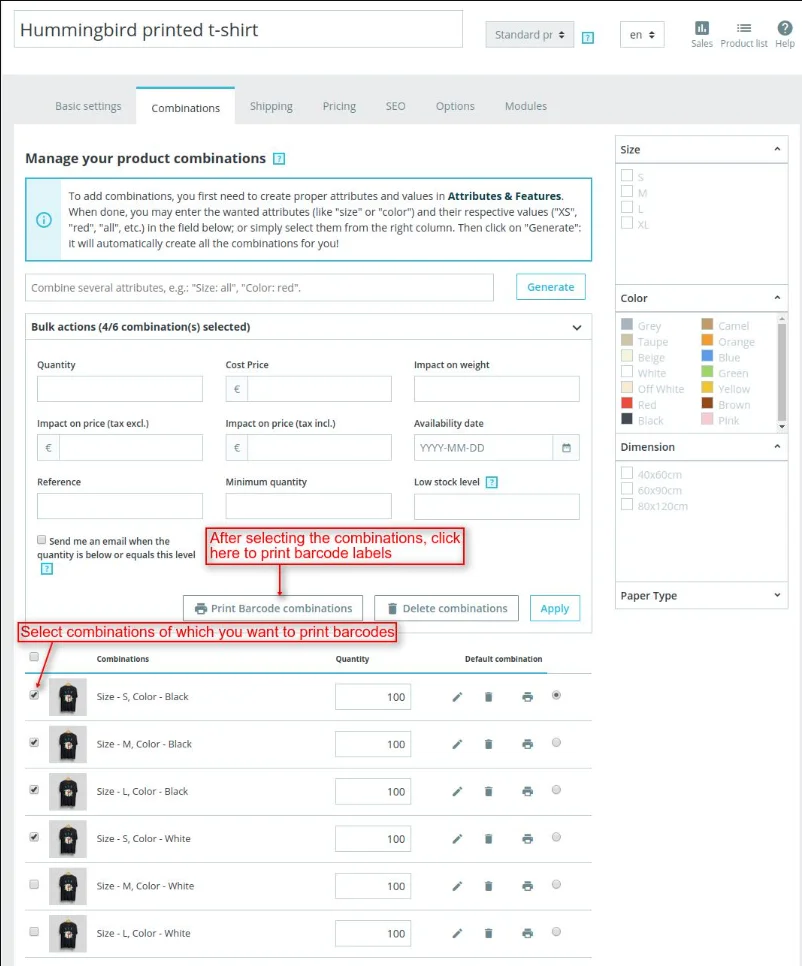
Apart from printing the combination individually, you also get an option to print the barcode label of multiple combinations.
To print the barcode label of multiple combinations, firstly select the combinations & then click on the “Print Barcode Combinations” button.

Print Barcode from Stock
Under Stock tab in the Catalog section, a new column “Print barcode” gets available in the product list. Click on the printer icon to print the barcode label of a product.
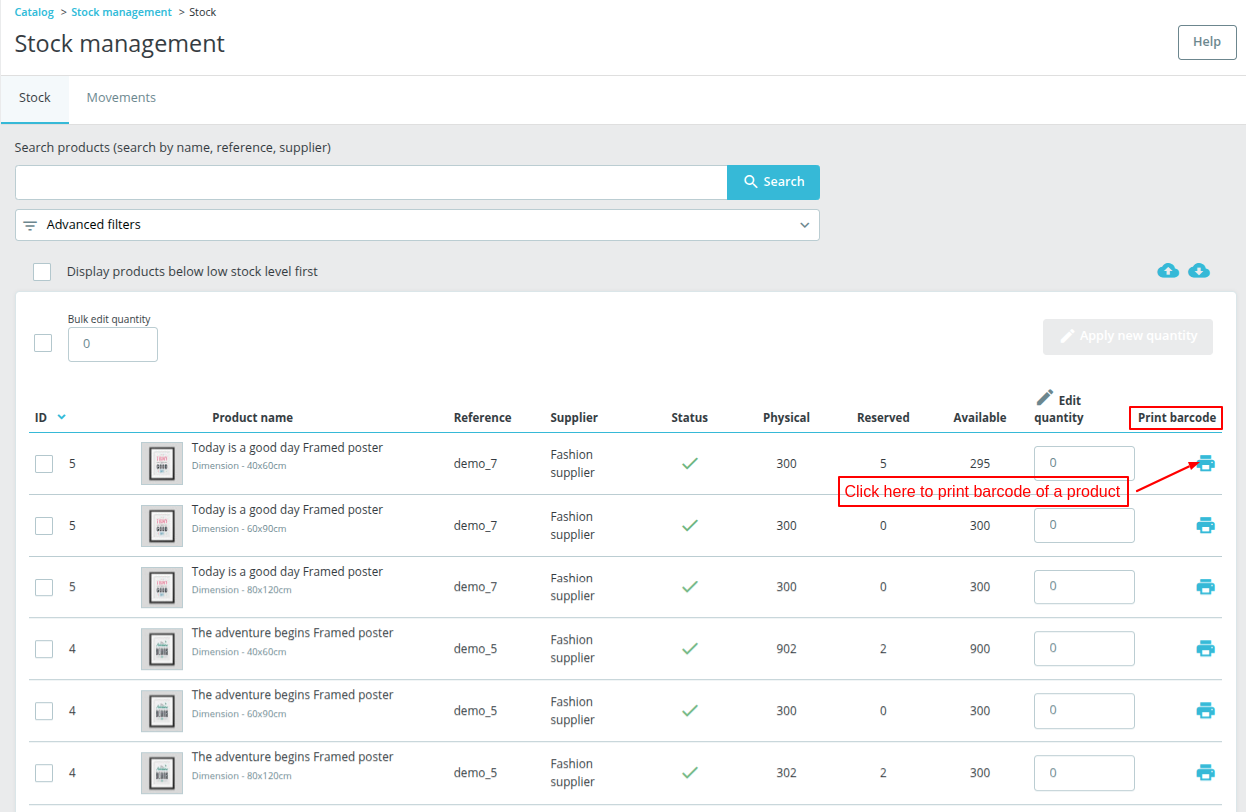
Functionality of printing barcode labels from the Stock tab is available in PrestaShop version 8.x.x and above.
Print Barcode of Product in Landscape Mode
At last, let’s see how you can print barcode of products in landscape mode as well.
For that, an option to rotate the barcodes is available. In case, if you enable this option then barcodes will be printed in landscape mode.

The following page shows you the view of the barcode printing in landscape mode.

So, this was all about Prestashop Product Barcode Label Module. I hope this document will help you in checking the functionality of the module in a better way.
And, do let us know about your views in the comments.
In case, if you are also looking for a module to show labels on your product, the do check out the blog.
Support
For any kind of technical assistance or query, please raise a ticket at http://webkul.uvdesk.com or send us a mail at [email protected]
Also, please explore our Prestashop development services and vast range of quality Prestashop addons.
Current Product Version - 4.1.1
Supported Framework Version - 9.x.x, 8.x.x, 1.7.x.x


1 comments