PrestaShop Product 360 degree view helps you to show every side of a product to your customers. It allows your customers to view products in a more attractive and magnificent way.
Admin can set up a 360 degree view of a product by adding multiple images in a proper sequence.
Note: PrestaShop Product 360 Degree View module is compatible with PrestaShop multi-store feature.
Features of PrestaShop Product 360 Degree View
- Easily set the 360 degree view of a product by adding multiple images of a product.
- Delete the images you have added to a 360 degree product view.
- Change the sequence of the images added to 360 degree view by dragging them.
- Once added, you can preview 360 degree view of product in the back office.
- Display 360 degree view image at product page footer, product page tab or product page image thumbnail.
- If selected product page image thumbnail, the admin can choose to show 360 degree image as cover image of a product.
- Enable automatic spinning of slider upon page load.
- With 360 degree product view, a customer can view every side of a product in a 360-degree rotating view.
- A customer can stop or start again the 360 degree product view by clicking on the start/stop button.
- Spin speed in which images rotate in a 360 degree view of a product can be managed by the admin.
- The admin can choose the view type of a 360 degree product view that he wants to show at the front end.
- Enable/disable 360 degree image view for all products.
- Admin can enable/disable 360 degree image view of any particular product.
- Admin can upload his own 360 degree thumbnail image.
- Customize the dimension of 360 degree view image as per need.
- A dedicated tab in the back office to view a list of all the products on which the admin has set 360 product view.
- PrestaShop Product 360 Degree View module supports jpeg, gif, png, jpg, and webp image formats.
Product 360 Degree View Configuration
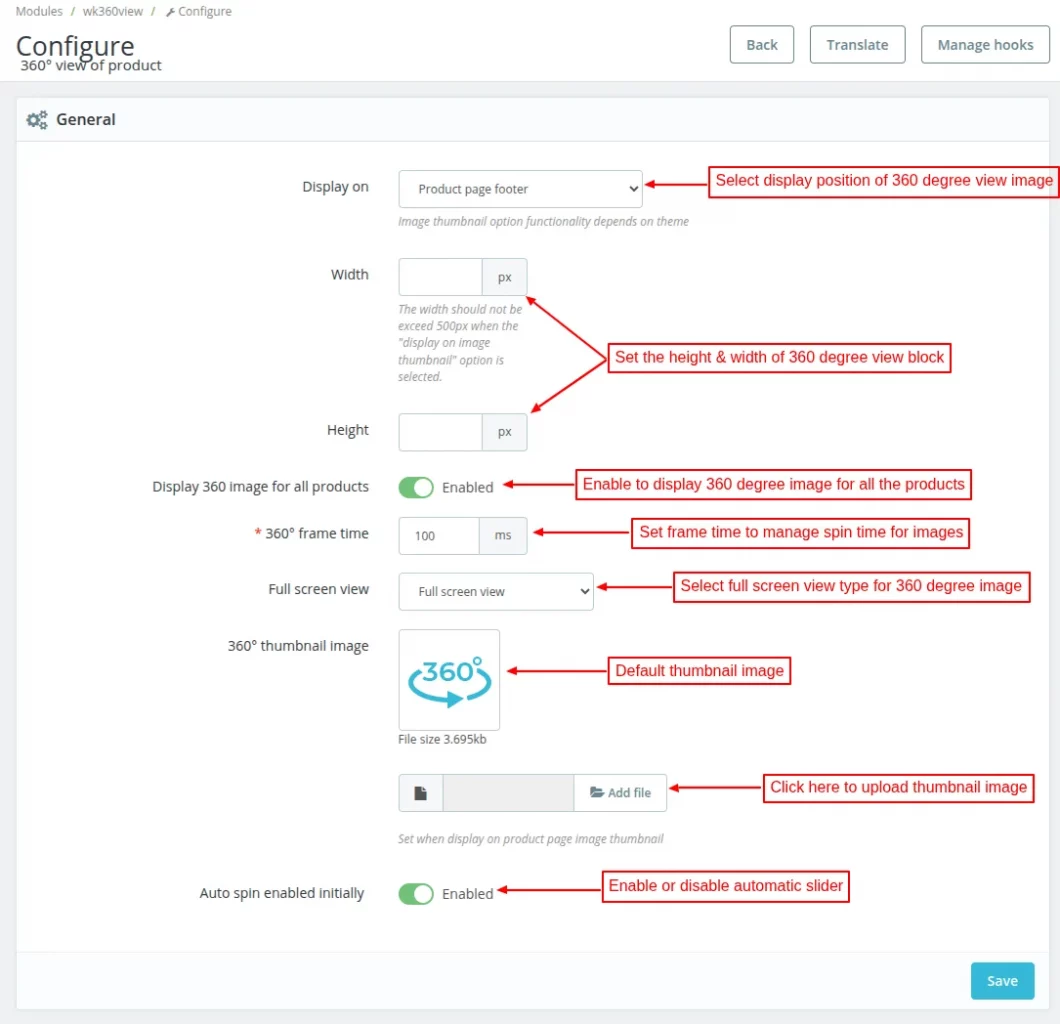
Under General Settings, the admin can:
- Select the display position of 360 degree image. The admin can choose to show 360 degree image on product page footer, tab, or image thumbnail.
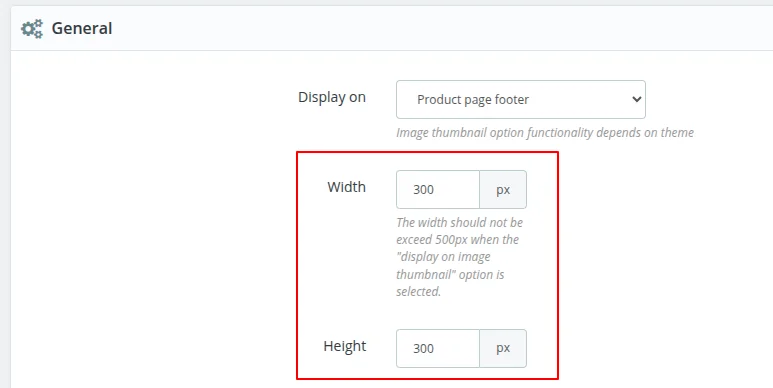
- Set the height and width of 360 degree view block.
- Choose to display 360 degree image for all the products.
- Set 360 degree frame time.
- Select the full screen view type for 360 degree image.
- Enable automatic spinning of slider upon page load.
Display 360 Degree Image on Product Page Image Thumbnail
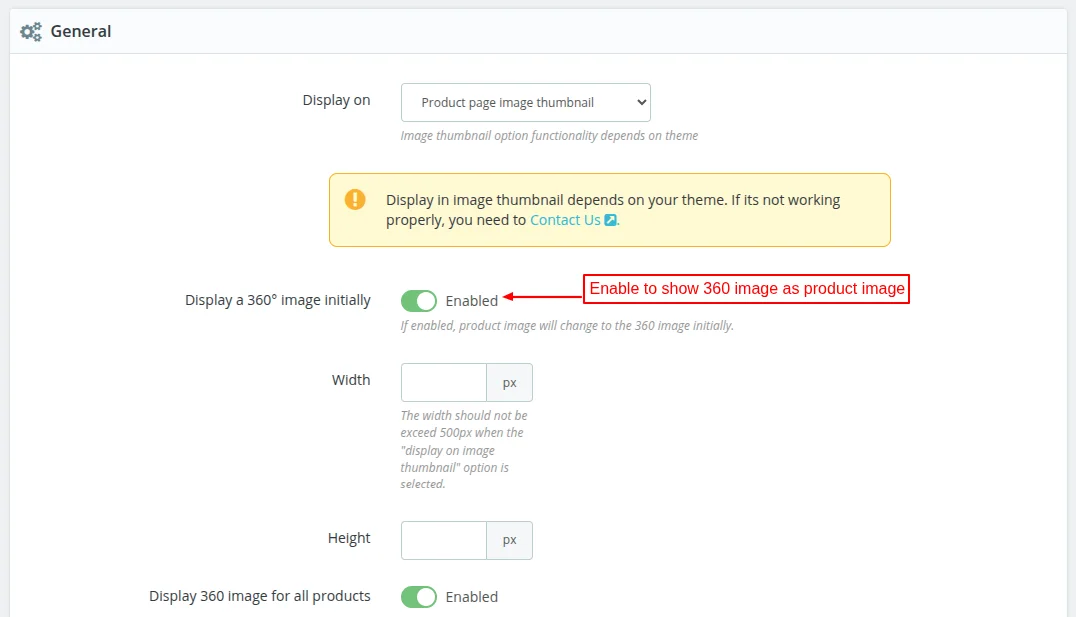
If ‘Product page image thumbnail’ is selected, the admin can choose to show 360 degree image as product image on the product page.
It means, when the customer visits the product page, he can view 360 degree image.
Full Screen View
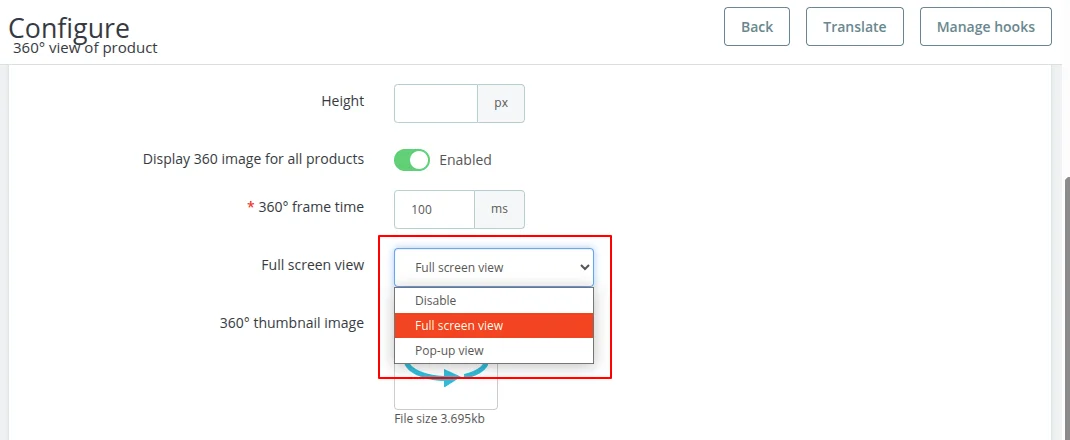
The admin can choose to show 360 degree image in a full screen view or popup view.
Set 360 Degree View on Product
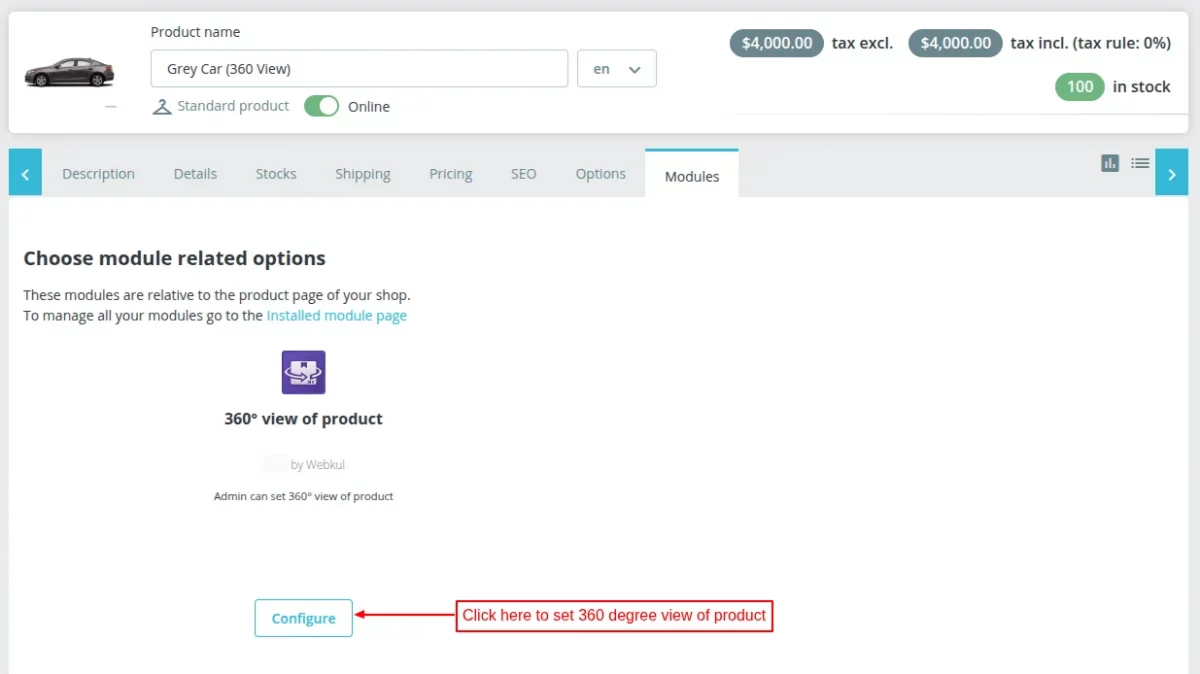
Go to Catalog -> Products -> Edit Product -> Modules. Click on ‘Configure’ button.
Now, the admin needs to add all the images that will be visible in 360 degree view of a product in front end.
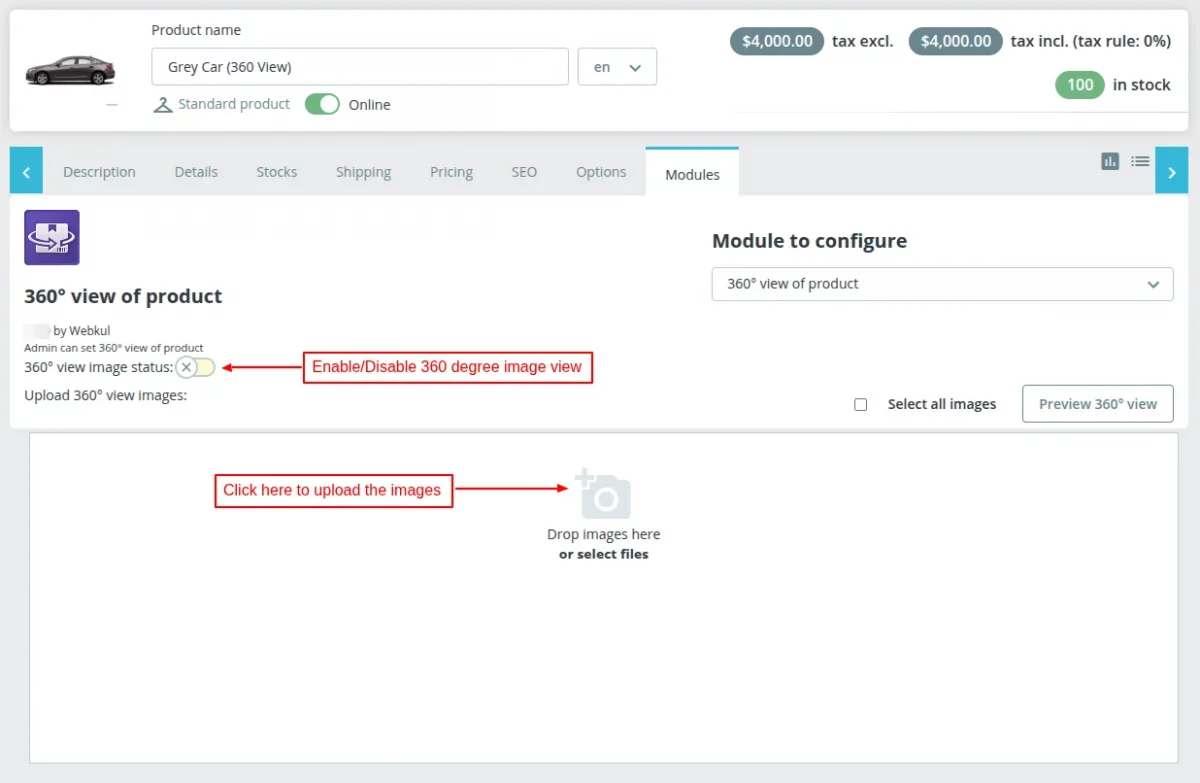
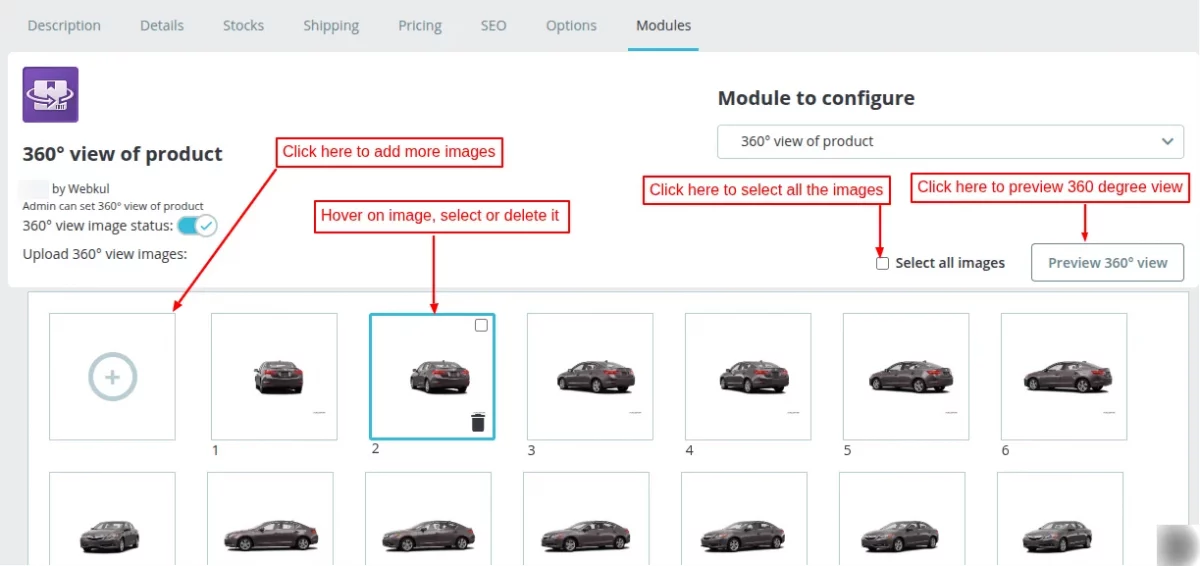
Once added, the admin can:
- Preview 360 degree view of the images.
- Change the sequence of images.
- Delete the images
Preview 360 Degree View
Click on “Preview 360 degree view” button. On clicking the button, a popup appears on the page where the admin can preview 360 degree view.
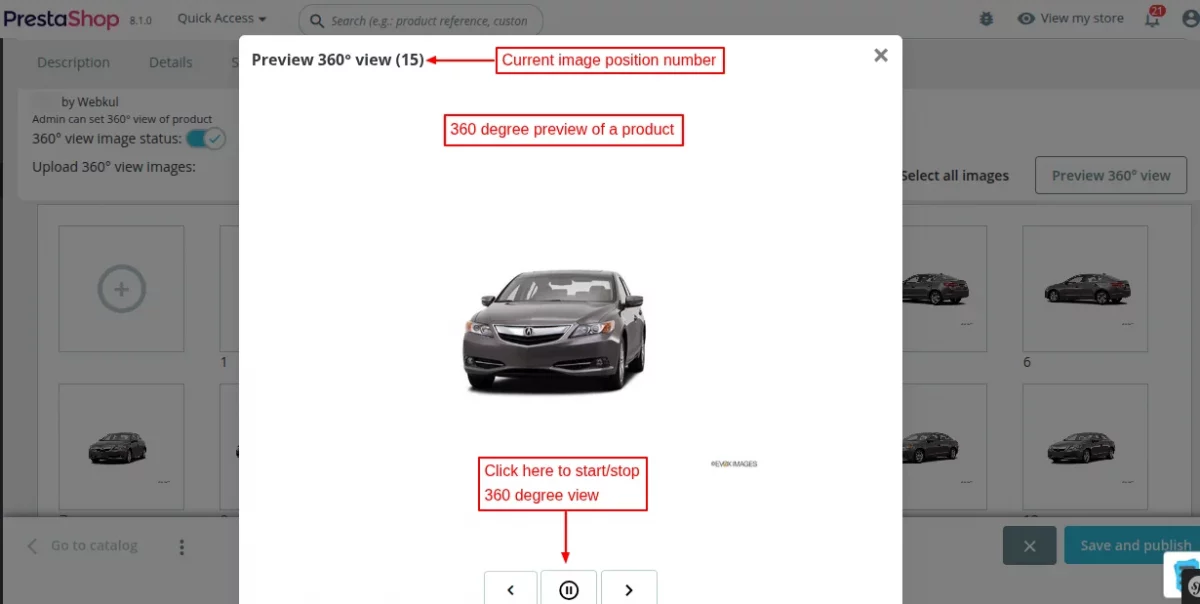
The admin can start or stop 360 degree view and see next/previous image using the buttons.
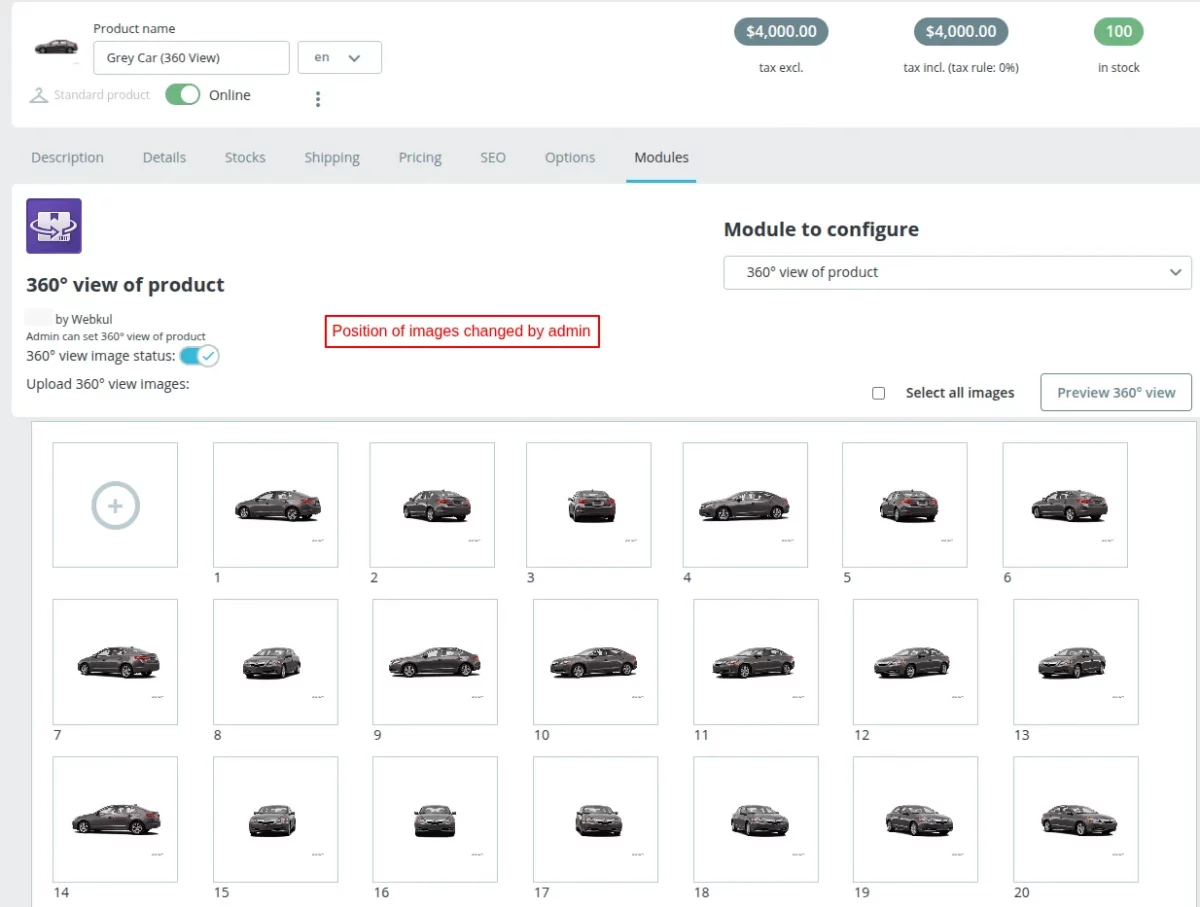
Change Image Sequence
Admin can change the position of images by dragging the image as shown in the screenshot below:
Delete Images
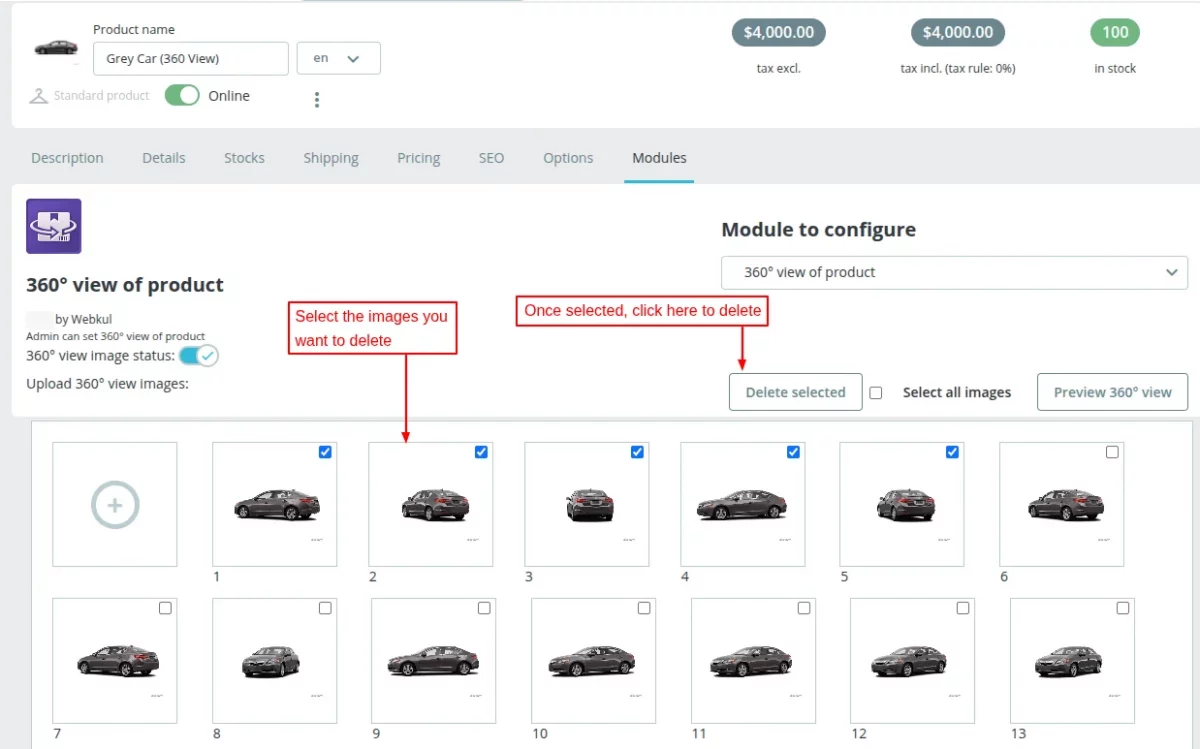
The admin can delete the multiple images that he has added to a product 360 view just by selecting the images and clicking on the “Delete selected” button.
360 Degree Images
After the successful installation of the module, a new tab “360 Degree Images” gets available under Catalog.

Under this tab, the admin can view a list of products for which he has added 360 degree images.
On clicking ‘View product’, the admin gets redirected to the product page where he can see 360 degree view of a product.
Also, the admin can change the sequence of 360 degree images or delete them by clicking on the ‘Edit’ button.
Front End Flow – Product 360 Degree View
The 360 degree view of a product will display on the position selected by the admin in general settings.
360 Degree View at Product Page Footer
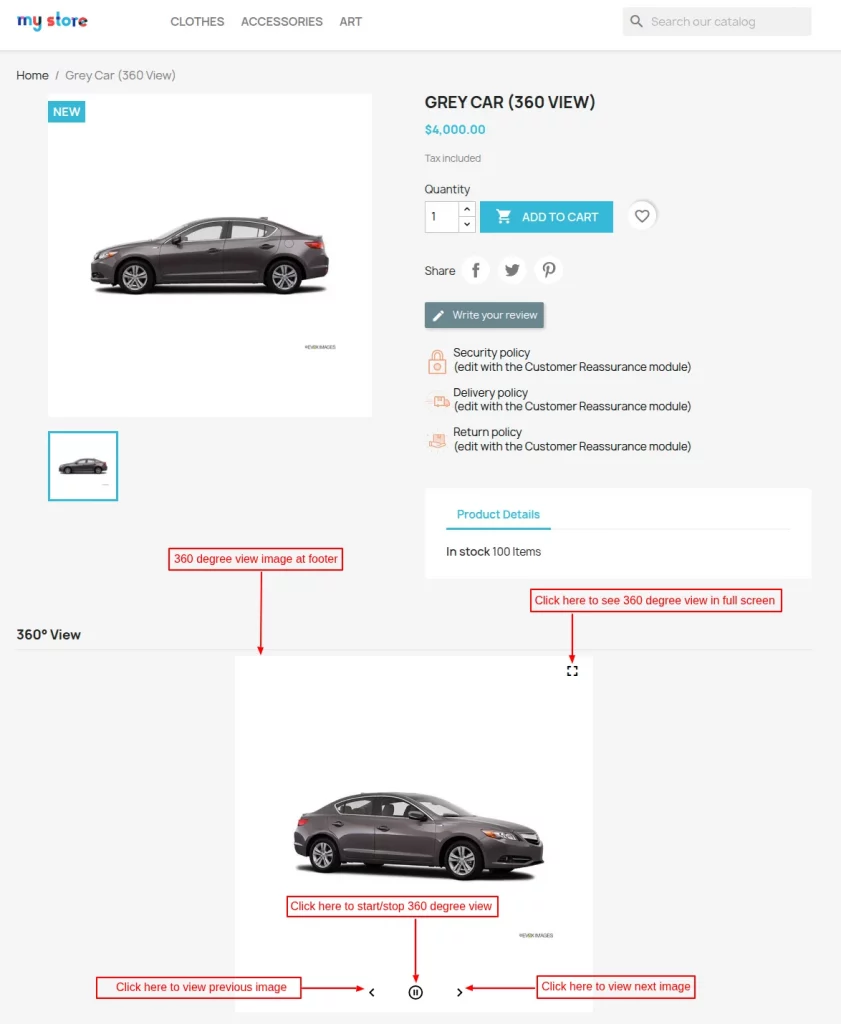
Customer can start/stop 360 degree view and view previous or next image using the button given under 360 degree view.
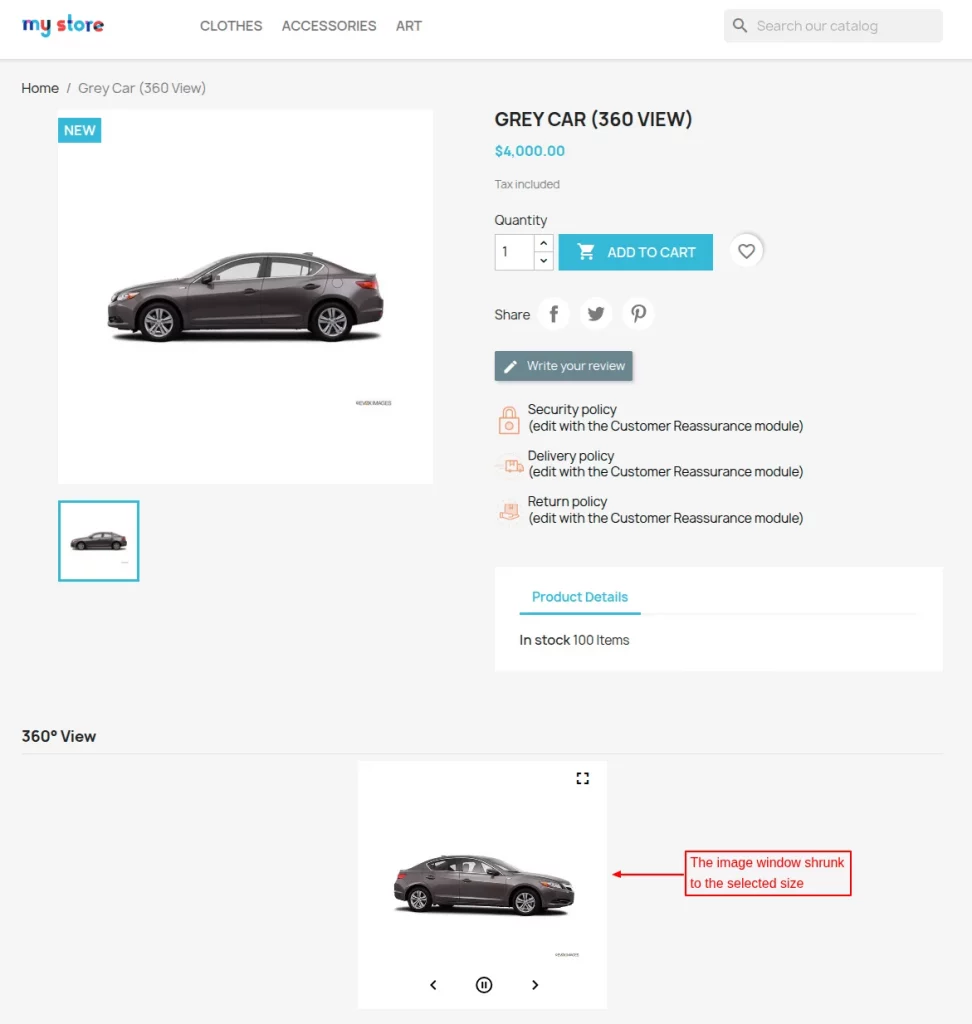
The admin can customize the dimensions of the image window from General settings.
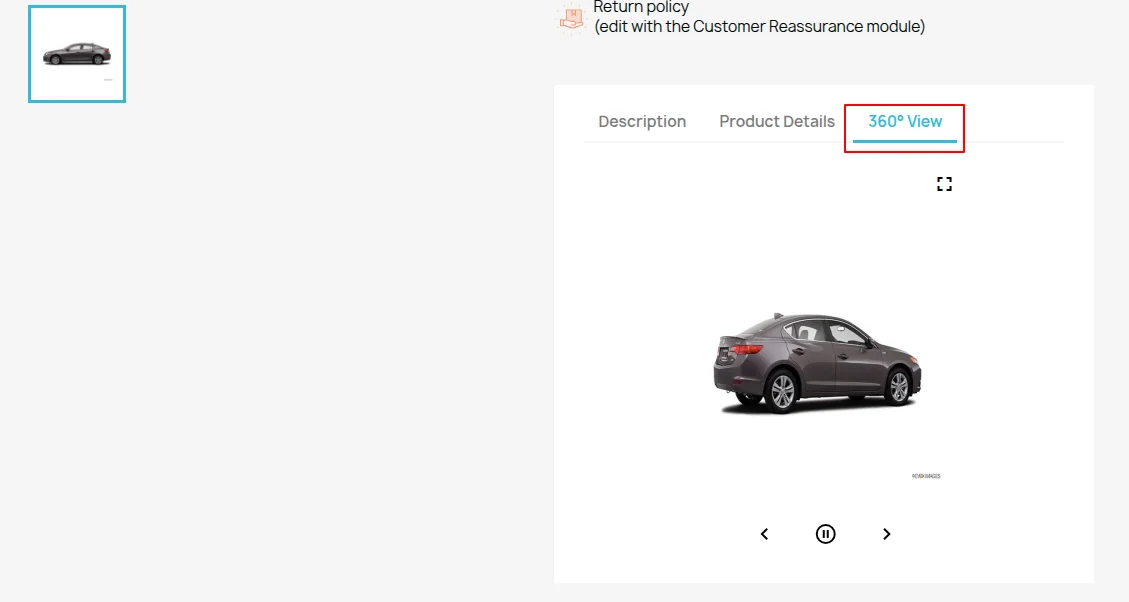
360-degree view image at product page tab
If selected product page tab, a tab ‘360 degree View’ gets available alongside description and product details. Under this tab, the customer can view 360 degree product view.
360 degree view image at product page image thumbnail
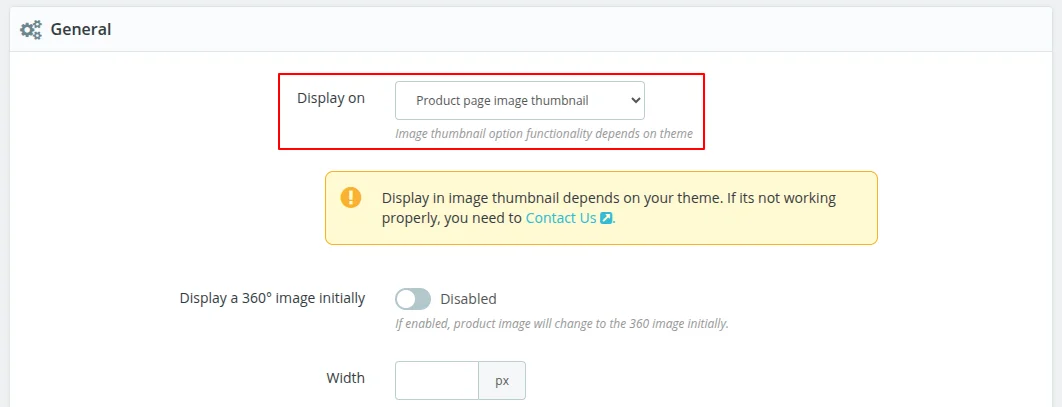
If selected, then 360 degree view image will display on product page image thumbnail.
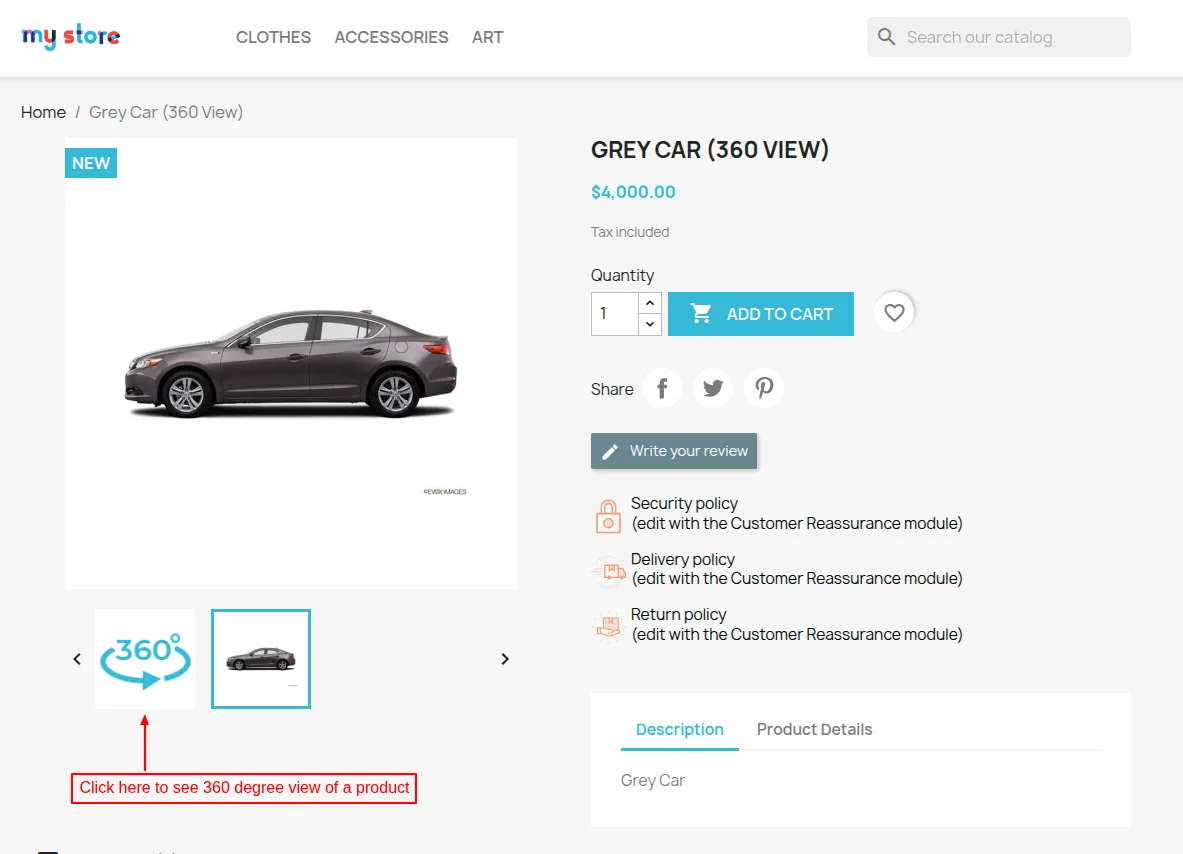
The customer can see 360 view of a product by clicking on thumbnail.
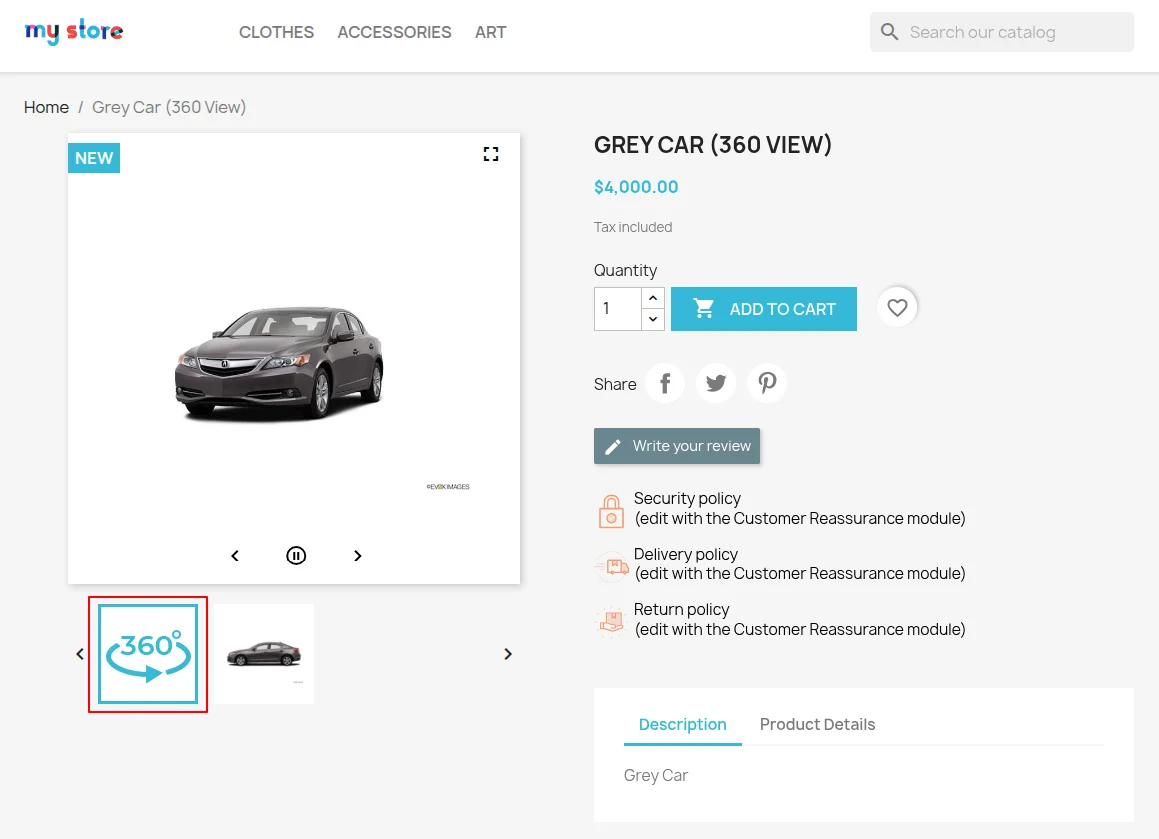
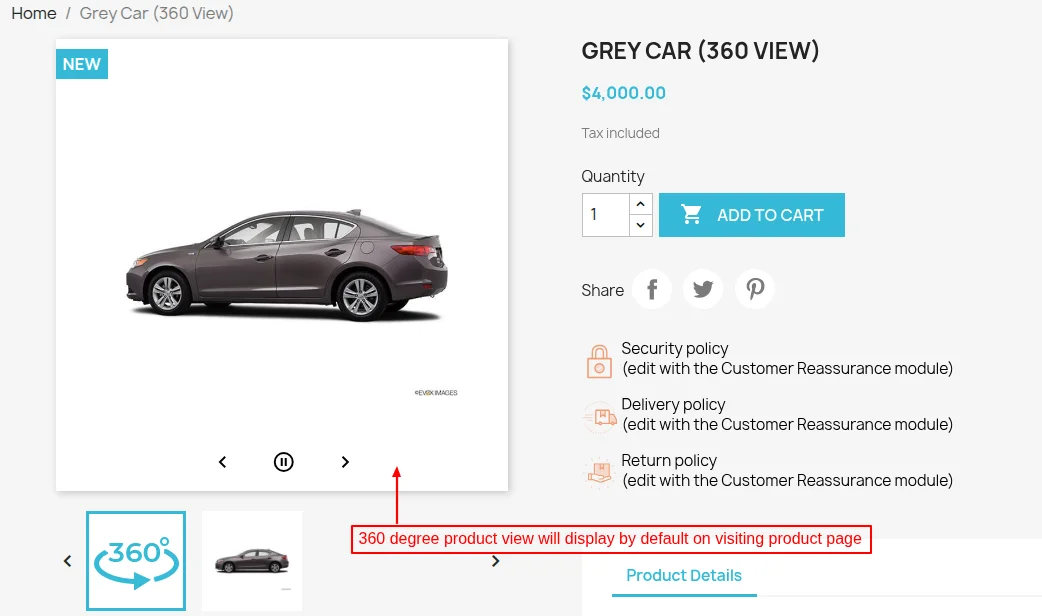
If the admin has enabled “display a 360° image initially”, then 360 degree view will be displayed as product image.
This means when a customer visits the product page, 360 degree image will be displayed as product cover image.
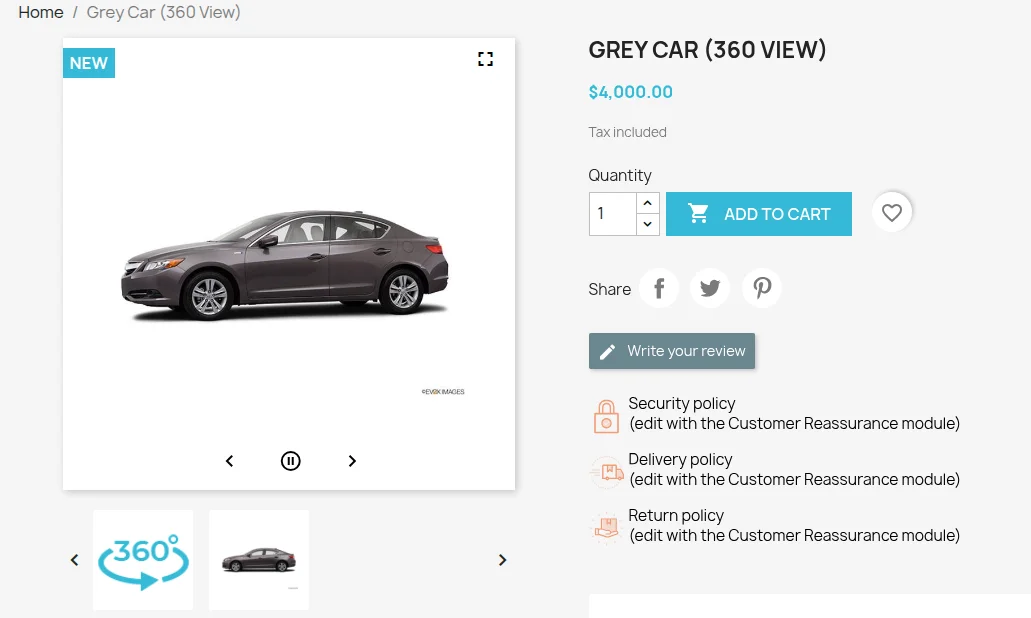
Note: Display of 360 degree view image on thumbnail depends on the compatibility with your installed theme of shop.
Auto spin enabled initially
If enabled, then 360 degree view of a product will be displayed to the customer by default on visiting the product page.
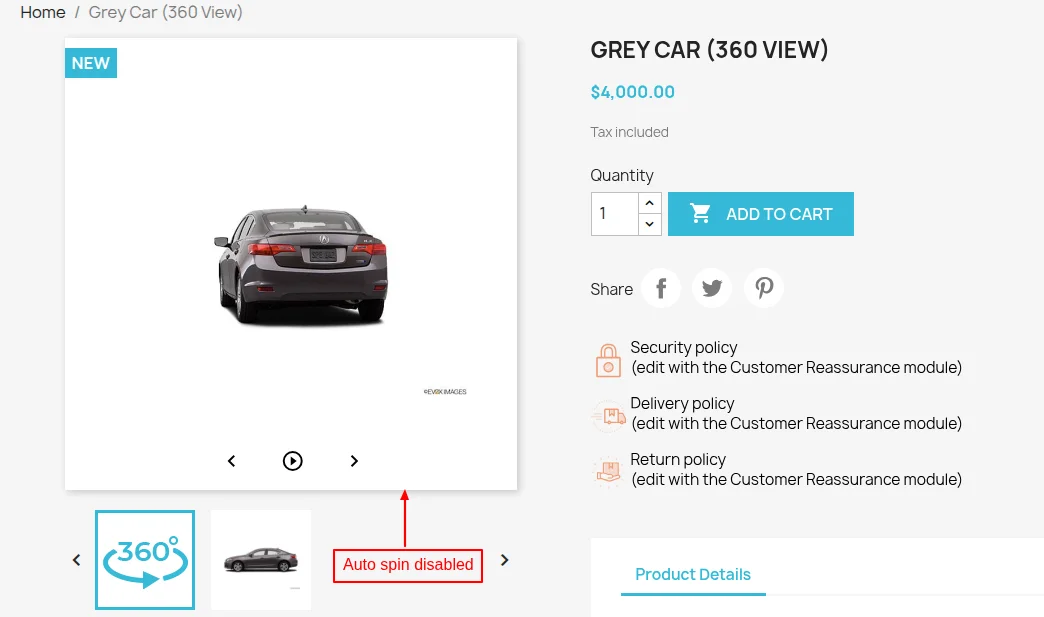
If disabled, then the customer need to click on the play button to see 360 degree view of a product.
Product 360 degree view type
While configuring the module admin can select the type of view he wants to display at the front end.
With this module, the admin will get three options to manage the display of the product 360 degree view at the front end.
- Full screen view
- Pop-up view
- Disable
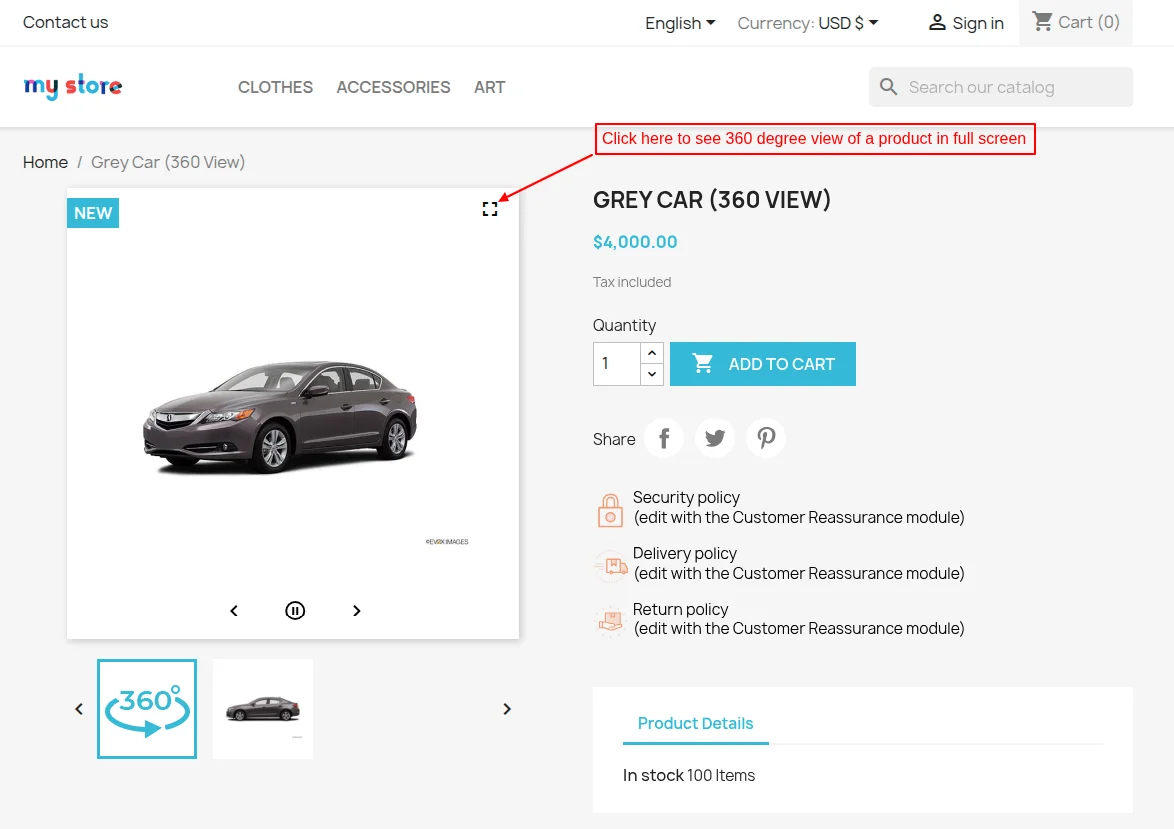
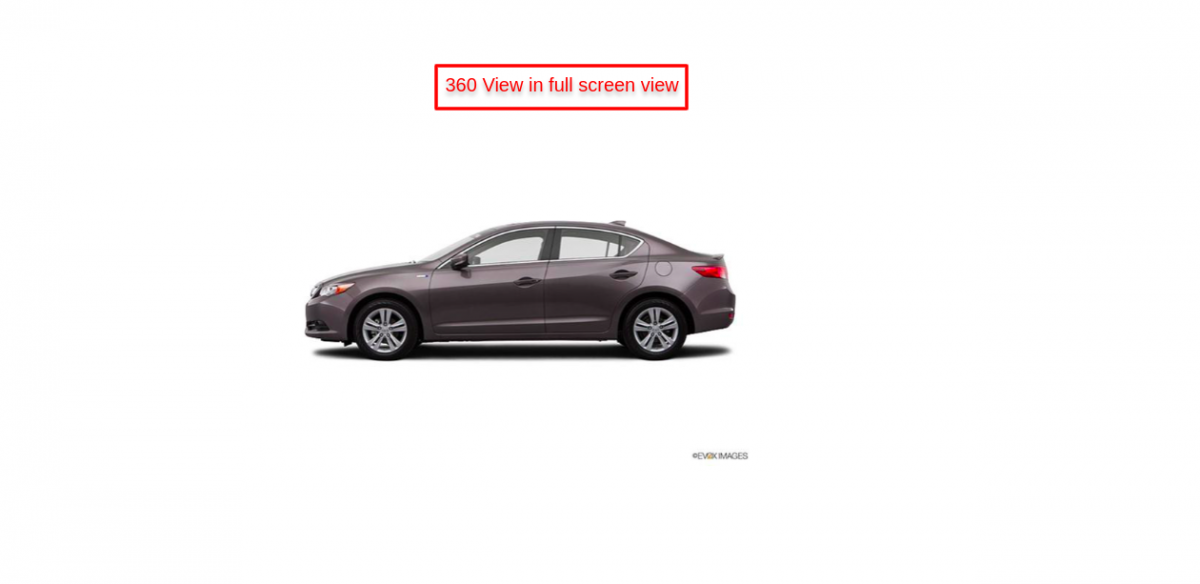
Full screen view
If selected Full screen view, then the customer can check the 360-degree view of the product on the full screen after clicking on the full-screen symbol available in the image thumbnail.
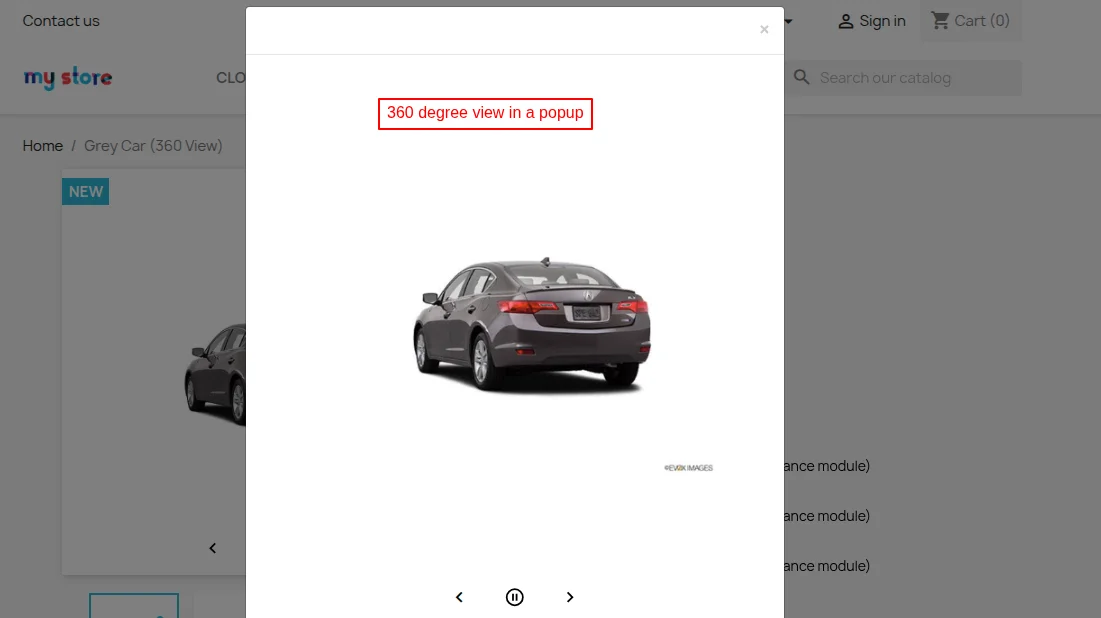
Pop-up view
On clicking full screen symbol on 360 degree image, a popup will appear on the page displaying 360 degree view of a product.
Disable View
If the admin selects disable option then the full-screen or Pop-up view option will not be displayed.
Hence, the customer will not be able to see a 360-degree view of a product on a Full screen view or in Pop-up view.
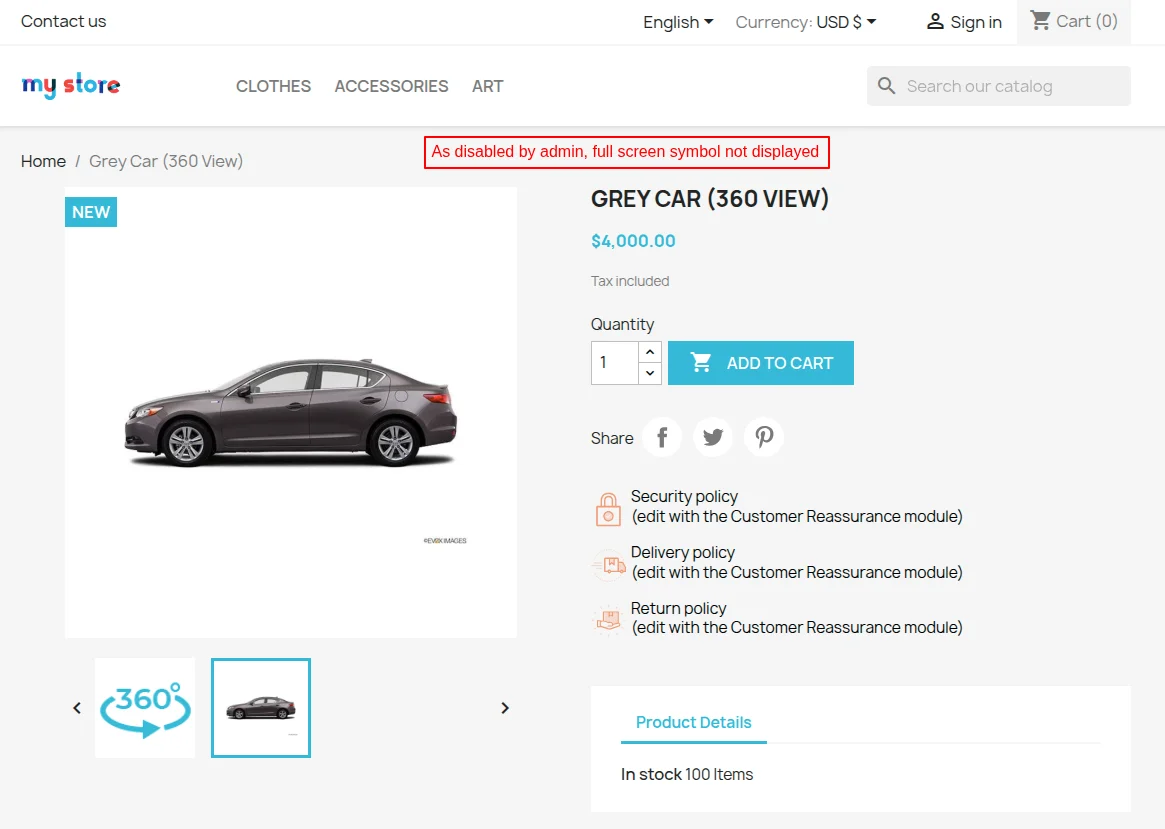
In this way, the admin can choose to show a 360-degree image view of a product.
Support
For any kind of technical assistance or query, please raise a ticket or send us a mail at [email protected]
Also, please explore our PrestaShop development services and vast range of quality PrestaShop addons.
Current Product Version - 4.5.1
Supported Framework Version - 9.x.x, 8.x.x, 1.7.x.x


Be the first to comment.