Prestashop Preorder module allows customers to book a product that is either out of stock or yet to arrive in the market.
Admin can set preorder for a particular combination of a product or all the combinations of a product at once.
Drive more customers to the store by making products available to them which they don’t get from the offline store.
NOTE: Prestashop Preorder module is compatible with PrestaShop Multi-store feature.
Features of Prestashop Preorder
- Allow customers to order out of stock products.
- Offer multiple payment types for preorder – full, partial, or dynamic payment.
- Allow guest users to preorder products using partial payment option.
- Restrict adding a preorder and regular product in a cart.
- Select payment methods that will be available to customers on the cart containing preorder products.
- Show the preorder product availability date on the product page.
- For partial/dynamic payment, choose to show preorder price, original product price, or both on the product page.
- Set custom message to be displayed for full or partial/dynamic payment on the product page.
- Set preorder for individual combinations separately or all the product combinations at once.
- Display countdown timer on the product page.
- Set the quantity that will be available once the product becomes available after preorder.
- Set the availability date on which the product would be available in stock for purchase.
- Complete preorder before the expected date.
- In case of partial payment, set the price in terms of a fixed amount or percentage.
- Conveniently manage all of your preorders from a single grid.
- View a list of orders placed for preorders and their status from a single tab.
- Admin can also preorder the product on customer’s behalf.
- Customers can also view a list of preorder orders and their status from their accounts.
- Set the number of days within which the customer needs to complete the order once the product becomes available.
- Select countries and user groups for which you want to allow preorders.
- View preorder order details on the order details page in the back office.
- Display preorder label on the cart and checkout page.
- Show the product’s original price along with preorder price on the cart and checkout page.
How to Install PrestaShop Preorder
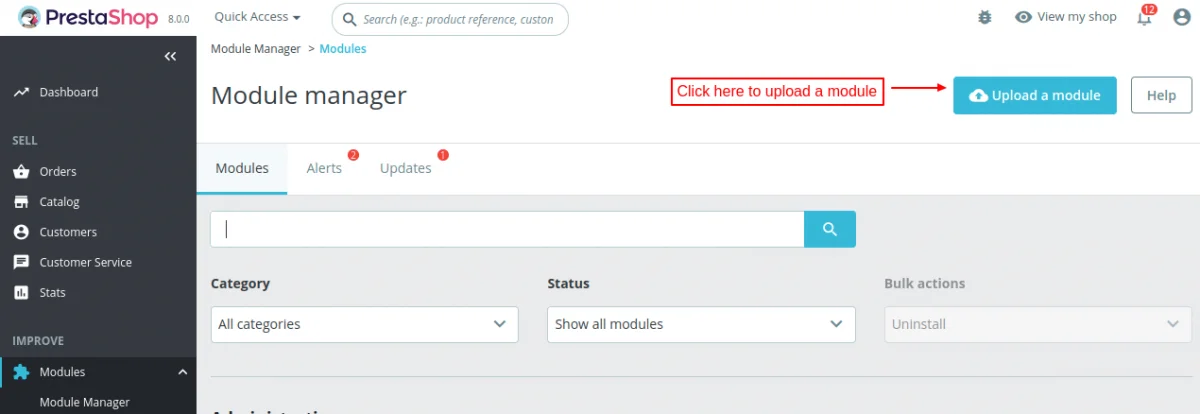
- Firstly, go to the module manager in the back office and click on ‘upload a module’.
- After that, drag and drop the module file or select the file from the system.
- In this way, the module installation will be successful.


PrestaShop Preorder Configuration
General Settings

Under General Settings, the admin can:
- Choose to show preorder price, original price, or both on the product page.
- Choose to show the availability date of preorder product on the product page.
- Set custom text for full and partial/dynamic payment to display on the product page.
- Set the number of days in which customer needs to complete the order once the product is available after placing an preorder.
- Choose to restock product quantity in case of incomplete or canceled order.
Restrictions Settings

Under Restriction Settings, the admin can:
- Allow guest users to preorder products using the partial payment option.
- Allow customers to add a preorder product and regular product in a single cart.
- Restrict payment method on checkout page for preorder products.
- Select customer groups and countries for which he wants to allow preorder.
- Enable geolocation for customer without address.
Restrict payment method on order page with preorder products

If the customer has added preorder products to the cart, then only the payment methods selected by admin in this field will be available to customers on the checkout page.
Enable geolocation for customer without address
If the customer has not added the address in the cart or profile, then the address is detected via user’s IP address.
Note: To downlod the geolocation data file, you need to register on MaxMind.
After creating the account, you can download the “GeoLite2City” database from the website. Once downloaded, extract the data using Winrar or Gzip into the /app/Resources/geoip/ directory.
Preorder Listing
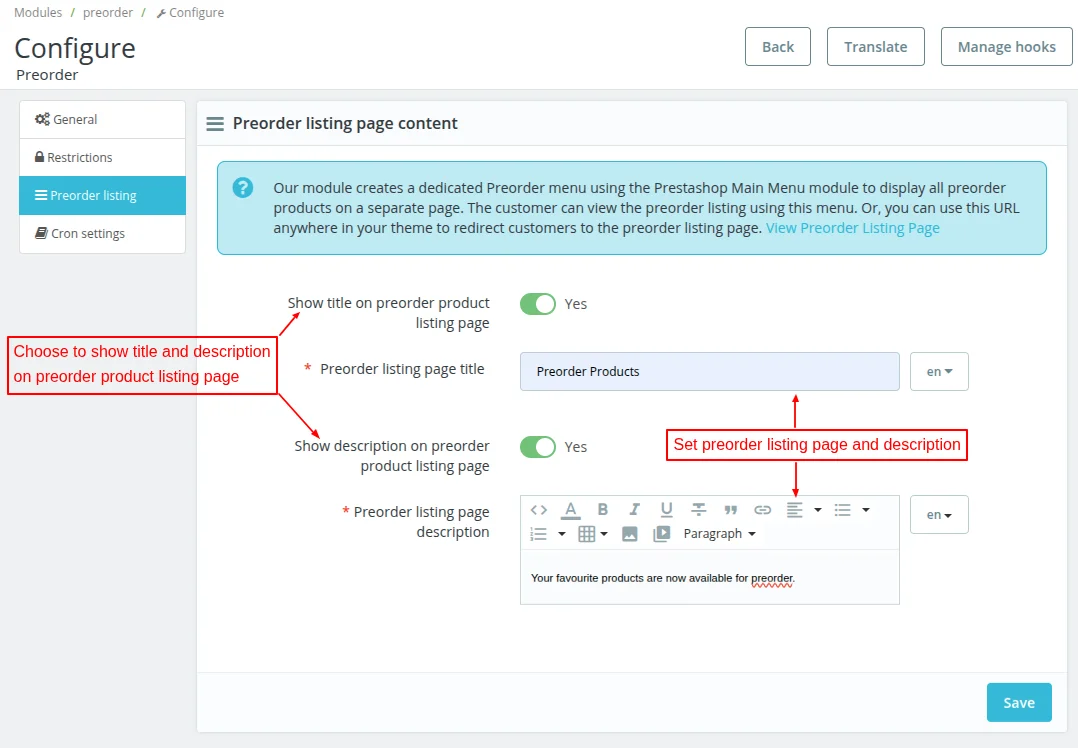
Under Preorder Listing tab, the admin can:
- Choose to show title and description on preorder product listing page.
- Set title and description for preorder listing page.
Cron Settings

In order to make all the preorder products automatically available on the selected availability date.
Admin needs to set CRON job for each day. http://www.sitename.com/module/preorder/cron?token=your_token. The admin needs to replace the string “www.sitename.com” with the site link.
Preorder Products and Orders
After the installation of the module, two new tabs ‘Products’ and ‘Orders’ get available in the PrestaShop back office. From these tabs, the admin can manage preorder products and orders.

Adding Preorder Product
Click on ‘Add new’ button to add a preorder.

Now, the admin can search and select a product on which he wants to add preorder.

On selecting the product, a form will open on the page with the following options:
- Payment type – Here the admin needs to select the payment type he wants to set for the preorder product. Admin can choose to set full, partial, or dynamic payment.
- Show preorder timer – Enable this field to show the preorder timer on the product page. Customers can view the exact days and time after which the product will be available for purchase.
- Quantity for this product – Set the quantity that will added to the product quantity when the product becomes a normal product.
- Maximum quantity for preorder – In this field, the admin needs to specify the maximum quantity for which the preorders can be placed.
- Expected date of product availability – Set the date on which the product will be available for purchase.

Payment Type
While adding a preorder for a product, the admin can set payment type as full, partial, or dynamic.
Full Payment
In case of full payment, a customer has to pay the full amount to preorder the product.
Partial Payment
With this payment option, the admin can set a partial amount that a customer needs to pay to preorder the product. Admin can set the price in terms of a fixed amount or percentage.

Dynamic Payment
In case of dynamic payment, the admin can set the minimum expected amount. Customers can enter any amount between the minimum expected and the product’s actual price to preorder the product.

Adding Preorder for Virtual Product
While adding a preorder for virtual product, only full payment option is available.
As the virtual product contains a downloadable file, therefore partial or dynamic preorder cannot be created for virtual products.

Once added, the admin can view it under the products tab.

Under the Products tab, the admin can:
- Enable or disable the preorder product.
- Update preorder product details.
- Delete the preorder product.
Set Preorder on Product Combinations
While adding a preorder, the admin can select the combination for which he wants to offer a preorder. Admin can set preorder for each combination separately or all the combinations at once.


Make preorder available before expected date

Front End Flow
After the installation of the module, a new category named “Preorder” gets available on store. From here, the customers can view all the products for which the admin has added preorder.
Preorder listing page title and description will display on the preorder listing page as set by admin under “Preorder listing” tab of the configuration settings.

If the admin has selected ‘Preorder price’ in the “Partial/Dynamic payment preorder display price field”, then the preorder price will display on the product and category page.

If selected original price, then the actual prices of the product will display.

And, if the admin has selected Both, then preorder as well as original price will display for the products.

Preorder Product Page
When a customer visits the preorder product page, he can view the details like preorder price, preorder product availability date & time, etc.

Customers can preorder the product by paying the full product amount upfront.
The preorder products will only display to the customers who belong to the customer groups selected by admin under general settings.
Suppose the admin has selected “Customer” group. Now, if a guest user visits the store, he won’t be able to view the preorder information on the product page.

Partial Payment Option

Customers can preorder the product by paying the partial amount set by the admin while adding a preorder product.
In the above screenshot, it can be seen that the payment message is displayed as set by the admin under General Settings. The variables are replaced by the respective prices.
Dynamic Payment Option
The option lets customers preorder the product by paying any amount between the minimum price (as set by the admin) and the actual price of the product.

Ordering the preorder product
Once the customer has added the product to the cart, he can view the preorder label on the cart and checkout page.
Also, the original product price and preorder price are displayed on both cart and checkout page.

As the shopping cart cotains preorder product, therefore payment methods selected by the admin under “Restrictions” tab for preordering products will be available at checkout.

Suppose a customer preorders the product using partial payment. The customer can view the partial amount paid for preordering a product on the order confirmation page.

After placing an order for preorder product, a confirmation mail will be sent to cutomer.

Preorder on Customer’s Behalf
The admin can also preorder the products on customers behalf.
Go to the orders page and click on ‘Add new order’ button.

Select the customer for whom you want to preorder the product.

Now, search and select the product that you want to preorder.

Now, click on create order button.

Once the admin has created an order for preorder product, he can view it under ‘Orders’ tab.

Preorder Orders
Admin can view a list of orders placed for preorder products in the Orders tab.

Under the Orders tab, the admin can view:
- Customers’ name who have preordered the products.
- Status of a preorder, whether it has been completed or not.
- Remaining amount in case of partial payment done by the customer to preorder a product.
Customers can also view a list of orders placed for the preorder products. After the installation of the module, a new tab “Preorder Orders” get available in the customers’ account.

Under the tab, a customer can view:
- Order date
- Total amount paid to preorder the product.
- Remaining amount in case of partial preorder.
- Status of preorder.

Note:
In case of partial preorder, two orders are created.
During the first order, i.e., the preorder booking, a shipping method “preorder shipping” is applied.
This method is free, as the product will not be delivered with this order but will be delivered after the preorder is completed.
During the second order, i.e., the preorder completion, shipping cost will be applied and is calculated at the time of checkout.
Complete Preorder
After placing an order, when the product becomes available a “Complete Preorder” button gets available on the order details page.
On clicking the button, a customer gets redirected to the checkout page and can complete the purchase.

On clicking the complete preorder button, a customer redirects to the shopping cart page where he can pay the remaining amount and complete the preorder.

Once the customer has completed the preorder, the status of the preorder changes under the orders tab.
Also, a separate order is created for the remaining amount paid by the customer under the orders tab.

The admin can view the preorder partial payment details on the order details page in the orders list.

The above order is placed by the customer to complete the preorder by paying the partial amount.
Email Notification for Product Availability
Also, when a product becomes available for purchase, an email for the same is sent to the customer containing the preorder details and ‘Complete preorder’ button.

Order Cancellation
If the admin cancels an order, the available quantity gets updated.


The available quantity of the product “Hummingbird printed t-shirt Size – S , Color – White” is 19. After canceling the order, the quantity gets updated to 20.

So, this was all about Prestashop Preorder Module. I hope this document will help you in checking the functionality of the module in a better way.
Also, do let us know about your views in the comments.
Support
For any kind of technical assistance or query, please raise a ticket or send us a mail at [email protected]
Also, please explore our Prestashop development services and vast range of quality Prestashop addons.
Current Product Version - 5.4.2
Supported Framework Version - 9.x.x, 8.x.x, 1.7.x.x


I’m thinking about purchasing the module and I am almost ready to but I would like to know if is possible to set the preorder payment amount to zero.
I’m aware that is better for conversion to encourage customer to pay but I am required to offer also this options.
Thanks in advance!