In an online marketplace, the products can go out of stock due to a number of reasons. When a customer visits the store and finds out that the product he wanted is out of stock.
In such a case, the customer will probably leave your store without making the purchase and start looking on other online stores to get the desired products resulting in a loss of sales.
Thanks to Prestashop Marketplace Preorder, your sellers can now sell the products that are out of stock or not yet launched.
With this extension, the marketplace sellers can offer products for sale that they don’t have in stock at the moment but will be in stock at a specified date.
Improve the user experience by notifying the customers of the exact available date on the preorder product page.
Also, the sellers can offer the customers to reserve the product in advance by paying a fraction of the preorder product amount with a partial payment option.
Letting sellers add preorders on their unavailable and upcoming products will help them attract potential customers and boost sales.
Note:-
- For installing this module you need to install Prestashop Advanced Multi Vendor Marketplace module first.
- The module is compatible with PrestaShop multi-store feature.
- Prestashop Marketplace Preorder module is compatible with PrestaShop Advanced Multi-Vendor Marketplace version 7.0.0.
Features of Prestashop Marketplace Preorder
- Sellers can set preorder on a particular combination of a product or all the combinations at once.
- Select a full or partial payment option for preordering the product.
- Set a partial amount in terms of fixed amount or percentage.
- Notify shoppers when a product is back in stock by displaying the expected availability date.
- The preorder message is displayed on the product page.
- Set maximum quantity available for preorder once back in stock.
- Display countdown timer on the preorder product page.
- Admin can manage the seller preorder products approval manually or automatically.
- Allow sellers to activate/deactivate their preorder products.
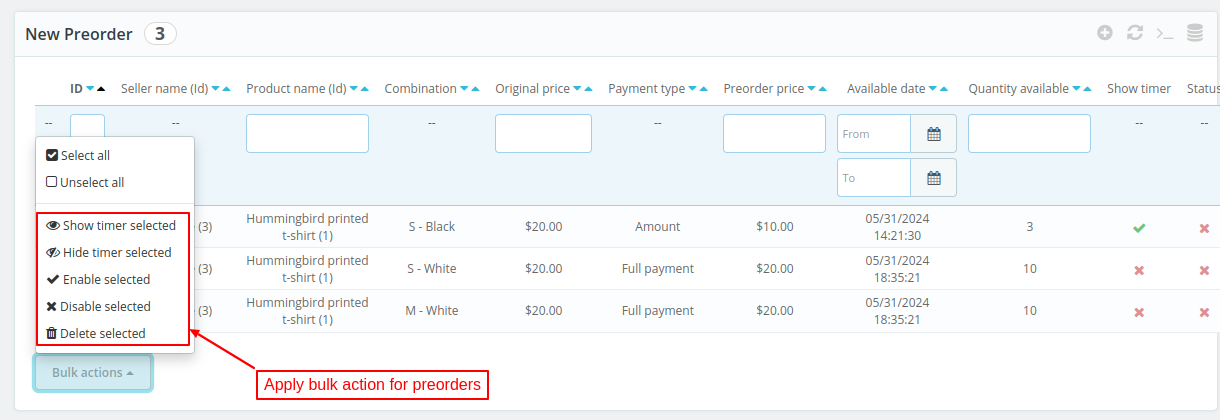
- Admin can apply the bulk action on the preorders.
- Also, admin can add preorder for seller products.
- A separate tab to view a list of orders placed for seller preorder products.
- This extension allows customers to pay a full or partial amount to preorder the product.
- Customers can add a preorder and normal product in a single cart.
How to Install PrestaShop Marketplace Preorder
For installing Marketplace Adyen Payment module you need to install PrestaShop Advanced Multi Vendor Marketplace module first.

After installing marketplace module, the admin can start the installation of the Marketplace Adyen payment gateway module.
- Firstly, go to the module manager in the back office and click on ‘upload a module’.
- After that, drag and drop the module file or select the file from the system
- In this way, the module installation will be successful.


Module Configuration
After the successful installation of the module, the admin needs to configure it.
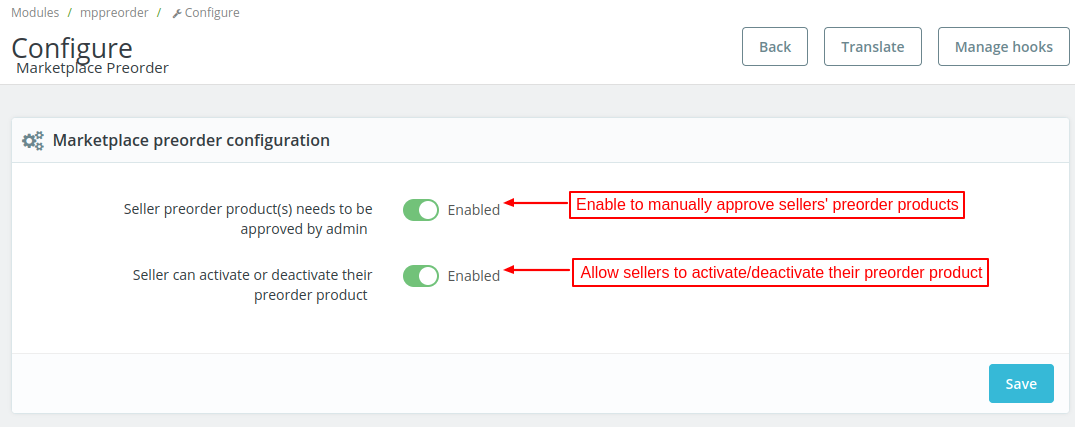
Under Marketplace preorder configuration, the admin can:
- Enable the manual approval of seller preorder products or make it auto-approved.
- Allow sellers to activate or deactivate their preorder products.
Seller End Workflow
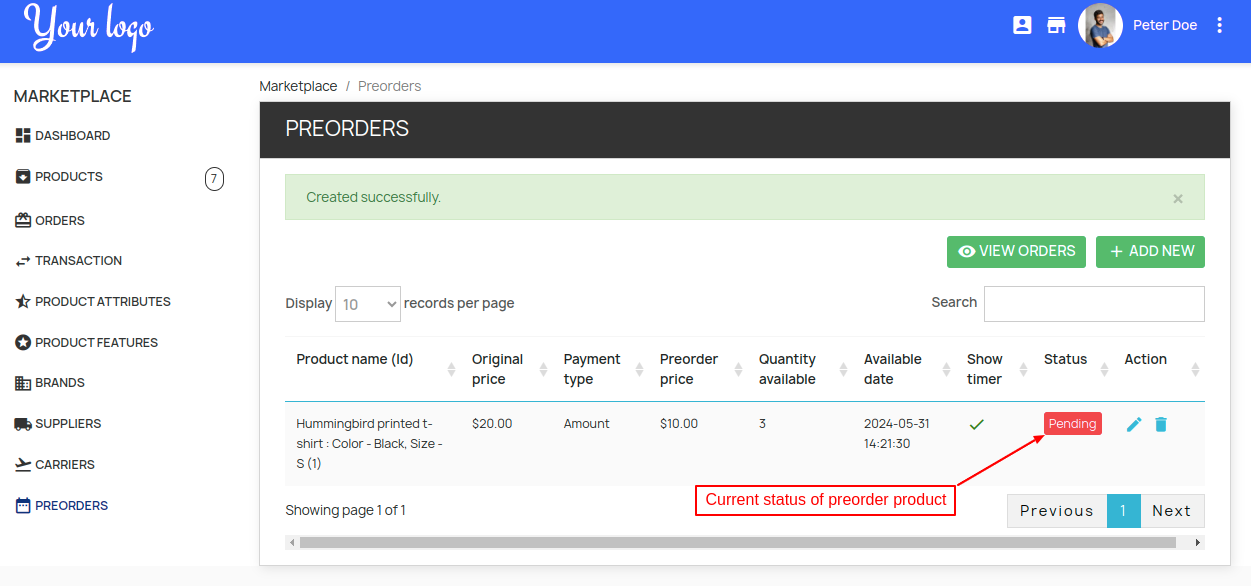
After the successful installation of the module, a new tab ‘PREORDERS’ get available in seller’s account.
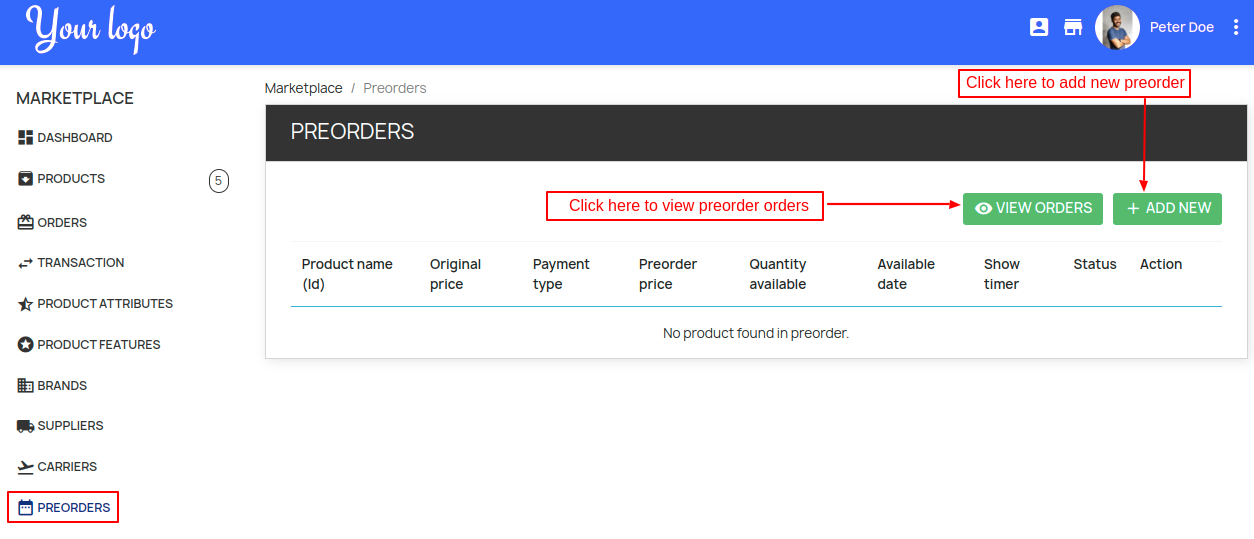
Click on ‘ADD NEW’ button to add preorder.
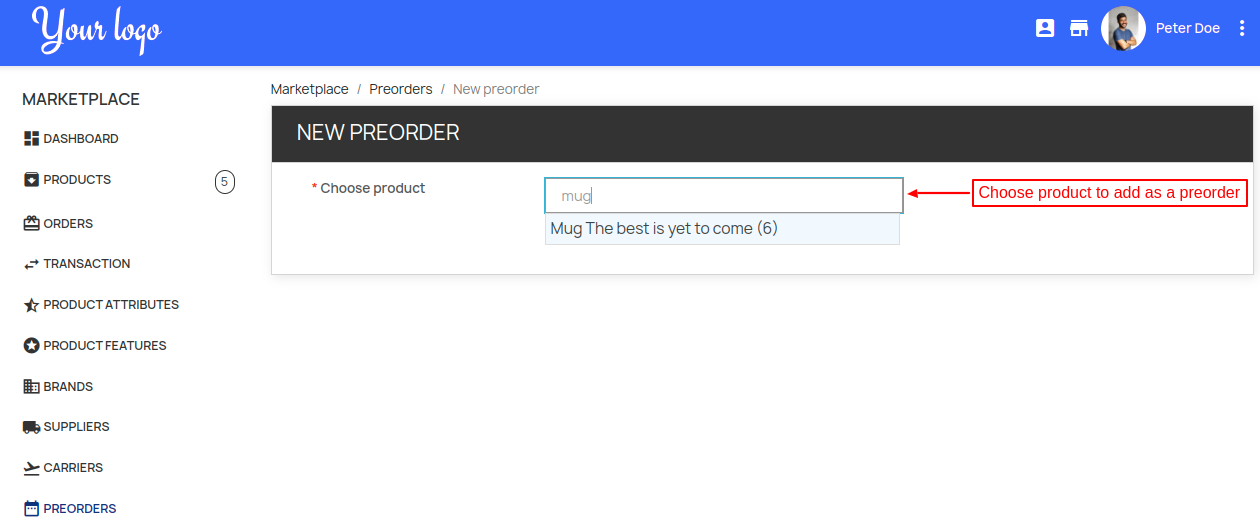
Select product to create it as preorder.
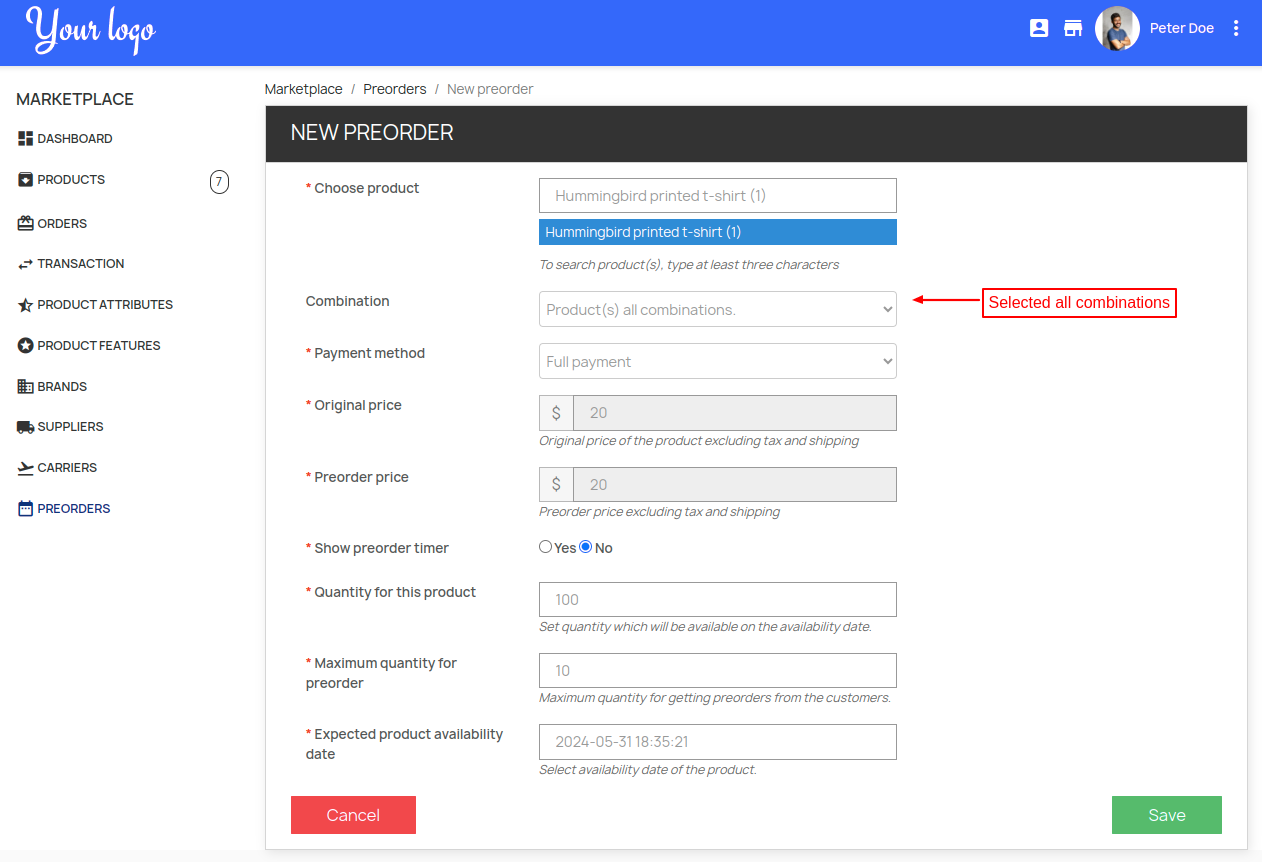
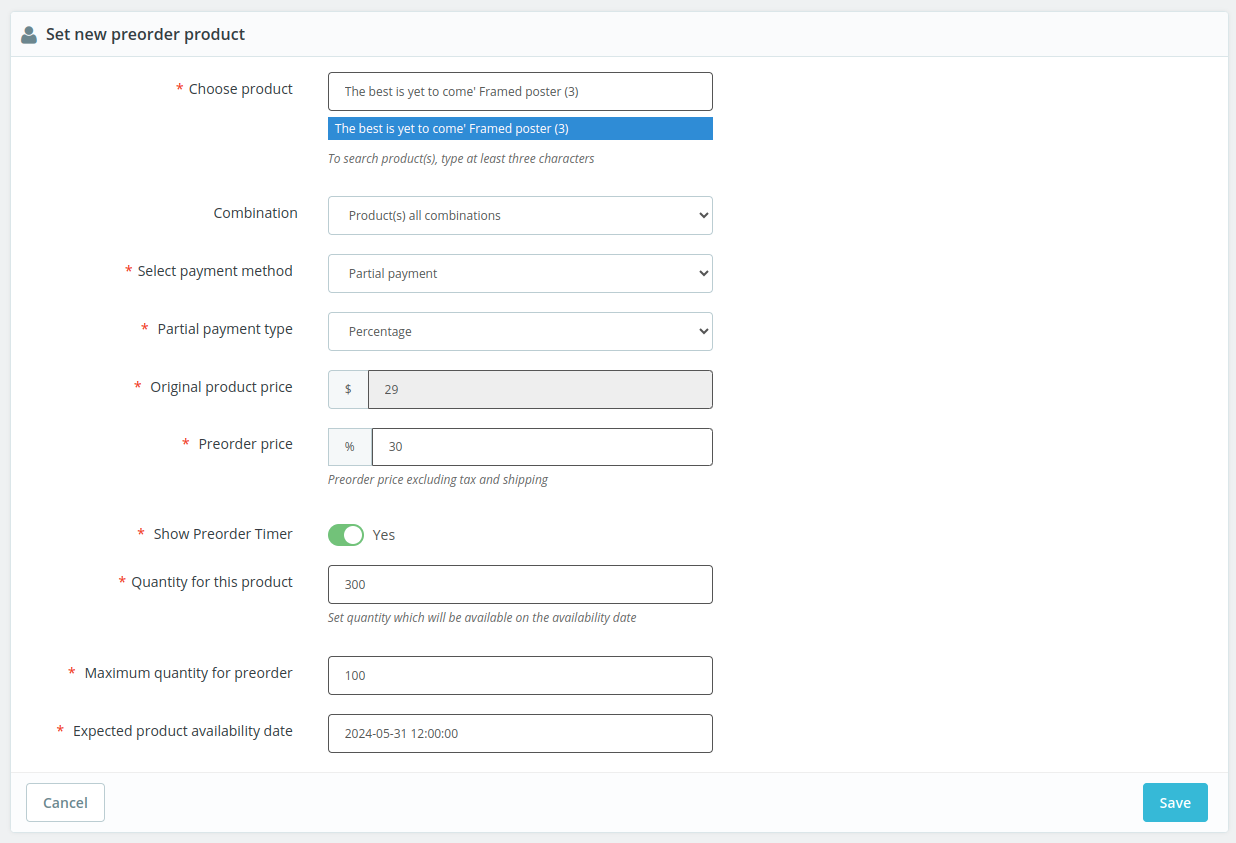
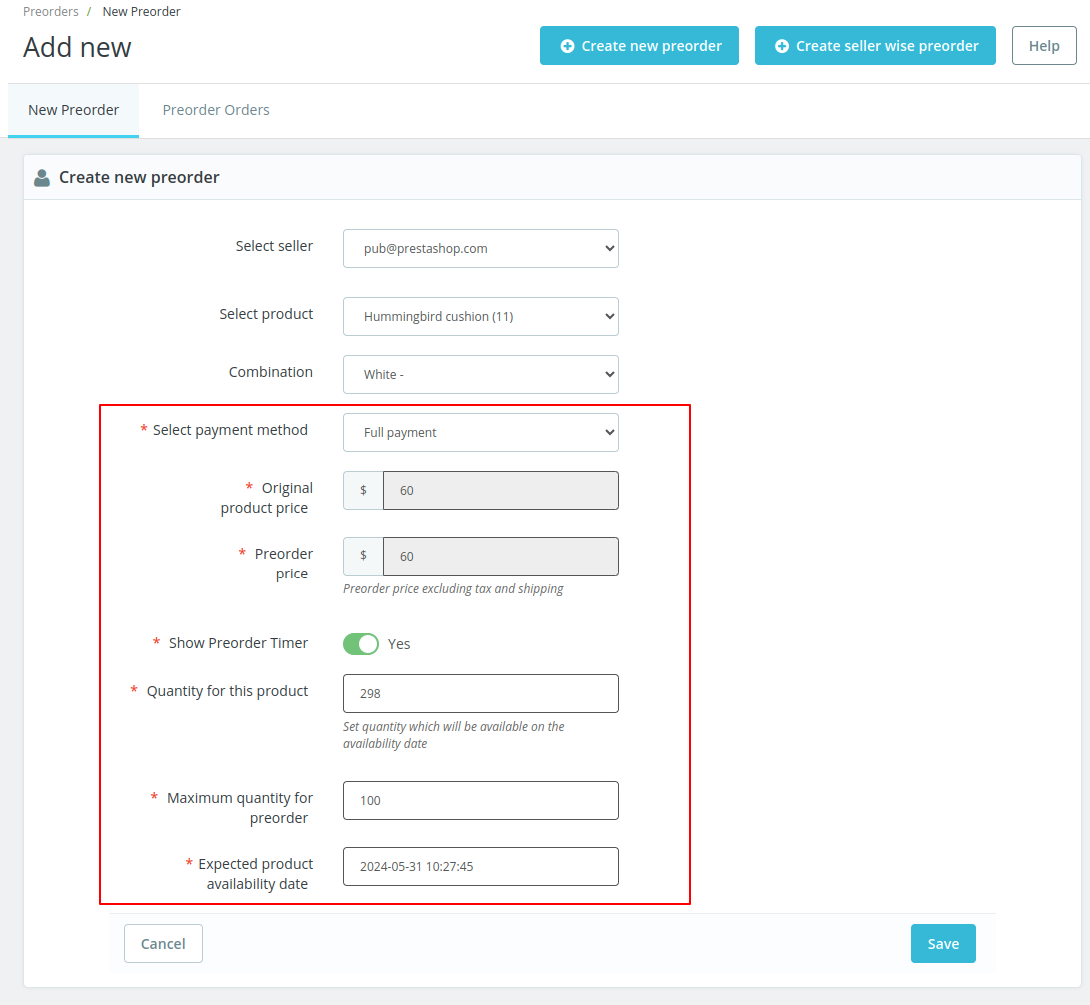
After selecting the product, a seller can configure the preorder details.
Preorder product with Partial payment type
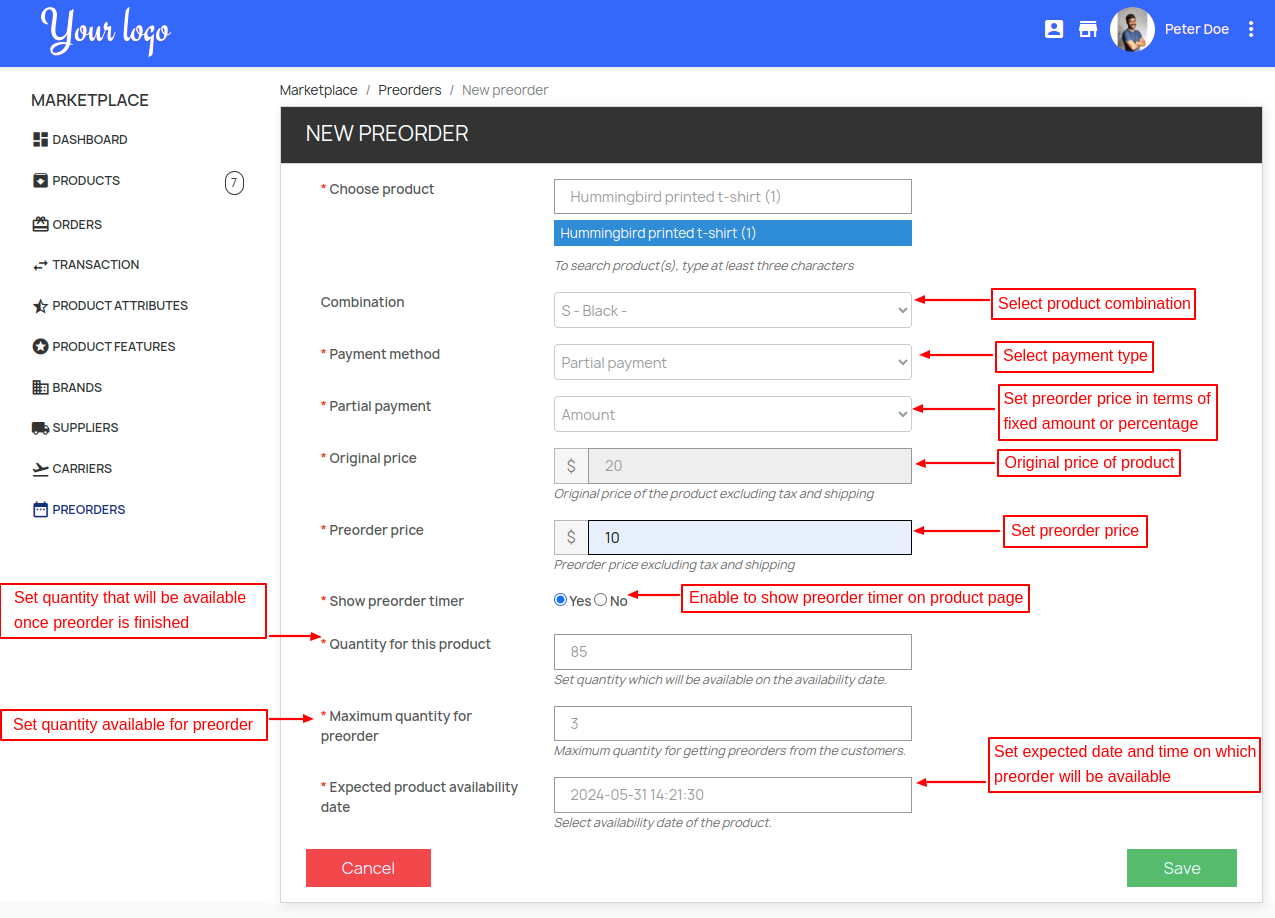
Once saved, the admin can view it under Preorders.
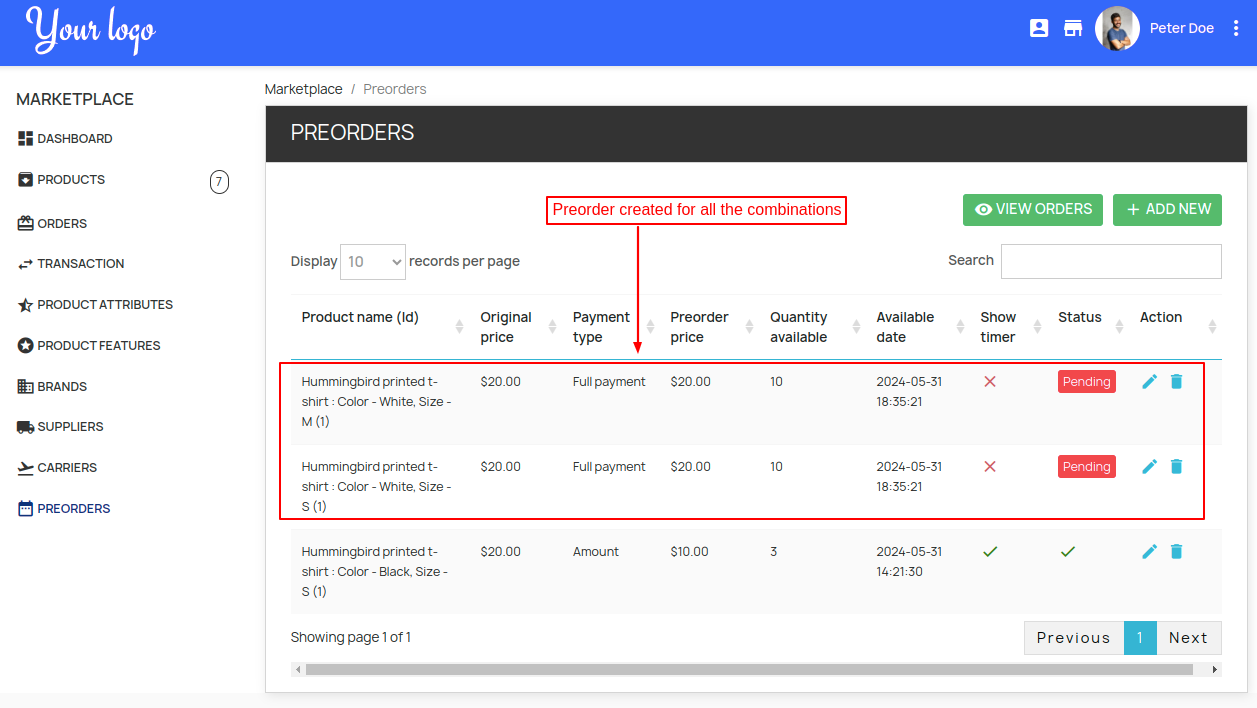
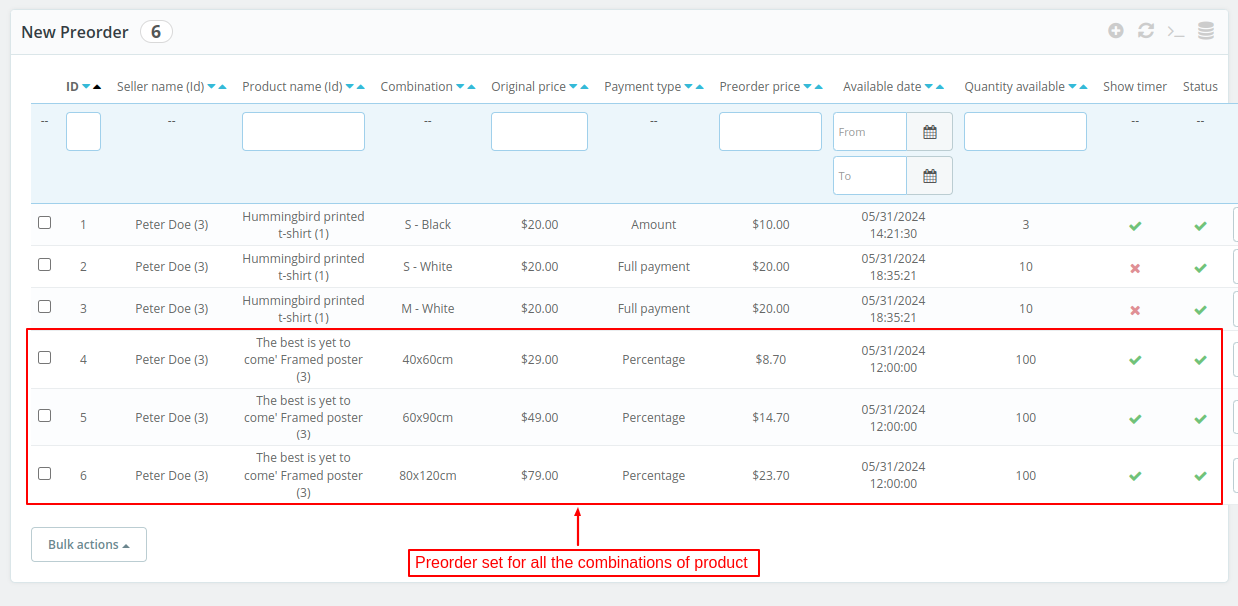
While creating a preorder if a seller has selected “Product’s All Combinations” in the Combination field, then the same preorder settings will be set for all the combinations.
Preorders – Admin’s End
Admin can view all the preorder products created by a seller under Preorders tab.
As per configuration settings, the preorder products added by seller need to be approved by the admin.
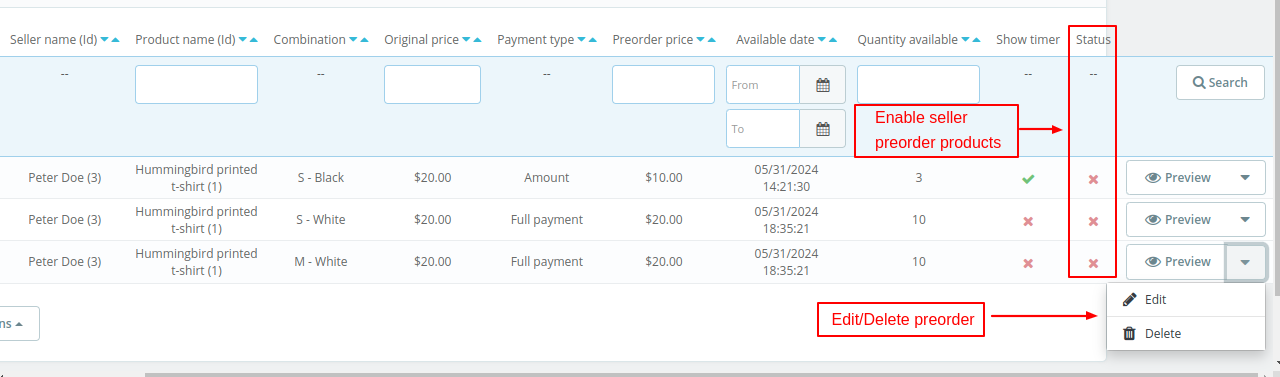
The admin can also apply the bulk action on the preorder products.
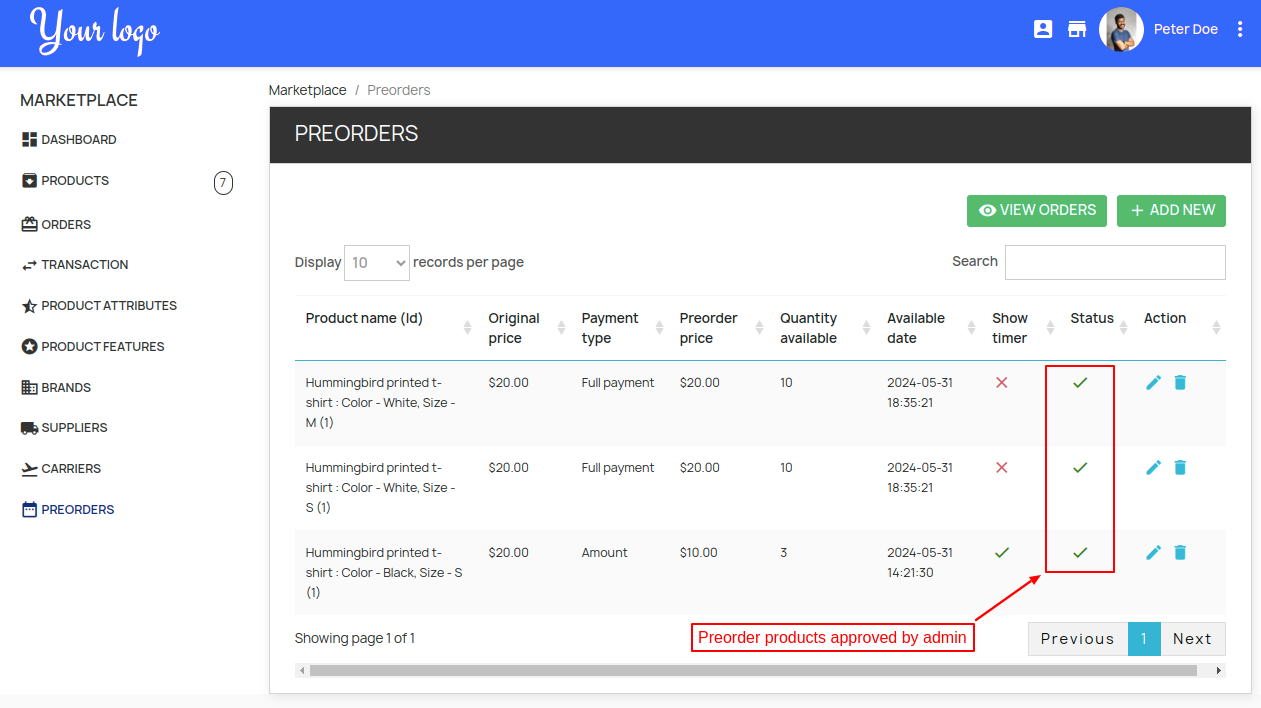
Once approved by admin, all the seller’s preorder products will be activated.
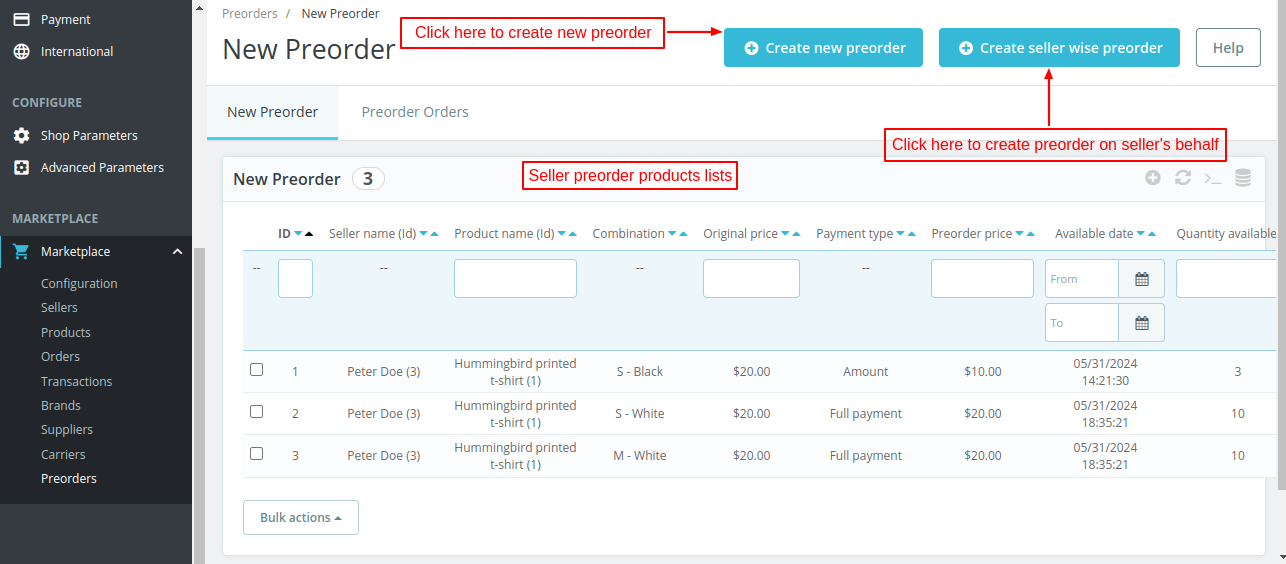
Admin can create a new preorder for seller’s products by clicking on ‘Create New Preorder’ button.
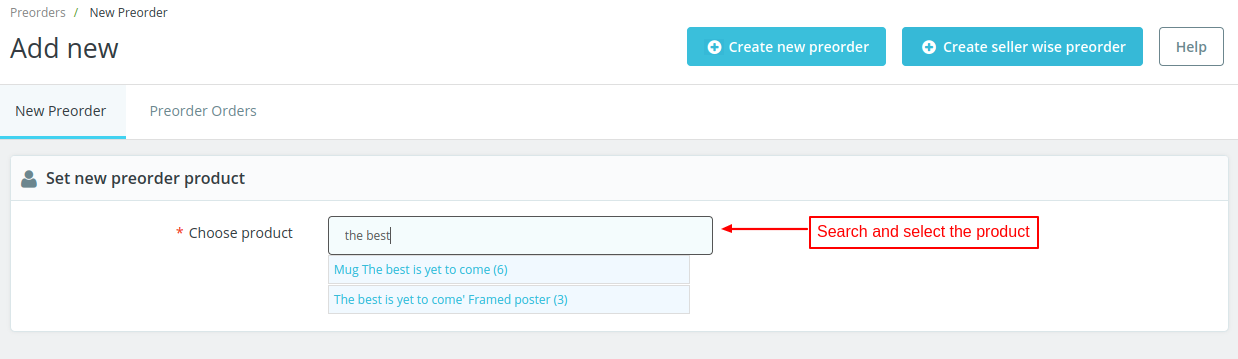
Admin can view preorder set for all the combinations of a product under “New Preorder” tab.
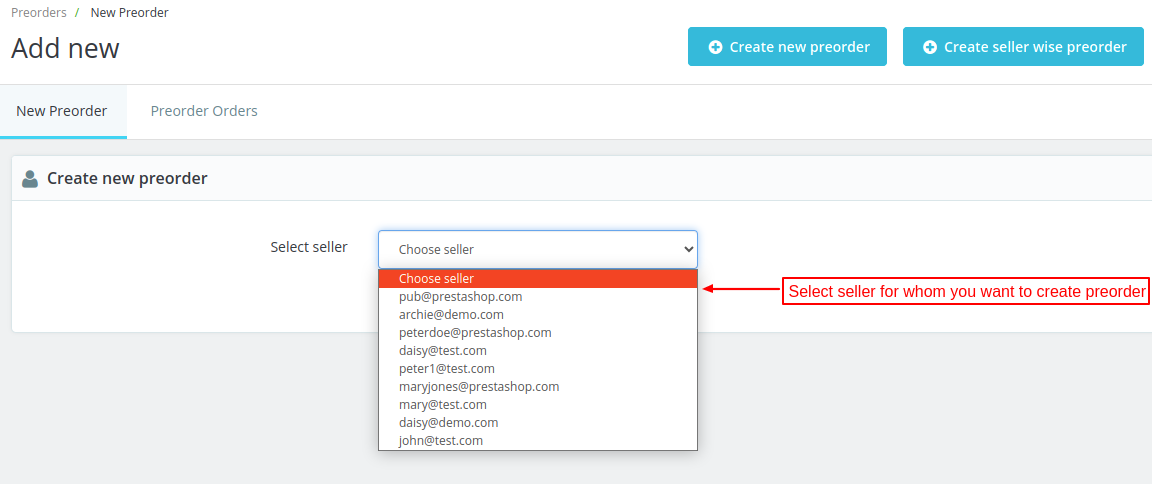
Creating Preorder Seller Wise
Admin can create a preorder on seller’s behalf by clicking on “Create Seller Wise Preorder” button.
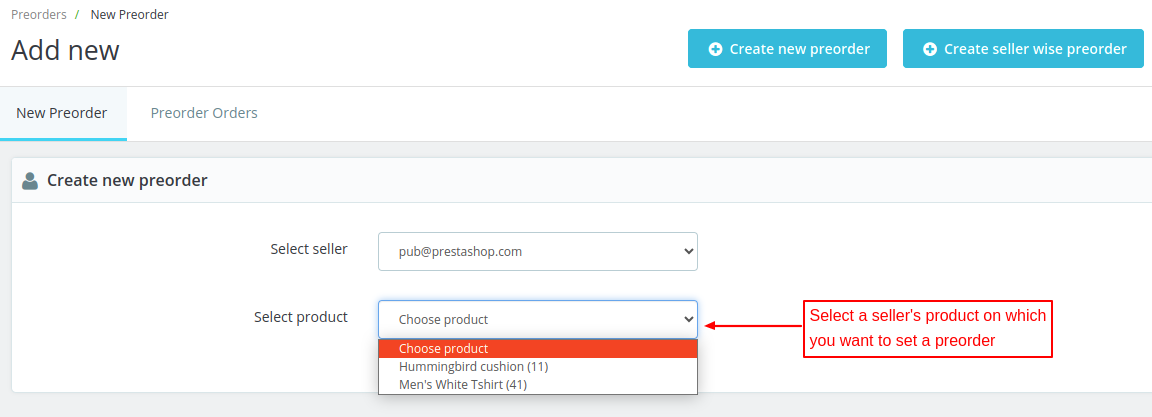
After selecting the seller, the admin can choose the product for which he wants to set preorder.
After choosing the product, enter the details required for setting preorder on a product.
Customer End Workflow
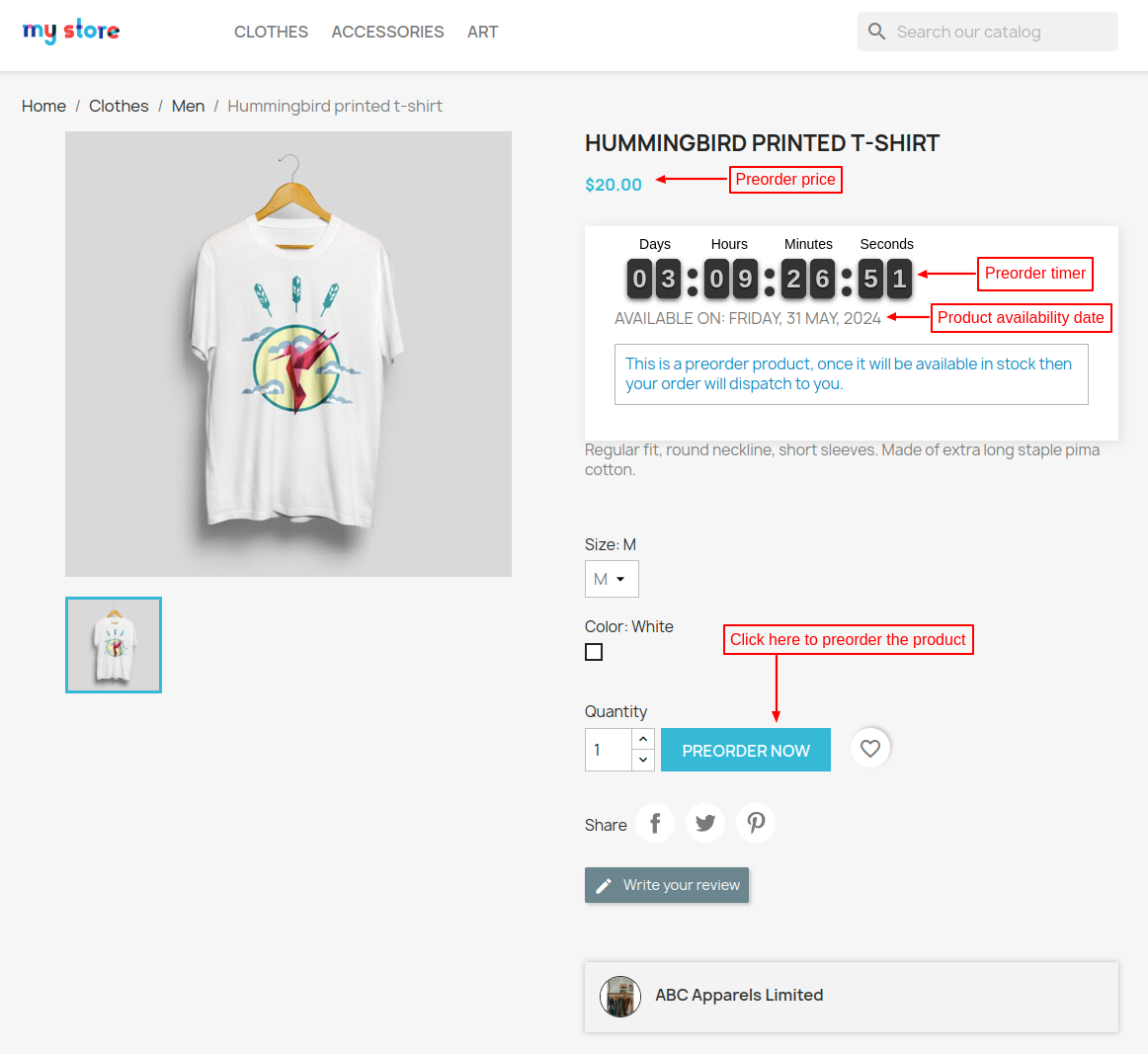
When a customer visits the preorder product page, he can view the details like preorder price, preorder product availability date & time, etc.
Full Payment Option
Customers can preorder the product by paying the full product amount upfront.
Partial Payment Option
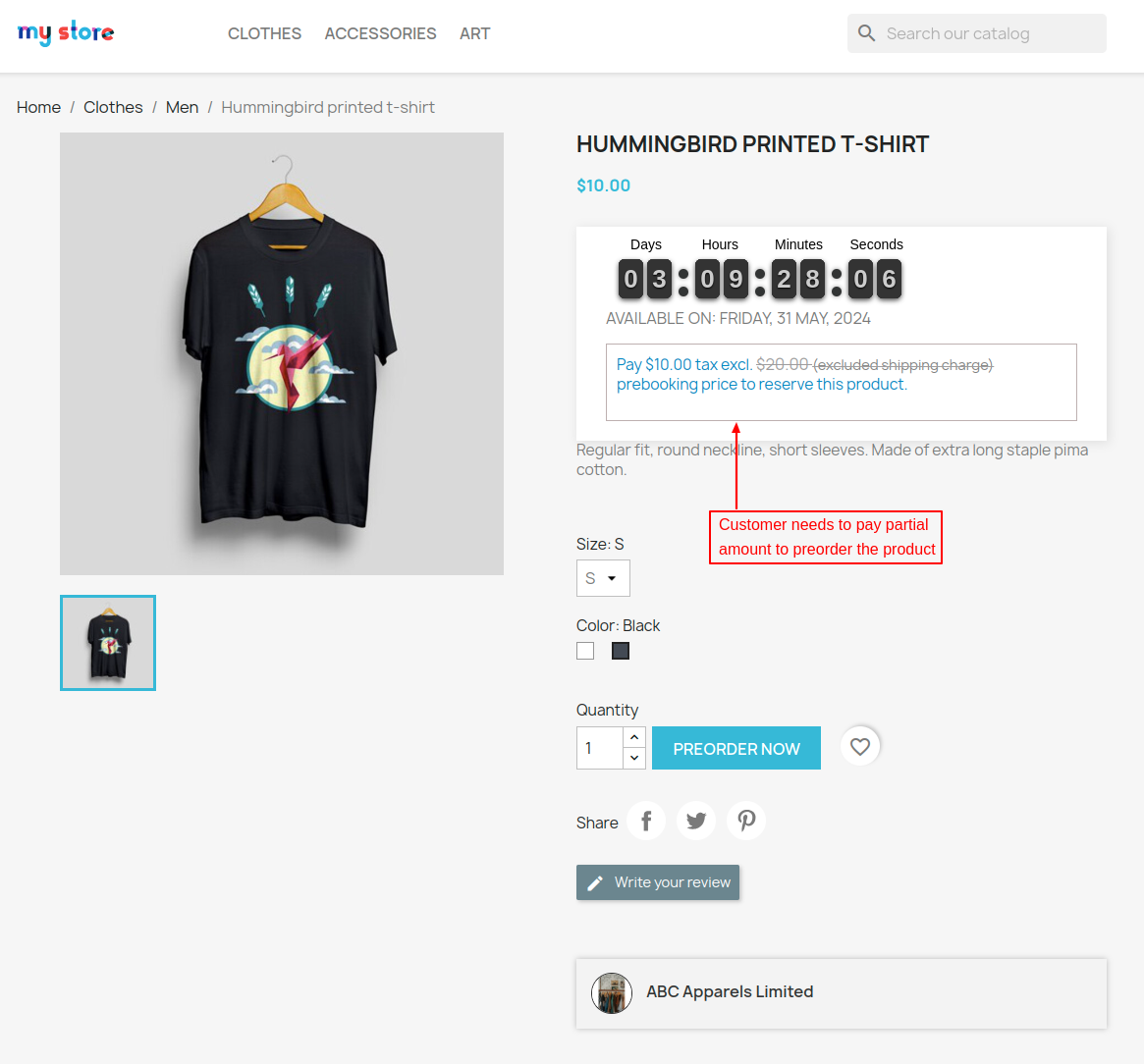
If admin/seller has set a partial payment for a particular combination or all the combinations of a product then a customer only needs to pay the partial amount as set by admin/seller for pre booking.
Once the product gets available the rest amount will be paid by customer while completing the order.
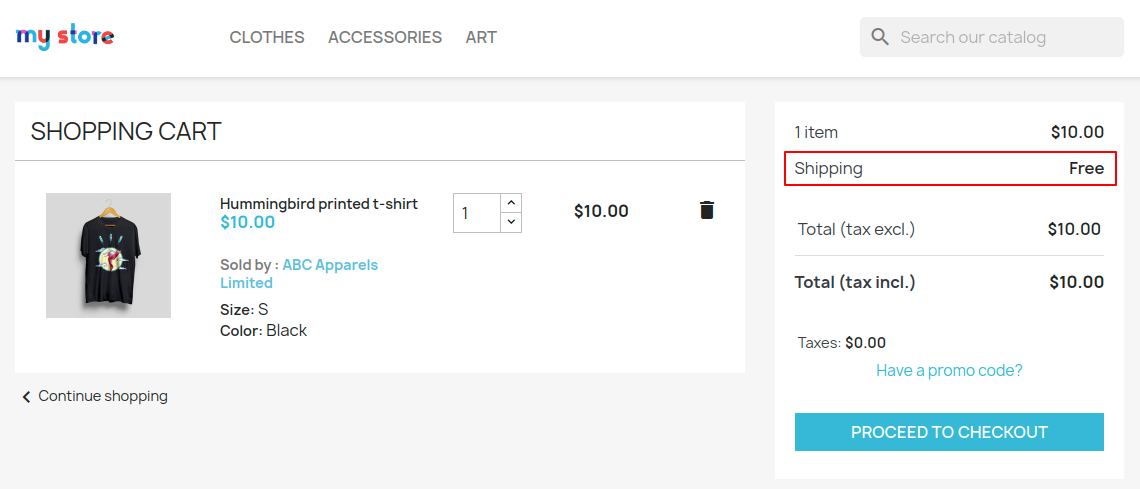
While preordering a product using partial payment option, shipping fee will not be applied to the shopping cart.
Preorder Orders
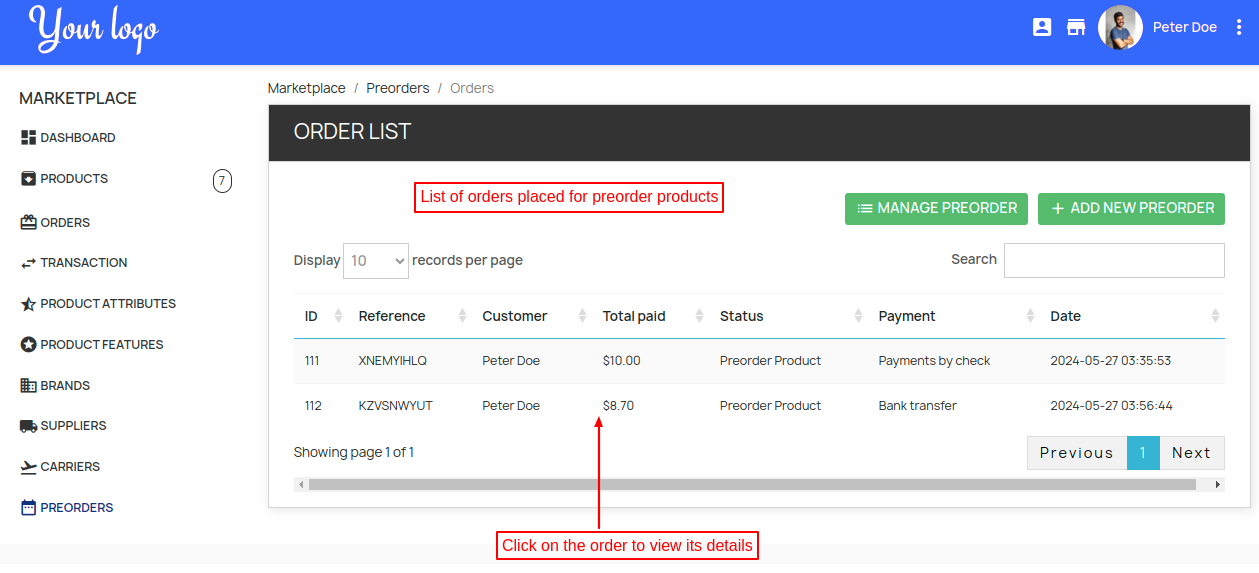
A seller can view all the orders placed by the customers for a preorder product by clicking on ‘View Orders’ button under ‘Preorder’ tab.
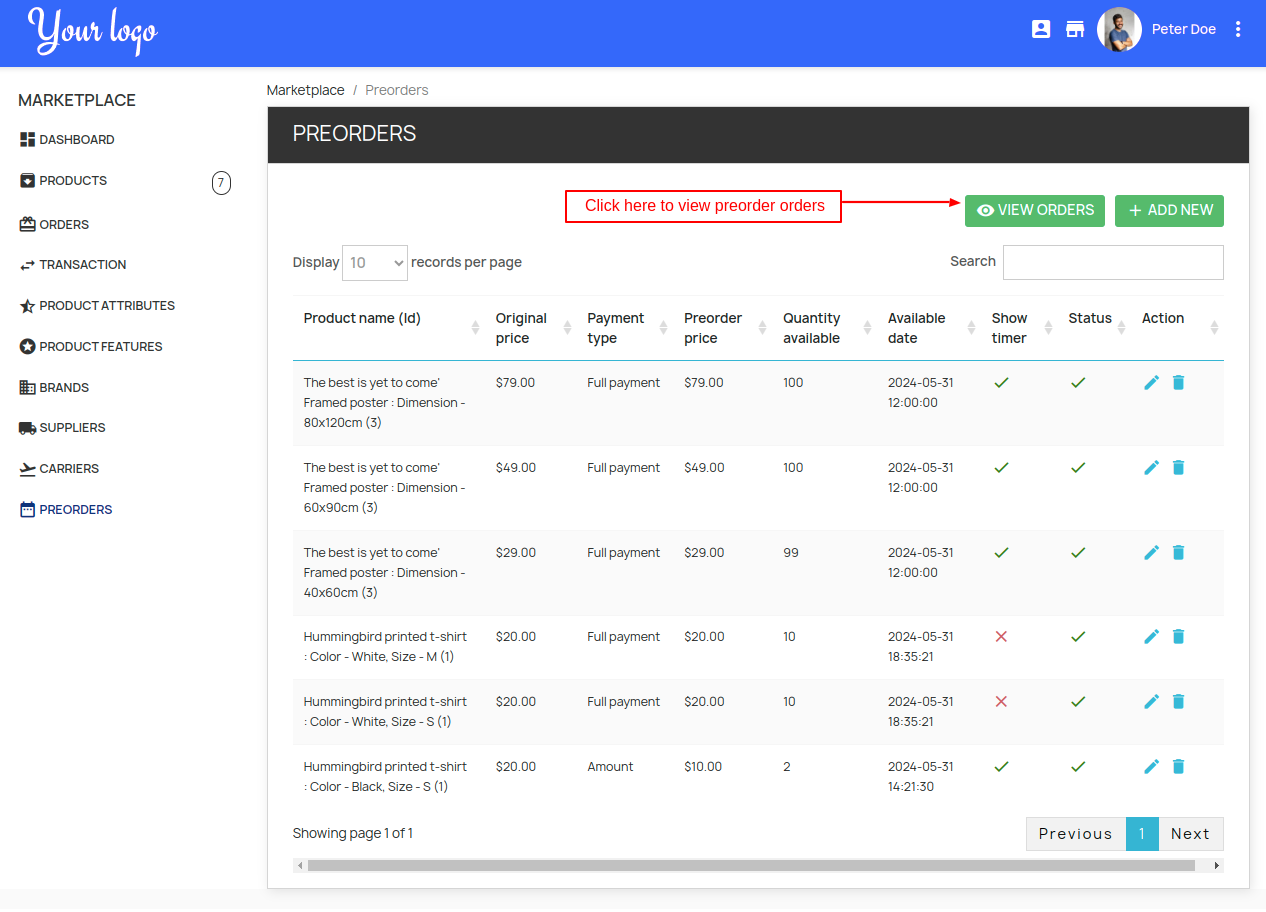
A seller can view the status of a preorder by clicking on order as shown below.
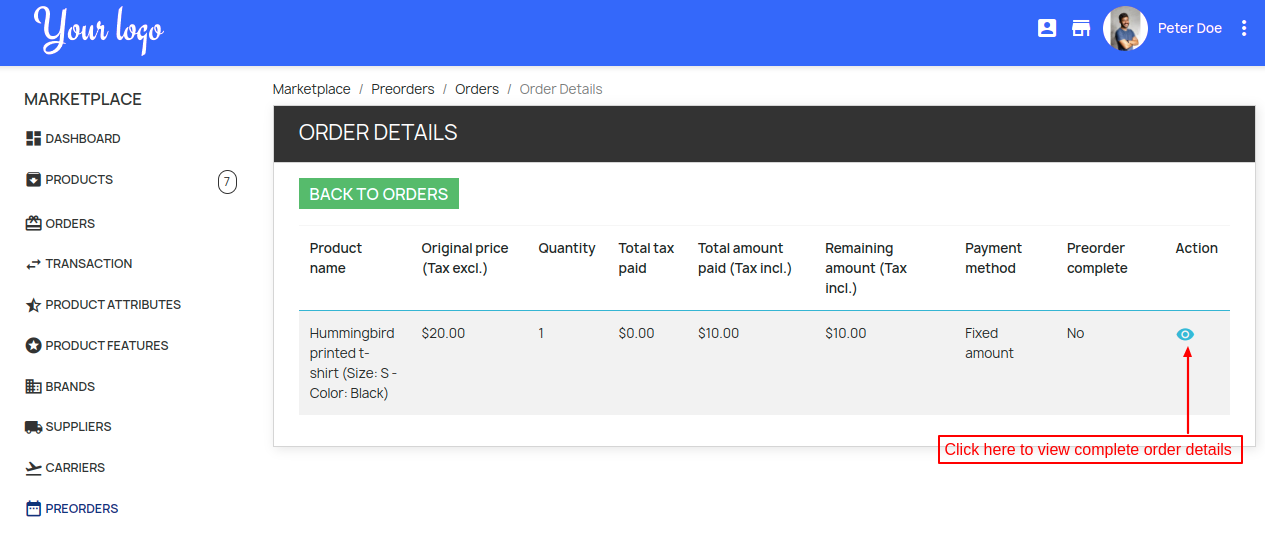
Order Details Page
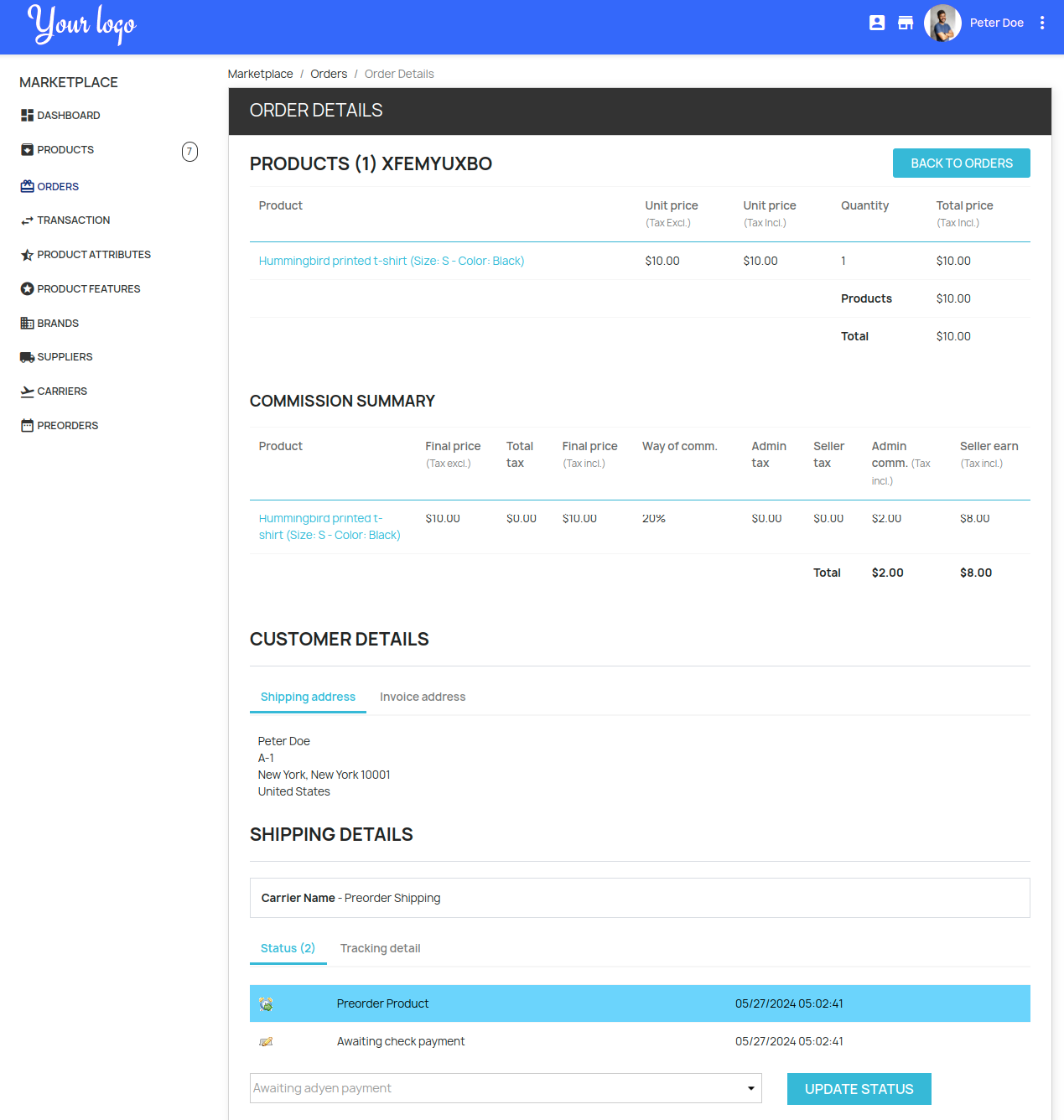
Admin can also view all the orders placed by the customers for a preorder productPreorder Orders.
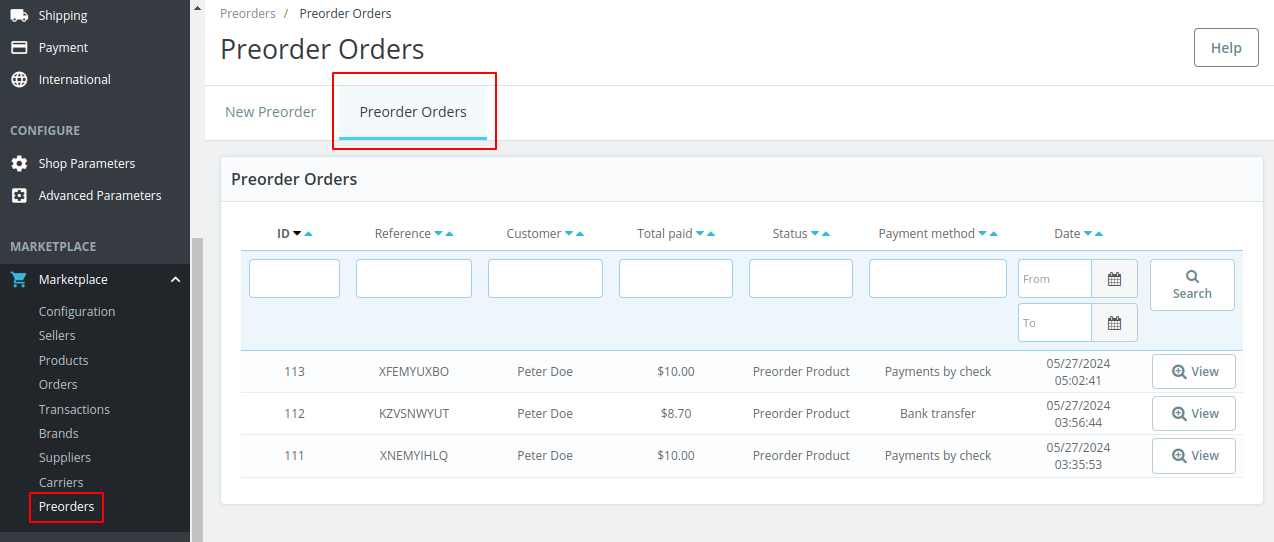
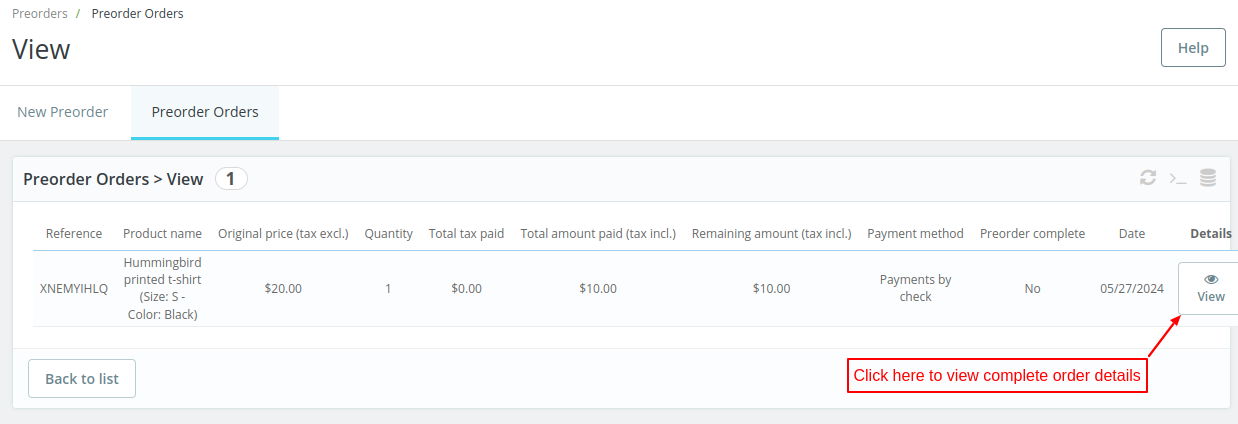
Admin can view details such as total amount paid, remaining amount and status of a preorder by clicking on ‘View’ button.
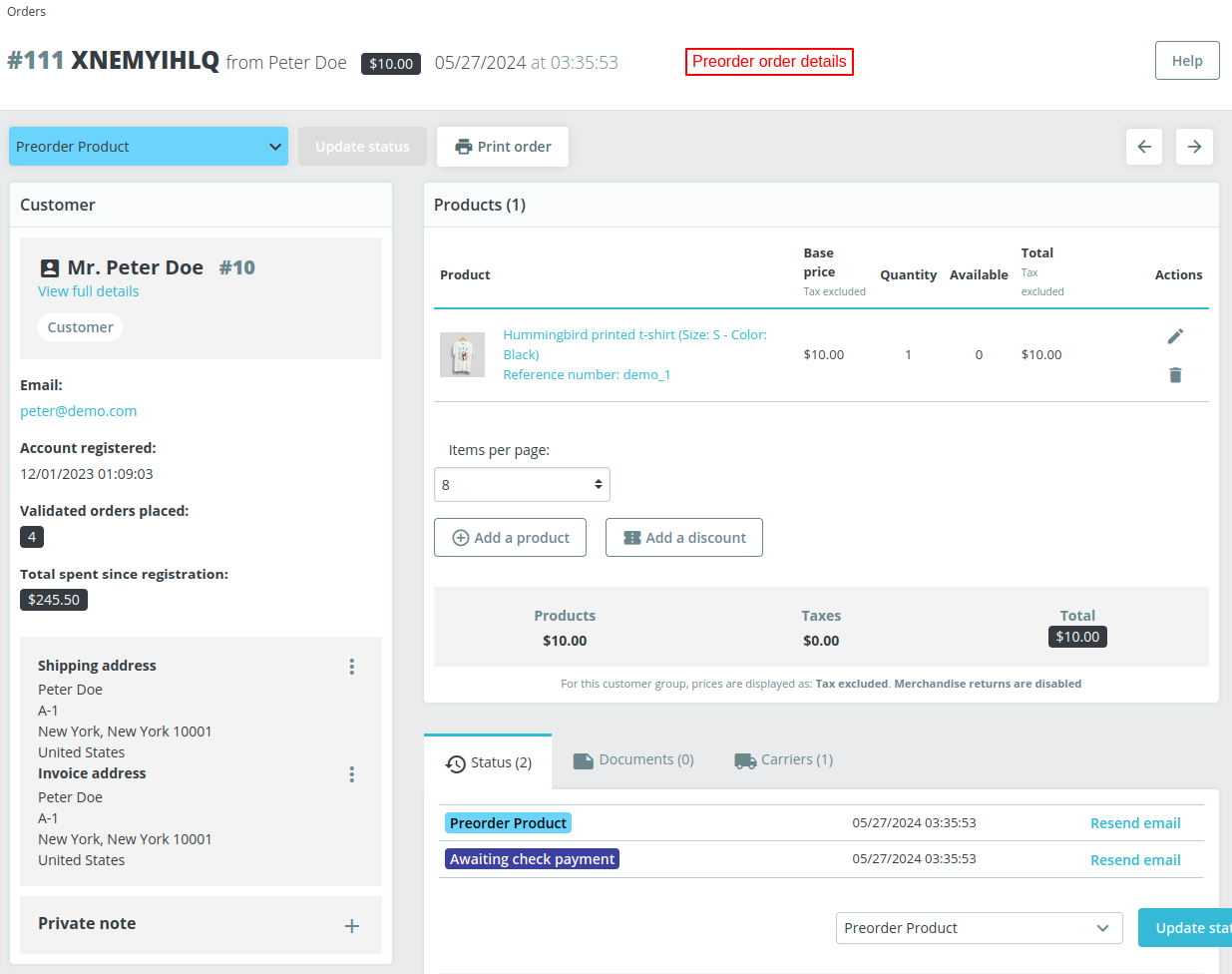
Completing a preorder
When the product gets available, a customer can complete the preorder by clicking on “Complete Preorder” tab available on order details page.
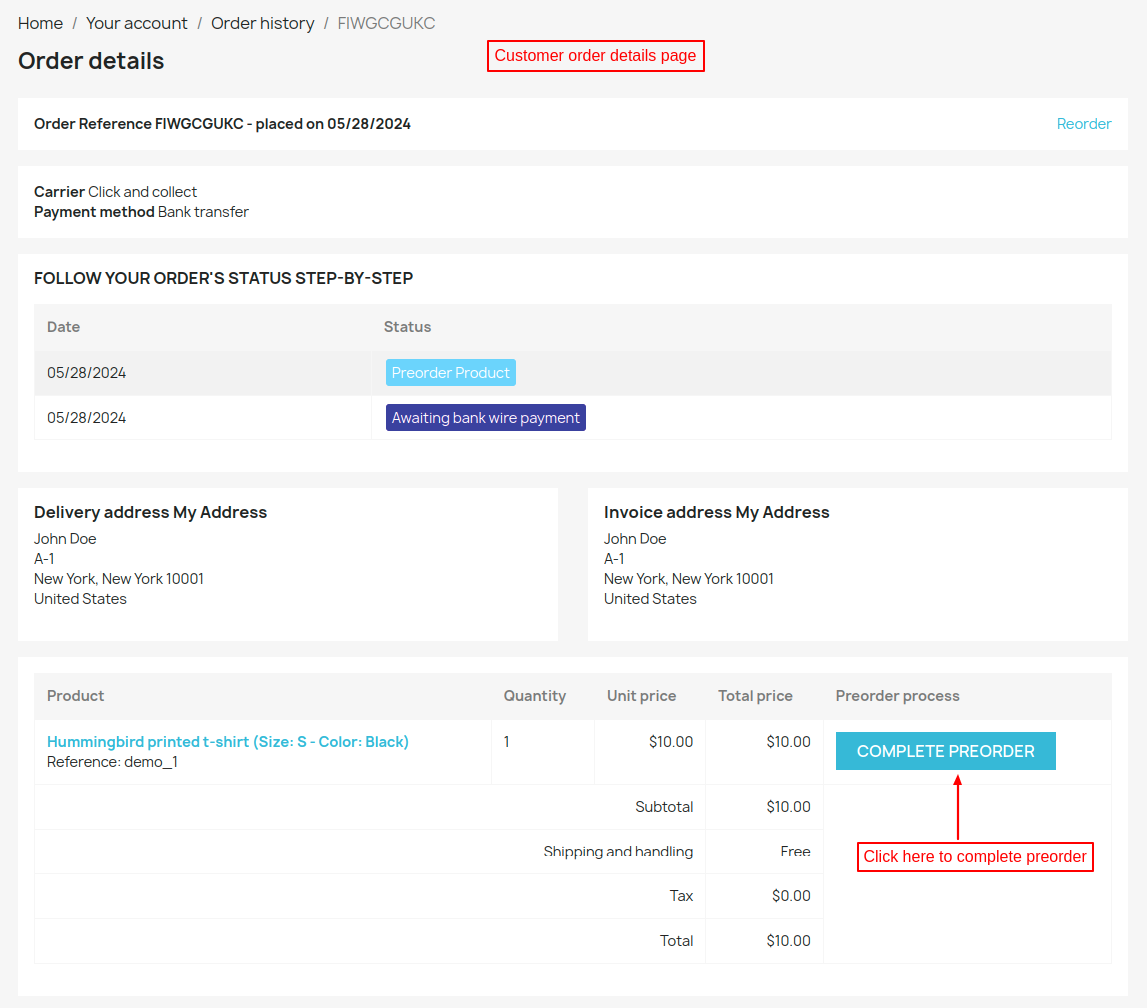
When a customer clicks on “Complete Preorder” button redirects to a cart page where he can pay the pending amount in case of a partial payment done by him.
On the cart page itself, a voucher equivalent to the preorder booking amount will be available.
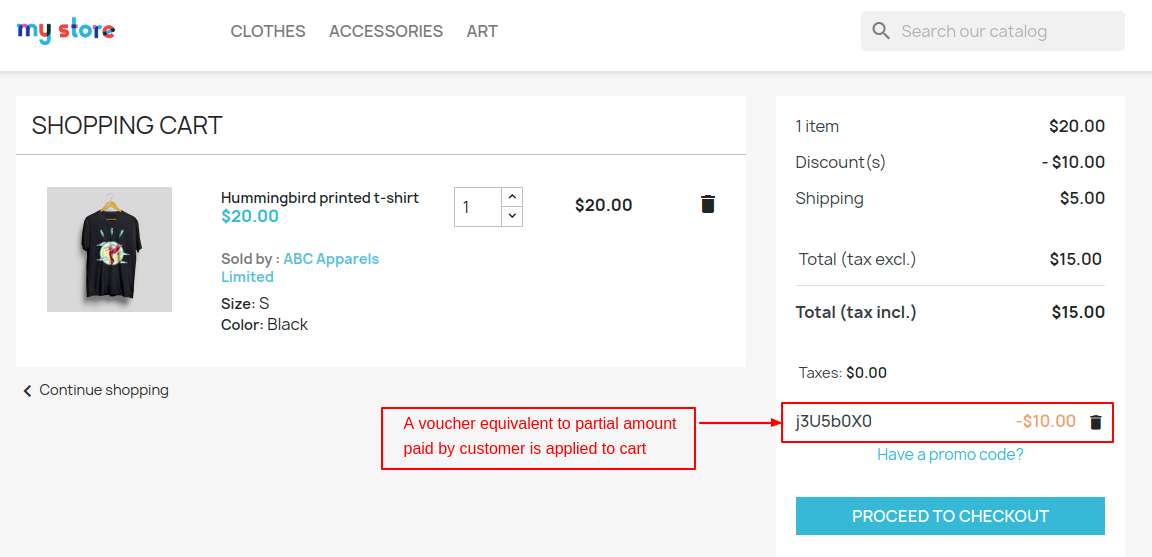
Once a customer has completed a preorder then the status of preorder will change from ‘No’ to ‘Yes’.
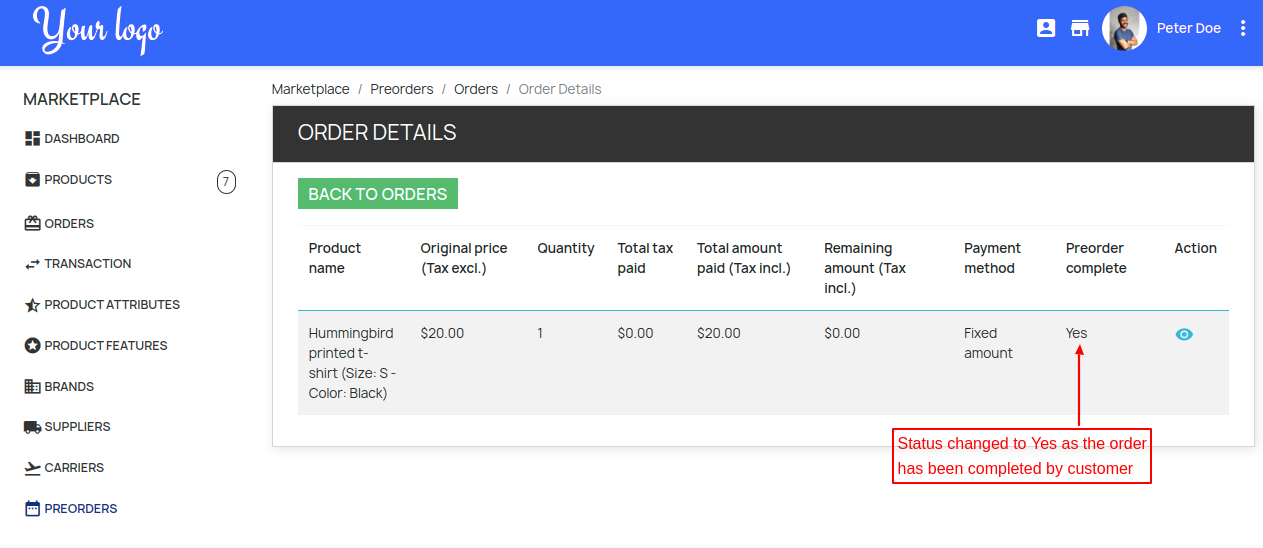
Admin End
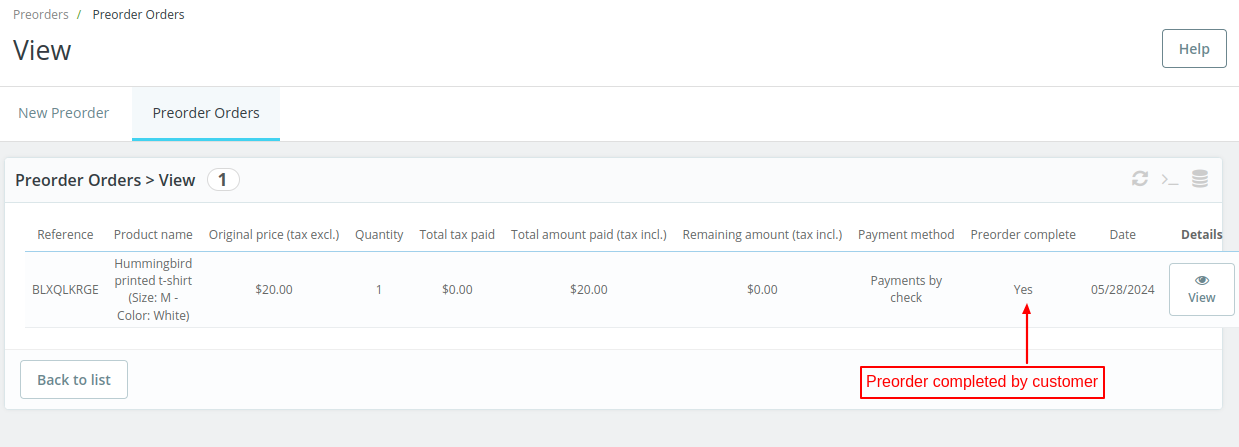
Support
For any kind of technical assistance or query, please raise a ticket or send us a mail at [email protected]
Also, please explore our Prestashop development services and a vast range of quality Prestashop addons.
Current Product Version - 5.1.5
Supported Framework Version - 8.x.x, 1.7.x.x


Be the first to comment.