OpenCart Advanced Booking and Reservation module can be used to create bookings and reservations for products.
This module will be able to implement booking & reservation for products in your Opencart website and will provide six types of bookings for the products –
- Many Bookings in One Day
- One Booking For Many Days
- Customer Time-Based booking(Based on Per Hour and Per Day)
- Appointment Booking
- Rental Booking(Daily, Hourly, Hourly+Daily Basis)
- Event Booking
Opencart Advanced Booking and Reservation is also available as Marketplace Advanced Booking and Reservation.
Check a brief overview of the many bookings in a day –
Check the brief overview of the appointment booking –
Watch the video tutorial below to understand the extension workflow:
Features
- The admin can sync calendar features from Google Developer Account.
- Customer Time-based booking has been introduced which is based on hourly and day wise cost calculation.
- A slot-based quantity measure has been used.
- The Manual Bookings can be made by the admin from the back-end.
- The admin and the agent can reschedule the bookings from the back-end.
- The admin and the agent can export the booking history in CSV, XML format.
- Admin and the agents can view the bookings in the calendar view.
- The agent group has been created under the user groups.
- The admin can set the Agent Status from the back-end.
- The agents can do the booking on behalf of the customer.
- The agents can also add a new booking for the customer.
- The admin and the agents can cancel the bookings from their end.
- On cancelling a booking, the slots become available again.
- The admin and the agents can sync the bookings to the google calendar.
- The admin can enable or disable the sending of the booking and cancel mail status to customers.
- Set the date format that is visible to the customers in the shopping cart.
- Set the background colour for the booking slot and the loader.
- Customers will be able to see the booking details(Like Date and Time Slot) of the product in the Cart.
- The customers can view all their bookings in google calendar from the order detail page.
- Option for customers to download their bookings as a PDF.
- The customers can cancel the booking under their account panel.
- The customer can reschedule their bookings.
- Able to edit/update and delete the booking slots for all booking types.
- Option to send an email confirmation to customers for their Booked Order with details Like duration, rate, and date for which the booking has been done.
- If the admin has enabled refunds the customer will get the refund post cancellation of the booking.
Module Installation
Customers will get a zip folder and they have to extract the contents of this zip folder on their system.
The extracted folder has – admin, catalog, fpdf, ocmod, system, theme-patch, and composer.json folders.
You need to transfer the admin, catalog, fpdf, system, and composer.json the folders into the Opencart root directory on the server as shown below.

After uploading the files, run the following commands in the terminal for installing the composer.json file.
curl -s http://getcomposer.org/installer | php
php composer.phar install
After this, you have to navigate to Extension Installer and upload the file wk_advanceBooking.ocmod.zip which you will find inside the ocmod folder.

Upload: Upload the file from the ocmod.
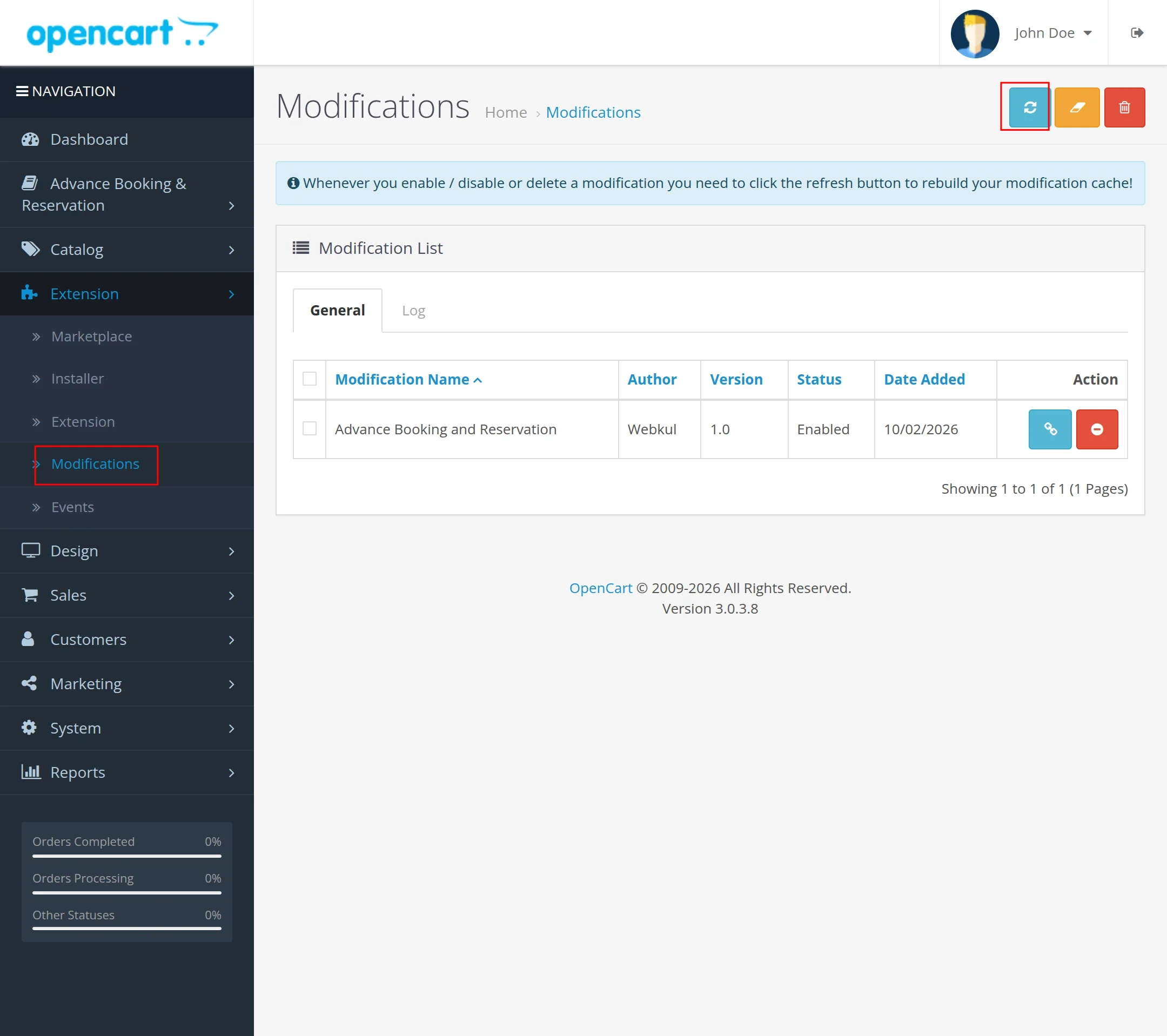
Now navigate to Extensions > Modifications and click refresh on the top right-hand side as shown below.
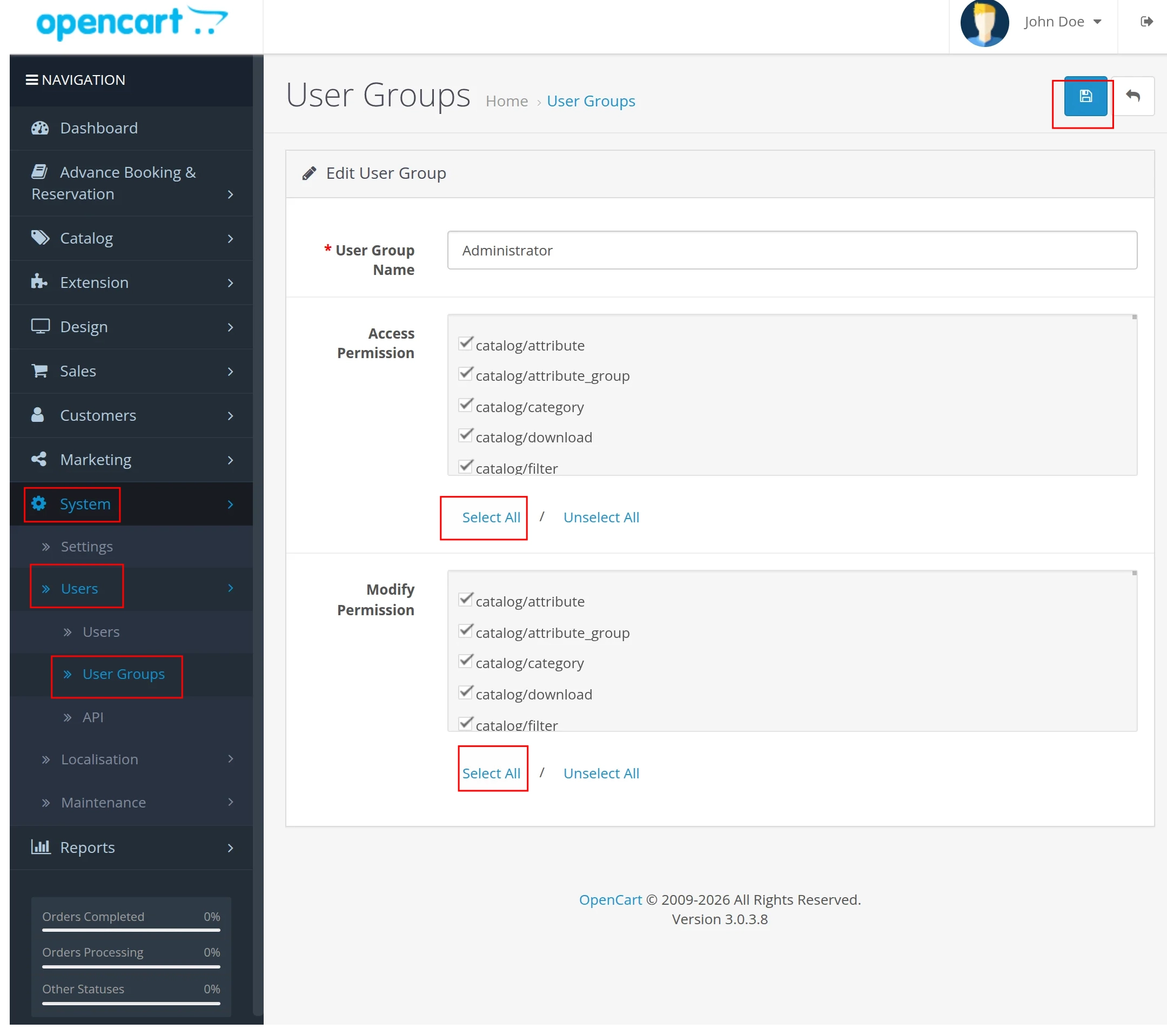
After the above step, the admin needs to navigate to System > Users > User Groups > Administrator (Click the edit button).
Now, select all for “Access Permission” and “Modify Permission” and then tap the save button.
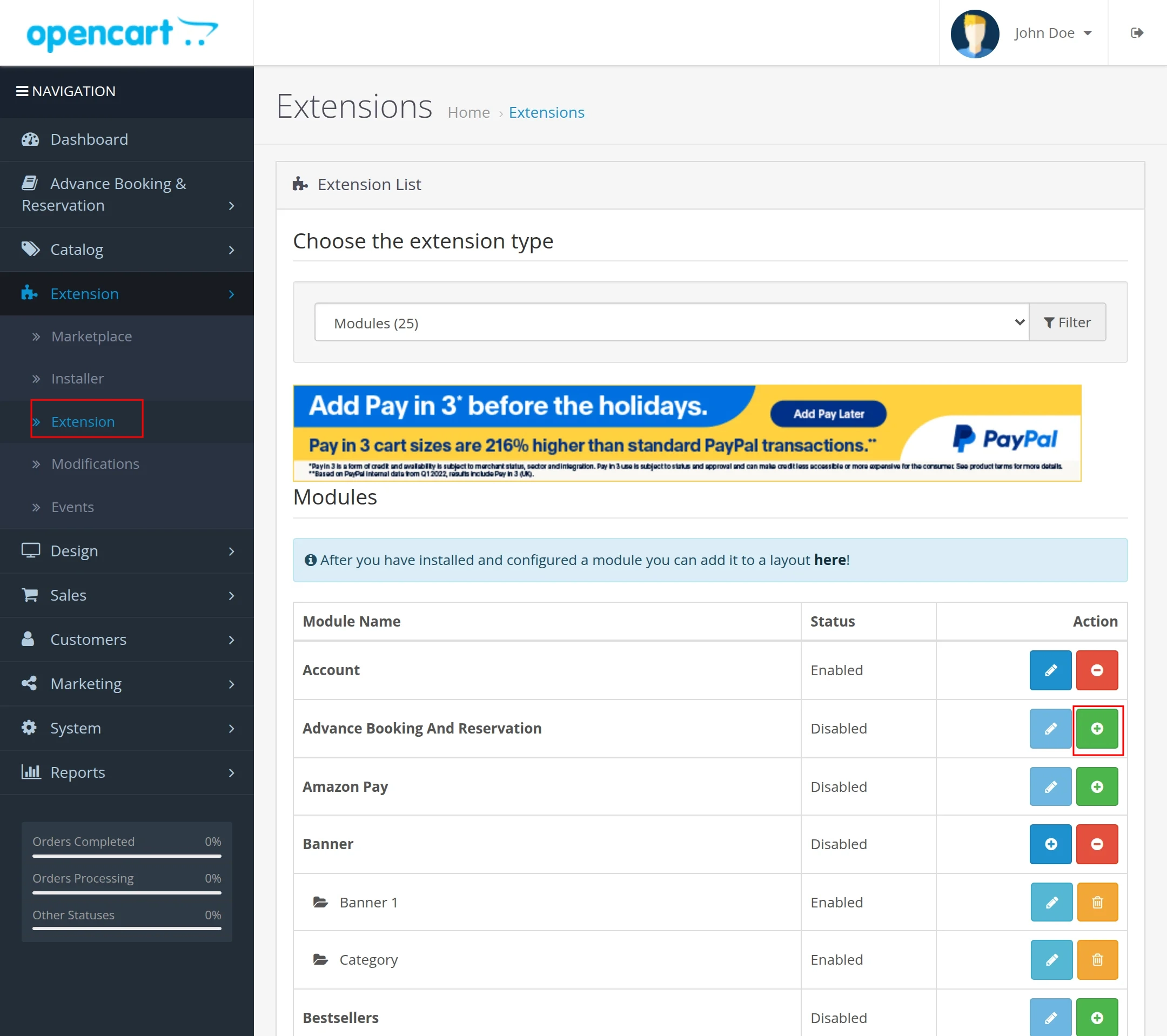
 Now go to Extensions > Modules > Advanced Booking & Reservation and click the install button to install the module as shown below.
After installing the plugin, enable the plugin.
After that, the admin will set the layout on the product page like the image below.

How to Create a Google Developer Account?
The admin needs to upload the Google Credentials file in the configuration to sync the data on the Google Calendar.
Before that, the admin needs to create a Google Developer Account by clicking here.
Next, the admin logs in to the Google Cloud Platform and creates a new project. For reference, see the snapshot below.
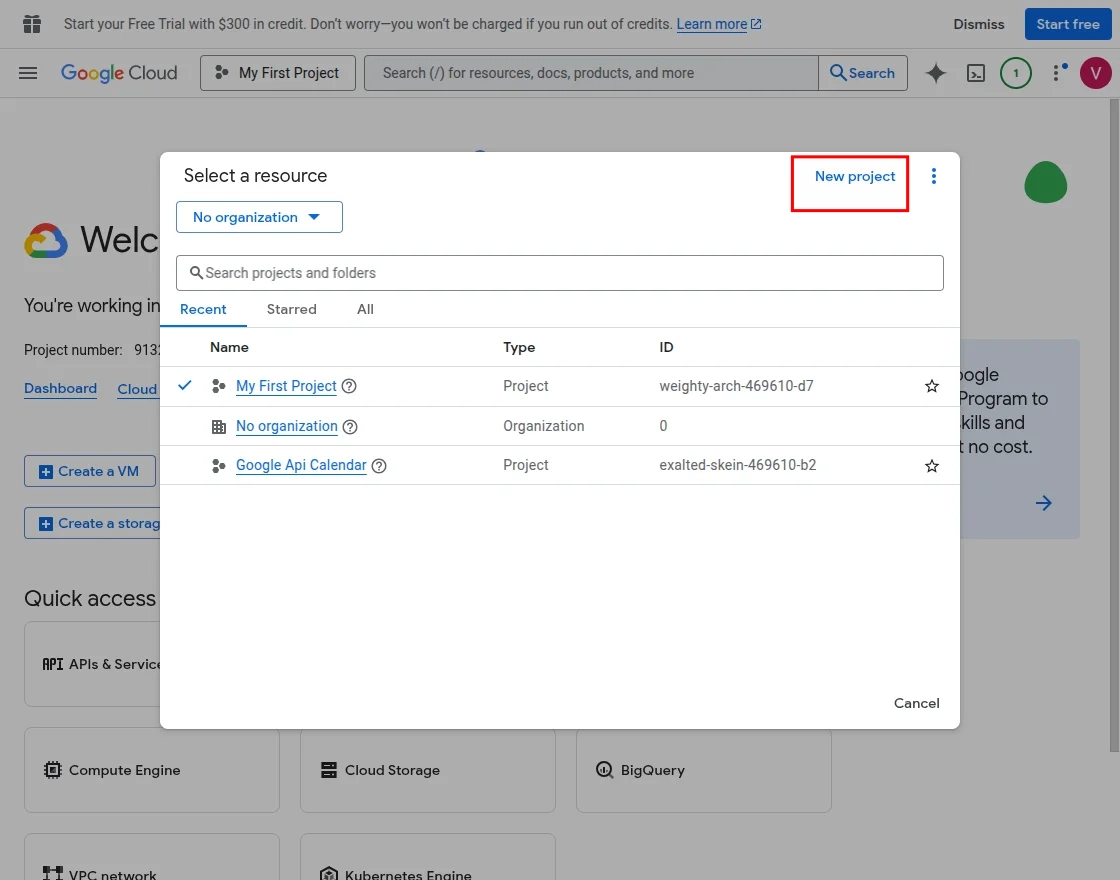
For creating a new project, the admin needs to click on the NEW PROJECT button as shown in the image:
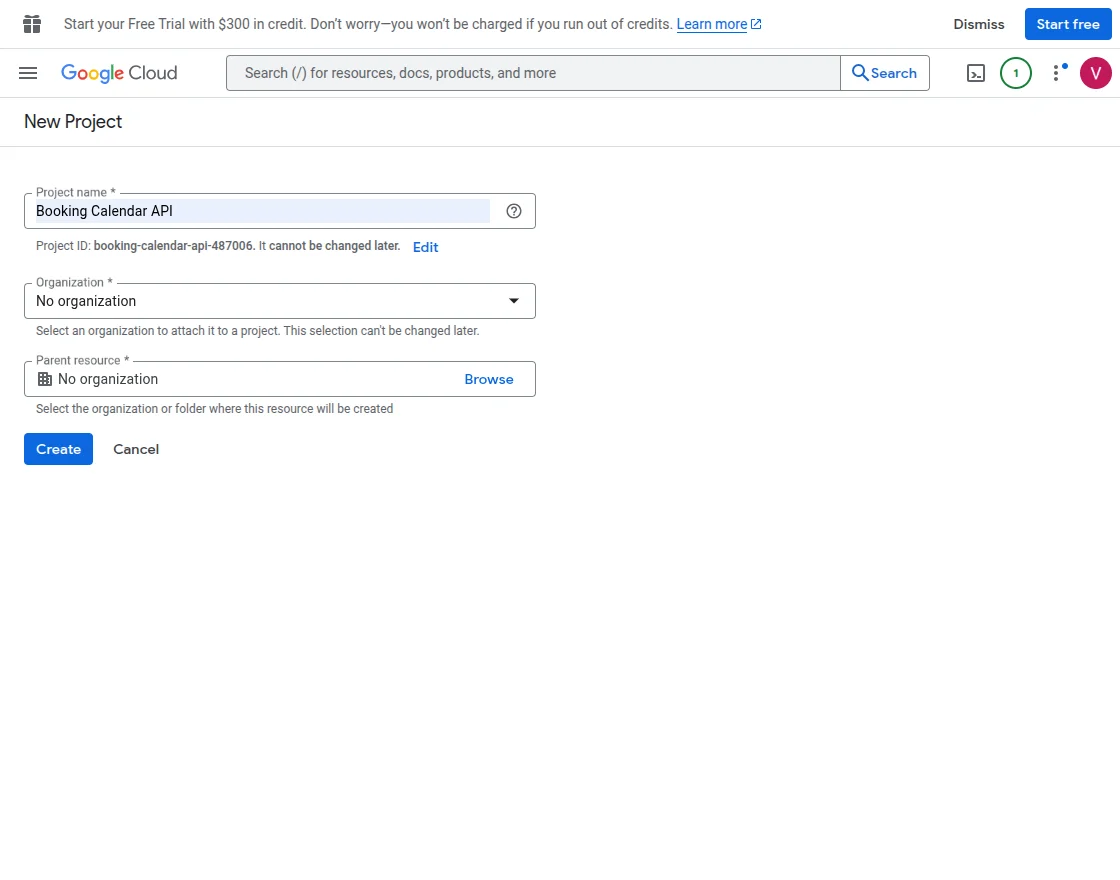
New Project:
- Enter the Project name here.
- and the location of the organization.
- Then, click on the CREATE button.
Note: Project name must be Booking Calendar API.
Once the admin has created a project, they need to navigate to the APIs and Services >> OAuth consent screen tab and then click on the CREATE button as per the image below:
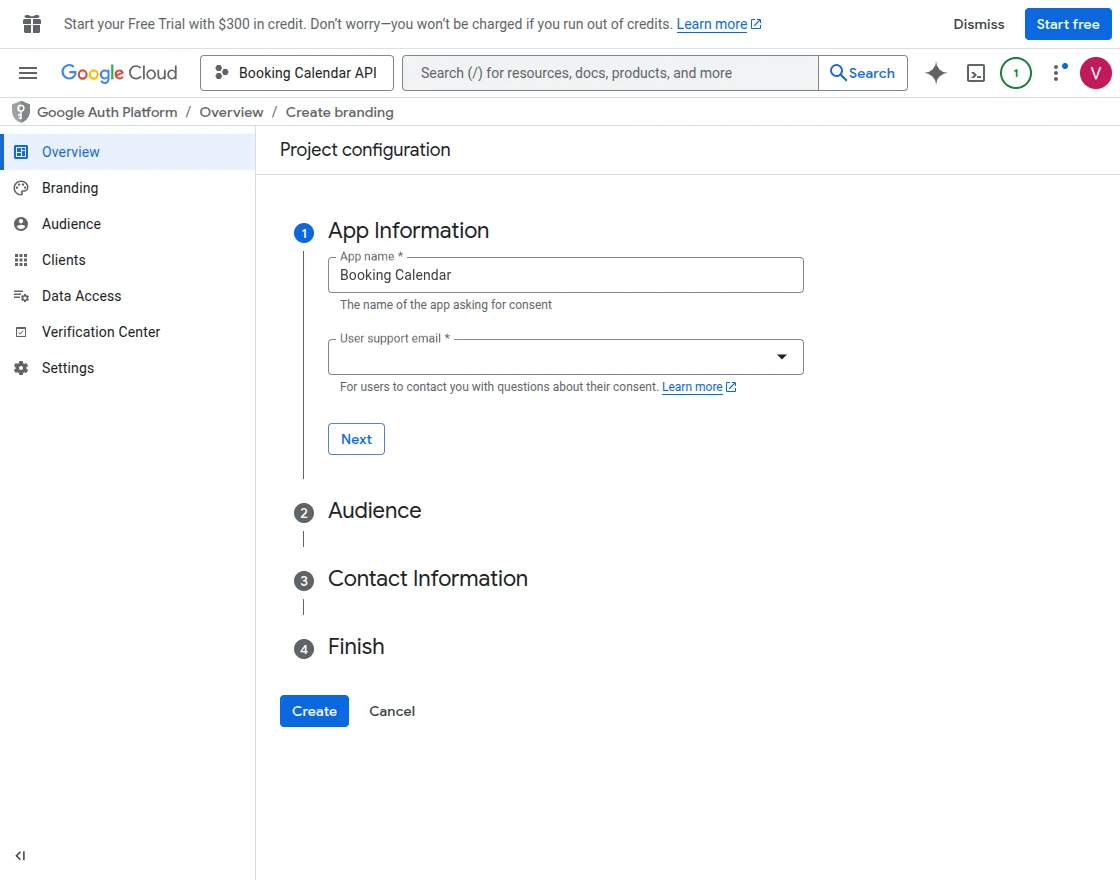
-
App Name: Enter the name of your application.
-
User Support Email: Enter the email address linked to your Google account.
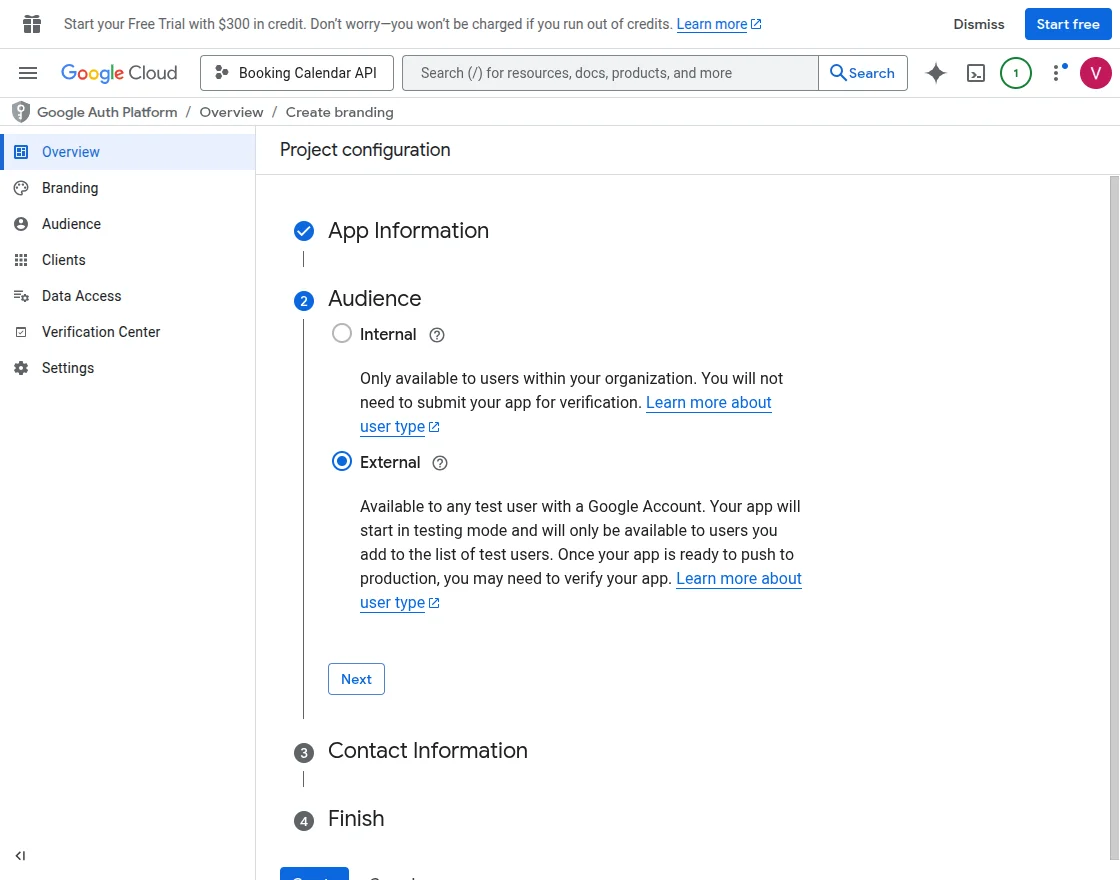
- Audience: Choose the audience for your application.
- Contact Information: Provide the necessary contact details for communication and support.
After entering all the required credentials, create the project.
Next, create an OAuth client to continue the setup process.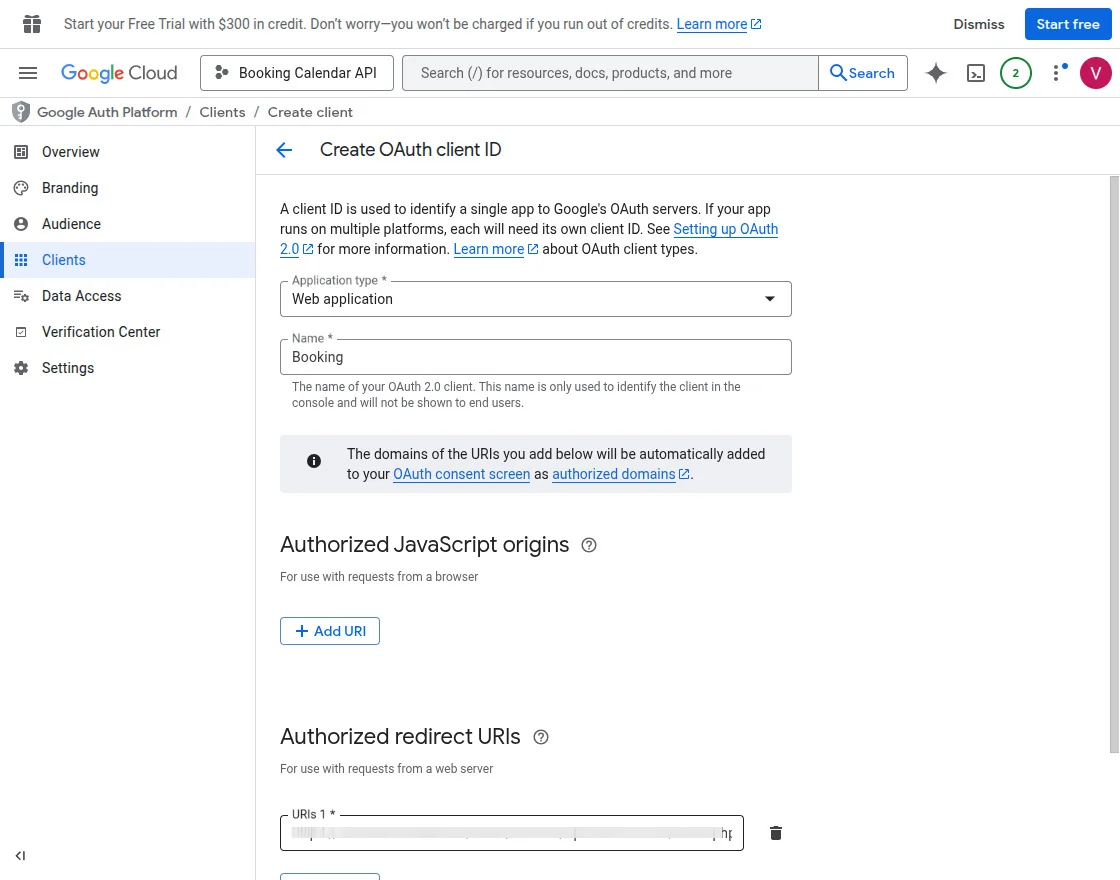
-
Application Type: Choose the application type.
-
Name: Enter the client name.
-
Authorized Redirect URI: Enter your URL in the following format:
your-site-url/index.php?route=extension/module/wk_booking_res_calendar
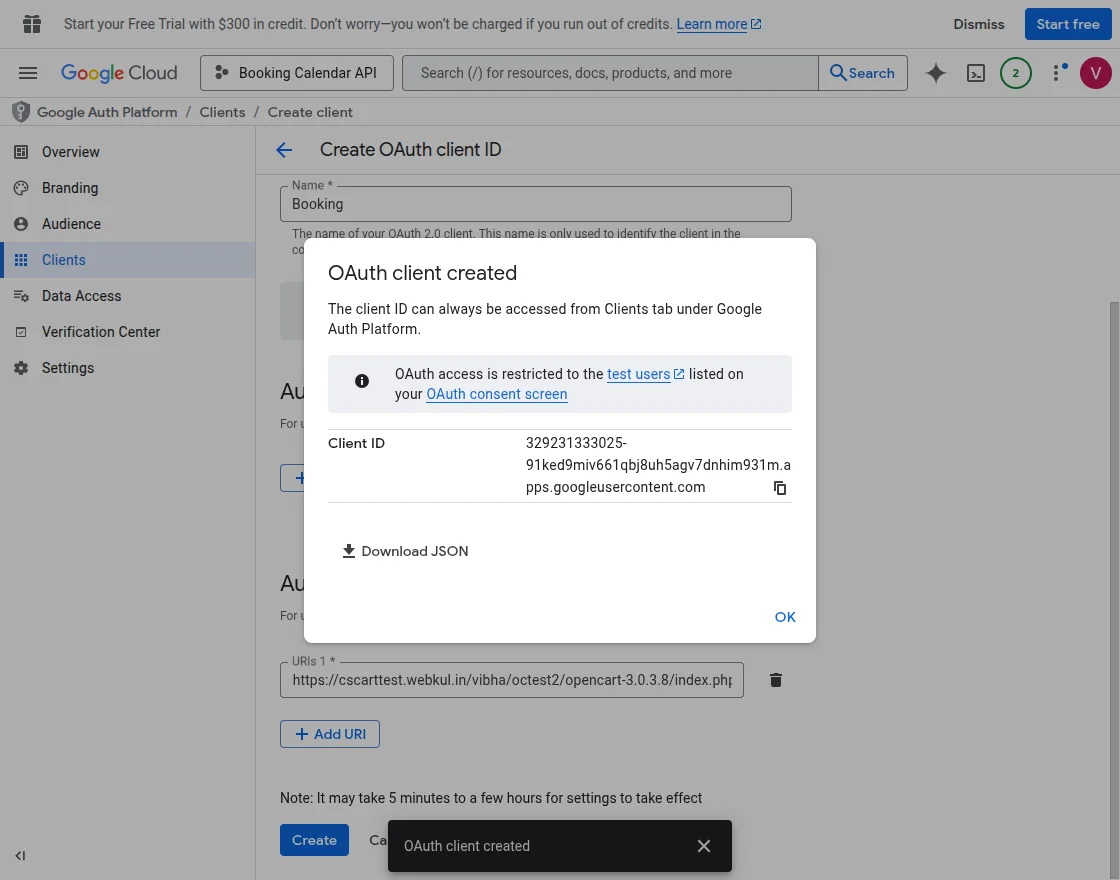
After creating the client, download the JSON file and upload it to the calendar configuration.
But, before that, the admin needs to enable the Google Calendar API. For that, the admin needs to navigate through APIs & Services >> Library > Google Calendar API as per the image below:
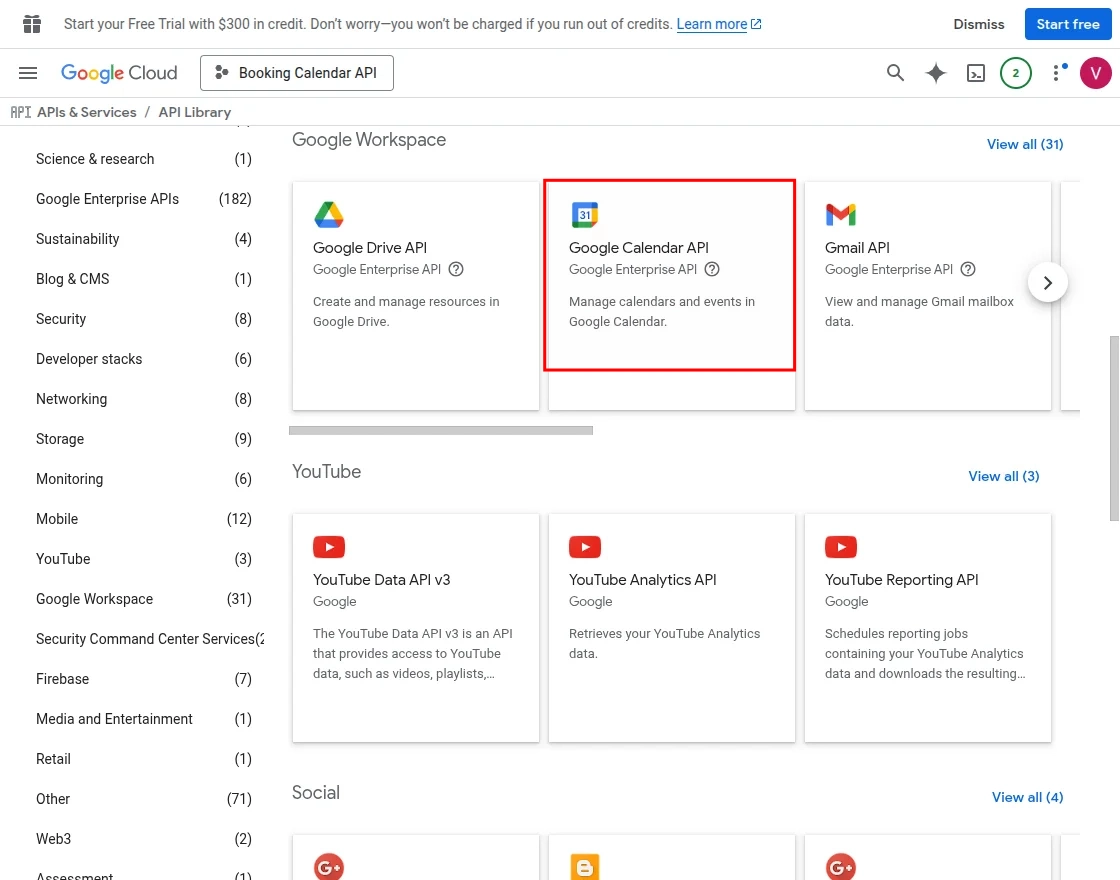
Next, the admin clicks on Google Calendar API and enables it.
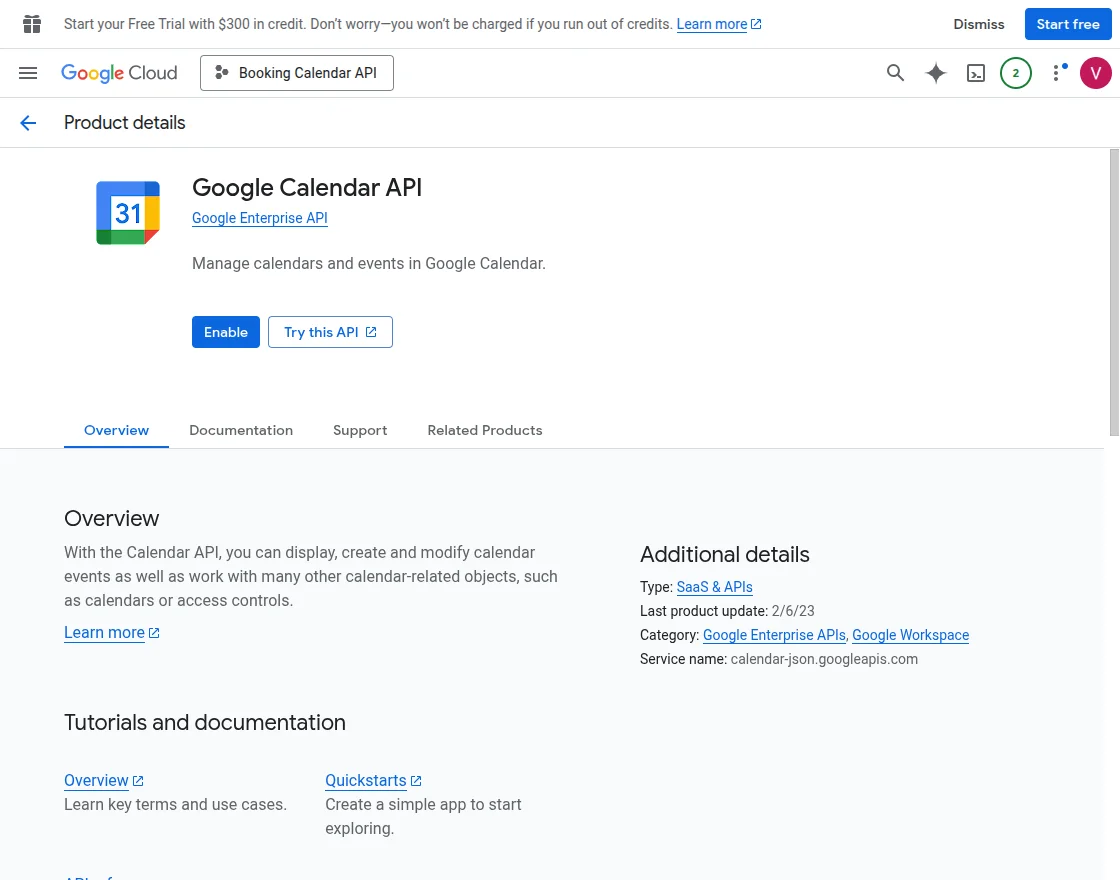
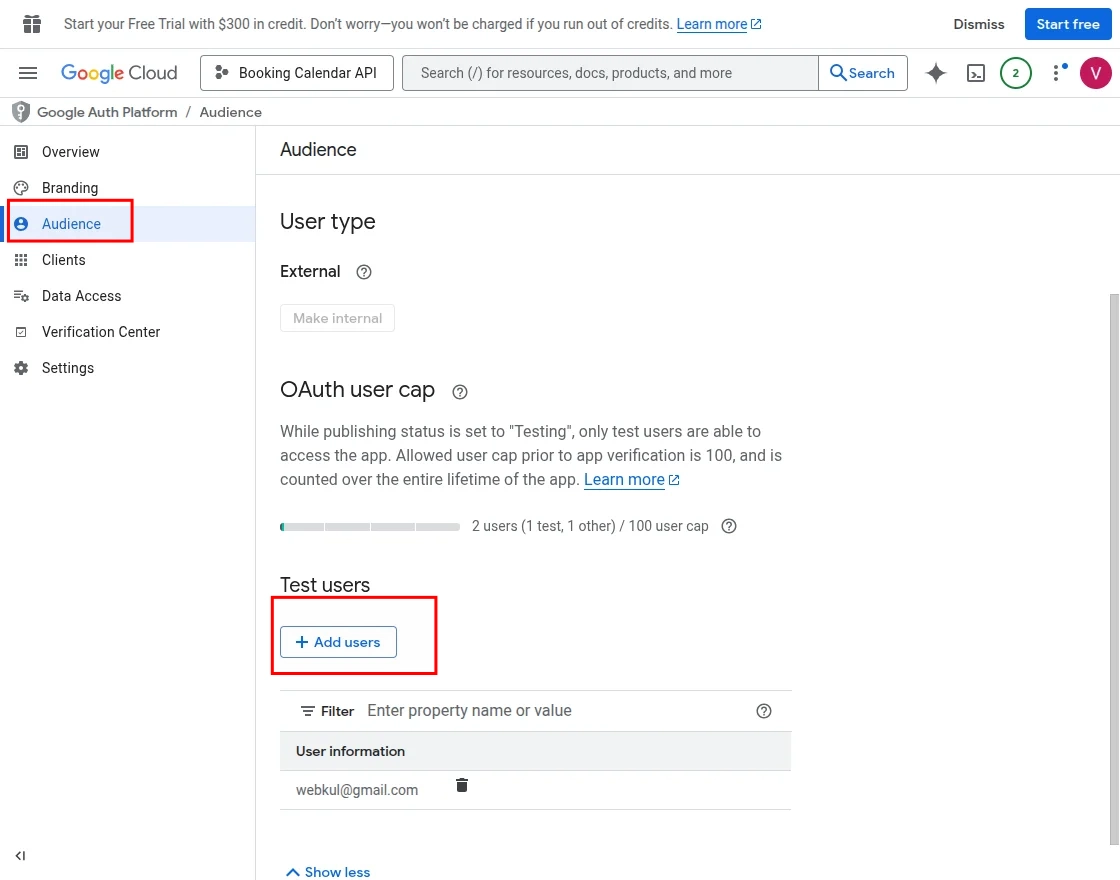
Add users
To add test users, navigate to Audience >> Test Users in the Google Cloud Console.
Admin Configuration
After the successful installation of Opencart Advanced Booking and Reservation, the admin can configure the module.
For that, they need to navigate through Extensions > Modules > Advanced Booking & Reservation and then click on the edit button.
General Settings:

- Select Your TimeZone – Select the Time Zone that you are in.
- Status: Select “Enable” to show the Book Now button on the product page else select “Disable” to Hide the Book Now button.
- Date Format: Select the Date format that will be visible for the Booking Form and Till values to the customers in the cart.
- Customer Cancel Booking: Select Customer Cancel Booking as – Enable or Disable. If enabled, then customers can see the cancel booking option under the order details else if it is selected as disabled, then the cancel booking option will not be visible to the customers.
- Cancel Approve: Set Cancel Approve as Enabled (If enabled, then the booking will be cancelled without the approval of the admin) or Disabled(Then the booking will be cancelled with the approval of the admin) as per the need.
- Booking data removal on update the product: choose to enable to set booking data will be removed on update/edit of the product.
- Cancel Requests Days: Set the cancellation request days, if in case the admin set cancel request days 15, then the cancel button will be displayed at the front only for 15 days. As of right now, the admin can set the requested day from 1 to 50 only.
- Set the Slot Background colour:
- Set the Loader Color: Choose the loader colour
Mail Settings:

- Enable or disable the booking mail status. If enabled, then the customer will receive a mail on the booking confirmation.
- PDF Details at Booking History – If this option is enabled, then the customers will find a PDF button on the booking history page under their account by which they can download the booking details as a PDF.
- Cancel Mail Status – If this option is enabled then the customers and admin will receive a cancel mail notification when the order is cancelled.
- Reschedule Booking Approve Mail – If the admin approves reschedule booking then customers get mail notification when their booking is rescheduled.
Create Booking Mail Template:-
When a customer creates a booking, they receive an email notification, as shown in the image below.

Cancelled Booking Mail Template:-
When a customer cancels a booking, they receive an email notification, as shown in the image below.

Reschedule Booking Mail Template:-
When a customer reschedules a booking, they receive an email notification, as shown in the image below.

Calendar Section:

- The admin can click on the Google Developer Account hyperlink to create an account.
- The admin can enable the Calendar Sync Status if they want the data to get synced on the Google Calendar.
- Under the Google Credentials File Upload section, the admin can upload the Google credentials file, which they have downloaded from the Google Developer account.
Agent Booking Section:

From here, the admin can enable or disable the Agent Status.
Customer Change Slot:

- The admin can decide whether to allow the customers to change their booking slots or not.
- Admin can also enable or disable the auto-approval of the changed slots by the customer.
Info Section:

From here, the admin can find the codes that can be used for writing email templates.
Refund: mail

Status: From here, the admin can enable or disable the refund feature.
Refund rate: The admin needs to enter the rate(in percentage only) that will be applied to the booking products.
Calculate refund rate on: The admin can decide whether the refund will be levied on the product price or on the product price with the inclusion of all taxes.
Totals title: The admin needs to enter the title of the booking that will be visible to the customers.
Totals Sort Order: Using this, the admin can set the position of the refund field at the order total section visible to its customer.

Refund Type: There are two refund types mainly –
- Informed Choice – It will require a front-end selection.
- Apply to All – Refund will be applied to all orders without any front-end selection.
Booking Refund Mail: The admin can enter the content of the mail that will be sent to the customer on booking refunds.
Refund reference prefix: Add any prefix to use for order. e.g. order id is 345, database entry is 34 and you add prefix SaleReferenceId_ then reference id will be SaleReferenceId_345_34.
Reference id must be unique for applying refund on official page.

Refund expiration days: Add refund expiration day(s) after which the customer can not apply for a refund on the official page.
Customer Refund cancel status: If this field is enabled, then only the Cancel Refund button will be visible at the frontend, else not.
A Refund cancel approve status: If enabled then customer cancels refund requests will be approved by admin only else the customer can directly cancel refund.
Refund cancel days(s): Add refund cancel day(s) after that customer can not cancel the refund.

Refund cancel mail template: If a cancellation is done then the sent mail content can be manage from here using the refund cancel mail template.
Since the module uses a third-party API. Now, to fetch the same the admin needs to simply send a mail to the refund team of the protect group on the address [email protected]
the admin will get the Merchant Vendor ID, Merchant AuthToken/ApiKey, Merchant API URL and Merchant Cancel API URL also from the support team only.

Merchant API URL: Set refund protect API URL e.g. https://test.api.protectgroup.co/api/v1/refundprotect/salesoffering for test mode or ask refund team to provide live URL.
Merchant Cancel API URL: Set refund protect cancel API URL e.g. https://test.api.protectgroup.co/api/v1/refundprotect/ for test mode or ask refund team to provide live URL.

Add reasons: A list of reasons will be display to the front-end. Use a separate line for each reason.
E.g.
Sickness, Accident, Injury
Public transport failure
Private vehicle failure
Terms and Condition URL: The admin can enter the URL of the terms and condition page E.g. https://www.refundable.me/ You can add your own custom terms and condition URL after contacting the refund team.
Product Configuration
Many bookings in One Day:
Now go to Catalog > Products and edit any product in which you want to add reservations, there you will see a booking and reservation tab; click on it.
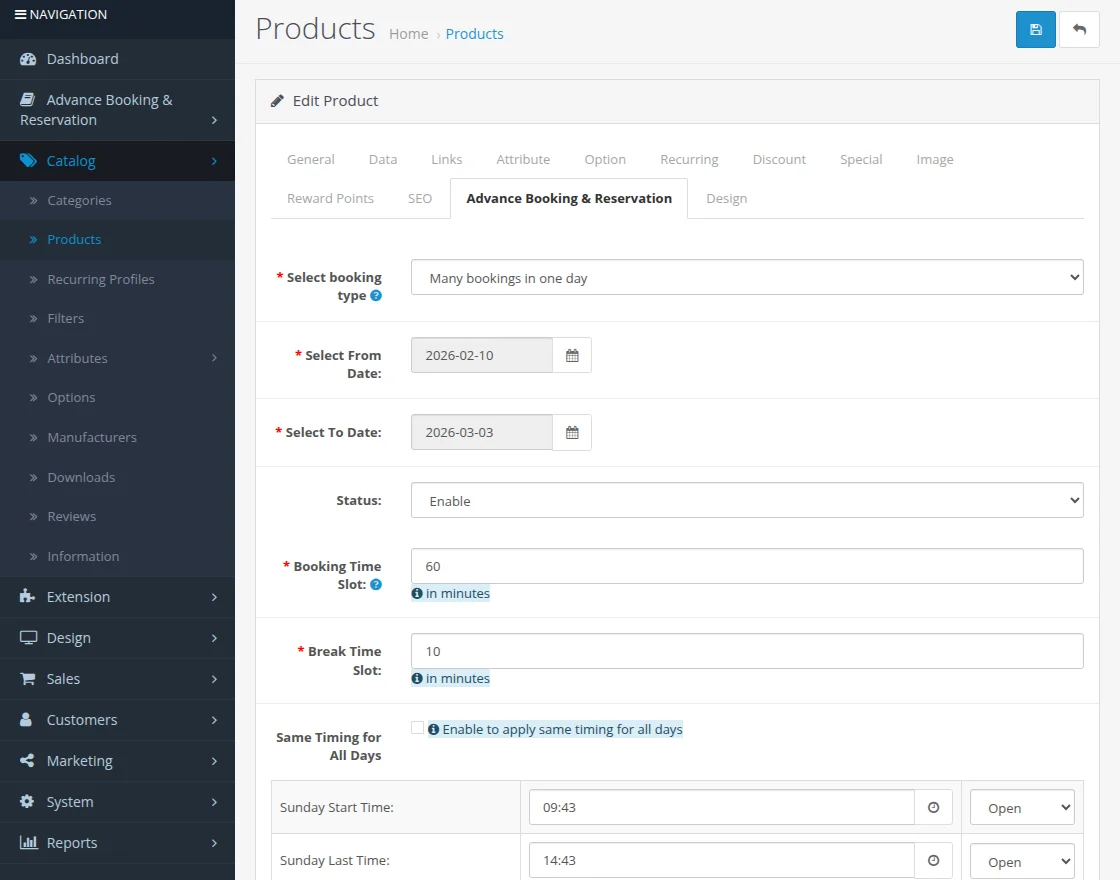
-
Select Booking Type: Choose the type of booking you want to add.
-
Select From Date: Select the start date of the booking.
-
Select To Date: Choose the booking’s end date.
-
Status: Select the booking status.
-
Booking Time Slots: Enter the booking time slots.
-
Break Time Slots: Define the break time slots, if applicable.
-
Same Timing for All Days: Enable this option to apply the same booking schedule to all days.
You can also add booking for the product by navigating through the plus icon present at the right-top corner after going to Advance Booking & Reservation > Many Bookings In One Day.
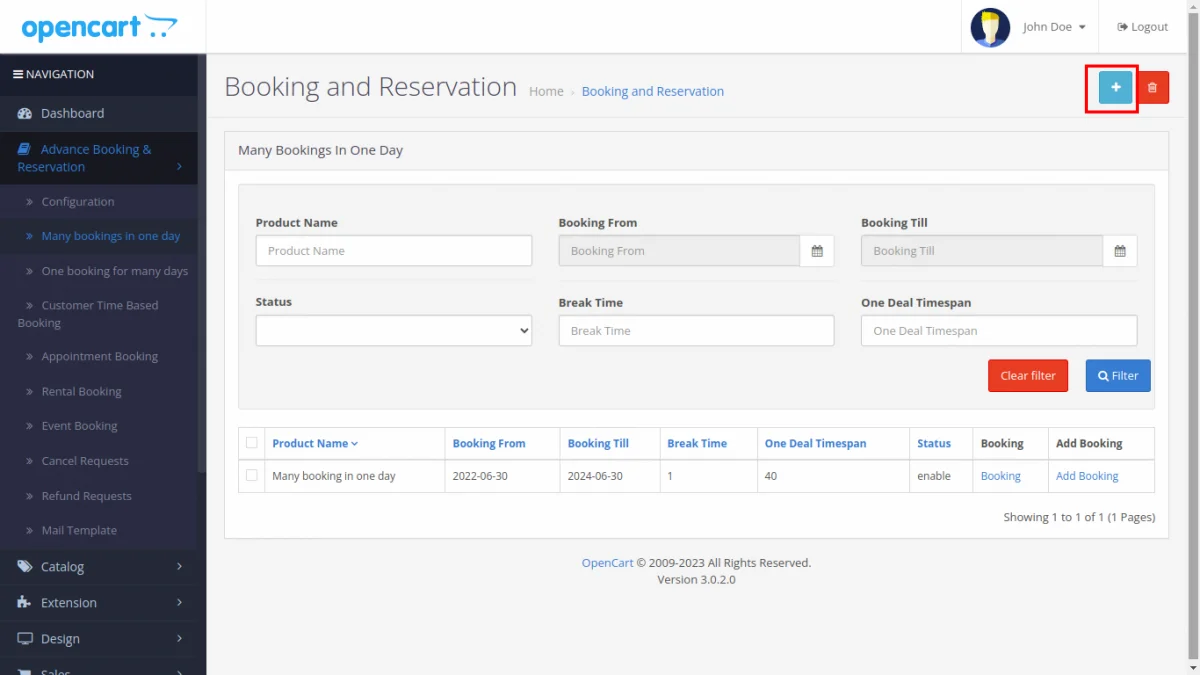
This action opens a section where you can search for the product and add a booking.
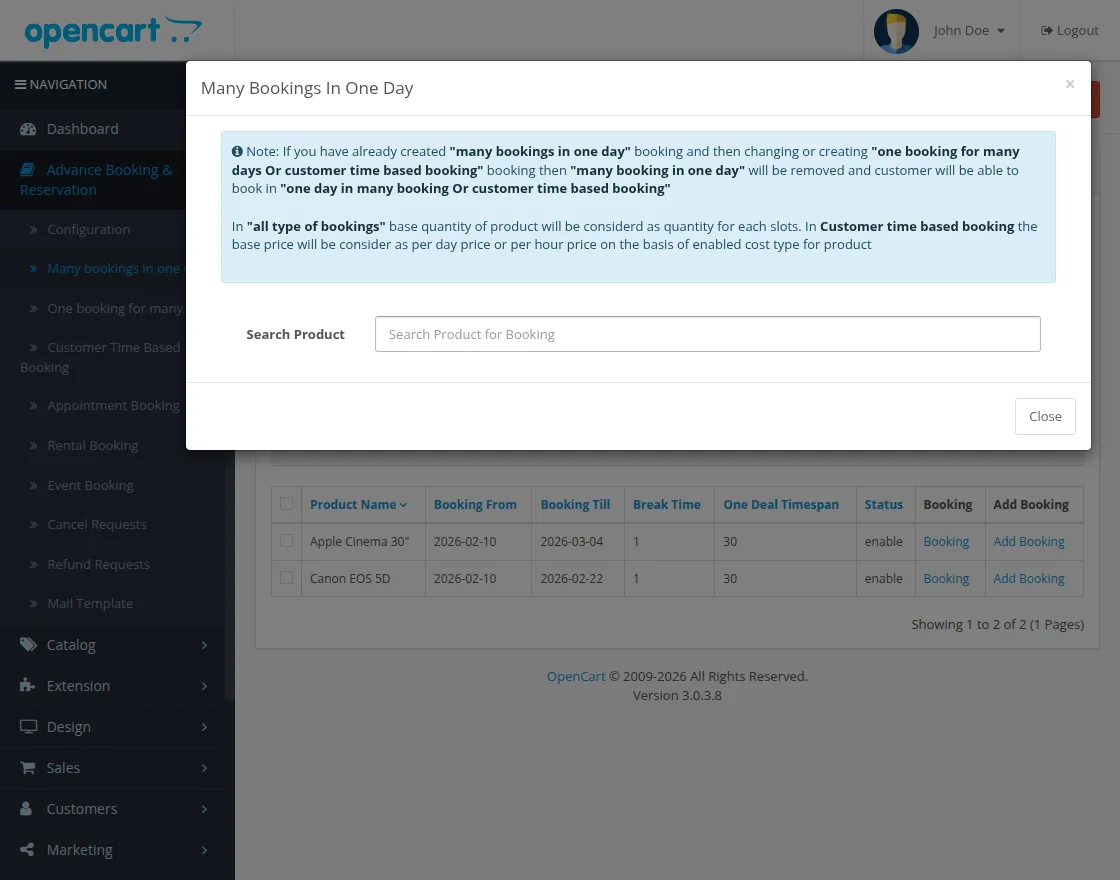
Select the product and proceed to add the booking.
One Booking For Many Days
For one booking for many days will be as below and you can create reservation slots as per the requirement.
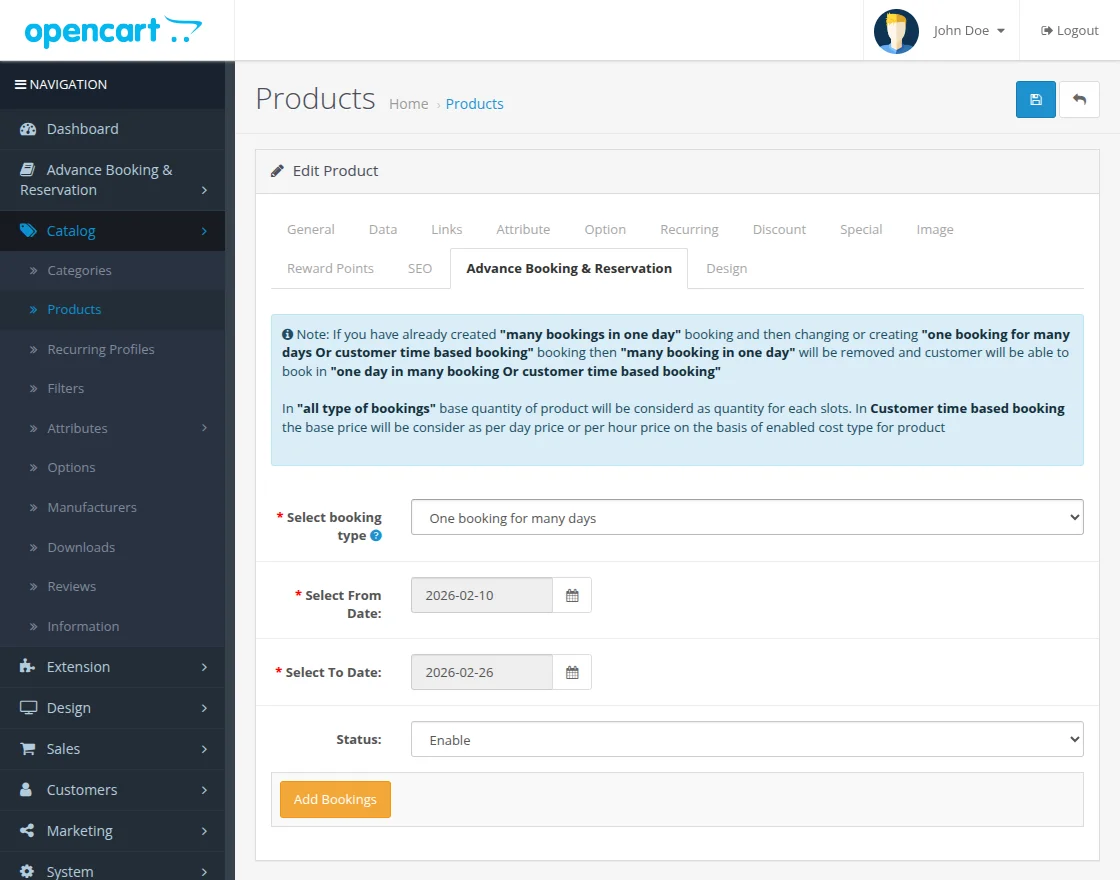
-
Select Booking Type: Choose the type of booking you want to add.
-
Select From Date: Select the start date of the booking.
-
Select To Date: Choose the booking’s end date.
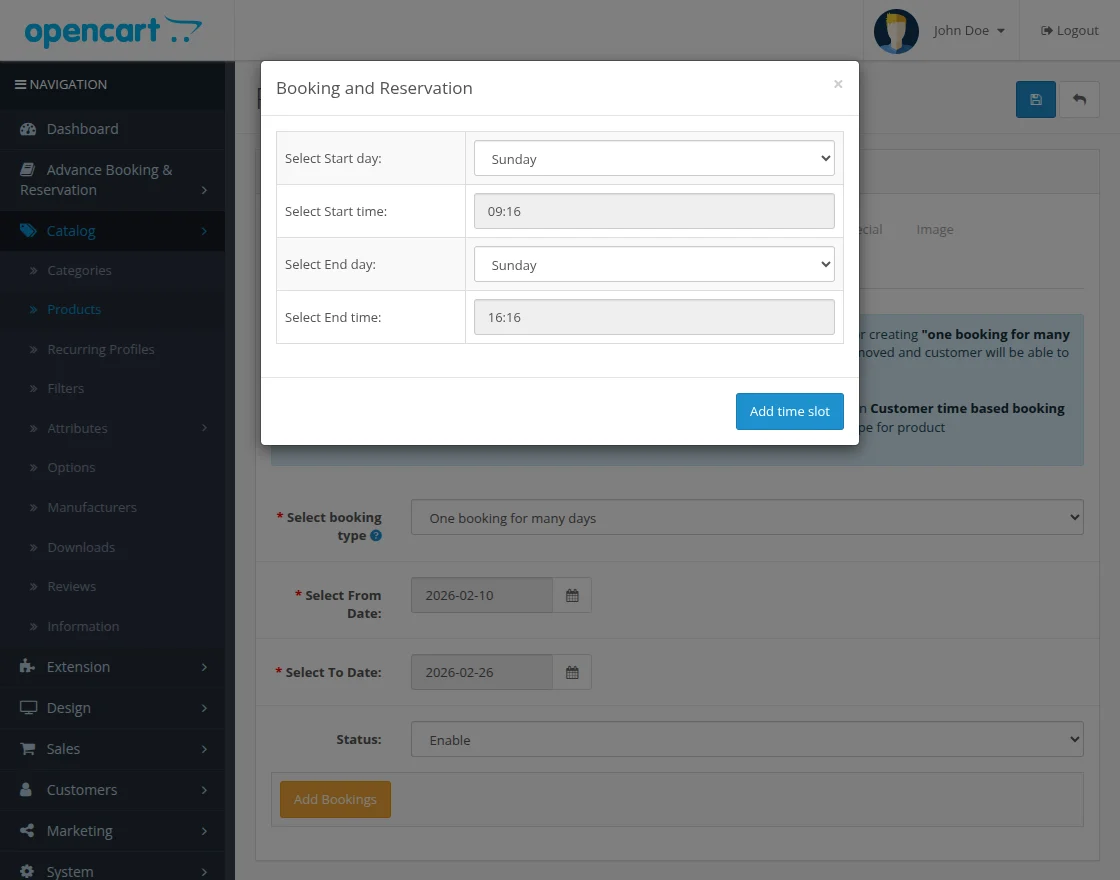
Add suitable time slots for the booking to define availability.
After adding the slots, you can edit or delete them as required.
Customer Time-Based Booking
The customer’s time-based booking appears as shown below, and you can create reservation slots as needed.
You can set the cost type on an hourly or daily basis.
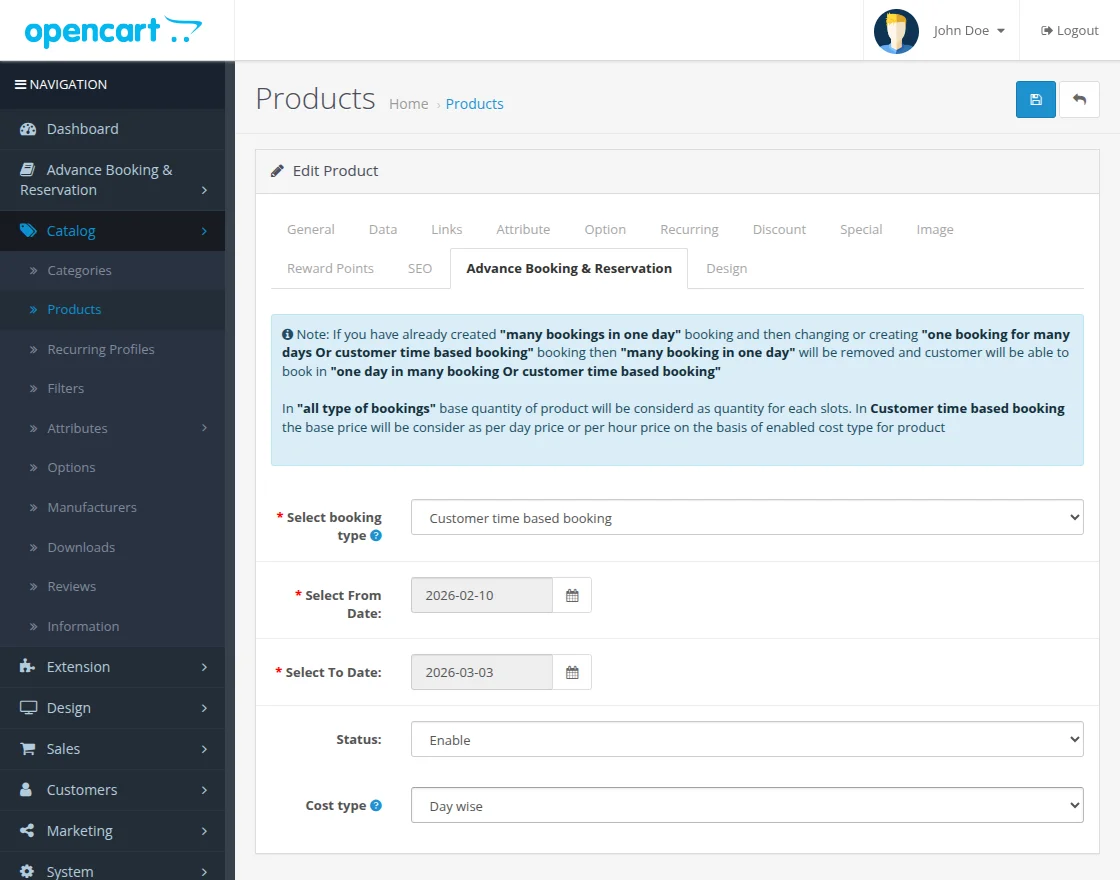
Appointment Booking
To add an appointment booking, navigate to Catalog >> Products and select the product for which you want to enable appointment booking.
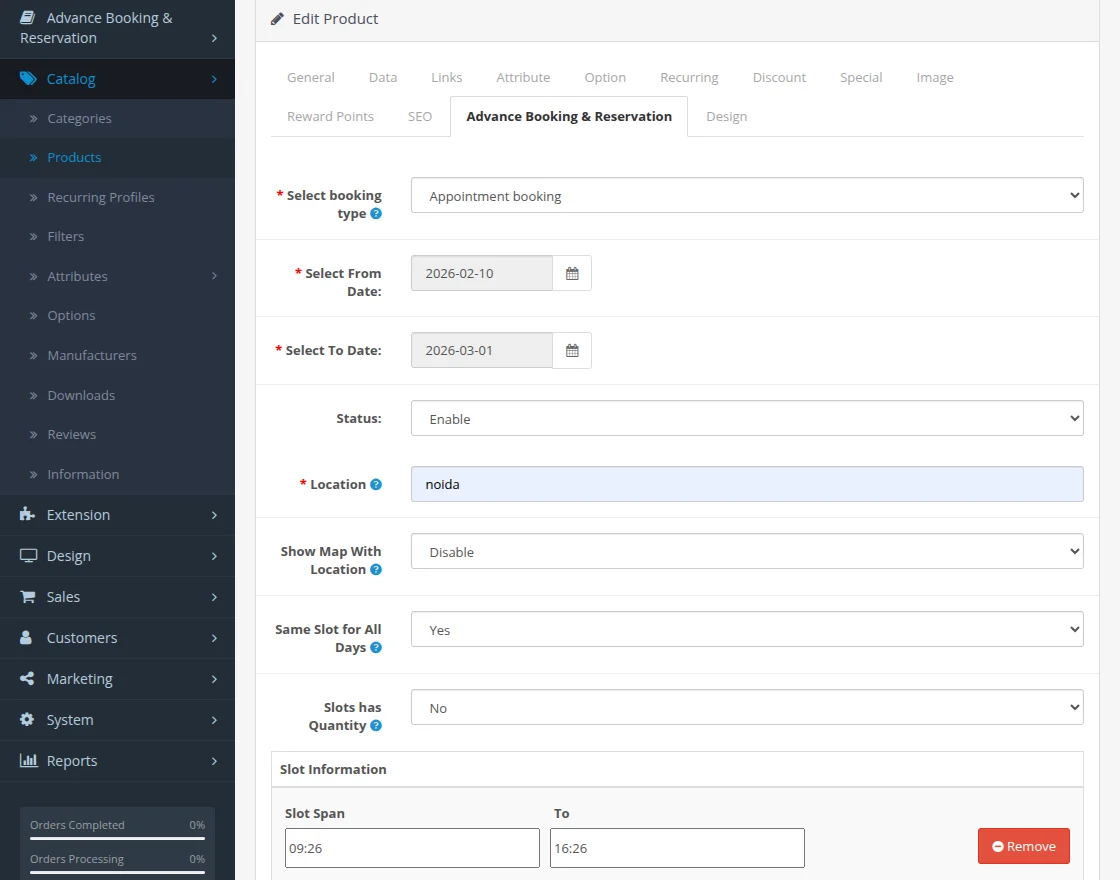
Complete all the required details to successfully add the booking.
Rental Booking (Daily Basis)
To add rental booking(daily), navigate to Catalog >> Products and select the product for which you want to enable daily basis rental booking.
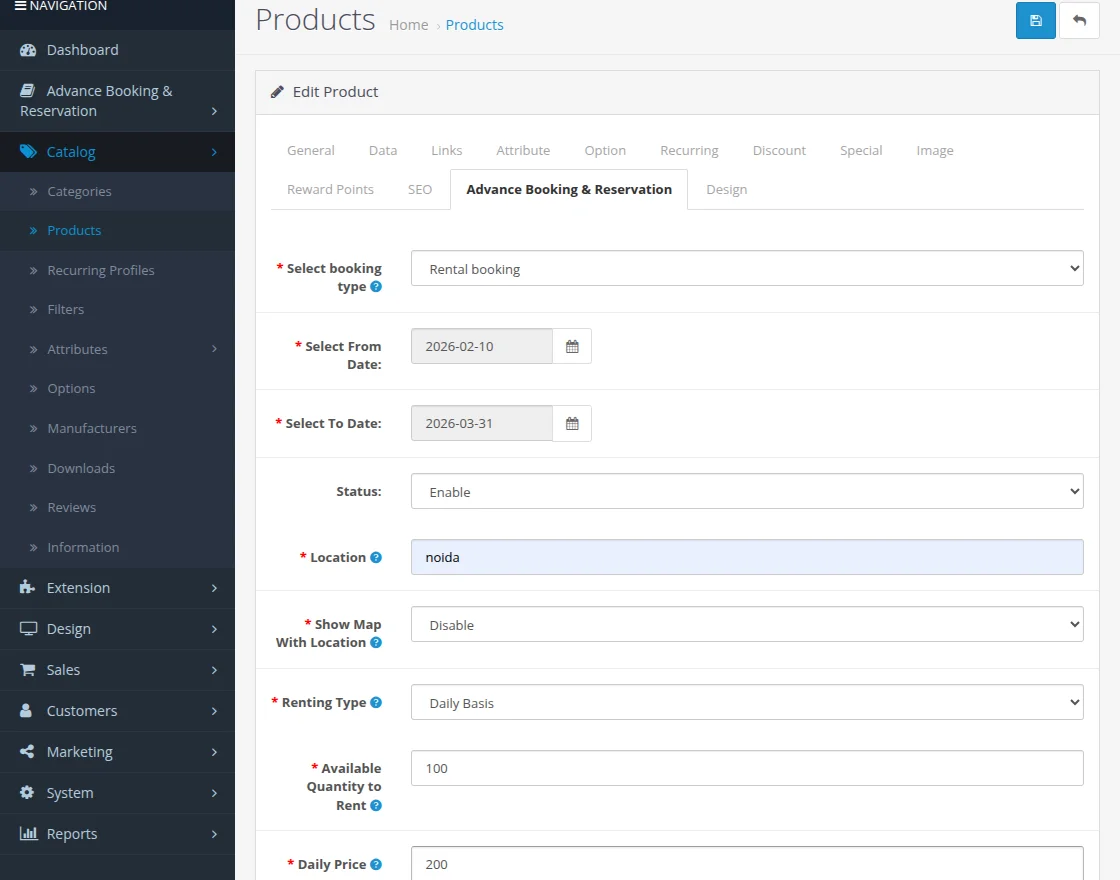
Complete all the required details to successfully add the booking.
Rental Booking (Hourly Basis+Daily Basis)
After navigating to Catalog >> Products, the user can add rental booking options (hourly or daily basis) to the product.
The user can also filter the product and make bookings.
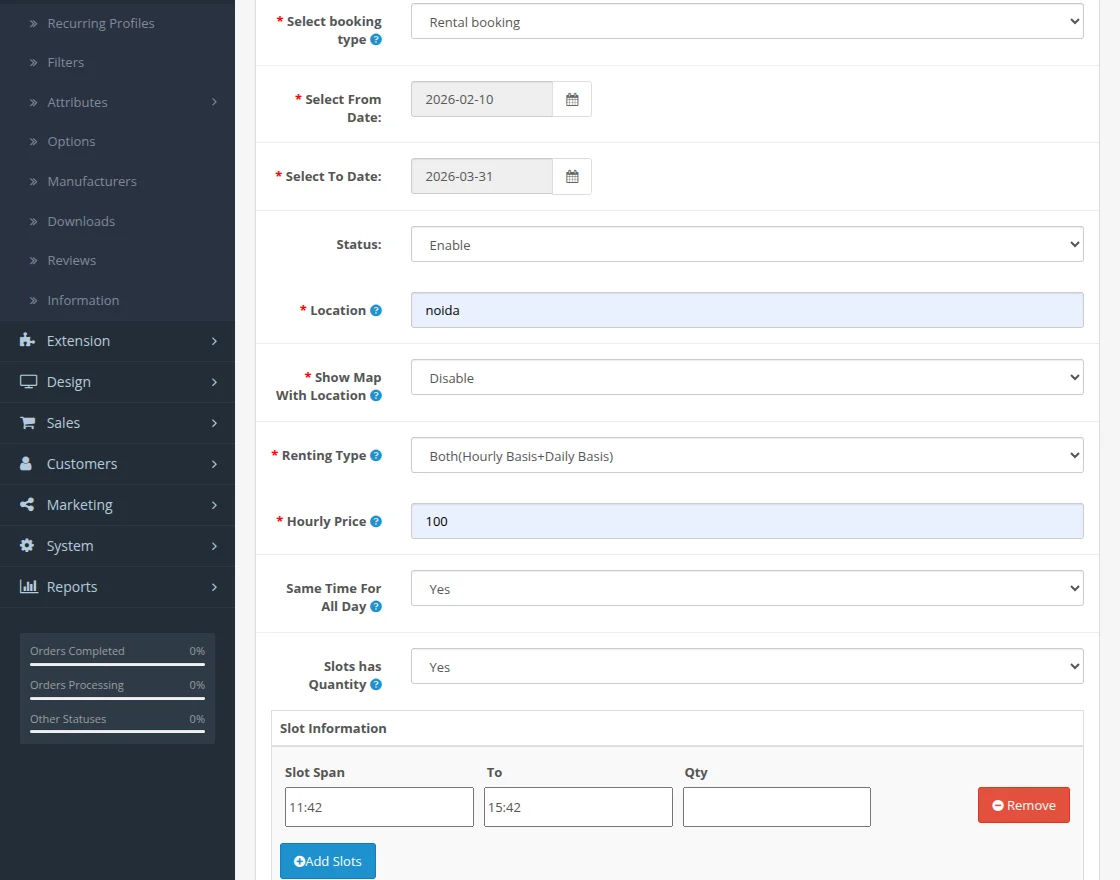
Enter all the required details to successfully add the booking.
Rental Booking (Hourly Basis)
The user can navigate to Catalog >> Products and add the product as a rental booking on an hourly basis.
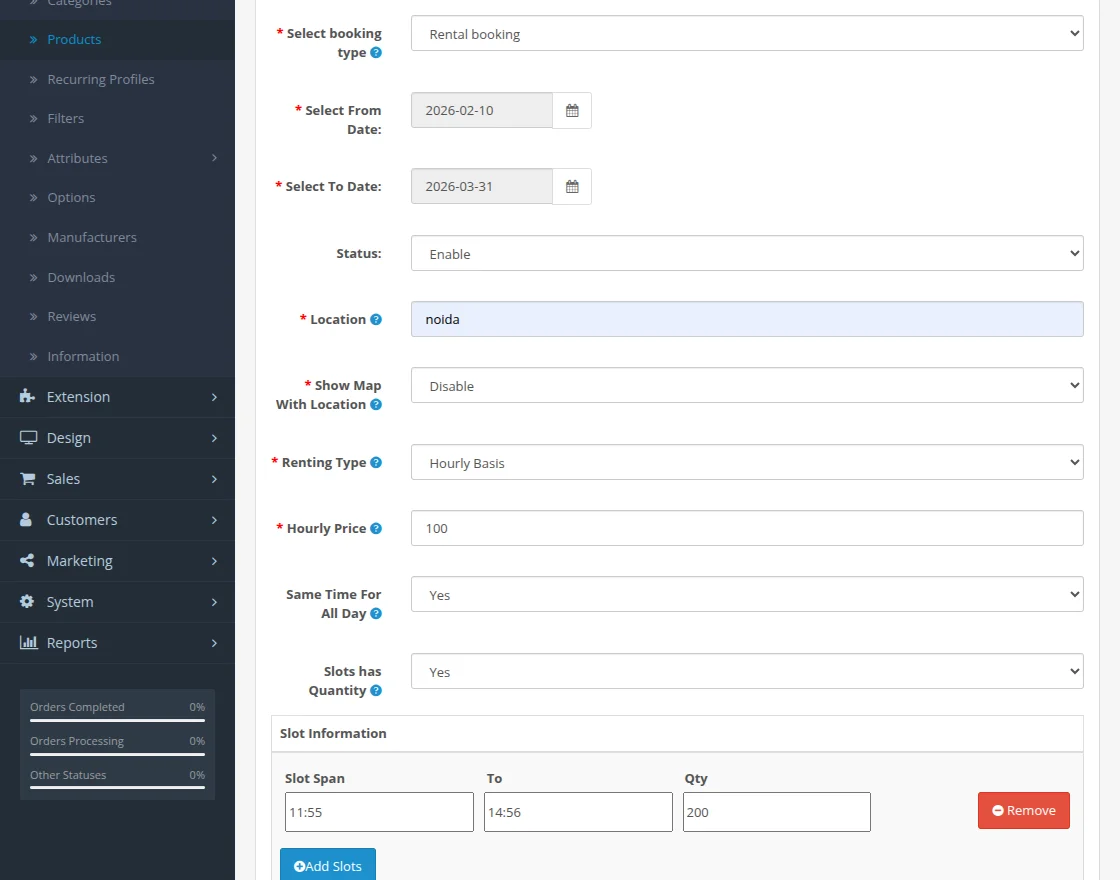
If the user selects No for Slots Has Quantity, the system hides the Quantity tab when the user creates slots.
Event Booking
The user can navigate to Catalog >> Products and add the product under Event Booking to create reservations.
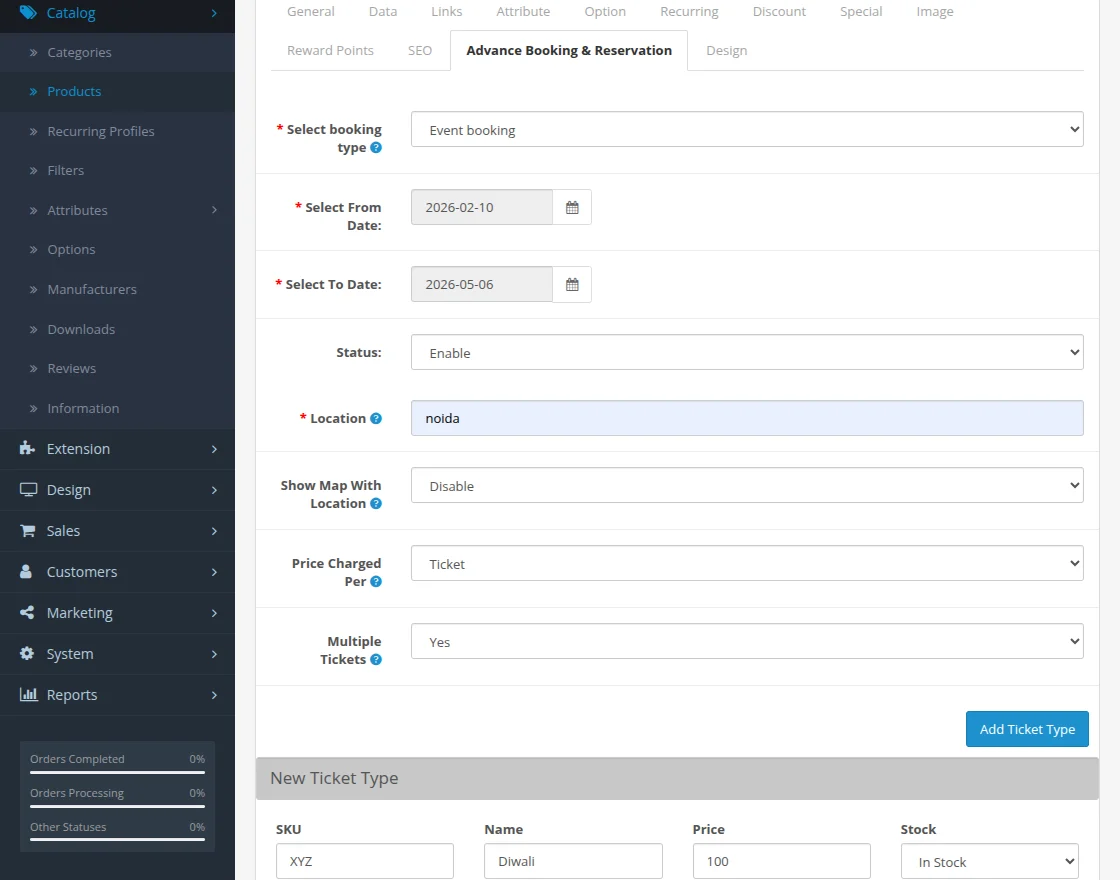
If the user selects No for Multiple Tickets, the system allows the user to create only a single ticket.
Agent Group
Once the admin has installed the module, they can see an Agent Group.
For that, they need to navigate through, System > Users > User Groups as per the below snapshot:

Also, the admin can edit the Agent Group by clicking on the edit button as per below image:

Here the admin can edit the Access Permission and Modify Permission of the Agent Group.
One Booking For Many Days
After the product configuration, the products will be display with the reservation options at the front end.
Form here, the customers can choose time slots and pay accordingly for their bookings.
One booking for many days can be used to book a product for many days. For example – Hotel bookings.

Once the customer clicks on the Book Now button, a pop-up will open up. From here, the customer can book the product for an available slot with the required quantity as per below image:

After that, the customers can click on the Add to Cart button.
The customers can also see the duration, rate per item, and the booking slot date from and to values in the cart.

Many Bookings For One Day
Many bookings in one day can be use for booking products for different time slots in a single day. For example- Railway reservation bookings. Once the customer clicks on the Book Now button, a pop-up will open up.
From here, the customer can book the product for available slot with the required quantity as per below image:

After this, the product will be add to the cart and customer can go for the checkout to purchase this product as shown below:

Time-Based Booking
Customer Time-Based Booking provides booking Hour Wise and Day Wise basis –
Hour Wise

When a customer clicks on the Book Now button, then a pop-up box will open. The customer can select any date range slot for the booking as per the requirement.
The hourly price of the product will be equal to the base price of the product that has been set by the admin.

Tapping the “Add to Cart” button will add the product to the cart and thereafter the customer can go to the checkout.

Day Wise

When the customer clicks on the “Book Now” button, then a pop-up box will open. From there the admin can select any date range for the booking as per the requirement.
The base price of the product will be equal to the Per Day price of the product that has been set by the admin.

After selecting the date range and entering the quantity, the customer will click the “Add to Cart” button.
Here, the customer can see the details of the booking in the cart as well.

Appointment Booking
Appointment Booking is used for booking appointments for different time slots on the same day.
For example, taking an appointment with the doctor.

When the user clicks on the “Book Now” button, then a pop-up box will open and the user can select any slot for making the booking as need as shown in the image below:

The user can add the booking slots to the cart. When the user clicks on the cart, the slot duration, rate per slot and booking time period will appear as per booking information.

Rental Booking- Daily Basis
Under Rental Booking (Daily Basis) the user can book a product for required days. For example, renting a house.

When the user clicks on the “Book Now” button, then a pop-up box will open and the user can choose the date and the quantity as shown in the image below:

The user can add the booking product in the cart and check the details of the booking made, and shown in the image below.
The details of the number of days for which booking is made, the rate and booking time span is available. The user can then proceed to checkout.

Rental Booking- (Hourly Basis+Daily Basis)
Under Rental Booking (Hourly Basis+Daily Basis) the user can book a product hourly as well as a daily basis.
For instance, booking a bicycle for an hour or two or booking it for an adventure ride for a day.

When the user clicks on the “Book Now” button, then a pop-up box will open and the user can select any slot to make the booking as need as shown in the image below:

Once the user adds the booking product to the cart and clicks on the cart, then the user can view the details about the booking.
The details of the slot duration, rate and booking time span is visible to the user.

Rental Booking (Hourly Basis)
Under Rental Booking(Hourly Basis) the user can book a product on an hourly basis.
For instance, let’s say, for taking a fun ride a person books a bicycle for one hour or two hours.

When the user clicks on the “Book Now” button, then a pop-up box will open and the user can select any slot to make the booking as need as shown in the image below.

Once the user adds the product to the cart, the details about the bookings made would be visible to the user.
The details of the slot duration, rate, and the booking time span are visible to the user.

Event Booking
Under Event Booking the user can book an event.
For instance, let’s say, a live concert.

When the user clicks on the “Book Now” button, then a pop-up box opens and the user can select,
for example, the number of tickets for the event, as shown in the image below, against the product.

Once the user adds the product to the cart, the details about the bookings made would be visible to the user.
The details of the slot duration, rate, and the booking time span are visible to the user.

Cancel Booking – Customer End
After making the checkout, the customer can check their bookings under My Booking History for their account as per below image:

Clicking the “My Booking History” option, it brings up the section where the customer will find all the placed orders for the booking products.
The customer can also view all the order details under this section by clicking the View option.

Tapping the View button will show the complete details of the respective order.

To cancel the order the customer will have to click on the “Cancel Booking” button.
The cancel Booking button will be visible to customers for 15 days as set by the admin in configuration settings.
Once the customer has cancel the order it shows Cancel Pending as shown in the below image:

In this case, the admin has to approve the cancel request of the customer.
**Note: If the admin has set the module configuration setting :
- Cancel Approve as Enable – Then the booking will be cancel without the approval of the admin) or if Disable(Then the booking will be cancel with the approval of the admin).
Booking PDF
To download the order details as a PDF just click the “Get PDF” button on the order details page as per below image:

Once the customer has click on the Get PDF button, the PDF will be download which contains all the details related to the order.

Reschedule Booking – Customer End
For Rescheduling the booking, the customer can click on the Reschedule Booking button on the order details page as per below image:

After that, the customer can select the newly available slots for rescheduling the booking.

After rescheduling the order, the customer has to wait for the admin approval, if the admin has disabled the Auto Approve changed slot from the configurations.
To approve the reschedule booking, the admin needs to navigate towards the type of booking and then click on the booking tab of that product as per below image:

Now, the admin can see the list of the booking which are done by the customer. Also, they can check the reschedule booking request as per below image:
The admin needs to click on the Reschedule button and then change the slot as per below image:

Google Calendar – Customer View
To view the Google calendar, the admin can click on the calendar icon on the order details page as per below image:

Once the customers click on the Calendar icon, the Google calendar opens up as shown below:

Many Bookings in One day – Admin End
The admin will be able to book reservations for his customers from the back-end by navigating through Advanced Booking & Reservation > Many bookings in one day.
Here, the admin will first select the product for which the customer wants to do the booking and click on the “Add Booking” option for booking that product. After this admin will click on the “Add Booking” option another page will come up to fill in the customer information.
Here, the admin will put in the customer details and click continue. After clicking continue above, another page will come up, here the admin will select the slot for this order and click “Add To Cart“.
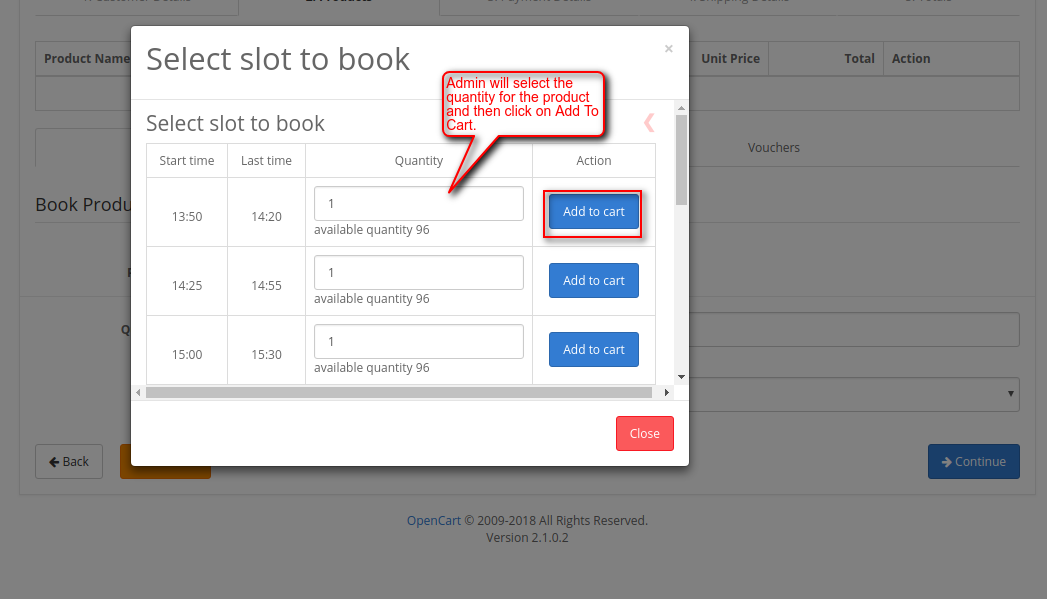
After adding the product to the cart you will see the same page again, now click “Book Product” button on the bottom right-hand side of the page as shown:
On clicking the book product button, the products being add. Now click continue and fill the details of the shipping address for the product and click continue after that.
 After clicking continue you will see another page, fill in the payment details for the product and click on the Save button.

Similarly, the admin can add a new booking for the rest type of the booking such as; One Booking in Many Days, Customer Time Based, Appointment, Rental, and Event Booking.
Also, the admin can click on the Booking option to view the order history list or bookings which are made for Many Bookings in One day Booking as shown in the image below:

If the store owner enables the Calendar Sync Status after disabling it from the configuration, then they can see the Sync Calendar button.
Once, the admin clicks on the Sync Calendar button, to sync all the bookings to the google calendar.
Also, from here the admin can Reschedule or cancel the booking. The admin clicks on the Calender View button to see the booking in a calendar view.

Also, the booking history can be export by clicking on the Export Button.
One Booking in Many Days – Admin End
On clicking One Booking in Many Days under the Advance Booking and Reservation tab in the admin panel,
the admin can see the list of all products which are book under One Booking in Many Days Booking.

On clicking the Booking option, the admin can view the order history list or bookings which are made for One Booking in Many Days Booking as shown in the image below:

If the store owner enable the Calendar Sync Status after disabling it from the configuration, then they can see the Sync Calendar button.
Once, the admin clicks on the Sync Calendar button, to sync all the bookings to the google calendar.
Also, from here the admin can Reschedule or cancel the booking. The admin clicks on the Calender View button to see the booking in a calendar view.
For reference, you can check the below snapshot:

Also, the booking history can be exported by clicking on the Export Button.
Customer Time Based Booking – Admin End
On clicking Customer Time Based Booking under the Advance Booking and Reservation tab in the admin panel,
the admin can see the list of all products which are book under One Customer Time Based Booking.

On clicking the Booking option, the admin can view the order history list or bookings which are made for Customer Time Based Booking as shown in the image below:

If the store owner enable the Calendar Sync Status after disabling it from the configuration, then they can see the Sync Calendar button.
Once, the admin clicks on the Sync Calendar button, to sync all the bookings to the google calender.
Also, from here the admin can Reschedule or cancel the booking. The admin clicks on the Calender View button to see the booking in a calendar view.
For reference, you can check the below snapshot:

Also, the booking history can be exported by clicking on the Export Button.
Appointment Booking – Admin End
On clicking the Appointment Booking under the Advance Booking and Reservation tab in the admin panel,the admin can see the list of all products which are book under Appointment Booking.

On clicking the Booking option, the admin can view the order history list or bookings which are made for Appointment Booking as shown in the image below:

If the store owner enable the Calendar Sync Status after disabling it from the configuration, then they can see the Sync Calendar button.
Once, the admin clicks on the Sync Calendar button, to sync all the bookings to the google calender.
Also, from here the admin can Reschedule or cancel the booking. The admin clicks on the Calender View button to see the booking in a calendar view.
For reference, you can check the below snapshot:

The booking history can be export by clicking on the Export Button.
Rental Booking – Admin End
On clicking the Rental Booking under the Advance Booking and Reservation tab in the admin panel, the admin can see the list of all products which are book under Rental Booking.

After clicking on the Booking option, the user can see the order history list or bookings which are made for Rental Booking (Daily Basis) as shown in the image below:

If the store owner enables the Calendar Sync Status after disabling it from the configuration, then they can see the Sync Calendar button.
Once, the admin clicks on the Sync Calendar button, to sync all the bookings to the google calendar.
Also, from here the admin can Reschedule or cancel the booking. The admin clicks on the Calender View button to see the booking in a calendar view.
For reference, you can check the below snapshot:

The booking history can be export by clicking on the ”Export Button“.
Event Booking – Admin End
On clicking the Event Booking under the Advance Booking and Reservation tab in the admin panel, the admin can see the list of all products which are book under Event Booking.

After clicking on the Booking option, the user can see the order history list or bookings which are made for Event Booking as shown in the image below.

If the store owner enables the Calendar Sync Status after disabling it from the configuration, then they can see the Sync Calendar button.
Once, the admin clicks on the Sync Calendar button, to sync all the bookings to the google calendar.
The admin clicks on the Calender View button to see the booking in a calendar view as per the below image:

Also, the admin can cancel the booking from here, if need be.
The booking history can be export by clicking on the ”Export Button“.

Admin Management – Cancel Requests
Under this section, the admin will find all the orders that have been cancel by the customers.
The admin can set the configuration setting for the option “Cancel Approve” as Enable. In this way, the booking will be cancel without the admin’s approval.
If set as Disable, then the booking will be cancel on if the admin approves it and will be shown under this section.
Mail Templates :
Admin can create mail template for rescheduled booking .

Admin can configure the reschedule mail by using mail keywords available in info tab.

Agent Bookings
The agents can also do the bookings on behalf of the customer.
Many bookings in one day
For many bookings, they need to navigate towards Advanced Booking & Reservation > Many bookings in one day.
Here, the agent will first select the product for which the customer wants to do the booking and click on Add Booking option for booking that product as shown below:

After this agent can click on the Add Booking option another page will come up to fill in the customer information.
Here, the agent will put in the customer details and click continue as shown below:

After clicking continue, another page will come up, here the agent will select the slot for this order and click Add To Cart.

Once the product is add to the cart, the agent will see the same page again, now click Book Product button on the bottom right-hand side of the page as shown:

After clicking the book product button, the products being add as shown in the following screenshots:

Now click continue and fill in the details of the shipping address for the product and click continue after that as shown below:

After clicking continue you will see another page, fill in the payment details for the product and click on the Save button.

Similarly, in this way, the agent can do the other type of booking for the customers.
Reschedule Booking – Agent End
The agents can reschedule the booking on behalf of the customer. For that, they need to click on the Reschedule button on the Booking And Reservation page.
For the reference, you can check the below snapshot:

After that, a calendar will open up and the agent can select another booking slot as per the requirement.

Cancel Booking – Agent End
The agents can also cancel the booking if required as per the below image:

Export Booking – Agent End
The booking history can be export by the agent by clicking on the Export Button as per the below image:

Sync Calendar – Agent End
The agent can click on the Sync Calendar button, the sync all the bookings to the google calendar.
For reference, you can check the below snapshot:

Calendar View – Agent End
Once, the agent has sync all the booking orders to the Google calendar, they can click on the Calendar icon to view.
For reference, you can check the below snapshot:

Customer Booking – Refund
The customer can simply place their booking in the usual way.

Now, the customer will get an –
- The inform choice option if the admin has enabl the refund type as an inform choice.
- Where he can select the Refundable booking option with the apply charges and thereafter complete the payment process and confirm the booking.
- Or else the customer will be redirected to the checkout with the apply charges if the admin has enable the refund type as Apply to all.

The customer can check the apply charges under the Order History section, as shown below.

Now, if a customer wants a refund then navigate to the My Booking History section select the required done booking and click on the Cancel Refund button.

Further, the admin will go to the Advance Booking & Reservation > Refund Requests and click on the approve icon under action.

Further, here the admin can check the Refund ID, Apply status, Booking type and the Cancel status
Also, the admin can give the customers some Reward Points for this they can simply click on the view button under the actions tab.
Once, the admin has click cancel refund the button Add Reward Points/Transactions will be visible the admin can click on the same.

The admin is redirect to the below page thereafter, go to the Reward Points section under add reward points better a description and the points and click the Add Reward Points.

Booking Details – Dashboard
The admin can go to the web address member.protectgroup.co and log in using their username and password.
Note: The username and password are provide to the admin in the same mail sent by the refund team of the protect group containing the Merchant API URL and more.

Once logged in the user will able to check all the transactions and their status and information.

Thus, that is all for the Opencart Advanced Booking & Reservation, If you still have any issue feel free to add a ticket and let us know your views to make the module better https://webkul.uvdesk.com/.
Current Product Version - 4.1.0.0
Supported Framework Version - 3.x.x.x


8 comments
Greetings for the day!
You can check our Opencart Advance Booking And Reservation Reminder Add-on(https://store.webkul.com/opencart-booking-reservation-reminder-extension.html) with this you can easily set the reminders (through email or SMS) to the customer for the upcoming events.
Thanks
Yes, it will support all languages.
Thanks
Yes, it will work with Journal theme for sure.
Thanks
This module will work with your theme. You will get the theme patch along with the module files. If you will get any issue then please email us at [email protected]
Thanks