INTRODUCTION
Odoo Website Display Packaging Options helps you to display different packaging options to customers directly on your online store.
Buyers can see single units, multi-packs, or bulk packaging (Packaging options) on the product page, shop page, reorder screen, and even in promotional snippets.
Odoo Website Display Packaging Options makes packaging management effortless for both admins and customers.
From backend, you can enable/disable packs, create multiple options per product, and ensure deliveries are accurate.
Feel free to check the Odoo 19 version for its new enhancements.
FEATURES
- Configure and manage packaging from the product form in the backend.
- Shoppers can select preferred packaging before adding a product to cart.
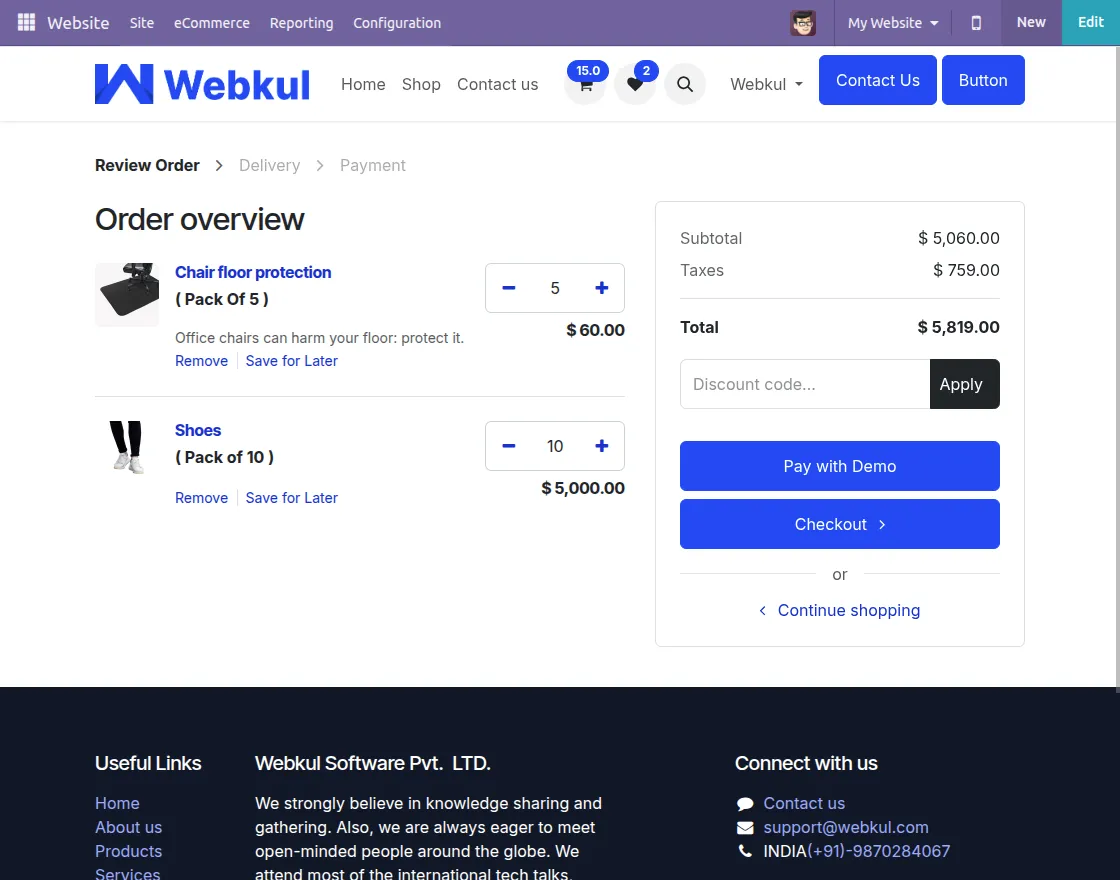
- Selected packs appear in the cart and order summary.
- Odoo Website Display Packaging Options auto-merges Identical packages during delivery.
- Buyers can see packaging choices directly on shop listing page.
- Highlight packages in promotional snippets to drive quick sales.
- Customers can reorder products with same packaging in one click.
- Odoo Website Display Packaging Options lets you add more than one packaging option.
- Streamlines packaging and delivery, saving time and reducing manual effort.
INSTALLATION
- Once you purchase the App from Webkul store, you will receive a link to download zip file of the module.
- Extract those files on your system after the download finishes. You will be able to see a folder named- ‘website_display_packaging_options’.
- Copy and paste this folder inside your Odoo Add-Ons path.
- Now, open Odoo App and click on the Settings menu. Here, click on Activate Developer Mode.
- Then, open the Apps menu and click on ‘Update Modules List’.
- In the search bar, remove all filters and search ‘website_display_packaging_options’.
- You will be able to see the module in search results. Click the “Activate” button to install it.
WORKFLOW
- After installing Odoo Website Display Packaging Options, log in to your Odoo account and open the Inventory app settings.
Turn on the setting named “Product Packagings” by ticking the box to make your product packaging.

2. If you are running more than one website in Odoo, using Odoo Website Display Packaging Options you can see multiple website compatibility in Website settings.
Tick the “Packaging Enable” option for that website. Odoo Website Display Packaging Options lets you control packaging visibility on one site without affecting the others.

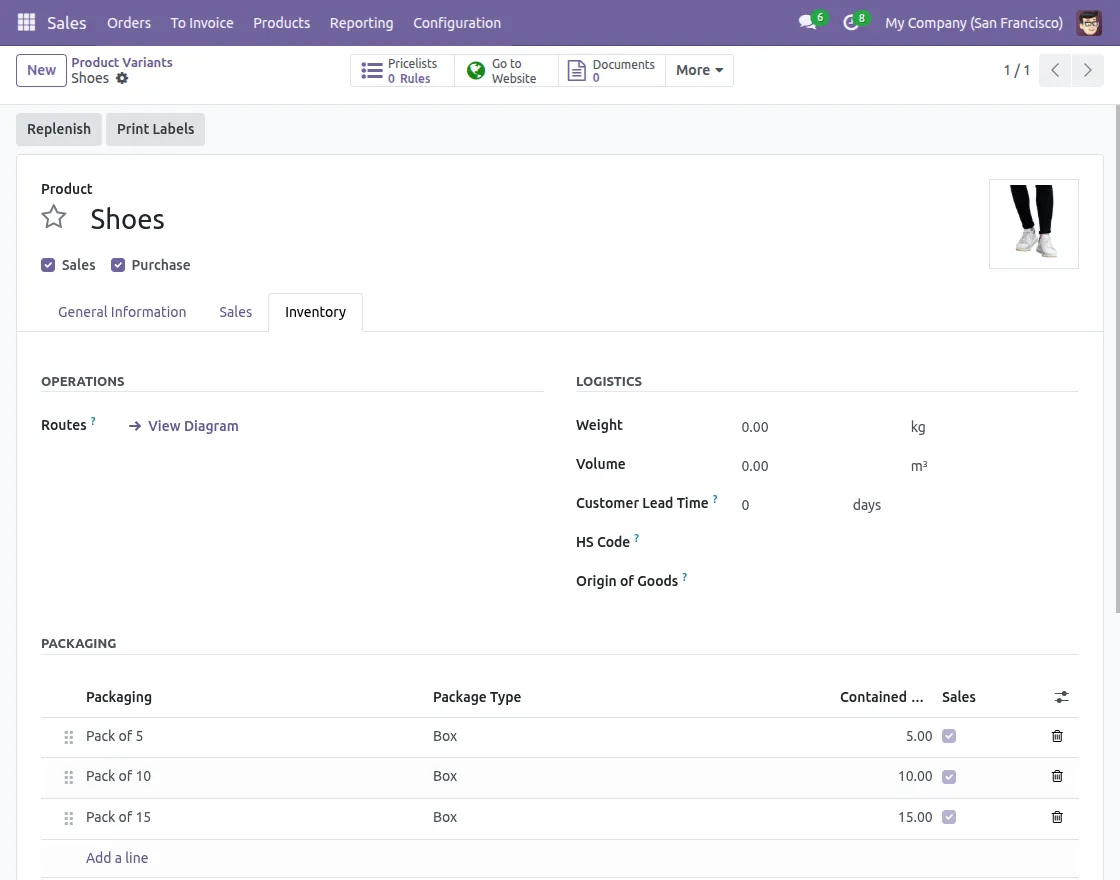
3. On the Product form, define Packaging options with details like name, units, and package type. It ensures better backend packaging management.
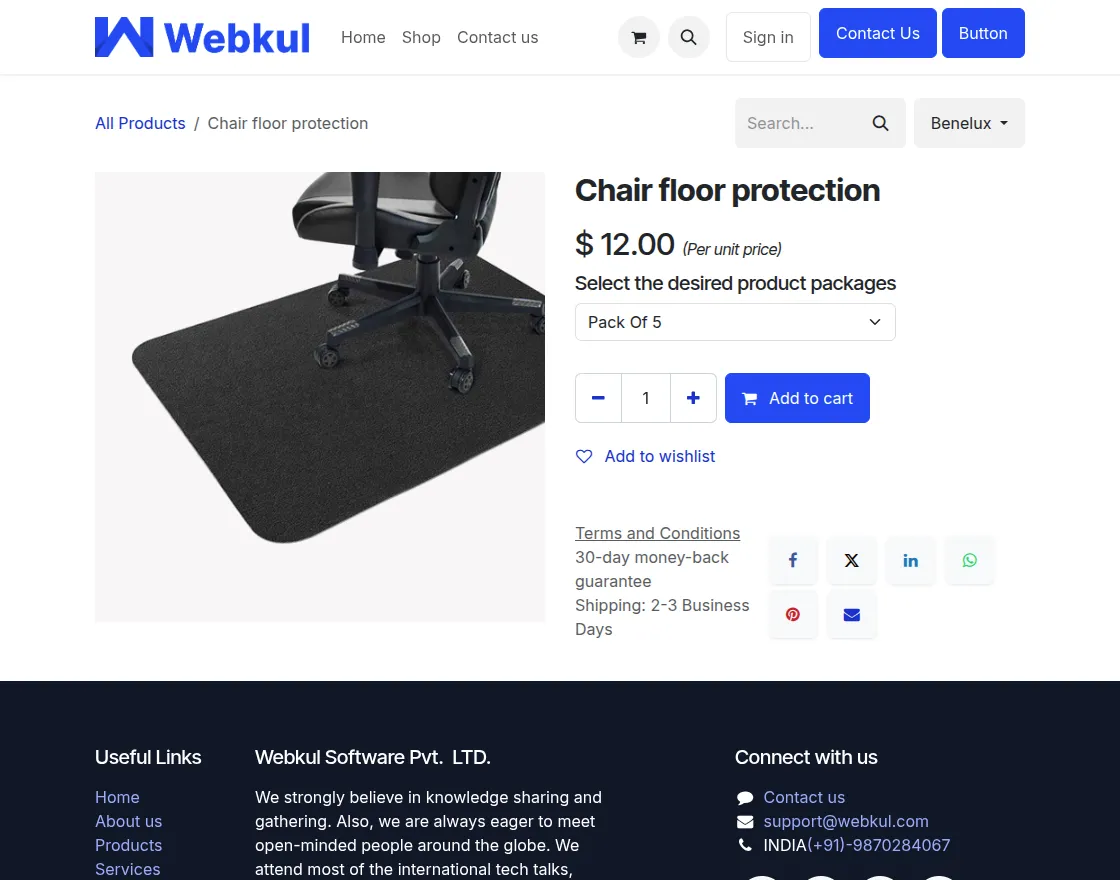
4. On Product detail page, customers can view and choose from the available packaging options. They can select single packs or bundles before adding items to their cart.
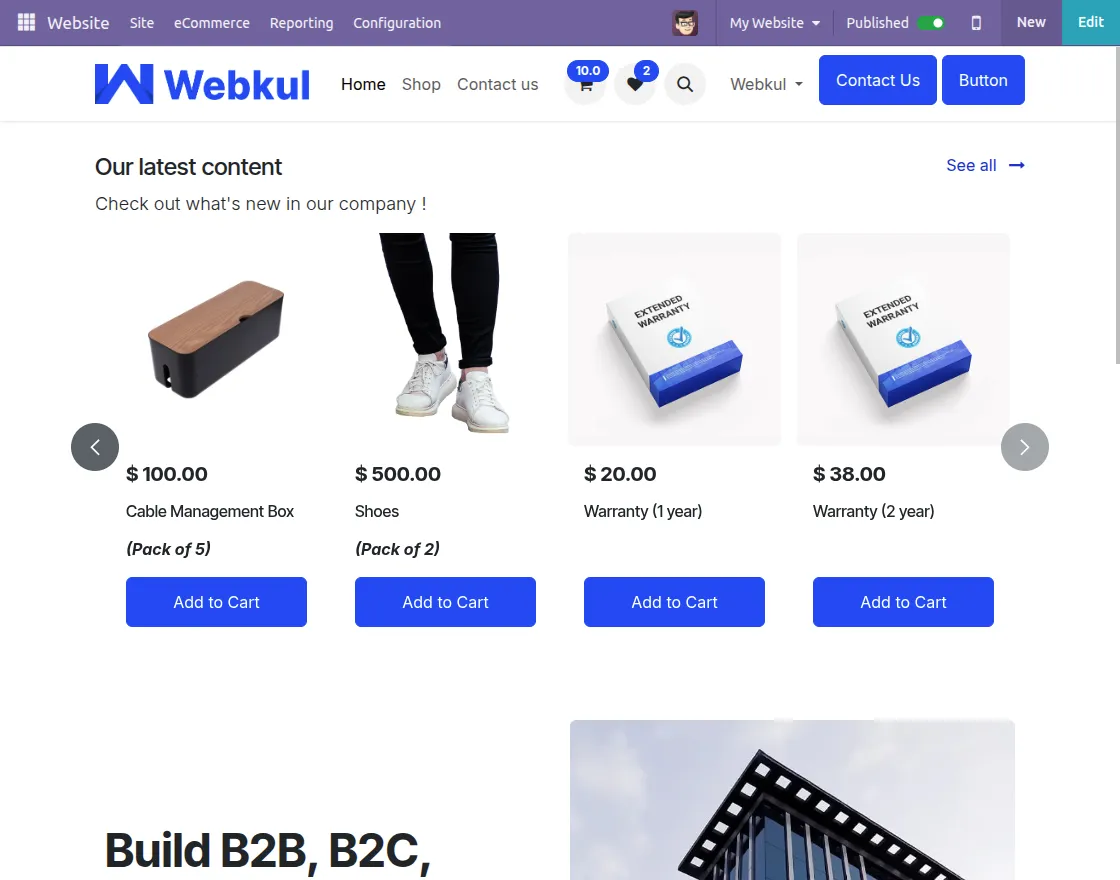
5. Admins can also highlight product packs inside website snippets. This helps promote bundled or bulk options directly on the homepage or landing sections.
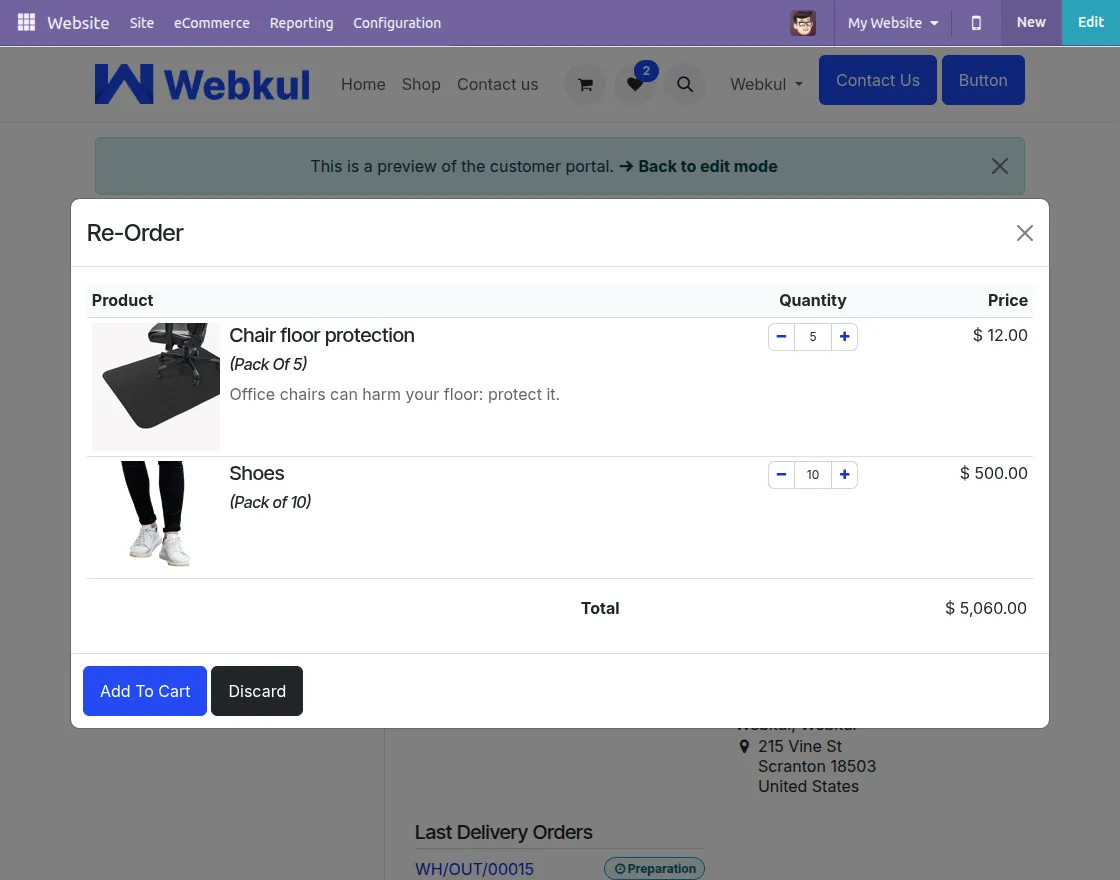
6. Customers can reorder products with the same packaging directly from the Sales Order screen.
They just need to click ‘Re-Order’, select the pack, and add it to their cart.
7. During checkout, the selected packaging is displayed in the cart and order summary. For delivery orders, identical packs are automatically grouped into one line, saving time and reducing confusion.
NEED HELP?
Hope you find the guide helpful! Please feel free to share your feedback in the comments below.
If you still have any issues/queries regarding the module, please raise a ticket at https://webkul.uvdesk.com/en/customer/create-ticket/.
Also, please explore our Odoo development services & an extensive range of quality Odoo Apps.
For any doubt, contact us at [email protected].
Thanks for paying attention!!
Current Product Version - 1.0.3
Supported Framework Version - Odoo V19,Odoo V18,Odoo V17


2 comments
Thanks for your Kind Words! Stay Tuned!
Regards
Anisha Bahukhandi