INTRODUCTION
Odoo Website Product Data Per Variant enhances your online store, making it more user-friendly.
This module allows you to assign a unique name, description, and image to each product variant, helping customers find what they need quickly.
With clear and detailed product information, your store can rank higher in search results, attract more visitors, and boost sales.
FEATURES
- Assign a unique name to each product variant for better identification.
- Customize detailed descriptions to highlight specific features.
- Upload distinct images for every variant to enhance clarity and presentation.
- Improve SEO with variant-specific content and keyword-rich descriptions.
- Easily configure and set up without requiring technical expertise.
- Boost sales by effectively showcasing distinct product variants on your website.
INSTALLATION
- Once you purchase the App from the Webkul store, you will receive a link to download the module’s zip file.
- Extract the file on your system after the download finishes. As a result, you will be able to see a folder named- ‘Odoo_Website_Product_Data_Per_Variant’
- Copy and paste this folder inside your Odoo Add-Ons path.
- Now, open Odoo App and click on the Settings menu. Here, click on Activate the Developer Mode.
- Then, open the Apps menu and click on ‘Update Modules List.’
- In the search bar, remove all the filters and search ‘Odoo_Website_Product_Data_Per_Variant’
- You will be able to see module in the search results. Click on ‘Install’ to install it.
WORKFLOW
CONFIGURATION
- Creating a product and adding product attributes by clicking “Add a line.” Admin can create new attributes if needed by selecting “Create or Edit”. Afterwards, different product variants are generated for the same product.

- Visit Sales page and navigate to Product > Product Variants. A list of all the product variants will be displayed.
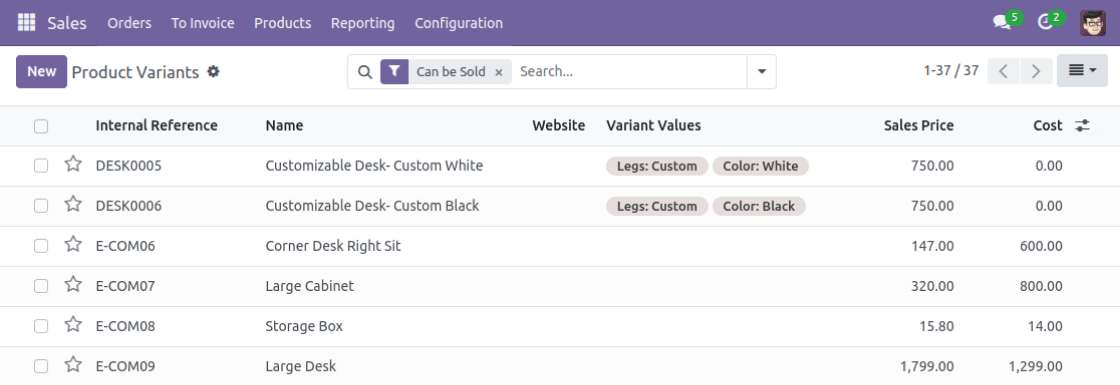
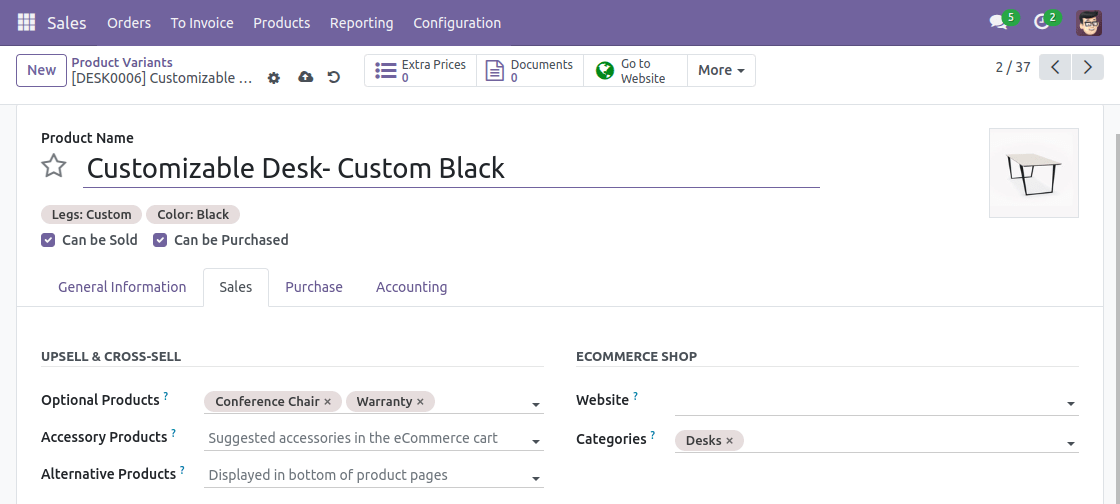
- Select a product variant and specify a unique title, product media, and description for that variant.

- You can even add product variant descriptions under the sales description field.

- Similarly, you can assign a different title, media, and description to another product variant of the same product.
WEBSITE VIEW
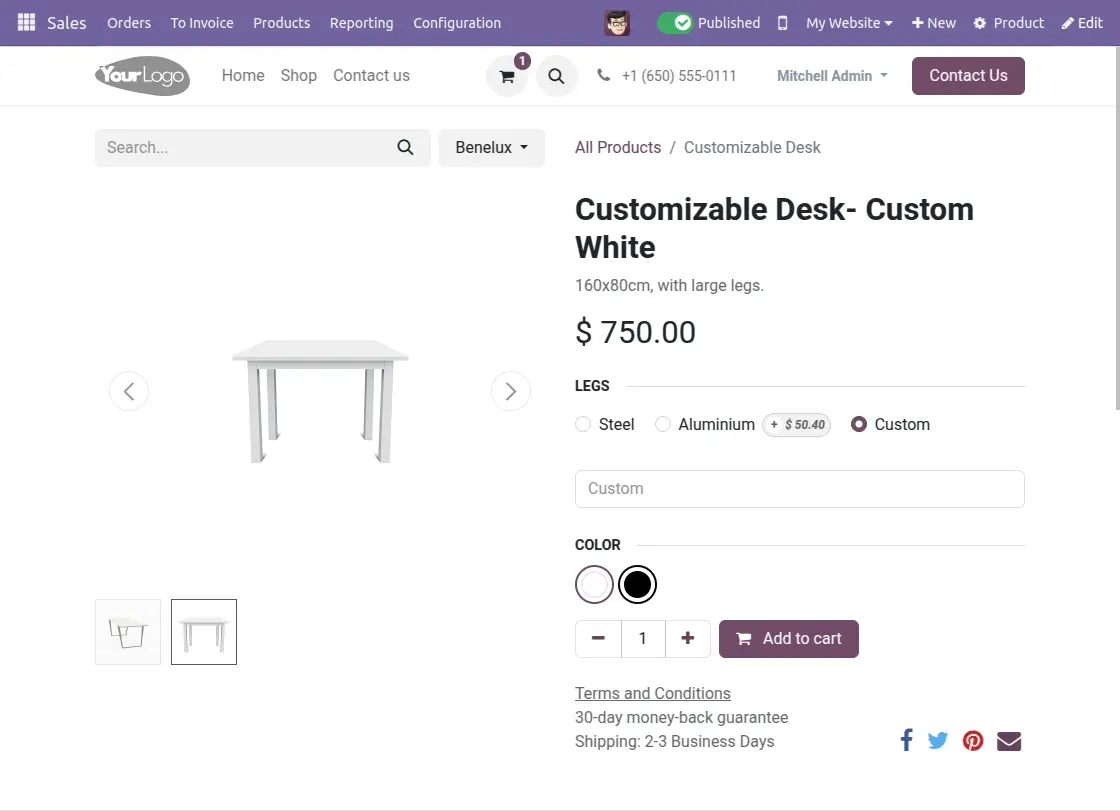
- Visit Shop page, browse products, select a product, and choose a variant. The variant will display its unique title, description, and media with Odoo Website Product Data Per Variant.
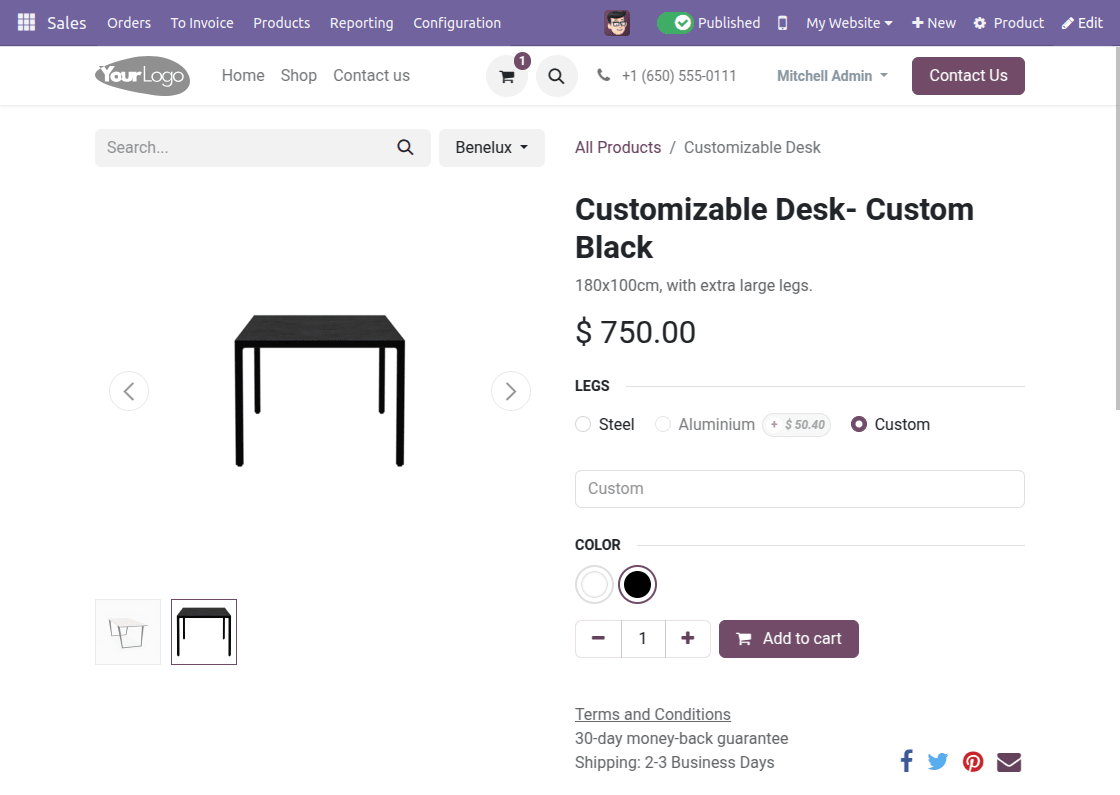
- While selecting another product variant, a different title, description, and media will be displayed. As shown in the image below, with the help of “Odoo Website Product Data Per Variant”.
NEED HELP?
Hope you find the guide helpful! Please feel free to share your feedback in the comments below.
If you still have any issues/queries regarding the same, please raise a ticket at the UV Desk.
I hope this helps. In case of any further queries, contact us at our support mail.
Thanks for paying attention!!
Current Product Version - 1.0.1
Supported Framework Version - Odoo 17, 16, 15


Be the first to comment.