Introduction
Odoo SAAS Bridge for Magento is a simple yet powerful tool for connecting your Magento store with the Odoo Online Database.
Odoo SAAS Bridge for Magento helps businesses manage their eCommerce operations in one place by syncing data like products, orders, customers, and more.
It ensures that information between Magento and Odoo is always accurate and updated, saving time and reducing errors.
With Odoo SAAS Bridge for Magento, you can easily automate tasks such as order synchronization, invoicing, and inventory updates.
This integration simplifies workflows by allowing businesses to handle orders, track inventory, and more in Odoo, while Magento takes care of the storefront.
Features Of Odoo SAAS Bridge for Magento
- Users can transfer Magento store orders seamlessly to Odoo (SaaS) for centralized management.
- The module automatically synchronises orders from Magento to Odoo through simple settings.
- Real-time synchronization instantly reflects Magento orders in Odoo when automatic sync is enabled.
- You can configure automatic invoicing and delivery validation for Magento orders in Odoo, streamlining order processing.
- You can export Magento customer data to Odoo Online, consolidating customer management in one place.
- Configure automation options to export customers automatically alongside orders.
- Export products, categories, and attributes from Magento to Odoo quickly and effortlessly with a single click.
- Automatic inventory synchronization exports product stock levels from Magento to Odoo during synchronization.
- Odoo inventory levels are updated automatically when Magento orders are marked as shipped, ensuring accurate stock management.
- Map taxes, shipping, and payment methods between Magento and Odoo to seamlessly synchronize transaction details.
WORKFLOW
Configuration Of Odoo SAAS Bridge for Magento
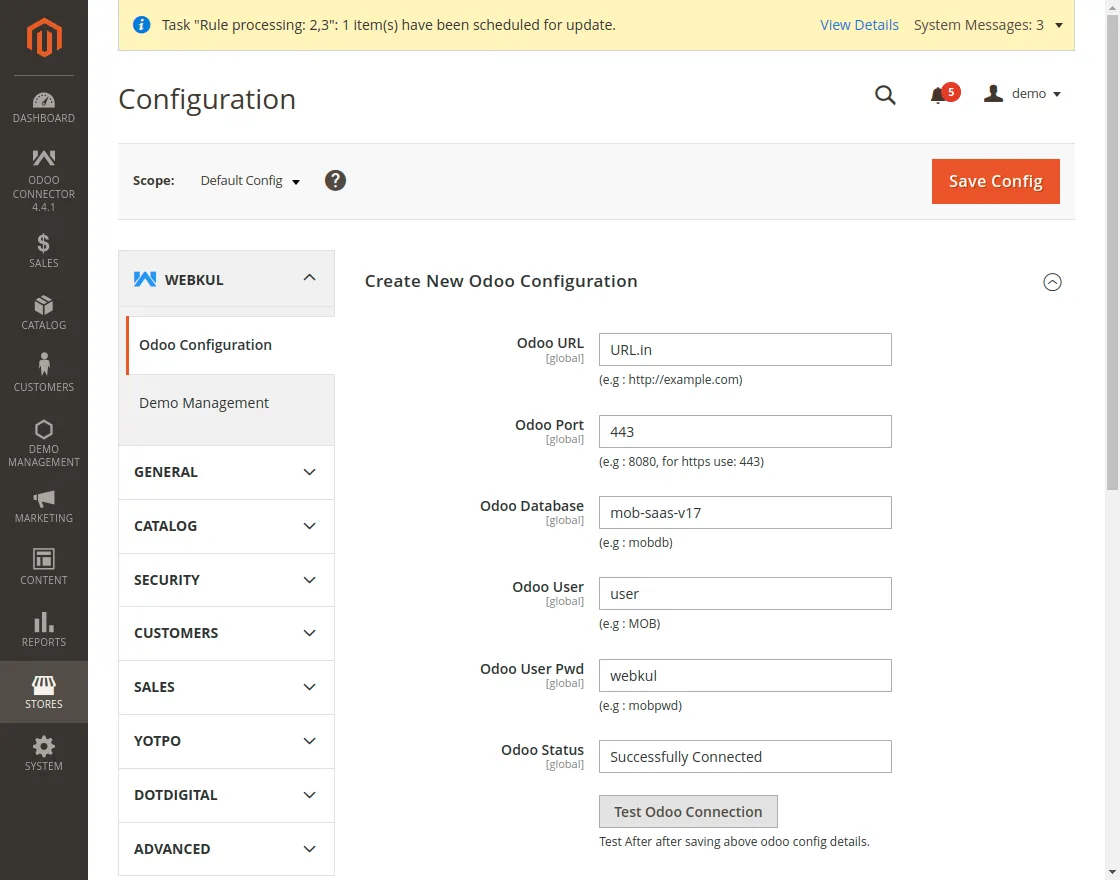
- Navigate to Odoo connector >> Odoo Configuration. Here you can see the settings for Odoo Saas Bridge.
- Click on Create new Odoo configuration. Here you can integrate Odoo online database with Magento.
- Enter the details i.e. Odoo URL, Odoo Port, Odoo Database, Odoo User, and Odoo User Pwd.
- Test the connection to see the connection status.
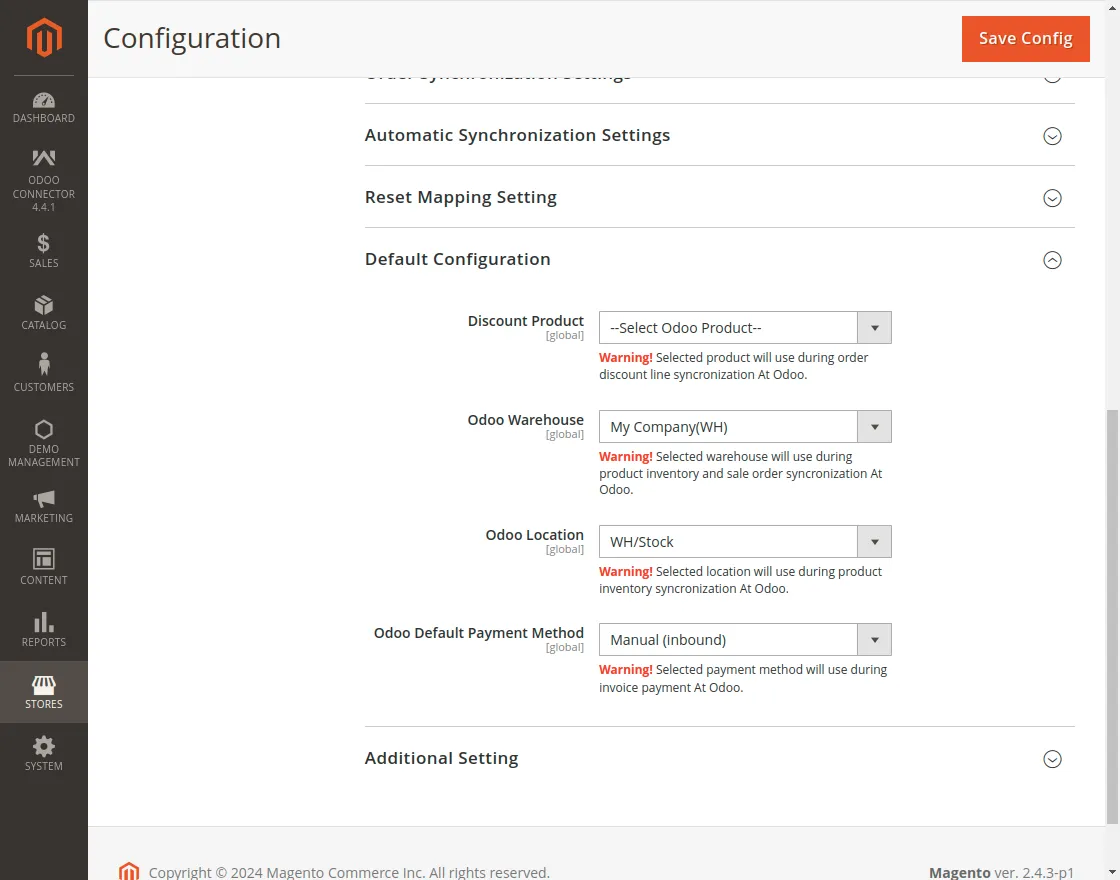
2. Set the default configurations to enable smooth synchronization for the Odoo SAAS Bridge for Magento.
- Select the discount product used during Odoo discount line synchronization.
- Select the Odoo database warehouse from which you want to import data from Magento.
- Specify the location of the selected warehouse.
- Choose the default Odoo payment method to associate with orders during export.
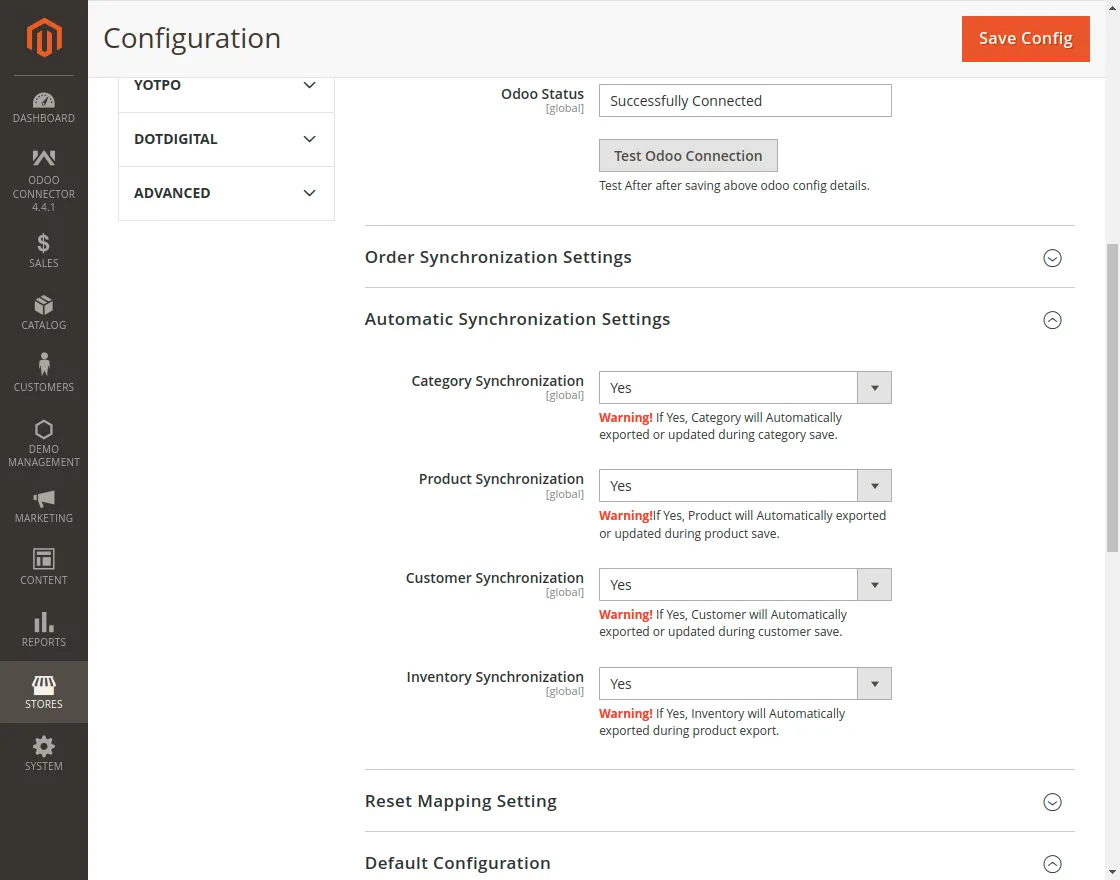
3. Set the automatic synchronization settings to enable real-time synchronization for Odoo SAAS Bridge for Magento.
- Category synchronization
Automatically export or update product categories when saved from Magento to Odoo, if Yes.
Product Synchronization
It Automatically export or update the products when saved from Magento to Odoo, if yes.
- Customer Synchronization
Automatically export or update the customers when saved from Magento to Odoo, if Yes.
- Inventory Synchronization
Automatically export or update the inventory when the product is exported, if Yes.
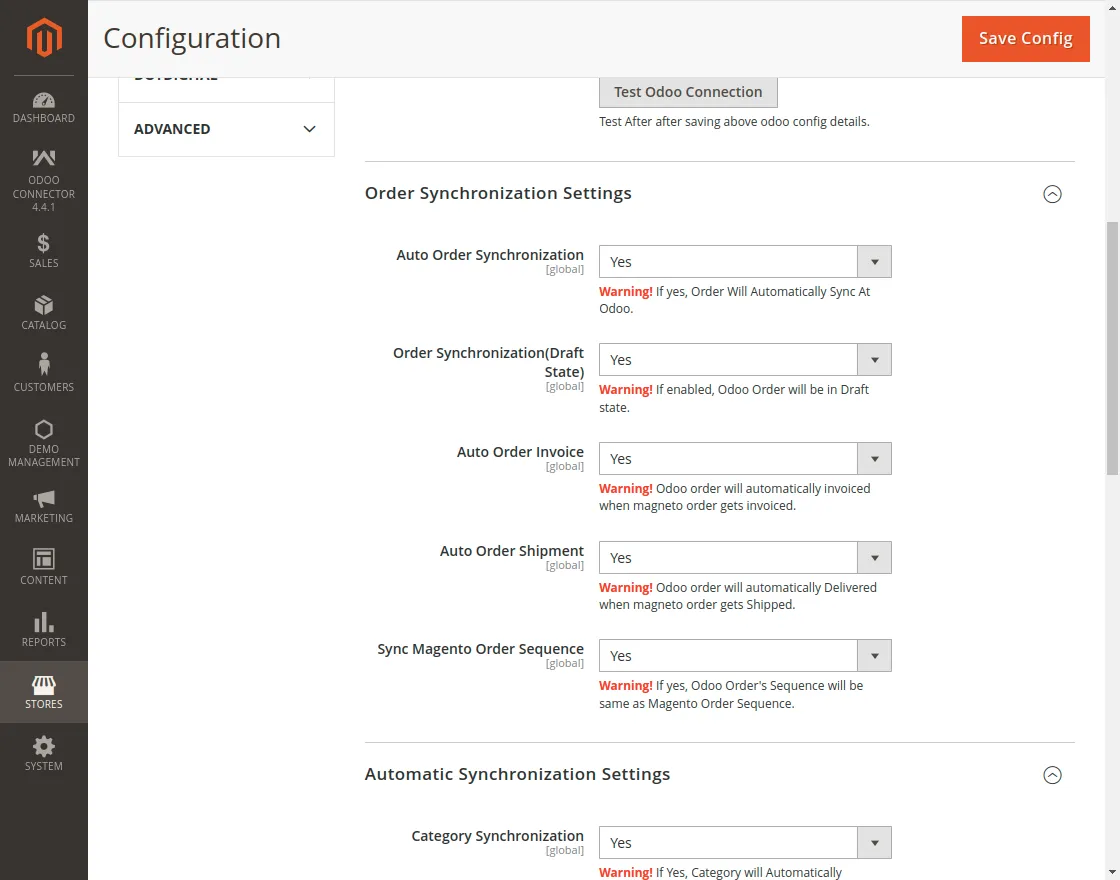
4. Set the Order Synchronization Settings to enable real-time synchronization for all orders in Odoo SAAS Bridge for Magento.
- Auto Order Synchronization
Automatically export or update Orders when saved from Magento to Odoo, if Yes.
- Order Synchronization (Draft State)
If enabled, the orders in the draft state will also be exported to Odoo in the draft state only.
- Auto Order Invoice
Odoo orders will automatically be invoiced when Magneto order gets invoiced.
- Auto Order Shipment
Enabling Automatic order shipment settings validates the delivery in Odoo when the order status is set as ‘shipped’ in Magento.
- Sync Magento Order Sequence
If yes, Odoo Order’s Sequence will be the same as Magento Order Sequence.
Bulk Synchronization
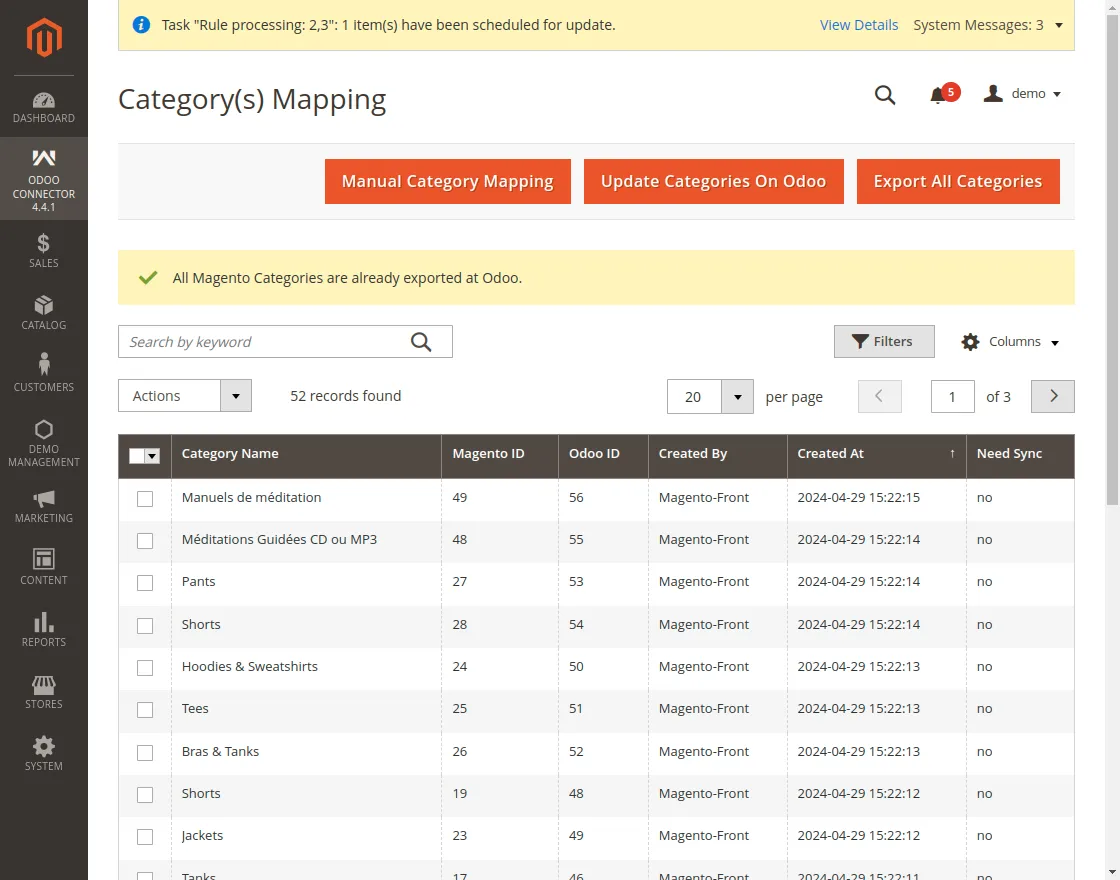
Category(s) Synchronization
If the category synchronization in automatic synchronization settings is selected as Yes, then categories will be automatically exported when saved from Magento to Odoo.
If, the user has not selected the option as yes then follow the below directions.
Navigate to Odoo Connector >> Product Category. Now, click on Export All Categories to export the categories in bulk to Odoo.
Product(s) synchronization
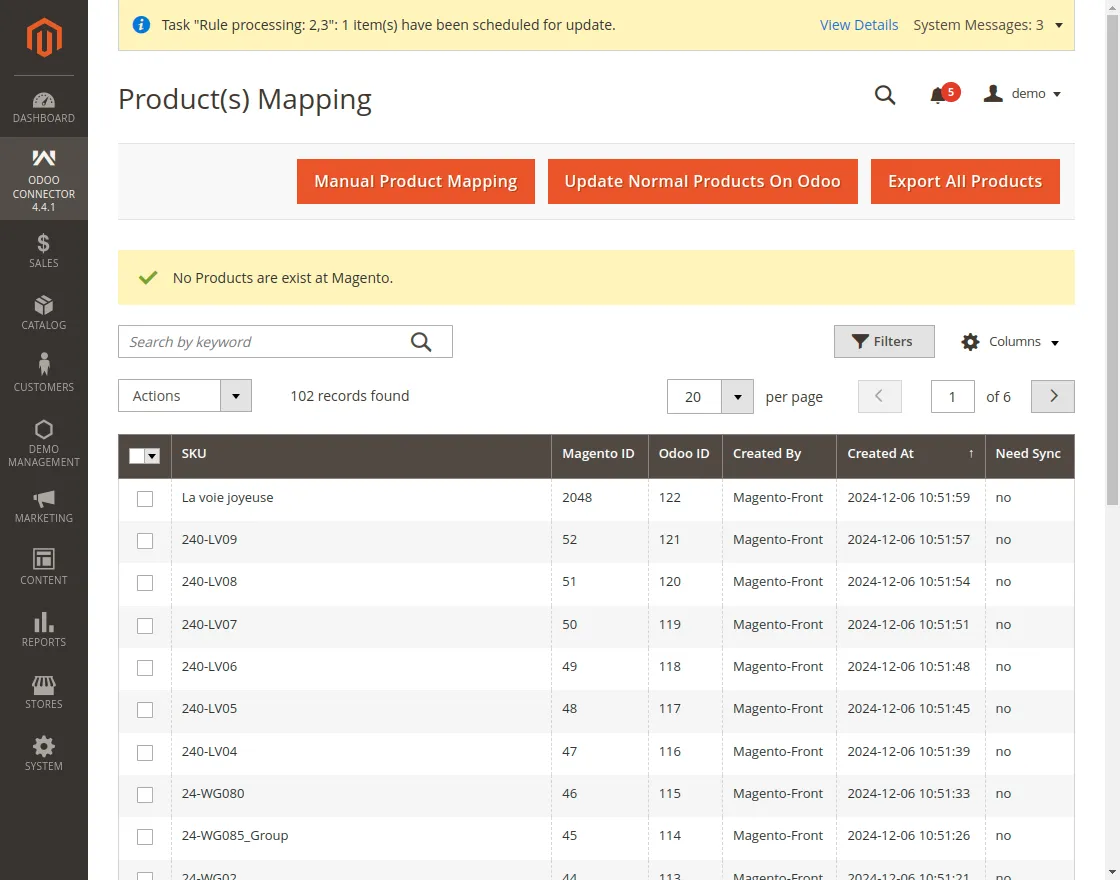
If the Product synchronization in settings is selected as Yes, then products will be automatically exported or updated when created from Magento to Odoo.
If, the user has not selected the option as yes then follow the below directions in Odoo SAAS Bridge for Magento.
Navigate to Odoo Connector >> simple products. Now, click on Export All Products to export the categories in bulk to Odoo.
Delivery Methods Mapping
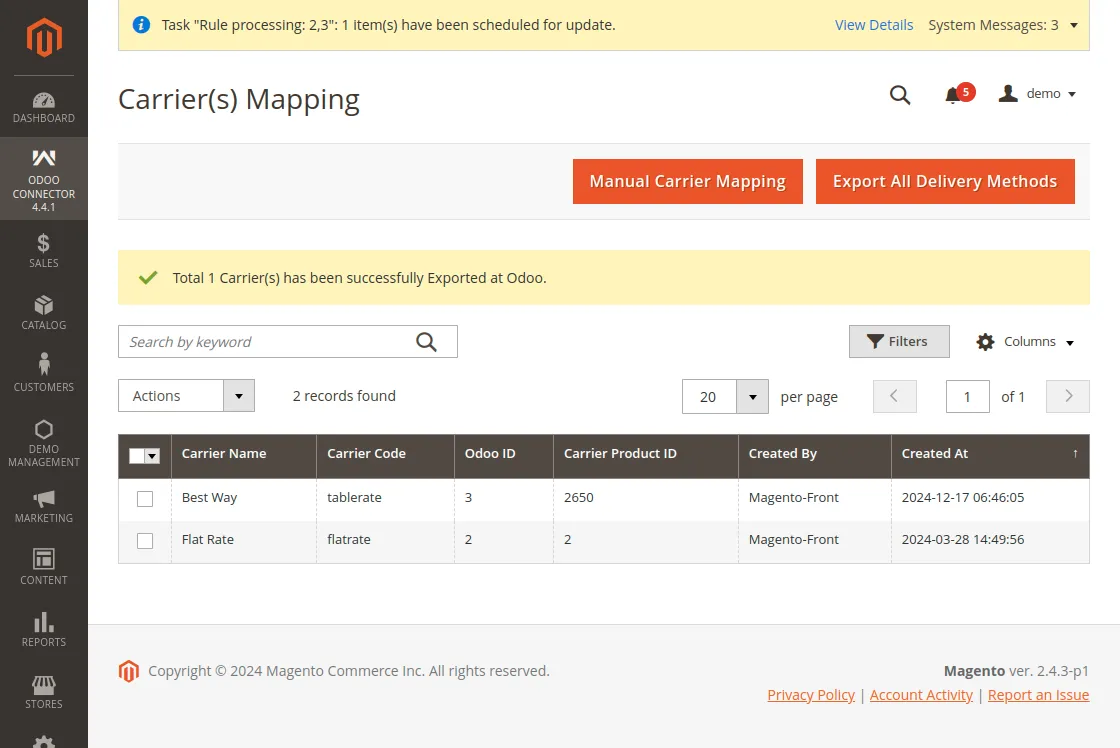
Navigate to Odoo Connector >> Delivery Methods. Now, click on Export All Delivery Methods to export all the delivery methods to Odoo in bulk.
Customer(s) Mapping
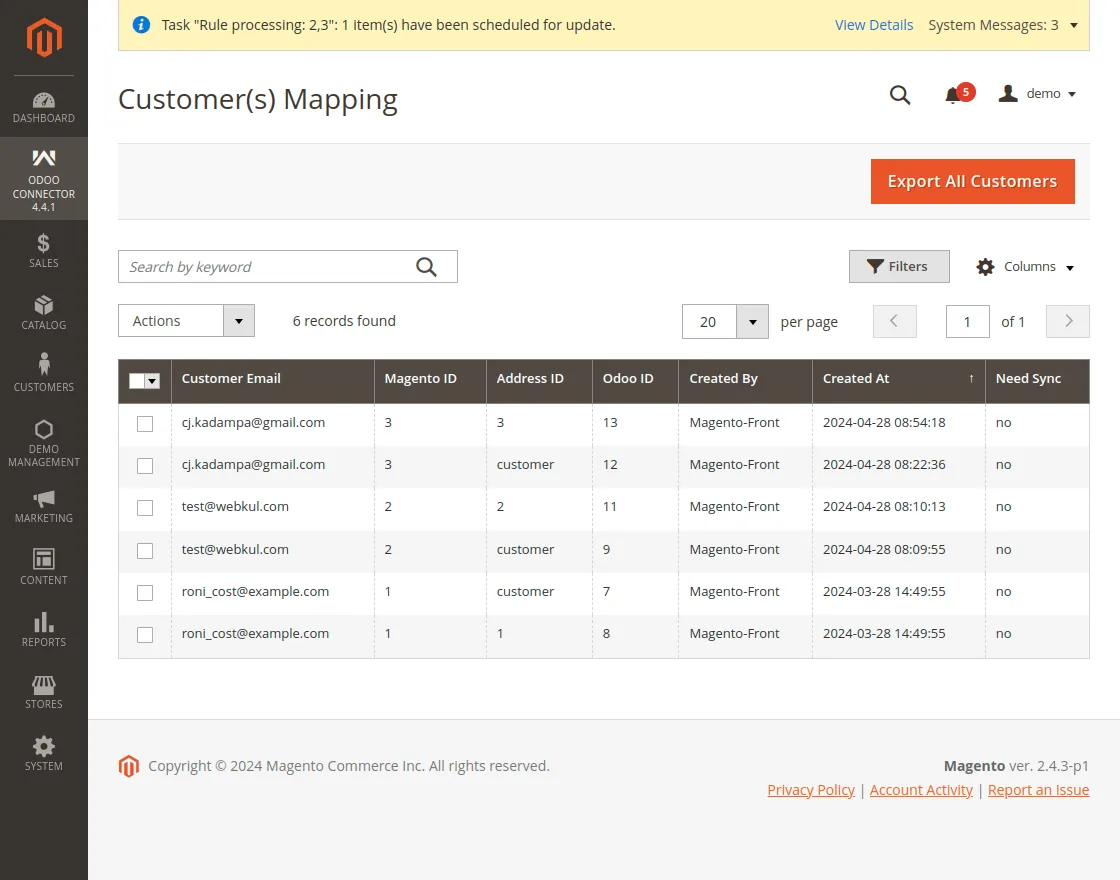
If the Customer synchronization in automatic settings is selected as Yes, then customers will be automatically exported or updated when created from Magento to Odoo.
If, the user has not selected the option as yes then follow the below directions.
Navigate to Odoo Connector >> Customers. Now, click on Export All Customers to export all the Customers to Odoo.
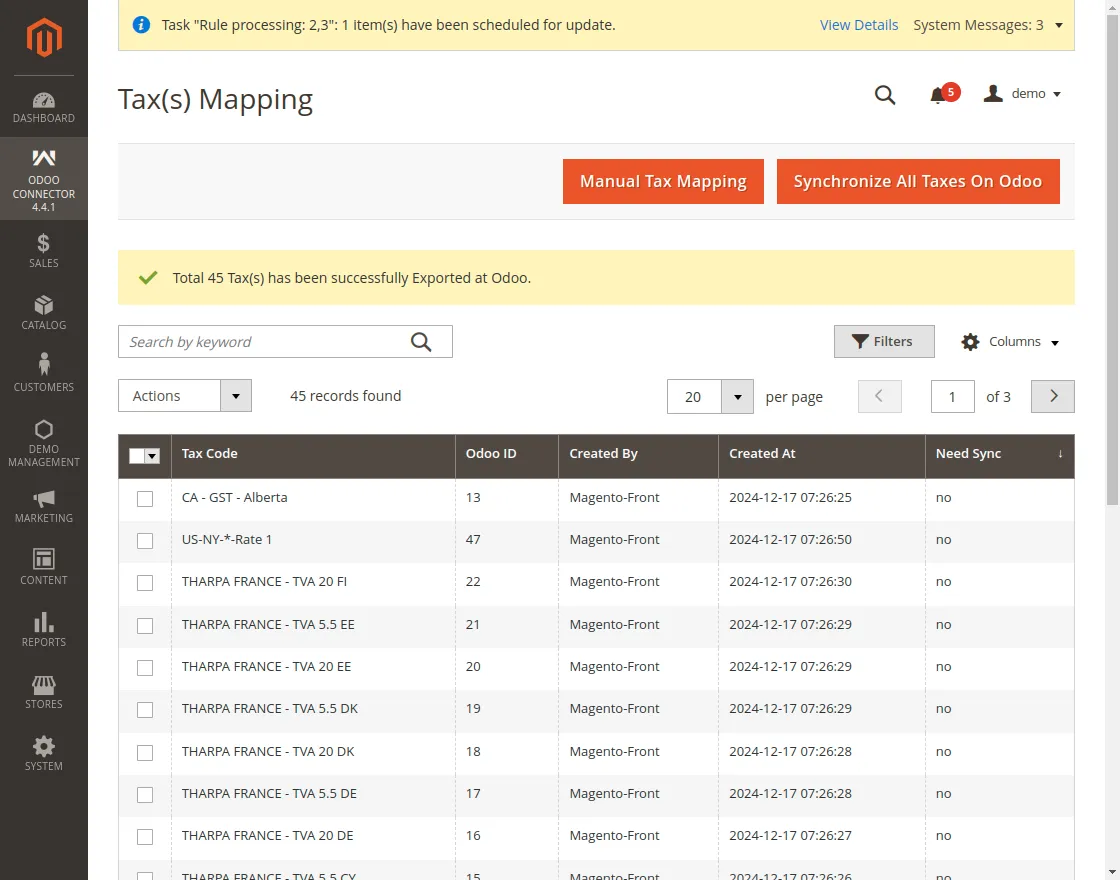
Tax Synchronization
Navigate to Odoo Connector >> Taxes. Now, click on Synchronize all Taxes to Odoo to export all the taxes to Odoo.
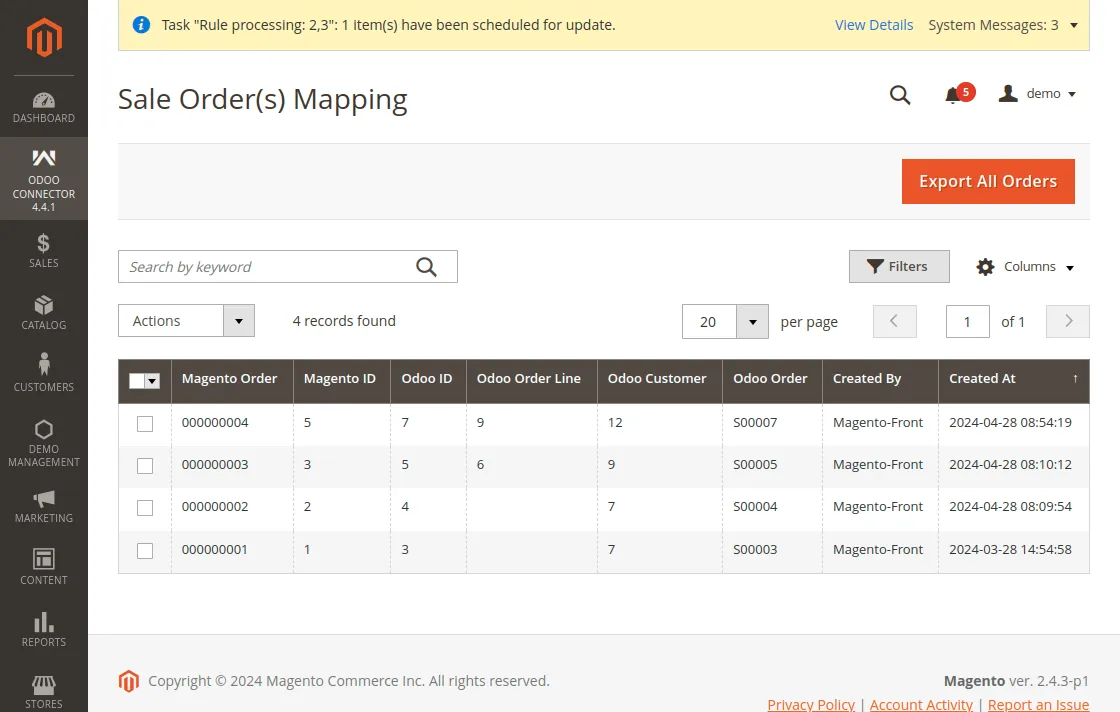
Sale Order Synchronization
If the Order synchronization in Order Settings is selected as Yes, then orders will be automatically exported or updated when created from Magento to Odoo.
If, the user has not selected the option as yes then follow the below directions.
Navigate to Odoo Connector >> Sale Orders. Now, click on Export All Orders to export all the Customers to Odoo.
Manual Mapping
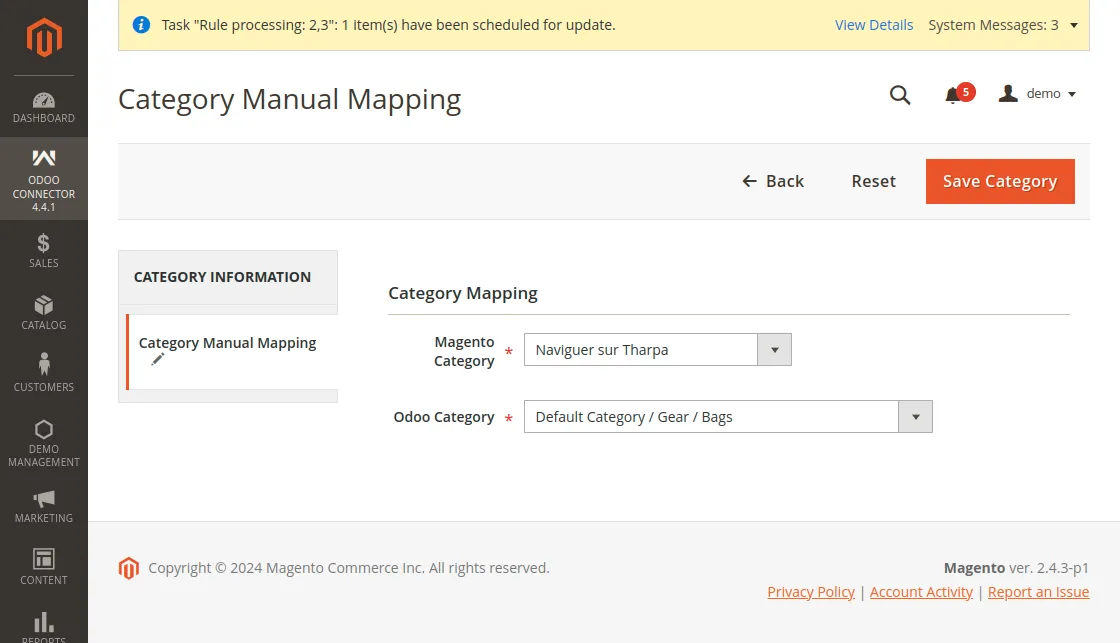
Category Mapping
The user can manually map the categories from Magento to Odoo by just clicking on Manual Mapping button and selecting the Magento and Odoo category.
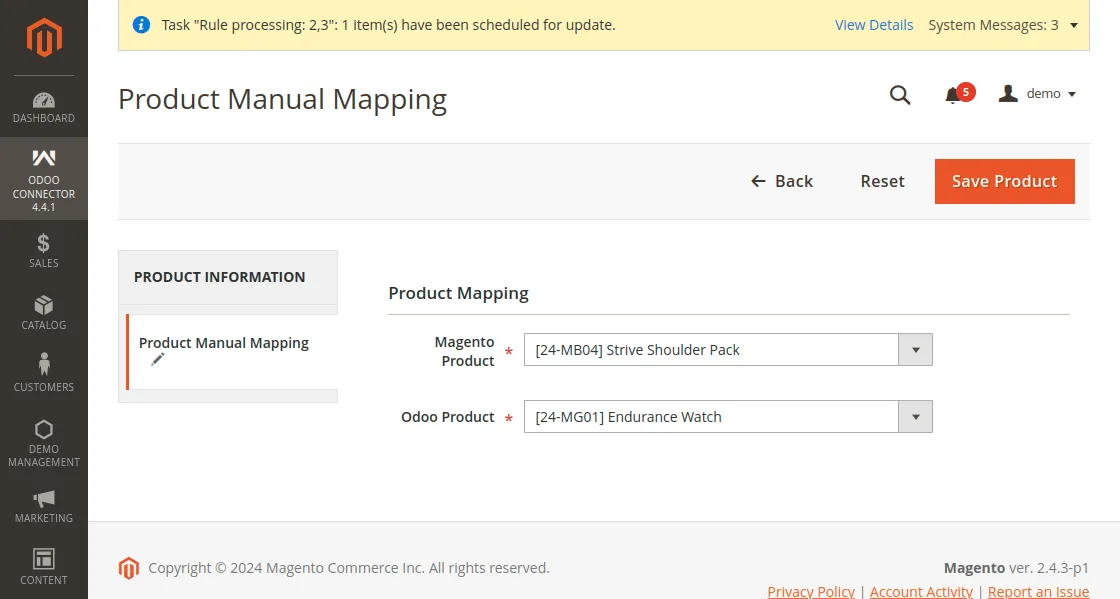
Product Mapping
The user can manually map the simple products from Magento to Odoo by just clicking on the Manual Mapping button and selecting the Magento and Odoo products.
Attribute Mapping
The user can manually map the attributes of a product from Magento to Odoo by just clicking on the Manual Mapping button and selecting the Magento and Odoo attributes.
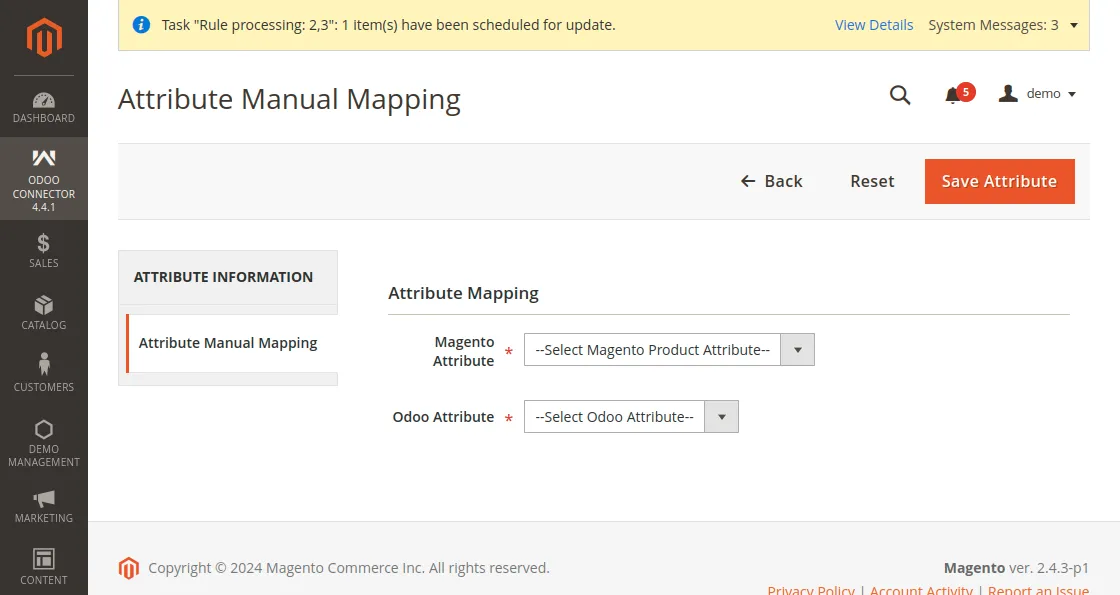
Attribute Options Mapping
Manually map the attribute options from Magento to Odoo by just clicking on the Manual Mapping button and selecting the Magento and Odoo attribute options.
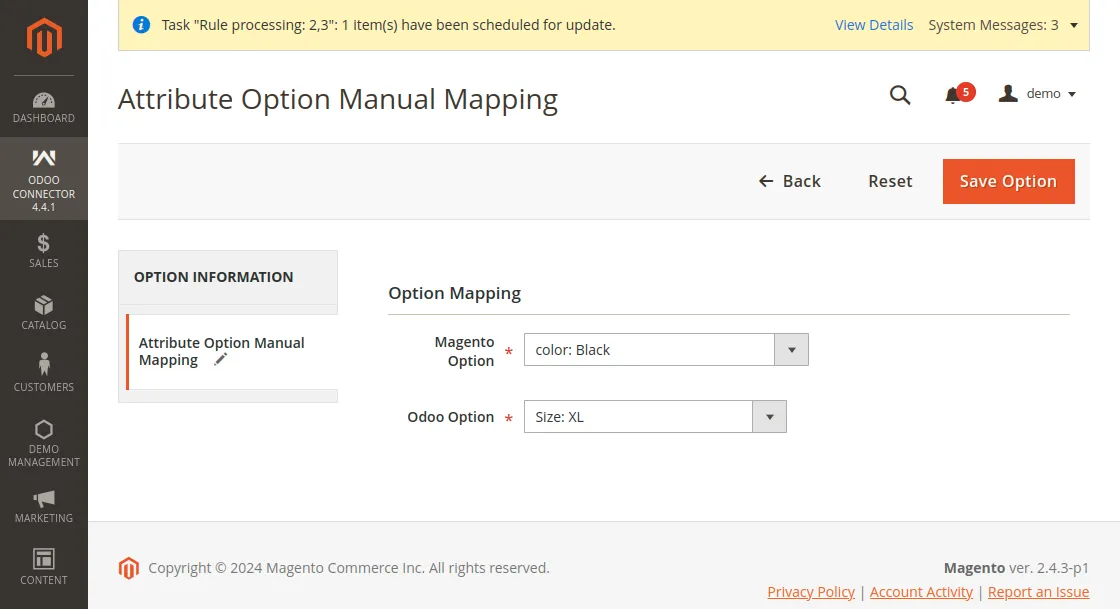
Tax Manual Mapping
Manually map the taxes from Magento to Odoo by just clicking on the Manual Mapping button and selecting the Magento and Odoo taxes.
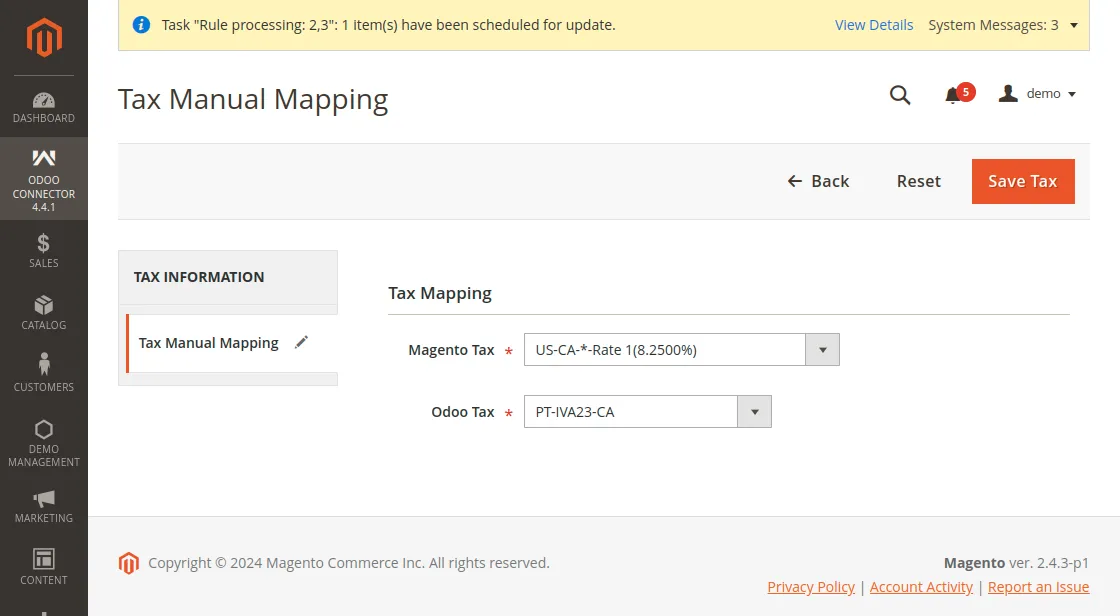
Delivery Manual Mapping
Manually map the delivery methods from Magento to Odoo by just clicking on the Manual Mapping button and selecting the Magento and Odoo taxes.
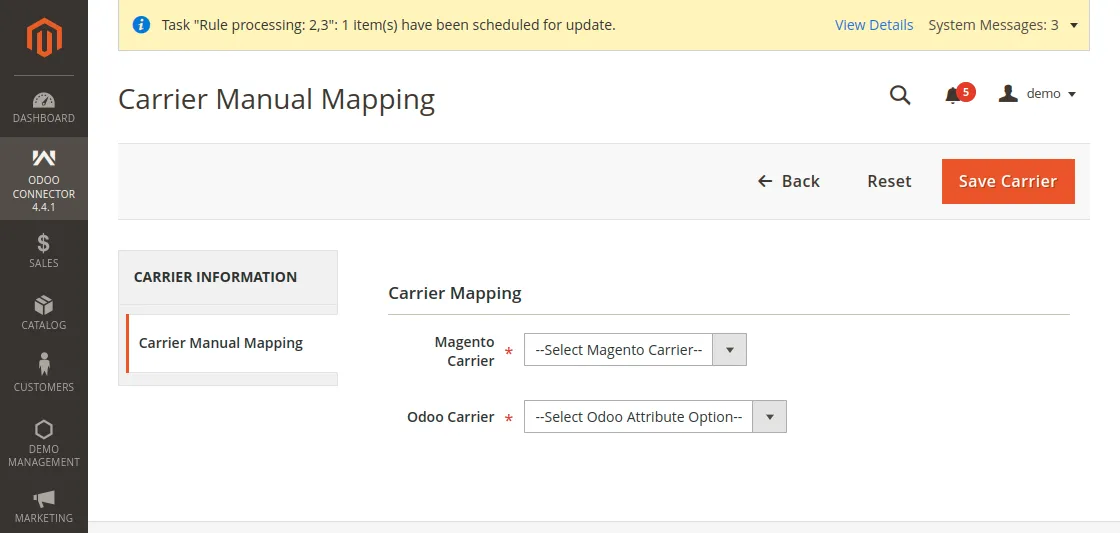
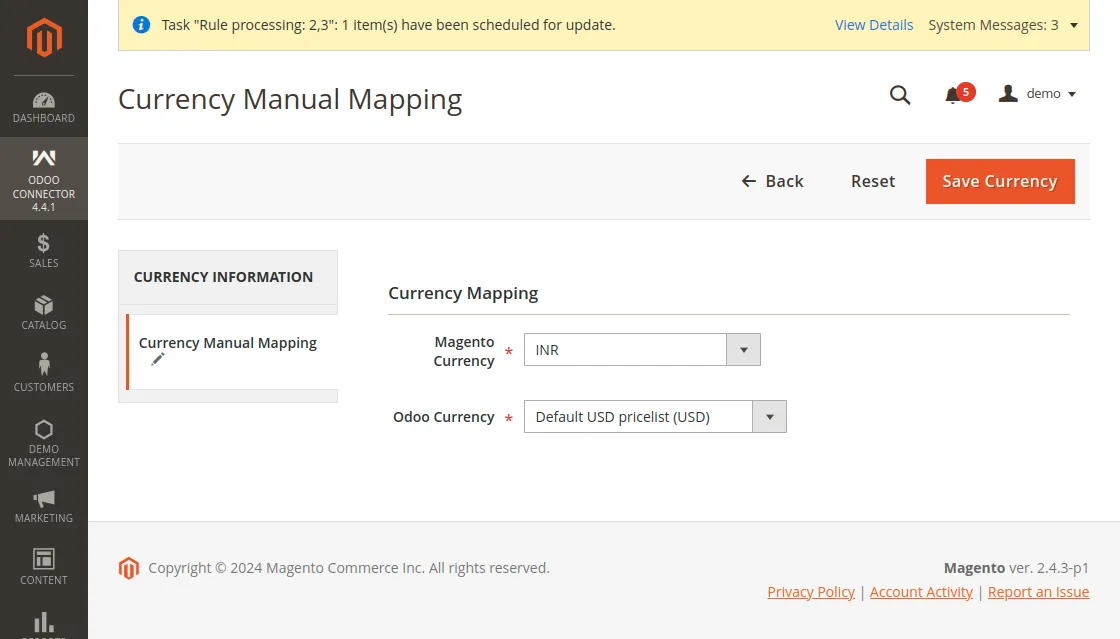
Currency Manual Mapping
Manually map the currency from Magento to Odoo by just clicking on the Manual Mapping button and selecting the Magento and Odoo currencies.
NEED HELP?
Hope you find the guide helpful! Please feel free to share your feedback in the comments below.
If you still have any issues/queries regarding the same, please raise a ticket at the UV Desk.
I hope this helps. In case of any further queries, contact us at our support mail.
Thanks for paying attention!!
Current Product Version - 2.4.1


Be the first to comment.