Introduction
Odoo POS Promotional Offers & Discounts enables you to create and manage multiple promotional campaigns directly within the Point of Sale system.
This module allows you to apply dynamic discounts based on products, categories, order count, and customer types across different POS stores.
Whether it’s seasonal promotions, first-time buyer discounts, or store-specific offers, Odoo POS Promotional Offers & Discounts helps boost sales and enhance the customer experience.
Features
- Create multiple promotional rules from the backend with specific conditions.
- Apply discounts automatically to selected products or product categories in the POS.
- Configure store-specific promotions that apply only to certain POS locations.
- Set customer-based discount rules, such as for first-time customers.
- Define offers based on order number (e.g., 5th order gets a discount).
- Automatically show all active promotions on the POS interface during checkout.
- Odoo POS Promotional Offers & Discounts tags and displays discounted products.
- Enable or disable promotions instantly via backend without a restart.
Installation
- Once you purchase Odoo POS Promotional Offers & Discounts from Webkul store, you will receive a link to download module’s zip file.
- Extract the file on your system after download finishes. As a result, you will be able to see a folder named ‘pos_promotional_discounts’
- Copy and paste this folder inside your Odoo Add-Ons path.
- Now, open Odoo App and click on the Settings menu. Here, click on Activate Developer Mode.
- Then, open Apps menu and click on ‘Update Modules List.’
- In the search bar, remove all the filters and search ‘pos_promotional_discounts’
- You will be able to see module in the search results. Click on ‘Install’ to install it.
Workflow
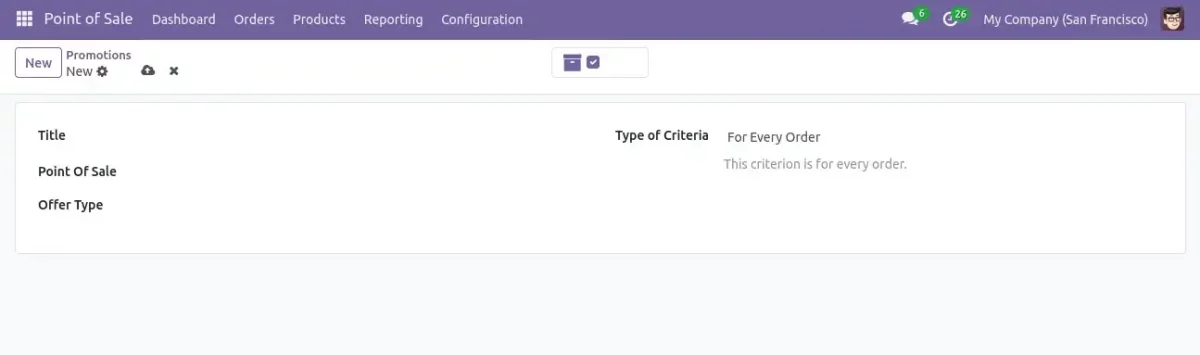
1. After installing Odoo POS Promotional Offers & Discounts, users can create new promotions by navigating to POS >> Configuration >> Promotions >> New.
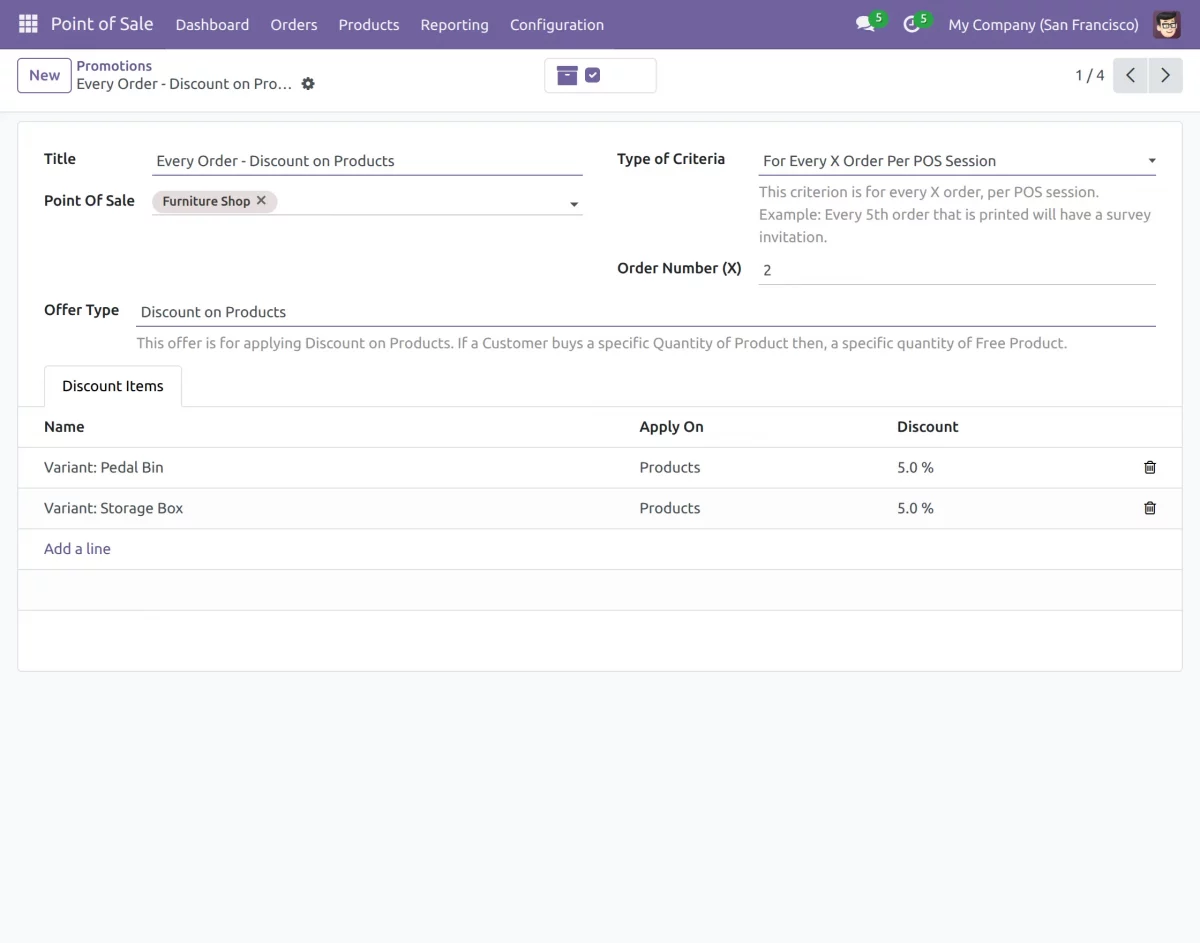
2. Users can add detailed promotion criteria, including the applicable POS, order types, and discounted items.
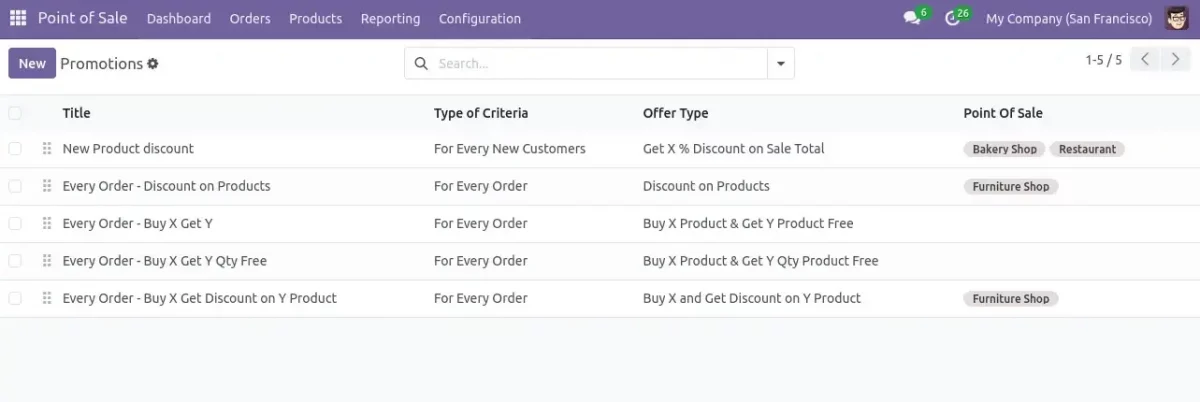
3. Users can view various promotions along with their applicable POS and offer types
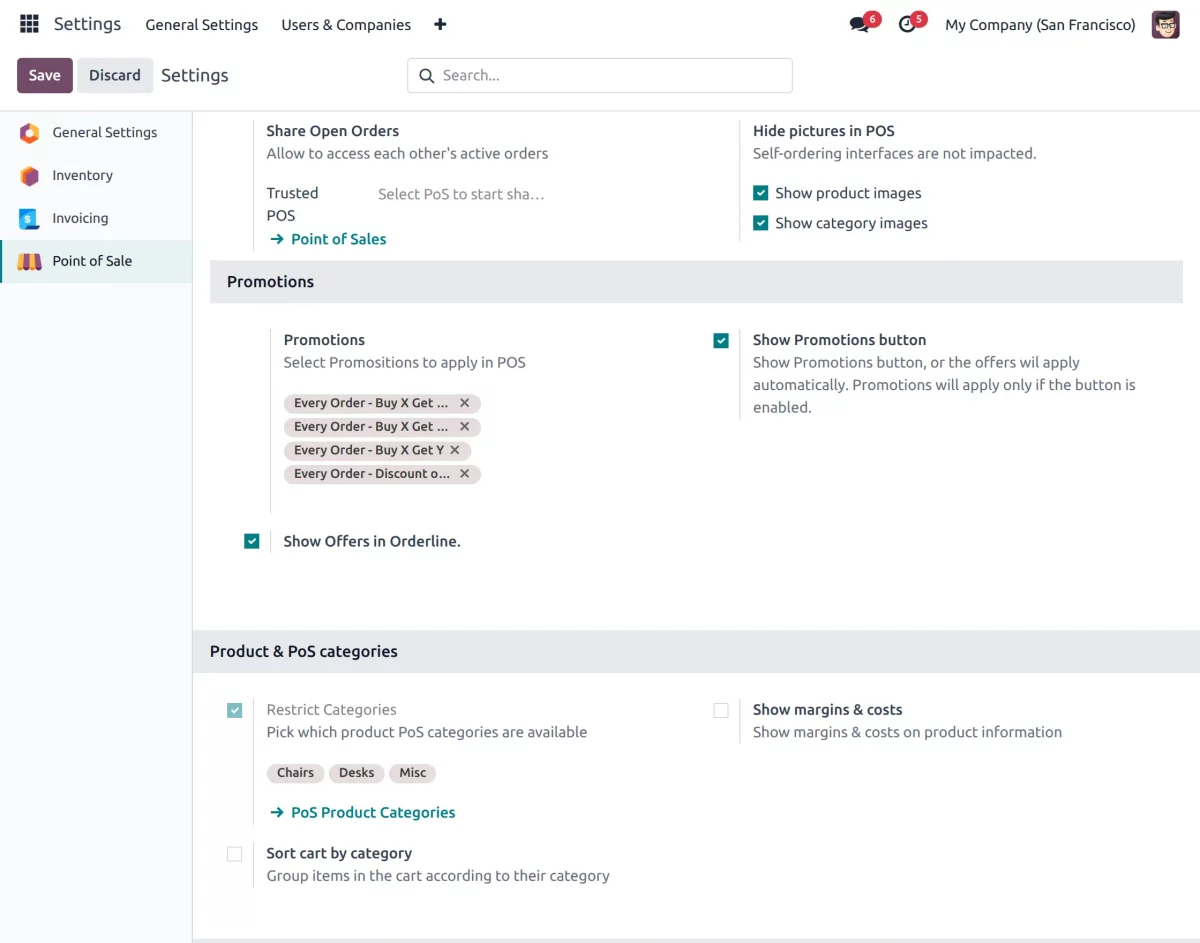
4. After creating the promotions, you can enable them in the backend by clicking the ‘Show Offers in Orderline’ and ‘Show Promotions’ buttons.”
5. Once enabled, the promotions will appear in the POS, and discounted products will be marked with a tag.

Need Help?
Hope you find guide helpful! Please feel free to share your feedback in the comments below.
If you still have any issues/queries, please create a ticket at the UV Desk.
In case of any further queries, contact us at our support mail.
Thanks for paying attention!!
Current Product Version - 1.1.0
Supported Framework Version - Odoo V19, V18, V17


Be the first to comment.