Introduction
Odoo Marketplace Shipping Per Product module lets sellers easily assign unique shipping methods for each product, enhancing flexibility and control.
It works on both the backend and frontend, making it easy for admins to manage shipping and for customers to choose their preferred delivery options.
Odoo Marketplace Shipping Per Product simplifies the shopping and delivery process while boosting customer satisfaction.
Features
- Assign unique shipping methods to each product for better control.
- Manage shipping settings seamlessly from both backend and frontend.
- Split orders based on different shipping methods for easy delivery.
- Set flexible shipping rates based on product type or location.
- Odoo Marketplace Shipping Per Product lets you bulk approve or reject shipping requests.
- Easily track shipping status to stay updated on deliveries.
- Streamline processes for faster and more organized deliveries.
Prerequisites for using Odoo Marketplace Shipping Per Product
This module works in conjunction with following modules:
You would need to install both of these modules first for Odoo Marketplace Shipping Per Product to work properly.
Installation
- Once you purchase the App from Webkul store, you will receive a link to download the module’s zip file.
- Extract file on your system after the download finishes. As a result, you will be able to see a folder named- ‘marketplace_shipping_per_product’
- Copy and paste this folder inside your Odoo Add-Ons path.
- Now, open Odoo App and click on the Settings menu. Here, click on Activate Developer Mode.
- Then, open Apps menu and click on ‘Update Modules List.’
- In search bar, remove all filters and search ‘marketplace_shipping_per_product’
- The module will appear in search results. Click on ‘Install’ to install it.
Work Flow
Admin View
- After installing Odoo Marketplace Shipping Per Product, go to the Sales app in Odoo backend and navigate to Configuration >> Delivery Methods.
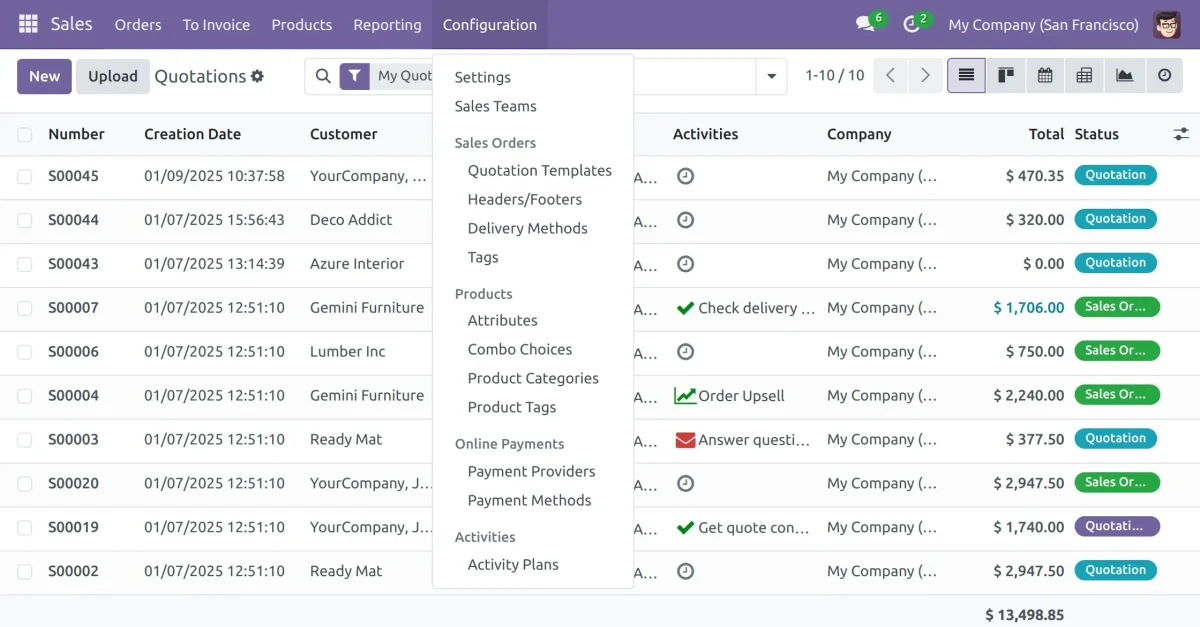
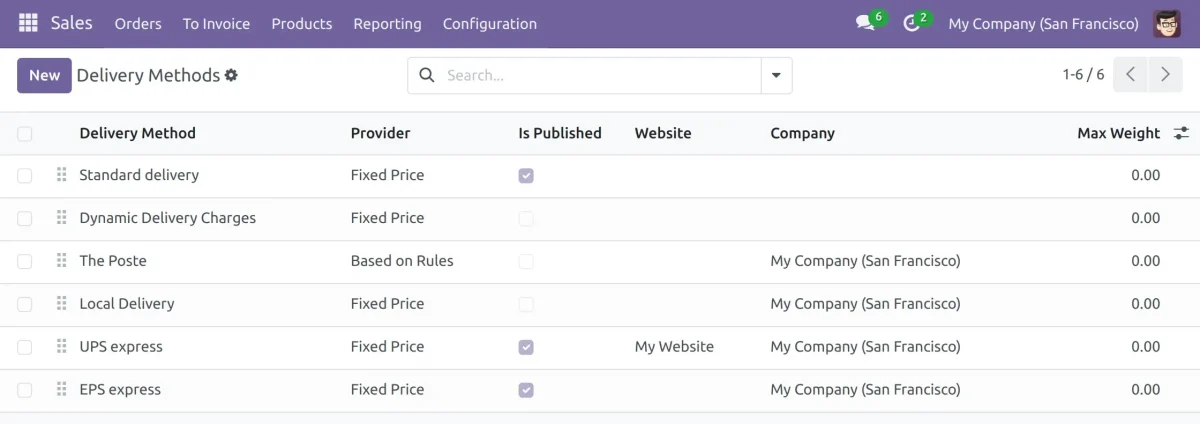
2. You will see a list of all delivery methods. Click the ‘New’ button to add a new delivery method.
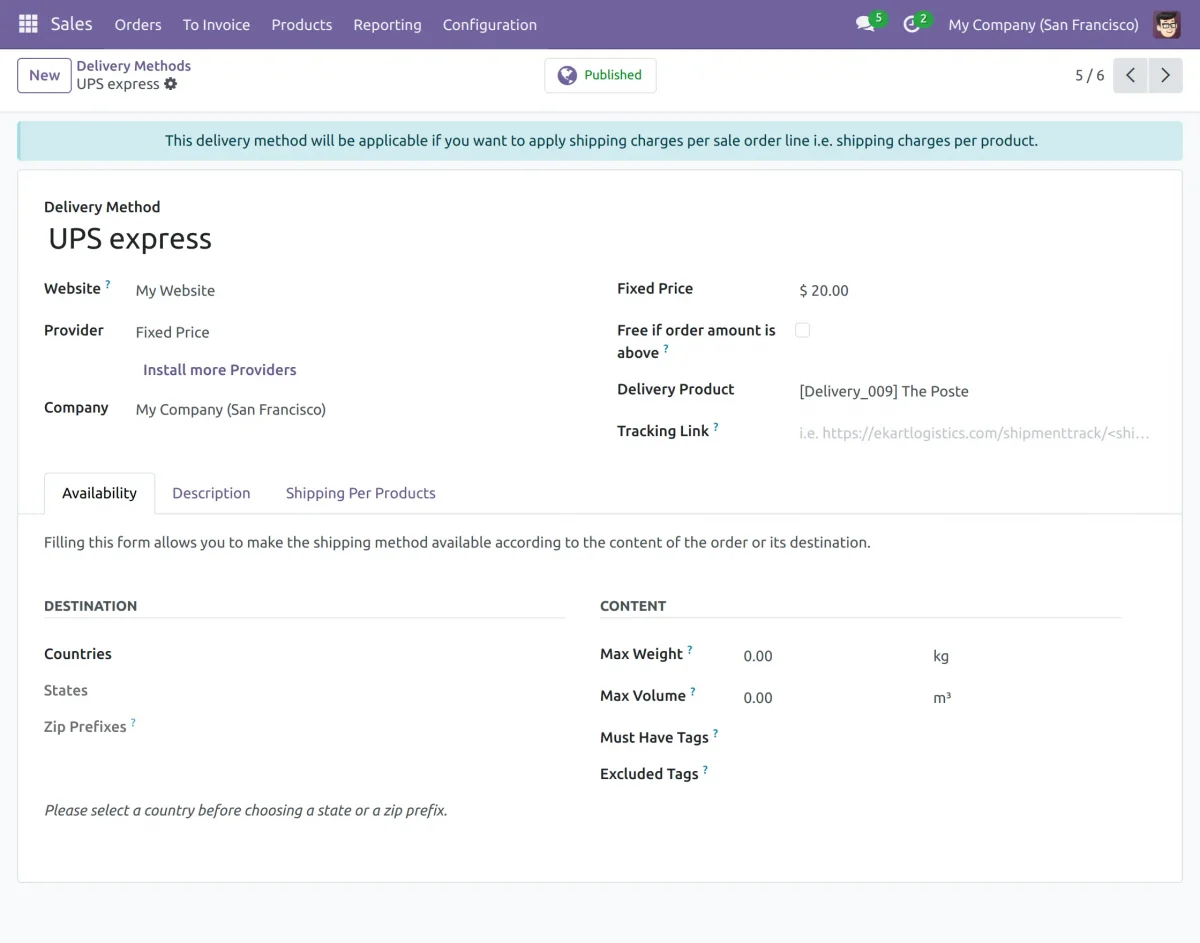
3. Enter details like Name, Provider, Company, and Website, then Publish it.
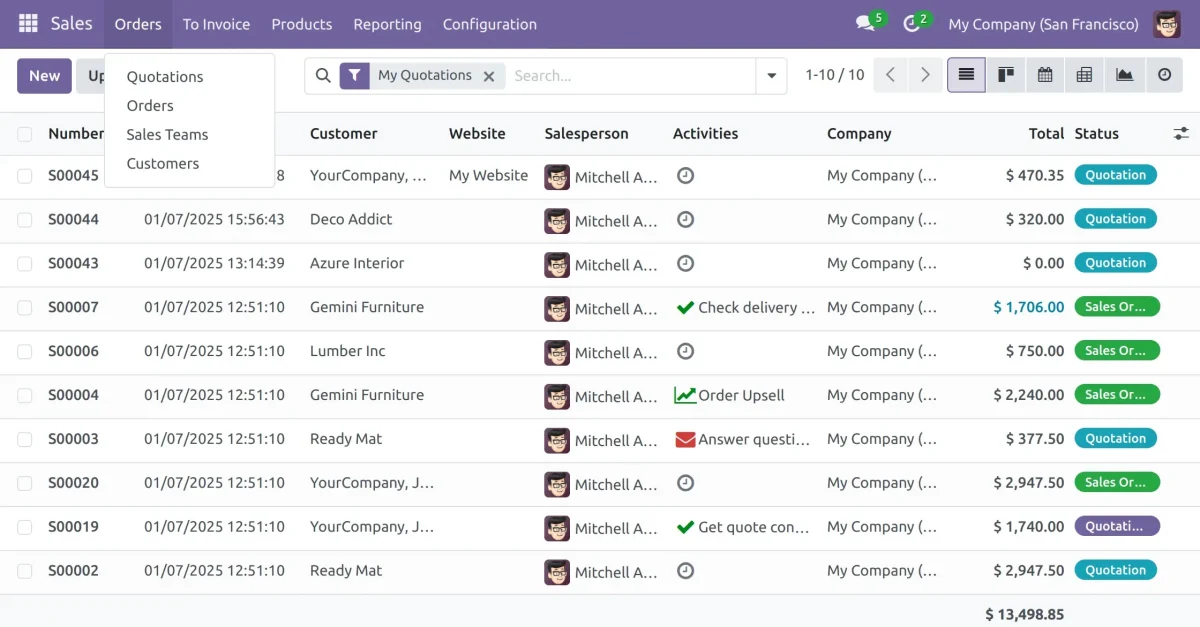
4. Create a quotation in the Sales app by navigating to Orders >> Quotations.
5. In the backend, select a delivery method for each product or a single method for the entire sale order while creating a quotation.
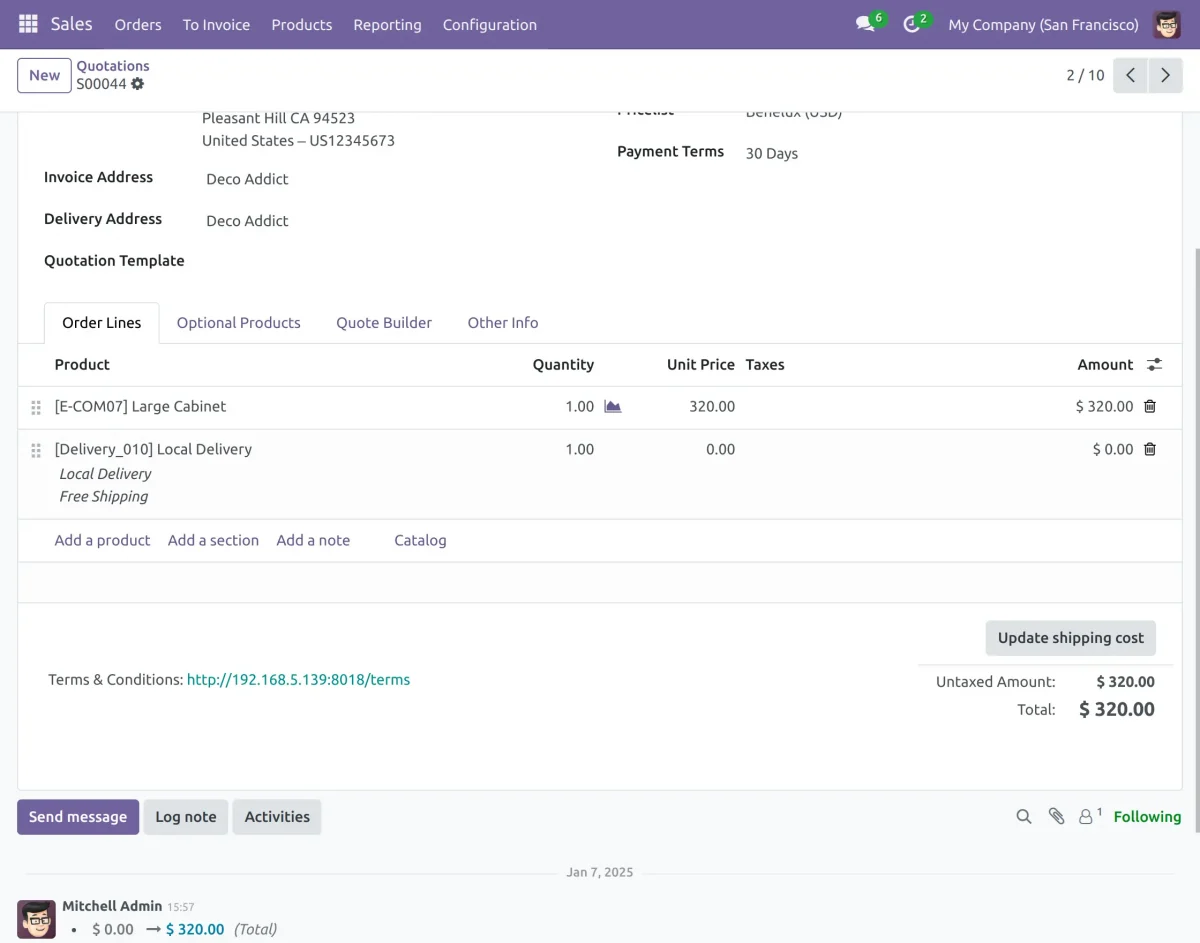
6. Select a delivery method per product in quotation; chosen method will apply to the sale order.
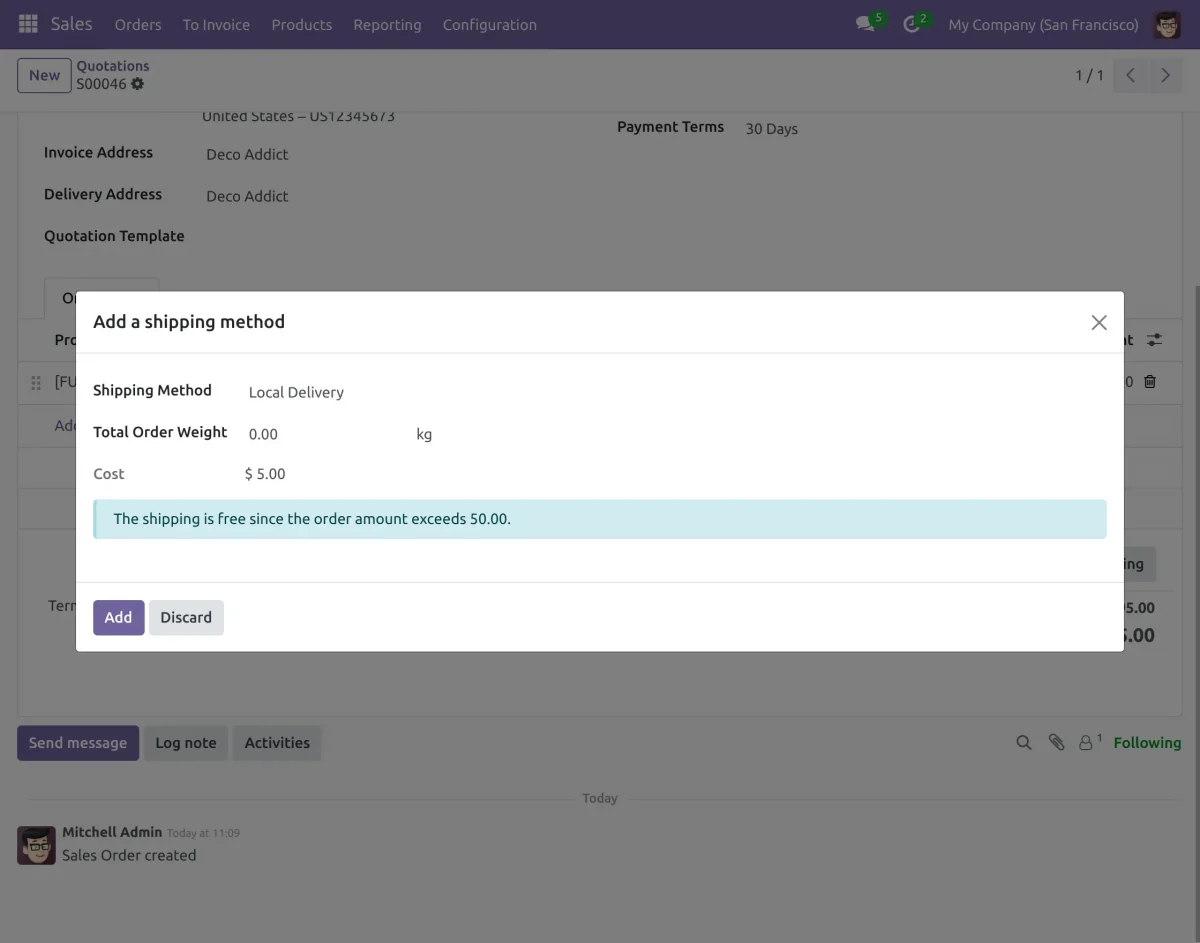
Seller View
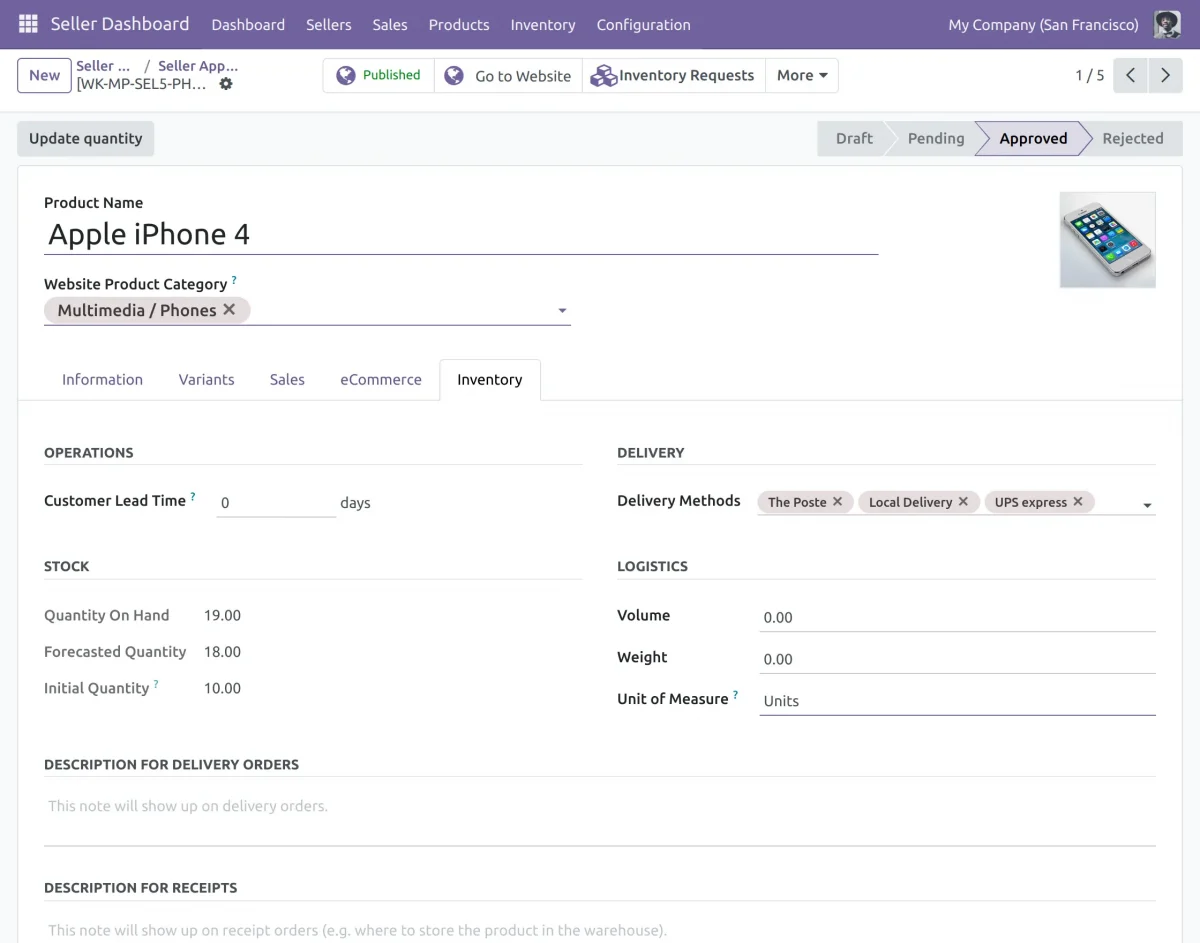
7. Visit Seller Dashboard app and navigate to Products >> Approved Marketplace Products.
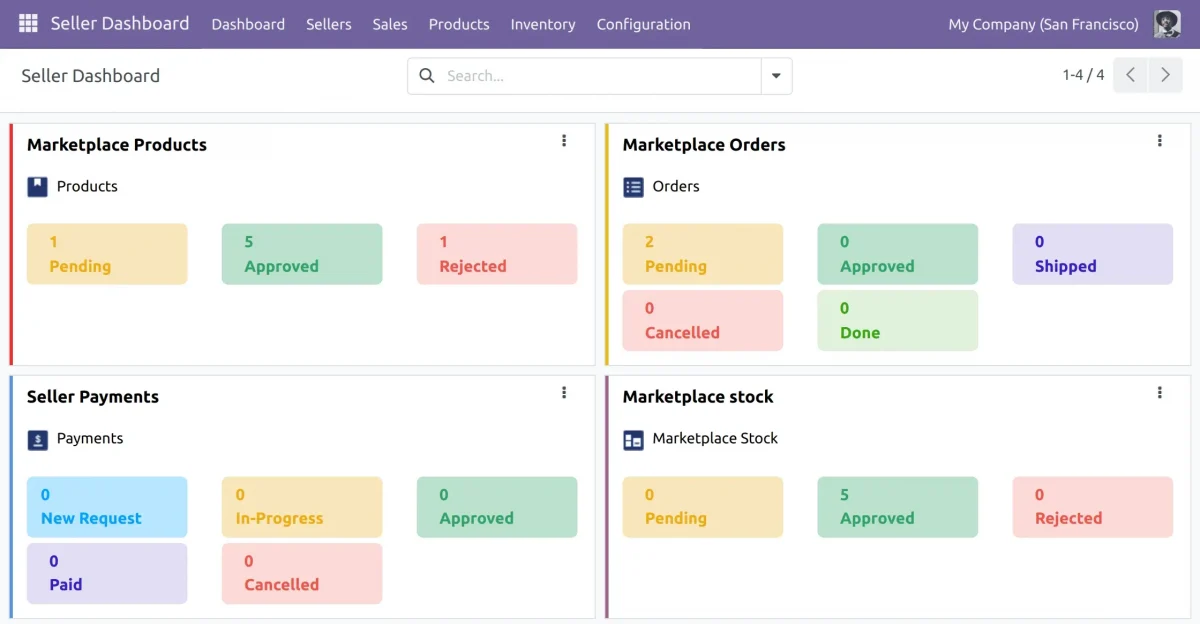
8. View the list of seller-owned products and select a product to add delivery methods.
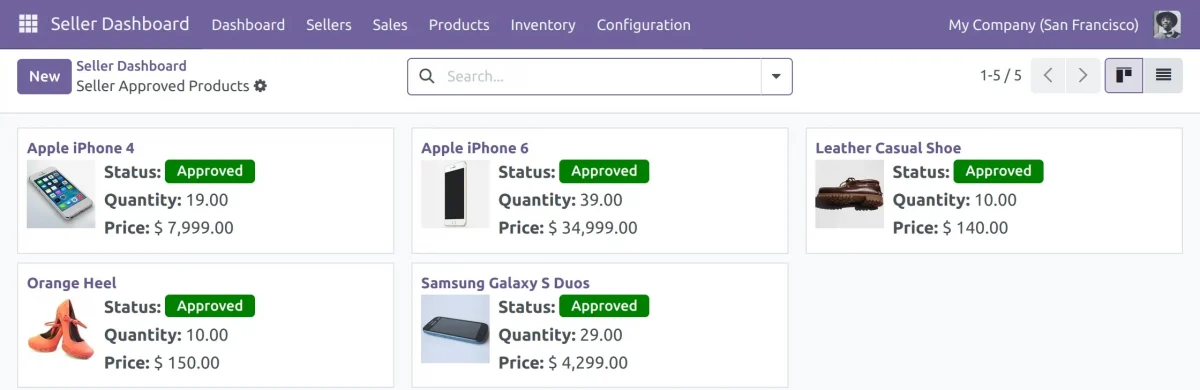
9. Add and save the desired delivery methods for the selected product.
Website View
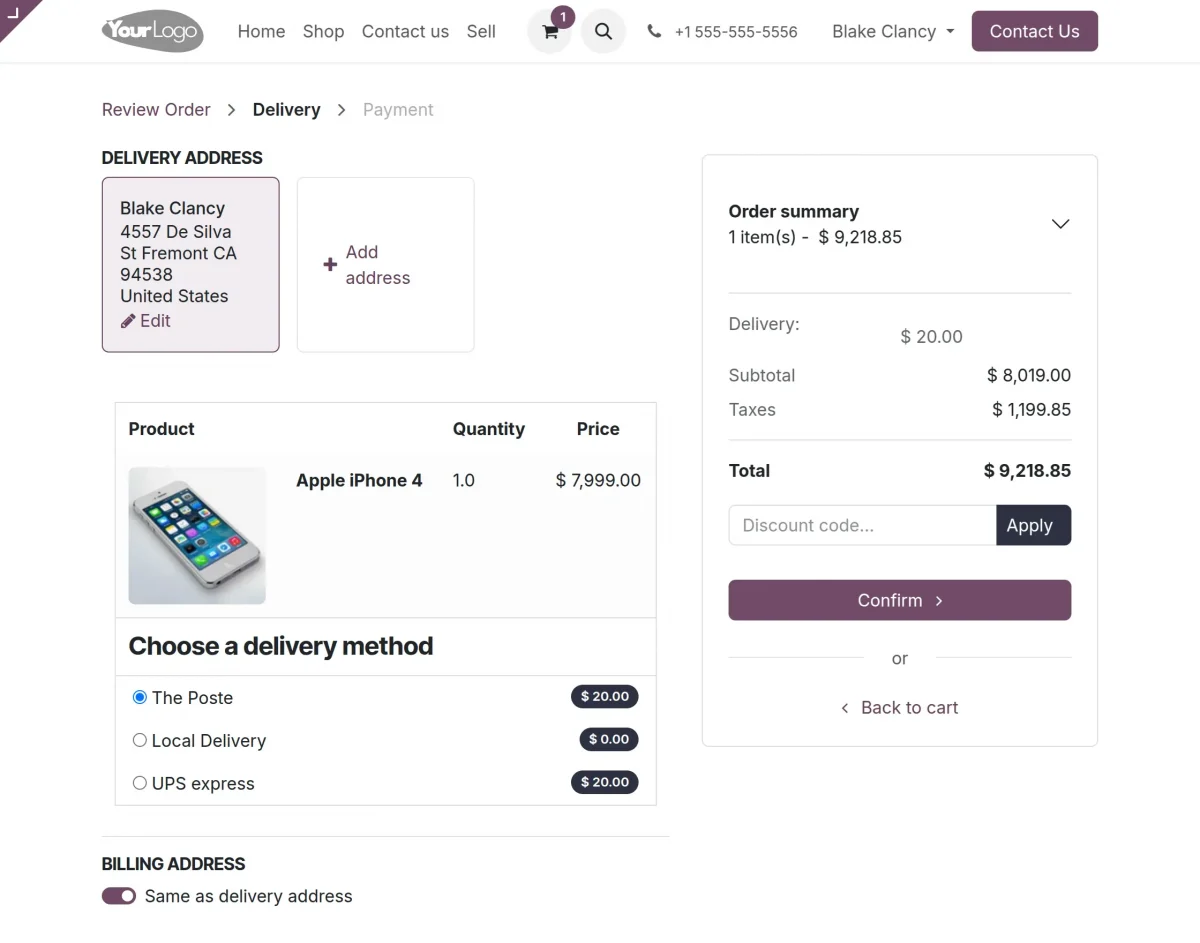
10. Visit the Shop Page, select the product, and view available delivery methods at checkout.
Need Help?
Hope you find the guide helpful! Please feel free to share your feedback in the comments below.
If you still have any issues/queries regarding the same, please raise a ticket at the UV Desk.
I hope this helps. In case of any further queries, contact us at our support mail.
Thanks for paying attention!!
Current Product Version - Odoo V17, V16, V15, V14, V13, V12, V11
Supported Framework Version - 1.0.0


Be the first to comment.