NOTE: The User Guide describes the workflow of Odoo Discount on Sale orders. To know how the base module works. kindly refer to the Guide of Odoo Discount on Invoices and Bills.
INTRODUCTION
Upgrade your discounts on Sales Orders with Odoo Discount on Sales!
Odoo Discount on Sales Orders helps enhance the discounting process in the Sales app of Odoo While creating Orders. The modules allow users to put a Global discount on Products with their Categories and Orders while creating. Also, allow them to manage discounts on a category basis where they can restrict the category of products to get global discounts.
NOTE: Odoo Discount on Sale Order Module works in conjunction with the following module:
Odoo Discount on Invoices and Bills
You would require to install these modules first for Odoo Discount on Sale Order to work correctly.
FEATURES
- Apply Global Discounts on All Products
- Manage Global Discounts on Orders.
- Restrict Global Discounts on Product Categories
- Set Discount Type as Fixed
- Set Discount Type as Percentage
- Admin can Set Global Discounts on Taxed and Non-Taxed Products
- Enable/Disable options for the module.
- Discounts Applied will be visible in the generated invoices.
Look at our other theme module of interest Odoo Website Myfatoorah Payment Gateway to upgrade the payment process on your Odoo Website.
INSTALLATION
- After purchasing the module Odoo Discount on Sales, a link will be provided to download a zip file.
- Extract the file and a folder name ‘discount_sale_order’ will be visible.
- Copy the folder to the Odoo add-ons path.
- Open the Odoo app, and click on settings. Then, Click on Developer Mode.
- Now, open the Apps Menu and click on ‘Update Module List’.
- At the search bar, remove all filters and search ‘discount_sale_order’.
- Click on Install for Installation. Kudos!
Before moving further, explore our Odoo development services & an extensive range of quality Odoo Apps.
WORKFLOW
CONFIGURATION
- After the Installation process of Odoo Website Auction, configure the module for use.
- To configure the module we need to navigate to Customer Invoices by following the path ‘Configuration > Invoicing’.
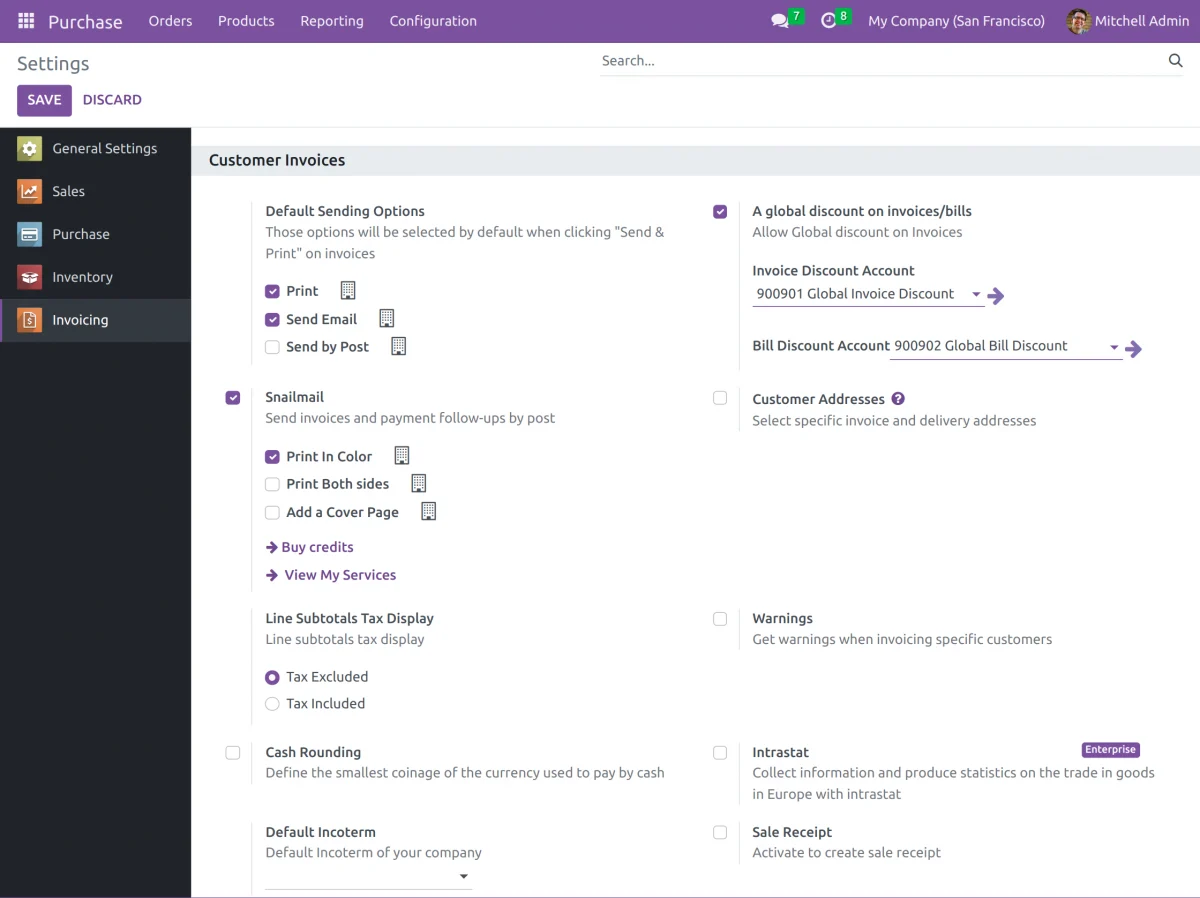
- Now Check Mark the “A global discount on invoices/bills” to enable the module. Also, Select “Tax Excluded” to configure a discount on products Excluding Tax or Select “Tax Included” to configure the discount on products that have tax included in their price.
- Navigate to the Sales App of the Odoo and Make a New Quotation.
- While Making a new order features such as “Discount Type” and “Global Discount” will be visible in the Quotation Template Section.
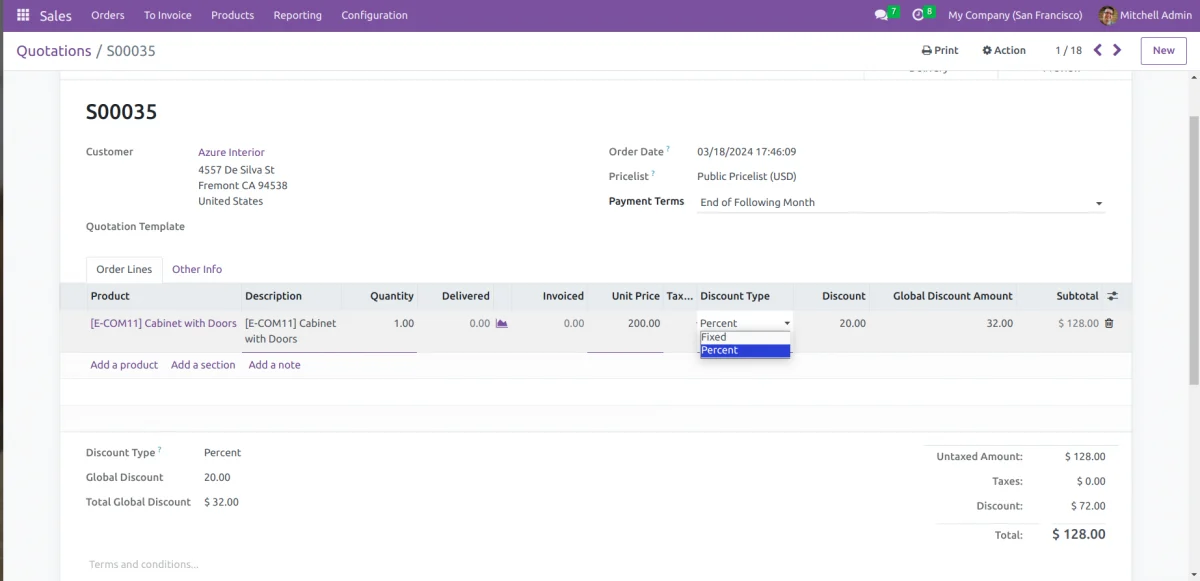
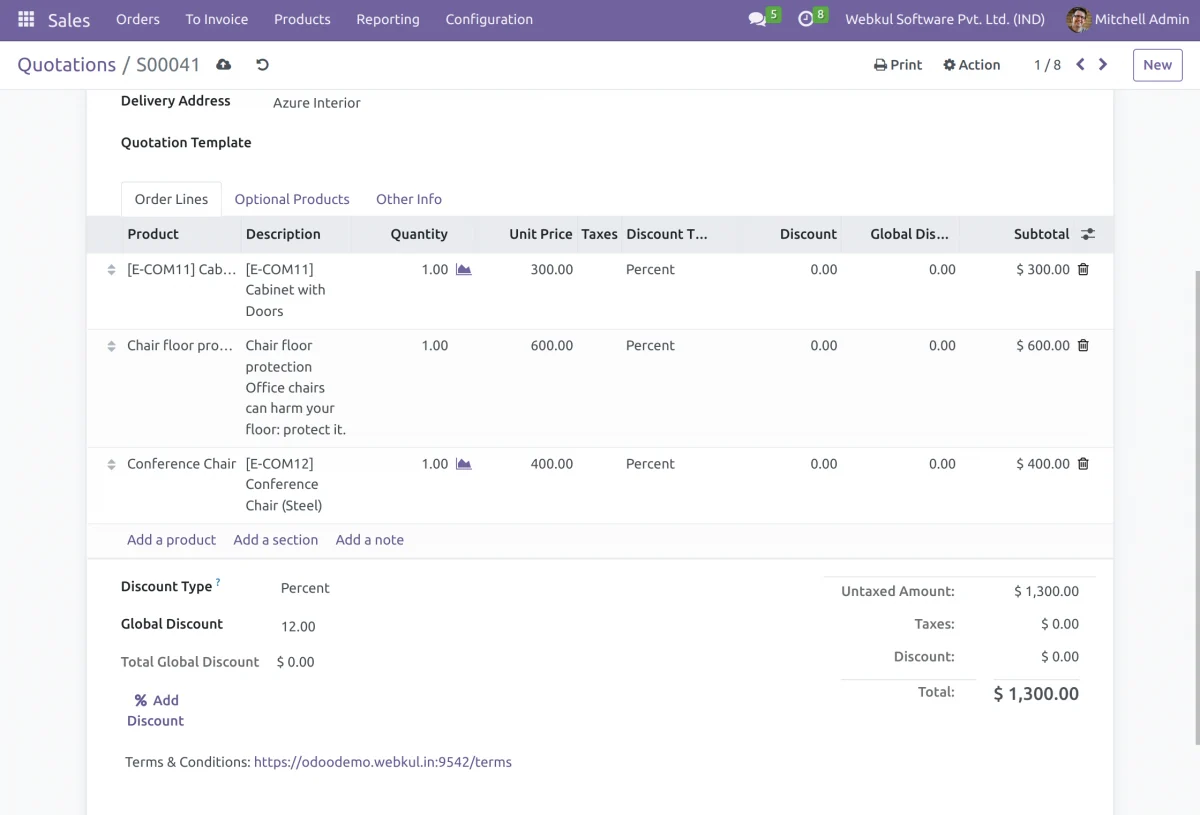
- A user can add Global Discount Collectively on all products on the Quotation Template by using an option left Bottom of the page named “Global Discount” where the user can select Discount Type and click on “% Add Discount”.
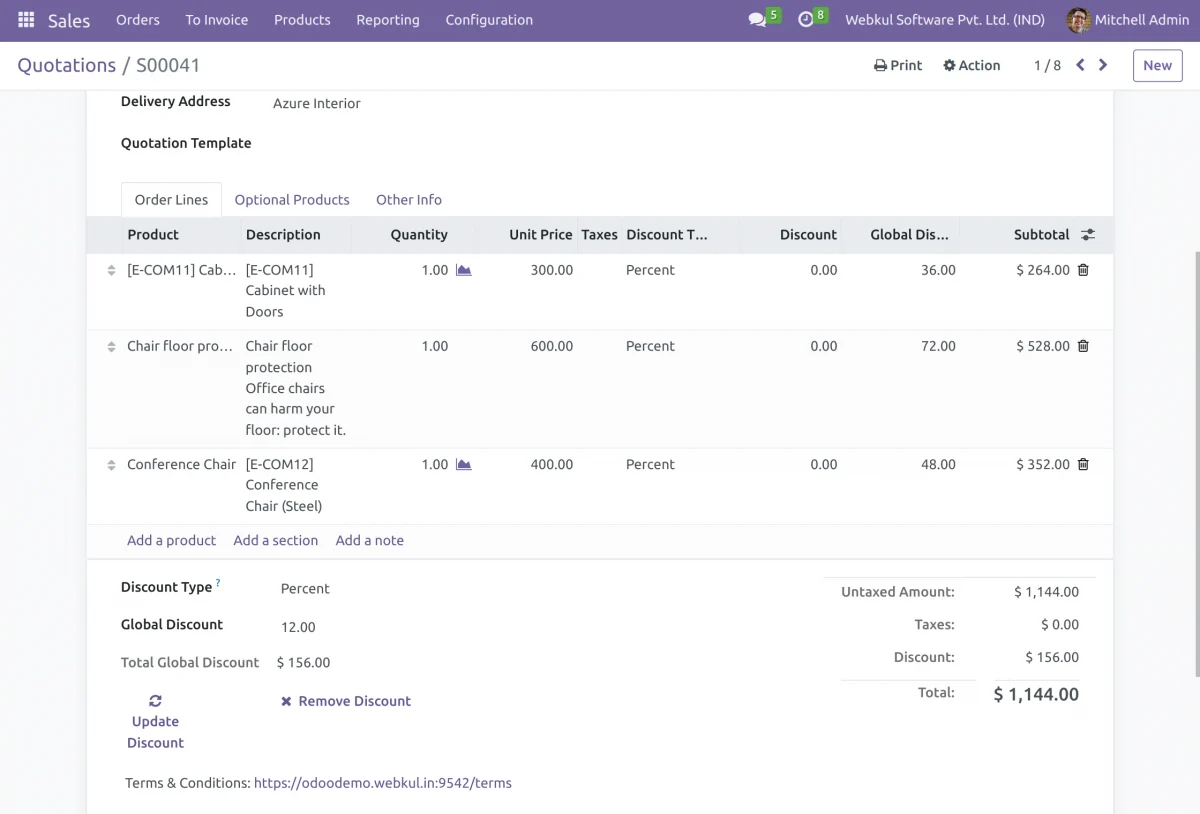
- You can even Update the placed Global Discount with the “Update Discount” Button and can remove the applied discount with the “Remove Discount” Button.
- The Admin can also provide restrictions on products with their categories.
- To Configure the restriction feature route to “Products > Configuration > Product Categories” and Select a Product Category.
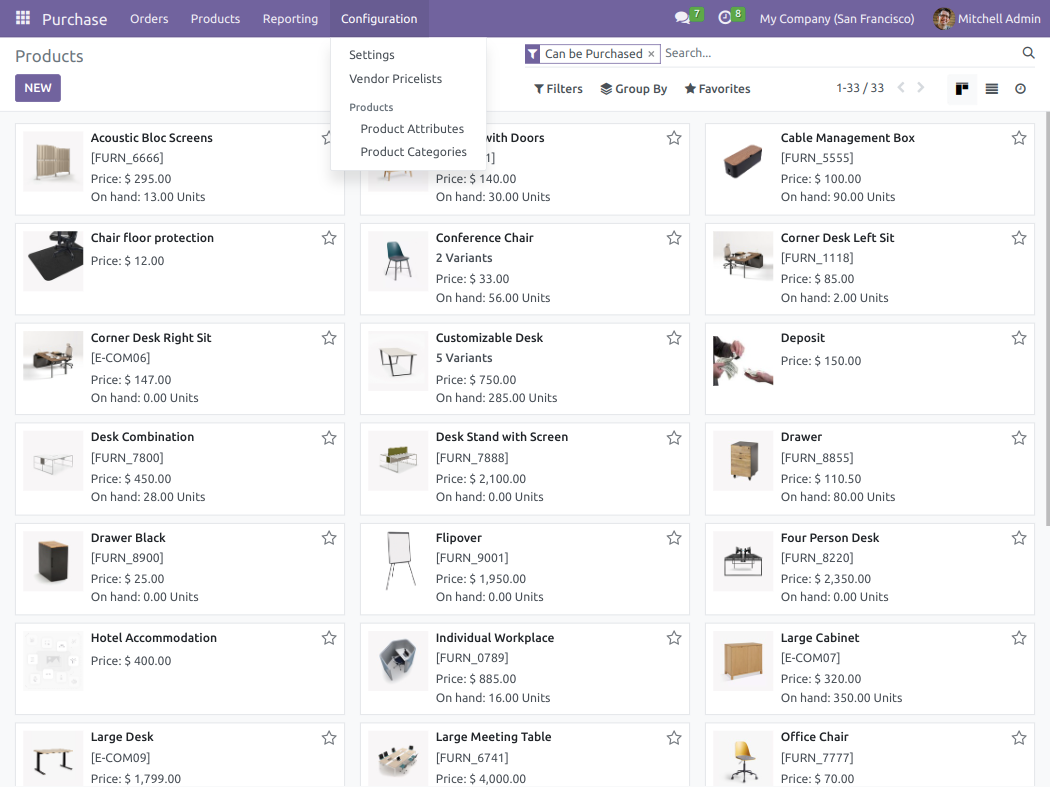
- Select any of the categories to restrict the global discount and click the checkbox “Restrict Global Discount”.
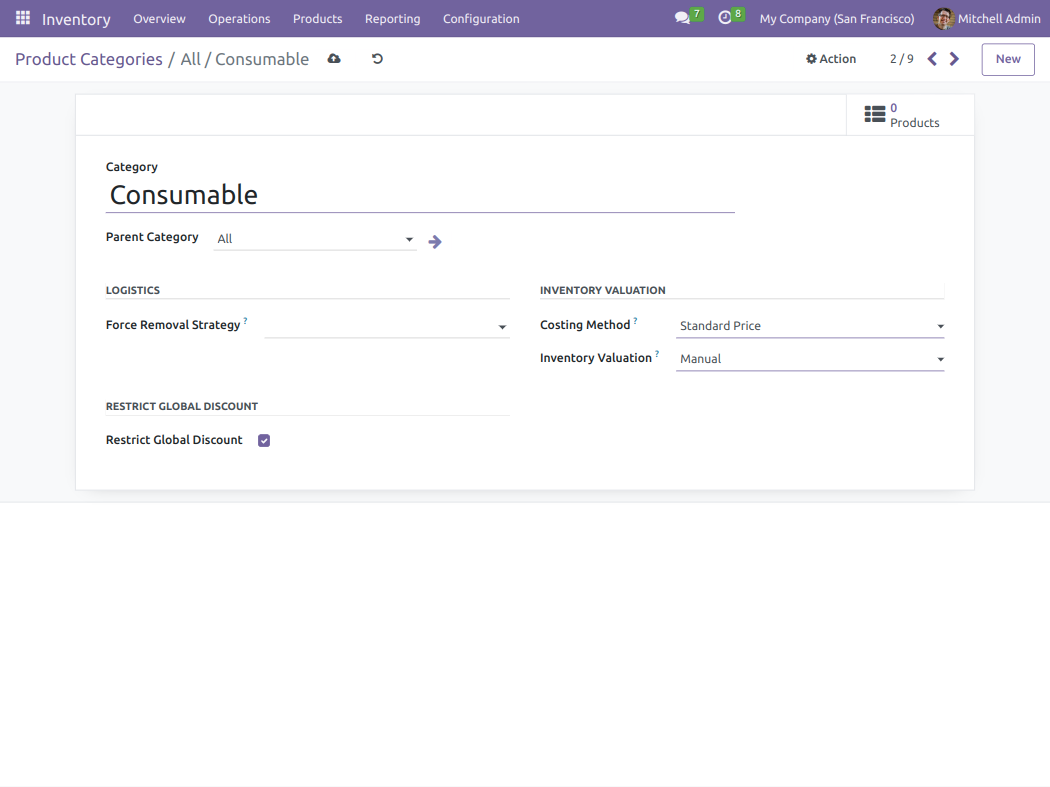
- This does not allow the Selected Category to be discounted with the enabled configuration of global discount.
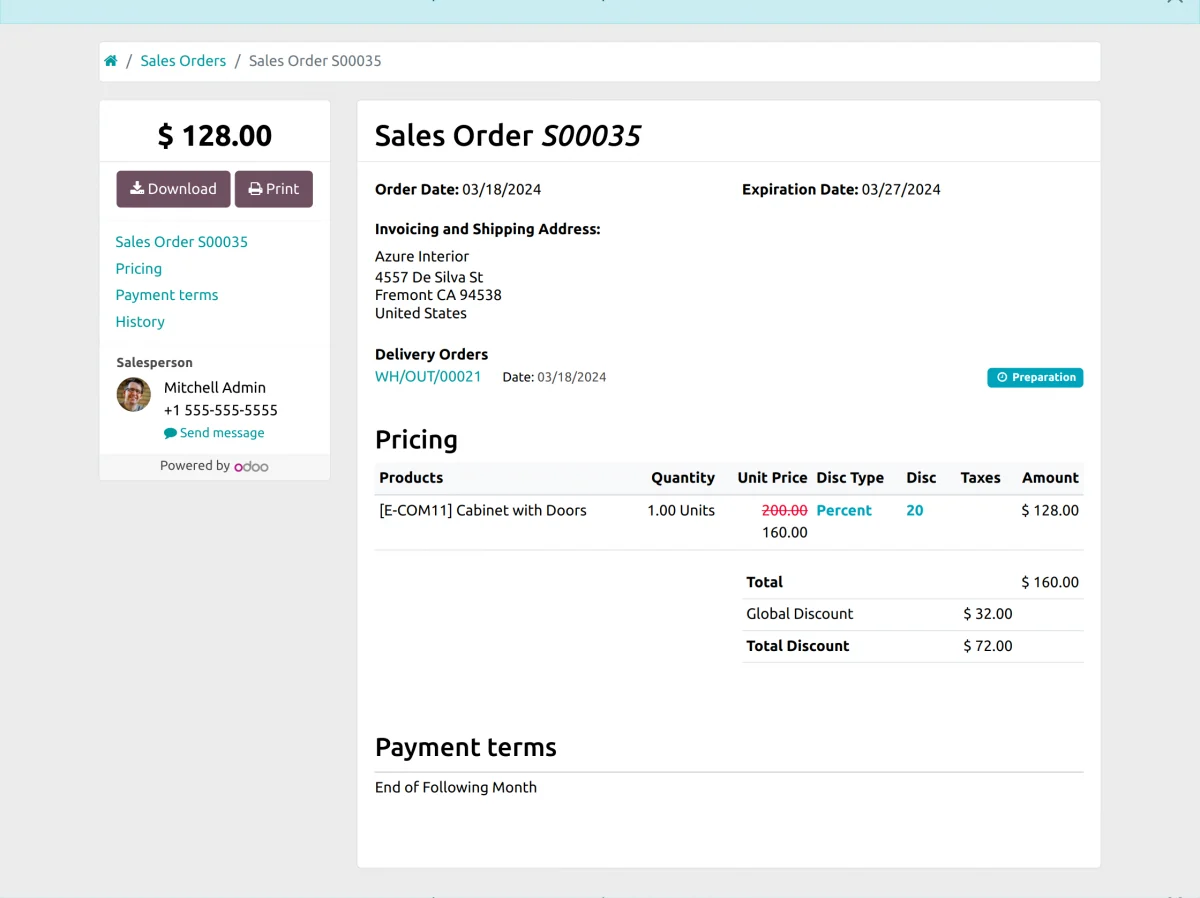
- The Applied Discount can also be visible in the created invoice on Odoo.
NEED HELP?
Hope you find the guide helpful! Please feel free to share your feedback in the comments below.
If you still have any issues/queries regarding the same, please raise a ticket at the UV Desk.
I hope this helps. In case of any further queries, contact us at our support mail.
Thanks for paying attention!!
Current Product Version - 2.2.1
Supported Framework Version - Odoo 16, 15, 14


Be the first to comment.