INTRODUCTION
Cancel MOs in Odoo with Odoo Cancel Manufacturing Orders!
Manufacturing orders are an essential element of most manufacturing companies. Manufacturing orders can be used for all sorts of production jobs. It helps in structuring the workload in terms of production. There are several last-minute changes in the plan many times; when you no longer need the product, or the price is not suitable, etc. and the customer may need to Cancel Manufacturing Orders.
Odoo is an ideal platform for handling all the backend operations. Now, in Odoo you can easily cancel the manufacturing orders with ‘Odoo Cancel Manufacturing Orders’ makes the process easy for orders to be canceled from production.
Odoo Cancel Manufacturing Orders module allows you to cancel MO in Odoo and also in the done state. The module helps you to make a smooth process of canceling Manufacturing Orders, keeping in mind that there might be several reasons to cancel last minute.
FEATURES
- You can cancel MO in Odoo even when the Order is in the done state
- If you want to cancel multiple MO for some reason then you can do it with the help of the module
- You can manually create some common reasons with their sequence.
- While selecting the reason, you can add a description for clarification.
- The module allows you to notify the concerned person of MO.
- Once the order is canceled the stock replenishes for product components.
INSTALLATION
- Once you purchase the App from the Webkul store, you will receive the link to download the zip file of the module.
- Extract the file on your system after the download finishes. You will be able to see a folder named- ‘wk_cancel_manufacturing_orders’.
- Copy and paste this folder inside your Odoo Add-Ons path.
- Now, open the Odoo App and click on the Settings menu. Here, click on Activate the Developer Mode.
- Then, open on the Apps menu and click on the ‘Update Modules List’.
- In the search bar, remove all the filters and search ‘wk_cancel_manufacturing_orders’.
- You will be able to see the module in the search result. Click on ‘Install’ to install it.
WORKFLOW
Let’s begin the configuration of Odoo Cancel Manufacturing Orders.
CONFIGURATION
1. Firstly, log in to the Odoo database and go to the manufacturing module.
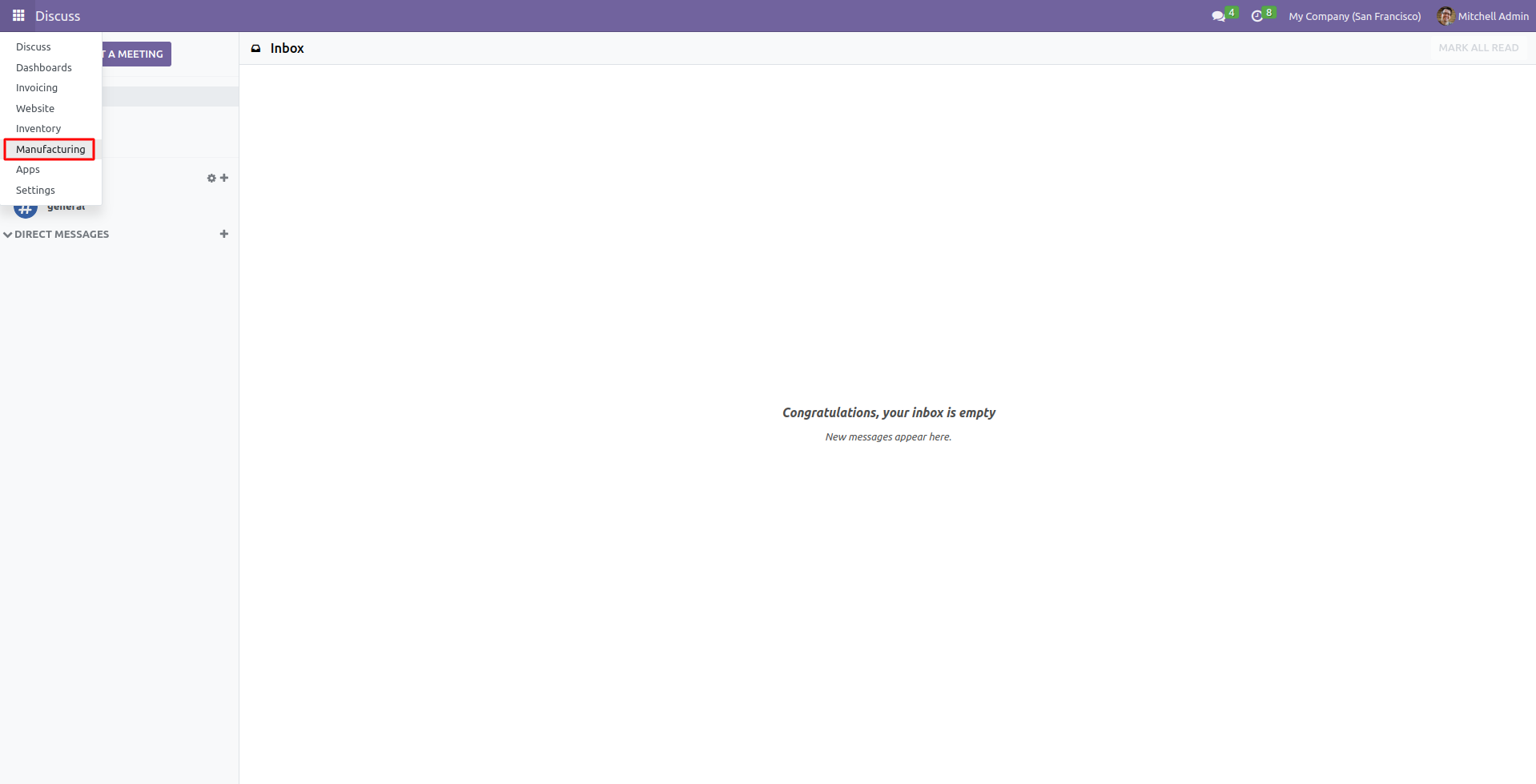
2. Now, navigate to the Cancellation reasons under the Configuration menu. You can also create new cancellation reasons here.
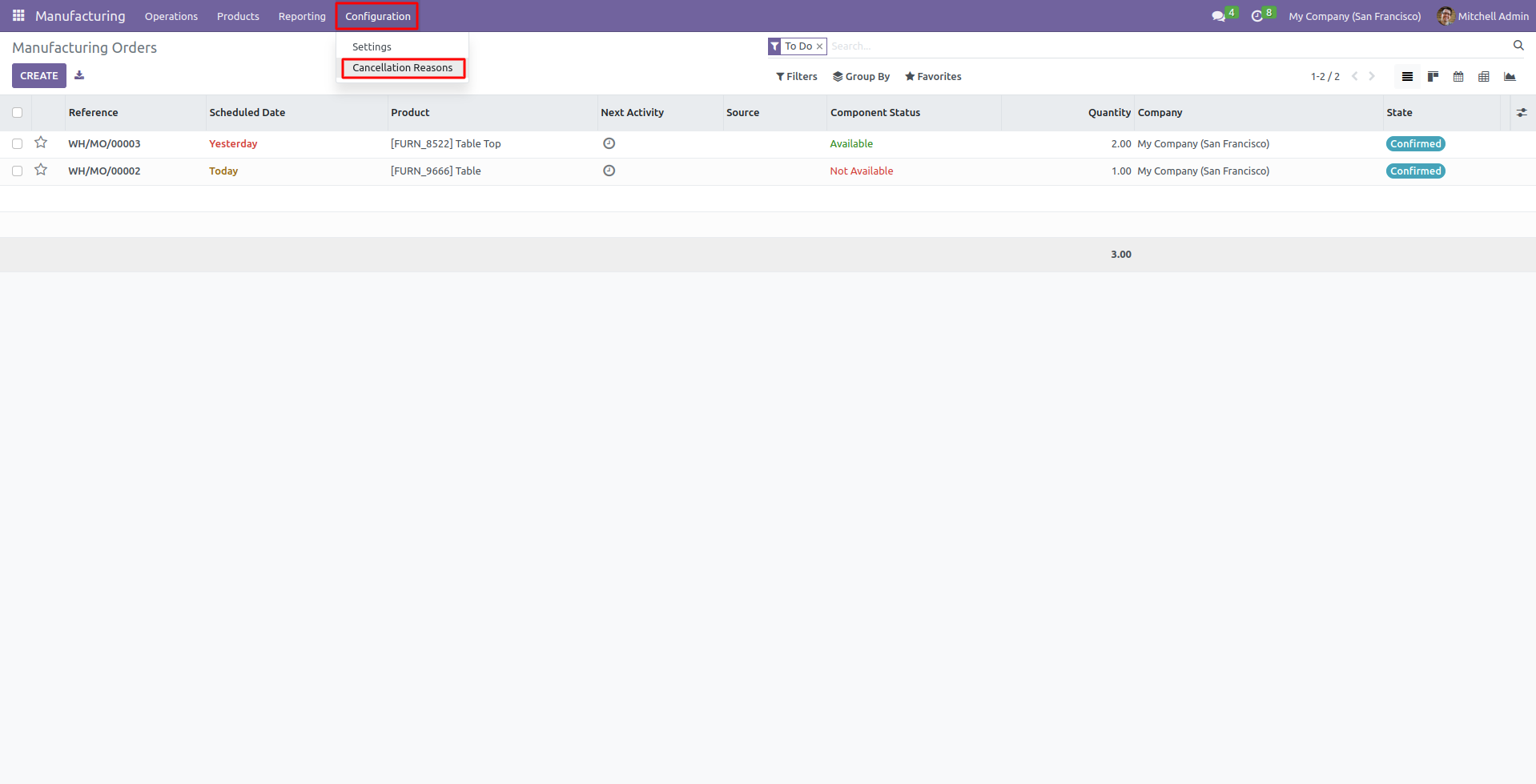
3. Click on the Create button to create new cancellation reasons.

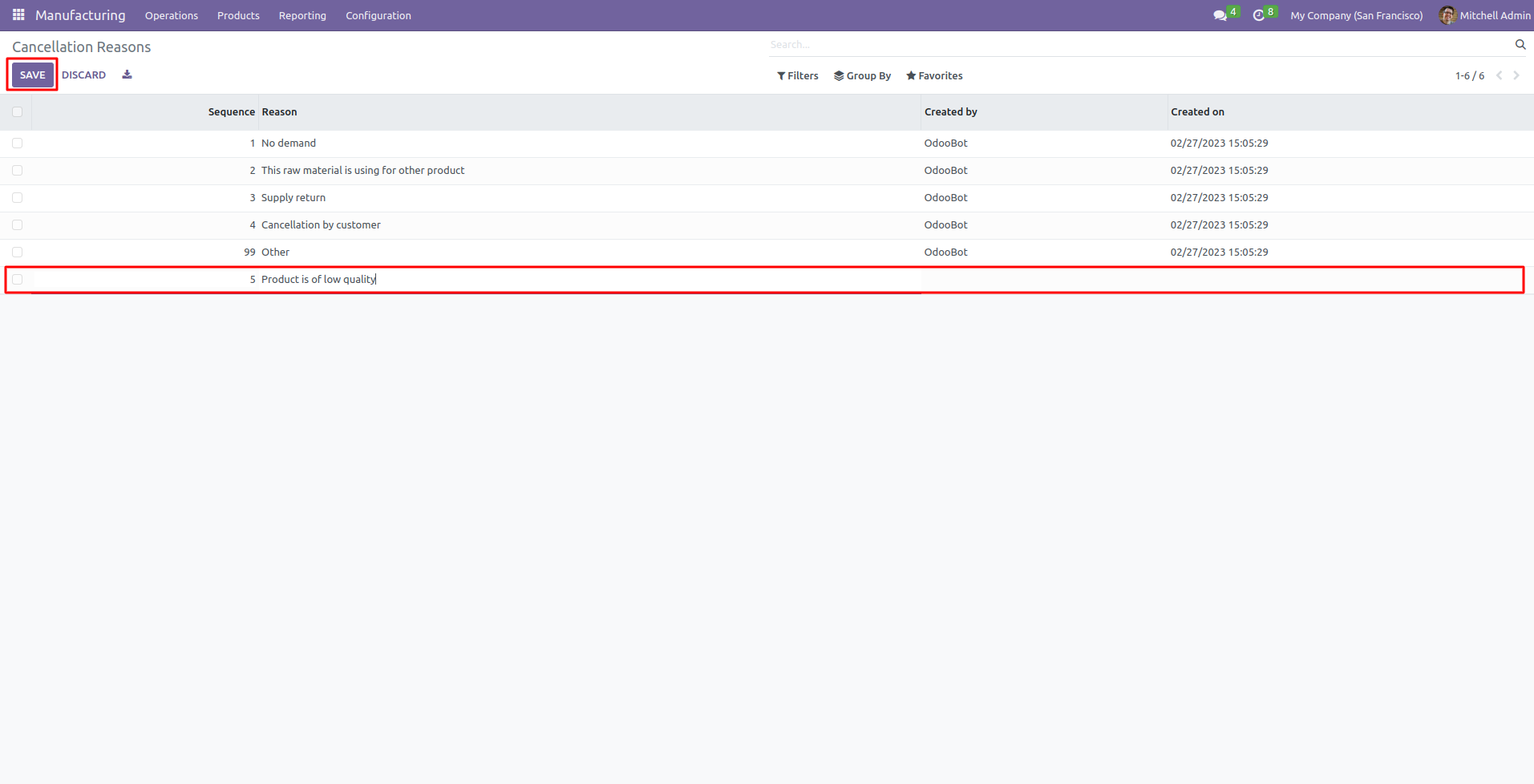
4. Create the reason and click on the save button.
CANCEL MO IN BULK
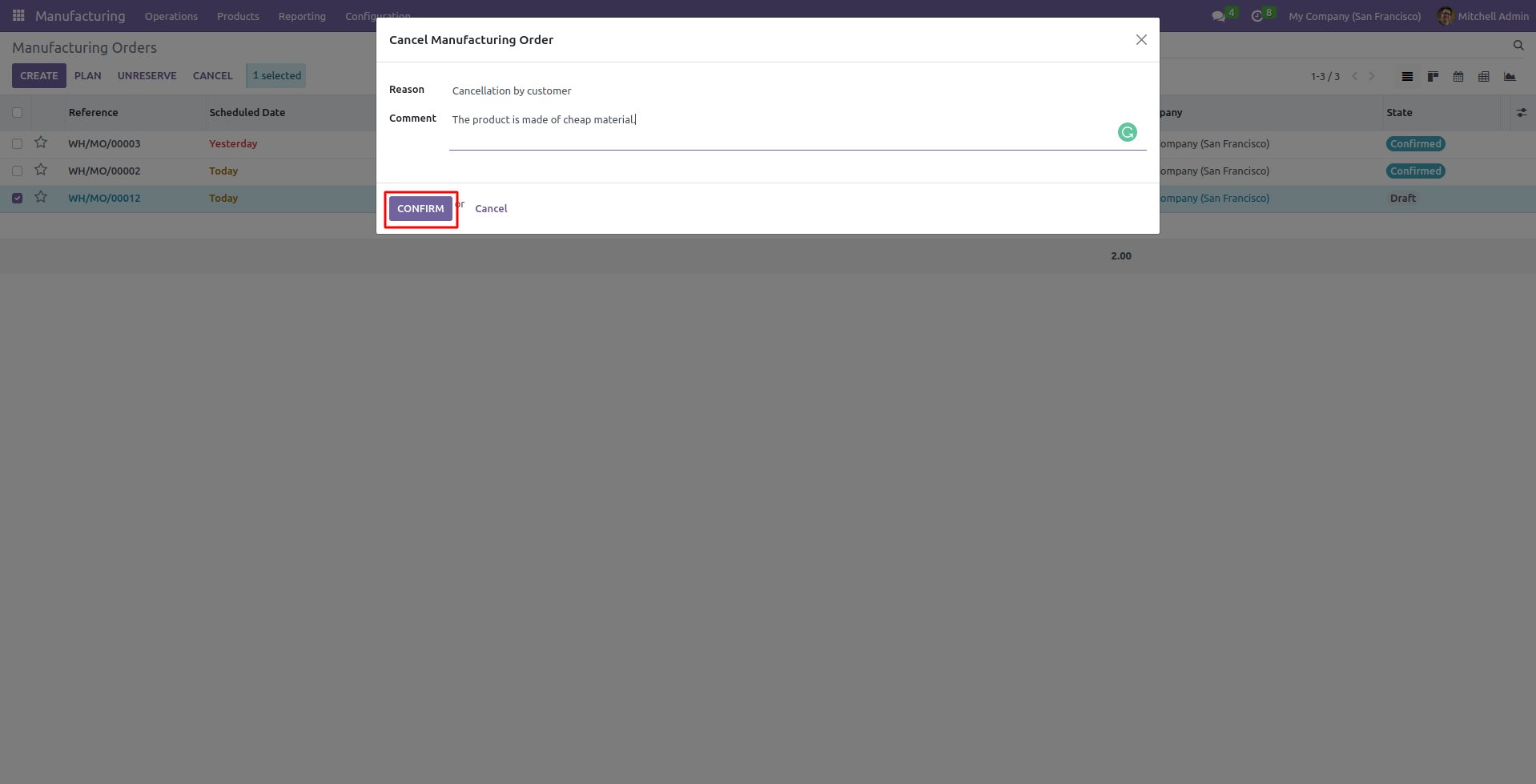
5. After configuration, Select the manufacturing order which you want to cancel; Click on the Action button and select the cancel manufacturing order to cancel these orders. You can also cancel the order which is in the done state.

6. Add the reason for canceling the manufacturing order; then click on the confirm button.
CANCEL MANUFACTURED ORDER
7. You can also cancel an already manufactured order and it will replenish the stock of every involved unit. For doing so, place a MO for a product and ‘Confirm & Mark it Done.’

8. Now, go to ‘Manufacturing> Products> Products’ to view the quantity of the manufactured product increased and the number of components decreased.
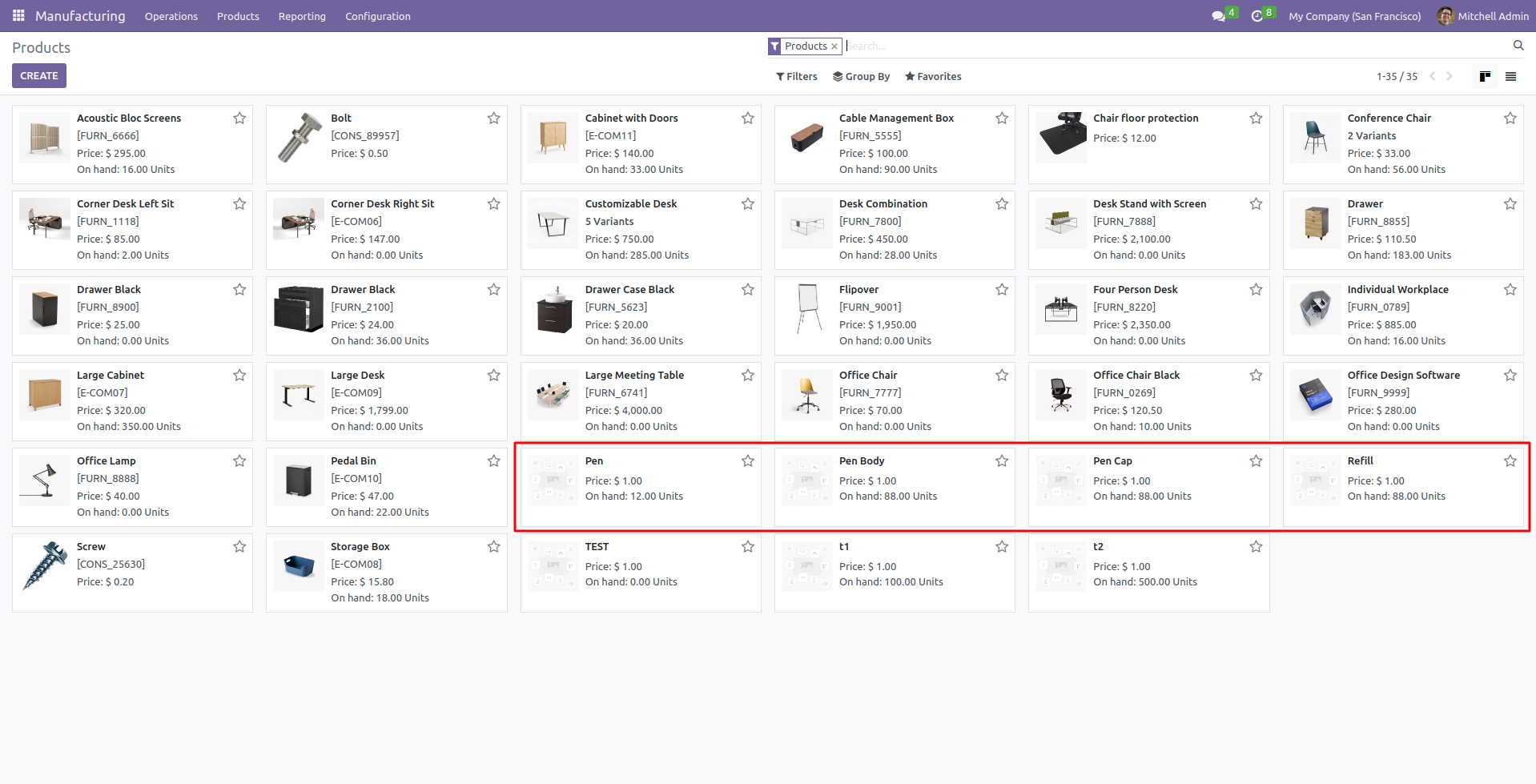
9. Move again to the ‘Confirmed MO’ and click the ‘Cancel’ button.
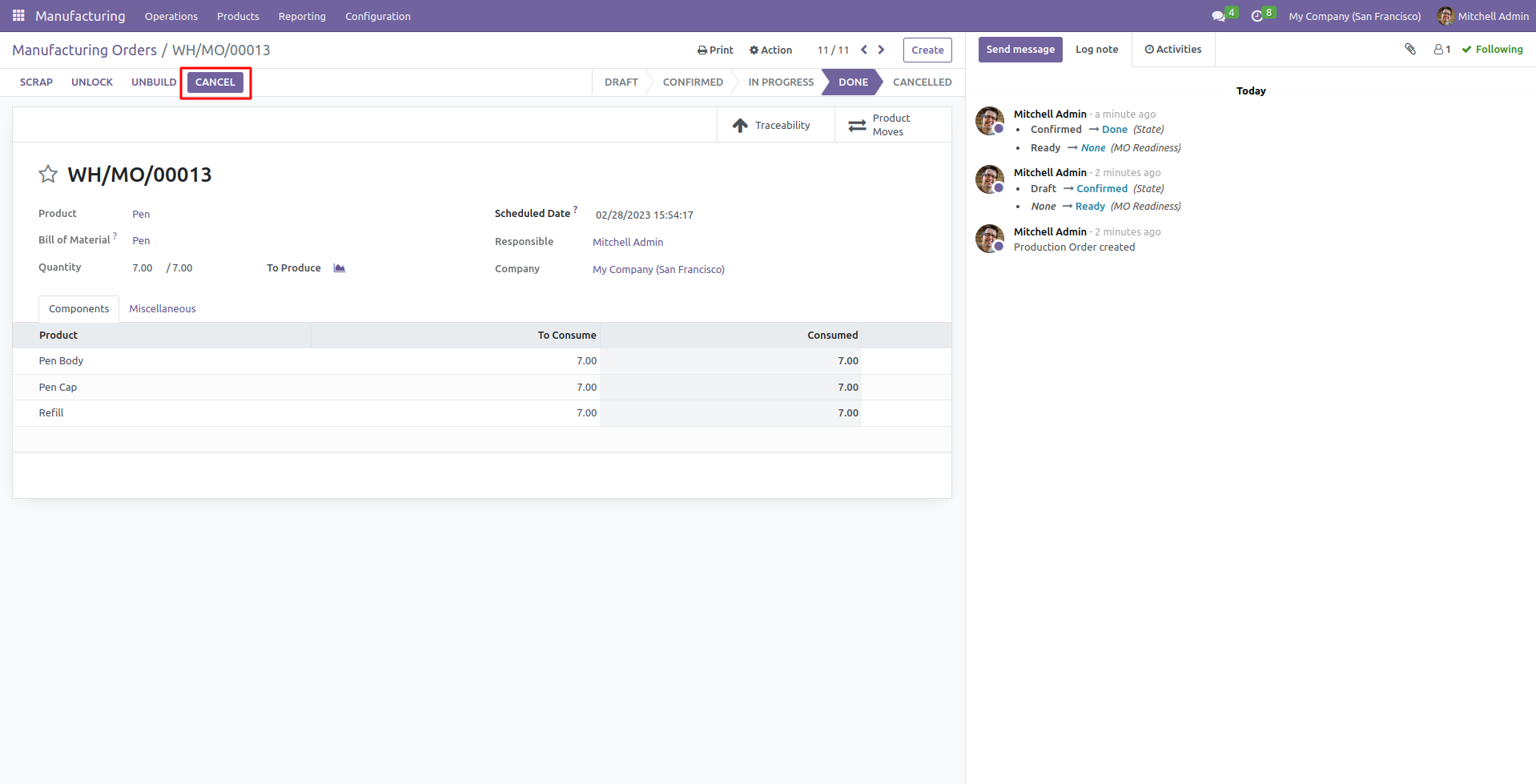
10. In the popup, select the reason, state the reason for the same, and click the ‘Confirm’ button.

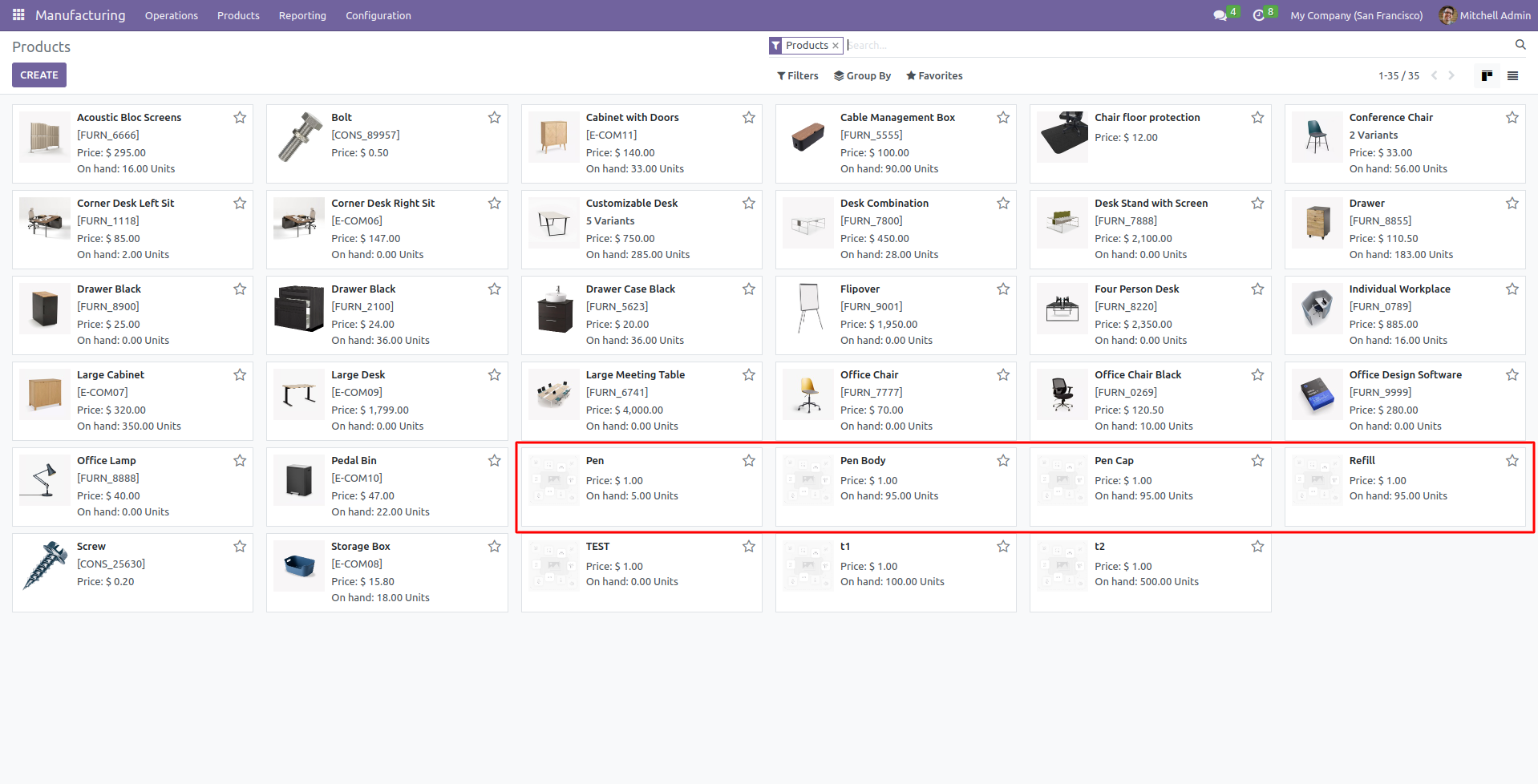
11. After cancellation, you can check the quantities replenished for the component and decrease in MO quantity.
OTHER ODOO MODULES
- Odoo Discount On Purchase Order
- Keep Initial Address For Delivery
- Odoo Price Inclusive For Group Taxes
- Odoo Merge Purchase Order
- Print Odoo Reports via Zebra Printer
- Odoo To-Do List
NEED HELP?
Hope you find the guide helpful! Please feel free to share your feedback in the comments below.
If you still need any help related to the module, please raise a ticket at https://webkul.uvdesk.com/en/customer/create-ticket/.
Also, please explore our Odoo development services & an extensive range of quality Odoo Apps.
For any doubt, contact us at [email protected].
Thanks for paying attention!!
Current Product Version - 1.0.0
Supported Framework Version - Odoo 16, 15, 14


Be the first to comment.