INTRODUCTION
Odoo Multichannel Shopify connector: bridges the gap between your Shopify store and Odoo, enabling smooth data synchronization across both platforms.
The tool should help manage the Shopify operation efficiently with Odoo. To solve this, we have introduced our Connector.
This module helps sync products, orders, and customer data between Odoo and Shopify, making inventory tracking easier and improving overall operations.
Additionally, you can consider the Odoo 19 update to understand the latest enhancements included.
FEATURES
- Imports categories, products, orders, and customers from Shopify to Odoo.
- It allows you to export categories and product templates from Odoo to Shopify.
- This module syncs product quantities/stock from Odoo to Shopify in real time.
- This module updates sale order statuses, including cancel status and shipment status, in real time.
- Odoo Multichannel Shopify Connector allows setting regular intervals for automatic data (order, product, customer, category) import using Cron.
- It also provides an option to avoid product duplication during imports.
- With this module, you can import data with various filters, such as all, ID, Date updated after and Date created after.
- Track import history in the synchronization history tab.
Prerequisites For Using Odoo Multichannel Shopify Connector User
Odoo Multichannel Shopify Connector works in conjunction with the following module:
You must install this module first for Odoo Multichannel Shopify Connector to work.
For Odoo online(SAAS) users, you first need to migrate to Odoo.sh platform before installing this connector because Odoo restricts third-party software installations on Odoo online(SAAS).
INSTALLATION
- Once you purchase the App from the Webkul store, you will receive the link to download the zip file of the module.
- Extract the file on your system after the download finishes. As a result, you will be able to see a folder named- ‘shopify_odoo_bridge’
- Copy and paste this folder inside your Odoo Add-Ons path.
- Now, open the Odoo App and click on the Settings menu. Here, click on Activate the Developer Mode.
- Then, open the Apps menu and click on ‘Update Modules List.’
- In the search bar, remove all the filters and search ‘shopify_odoo_bridge
- You will be able to see the module in the search results. Click on ‘activate’ to install it.
WORKFLOW
CONNECTION PROCESS
Configuration at Shopify end
a) First, log in to the Shopify instance, go to ‘Apps and Sales Channels,’ and click the ‘Develop Apps’ button.
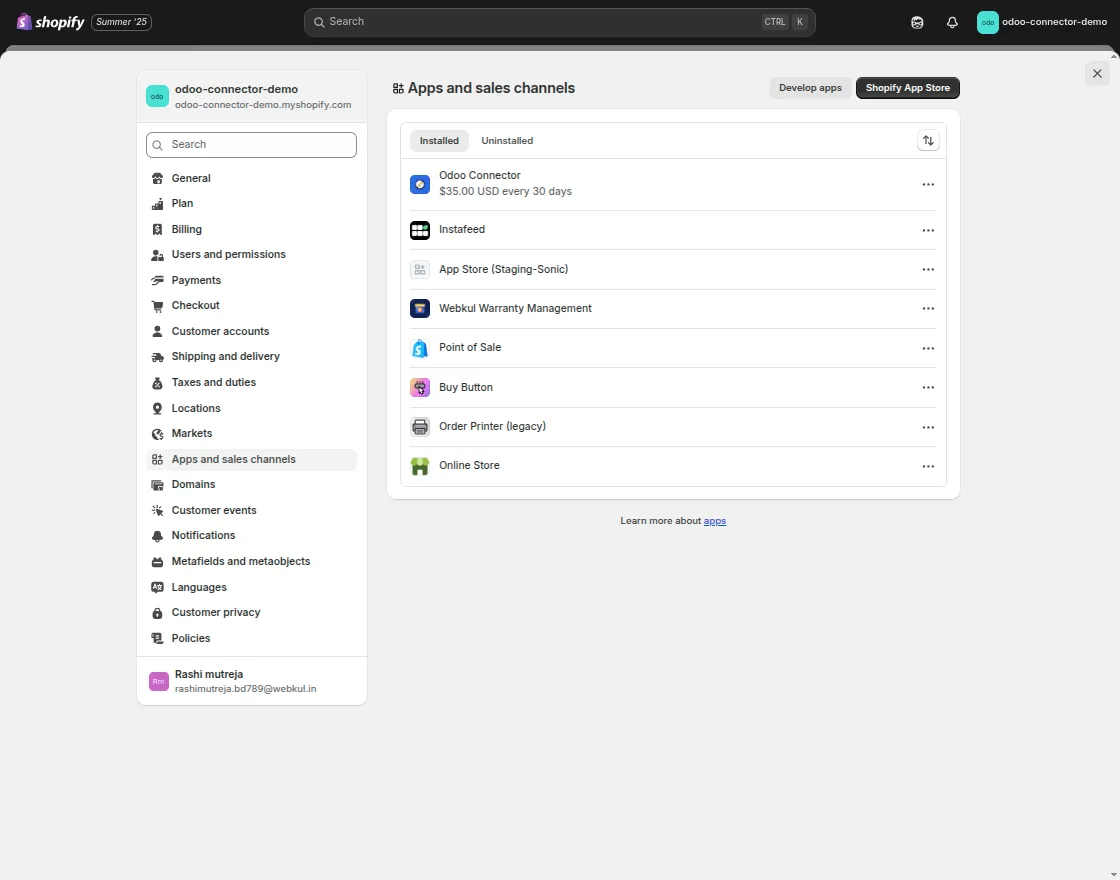
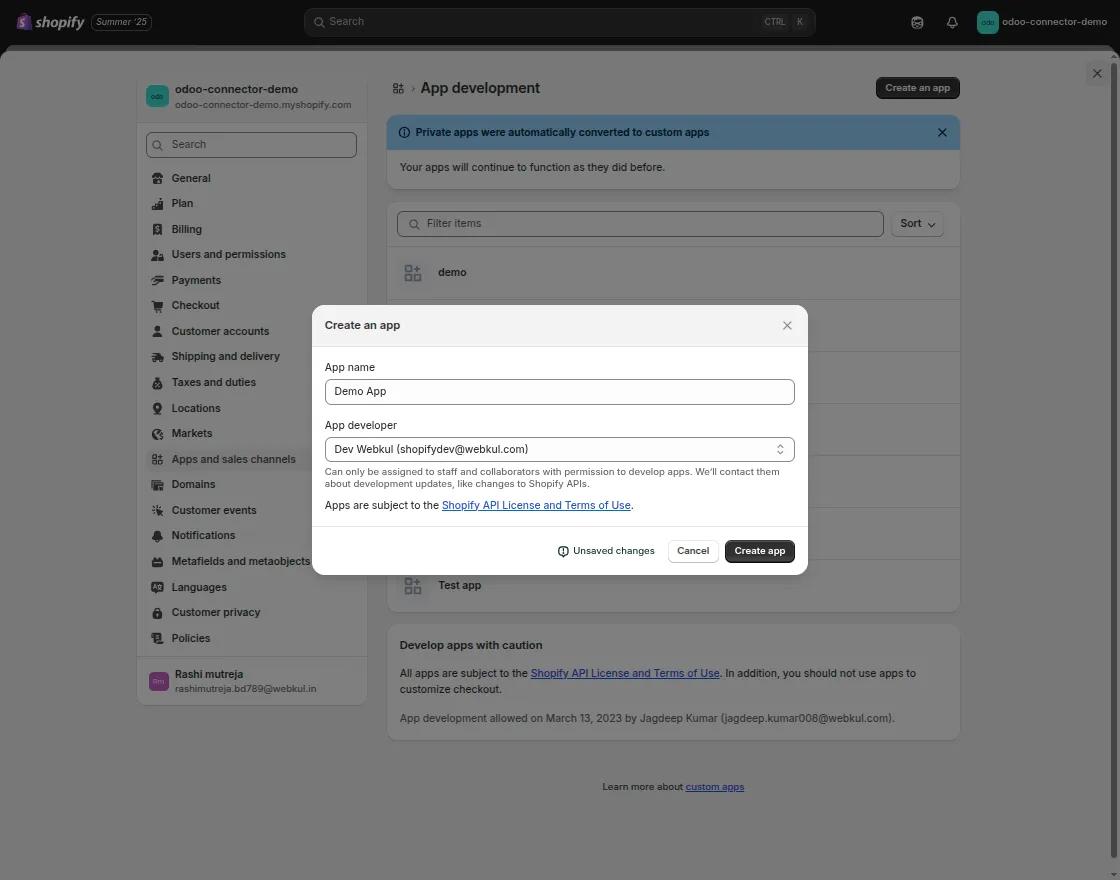
b) Click on Develop apps, then create a new app and add the name of your app.
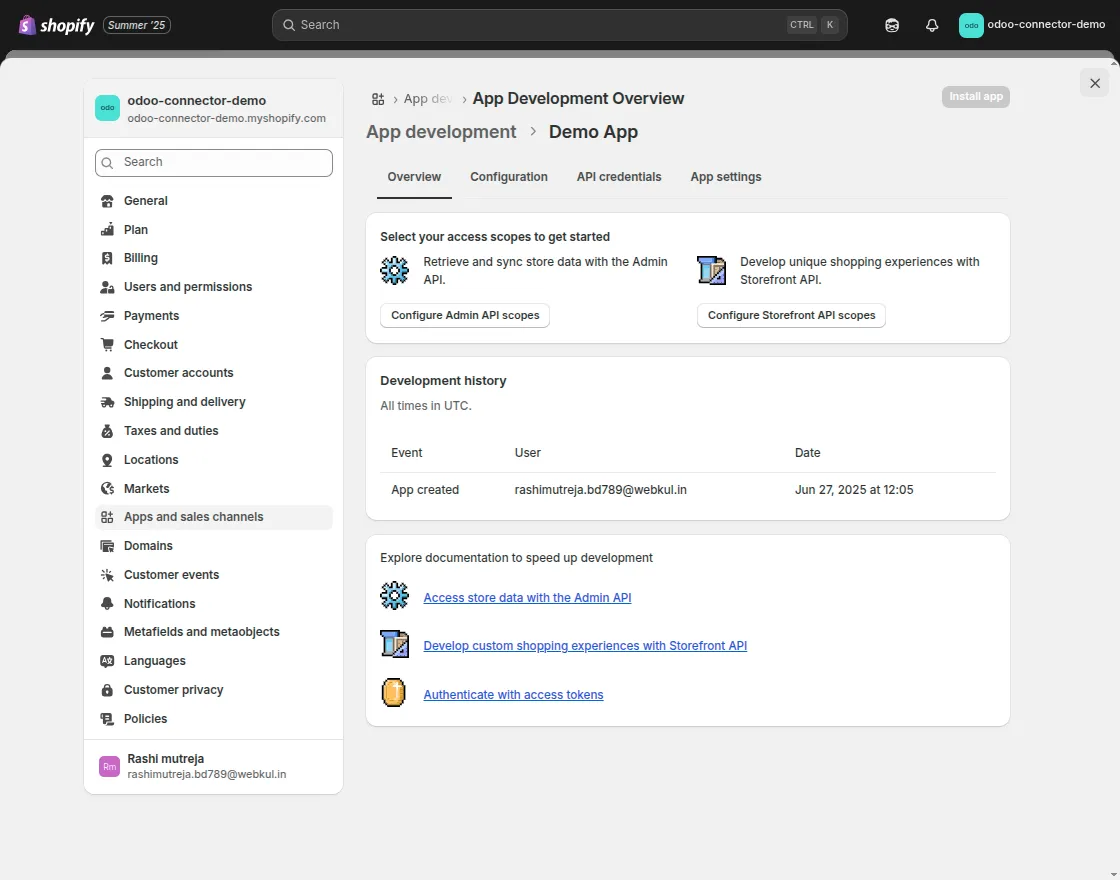
c) Click on Configure Admin Api Access and configure the app accordingly.
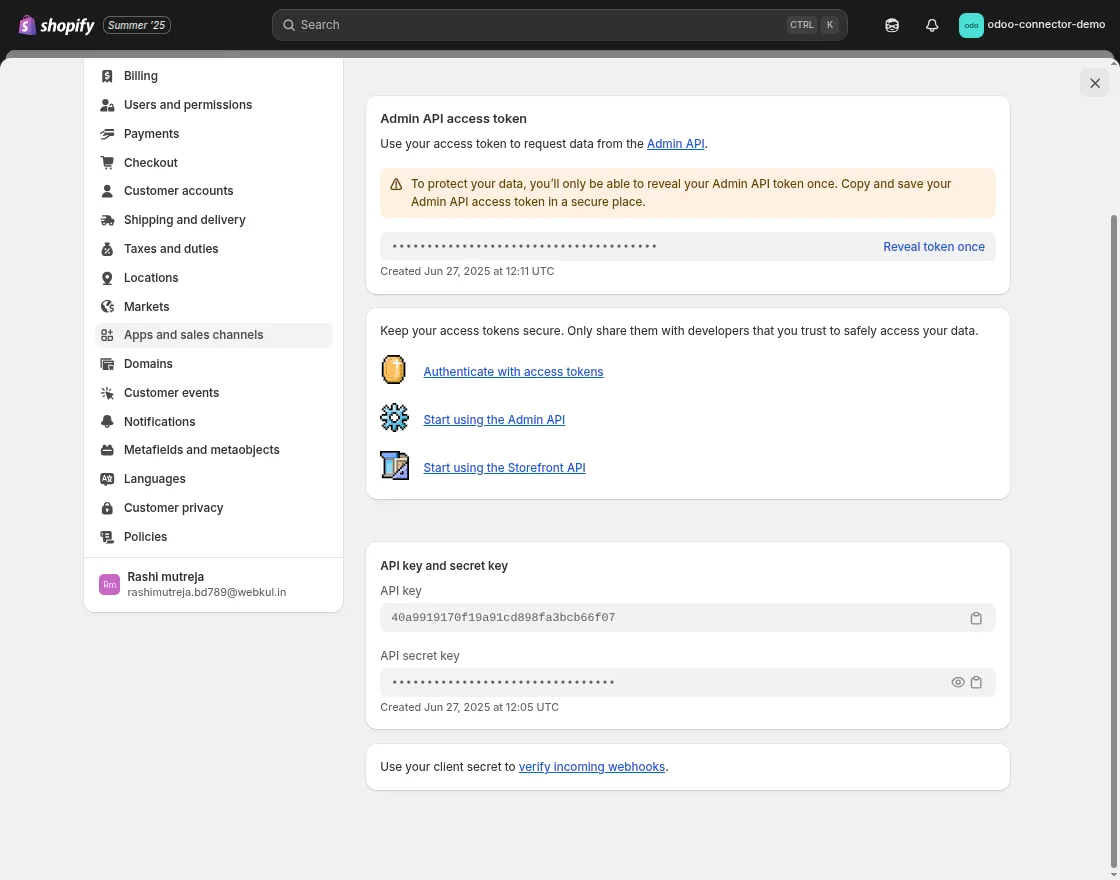
d) Move to the ‘API Credentials’, install the app to get the Access Token and the other credentials , copy them and add at Odoo.
Configuration at Odoo end
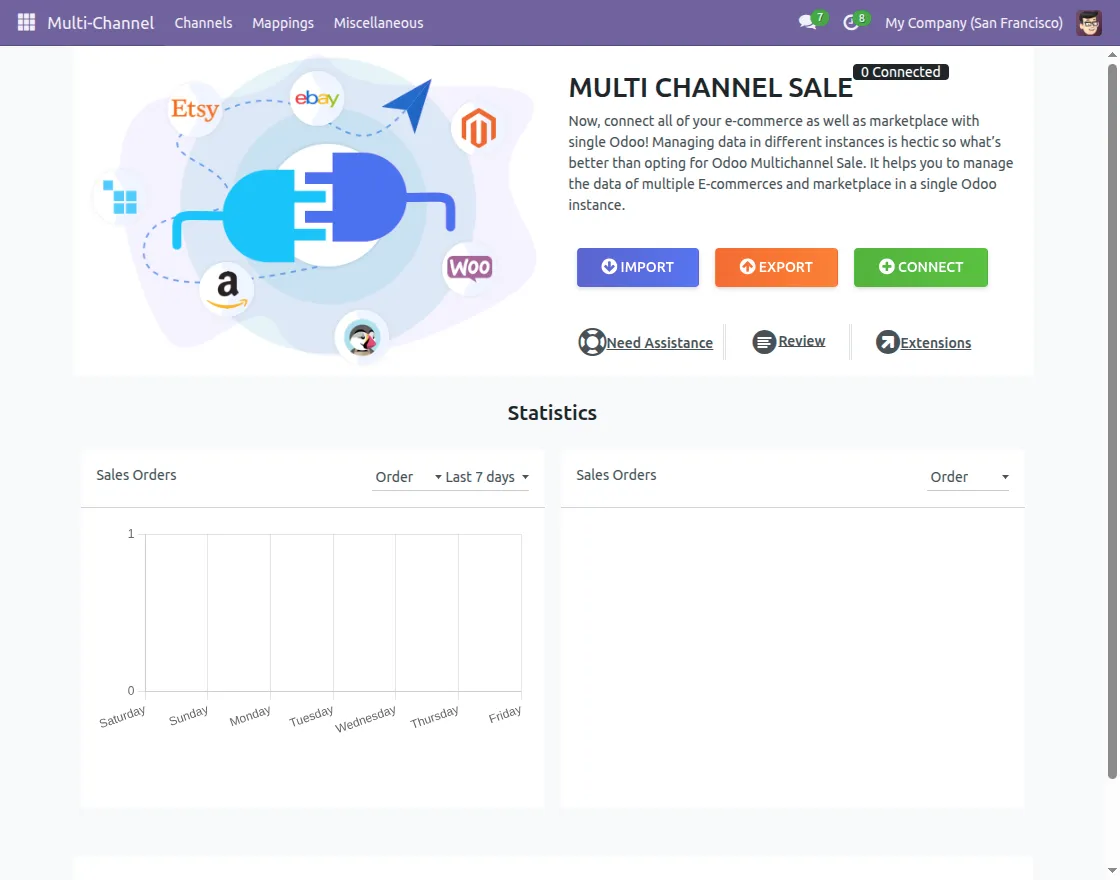
1- After the installation, log in to your Odoo account. Navigate to the multi-channel app and click the connect button.
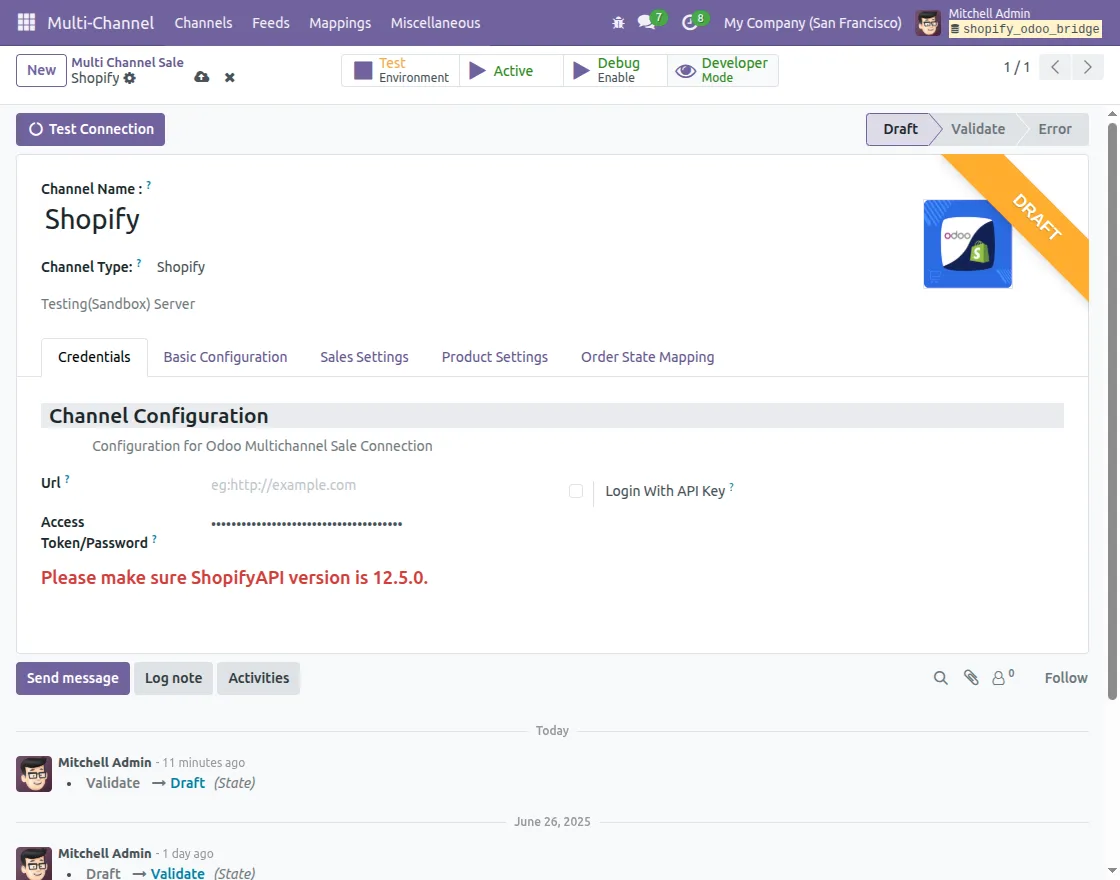
2-Add the channel and select the channel type as Multichannel Shopify. Once you configure the channel type, the Multichannel Shopify channel configuration setting will be enabled.
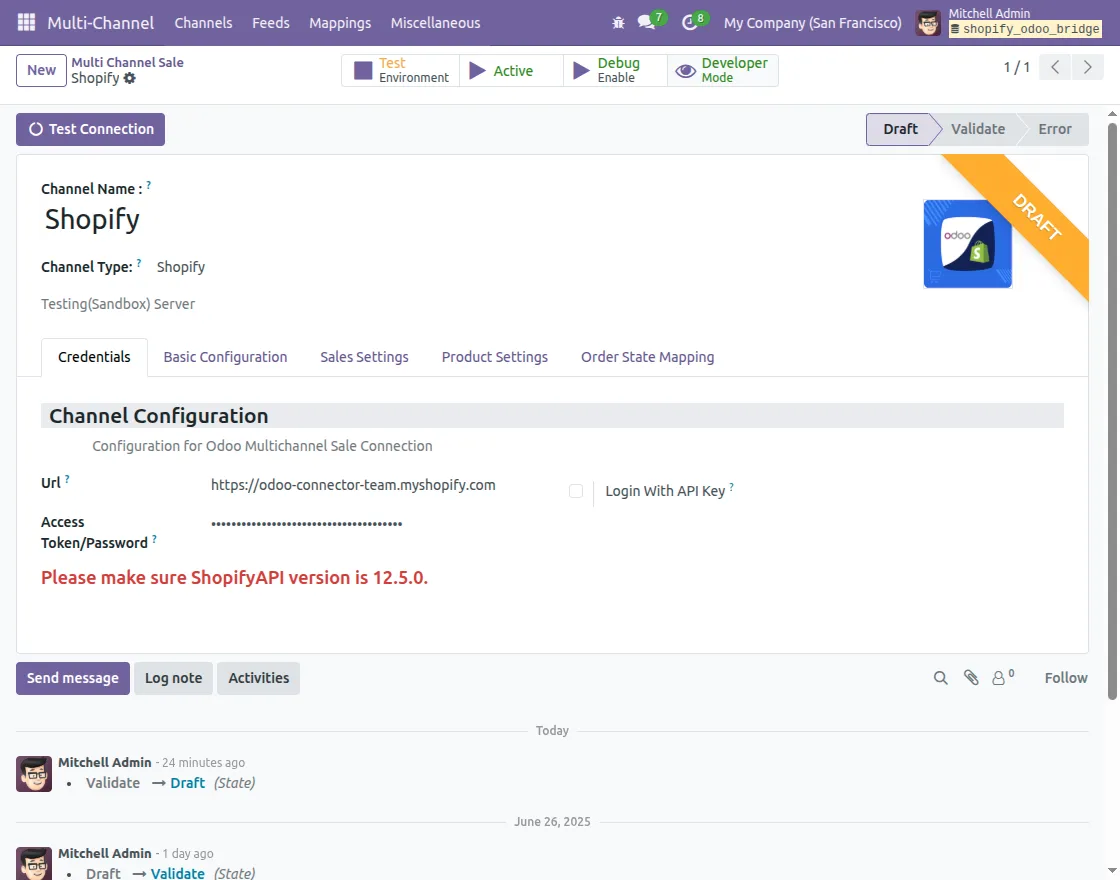
3. Now, save the changes and then click on the ‘Test Connection‘ button
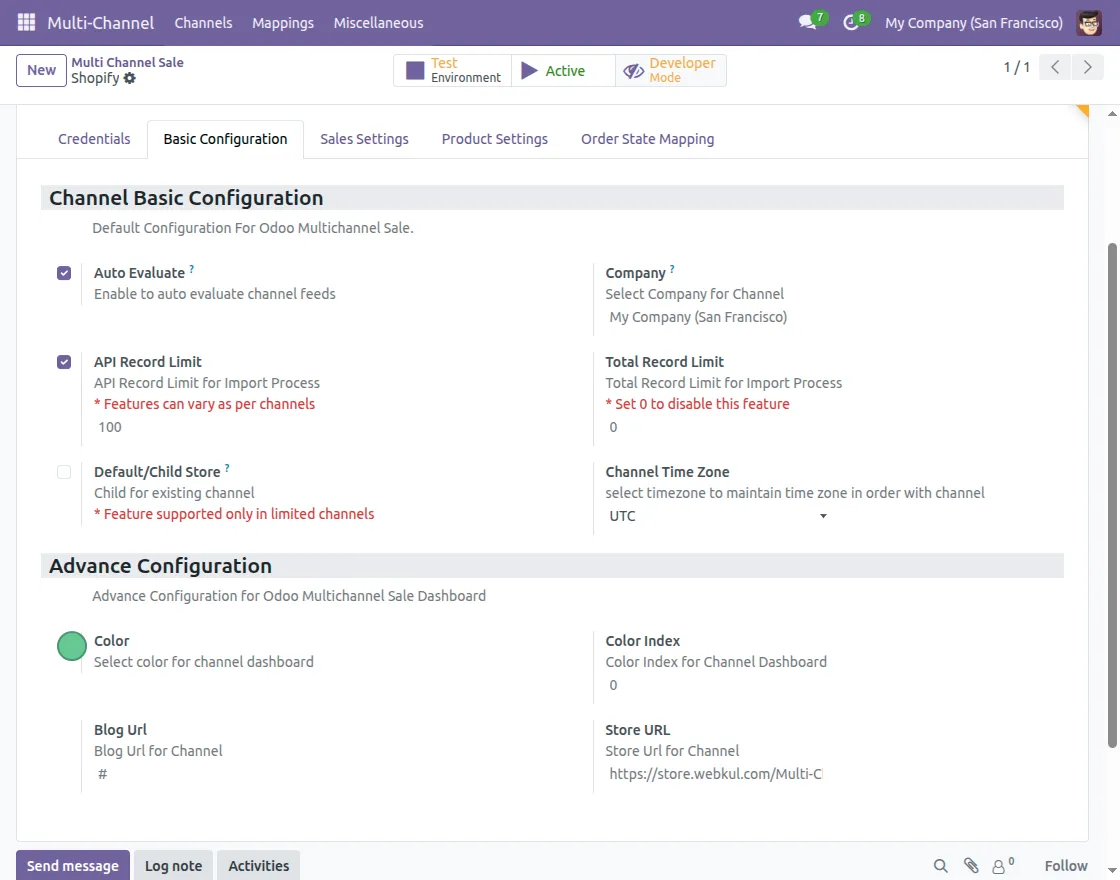
4. Go to the “Basic Configuration” tab and configure the Shopify connection with Odoo Multichannel Shopify Connector
BASIC CONFIGURATION
Channel basic configuration: The basic configuration of the channel includes the following settings:
Auto-evaluate: When you enable auto-evaluate, it will evaluate the feed of the imported data automatically.
Company: Select the default company for the imported data from Shopify to Odoo.
API Record Limit: In the API record limit, you can set the limit of data that will sync between Odoo and Shopify.
Channel time zone: Select the timezone to maintain the time zone in order with the channel
Advanced configuration: Under the advanced configuration for Odoo Multichannel Sale, you can configure color, color index, blog URL, and store URL.
SALE SETTING
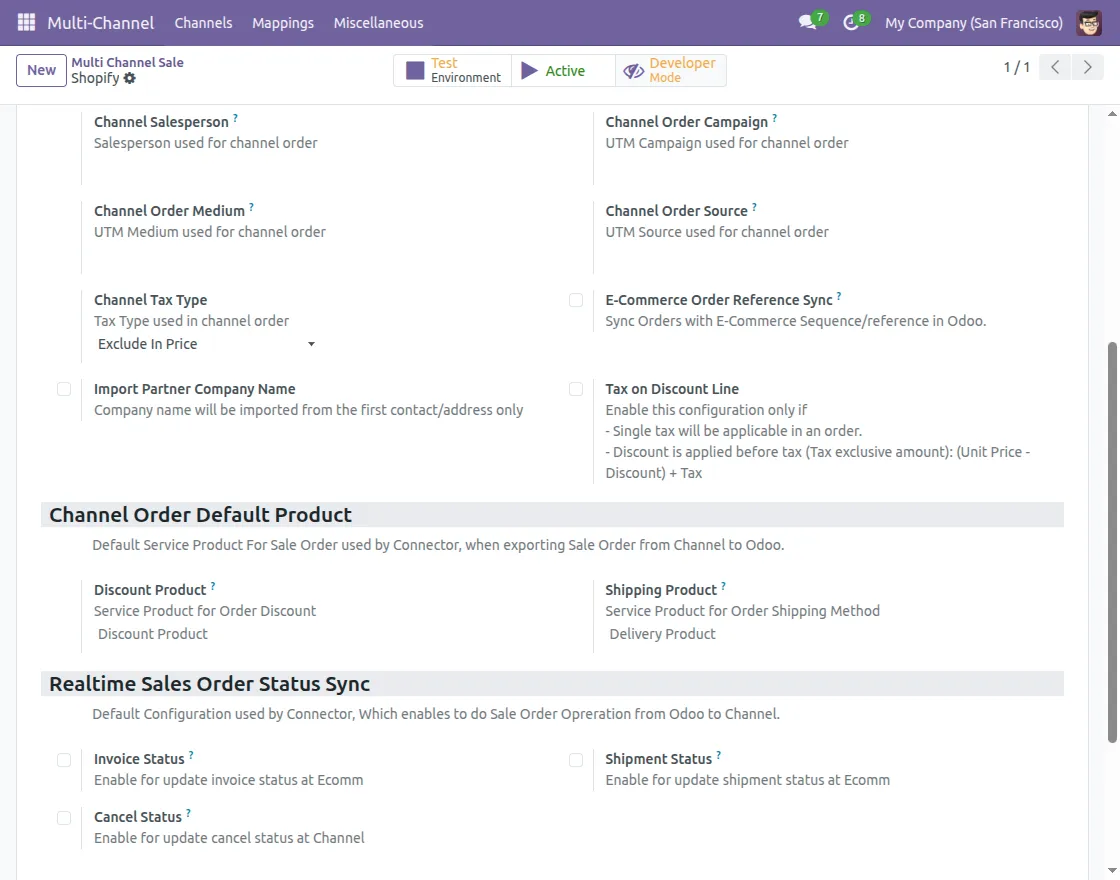
Channel Sales Order: The Channel Sales Order includes the following settings:
Payment Term: Configure the Payment terms for the payment of sale orders imported from Shopify to Odoo.
Sales Team: Configure the sales team for sales orders imported from Shopify to Odoo.
Salesperson: Configure the salesperson for sales orders imported from Shopify to Odoo.
Campaign: Configure the UTM Campaign for sales orders imported from Shopify to Odoo.
Medium: Configure the ordered medium for sale orders imported from Shopify to Odoo.
Source: Configure the order Source for the sale order imported from Shopify to Odoo.
Tax Type: Configure the Tax Type used in channel order. You can select the tax type as tax type tax included or tax excluded.
E-Commerce Order Reference Sync: If enabled order will created with the ecomm sequence at Odoo end.
Channel Order Default Product
Discount Product: Configure the service product for the Service Product for Order Discount on the imported sale order.
Shipping Product: Configure the service product for the Service Product for Shipping product for the imported sale order.
Real-time Sales Order Status Sync
With this setting, you can enable the real-time sync of the order status from Odoo to Shopify. You can configure the real-time sync of the cancel and shipment status from Odoo to Shopify.
PRODUCT SETTING
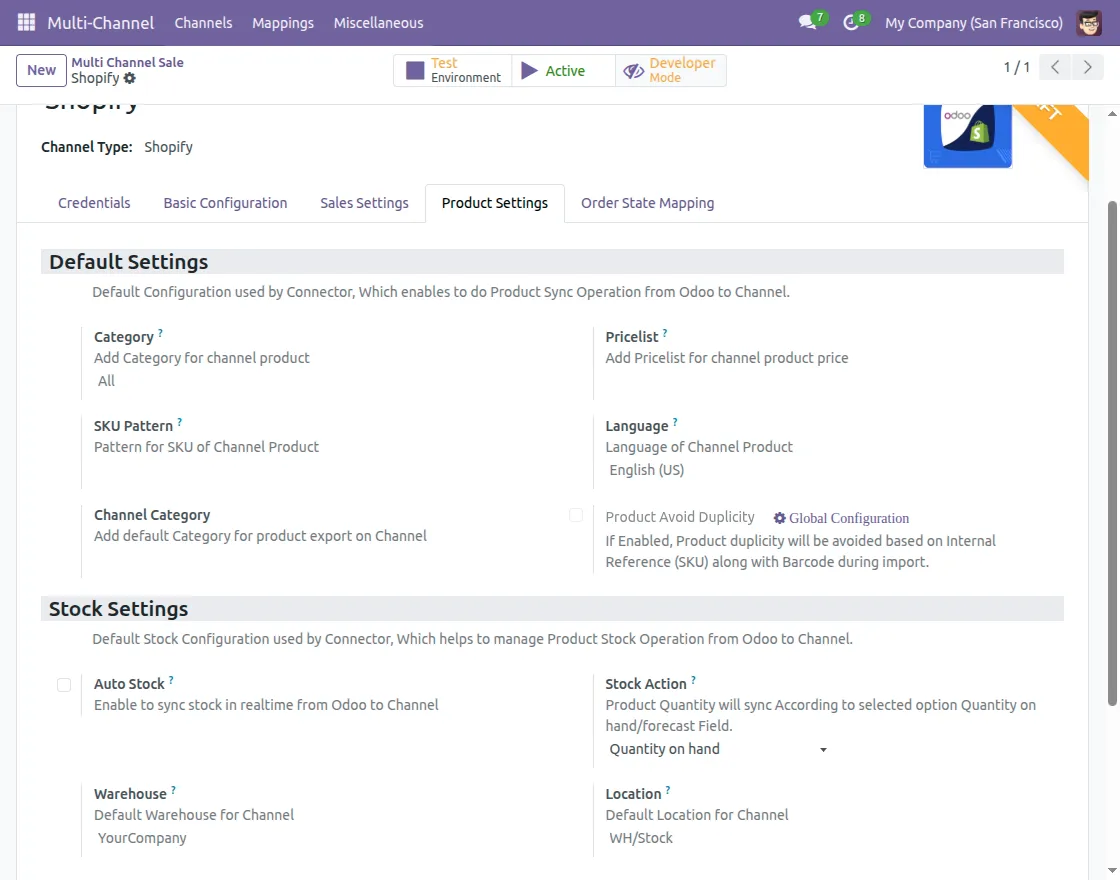
Default Settings
Category: At the ecom end user can apply multiple categories, but at Odoo end, only a single category is applied. Set the default category in which imported orders will be stored
Price list: This price list stores the Original price of the product exported from ecom to Odoo.
Language: the set language in the language option will be applied to objects synced from ecom to Odoo.
Channel Category: While exporting the product from Odoo to Shopify, the product will be stored in the configured category.
SKU Pattern: The value configured here will be used as an SKU in case the SKU is not present.
Product avoid duplicity: If enabled, Product duplicity will be avoided based on the Internal Reference (SKU) along with the Barcode during import.
Stock Settings:
Auto Stock: If enabled, stock will be synced from Odoo to Shopify in real time whenever there isa a stock movement.
Stock Action: Product Quantity will sync according to the selected option, Quantity on hand/forecast Field.
You can either select the sync of on-hand quantity or forecasted quantity.
Warehouse: It is the default warehouse that is used for the import of products from Shopify to Odoo.
Location: It is the default location where your stock will be stored when imported from Shopify to Odoo.
CRON
We have provided cron features that will import data from Shopify to Odoo. Data will be Imported Based on the Created/Updated after a defined date.
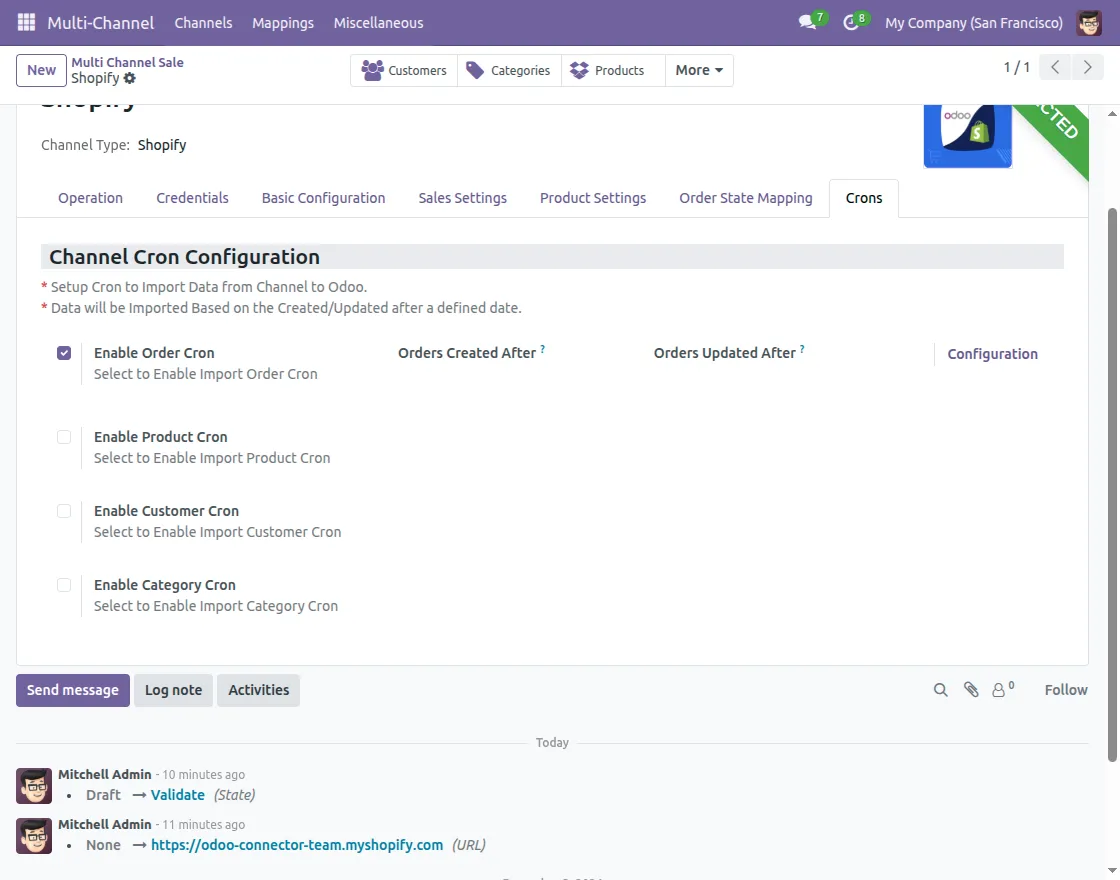
Cron Configuration in Odoo Multichannel Shopify Connector
To configure the cron, navigate to Miscellaneous >> Global configuration >> Select the cron you want to configure. Here, you will find the order product customer category and feed cron.
NOTE: Data will be imported based on the created/updated or defined date.
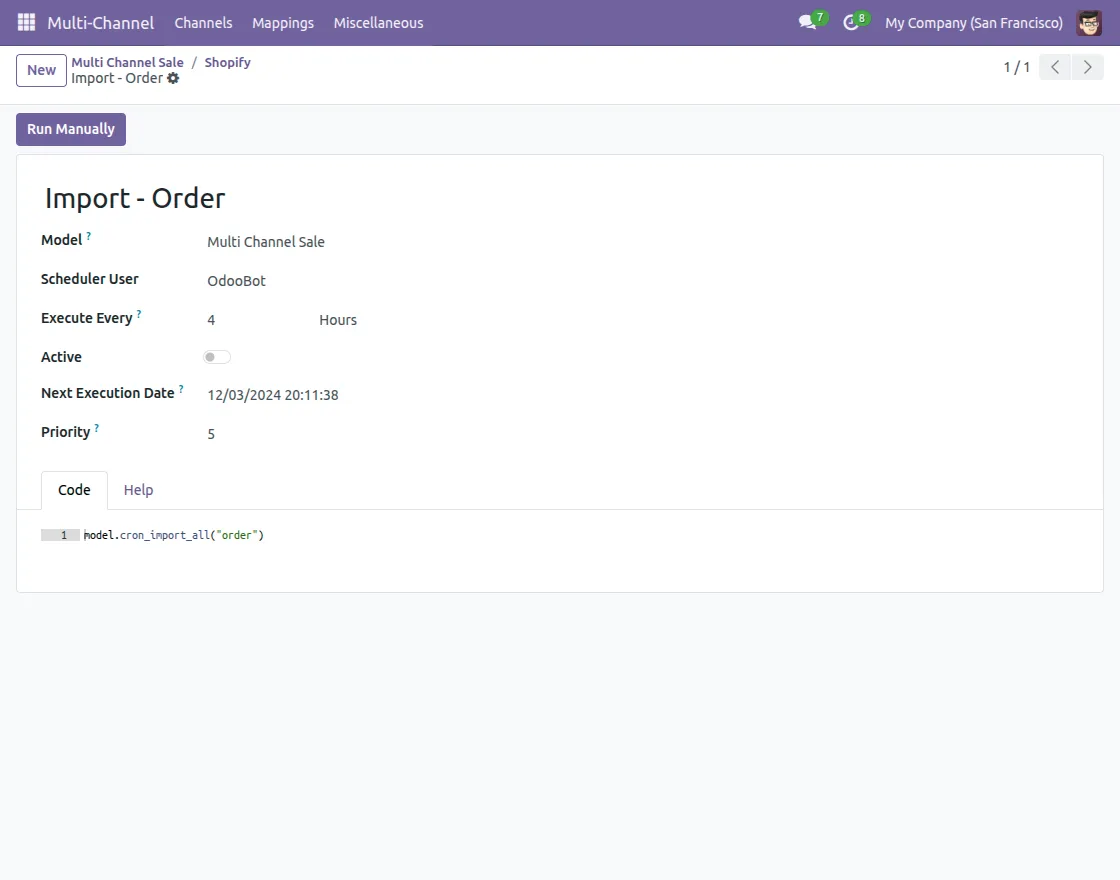
Model: It is the module on which the server acts.
Scheduler User: This user will be responsible for running the scheduler.
Execute Every: Here, you can configure the time interval for the execution of the cron.
Active: Enable if you want to enable the respective cron.
Next Execution Date: The next Planned execution date for this job.
MISCELLANEOUS
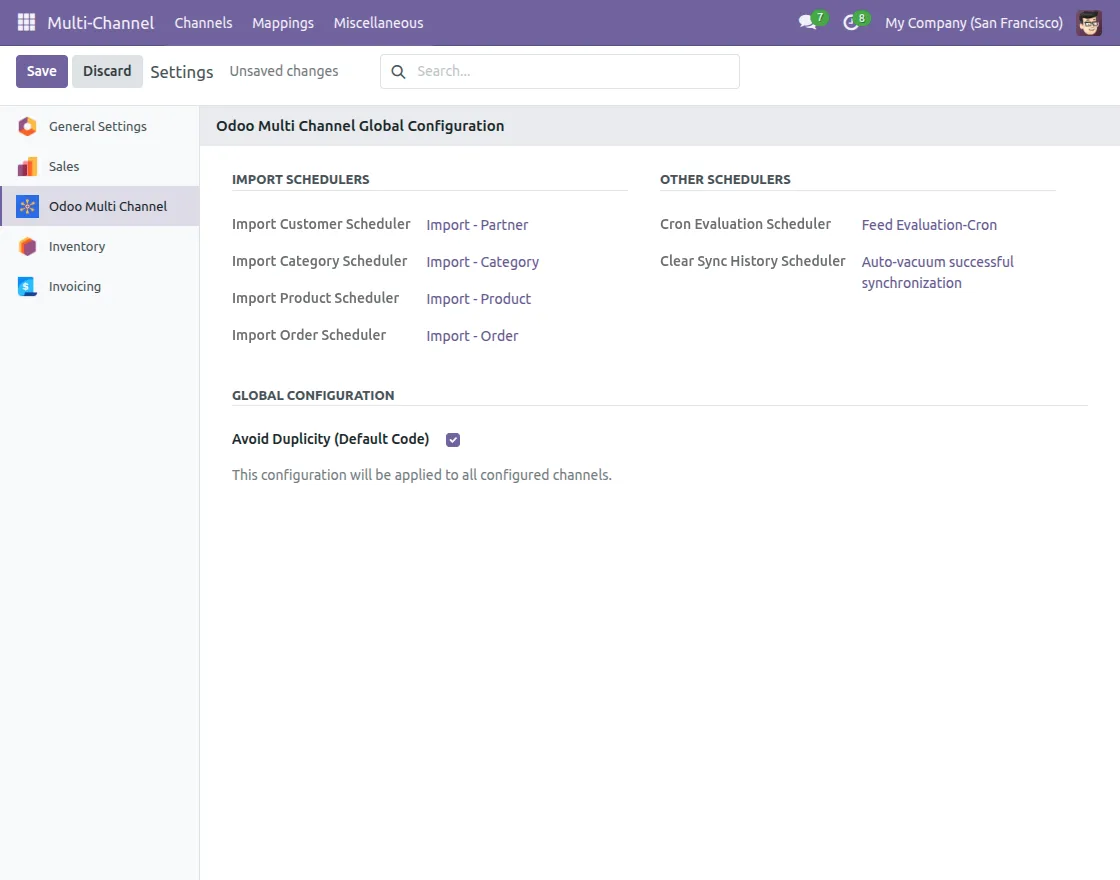
GLOBAL SETTINGS
Next, go to the ‘multi-channel> miscellaneous> global configuration.’
From here, you can configure the import scheduler and enable ‘Avoid Duplicity (Default Code)’ to avoid double imports or exports of unchanged data.
SYNCHRONIZATION HISTORY
In the ‘Synchronization History’ option, you can view the entire history of every sync.
On clicking anyone, you can see all the details of the history sync in Odoo Multichannel Shopify Connector
FEEDS IN ODOO MULTICHANNEL SHOPIFY CONNECTOR
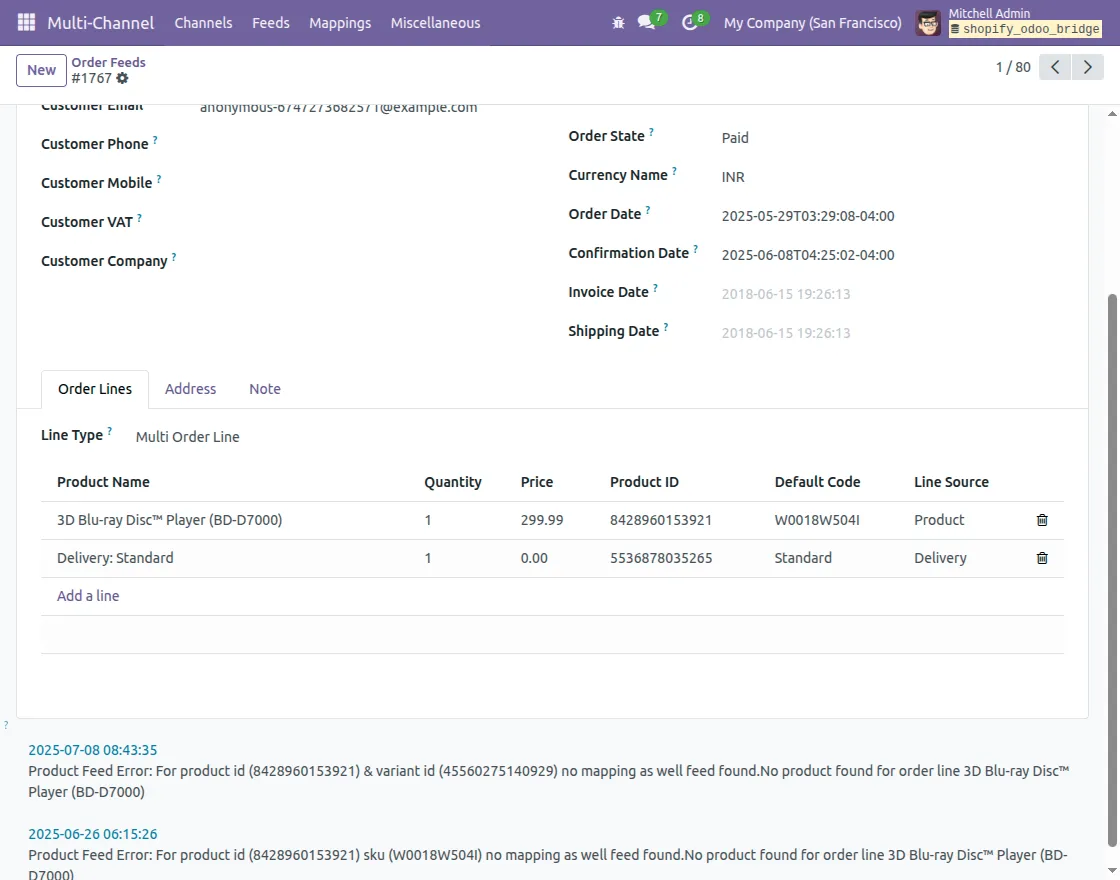
Whenever any data, such as orders, products, or customers, is received from your Shopify platform into Odoo, it first appears in the “Feeds” section.
Purpose of Feeds
The Feeds section acts as an area where our connector evaluates the incoming data to ensure that all necessary details are correct and complete.
If the feed data is evaluated successfully, it automatically moves into odoo through evaluation (if auto-evaluation is enabled) or can be manually approved.
If the data contains errors (for example, the product does not exist in Odoo or the customer information is incomplete), it will be marked as an error feed .
Why Feeds are Helpful
If a record, such as an order or product, doesn’t appear in Odoo after the import, you can check the Feeds section to see the exact error. This helps you understand why the data wasn’t imported.
In many cases, you can fix the issue yourself, such as mapping a missing product or customer, and then re-evaluate the feed without needing developer assistance.
DATA MAPPING IN ODOO
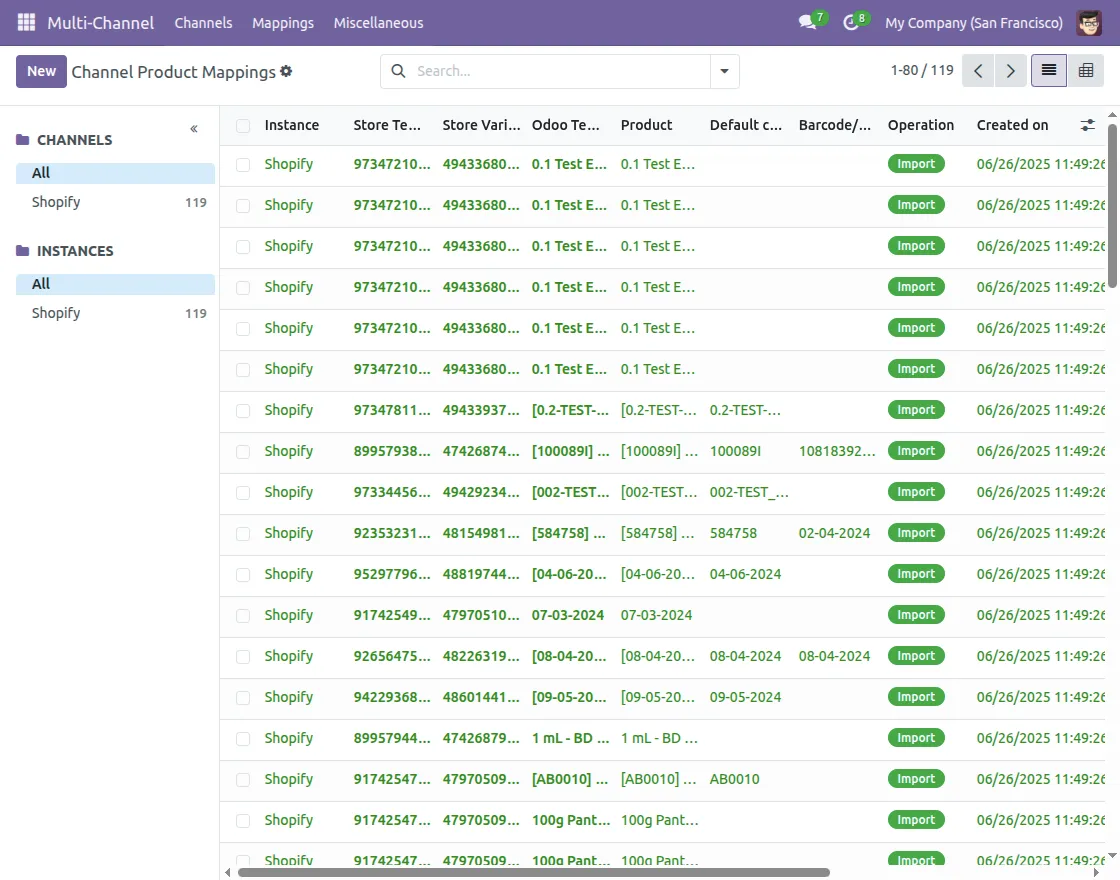
You can view the mapping of all the imported and exported data, such as products, categories, orders, customers, and shipping methods, in Odoo.
On opening any page from the mapping menu, you can view the list view of every mapping.
Mapping>>open the component mapping you want to see (category)
On clicking any, you can view the details of that particular mapping with Odoo Multichannel Shopify Connector
DATA SYNCHRONIZATION
DATA IMPORT
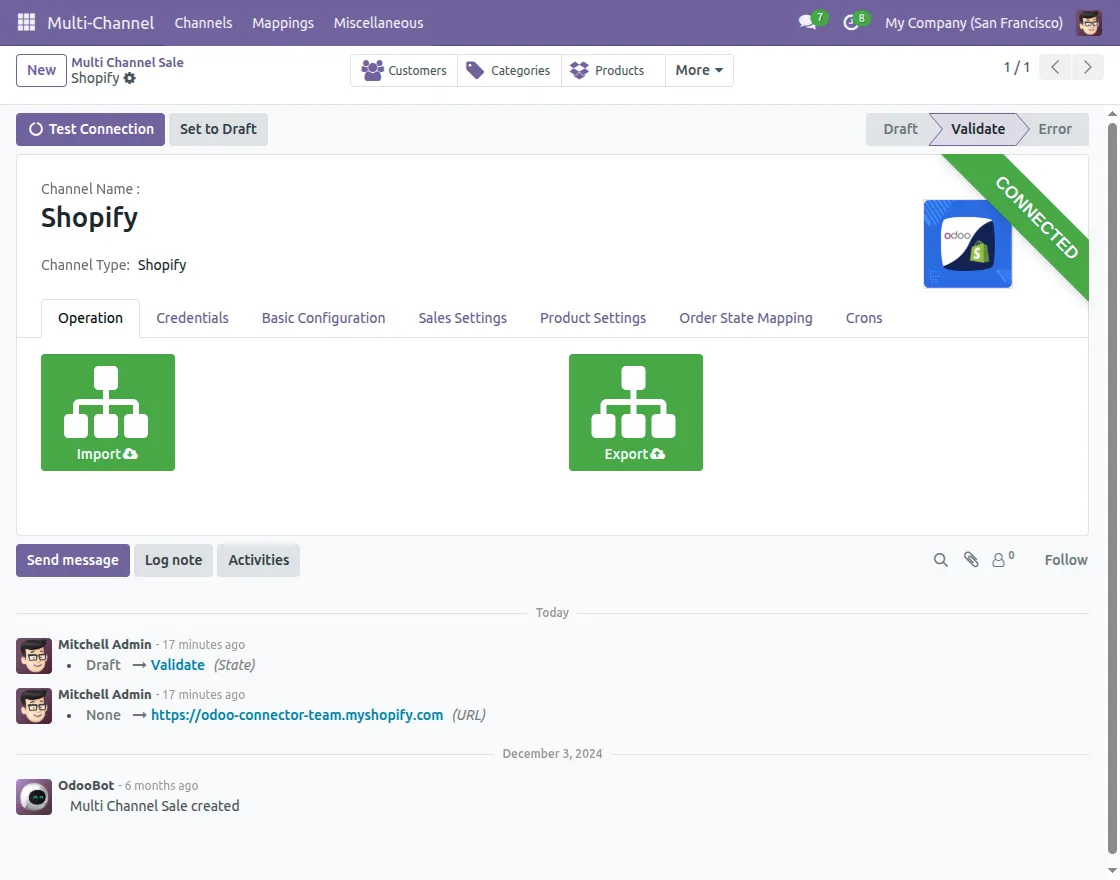
You can import data from the connection’s operation tab. You can also use the import button on the dynamic dashboard.
Note: Order of importing data: categories >> product >> order.
To import the order, your product must be imported, and similarly, to import the product, your categories should be imported from Shopify to Odoo.
Moreover, you can only import the following data from Shopify to Odoo.
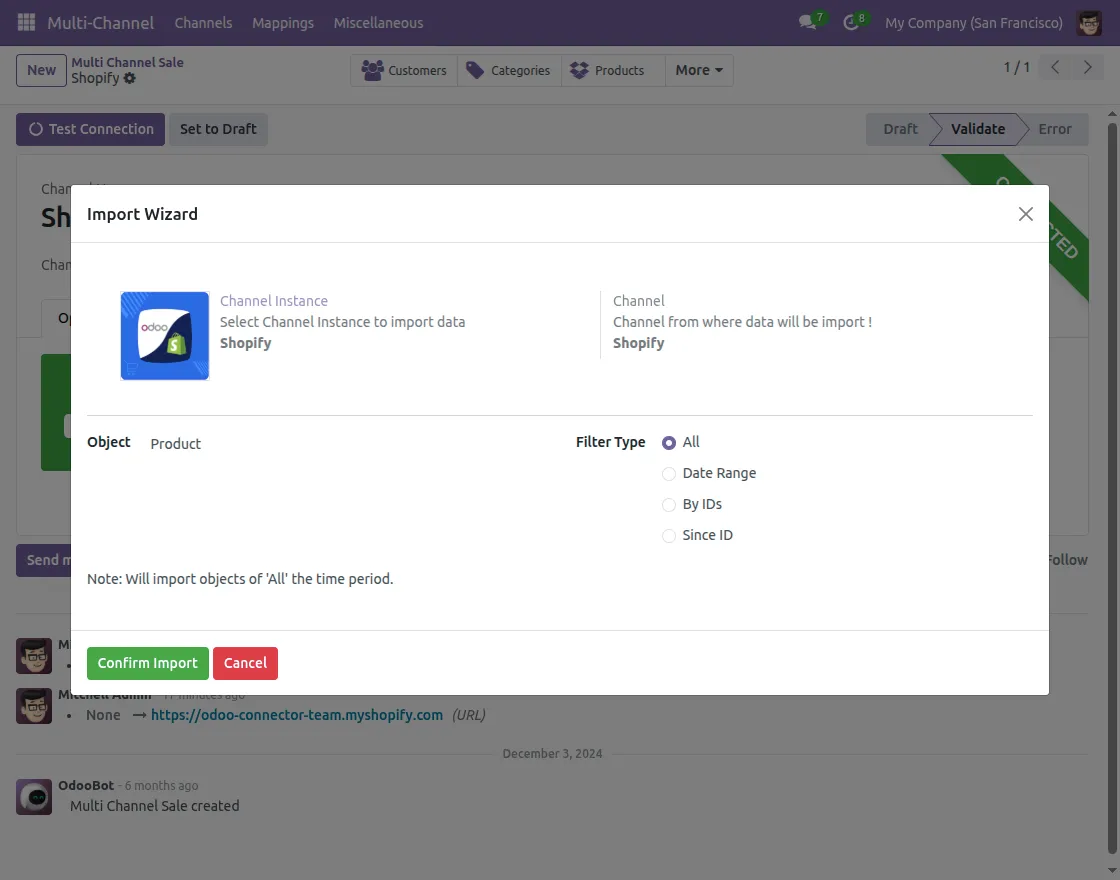
Products– You can import products using filters like all, ID, and Date updated after.
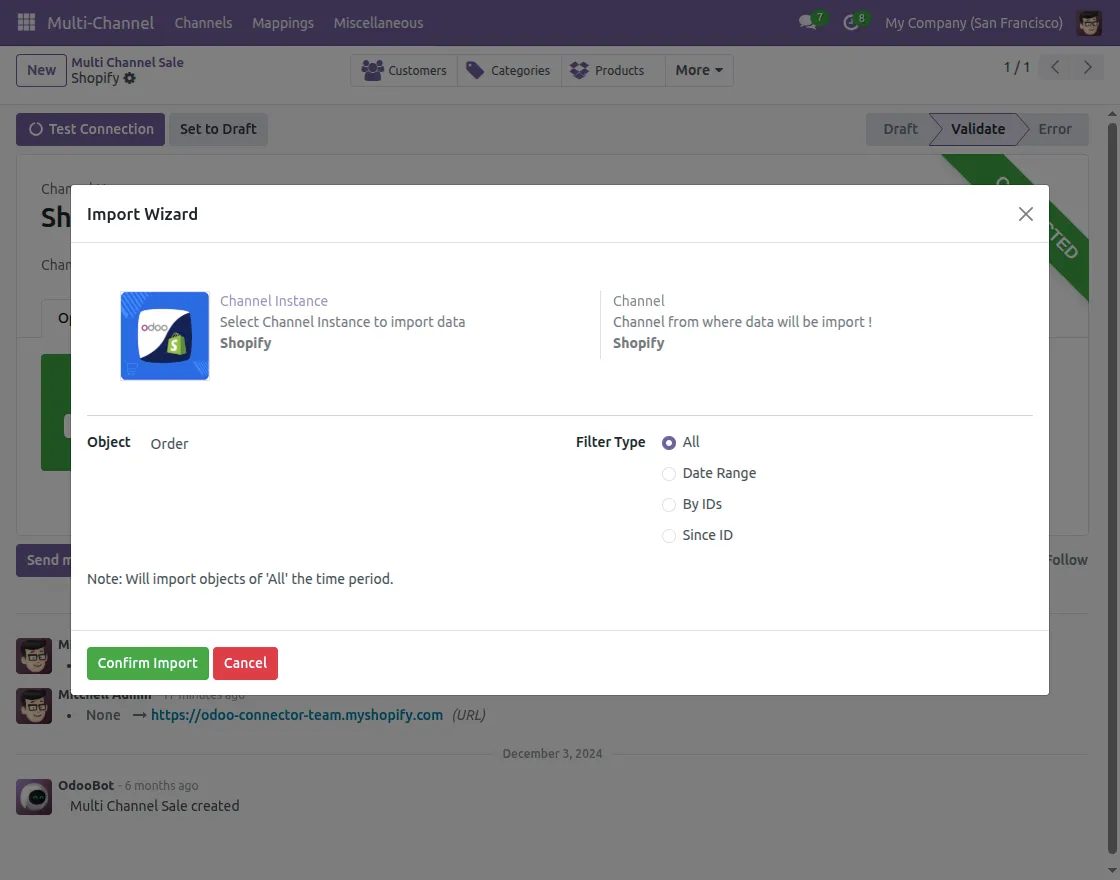
Order– Import using filters like all, ID, Date updated after and Date created after.
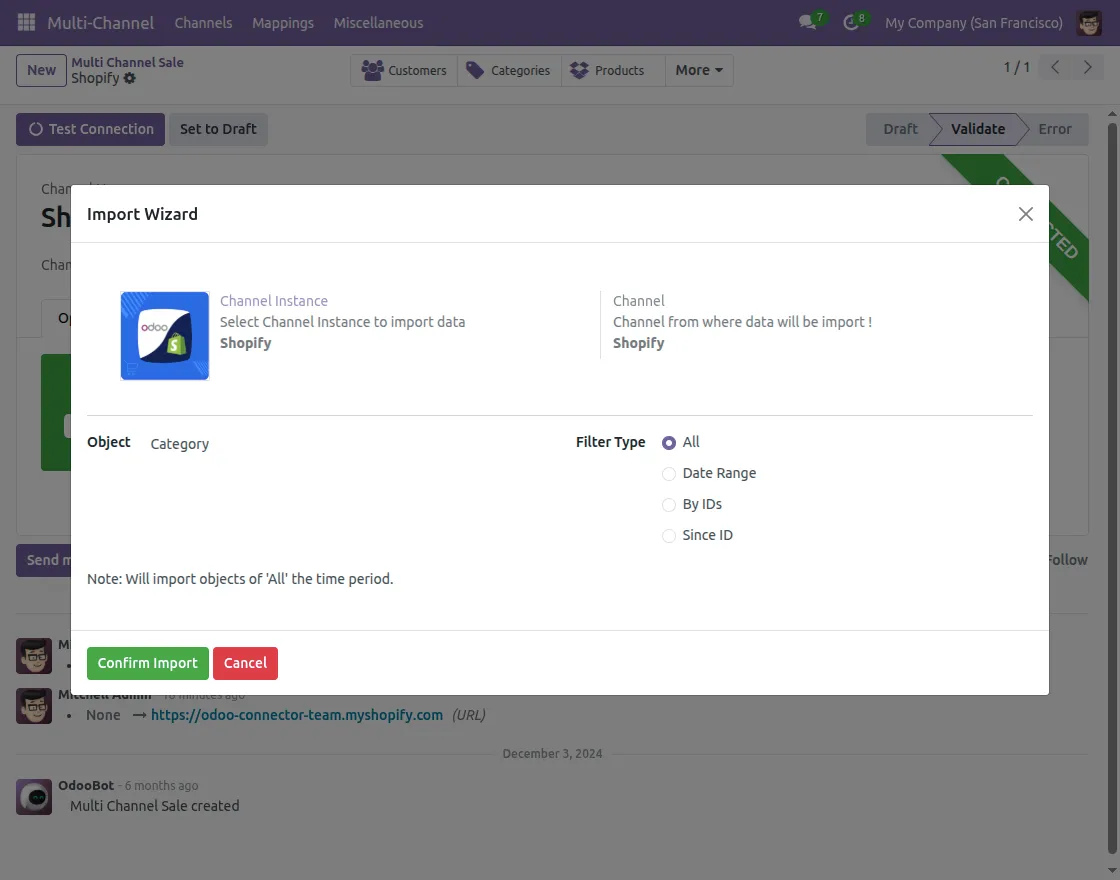
Category– Import categories using filters like all, ID, and date updated after.
Customer– Import them using the filters like all, ID, Date updated after and Date created after.
Shipping method Import: Import of shipping method is not available.
You can import all of this data using the filters mentioned above. Moreover, for data import, you must select the ‘channel instance, object, and filter’ in the import wizard.
DATA EXPORT
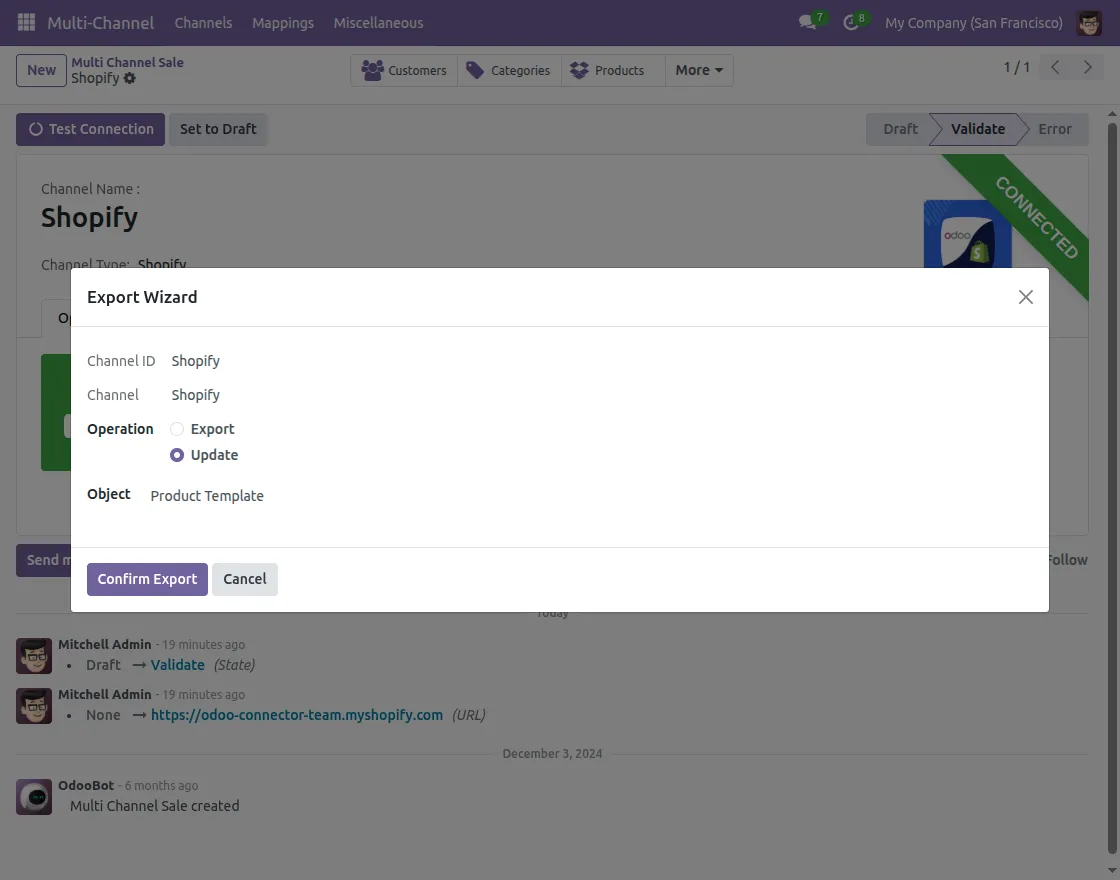
Navigate to the Shopify Odoo connector dashboard and select the export button.
For exporting, choose the ‘channel ID, operation (Export/Update), and object’ in the Export wizard.
Our module provides you with two objects for export/update:
1. You can export/update the category from Odoo to Shopify.
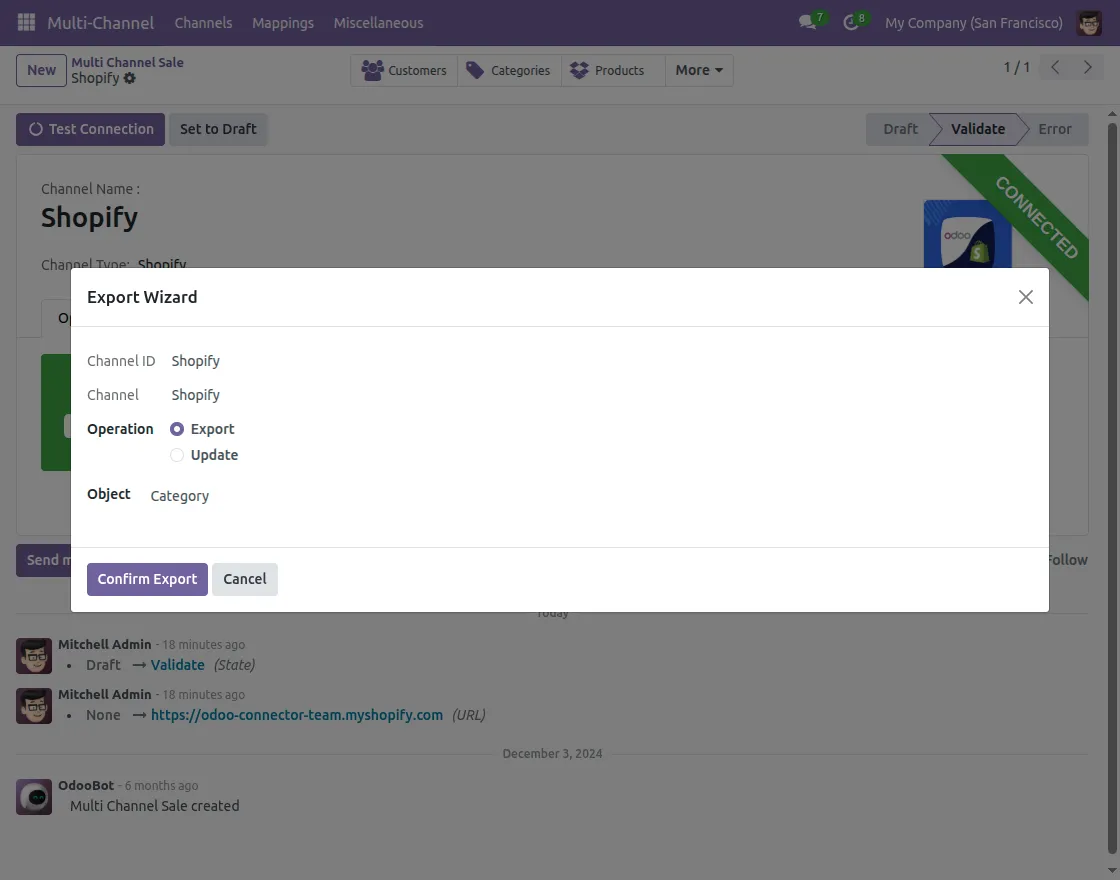
2. You can export/update the product template from Odoo to Shopify. It includes the product information.
NEED HELP?
Hope you find guide helpful! Please feel free to share your feedback in the comments below.
If you still have any issues/queries, please create a ticket at the UV Desk.
I hope this helps. In case of any further queries, contact us at our support mail:[email protected]
Thanks for paying attention!!
Current Product Version - 1.0.0
Supported Framework Version - Odoo V19,Odoo V18,Odoo V17


Something went wrong: `Response(code=400, body=”b'{“errors”:{“page”:”page cannot be passed. See https:\\/\\/help.shopify.com\\/api\\/guides\\/paginated-rest-results for more information.”}}'”, headers={‘Date’: ‘Mon, 31 Aug 2020 07:19:37 GMT’, ‘Content-Type’: ‘application/json; charset=utf-8’, ‘Transfer-Encoding’: ‘chunked’, ‘Connection’: ‘close’, ‘Set-Cookie’: ‘__cfduid=d0789de9a28290df95899c8694e519b691598858377; expires=Wed, 30-Sep-20 07:19:37 GMT; path=/; domain=.myshopify.com; HttpOnly; SameSite=Lax’, ‘X-Sorting-Hat-PodId’: ‘110’, ‘X-Sorting-Hat-ShopId’: ‘16772038710’, ‘Referrer-Policy’: ‘origin-when-cross-origin’, ‘X-Frame-Options’: ‘DENY’, ‘X-ShopId’: ‘16772038710’, ‘X-ShardId’: ‘110’, ‘X-Stats-UserId’: ”, ‘X-Stats-ApiClientId’: ‘4243987’, ‘X-Stats-ApiPermissionId’: ‘205864173679’, ‘X-Shopify-API-Terms’: ‘By accessing or using the Shopify API you agree to the Shopify API License and Terms of Use at https://www.shopify.com/legal/api-terms’, ‘HTTP_X_SHOPIFY_SHOP_API_CALL_LIMIT’: ‘1/40’, ‘X-Shopify-Shop-Api-Call-Limit’: ‘1/40’, ‘X-Shopify-API-Version’: ‘2019-10’, ‘Strict-Transport-Security’: ‘max-age=7889238’, ‘X-Request-Id’: ‘6a6db214-597f-492d-8112-5010bc4052a6’, ‘X-Shopify-Stage’: ‘production’, ‘Content-Security-Policy’: “default-src ‘self’ data: blob: ‘unsafe-inline’ ‘unsafe-eval’ https://* shopify-pos://*; block-all-mixed-content; child-src ‘self’ https://* shopify-pos://*; connect-src ‘self’ wss://* https://*; frame-ancestors ‘none’; img-src ‘self’ data: blob: https:; script-src https://cdn.shopify.com https://cdn.shopifycdn.net https://checkout.us.shopifycs.com https://js-agent.newrelic.com https://bam.nr-data.net https://api.stripe.com https://mpsnare.iesnare.com https://appcenter.intuit.com https://www.paypal.com https://js.braintreegateway.com https://c.paypal.com https://maps.googleapis.com https://www.google-analytics.com https://v.shopify.com https://widget.intercom.io https://js.intercomcdn.com ‘self’ ‘unsafe-inline’ ‘unsafe-eval’; upgrade-insecure-requests; report-uri /csp-report?source%5Baction%5D=index&source%5Bapp%5D=Shopify&source%5Bcontroller%5D=admin%2Forders&source%5Bsection%5D=admin_api&source%5Buuid%5D=6a6db214-597f-492d-8112-5010bc4052a6″, ‘X-Content-Type-Options’: ‘nosniff’, ‘X-Download-Options’: ‘noopen’, ‘X-Permitted-Cross-Domain-Policies’: ‘none’, ‘X-XSS-Protection’: ‘1; mode=block; report=/xss-report?source%5Baction%5D=index&source%5Bapp%5D=Shopify&source%5Bcontroller%5D=admin%2Forders&source%5Bsection%5D=admin_api&source%5Buuid%5D=6a6db214-597f-492d-8112-5010bc4052a6’, ‘X-Dc’: ‘gcp-us-central1,gcp-us-central1’, ‘CF-Cache-Status’: ‘DYNAMIC’, ‘cf-request-id’: ’04e4fbd12c0000198c45814200000001′, ‘Expect-CT’: ‘max-age=604800, report-uri=”https://report-uri.cloudflare.com/cdn-cgi/beacon/expect-ct”‘, ‘Server’: ‘cloudflare’, ‘CF-RAY’: ‘5cb4fbfb7cc9198c-SIN’, ‘alt-svc’: ‘h3-27=”:443″; ma=86400, h3-28=”:443″; ma=86400, h3-29=”:443″; ma=86400’}, msg=”Bad Request”)`
I have been getting this error which isn’t letting me import my data from shopify…Plesae contact me as soon as possible….