Multi-Vendor AliExpress Importer for Magento 2 (Adobe Commerce) allows the sellers to import the products directly from the AliExpress website and sell them to their own Magento store.
The best use of product importers is in dropshipping. In dropshipping, there are no specific stocks or inventory present.
The system directly imports the product from the third-party store and delivers it straight to the customer.
Further, the sellers no more need to carry huge inventories, which will bring the seller to concentrate more on the other aspects of scaling their stores.
Please Note –
To use Multi Vendor AliExpress Importer for Magento 2, you must have Webkul’s Magento 2 Multi Vendor Module extension installed.
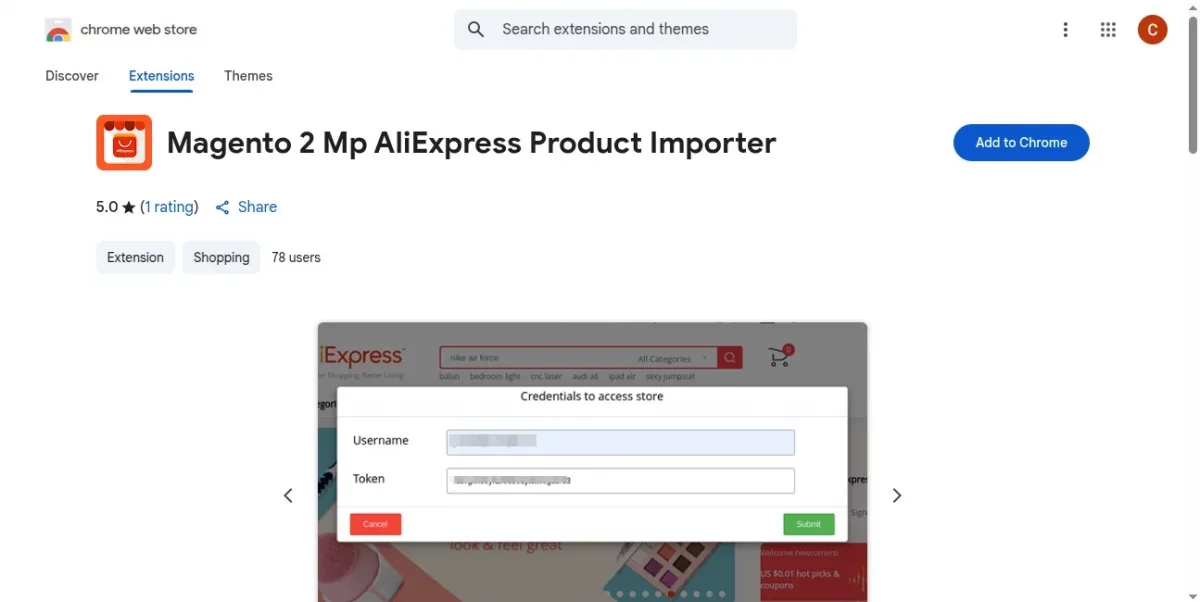
Also, please install the Google Chrome extension Magento 2 Mp AliExpress Product Importer in your web browser.
Watch the video to understand the extension workflow:-
Features
- The sellers can import products from AliExpress site.
- The admin can enable/ disable the module from the admin panel.
- The seller can add default quantity, weight, price, category, and more from the seller panel.
- The sellers can also import the SEO information for the imported product.
- The seller can update the token depending on the need.
- The seller can install the AliExpress Chrome Extension from the seller panel.
- The product will be present in the list of admins as well as the seller’s product list.
- Sellers can check and place the marketplace Aliexpress orders placed previously.
- Admin can set the import minutes interval for which the session will remain active.
- The sellers can sync product quantity for AliExpress.
- The system automatically imports product reviews from AliExpress along with the product details.
Installation Of MultiVendor AliExpress Importer
Firstly, the customers will get a zip folder and they have to extract the contents of this zip folder on their system.
The extracted folder has a src folder, inside the src folder you have the app folder.
You need to transfer this app folder into the Magento 2 (Adobe Commerce) root directory on the server as shown below.

After the successful installation, you have to run these commands in the Magento 2 root directory:
php bin/magento setup:upgrade
php bin/magento setup:di:compile
php bin/magento setup:static-content:deploy
php bin/magento indexer:reindex
php bin/magento cache:flush
php bin/magento queue:consumers:start aliexpress.products.prepare &
Multi-Lingual Support – Multi-Vendor AliExpress Importer
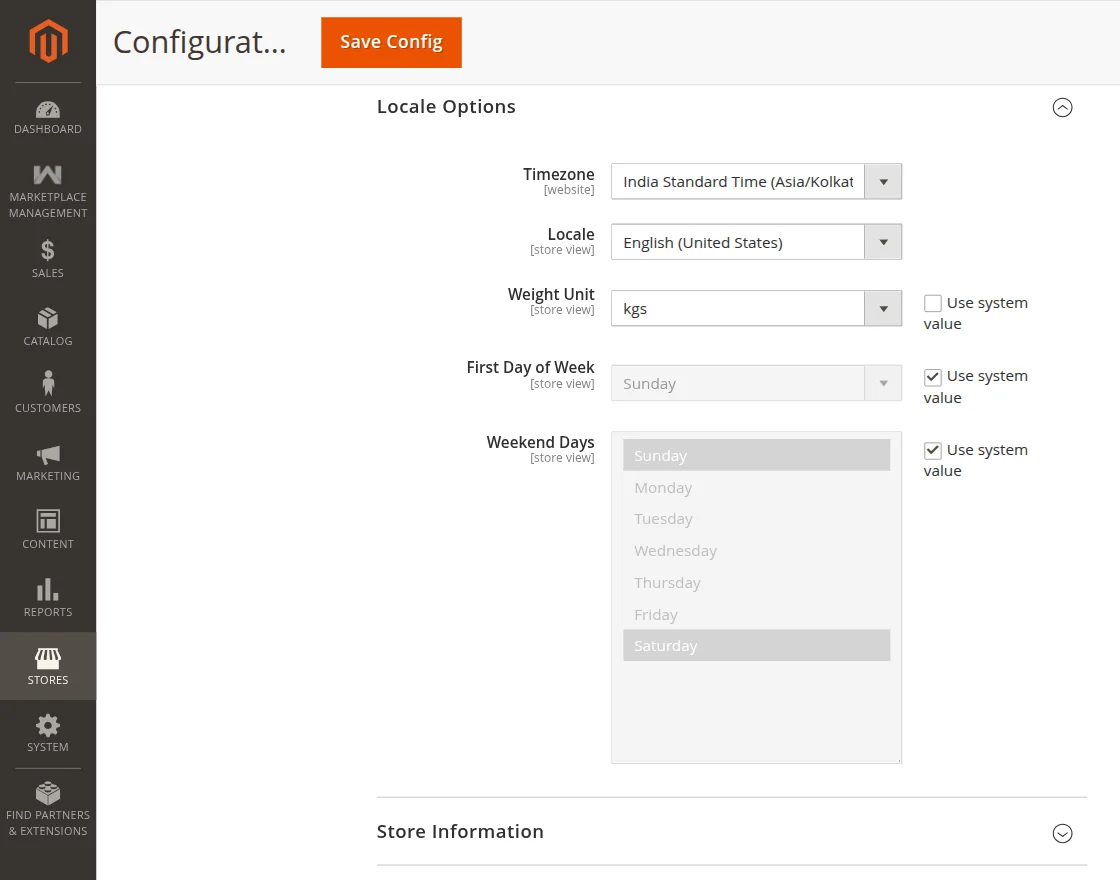
Further, for the multilingual support, the admin will navigate through Store > Configuration > General > Locale Options.
Select the locale as German (the language into which the admin wants to translate their store content).
Translation
For translating the module language, navigate through app > code > Webkul > MpAliExpressProductImport > i18n and edit the en_US.csv file.
Meanwhile, translate the words on the right and upload the modified file to the same location. The filename of the translated file should be according to the language and region code like de_DE.csv.
The user can edit the CSV like the image below.
How to Get App ID and Secret Key from AliExpress:
Visit the AliExpress Developer Platform: Go to the AliExpress Open Platform. This is where developers can register and manage their applications.

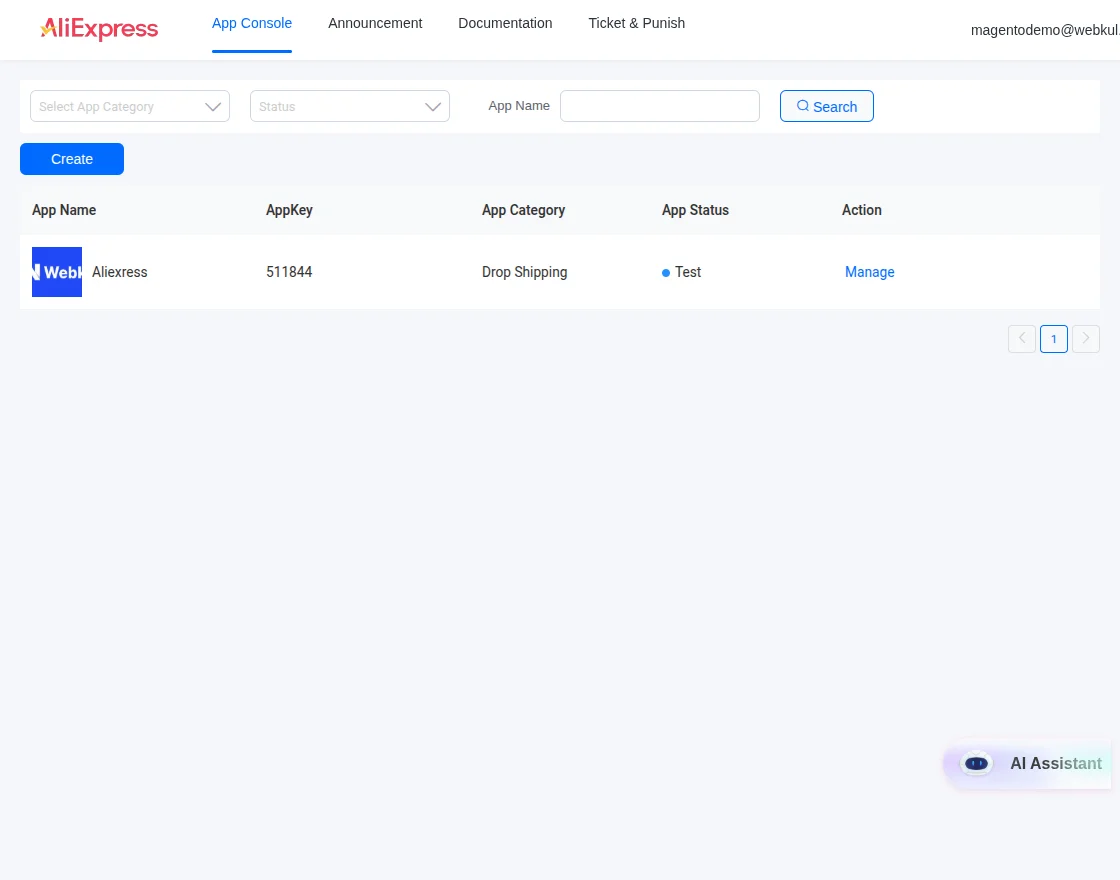
Sign In or Create an Account: If you already have an AliExpress developer account, click on the “App Console” at the top navigation and sign in.
If you’re new, click “Create Account” and follow the steps to register using your email address or AliExpress credentials.

Access the App Console: Here you can able to see your app key. Click on manage.
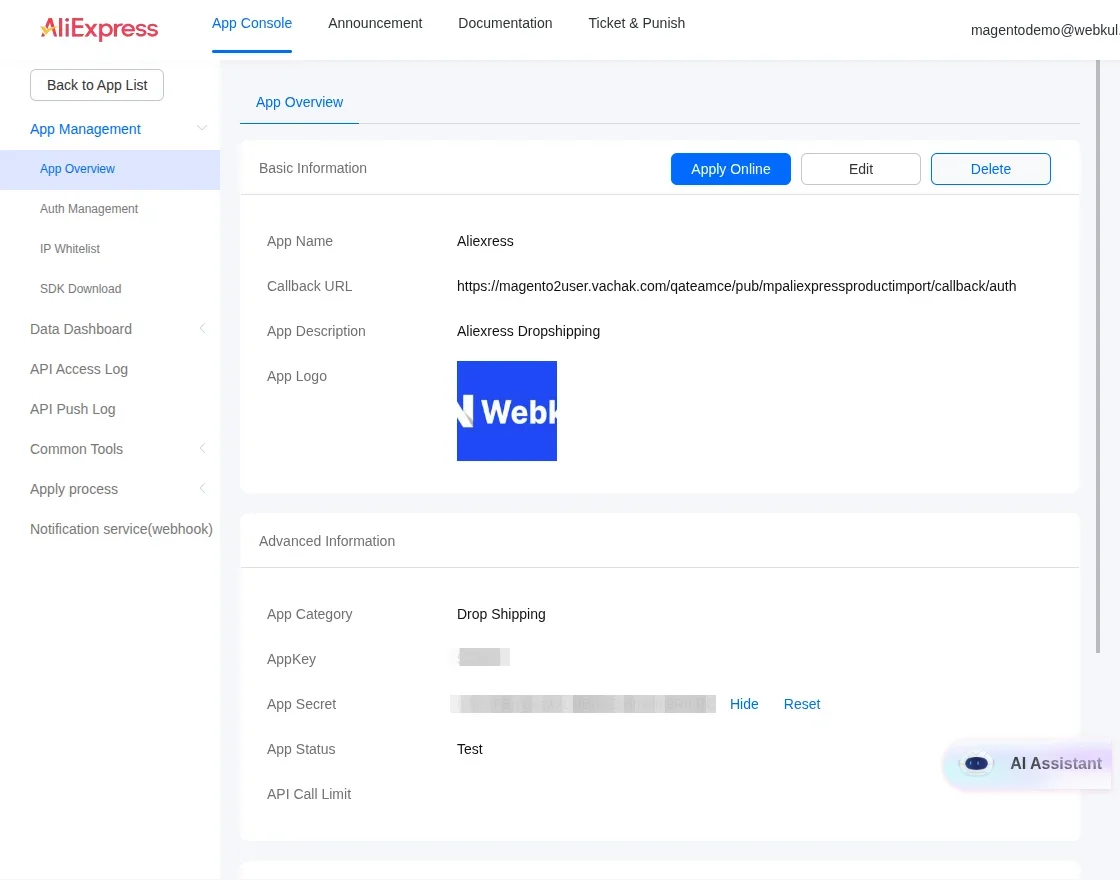
Get App ID & Secret: Here you can able to see your App key and App Secret.
Module Configurations
After the successful installation of the module, the admin will navigate to the Store > Configurations > MpAliExpress Import. Later, the admin will enter data into the following fields:
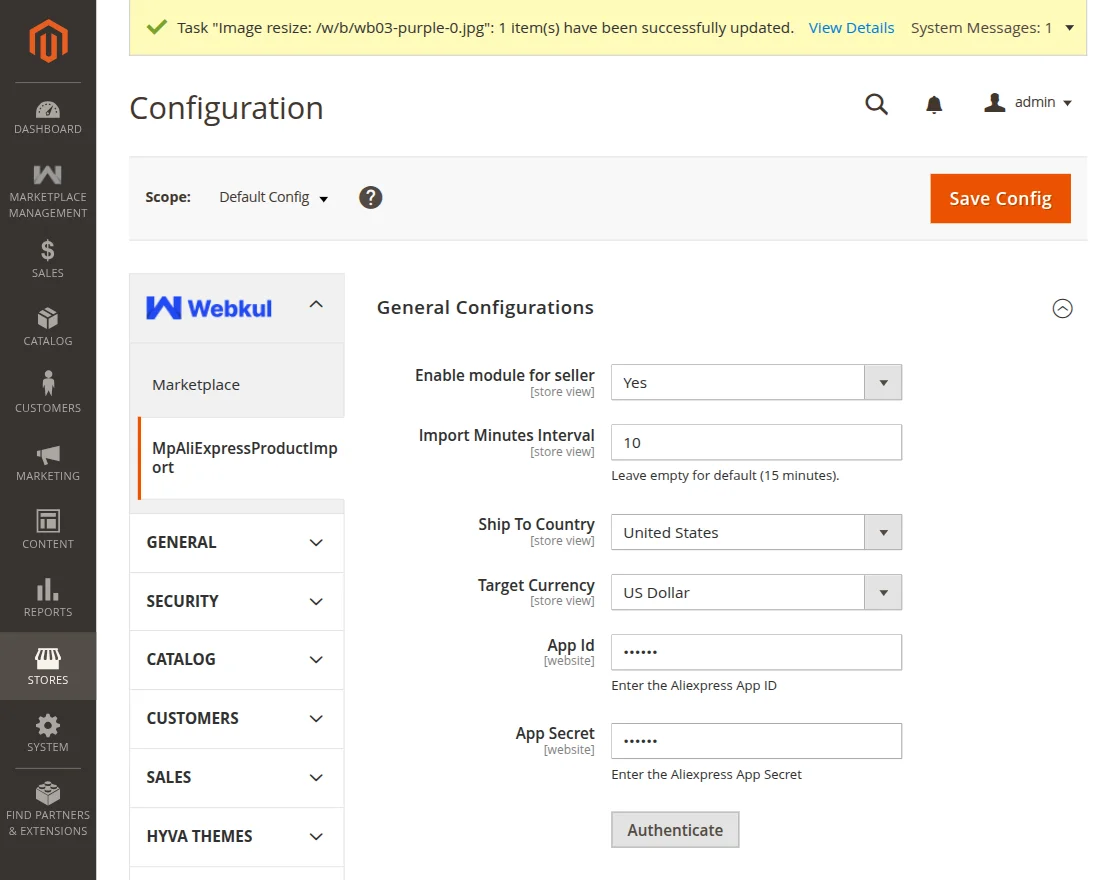
Enable Module for Seller: Select Yes for this field to enable the module.
Import Minutes Interval: The admin can configure the time interval to keep the session active. Leave empty for the default (15 minutes) session configuration.
Note: Admin can schedule sessions, along it also keeps it secure by adding a session-based interval.
For instance, consider Admin set time as 30 minutes, then it will be active for this interval only and will expire soon.
Ship To Country: The admin can set which countries to ship orders to; leave it empty to allow shipping to all countries by default.
Target Currency: The admin can set the target currency for transactions.
App ID: The admin can provide the App ID that they can get from the AliExpress site
App Secret: The admin can provide the App Secret that they can get from the AliExpress site.
Authenticate: Click Authenticate verifies the entered AliExpress App ID and Secret to enable secure integration with the AliExpress API.
The system automatically generates the seller’s username and token.
Seller End Configuration
For configuring the seller end settings for AliExpress Product Importer, the seller will click on the ALIEXPRESS IMPORT SETTINGS option under the seller panel.
You will be able to find the Username and Token from here:
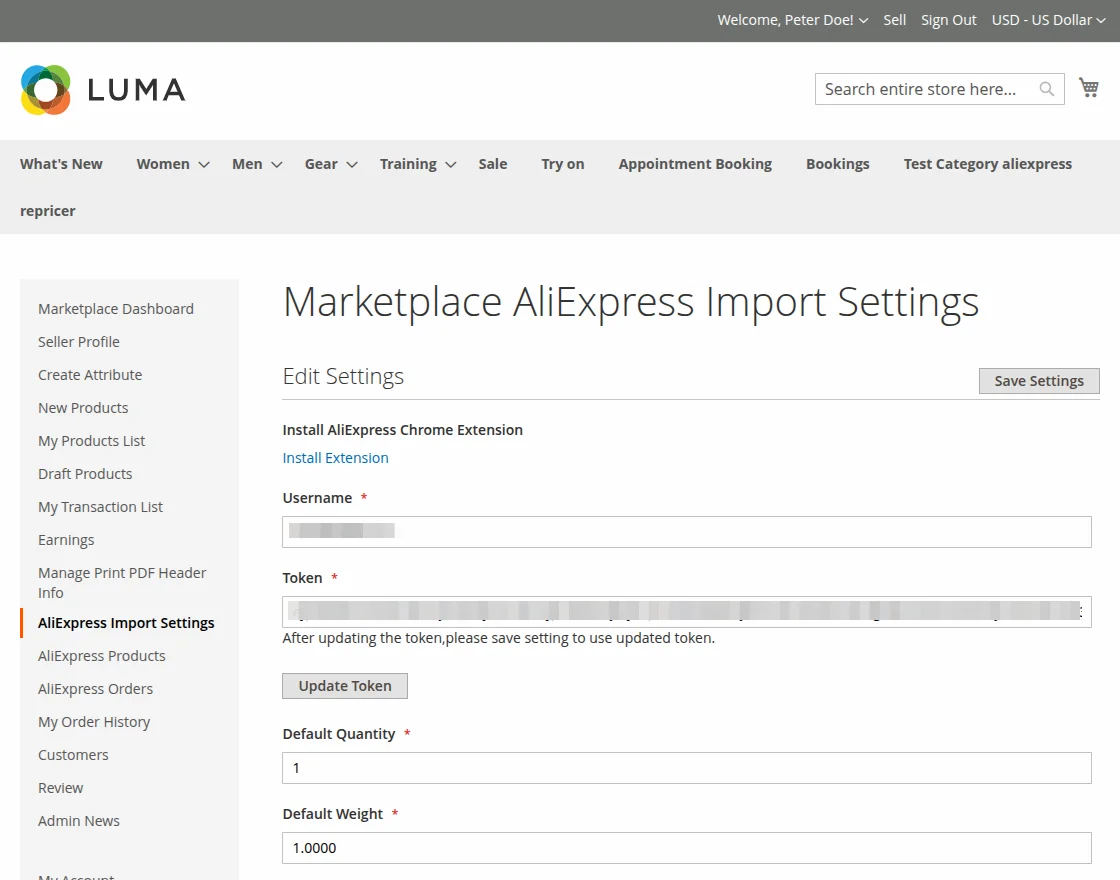
Then, the Seller will add the following set of fields:
Username: The seller can enter the username here. The system usually pre-fills this field when the seller adds the username while creating the account.
Token: Every seller has a unique token. The system auto-generates and pre-fills the token.
The seller can easily change the token by tapping the Update Token button under the token field. After that, the seller must tap on Save to save the updated token.
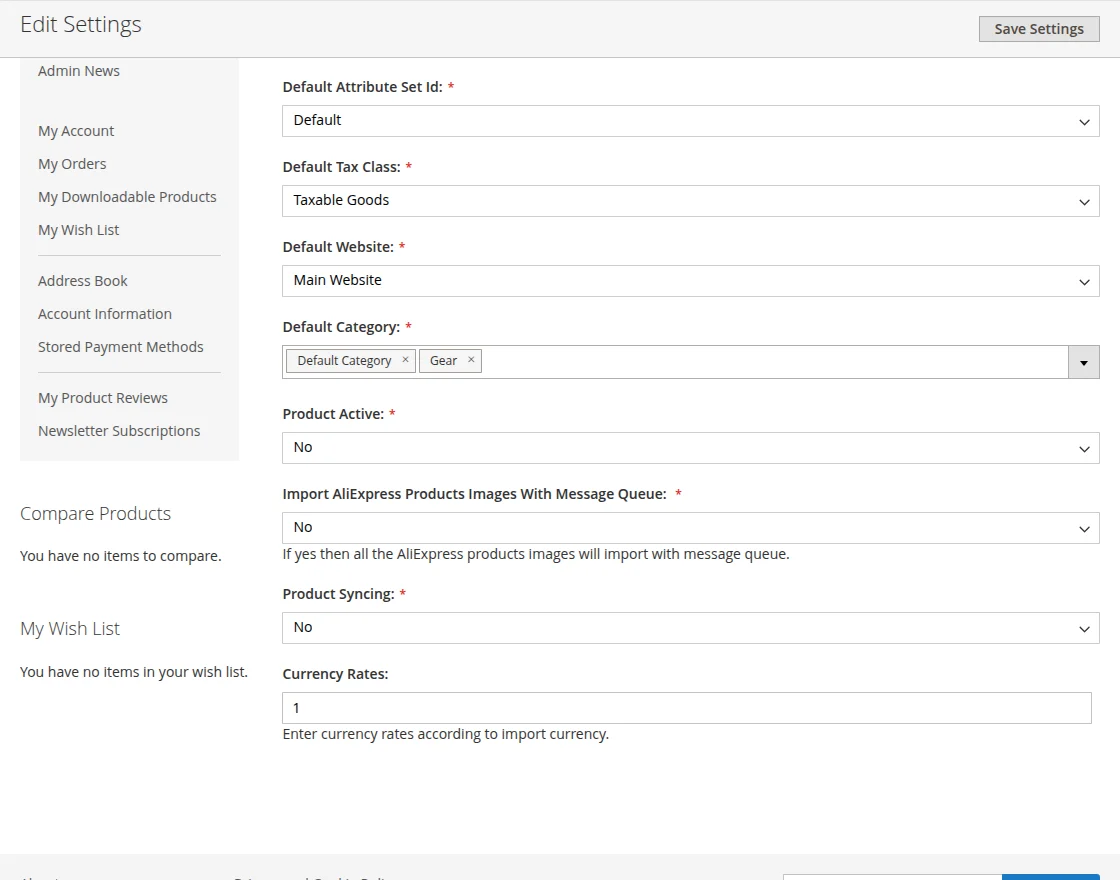
Default: Also, the seller will have to add some details, which will be helpful at the time of importing:
- Quantity: The seller adds the default quantity of the products (imported from AliExpress) in the Seller’s store.
- Weight: The default weight of the product, which is being imported from AliExpress store.
- Attribute Set ID: The seller can assign a default Attribute Set ID for the product being imported, by which the products will be added under the specific attribute set.
- Tax Class: The seller needs to select the default Tax class.
- Website: The seller will select the product website from which the product will be fetched.
- Category: The seller assigns a default category for the imported product, ensuring it is added under the appropriate category.
- Product Active: If the seller selects Active for this field, then the status of the product will be active.
- Product Syncing: The seller can allow permission for product syncing.
- Currency Rates: Set the currency rates.
Note: The synced product will only display when the cron runs successfully.
Install AliExpress Chrome Extension: The Chrome extension is a must for the proper, efficient working of the AliExpress Product Importer.
Import Products From AliExpress Store
Note: To import the products from the AliExpress store, the seller must have installed the AliExpress Chrome Extension, which can be done under the seller’s end settings for this module.
For importing the product from AliExpress Store, the seller will have to click on this link: https://www.aliexpress.com/.
After that, the seller can either navigate to a particular category or search the product on the search bar.
Once the seller views the specific product, the blue color icon for “AliExpress Product Importer” will be visible.
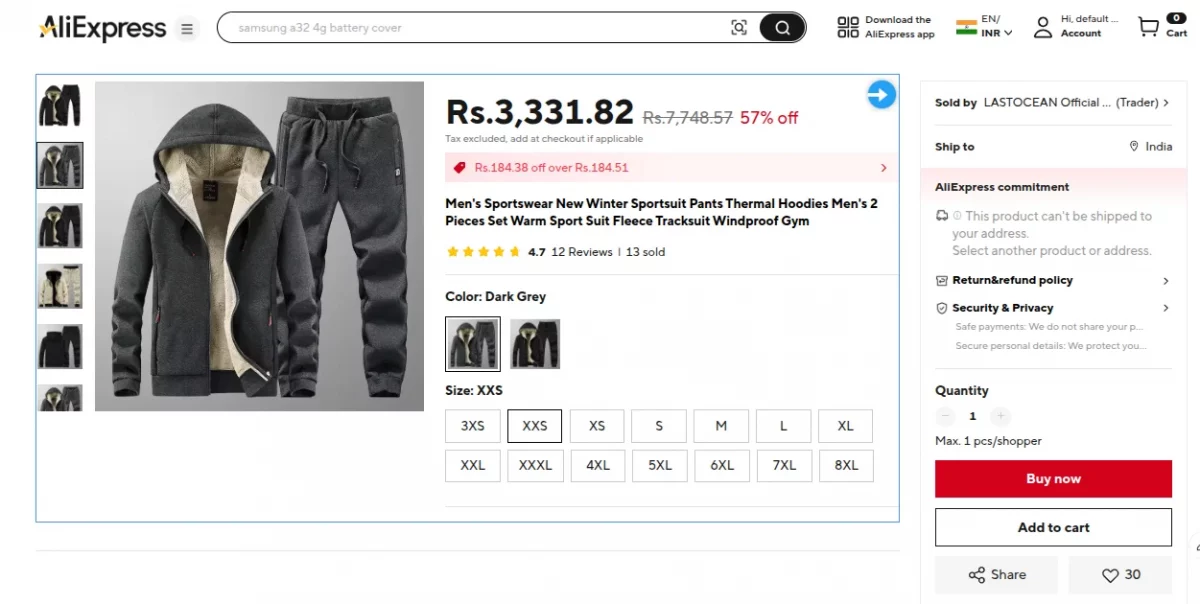
Below, customer reviews and user-generated shots will be available.
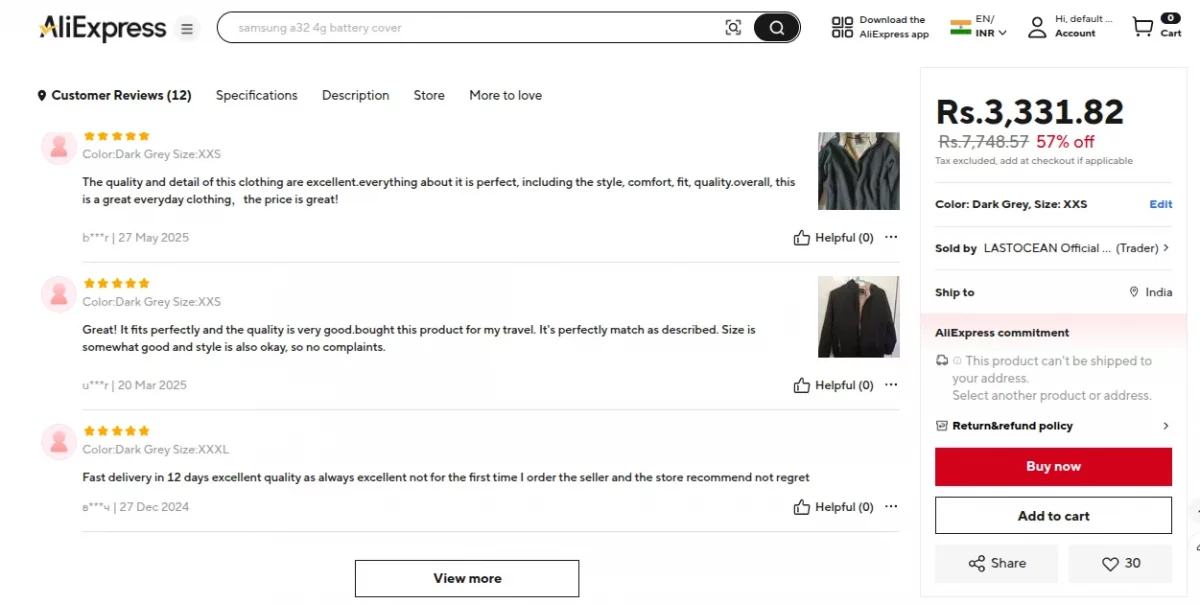
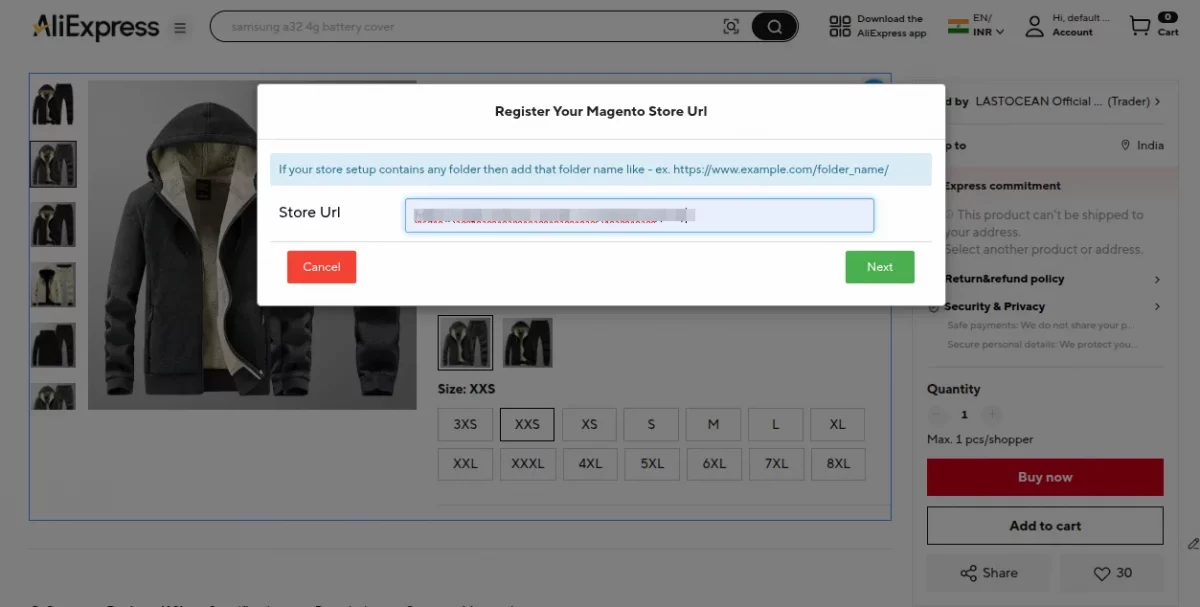
By clicking on the AliExpress Product Importer icon, a pop-up will appear in which the seller will have to enter the Magento store URL. This is a must for the store authentication.
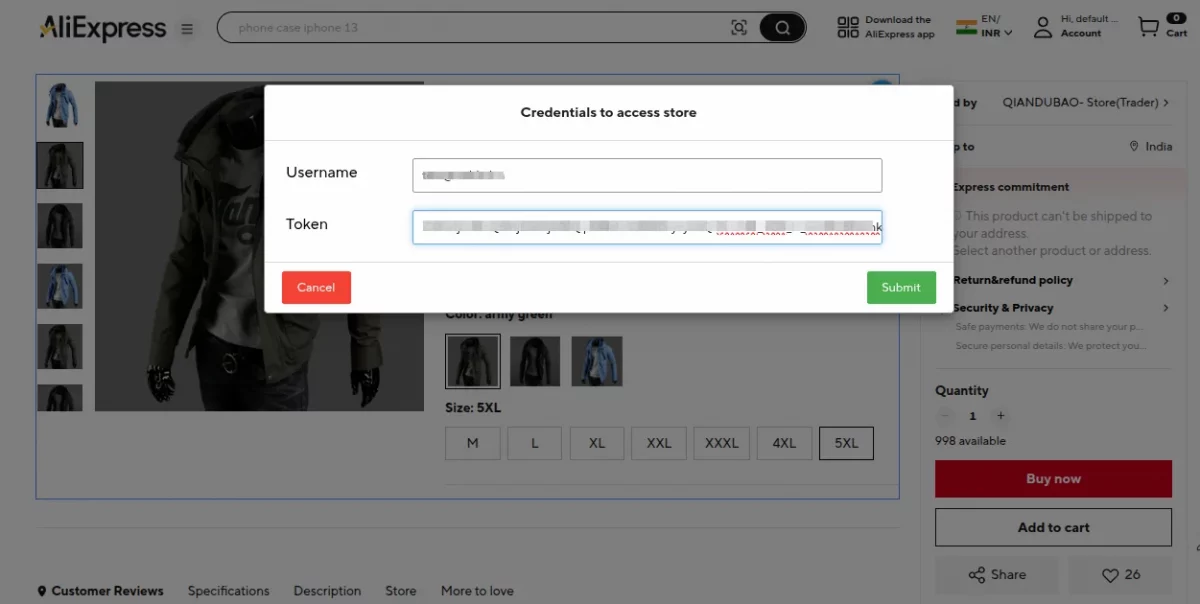
Further, the seller will have to enter the username and the Token. These details will be present under the seller settings i.e. MP ALIEXPRESS IMPORT SETTINGS.
Note: Make sure to add the latest token here if the seller has updated it previously.
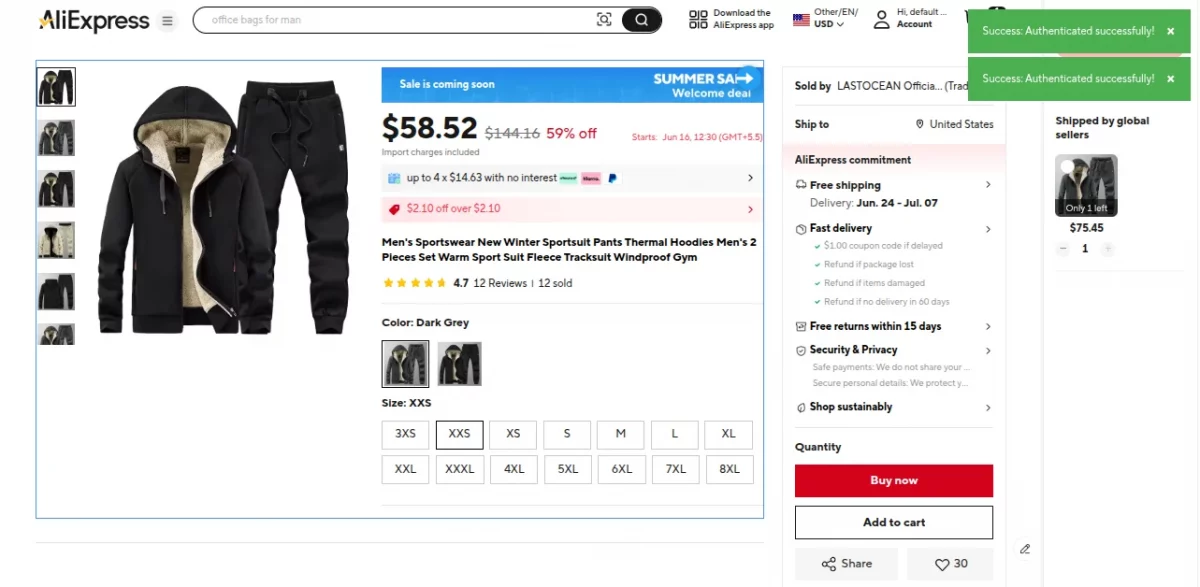
After adding the details, the seller will click on the Submit button. The system displays a success pop-up in the upper right corner with the message: ‘Product details have been fetched.
Fetched Product At Seller End Product List
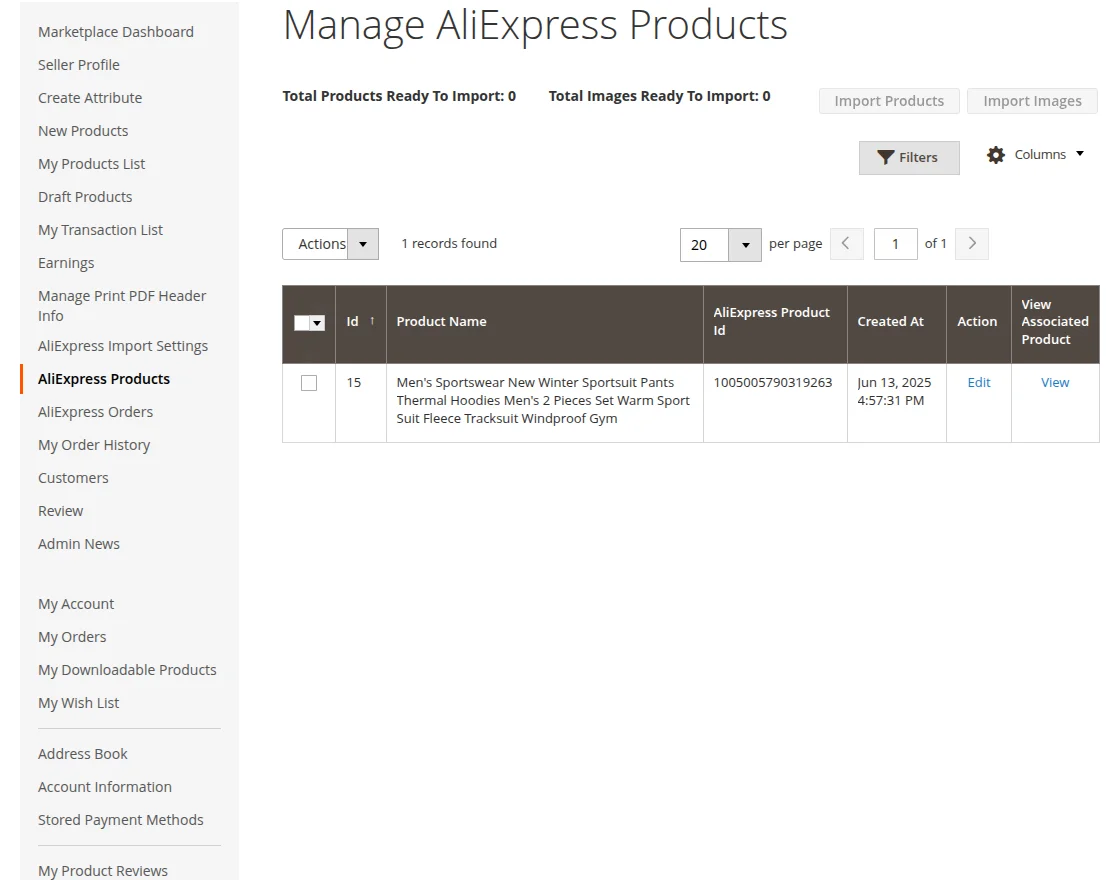
You can see the list of products that you imported from Aliexpress to the seller’s end
Click on the Import Product button.
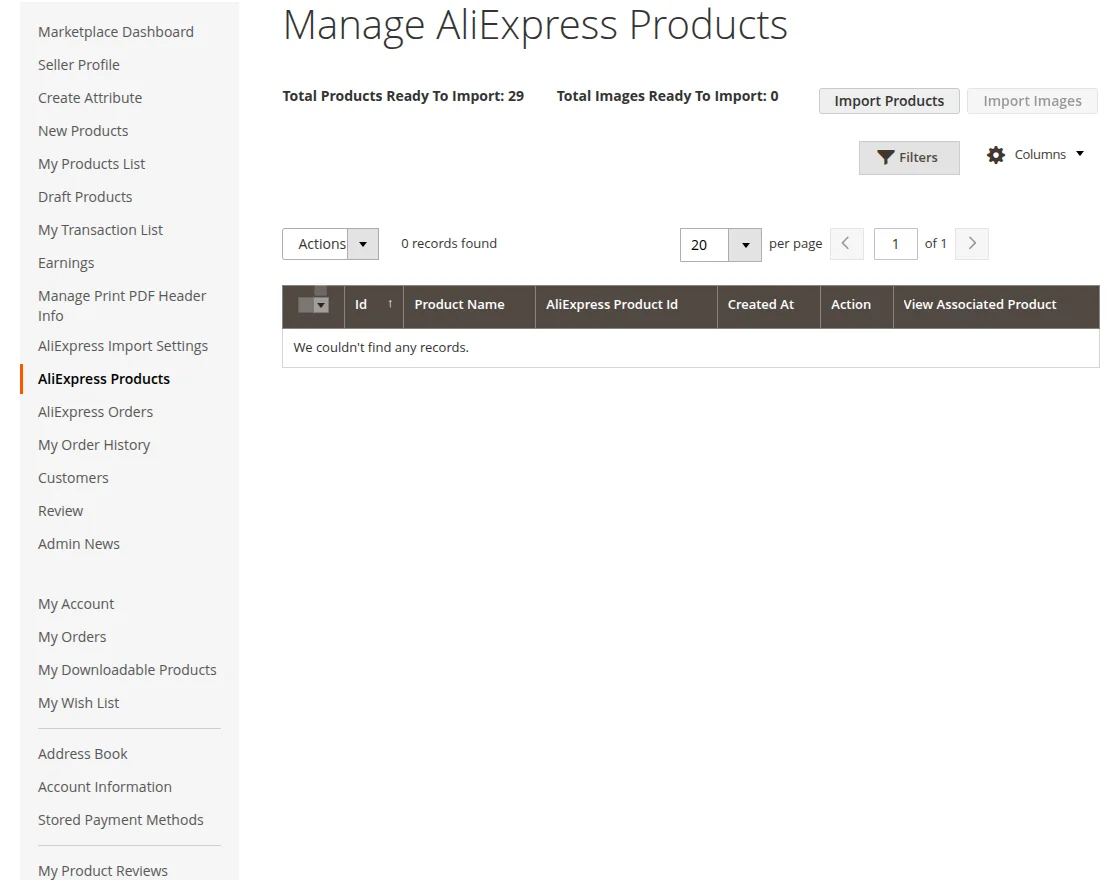
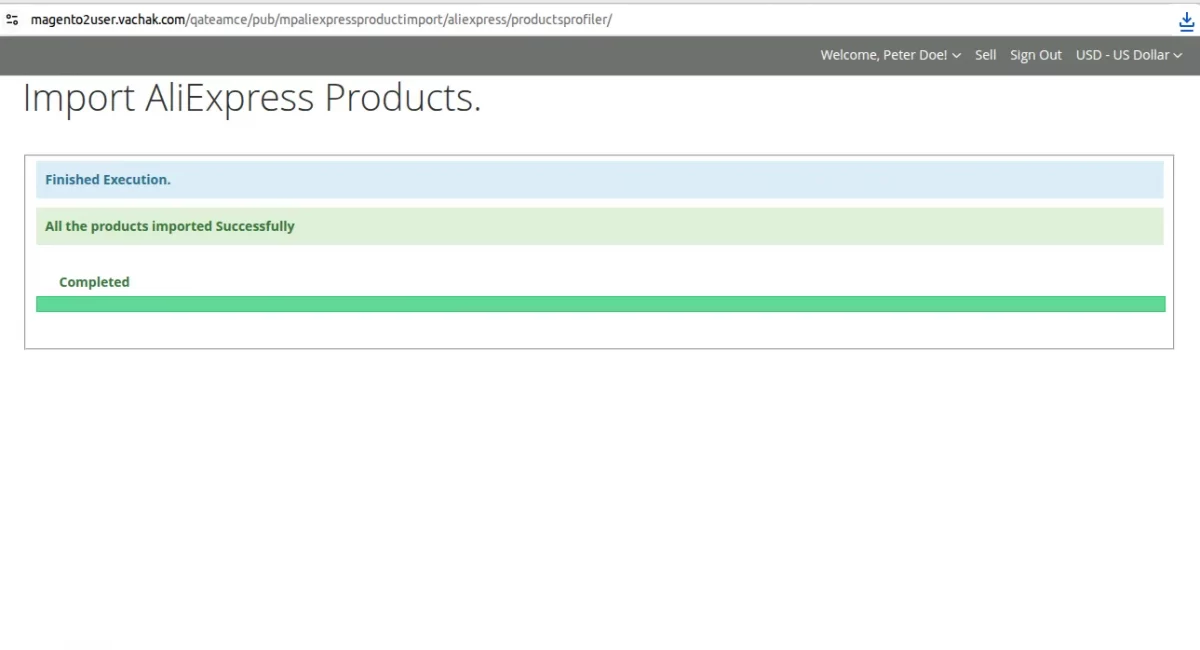
The system imports all products to the seller’s account.
Click on the Import image button.
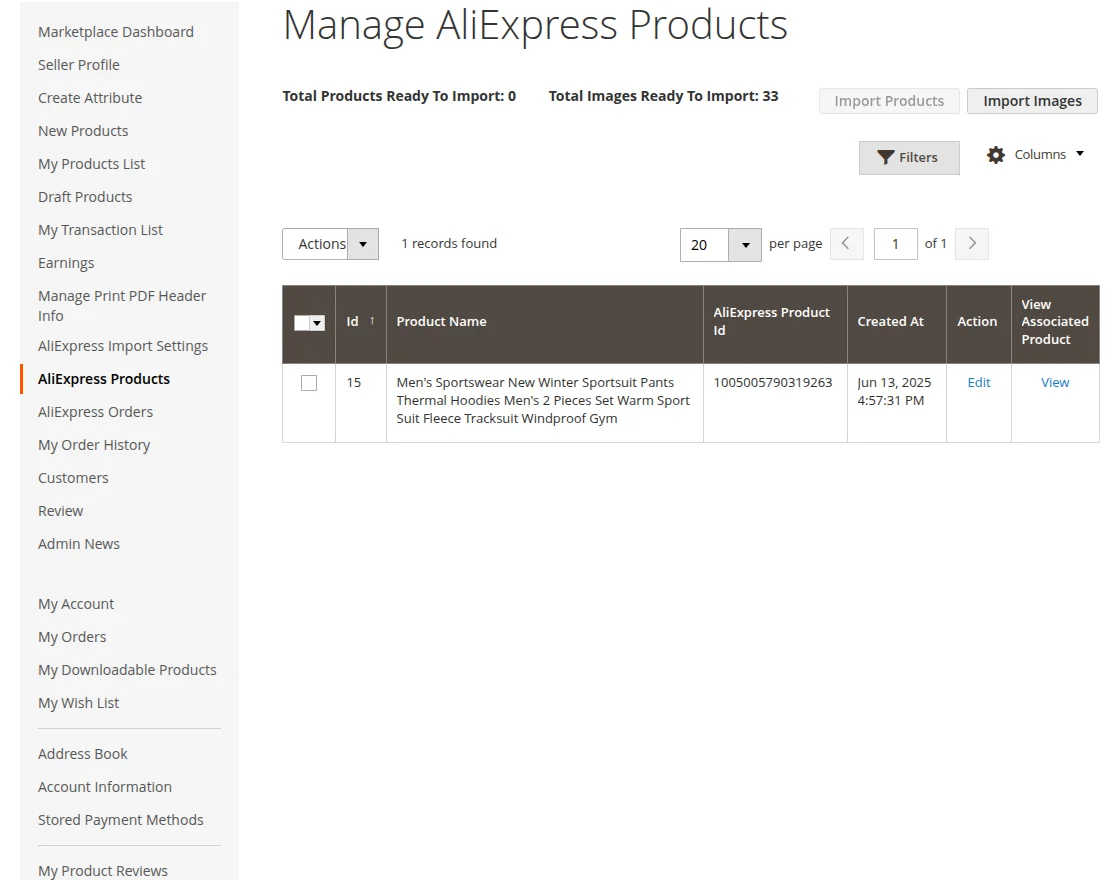
Image of the product imported successfully.
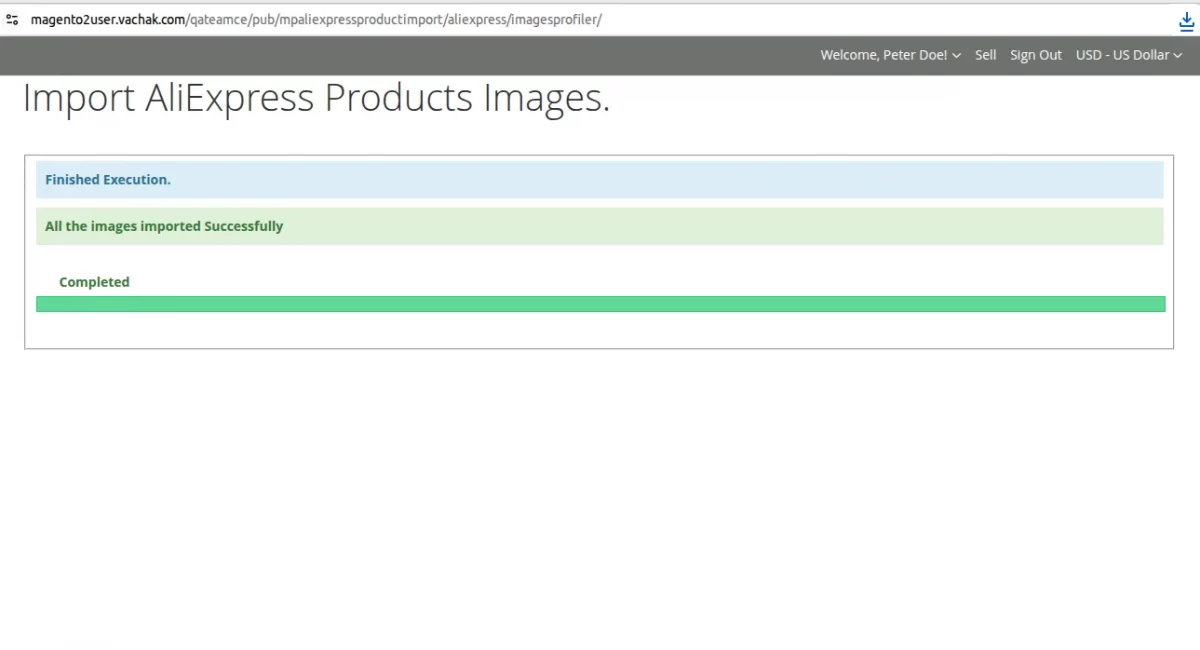
All the products and their images are imported.
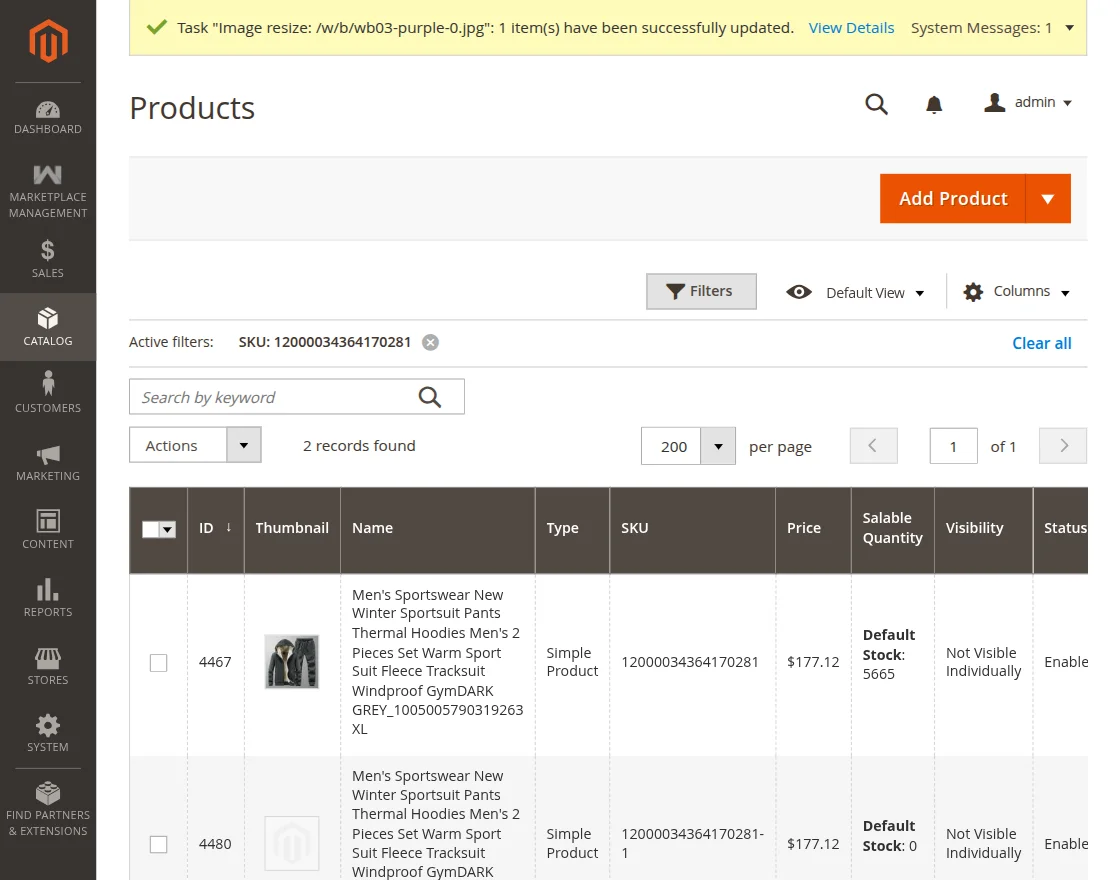
Fetched Product At Admin End Product List
You can see the details of the product on the admin side in Catalog > Product
Get Product At Seller End Product List
You can see the product on the seller side under the My Product List section.

Edit Product
The seller can also edit or configure the product imported from AliExpress. The seller can edit the product name and description as per their wish.
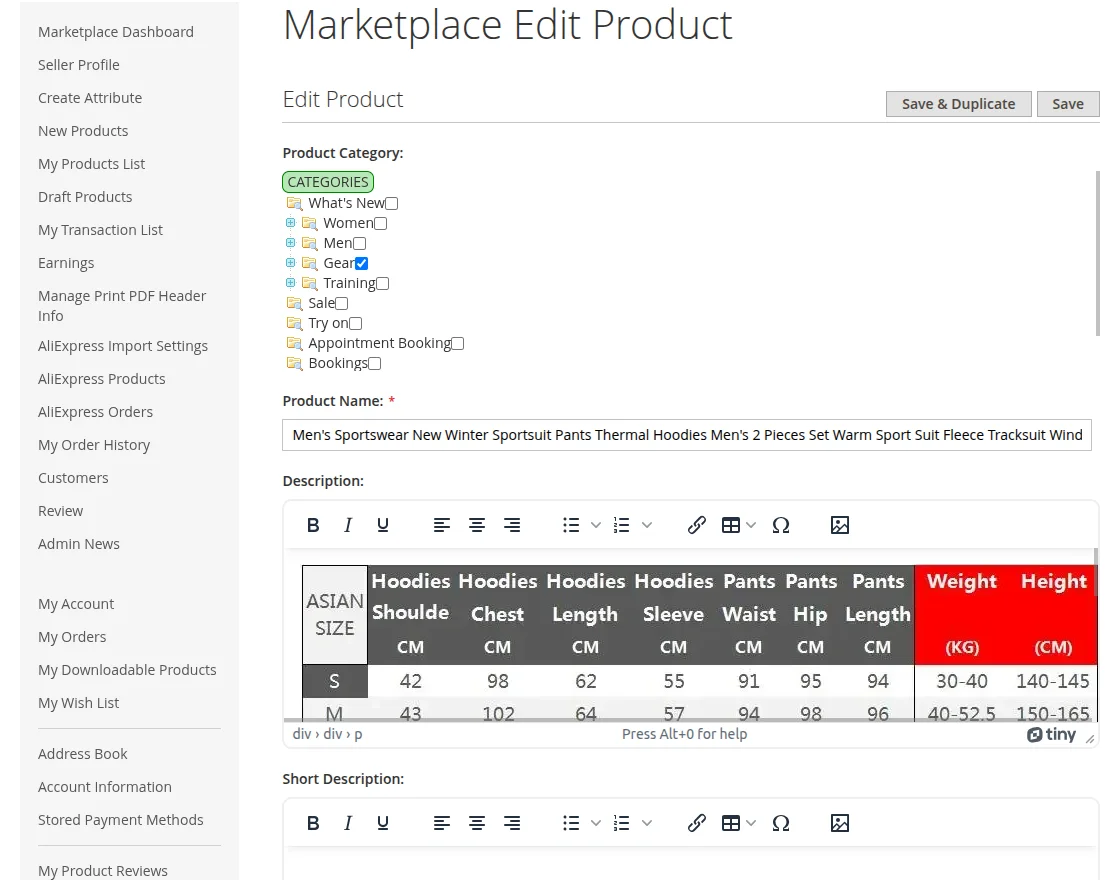
Also, the seller can add or edit other details of the product as depicted below.
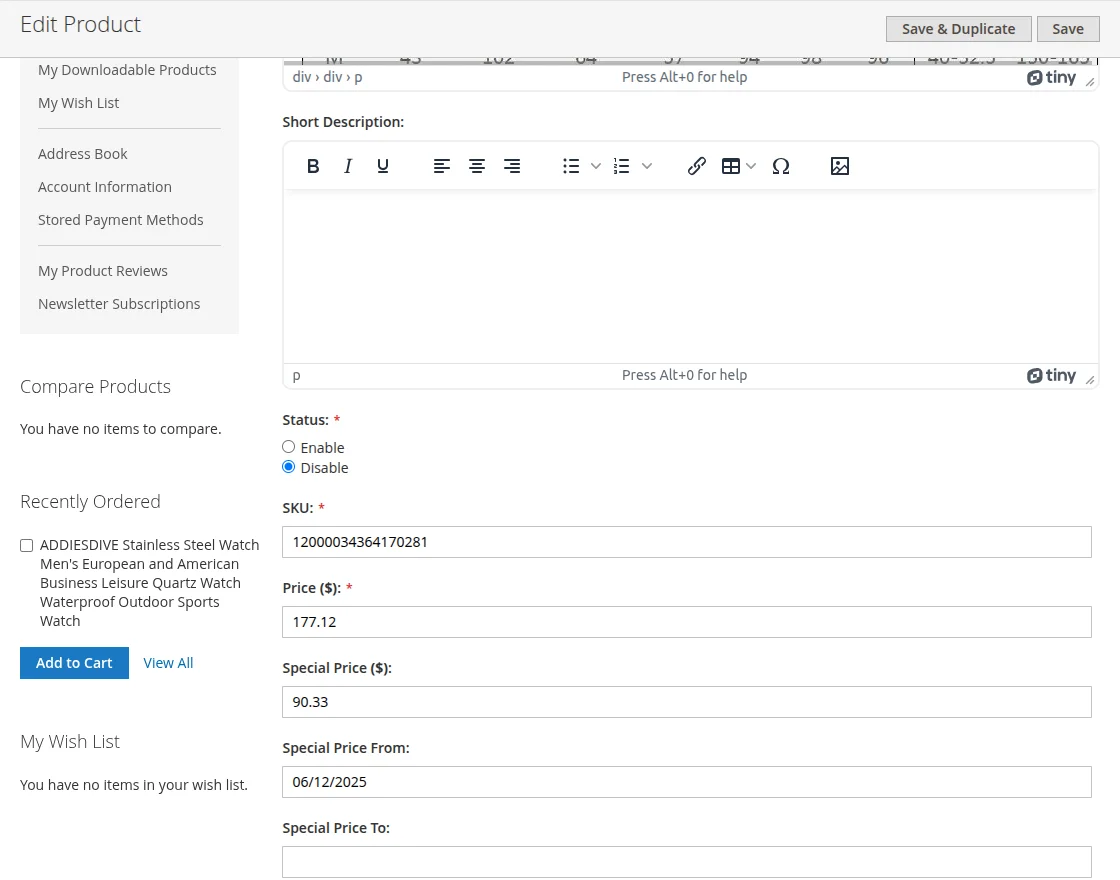
Can update more details on the product.
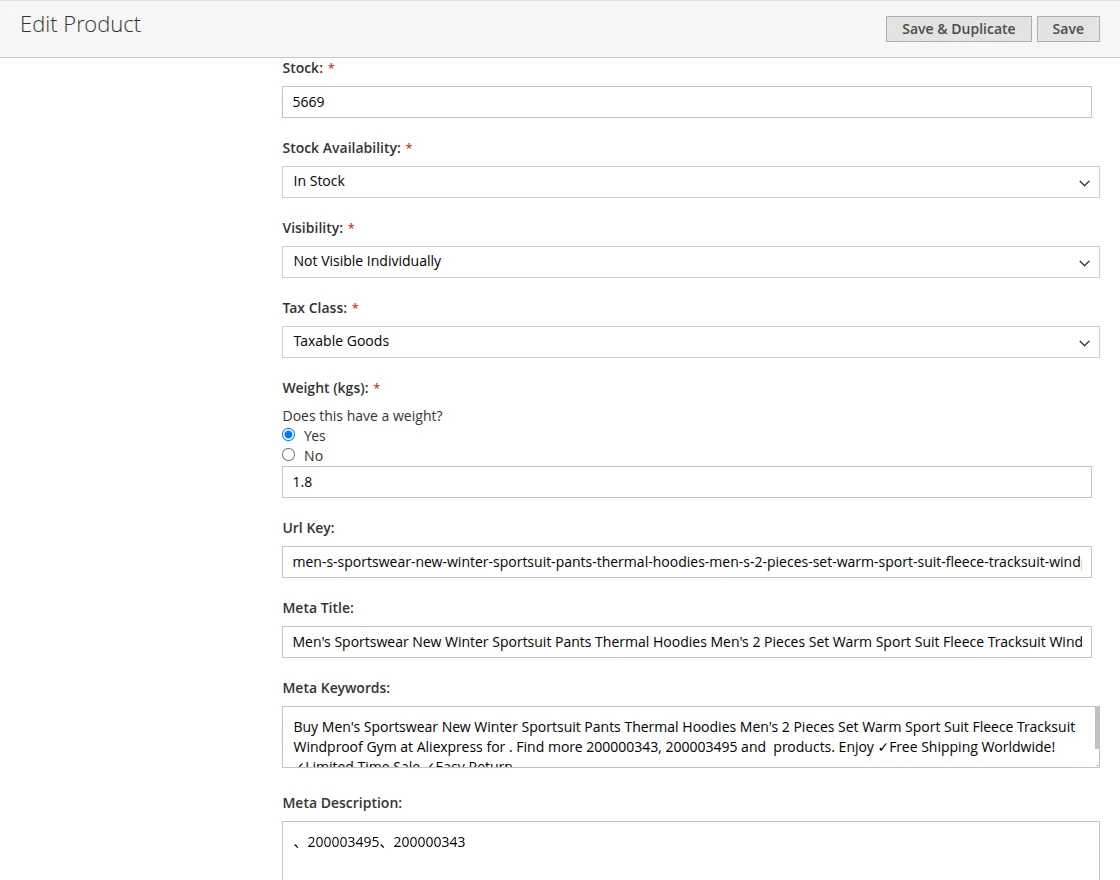
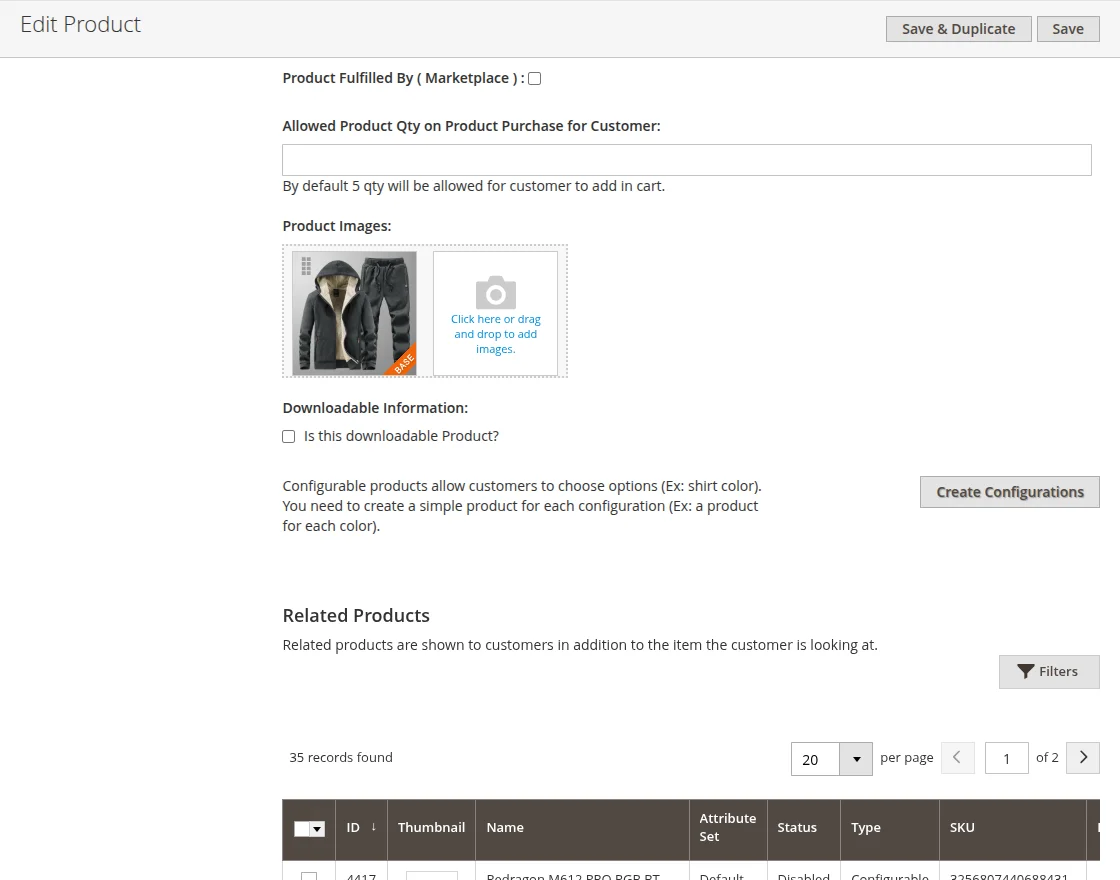
More description about the product
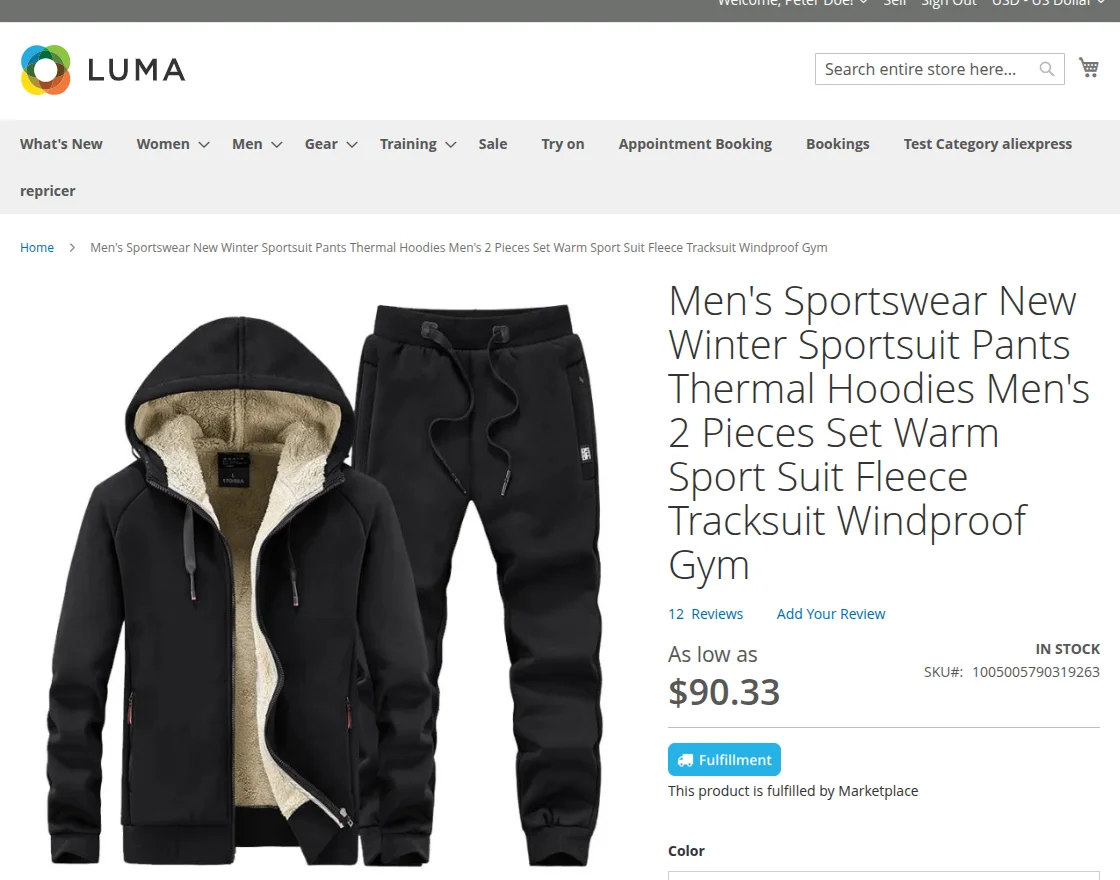
Product appearance at the front store.
Moreover, the product will be visible just like other store products. The system also fetches the product details along with the product from the AliExpress store.
The images of the product will also appear just the way they were in the AliExpress store if the seller does not delete or edit them
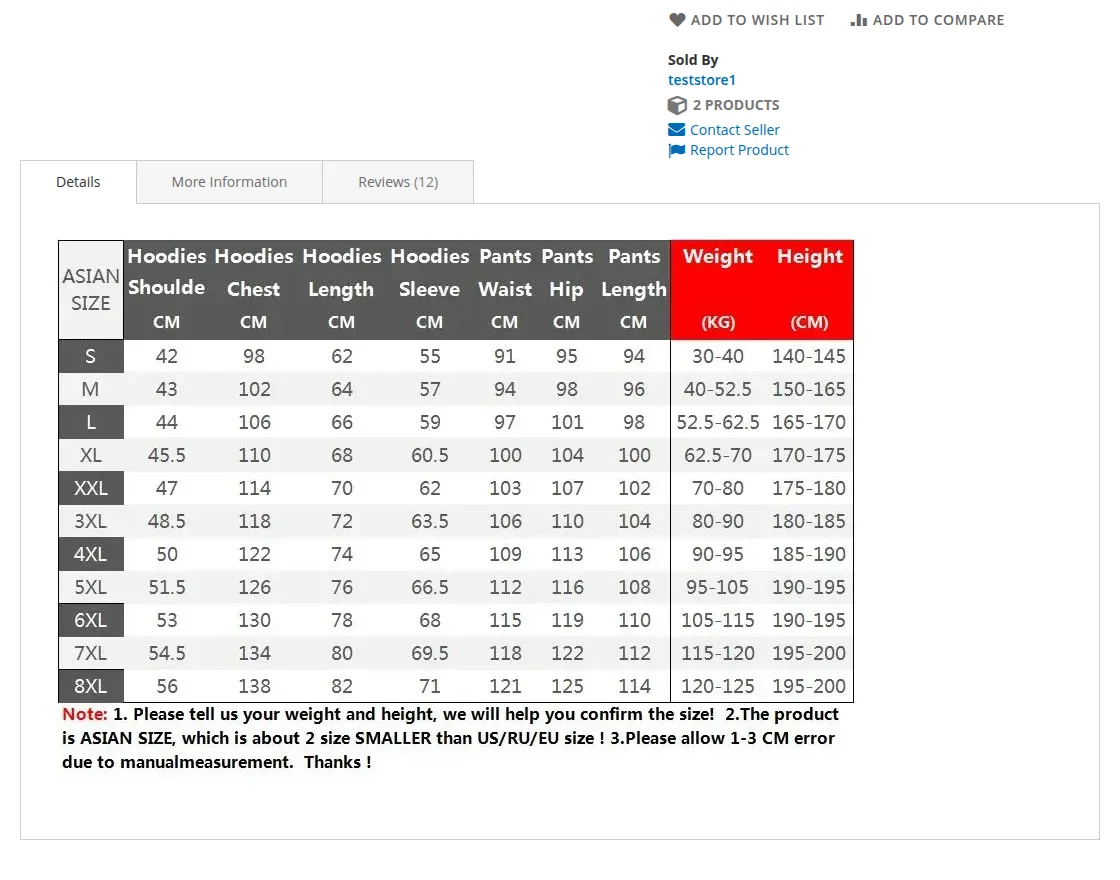
The product details will also be fetched. And it will be visible as depicted below.
Also, the reviews will be visible as shown in the image below, which the seller selects to display at the time of fetching the product.

Place Order
Customers can place orders on the seller’s store for products imported from AliExpress.
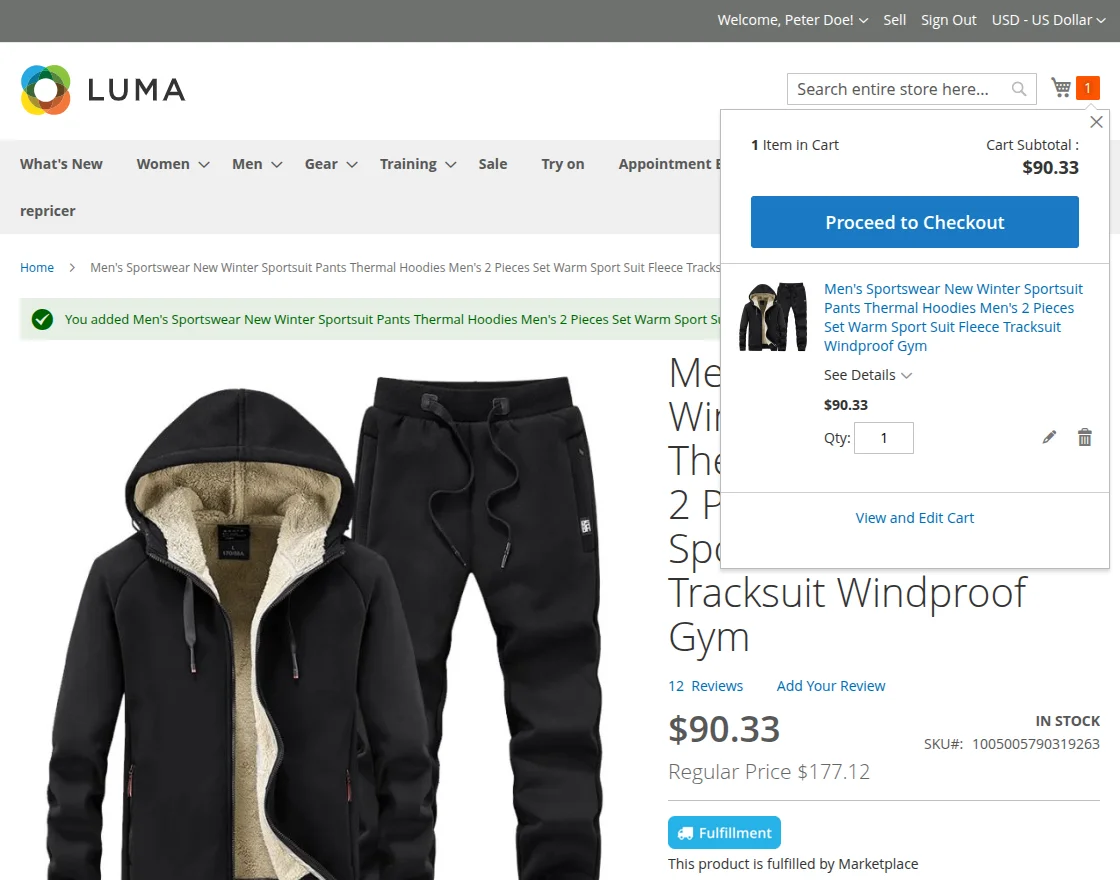
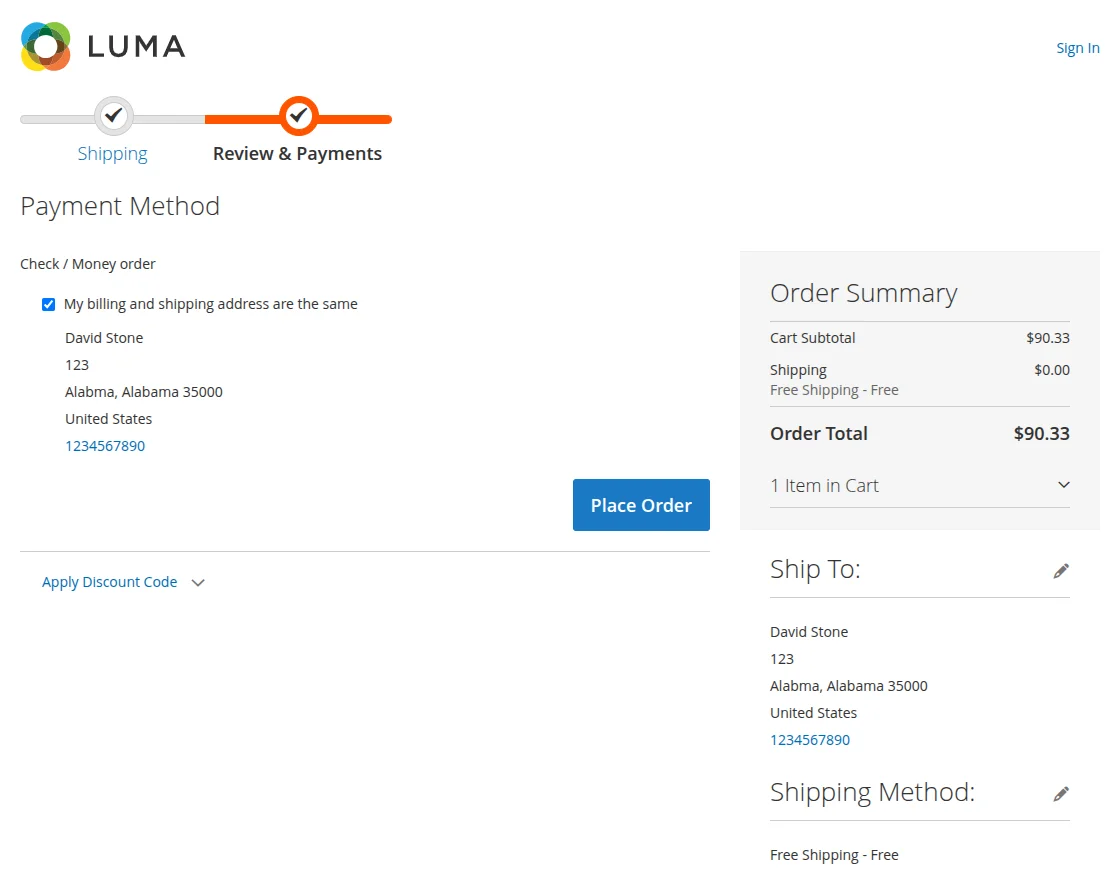
Like a usual product, after filling up the details to place an order, the customer can see the order summary on the cart page as depicted below.
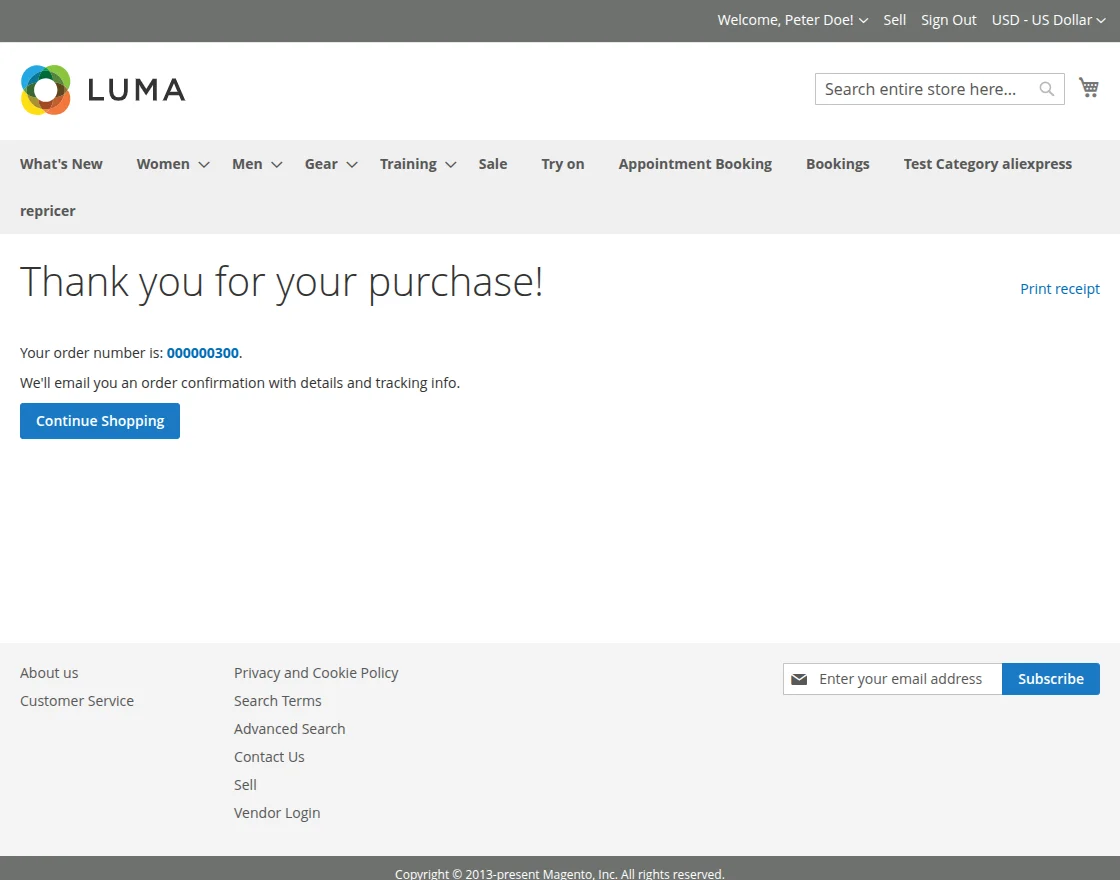
On the order success page, the customer will get their order Id for the placed order as depicted below.
Marketplace AliExpress Orders
To view the Marketplace AliExpress Orders, the seller needs to click on MP ALIEXPRESS on the Dashboard menu and select Marketplace AliExpress Orders as shown in the image below.

All the orders of the Customers with their Order Id’s and Order Total are visible under the marketplace AliExpress order list as shown in the image below.
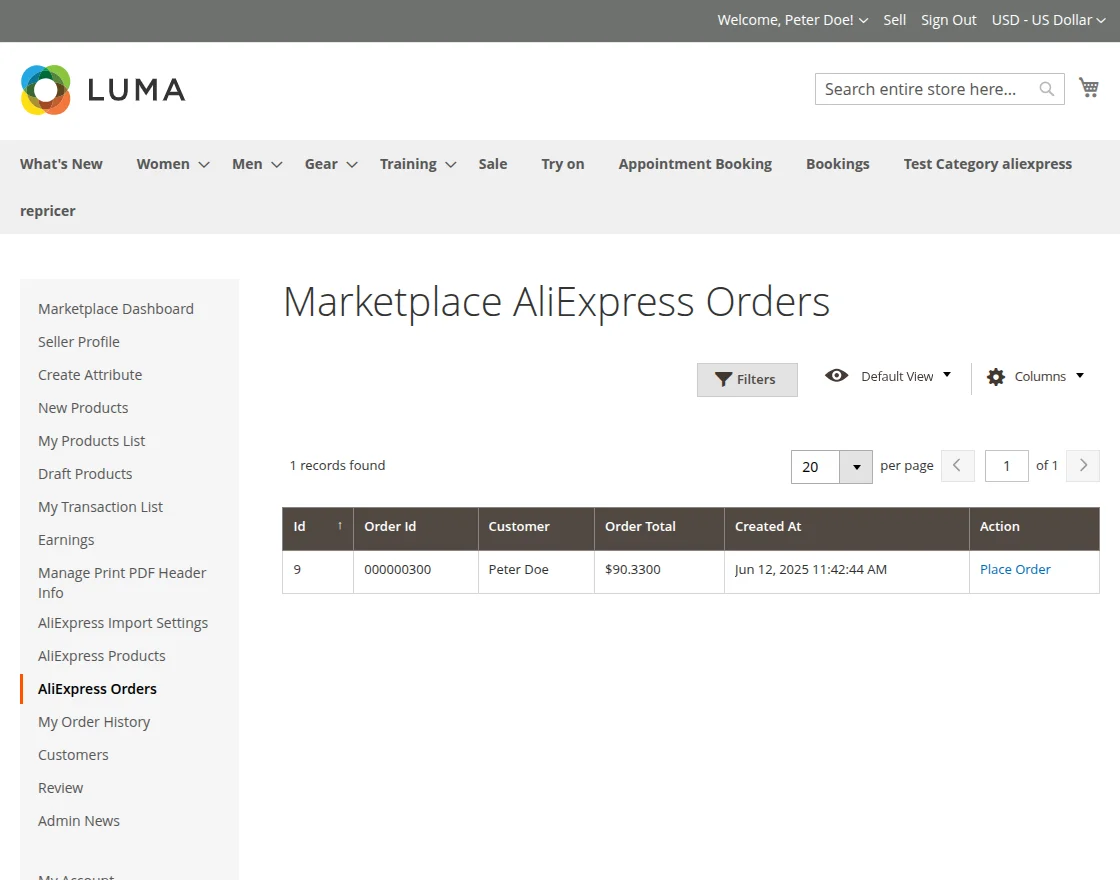
Also, a Place Order button is available under the Actions tab. The seller can click on that button to place the desired order.
The system redirects the seller to AliExpress after they click the button and automatically adds the product to the cart.
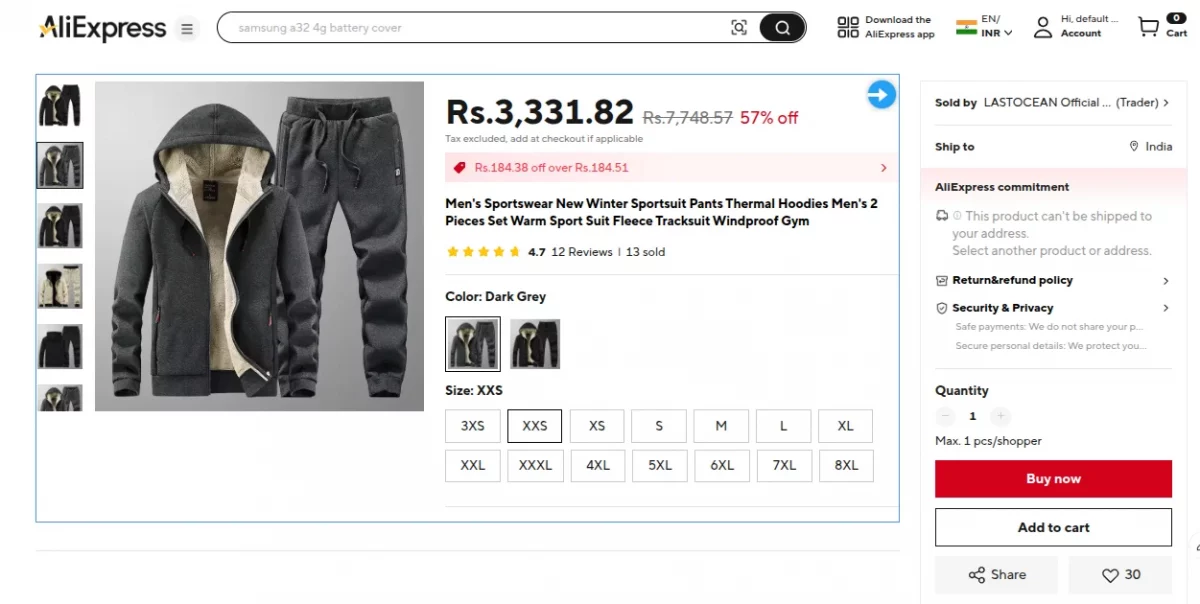
Further, the seller will be able to see the shopping cart details as shown in the image below.
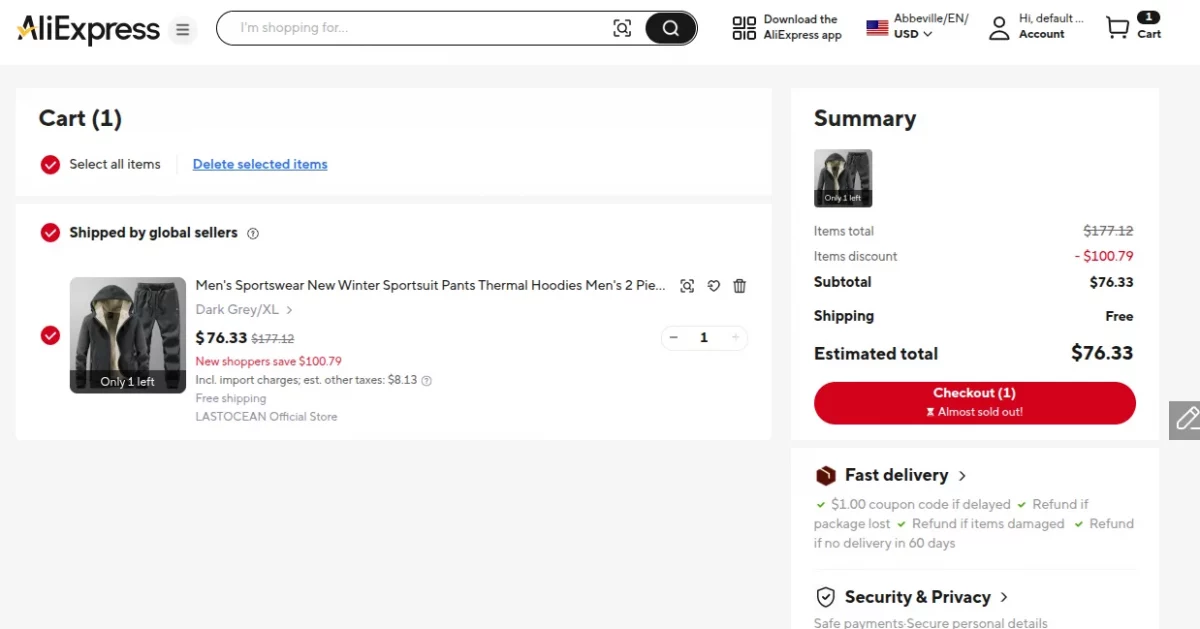
By clicking on the Buy from this seller button, the seller can process the order seamlessly.
All Reviews
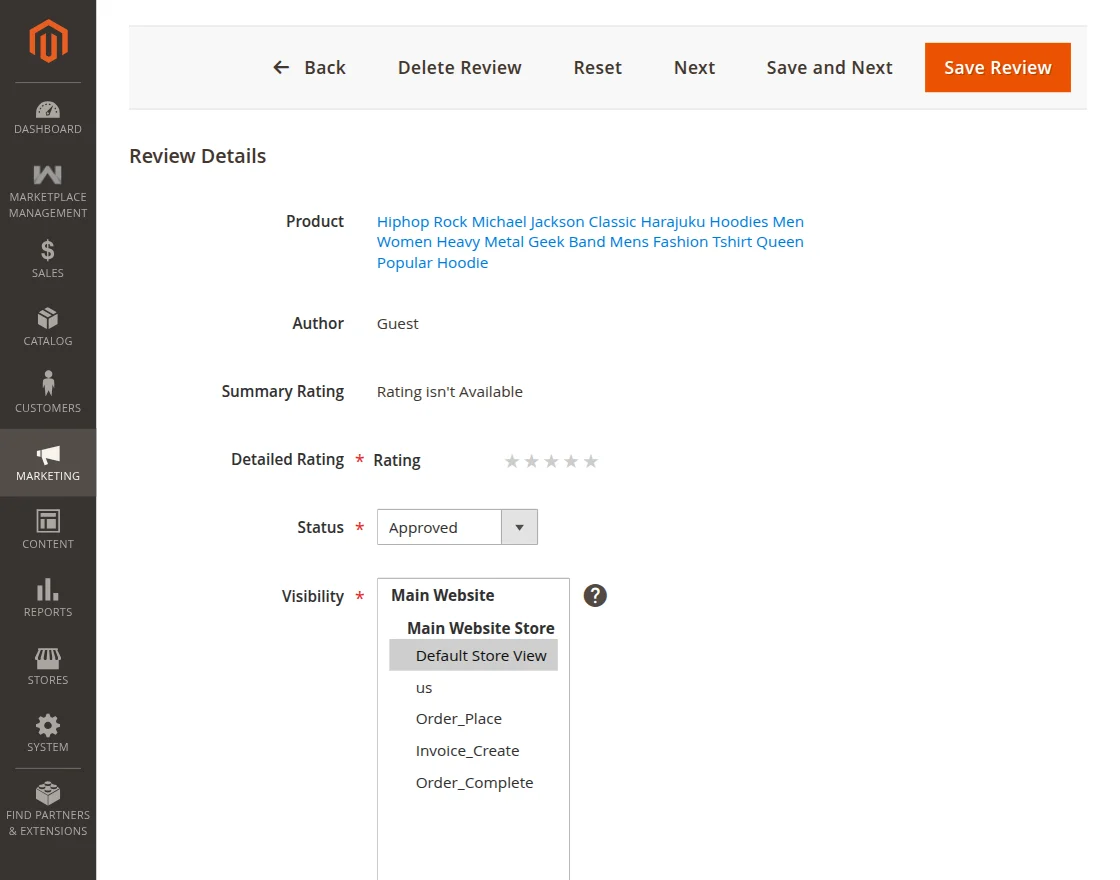
You can fetch product reviews from the backend by navigating to Marketing → User Content → All Reviews.
Admins can fetch product reviews from the backend by navigating to Marketing → User Content → All Reviews.
From the list of given reviews, the admin can choose to view/edit a particular review as depicted below.
Support
That’s all for the base Multi Vendor AliExpress Importer for Magento 2 (Adobe Commerce) module still have any issues, feel free to add a ticket at our HelpDesk System.
Explore the Adobe Commerce Cloud development services by Webkul. You may also browse other Magento 2 marketplace addons and our quality Magento 2 extensions.
Current Product Version - 5.0.4
Supported Framework Version - 2.0.x,2.1.x,2.2.x,2.3.x,2.4.x


Be the first to comment.