Are you looking for an easy way to extend wallet functionality to your Shopify Mobile app? The Wallet Connector by Webkul is a perfect solution!
This feature app works seamlessly with the Mobikul Mobile App Builder, allowing customers to add money to their Wallet, make purchases, and manage transactions directly within your mobile app.
This guide will walk you through the installation process and highlight all the key features.
Let’s take a look at how you can easily set up this Wallet integration within the mobile app for Shopify.
Please refer to the link to explore more about the Wallet App for Shopify: Link
Installation Process
To begin using the Wallet Connector, follow these simple steps:
- Install the App:You can download the app from the Feature App section.
Feature app -> Feature app -> Wallet Connector -> Install
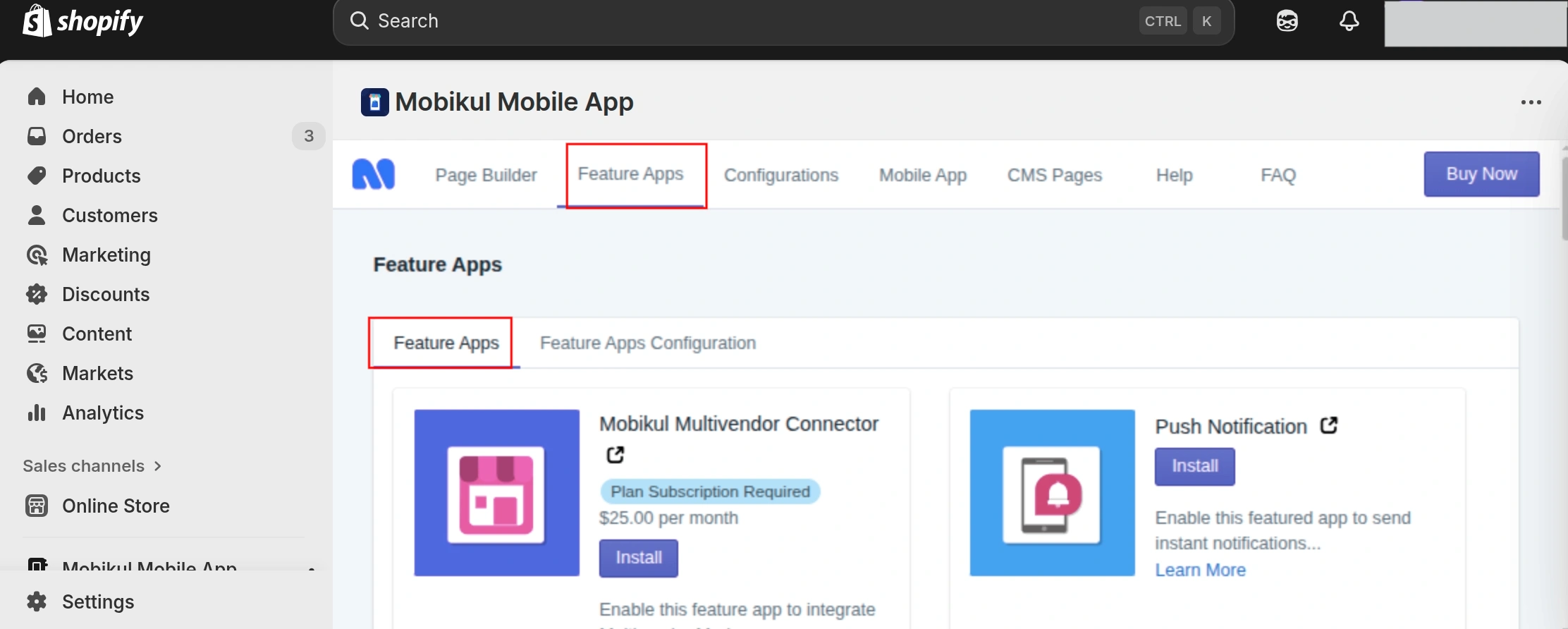
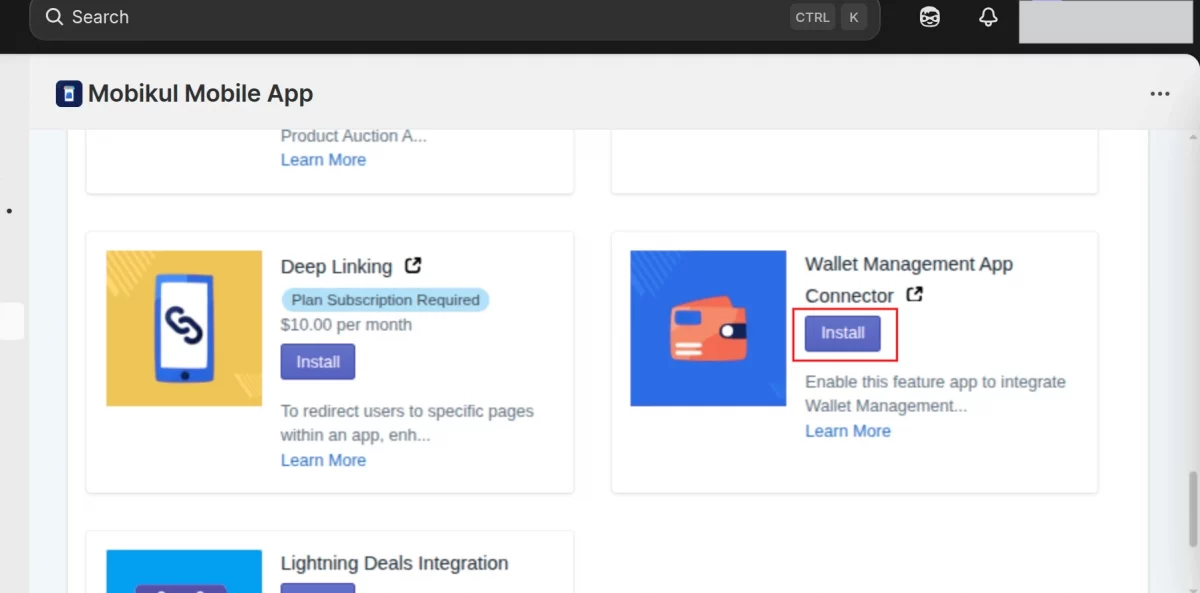
Once you click on the install button, it will ask for permission for authentication.
Once the payment is approved, the app will then install automatically.
After you click on the install button, it will then ask for permission for authentication.

- To enable the app, first navigate to the feature app’s configuration page. Next, click on Configure App, and finally, enable it from there.
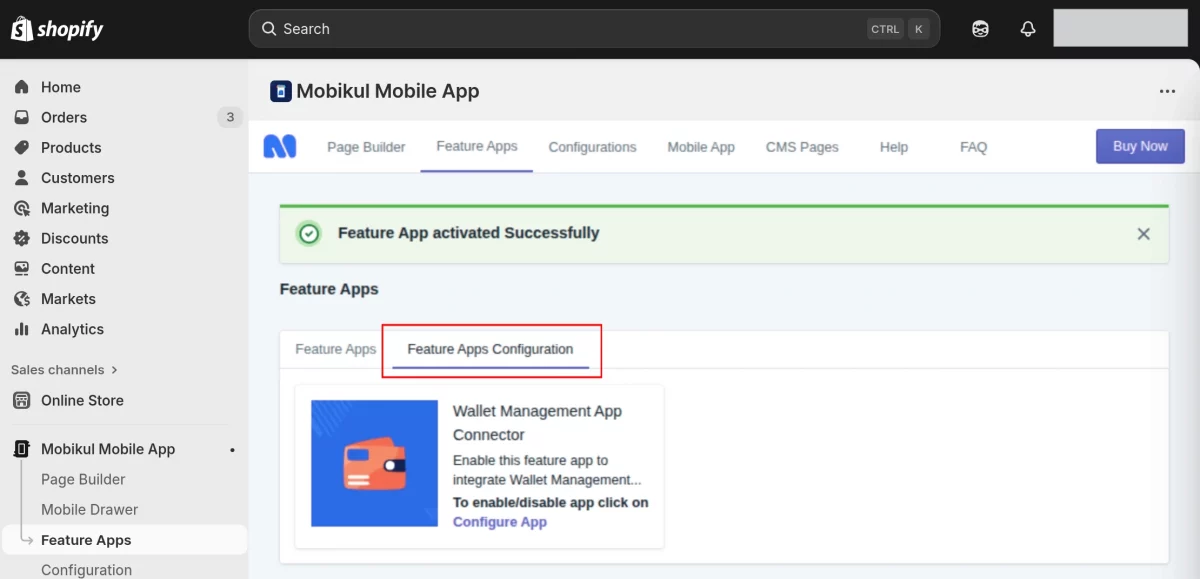
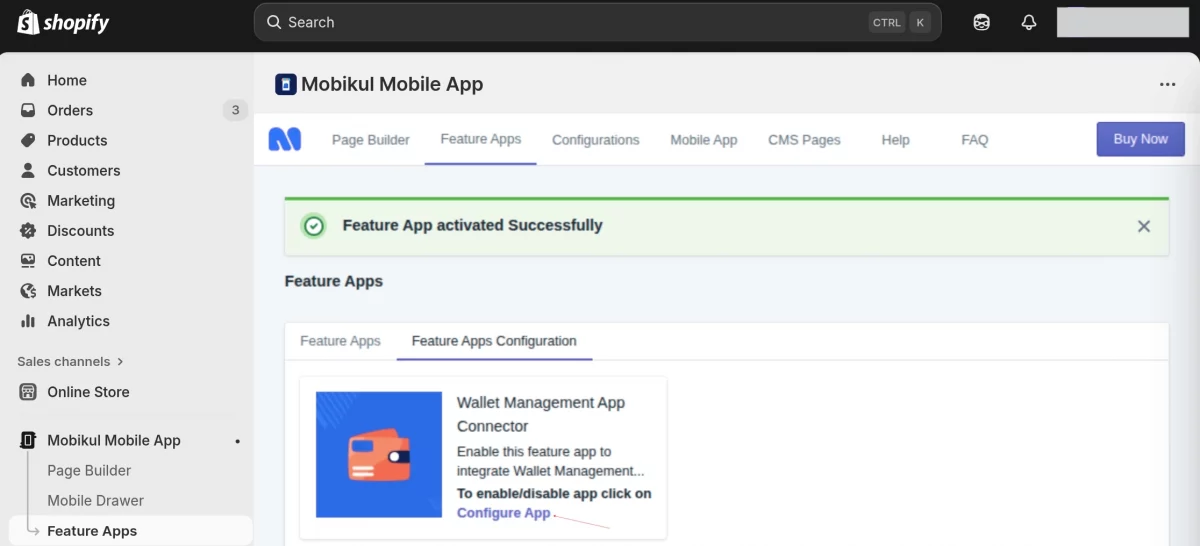
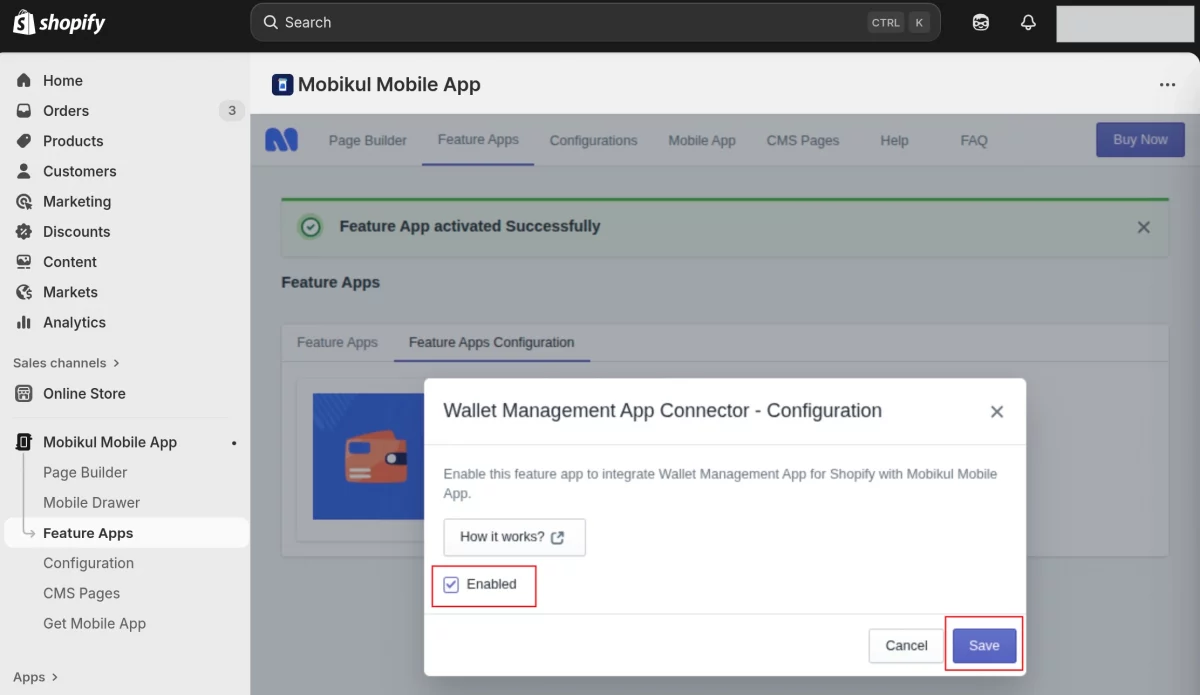
To enable this, first click on the enable button, and then proceed by clicking on the save button.
Customer End
On the customer end, the app includes an interactive Wallet dashboard that displays real-time balance updates, recent transactions, and upcoming payment schedules.
Helping customers stay informed and in control of their finances.
Navigation Menu
By clicking on the arrow icon, they will be redirected to the ‘My Profile’ section.
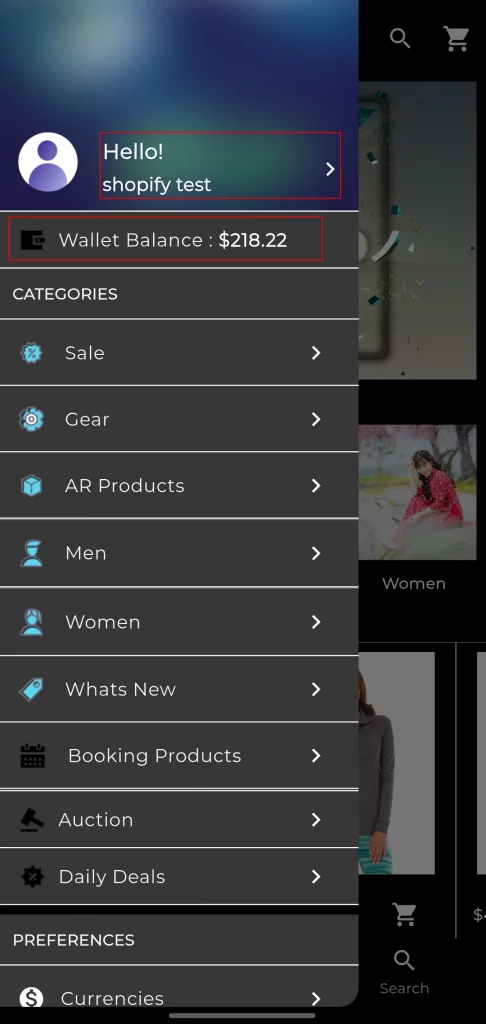
In the Wallet section, users can easily view their current balance at a glance.
By clicking on the arrow icon, they will be redirected to the ‘My Profile’ section,
where they can access detailed wallet functionalities such as transaction history, top-up options, and withdrawal settings.
Your Wallet
By just clicking on the Wallet option, you can access all key features in one place
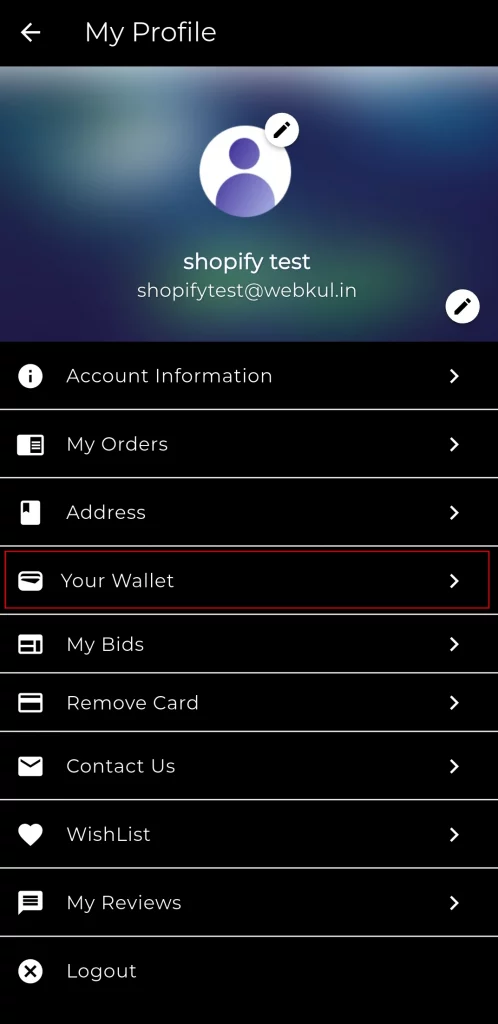
By just clicking on the Wallet option, you can access all key features in one place: Wallet Status, Wallet Transaction History, Refund Requests, Wallet Transfer History, and Wallet FAQs.
Everything you need for seamless wallet management is right at your fingertips!
Wallet Status
The Wallet Status section provides a quick snapshot of your financial position.
Here, you can easily check your current wallet balance, review your store credit balance, and take actions such as adding money to your wallet or transferring funds whenever needed.
This feature ensures you have full control over your funds with complete transparency and convenience all in one place.
Wallet Status
Check your current wallet balance instantly and stay updated on your available funds.
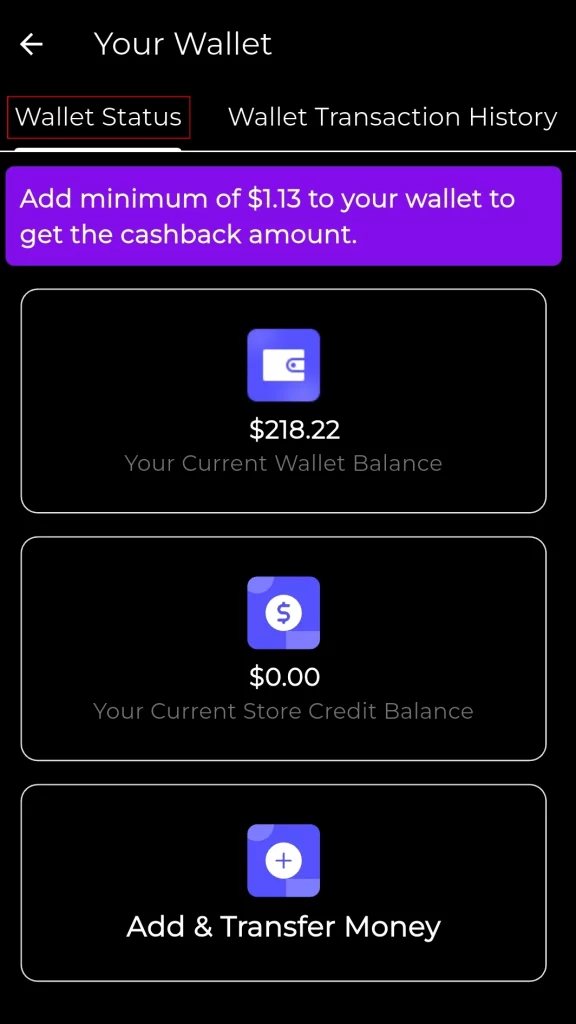
Add & Transfer Money:
Managing your wallet funds is quick and effortless with our Add & Transfer Money options.
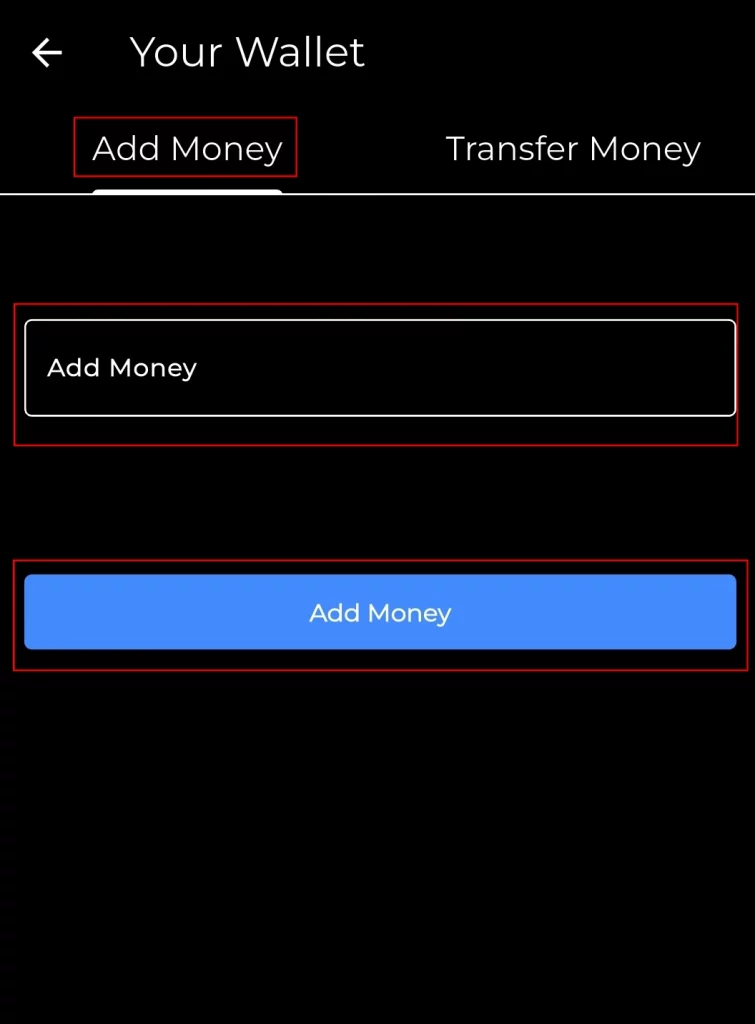
- Add Money: Enter the desired amount and click on ‘Add Money’. The amount will be credited instantly, ensuring you never run out of balance when making transactions.
Add Money
Adding funds to your wallet is quick and simple.
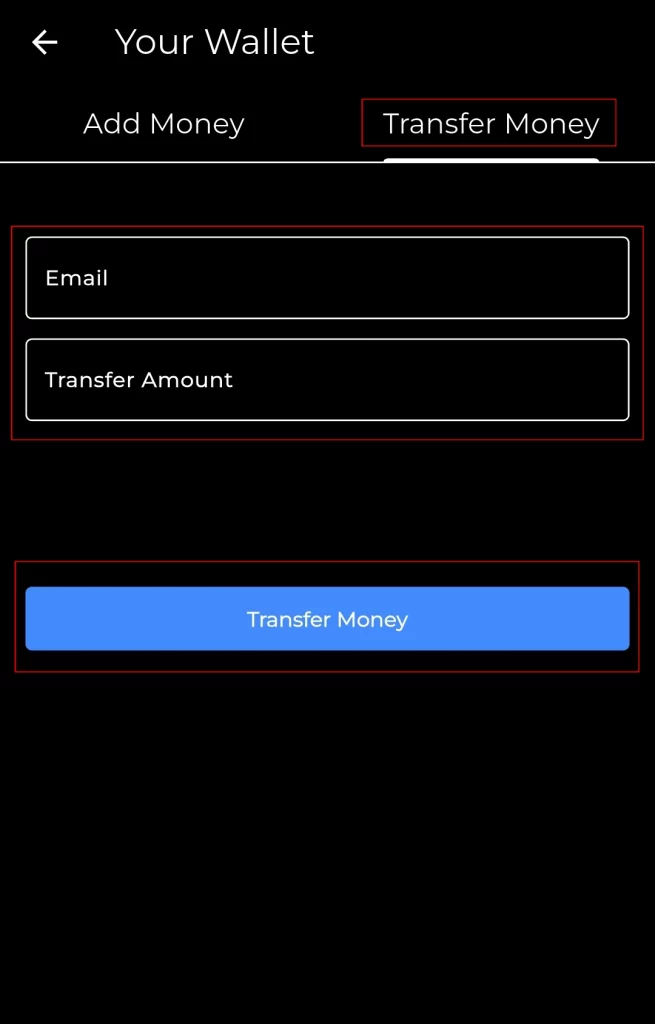
- Transfer Money: Just enter the recipient’s email address, specify the amount you wish to transfer, and click on ‘Transfer Money’. It’s fast, secure, and convenient.
Transfer Money
Transferring funds to another user with ease.
Wallet Transaction History
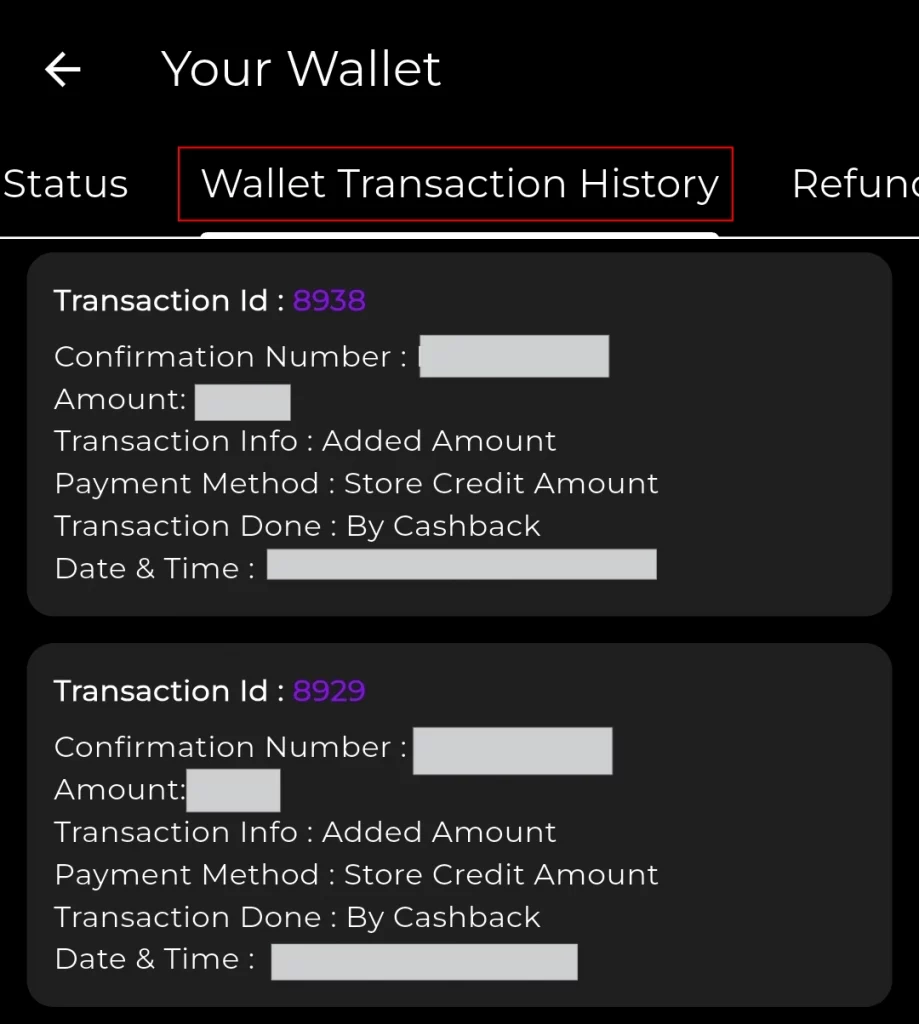
Get a detailed view of all your wallet transactions, including credits, debits, and adjustments, to track your spending and earnings.
Wallet Transaction History
View a detailed history of all your wallet transactions.
Refund Requests
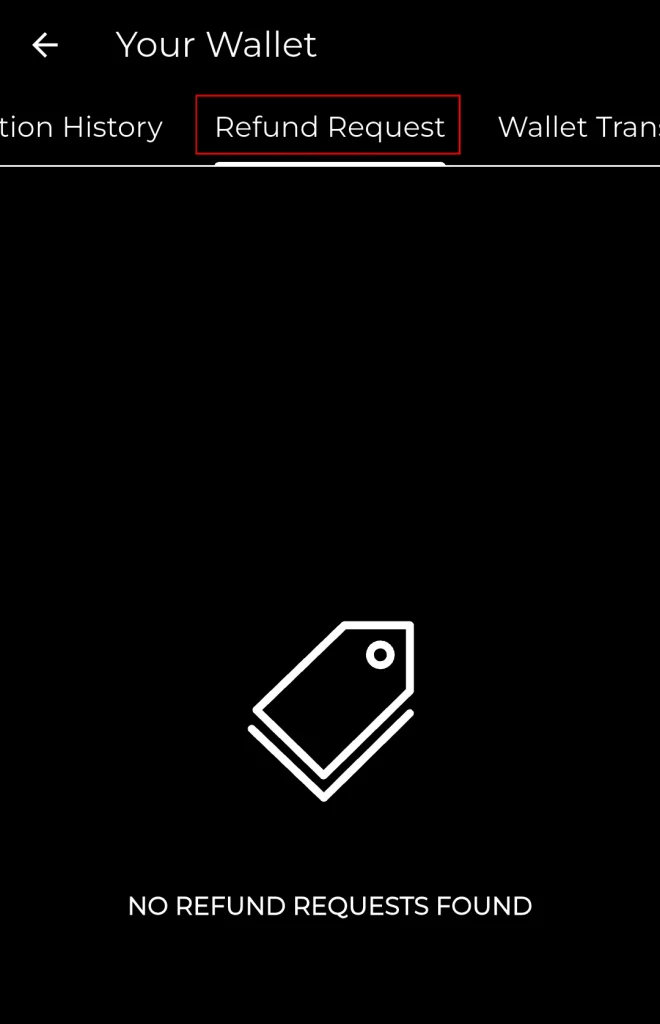
Easily monitor your refund requests and stay informed about their status, whether pending or approved.
Refund Requests
Easily track your refund requests.
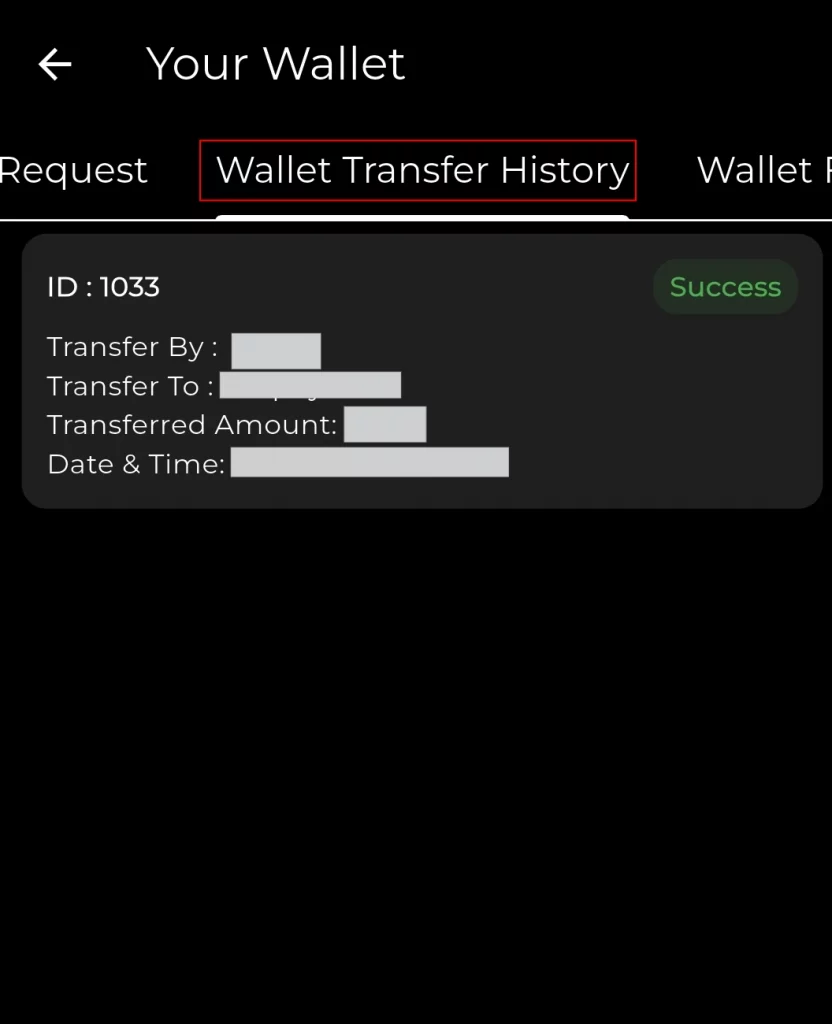
Wallet Transfer History
Access a complete log of all wallet-to-wallet transfers, ensuring transparency and control over your funds.
Wallet Transfer History
Monitor all your wallet-to-wallet transfers.
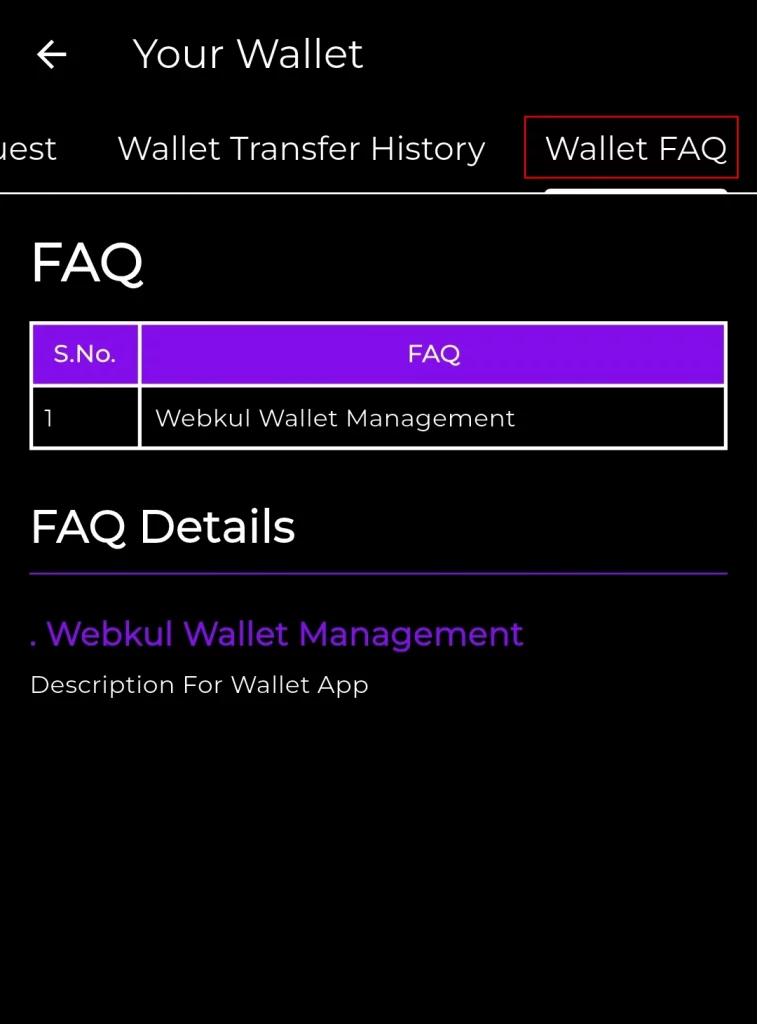
Wallet FAQs
Need help? Visit the Wallet FAQ section for quick answers and detailed guidance on how to make the most of your wallet.
Wallet FAQ
Access a dedicated Wallet FAQ section for quick answers and guidance on how to use wallet features effectively.
Easy Checkout with Wallet Payment Option
Shopping and paying through your wallet has never been easier. Simply select the product you want, add it to your cart, and proceed to checkout.
Add to Product
Add it to your cart, and proceed to checkout.
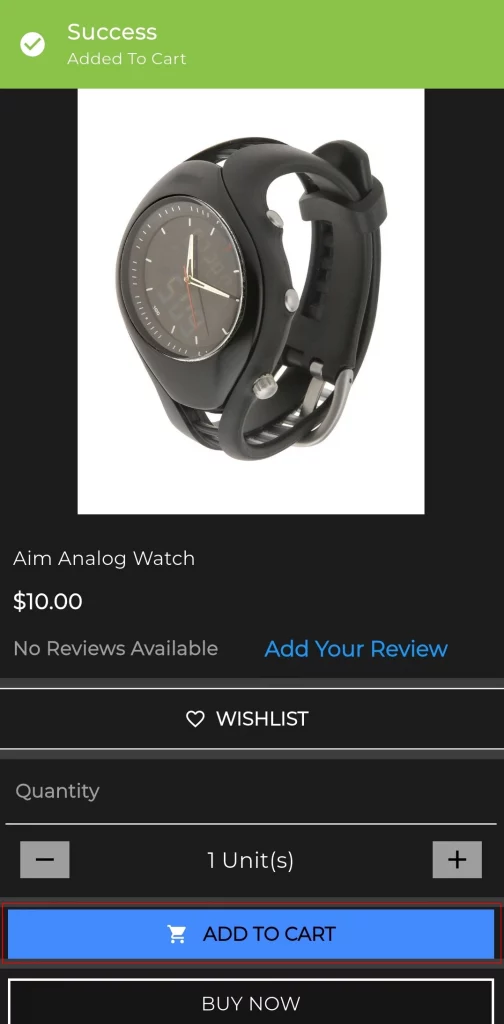
After adding product to the cart.
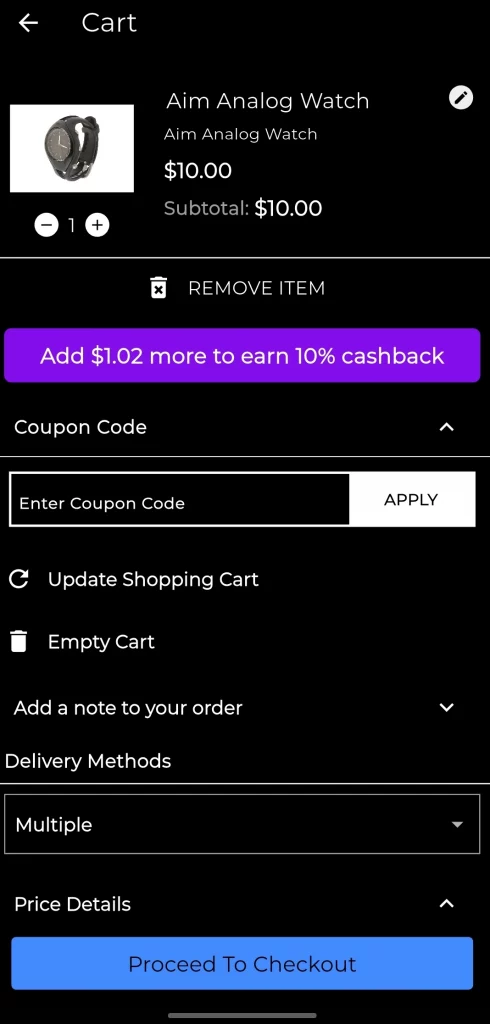
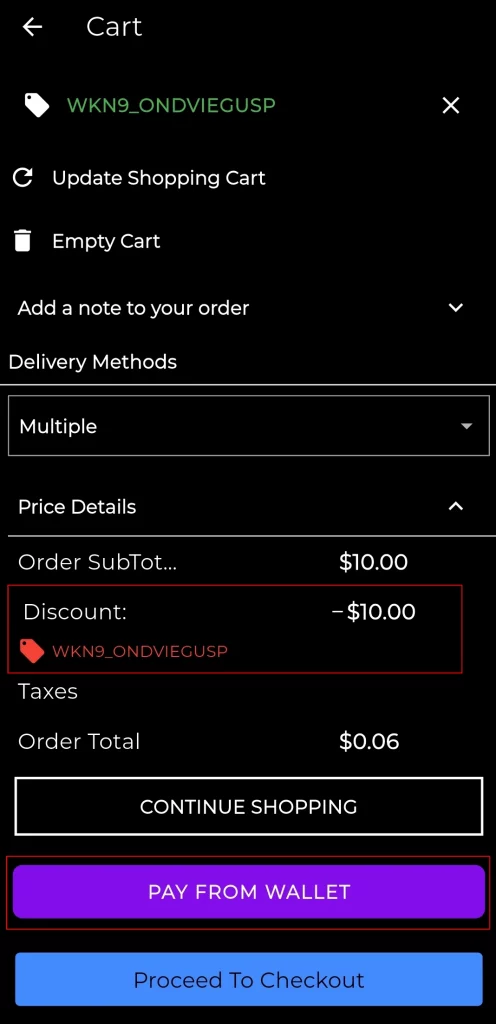
Any applicable coupon will be applied automatically, so you don’t have to worry about missing out on discounts.
Once you’re on the payment page, choose the ‘Pay with Wallet’ option, click on it, and then proceed to complete your order.
Pay from Wallet
Coupon will be applied automatically, and then proceed to complete your order.
It’s quick, secure, and hassle-free, making your shopping experience smooth from start to finish.
Need Help ?
Hope you like this blog. To get more interesting blogs, keep in touch with us. If you need any kind of assistance, just raise a ticket from https://webkul.uvdesk.com/en/.
You can also contact us at [email protected] to get proper assistance.
Thank you for reading this Blog!
Don’t have a Shopify Store? Create Now!!!


Be the first to comment.