Magento 2 (Adobe Commerce) Marketplace Splitcart will allow the buyers to add more than one seller’s products to their cart.
While a seller’s items are being processed for checkout, other products stay in the cart. Buyers can pay for them immediately or later at their convenience.
This module is an add-on of the Magento 2 Marketplace Module. To use this module you must have installed first Magento 2 Marketplace Module.
Additionally, if you’re looking to provide a one time commission payment option to the sellers listed on your marketplace, then you can check Magento 2 Vendor One Time Pay Commission.
Features
- The buyer can add multiple seller’s products to their cart.
- Admin can enable/disable the Marketplace Split Cart option.
- While a particular seller’s products added in a cart are being processed for checkout, the remaining products will remain in the cart so that payment can be made immediately or later as per the buyer’s convenience.
- The Shopping cart will be split based on sellers.
- Products sold by the admin can also be added to the cart.
- Existing shipping methods will apply, so the admin doesn’t need extra modules. After cart split, checkout works like a normal single-seller order with shipping calculated as usual.
- Existing payment methods will work, so the admin doesn’t need extra modules. After cart split, checkout functions like a normal single-seller order.
- Admin can pay sellers directly via PayPal or Stripe from the backend, ensuring secure and smooth transactions based on the order.
- This extension is compatible with the Hyva Theme
Installation – Magento 2 Marketplace Splitcart
Customers will get a zip folder and they have to extract the contents of this zip folder on their system.
The extracted folder has an src folder, inside the src folder you have the app folder. You need to transfer this app folder into the Magento 2 root directory on the server as shown below.
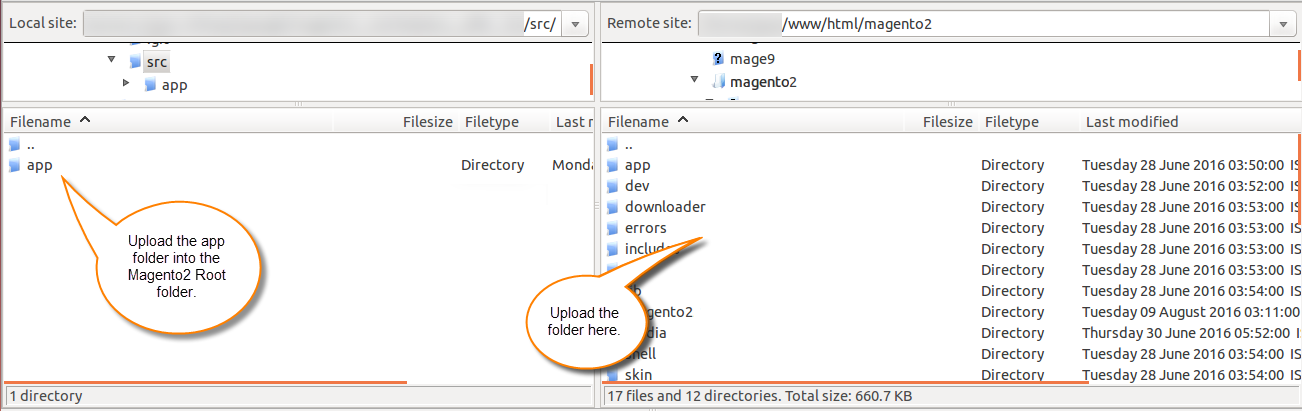
After the successful installation, you have to run these commands in the Magento 2 root directory:
php bin/magento setup:upgrade
php bin/magento setup:di:compile
php bin/magento setup:static-content:deploy
php bin/magento indexer:reindex
php bin/magento cache:flush
Multi-lingual Support – Magento 2 Marketplace Splitcart
For Multilingual support, please navigate to Store>Configuration>General >Locale Options. And select your desired language from the Locale option.
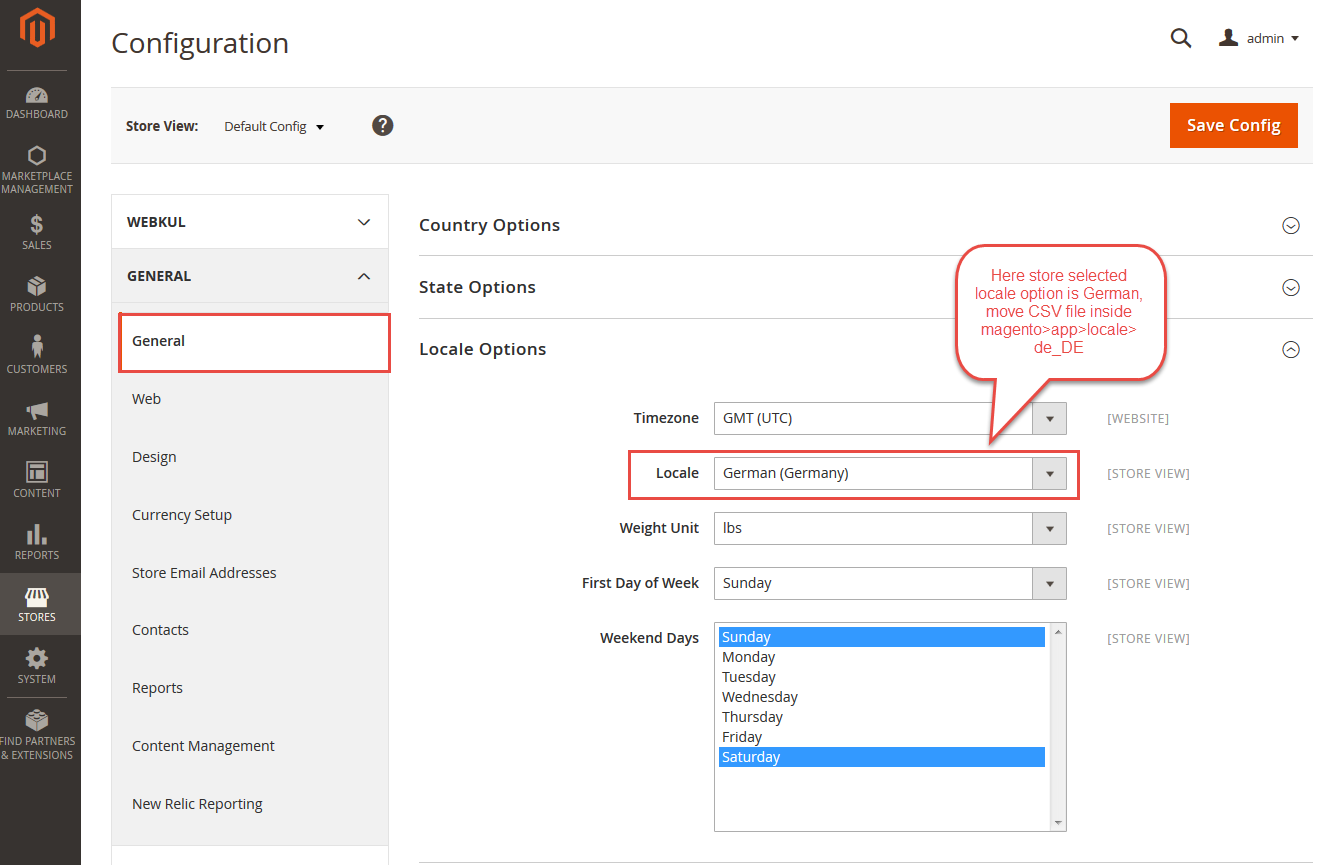
Module Translation
To translate the module from English to German, go to app/code/Webkul/Mpsplitcart/i18n in the unzipped folder and edit the “en_US.csv” file accordingly.
Now they will rename that CSV as “de_DE.csv” and translate all right side content after the comma in the German language.
After editing the CSV, save it and then upload it to the path app/code/Webkul/Mpsplitcart/i18n where they have installed Magento 2 on the server.
The module will get translated into the German Language. It supports both RTL and LTR languages.
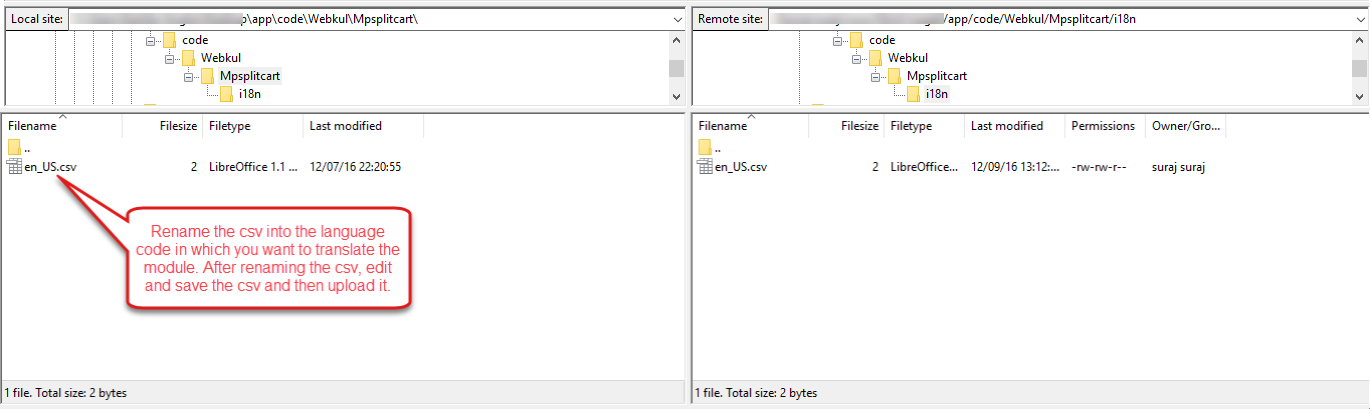

The user can edit the CSV like the image below.

Module Configuration
Admin can Enable / Disable the Split Cart option. Under Store>Configuration>Marketplace>Marketplace Split Cart Settings.
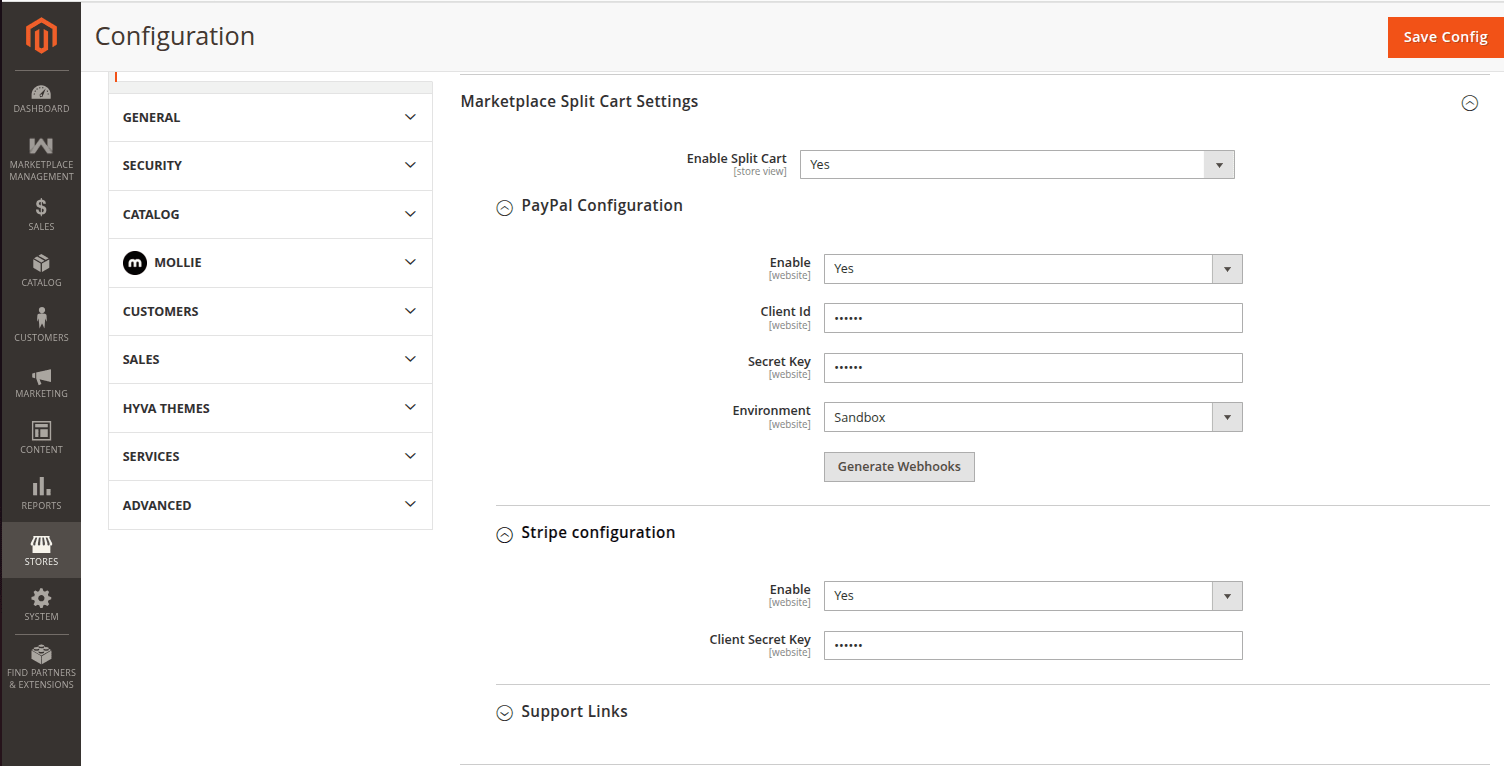
1.Marketplace Split Cart Setting
-
Enable Split Cart Setting:
-
Select “Yes” to enable the module.
-
Select “No” to disable it.
-
2. PayPal Configuration (For Admin to Pay Sellers)
-
Enable:
-
Select “Yes” to enable PayPal for paying sellers.
-
Select “No” to disable this option.
-
-
Client ID:
-
Enter the Client ID from your PayPal Developer account.
-
-
Secret Key:
-
Enter the Secret Key generated in your PayPal Developer account.
-
-
Environment:
-
Choose Sandbox for testing or Production for live usage.
-
-
Generate Webhooks:
-
After entering the required credentials, click “Generate Webhooks” to complete the PayPal integration.
-
3. Stripe Configuration (For Admin to Pay Sellers)
-
Enable:
-
Select “Yes” to enable Stripe for paying sellers.
-
Select “No” to disable this option.
-
-
Client Secret Key:
-
Enter the Secret Key from your Stripe account.
-
Seller End – Set Payment Information
After successfully installing Magento 2 Multi Vendor Split Cart, sellers can add their payment details to receive payments through PayPal or Stripe.
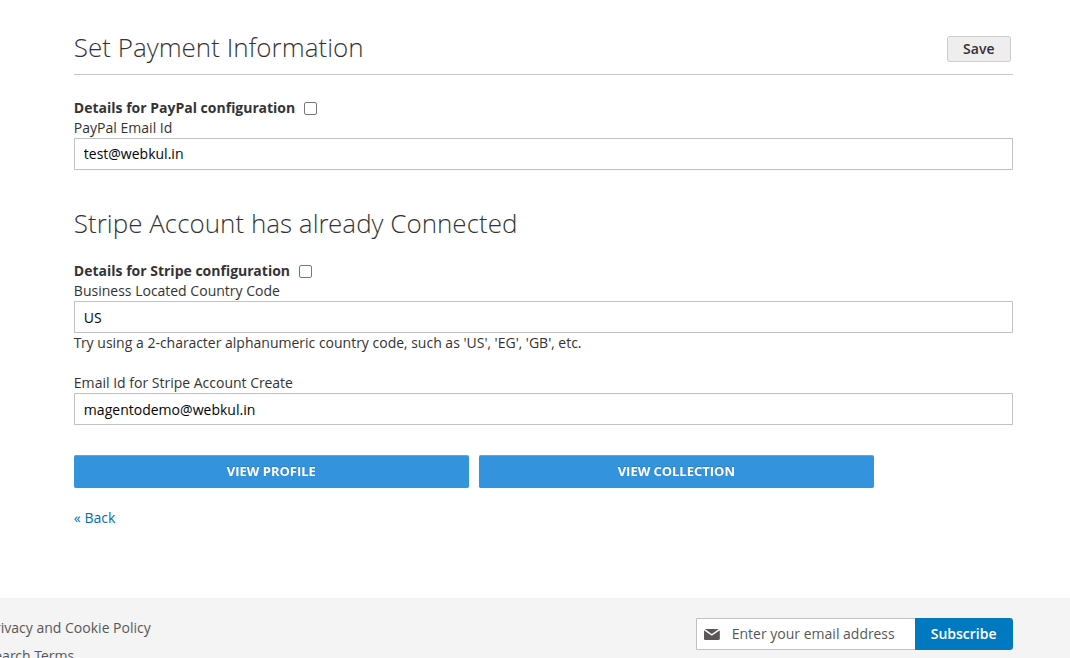
To do this, the seller needs to log in to the Seller Dashboard and navigate to Profile Settings.
Under the Set Payment Information section, sellers can enter their payment details for both PayPal and Stripe.
PayPal Configuration
Sellers can enter their PayPal email address to receive payments.
Stripe Configuration
Sellers need to provide the following information to enable Stripe payouts:
-
Email ID used to create the Stripe account
-
Business Located Country Code (e.g.,
US,DE,IN, etc.)
After configuring PayPal and Stripe payment methods, click on the Save button to store the payment information.
This setup ensures sellers receive payments smoothly through the selected methods once orders are placed and processed.
Customer View – Adobe Commerce Marketplace Splitcart
Now, when a customer will add the products to the cart of the different-different seller, the cart page of the customer will look like as shown in the image below –

Now, the customer can click on the “Go to Checkout” button as per their needs for which the customer wants to complete the order.
Here, the customer can select the Shipping Address and Shipping Method then click on the Next button.

Now the customer can select the Payment Method and agree to the terms and conditions. Also, the customer can apply the Discount Code, if have any, and then Place an Order.

After placing the order, the customer can see the thank you page for completing the order as shown in the image below –

The customer can also see the remaining product in the cart which was split.
The customer can also process further with the remaining cart product as per their convenient shipping and payment method.

Now, the customer can select the “Go to Checkout” button and process further. Here, the customer can select the “Shipping Address” and “Shipping Method” as shown in the image below –

Now, the customer can select the payment method and agree to the terms and conditions then place the order.

Now, the customer can see the “thank you” page as shown in the image below –

Admin – Pay Sellers via PayPal or Stripe
Using the Magento 2 Multi Vendor Split Cart module, the admin can pay sellers directly through PayPal or Stripe based on the seller’s configured payment details.
Steps for Admin to Pay Sellers:
-
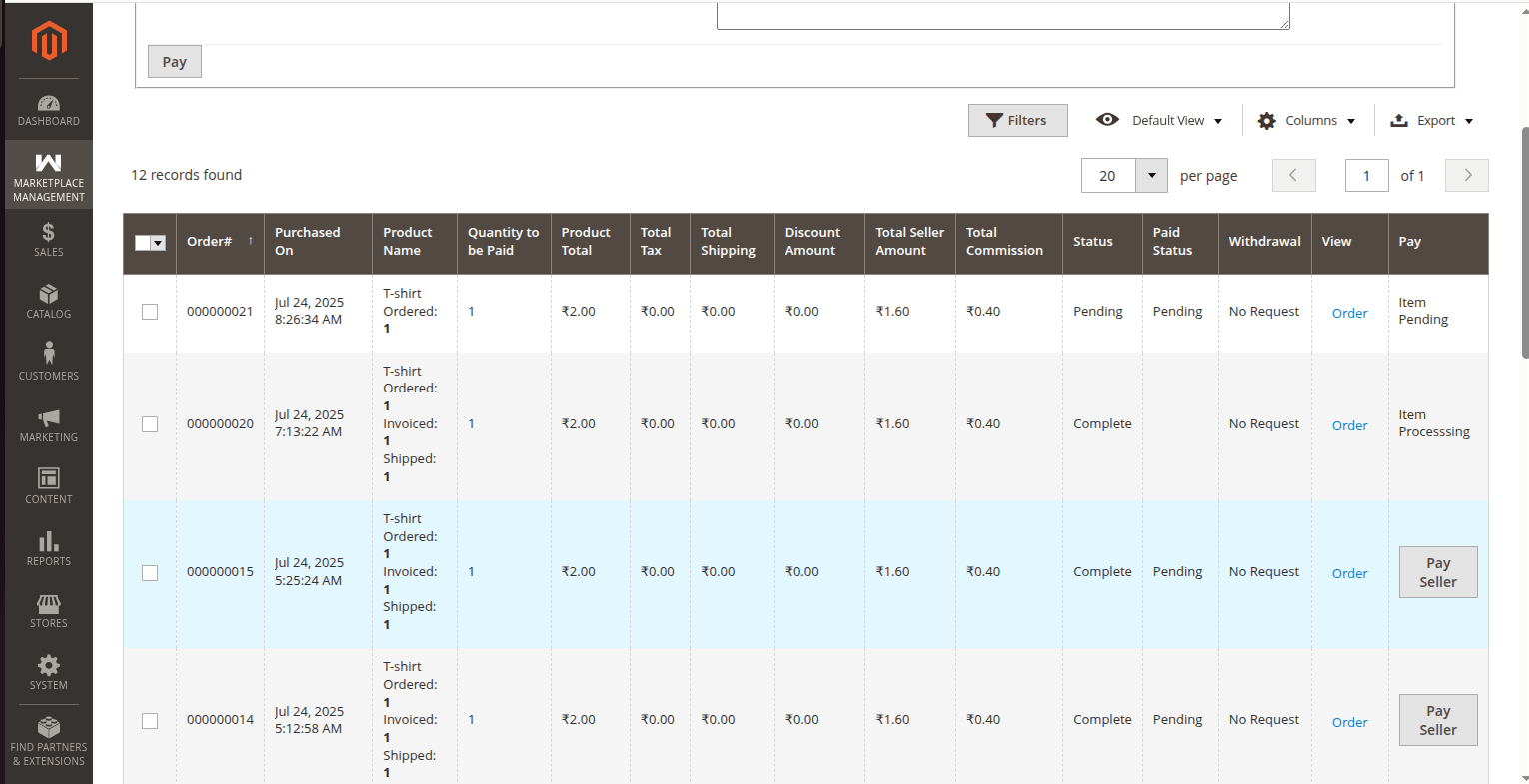
Navigate to Marketplace Management → Manage Sellers.
-
Select the seller whose order needs to be paid.
-
Click on the specific Order from the list.
-
Then, click the “Pay Seller” button.
Payment Pop-Up:
-
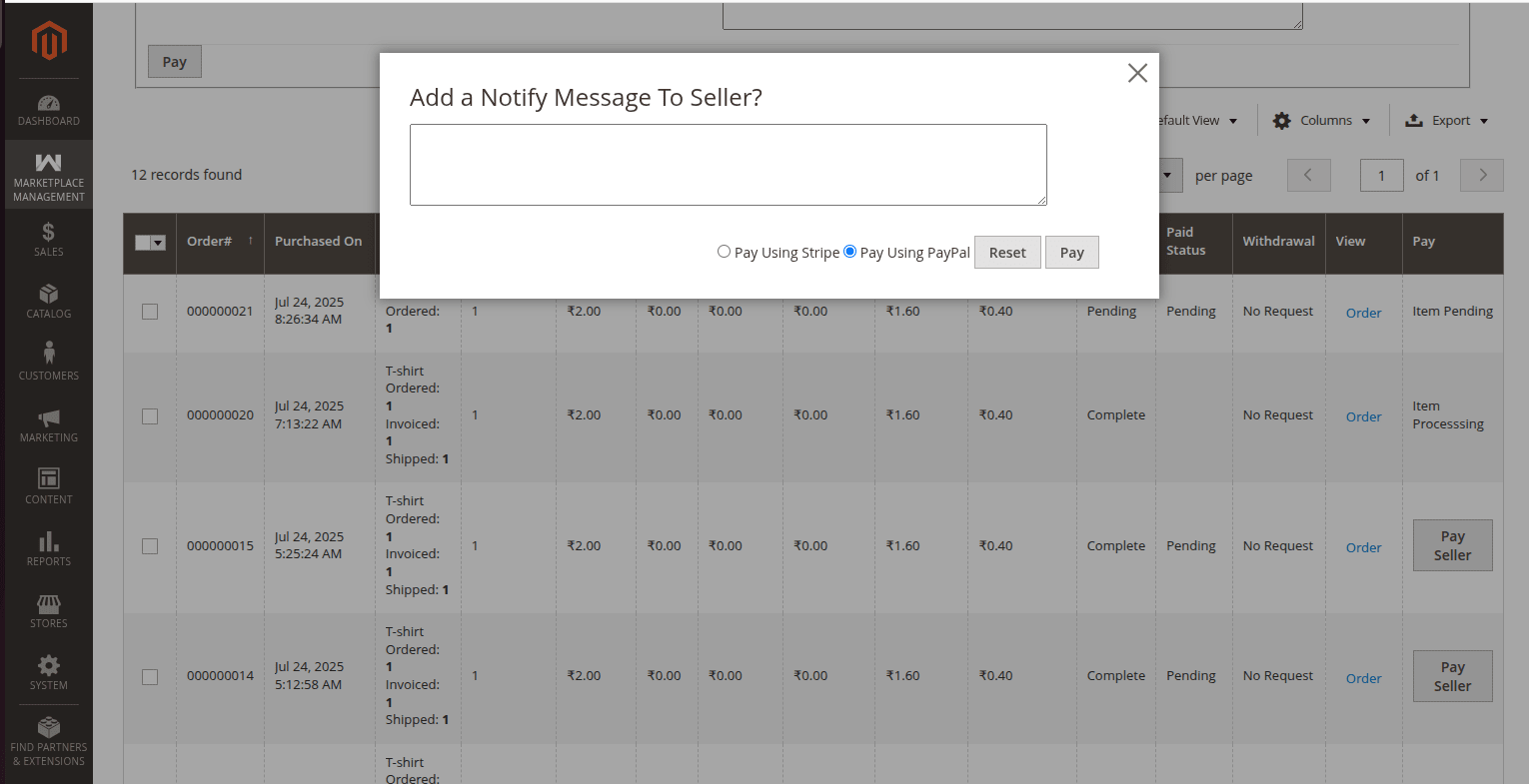
A pop-up window will appear.
-
Enter any optional comment regarding the payment.
-
Choose one of the payment methods:
-
Pay Using PayPal
-
Pay Using Stripe
-
-
Click on the “Pay” button to proceed.
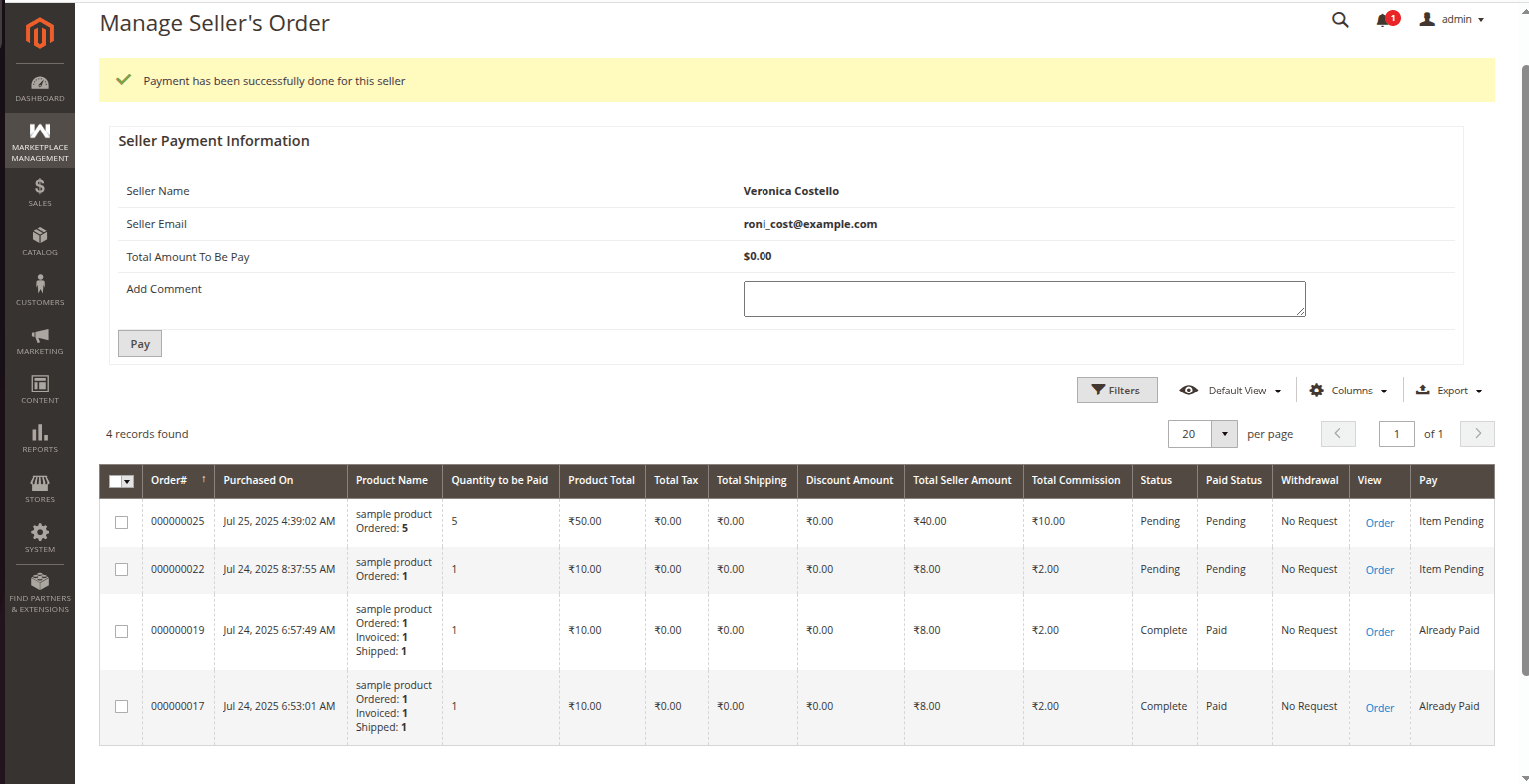
The amount will be transferred to the seller’s PayPal or Stripe account, depending on the selected option and seller’s configuration.
Use case of Marketplace Splitcart
Split cart is an addon of Magento 2 Marketplace. It helps the buyer to add multiple products of different sellers to his Cart.
At the time of checkout, the buyer has to proceed checkout differently for each seller. Also, we can say the cart page will show different checkouts of different sellers.
An efficient way to manage ORDERS
The Split cart add-on of Magento 2 Marketplace will facilitate the order management system.
By this add-on, the generation of Invoices, Shipment, Credit memo can be managed separately which will be very much efficient for managing orders.
Hassle-free SHIPPING
By this add-on, shipment can also be facilitated. The buyer can choose different shipping methods for different sellers.
If the buyer is ordering 3 products from different sellers and one of them is very important, they can choose express 1-day delivery for that product only.
Normal shipping can be selected for the other two products. This way, the buyer avoids paying extra for express shipping on less important items. It results in cost savings for the buyer.
Clear PAYMENT options
By split cart, the add-on payment option is very much benefited. It is very much helpful for the buyer as well as admin too.
Using this addon buyers can choose from different payment options for different sellers.
Like in case a seller is providing COD and other sellers are not providing this payment option in that case buyer can select cod for that seller and other payment option for others.
The seller can also be benefited because he won’t need to use any other payment module because in the cart the checkout is separated and works as normal single seller checkout.
Impressive DISCOUNT handling
The different seller gives a different type of discount to their buyers like discount coupons, credit points, and much more.
So those discounts can be easily processed at the cart page with the help of the Split cart.
Effortless RETURNS
Split cart is very beneficial at the time of returns. It is very easy for both buyers and sellers to manage returns efficiently.
If a buyer needs to return a product, they can place a return request using the order number.
Since split cart generates different order numbers for different sellers, the return request can be easily processed by the respective seller.
That is all for the Marketplace Splitcart for Magento 2 (Adobe Commerce) still have any issue feel free to add a ticket and let us know your views to make the module better at webkul.uvdesk.com
Current Product Version - 5.0.4
Supported Framework Version - Magento 2.0.x, 2.1.x, 2.2.x,2.3.x, 2.4.x


2 comments
You can download the module’s compatible version for Magento 2.3.x from our store as well – https://store.webkul.com/magento2-multivendor-split-cart.html
For any doubts you can get back to us at [email protected] and our team will be more than happy to assist you.