Magento 2 Marketplace Advance Report System the Seller and store owner both can see their all reports in graphical representation.
Both can see their report on the basis of selected categories or order status or dates or intervals. Admin can see the report of a particular seller based on the selected seller.
This module is an add-on to the Adobe Commerce Marketplace Module. To use this module you must have to install Magento 2 Multi Vendor Module.
Watch the video to understand the extension workflow:-
Feature List – Magento 2 Marketplace Advanced Report System
- The admin can see the full report of every seller easily.
- Admin and Seller can select multiple options to filter the report results.
- The seller can see the full report of his sales.
- Admin and seller can filter sales according to categories or order status or date.
- Graphical representation of the report.
- The extension is compatible with the Hyva theme.
- GraphQl Implemented.
- Admin and seller are now able to export the report.
Installation – Magento 2 Marketplace Advanced Report System
Customers will get a zip folder and they have to extract the contents of this zip folder on their system.
The extracted folder has an src folder, inside the src folder you have the app folder.
You need to transfer this app folder into the Adobe Commerce root directory on the server as shown below.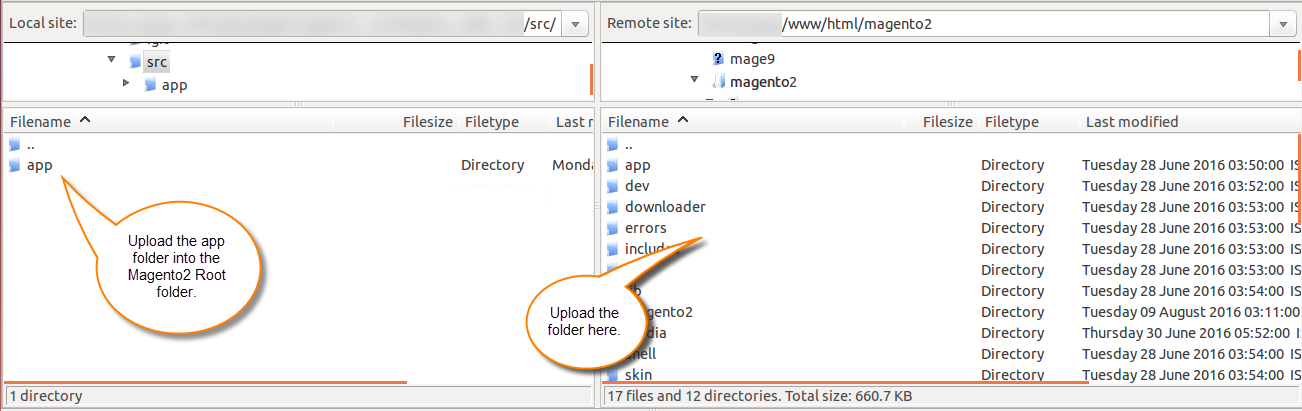
After the successful installation, you have to run these commands in the Adobe Commerce Cloud root directory:
php bin/magento setup:upgrade
php bin/magento setup:di:compile
php bin/magento setup:static-content:deploy
php bin/magento indexer:reindex
php bin/magento cache:flush
Configuration For Multi-lingual Support
For multilingual support, the admin will navigate through Store->Configuration->General ->Locale Options and select the locale as German (the language into which the admin wants to translate his store content).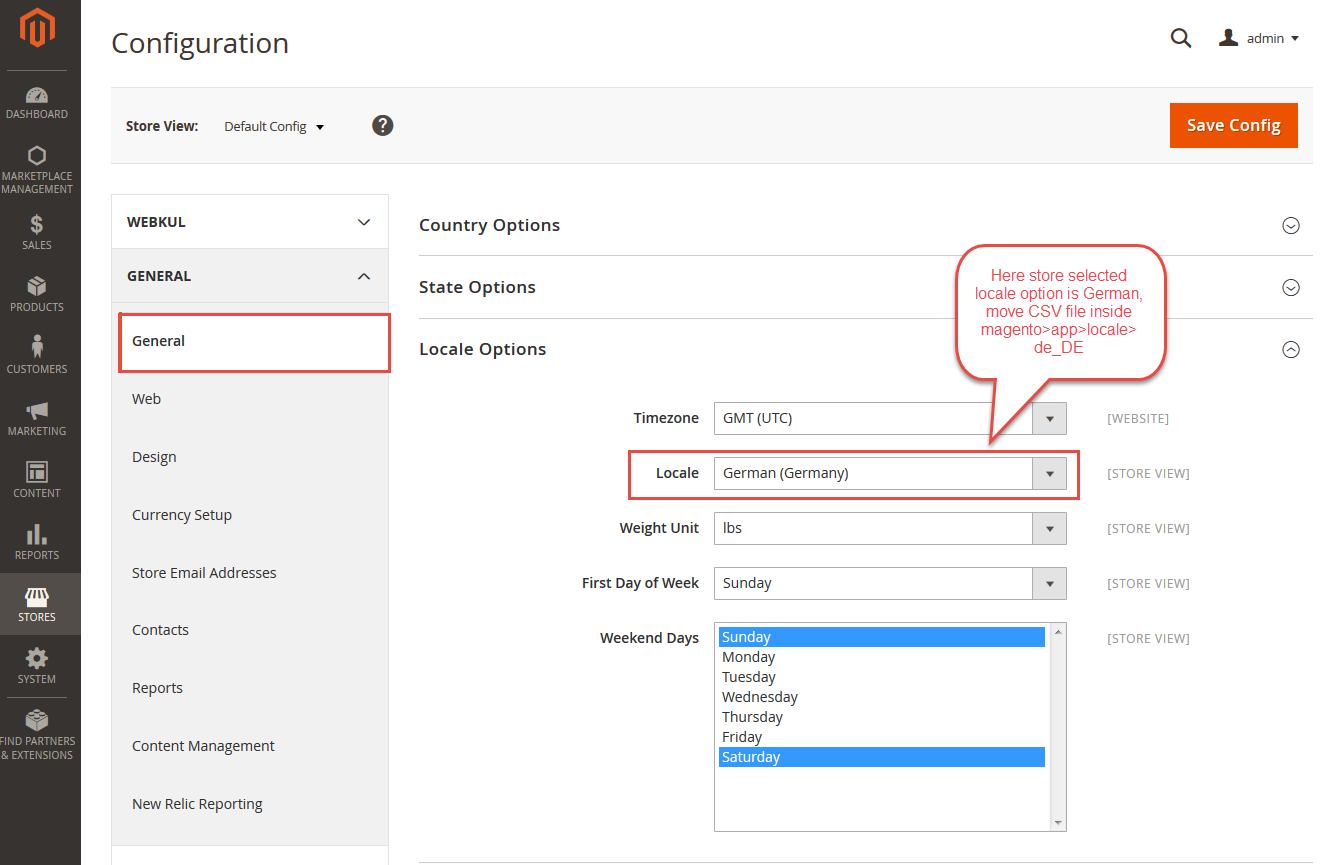
Translation
If a user wants to translate their module from English to German then they need to follow the path app/code/Webkul/Mpreportsystem/i18n in their unzipped Mpreportsystem folder and will get a CSV file with the name “en_US.csv”.
Now they will rename that CSV as “de_DE.csv” and translate all right side content after the comma in the German language.
After editing the CSV, save it and then upload it to the path app/code/Webkul/Mpreportsystem/i18n where they have installed Adobe Commerce Cloud on the server. The module will get translated into the German Language. It supports both RTL and LTR languages.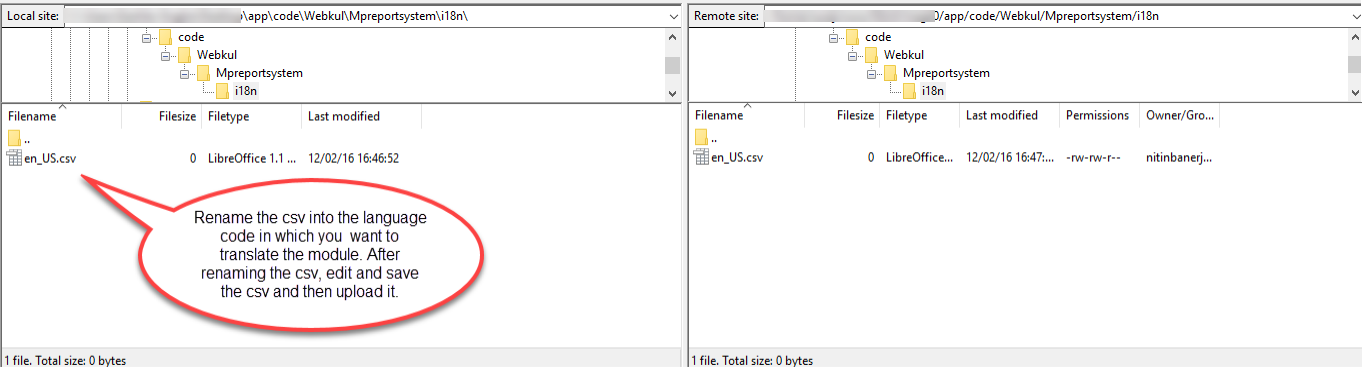
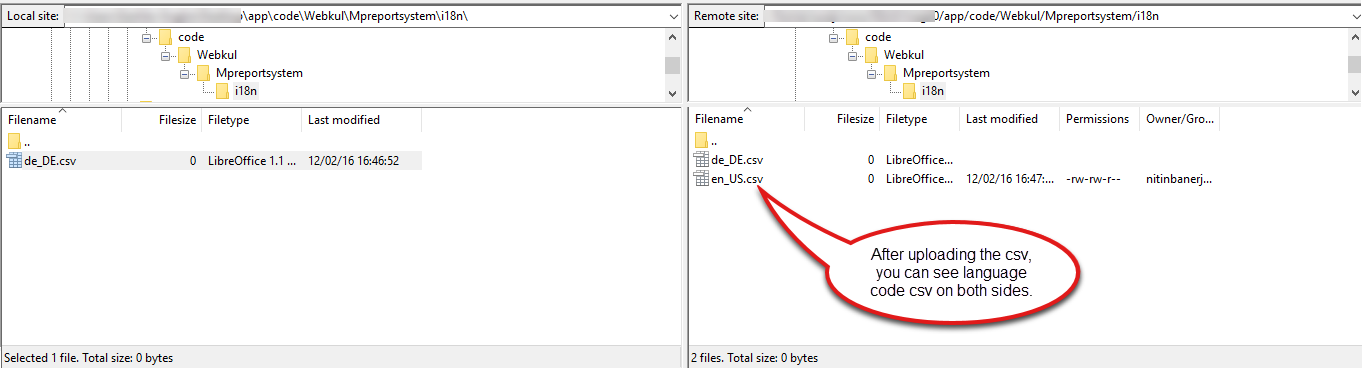 The user can edit the CSV like the image below.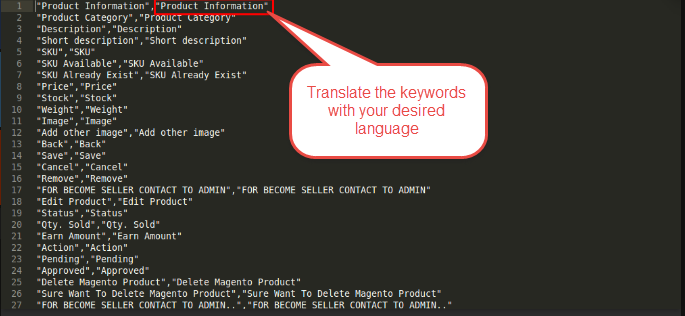
Admin End Management
After the successful installation of the Marketplace Advanced Report System for the Magento 2 module, the store owner can see “Marketplace Advance Report System Manager” under Marketplace Management.
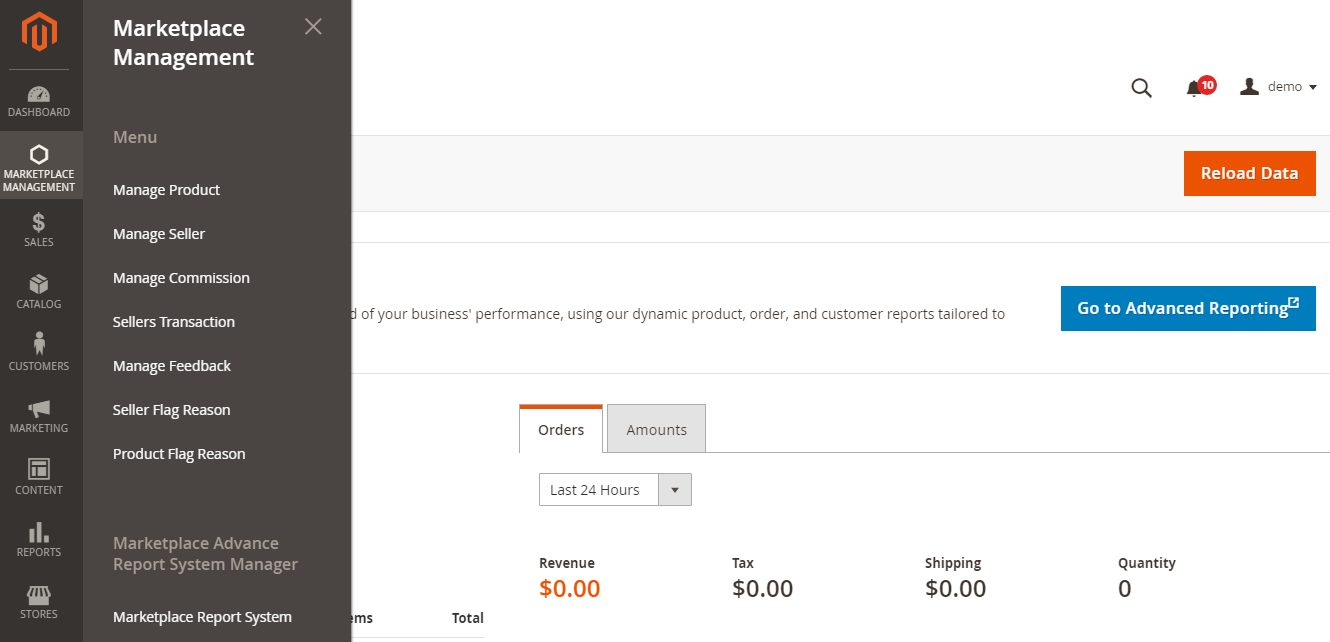
In the Marketplace Advanced Report System for Adobe Commerce, the store owner will be able to see the reports of his store.
Export Report
The admin can export the analytical report to their system in CSV format.
Generate Report
The store owner can view the sales report for any particular seller by just simply selecting the seller and then clicking on the ‘Generate Report‘.

The admin can also generate the report according to product categories and order status. Store owners can view the report for that year, for that month, for that week, or for that day.
The store owners can also filter the results by setting the date range and all the sales made during that period will be shown. Store owners can also see all the sales made on the world map.

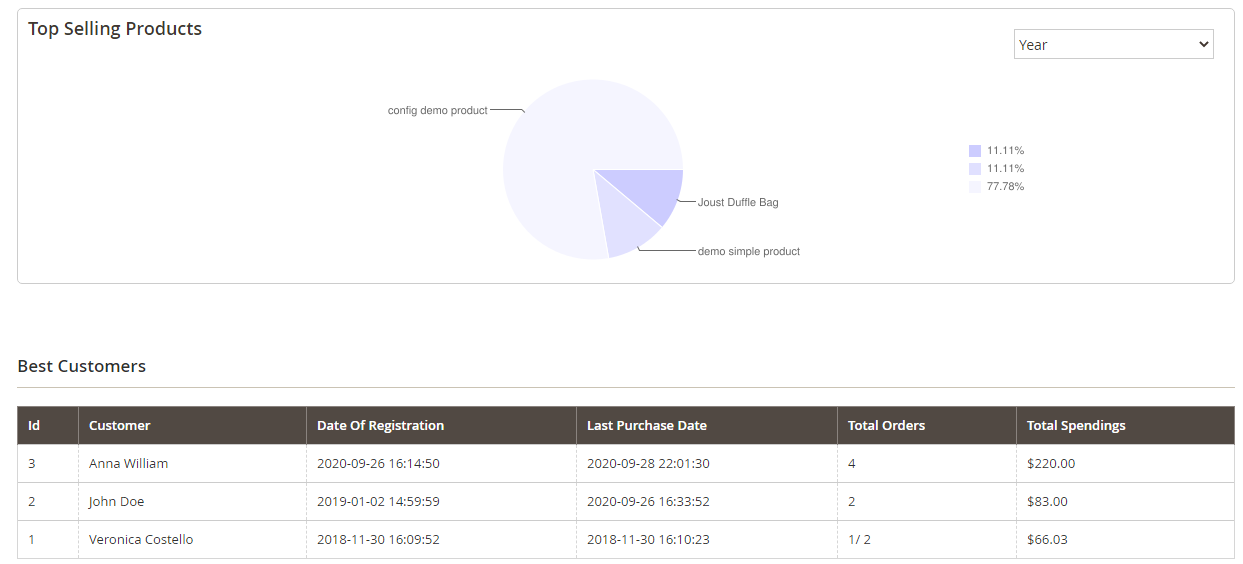
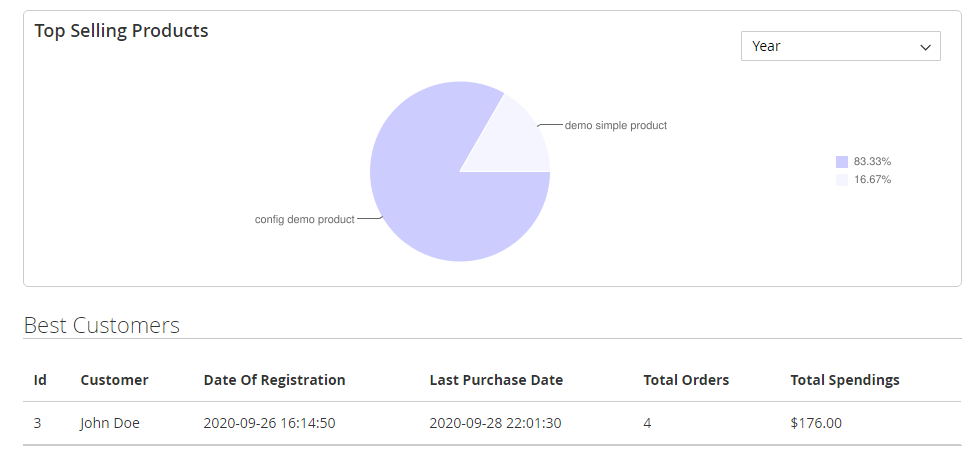
There is a panel for top-selling products and best customers, which shows the top-selling products in the form of a pie chart and the best customers in a tabular form with their purchase details.
Revenue Calculation For Admin End
Revenue = Seller Commission + Product Tax, where seller commission is actual product price – admin commission.
Total Spendings Calculation For Admin End
The admin can view the total spendings of the customer along with the other details like Date of registration, last purchase date, and total order.
Total Spendings = Admin commission + Seller commission + Tax.
Note: If the seller is selected then the total spending, is calculated as:
Total Spendings = Seller Commission + Tax.
The store owner can set the limit for how many top products and best customers he wants to be made visible in the report by going to Stores –> Configuration –> Marketplace Advance Report System.

The Magento 2 Multi Vendor Report & Analytics extension empowers administrators by providing comprehensive insights.
But for advanced analytics and tracking capabilities, consider complementing this extension with the Magento 2 GTM Extension to further enhance your e-commerce marketplace platform’s performance.
Seller Panel
The seller can view his report by going to Advance Report in Marketplace. Sellers can view their sales reports according to categories or order status.
Export Report – The seller can also export the report to their device in CSV format.

The seller can also see the report for that particular year, or for that particular month, week, or day.
Sellers can filter the sales by selecting a date range and all the sales made during that period will be displayed.
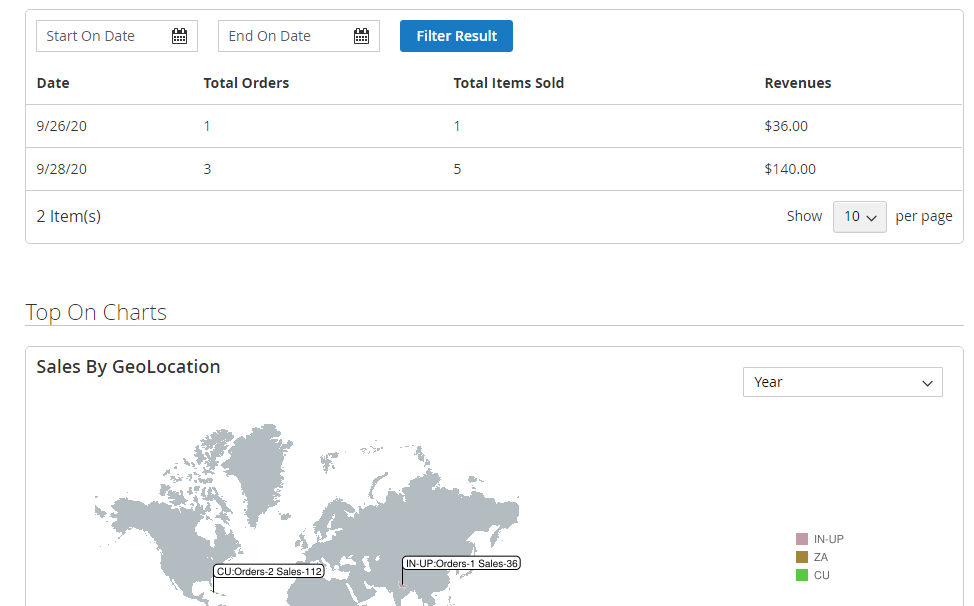
The seller can also see his top-selling products and top customers.
Revenue Calculation For The Seller End
Revenue = Seller Commission + Product Tax, where seller commission is actual product price – admin commission.
Total Spendings Calculation For Seller End
The admin can view the total spending of the customer along with the other details. Such as Date of registration, last purchase date, and total order.
Total Spendings = Seller Commission + Tax.
Support
That’s all for the Marketplace Advanced Report System for Magento 2 if you still have any issue feel free to add a ticket and let us know your views to make the module better at the HelpDesk System. You may also browse other Adobe Commerce marketplace addons and our quality Adobe Commerce Cloud extensions.
Current Product Version - 5.0.4-p2
Supported Framework Version - Magento 2.0.x, 2.1.x, 2.2.x,2.3.x, 2.4.x


Be the first to comment.