Magento 2(Adobe Commerce) Admin Login As Vendor: Now, in the Magento 2 Marketplace Multivendor module, the admin will be able to log in to the Vendor.
The Customer account panel from the admin backend using the Magento 2(Adobe Commerce) Admin Login As Vendor addon.
Meanwhile, this will allow the admin to have total control over the marketplace.
Also having this functionality will surely be beneficial for the admin of the Magento 2 marketplace.
Note-
- For making use of the Magento 2 Admin As Vendor plugin, you must have first installed the Magento 2 Multi Vendor Module module.
- This addons functionality will also work with the default Magento 2, so the admin will only be able to log in to the customer’s account.
Please go through the below video to get to know the functionality of the plugin,
Features
- Allows the admin to do quick login as a vendor.
- Allows the admin to do quick login as a customer.
- The admin can view the total number of login attempts.
- The admin does not need any credentials or passwords to log in.
- The admin can log in to the storefront from any seller’s or customer’s account.
- The source code is 100% open for customization.
Install Extension from Webkul Store
#1 Download Module
Firstly, you need to log in to Webkul Store, go to My Account>My Purchased Products section, verify and then download and extract the contents of this zip folder on the system.
#2 Upload Folder
Once the module zip is extracted, follow path src>app and then copy the app folder into the Magento 2 root directory on the server as shown below:

#3 Run Commands
After uploading the module folder, you need to run the following commands in the Magento 2 root directory:
php bin/magento setup:upgrade
php bin/magento setup:di:compile
php bin/magento setup:static-content:deploy
php bin/magento indexer:reindex
php bin/magento cache:flush
Install Extension from Magento (Adobe Commerce)Marketplace
If you have purchased this extension from the Magento Marketplace then please follow the below process.
1 Get Access Keys
You need to get access keys, navigate to My Profile in Magento Marketplace, then choose Access Keys in the My Products section.

Go to Magento 2 and then you need to copy both the Access Keys – Public Key and Private Key. These access keys will be needed in the next steps for authentication.

If access keys are not created earlier, click Create A New Access Key, enter any name and click OK.

Update composer.json File
To know the component name and version number, go to your Magento Marketplace account section, My Profile>My Purchases, then find this extension to view the details.
Note: Below is an example image, every extension will have its unique component name and version.

After that, navigate to your Magento project directory and update your composer.json file in the following format.
composer require <component name>:<version>
For example, to install version 5.0.0 of this extension you need to run the following command:
composer require webkul/admin-login-as-vendor:5.0.0
#3 Enter Access Keys
Now you will need to enter the Access Keys that you obtained as explained in the first step #1 Get Access Keys.
Wait for Composer to finish updating your project dependencies and make sure there aren’t any errors.
#4 Run Command
You need to run the following commands:
php bin/magento setup:upgrade
php bin/magento setup:di:compile
php bin/magento setup:static-content:deploy
php bin/magento indexer:reindex
php bin/magento cache:flush
MultiLingual Configuration
For Multilingual support, please navigate. Store > Configuration > General > Locale Options. And select your desired language from the Locale option.
Language Translation
Further, for module translation, please navigate the following path in your system app/code/Webkul/AdminLoginAsVendor/i18n. Open the file named en_US.CSV for editing.
Meanwhile, once you have opened the file for editing. Replace the words after the comma(,) on the right with your translated words.
After editing the CSV file, save it and then upload it to the same folder. Now your module translation is complete.
Admin Login As Vendor
After the successful installation of the extension, the admin can now easily log in to the vendor account panel by navigating through Marketplace Management ->Manage Seller.
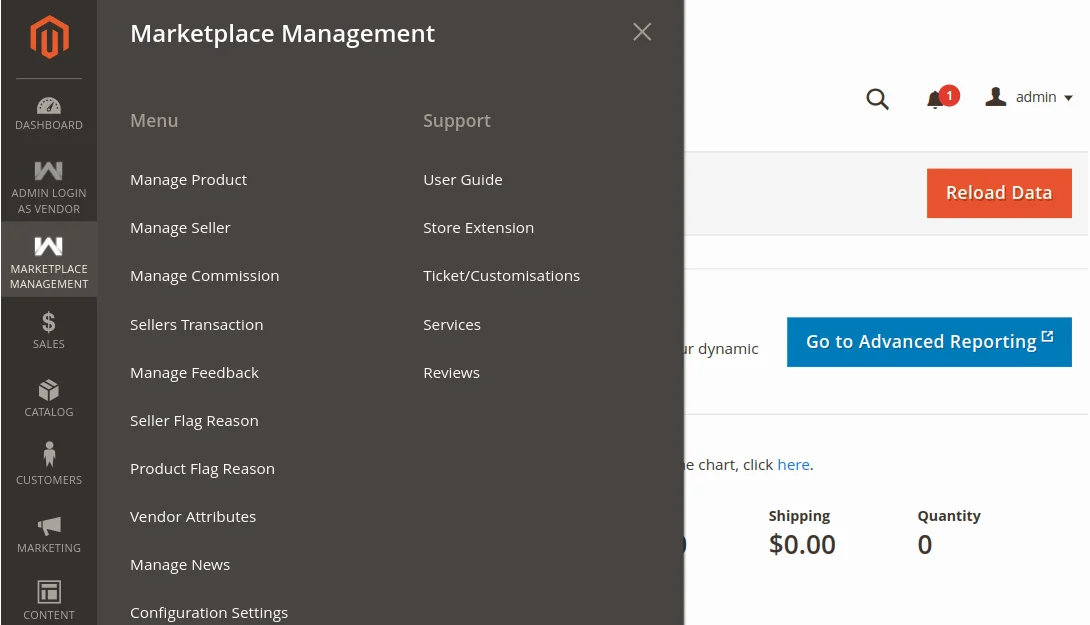
Moreover, under the Manage Seller menu option, you will have a section with all the vendors of the marketplace.
Further, to login to any of the seller account panels just click on the “Login As Vendor” link next to the seller under the Login as vendor column.
Clicking the “Login As Vendor” link you will be taken to the account panel of the selected vendor as shown below in the snapshot.
Admin Login As Customer
After that, the admin can also easily log in to the customer account panel by navigating through Customers>All Customers.
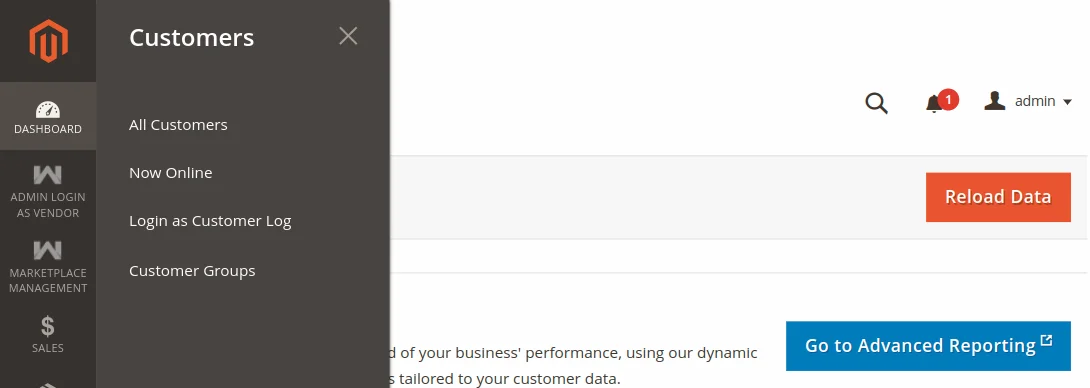
Further, under the All Customers menu option, you will have a section with all the customers of the marketplace.
Meanwhile, to login to any of the customer’s account panels just click on the “Login As Customer” link next to the customer under the Login as Customer column.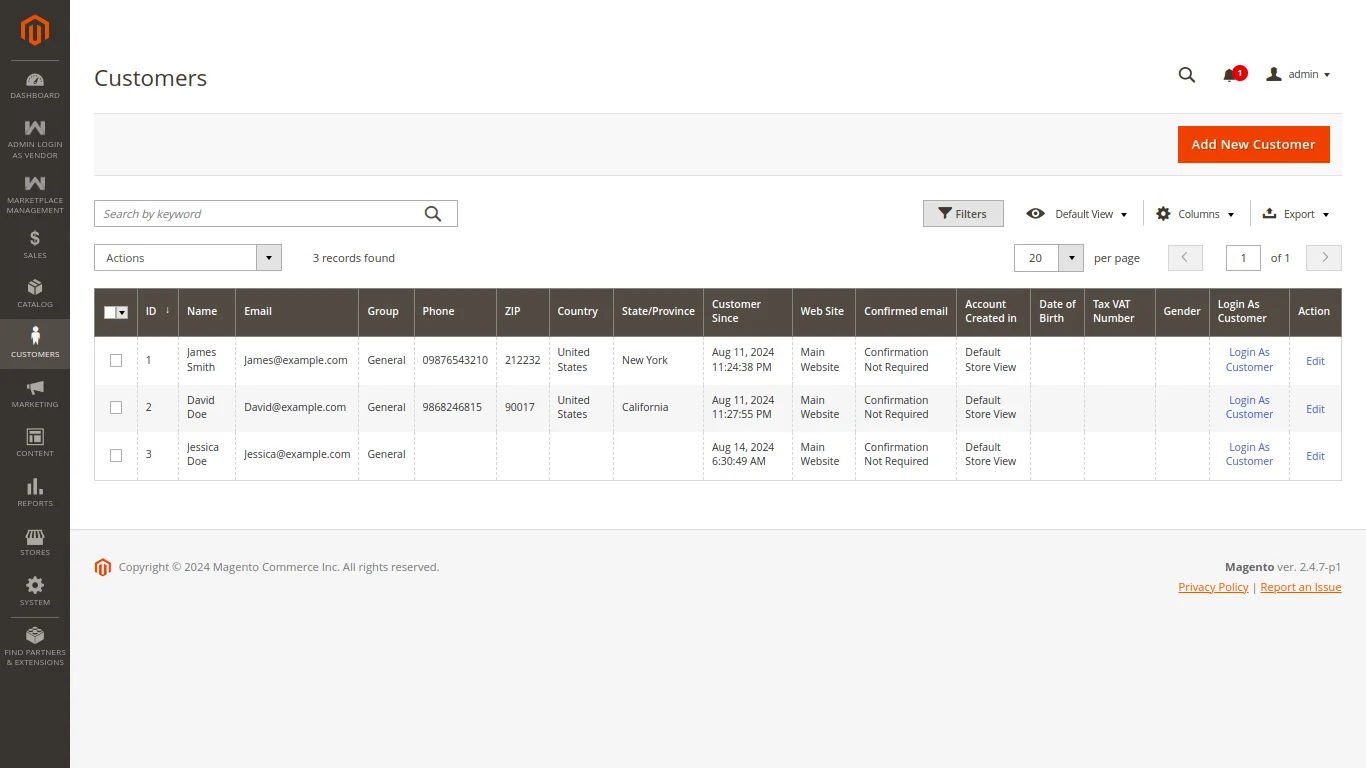
Also, by clicking the “Login As Customer” link you will be taken to the account panel of the selected customer as shown below in the snapshot.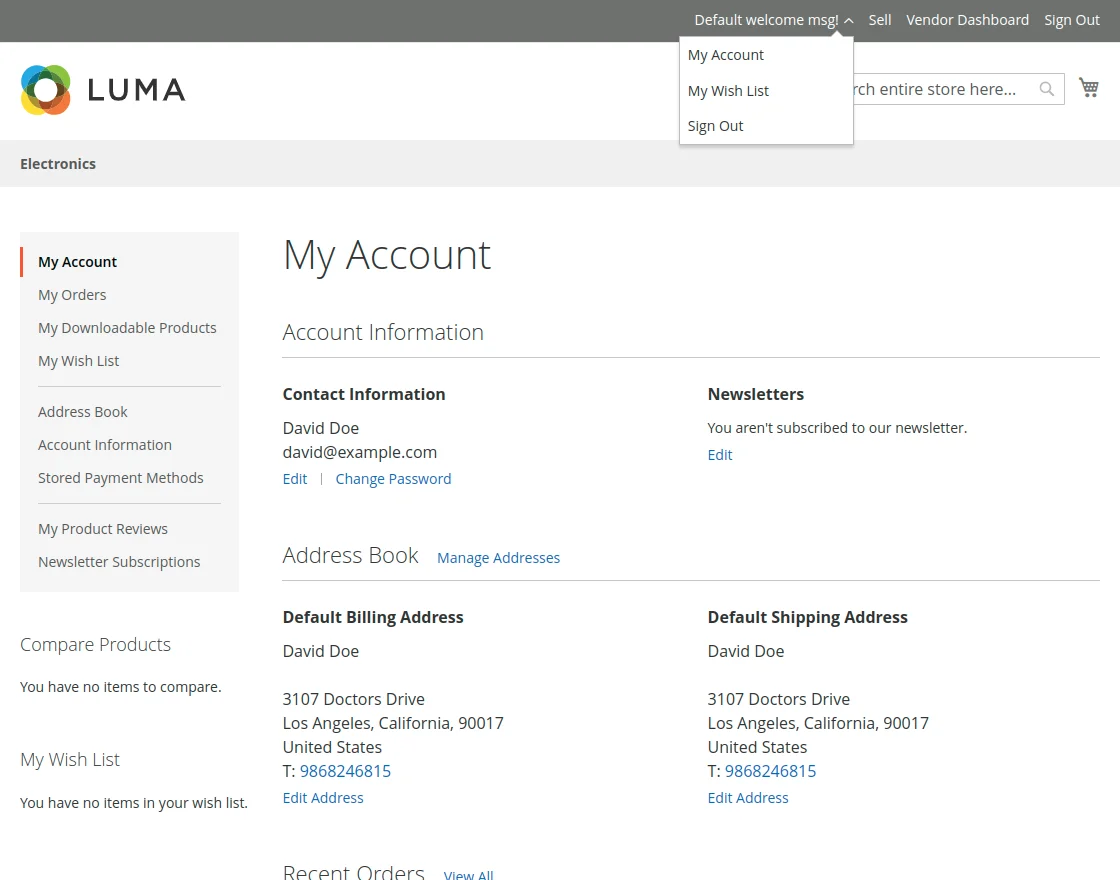
The admin can see the number of login attempts from his admin panel. For this the admin needs to navigate through ADMIN LOGIN AS VENDOR >> Manage Login Attempts

Afterward, the admin will get the list of the login attempts as per the below screenshot.

That’s all for Magento 2(Adobe Commerce) Admin Login As Vendor plugin.
Get in Touch
If you have any query, question, or suggestion regarding its functionality then you can directly get back to us at [email protected]
Current Product Version - 5.0.5
Supported Framework Version - Magento 2.0.x, 2.1.x, 2.2.x,2.3.x, 2.4.x


Be the first to comment.