Magento 2 Marketplace Review Reminder: The store admin enables the module to send review reminder emails to website customers, prompting them to review products and seller profiles.
The admin can select the customer groups for sending the email reminder.
Moreover This module also facilitates the admin to add discount coupons for a successful review. The customers can even review the seller profile and get a discount for the same.
Please Note – This is a marketplace add-on, so you need to install Webkul’s Magento 2 Multi Vendor Module first.
Watch the below video tutorial to understand the extension workflow:
Features of Marketplace Review Reminder
- The admin can configure product review settings.
- The admin can configure the seller review setting.
- The admin configures the system to send reminder emails automatically by setting up a Cron job on the server.
- The admin can also send them manually using commands.
- The admin can also send emails to customers using a dedicated “Run Process Manually” button, which sends emails based on the order status set in the configuration.
- Allowed to select dynamic email templates for both logged in as well as guest customers.
- The admin can enable and disable asynchronous email sending.
- The admin can set the reminder email counts.
- The admin can also set the system to send reminder emails after a delay of specific hours or days.
- The admin can send reminder emails as per the specific customer groups.
- The admin selects the order status that allows the system to send out the review reminder and confirmation emails.
- Can enable the discount option to the customer on the provision of successful review.
- The admin can give a discount to customers who submit a review, based on the created cart rule.
- The customer can use the discount coupon provided via email for future shopping on the website.
- The extension is also compatible with the Hyva theme.
- The extension is also compatible with GraphQL.
Installation of Marketplace Review Reminder
Customers will get a zip folder and they have to extract the contents of this zip folder on their system. The extracted folder has an src folder, inside the src folder you have the app folder.
You need to transfer this app folder into the Magento 2 root directory on the server as shown below.
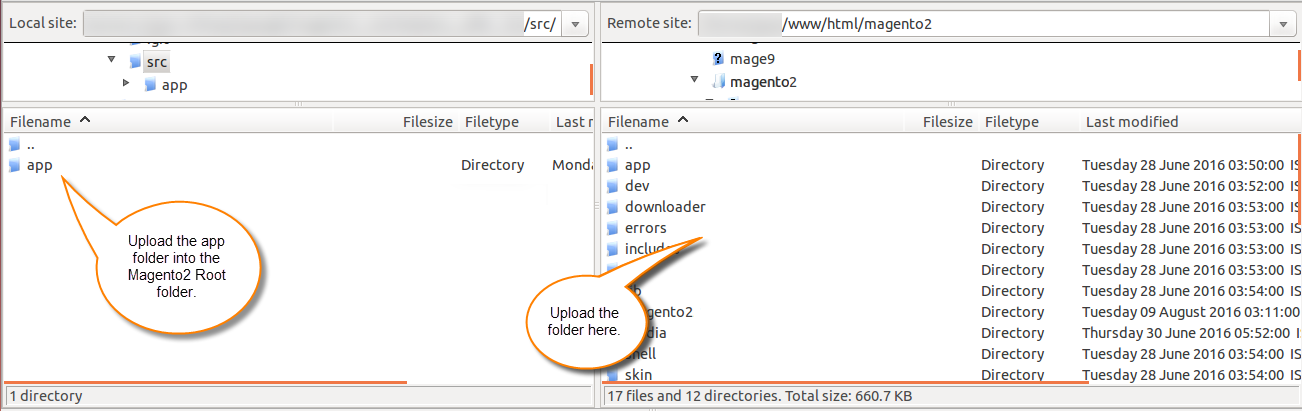
After the successful installation, you have to run these commands in the Magento 2 root directory:
php bin/magento setup:upgrade
php bin/magento setup:di:compile
php bin/magento setup:static-content:deploy
After running the commands, you have to flush the cache from Magento admin panel by navigating through System > Cache management as shown below.
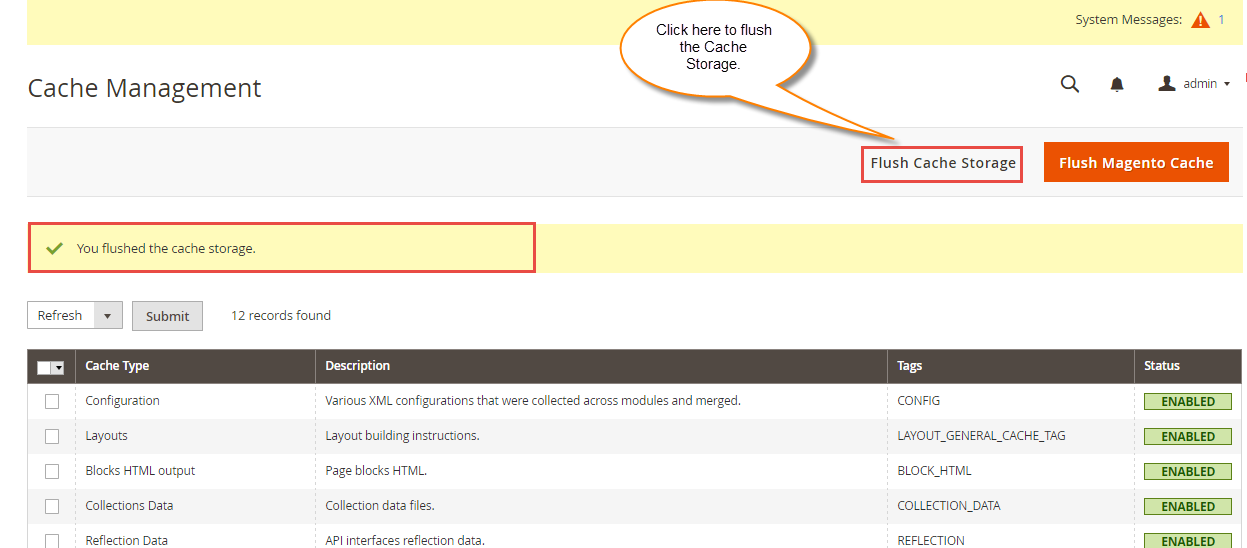
Configuration For Multi-lingual Support
For the multilingual support, admin will navigate through Store > Configuration > General > Locale Options.
Select the locale as German (the language into which admin want to translate his store content).
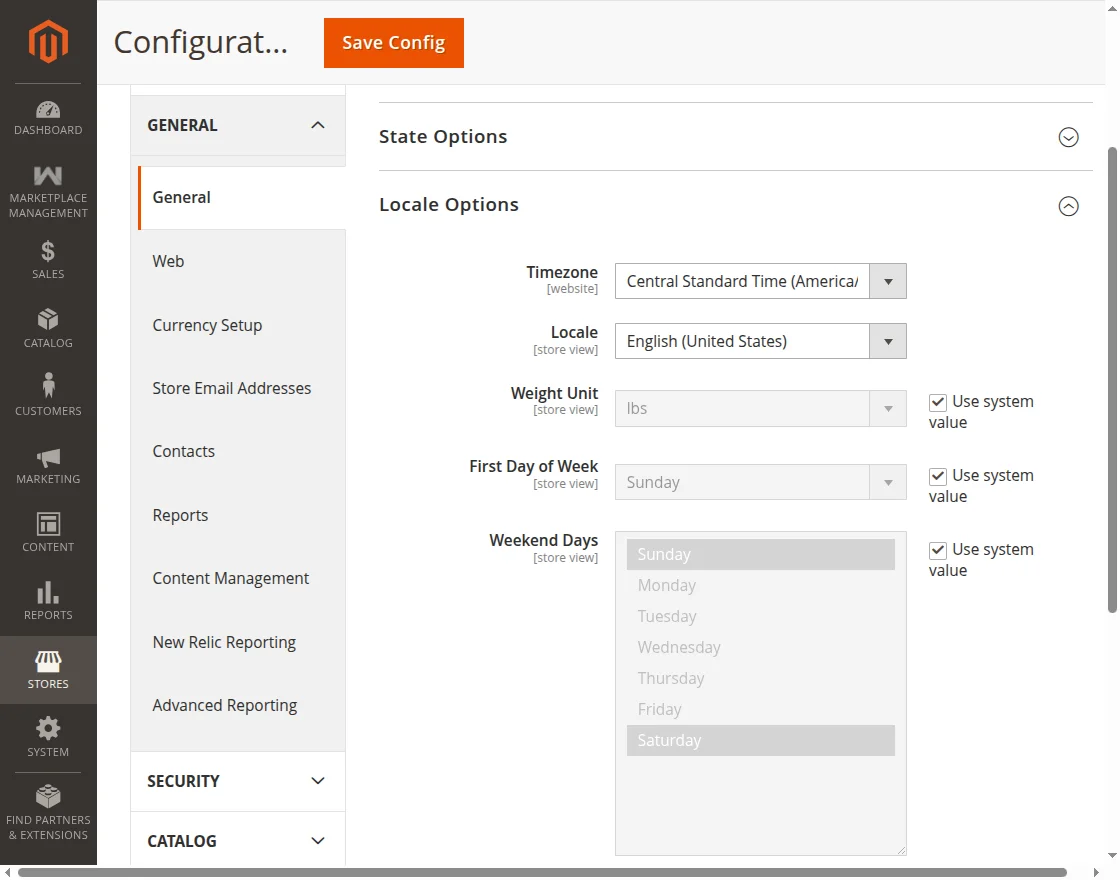
Translation
If a user wants to translate their module from English to German.
Then they need to follow the path app/code/Webkul/MarketplaceReview/i18n in their unzipped folder and will get a CSV file with name “en_US.csv”.
Rename the CSV as “de_DE.csv” and translate all content after the comma into German.
After editing the CSV, save it and then upload it to the path app/code/Webkul/MarketplaceReview/i18n where they have installed Magento 2 on the server.
The module will get translated into the German Language. It supports both RTL and LTR languages.


The user can edit the CSV like the image below.

Initial Add-On Configuration
The admin will configure the module by navigating through Stores > Configuration > Product Review Reminder.
From here the admin will do some basic configuration in the general settings of the extension like-
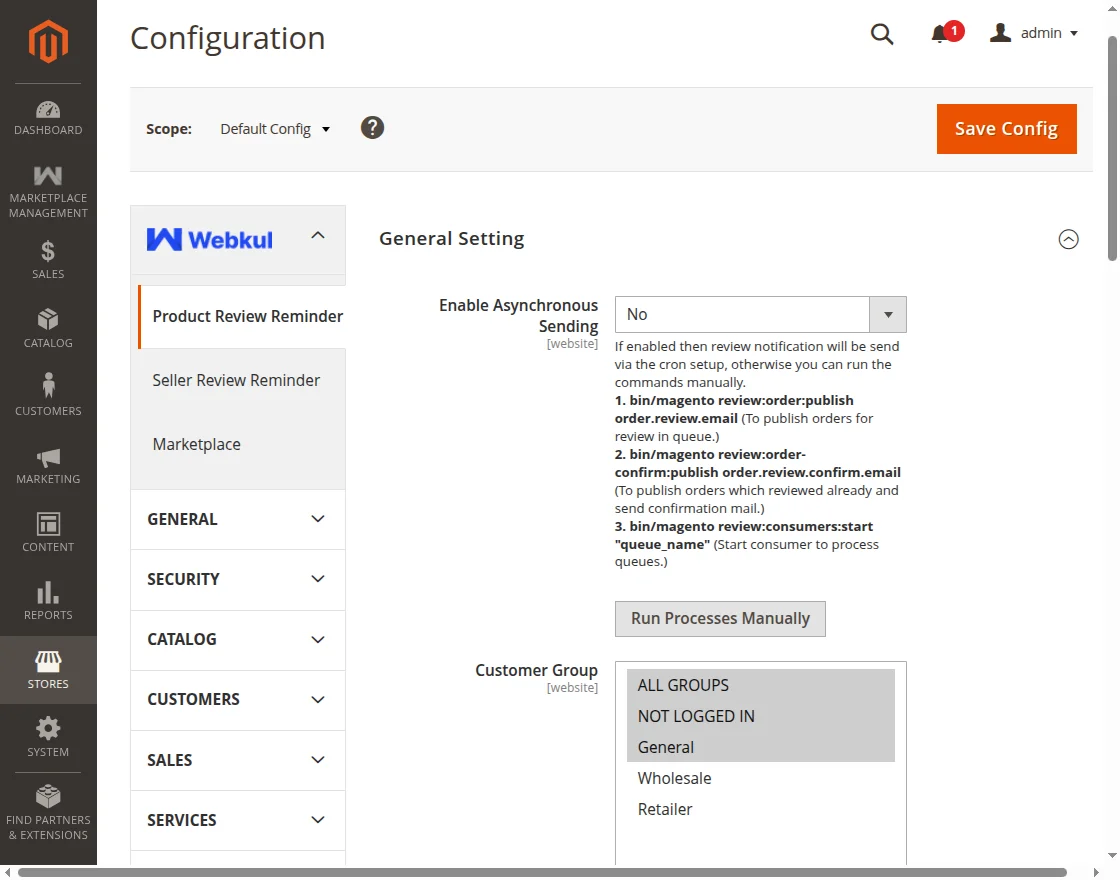
Enable Asynchronous Sending
From here the admin can set the asynchronous sending of the product review by email to the customers via Cron setup done on the server.
if the option is selected as “YES” or can send it manually by the help of terminal commands.
1. bin/magento review:order:publish order.review.email (To publish orders for review in queue.)
2. bin/magento review:order-confirm:publish order.review.confirm.email (To publish orders which reviewed already and send confirmation mail.)
3. bin/magento review:consumers:start “queue_name”(Start consumer to process queues.)
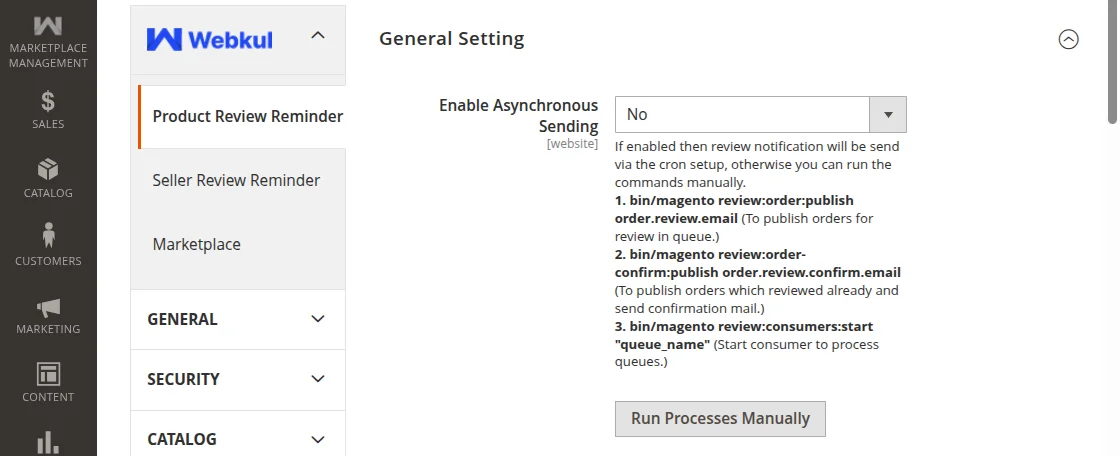
or; can send the emails manually
Customer Group:- Can select the specific or all customer groups to be used.
Email Sender:- Can set the user whose email will be used to send the review email to the customers.
Send Email Copy To:- Enter an email address of the website user to get the carbon copy or Blind carbon copy of the review emails sent to the customers.
Send Email Copy Method:- select whether the email copy will be sent as Cc or Bcc to the website user.
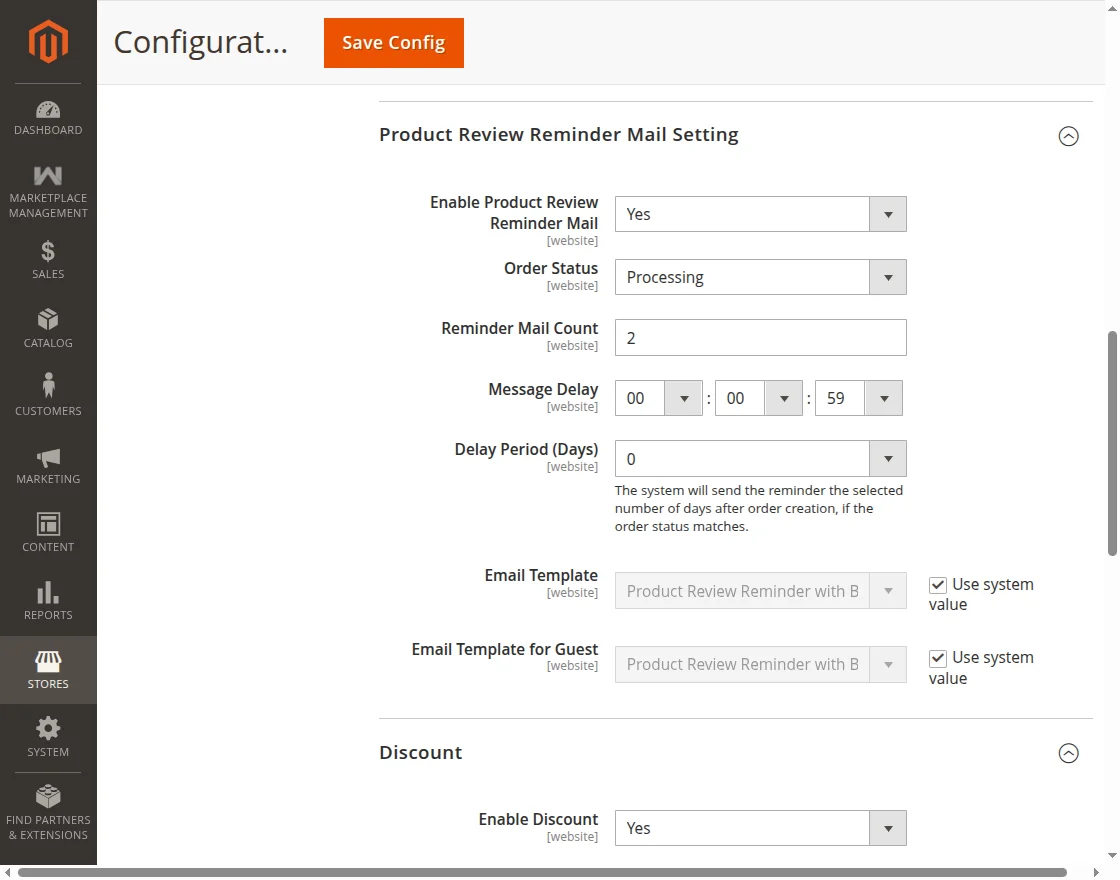
Under Product Reminder Mail setting, the admin can
Enable or Disable the product reminder email to be sent by selecting the “Yes” or “No” from the dropdown option.
Order Status:– Can set the order status at which the product review email will be sent to the customer.
Remainder Mail Count:- Set the number of reminder emails the system sends to the customers.
Message Delay (Hours):- Can set the mail delays hours between the remainder mail counts.
Delay Period (Days):- The system will send the reminder as per the selected number of days after order creation if the order status matches.
Email Template:- Also The admin selects an email template from the pre-created ones to send to the customer when the system triggers the product review email.
Email Template for Guest:- Additionally The admin selects a pre-created email template to send to the guest customer when the system triggers the product review email.
Under Discount setting, the admin can
Enable or Disable the discount coupon to be sent via email to the customer when the customer submits a review on the product.
The admin just needs to select the “Yes” to enable or “No” to disable it.
Cart Rule:-The admin selects a cart rule from here to apply when the customer submits a product review. This setting will work only if the Discount is Enable.
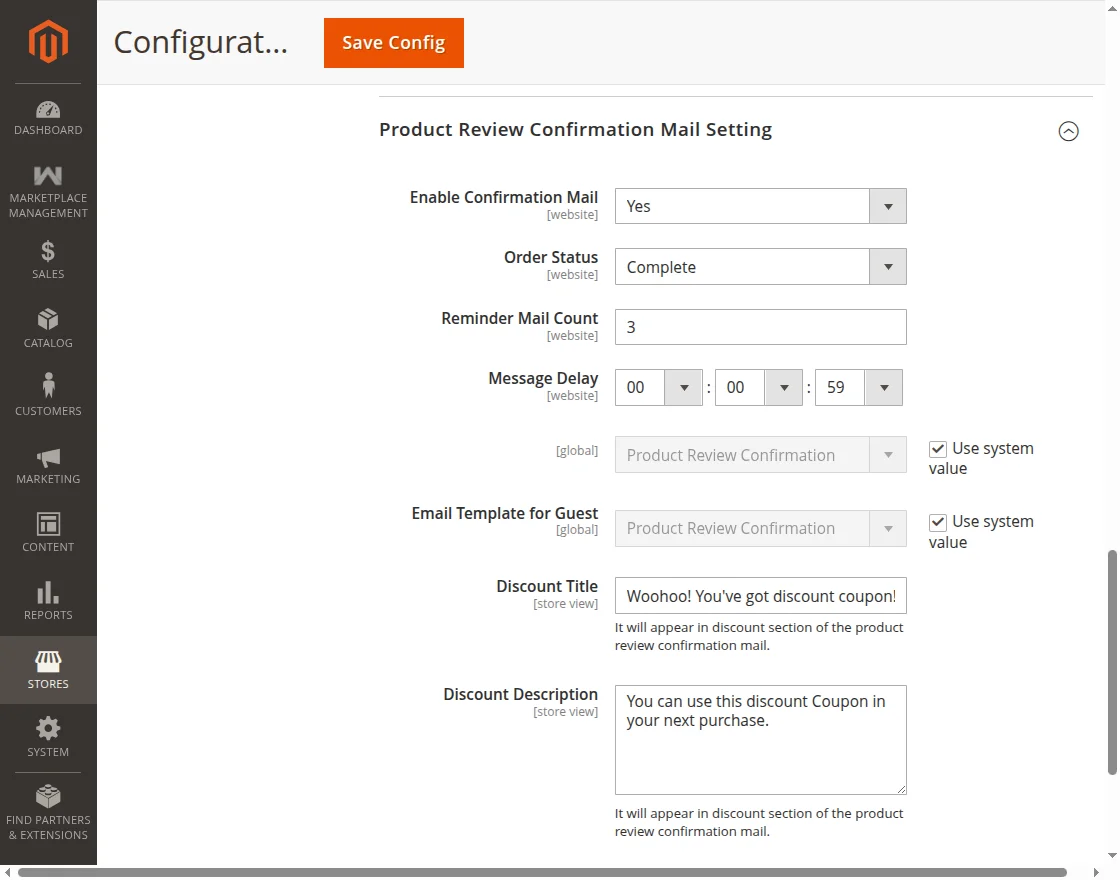
Under Product Review Confirmation Setting, the admin can
Enable or Disable the product review confirmation email to be sent when the customer has posted a review for the product by selecting the “Yes” or “No” from the dropdown option.
Order Status:– Set the order status at which the system will send the product review confirmation email to the customer.
Remainder Mail Count:- Set the number of reminder emails the system will send to the customers.
Message Delay (Hours):- Can set the mail delays hours between the remainder mail counts.
Delay Period (Days):- The system will send the reminder as per the selected number of days after order creation if the order status matches.
Email Template:- Can select an email template from the pre-created email templates which will be sent to the customer when product review email will be sent.
Email Template for Guest:- Select an email template from the pre-created templates to send to the customer when the product review email is sent.
Run Process Manually
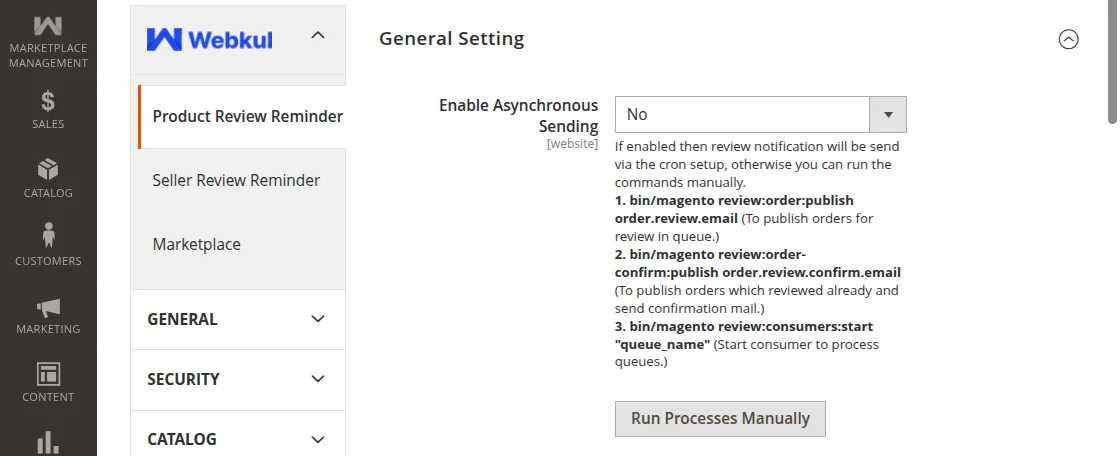
The admin can send the emails to the customers by the help of cron setup, by the help of running commands manually or by the help of a Run Process Manually dedicated button.
The admin uses the button to send emails to customers who have placed orders, based on the order status set under configuration.
For instance, if the customer place an order and under configuration the order status is set to pending,
now as the admin will hit the Run Process Manually button then all the orders with pending orders will receive an email for order reminder or review confirmation email as per the case.
Note:-
1. In case, the customer order is having products from various sellers.
In this case, the system sends product or seller profile review reminder emails to customers according to the reminder mail settings.
But, in case of the product/seller profile review confirmation email.
It will be sent out to the customers as per confirmation mail setting and when the customer has given out the reviews to all products/sellers profile which contain in the order.
2. Product/seller profile review confirmation email doesn’t depend on review approval.
Sending Email By Help Of Commands
The customer purchases a product from the website as shown below in the snapshot.

Now as the customer has purchased the admin product, & as per the order status the admin has set for sending product review email & product review confirmation email.
after satisfying the conditions the customer is eligible to get the email for a product review.
If the admin enables asynchronous email sending, the customer will receive automatic emails through the server’s Cron setting.
If set to “No,” then the admin must run terminal commands to manually send reminder emails to the customer.
Run Commands on Root Directory
Now as per the order status selected for orders in configuration, the admin will run commands in Magento root directory to send product review email & product review confirmation email.
First Command to publish orders for review in the queue.
bin/magento review:order:publish order.review.email
After running the above command the admin needs to run the below command for Starting the process queues.
Command to process queues.
bin/magento review:consumers:start "queue_name"
The admin needs to mention the “queue_name” in above command i.e order.review.email for sending product review email.
Reminder Email For Product Review
Now the customers will receive the Reminder email for a product review.

Alternatively, if the order contains products from both the admin and the seller, the reminder email will appear as shown in the screenshot below.

From the email itself, the customer can post a review for admins’ product and as well as can write a review for the seller.
Post A Product Review
As the customer will go through the email received there will be an option to post a review on the product. As the customer clicks the button, the system redirects them to the product review page.

Once the customer posts a review, the admin must manually approve it from the Pending Reviews option under the Marketing section in the admin panel.
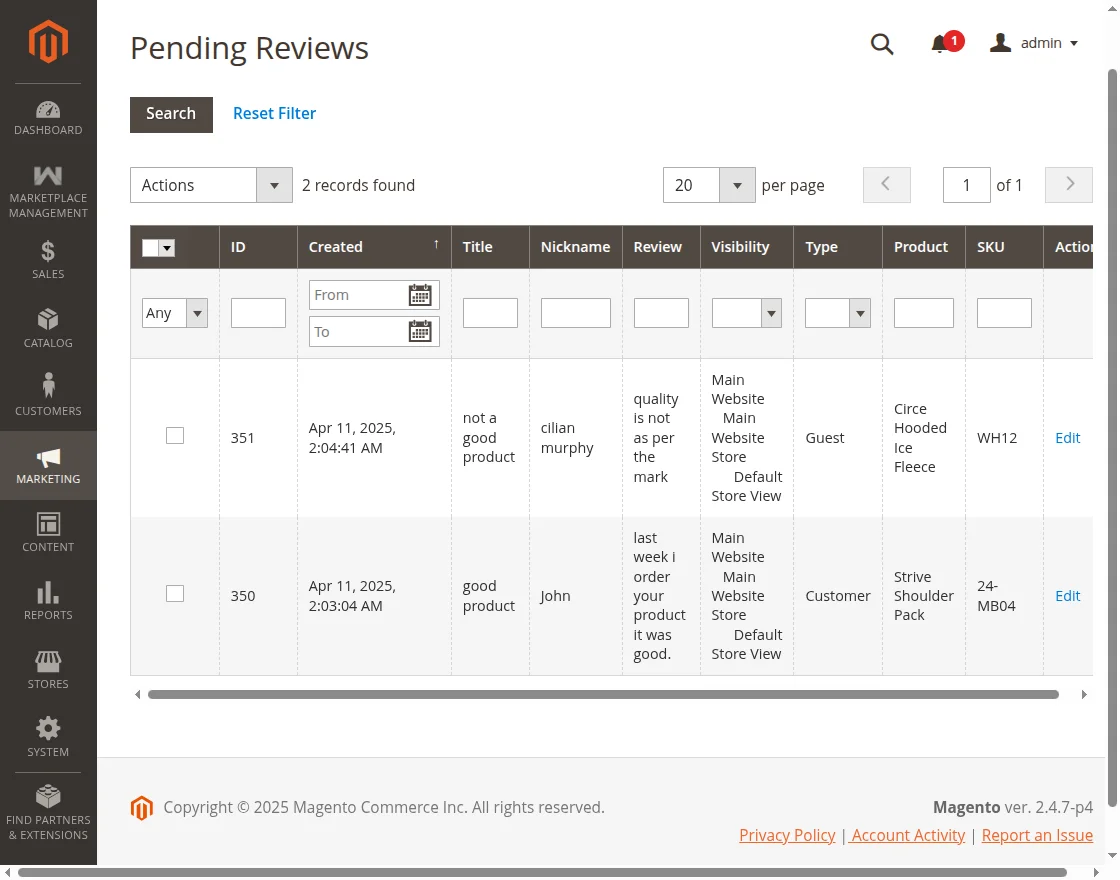
The admin will update the review status from pending to approved, and as a result, the review will go live on the respective product page.
Command To publish orders which are reviewed already by the customer and send confirmation mail.
bin/magento review:order-confirm:publish order.review.confirm.email
After running the above command the admin needs to run the below command to publish orders which reviewed already and send confirmation mail.
bin/magento review:consumers:start "queue_name"
The admin needs to mention the “queue_name” in above command i.e order.review.confirm.email for sending product review confirmation email.
Product Review Confirmation Email
After posting a valid review for the product, the customers will receive a thanks/ product review confirmation email.
If the admin has enabled the discount option in the configuration.
By which the customer after posting a review will receive a thanks/ product review confirmation email along with the discount coupon in it.
The customer can use the coupon for future purchases of products from the website.

If the admin has disabled the discount option, then, in this case, the customer will only receive the thanks/ product review confirmation email.
Seller Review Reminder Configuration
The admin will configure the module by navigating through Stores > Configuration > Seller Review Reminder
From here the admin will do some basic configuration in the general settings of the extension like-
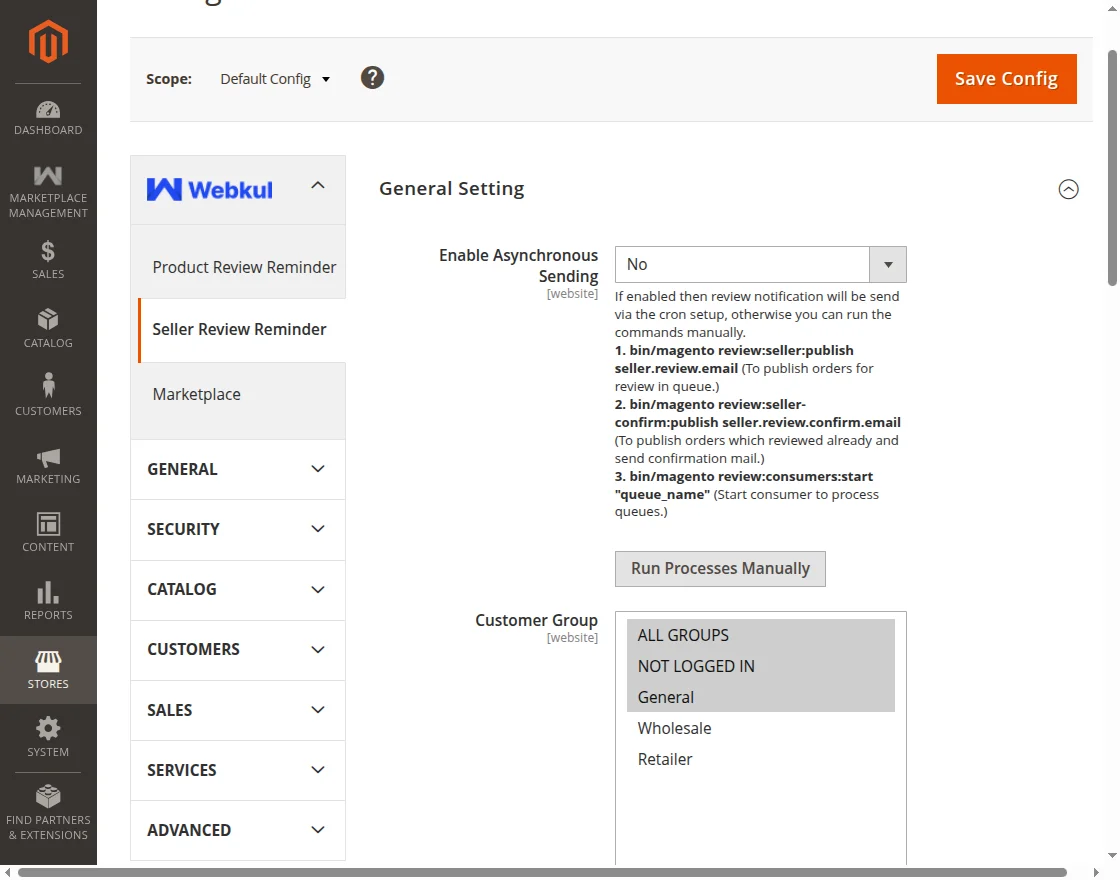
Enable Asynchronous Sending
From here the admin can set the asynchronous sending of the product review by email to the customer.
Select “Yes” to send the email via Cron setup or manually using terminal commands.
1. bin/magento review:order:publish order.review.email (To publish orders for review in queue.)
2. bin/magento review:order-confirm:publish order.review.confirm.email (To publish orders which reviewed already and send confirmation mail.)
3. bin/magento review:consumers:start “queue_name”(Start consumer to process queues.)
Customer Group:- Select the specific or all customer groups to be used.
Email Sender:- Set the user whose email will be used to send the review email to the customers.
Send Email Copy To:- Enter an email address of the website user to get the carbon copy or Blind carbon copy of the review emails sent to the customers.
Send Email Copy Method:- Select whether the email copy will be sent as Cc or Bcc to the website user.
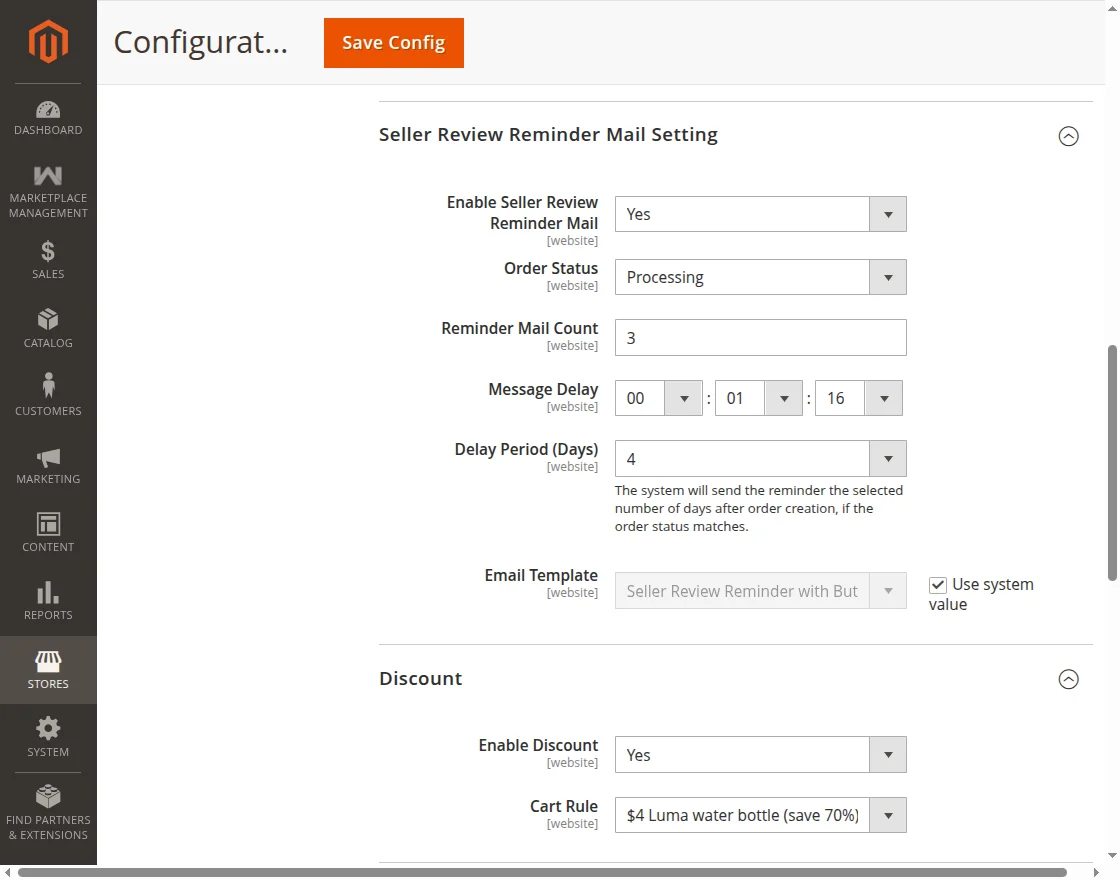
Under Seller Reminder Mail setting, the admin can-
Enable or Disable the product reminder email to be sent by selecting the “Yes” or “No” from the dropdown option.
Order Status:– The admin can set the order status that triggers the system to send the product review email to the customer.
Remainder Mail Count:- Set how many reminder emails the system should send to the customers.
Message Delay (Hours):- Can set the mail delays hours between the remainder mail counts.
Delay Period (Days):- The system will send the reminder as per the selected number of days after order creation if the order status matches.
Email Template:- The admin selects an email template from pre-created options to send a product review email to guests.
Email Template for Guest:-The admin selects an email template from pre-created options to send a product review email to guests.
Under Discount setting, the admin can
Enable or disable the system from sending a discount coupon email when a customer submits a review on a product.
The admin just needs to select the “Yes” to enable or “No” to disable it.
Cart Rule:- From here, the admin selects a cart rule to apply when a customer reviews a product. This setting will work only if the Discount is Enable.
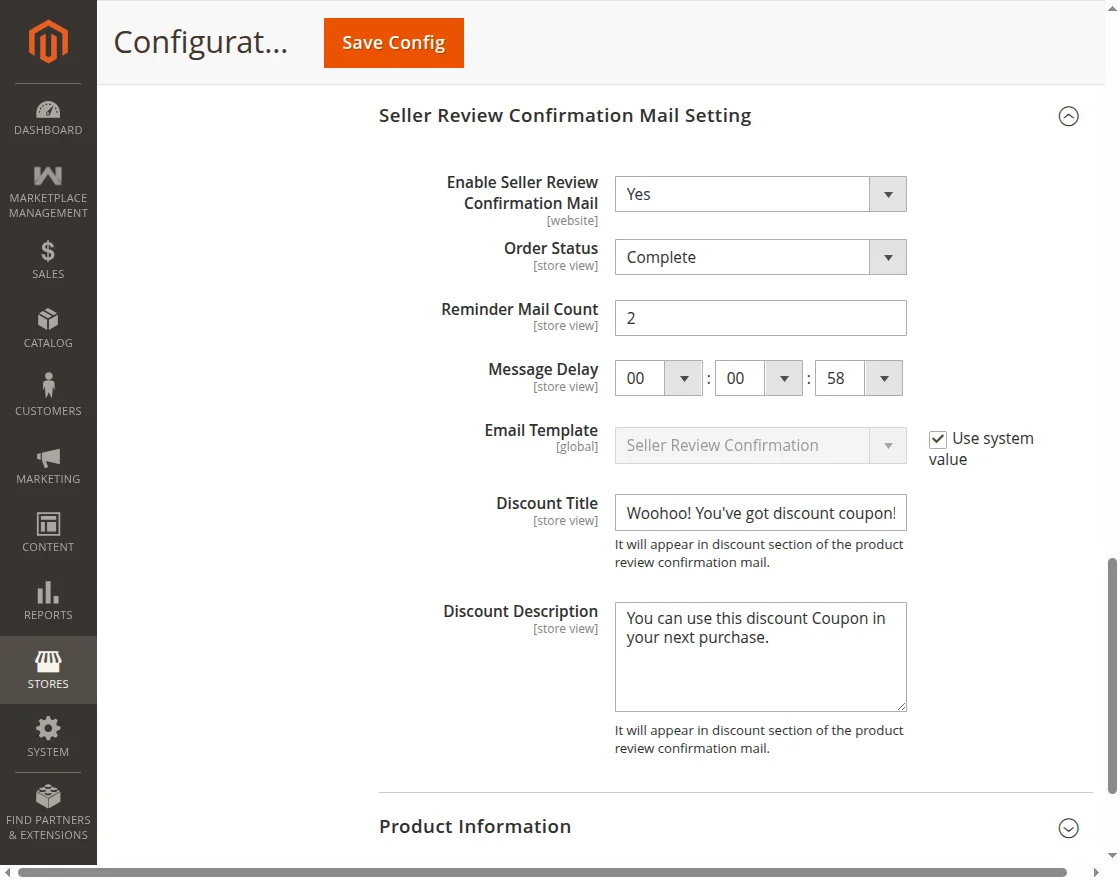
Under Seller Review Confirmation Setting, the admin can
Enable or Disable Select “Yes” or “No” from the dropdown option to send the seller product review confirmation email when the customer posts a review.
Order Status:– Admin sets an order status that triggers the system to send a product review confirmation email to the customer.
Remainder Mail Count:- Admin sets the number of reminder emails the system sends to customers.
Message Delay (Hours):- Can set the mail delays hours between the remainder mail counts.
Delay Period (Days):- The system will send the reminder as per the selected number of days after order creation if the order status matches.
Email Template:- The admin selects an email template from the pre-created options to send the product review email to the customer.
Email Template for Guest:- The admin selects an email template from the pre-created set to send as the product review confirmation email to the guest customer.
Now as the customer has purchased the sellers’ product & as per the order status the admin has set for sending product review email & product review confirmation email.
after satisfying the conditions only, then the customer will be eligible to get the email for a product review or for seller profile review.
If the admin has enabled the asynchronous email sending as yes then the customer will be getting automatic emails via the Cron setting on the server
& if “No” then the admin needs to run commands in terminal to send the reminder emails to the customer.
Run Commands On Root Directory
Now as per the order status selected for orders in configuration, the admin will run commands in Magento root directory to send product review email & product review confirmation email.
First Command to publish orders for review in queue.
bin/magento review:seller:publish seller.review.email
After running the above command the admin needs to run the below command for Starting the process queues.
Command to process queues.
bin/magento review:consumers:start "queue_name"
The admin needs to mention the “queue_name” in above command i.e seller.review.email for sending product review email.
Reminder Email For Product Review
Now the customers will receive the Reminder email for the product review & for the seller review.

Post A Product Review
As the customer will go through the email received. There will be an option to post a review on the product. When a customer clicks the button, the system redirects them to the product review page.
You can check the same procedure as mentioned for the Product Review Reminder above.
Review Seller
The customer can also review the seller directly from the email received. When the customer clicks the button, the system redirects them to the seller page.

Once the customer will post a review, the admin needs to manually approve the same from the Manage Feedback reviews option available under the Marketing option from the admin panel.
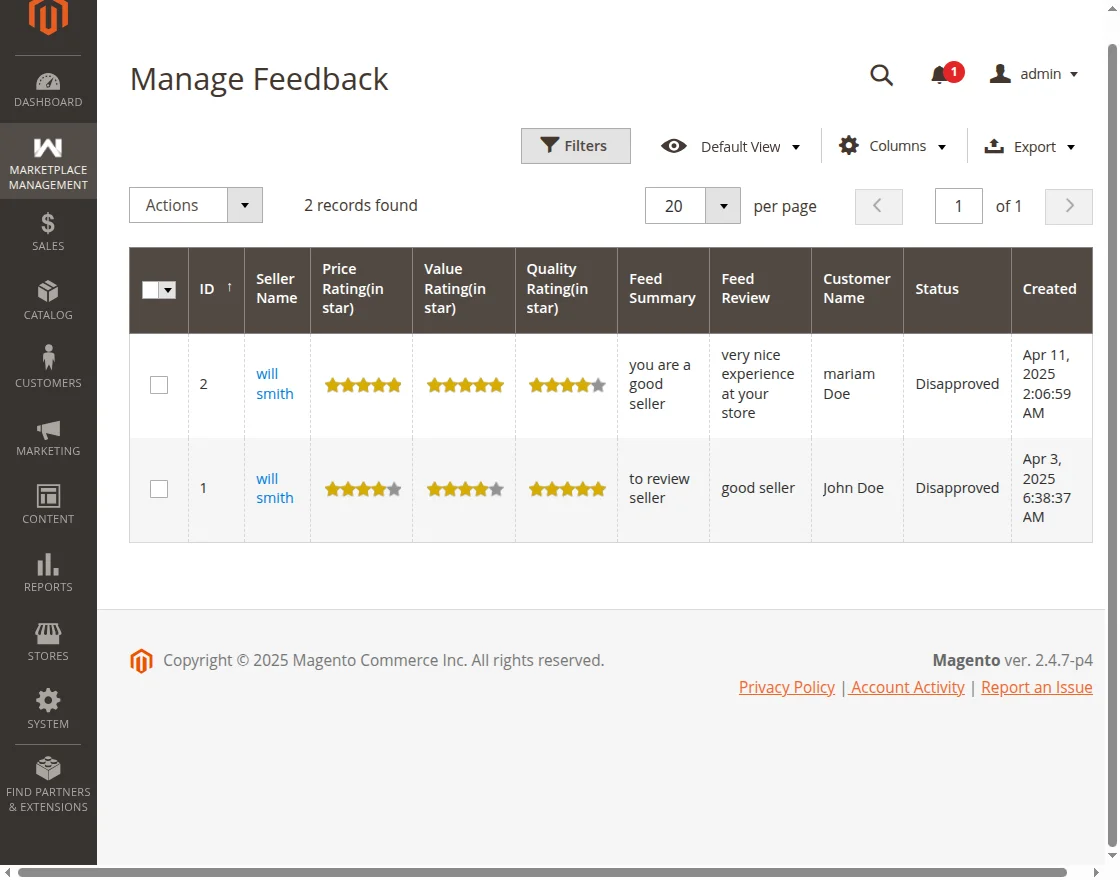
Now from here, the admin will update the status of the review from pending to approve. And as a result, the review will get live on the respective product page.
Publish orders that the customer has already reviewed and send the confirmation email.
bin/magento review:seller-confirm:publish seller.review.confirm.email
After running the above command the admin needs to run the below command to publish orders which reviewed already and send confirmation mail.
bin/magento review:consumers:start "queue_name"
The admin needs to mention the “queue_name” in above command i.e order.review.confirm.email for sending product review confirmation email.
Product Review Confirmation Email
After posting a valid review for the product or seller profile. The customers will receive a thanks/ product review confirmation email.
If the admin has enabled the discount option in the configuration.
By which the customer after posting a review will receive a thanks/ product review confirmation email along with the discount coupon it.

Additionally, the customer can use the coupon for future purchases of products from the website.
If the admin has disabled the discount option, then, in this case, the customer will only receive the thanks or product review confirmation email.

So, that’s all for Marketplace Review Reminder extension.
For any further, assistance, just raise a ticket from here and in case of any doubt contact us at [email protected].
Current Product Version - 5.0.2
Supported Framework Version - Magento 2.0.x, 2.1.x, 2.2.x,2.3.x, 2.4.x


Be the first to comment.