INTRODUCTION
Odoo Thawani Checkout Payment integrates Thawani payment gateway with your Odoo website, enabling secure and seamless online transactions.
The module ensures a smooth and reliable checkout process while supporting features like 3D secure verification and saved card payments to speed up future transactions.
Odoo Thawani Checkout Payment also supports multi-card compatibility and enables easy refunds directly from Odoo backend, helping you manage payments efficiently.
FEATURES
- Smoothly integrates Thawani with your Odoo website for online payments.
- Supports 3D secure authentication for safer transactions.
- Let customers save card details for quicker future checkouts.
- Enables refunds to be managed easily from Odoo backend.
- Accepts payments through major cards like Visa, Mastercard, and Maestro.
- Odoo Thawani Checkout Payment accepts Thawani-approved currencies.
- Allows admins to activate, deactivate, or set test/live mode from backend.
- Redirects users back to Odoo with a payment confirmation message.
- Ensures a smooth and reliable checkout experience for users.
INSTALLATION
- Once you purchase the App from the Webkul store, you will receive a link to download the module’s zip file.
- Extract the file on your system after the download finishes. As a result, you will be able to see a folder named- ‘payment_thawani_checkout.’
- Copy and paste this folder inside your Odoo Add-Ons path.
- Now, open Odoo App and click on the Settings menu. Here, click on Activate the Developer Mode.
- Then, open the Apps menu and click on ‘Update Modules List.’
- In the search bar, remove all the filters and search ‘payment_thawani_checkout.’
- You will be able to see the module in the search results. Click on ‘Install’ to install it..
WORKFLOW
Let’s move on to the configuration of the Odoo Thawani Checkout Payment provider.
CONFIGURATION (ODOO BACKEND)
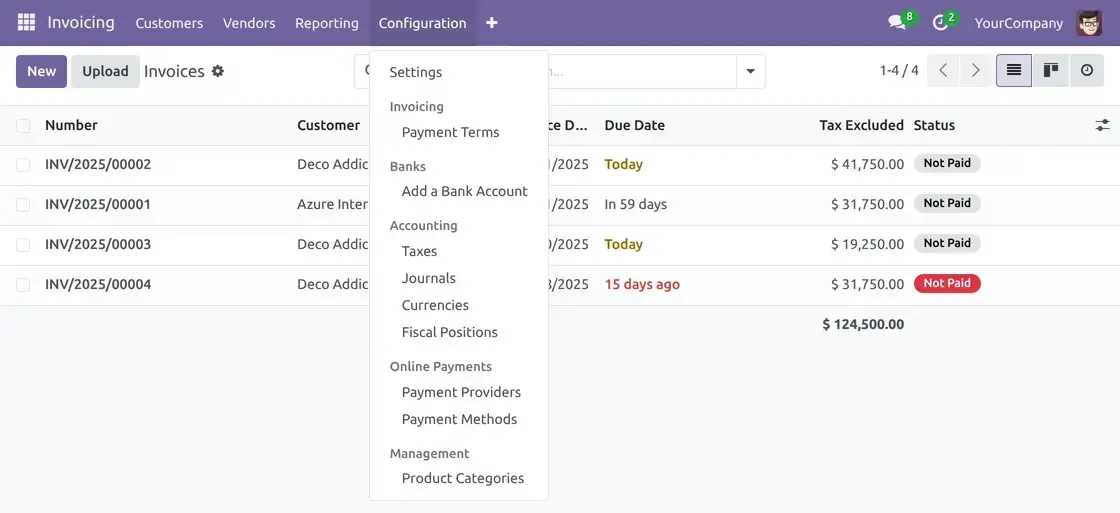
1. Navigate to Invoicing > Configuration > Payments > Payment Providers to locate Thawani Checkout option.
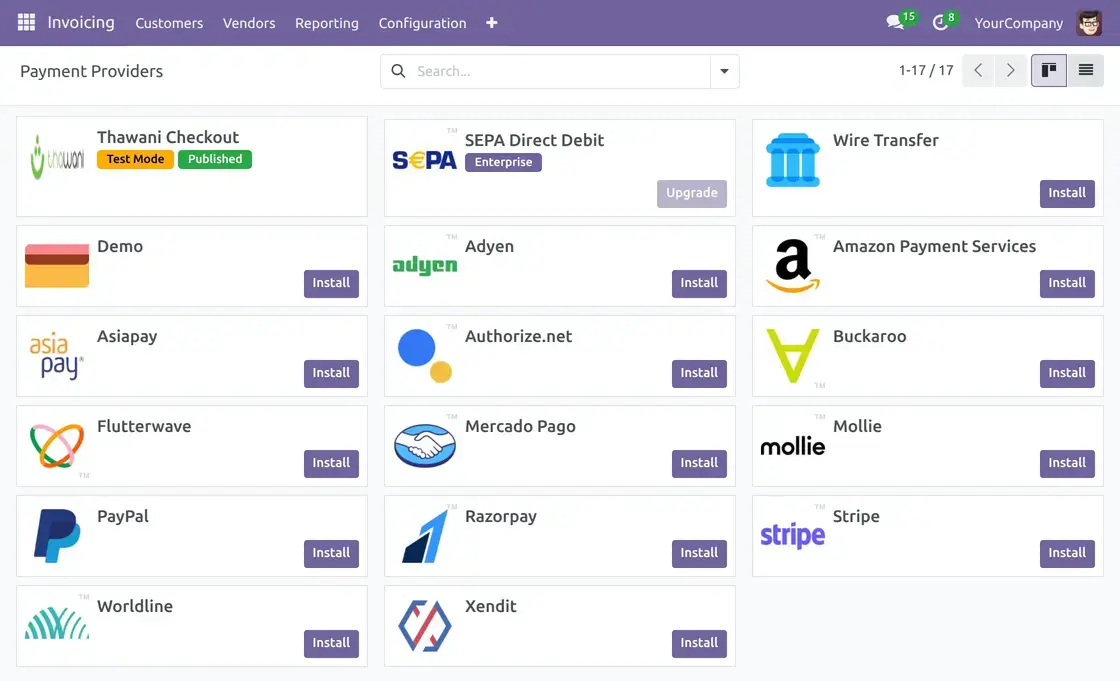
2. Locate ‘Thawani Checkout’ and open it by clicking on it.
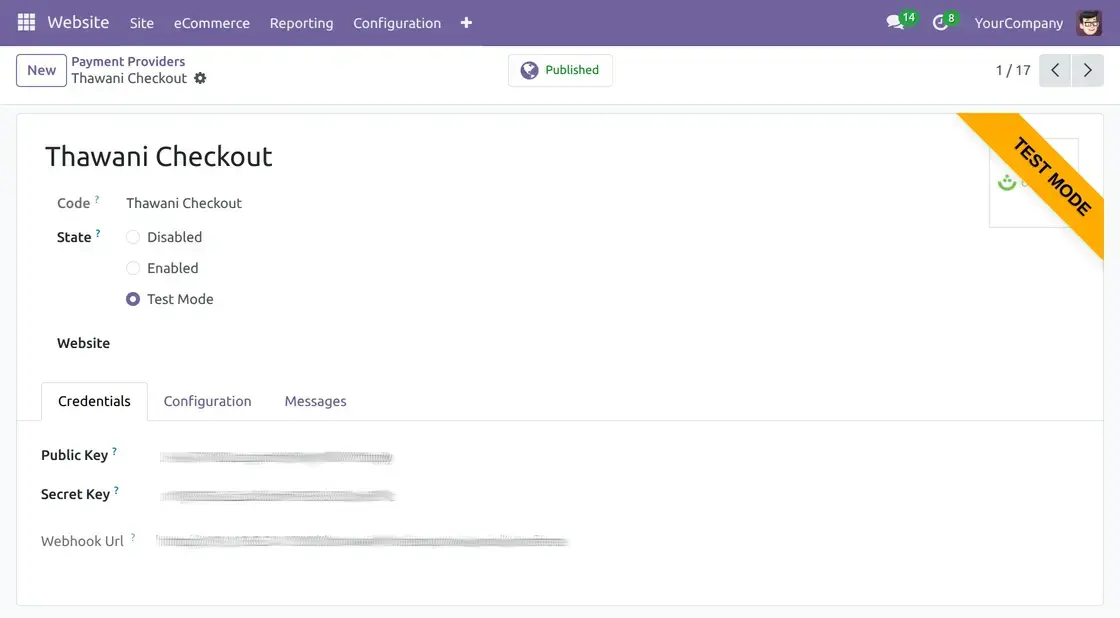
3. Click on Thawani Checkout acquirer and enter your Public and Secret keys under Credentials tab.
4. In the ‘Configuration’ tab, select the ‘Supported Payment Icons and Payment Journal.’

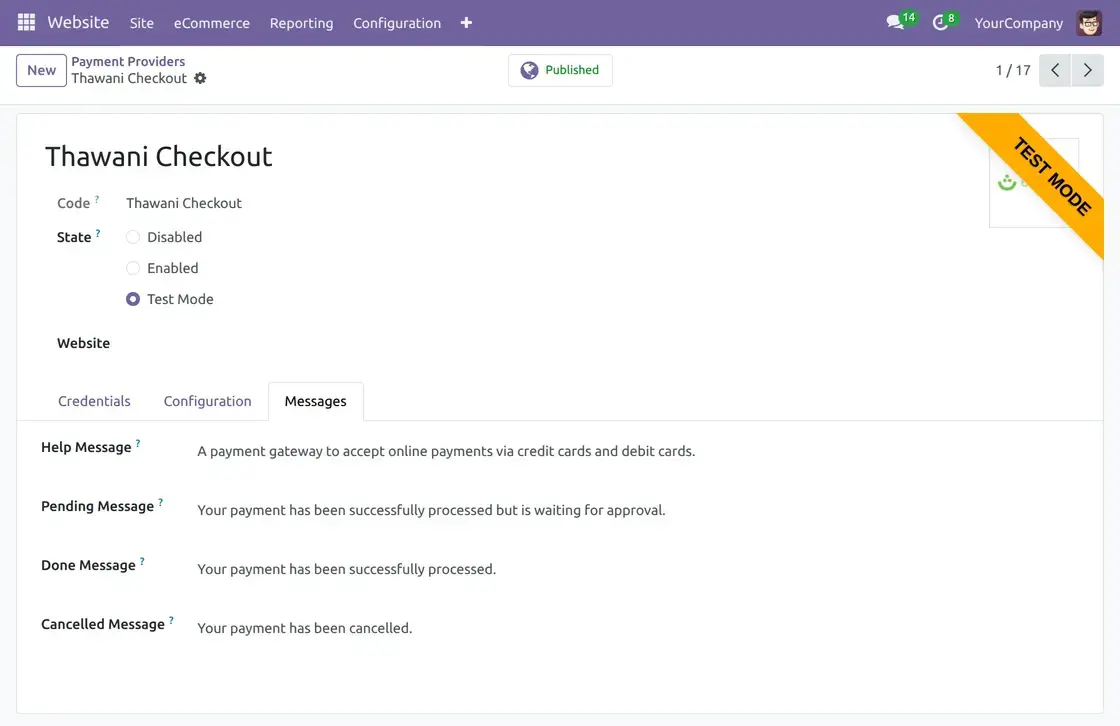
5. Enter various messages for different scenarios from the ‘Messages’ tab. Once done, click the ‘Save’ icon and make the Payment provider ‘Published’ by clicking the Unpublished option.
ODOO WEBSITE
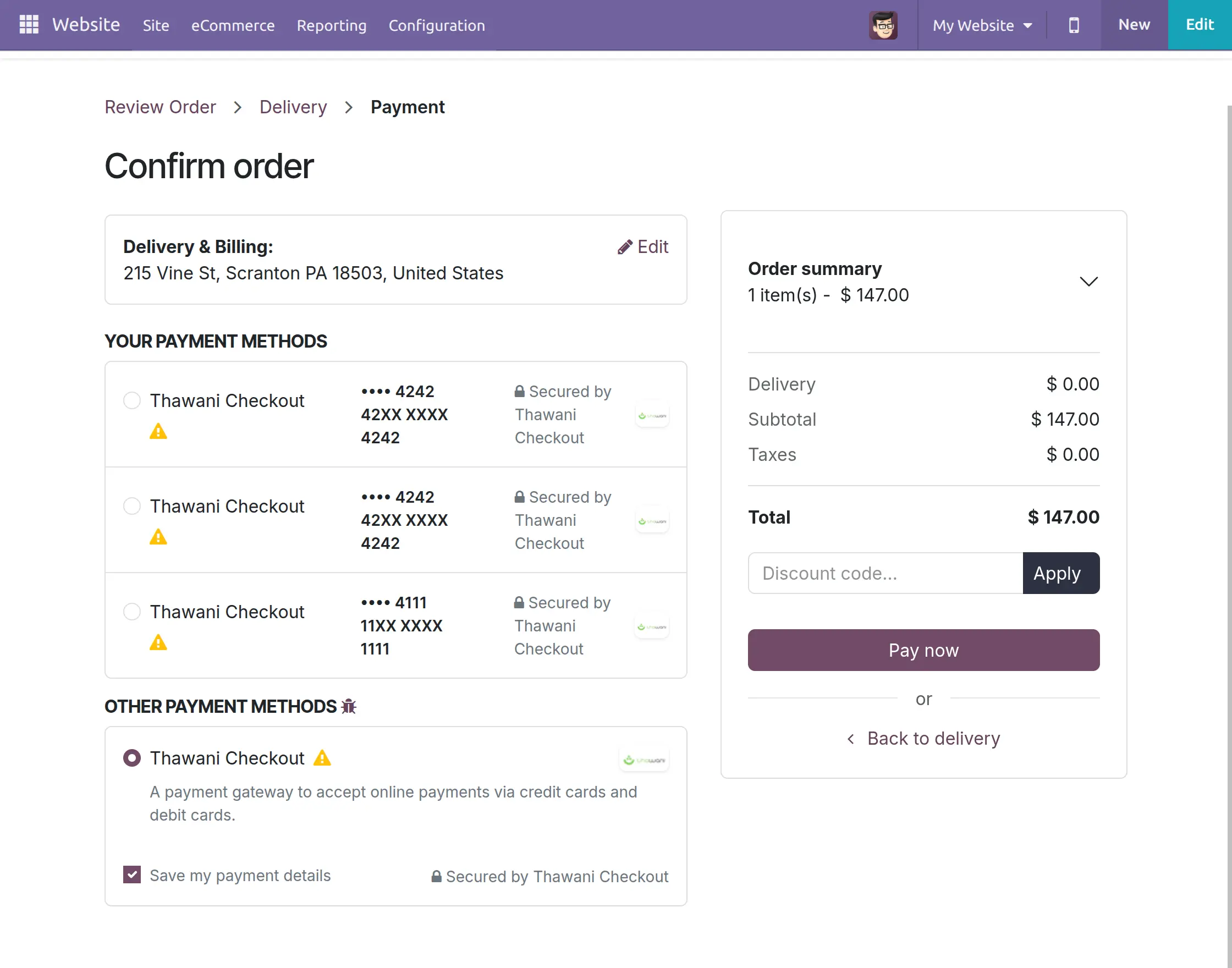
6. On Odoo website, add a product to the cart, and on checkout page, you can see Thawani Checkout Payment option.
Select Thawani option and click ‘Pay Now’ button. If it’s customer’s first time using a card, they can opt to save card details securely for faster future purchases.
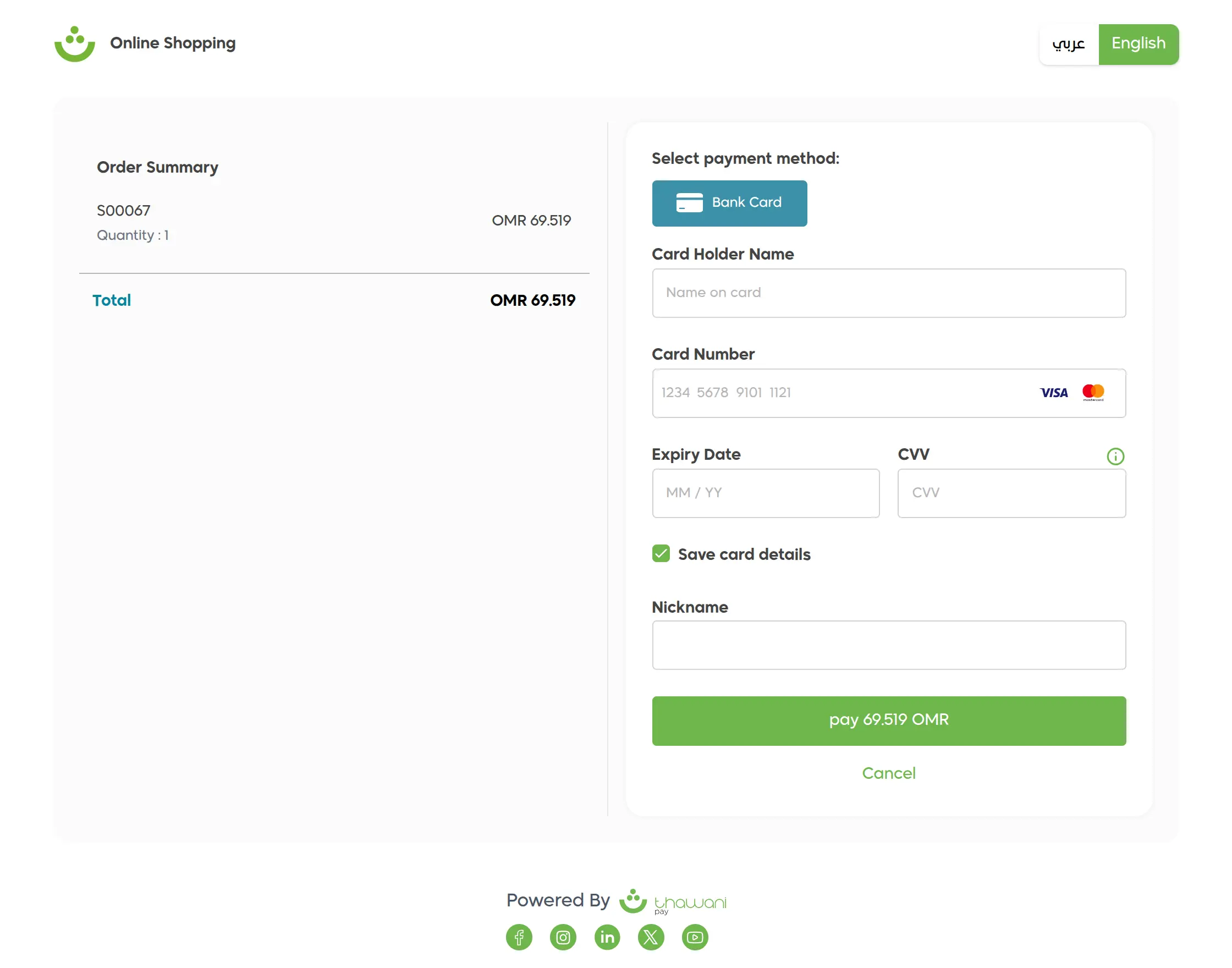
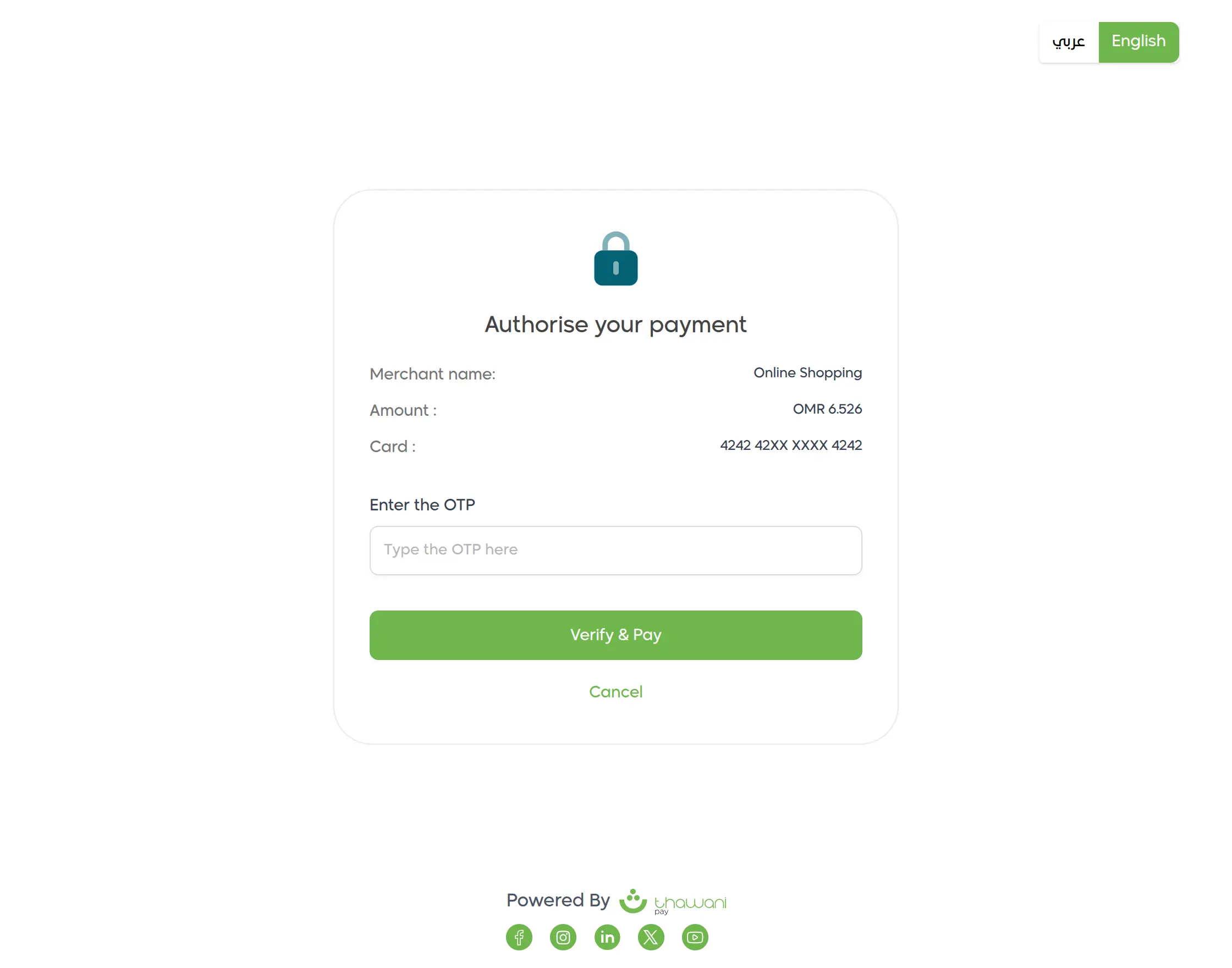
7. Enter card details and submit. The system prompts for OTP and completes the transaction.
8. For future purchases, customers can select their saved card and complete the payment by entering just the CVV or OTP. There’s no need to re-enter full card details.
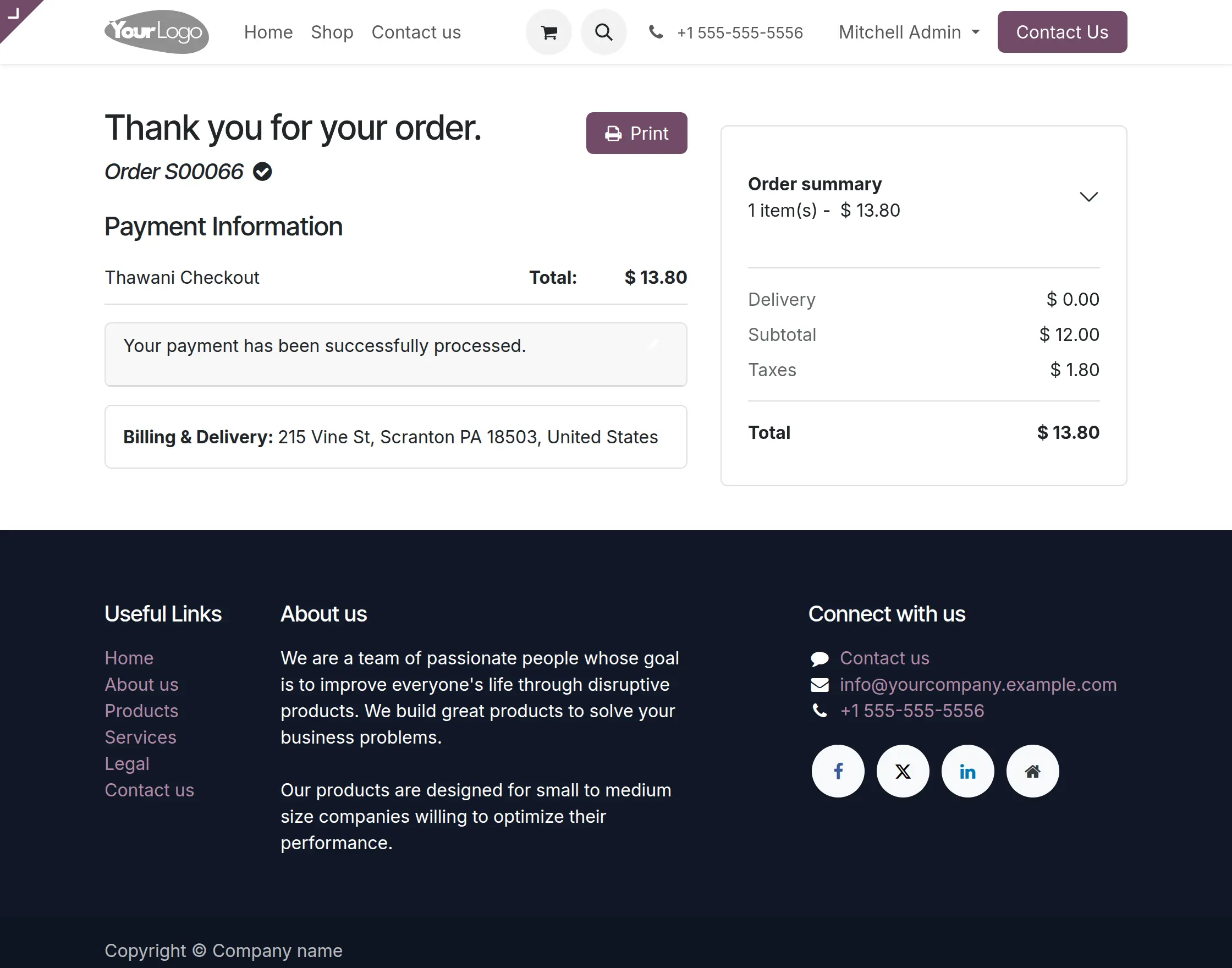
9. After entering the OTP, you’ll be redirected back to your Odoo site, where a success or failure message will appear based on the payment result.
NEED HELP?
Hope you find guide helpful! Please feel free to share your feedback in the comments below.
If you still have any issues/queries, please create a ticket at the UV Desk.
I hope this helps. In case of any further queries, contact us at our support mail.
Thanks for paying attention!!
Current Product Version - 1.1.0
Supported Framework Version - Odoo 19,18,17


Be the first to comment.