Introduction
Odoo Mobikul POS Mobile App Builder brings Odoo POS system to Android, iOS, Windows, Linux, and kiosk systems, including Sunmi devices, offering real-time syncing and offline order management for better store operations.
Staff can manage sales, scan barcodes, and print invoices on Android, iOS, Windows, and Linux devices, with built-in printing support for Sunmi. The app also works seamlessly across various kiosk systems, enhancing service efficiency.
The offline functionality ensures orders are taken even without internet access, syncing automatically with Odoo backend once the device reconnects, preventing service interruptions or data loss.
Features
- It provides a native Android application optimized for smartphones, tablets, and Android-based kiosk systems like Sunmi.
- A dedicated iOS application is available, compatible with both iPhone and iPad.
- It offers a standalone Windows application that supports both online and offline POS operations.
- A dedicated Linux application is available, compatible with Ubuntu-based kiosk setups.
- It works across a wide range of kiosk systems, including Sunmi (Android), Ubuntu-based, and Windows-based kiosks.
- Odoo Mobikul POS Mobile App Builder allows barcode scanning using device camera
- The Built-in printing has been successfully tested on Sunmi devices.
- Cashiers can easily switch accounts within the app without logging out.
- Staff can hold and manage multiple customer carts at once.
Installation
- Once you purchase Odoo Mobikul POS Mobile App Builder from Webkul store, you will receive a link to download module’s zip file.
- Extract the file on your system after download finishes. As a result, you will be able to see a folder named ‘mobikul’
- Copy and paste this folder inside your Odoo Add-Ons path.
- Now, open Odoo App and click on the Settings menu. Here, click on Activate Developer Mode.
- Then, open Apps menu and click on ‘Update Modules List.’
- In the search bar, remove all the filters and search ‘mobikul’
- You will be able to see module in the search results. Click on ‘Install’ to install it
Workflow
1) After installing Odoo Mobikul POS Mobile App Builder, customers can easily log in via the app on their mobile devices.
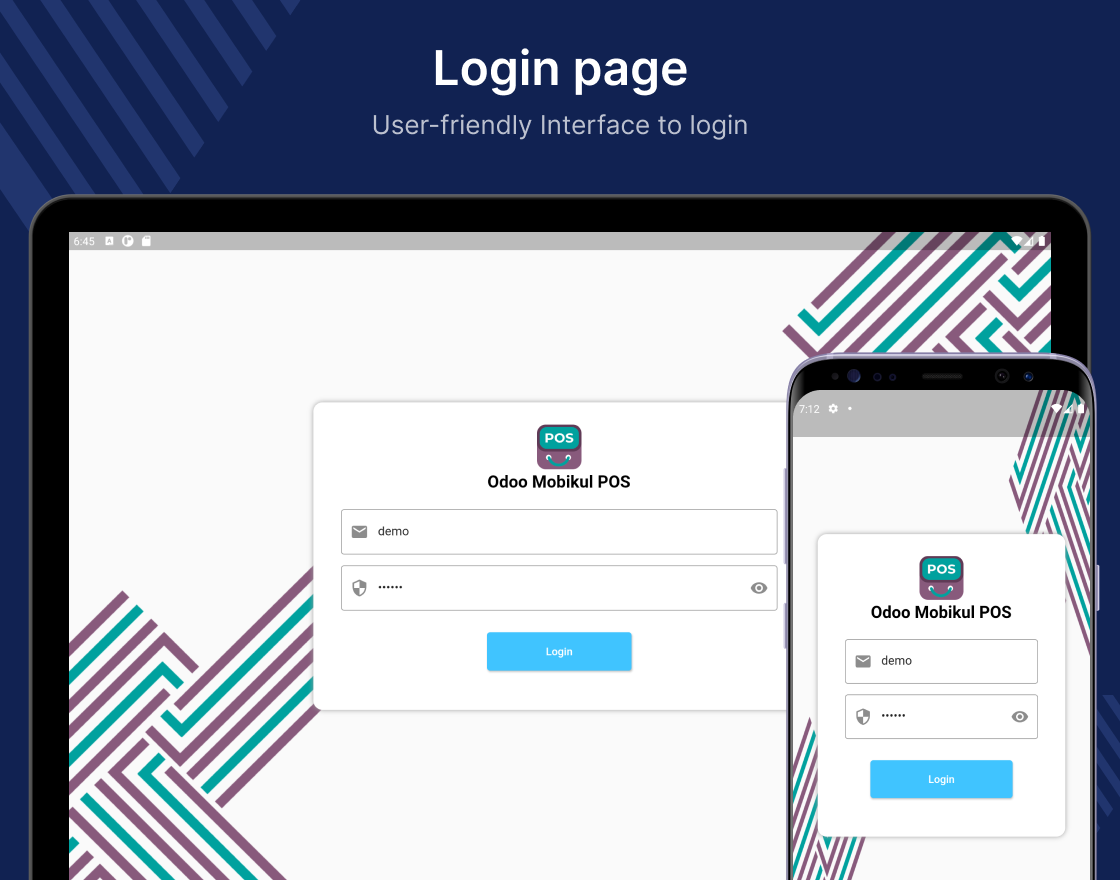
2) Once logged in, you will see a homepage that allows you to add products to the cart.

3) Moreover, you can also manage filter category-wise in Odoo POS Mobile app for ease of navigation.

4) Here, you can switch cashiers using the Odoo POS Mobile App by navigating to Profile >> Change Cashier.

5) When you click on the “Hold Cart” button, your current cart will be put on hold. By clicking on this button, you can also view the details of carts that are on hold. Meanwhile, you can continue working with other carts.

6) You can also view the necessary details for both online and offline POS orders.

Need Help?
Hope you find guide helpful! Please feel free to share your feedback in the comments below.
If you still have any issues/queries, please create a ticket at the UV Desk.
In case of any further queries, contact us at our support mail.
Thanks for paying attention!!
Current Product Version - 1.0.0
Supported Framework Version - Odoo V18, V17, V16, V15, V14, V13, V12


Be the first to comment.