PrestaShop Deals | Offers | Product Collection Page:- According to a study 62% buyers while online shopping prefer to visit the offer zone to grab/purchase the desired products.
Providing offer zone to buyers is the best policy to increase the sale on store.
With the help of this module, admin can create various collection pages.
Add different products to collection page based on product name, price range, quantity, discount, etc.
Collection pages will display in the new tab named as “offer zone” on front-end. Buyers can visit various collection page in the offer zone to purchase products.
Features of PrestaShop Deals | Offers | Product Collection Page
- Add offer/collection pages and display products in them.
- Search and add products to the offer page.
- Add products to the offer page based on price and quantity range.
- Add products to the offer page based on discount.
- Select categories, brands, and suppliers whose products you want to add to offer page.
- Select user groups whose members will have access to offer pages.
- Configure date range for which offer page will appear on store.
- Show countdown timer on offer pages that are in active state but will start at a future date.
- Choose the products you want to exclude from an offer page.
- Upload banner for offer pages.
- Upload global banner images.
- Choose to show global banners, offer page banners, or both in a slider on store.
- A dedicated tab “Offer Zone” added to the storefront to view a list of offer page.
- A separate tab to view a list of offer pages in the back office.
- Enable, disable, edit, or delete the offer page.
How to Install PrestaShop Deals | Offers | Product Collection Page
- Firstly, go to the module manager in the back office and click on ‘upload a module’.
- After that, drag and drop the module file or select the file from the system.
- In this way, the module installation will be successful.


PrestaShop Deals | Offers | Product Collection Page Configuration
After the successful installation of the module, the admin needs to configure it.
General Settings
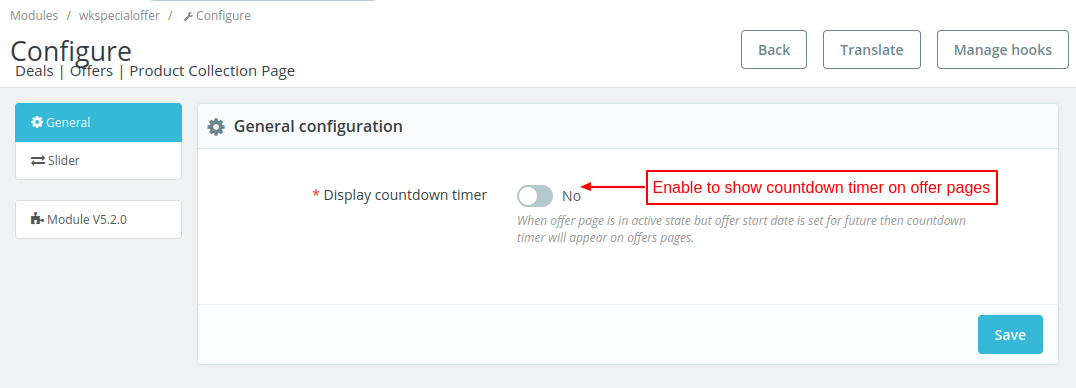
Under General Configuration, the admin can choose to show the countdown timer on offer pages.
Suppose the admin has created a page with 50% discount deal and it will be active from 15th November to 30th November.
So, to attract the attention of the customers, the admin can show countdown timer on the deal page.
With the countdown timer, customers will be informed about the time remaining for the offers to start.
Slider Settings
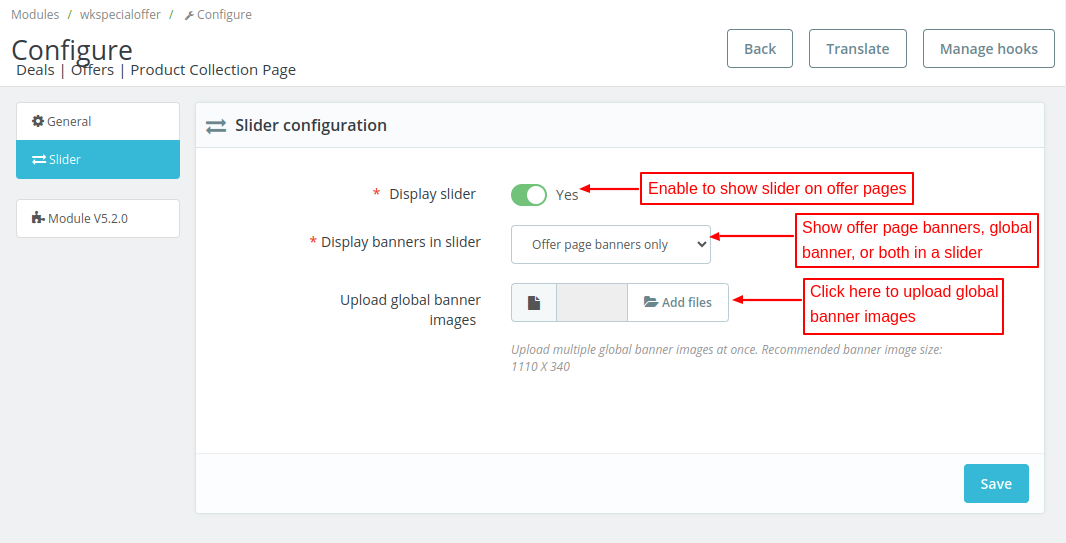
Display slider
The option lets admin display slider on the offer pages.
Display banners in slider
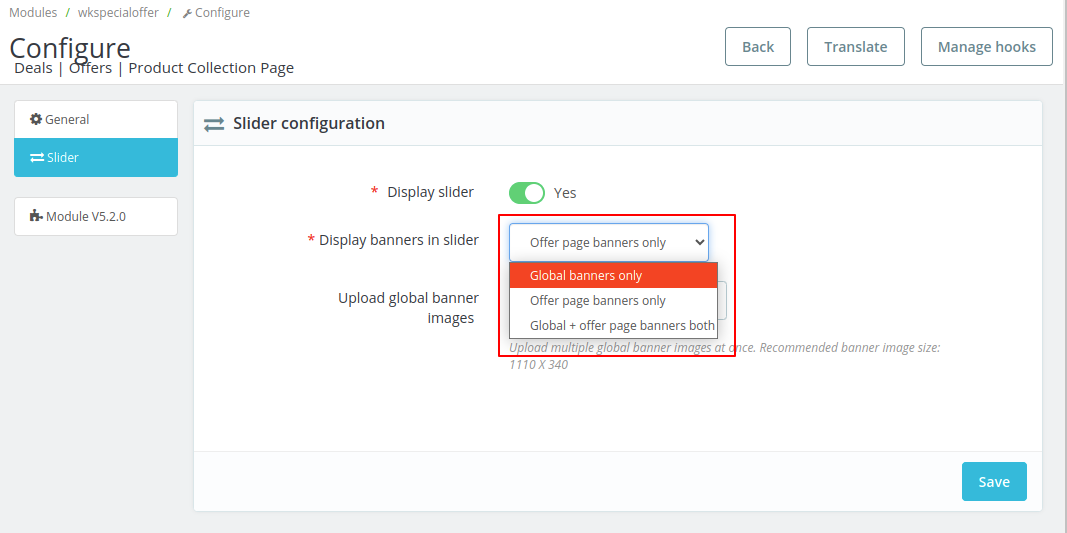
The admin can choose to show global banners, offer page banners, or both in a slider.
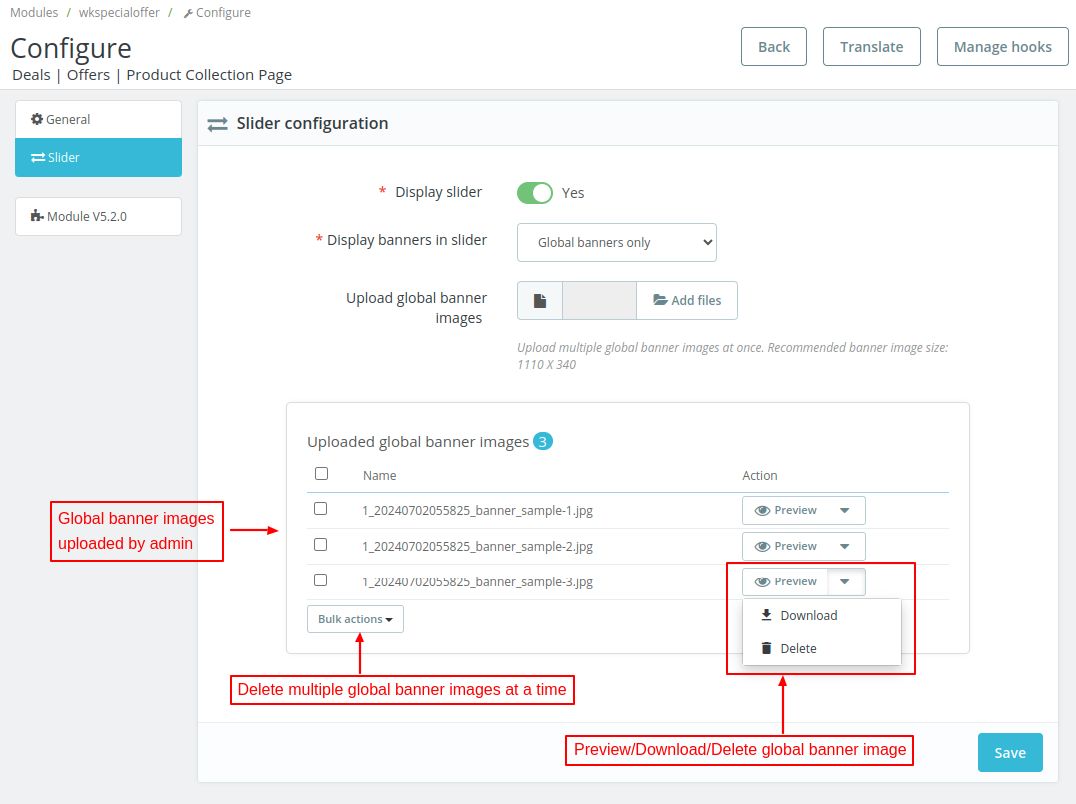
Upload global banner images
The option lets admin upload the global banner images that will display in a slider on offer pages.
Add Offer Pages
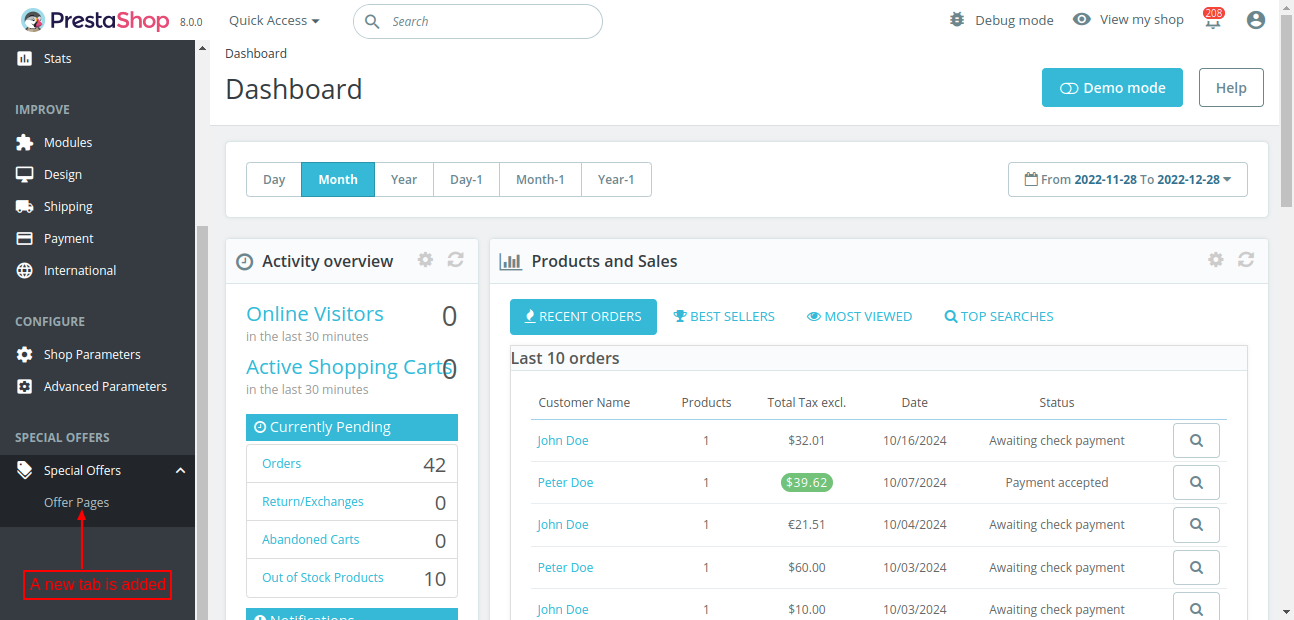
After the successful installation of the module, a new tab “Offer Pages” gets available in the back office. From here, the admin can add and manage offer pages.
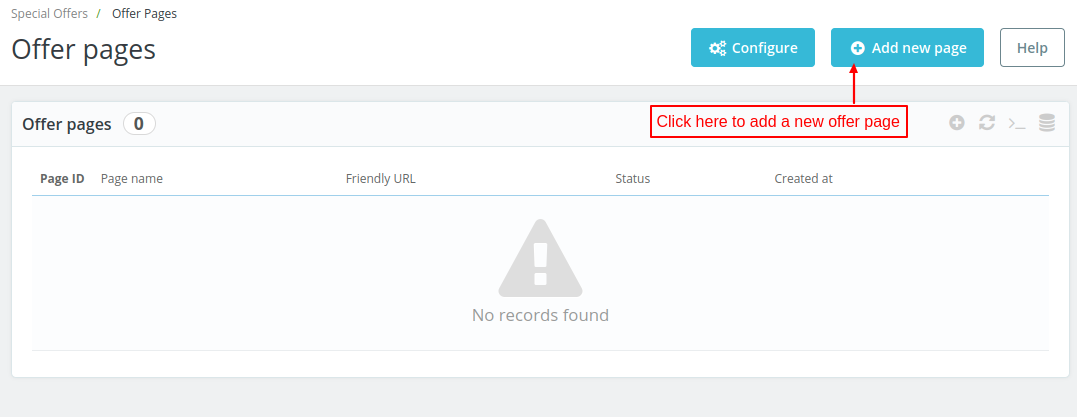
Click on the ‘Add new page’ button to add a new offer page.
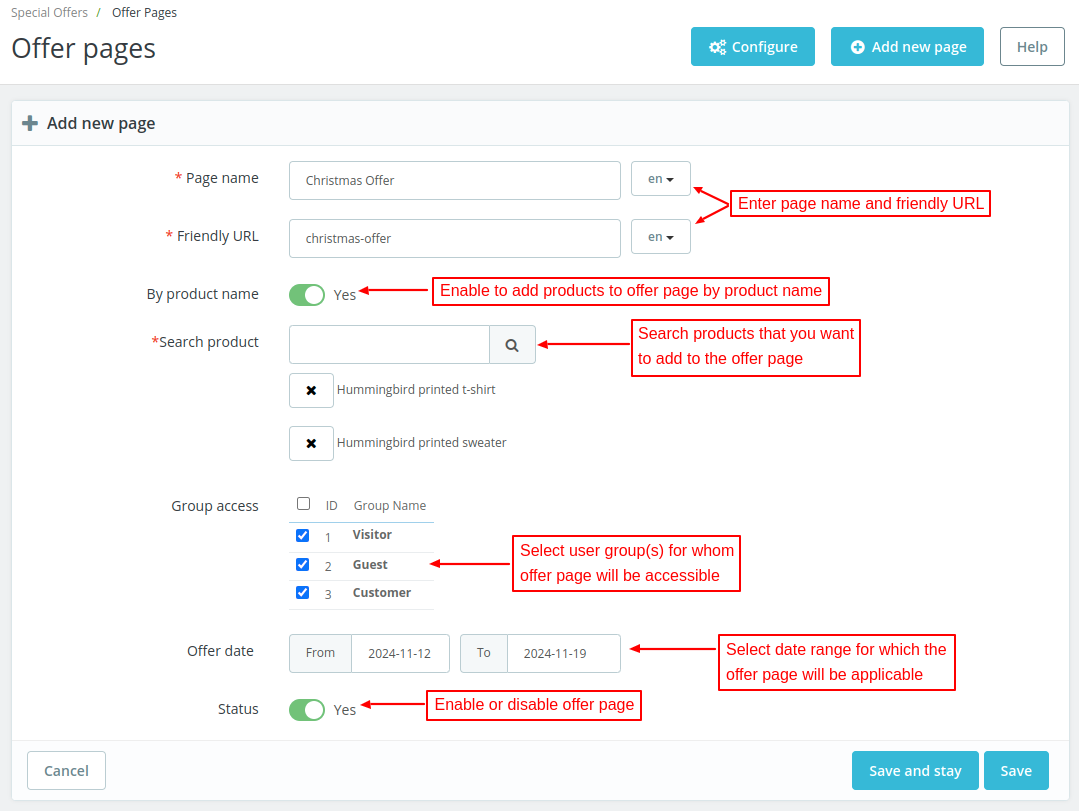
On clicking the ‘Add new page’ button, a form appears with the following options:
- Page name: Enter offer page name here.
- Friendly URL: Specify friendly URL for the offer page.
- By product name: Enable this field to add products to the offer page by product name.
- Search product: Search and select the products for the offer page.
- Offer date: Select dates for which offer will be available.
If “product name” field is disabled, then the admin can sort the products (he wants to add to the offer/collection page) based on various filters.
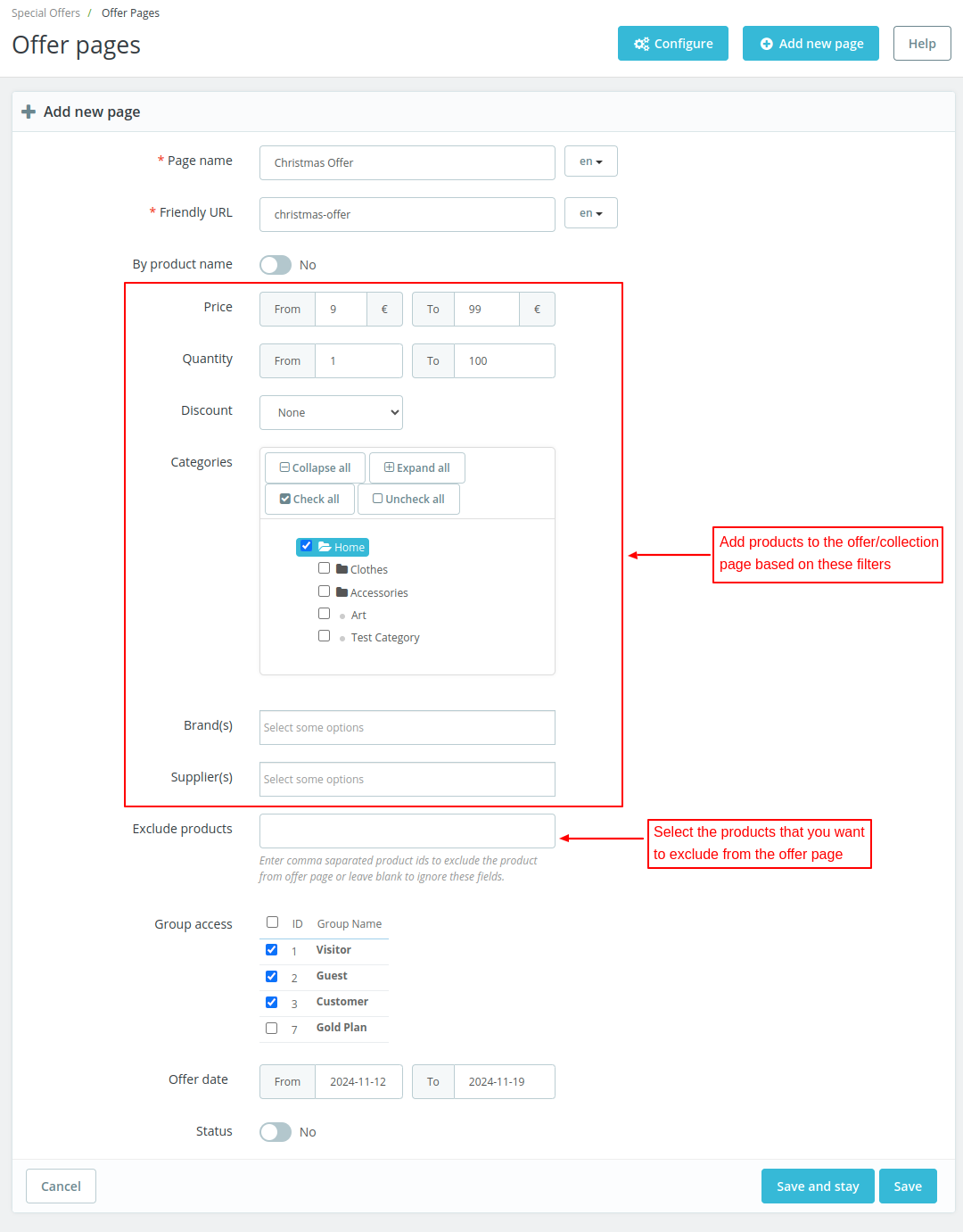
The filters are:
- Price: Products that fall under specified price range.
- Quantity: Products with quantity under specified range.
- Discount: Products with specified discount range.
- Categories: Products that belong to selected categories.
- Brands & Suppliers: Products that belong to selected brands and suppliers.
Exclude Products
This field allows the admin to select the products that he do not want to display on the offer page.
The products will be filtered based on conditions conditions set by the admin.
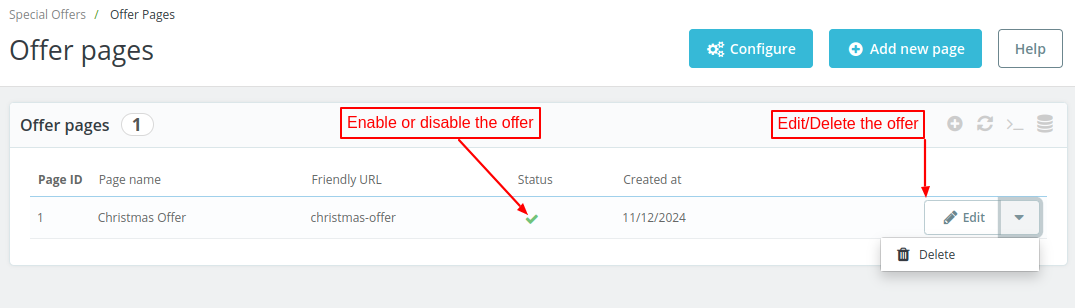
Offer Page List
Once added, the admin can view it under “offer pages” tab.
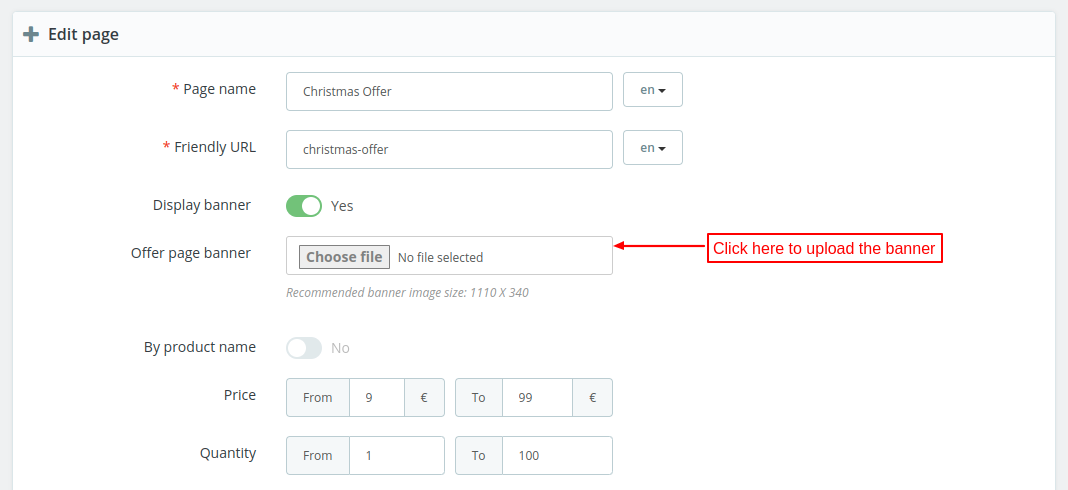
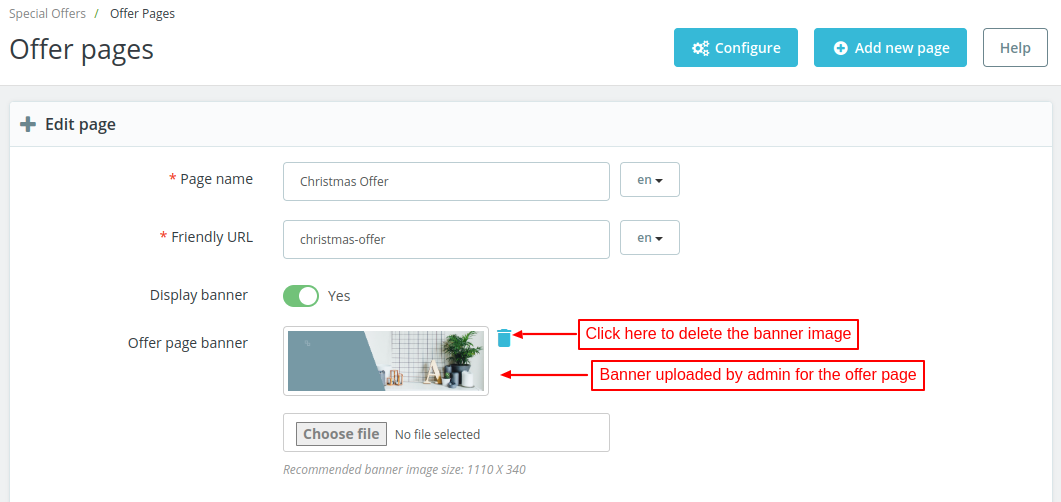
Upload offer page banner
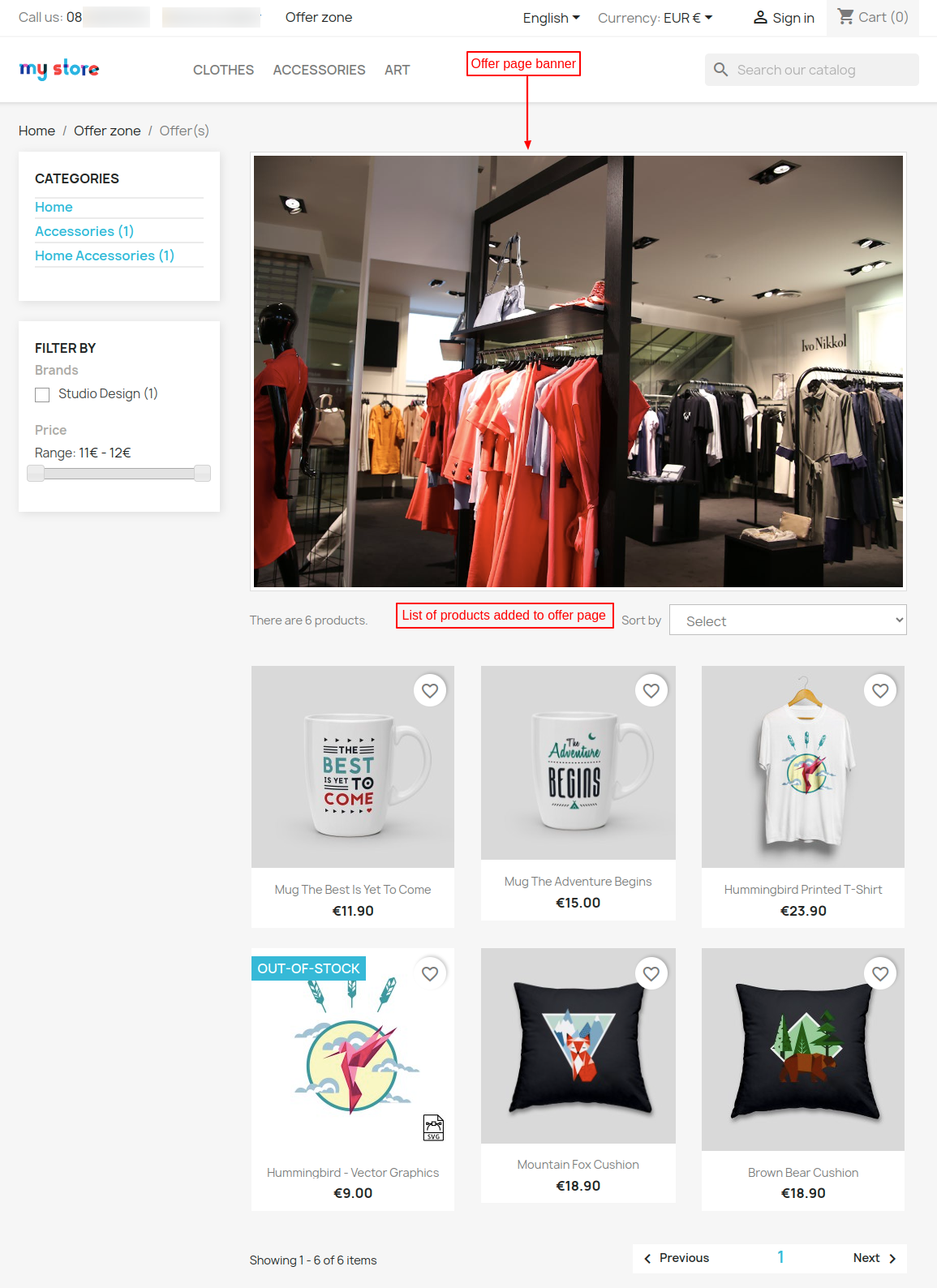
Once the admin has added an offer page, he can upload the banner that will display on the offer page.
Front End Flow
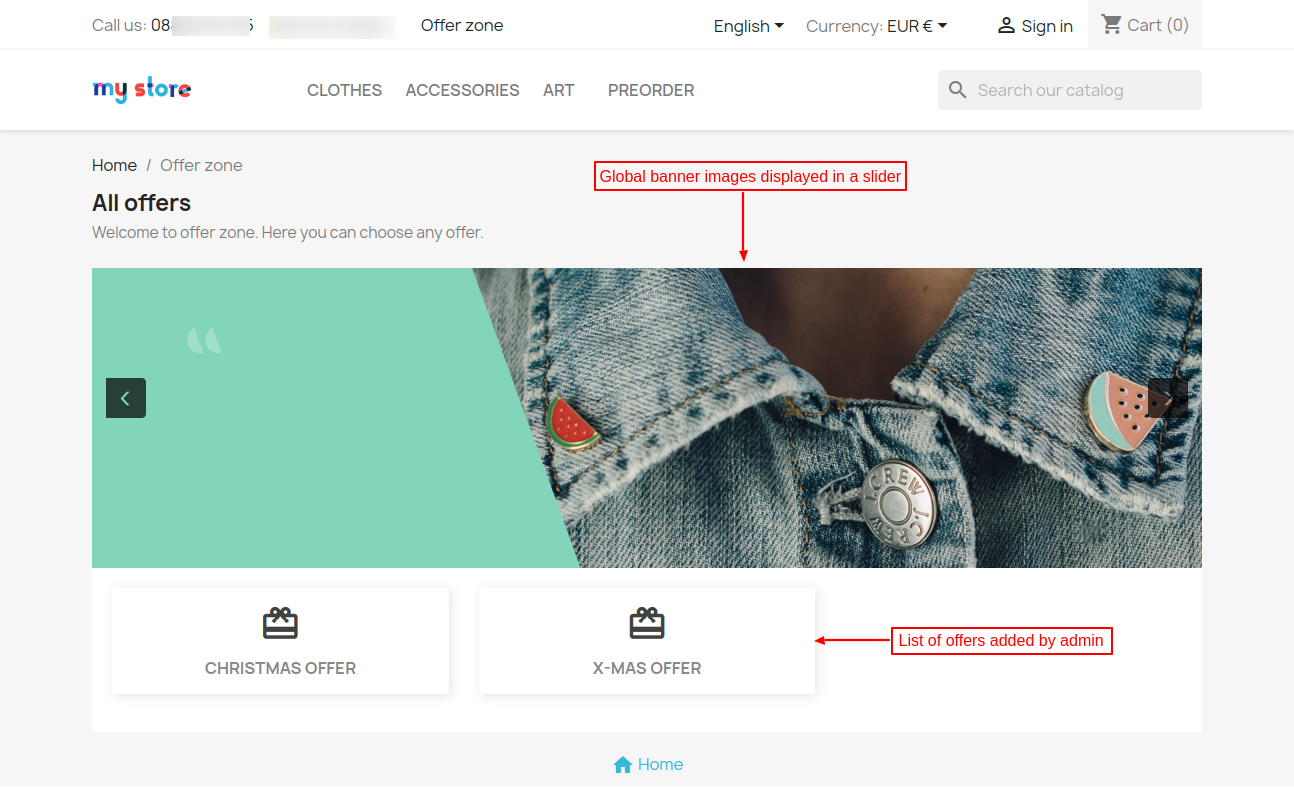
After the successful installation of the module, a new tab named “Offer zone” gets available in the header position of the store.
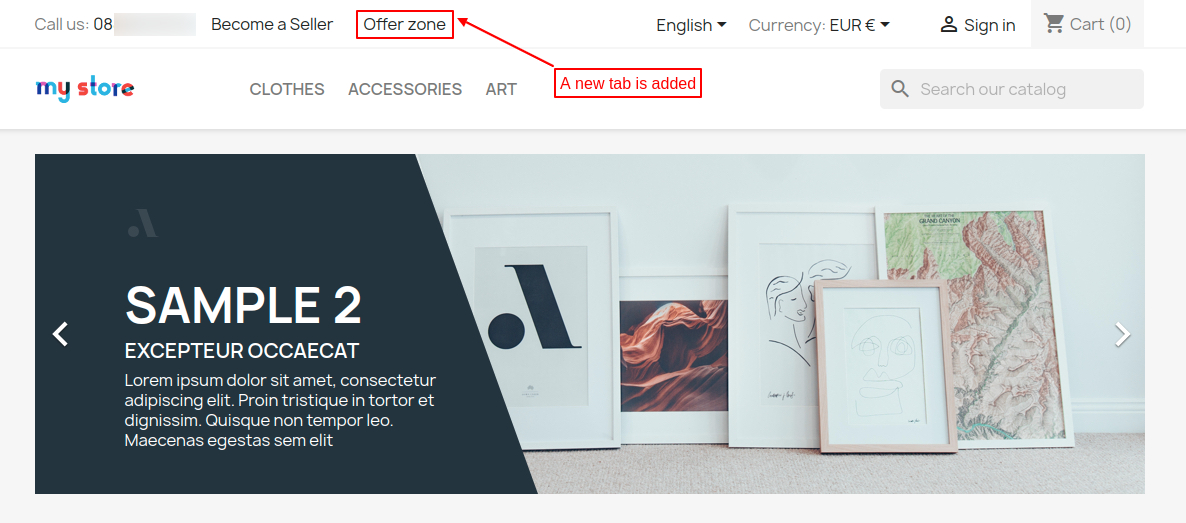
On clicking this tab, the customers can view a list of offers available in store.
As configured by admin, the global banner images are getting displayed in a slider on the offer zone page.
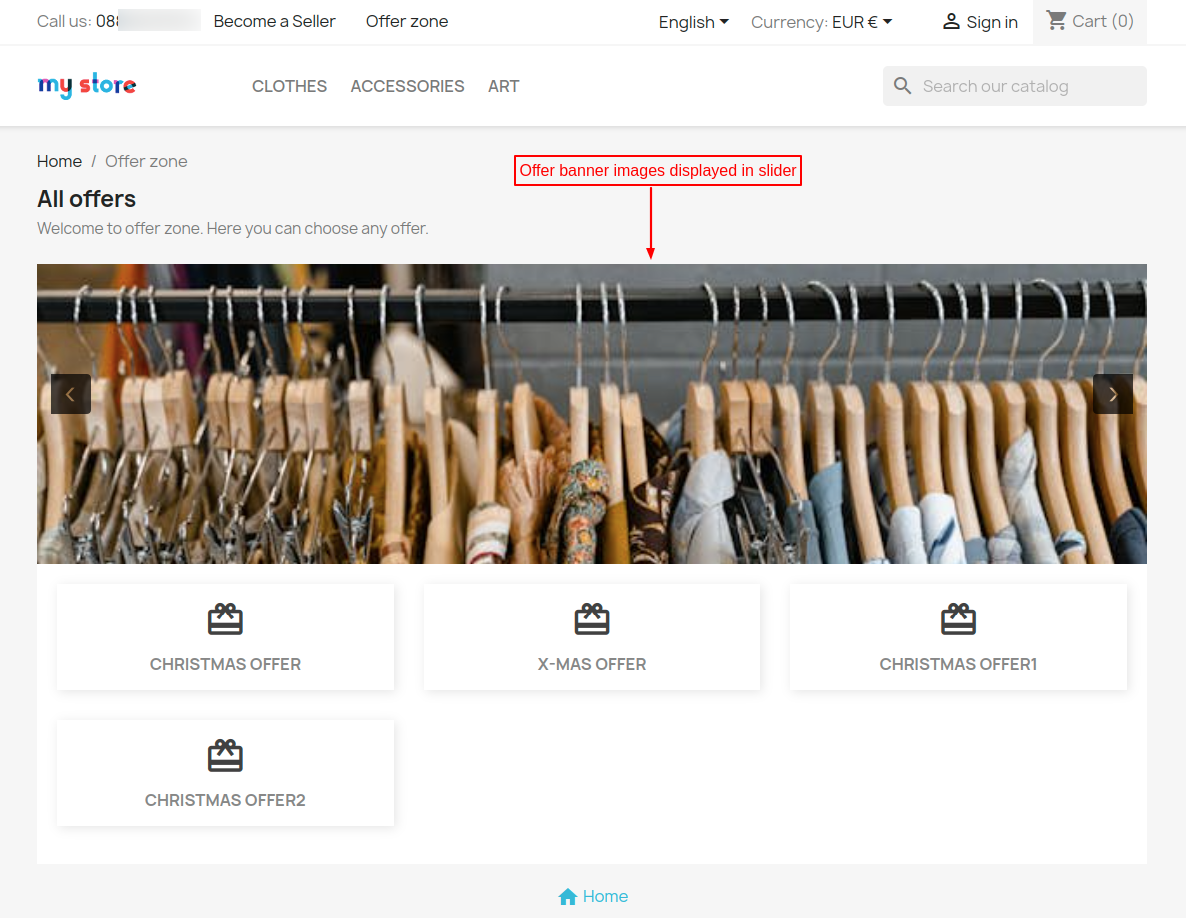
Click on offer to view a list of products added to the offer page.
Display Countdown Timer
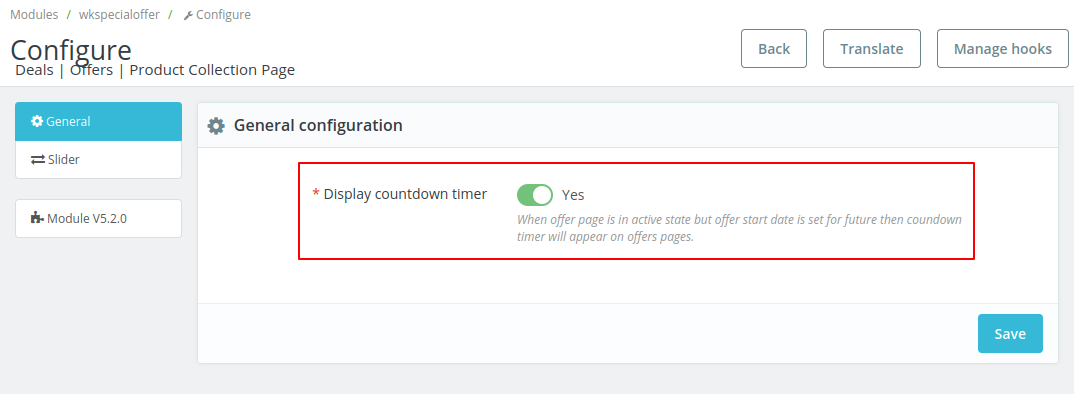
If enabled by the admin under General configuration, then the countdown timer will appear on the offer page that is in active state but its start date is set in future.
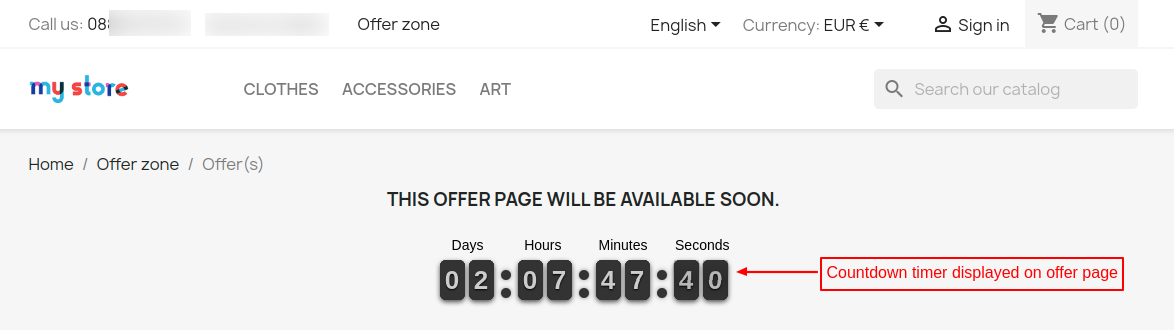
Customers can view the number of days and time after which the offer page will be available for them.
This was all about PrestaShop Deals | Offers | Product Collection Page Module. I hope this document will help you in checking the functionality of the module in a better way.
Also, do let us know about your views in the comments.
Support
For any kind of technical assistance or query, please raise a ticket or send us a mail at [email protected]
Also, please explore our Prestashop development services and vast range of quality Prestashop addons.
Current Product Version - 5.2.0
Supported Framework Version - 8.x.x, 1.7.x.x


Be the first to comment.