INTRODUCTION
Customer Pricelist Odoo Bridge For Magento enables you to seamlessly manage and sync customer group pricing between Magento and Odoo.
This simplifies managing prices for different customer groups, like wholesale, retail, and general users, easier and more efficient.
The module enables automatic synchronization of customer group-specific prices from Magento to Odoo.
Changes in customer group prices and minimum quantities in the Odoo pricelist can be easily synced, ensuring better management of customer-specific pricing.
Prerequisites for using Customer Pricelist Odoo Bridge For Magento
Customer Pricelist Odoo Bridge For Magento works in conjunction with the following module:
FEATURES
- Sync customer group prices from Magento to Odoo pricelists automatically, ensuring both platforms are always up to date.
- Magento automatically syncs customer group-specific prices to Odoo.
- Apply different pricing strategies to customer groups, such as wholesale or retail, ensuring each group receives the correct pricing.
- Any updates made to Odoo pricelists can be synced to Magento, ensuring consistency across both platforms.
- Discounted prices for specific customer groups can be easily configured.
INSTALLATION
- Once you purchase the App from the Webkul store, you will receive the link to download the zip file of the module.
- Extract the file on your system after the download finishes. As a result, you will be able to see a folder named- odoo_magento_customer_pricelist
- Copy and paste this folder inside your Odoo Add-Ons path.
- Now, open the Odoo App and click on the Settings menu. Here, click on Activate the Developer Mode.
- Then, open the Apps menu and click on ‘Update Modules List.’
- In the search bar, remove all the filters and search odoo_magento_customer_pricelist
- You will be able to see the module in the search results. Click on ‘Install’ to install it.
WORKFLOW
Magento Store Mapping
Before syncing the customer group prices to Odoo, we first need to sync the Magento stores with Odoo.
1. In Magento, navigate to Odoo Connector >> Stores Mapping, then click on Synchronize Now to sync all the Magento stores with Odoo.
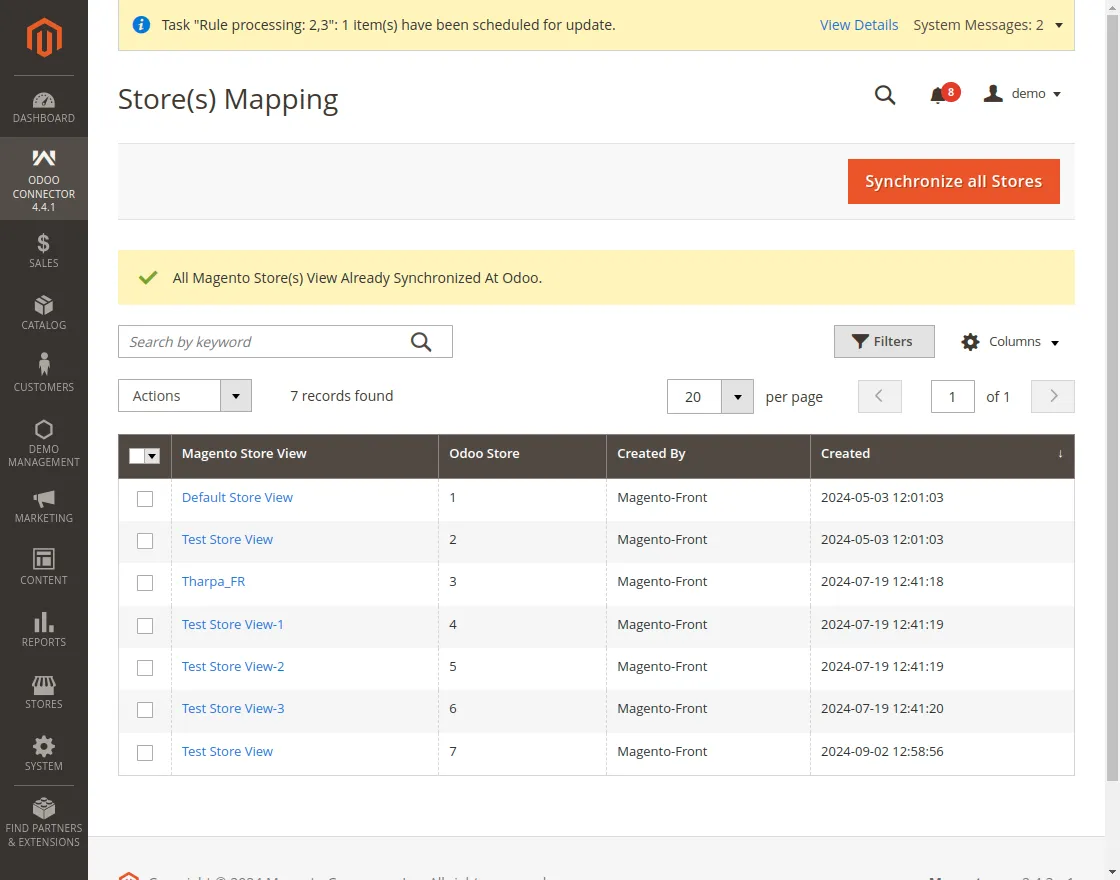
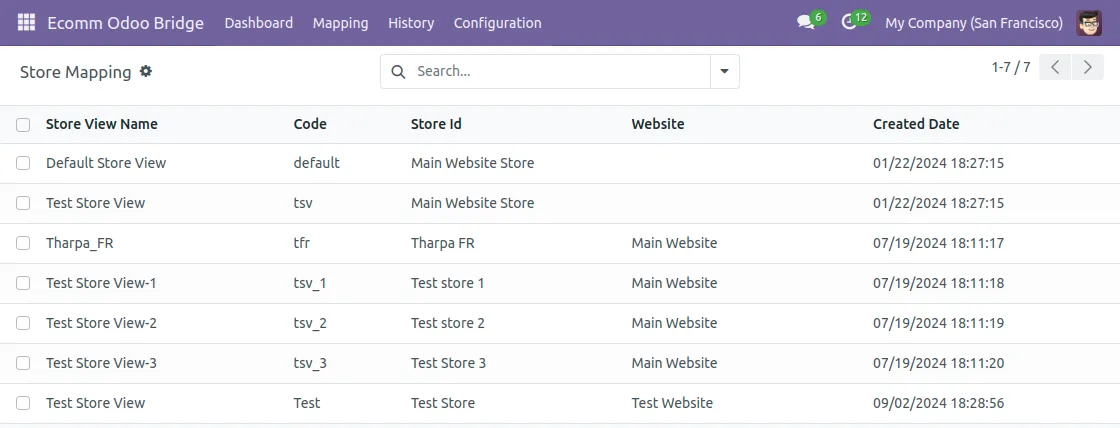
2. Once the Magento stores are synchronized from Magento to Odoo, visit Odoo backend to check that all the stores have been synced.
3. Navigate to Ecom Odoo Bridge >> Configuration>>Magento stores. Here, you can check all the synchronized Magento stores.
Magento End
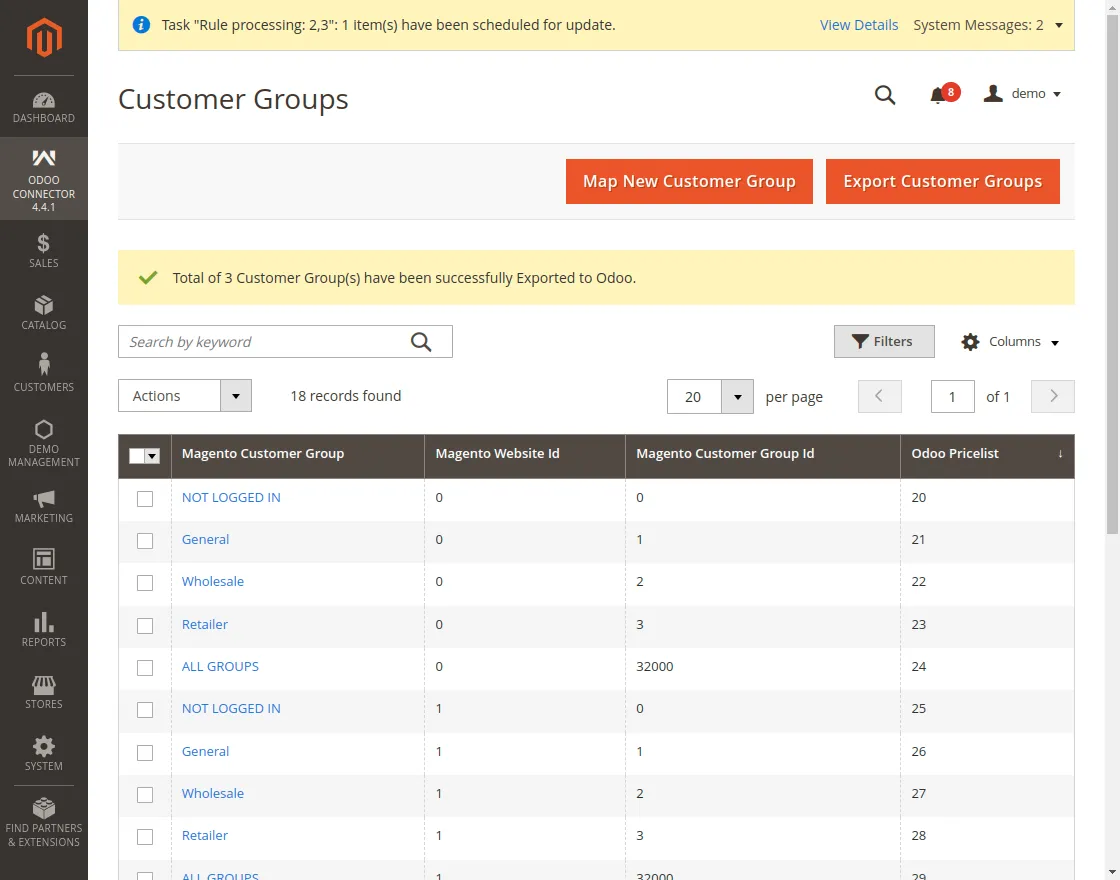
- First, navigate to ‘Odoo Connector > Customer Group.’ You can view a list of all the customer groups created.

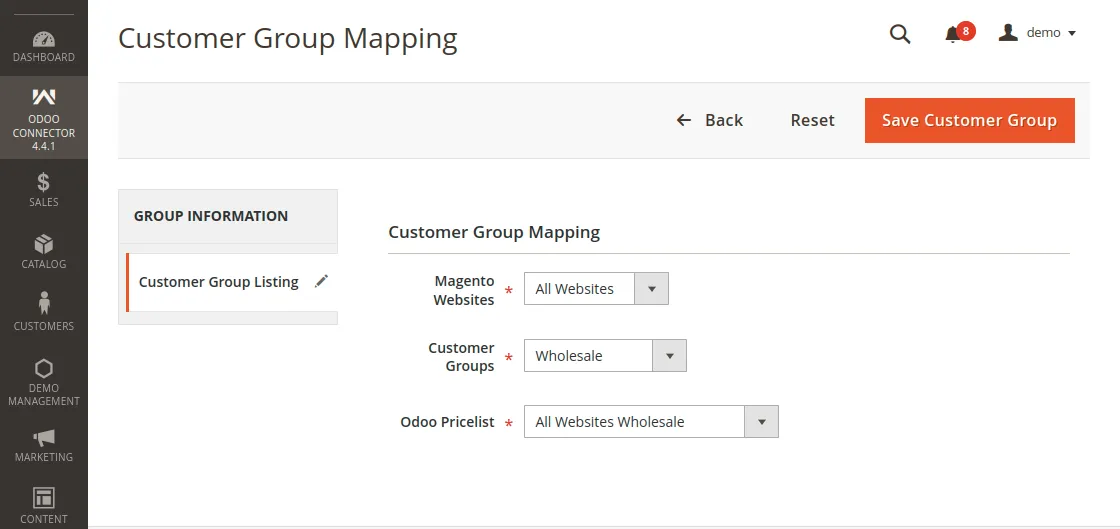
2. You can map the customer groups to odoo in two ways:
a.) For manual mapping, click on ‘map new customer groups’ and enter the details.
- Magento website
- Customer group, you need to map
- Odoo pricelist (pricelist you need to map customer group to)
b. ) To export customer groups in bulk, select the customer groups that you want to export and click on “export customer groups”.
3. To assign a specific price list, go to Magento’s ‘Catalog > Products’ and select any product that you want to set.
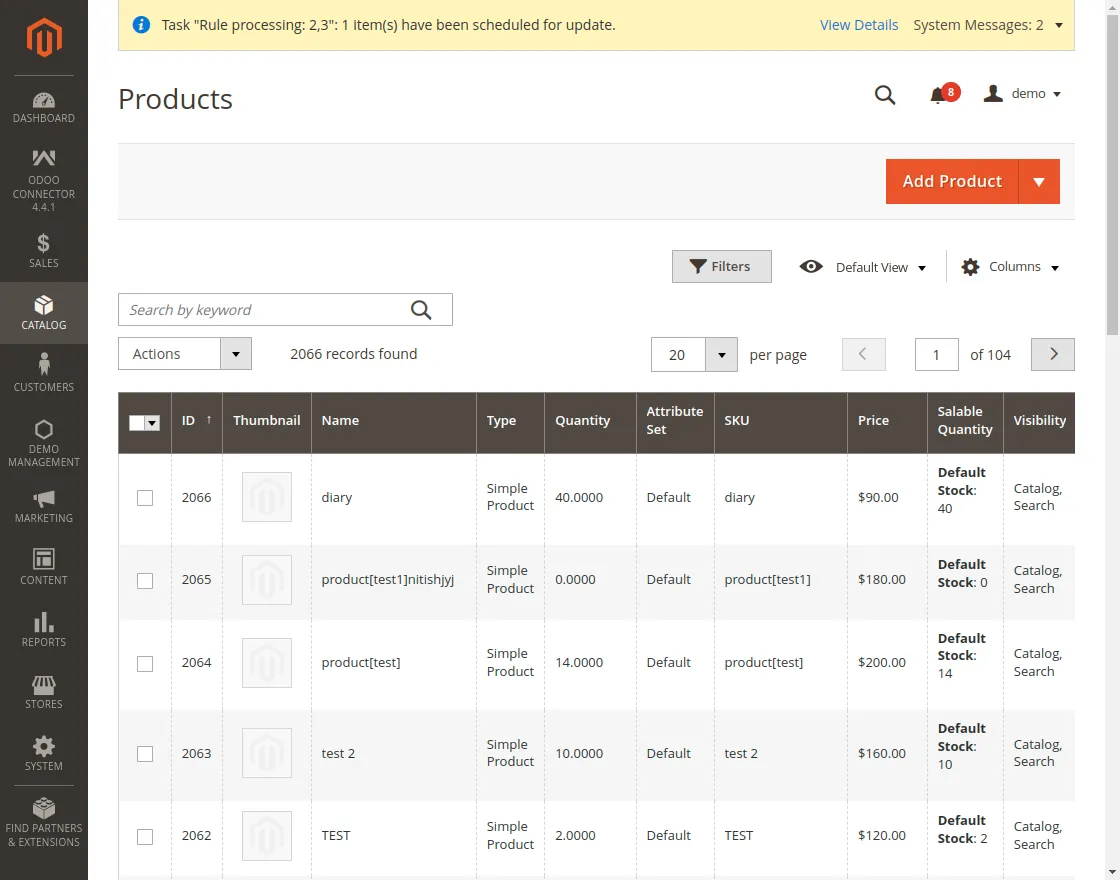
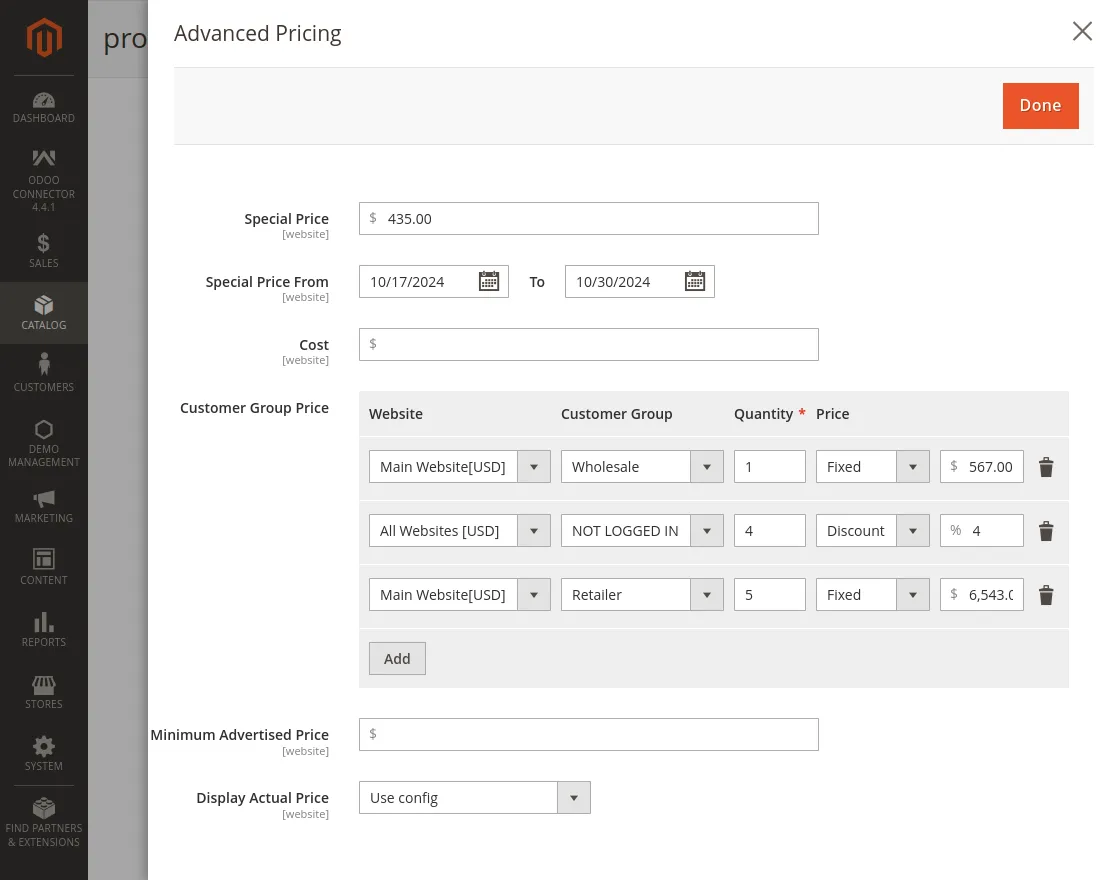
4. Fill in the basic details, and click on the advance pricing option. Set the customer group pricing by selecting Website, Customer Group, Quantity, and Price.
You can set the price as fixed or discount based on your preferences.
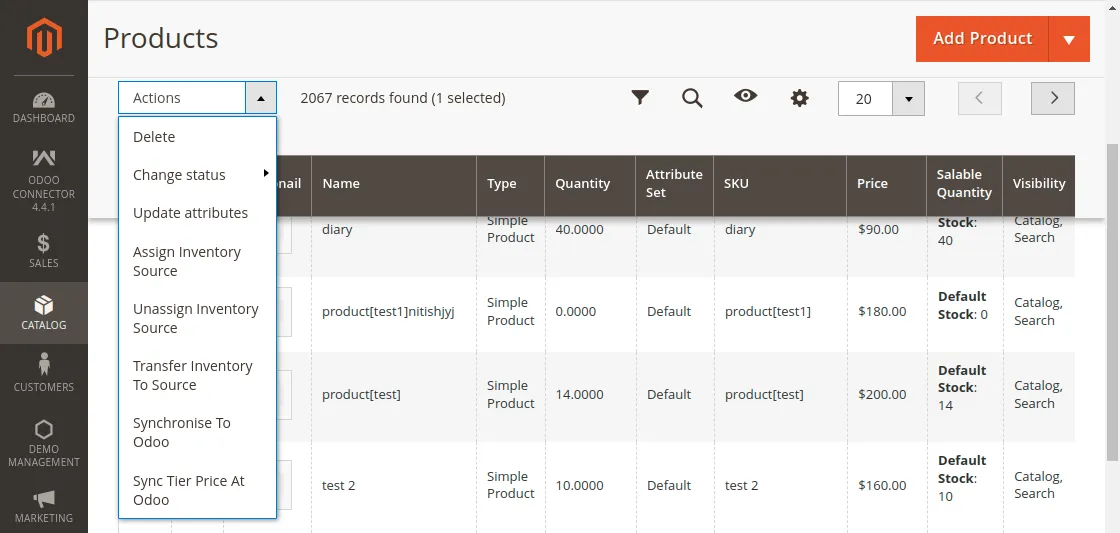
5. After saving the product, it is automatically synced to Odoo, or select the product, go to action, and then synchronize to odoo.
Odoo End
6. All the synced customer prices will be displayed in one place in Odoo Pricelists. Navigate to Ecom Odoo Bridge >> Mapping >> Customer group mapping.
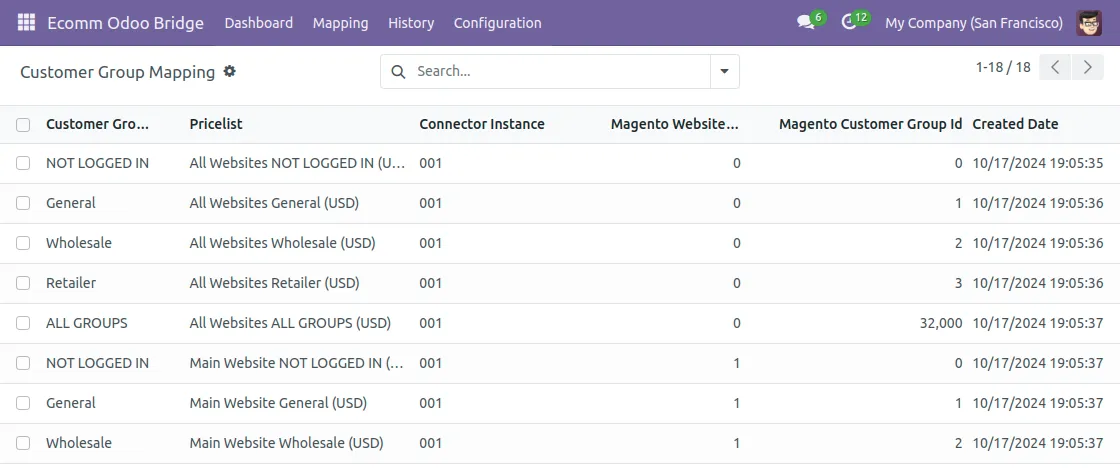
7. To view the customer prices for your product, click on the customer group you selected for the product, and all the details will be displayed.
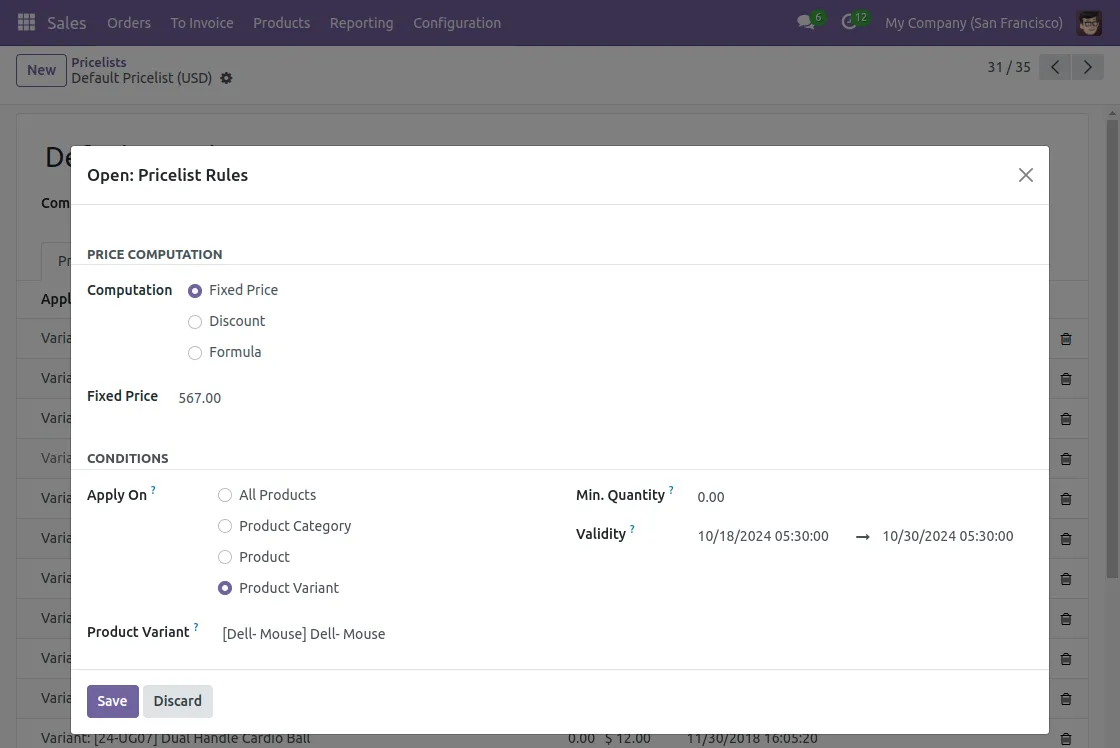
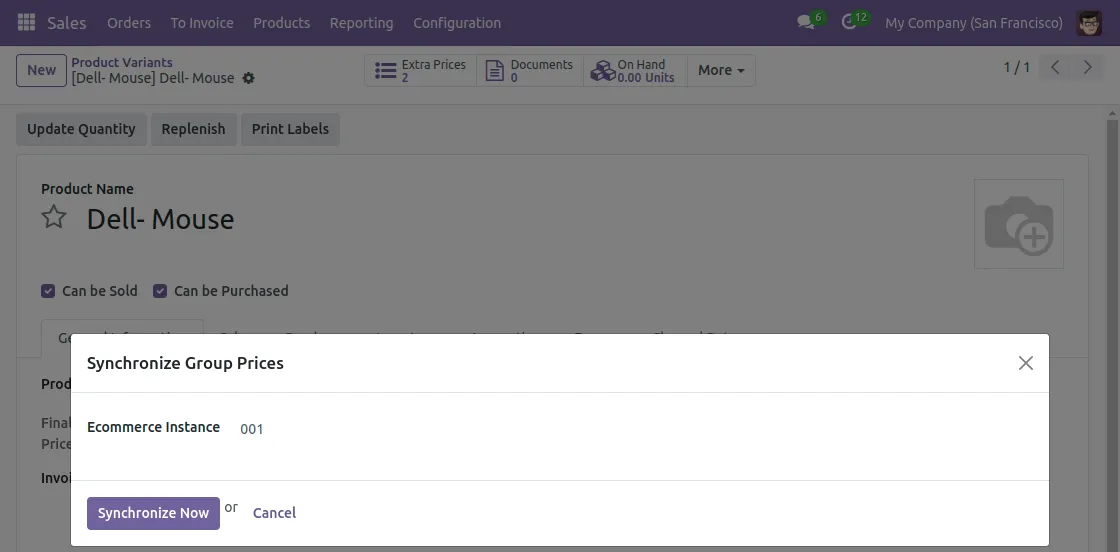
9. To synchronize changes made in prices and quantity to Mangento, navigate to sales>>product variants>>product >> action>> synchronize group prices.
NEED HELP?
Hope you find the guide helpful! Please feel free to share your feedback in the comments below.
If you still have any issues/queries regarding the same, please raise a ticket at the UV Desk.
I hope this helps. In case of any further queries, contact us at our support mail.
Thanks for paying attention!!
Current Product Version - 1.0
Supported Framework Version - Odoo V18, V17, V16, V15 & Magento 2.4.x, 2.3.x, 2.2.x


Be the first to comment.