CS-Cart Seller Invoice Add-on improves the customer experience by allowing sellers and administrators to attach invoices to orders. Customers can easily download the attached invoices, ensuring transparency and clarity in order transactions. This add-on helps build customer trust by providing clear and accessible billing information.
Check a brief overview of the add-on –
Features
- Well integrated with CS-Cart Multivendor.
- The functionality to upload, delete, and download the invoice is available to admin and vendor of related products.
- A separate tab has been provided to manage the functionality of “Seller Invoice” at both ends.
- Functionality for downloading the invoice of corresponding orders for individual customers is available.
- A separate tab listing of “Seller Invoice” in the order detail page is available at the customer end.
- Easy to manage at both the Vendor and Admin ends.
Installation
After downloading the CS-Cart Seller Invoice, you will get a zip file and install.txt. Read the install.txt carefully and configure it accordingly.
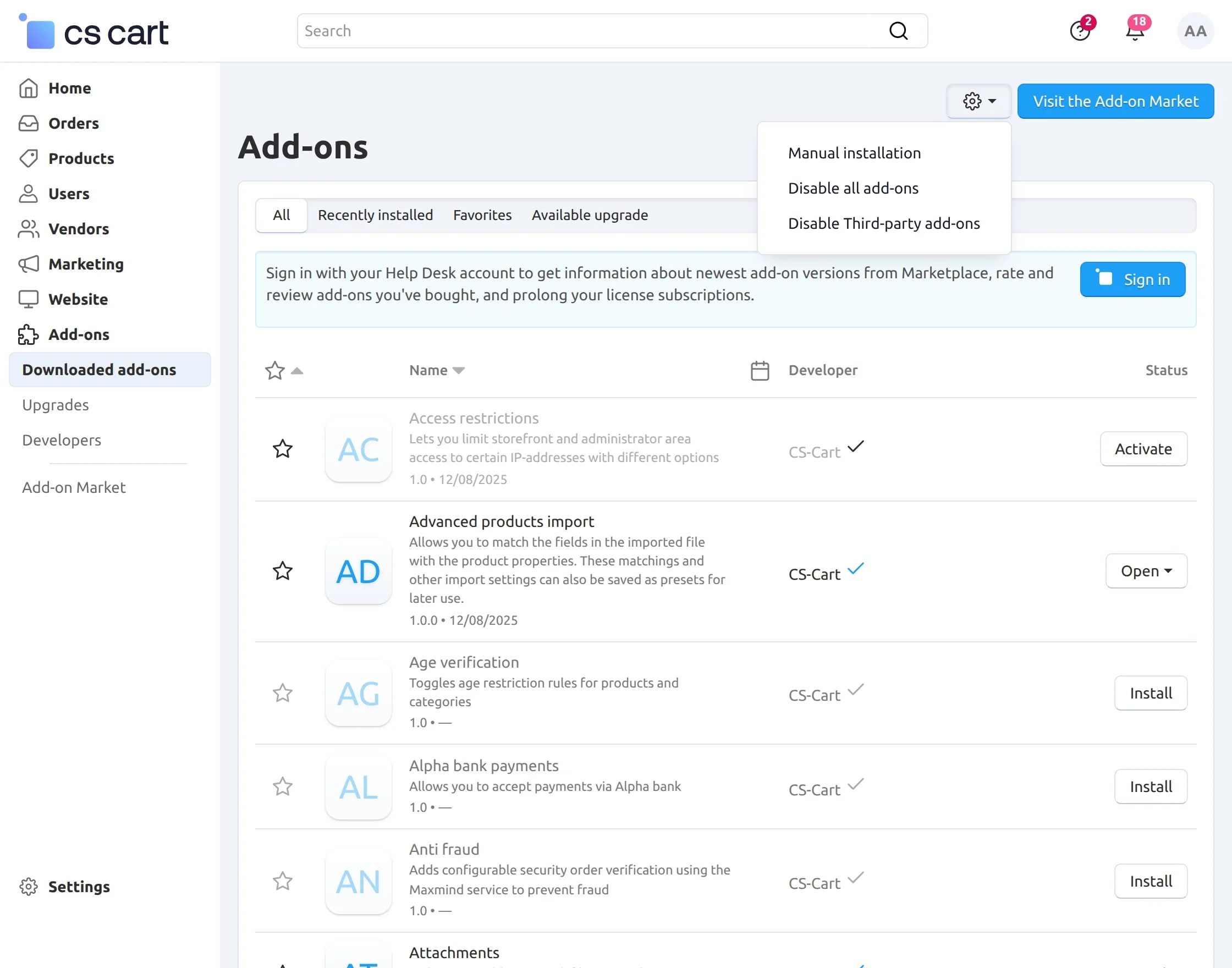
Navigate to Add-ons > Downloaded add-ons and click on the settings icon, from here you can manually install the zip file as shown below:
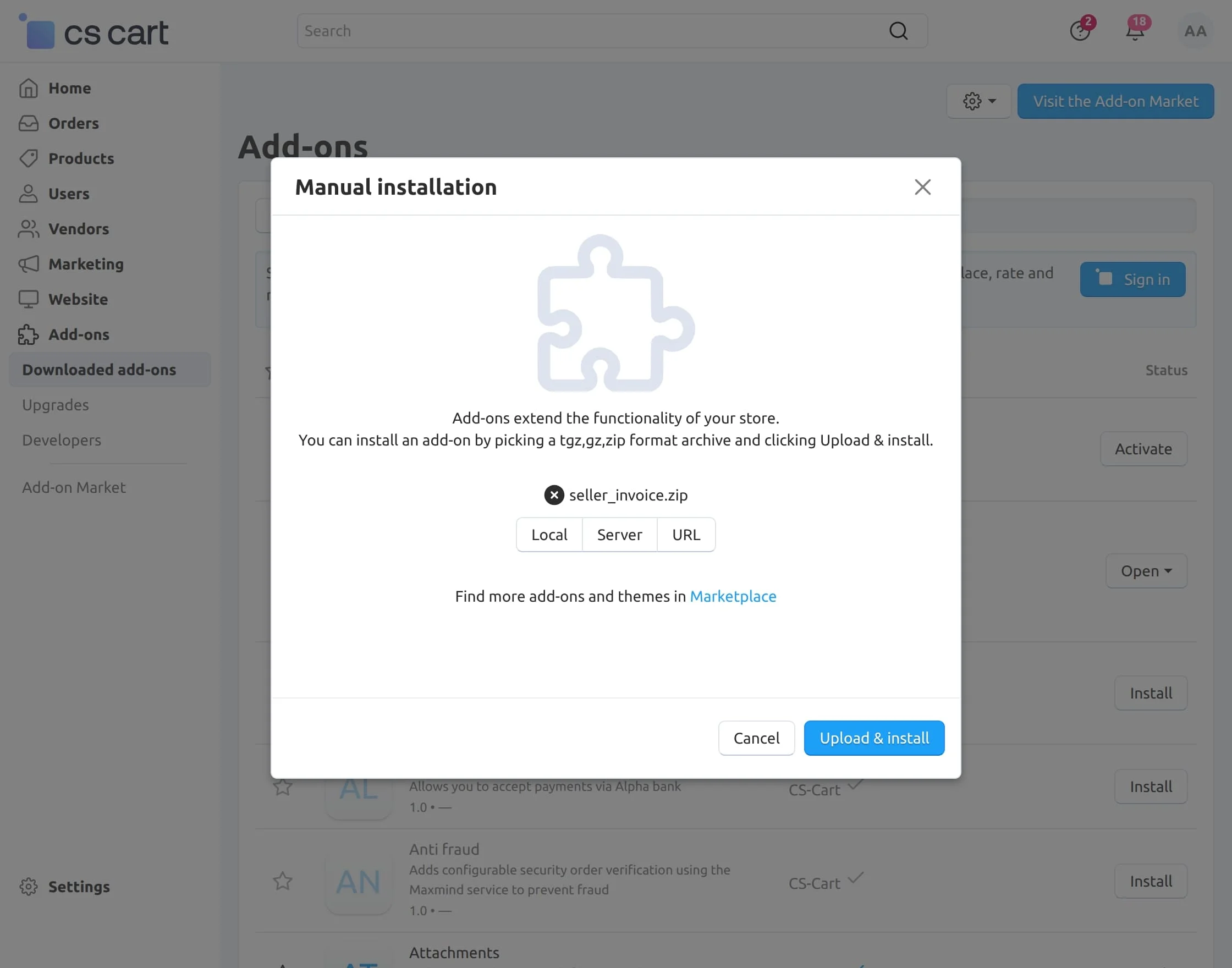
Click on “Local” to browse the zip file and then click on “Upload & Install” as shown below in the snapshot.
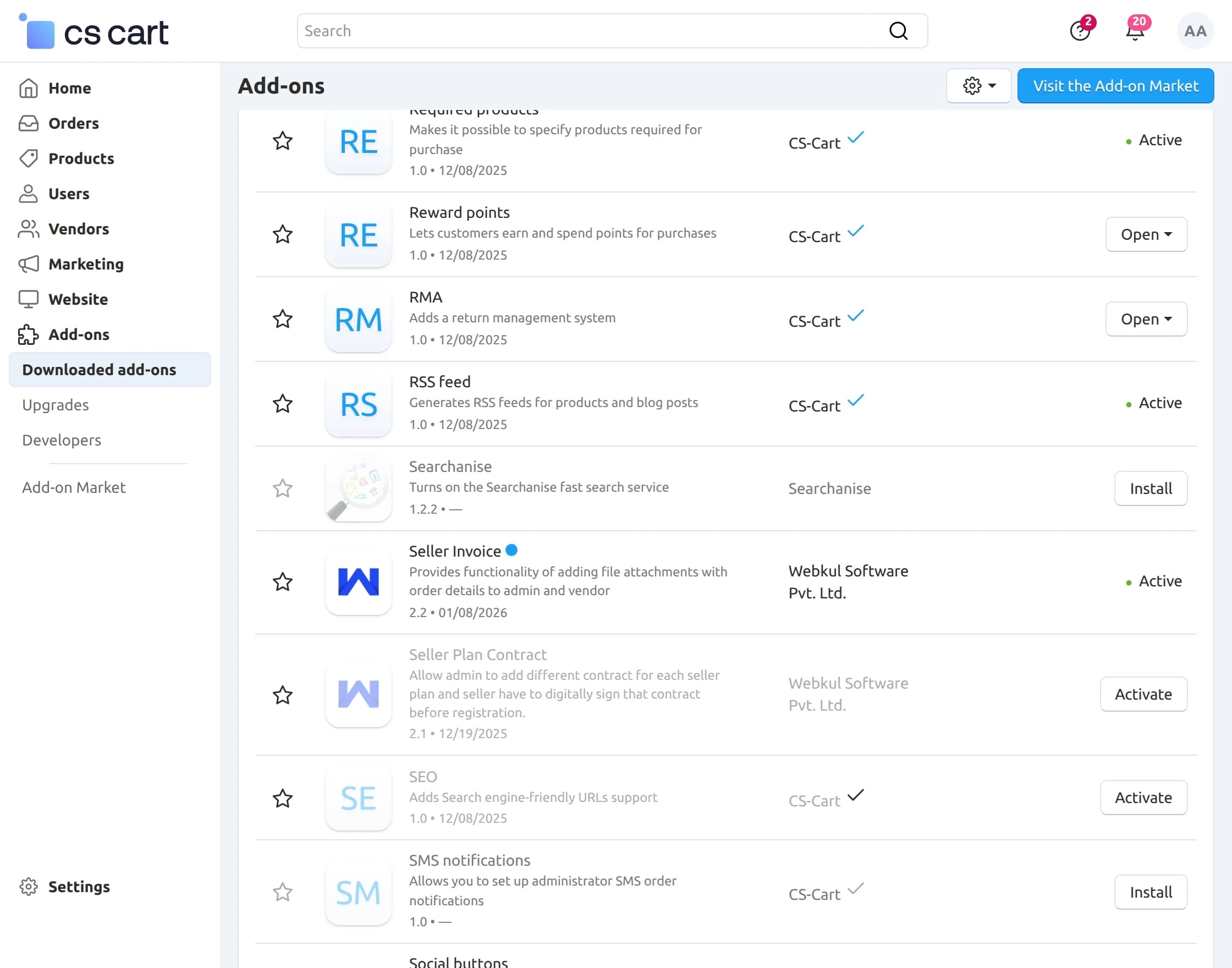
Activate Add-on
Once you install and activate the CS-Cart Seller Invoice add-on, you can begin configuring its settings.
Back End View
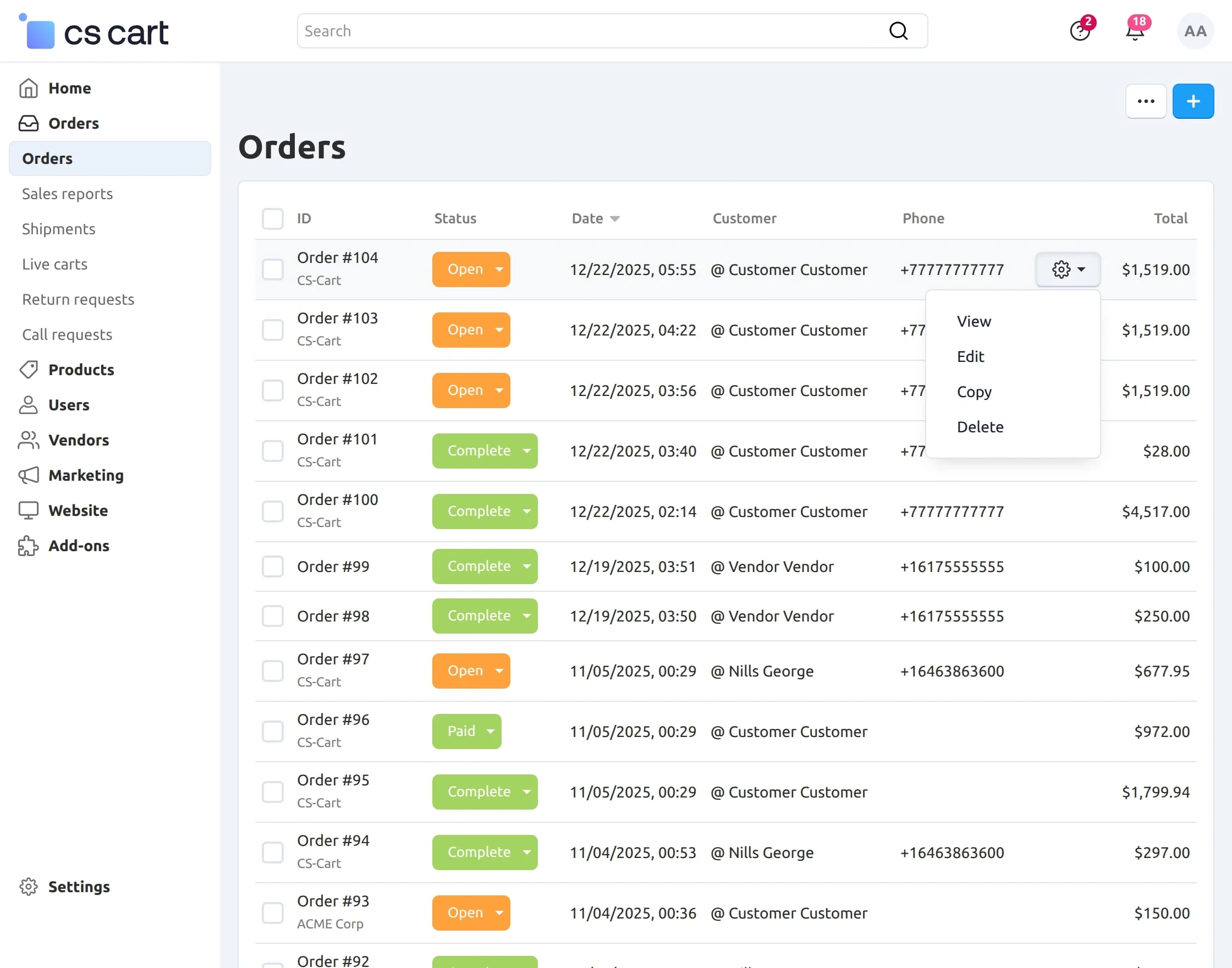
Go to the Orders > Orders as shown below.
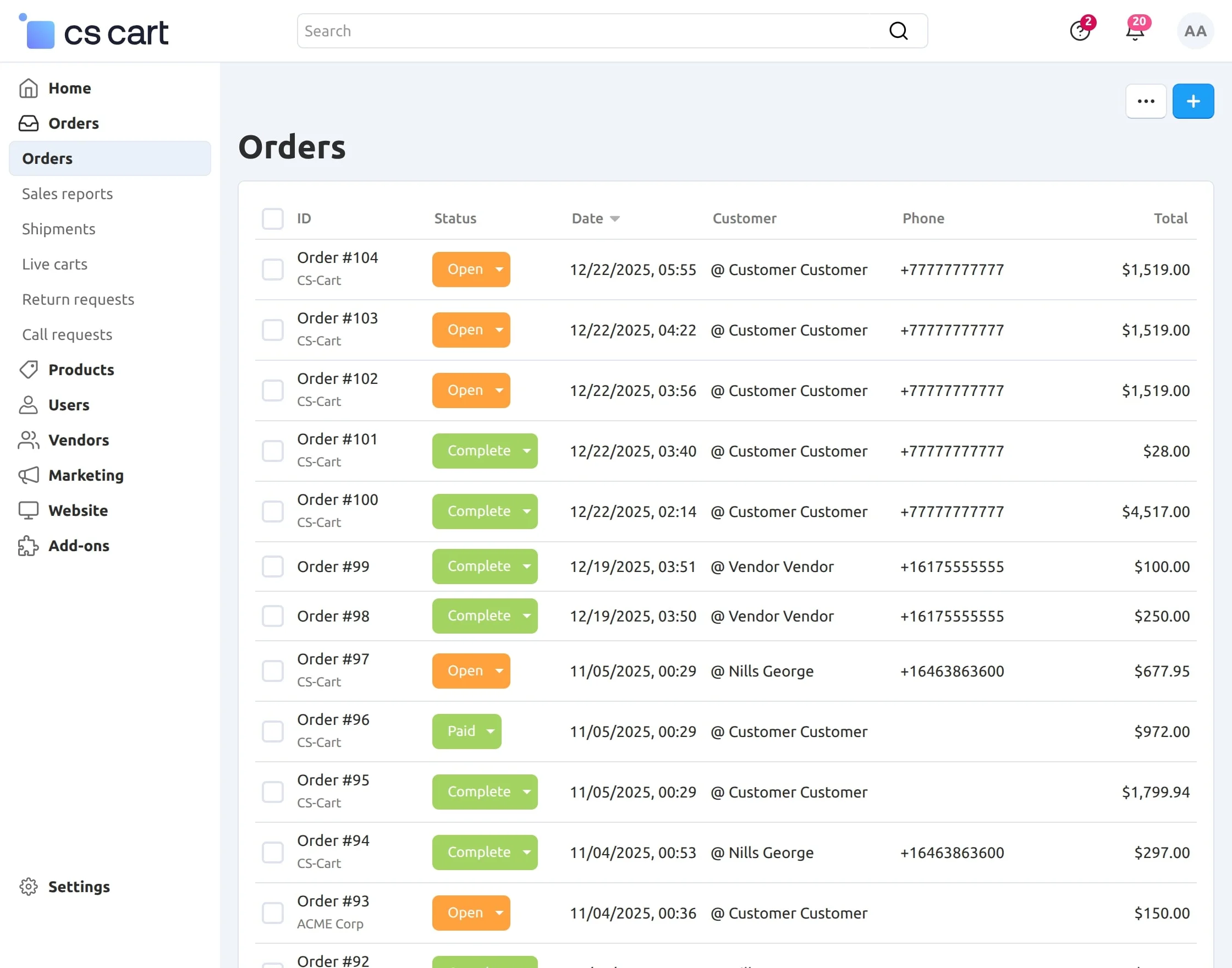
Click on “View” to open the details page of the order for uploading the invoice. Please refer to the screenshot below for the same.
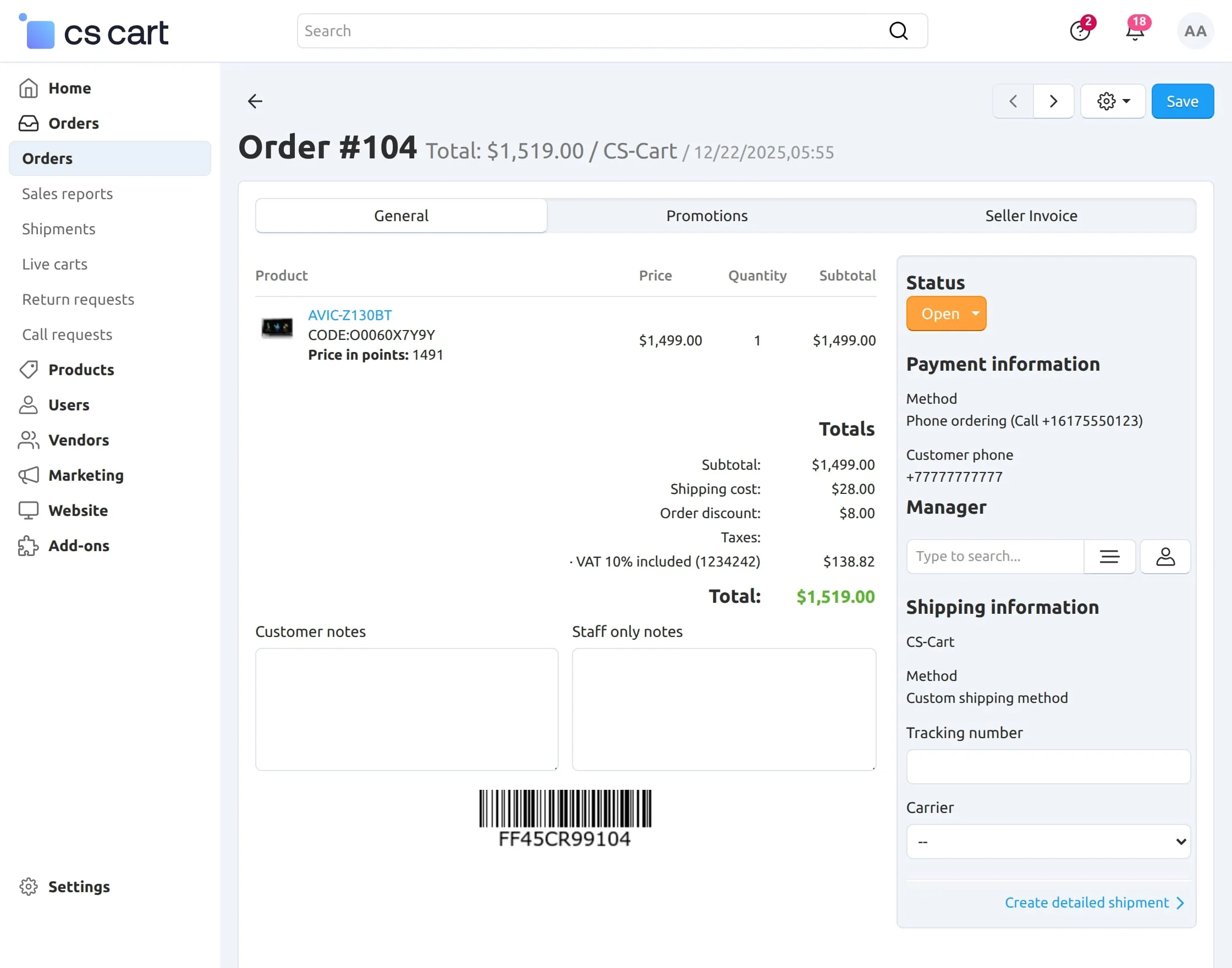
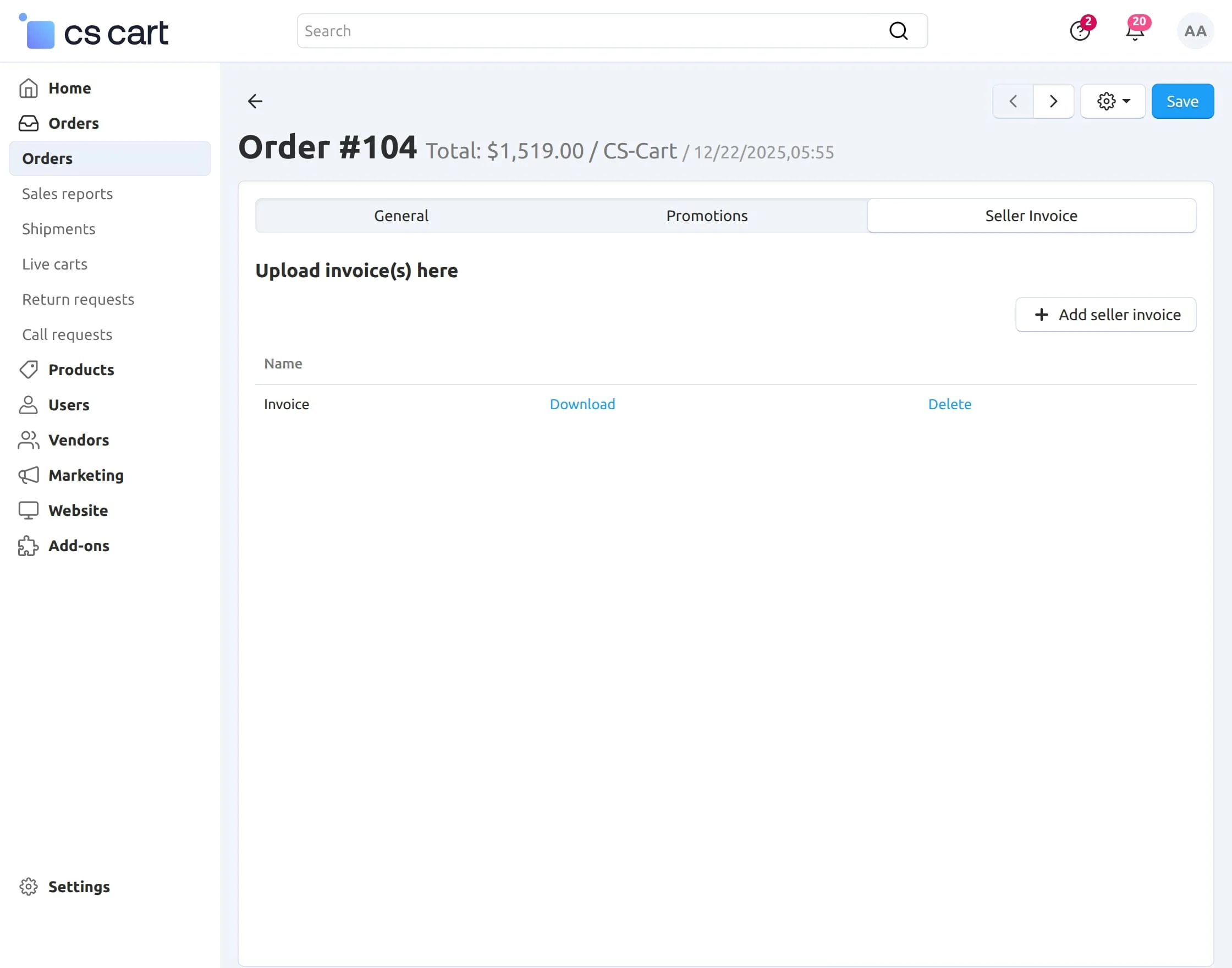
Click on “Seller Invoice” as shown below in the snapshot.
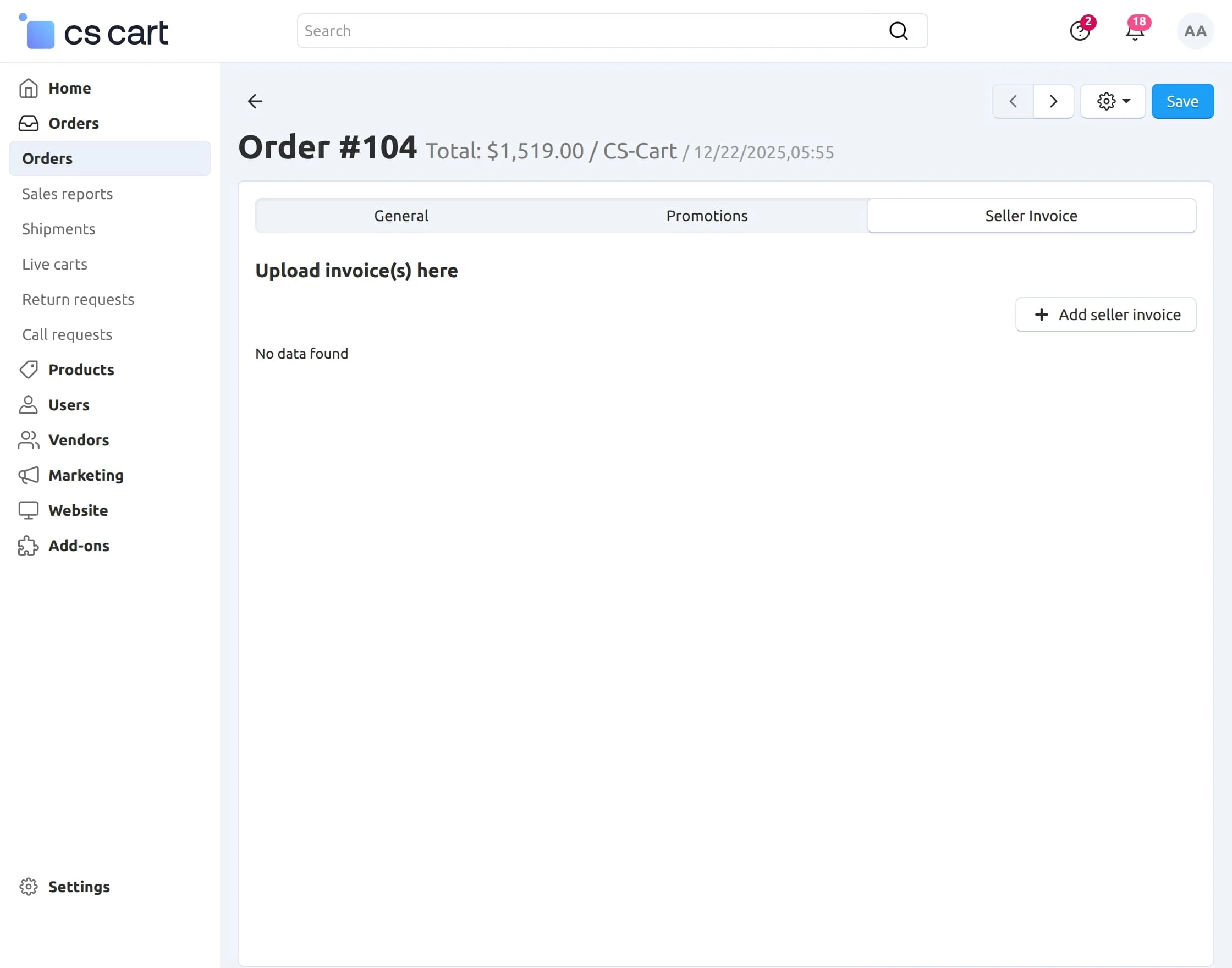
Both the admin and vendor can manage the invoices. To add and upload the invoice, click on “+ Add seller invoice” as shown in the snapshot.
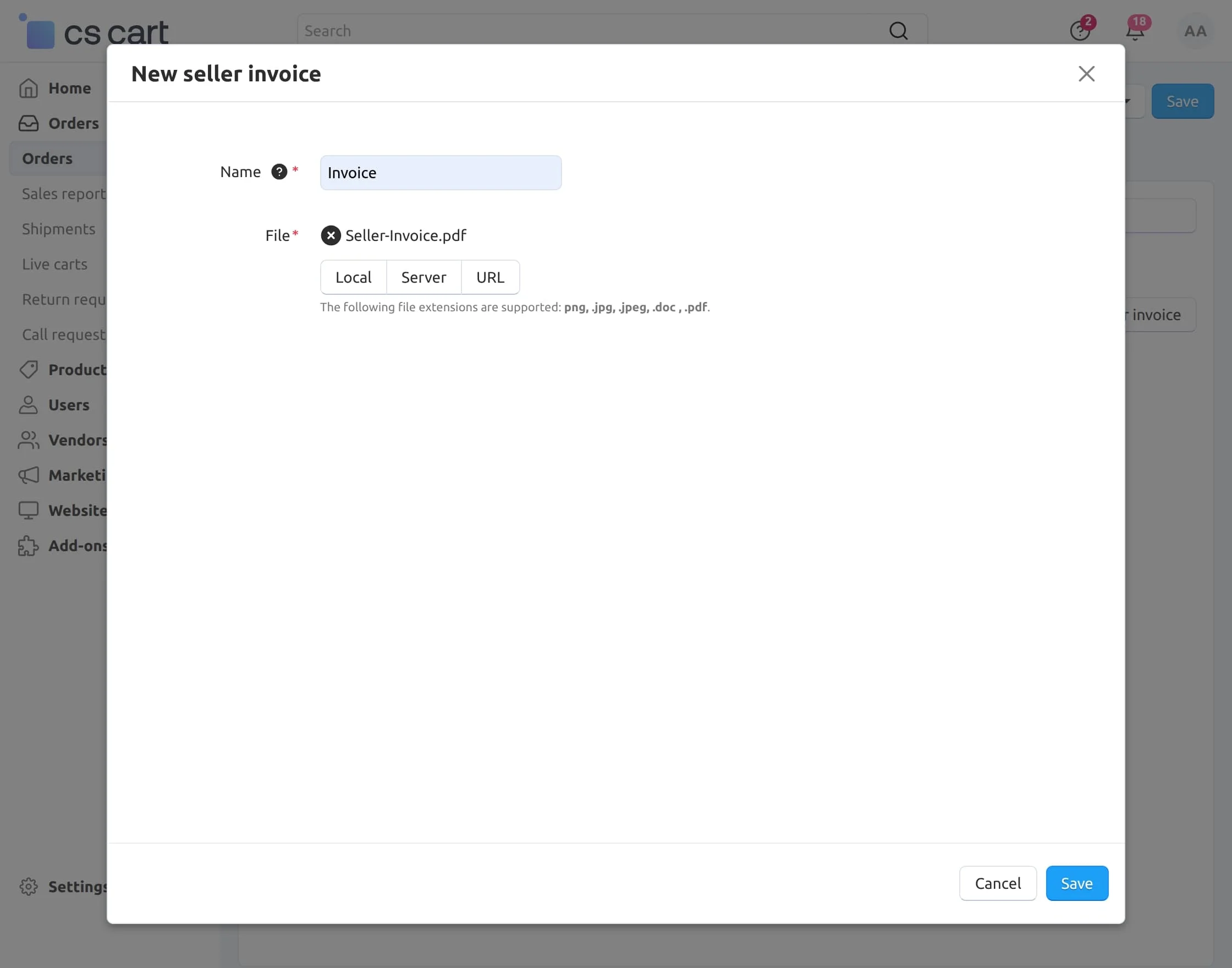
To upload the invoice :
- Enter the name of the invoice to be attached.
- Click on “Local” and browse the invoice file (all valid file types like png, .jpg, .jpeg, .doc, .pdf can be uploaded).
- Click on the “Save” button as shown below in the snapshot.
- Click on “Download” to download the invoice.
- Click on “Delete” to delete the invoice.
Front-end view
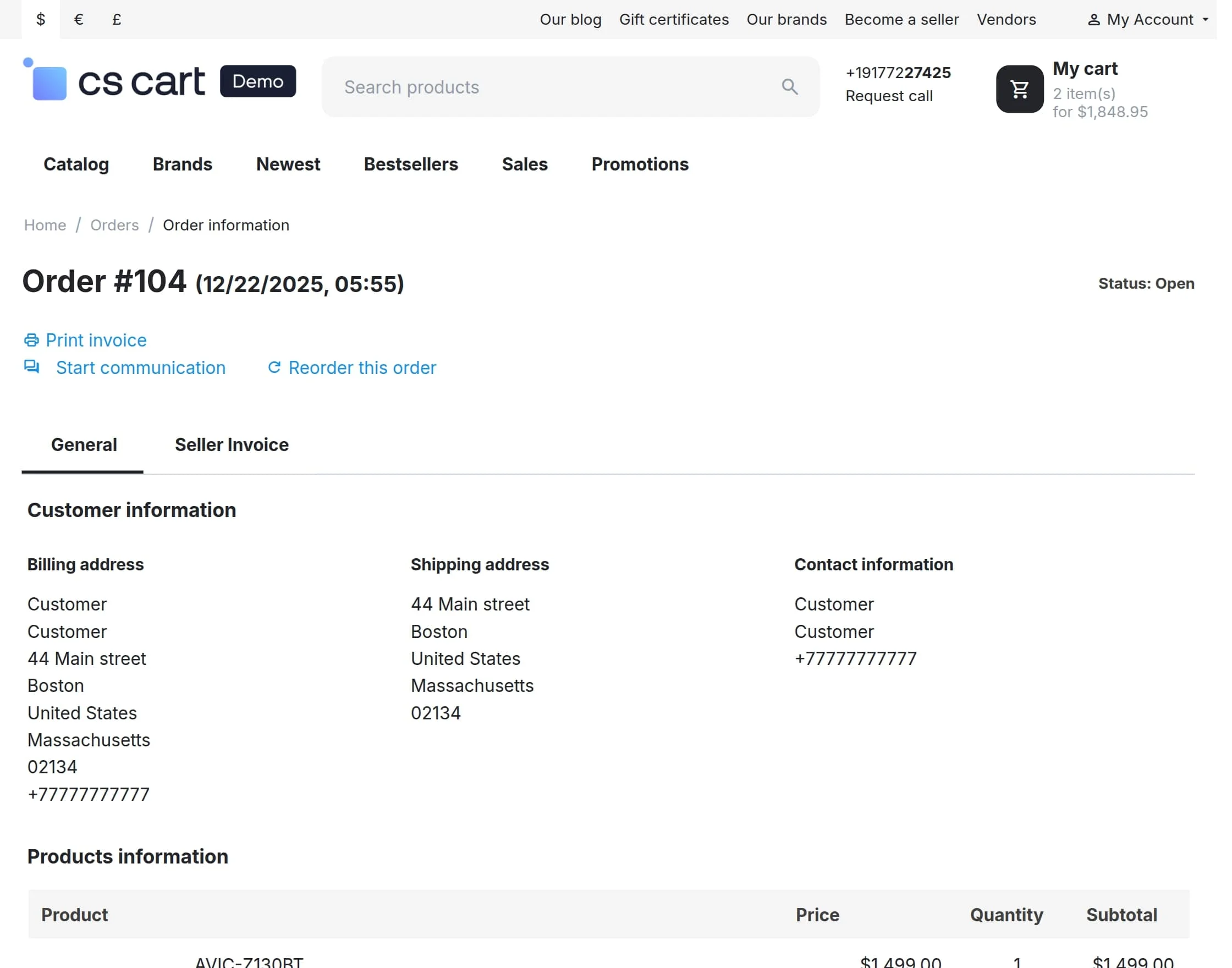
At the front end “Seller Invoice” tab will get displayed on the order detail page of each order.
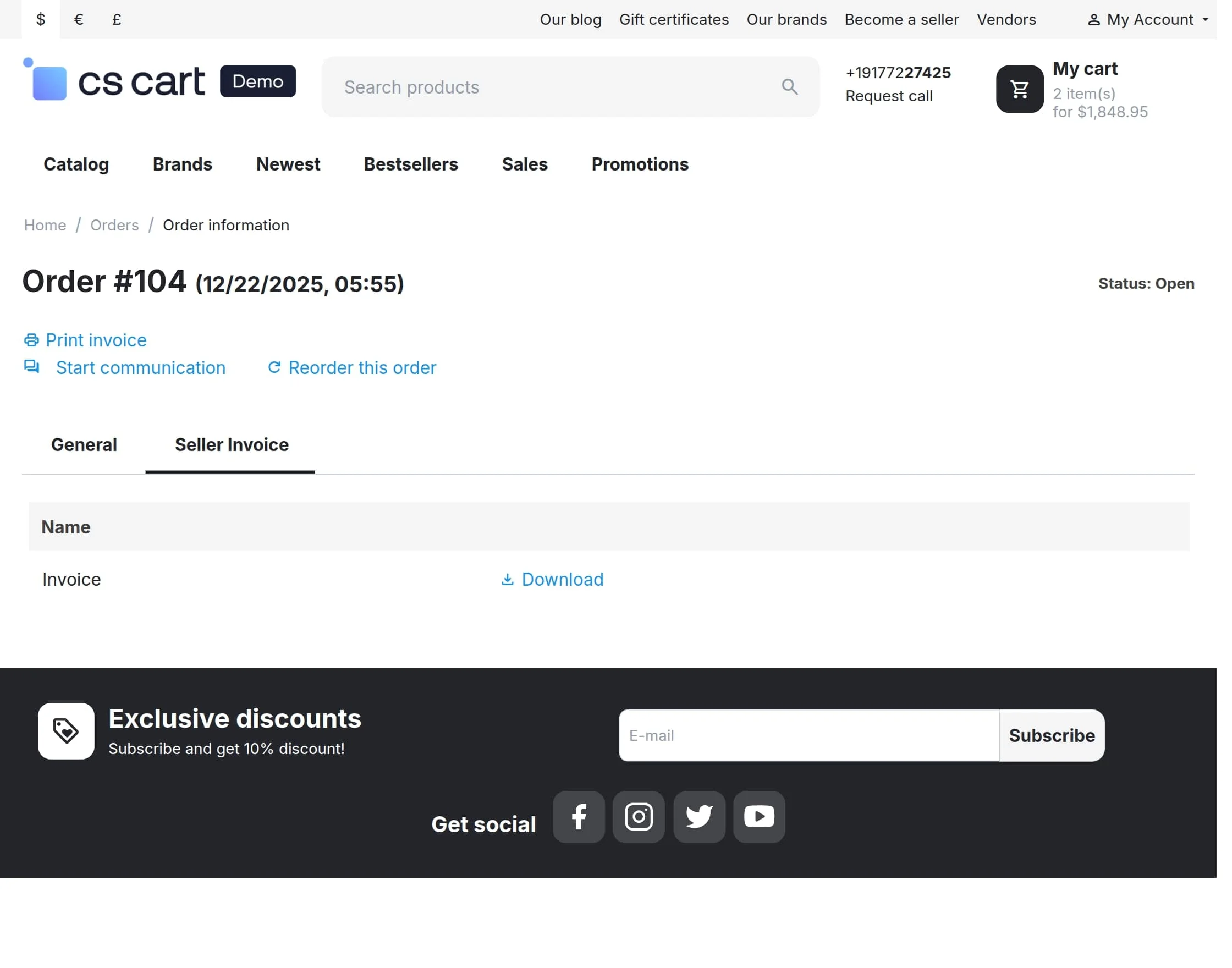
Go to the order information page at the front end and click on the “Seller Invoice” tab as shown in the snapshot.
Click on the “Download” button to download the invoice as shown below in the snapshot.
Support
This is all about the CS-Cart Seller Invoice Add-on For CS-Cart. Still, have any issues, feel free to contact us at http://webkul.uvdesk.com and let us know your views to make the add-on better.
Besides this, you can explore our CS-Cart development services and Quality CS-Cart add-ons.
Current Product Version - 2.2
Supported Framework Version - 4.16.x to 4.19.x


Be the first to comment.