Progressive Web Application (PWA) are the next big innovation and one of the most discussed advancements in modern web development.
A PWA delivers a mobile-app-like experience directly through the browser, without requiring users to download an app from the App Store or Play Store.
Since a large share of online shopping traffic comes from mobile devices, PWAs offer an ideal solution for retailers looking to increase user engagement and boost revenue.
To meet this demand, we have launched a PWA add-on for CS-Cart stores.
This add-on allows users to add your website to their mobile home screen directly from the browser.
Once added, the store works and feels like a native mobile application.
With simple installation and configuration, the store admin can launch a fully functional Progressive Web Application with push notification support.
Check a brief overview of the mobile end workflow of the PWA –
Check a brief overview of the backend configuration –
Importance of Progressive Web Application:
Responsive Web and Native Apps Aren’t Enough. It is a myth that the users will happily download the app for every website they visit frequently.
Many retailers assume that responsive web design is the best way to optimize their website for mobile.
But in reality, using responsive on its own simply reflows content from one device to another.
It ignores the expectations of today’s mobile customer for fast speeds, app-like experiences, and the latest features available on their device.
When responsive doesn’t produce the desired conversion rates, retailers often turn to native apps. While the app experience usually drives higher conversions,
native apps are very expensive to build and maintain, and only reach a small audience.
It does not mean that a native application is bad but there are few merits of the progressive web application in comparison to native applications.
If you are running a business then you should reach all type of users.
A well-designed native app like Mobikul gives high performance and uses less data.
However, to reach every type of customer, you should also choose a Progressive Web Application (PWA).
In a nutshell, we can brief the benefits of PWA as mentioned below-
- The website becomes lightning fast.
- A user-friendly app experience.
- In addition it supports push notification.
- No need to download/install.
- Moreover works fast even on a slow connection.
- Increases User engagement.
- Also Increase conversion rate.
Features Of CS-Cart PWA
- Well integrated with CS-Cart & Multi-Vendor.
- Functionality to set the application name at admin end.
- Admin can upload and change the application icon.
- Functionality to set the splash background color of the Progressive Web Application.
- Option to set the theme color of the Progressive Web Application.
- Increases user engagement on the store by using push notification.
- Supports push notifications on Mozilla Firefox and Chrome browsers.
- Admin can upload the desired Push Notification Icon.
- Functionality to create and manage Push Notifications.
- Admin can Edit/Delete/Send Push Notifications.
- Also admin can attach a Target URL for push notifications.
- Option to attach a separate Notification banner image for each Push Notification.
- Functionality to view and manage the push notifications subscribers.
- The user can be prompted to Add to Home Screen.
- More user-friendly than a web application.
- Works lightning fast if compared to the website.
- Supports push notification (With payload for PHP-7.0+).
- Launches with the low-quality Internet.
- Looks and feels like a native application.
- Also, users do not need to update progressive web applications.
- No app store is required for managing the application.
Note: The GMP extension should be installed on your server to work the addon properly.
How To Upload And Install The Add-on
- After downloading the CS-Cart Progressive Web Application add-on, you’ll get the zip file, one install.txt file, and a relevant User Guide manual doc.
- Read it carefully for proper configuration. Go to Manage Add-ons, click on “+” as shown below in the snapshot.
 Click on “Local” to browse the zip file and then click on “Upload & Install” as shown below in the snapshot.

Library installation
You can also download the library manually if needed.
Navigate to the following location using the terminal:
app/addons/wk_pwa/lib/googleOauth
Run the command:
composer update
PWA Configuration
After the add-on installation, click on Settings to configure the add-on.
In the add-on settings, there are 2 sections for PWA configuration and Push Notification Configuration.
PWA Configurations fields provide options to set:
- The Application Name
- The Application Short Name
- The theme color of the App
- Splash Background Color for the App
- Application Icon (Please note that the app icon must be in .png format)
The progressive web app will be installed in the device according to the parameters set here.

Push Notification Configuration fields include
- Google FCM Project ID
- Google FCM Private key file
- Google FCM API Key
- Google FCM Sender ID
- Google FCM App ID
- Google FCM Auth Domain
- Google FCM Storage Bucket
- Google FCM Measurement ID
- Google FCM Vapid key

So, just set the parameters and save.
To know how to get these credentials, please click here.
click the link provided above and click on creating a firebase project as shown below in image.

Now, create a project and enter a project name

After you have successfully login, you have been landed to the dashboard page of firebase.
Now, click on the project overview tab in top left corner.

We need to create app as shown in the snapshot below.

The user needs to register as illustrated snapshot below.

To add the Firebase SDK, one must select the script as shown below.

Then, select continue to console, as shown in the snapshot below.

Now, we can see the interface as shown below.

In the project settings,click on general and as you can see the project details.

Now for generating key pair navigate through cloud messaging and in the bottom you can click on generate key and then key will be generated.

Now, navigate through service accounts and below, click on generate new private key

How To Manage Push Notifications At Admin End
Navigate to Website >> Progressive Web App >> Manage Push Notifications to manage notification templates and subscribers, as shown below.
Click the “+” button to add a new notification template, as shown below.

Enter the details mentioned below for notifications and click on the Create Notification button to add the template.
- Title
- Message
- Banner Image if any
- Target URL for the notification

You can add as many template of the notifications as required. The added template can be edited and deleted at any time.
To send an instant notification to all the subscribers, just click on the Notify or Resend button as shown below.

To view & manage Subscribers, go to Manage Push Subscribers under the Website >> Progressive Web App >> Manage Push Subscribers tab.
Here you can view all the subscribed users who have allowed the push notifications & will be notified whenever the notify button is pressed.
There is also an option to delete multiple subscribers.
Just mark the subscribers and delete selected ones as shown below.

How A Customer Can Install Progressive Web App
A customer can open the website in a browser of the mobile device. On opening the site, he/she will be asked to allow/block Push Notifications as shown below.
Please note that the screenshots here belong to the chrome browser.
On allowing, the user will be notified and from here customer can click on menu icon of the browser to add the application on the home screen as shown below.


From the browser menu, a user can select the Add to home screen option to add the progressive web application to the home screen.
Now a pop-up window will appear to add the progressive web application like this.


The app will seem to be getting installed like all other apps in the notification bar of your mobile device, as shown.

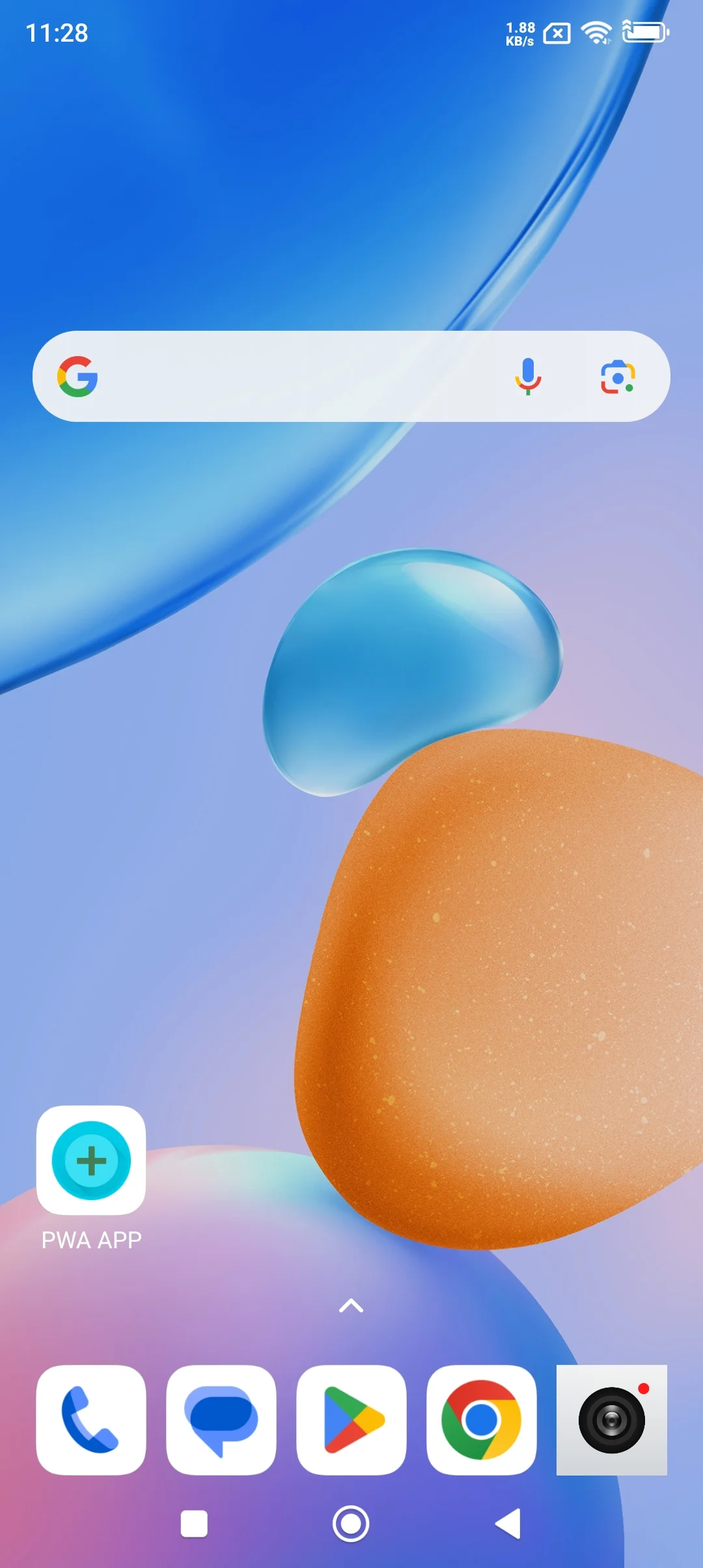
After installation, the user can see the application icon on the home screen of the mobile like this. A user can click on the application to launch it.
After clicking on the application, the application launches with a splash screen. The splash screen shows the application to open with Chrome.


Push Notification View on Mobile:

That’s how you can use the CS-Cart progressive Web App add-on to provide an app-like experience to your customers.
Support
If you have any questions, suggestions, or customization requests, feel free to contact us at [email protected] or submit a ticket at webkul.uvdesk.com.
Explore our premium-quality CS Cart Extensions to enhance your store functionality.
You can also explore our CS-Cart Development Services and Quality CS-Cart add-ons.
Current Product Version - 1.3
Supported Framework Version - 4.16.x, 4.17.x, 4.18.x,4.19.x


Be the first to comment.