CS-Cart Pre Order add-on benefits the store customers to place an order in advance for products that are yet to be released or have low inventory i.e. zero.
This extension will also help users to publish products in their store before they become available to customers.
It also give them an idea about the inventory of people interested in buying the products.
Features
- The option to view the preorder customers list at the backend has been provided.
- Allows customers to order the products which are yet to be released or currently out of stock only when the product is converted to preorder.
- Admin can also set preorder status and availability date.
- A single checkout option has been provided at the backend.
- The admin can send their own customized mail to the buyer by using the user guide provided at the configuration tab.
- Admin can set a single checkout option for any preorder product.
- The customer can view the order status of all preordered products through “preorder status”.
- Easy to use and configure at the admin end.
- Automatic conversion of out of stock products to preorder (which is possible when the stock of the products are zero and inventory is not set to “do not track”).
- Well-supported CS-Cart Multivendor and Ultimate.
- The option to convert existing out-of-stock products into preorders is provided on the configuration page.
- The option to set more than a single preorder quantity of a specific product for a single user is provided based on the admin’s configuration at the backend.
- Well supported with multi-storefronts.
- Option to restrict the payment method for pre-orders.
- Functionality to set the duration(start & end date) for pre-order.
- Admin can also set the maximum preorder quantity of any product available for pre-ordering.
- Functionality at the admin end to set the type of preorder on the basis of the preorder amount to be collected from the customer. There are three type of preorder (zero, partial, full)
- The functionality to keep & display the 2 payment methods at backend while partial payment of pre-order.
- Admin can check pre-orders for a particular customer.
- Custom mail template for every process
- Pre-order inquiries
- Inquiries list in the admin and vendor as well with proper communication.
- Low stock notification to the Admin.
- Different logos for Customers, Admin and Vendor.
- Removed feature from the inquiry tab.
- Added open-close inquiry Option.
- Date and Time Visibility on the front end of preorder availability.
- Customers can place multiple preorders at a time.
Installation
After downloading the CS-Cart Pre-Order add-on you’ll get the zip file, one install.txt file, and a relevant User Guide manual doc. Read it carefully for proper configuration.
Go to Manage Add-ons, and click on “+” as shown below in the snapshot.

Click on “Local” to browse the zip file and then click on “Upload & Install” as shown below in the snapshot.
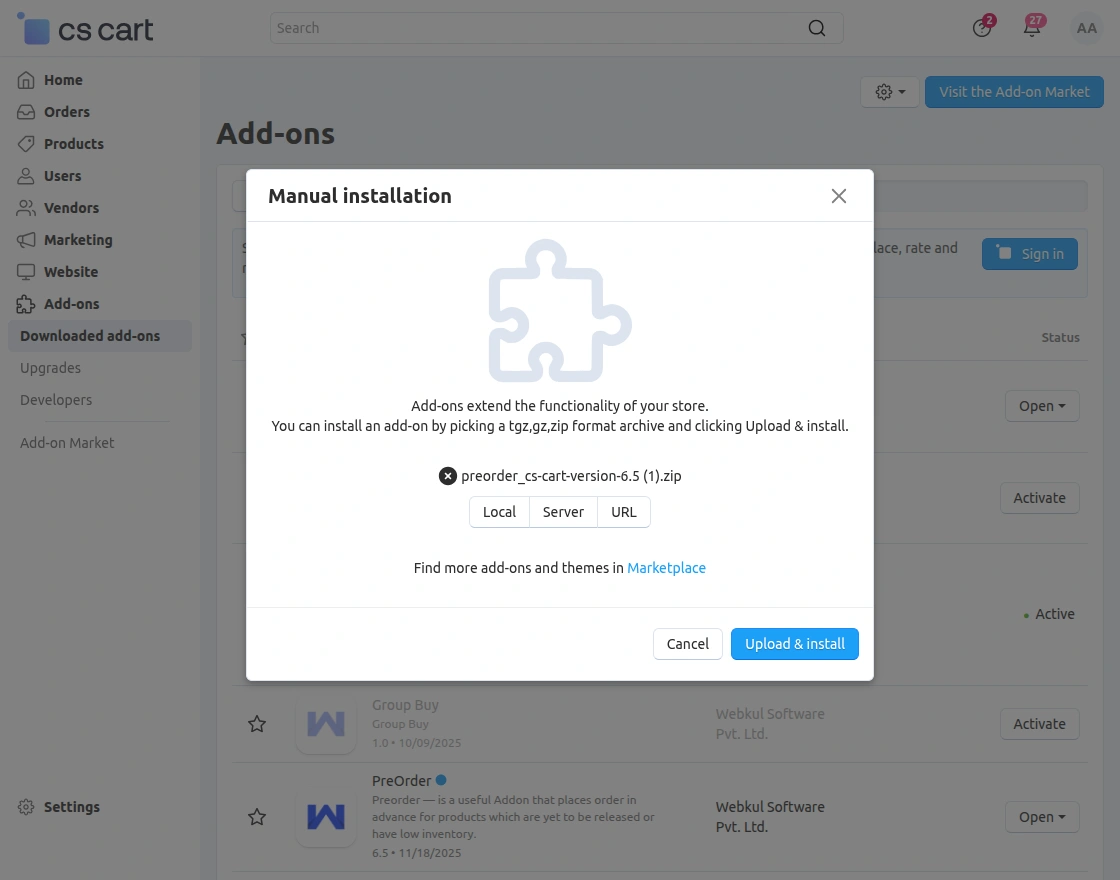
Add-On Configuration:
After installing the add-on, you will find CS-Cart Pre Order Add-On in the list of available add-ons. We will then configure the settings.
Click on “settings” to enable, disable.
Make sure the add-on is activated, as shown in the snapshot below.
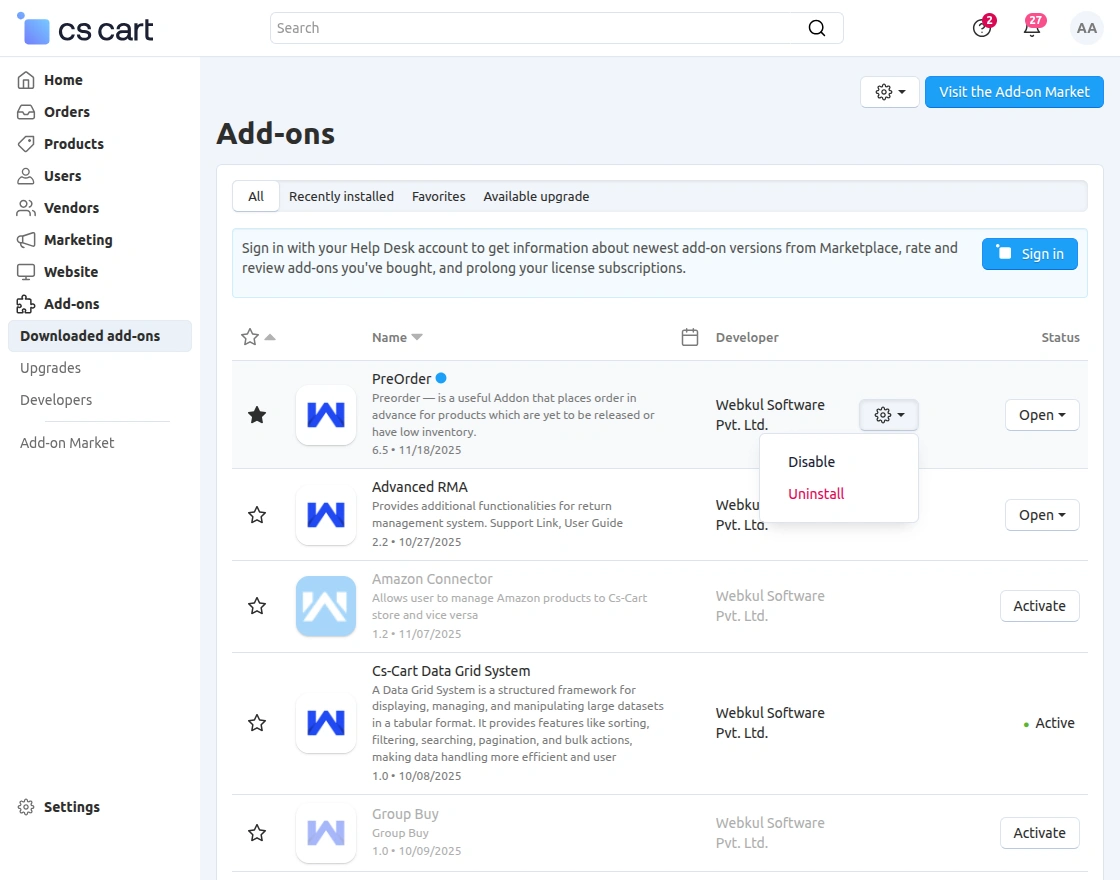
Module Configuration | Admin
In the General tab, there are various settings fields which includes:
- Pre-order Type- Set the pre-order type here on the basis of the pre-order amount (Full/Partial/zero) to be collected while placing an order.
- ‘zero price’ preorder type will allow paying when the product will be in stock.
- Enter the percentage of the product price to be paid at the time of preorder (in case of partial payment)
- ‘Partial Price’ will allow paying the partial price when the product is out-of-stock and the remaining price when the product will be in-stock.
- The ‘Full Price’ preorder type will allow paying while placing a pre-order.
- Add the maximum quantity of preorders per product for a single user.
- Set the total number of preorders allowed for a particular product.
- Choose days when preorders will start after the product will be out-of-stock. Keep 0 to start preorders immediately
- Select the total days for the product to be in a preorder state. This option will also allow the customer to preorder any product within the allowed days only.
- Keep “0” to always allow a customer to preorder a selected product
- Enter the percentage of the product price to be paid at the time of preorder (in case of partial payment)
Configuration:
- Select “Yes” to automatically convert a product into a preorder product if it goes out-of-stock.
- Add order status for the preorder product.
- Set the product shipping to be deducted before/after the product is in stock.
- Click to convert Out-of-Stock products to the Pre-Order
- The admin can enable showing preorders to the vendors
- The admin can inquiry showing preorders to the vendors

In the Payment Restriction tab, you can allow only the desired payment methods for placing pre-orders.
- Select the payment methods which you want to restrict for Pre-Orders.

In the Email Template tab, you can send a mail to the admin if the product is out of stock.
And also to the customer once the product is available if the customer had preordered the product.
By clicking on the settings icon you will be able to change or edit the email template content accordingly.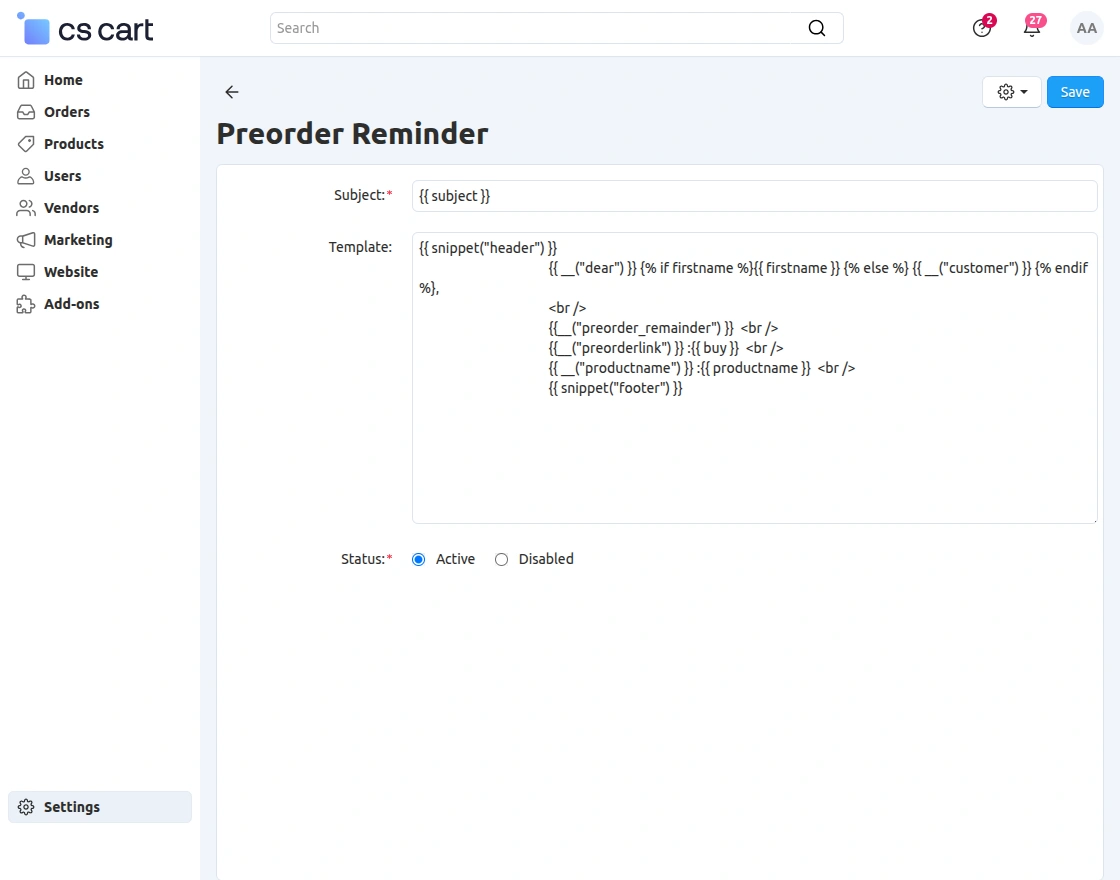
Click on the Save button to save the changes.
Back End View
Go to the product to view or edit the pre-order option.

Furthermore, click on the desired product to make changes in the pre-order settings as shown below in the snapshot.
There is an option to filter only the pre-order products.
Click on “Products” to view the pre-order tab.
As shown below in the snapshot set the parameters accordingly which includes
- An option to enable preorders.
- Option to set the pre-order type & accordingly set the preorder product price in case of partial payment.
- Set the time frame for pre-orders.
- Enter the maximum number of preorders allowed for a particular product.
- Enter the Max Quantity of the preorder product allowed for the single user.
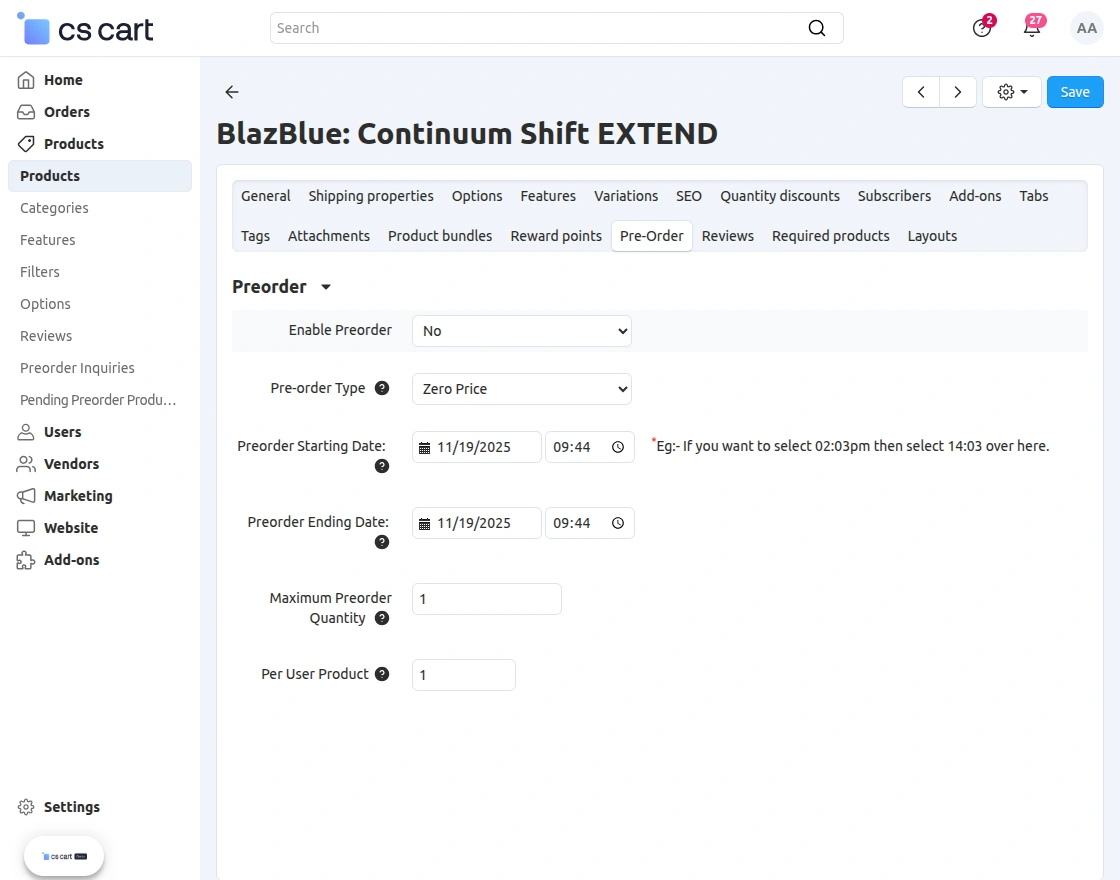
Go to “Orders” and click on “Preorders” to view the list of preorders as shown below in the snapshot
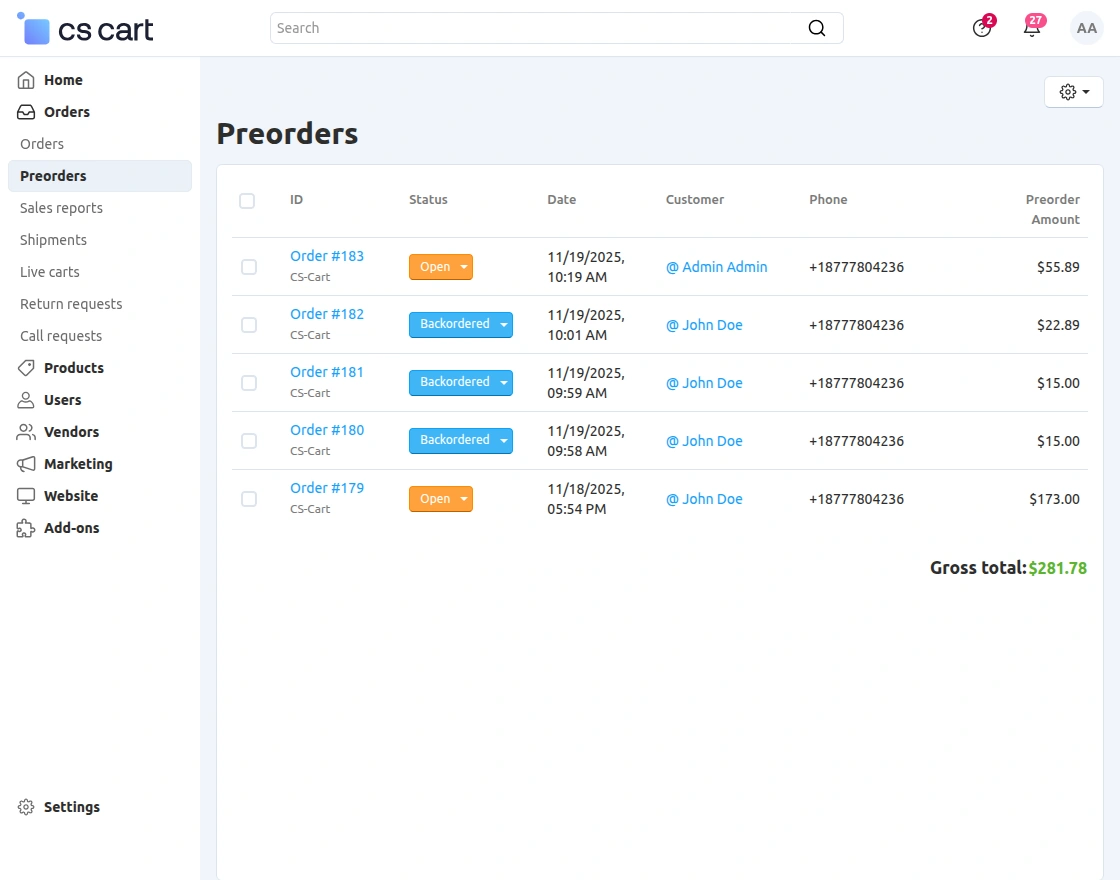
All the preorders will also be listed here.
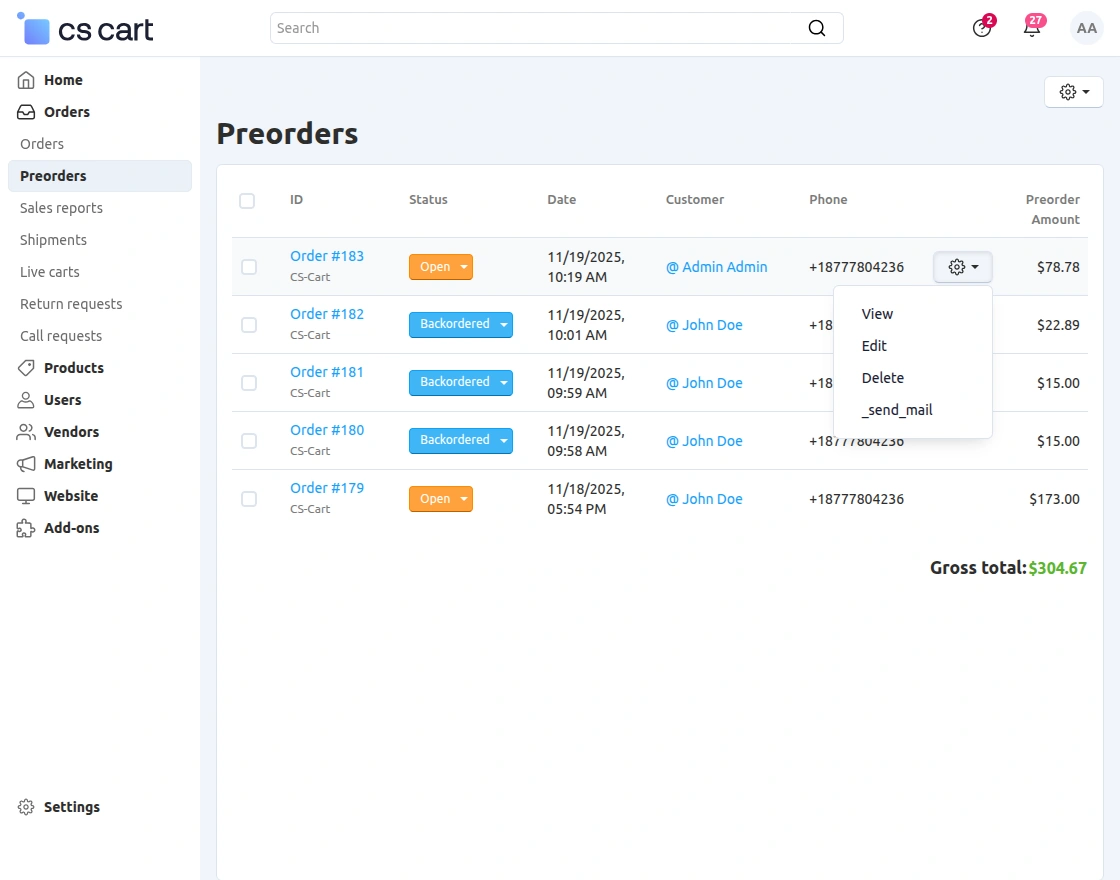
You can View/Edit/Delete all the pre-orders and view all pending pre-order products as well by clicking on the option provided as shown below.
This is how the list of pending products will be visible. Here you can view all the customers & orders per product that are pending.
There is also an option to send a reminder mail to the customers.
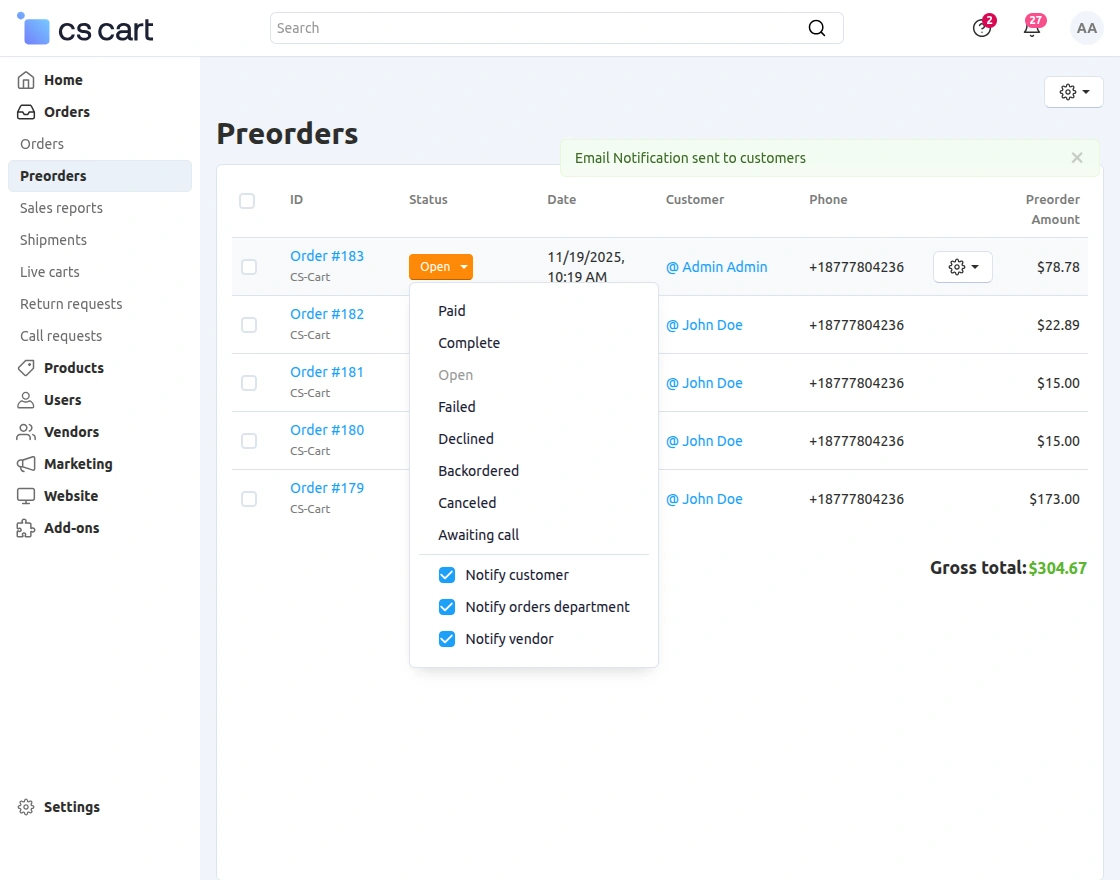
Product Inquiry
The admin can also check the inquiry for the preorder products under the admin panel as shown in the image below.
The admin needs to navigate to products>>preorder inquiries as shown in the image below:-
On clicking on Preorder Inquiries the admin can see all the inquiries. Moreover, to see the details the admin needs to click on view.
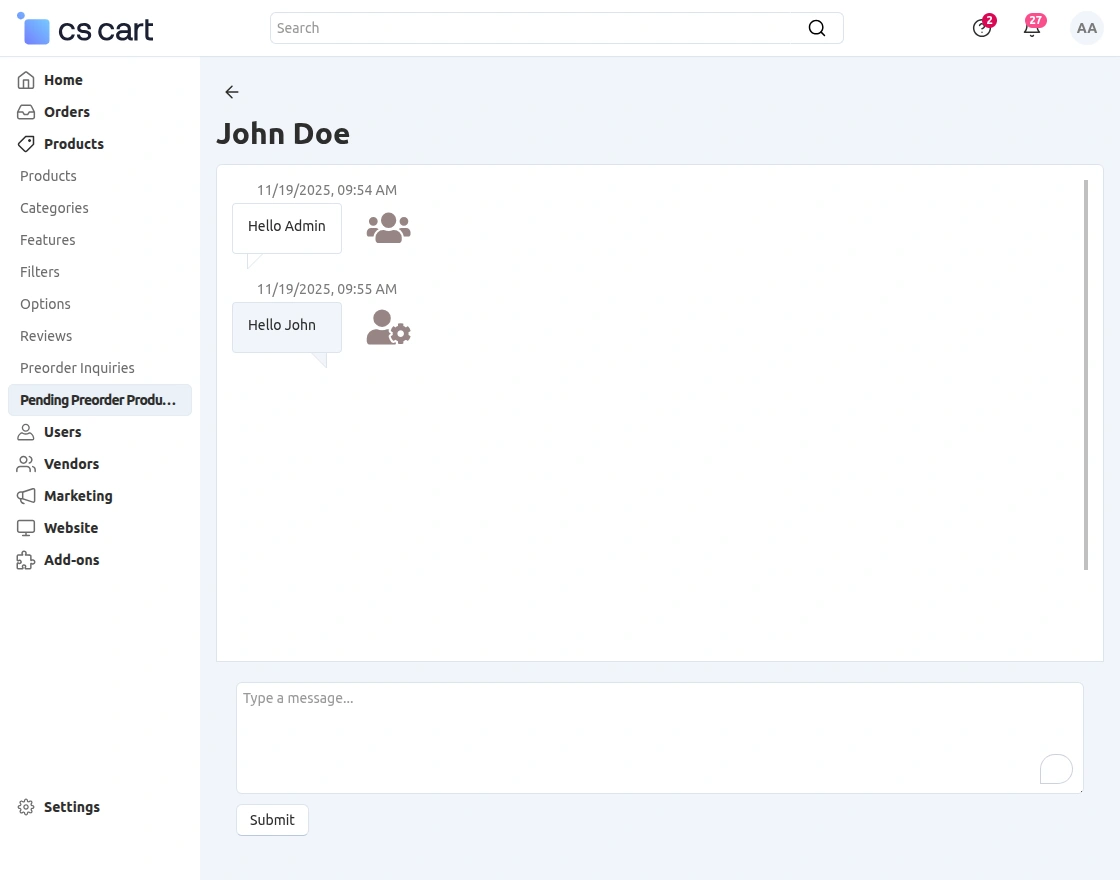 The admin needs to navigate again to products>>pending preorder products as shown below in the snapshot:
On clicking on Pending Preorder Products the admin can see check the products which are available for preordering.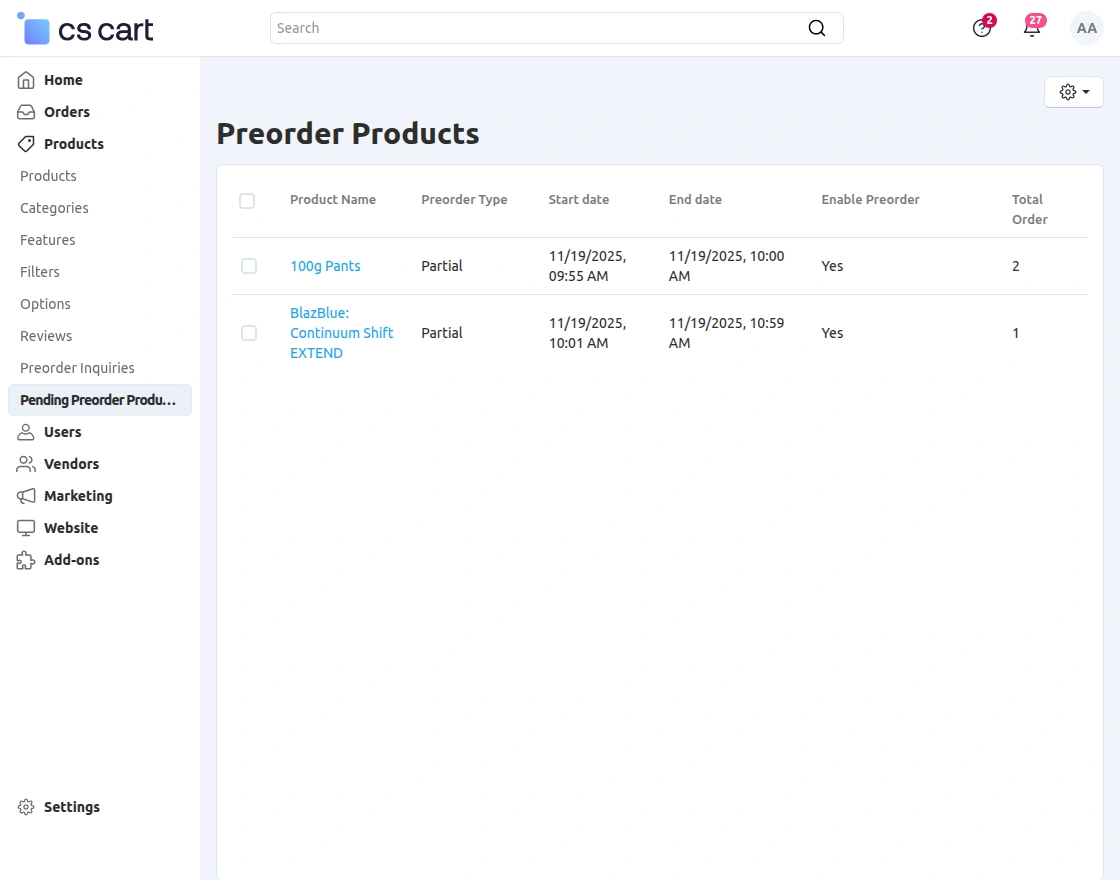
By clicking on the settings icon the admin can check all the customers and orders which are placed for that particular product which is out of stock.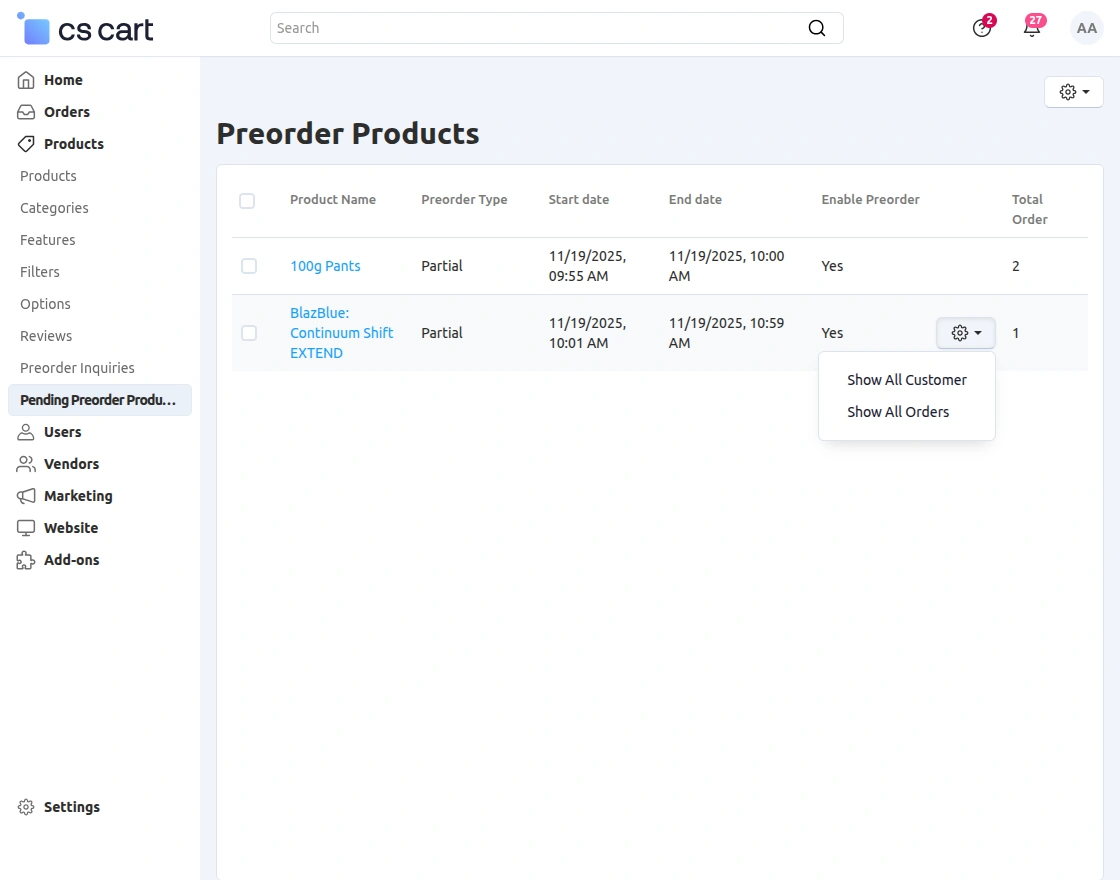
Module Configuration | Vendor
You can see the vendor dashboard in the below snapshot: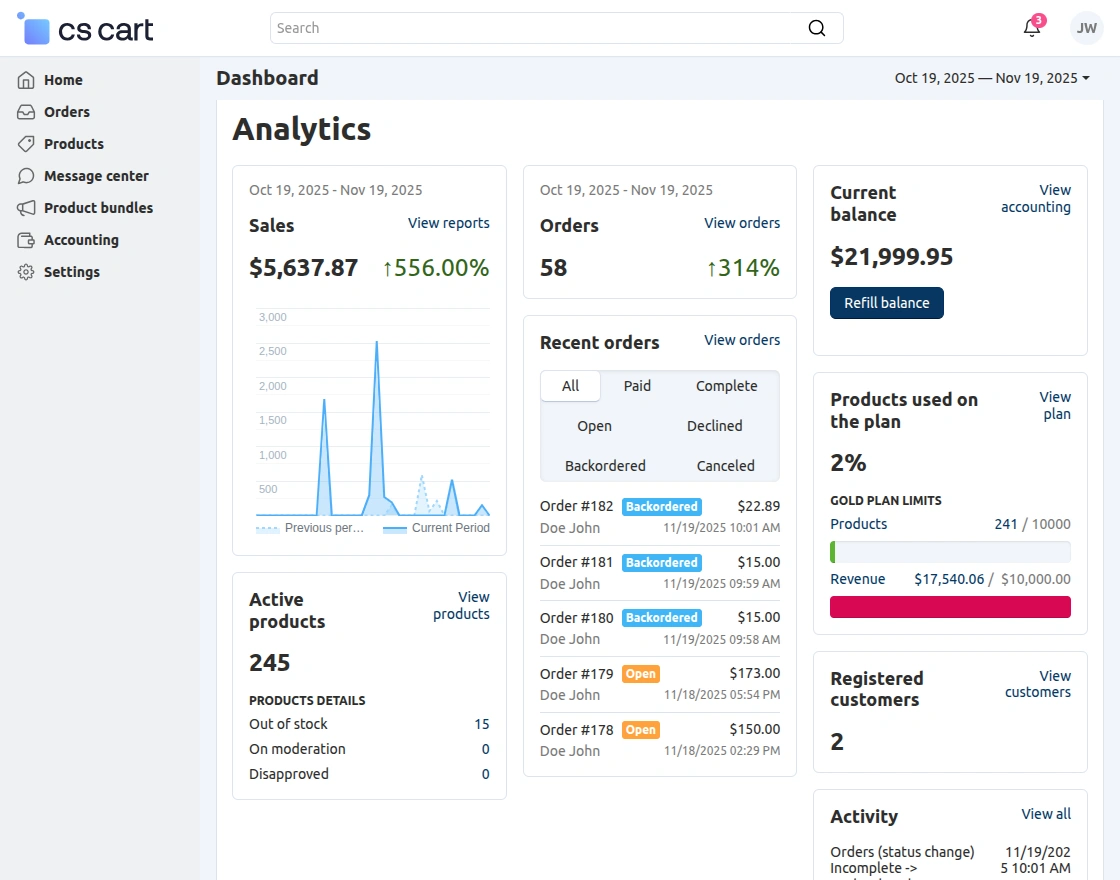 Go to orders then click on Preorders, the vendor can check the list of the pre-ordered products as mentioned in the snapshot :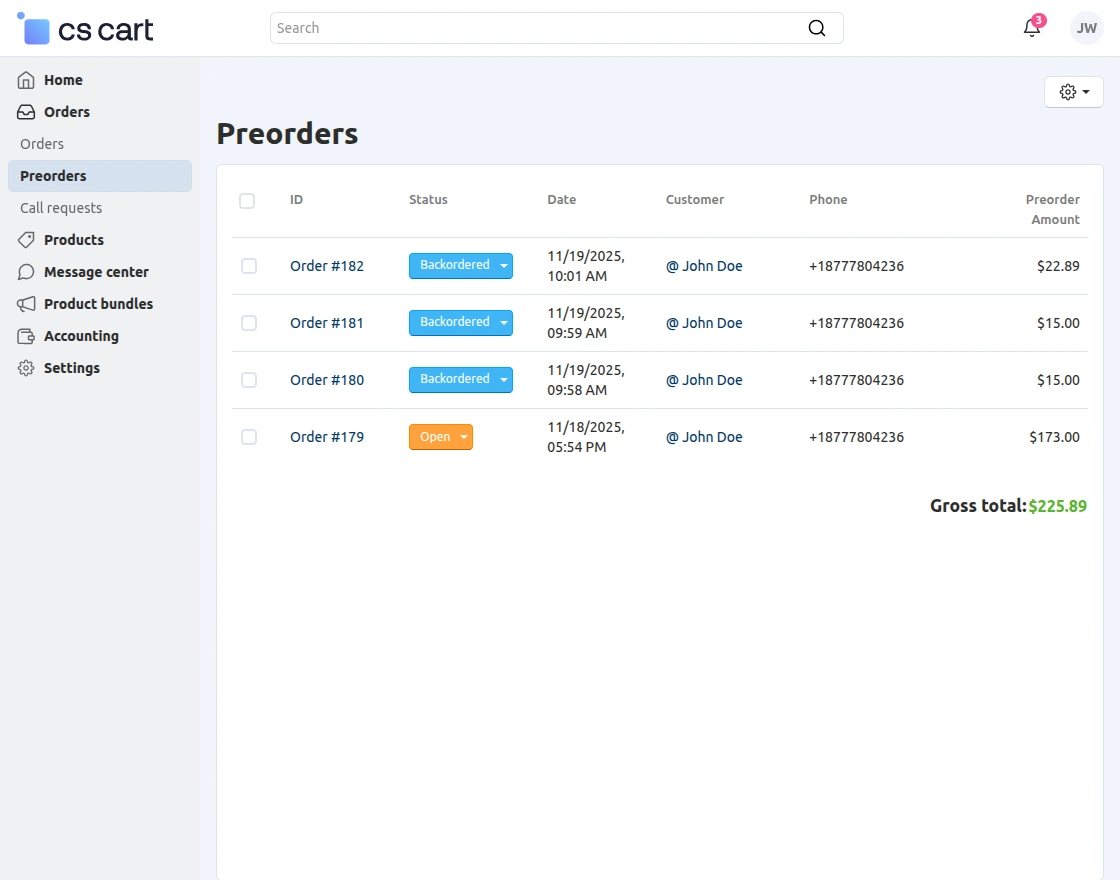
By clicking on the settings icon vendor can check the details of the pre-ordered products.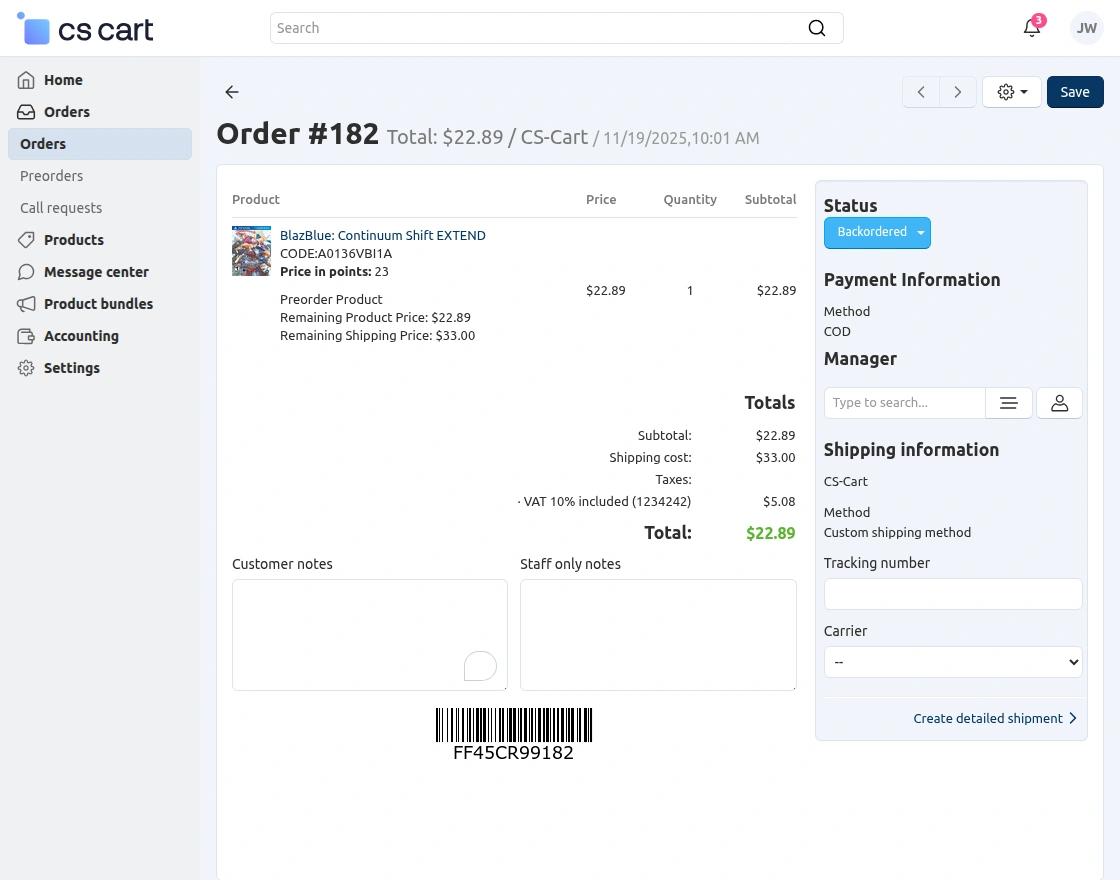
The vendor can navigate to Products >>Preorder Inquiries, the vendor can see all the enquiries as shown below: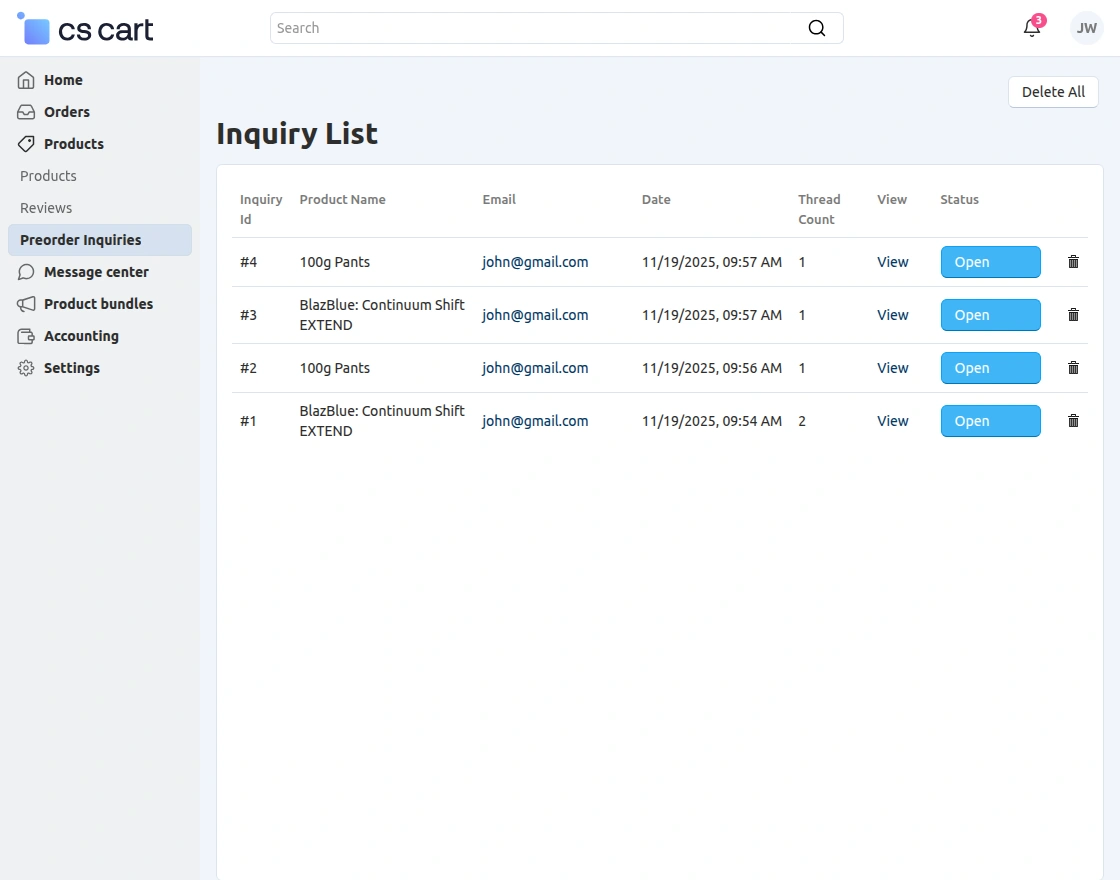 To see the details vendor can click on the view option.
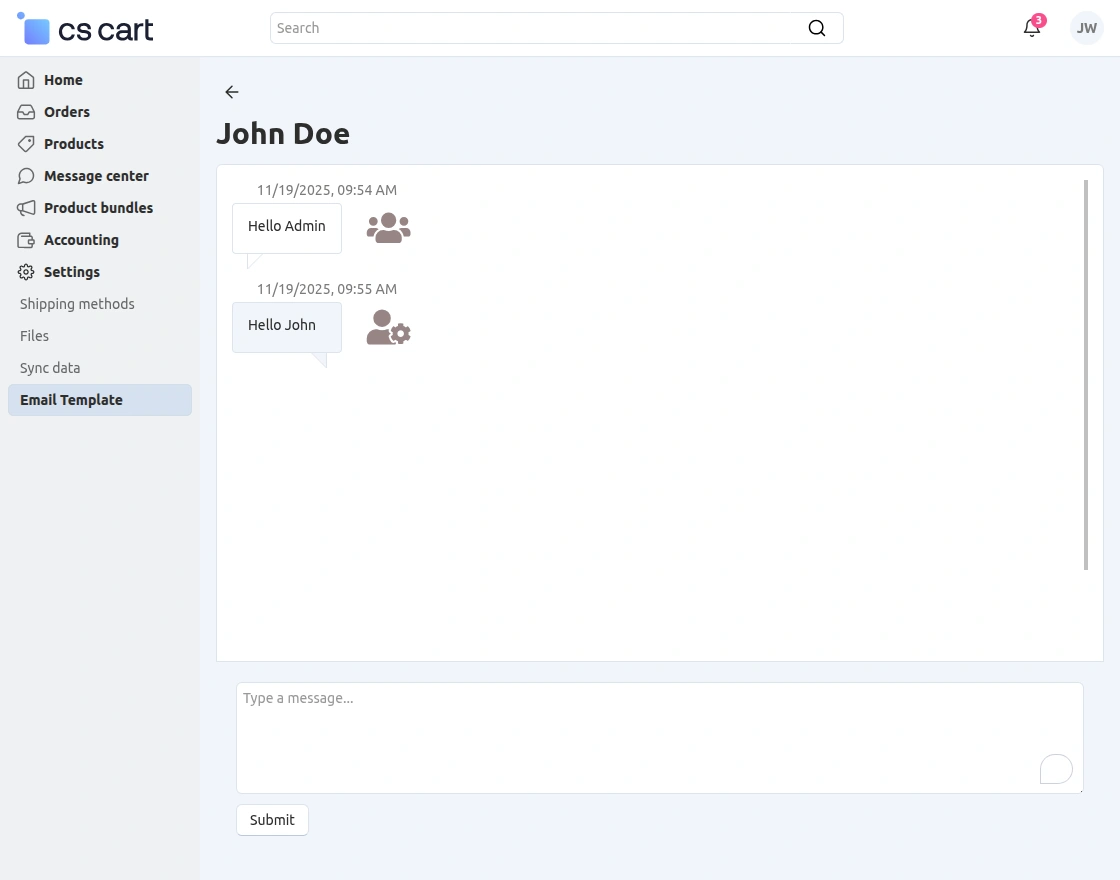 The vendor can manage the email template of Preorder Reminders and Product Reminders by clicking on the settings option.Then going to the email template as shown below in the snapshot.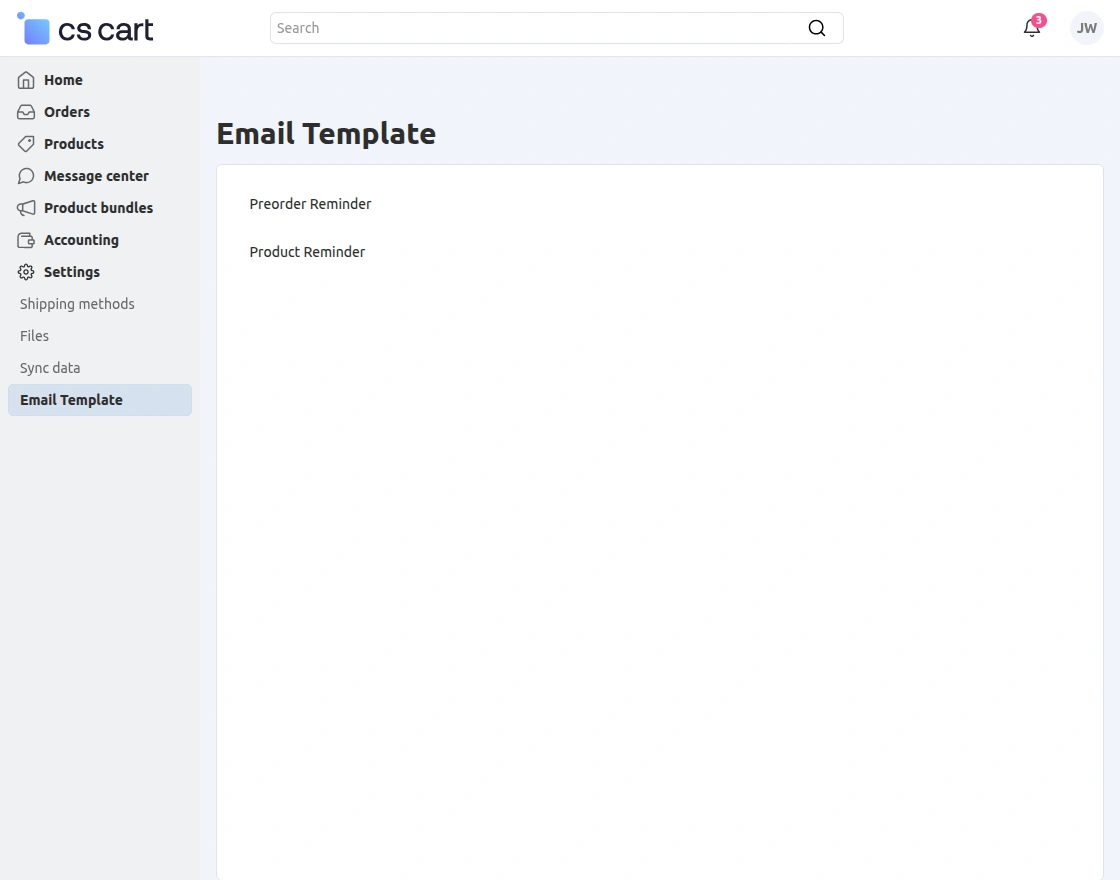
CS-Cart Preorder | Frontend
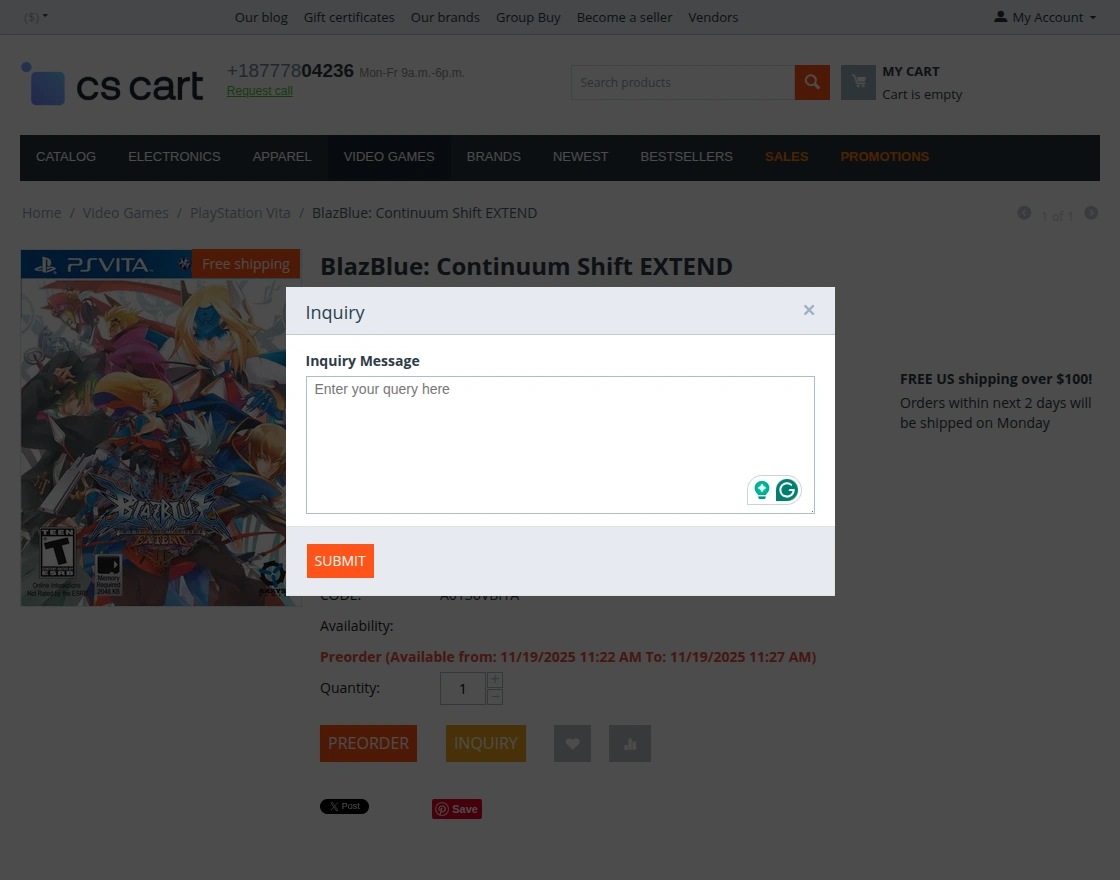
Click on “preorder” to book the product as shown below in the snapshot & proceed to checkout.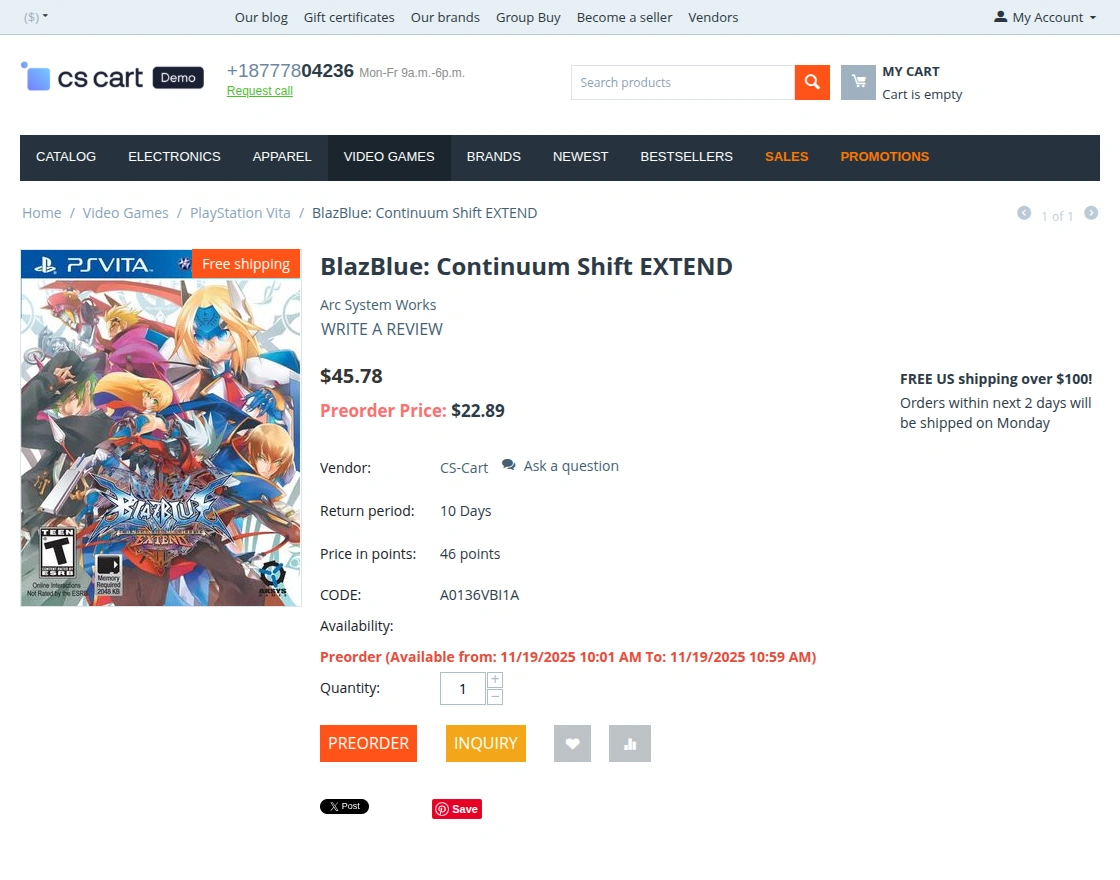 The preorder product will always have shipping charges applicable as per the add-on settings.If you have set the shipping cost applicable after the product is back in stock.The customer can also inquiry regarding the preorder product from the product page as shown in the below image:-
 Then it will also display a message along with the shipping charges as shown below.
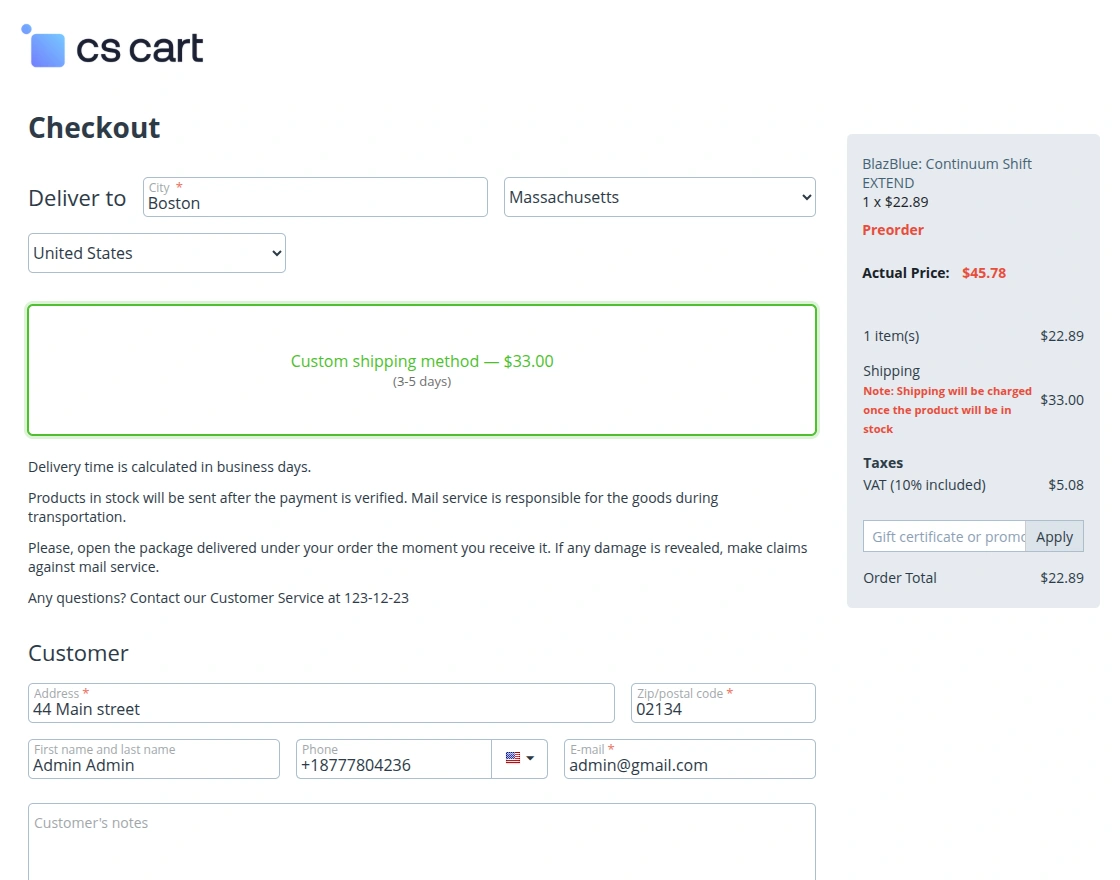 Moreover, if you have set the shipping cost applicable initially at the time of preorder ie;Click on “Submit My Order” to generate the order & view the order details.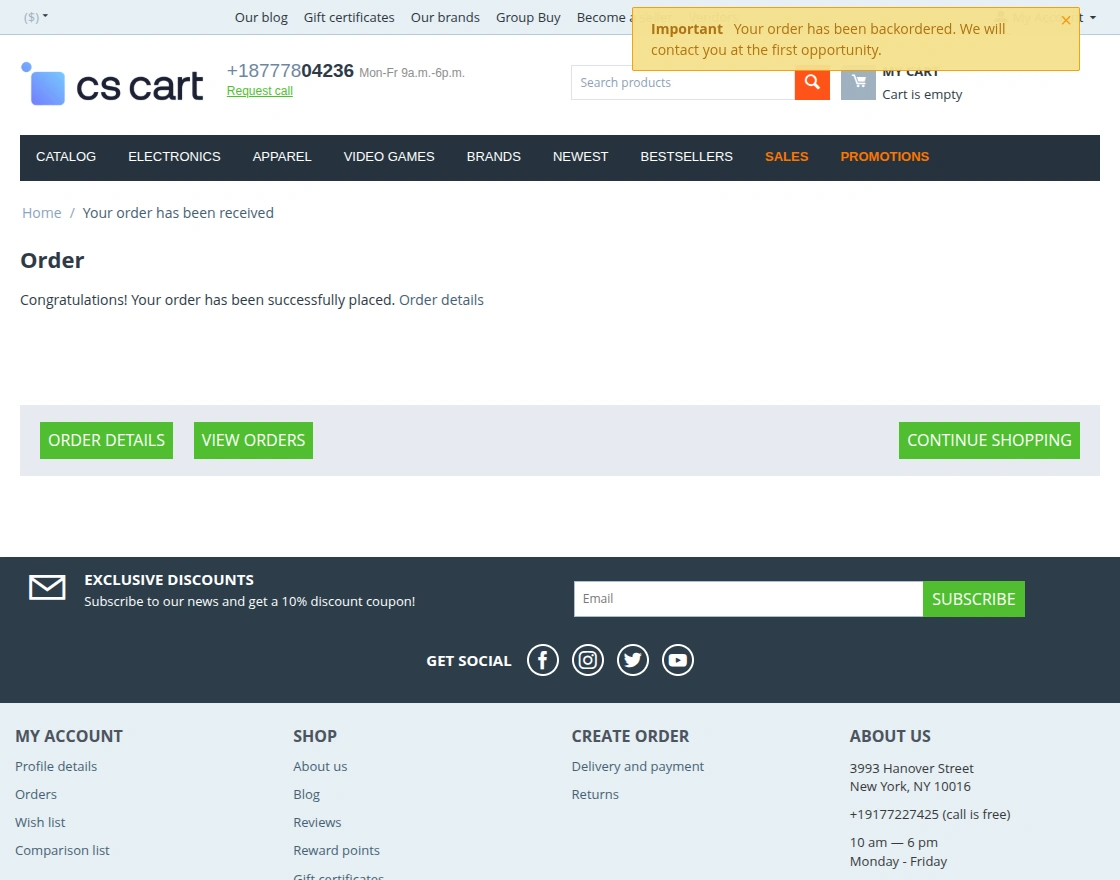
The order detail page displays that the product is a pre-order product.The remaining amount and the paid amount with the shipping & payment information as per the add-on configuration.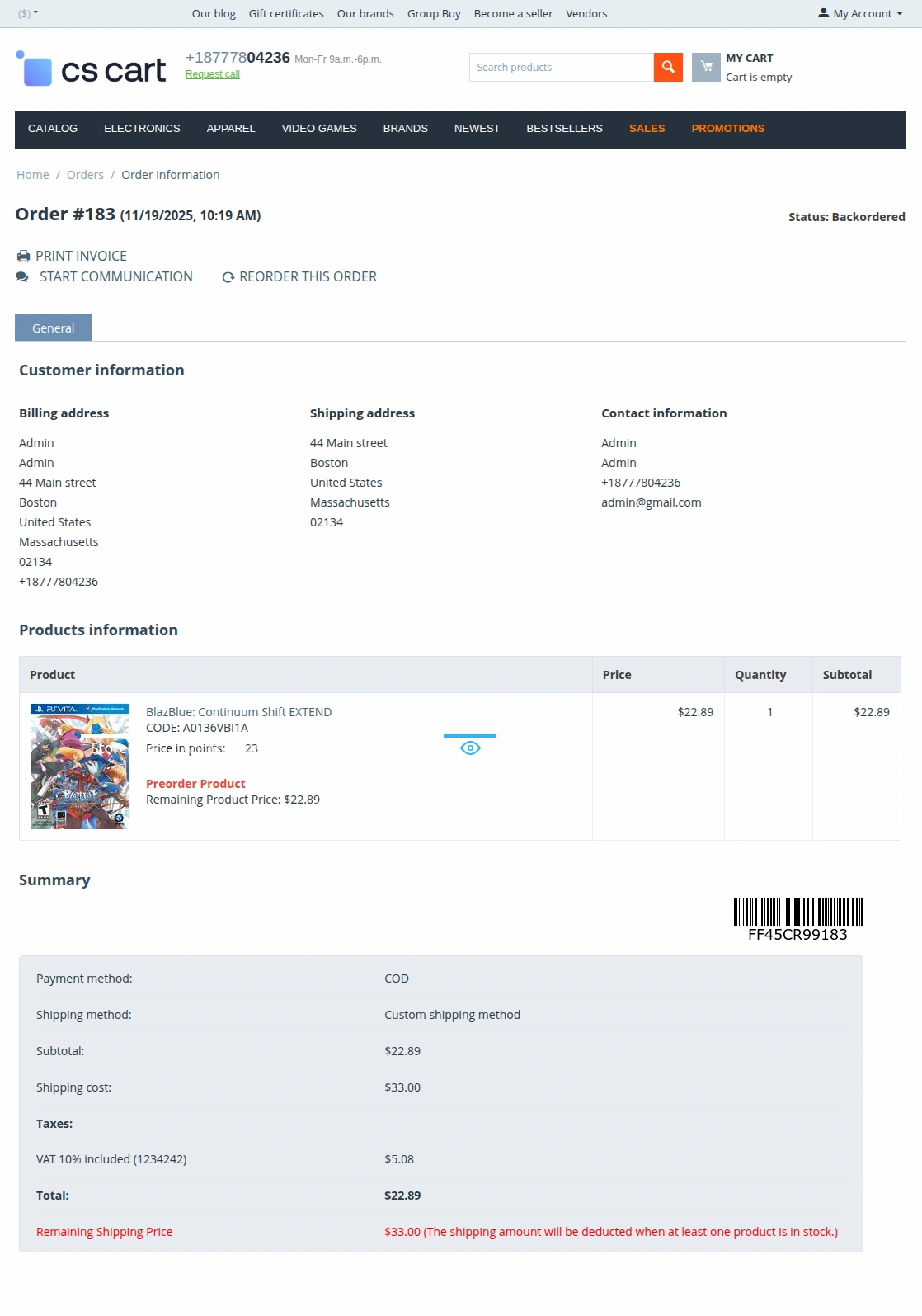
View When Product Is Back In Stock
When the product is back in stock, the customer will get notified via email as per the template set at the admin end.
It will be able to pay the remaining amount from the order details page itself as shown below.
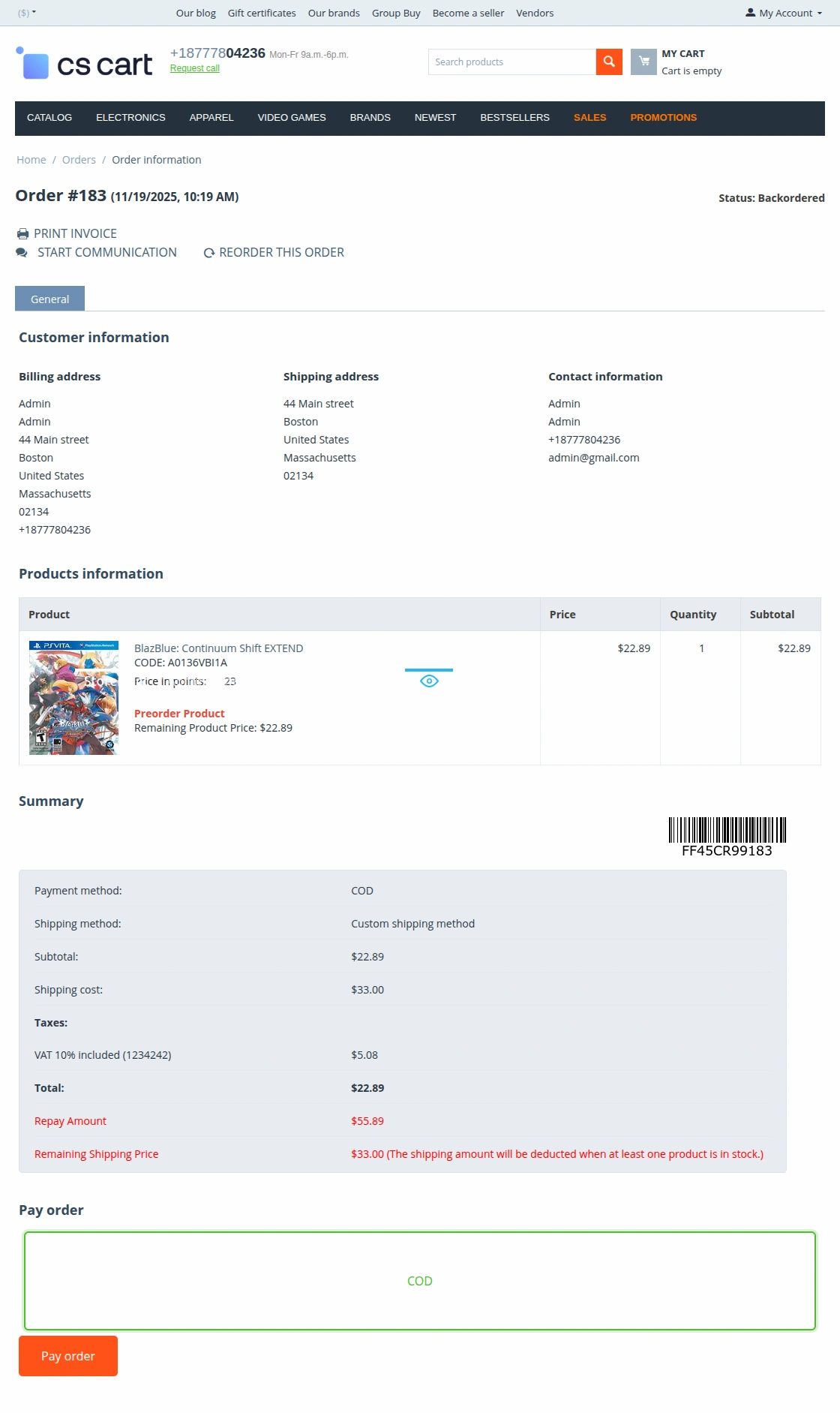
View of order details page at the front:-
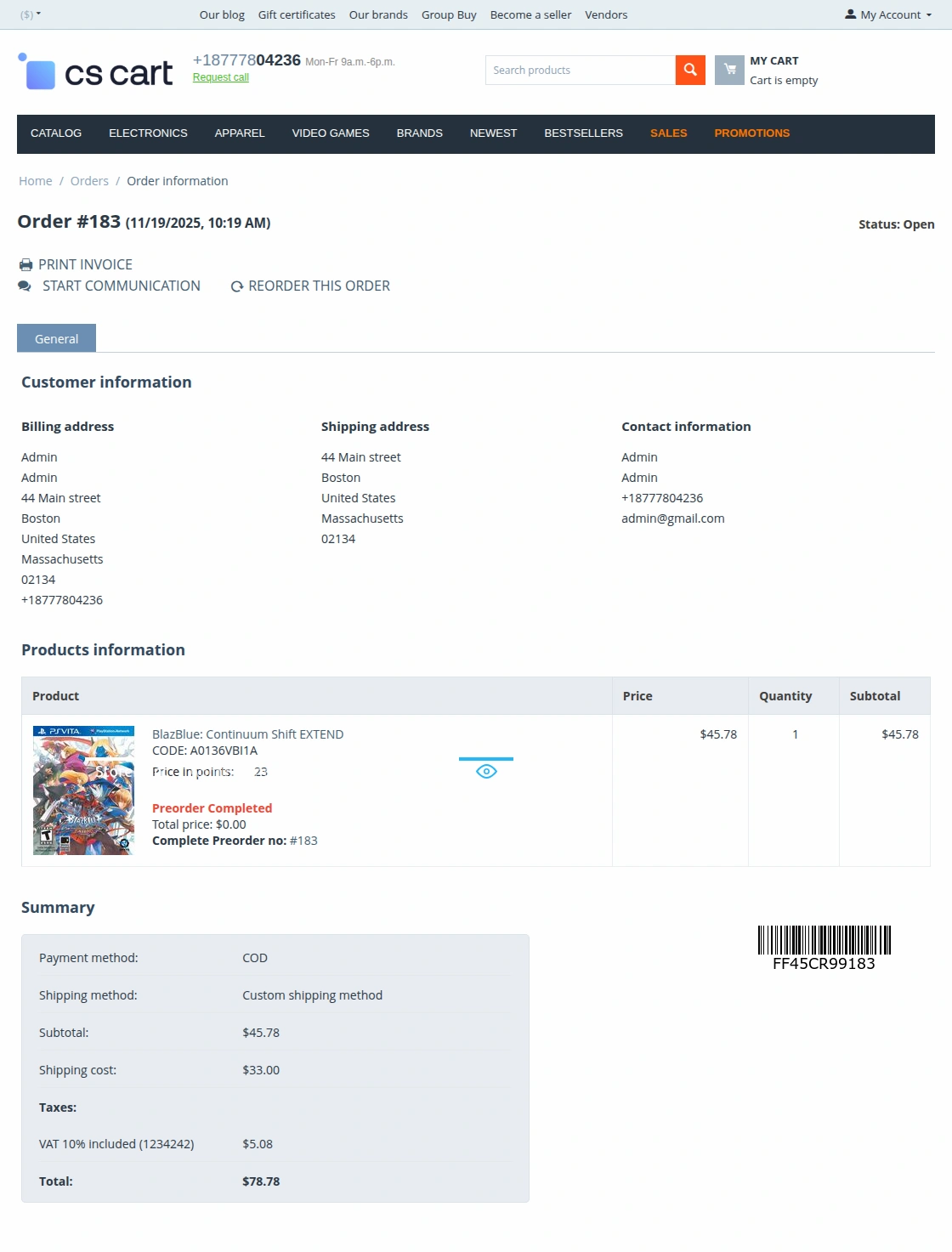
As in the case of partial payment, the customer has to pay twice.
Support
If you have any questions, suggestions, or customization requests, feel free to contact us at [email protected] or submit a ticket at webkul.uvdesk.com.
Explore our premium-quality CS Cart Extensions to enhance your store functionality.
You can also explore our CS-Cart Development Services and Quality CS-Cart add-ons.
Current Product Version - 6.4
Supported Framework Version - 4.16.x to 4.18.x


2 comments
For any queries/doubts, please generate a ticket here – https://webkul.uvdesk.com/en/customer/create-ticket/
so that we can assist you in a better way.
Thanks & regards,
Webkul