CyberSource Payment Gateway addon enables secure online payments and smart order screening, offering merchants a fast and reliable way to manage transactions globally.
Moreover, this enables you to accept payments securely, without involving the risks in handling payment data.
At the same time, this solution enables you to deliver seamless payment experiences to consumers.
Note: CyberSource Payment Gateway credentials are not available in the Live Demo.
Customers can enter their own CyberSource Payment Gateway credentials in the Live Demo to check how the module works.
Features
- Well integrated with CS-Cart, CS-Cart Multivendor, CS-Cart Multivendor-Plus, and CS-Cart Multivendor Ultimate.
- Cyber Source payment supports inline card payments.
- It will avoid handling and storing sensitive customer data.
- Provides fully secure payment to handle the risk management system.
- Provides support for almost all kinds of cards, including Visa, Mastercard, American Express, Discover, JCB, etc.
- Furthermore, no need of modification is required in core files.
- Admin can manage the payment options of the unified payment processor.
- Admin can control the card payment using the card option in the unified payment processor.
Video Tutorial
The flow of Installation and Configuration
Step 1
When you download the “CS-Cart CyberSource payment gateway” add-on, you get one zip file and the install.txt file. Read it carefully and follow it.
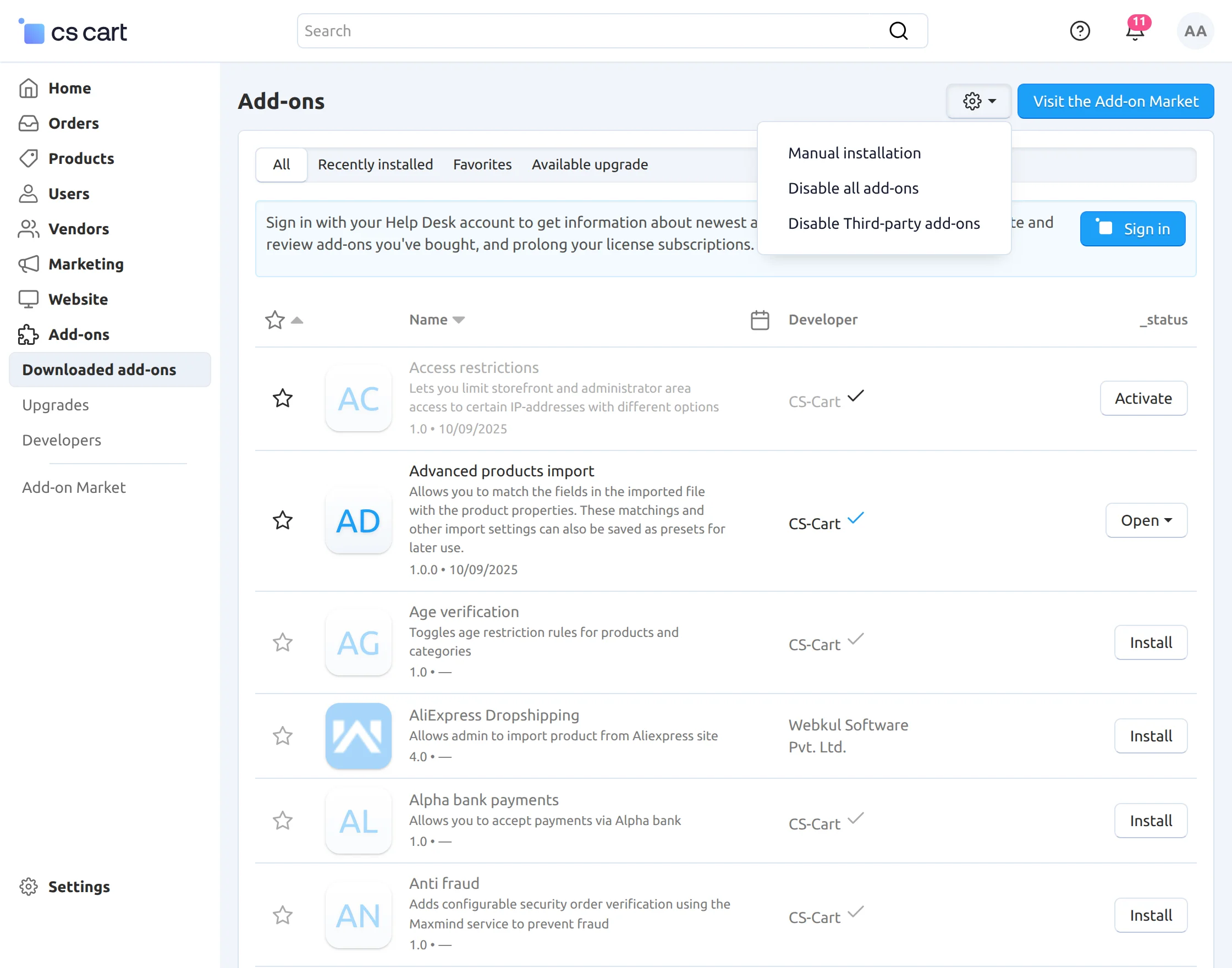
Firstly, click on the plus icon to upload the zip file.
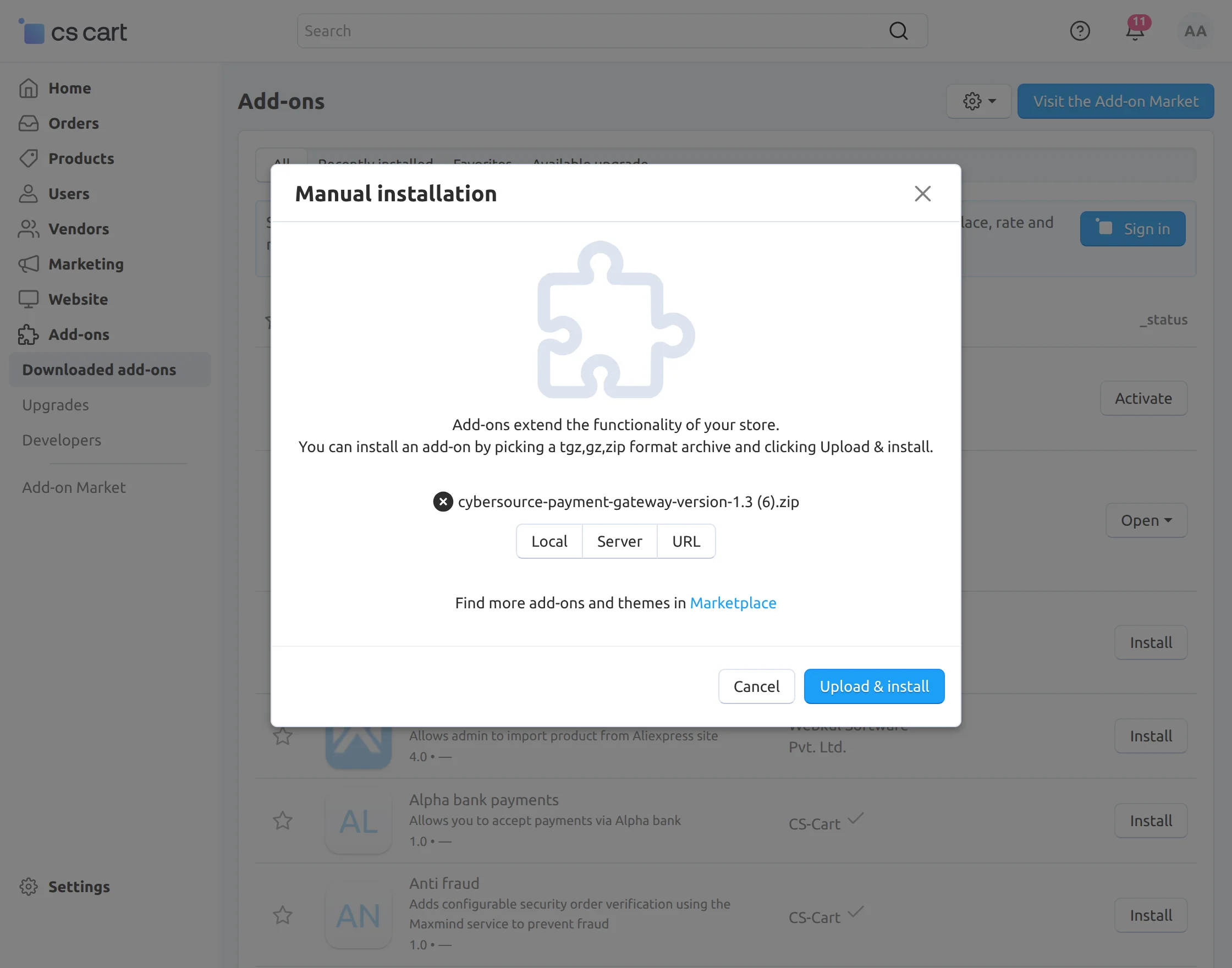
Secondly, click on “Local” to browse the zip file and then click on “Upload & Install”.
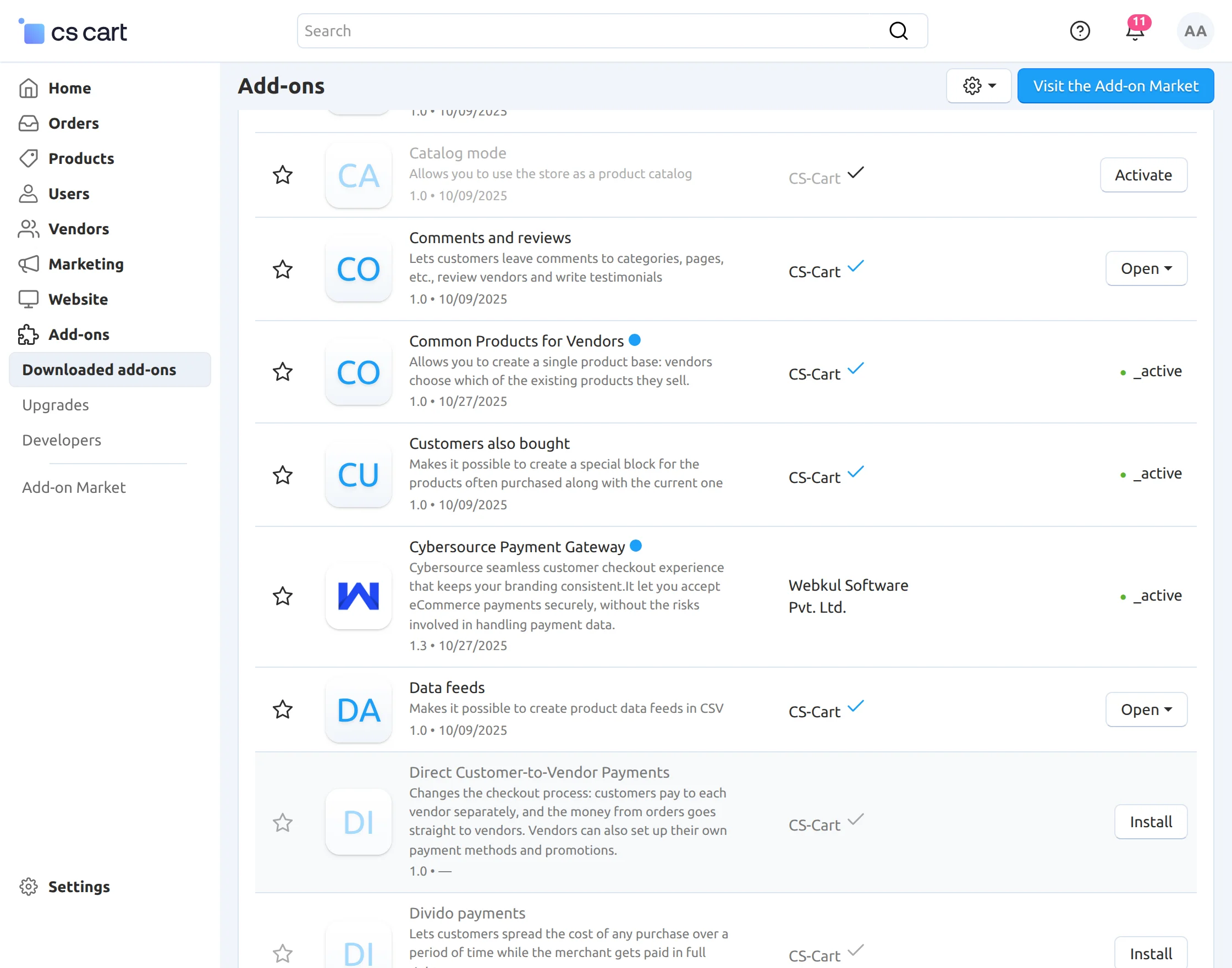
After installation of the add-on, you find the “Cybersource payment gateway” add-on in the list of available add-ons. Make sure the add-on is activated.
Step 2
For the setup of the payment method, you need to create an account on CyberSource.
Then you need to Login in to your CyberSource account to get the credentials for the configuration of the add-on.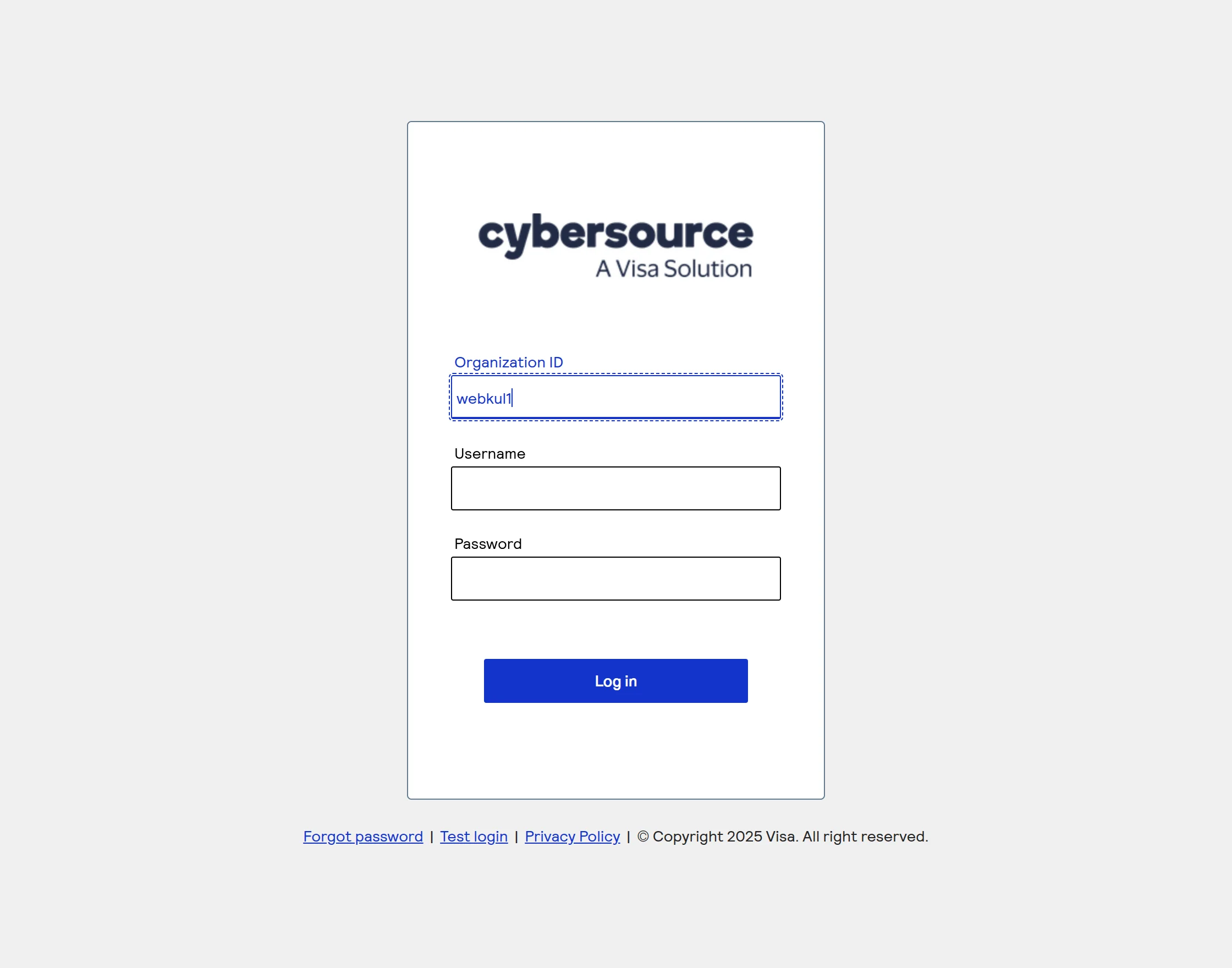
After Login, you get Profile ID, Access Key, and Secret Key
To get credentials, go to the payment configuration option on your CyberSource account and copy the profile ID, Access key, and Secret Key from here
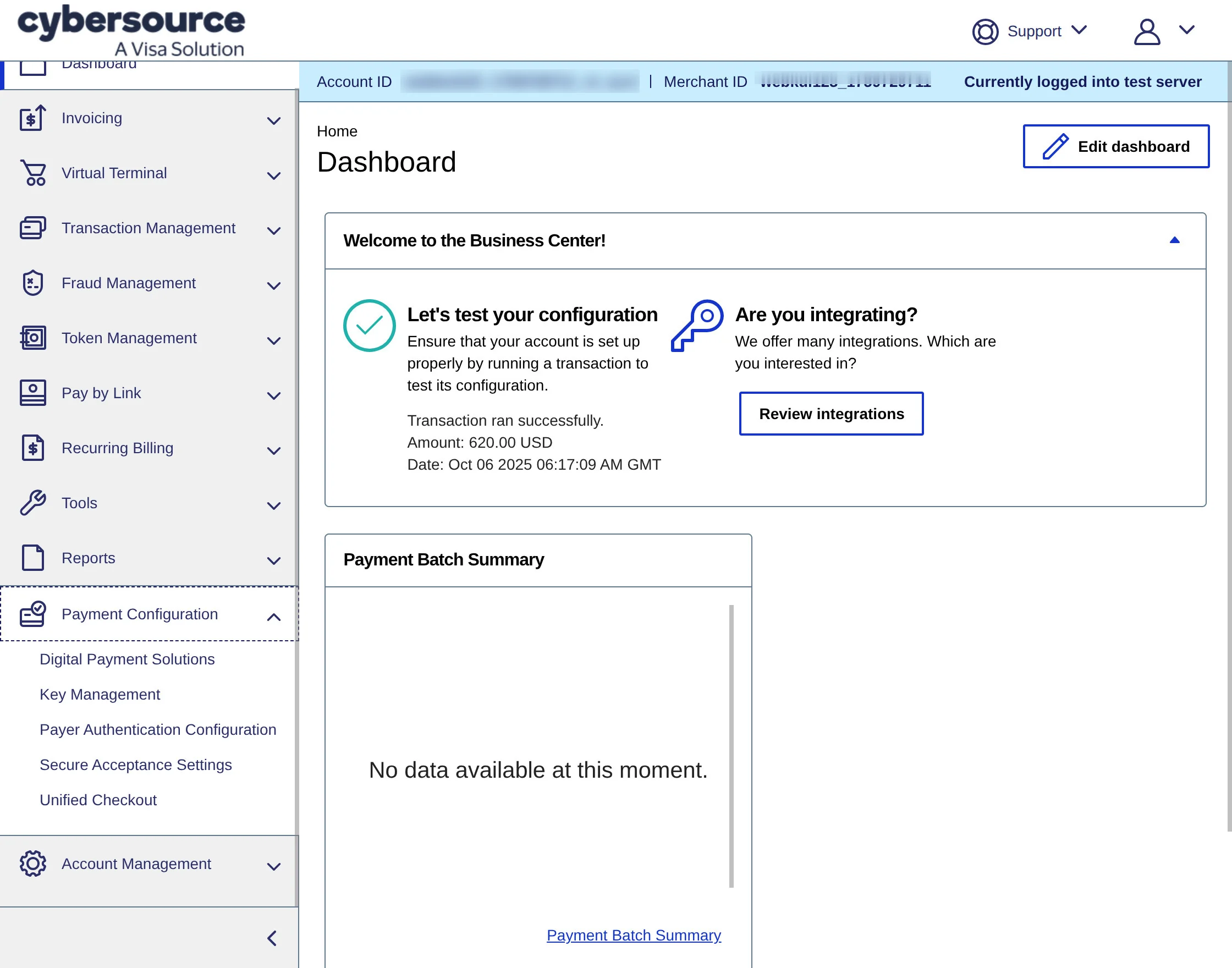
Now, click on Secure Acceptance under the Payment Configuration section.
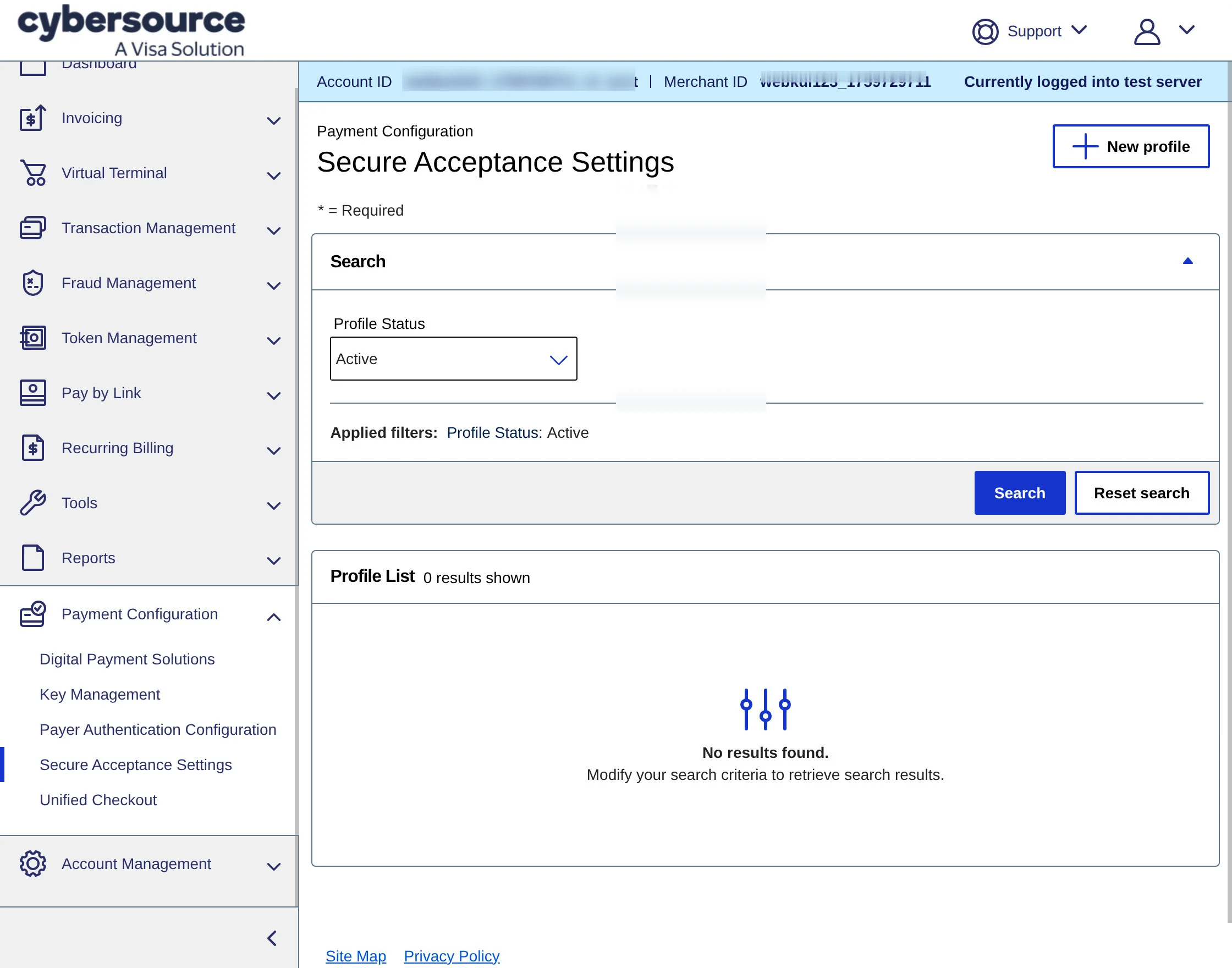
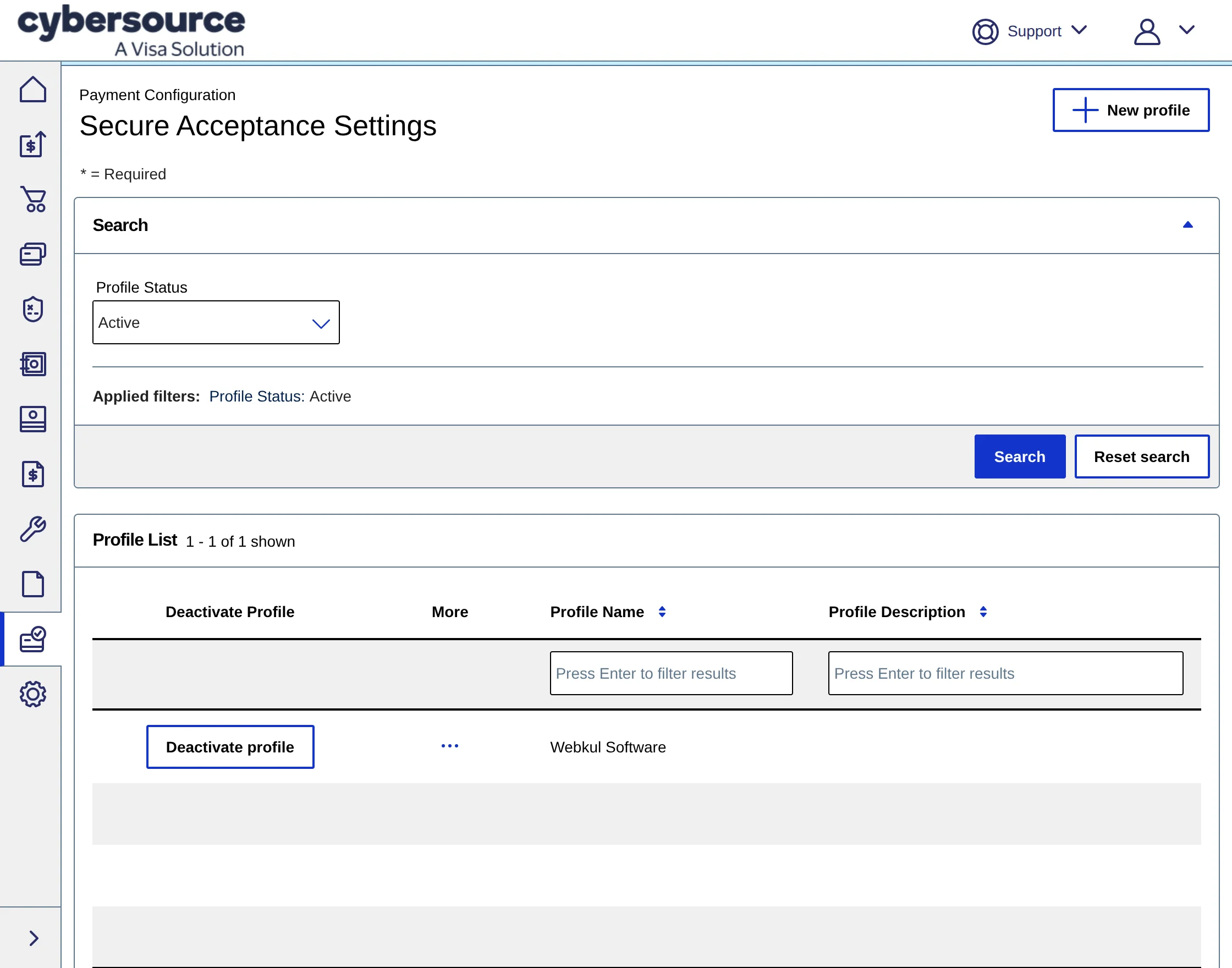
After creating the profile, click on Edit Profile to configure its settings.
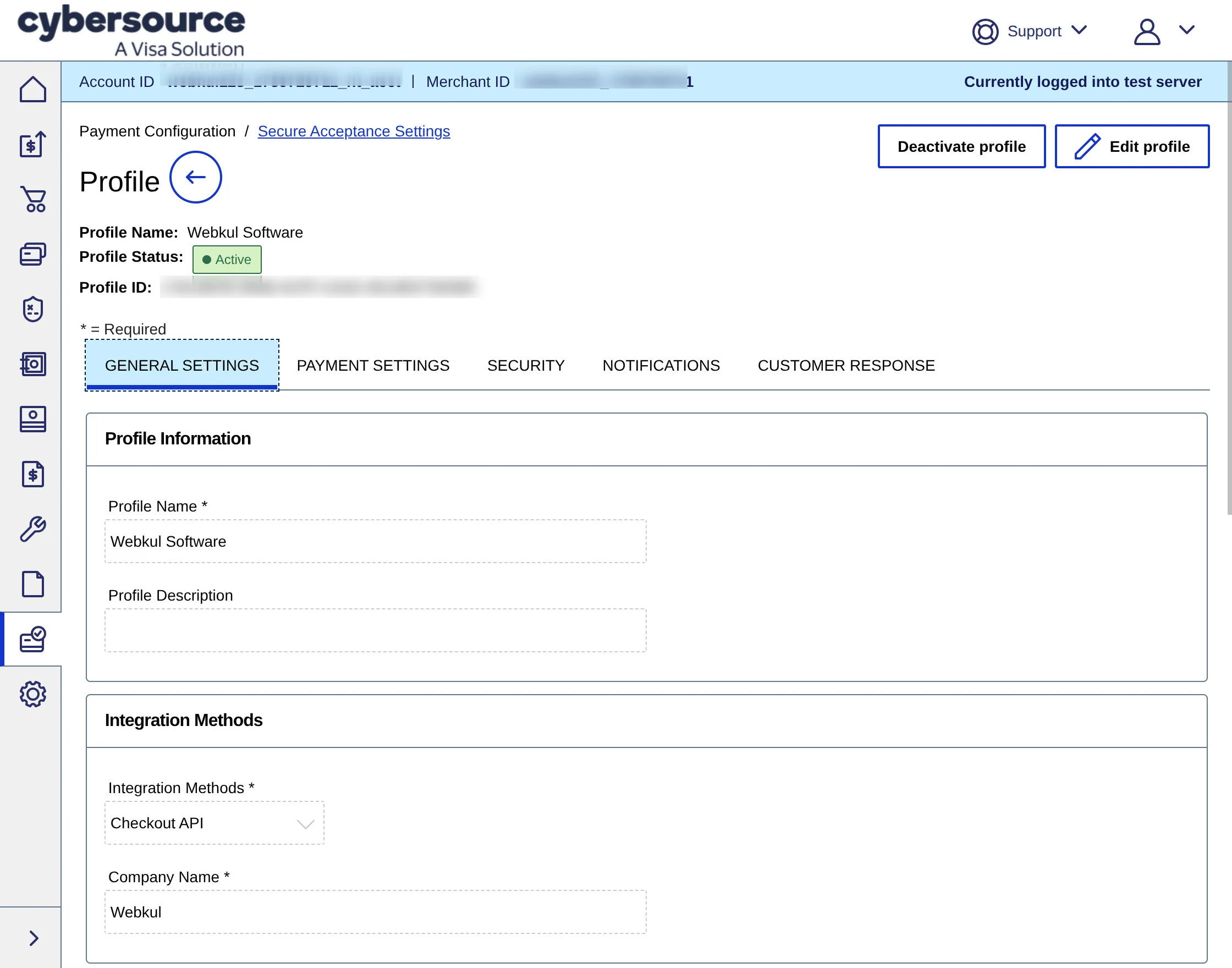
Click on the Security tab, enter a key name, and then click the Create button to generate the security key.
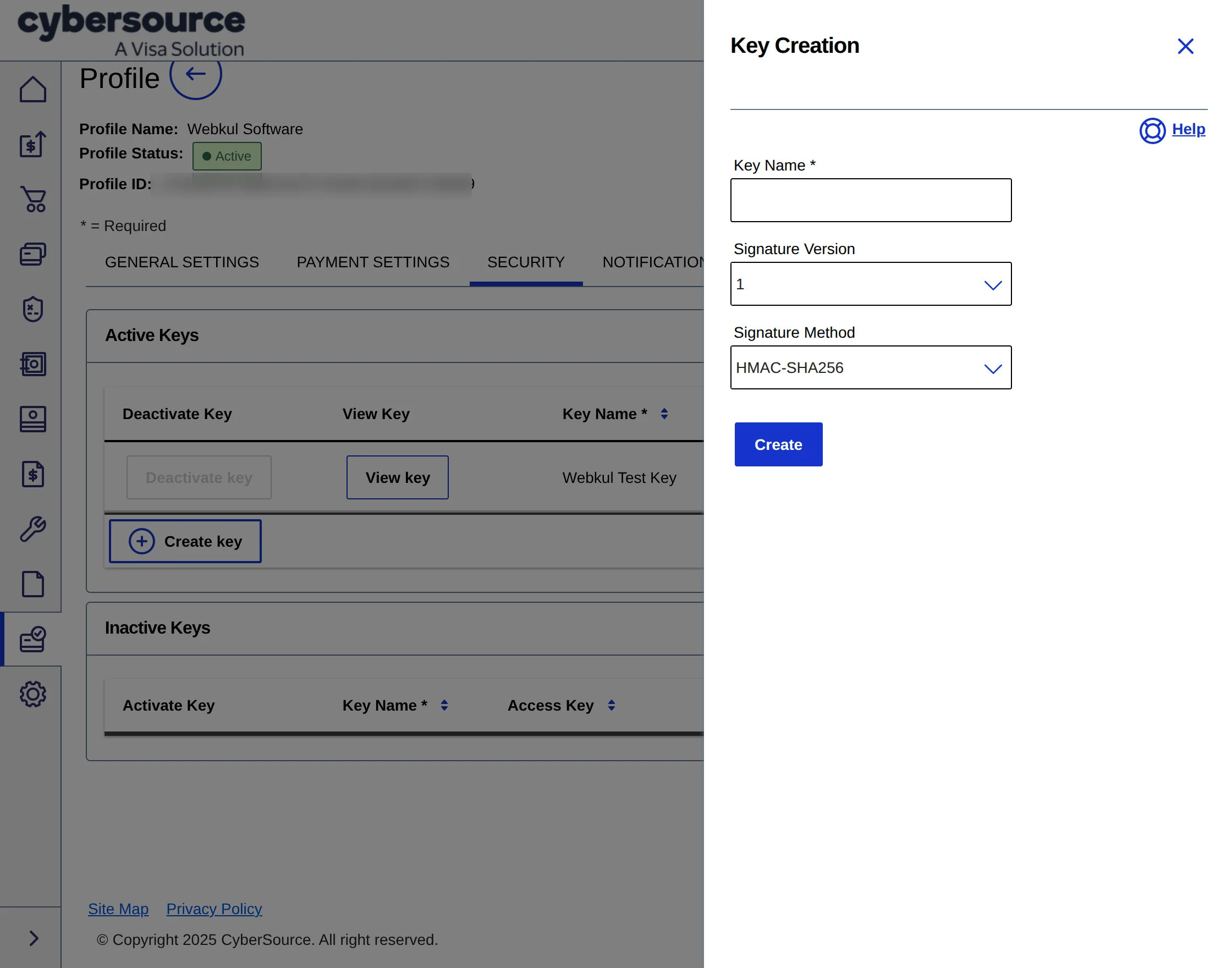
After clicking the Create button, the Access Key and Secret Key will be displayed.
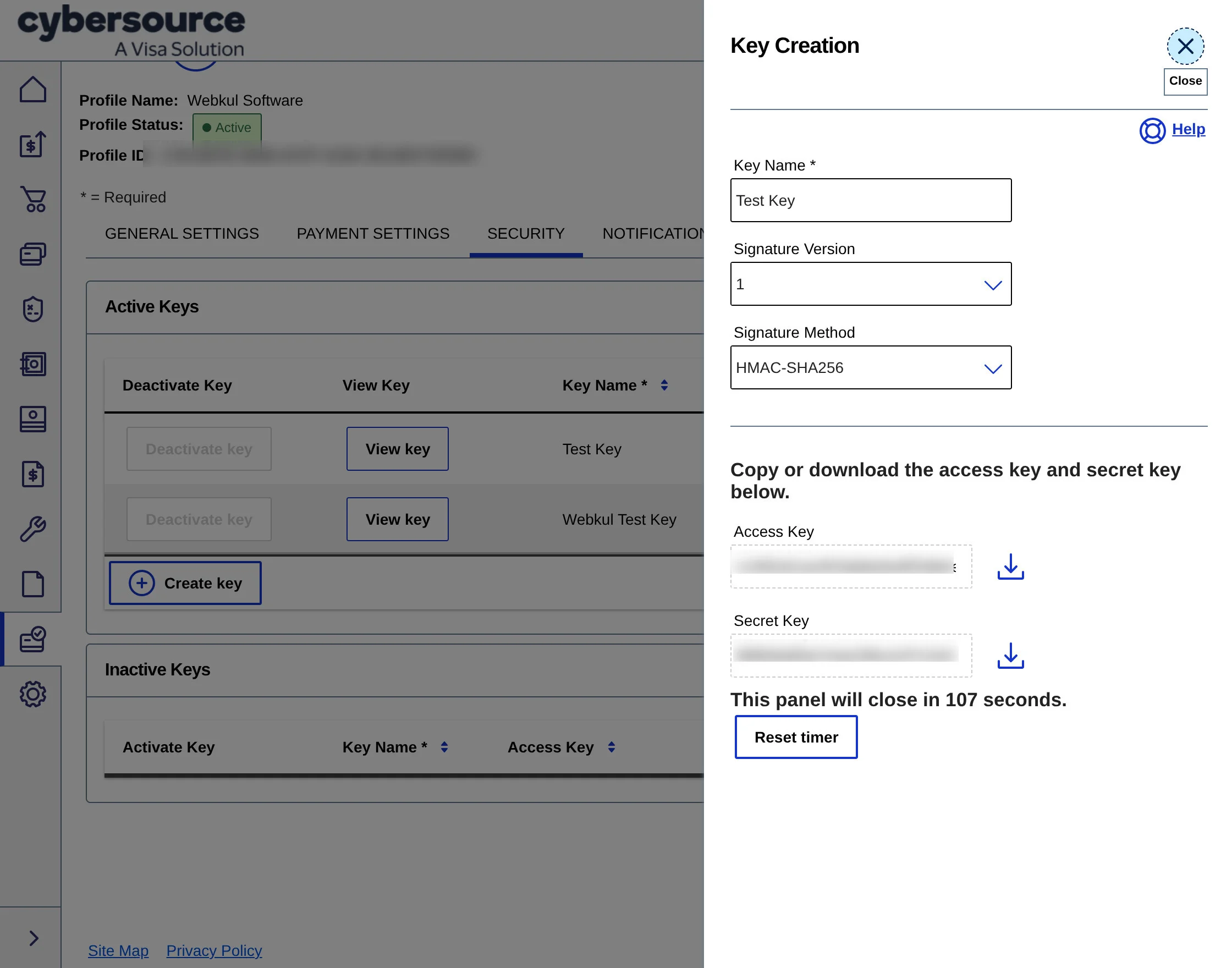
Click on Customer Response to add the Transaction Response Page URL.
Note: Enter your website URL.
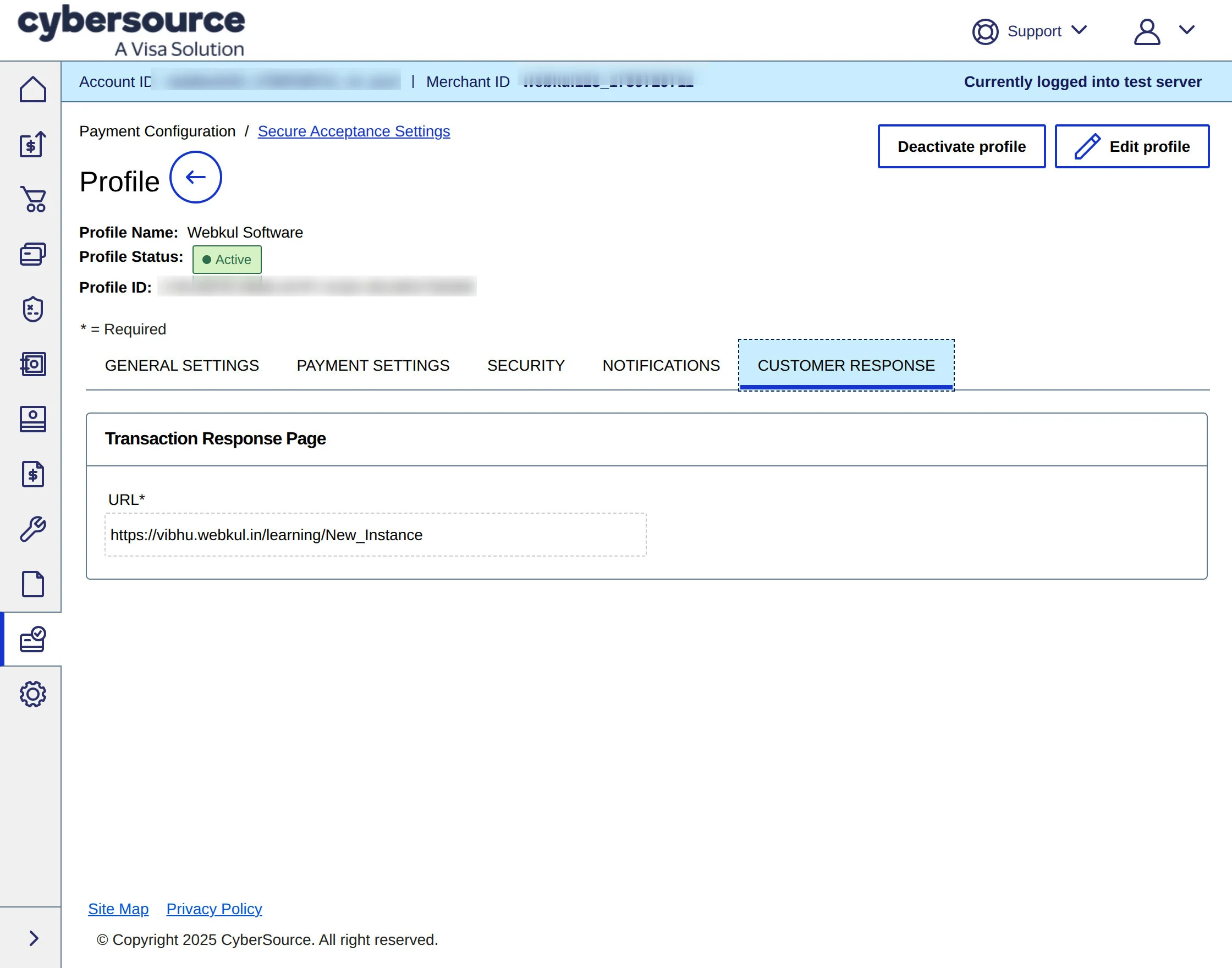
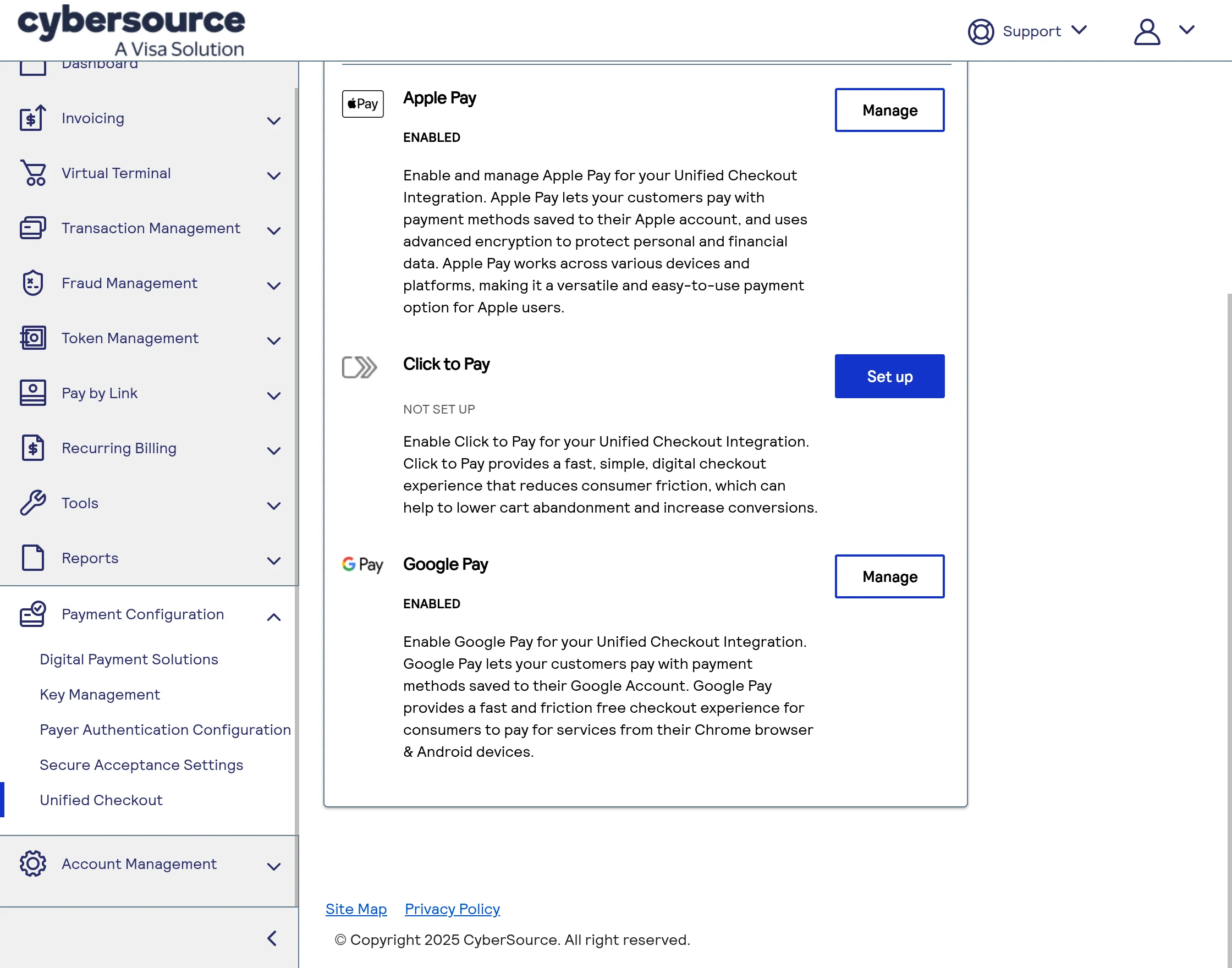
Click on Unified Checkout, then select Manage to turn on Digital Payment Solutions in CyberSource.
Select and set up your preferred payment methods, then click Manage to configure their settings.
Step 3
After obtaining all the credentials, go to your CS-Cart Admin Panel to configure the payment method.
Click on Settings -> Payment Methods, then click the plus (+) icon to create and configure a new payment method.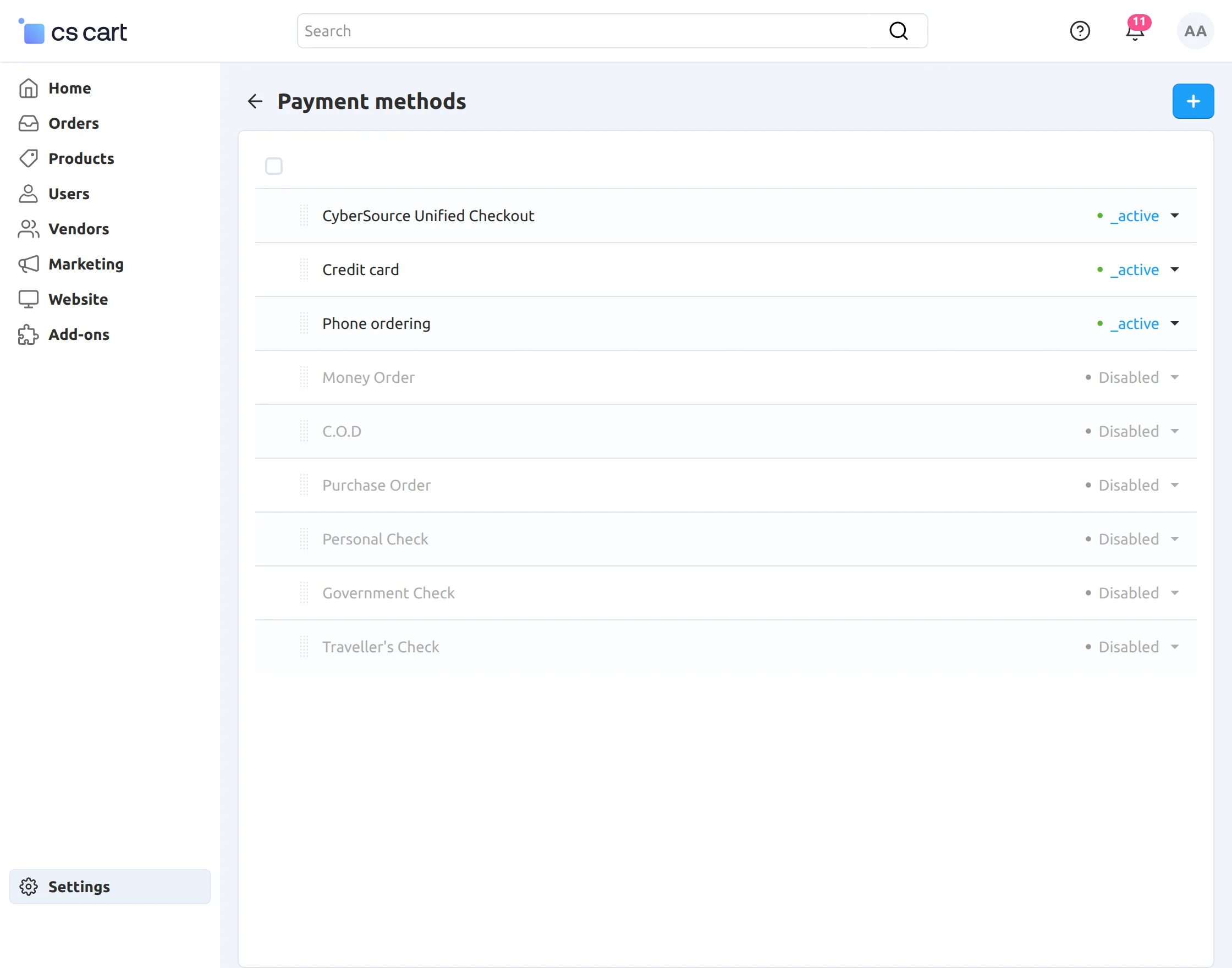
-
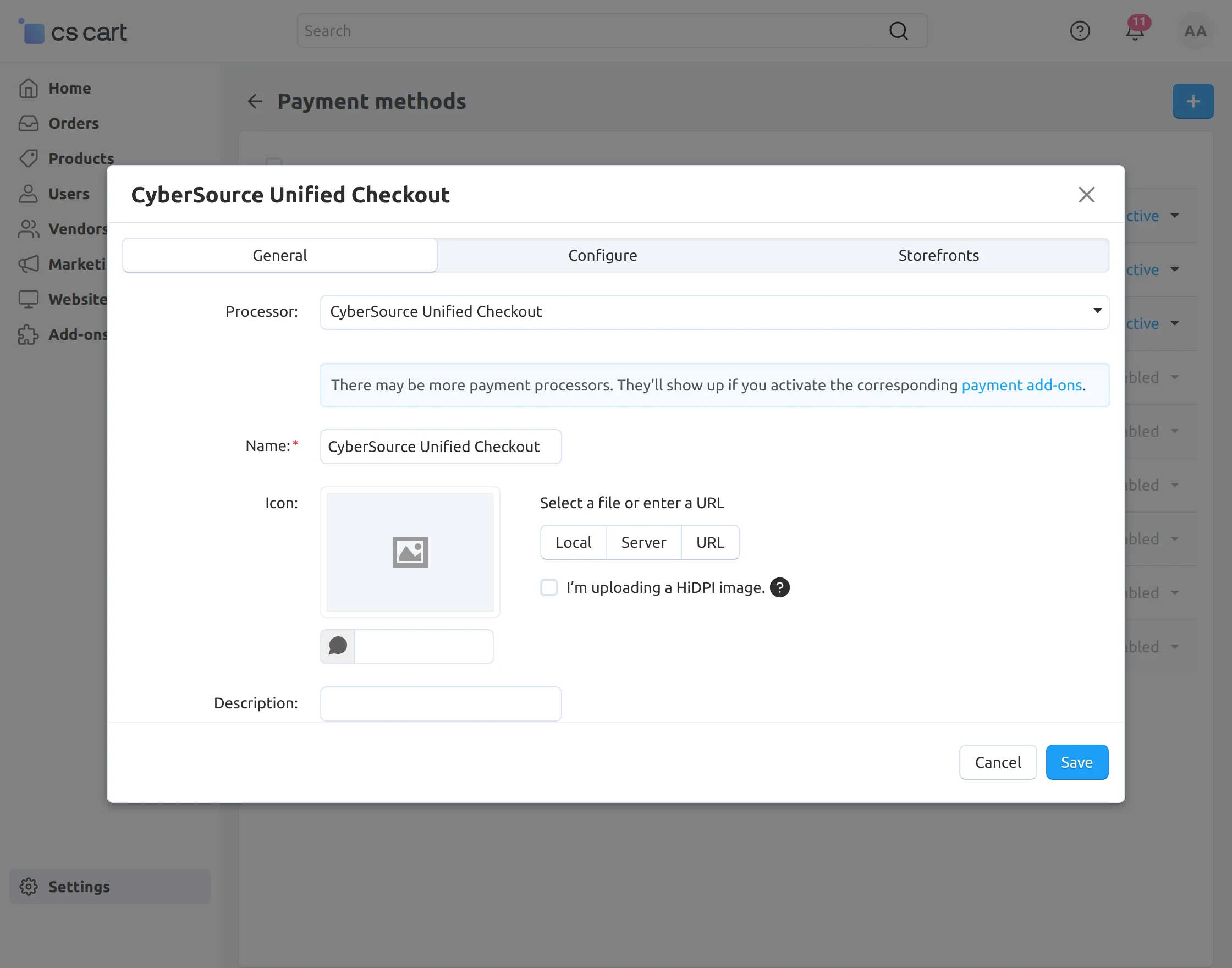
Now, to set up the CyberSource Unified Checkout, proceed with the configuration steps.
-
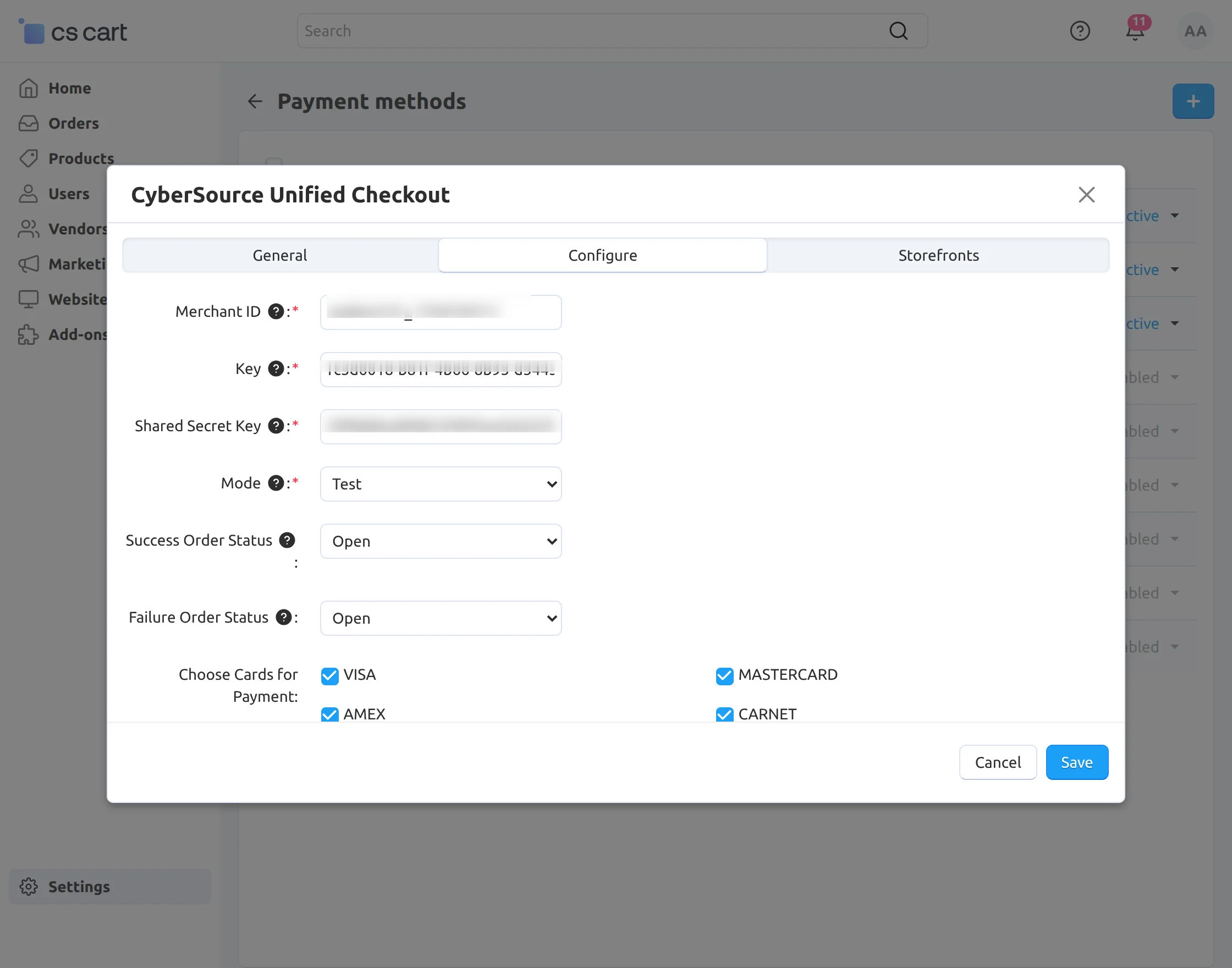
After completing the above general settings, click on the Configure tab to proceed with the setup, as shown below.
-
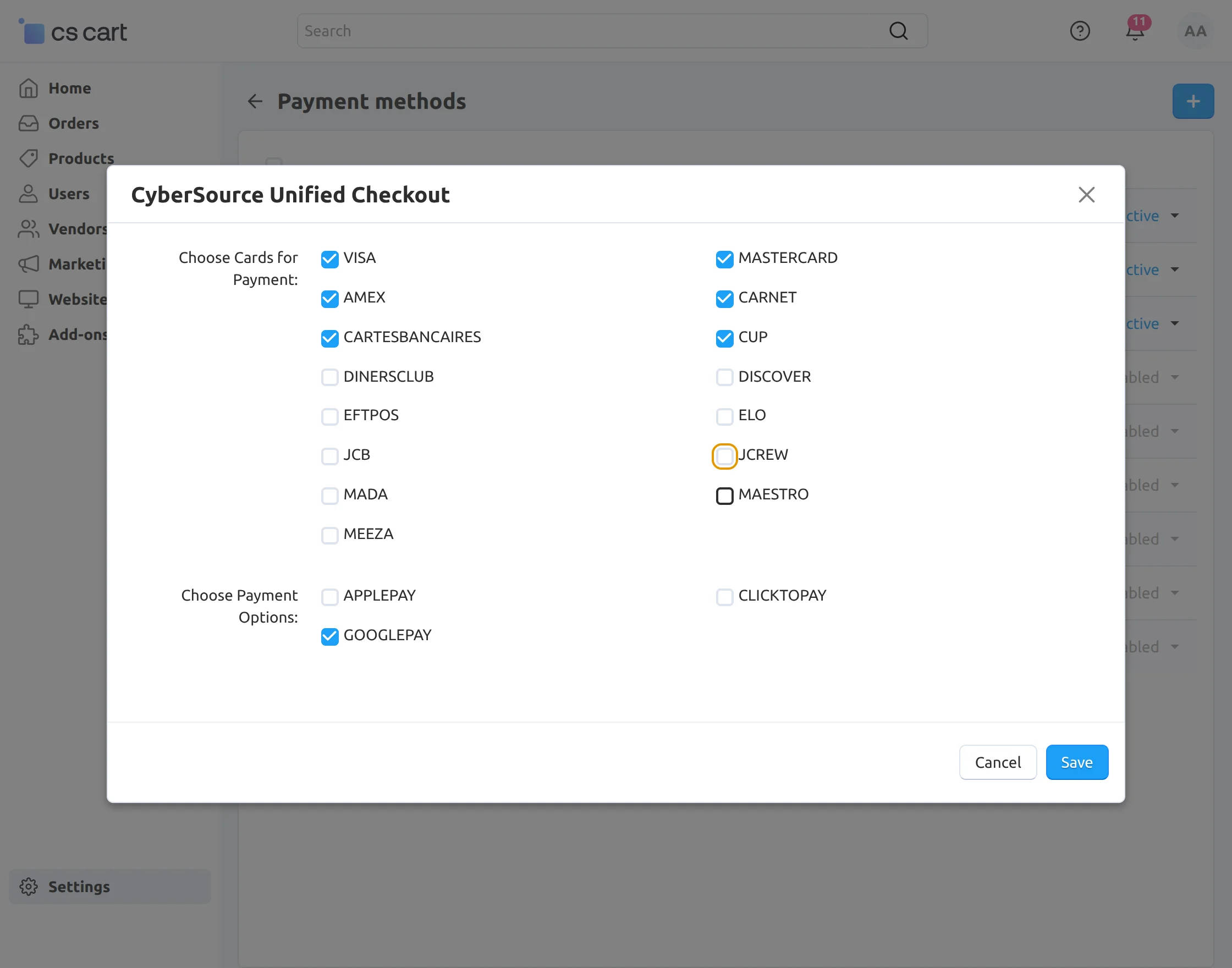
Select your preferred card and payment options for the checkout process.
-
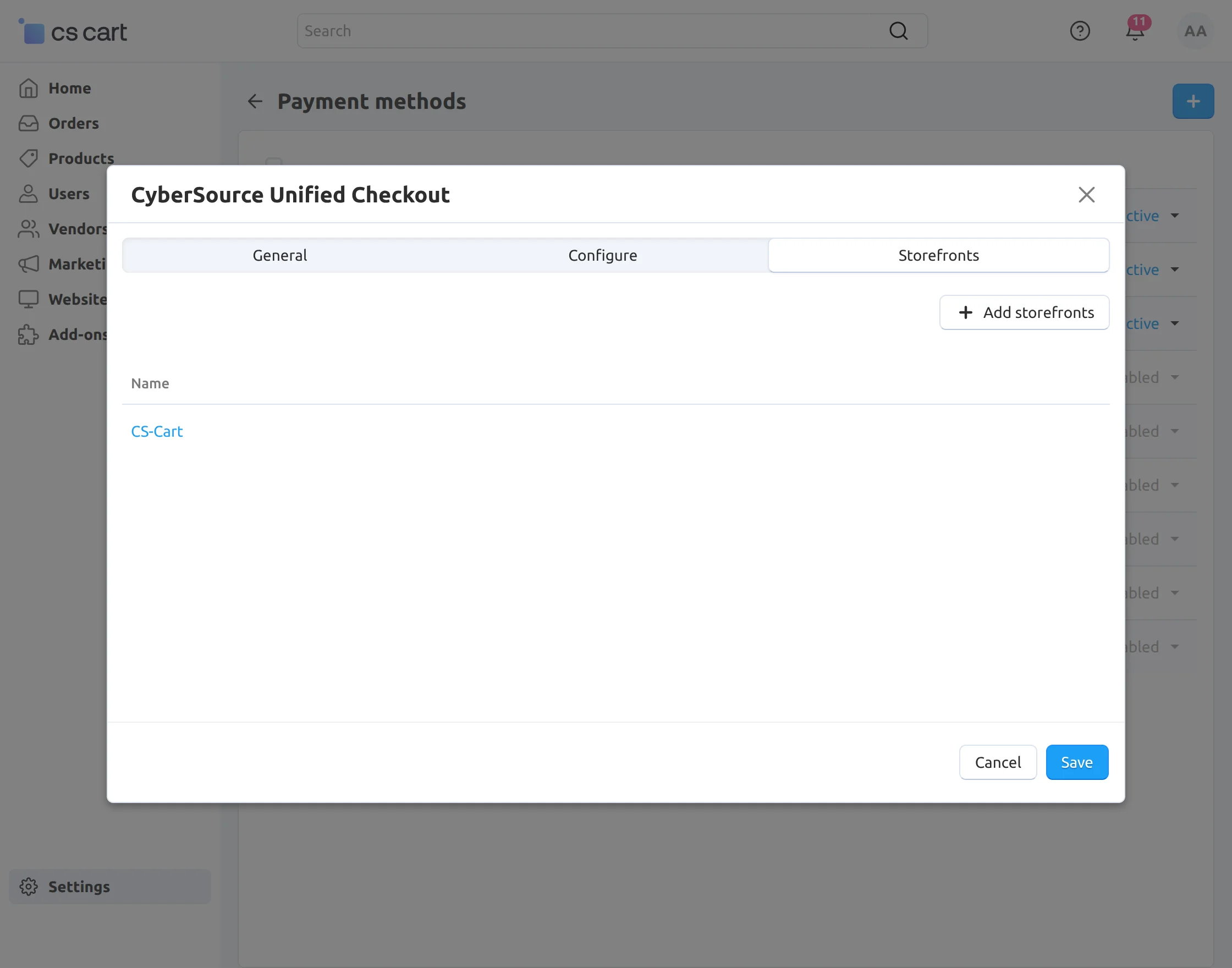
Click on the Storefronts tab to add your store, and then click the Save button to apply the changes.
Now, the installation and configuration of the add-on are complete.
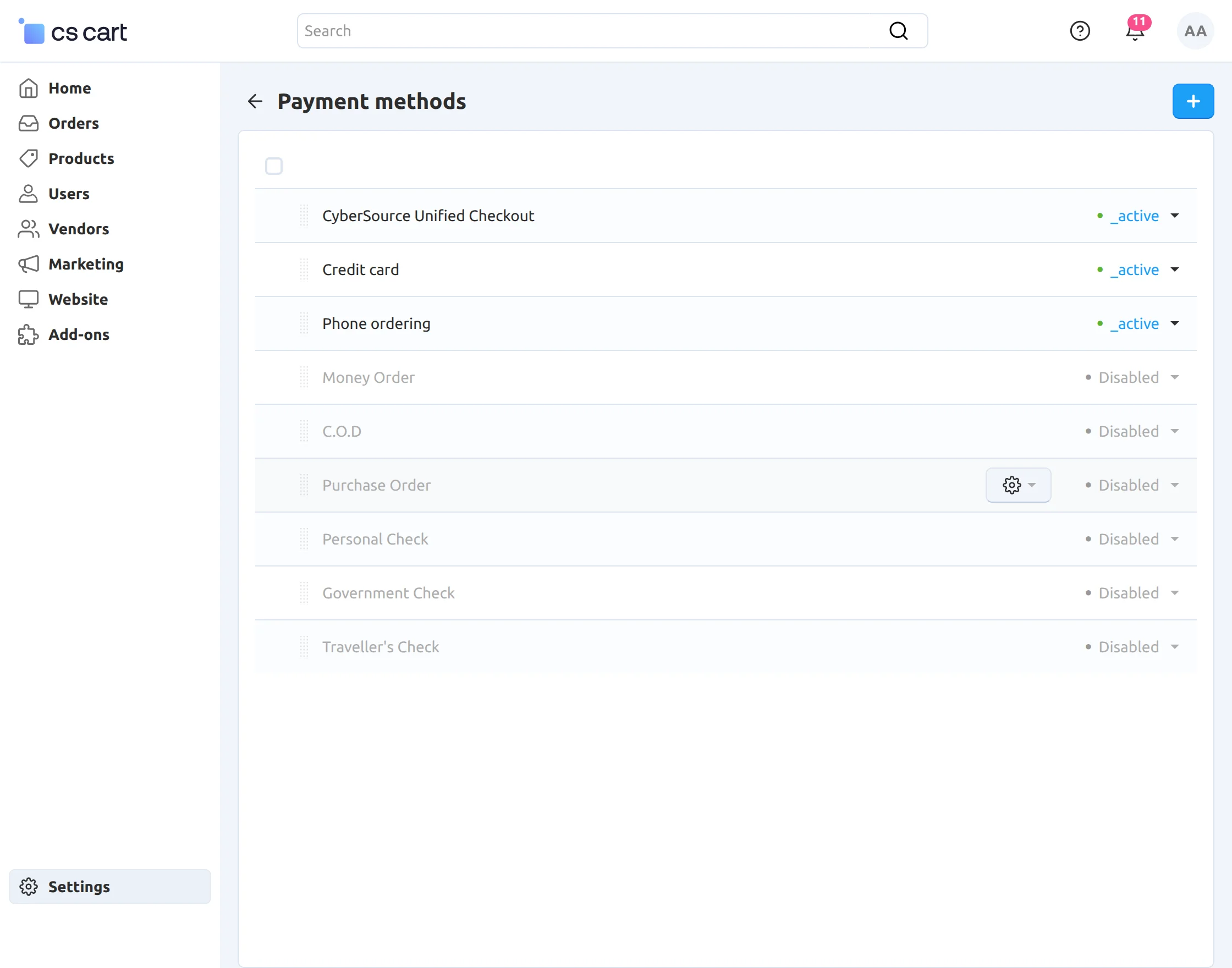
You can find the newly created payment method under the Payment Methods tab in your CS-Cart admin panel.
Make sure to activate the payment method to start using it on your store.
Front-End View
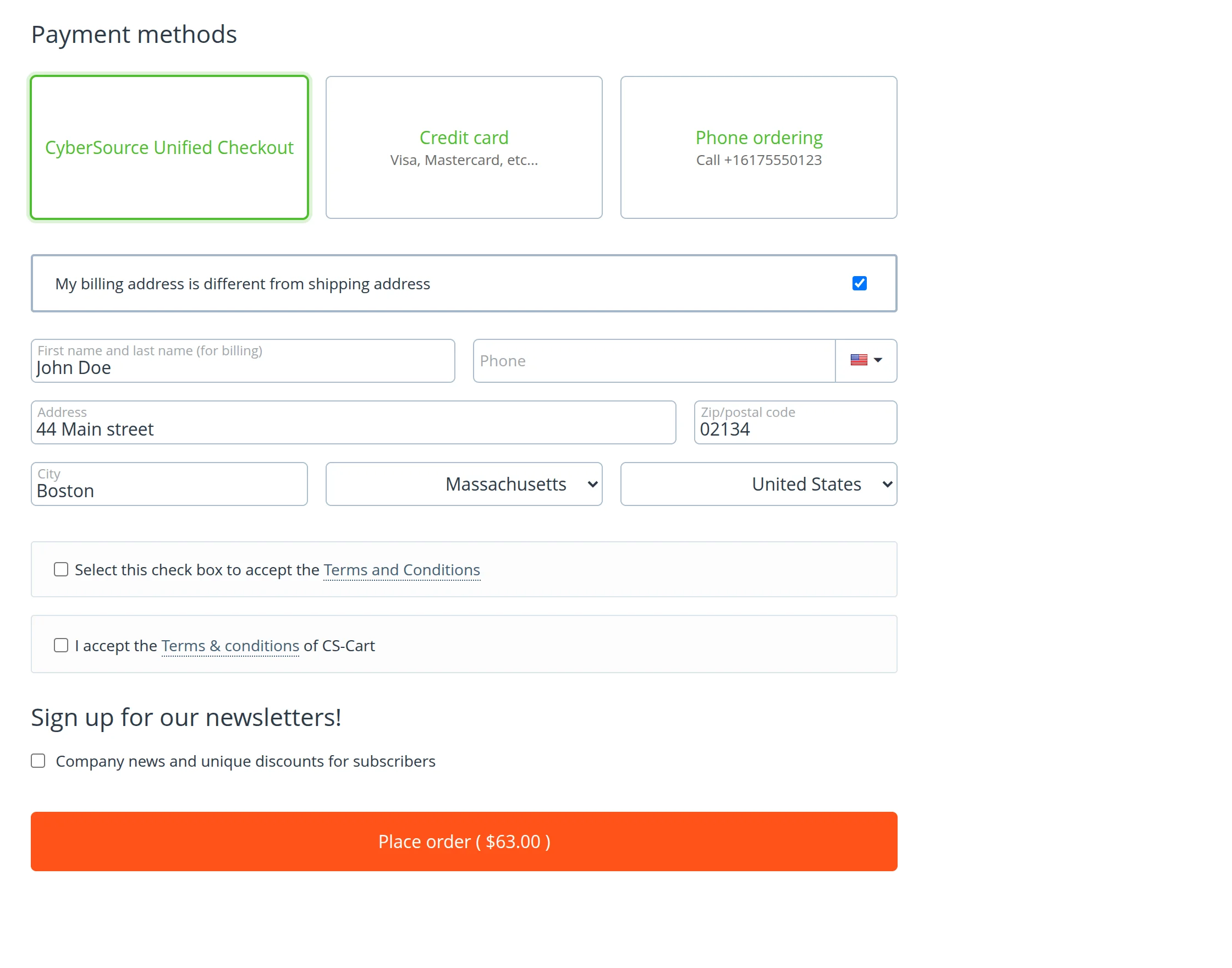
New payment options are available for customers at the front end.
For payment, the customer is to select the option and enter the necessary details.
- For the CyberSource Unified Checkout payment method customer is to select the same from the given payment methods
-
The customer clicks the Place Order button to proceed with the purchase.
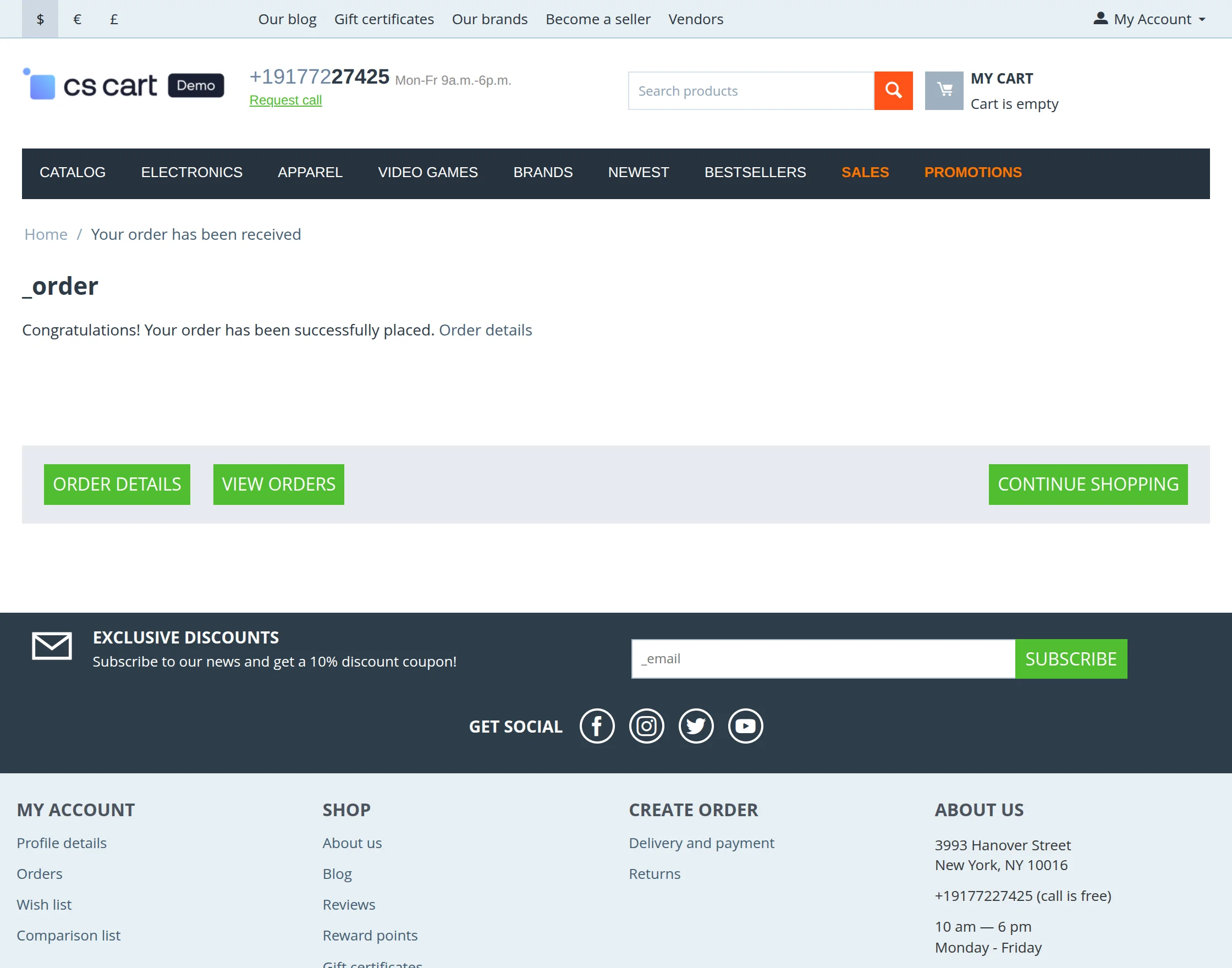
Order successfully placed.
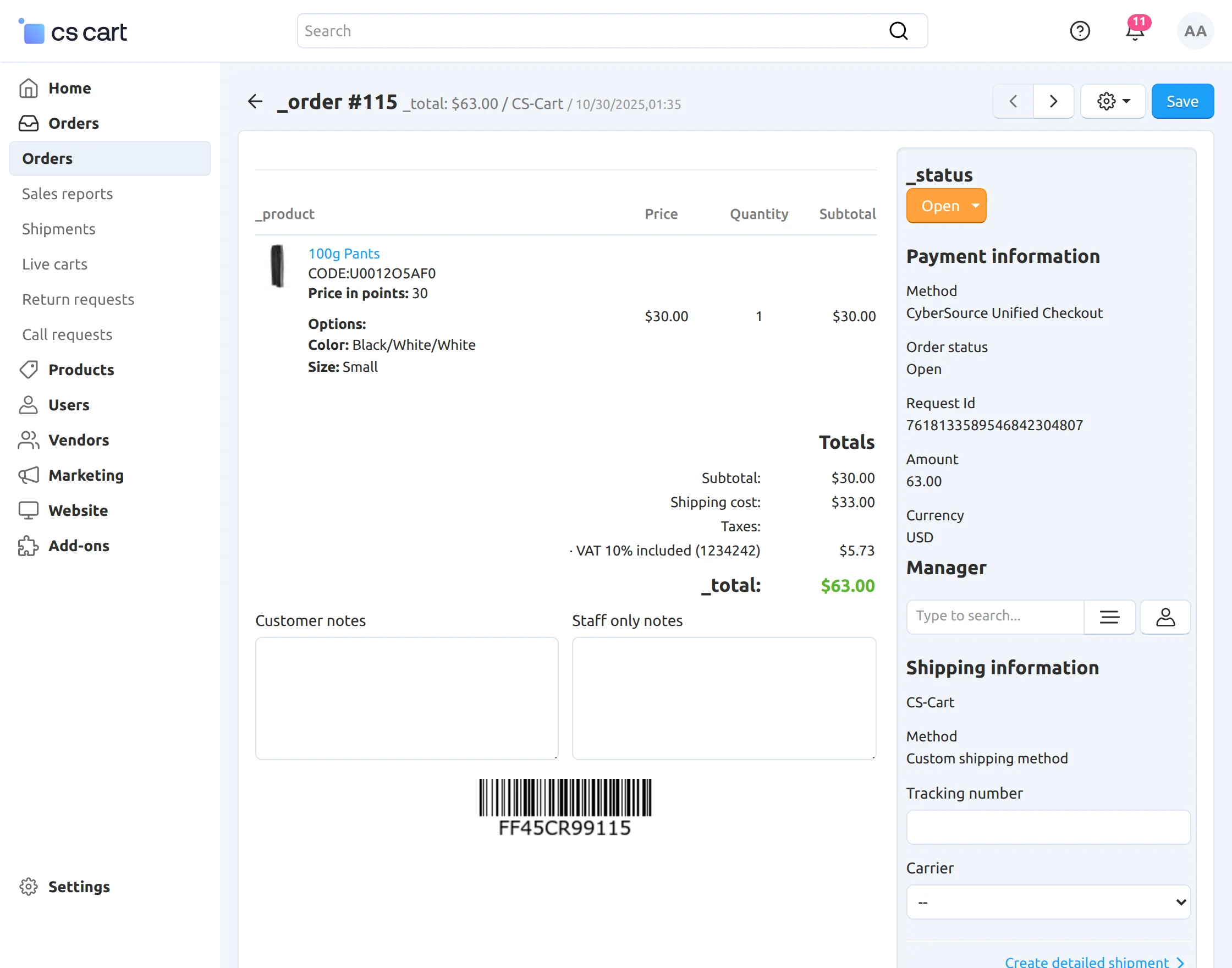
Back-End View of the created order
Support
If you have any questions, suggestions, or customization requests, feel free to contact us at [email protected] or submit a ticket at webkul.uvdesk.com.
Explore our premium-quality CS Cart Extensions to enhance your store functionality.
You can also explore our CS-Cart Development Services and Quality CS-Cart add-ons.
Current Product Version - 1.3
Supported Framework Version - 4.16.x to 4.18.x


Be the first to comment.