CS-Cart Advanced Notification helps store owners enhance the overall buying experience by delivering rich and opulent notifications directly within the storefront.
With this add-on, customers receive notifications in their account for various important events such as order status updates, shipment creation, and more.
Not only customers, but the store admin also gets the option to receive backend notifications for events like new order placement, RMA request generation, etc.
The admin can easily select and manage the events on which notifications should be sent to customers or received at the admin end.
This add-on provides an impressive and organized notification view for both the frontend and backend, ensuring smooth communication and a better user experience.
Check a brief overview of the plugin –
Features and Benefits
- Well integrated with CS-Cart & Multi-Vendor.
- Admin has the option to get notified when
- An order created from the storefront.
- An RMA request generated.
- A review added to order/product/category/testimonials.
- A user gets registered.
- Admin can notify customers when
- Order status changed.
- A shipment created.
- RMA request declined or gift certificate created.
- A post added to their orders.
- User Group status changed.
- In addition admin can send custom notifications to the customers. Which might contain any information including images, hyperlinks etc.
- Ability to set the timeout for notification means the time after which the notification is considered as seen automatically.
- Also improve the user experience.
- Moreover Easy to configure and manage at admin end.
How To Upload And Install The Add-on
To install CS-Cart Advanced Notification, follow these steps:
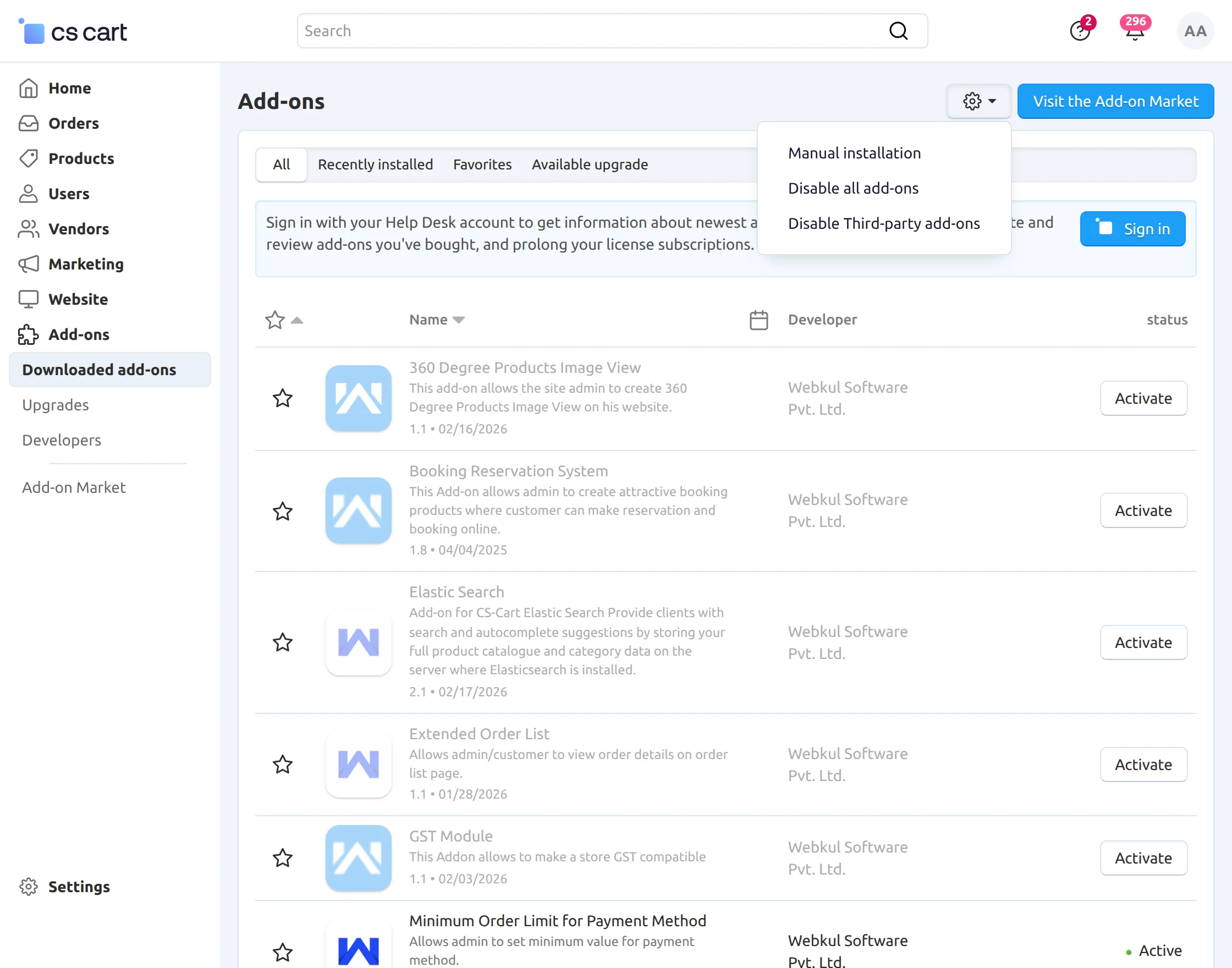
Go to Manage Add-ons, click on the gear drop-down, and select Manual Installation.
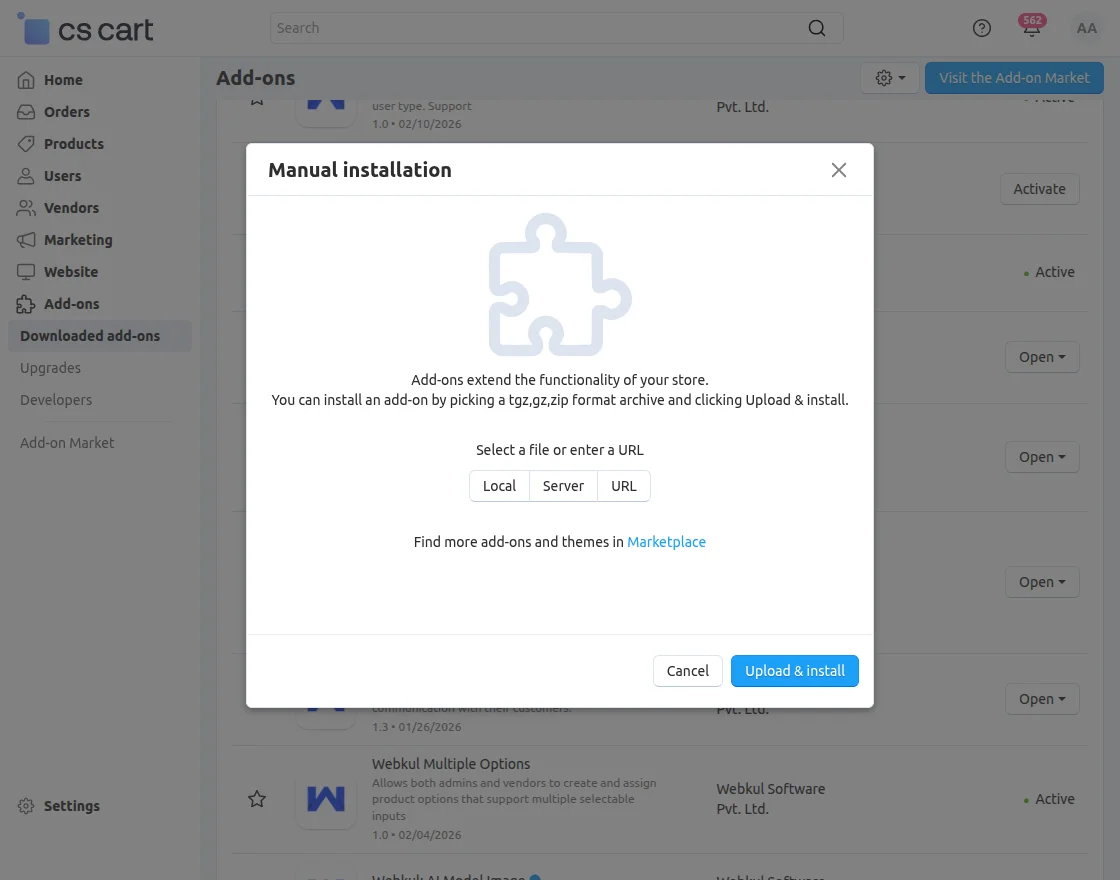
Secondly Click on “Local” to browse the zip file and then click on “Upload & Install”.
Add-on Configuration
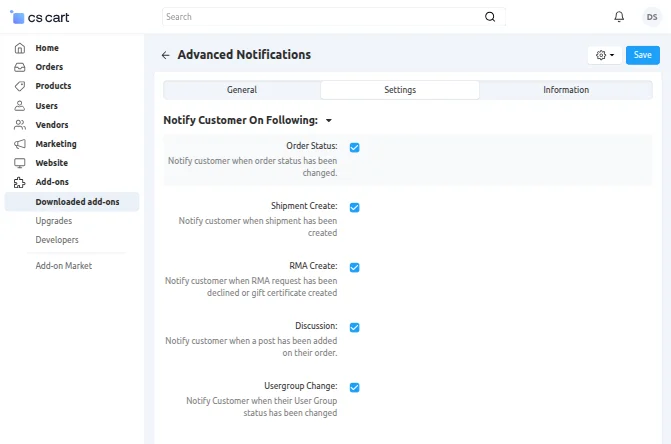
In the CS-Cart Advanced Notification Add-on settings section, the admin can configure and manage various notification options.
Option to notify customers on-
- Order status: Notify customer when order status has been changed.
- Shipment Create: Notify customer when shipment has been created
- RMA Create: Notify customer when RMA request has been declined or gift certificate created
- Discussion: Notify customer when a post has been added on their order.
- User Group change: Notify Customer when their User Group status has been changed
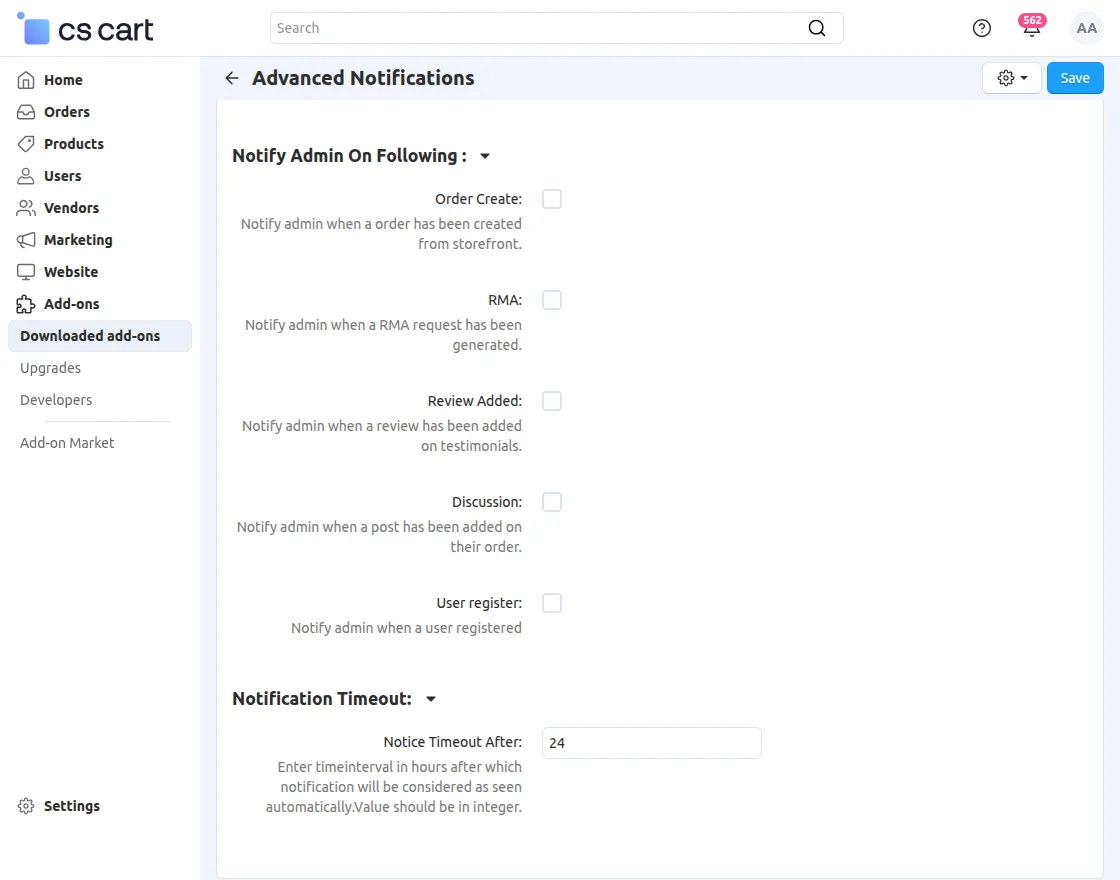
Notify Admin On Following :
- Order Created: Notify the admin whenever a new order is placed from the storefront.
- RMA Request Generated: Notify the admin when a customer generates an RMA (Return Merchandise Authorization) request.
- Review Added: Notify the admin when a new review is submitted in the testimonials section.
- Discussion Post Added: Notify the admin when a customer adds a post or comment in the order discussion thread.
- User Registered: Notify the admin whenever a new user registers on the store.
NotificationTimeout
Back End View
To display notifications on the storefront, the admin needs to add a notification block in the layout section, as shown in the image below.
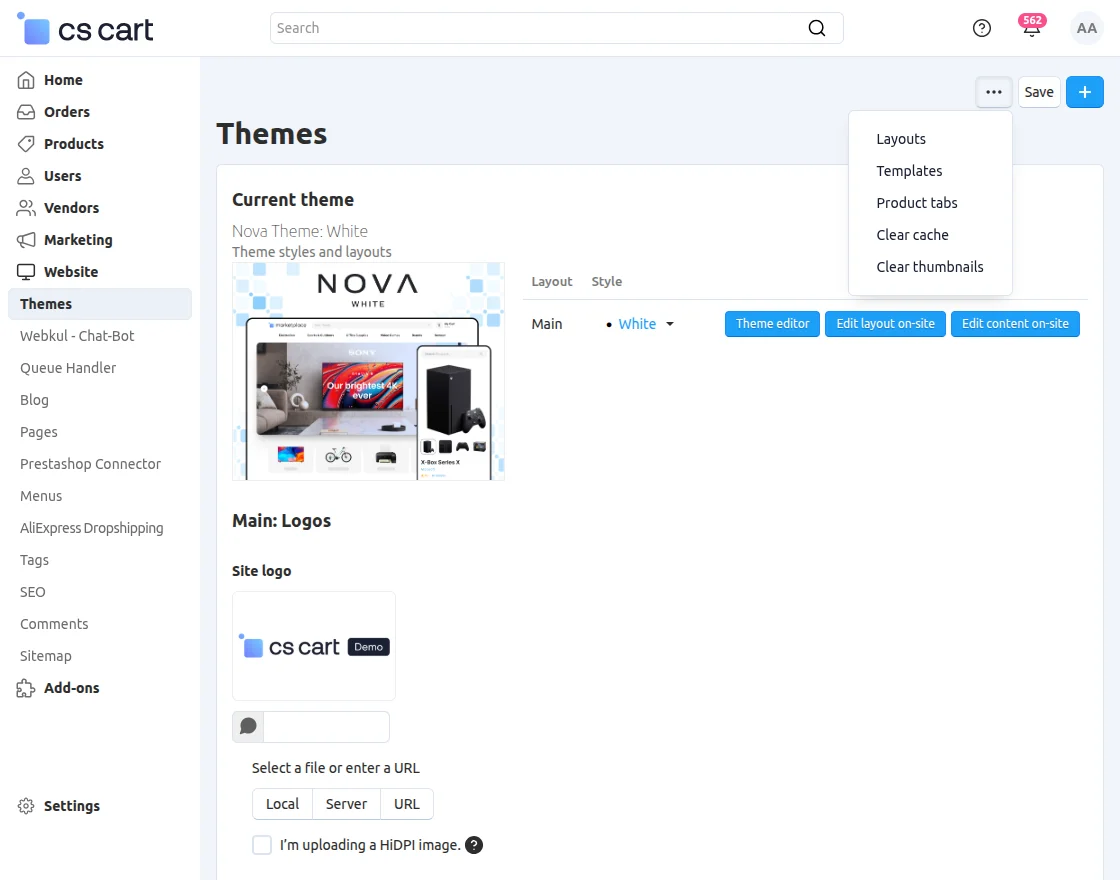
Add a template block on the default page at any desired location.

Set the name of the block & choose the template of Advanced Notification to create a block.

This is how you can add the notification block.
Moreover there is also a feature to add and send a custom notification to the desired customer from backend. For that go to Marketing-> Advanced Notification
Here you can add the notification templates and send those to desired customers list. Just click + button to add and send one.
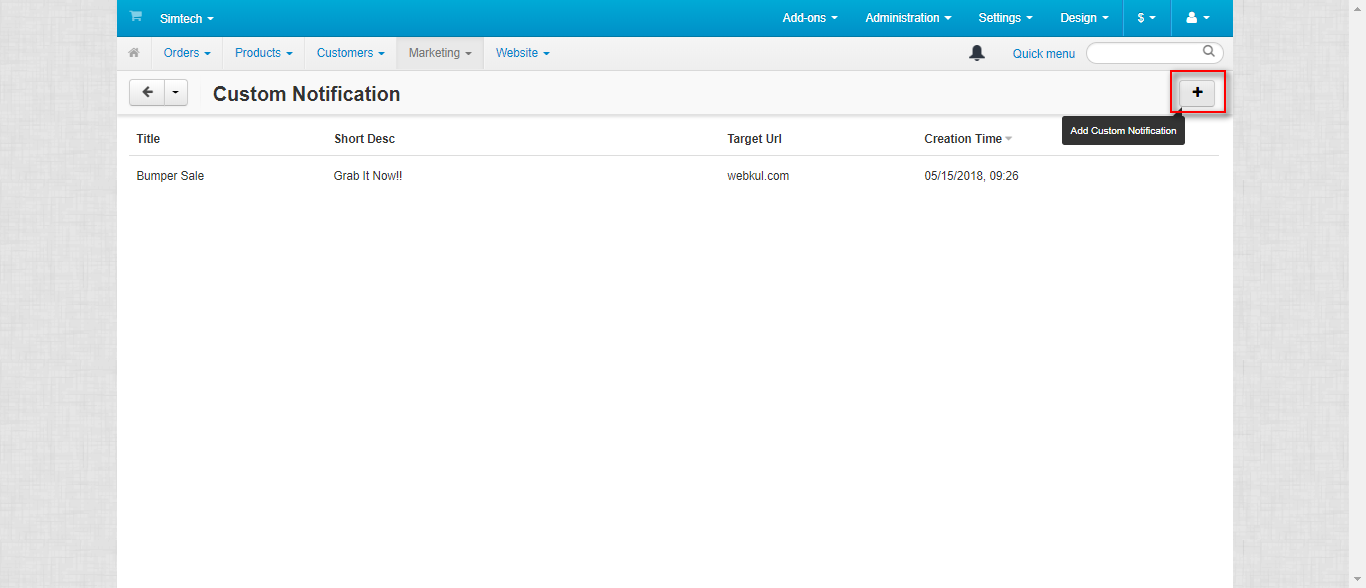
Just add the notification content which includes the subject, target URL, description as shown below.

Now add the users to whom the notification needs to be sent.
It shows us the pop-up with the users’ list. Just select and add the users as shown below & then click on the send button to send the notification instantly.

Notifications At the Customer End
The notification icon is available for the logged-in customers at the location where the notification block is added.
Where the customer can allow/disallow receiving notifications or he can mark all as read.
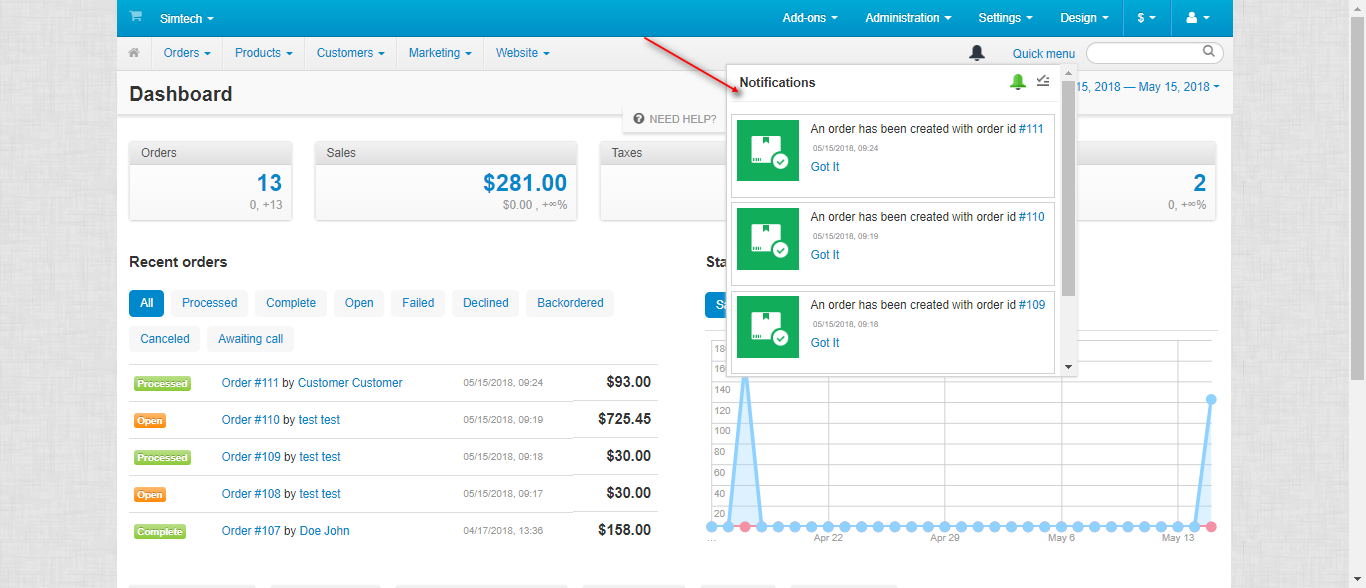
Notifications At Admin End
So this is how the Admin views the notifications.
Support
Still, have any issues, feel free to write here http://webkul.uvdesk.com and let us know your views to make the module better.
Besides this, you can explore our CS-Cart Development Services and Quality CS-Cart add-ons.
Current Product Version - 1.1
Supported Framework Version - 4.16.x, 4.17.x, 4.18.x, 4.19.x


Be the first to comment.