Introduction:
Magento 2 B2B Wholesale Private Shop allows the admin to restrict the customer to view the online shop.
Admin has many options to restrict the customer to access the storefront and create a complete private shop.
This module allows the admin to create the private groups and assign them store products, categories, and customers.
Watch the videos to understand the module:
Module Configuration:
Module Workflow:
Features
- Admin can create a complete private shop.
- If the complete shop is private then the guest will not be able to add the product to the cart.
- The guest users can only view the home page and custom CMS pages.
- In this module, the admin can create private groups.
- Private products/categories will not be visible to visitors.
- Admin can assign multiple groups to each customer.
- Admin can assign multiple groups to each product/category.
- Customers can see their private products and categories according to the private group.
- The admin can create each product and category in private.
- Admin can send emails to private group customers.
- Admin can change the product label/product label image.
- The extension is compatible with the Hyva Theme.
Installation
Customers will get a zip folder and they have to extract the contents of this zip folder on their system.
The extracted folder has an src folder, inside the src folder you have the app folder.
You need to transfer this app folder into the Magento2 root directory on the server as shown below.

After the successful installation, you have to run these commands in the Magento2 root directory.
First Command php bin/magento setup:upgrade
Second Command php bin/magento setup:di:compile
Third Command php bin/magento setup:static-content:deploy
After running the commands, you have to flush the cache from the Magento admin panel by navigating through>System>Cache management as shown below.

Install Extension from Webkul Store
1 Download Module
Firstly, you need to log in to Webkul Store, go to My Account>My Purchased Products section, verify and then download and extract the contents of this zip folder on the system.
2 Upload Folder
Once the module zip is extracted, follow path src>app and then copy the app folder into the Magento 2 root directory on the server as shown below:

3 Run Commands
After uploading the module folder, you need to run the following commands in the Magento 2 root directory:
- php bin/magento setup:upgrade
- php bin/magento setup:di:compile
- php bin/magento setup:static-content:deploy
- php bin/magento indexer:reindex
- php bin/magento cache:flush
Install Extension from Magento Marketplace
If you have purchased this extension from the Magento Marketplace then please follow the below process or visit this link.
1 Get Access Keys
You need to get access keys, navigate to My Profile in Magento Marketplace, then choose Access Keys in the My Products section.

Go to Magento 2 and copy both the Access Keys: Public Key and Private Key. These access keys will be needed in the next steps for authentication.

If access keys are not created earlier, click Create A New Access Key, enter any name and click OK.

2 Update composer.json File
To know the component name and version number, go to your Magento Marketplace account section, My Profile>My Purchases,
Then find this extension to view the details.
Please note Below is an example image, every extension will have its unique component name and version.

After that, navigate to your Magento project directory and update your composer.json file in the following format.
composer require <component-name>:<version>
For example, to install version 5.0.0 of this extension you need to run the following command:
composer require webkul/module-privateshop-check:5.0.0
3 Enter Access Keys
Now you will need to enter the Access Keys that you obtained as explained in the first step 1 Get Access Keys.
Wait for Composer to finish updating your project dependencies and make sure there aren’t any errors.
4 Run Command
You need to run the following commands:
- php bin/magento setup:upgrade
- php bin/magento setup:di:compile
- php bin/magento setup:static-content:deploy
- php bin/magento indexer:reindex
- php bin/magento cache:flush
Multilingual Support
For multilingual support, the admin will navigate through Store>Configuration>General >Locale Options.
Select the locale as German the language into which the admin wants to translate his store content

Module Translation
If a user wants to translate their module from English to German.
Then they need to follow the path app/code/Webkul/PrivateShop/i18n in their unzipped magento2_ private_shop folder and will get a CSV file with the name “en_US.csv”.
Now they will rename that CSV as “de_DE.csv” and translate all right side content after the comma in the German language. After editing the CSV, save it.
And then upload it to the path app/code/Webkul/PrivateShop/i18n where they have installed Magento2 on the server.
The module will get translated into the German Language. It supports both RTL and LTR languages.


Admin Configuration
After the installation of the extension, you will find the configuration settings panel by navigating through Stores>Configuration>Webkul> Private Shop as below.

Note: You should set either “Enable Label Text” or “Enable Label Image” to “Yes” at a time.
In case, if you set both the options to “Yes” then only the Label Image will be displayed not the Label Title.
Private Shop Setting
Create Complete Store Private If the admin chooses ” Yes” then the Guest users cannot access the storefront.
They redirect to the login page after clicking on an option like category, subcategory, etc. at the frontend.
Enable Label Text Admin can choose “Yes” to enable the label on the product.
Label/Image Display Position Admin can set the display position at top left, top right, bottom left, and bottom right of the label Image.
Label Title Admin can set Label title for the private products.
Enable Label Image Admin can enable image labels for private products.
Private Product Label Image From here, Admin can choose the label image which will be displayed on the private products.

Private Shop Email Templates
From here, Admin can choose an email template to send the notification to groups.
Admin Management
Admin can manage all private groups and notification mail navigating through Private Shop Menu under admin panel as per below snapshot.

Manage Private Group
Here, you can create the new group by clicking Add New Group button as per the below snapshot.

Admin can delete, disable, and enable the group by clicking the Action option after marking the group checkbox as per the below snapshot.

When the admin clicks on Mail in the select option under the Action column then the admin redirects to the Email page.
And the admin can edit and delete the already created group by clicking the select option under the Action column.

After clicking the Edit option, Admin can enable or disable the group and can also change the name of the group as per the below snapshot

Send Notification Mail
Admin can send an email to a particular group of customers at a time in Magento 2 Private Shop.
For this, the admin need to select a group and then need to enter the subject and email content.
The email will be added to the queue after clicking on the “Add in Queue” button.
Then the admin needs to run this command to process the queue.
bin/magento wk_mq:consumers:start bulk.email

In the below table, Admin can see the following:
Queue ID, Queue Name, number of Retries in case if email failed, total receivers, and created date of the Queue.

Note:If the admin runs the command and does not stop the command then whenever the admin adds email in the Queue. The Queue will be processed automatically.
The members of the selected customer group will receive an email notification as shown below:

Assign Private Group to Product/Category/Customer
Admin can navigate through Catalog > Product and can create a new private product or edit a product in Magento 2 Private Shop.

Admin will have to set the Private Status for the product as “Yes” and assign the private group to the product.
Only those group able to see that product on product and category page as shown below

Admin can Assign multiple private groups to multiple products by navigating through Catalog > Products
Then select the products from the grid and click on Assign Private Groups in the dropdown Action option as per below snapshot

Then a slider will come up and there the admin can assign multiple groups to the selected products as per below snapshot

Admin can navigate through Catalog > Categories and can create a new private category or edit a category.
The admin will have to set the Private Status for the category as “Yes”
Select the assign group from the dropdown

Admin is able to see the private groups of the customers by navigating through Customer > All Customers as per the below snapshot.

The admin can assign a private group to the customer by navigating through Customer > All Customers
After this click on Edit in the Action column. In the customer information, you can assign a private group to the customer as per the below snapshot.

Admin can Assign multiple private groups to multiple customers by navigating through Customer > All Customers
Then select the customers from the grid and click on Assign Private Groups in drop down Action option as per the below snapshot

Then a slider will come up and there the admin can assign multiple groups to the selected customers as per the below snapshot

Customer End
Now front end of Magento 2 Private Shop becomes completely private. The admin enables a complete private shop from the configuration.
The guest users can only view the home page and custom CMS pages.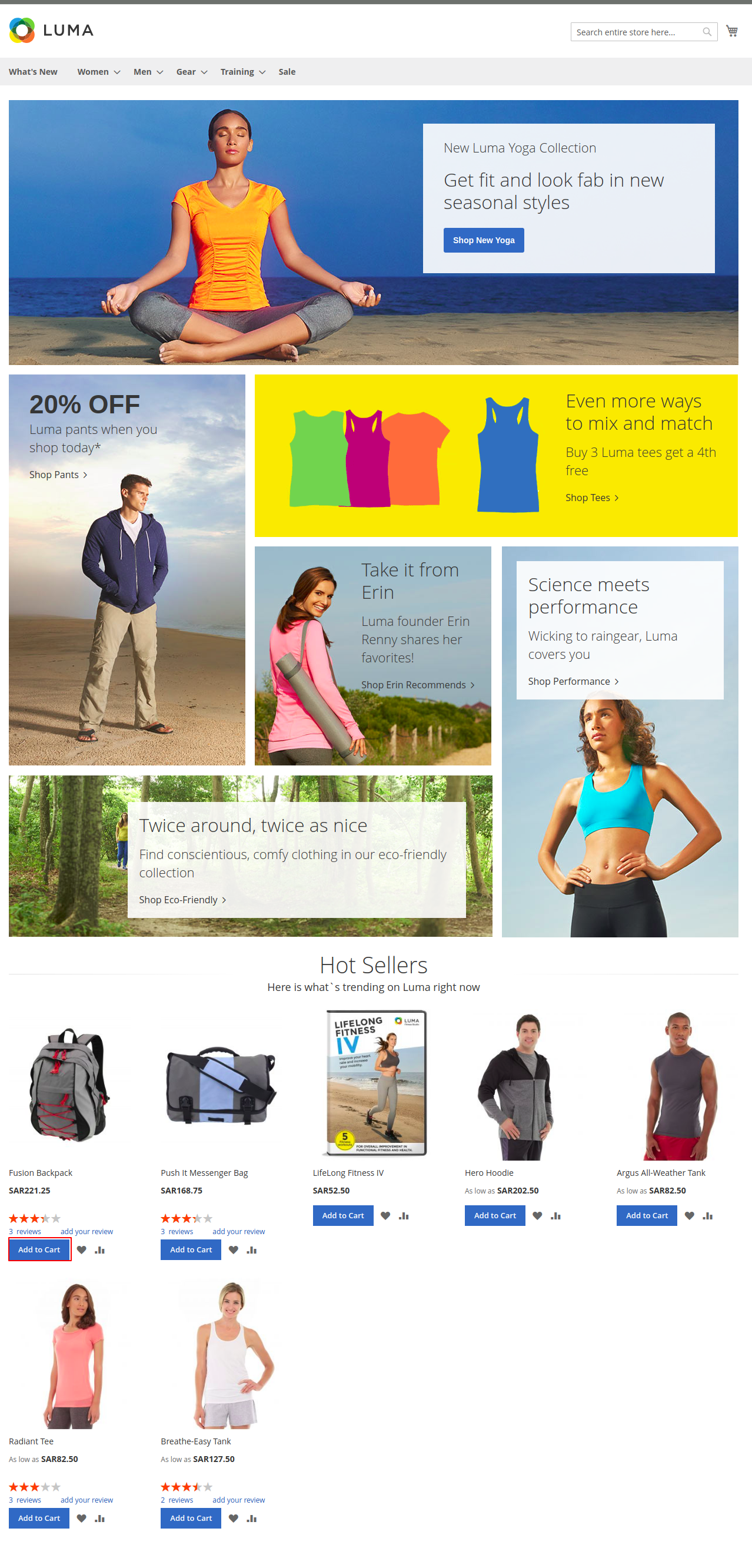
After the complete shop is private after this guests will not be able to add the product to the cart.
Now click on the Add to Cart button it will redirect to the customer login page.

The private Product option is available in the header to see the private products, according to the customer’s assigned private group.
Image label will be displayed on the product and category page for the private product as per the below snapshot


Label title will be displayed on the product and category page for the private product as per the snapshot


That’s all for the B2B Wholesale Private Shop for Magento 2 module.
Get in touch
Still have any issues feel free to add a ticket and let us know your views to make the module better https://webkul.uvdesk.com/en/
Also, visit our useful Magento 2 extensions
Current Product Version - 5.0.2-p1
Supported Framework Version - Magento 2.0.x, 2.1.x, 2.2.x,2.3.x, 2.4.x


Be the first to comment.