Akeneo Icecat App allows you to supplement Akeneo PIM product data with the extensive Icecat catalog.
It works with an open, icecat-free catalog. This app can only accommodate simple products.
Also, the Akeneo Shopify App helps to export/import product data from Shopify to the Akeneo app.
Apart from that, you can check the Akeneo SEO Manager App which helps to optimize the product content of your Akeneo for SEO.
Features
- EAN attribute and product code will be used to match Icecat products via their web API.
- Only simple products are supported by Akeneo Icecat App.
- You can modify the icecat attribute type during attribute import under the Icecat attribute type mapping tab.
- In this Akeneo PIM attributes must also be mapped to Icecat features.
- Akeneo products will enrich via running a product enrich job.
- In this, you can map Icecat common attributes like Ean, Product code, Vendor (Brand), Name, Description, Short description, Summary description,Bullet Points, Short summary description, and Pictures with Akeneo attribute through UI.
- Icecat Akeneo App is compatible with the latest Akeneo version 7.0.x
- In this, you can also do other Icecat feature mapping to map other Icecat feature attributes with the Akeneo attribute.
- You can also map the Icecat locale with the Akeneo locale.
- Implemented separate mapping for asset datasheet import.
- Added support for asset naming convention based on ProductName_ProductCode.
- Enabled multi-locale support for datasheet content.
How to Connect Icecat App?
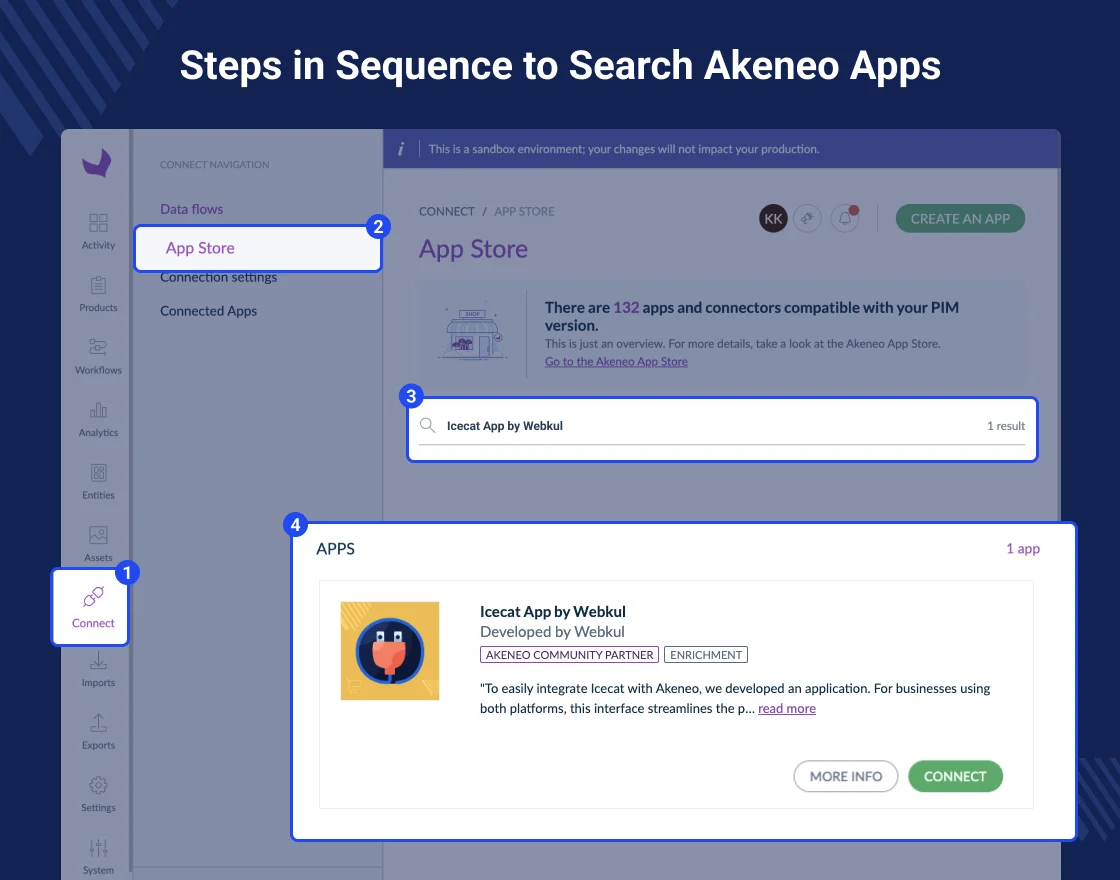
After you have searched for the Akeneo Icecat app in your Akeneo app store, tap the connect button.

After tapping the Connect button, on the page that appears, tap the Allow and Next buttons to proceed further.

Now, agree to the app’s privacy policy and terms and conditions,, and tap the Allow and Next button.

Thereafter, provide the access permissions to the category trees, including – Catgeory, Locale, Attribute Group, and others, and then tap the Next button after that.
Note: These app permissions appear in the case of Akeneo EE edition users only.

Now, confirm the access and tap the Confirm button.

After the permissions section, the app will be connected, and on the app page, you can see the notification for a 7-day trial period.

Now, the user can see the Akeno Icecat app connected, and to open it tap the Open App button.

Akeneo App Flow Management:
To manage the Akeneo Icecat App, tap the Manage App button.

Here, for the flow type, you need to select the Other type.
Note: You must select the Data Source flow type in the Growth, Flexibility, and Serenity editions.
Sequence to Connect Akeneo Apps
Please check the below image to get to know the sequence to search Akeneo Apps.
How to Purchase a Plan?
After opening the Akeneo Icecat App, you will be redirected to the plan purchase page as shown below.

After that, the user is redirected to PayPal to make the payment for the plan.

Now, after the successful payment, the user is redirected to the plan page with the activated plan for use.

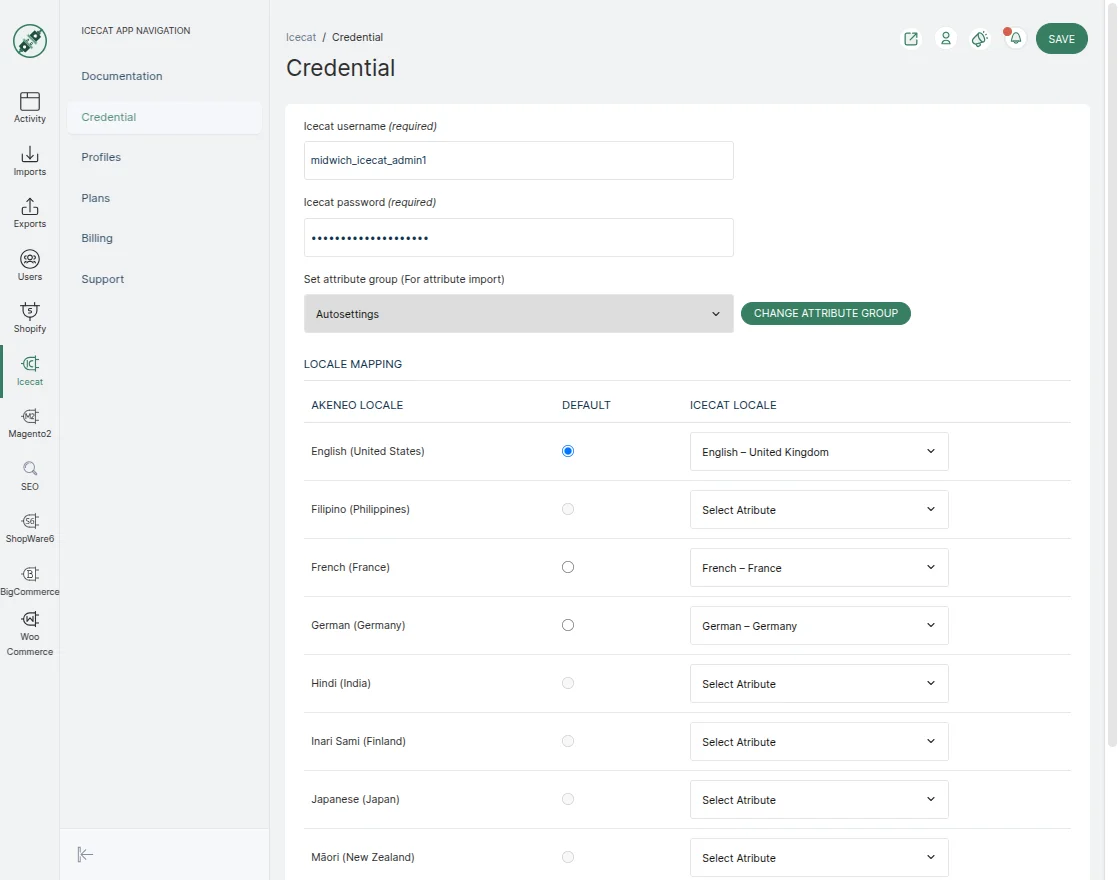
Setup Credential: Akeneo Icecat App
Note: You must first create a profile on Icecat’s end, where you must provide all of your information, including your username, password, and email address.
To set up a credential, you have to click on the icon on the Icecat app.
After that, it will take you to a new page where you must fill in the information you entered in Icecat, such as:
- Icecat username
- Icecat password
Set Attribute Group: All the imported attributes from Icecat will be mapped in the selected attribute group.
Locale Mapping:
In this section, you can map Akeneo local to Icecat local.
Icecat Common Attributes Mapping
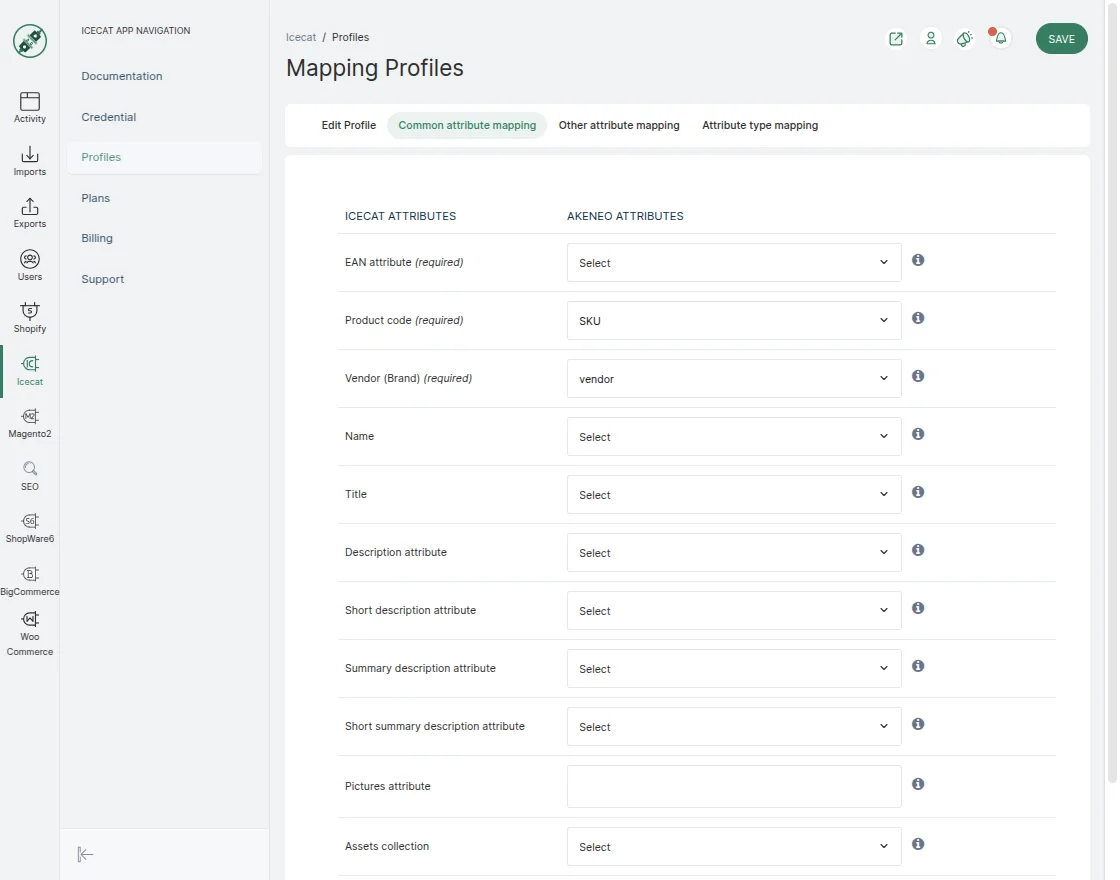
You can navigate to Profiles → Common Attributes Mapping to map the relevant Icecat attributes with Akeneo attributes.
Then You must map your Akeneo attributes to the Icecat attributes so that they can sync properly and no errors occur while importing data from Icecat to Akeneo.
You have to map the following attributes:
- EAN attribute → (Required)
- Product code → (Required)
- Vendor (Brand) → (Required)
- Name
- Title
- Description attribute
- Short description attribute
- Summary description attribute
- Short summary description attribute
- Pictures attribute
- Assets collection
- Bullets
- Data Sheet Collection

Picture attribute allows only image files to be added, and each image added consumes storage space. The more images you upload using the Picture attribute, the more storage will be utilized.
In contrast, the Asset Collection also stores images, but it offers more efficiency.
If an image has already been uploaded once, it can be reused without being uploaded again, which helps conserve storage space.
Data Sheet Collection supports the upload of various file types such as PDFs, Excel files, and more.
It also provides multilocal support, meaning the content within the data sheets can be localized based on different languages or regions.
Icecat Other Attribute Mapping
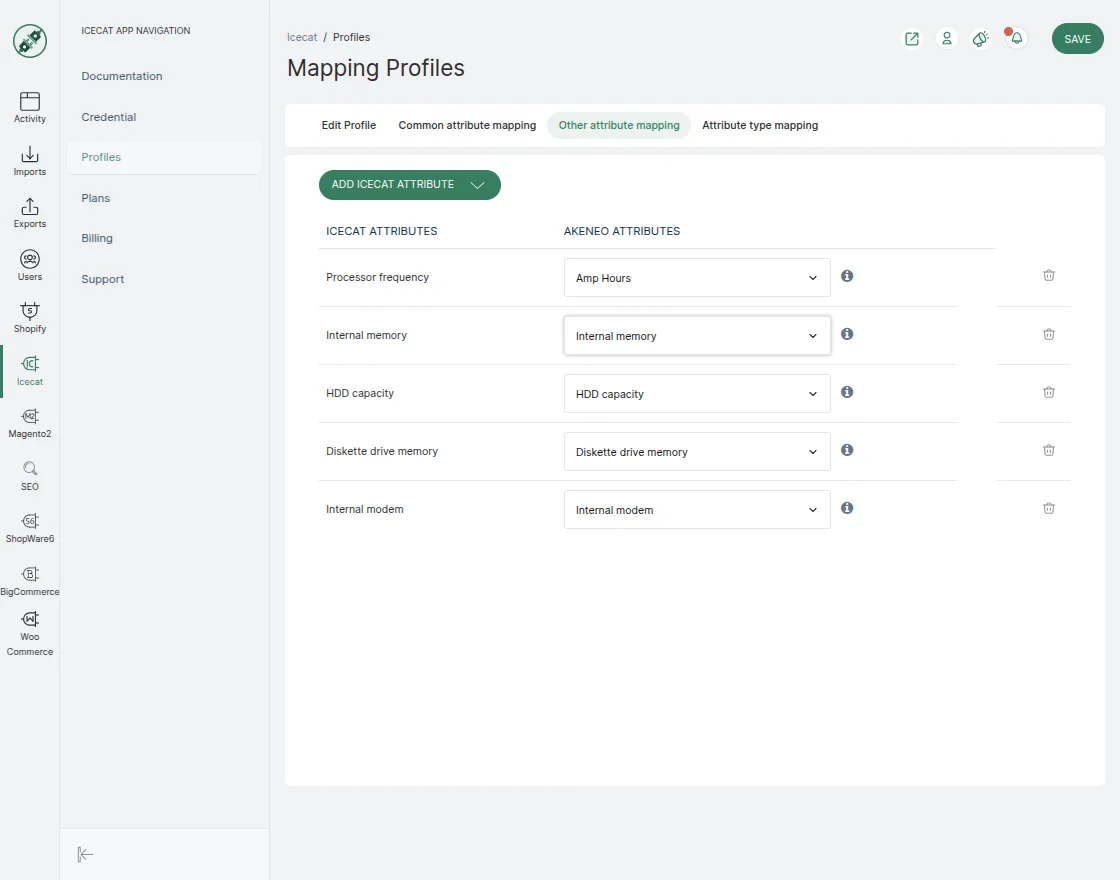
You can navigate to Profile → Other Attribute Mapping to map additional Icecat attributes with Akeneo attributes.
Important :
Before adding the Icecat attribute, you must first complete the features mapping job.
Feature Mapping Job
Navigate to Import>>Create Import Profile and follow these steps to do this. Next, enter the necessary information, including the code, label, and job type (Features Mapping).

After that, click the Save button. Then, to start the execution process, click Import Now.

After completing the job, you’ll be able to see the imported Icecat attributes in a drop-down menu and select the attribute that best suits your needs.
Then, you must map the Icecat attributes to Akeneo attributes, where the values will be imported.
Icecat attribute type mapping
Here, you can add a new Icecat attribute imported from Icecat and map it to the corresponding Akeneo attribute type.
If you map the attribute type, Icecat will import the attribute into Akeneo under the selected attribute type.
Note: Attribute conversion now supports Metric, Boolean, and Numeric attributes, allowing users to map them as Simple Select or Text type attributes.

After you’ve mapped an attribute, you’ll need to create an import attribute job in Akeneo to import the attribute you’ve mapped.

Then click on the Icecat attribute in the import tab and select the attribute which you have mapped to import in Akeneo.

Click the Save button after you’ve picked the attribute.

Then, to start the work of importing attributes, click the import button.

You can see the attributes in the Akeneo attribute once the import procedure is complete.
Create a Simple Product
You can also create a simple product in Akeneo. Therefore, navigate to Products. Then click the Create button.
To create a simple product click on the simple product.

Enter the SKU, choose a family, then click the Save button as per the below image.
The SKU will be filled with the product data you want to import from Icecat to Akeneo.

Then add the value EAN as SKU in Akeneo

After that click to Save. Then, Akeneo will create the product.
Note –
- The Vendor (Brand) and at least one of either EAN or SKU must be mapped.
- User can map the non-unique fields(EAN and product code) in standard attribute mapping.

After that, you must assign a product to a specific category and import data for that category.

Then click on the save button.
If you’ve entered an Icecat EAN number as an SKU in Akeneo, you’ll need to map product code to EAN in attribute mapping, as illustrated in the figure below.
Import Jobs
In this Icecat Akeneo Connector, there are three types of import jobs.
- Features Mapping
- Import Attribute
- Enrich Product

Now to import and enrich Akeneo PIM product data with the rich Icecat catalog you have to create an import job for that navigate to Import>>Create Import Profile.
Then after clicking on create Import Profile it will redirect you to the new page in which you have to fill in details like:
- Code
- Label
- Job

After that, click on Save then go to the Content section and select your channel & locales.
Then you can use various filters for deciding which products to import.
Therefore, you can even import some specific products using their SKU values, using commas for more than one SKU.
Note: The product enrich job now supports multi-scope selection, allowing it to enrich attribute values across different scopes.
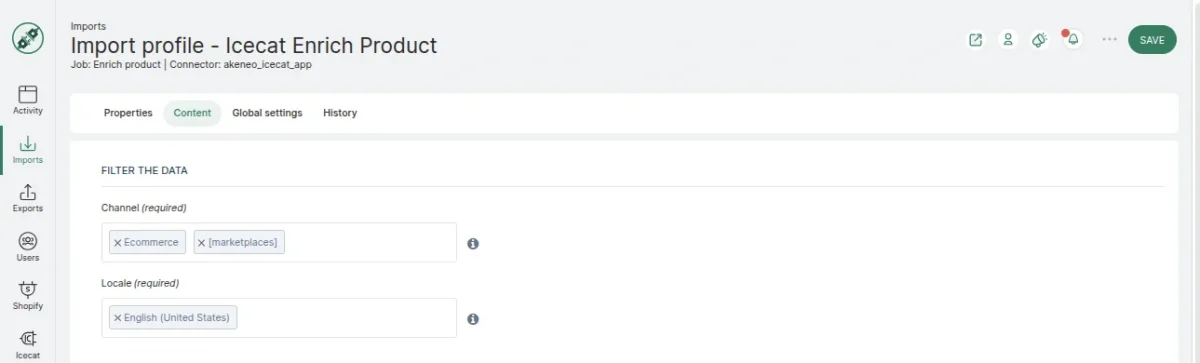

After that, click on Global setting in this you can do two things:
- Enable/Disable Download Image
- Fallback locale

Then click Save to save your changes, then Import, and wait for the product execution process to finish.

When the import process is complete, the system fills in the product data.


Import Jobs-Attribute Import
After features are mapped to Akeneo attributes, this job imports the actual data (attributes) from Icecat based on those mappings.
It ensures that attributes (like names, descriptions, or images) are brought into Akeneo in the correct format and structure.
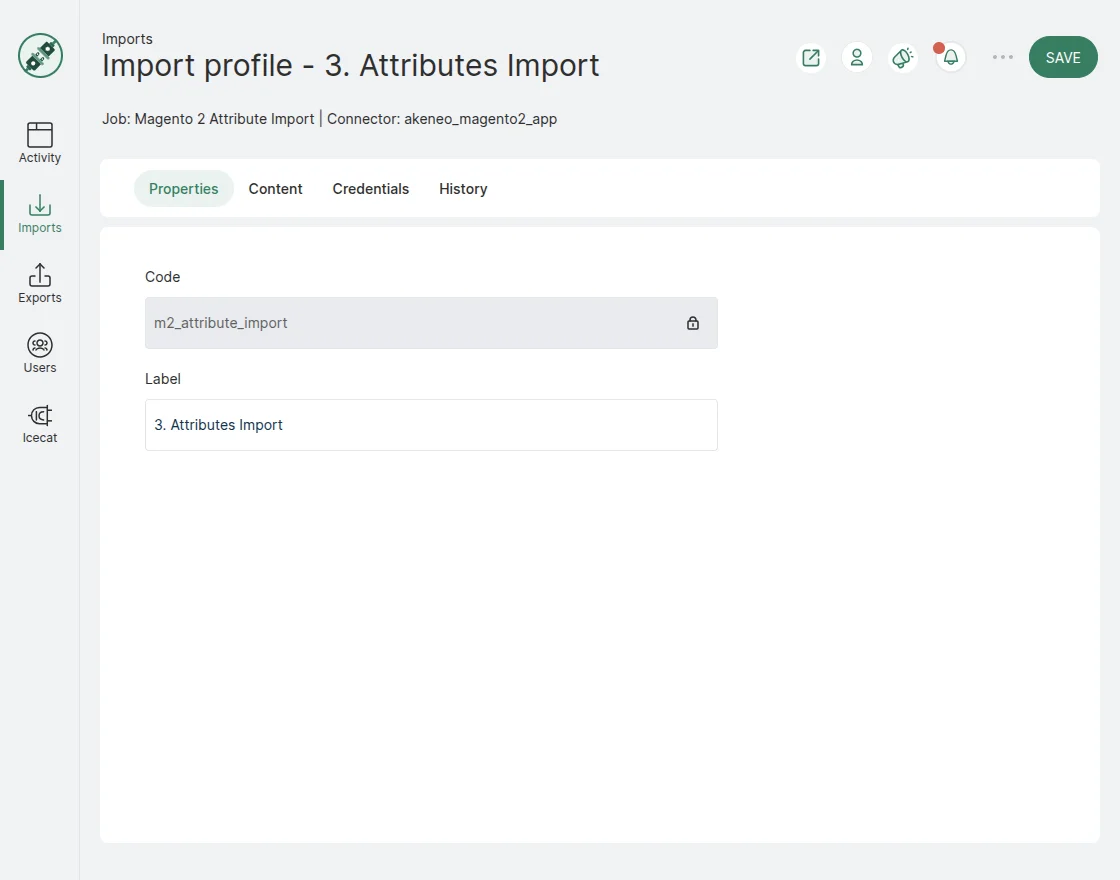
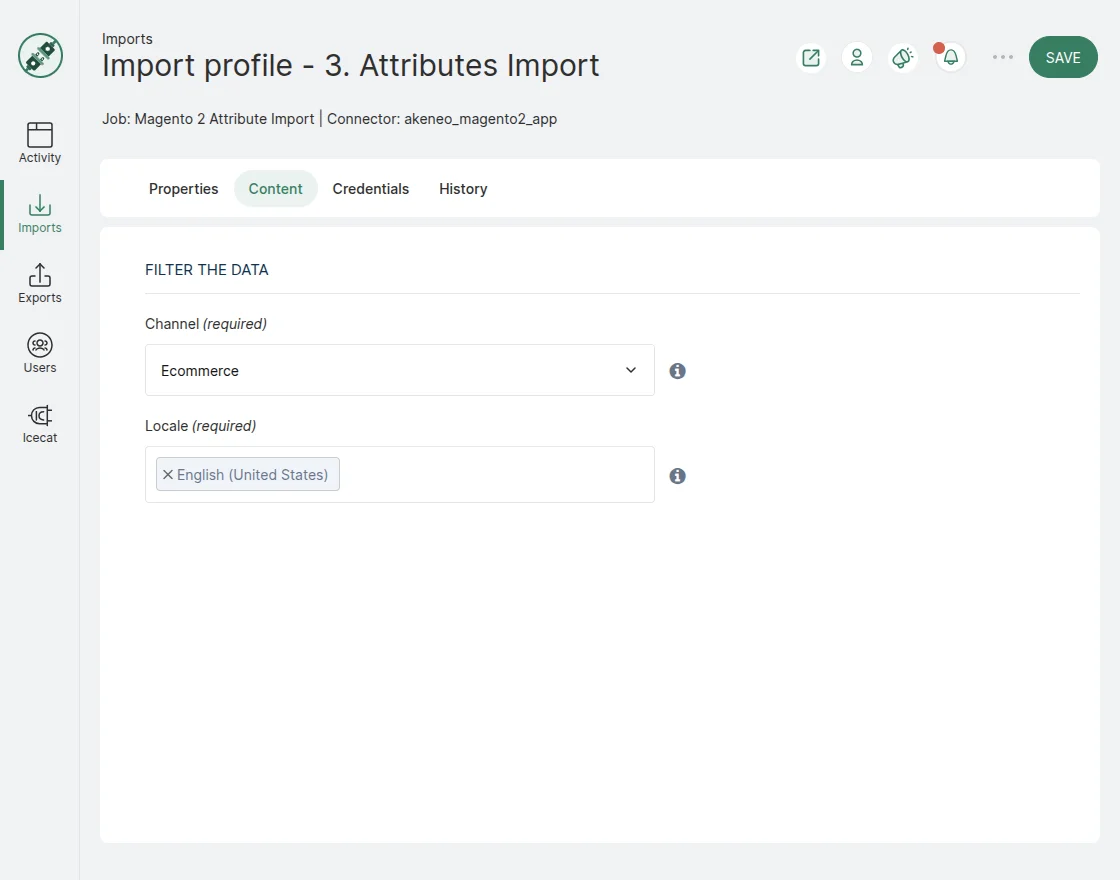
To import the content, it is mandatory to select both the Channel and the Locale (language), as shown in the image below.
Feature Mapping -Import Type
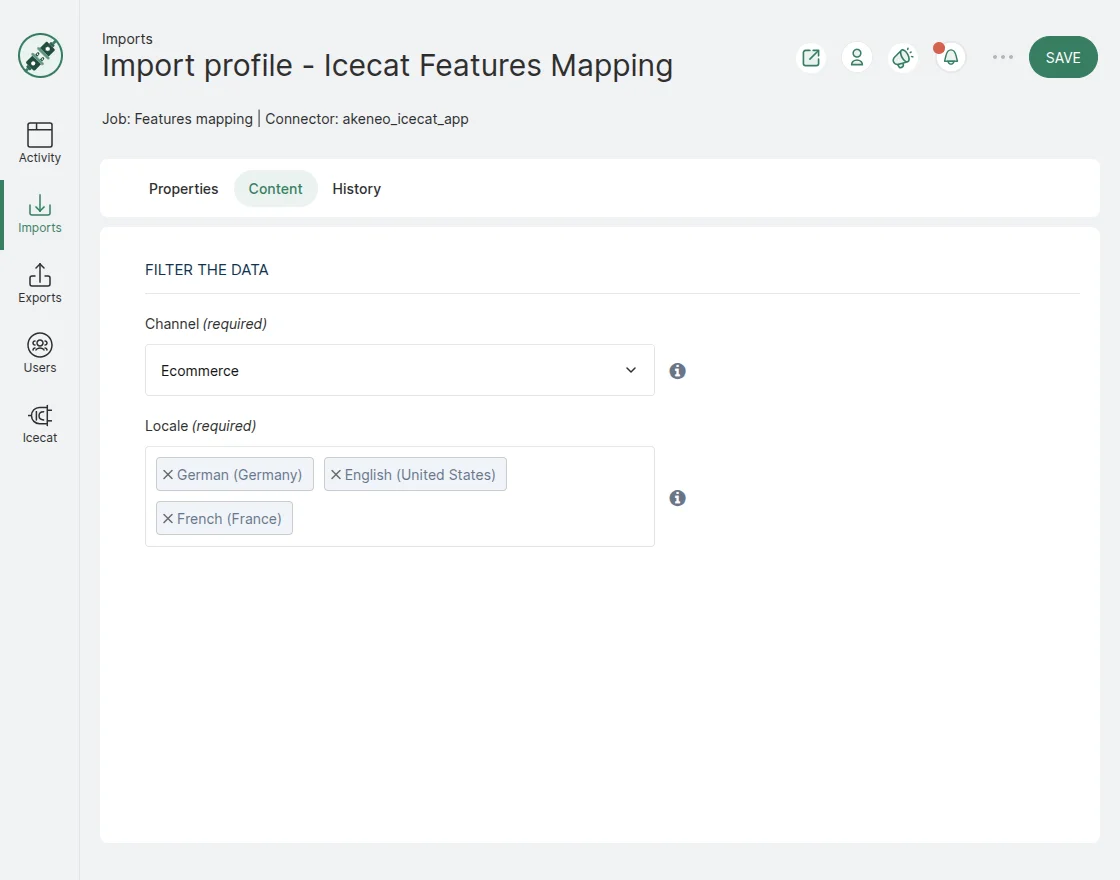
This job imports the list of product features from Icecat into Akeneo. These features form the basis for subsequent mappings, including Common Attribute Mapping and Other Mappings.
Without importing them first, Akeneo cannot recognize or map these features, as it has no knowledge of which features are available in Icecat.
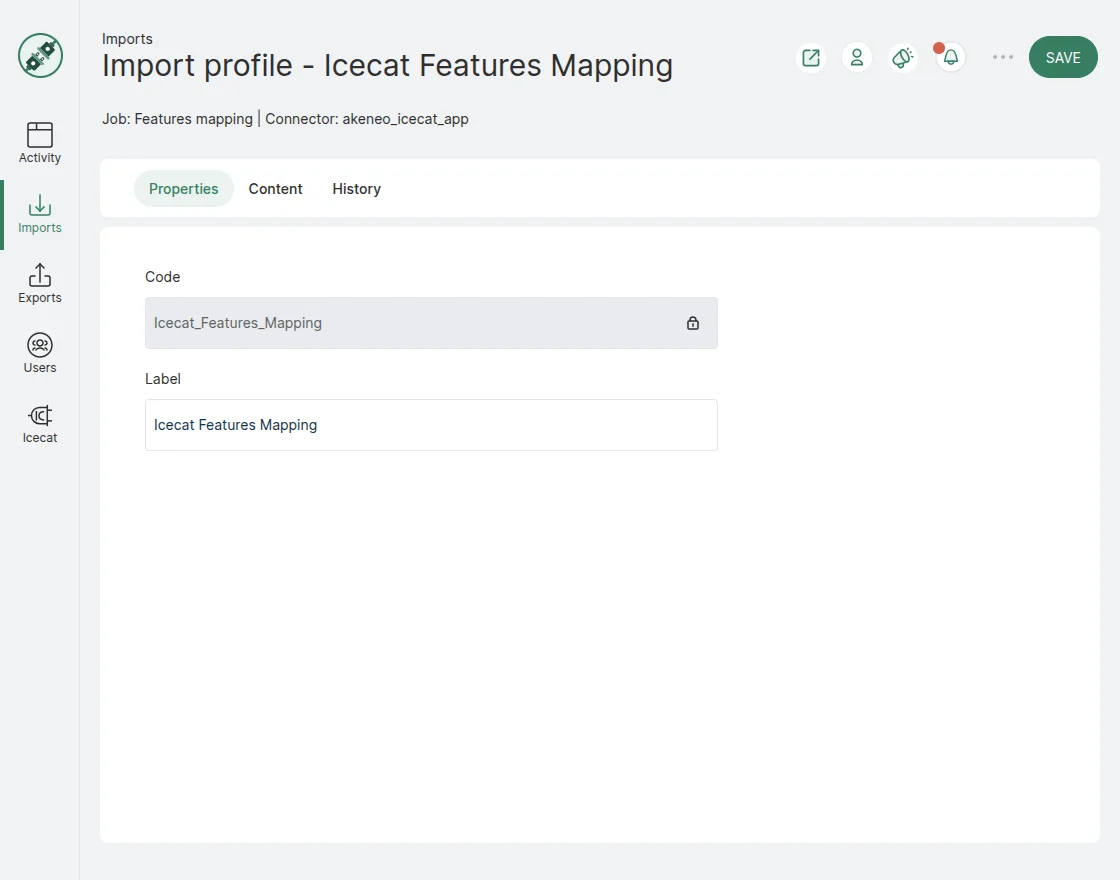
To import Icecat feature mappings, it is mandatory to select both a Channel and a Locale (language), as shown in the image below.
Support
This was all about the Akeneo Icecat App. I hope you have the idea of our app. Thanks for taking the time in reading this blog.
And also, please don’t forget to share your feedback and suggestions under the comment box given below.
Moreover, If you have any queries or suggestions, feel free to add a ticket to our HelpDesk system or reach out to us at [email protected].
Current Product Version - 2.2.0
Supported Framework Version - 6. x & 7. x


Be the first to comment.