Magento 2 Semantic Search extension enables customers to search for products using Artificial Intelligence and Natural Language Processing(NLP).
It employs NLP algorithms to interpret the meaning of search queries, allowing it to understand related terms and context and it helps in delivering more accurate search results.
Magento 2 Semantic Search extension allows users to use their queries in natural language, this makes the searching process more user-friendly.
Customers can refine their search results based on various attributes such as price range, brand, size, color, and more.
If customers type in short, fragmented phrases or complex sentences then it can figure out the intent behind the search and return accurate or relevant results.
Hence, this extension is quite innovative for enhancing the overall shopping experience of customers on the Magento 2 e-commerce website.
If you want to enhance your Magento 2 e-commerce store by searching products using images, you can check our Magento 2 Product Search via Image extension.
You can also check the below tutorial to get to know the working of the extension,
Features
- It allows users to search for products using search queries.
- It allows users to filter search results based on various attributes.
- Admin can set the no. of results for matched products.
- Admin can configure the distance value for searching accuracy.
- Customers will get relevant or accurate results based on queries.
- It uses AI and NLP technology to understand natural language queries.
- It is compatible with Magento 2’s product GraqhQL API to search.
Minimum System Requirement (API Setup)
The following minimum system requirements are needed for this extension,
- Python Version – 3.10
- RAM (4 GB)
- Space (16 GB)
- Server key and cert files (for Flask API)
- Docker (Optional)
- Two ports (5000 and 8000)
- API Key (If you would like to use Hosted Platforms Gemini,OpenAI etc. for creating embeddings) – Optional
Note: The minimum system requirements may vary based on the data.
You can also check the AI Models Server Installation Guide for reference.
Installation
The installation is quite simple just like the standard Magento 2 extensions.
#Download Module
Firstly, you need to log in to the Webkul Store, go to My Account>My Purchased Products section, verify, and then download and extract the contents of this zip folder on the system.
#Upload Folder
Once the module zip extracts, follow path src>app and then copy the app folder into the Magento 2 root directory on the server as shown below:

# Run Commands
You need to run the following commands:
php bin/magento setup:upgrade
php bin/magento setup:di:compile
php bin/magento setup:static-content:deploy
php bin/magento indexer:reindex
php bin/magento cache:flush
# Additional Commands
You need to run the following commands to create the embeddings:
Create/update existing product embeddings via the terminal
php bin/magento generate:embeddings
Create/update selected product embeddings via the terminal
php bin/magento generate:embeddings -p 1,2,3
Language Translation
For translating the module language, navigate through the app/code/Webkul/AISearch/i18n and edit the en_US.csv file.
Thereafter, rename the CSV as “en_SA.csv” and translate all right side content after the comma in the Arabic language. After editing the CSV, save it.

Now, upload it to the path app/code/Webkul/AISearch/i18n where the installation of Magento 2 is on the server.
The Magento 2 Semantic Search will be translated into the Arabic Language. It supports both RTL and LTR languages.
The user can edit the CSV like the image below.

Initial Configuration Settings
After the successful installation of the module, for configuration admin will navigate Stores->Configuration->AI Configuration.
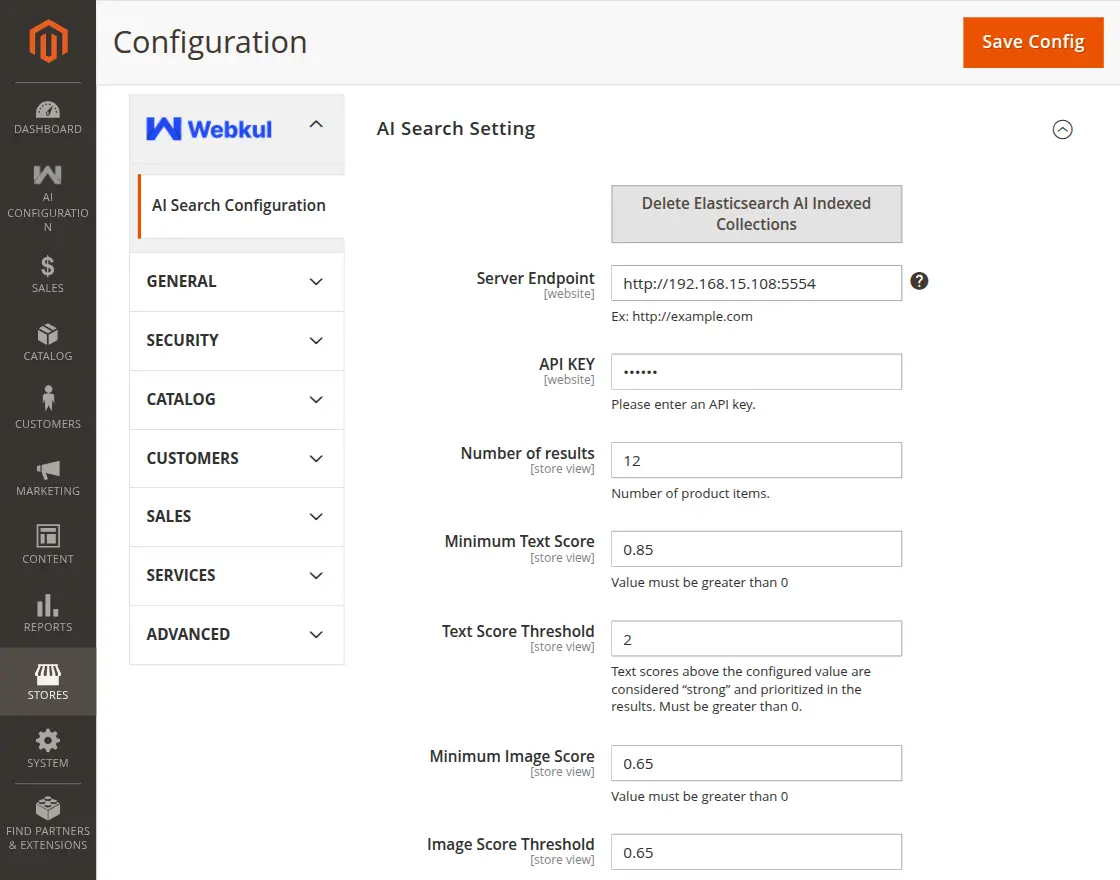
Admin can also access the configuration by navigating AI Configuration->General Configuration.

AI Search Setting:
Server Endpoint: Enter the Server Endpoint.
API Key: Used to securely connect and authenticate Magento with the AI search engine.
Server Endpoint – Enter the Server Endpoint.
No. of results – Admin sets the number of product search results displayed on the front end after query searching.
Minimum Text Score: Queries with a score below this value are excluded from search results.
Text Score Threshold: Queries with this score or higher are prioritized at the top of search results.
Minimum Image Score: Products with image scores below this value will not appear in search results.
Image Score Threshold: Products with image scores equal to or above this value will appear higher in search results.
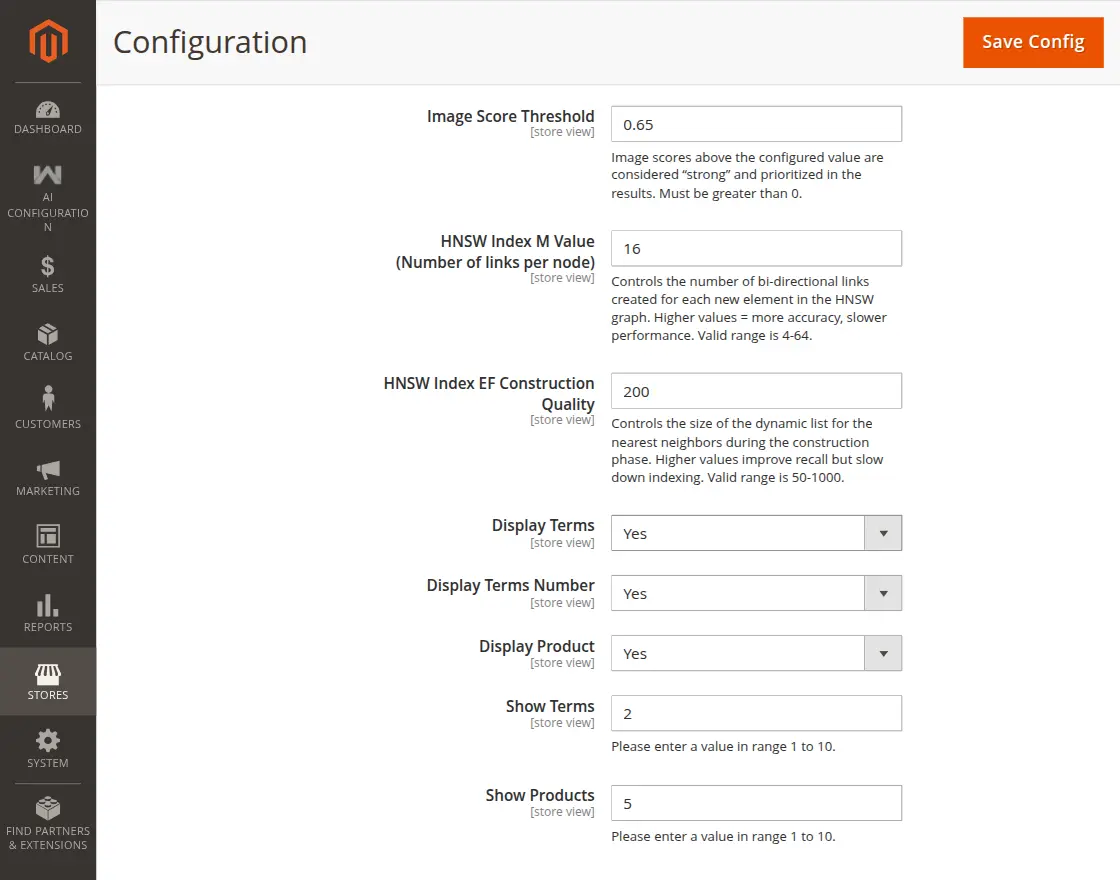
HNSW Index M Value: Defines the number of links per node in the HNSWV index. Higher values improve accuracy but use more resources.
HNSW Index EF Construction Quality: Determines how accurately the index is built. Higher values improve precision but slow down indexing.
Display Terms: Enable this option to show searched terms in the results.
Display Terms Number: Set how many search terms will be shown in the results for user reference.
Display Product: Enable or disable showing products in search results.
Show Terms: Define how many search terms appear in the search suggestion dropdown.
Show Products: Define how many product suggestions appear in the auto-suggestion list while typing a query.
Note: If you update the HNSW M Value or EF Construction Quality, make sure to delete the existing Elasticsearch index and re-save the embeddings. This step is necessary for the new configuration changes to take effect properly.
After all the settings, click on Save Config to save the configuration.
Storefront Workflow – Magento 2 Semantic Search
After the successful configuration of the module, the frontend view will appear as shown in the below image.

The Search Suggestion feature shows matching products and terms while customers type in the search box.
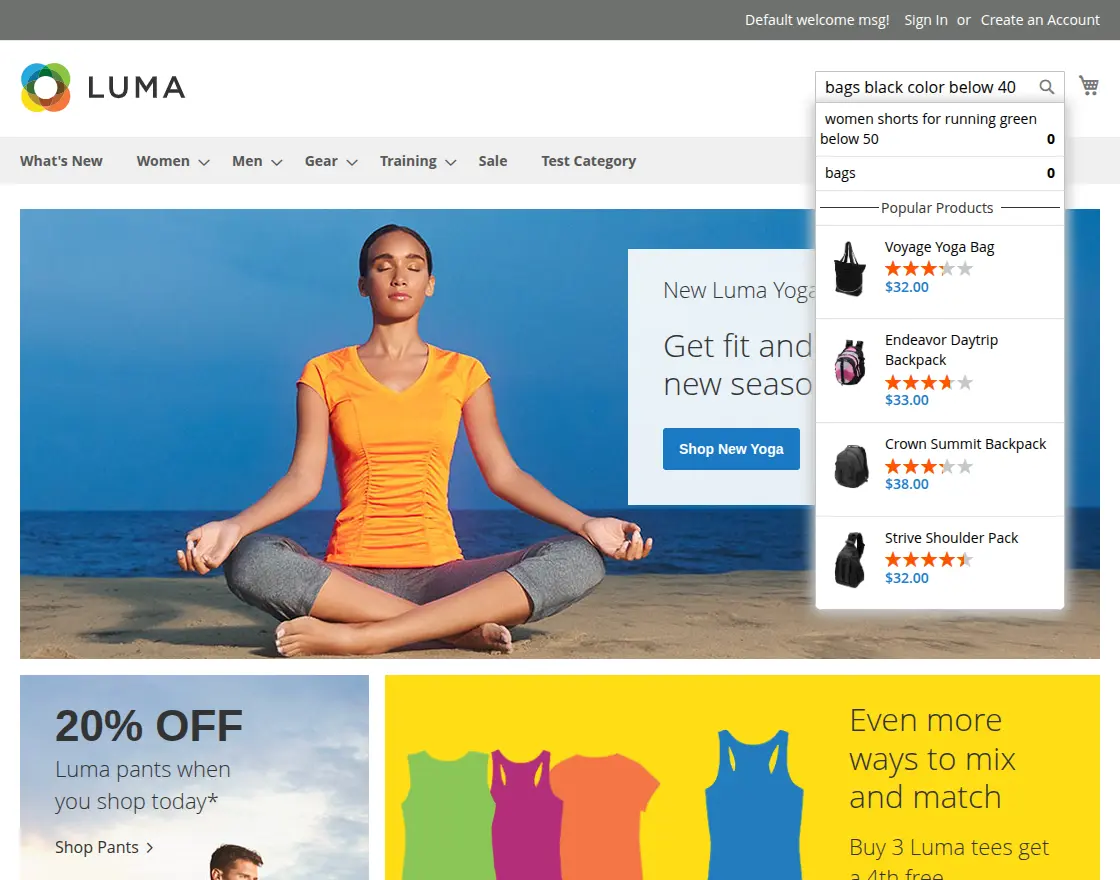
To start with the query search for the product, customers will enter the search query in the above-displayed search bar.

Magneto 2 Semantic Search finds the customer’s search queries and figures out the meaning of the query as it uses Artificial intelligence and Natural Language Processing (NLP).
After that, it shows the relevant or accurate results on the store. As you can see in the below snapshot, it throws an accurate result.

Let’s say you’re looking for a men’s digital watch, You might use the following search query on the store “men’s watch with digital display and LED backlight”.
This search query includes ” which is a product type” and digital” which is an attribute.
The customer will receive a list of products as search results as shown in the below image.

The website user can also find accurate results by using search queries if products are available in the store.

Attribute-Based Search – Magento 2 Semantic Search
Customers can find the products by using search queries with the help of attribute value as well.
For example, the customer uses the “cotton” attribute along with the product information, and they get a list of all cotton t-shirts.

Customers can also search for products using other attribute values like price range. Let’s see an example.
Here the customer enters the search query as “men shorts below 50”.
By using the NLP technique, it will figure out the meaning of the query and find that the customer asking about the price of products.
And will show the results of all the products whose price is less than 50.

Support
That’s all about the Magento 2 Semantic Search Extension.
If you still have any issues feel free to add a ticket and let us know your views to make the module better at webkul.uvdesk.com.
Current Product Version - 4.0.1
Supported Framework Version - Magento 2.0.x, 2.1.x, 2.2.x,2.3.x, 2.4.x


Be the first to comment.