Magento 2 Deals Extension allows the admin to set up daily deals for its customers. The admin can set the deal price using fixed or percent discount methods.
Configure deal status for any product and select the duration of the deal.
The customers can view the deal value information with the remaining time left. The deal collection page is for viewing all the deals of the store.
Check the overview of Magento 2 Deal Module –
Feature List
- Enable or disable the deal status anytime for any product.
- Set a deal price using two discount methods – fixed or percent
- Deal Collection page for viewing all the deals in the store in one place.
- Daily deals are visible on the product page, category page, search page, and deal collection page.
- The countdown timer shows the remaining time left to avail of the deal.
- Shows deal value information – percent off and amount saved.
- View top-viewed deals and top deals of the day on the deal collection page.
- Supports multiple language translations.
- Open source, highly customizable, and easy to manage.
- Magento 2 Deal module is now compatible with the GraphQL API.
- Magento 2 Daily Deals module works with Hyva themes as well. You can also find the complete list of Hyva Theme Extensions for your Magento 2 Adobe Commerce store.
Module Installation
Customers will get a zip folder, and they have to extract the contents of this zip folder on their system.
The extracted folder has a src folder, inside the src folder, you have the app folder.
You need to transfer this app folder into the Magento 2 root directory on the server as shown below.

After the successful installation, you have to run these commands in the Magento 2 root directory.
php bin/magento setup:upgrade
php bin/magento setup:di:compile
php bin/magento setup:static-content:deploy
php bin/magento indexer:reindex
php bin/magento cache:flush
Multi-Lingual Configuration
For Multilingual support, please navigate to Store>Configuration>General >Locale Options.
Select your desired language from the Locale option.
Language Translation
If you need to do the module translation, please navigate to the following path in your system app/code/Webkul/DailyDeals/i18n.
Open the file named en_US.CSV for editing as shown in the screenshot below.

Once you have opened the file for editing. Replace the words after the†comma(,)†on the right with your translated words.

After editing and translating the CSV file, you need to save the translated fil
e name according to your region language and country code, such as – de_DE.CSV.
Then upload the translated file to the same folder from which you obtained it.
Now your module translation is complete.

How to Add Deals to Products.
Admin can create Daily Deals for their products. They can choose particular products and provide them at reduced prices for a limited duration.
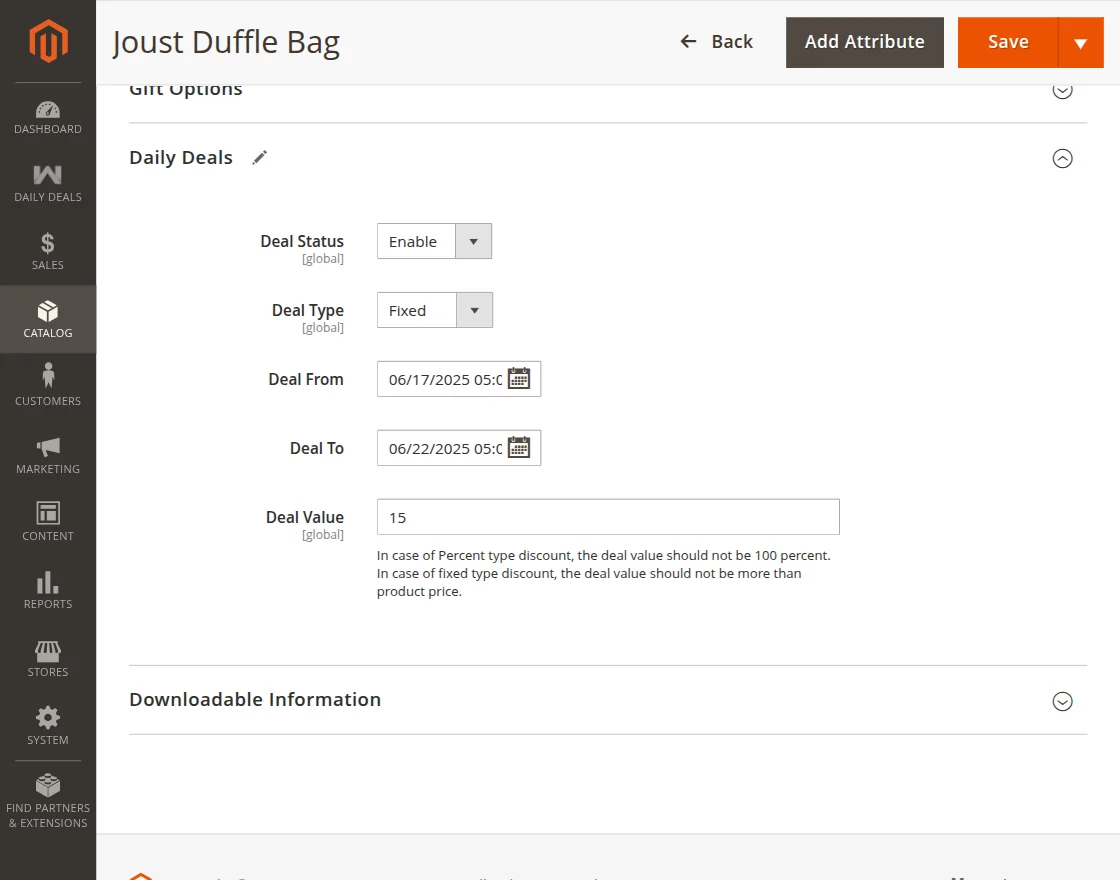
Here, the following options are available:
Deal Status – Enable this option to apply a deal on this product, else select Disable.
Discount Type – Select how you want to calculate the deal price. There are two methods available – Fixed or Percent:
- Fixed – To set a specific deal price, select this option and enter the deal price in the deal value. So if the original price is $200 and the deal value is 60, the deal price will become $60.
- Percent – To set the deal price according to the percentage of the original price.
Enter the percent value in the deal value.
So if the original price is $200 and the deal value is 60, the deal price will become $120.
Date From – Select when to start the deal for this product. A calendar will appear, select the date & time, and click Done.
Date To – Select when to end the deal for this product. Select the ending date & time and click Done.
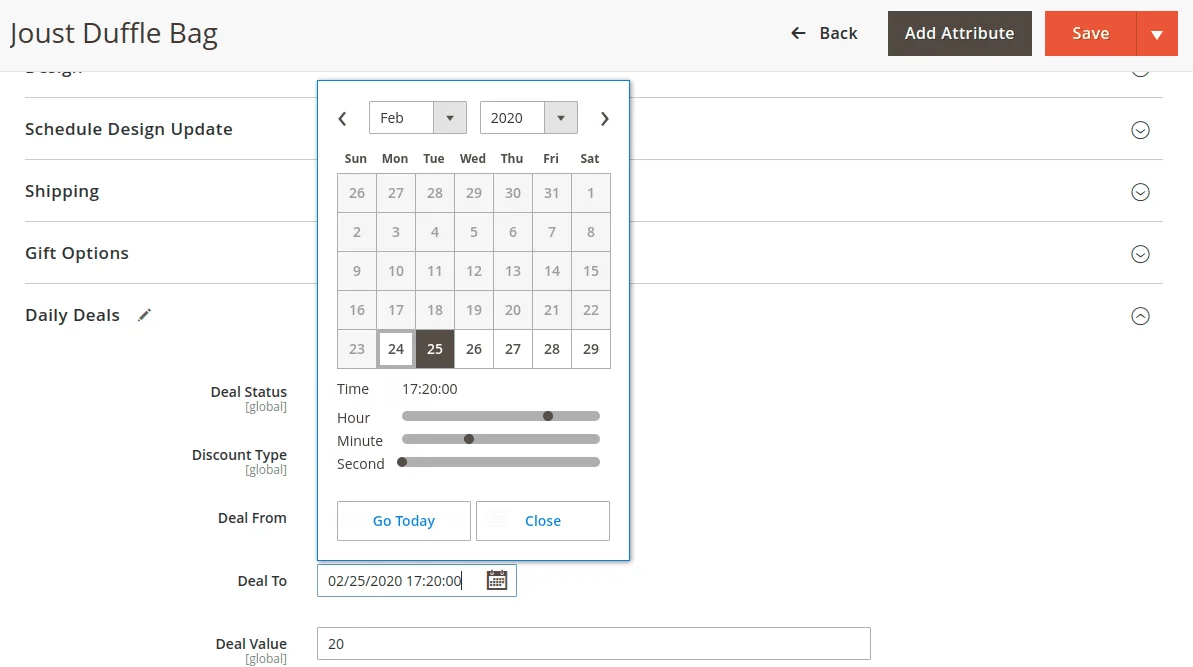
Deal Value – If the fixed discount type has been selected, the price entered here will be the deal price.
Whereas if the percent discount type is selected, the percent value entered here will be the deal price.
Click Save to apply your changes to appear on the front end.
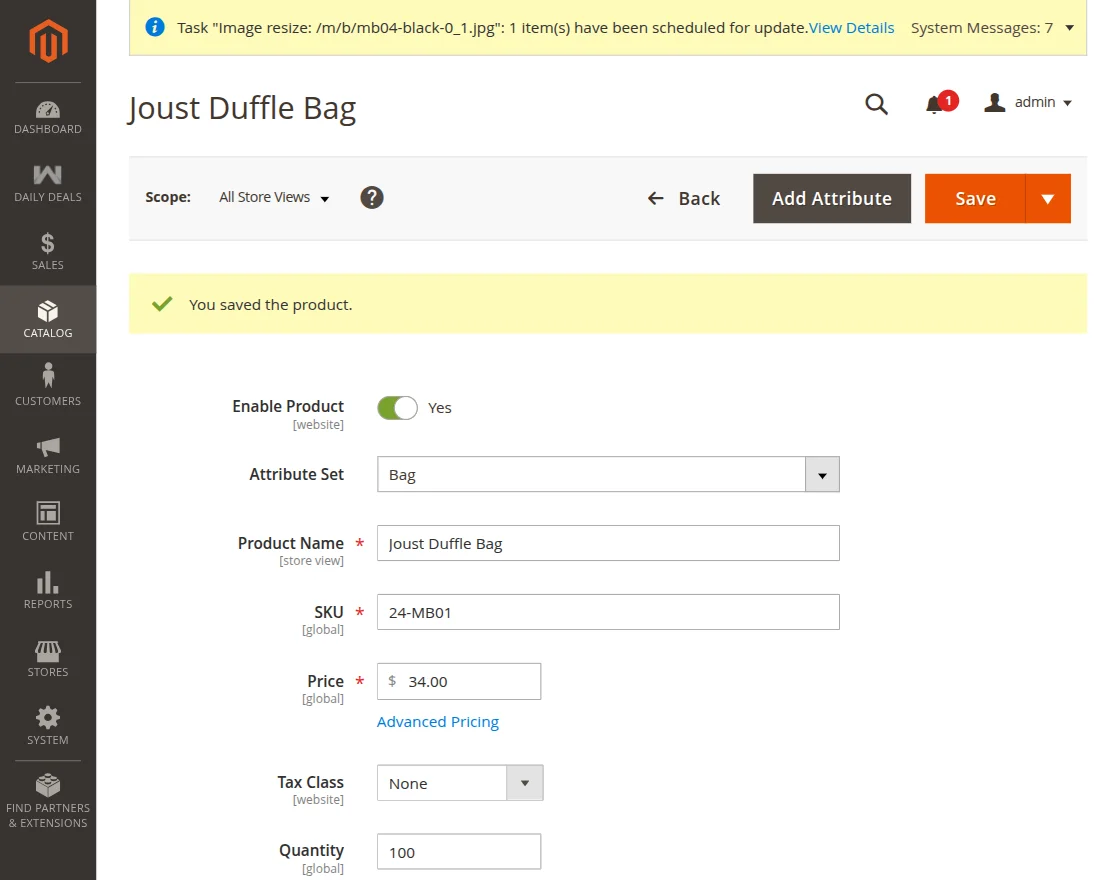
Daily Deals Product List
Here, the Admin can see the Daily Deal Product List.
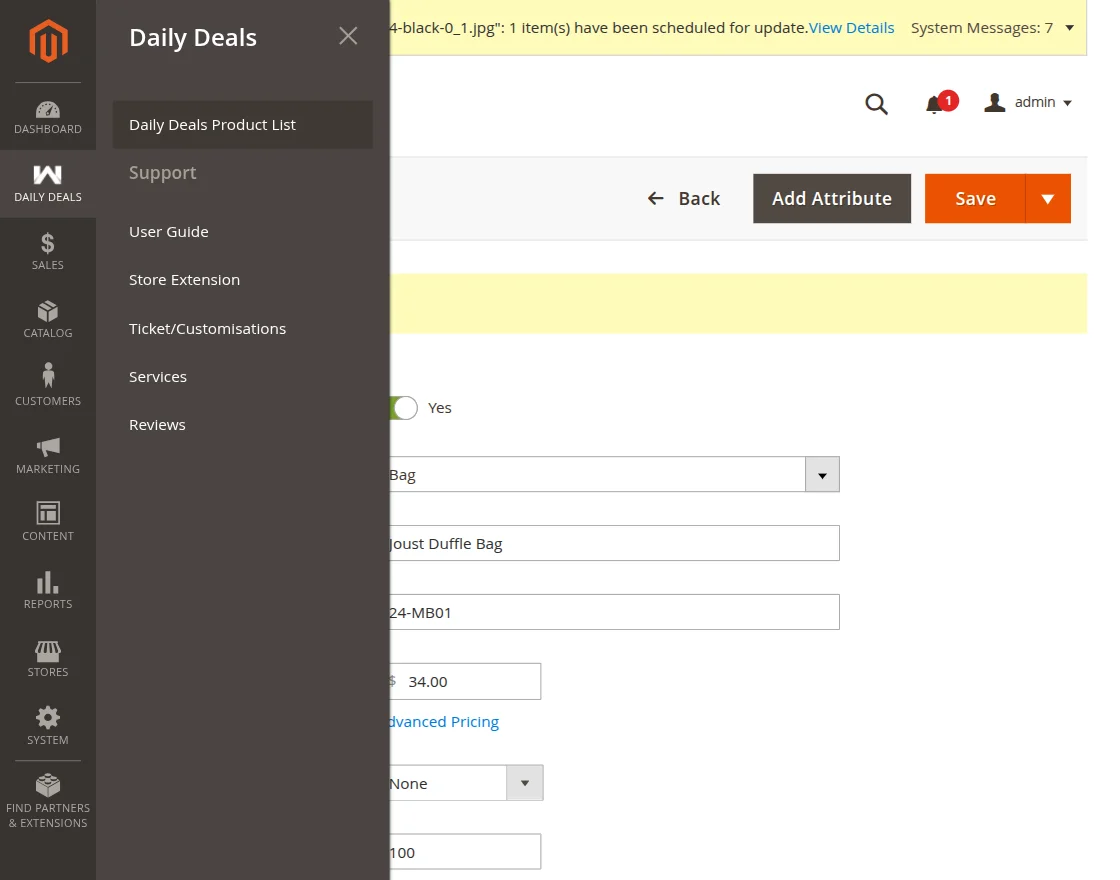
From the Daily Deals, choose the Daily Deal Product List to view the active Deals List, where the admin can view and add the “Daily Deals” as shown below.
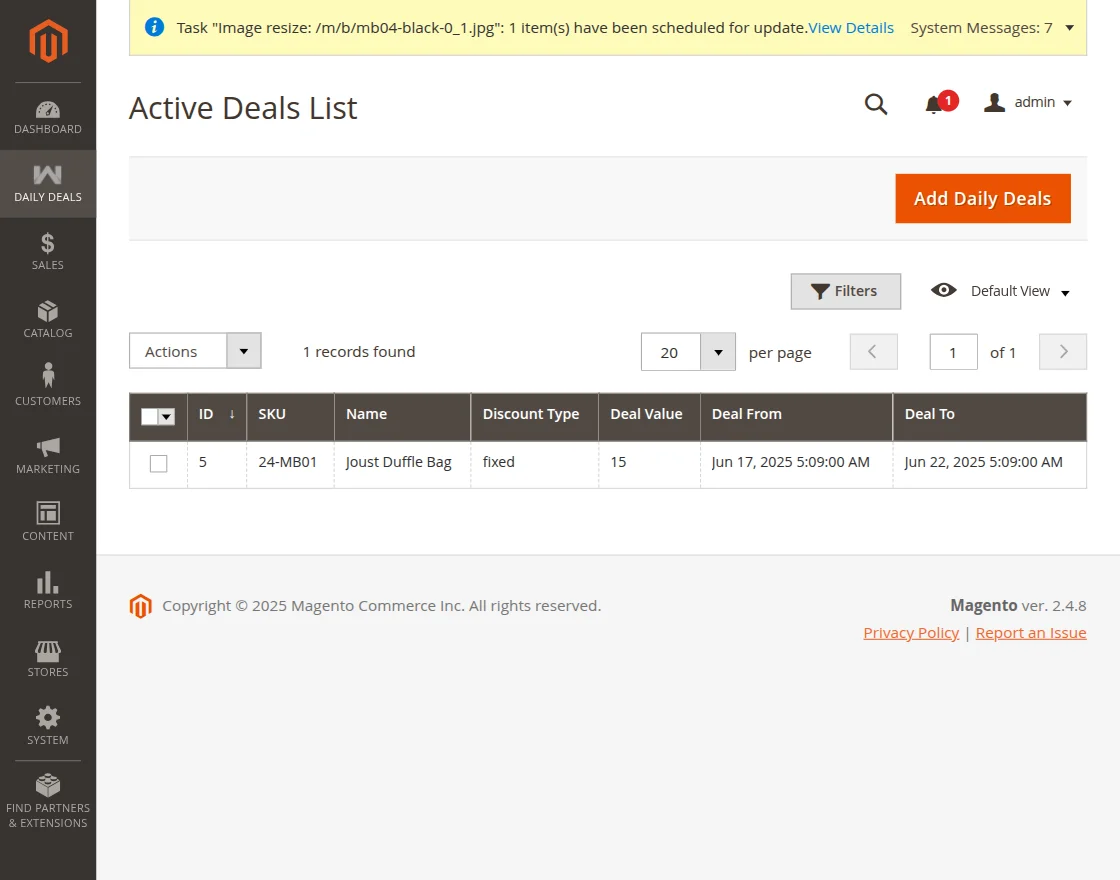
Add Daily Deals
To include fresh daily deals for your product, simply navigate to the “Add Daily Deals” tab, as shown in the image below.
Clicking on “Add Daily Deals” will open a new page, as described, where you can import daily deals products.
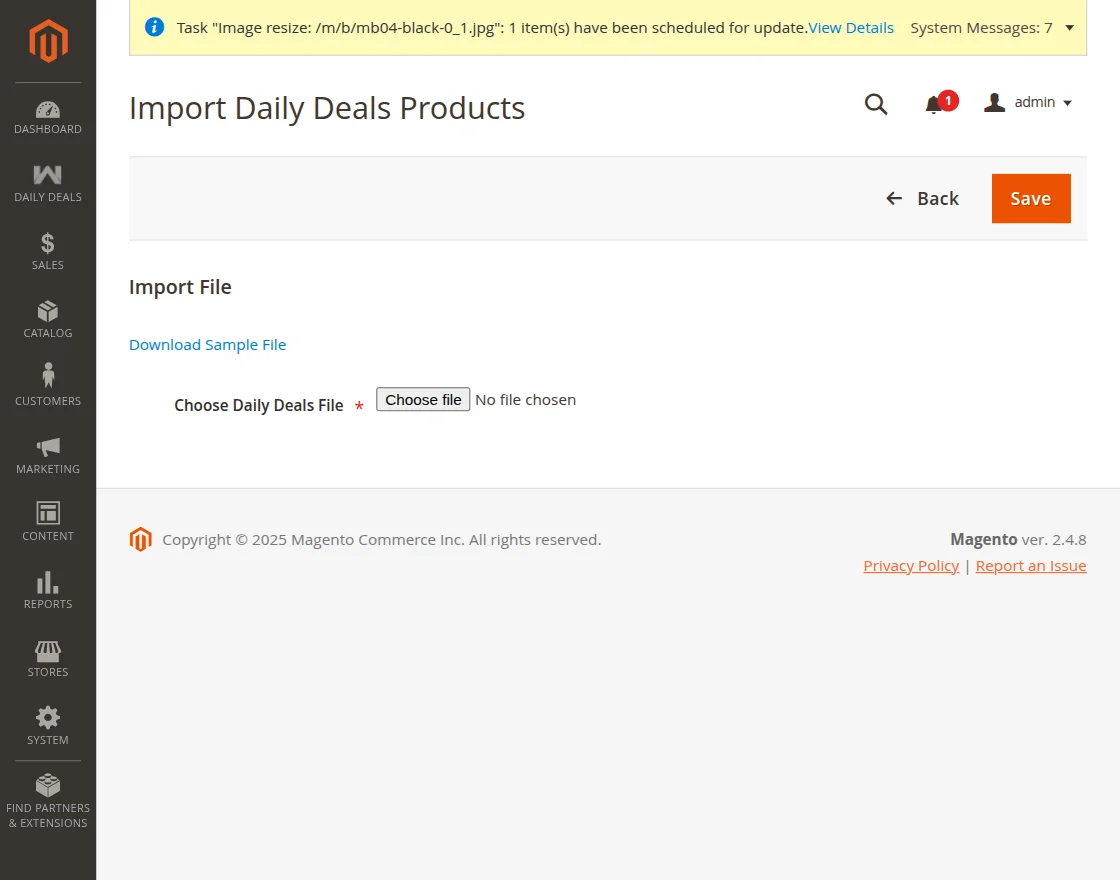
In this area, you have the option to update daily deals in bulk using a CSV file. To do so, navigate to the daily deals section and select the file you wish to import.
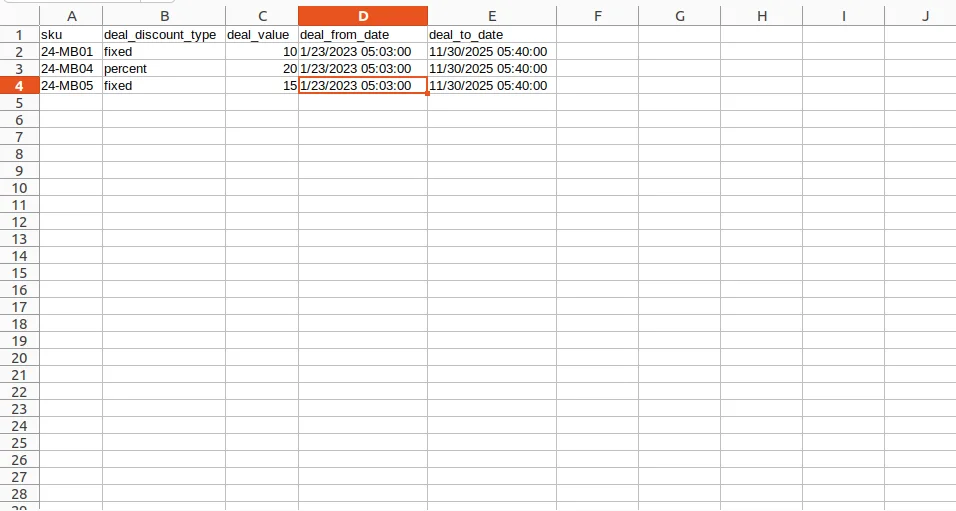
Once you import the File, a CSV file gets generated as per the image below.
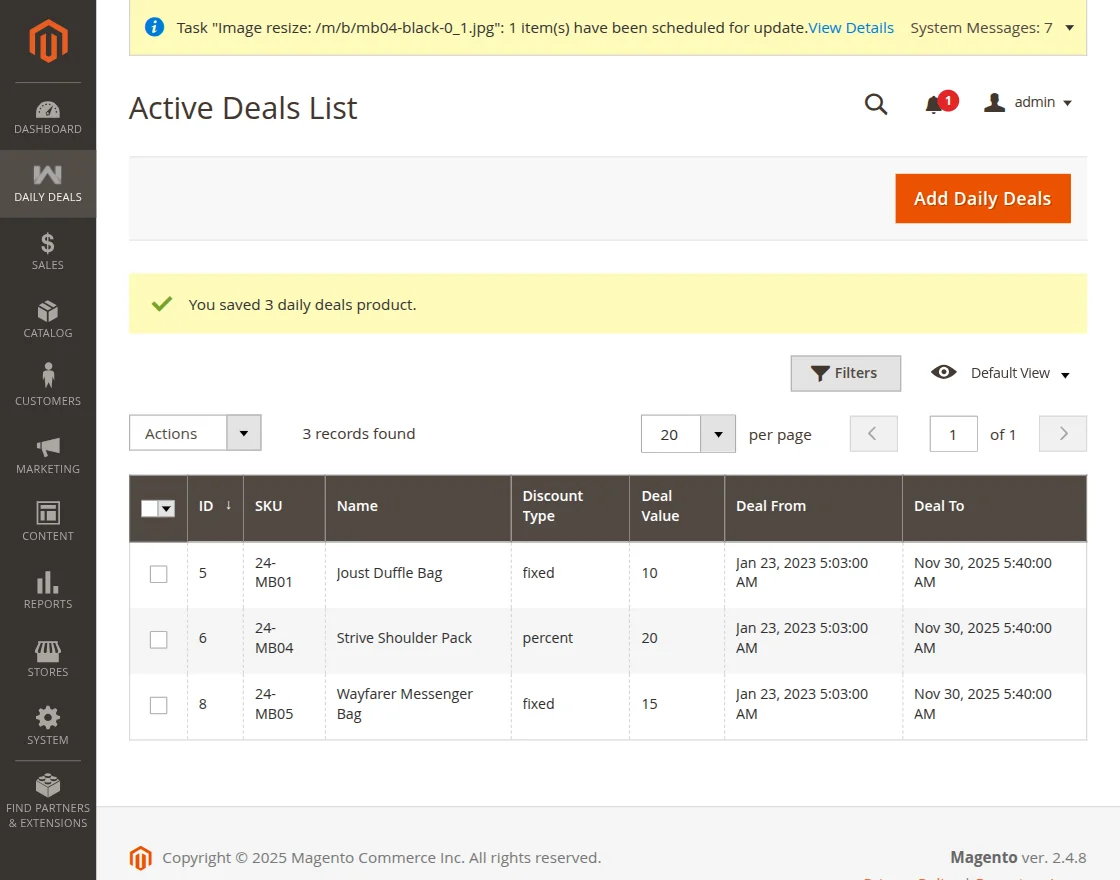
Once imported, a pop-up message will be displayed for the daily deals product as described below.
However, the Admin can also “disable” the Active deals from the Active Deals list page List as shown below.
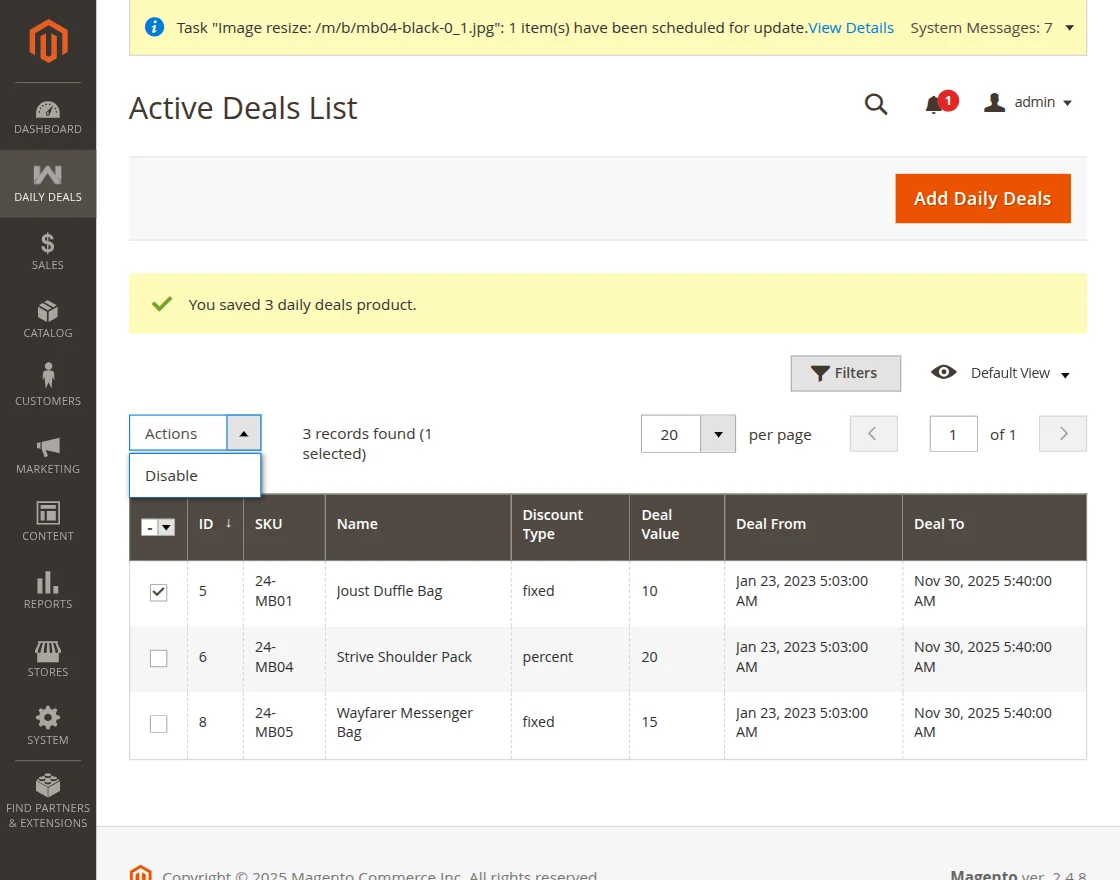
You will get a pop-up message to disable.

You will get a disabled product message on the screen.
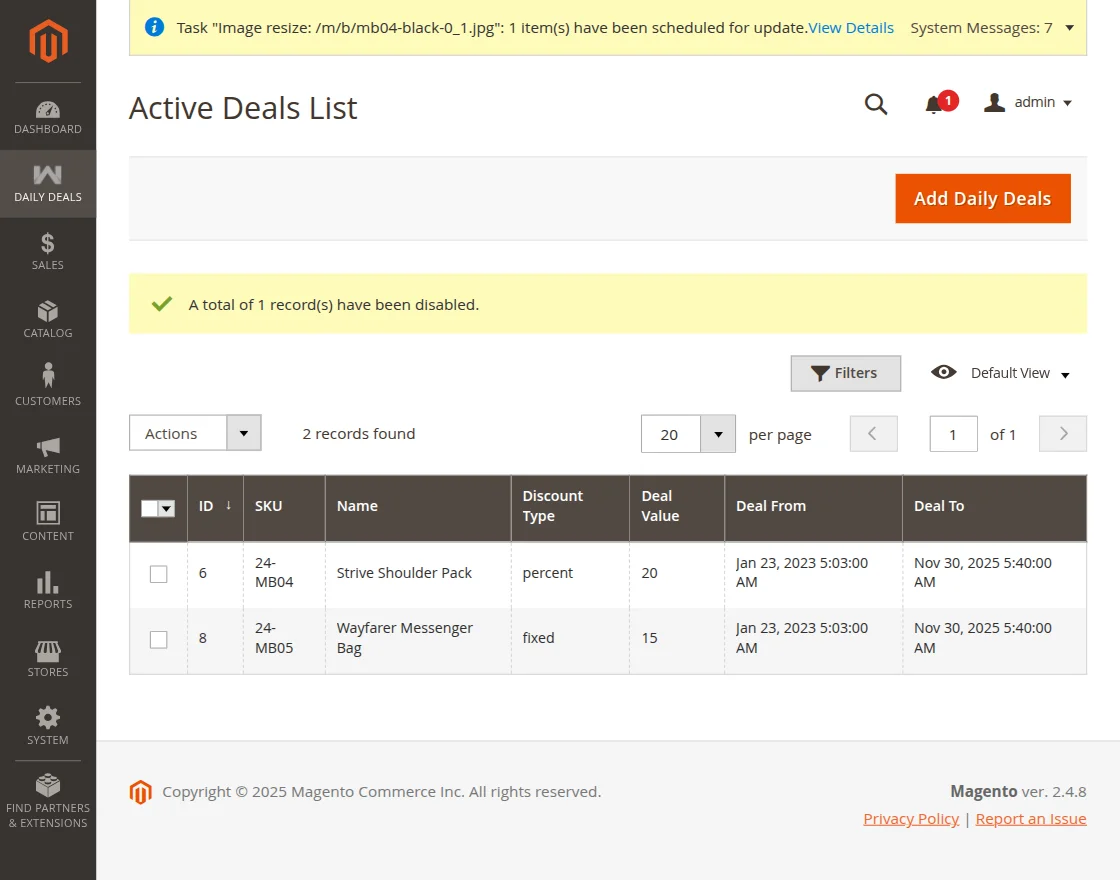
Customer View
Following the successful installation and editing of the products for Daily Deals. The users can find daily deal information in the store.
The daily deal information is visible on the product page, category page, and search page.
The users will see the deal price, regular price, deal benefit information, and the remaining time left.
Deal Collection Page
To view all the deals of the store in one place, users can go to the Deal Collection page.
From here, the users can see all the active deals available at the store.
On this page, the users will also see the top deals of the day and the top sales of the day.
Refresh statistics for Top Sales of the Day: Products are visible when we refresh statistics from the Magento 2 admin end.
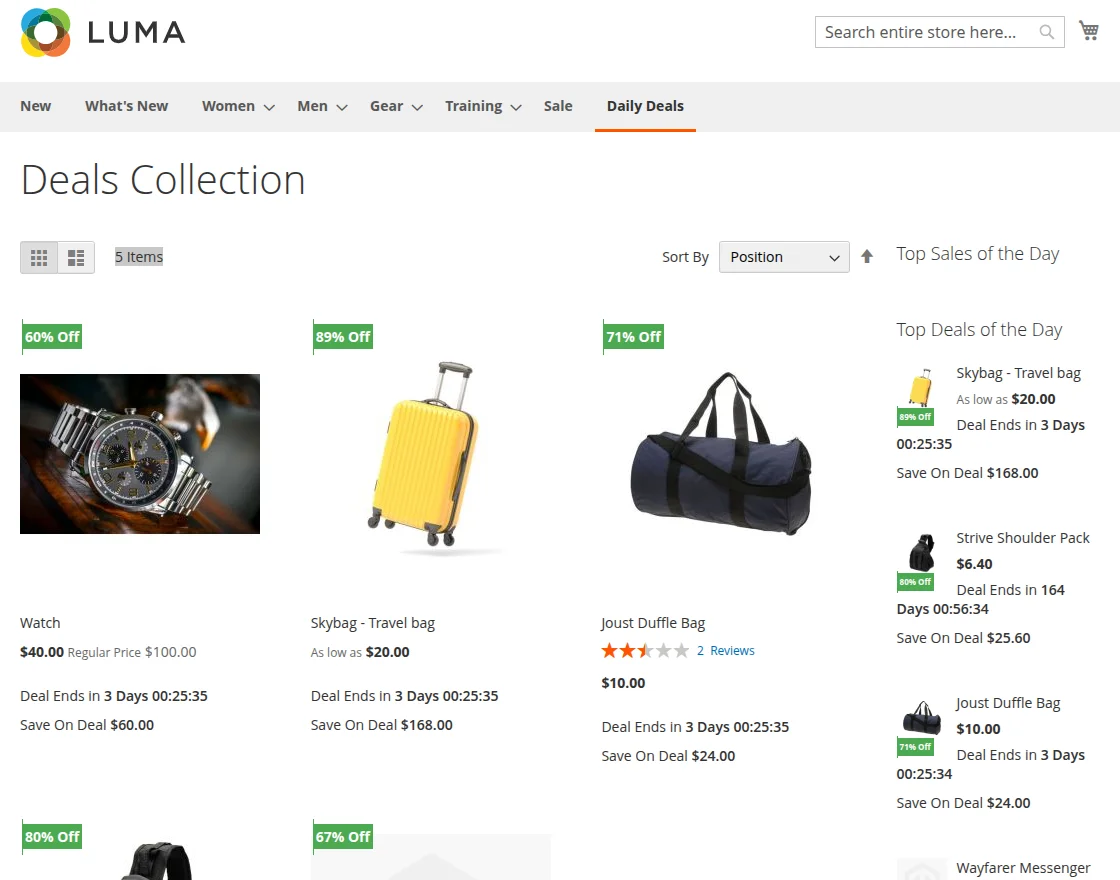
Category Page
The customers can also check the deal products on the category pages as per the image below:

Product Page
On the product page, the users can also see information about the deal.
The users can view the deal price and the regular price.
The remaining time left to avail of the deal. Deal value information – percent off and amount saved.
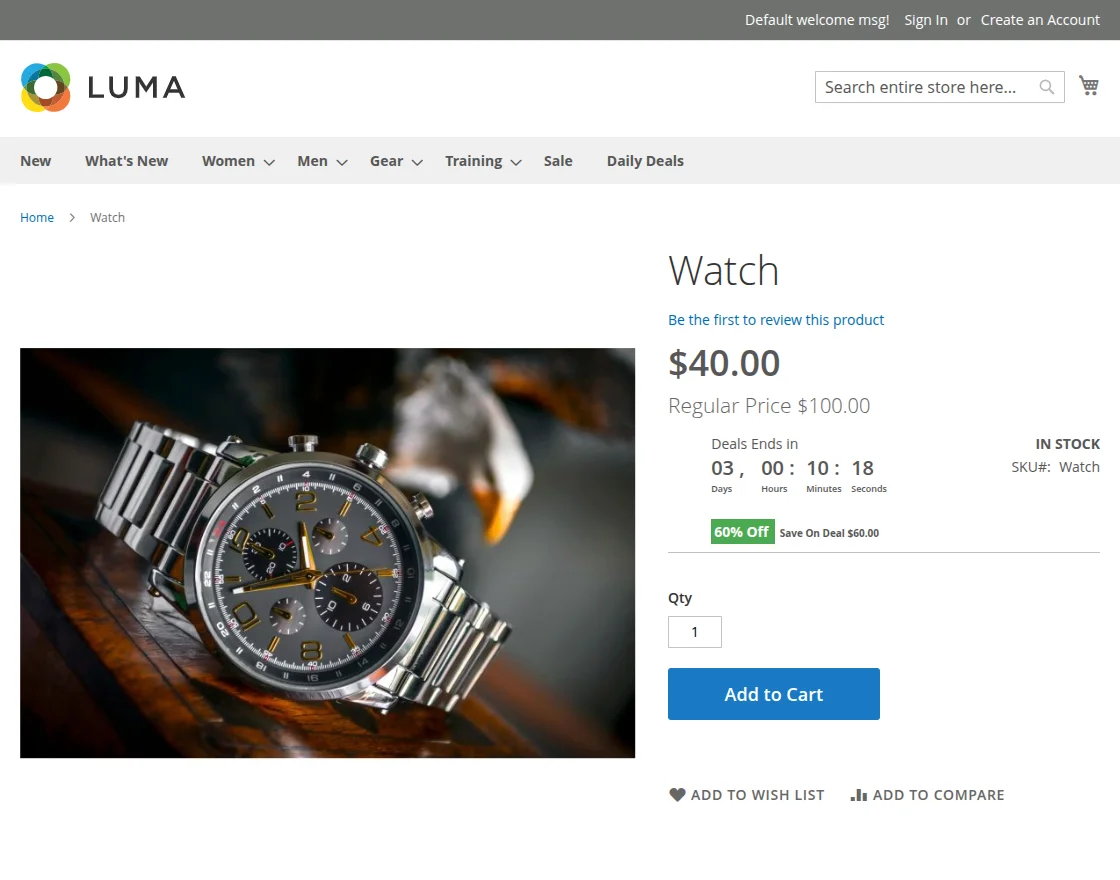
That’s all about the Magento 2(Adobe Commerce) Daily Deals.
If you face any issues, feel free to add a ticket to our HelpDesk system. You may also check our quality Magento 2 Extensions.
Current Product Version - 4.0.6
Supported Framework Version - Magento 2.0.x, 2.1.x, 2.2.x,2.3.x, 2.4.x


Please help me on this.