What is XPath?
XPath (XML Path Language) is a query language used to navigate, locate, and select elements or values from XML documents.
In modern practice, XPath is also widely used to locate elements in HTML (DOM) structures, especially in automation testing and web scraping, where precise element identification is required.
XPath was designed to describe paths to elements inside an XML document, similar to how file paths work in an operating system, making it easy to traverse structured data.
In this guide, we will dive into creating XPath expressions with multiple conditions, so you can handle dynamic web pages confidently and efficiently.
How does understanding HTML structure help you write reliable XPath?
Before you start writing an XPath, it is crucial to understand the HTML structure of the webpage you are working with.
Every webpage is made up of a hierarchy of HTML elements — tags like <div>, <input>, <button>, and <span> — that are often nested within one another. Understanding this hierarchy allows you to see how elements relate to each other and which ones are siblings, children, or parents.
For example, consider this snippet:
<form id="loginForm">
  <label for="userEmail">Email</label>
  <input type="email" id="userEmail" name="email" placeholder="Enter your email">
  <button type="submit">Login</button>
</form>
In the above HTML Structure,
- The
<input>element is a child of the<form>element. - The
<label>element is a sibling of the input field. - The
<button>element is another sibling within the same form. - When you understand this DOM hierarchy, you can write XPath expressions that locate elements relative to other elements, instead of relying on IDs.
For instance, locating the email input based on its label instead of its ID:
//label[text()='Email:']/following-sibling::input
Why XPath Is Highly Relevant in 2026
This approach ensures your XPath works even if dynamic IDs or classes change, making your automation more robust.
in 2026, XPath continues to play a crucial role due to its accuracy, flexibility, and broad industry adoption, especially in test automation and enterprise applications where dynamic UI structures are common.
1. Essential for Test Automation Frameworks
XPath remains a primary locator strategy in popular automation tools such as Selenium, Playwright, Cypress (via plugins), and Appium. When unique IDs or stable CSS selectors are unavailable in dynamic applications, XPath provides the most reliable way to locate elements.
2. Designed for Dynamic and Complex DOM Structures
XPath excels in handling modern web applications where element attributes change frequently or DOM structures are deeply nested. It allows testers to navigate parent, child, sibling, and ancestor relationships with precision, making it ideal for complex UI testing scenarios.
Example:
//button[contains(text(),'Submit')]/ancestor::form
3. More Powerful and Expressive Than CSS Selectors
Unlike CSS selectors, XPath supports text-based matching, partial attribute matching, and upward DOM traversal. This makes XPath indispensable when element identification depends on visible text or contextual hierarchy.
Example:
//label[text()='Email']/following-sibling::input
4. Critical for Web Scraping and Data Extraction
For web scraping complex and dynamic websites, XPath enables precise data extraction and works seamlessly with tools like Scrapy, BeautifulSoup (lxml), and Puppeteer, making it a preferred choice for structured data parsing.
How can we create XPath using multiple methods to locate HTML elements?
Although XPath was originally designed for XML documents, it is widely used today to locate HTML elements in modern web applications.
XPath helps identify elements based on attributes, text, and DOM relationships when building automation scripts or debugging UI behavior.
For Example consider the Sample HTML Element
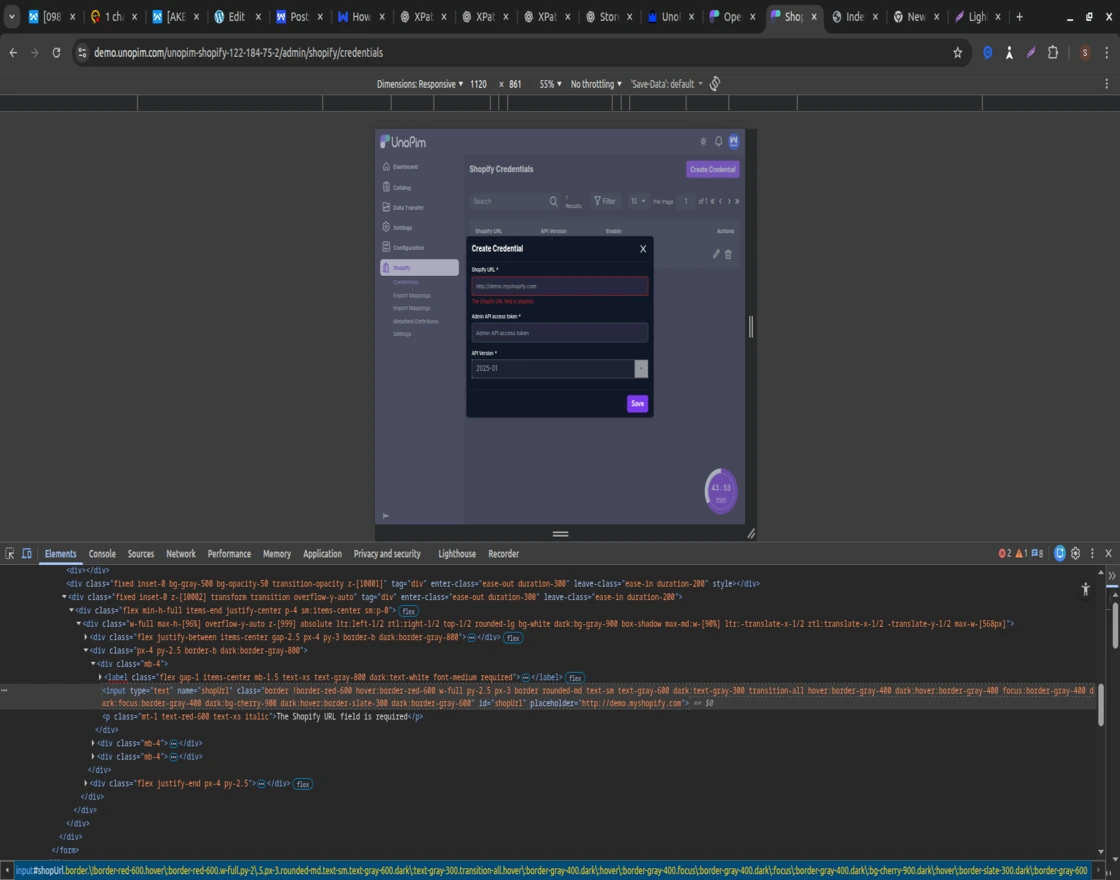
<input
  type="text"
  name="shopUrl"
  id="shopUrl"
  placeholder="http://demo.myshopify.com"
  class="border !border-red-600 hover:border-red-600 w-full py-2.5 px-3 border rounded-md text-sm text-gray-600 dark:text-gray-300 transition-all">
How do we create XPath using a single attribute?
XPath can locate an element using one unique or stable attribute.
This method is simple and easy to maintain.
Use this approach when the attribute value does not change across builds.
Using a unique and stable attribute like id for above element:
//input[@id='shopUrl']
- Simple
- Fast
- Preferred when the attribute is stable
How can multiple attributes be used in XPath?
When a single attribute is not reliable, multiple attributes can be combined using and.
This improves accuracy and reduces false matches.
Combining multiple attributes improves accuracy:
//input[@type='text' and @name='shopUrl']
- Useful when
idis not reliable - Reduces false matches
How does text-based XPath help locate elements?
Text-based XPath allows elements to be located using visible text.
This is useful for buttons, links, and labels.
This approach matches how users interact with the UI.
The above specific input element does not contain visible text, so text-based XPath is not applicable here.
When should developers use contains() in XPath?
The contains() function is useful when attribute values are partially dynamic.
It matches a portion of the attribute or text.
Use contains() when attribute values include multiple or dynamic classes:
//input[contains(@class,'border-red-600')]
- Useful for Tailwind or utility-based CSS
- Handles partial matches
This is commonly used in modern UI frameworks.
How does starts-with() help with dynamic elements?
The starts-with() function matches elements where attribute values begin with a known prefix.
It works well for auto-generated IDs.
If IDs or classes are generated with a prefix:
//input[starts-with(@id,'shop')]
- Works even if ID becomes
shopUrl_123 - Ideal for dynamic builds
How can parent-child relationships improve XPath reliability?
XPath can locate elements based on their position in the DOM hierarchy.
This helps when elements do not have unique attributes.
If above input element input is inside a form:
//form//input[@name='shopUrl']
- Avoids dependency on changing IDs
- Uses DOM structure instead
Combine Attributes in XPath Expression:
Once you have identified the unique attributes, you can combine them in an XPath expression using logical operators such as and or or to create a multi-element XPath.
Using the identified attributes from the previous step, here’s an example of a multi-element XPath:
//input[@type='text' and @placeholder='Code' and @id='input_022737f0-a26a-41c7-9f39-93dfa14199ca']
This XPath will select the <input> element that matches all the specified attribute conditions.
Test and Validate the XPath:
It’s crucial to test and validate the XPath expression to ensure it accurately selects the desired element. You can use browser developer tools or dedicated XPath evaluation tools to test your XPath against the target webpage.
Make sure to test the XPath on various instances of the element to ensure its reliability. If the XPath fails, review the HTML structure and attributes to identify any changes or potential conflicts.
Also Read:
Element Locators In Selenium WebDriver
Conclusion:
Creating a multi-element XPath allows you to target specific elements on a webpage accurately.
By identifying unique attributes and combining them in an XPath expression, you can navigate complex HTML structures and retrieve the desired information for web scraping or automation tasks.
Remember to understand the HTML structure, identify unique attributes, combine them in an XPath expression, and thoroughly test and validate the XPath for reliable results.
With these techniques, you’ll be well-equipped to leverage XPath effectively in your web scraping and automation projects.
Support:
That’s all for the How to create an XPath with multiple elements if you have any doubts or queries regarding the extension get back to us at [email protected] or create a ticket at our HelpDesk system.


Be the first to comment.