WooCommerce Serial & License Key Manager: Get powerful serial keys and pins manager plugin that enables you to easily sell any kind of licensed or secret keys distributed products.
Additionally, convert your WooCommerce webstore products into a Serial Keys and Pins instantly.
The store visitors will experience the high-performance benefits of the Serial Keys and Pins which is based on product.
Moreover, it facilitates the admin to add serial keys to unlimited products and expand the business digitally.
Note – This plugin is now compatible with WooCommerce’s latest High-Performance Order Storage (HPOS) and Cart and Checkout block.
We provide a production version of the plugin. If you want a development version then you can get it at an additional cost. Please contact [email protected] for it.
Watch the below video tutorial to understand the extension workflow :
Features
- Simple and easy installation of the plugin.
- Add serial keys to unlimited products.
- Unique serial key for each product unit.
- Easy to customize and add numerous serial keys for a single product.
- Increases user engagement in the store.
- Provides a different dimension for store owners to add different types of products.
- Instant secret key delivery to the customer’s account.
- Admin can also check the assigned serial key for each of the orders
- Admin now easily views data regarding assigned keys.
- Admin generates serial keys using custom user-defined patterns.
- When Admin sets no stock quantity for a product, the system automatically generates serial keys using a default quantity.
- Admin gains a configuration option to determine if product stock quantity is required.
- The system automatically generates and assigns serial keys for variable products.
- Option for admin to set a custom prefix for serial keys.
- Configuration for admin to create serial keys utilizing a custom-defined character set.
- Admin enables customized styling.
Installation
The user will get a zip file that he has to upload in the “Add New” menu option in the WordPress admin panel.
For this login to WordPress Admin Panel and Under the Dashboard hover your mouse over the “Plugins” menu option which brings out a Sub-Menu and then select the “Add New” option.

After this, you will see an option on the top of your page that is “Upload Plugin”. Now, click the option to upload the zip file.

Click on the “Upload Plugin” option, below that you will see a button “Choose File”. Now, click on the button to browse for the zip file as per the snapshot below:

After browsing the file, click the “Install Now” button to install the plugin as per the snapshot:
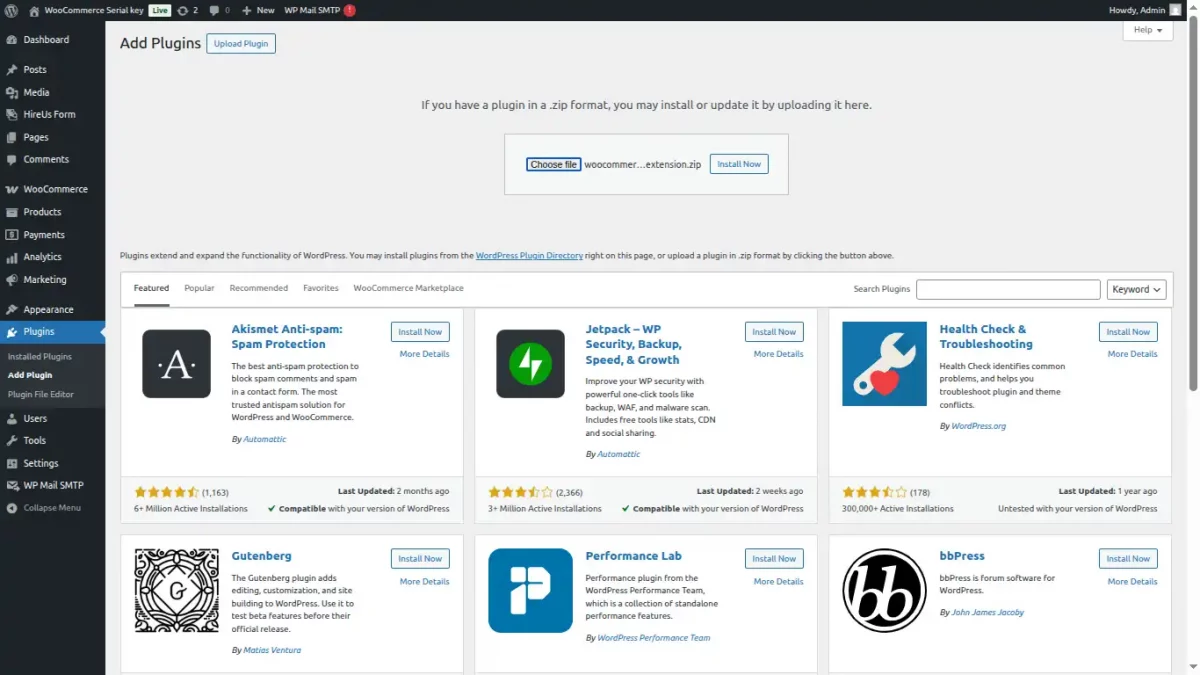
Now, when you correctly install the plugin, you will see the success message and an option to activate it. Click on “Activate Plugin” to activate the installed plugin.
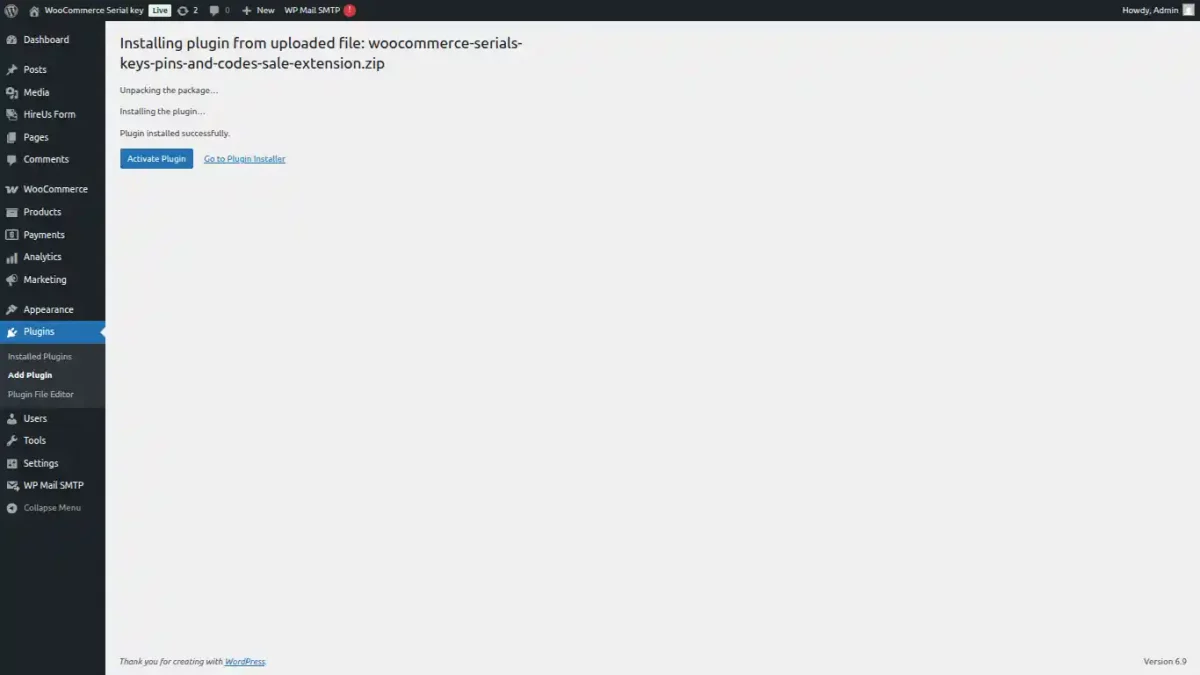
Activate and Update Plugin
Checkout how to Activate WooCommerce Plugin through the purchase code and get updates on Webkul Modules directly on the Plugins page
Translation
To know how to translate the module, you can click here.
Configuration
After the successful installation of WooCommerce Serial Keys & Pins, admin configures the plugin by navigating to Webkul WC Addons > Serial Key & Pins > Configuration as per below image,

The following configurations are available for the admin,
- Enable or disable the serial keys sale extension – Enable or disable the module functionalities for the users. This will enable or disable the serial keys sale extension.
- Enable or disable the module extra styling – Enable or disable the module extra styling.
- Enable or disable the required to set stock quantity for the serial keys – Enable or disable the required to set stock quantity for the serial keys. If you enable this, you must set the stock quantity for the serial keys; the system will ignore the default quantity.
- Default Quantity – Enter the quantity of serial keys to be generated by default. If stock quantity is set, this value will be ignored.
- Prefix – Enter the prefix of the serial keys. For example, if you enter “SKP”, the system will generate the serial keys as “SKP-123456789”.
- Pattern – The hash symbol (#) will dynamically convert into a random alphanumeric value.{product_id} will be substituted with the corresponding product ID. {product_sku} will be substituted with the corresponding product SKU. {d}, {m}, {y} will be replaced with the current date, and {h}, {i}, {s} with the current time.
- Charset – Enter the charset for the generator. Leave empty for default charset.
- Content – Enter the content of the serial key. The product page will display the serial key content.
Once the admin fills the details, they tap the Save button to save the configurations.
Generating Serial Keys
Once the configuration is done, admin proceeds to generate Serial keys. They tap on the Serial Keys section. They’re redirected to the below page,

To add new key, tap on the Add New button at the top. Now, a new page will be opened up to generate the keys,
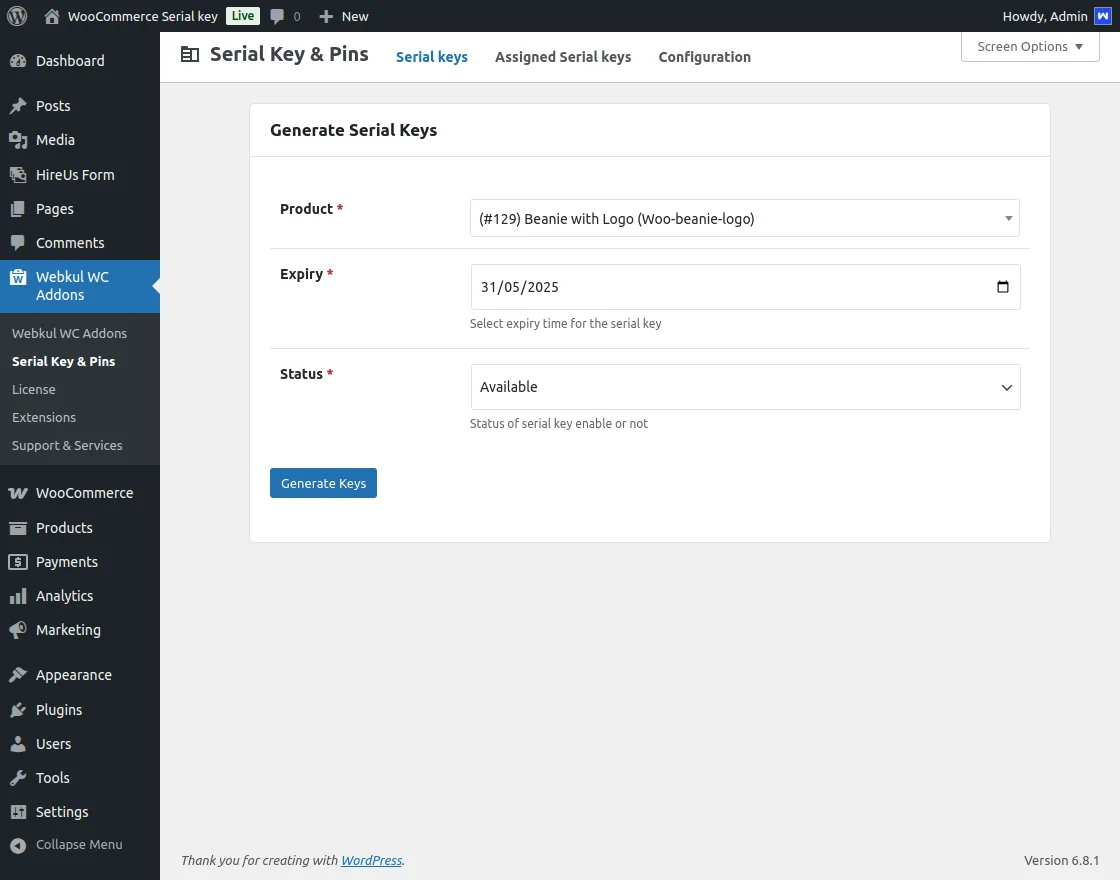
Here, Admin gets the following options,
- Product – Select the required product.
- Expiry – Select the Expiry date of the serial key.
- Status – Set the status of serial as Available or Disabled.
Tap the Generate Keys button, and the system will successfully generate the product serial keys. It is depicted in below image,
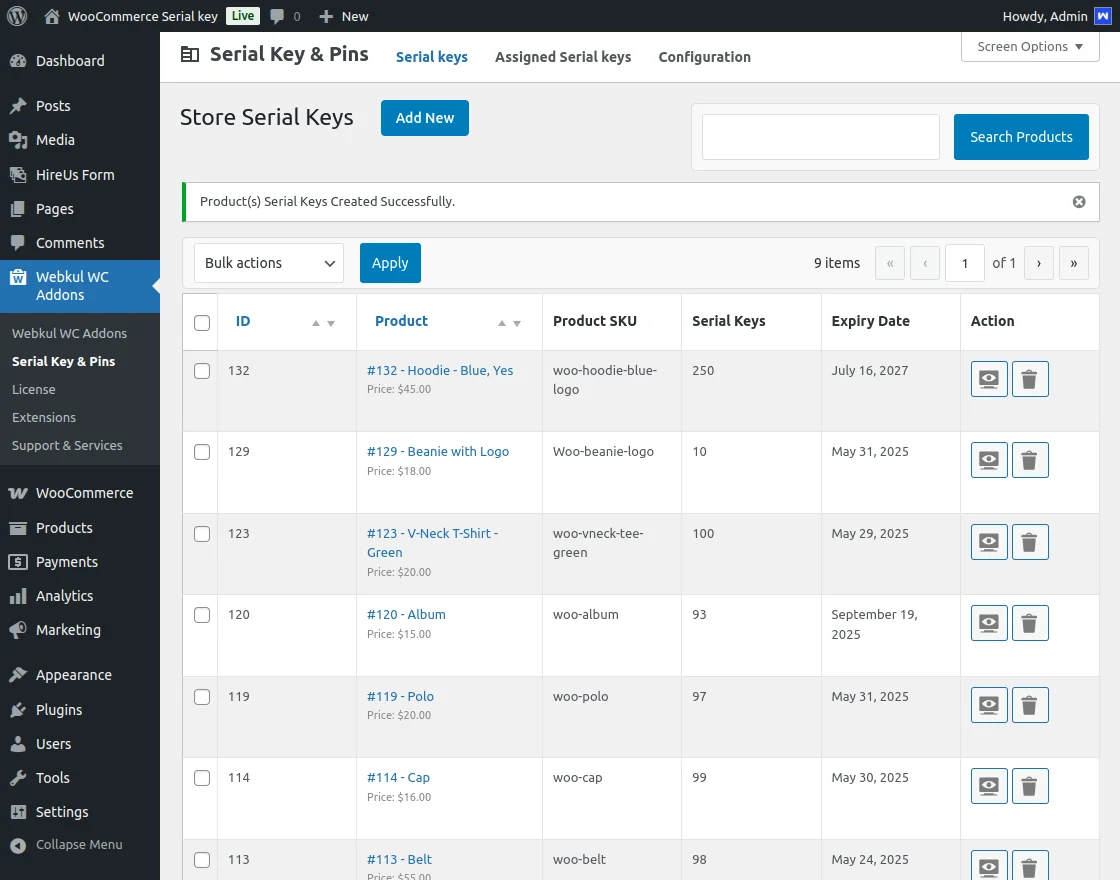
Admin also gets Bulk Functionality to select multiple items and Remove, Activate or Deactivate them all at once. A dedicated button to delete the serial key is also provdided.
To view the Serial Keys, admin taps on the View button in the Action column. Next, they are redirected to the page where all the serial keys are listed for that particular product.
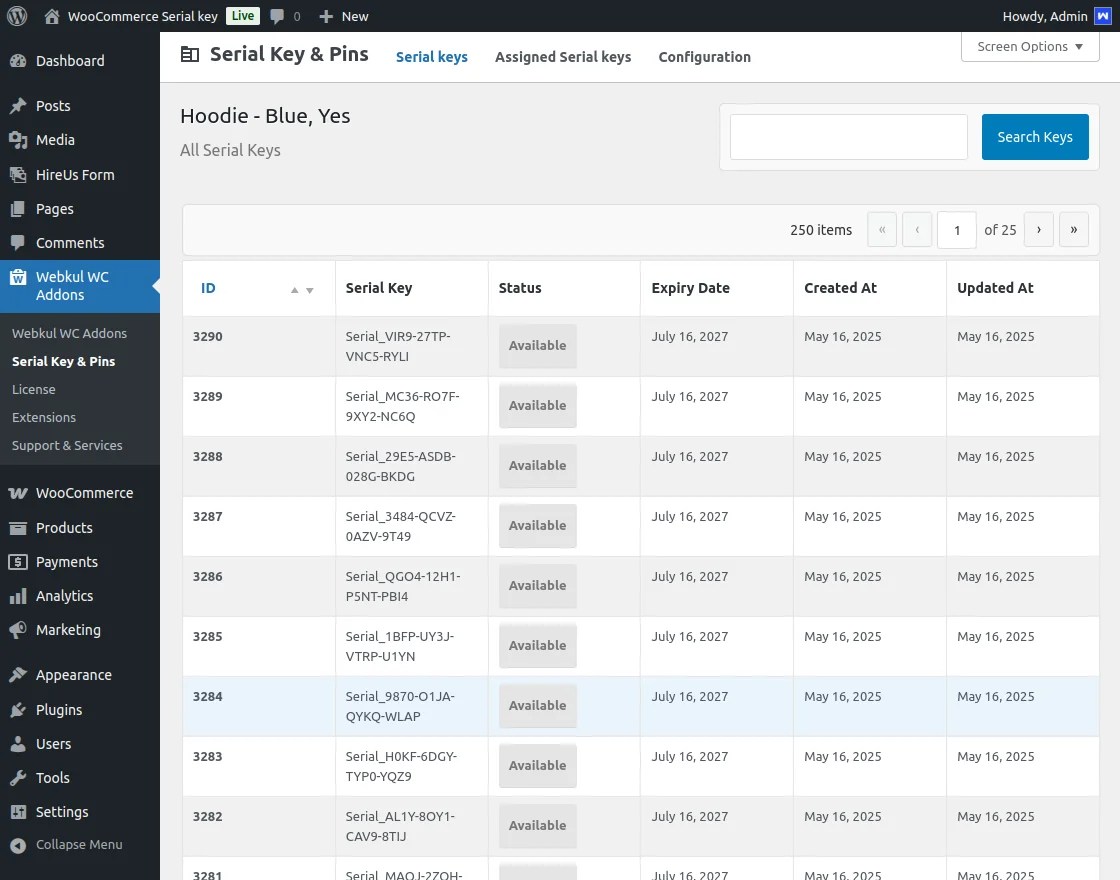
They can also search for particular keys through the dedicated search box. Once they search for a particular key, admin taps on the View button on the Key ID and they’re redirected to below page,
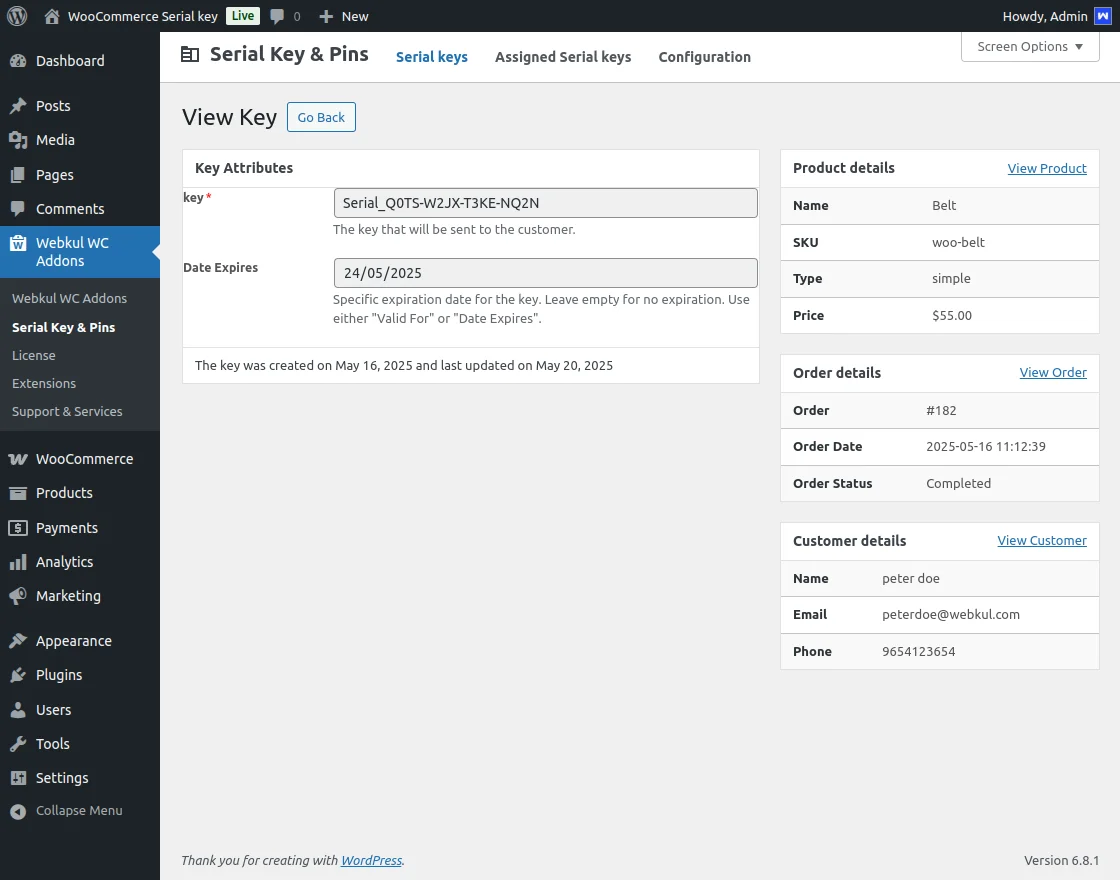
Here, the admin is able to view the following details,
Key – The key that will be sent to customer.
Date Expires – Specific expiration date for the key.
Apart from this, admin is also able to view the product, order and customer details associated with that key.
Assigned Serial Keys
Assigned Serial Keys
In the Assigned Serial Keys section, the admin can check the products as well as the orders under which serial keys have been assigned. To access this, the admin needs to navigate to the Assigned Serial Keys section from the plugin menu.
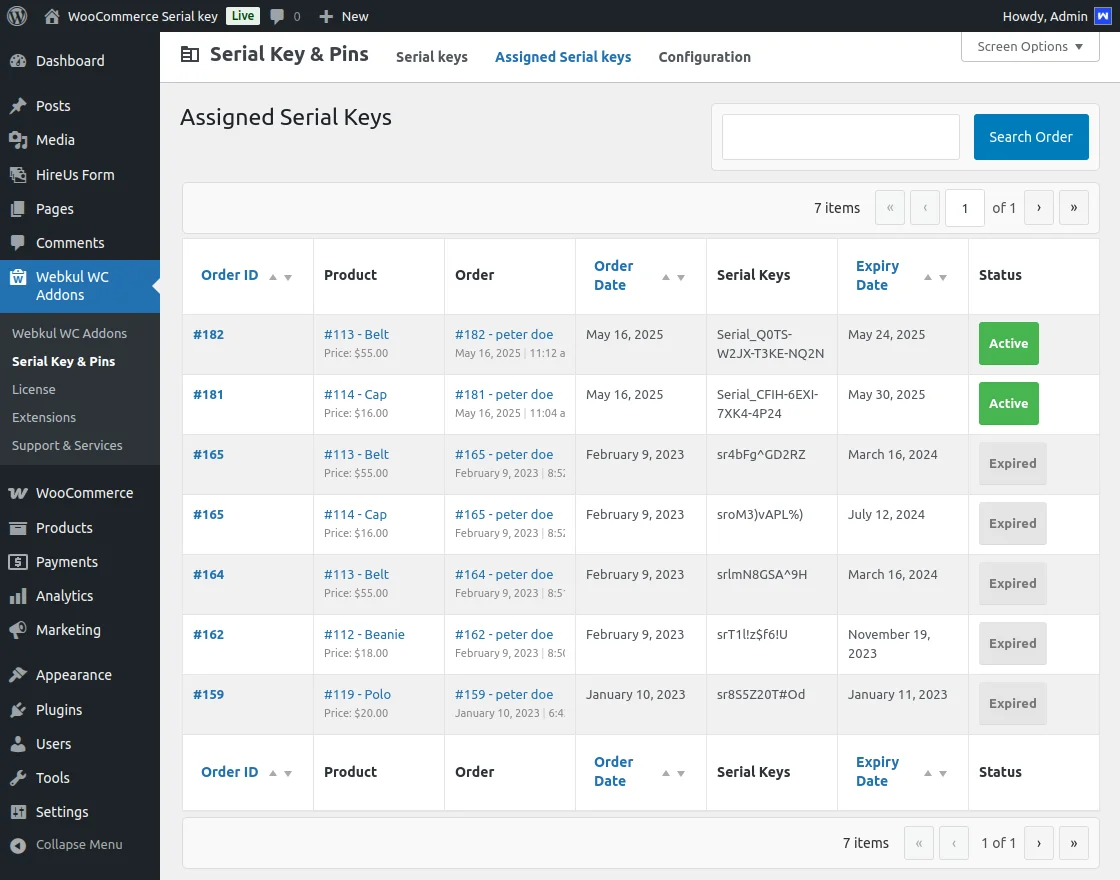
Here, the admin can search through orders and check the status of the serial keys, whether they are Active or Expired. A dedicated search bar is also available to quickly locate specific orders or serial keys.
Automatic Serial Key Assignment (Order Completion)
Note: Serial keys are assigned to orders automatically when the order status is changed to Completed.
- When a customer places an order, the serial key is not assigned immediately.
- Once the admin updates the order status to Completed, the system:
- Automatically fetches an available serial key for the ordered product
- Assigns the serial key to the order
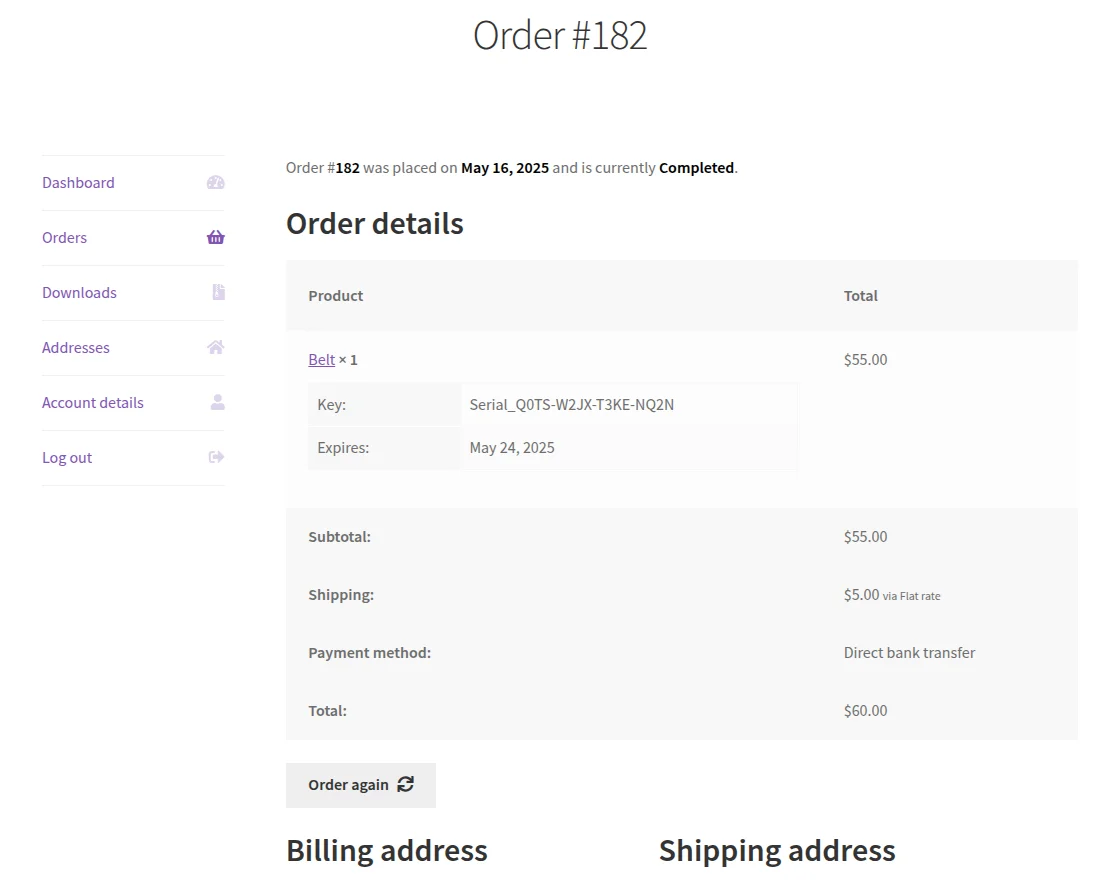
- Makes the serial key visible to the customer under
My Account → Orders → Order Details
This process ensures secure and controlled delivery of serial keys only after the order has been successfully completed.
Available Columns
The following columns are available for the admin to view in the Assigned Serial Keys section:
Status – Current status of the serial key (Active / Expired)
Order ID – Unique ID of the order
Product – Product for which the serial key is assigned
Order – Order reference details
Order Date – Date when the order was placed
Serial Keys – Assigned serial key(s)
Expiry Date – Expiration date of the serial key
Serial Keys at Customer End
The serial key will be visible for customers on their Order section. To view it, customers login to their account and then navigate to Orders section.
Next, they view the Order details. Here, the Serial key will be listed as per below,
Support
If you need any technical assistance, please reach us by mail at [email protected].
Also, discover various solutions to add more features and enhance your online store by visiting the WooCommerce plugins page.
Additionally, if you require expert assistance or want to develop custom unique functionality Hire WooCommerce Developers for your project.
Current Product Version - 1.3.0
Supported Framework Version - WordPress - 6.9, WooCommerce-10.4.3


4 comments
Please let us know your complete query over our support. Please raise a support request at [email protected] so that we can look into it and resolve the same.
Thanks
Webkul Team
Let us know if you are having any for this module to assist you better.
Thanks
Thankyou for your precious comment. For further queries you can mail us at [email protected].
Regards