Creating a custom plugin for your WooCommerce store can help increase sales, improve user experience, and give your customers more reasons to engage with your site.
One such feature that has been proven to boost sales is the use of urgency tactics.
In this guide implement woocommerce product countdown timer plugin, we will walk you through how to create a “Product Purchase Countdown Timer” WooCommerce plugin from scratch.
This type of visual prompt encourages faster purchasing decisions and can significantly reduce abandoned carts.
By following this guide implement woocommerce product countdown timer plugin, you’ll be able to seamlessly integrate a countdown timer to your WooCommerce products, giving customers a sense of urgency that drives conversions.
Best of all? You don’t need to worry about copyright issues because this is a fully original creation, and the code provided is free to use and modify for any purpose.
With this guide implement woocommerce product countdown timer plugin, you can create a tailored solution that fits your business needs and enhances your sales strategy.
Why Use a Countdown Timer on Your WooCommerce Store?
Online stores often use countdown timers to:
- Create urgency: Customers are more likely to make quick decisions when they know an offer is time-sensitive.
- Boost conversion rates: Limited-time offers can convert hesitant buyers into immediate customers.
- Increase engagement: Countdown timers grab the attention of users and make product pages more dynamic.
Step-by-Step Guide: How to Build the WooCommerce Countdown Timer Plugin
Step 1: Setting Up the Plugin
The first step is to create the basic structure of the WooCommerce plugin. Follow the steps below:
Go to your WordPress installation and navigate to the wp-content/plugins/ directory.
Create a new folder named product-countdown-timer.
Inside this folder, create a file named product-countdown-timer.php.
This file will hold the core code of our plugin. Here’s the code to start with:
/**
Plugin Name: WooCommerce Product Countdown Timer
Description: Adds a countdown timer to product pages for sales or limited-time offers.
Version: 1.0
Author: webkul
*/

// Exit if accessed directly.
if ( ! defined( 'ABSPATH' ) ) {
    exit;
}

// Add the countdown timer to the single product page.
function wk_pct_add_countdown_timer() {
    global $product;

    // Specify the end date for the timer (e.g., October 15, 2024, 12:00:00).
    $end_date = '2024-10-15 12:00:00';

    // Get the current date and time.
    $current_time = current_time('Y-m-d H:i:s');

    // Only display the countdown if the end date is in the future.
    if (strtotime($end_date) > strtotime($current_time)) {
        echo '<div id="countdown-timer" style="font-size: 18px; color: red; margin-top: 20px;"></div>';
        echo "<script>
        var endDate = new Date('$end_date').getTime();
        var timer = setInterval(function() {
            var now = new Date().getTime();
            var distance = endDate - now;
            if (distance < 0) {
                clearInterval(timer);
                document.getElementById('countdown-timer').innerHTML = 'This offer has expired!';
                return;
            }
            var days = Math.floor(distance / (1000 * 60 * 60 * 24));
            var hours = Math.floor((distance % (1000 * 60 * 60 * 24)) / (1000 * 60 * 60));
            var minutes = Math.floor((distance % (1000 * 60 * 60)) / (1000 * 60));
            var seconds = Math.floor((distance % (1000 * 60)) / 1000);
            document.getElementById('countdown-timer').innerHTML = days + 'd ' + hours + 'h ' + minutes + 'm ' + seconds + 's ';
        }, 1000);
        </script>";
    } else {
        echo '<div id="countdown-timer">This offer has expired!</div>';
    }
}

// Hook the countdown timer into the WooCommerce single product page.
add_action('woocommerce_single_product_summary', 'wk_pct_add_countdown_timer',25);
Step 2: Activating the Plugin
Once you’ve added the code, navigate to your WordPress dashboard, go to Plugins, and find WooCommerce Product Countdown Timer. Click Activate.
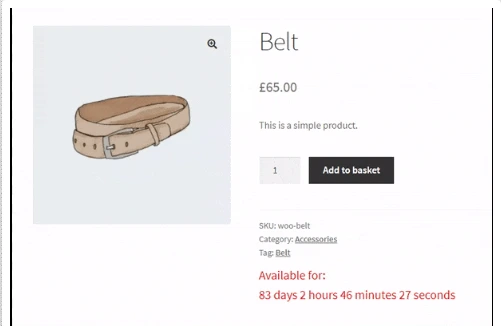
Now, when you visit any WooCommerce product page, you should see the countdown timer displayed below the product details.
Step 3: Customizing the Plugin
You can customize this plugin in various ways to fit your needs:
Dynamic End Dates:
You can extend this plugin to allow for product-specific countdown timers. To do this, you could add a custom field to the product page where store admins can input an end date for each product.
Here’s a brief look at how you could add a custom field for the countdown timer:
// Add a custom field to the product edit page
function pct_add_custom_field() {
    woocommerce_wp_text_input(
        array(
            'id' => '_countdown_end_date',
            'label' => __('Countdown End Date', 'woocommerce'),
            'placeholder' => '2024-12-31 23:59:59',
            'description' => __('Enter the countdown end date (YYYY-MM-DD HH:MM:SS)', 'woocommerce'),
            'type' => 'datetime-local',
            'desc_tip' => true
        )
    );
}
add_action('woocommerce_product_options_general_product_data', 'pct_add_custom_field');

// Save the custom field value
function pct_save_custom_field($post_id) {
    $end_date = isset($_POST['_countdown_end_date']) ? sanitize_text_field($_POST['_countdown_end_date']) : '';
    update_post_meta($post_id, '_countdown_end_date', $end_date);
}
add_action('woocommerce_process_product_meta', 'pct_save_custom_field');
A “Flash Sale” badge that appears when the timer is running.
An email notification when the countdown ends for subscribed users.
Final Thoughts
Creating a custom WooCommerce plugin like this Product Countdown Timer can enhance your store’s functionality and boost conversion rates by encouraging urgency.
With just a few lines of code, you can integrate a countdown timer that motivates customers to act quickly.
This example plugin can be easily extended to include more sophisticated features like product-specific timers or automatic reset after a sale.
You can use this plugin as a starting point and customize it to suit your WooCommerce store’s needs.
Ready to increase urgency and boost your sales? Get started with this countdown timer plugin today, or build on it to create your own custom WooCommerce features!
With this blog, you not only provide valuable content for WooCommerce store owners but also give them the complete source code to create and activate the plugin on their sites.
This combination of explanation and code can help users who want to customize or extend WooCommerce without getting into complex, expensive plugin purchases.
If you have any questions or need assistance with customizations, feel free to reach out. We invite you to leave your comments and feedback below.
Support
However, in case of any query or questions regarding the Woocommerce Extensions, you can create a ticket at webkul.uvdesk.com
Or contact us at store.webkul.com/contacts/ to let us know your views to make the plugin better.


Be the first to comment.