WooCommerce Point Of Sale AI Reporting provides the store owners and POS agents with the functionality to create reports for orders.
The store owners and the sales agents can check the orders’ reports in the form of charts, and they can customize the charts as per their needs.
It enables easy report querying via a simple search box or voice commands that make data analysis quick and straightforward.
Features
- The admin can sync “All orders” to generate the reports.
- The admin can generate a report by writing a query or using a microphone.
- After generating the reports, the admin can customize the reports by selecting chart type, data, or label.
- The POS sales agents can generate the order reports by writing a query or using a microphone.
- The POS Sales agents can customize the generated charts by selecting chart type, data, or label.
- WooCommerce Point of Sale AI Reporting is not multisite compatible.
Note:
- To use this plugin, you must install the WooCommerce POS System.
- Woocommerce POS AI Reporting is compatible with the HPOS feature.
- Minimum System Requirements:
- RAM: 8 GB
- Storage Space: 4 GB
- Python Version: 3.10
- API Setup:
- Server Key and Certificate Files: These are required for Flask API integration.
- Ports: Ensure that port 5000 is open and available.
- LLM API Key: Obtain and configure an API key from a large language model provider such as OpenAI or Gemini.
- To install the AI model, please provide your server’s SSH access details.
- This application requires a VPS or dedicated server. It is not compatible with shared hosting. Once the extension is purchased, our team will configure the AI model on your server.
- The admin will be able to connect to the AI Server Address.
- The admin will sync the orders for the AI Report.
- From the “Report” Section, the admin will navigate to AI Report, and there the admin can write a query or speak the query by clicking on a microphone.
- Once the Query is written, then the admin can generate the AI Report.
- The admin can view the detailed Generated Report.
- The admin can customize the Generated Report and visualize the report as per their choice.
- The POS Agent can generate the AI Report by navigating to Report >> AI Report.
- The POS Agent can write a query and speak to the microphone.
- Once the query is written, they can generate the report.
- The POS Agent can visualize the order report through charts, and they can also customize the charts.
NOTE:
Installation of WooCommerce POS AI Reporting
The user will get a zip file, which he has to upload in the “Add New” menu option in the WordPress admin panel.
For this, log in to the WordPress Admin Panel and, under the Dashboard, hover your mouse over the “Plugins” menu option. This brings out a Sub-Menu and then selects the “Add New” option.
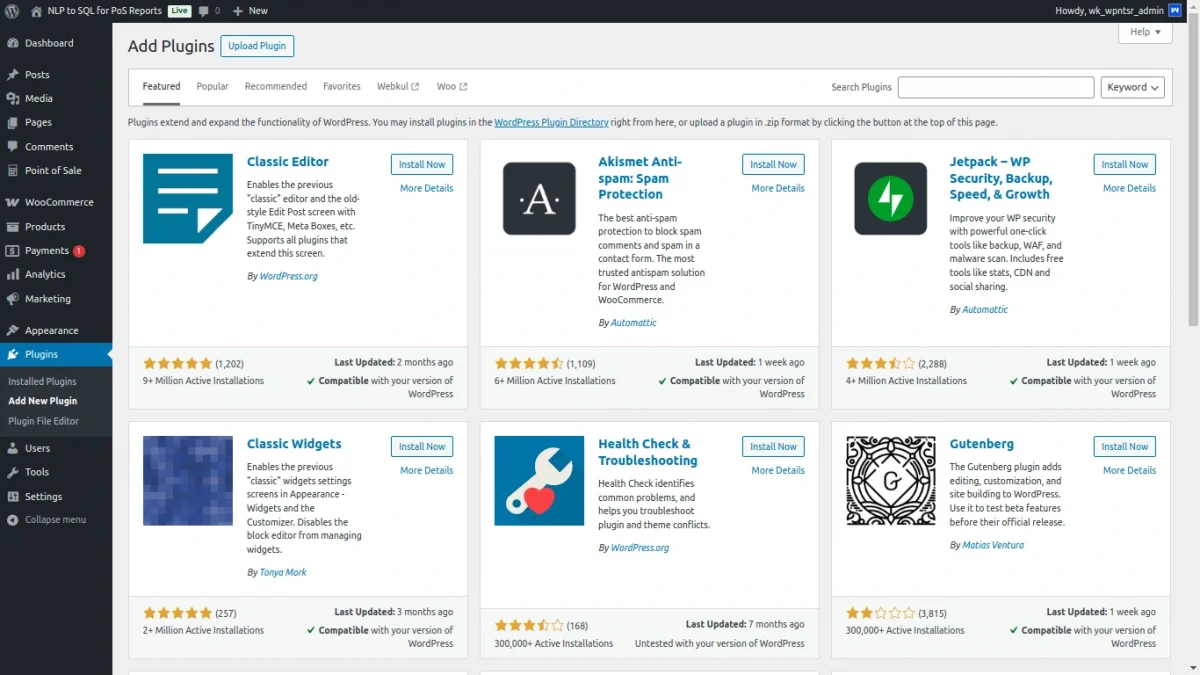
After that, you will see an option on the top of your page that is “Upload Plugin.” Click the option to upload the zip file.

Then click on the “Upload Plugin” option. Below that, you will see a button labeled “Choose File.” Lastly, click on the button to browse for the zip file as per the snapshot below.
After browsing the file, click the “Install Now” button to install the plugin as per the snapshot above
Now, when the plugin is installed correctly, you will see the success message. Additionally, an option to activate the plugin.

Click on “Activate Plugin” to activate the installed plugin.

Activate Plugin
Check how to activate your WooCommerce plugin through the purchase code.
Also, check how you get updates on Webkul modules directly on the Plugins page.
Admin Panel – Generating AI Reports


POS Agent – Generating AI Reports


That’s all for the WordPress WooCommerce POS AI Reporting. Check more relevant WooCommerce Extensions.
If you still have any issues, feel free to add a ticket and let us know your views on our Webkul Support System.
Current Product version: WooCommerce POS NLP TO SQL ( AI ) REPORT: 1.0.2
Current Product Version - 1.0.2
Supported Framework Version - WordPress: 6.9 Woo-commerce: 10.4.3 WooCommerce Point Of Sale: 6.7.0


Be the first to comment.