WordPress WooCommerce Per Product Shipping Plugin allows the admin to add the shipping price for each product.
Shipping On Per Product is an essential feature for the admin and that’s why we have created an add-on for the admin to add the shipping prices for each product from their panel.
Note:
- This plugin is now compatible with WooCommerce’s latest High-Performance Order Storage (HPOS) and Cart and Checkout block.
Check a brief overview of the plugin –
Features
- Admin can add different shipping prices for each product.
- The cost can vary depending on the destination.
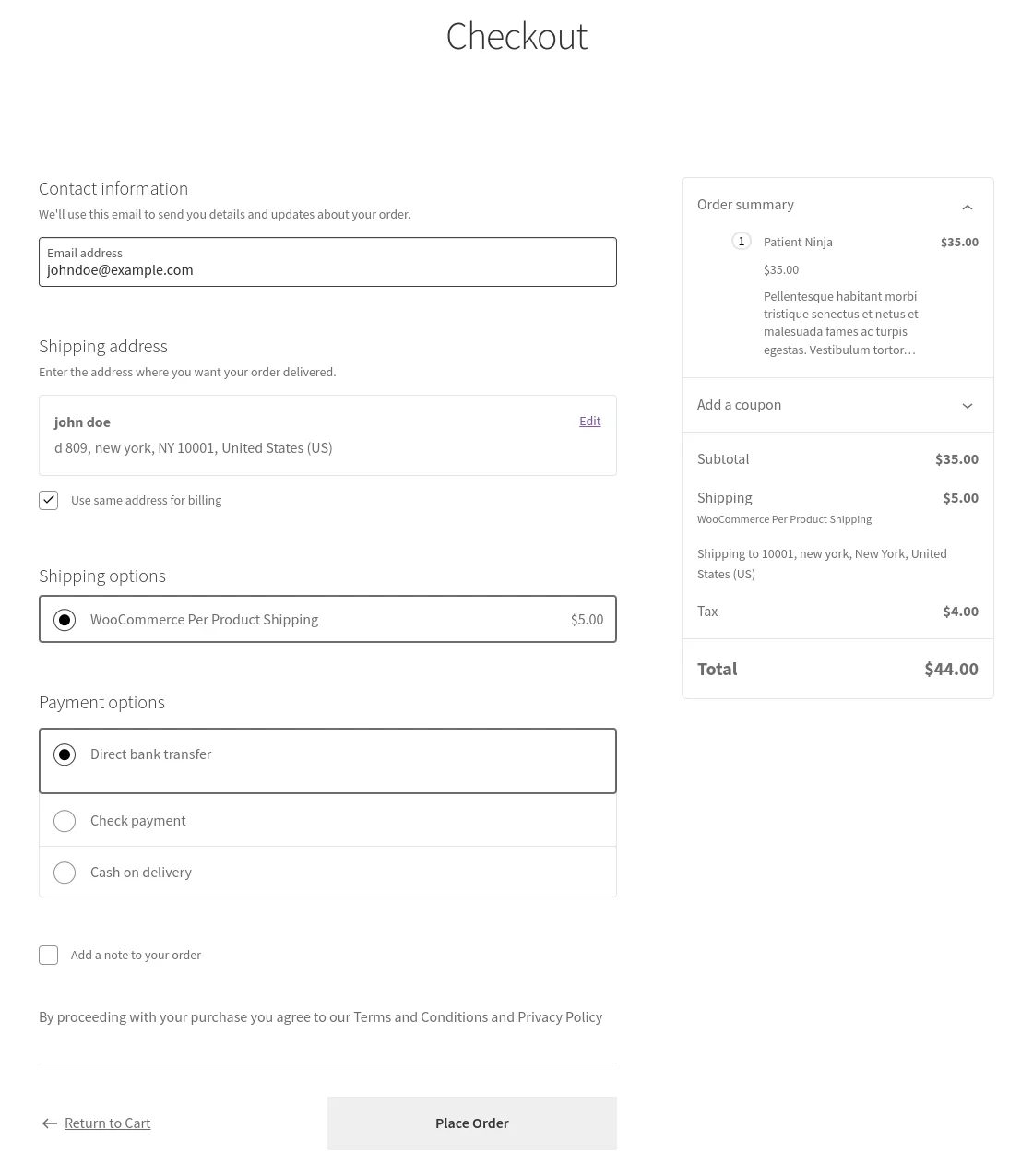
- On the check-out page, the shipping price displays the total shipping charges for each product.
- Admin can enable/disable the plugin.
- Admin can set the Shipping Title that will be visible to the Customers at the time of Checkout.
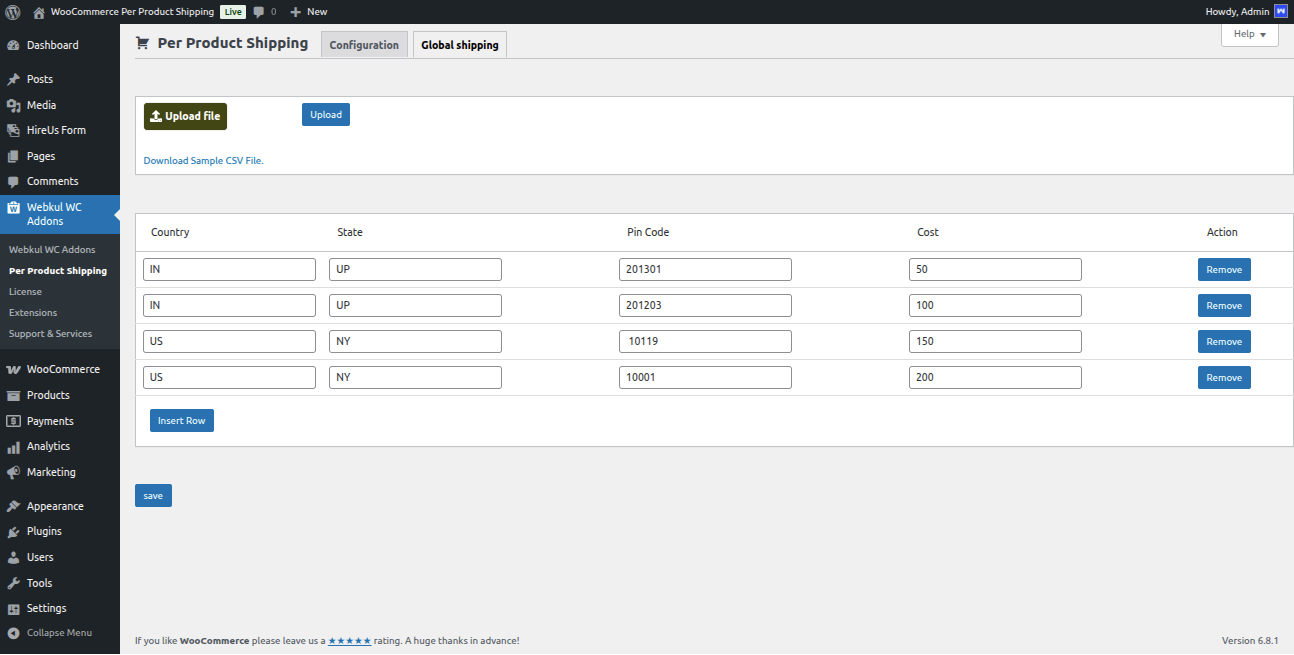
- The Admin can also upload the shipping data in CSV file format.
- Admin can manage Global Shipping options to define rates based on country, state, and PIN code.
- Admin can add shipping rates for particular product variations, offering more granular control.
Installation
The user will get a zip file that he has to upload in the “Add New” menu option in the WordPress admin panel.
For this login to WordPress Admin Panel and Under the Dashboard hover your mouse over the “Plugins” menu option which brings out a Sub-Menu and then select the “Add New” option.

Afterward, you will see an option on the top of your page that says “Upload Plugin“, click the option to upload the zip file.
Click on the upload plugin option, below that you will see a button “Choose File” click on the button to browse for the zip file as per the snapshot below.
After browsing the file, click the install now button to install the plugin.
Now when the plugin is installed correctly, you will see the success message and an option to activate the plugin. That is all for the installation part of the WooCommerce Per Product Shipping.
Module Activation
Check out how to Activate the WooCommerce Plugin through the purchase code and get updates on Webkul Modules directly on the Plugins page.
Admin Management
After the installation, the admin can find the Per Product Shipping under the Webkul WC Addons as mentioned in the snapshot below:
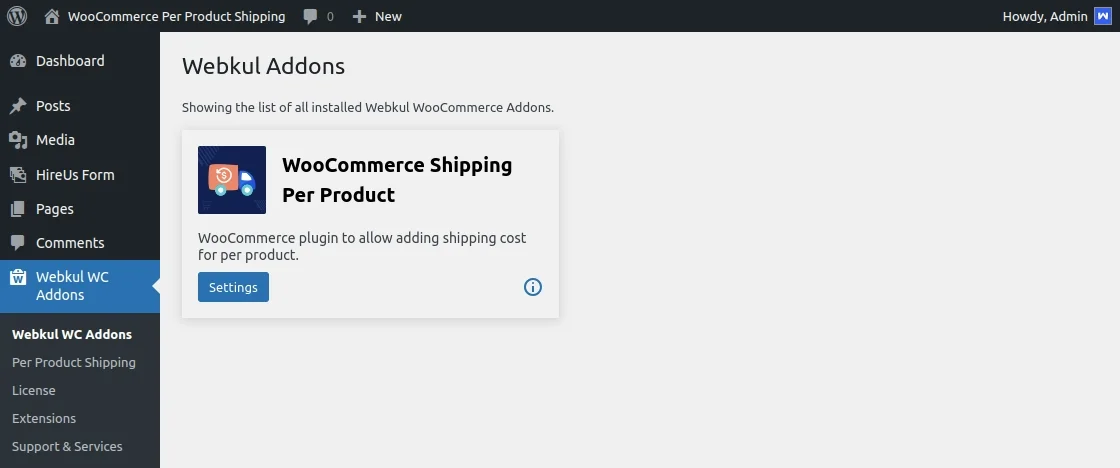
The admin can configure WooCommerce Per Product Shipping by clicking the Settings button shown in the image above.
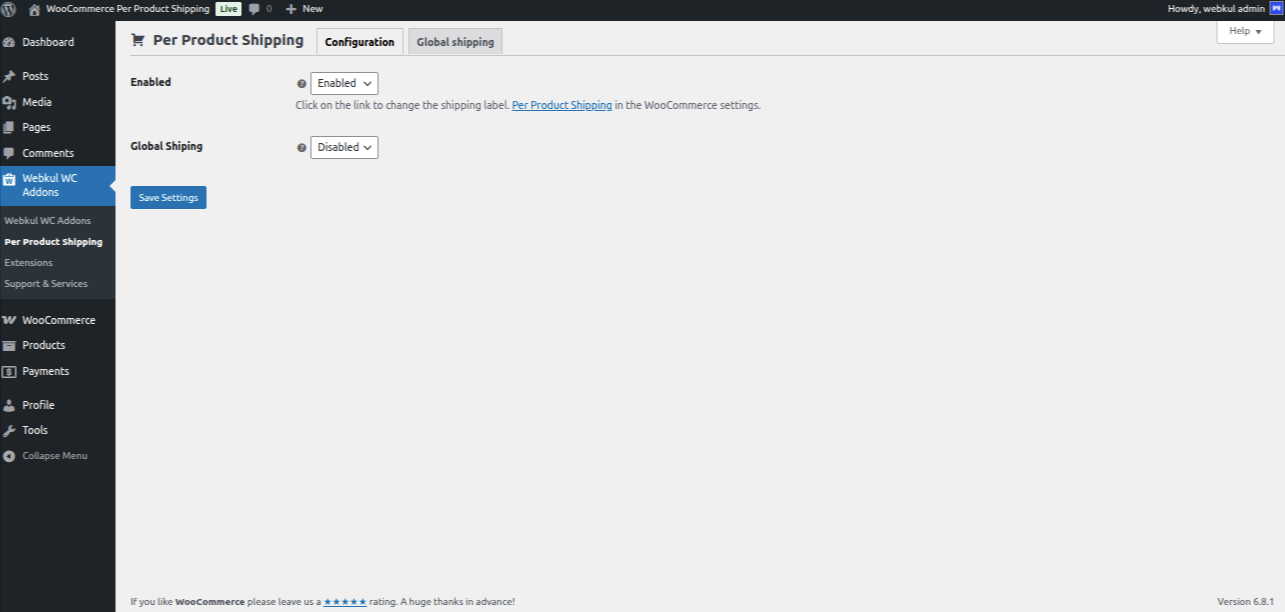
They will then be redirected to the configuration section. Here, the admin can enable or disable the plugin as needed.
Following that, they will access the Global Shipping section, where the admin can configure shipping rates either by uploading a CSV file or by adding entries individually as needed.
Next, admin will navigate to WooCommerce > Settings > Shipping > WooCommerce Per product Shipping to enter the shipping title that will be visible to the customers at checkout time.

After configuring the Per Product Shipping, the admin will set the Per product Shipping for his products.
Admin can set the Per Product Shipping for already created products as well as for the new products.
To add the shipping to the already created products, the admin will navigate through -> Products and will click on the edit button.
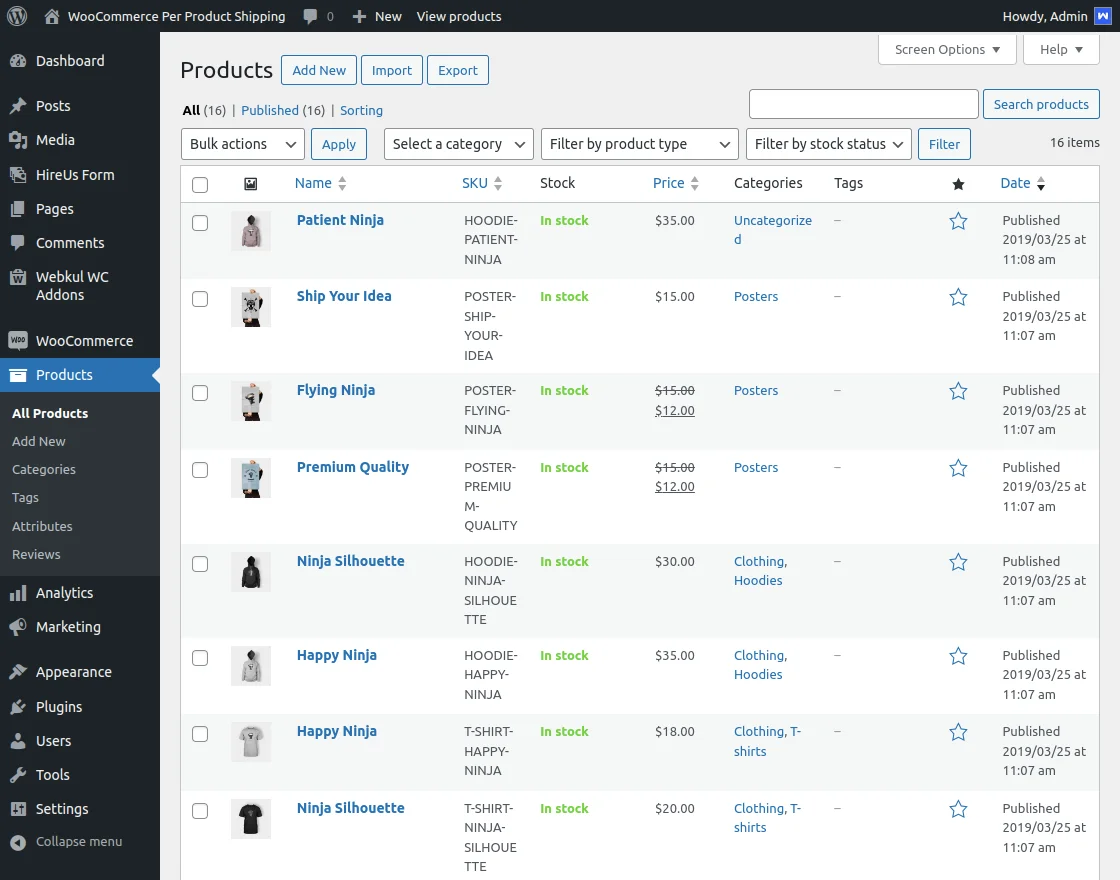
After clicking the edit button, go to the shipping tab to set the Per Product Shipping for this product.
Here the admin will enable the Per Product Shipping, enter the shipping cost and set the Country Code, State Code, and as well as PinCode for which the Per Product Shipping will be applied.
If the admin enters only the Country code, then the shipping applies to all the regions of the country.
If the admin enters the country code and the state code, then the shipping will be applied to the specific state under the country code.
Admin can upload the shipping data in CSV file format.
Admin can also download the Sample CSV file from the Download Sample CSV file option.
The admin enters the country code, state code, and the pin code, then the shipping will be applied to the specific pin code entered under the country and state code.
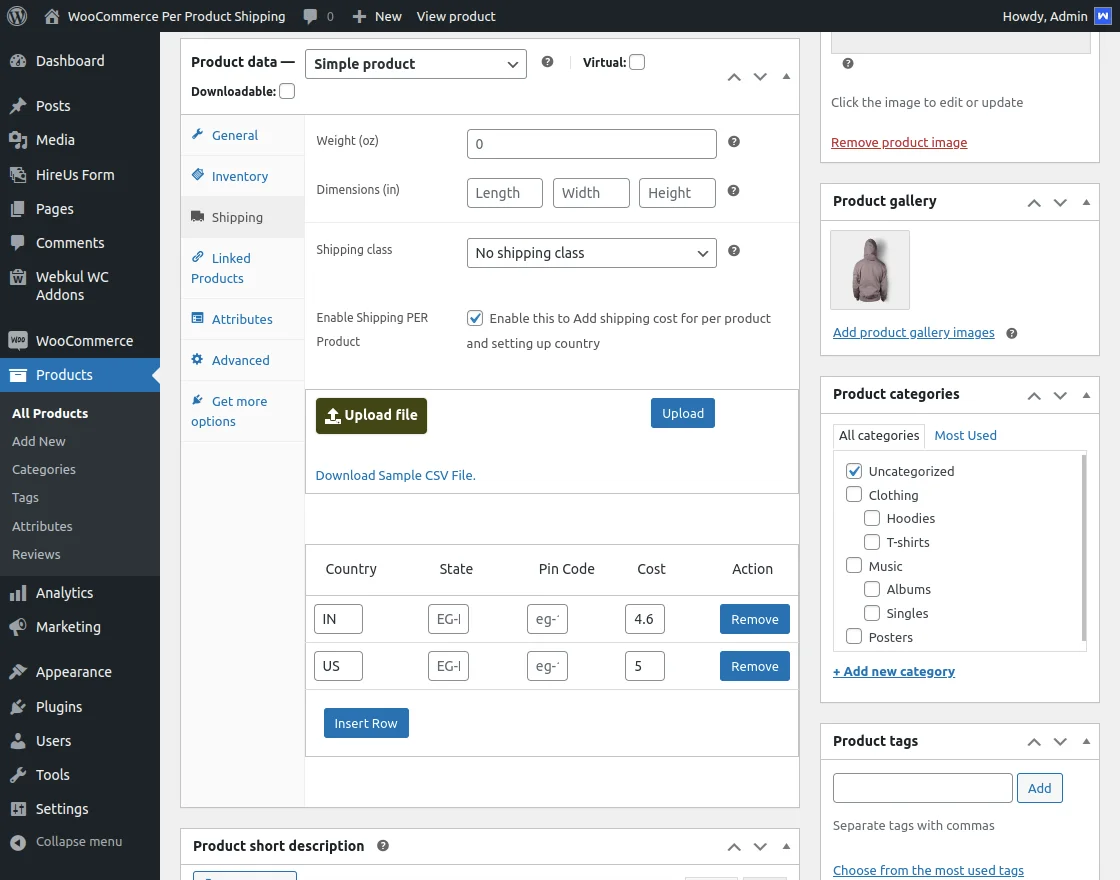
Similarly, the admin can apply the Per product Shipping for the new products.
Front-end View
Now, the customer can visit the store and add the product to the cart.
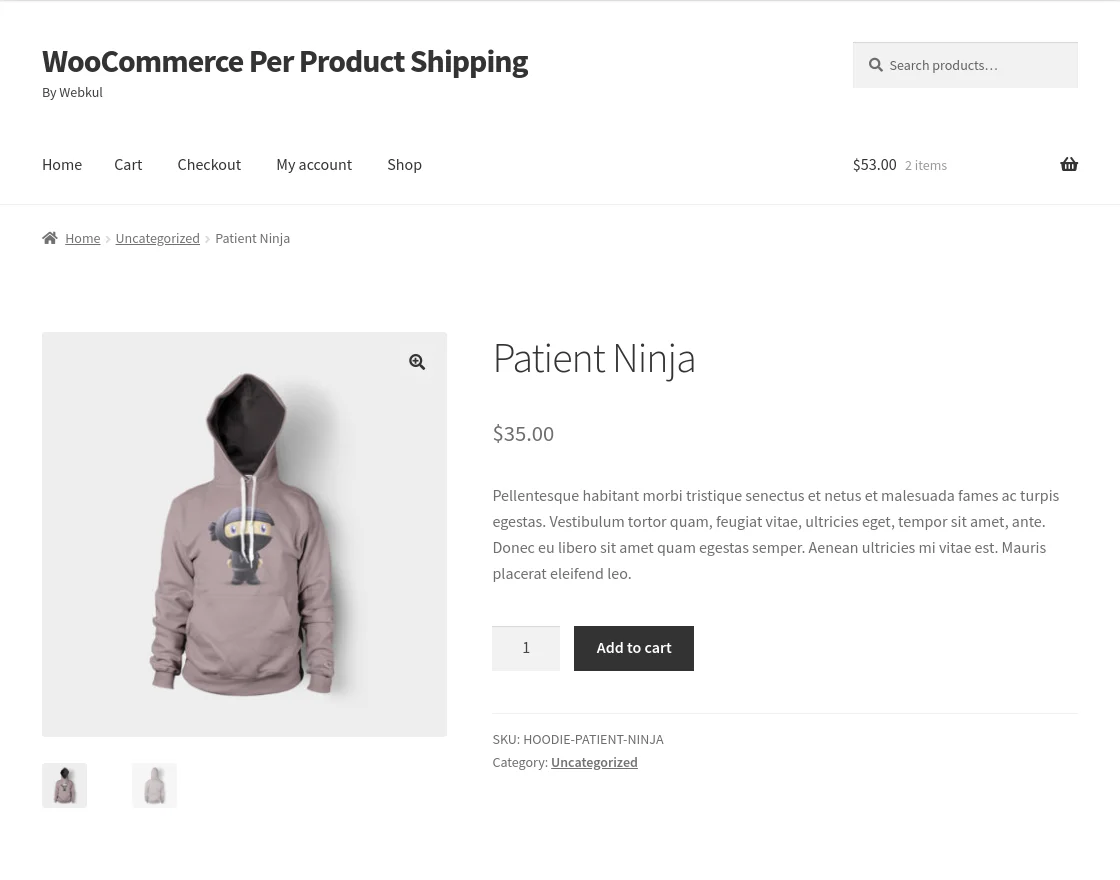
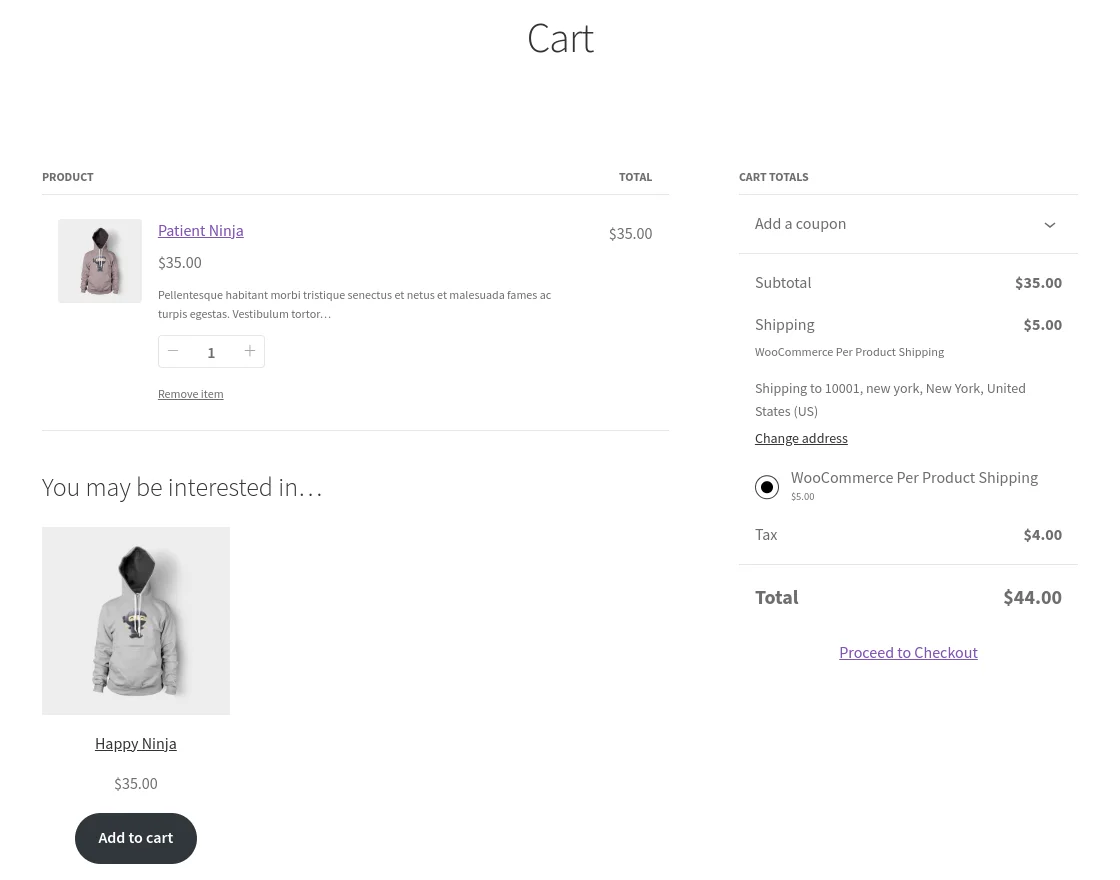
When the customer adds the product to the cart and clicks on the View Cart button the customer will see the details of the product.
Here, the customer can fill the shipping details to know the shipping charges and Proceed to checkout as shown in the image below-
Now, after clicking on the Proceed to checkout the customer will be able to see the per product shipping applied on the product as per the screenshot below.
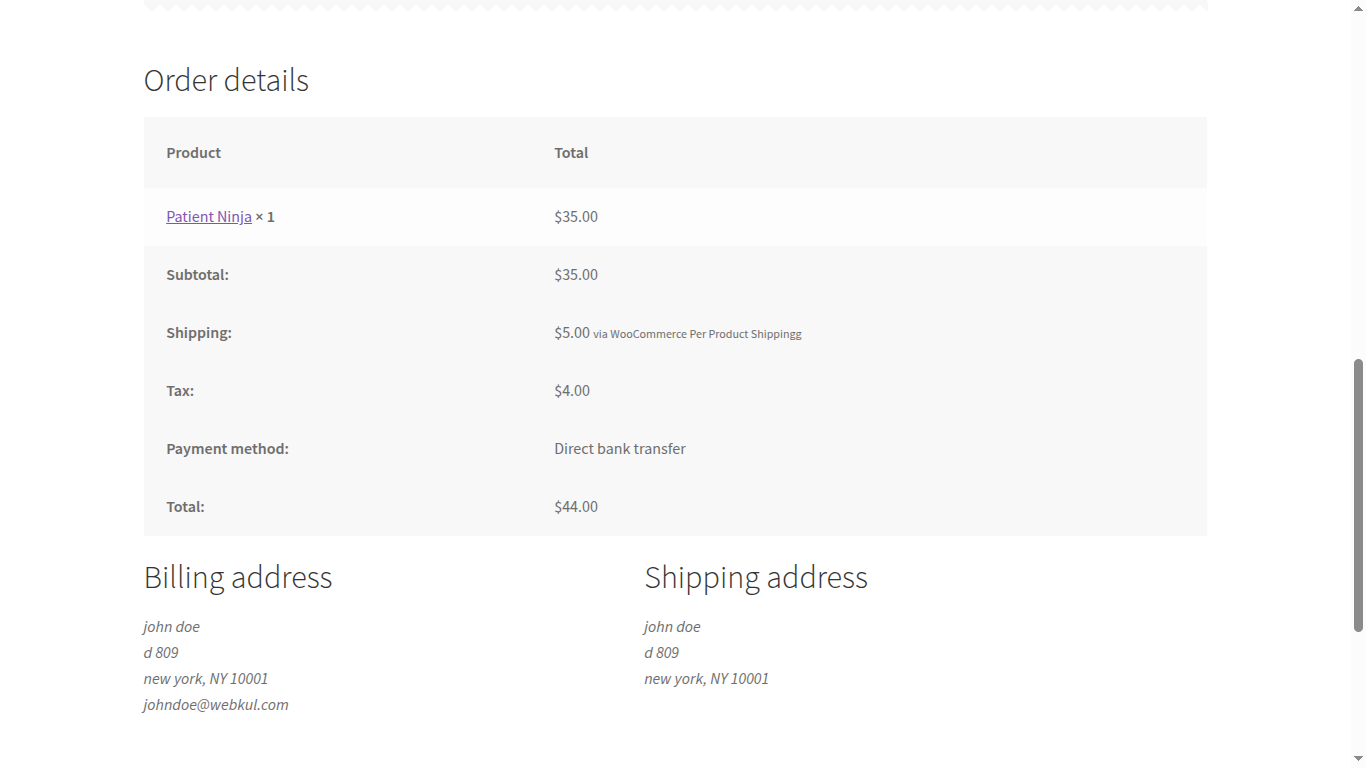
If the shipping is not available, then the customer will see the message that there are no shipping methods available.
Conclusion
That is all for the WordPress WooCommerce Per Product Shipping.
If you still have any issue feel free to add a ticket at webkul.uvdesk.com
Current Product Version - 1.3.0
Supported Framework Version - WordPress: 6.8.x, Woocommerce: 10.1.x


2 comments
We have created a ticket on your behalf and our team will soon revert to your queries over it.
Thanks.