WooCommerce Order History Communication module facilitates the customers to ask order related queries to the admin.
The customers can contact the store owner for a particular order from the Orders section.
This module helps the customer to send and receive messages along with the file attachments and keep the conversation history records.
Furthermore, it makes information access easier to immediately resolve the customer’s concerns.
We provide a production version of the plugin. If you want a development version then you can get it at an additional cost. Please contact [email protected] for it.
Note: This plugin is now compatible with WooCommerce’s latest High-Performance Order Storage (HPOS) and Cart and Checkout block.
Check the plugin working for the order history in the video mentioned below –
Features
- Admin can enable or disable the order history communication plugin for their store as per the business need.
- The customers can ask questions related to their specific order.
- The customer can send the message along with the file attachments.
- Also, the admin is allowed to send messages with attachments.
- The admin can define the order status for which the customer can add the comment.
- The admin will receive the mail after the comment is made on the order by the customer.
- Customers will also receive the mail once the admin has made the comment on their order.
- Admin and the customer both can view the conversation history.
- The admin can set the mail attachment type and size.
- This module only works for registered users.
Installation
The user will get a zip file which he has to upload in the “Add New” menu option in the WordPress admin panel.
For this login to WordPress Admin Panel and Under the Dashboard hover your mouse over the “Plugins” menu option which brings out a Sub-Menu and then select the “Add New” option.

After this, you will see an option on the top of your page that is “Upload Plugin”, click the option to upload the zip file.

Hence, clicking on the “Upload Plugin” option, below that you will see a button “Choose File” click on the button to browse for the zip file as per the snapshot below.

After browsing the file, click the “Install Now” button to install the plugin as per the snapshot.

Now, when the plugin is installed correctly, you will see the success message and an option to activate the plugin. Click on “Activate Plugin” to activate the installed plugin.

Note: Checkout how to Activate WooCommerce Plugin through the purchase code and get updates on Webkul Modules directly on the Plugins page
Module Configurations
After the successful installation of the extension, the admin will navigate to Order History Communication. For reference check the below snapshot:
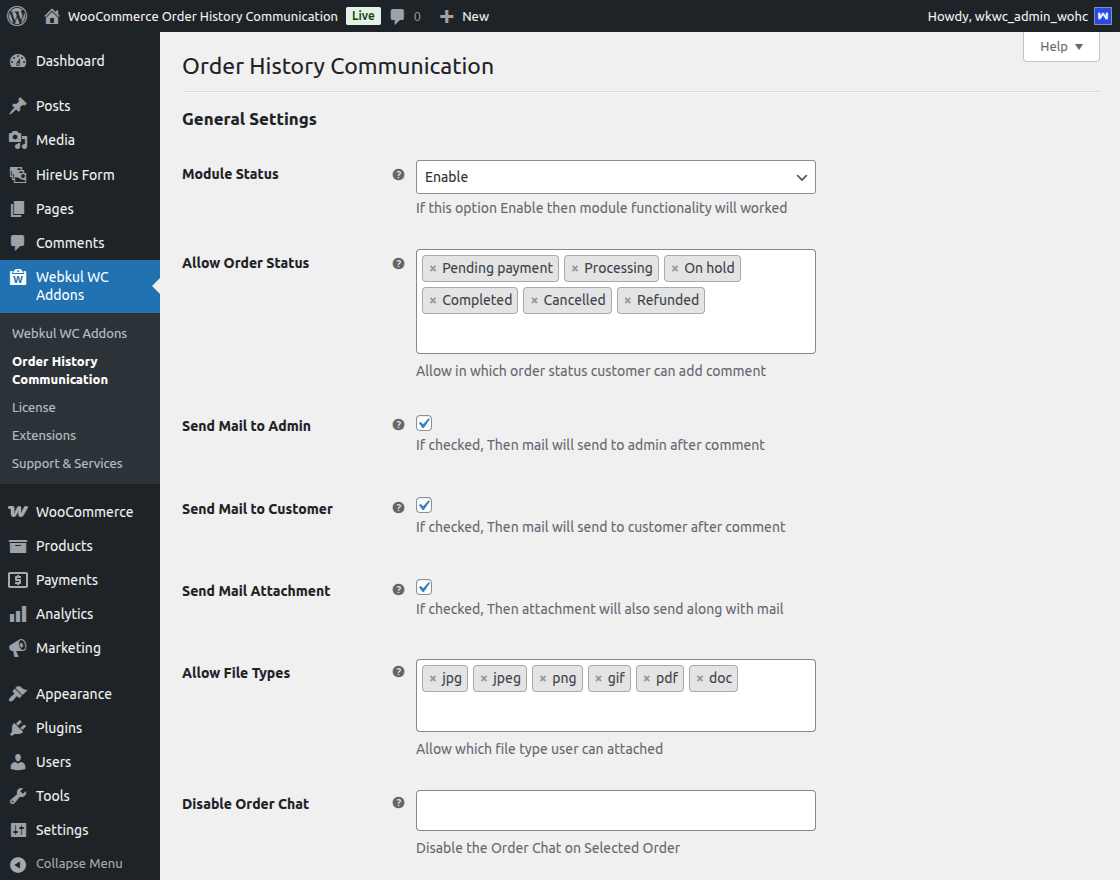
General Settings
Module Status – From here, the admin will be able to enable or disable the module as per the business need.
Allowed Order Status – The admin can define the order status for which the customer can add the comment.
Send Mail to Admin – If this option is checked by the admin, then they will receive the mail once the customer adds any comment on their order.
Send Mail to Customer – If this option is checked by the admin, then the customer will receive the mail once the admin adds any comment on their order.
The Send Mail Attachment: If the send mail attachment is checked, then any attachment can be sent with the mail.
Allow File Types: The admin can set the attachment file types like JPEG, PDF, JPG, and PNG.
Disable Order Chat: Admin can select specific orders for which chat with the customer will be disabled.”
Disable User Chat: Admin can select specific customers for whom the chat feature will be disabled.
Allow File Size: File size should be set in Kb for attachment files.
After doing all the settings, the admin must click the Save Changes button to save the settings.
Customer – Order Comment
Moreover, to get the communication history section customer needs to navigate My Account > Orders.
After that, the customer needs to view the respective order to raise a concern. For reference, check the below snapshot:
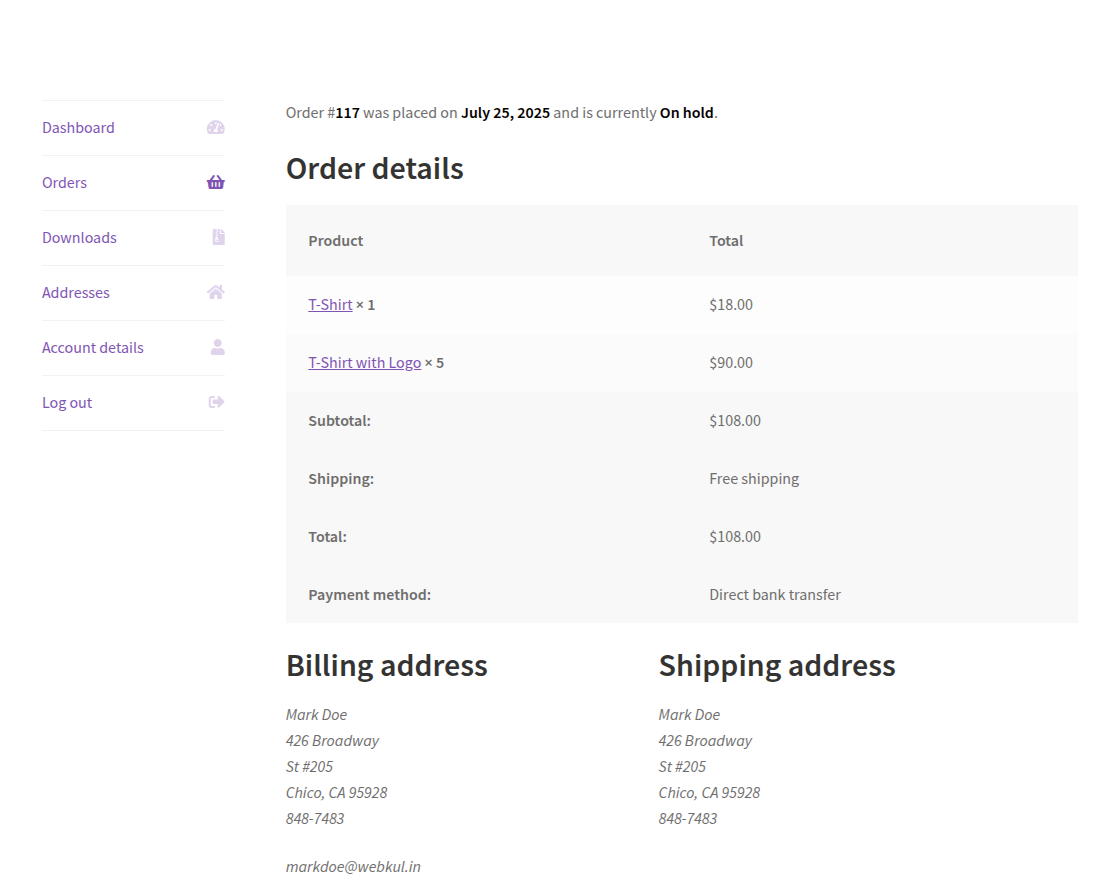
Subsequently, the customers can initiate a chat with the admin related to the particular order.
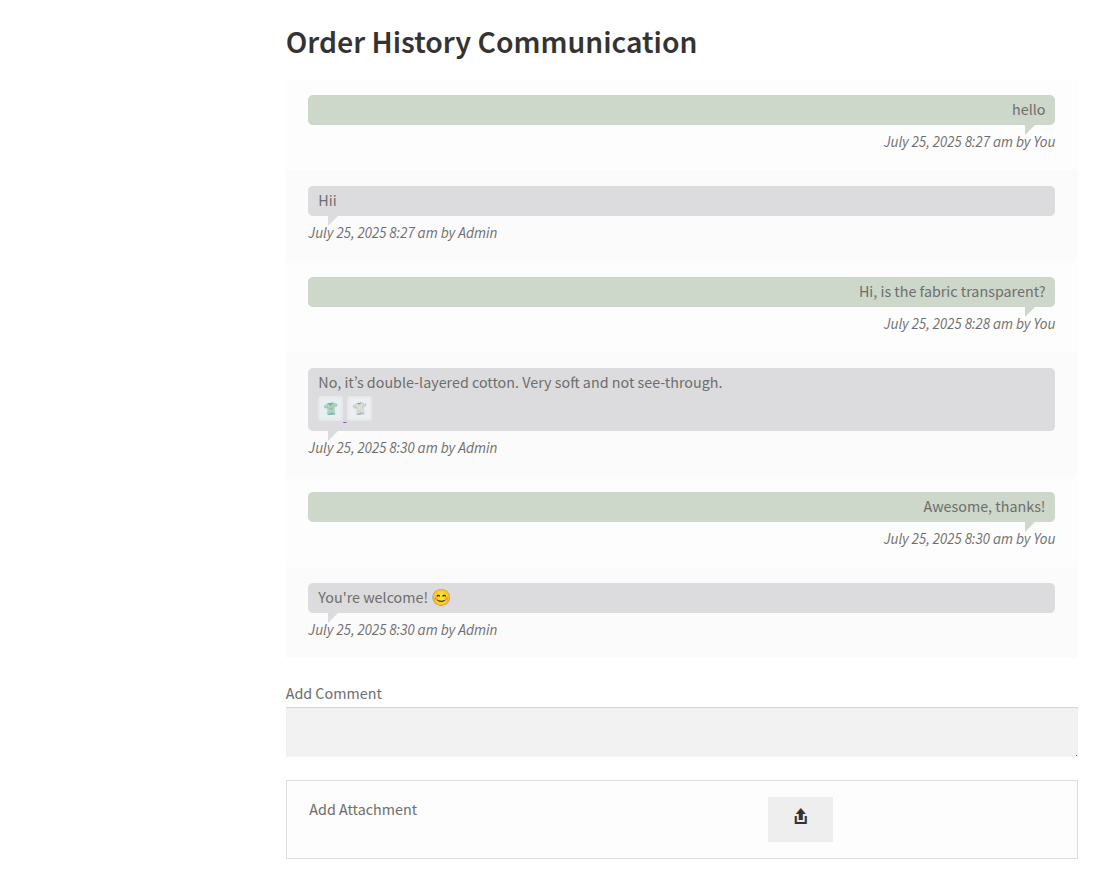
The customer can also share order attachments to find an immediate solution.
Admin’s Response to Order Comment
The admin needs to navigate WooCommerce > Orders and open the respective order to respond to customers’ raised concerns.
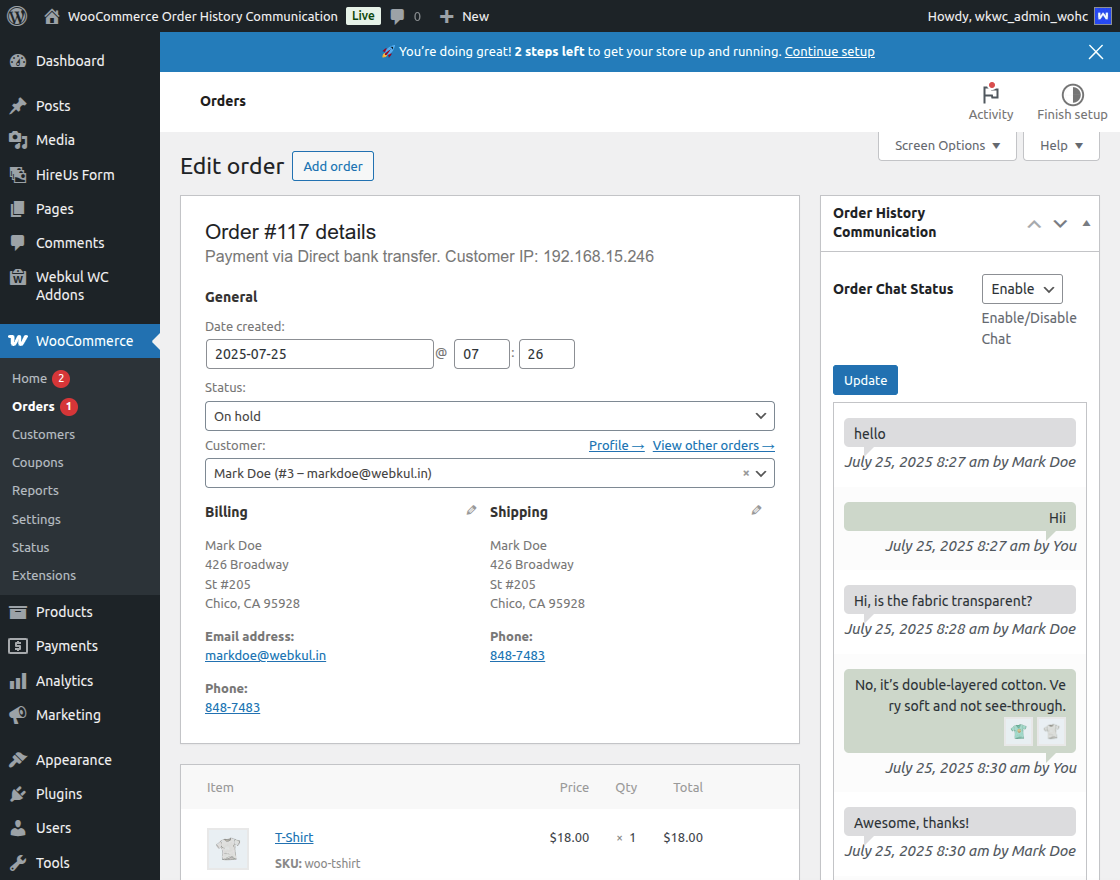
From here, the admin can add a comment to the order for the customer.
Also, the admin adds more than one attachment and sends the same to the customer.
Email Notification
The customer and the admin both will receive an email of the conversation happening between them related to the order.

Thus, that’s all for the WooCommerce Order History Communication module. If you still have any issues, feel free to email us here.
Current Product Version - 1.2.0
Supported Framework Version - WordPress:6.8.2 WooCormmerce :10.0.4


Be the first to comment.