WooCommerce Icecat Extension connects your Icecat account to WooCommerce.
Icecat allows you to import products from the Icecat catalogue into your WooCommerce store, along with details such as name, description, images, and so on.
We provide a production version of the plugin. If you want a development version then you can get it at an additional cost. Please contact [email protected] for it.
Notes-
- This plugin is now compatible with WooCommerce’s latest High-Performance Order Storage (HPOS) and Cart and Checkout block.
- Our module does not support full Icecat products.
- Check the below mentioned video for an overview of the extension:
Features of WooCommerce Icecat Extension
- Icecat products can be imported by Admin using the Icecat id, GTIN, Brand, and Product Code
- Admin can update already imported products.
- The product can be imported with the selected language by the admin
- Admin can import category along with the product from Icecat catalog.
- Admin can import products with the WooCommerce categories.
- The admin can move the products in trash by bulk mode.
- They can also publish the product in bulk mode.
How to Install WooCommerce Icecat Extension
The user will get a zip file which he has to upload in the “Add New” menu option in the WordPress admin panel.
For this login to WordPress Admin Panel and Under the Dashboard hover your mouse over the “Plugins” menu option which brings out a Sub-Menu and then selects the “Add New” option.

After this, you will see an option on the top of your page that is “Upload Plugin”, click the option to upload the zip file.

By clicking on the “Upload Plugin” option, below that you will see a button “Choose File” click on the button to browse for the zip file as per the snapshot below.

After browsing the file, click the “Install Now” button to install the plugin as per the snapshot.

Now when the plugin is installed correctly, you will see the success message and an option to activate the plugin. Click on “Activate Plugin” to activate the installed plugin.

Update Permalink under “Settings > Permalinks” as “Post name” as in the below snapshot.

How do I activate WooCommerce Plugins?
Check out how to Activate the WooCommerce Plugin through the purchase code and get updates on Webkul Modules directly on the Plugins page.
How to get Icecat Username?
You have to visit the URL to register for Icecat username.

After registering, you will receive an email to the registered email address. Then you must activate your account by verifying your email address.

Workflow of WooCommerce Icecat Extension
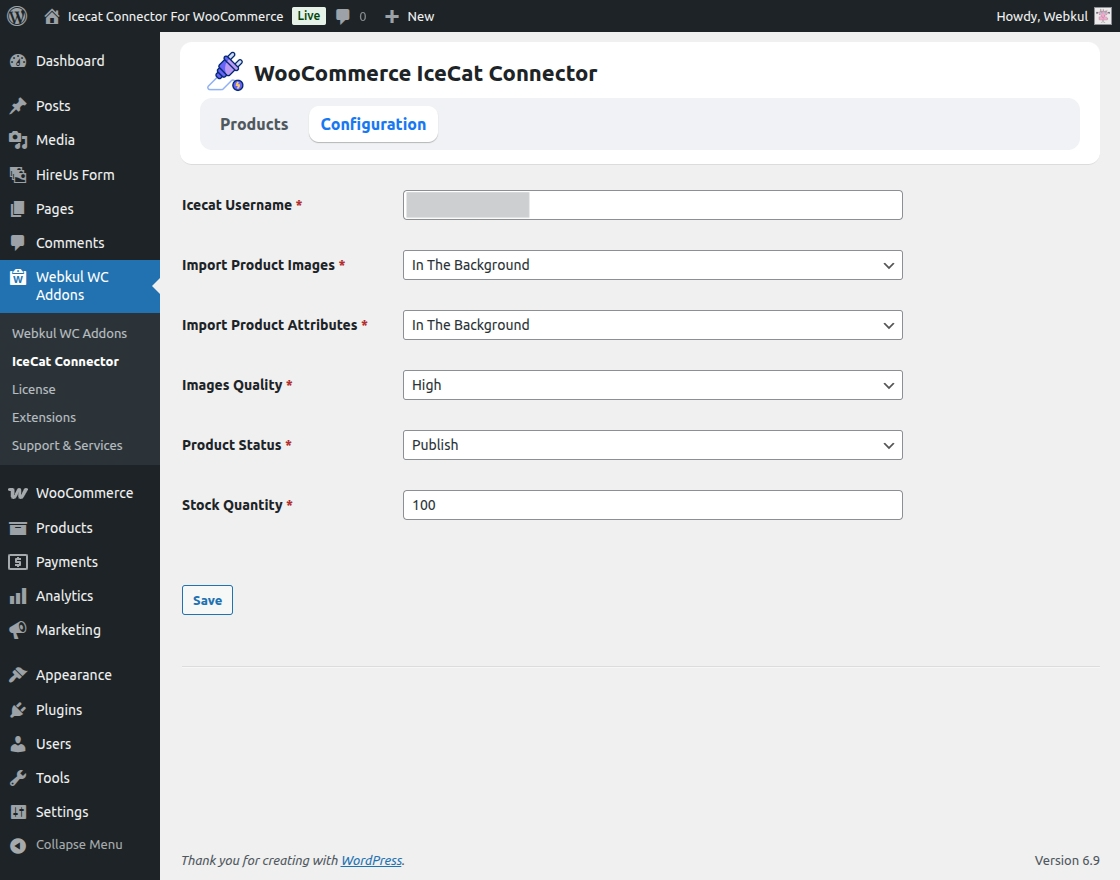
After successfully installing the plugin in WooCommerce, an admin can configure the WooCommerce Icecat Extension by navigating to Webkul WC Add-on.

When the admin clicks on the setting button, it will navigate them to the general configuration page. Here, enter the Icecat username. Additionally, two new options are now available:
- Import Product Images – Select the method of sync and update product images.
- Import Product Attributes –Select the method of Fetching and assign product attributes from Icecat.
- Image Quality – Admin can select the product image quality
- Product Status – Manage and update product visibility/status.
- Stock Quantity – Keep stock levels updated as per Icecat configuration.
Images Quality: This setting allows you to specify the desired quality for the product images.
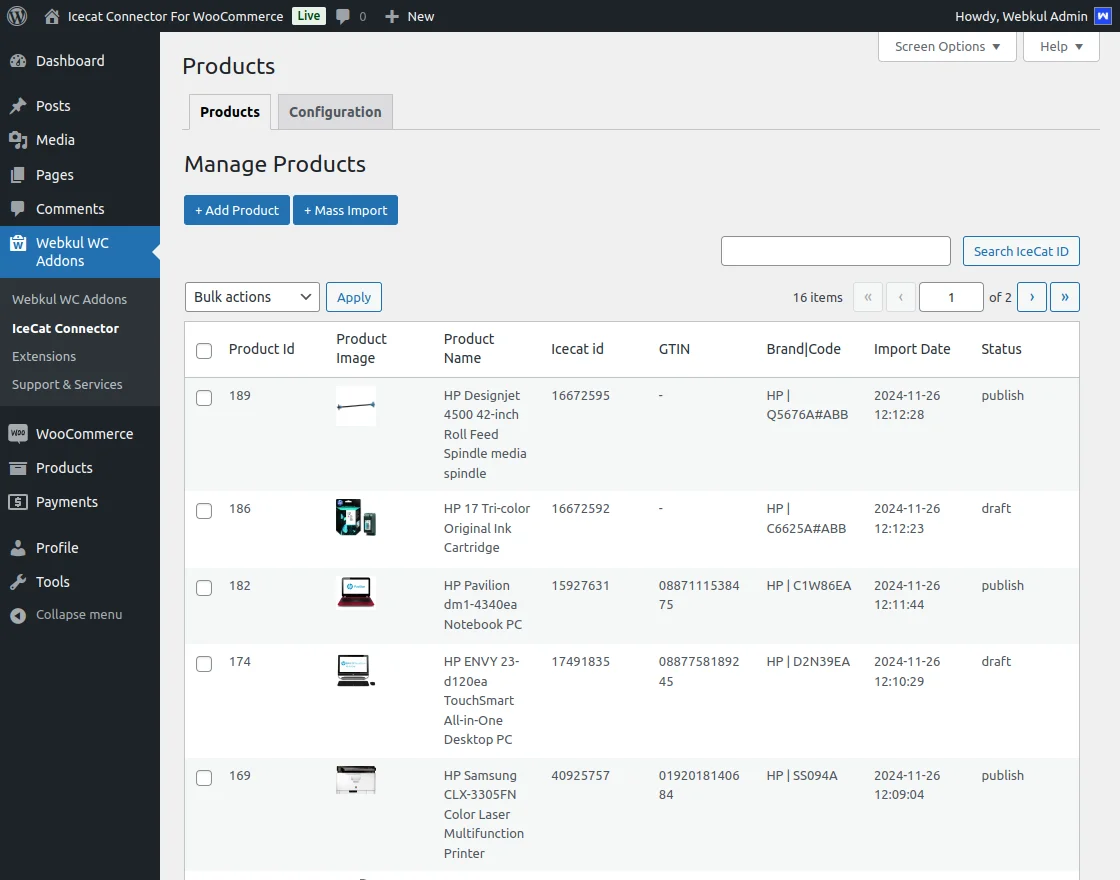
To import a product into WooCommerce, click on WC Icecat Connector. You will see a list of all products imported from Icecat.
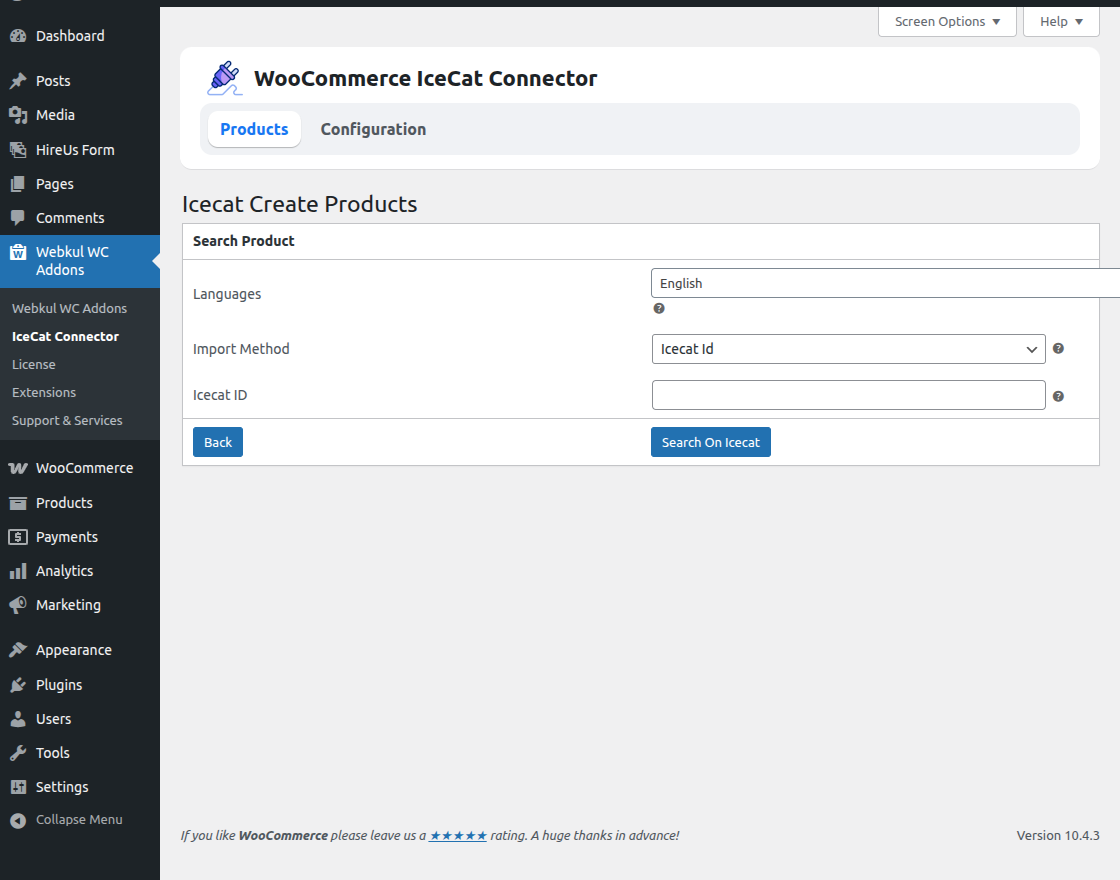
Add Product:
To add a new product, click on Add Product. then you have to enter the details like:
- Language: Select the language in which you want to import the product.
- Import Method: Here you can select the Icecat ID, GTIN, Brand, and Product Code to import the product.
- Icecat ID: Enter the ID of the Icecat product you want to import here.
Then click on “Search On Icecat”
Once click on “Search On Icecat” the product’s basic details will be visible to you.
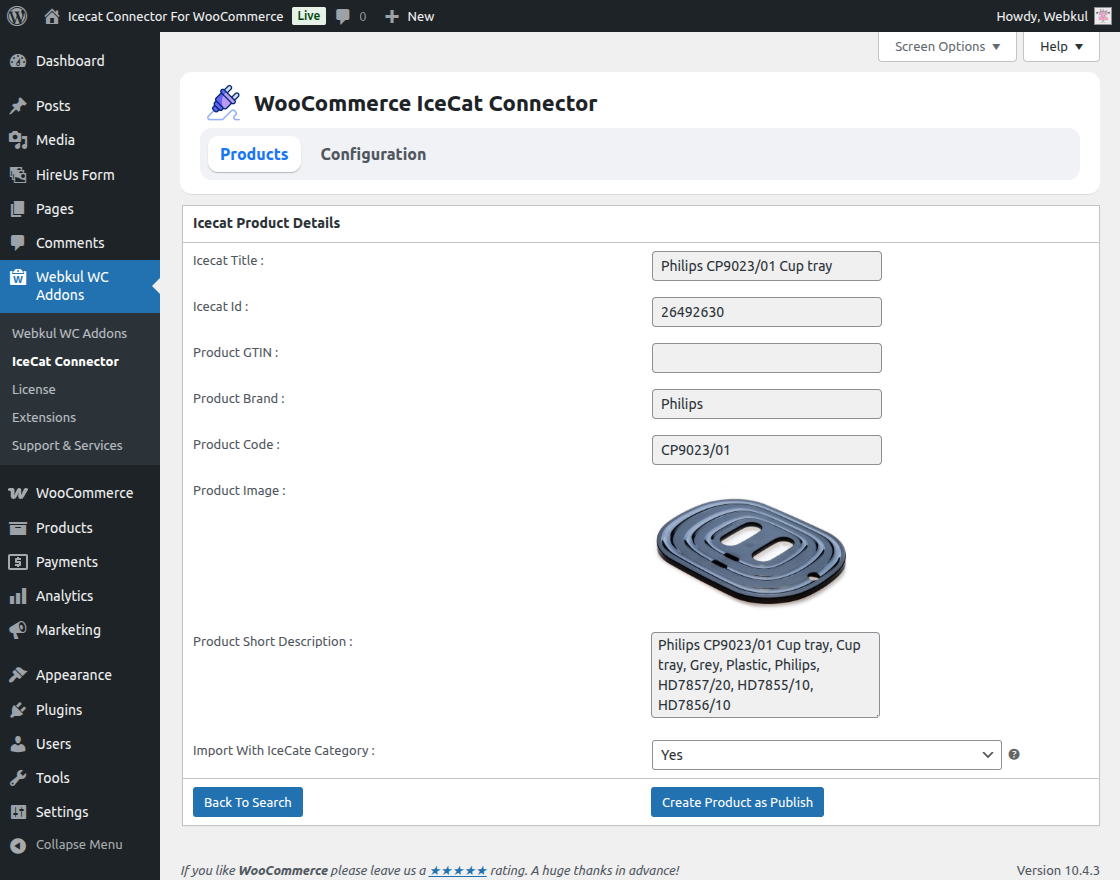
Select YES if you want to import the product category along with the product from the Icecat catalog.
If you want to import products from WooCommerce categories, select No and then select the specific category you want to import them from.
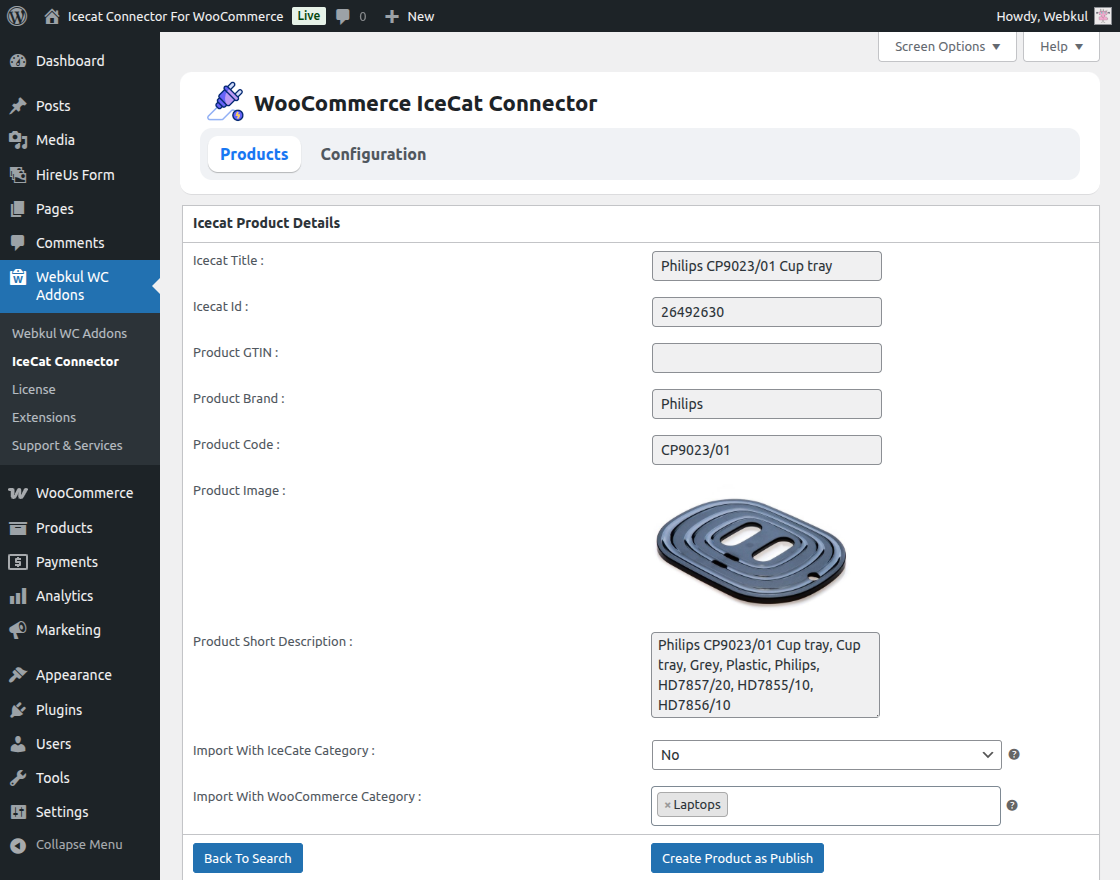
Then, select Create Product as Draft. The product will then be listed in your all products, and you can review the information before publishing it.

Mass Import
Now, the Admin can import products in bulk. To import products in bulk click on the Mass Import Button.
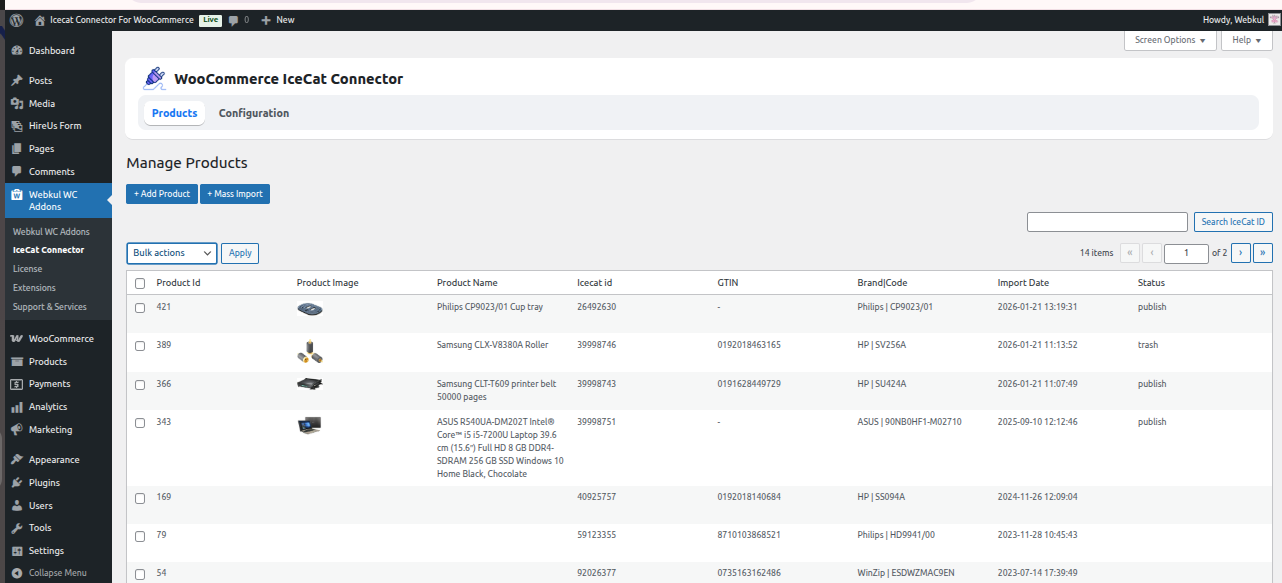
After clicking on the Mass import button the below given page will be open.
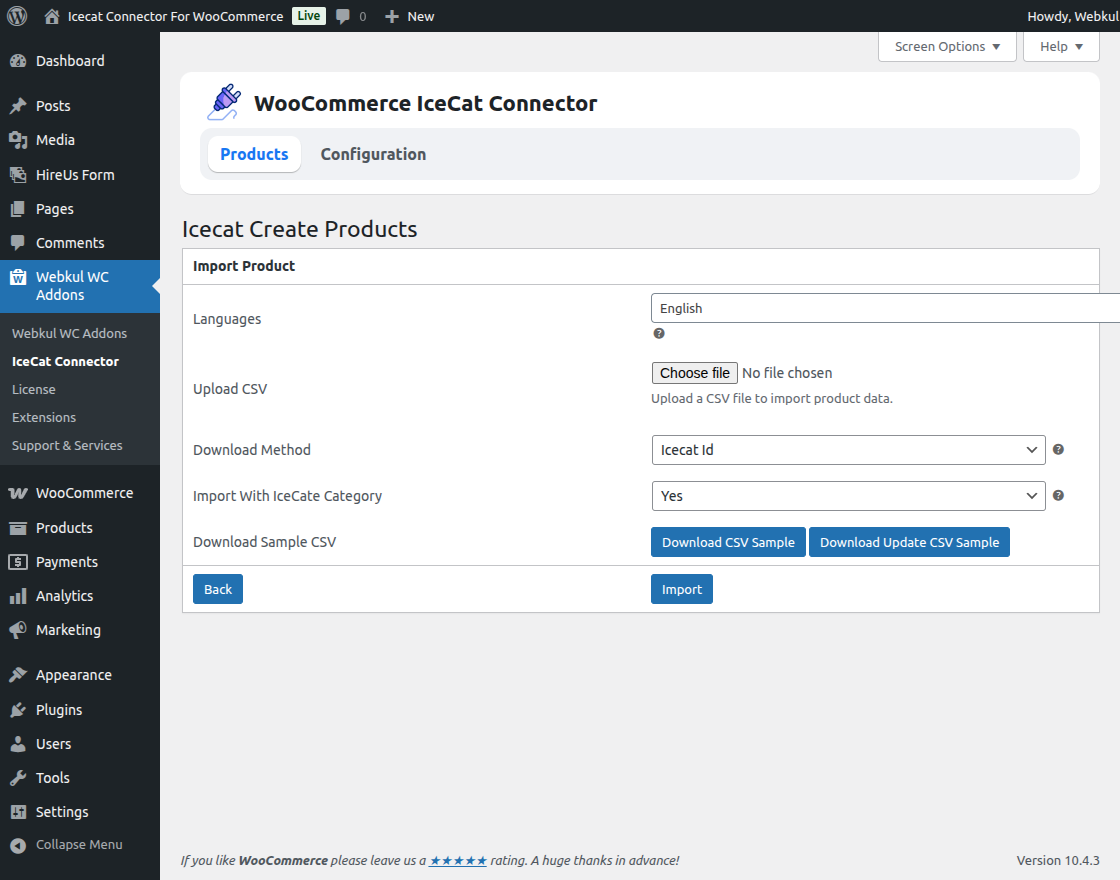
Here, the admin needs to fill the following information.
Languages: Here admin can select the language of the products.
Upload CSV: Admin can upload the product CSV file from here.
Download Method: Select the following download methods to import products in bulk.
- Icecat Id: Import products from their Icecat Id.
- GSTIN: Also, import products from their GSTIN numbers.
- Product Code & Brand: Admin can Import products by their product code and brand name.
After, Filling all the information click on the import button then the importing process will start as shown in the below screenshot.
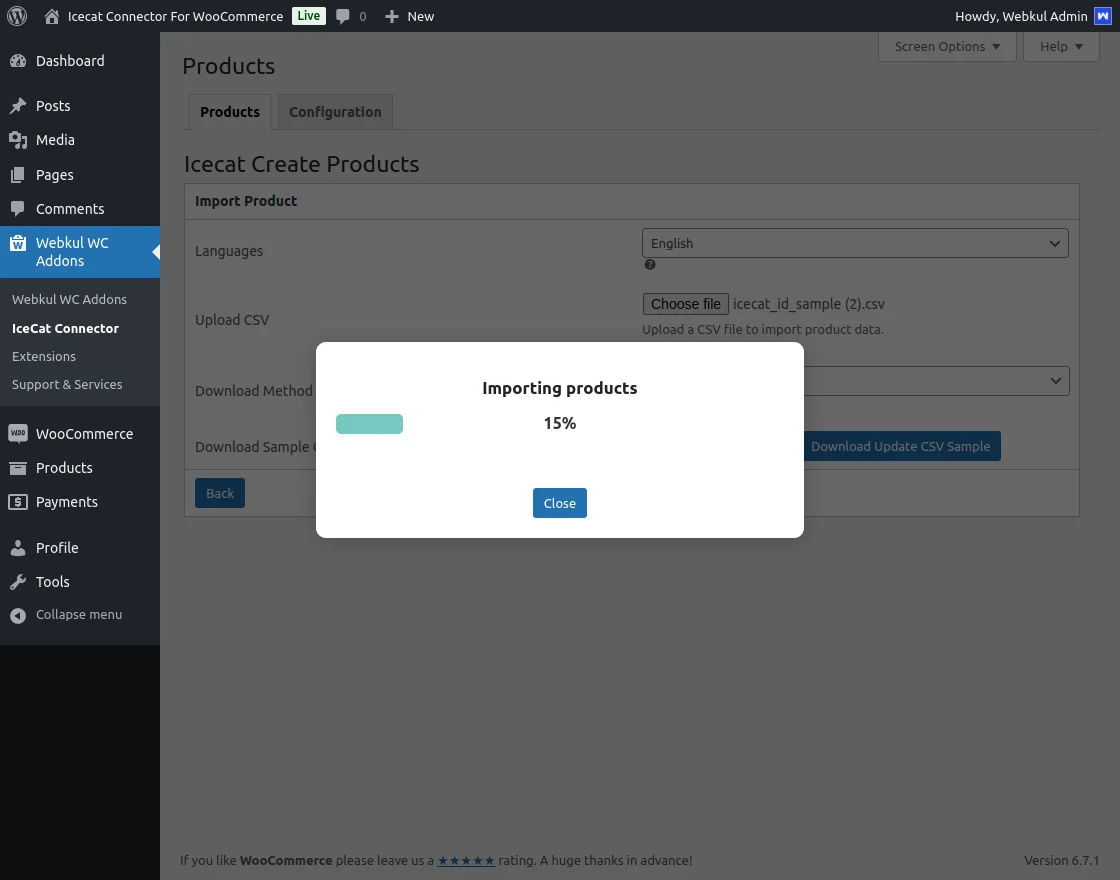
After importing all the products, the admin can see how many products were successfully imported and how many failed to import.
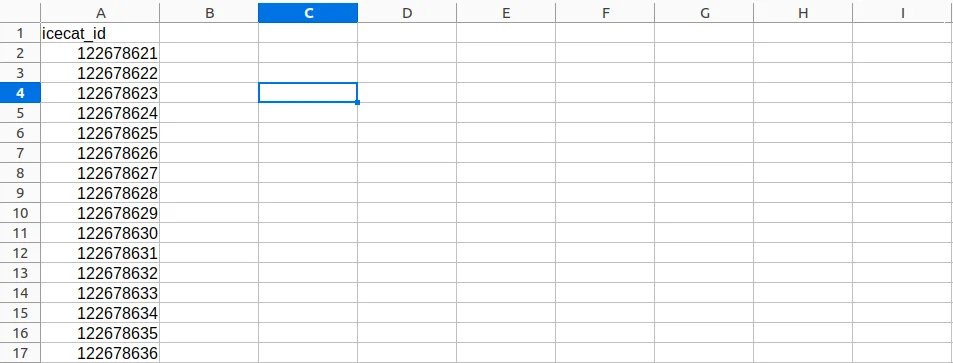
and the admin can also check the failed products by clicking on the Download Failed items button.

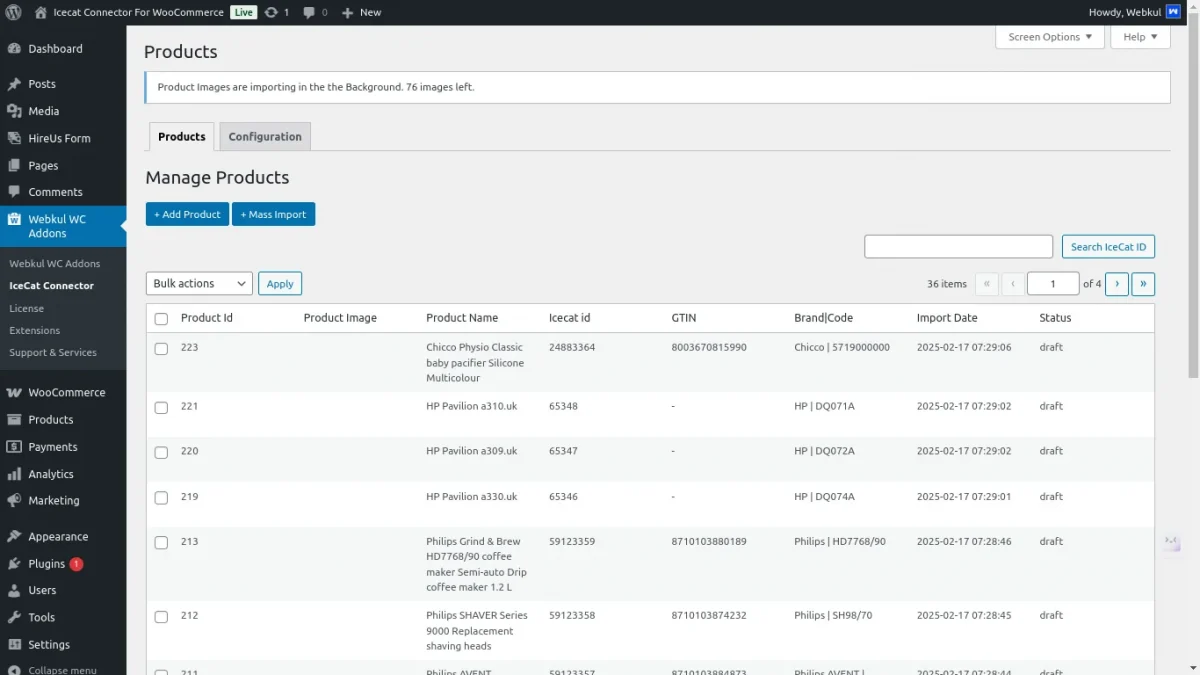
When selecting the “In the background” option, the products will be imported, but the images will be imported separately.
A notification will appear at the top, stating, “Product images are importing in the background ” to indicate that the image import process is still ongoing.
Below is an image showing this notification for reference.
The admin can see all the failed products by downloading the CSV file.
Now, If you want to update products that have already been imported from Icecat, select the product and click the update button.
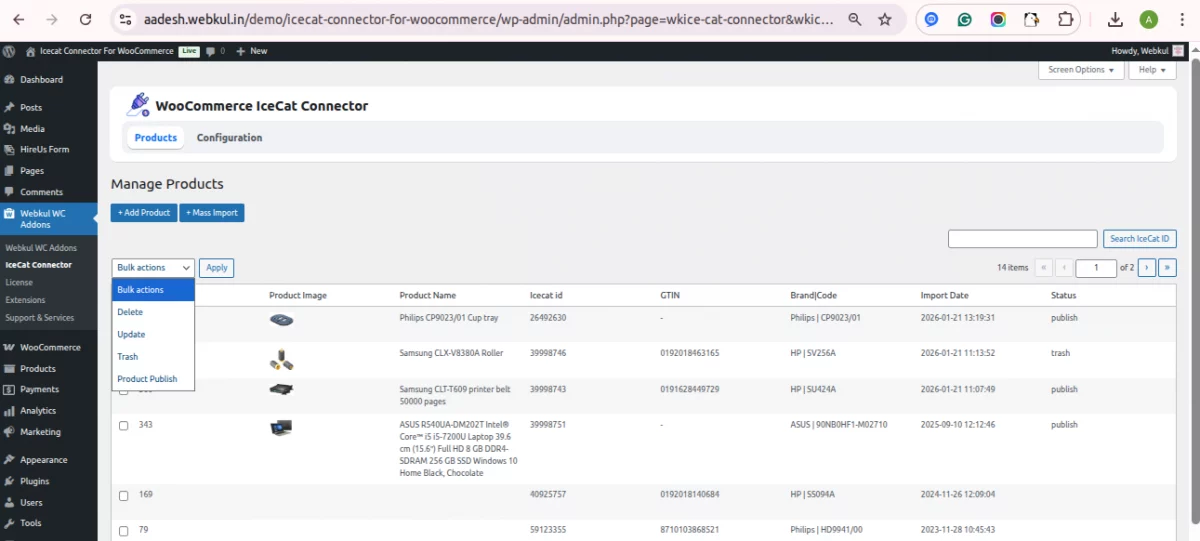
Now the admin can perform various actions from bulk action options like product update, trash, and product publish.
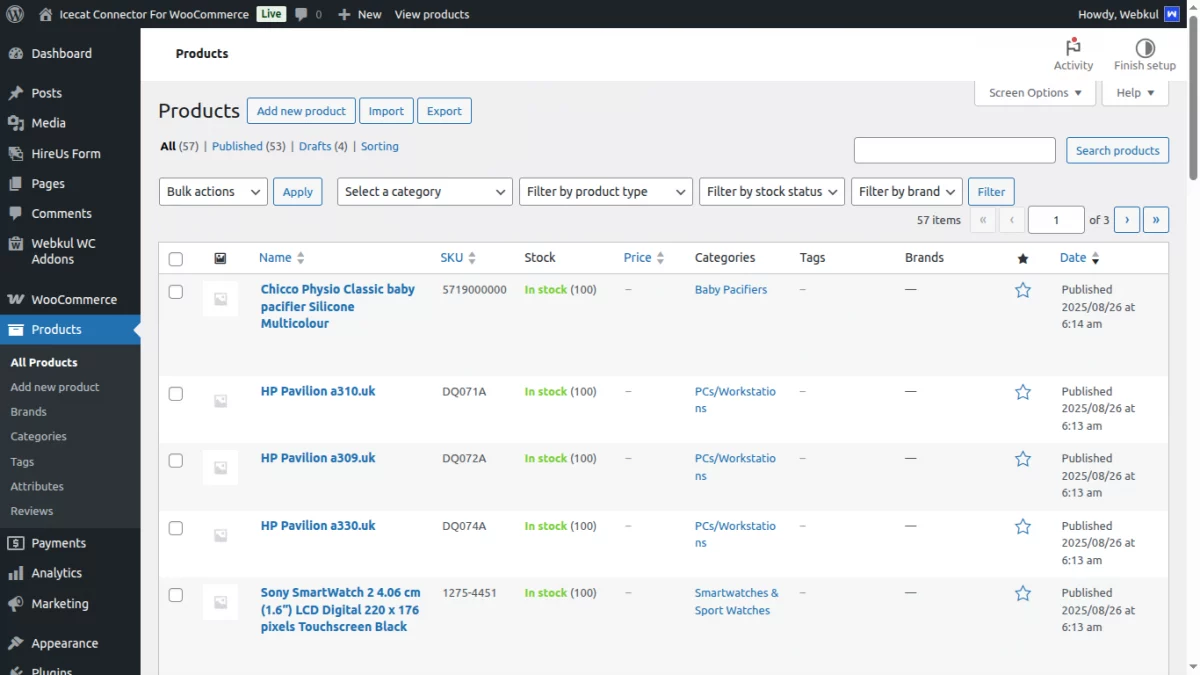
WooCommerce Products section. All product stock levels are updated according to the configuration set in the Icecat Connector.
Import Product Details on Existing Product
Now the admin can import Icecat product details on WooCommerce’s existing simple product from the WooCommerce edit product page.
The admin needs to choose the language and needs to enter Icecat ID.

Front End View


However, in case of any query or questions regarding WooCommerce Icecat extension OR any other Woocommerce Extensions.
you can create a ticket at webkul.uvdesk.com or contact us at store.webkul.com/contacts/ to let us know your views to make the plugin better.
Current Product Version - 1.4.1
Supported Framework Version - WordPress: 6.9.0 WooCommerce: 10.4.3


Be the first to comment.