WordPress WooCommerce AI Image Background Remover plugin allows the admin to remove the background of the product media image.
With the AI Image Background Remover module, the admin can replace the product and media image background with custom color options.
The store admin can remove the background of one or more images in a single tap with the AI Image Background Remover plugin.
Moreover, you can also allow customers to search for the product in the store by uploading an image. For that, you can check WooCommerce Product Search Via Image.
Note:
- This plugin works with both WordPress and WooCommerce.
- This plugin is now compatible with WooCommerce’s latest feature Cart and Checkout Blocks.
- We provide a production version of the plugin. If you want a development version then you can get it at an additional cost. Please contact [email protected] for it.
NOTE:
Features
- The admin can remove the image background when updating media.
- The admin can also remove the image background of already present media.
- The store admin can remove the multiple images background with the help of the media bulk option.
- Multiple image backgrounds can be removed by the admin.
- The admin can select the custom color and image for the image background and can change the background color of existing product media.
- Support only JPG, PNG, JPEG, and WEBP image formats.
- This plugin is compatible with WooCommerce’s new High-Performance Order Storage (HPOS) feature.
You can check the overview of the plugin from this video tutorial –
Minimum System Requirement (API Setup)
The following minimum system requirements are needed for this extension,
- Python Version – 3.10
- RAM (4 GB)
- Space (16 GB)
- Server key and cert files (optional- for flask API, needed when install on seperate server.)
- One port(5000)
To install AI module, we need SSH access. You can also check the AI Models Server Installation Guide.
Installation
The user will get a zip file which he has to upload in the “Add New” menu option in the WordPress admin panel.
For this login to the WordPress Admin Panel and Under the Dashboard hover your mouse over the “Plugins” menu option which brings out a Sub-Menu and then select the “Add New” option.

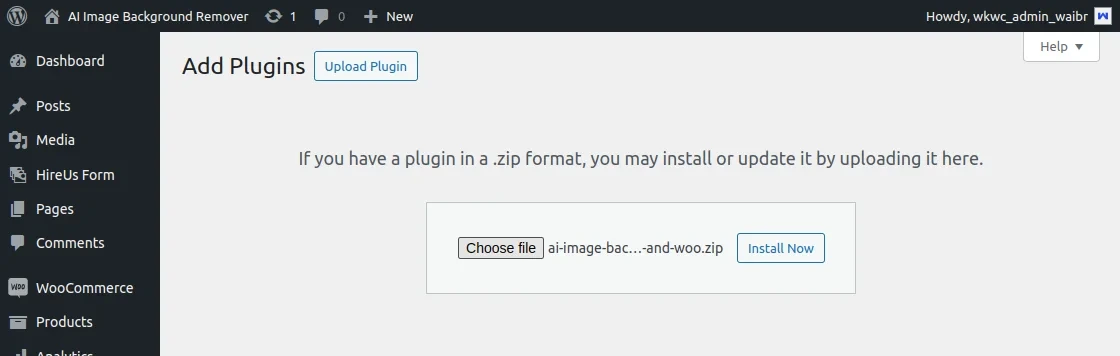
After this, you will see an option on the top of your page that is “Upload Plugin”, click the option to upload the zip file.

Click on the “Upload Plugin” option. After that, you will see a button “Choose File”. Click on the button to browse for the zip file as per the snapshot below.

After browsing the file, click the “Install Now” button to install the plugin as per the snapshot.
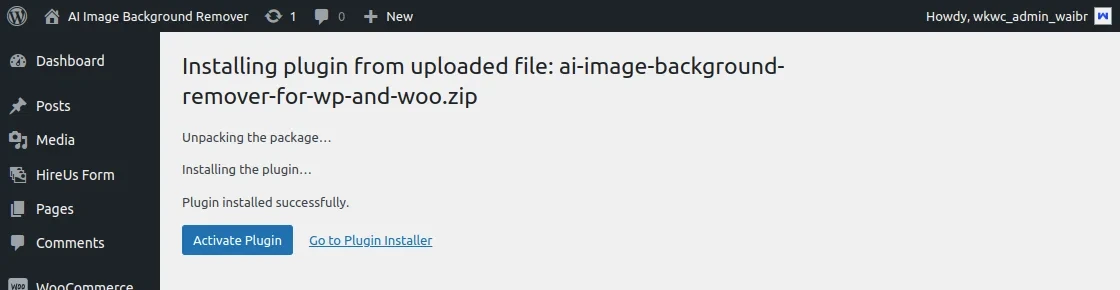
Now when the plugin is installed correctly, you will see the success message and an option to activate the plugin. Click on “Activate Plugin” to activate the installed plugin.
Module Activation
Check out how to Activate the WooCommerce Plugin through the purchase code and get updates on Webkul Modules directly on the Plugins page.
Module Translation
You can check the complete steps to learn how to translate the module.
How do you get updates on Webkul Modules directly on the Plugins page?
AI Image Background Remover – Configuration
After installing the plugin, the admin will configure the module. For this, the admin will click on the Webkul WP Addons.
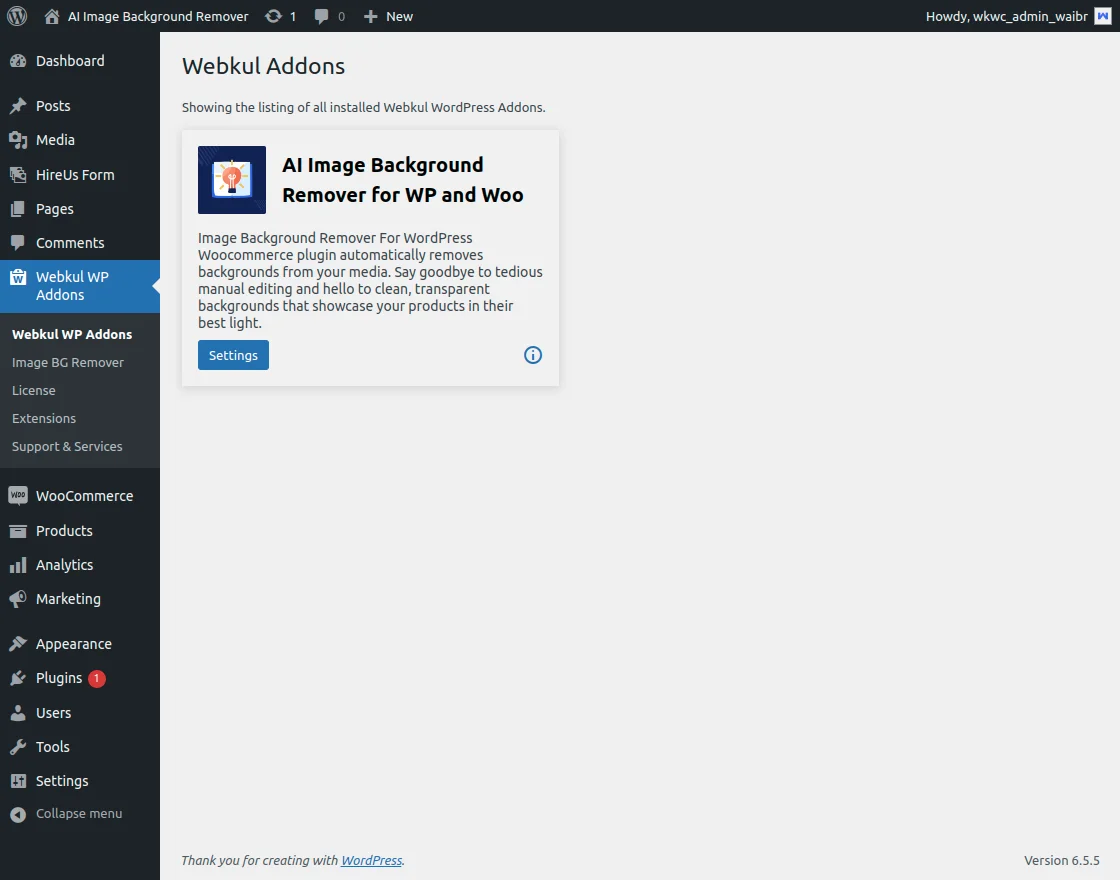
Then click on the settings.
After that, the admin will configure the AI Image Background Remover.

Here the admin will:-
- Token: Enter the API Token.
- URL: Enter the System URL for which the API needs to be set.
- Apply Background: You can set the background as a blank, color, or image.
- Background color: Set the background color for the images.
- Background Image: Set the background image for the images.
Then, the store admin will save the configuration.
AI Image Background Removal – WordPress
After completing the configuration, the admin will click on the Media in the admin dashboard side panel.
Here, the admin will get the two viewing options Grid view or List view.
List View – Operation
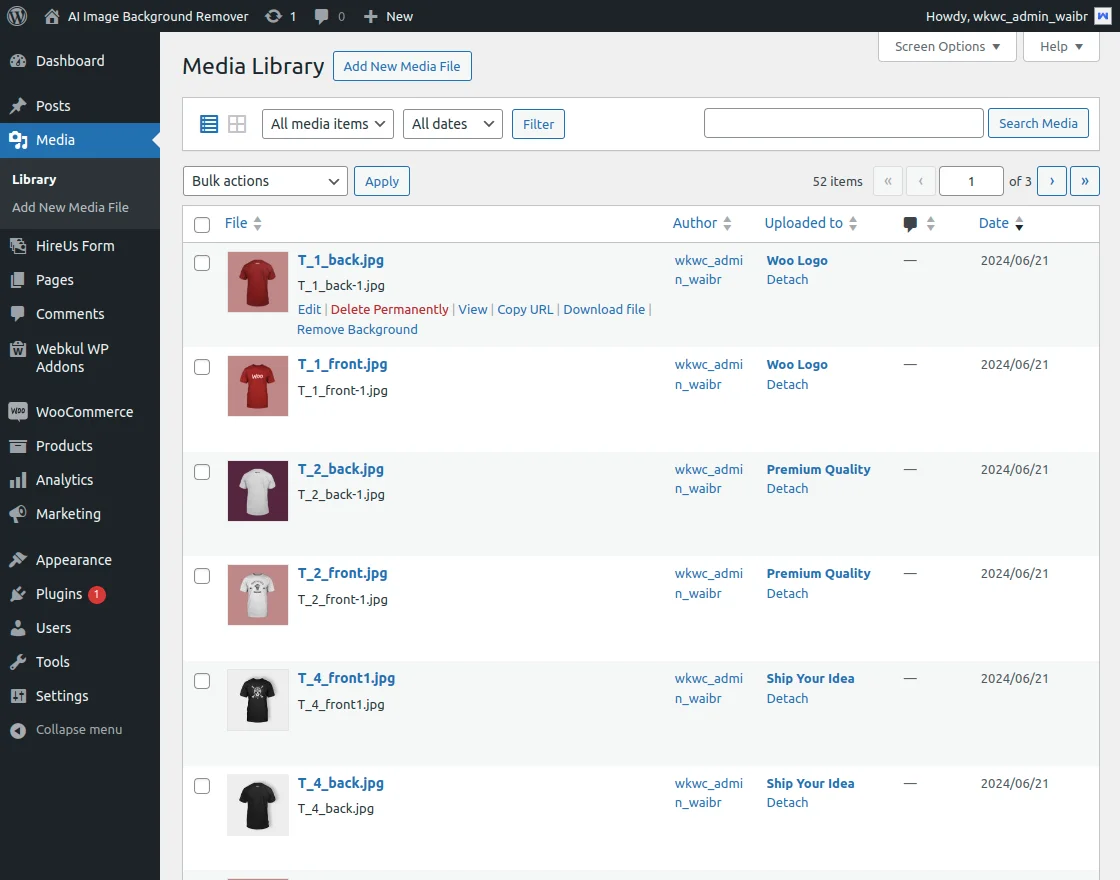
Here the admin can remove the product image background by clicking on remove background by hovering the mouse over the listed product in backend.
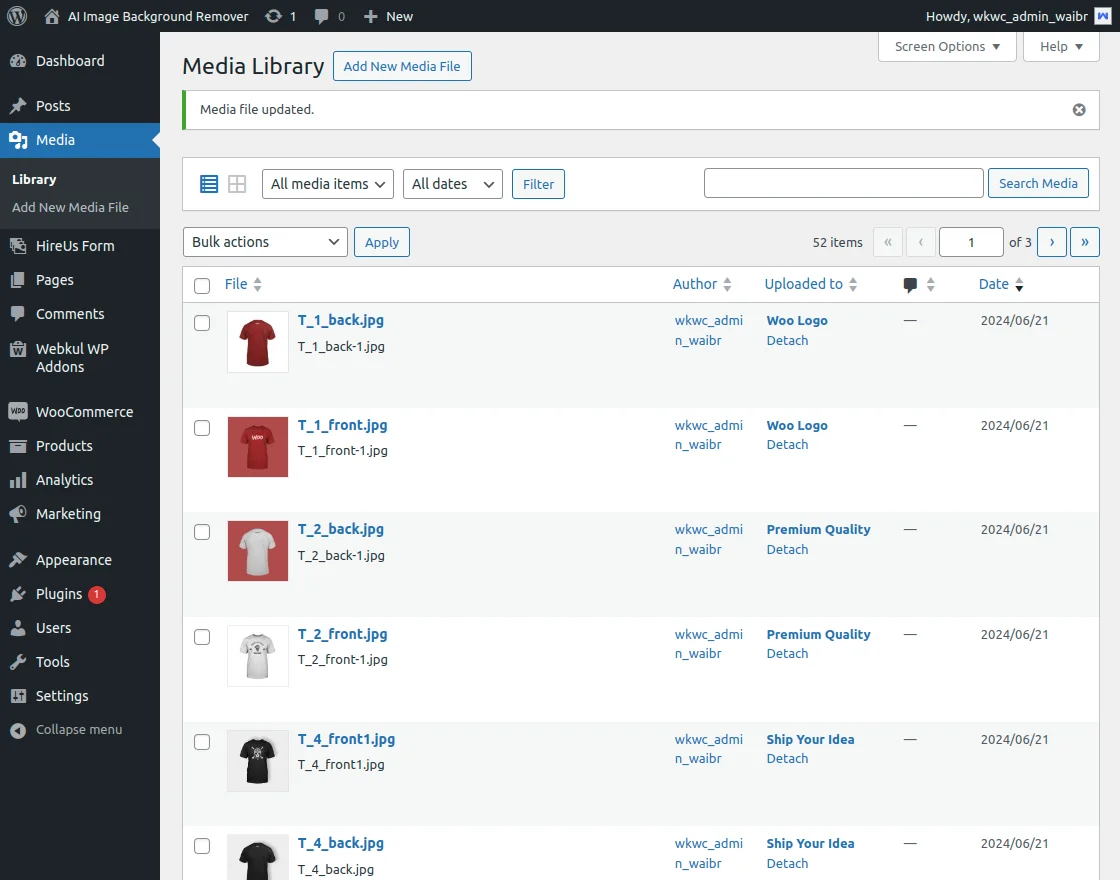
After that, the images were automatically updated and saved in the store backend.
Bulk Action
The admin can also remove the background of multiple images in a single click.
For that, the store admin will select multiple images.
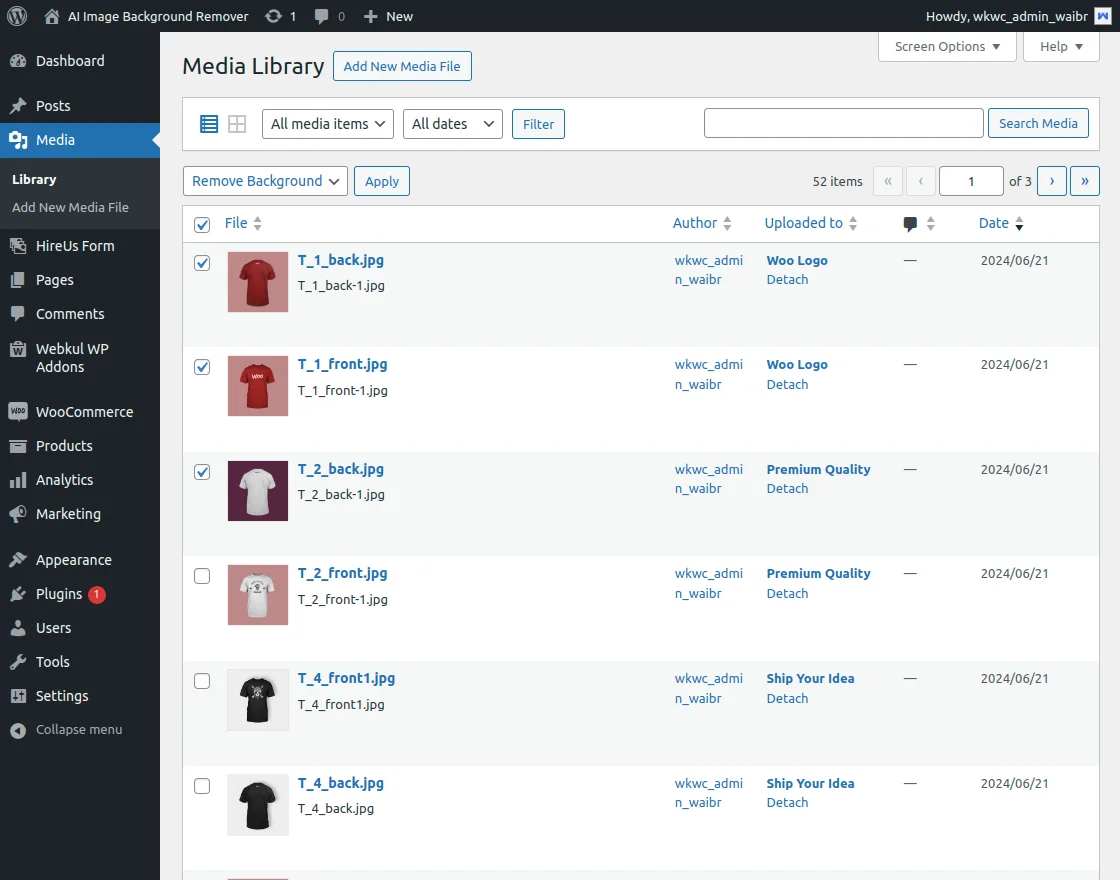
Then click on the bulk action. In the dropdown menu, the admin will tap on Remove Background.
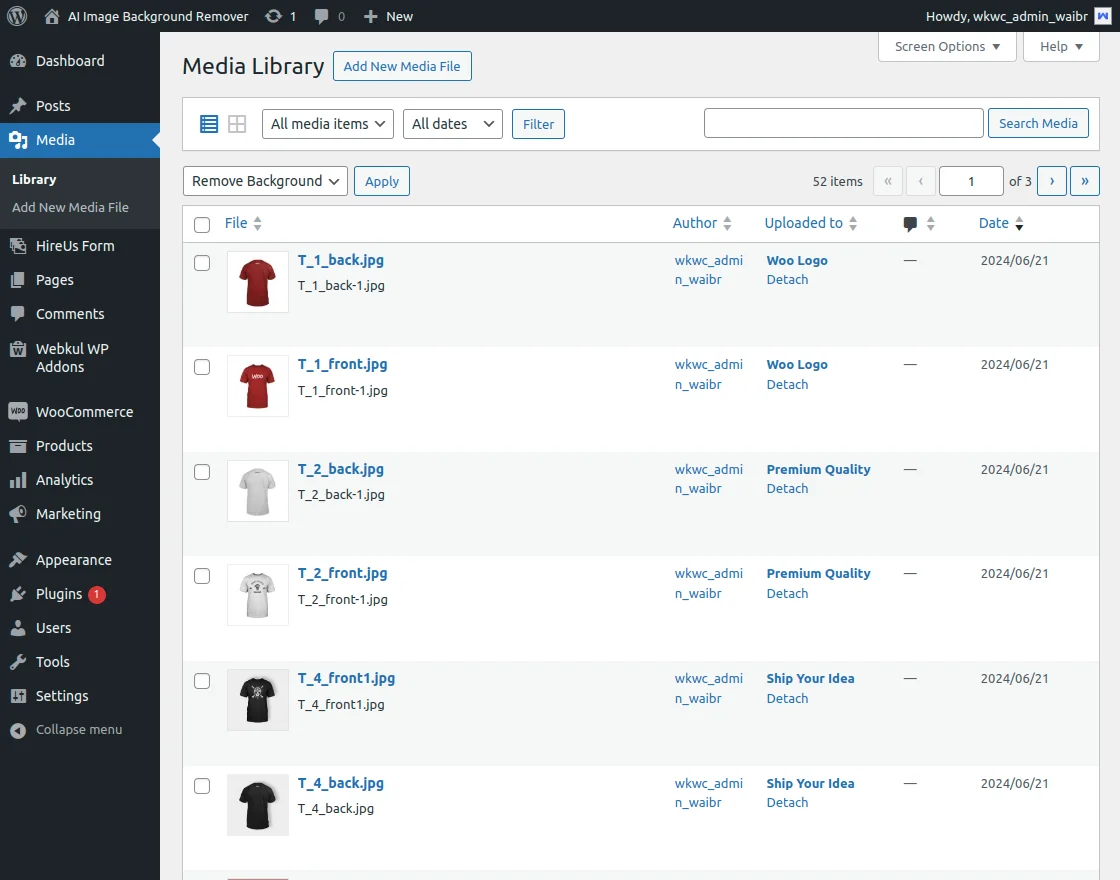
The background of all the selected images will be removed.
Note: If the changes in not visible on the store backend. Then, the admin needs to hard refresh the store backend.
Grid View – Operation
In the grid view the admin will see all the product.
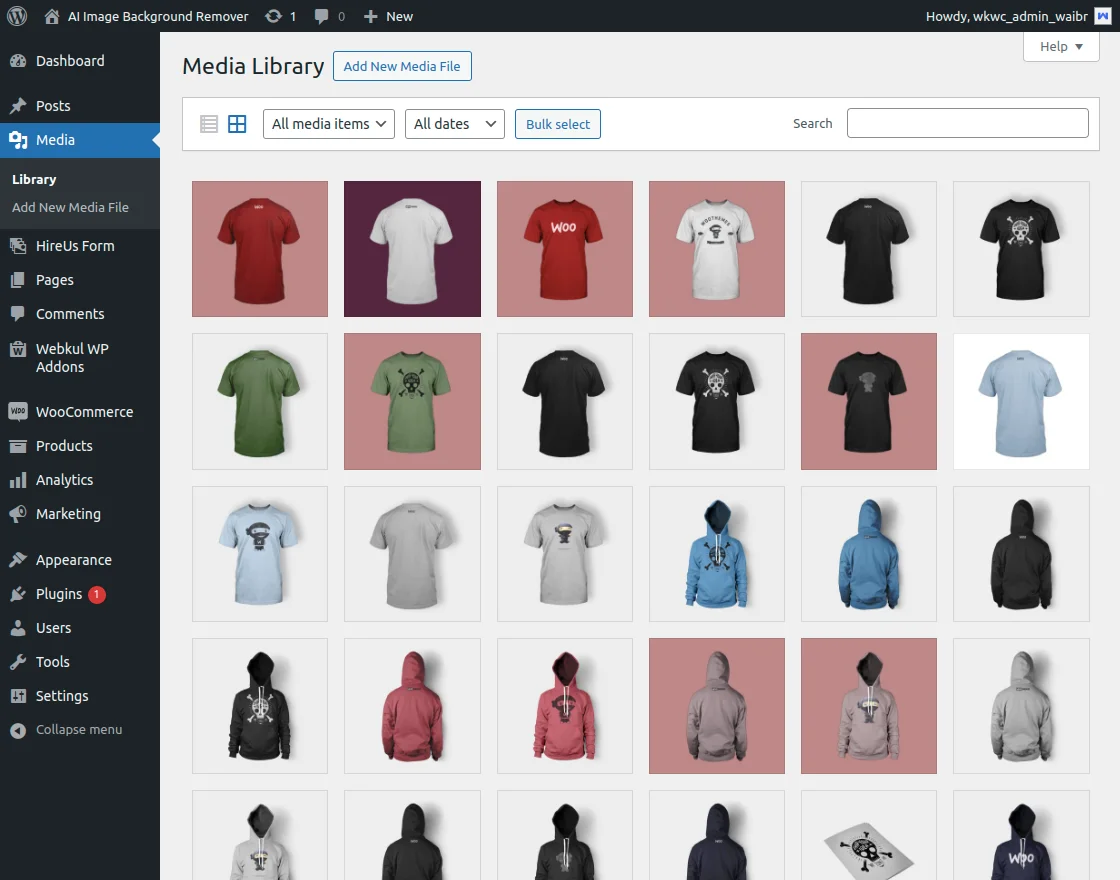
After clicking on any product, a new window will appear.
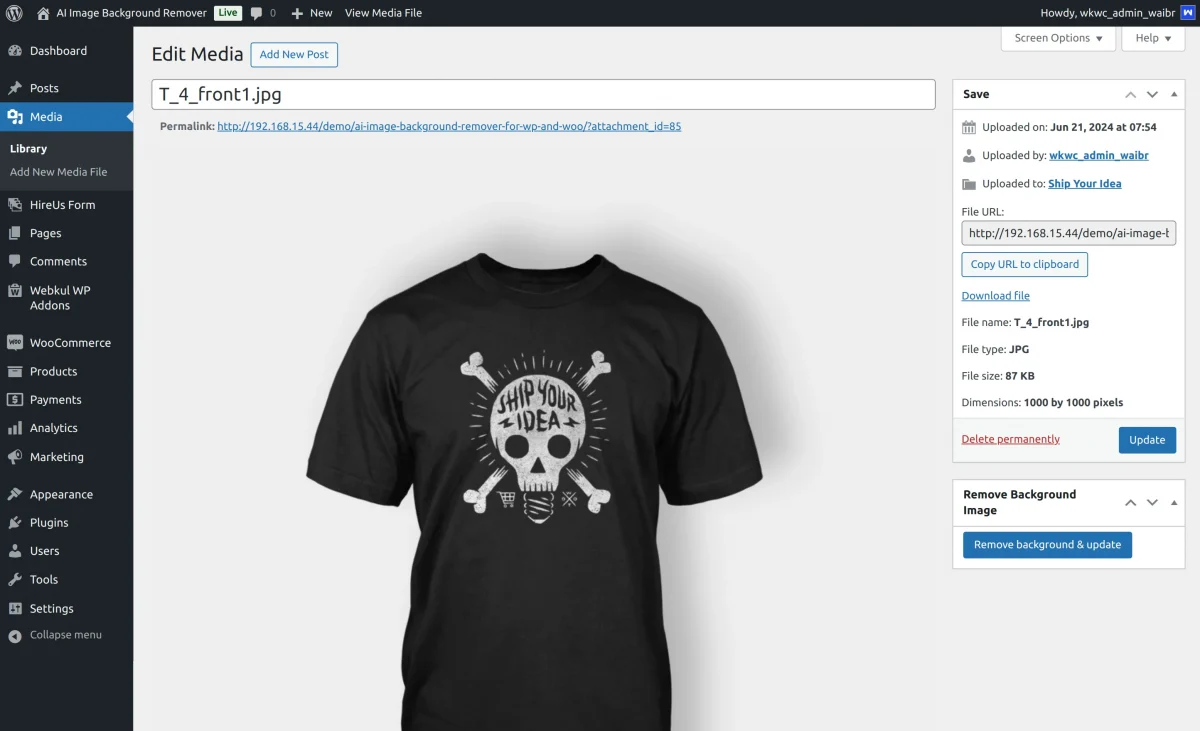
In this, the admin will click on the Remove background.

Then the background of the image will be removed.
Custom Background Color
Firstly, in the configuration options admin needs to choose a color for the image’s background and save the configuration settings.

After that, the admin will follow the same process of removing background.

Now, click on the Remove Background button to remove the background of the product image.
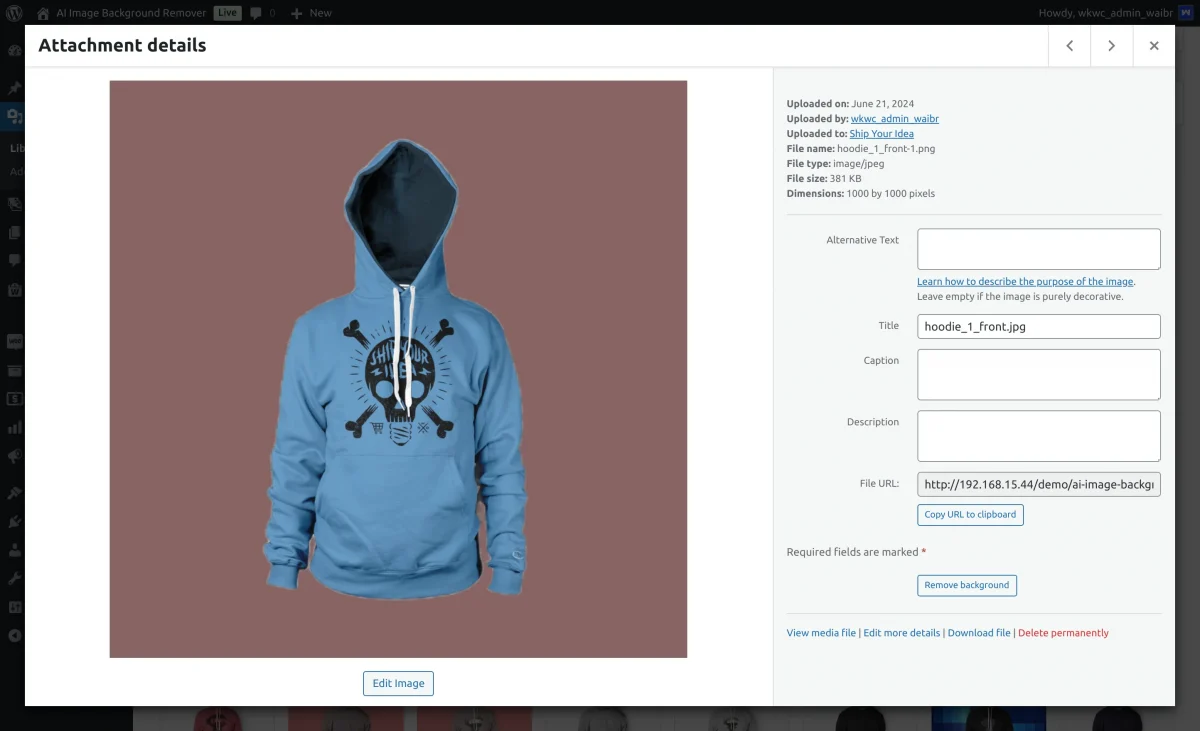
The background will be replaced with the selected color in the configuration settings.
Custom Background Image
Firstly, in the plugin configuration admin will upload an image and save the configuration.
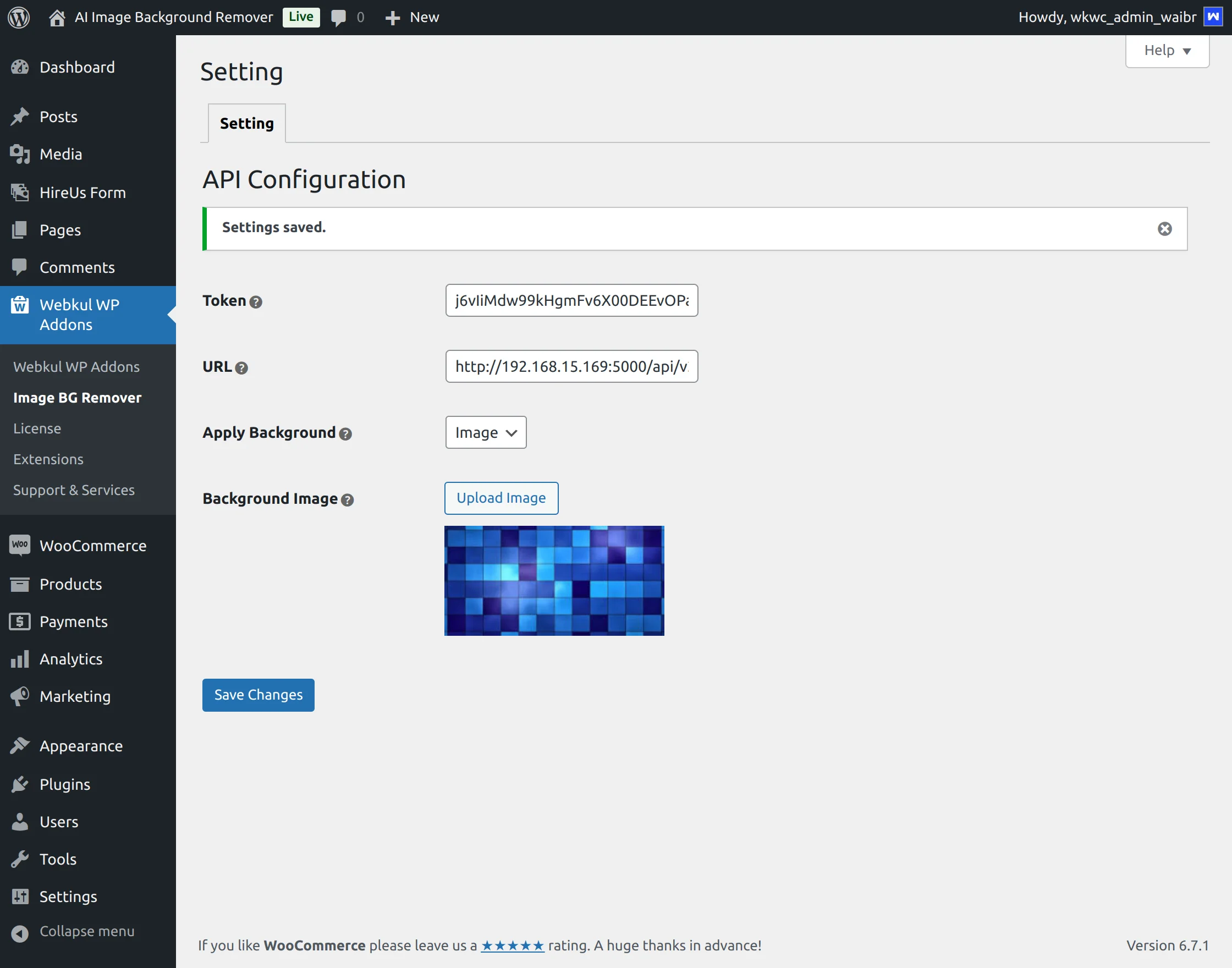
After that, the admin will follow the same process of removing background.
Click on Remove Background &Update.
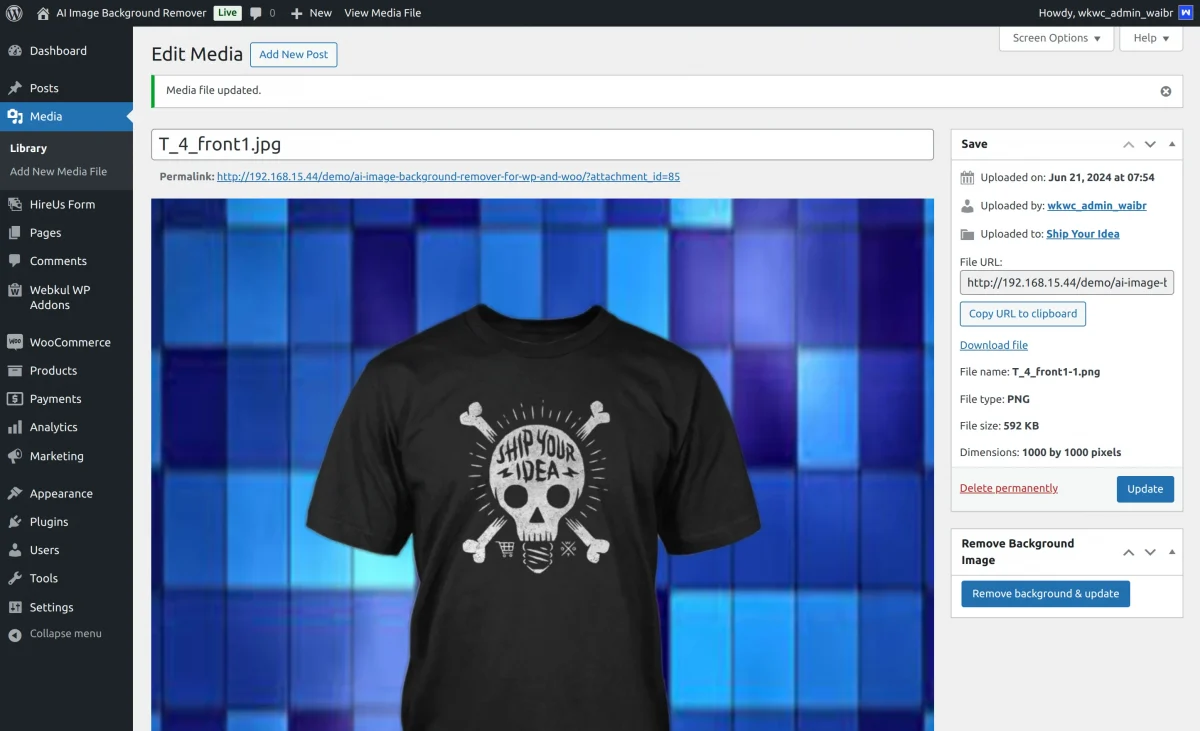
The background of the product image will be replaced with the uploaded image.
AI Image Background Removal – WooCommerce
For image background removal in WooCommerce, the admin will navigate to the product in the admin dashboard side panel.
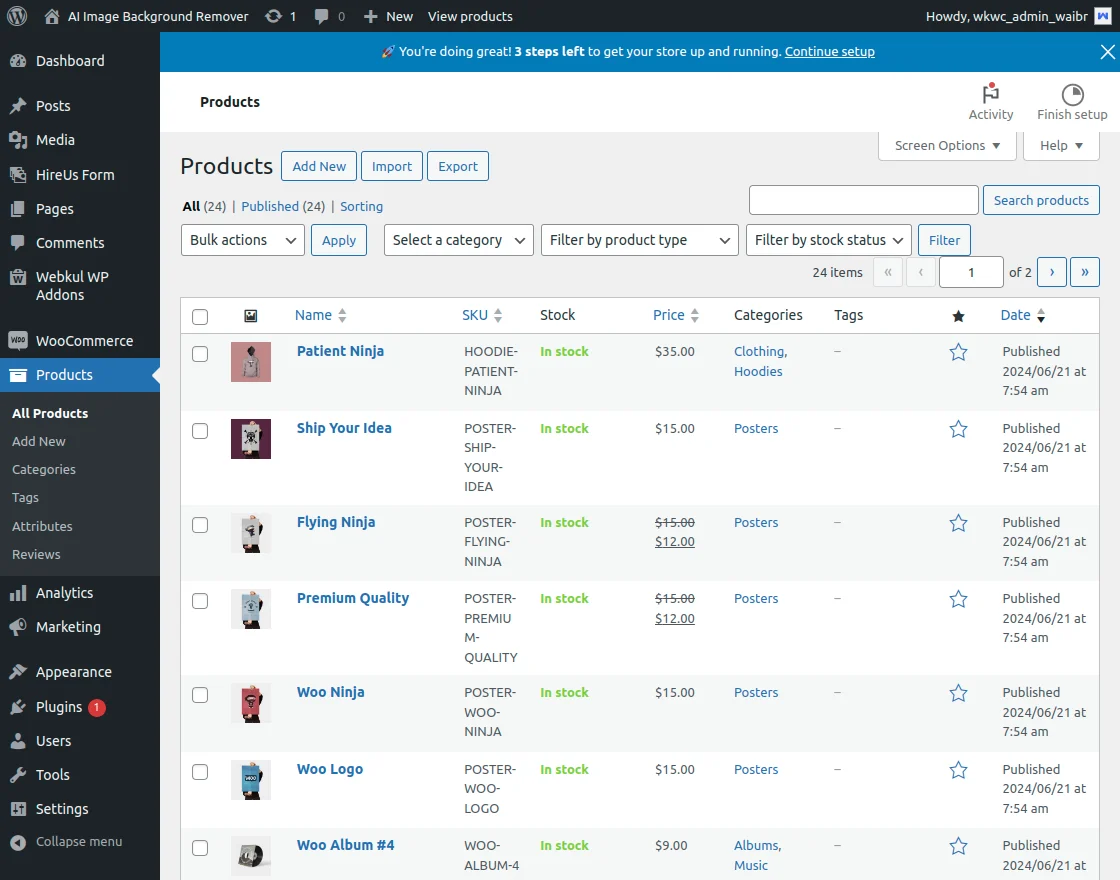
After this admin will click on the product. The edit page window will open.

Then, the admin will click on Remove Background &Update.

Now, the admin will remove the image background of product images in the gallery.

Then, the admin will select the image and click on Remove Background &Update.

The background of the product gallery image was removed successfully.
Product Edit Page – Remove Image Background
Admin can also remove background images in the Product Description.
For this, the admin will tap on Add Media in the product description section.

After that, the admin will upload the image in the media section.

Then, click on Remove Background.

Then, tap on Insert into the product to add an image in the product description.
For Example-
Two images are inserted in the product description. One has the background and the other one is after removing the image background.

WooCommerce Shop – View Images without Background
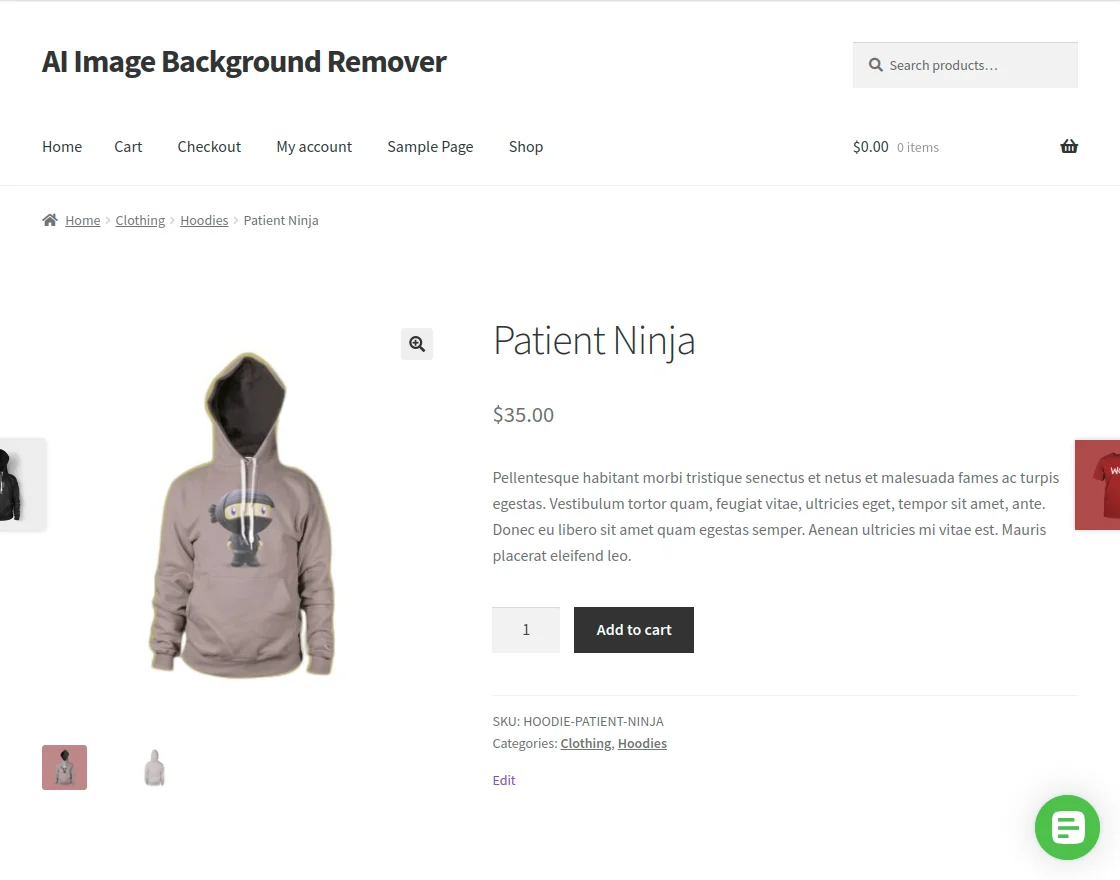
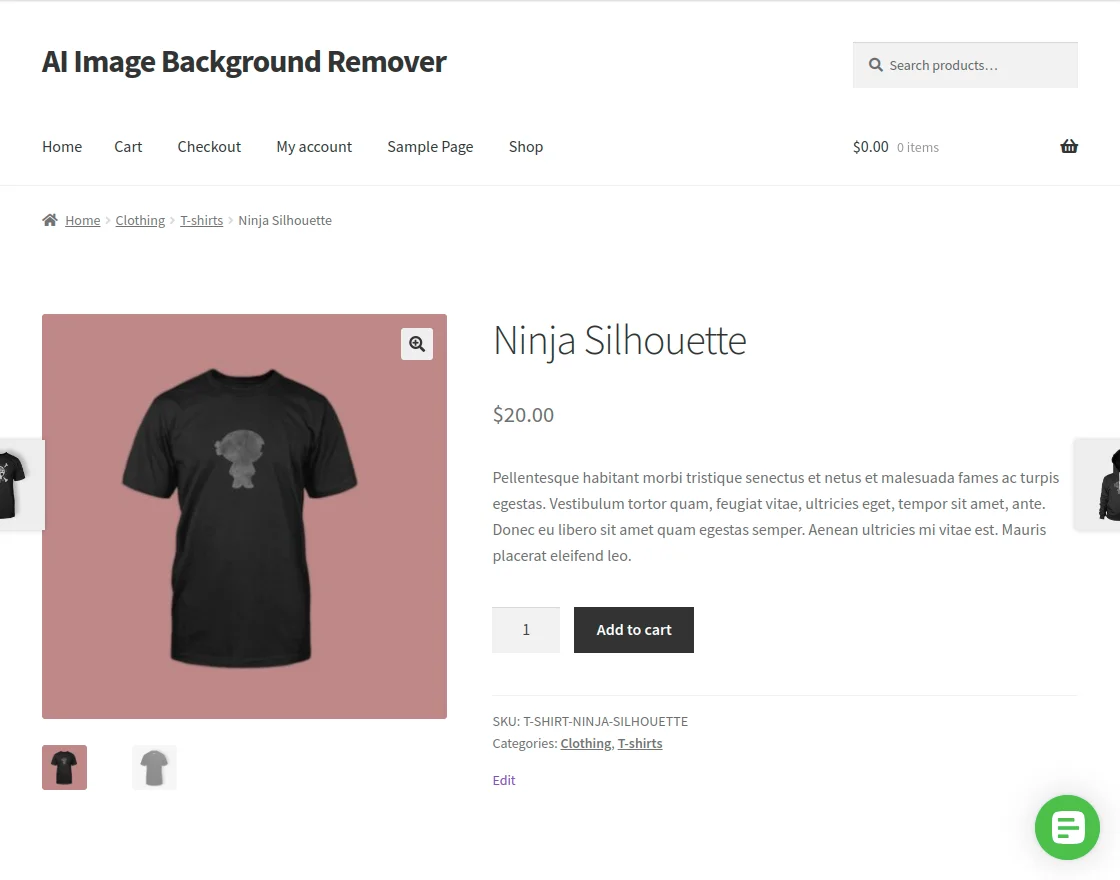
The customer can see the product without a background or with a custom background color.
Also, you can get started with a WooCommerce Mobile app for your online store to widen the reach of your WooCommerce store.
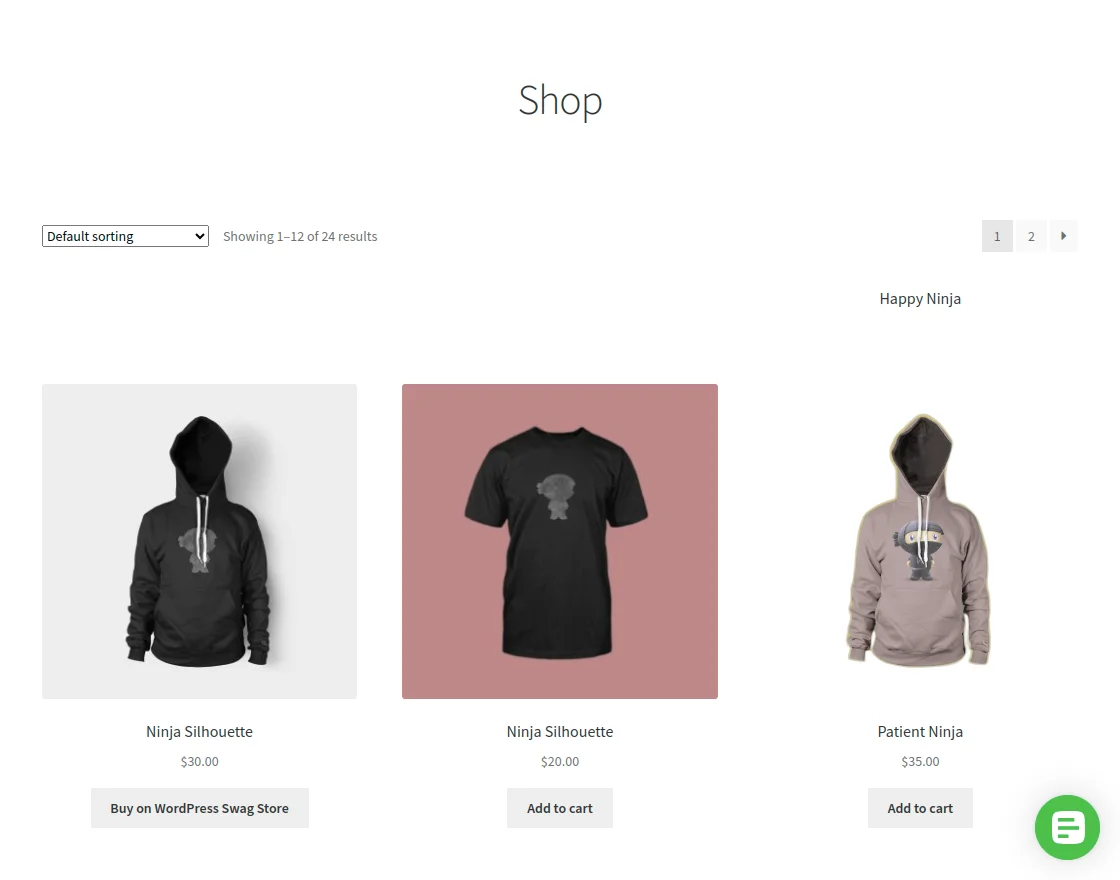
Without Background
Custom Background
Support
So, that is all about the WordPress WooCommerce AI Image Background Remover plugin. If you have any queries regarding the plugin, contact us at Webkul Support System.
Current Product Version - 1.2.1
Supported Framework Version - WordPress - 6.7.2 WooCommerce: 9.7.0


Be the first to comment.