Website Omise Payment Provider helps people pay on a website using Omise.
It allows customers to complete payments safely on the same checkout page.
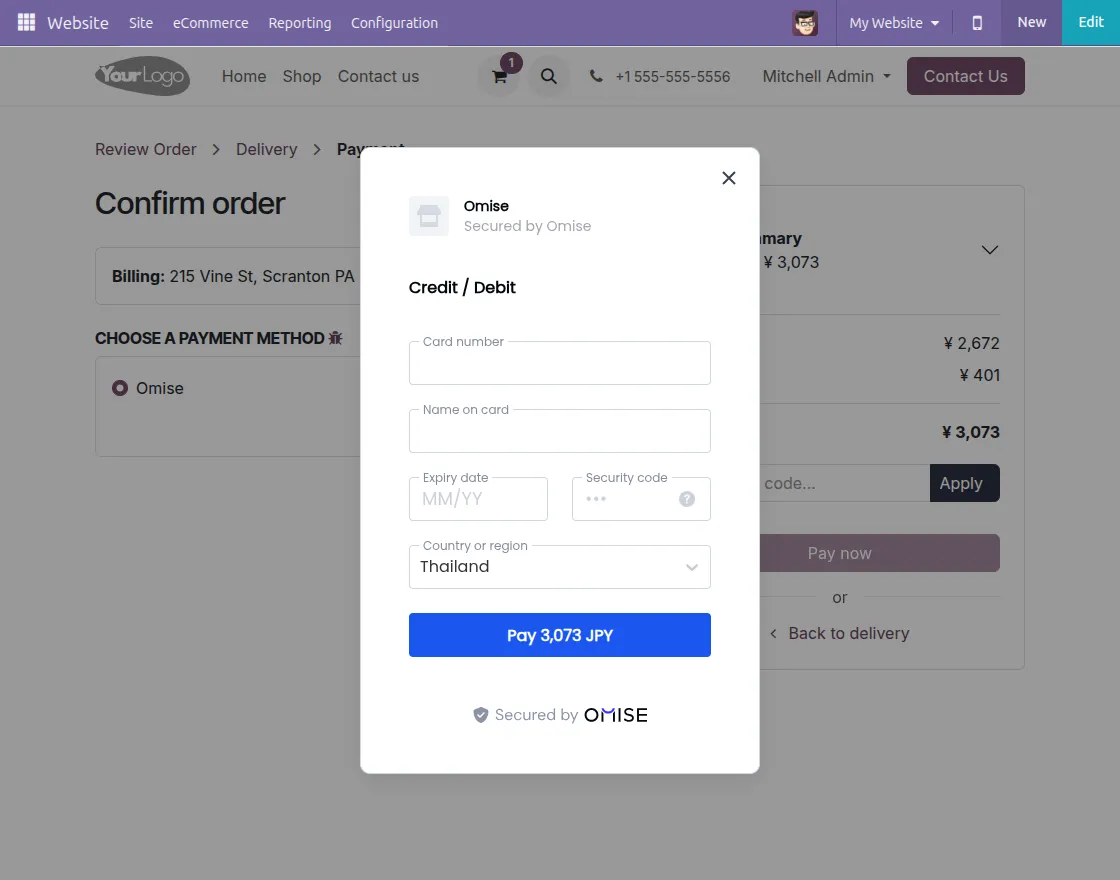
When someone pays, the Omise payment form loads directly on the Odoo checkout page.
Customers enter their card details on the secure Omise form without leaving the website.
The website does not see or save any card details.
Omise handles all sensitive payment data, while Odoo stores only the payment reference ID for tracking.
Website Omise Payment Provider makes online payments simple, safe, and smooth for both customers and admins.
Features
- Odoo Website Omise Payment Provider offers easy Omise payment setup for Odoo websites with an on-page payment form.
- Customers complete payments directly on the checkout page without any redirection.
- The website does not store card details, which keeps payments secure and trusted.
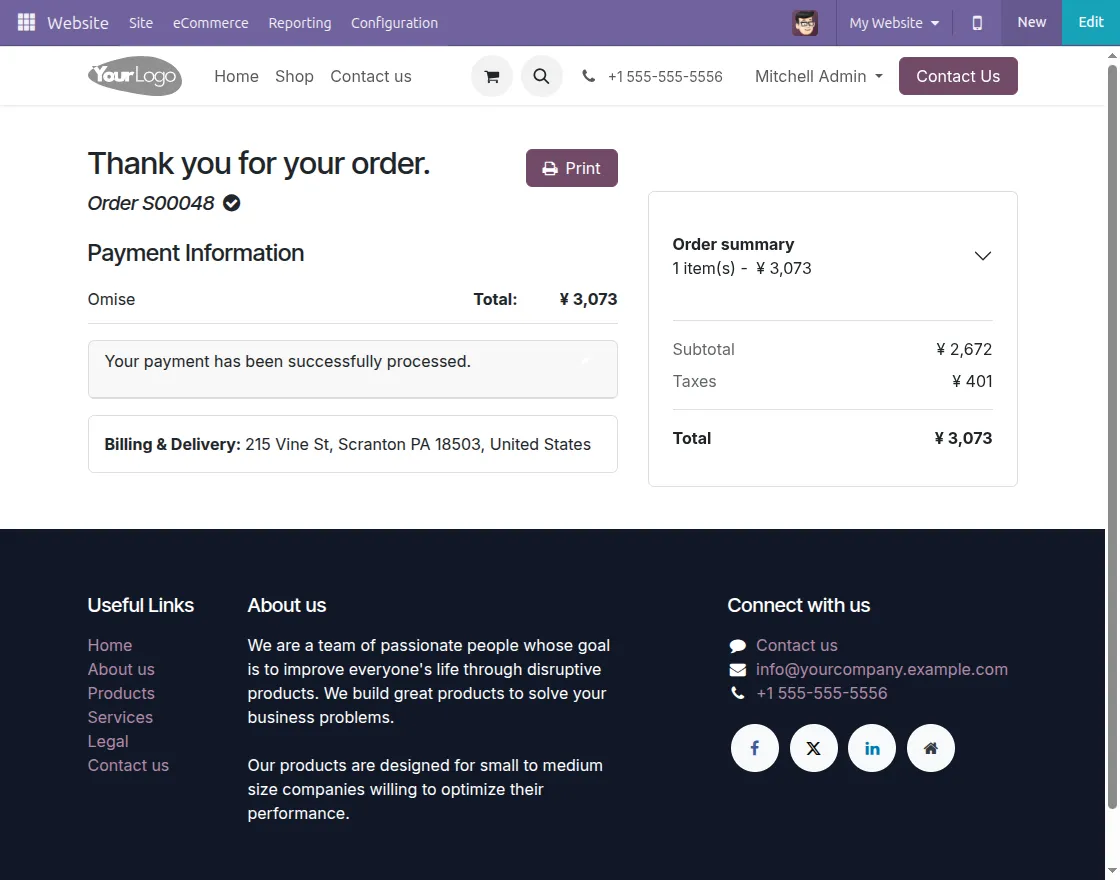
- Payment status updates automatically in Odoo after each transaction.
- Admins can track all Omise transactions from one central place.
- Secure communication is maintained between Odoo and Omise during payment processing.
- Overall, it works as a Website Omise Payment Gateway for accepting safe online payments.
INSTALLATION
- Once you purchase the App from the Webkul store, you will receive a link to download the module zip file.
- Extract the file on your system after download finishes. As a result, you will be able to see a folder named- wk_payment_omise you can get the technical name from odoo app of the respective module)’
- Copy and paste this folder inside your Odoo Add-Ons path.
- Now, open Odoo App and click on the Settings menu. Here, click on Activate Developer Mode.
- Then, open Apps menu and click on ‘Update Modules List.’
- In the search bar, remove all the filters and search ‘wk_payment_omise’
- You will be able to see module in the search results. Click on ‘Install’ to install it.
WORKFLOW
1. Configuration
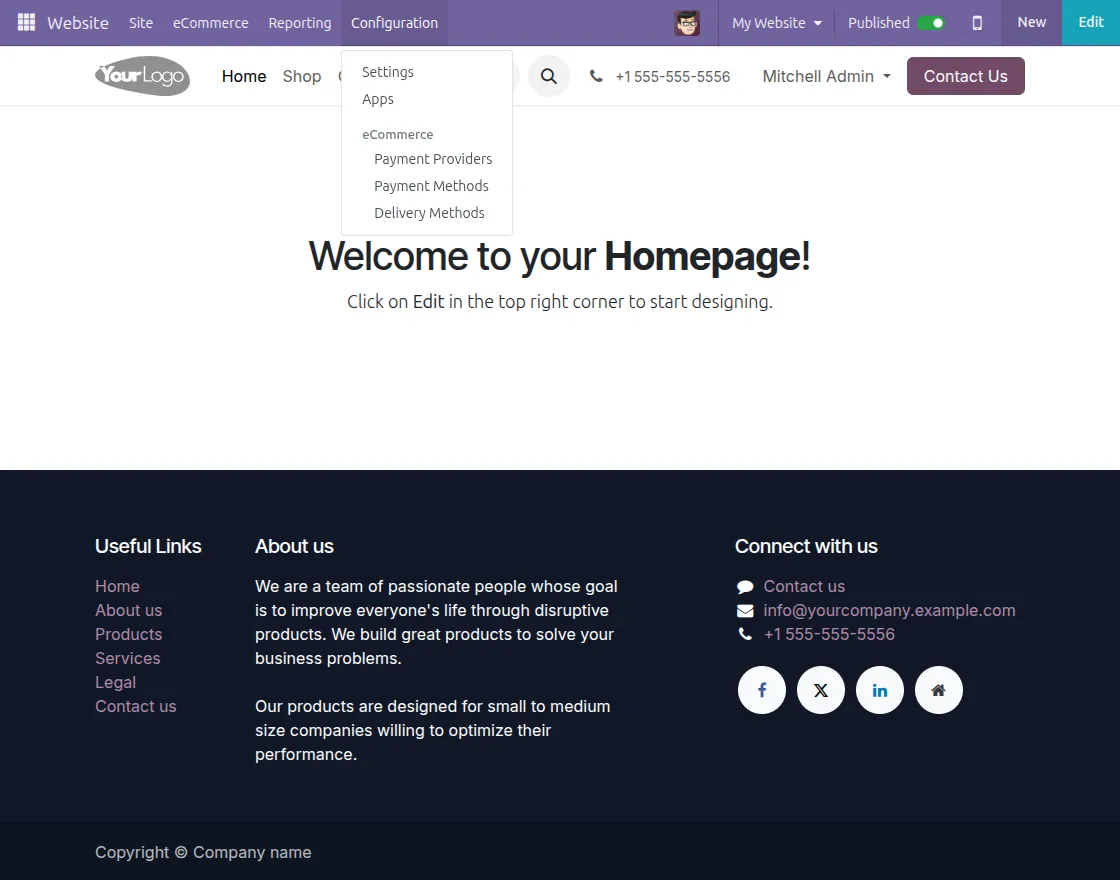
- After installing Website Omise Payment Provider, go to:
Configuration → Payment Providers in the Odoo backend.
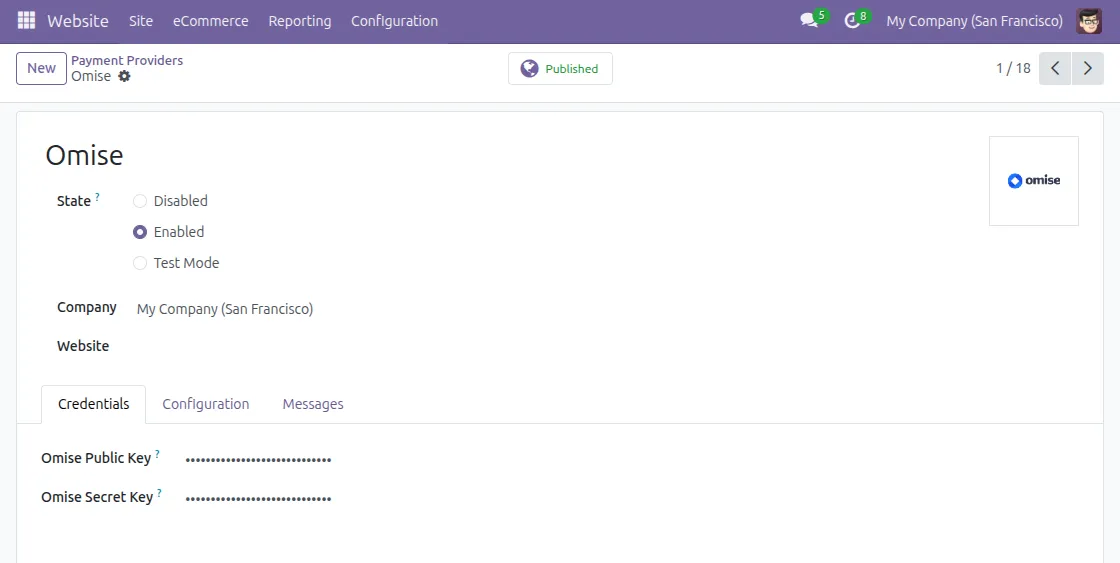
- After selecting the payment method, check the Enable option for use and fill in the credentials for the omise account to link with the module.
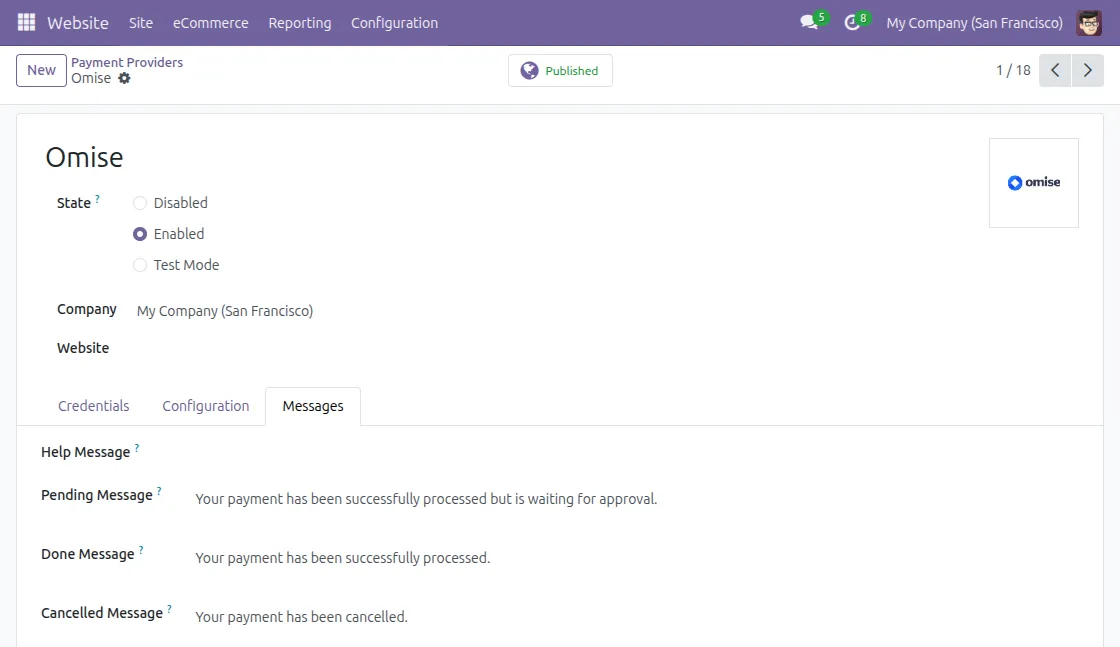
- Admins can also add payment messages to guide customers during checkout.
Website View
- Customers can select the Payment Method from the Website Checkout Page.
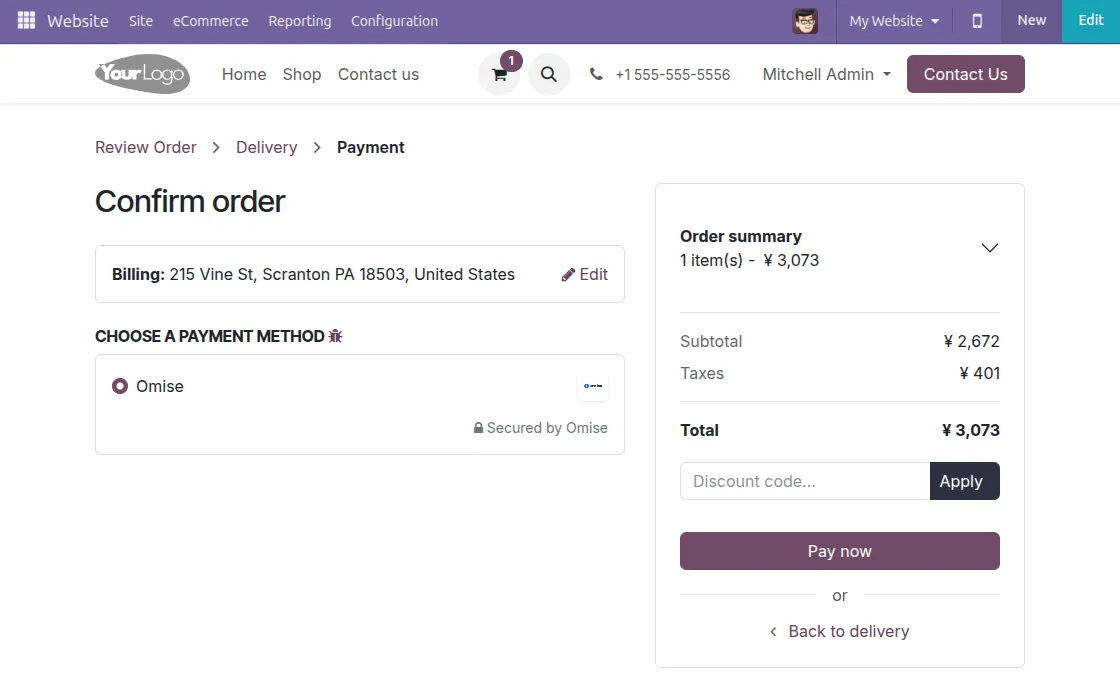
- After selecting the Payment Method they may proceed to the final Secure Payment Gateway page to process the Card Payment and its credentials.
- Fill up your card credentials and click on Pay.
- After payment, both the customer and the admin can see the payment result instantly in Odoo.
NEED HELP?
Hope you find the guide helpful! Please feel free to share your feedback in the comments below.
If you still have any issues/queries regarding the same, please raise a ticket at the UV Desk.
I hope this helps. In case of any further queries, contact us at our support email.
Thanks for paying attention!!
Current Product Version - 1.0.0
Supported Framework Version - 16,17,18,19


Be the first to comment.