CS-Cart Category Management is an essential part of any online business, as eCommerce sellers often need to manage multiple categories.
CS-Cart Category Management module allows the admin to export and import category data in CSV files or text files and as well as it allows export in bulk and individual level.
Features
- Well integrated with Multivendor and CS-Cart.
- Admin can Export/Import category data.
- Admin can create a category template name and assign multiple categories for export.
- Admin can export categories in bulk.
Installation of CS-Cart Category Management
To install CS-Cart Category Management, follow these steps:
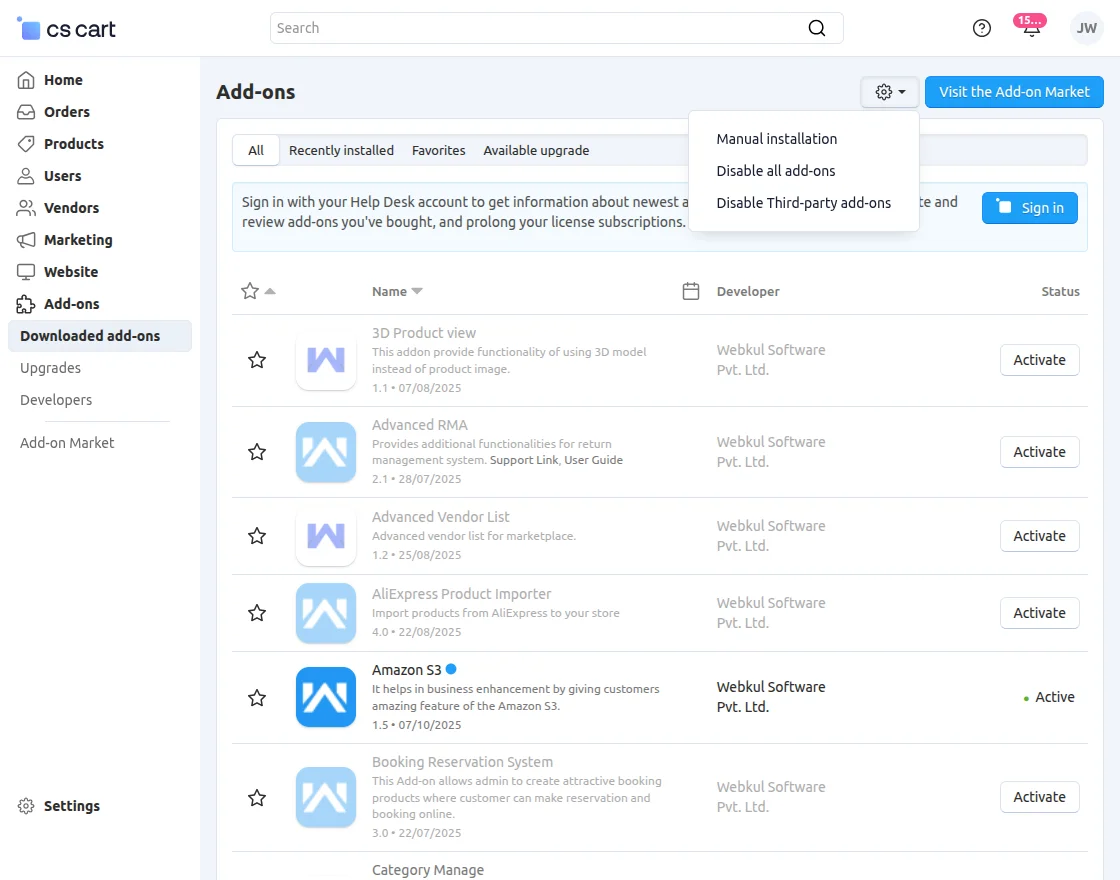
Go to Manage Add-ons, click on the gear drop-down, and select Manual Installation.
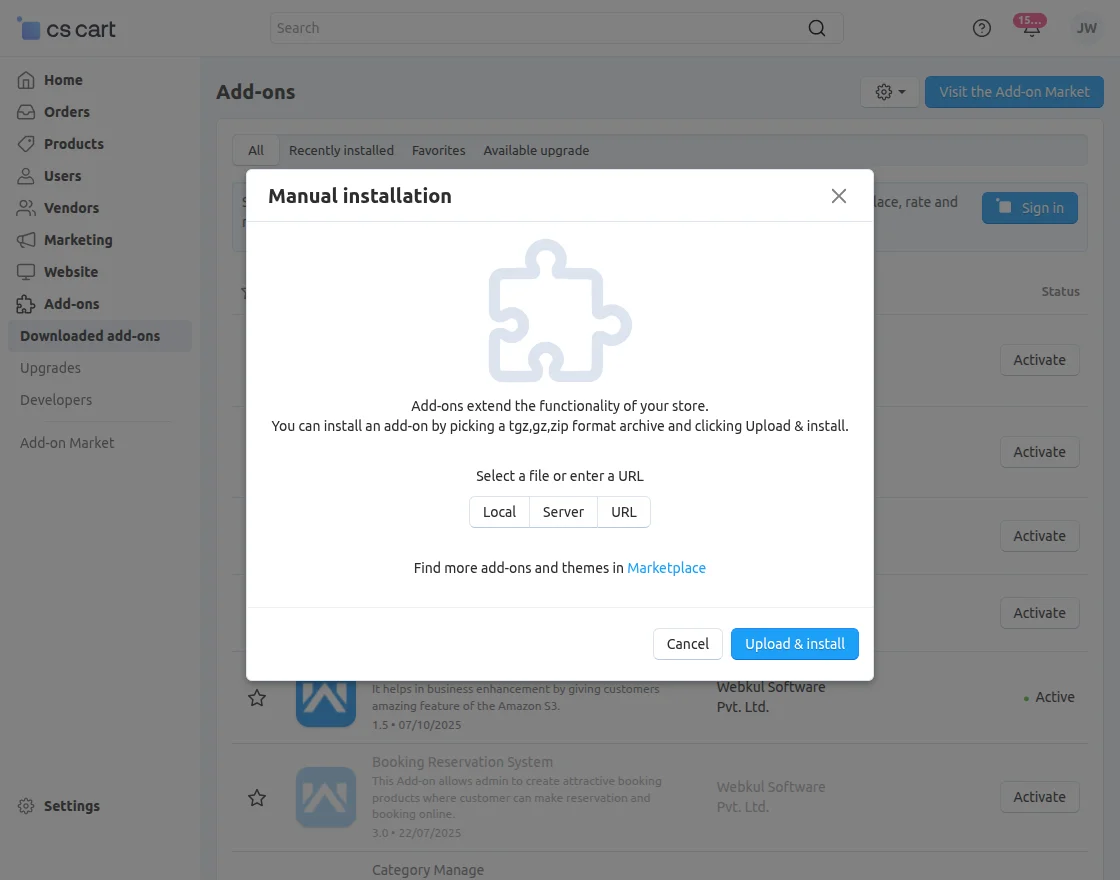
Select the ZIP file and click on Upload & Install.
Add-on Configuration
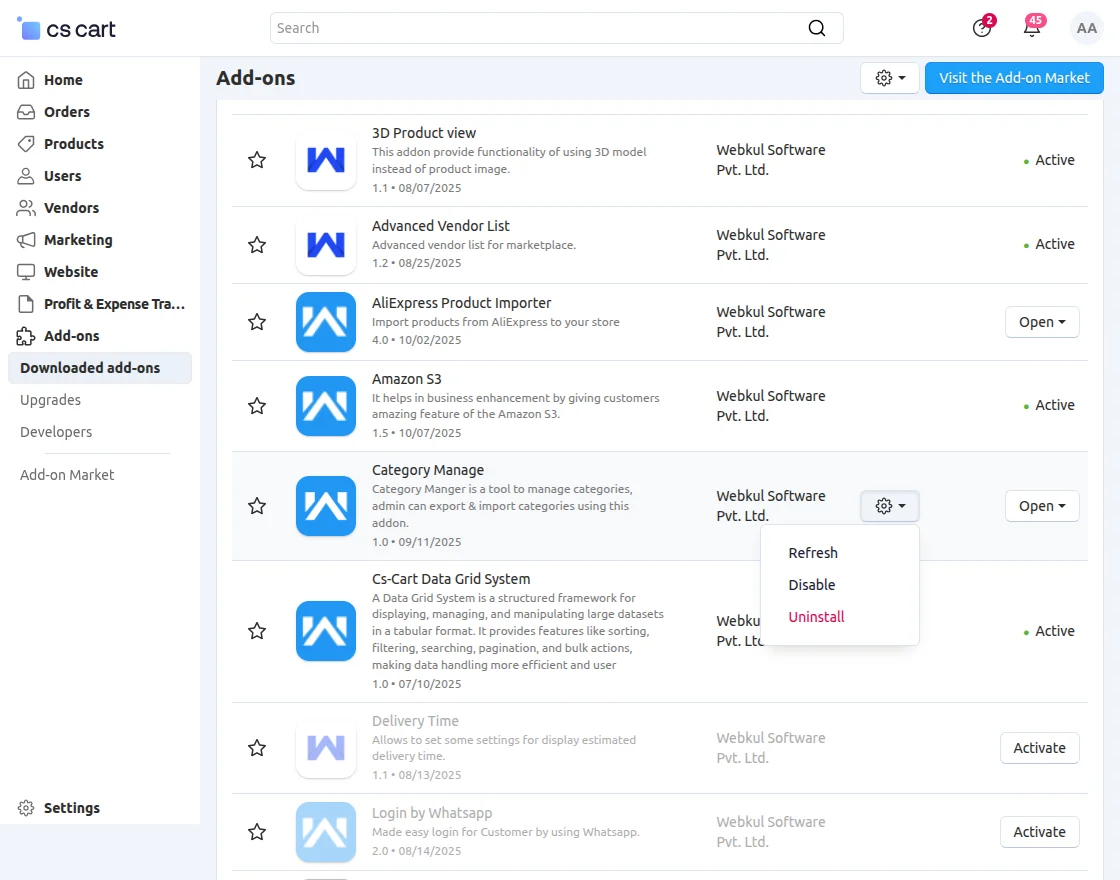
After installation of the add-on, you will find Category Manage in the list of the available add-ons.
Click on “settings” to enable, disable, install, or refresh.
CS-Cart Category Management Configuration
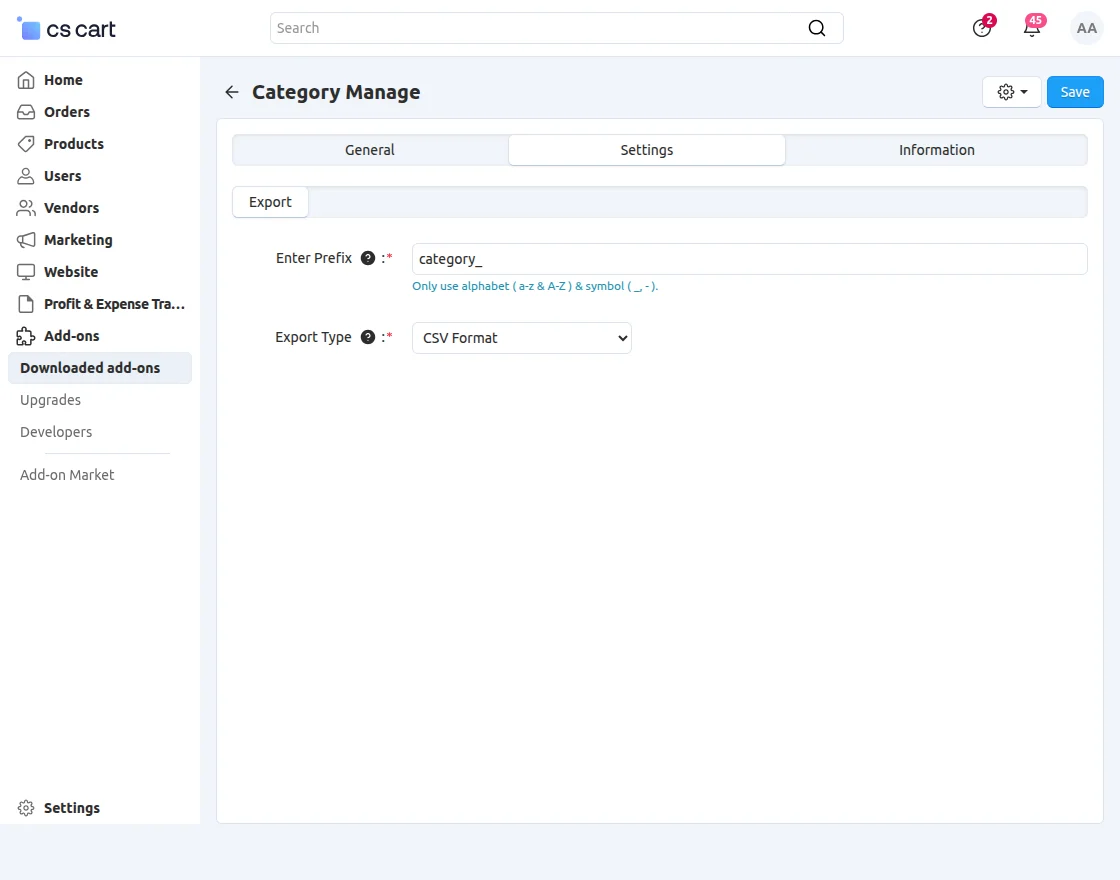
General setting– Here the admin needs to “Enter Prefix” and can select the “CSV Format” export type from the drop-down.
Import Category Data
The admin can import category data by following a few simple steps.
Admin needs to click on Setting and then click on Category in Import data Section.
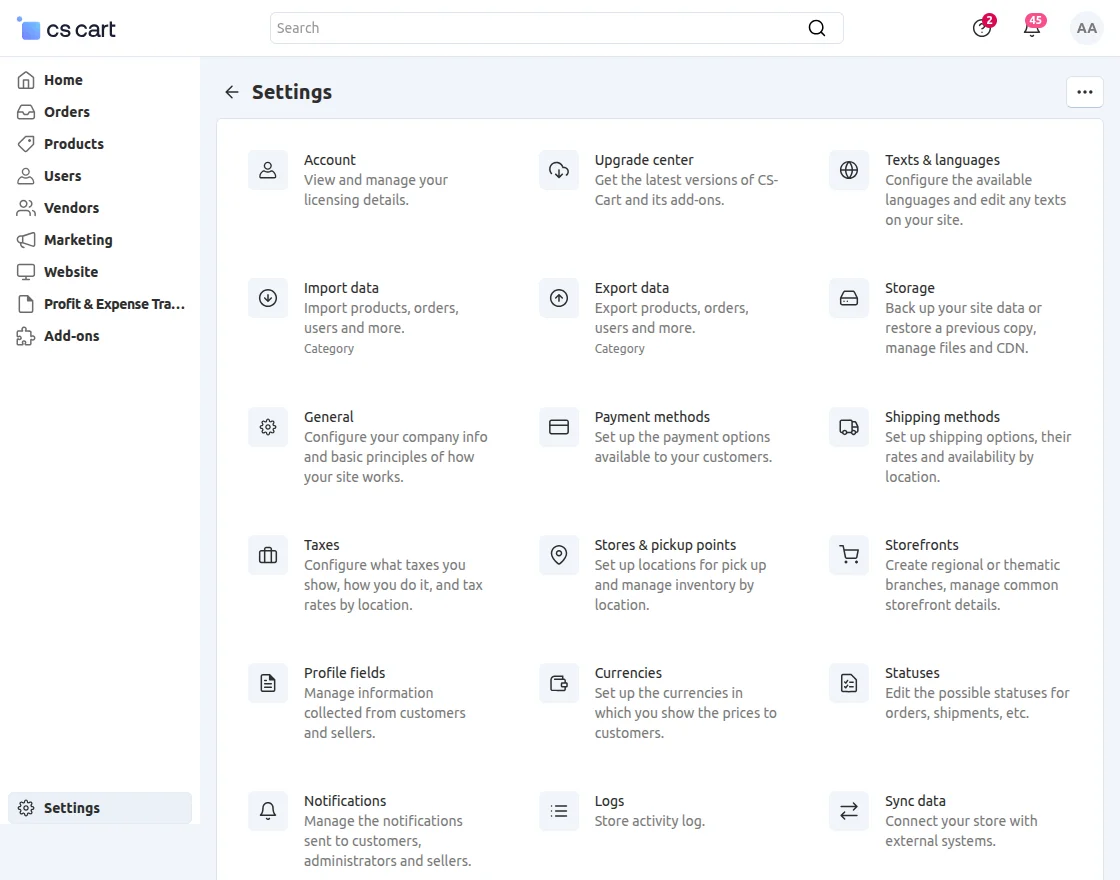
After selecting the category the admin will get the Import data page.
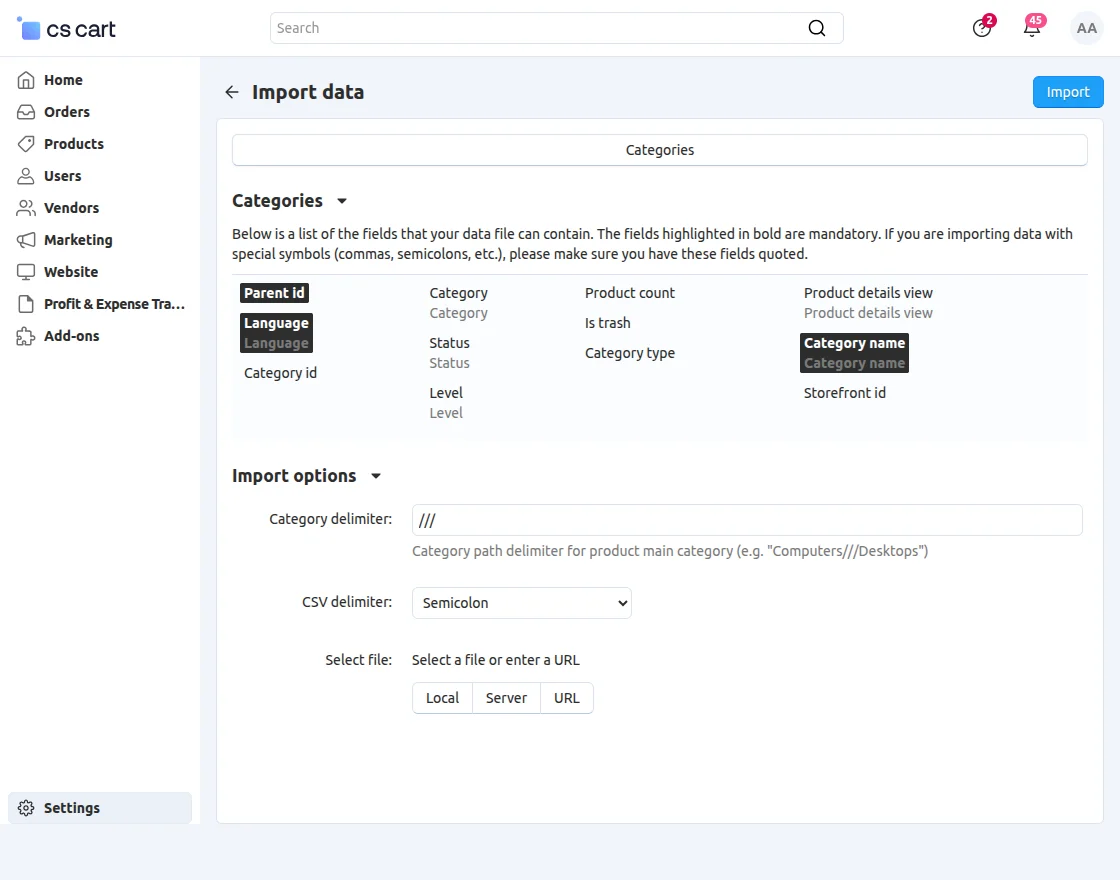
Here, the admin can upload the file, review the import fields, and proceed with data import.
- Category delimiter: Category path delimiter for product main category (e.g. “Computers///Desktops”)
- CSV delimiter: Choose a delimiter – semicolon, comma, or tab.
- Select file: Select the file from Local.
Then Click on Import.
Export Category Data
The admin can also export data just by following simple steps.
Admin needs to click on Setting and then click on Category in Export data Section.
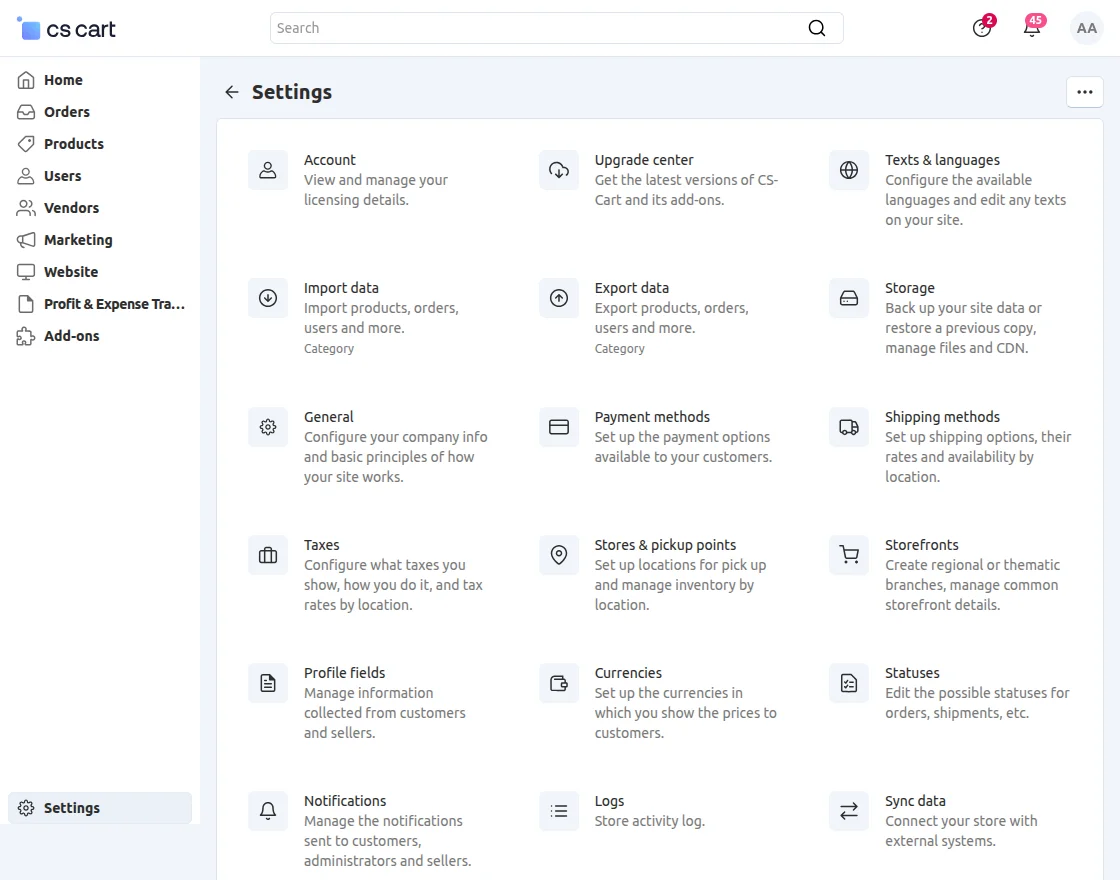
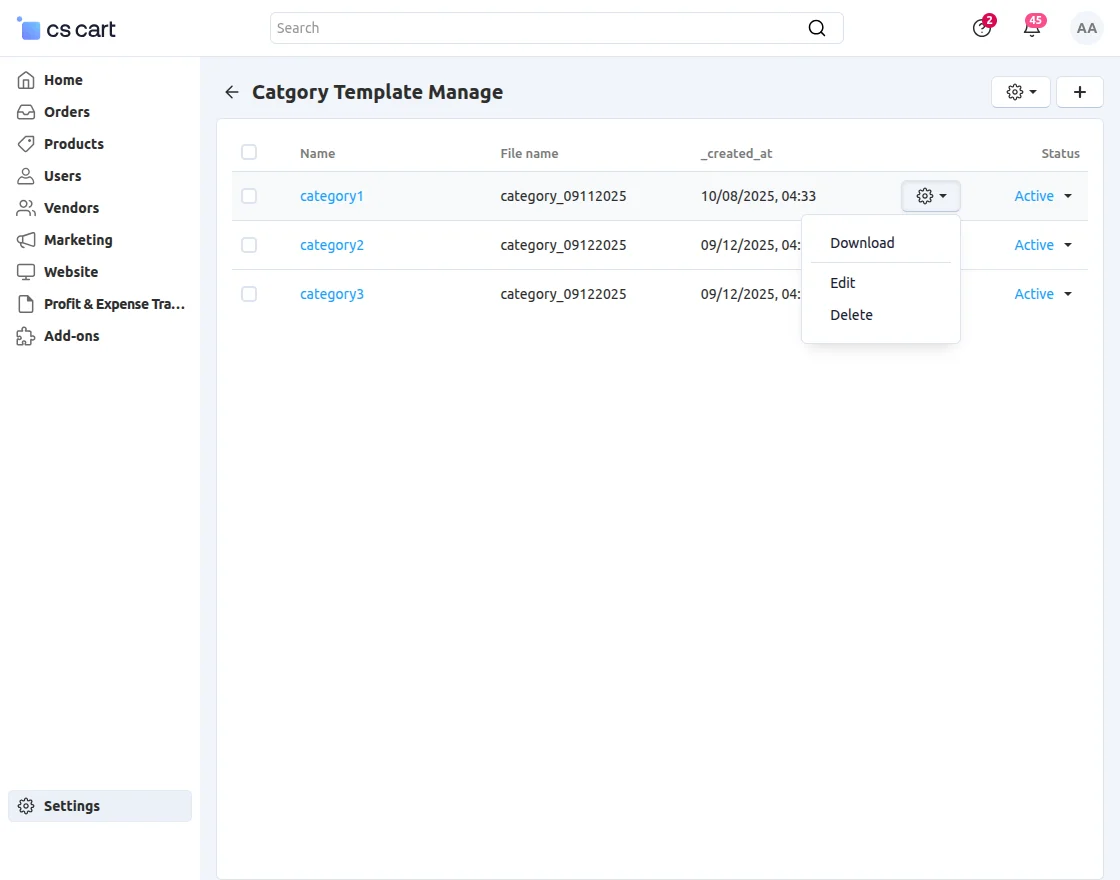
After clicking the Category the admin will get the list of categories. Admin needs to click on the category and download the category data in CSV format or Text format.
Category Template Manage
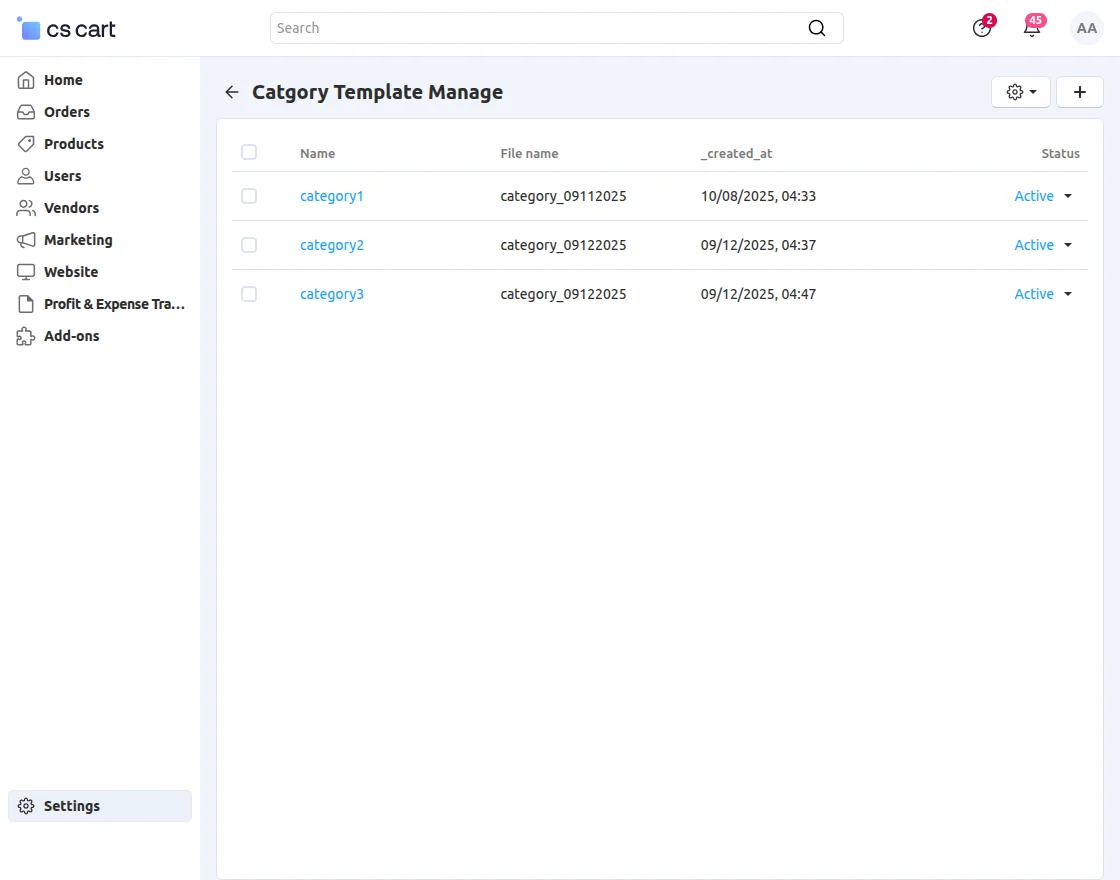
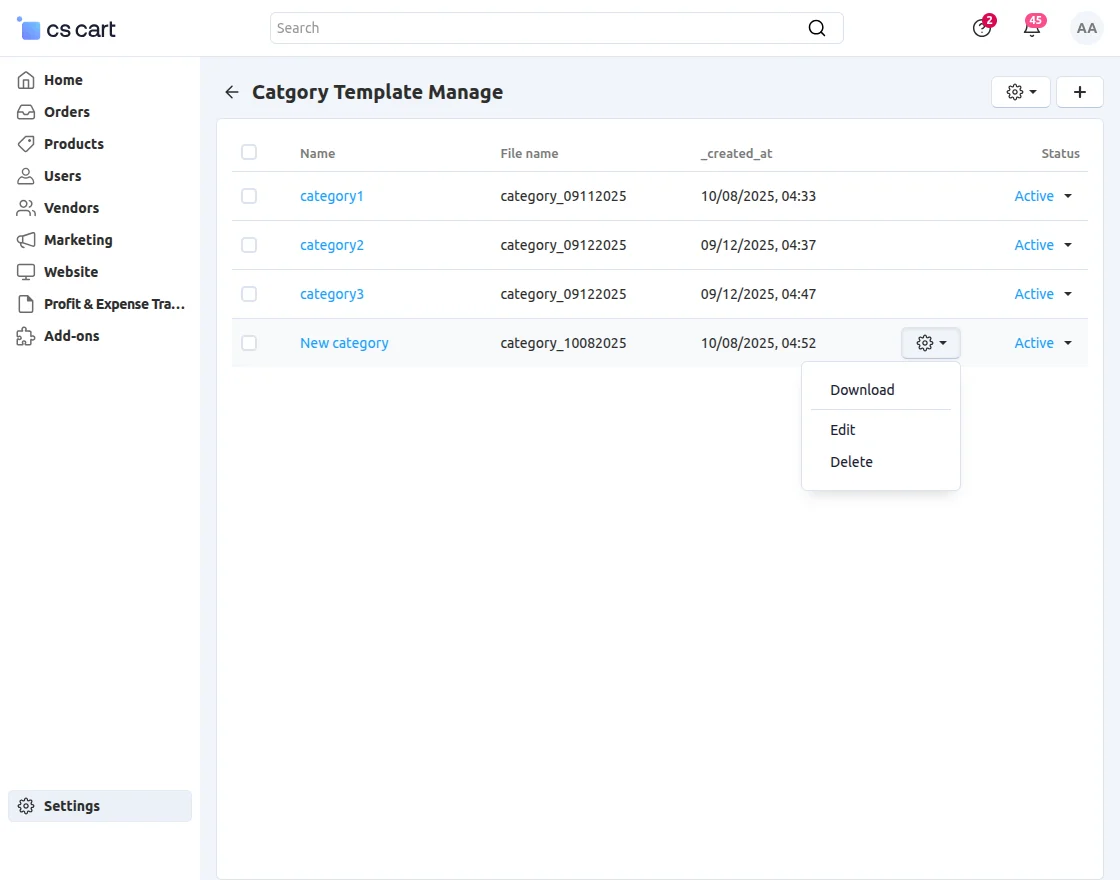
The admin can create category template names and can assign multiple categories to that template name and export category data in bulk.
Admin needs to click on the “+” button.
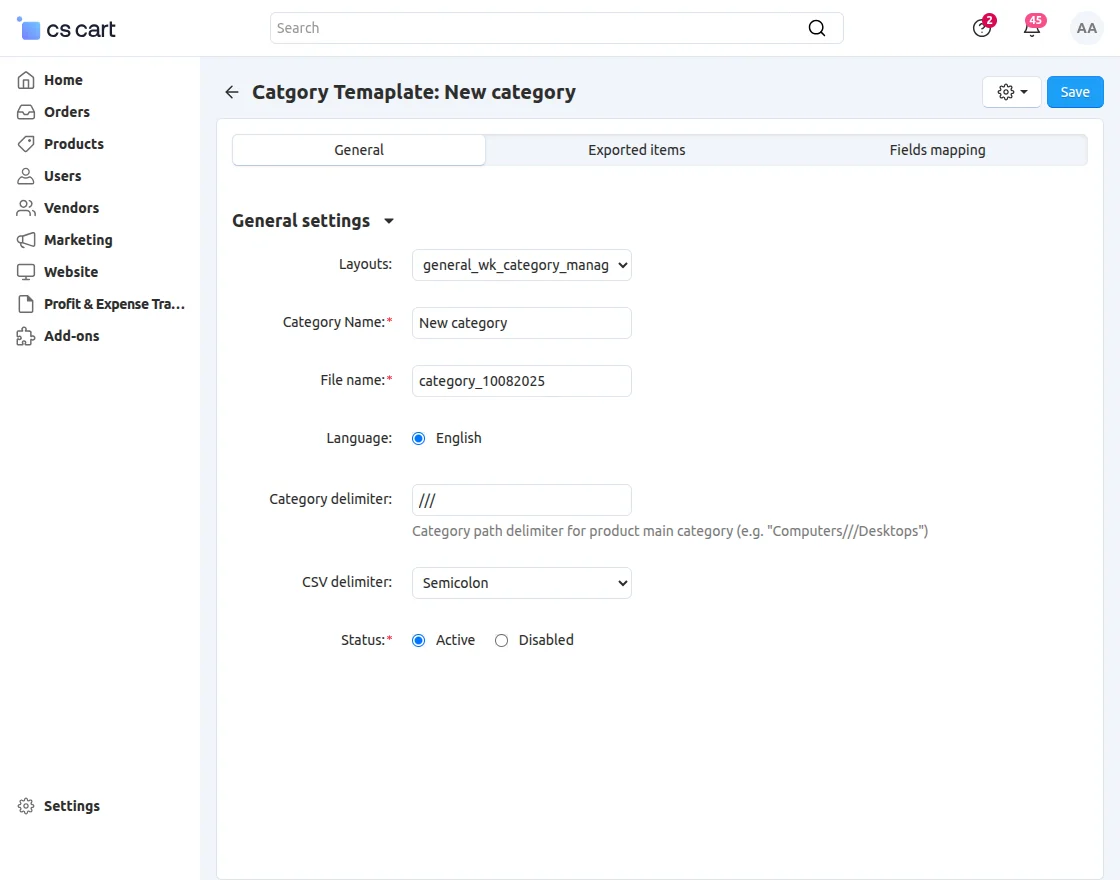
Here, the admin needs to enter the category name.
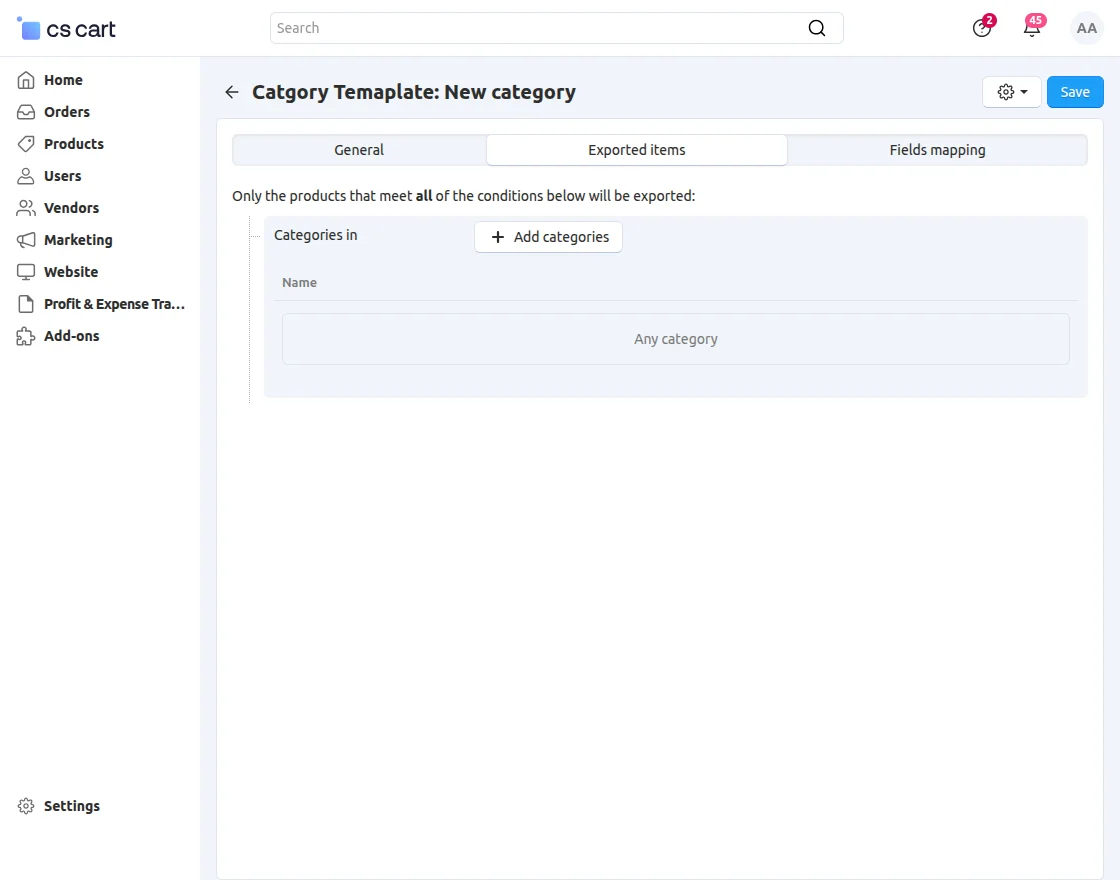
After entering the category name, the admin needs to click on Add Categories in the Exported items section.
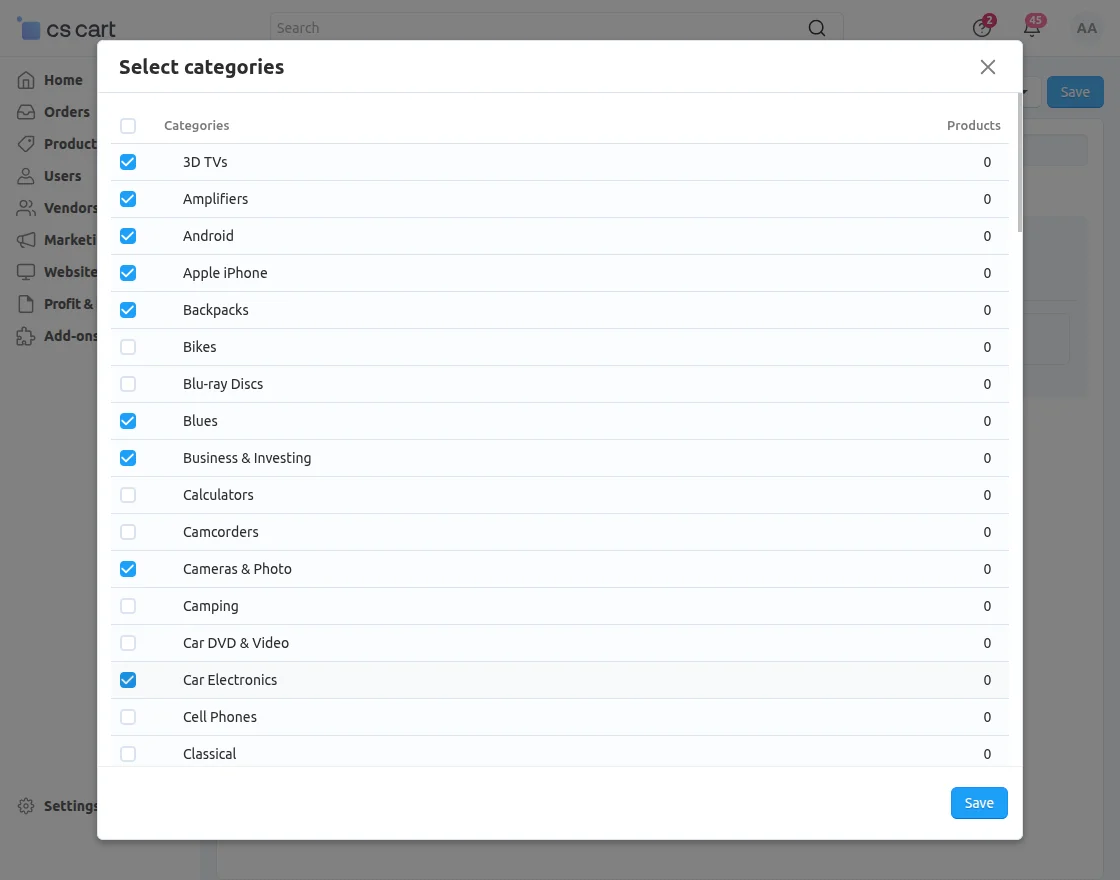
Here the admin can select multiple categories for export data according to their requirement.
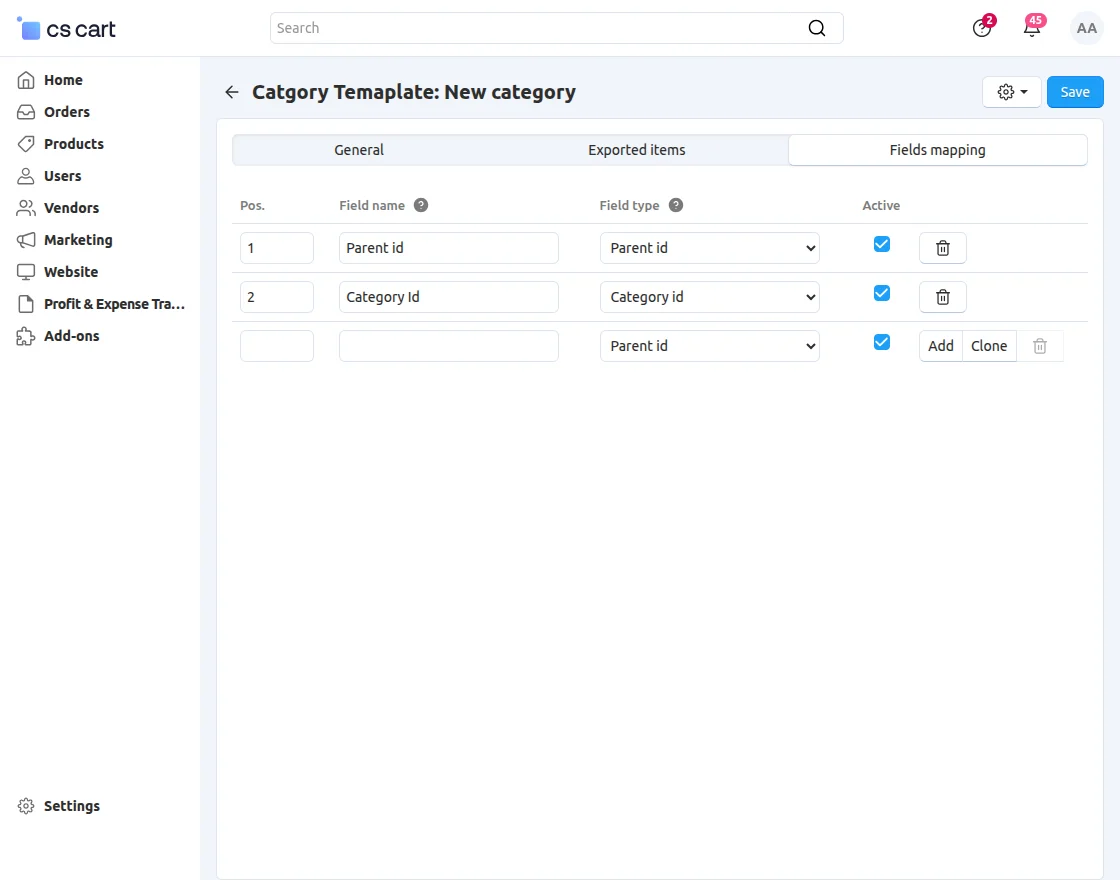
Here the admin needs to enter Pos, Field name, and Choose Field type in Field mapping Section.
After filling in all fields, the admin needs to click on “Save.”
After creating a category template name, all the category lists are available here the admin can edit, delete or download the category data.
Support
That’s all about the “CS-Cart Category Management.” However, if you still have any questions regarding the CS-Cart extensions.
Please create a support ticket by clicking Webkul Support System or send an email to [email protected].
Current Product Version - 1.0
Supported Framework Version - CS-Cart/Multivendor(4.13.x - 4.18.x)


Be the first to comment.