Introduction
Odoo Cloudflare Turnstile Captcha (Authentication) helps protect your Odoo website by improving Odoo login page security and blocking bots effectively.
This module uses Cloudflare Turnstile to verify real users without showing difficult puzzles, ensuring smooth and secure user authentication.
Further, the Odoo Cloudflare Turnstile Captcha (Authentication) saves time and delivers better accessibility to users.
Check the video mentioned below for a brief overview about the module:
Features
- Protects the Odoo login page from bots and unauthorized access.
- Prevents fake account creation with smart Odoo signup bot protection.
- Ensures safe and reliable Odoo User Authentication Security.
- Verifies users without tracking personal data for privacy-friendly security.
- Allows easy enabling or disabling of authentication from Odoo settings.
- Supports captcha on multiple website pages like login, signup, and checkout.
- Adds bot protection to the reset password page for account safety.
- Secures the Add to Cart action to prevent fake carts and bot-driven orders.
Installation
- Once you purchase the App from Webkul store, you will receive a link to download module’s zip file.
- Extract the file on your system after download finishes. As a result, you will be able to see a folder named- ‘odoo_cloudflare_turnstile’
- Copy and paste this folder inside your Odoo Add-Ons path.
- Now, open Odoo App and click on the Settings menu. Here, click on Activate Developer Mode.
- Then, open Apps menu and click on ‘Update Modules List.’
- In the search bar, remove all the filters and search ‘odoo_cloudflare_turnstile’
- You will be able to see module in the search results. Click on ‘Install’ to install it.
Workflow
Steps to Generate Cloudflare Turnstile Site Key and Secret Key
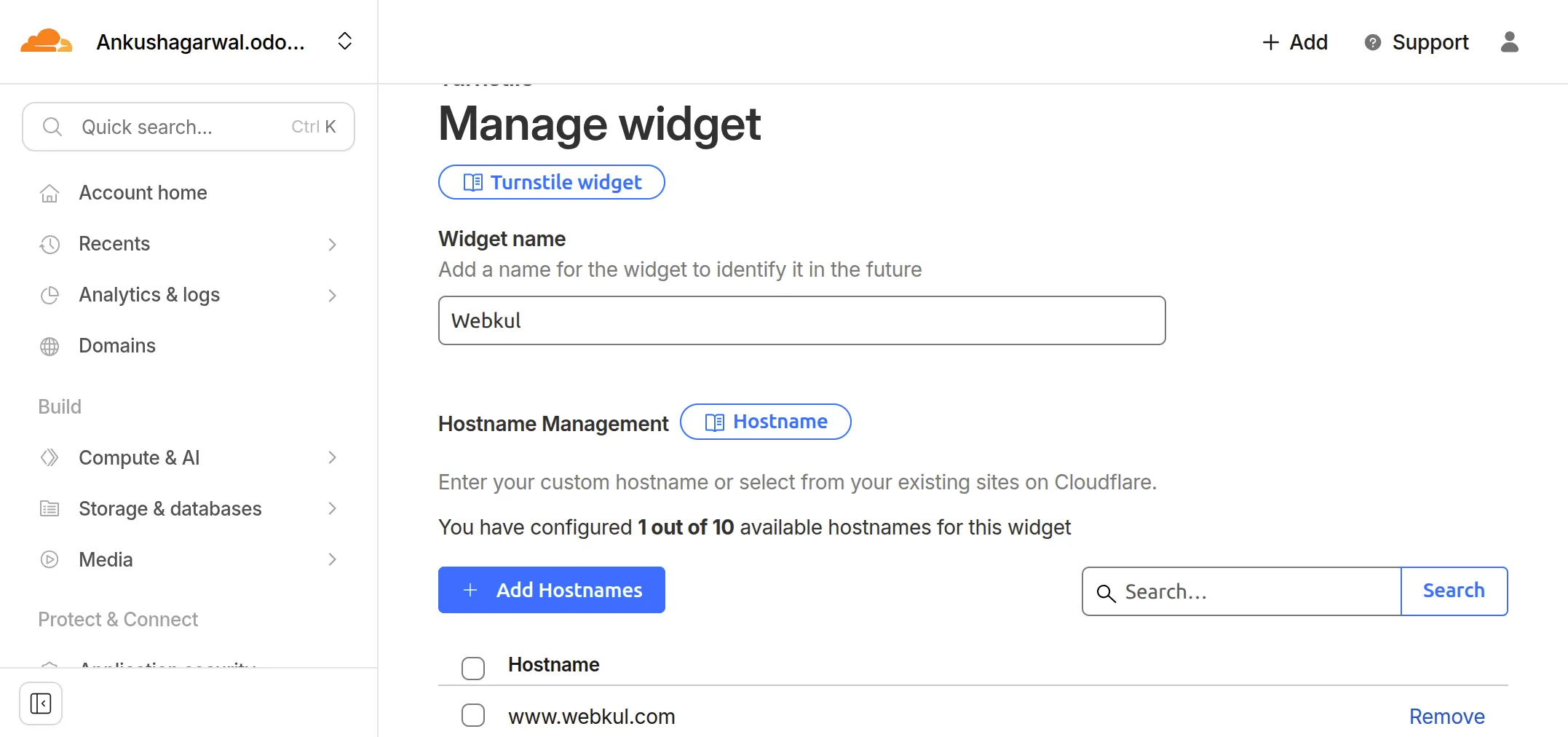
1. Log in to your Cloudflare account, search for the Turnstile widget, click Add Widget, and enter a widget name.
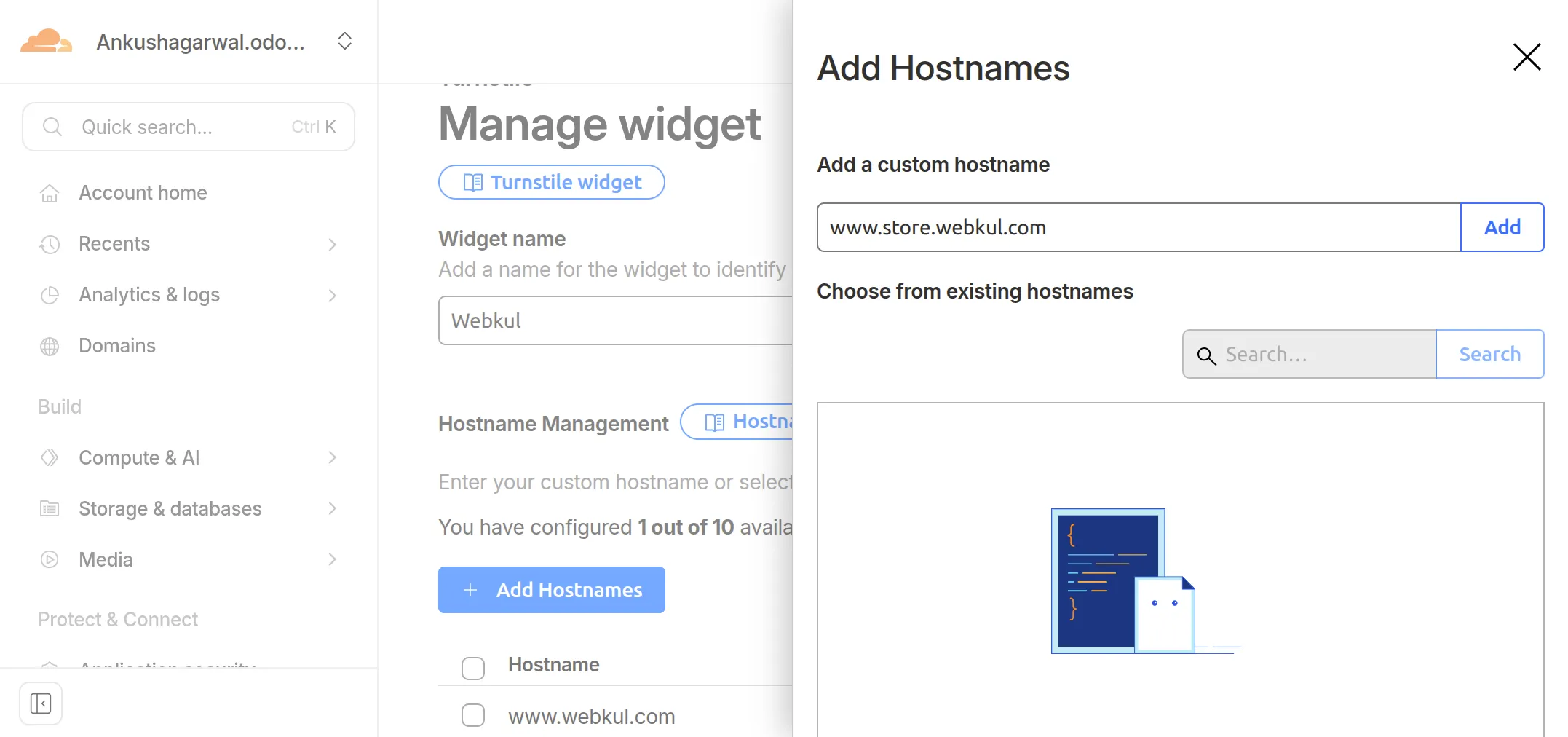
2. Click Add Hostnames, enter your website domain (remove https:// and use only www.domain_name.com), then click Add and Create.
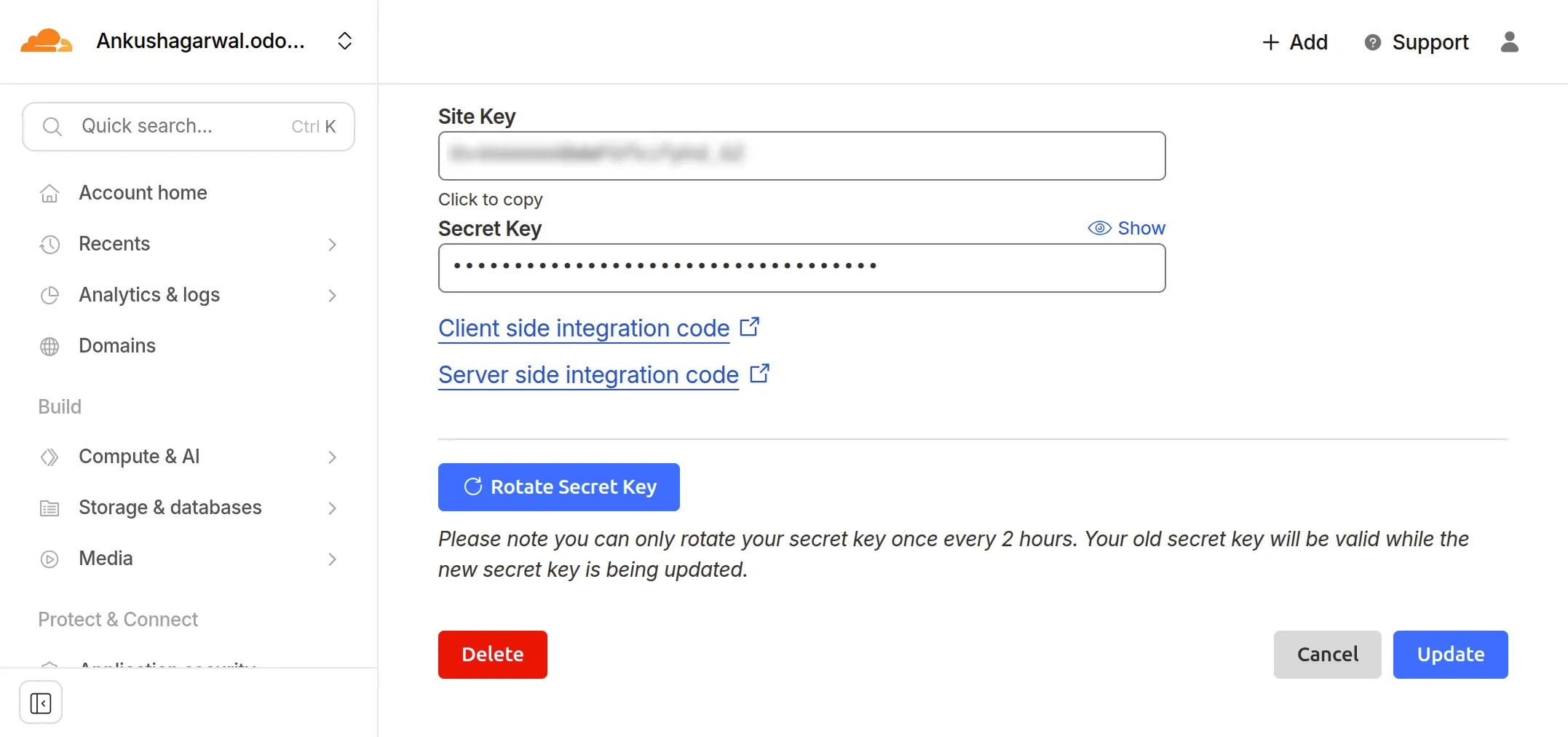
3. Once the widget is created, Cloudflare will generate the Site Key and Secret Key for the added website.
Steps to Set Up the Cloudflare Turnstile
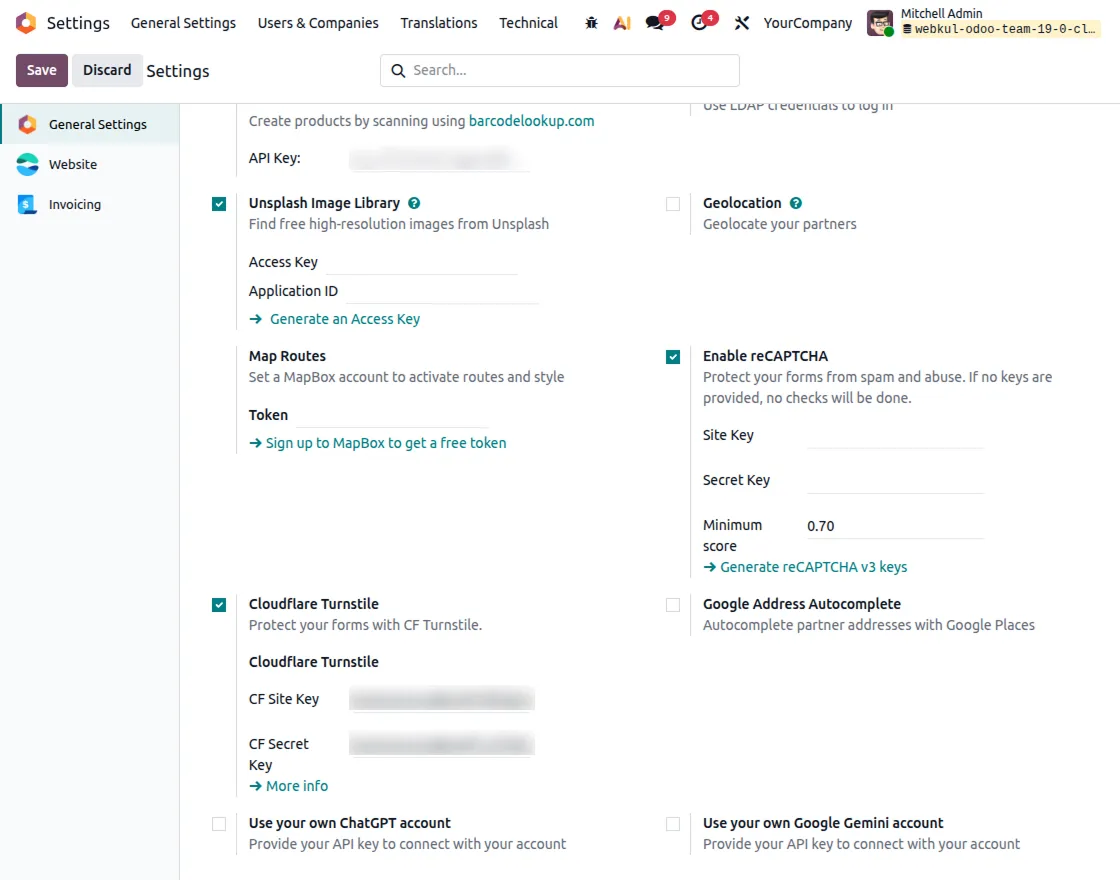
1. After installing the Odoo Cloudflare Turnstile Authentication module, enable the feature from Settings and enable Cloudflare Turnstile.
Add the Cloudflare Site Key and Secret Key in Odoo settings to activate bot protection.
2. Choose where you want to apply the captcha, such as the signup, reset password, checkout, or cart pages.
By default, Cloudflare Turnstile Captcha is enabled on the Login Page.
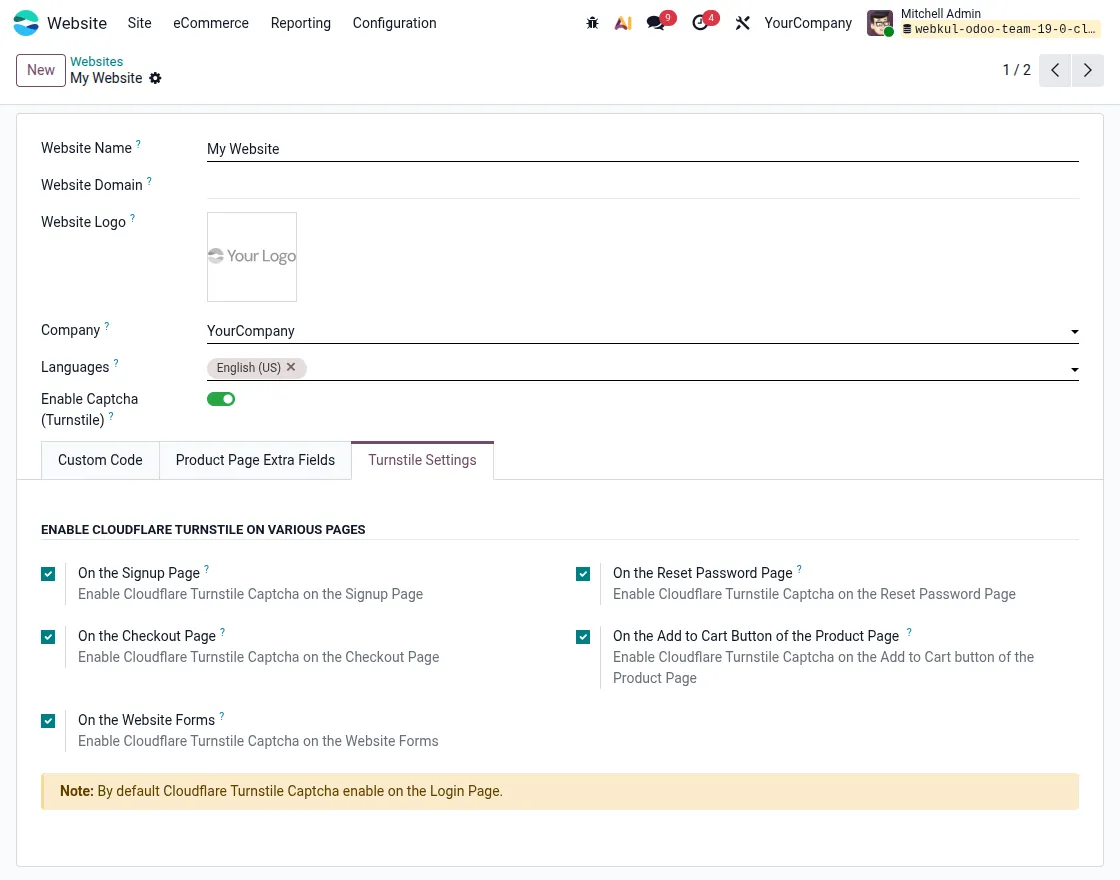
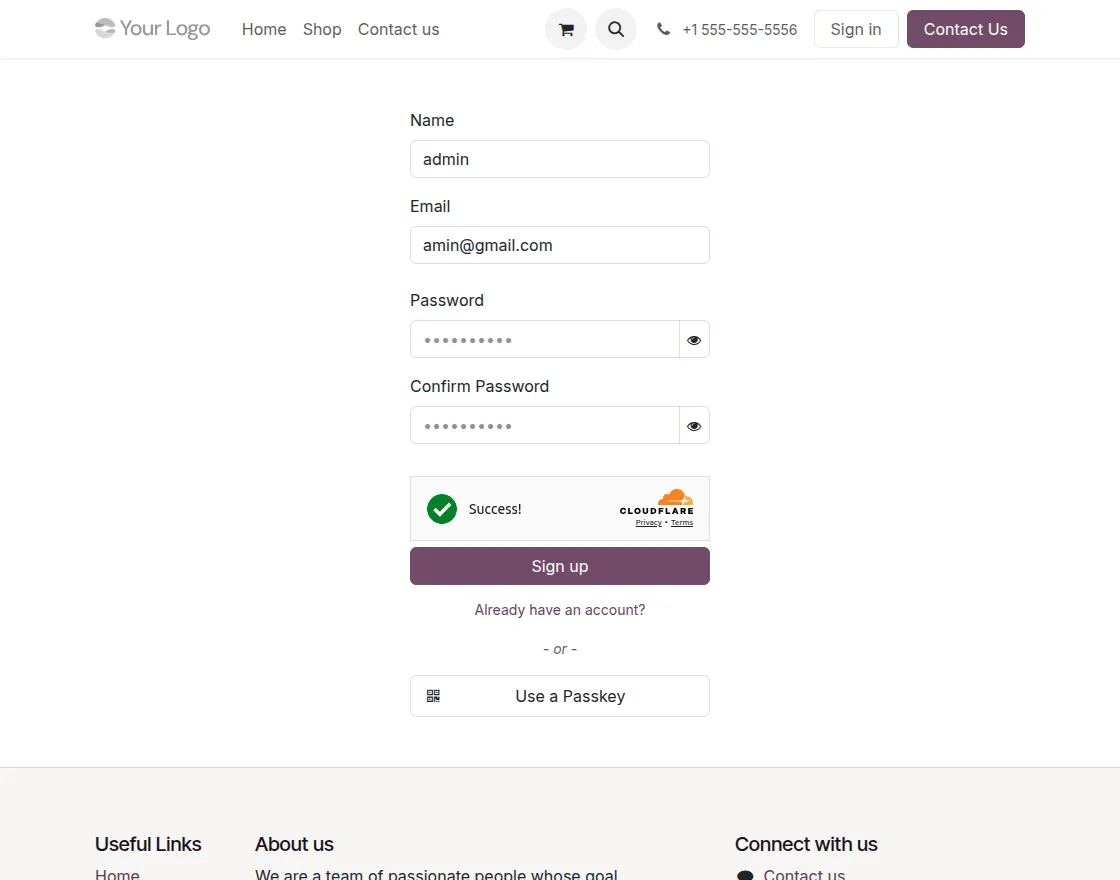
3. Enable Cloudflare Turnstile on the Odoo signup page from the Website security settings to block fake user registrations.
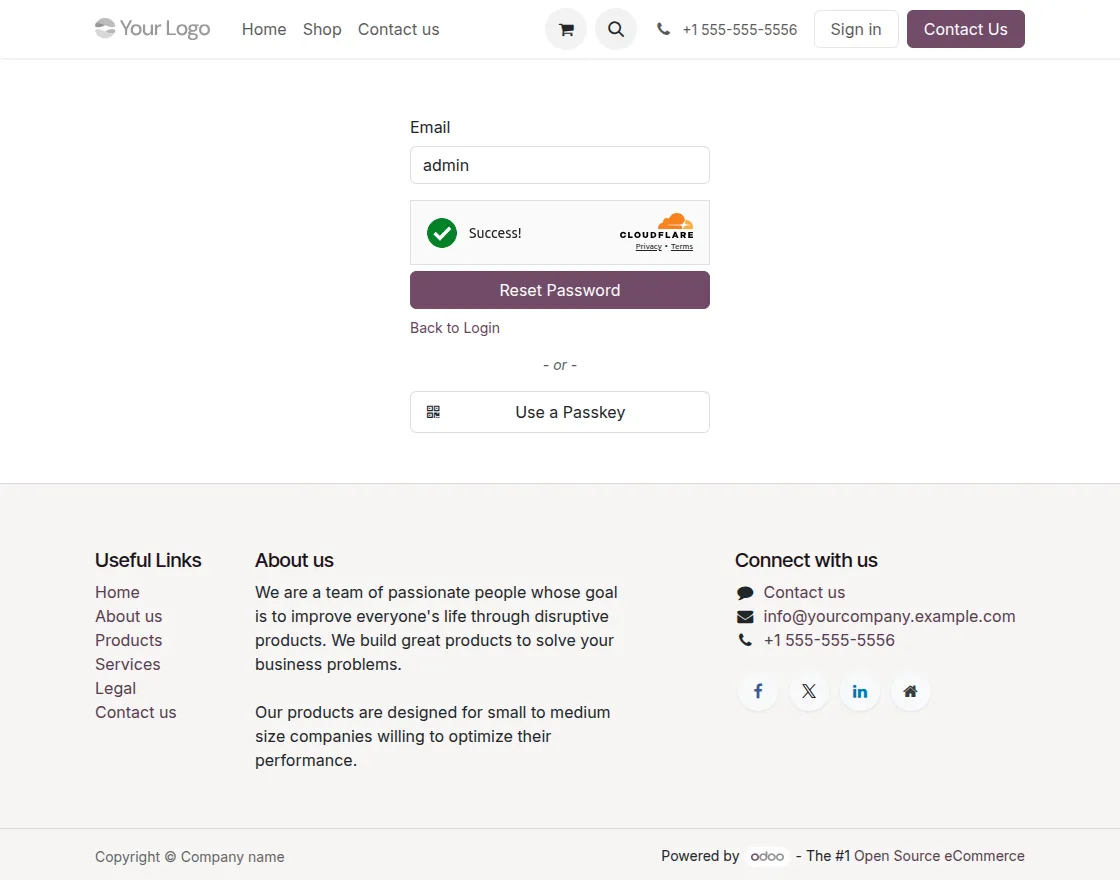
4. Enable bot protection on the reset password page to allow only real users to reset accounts.
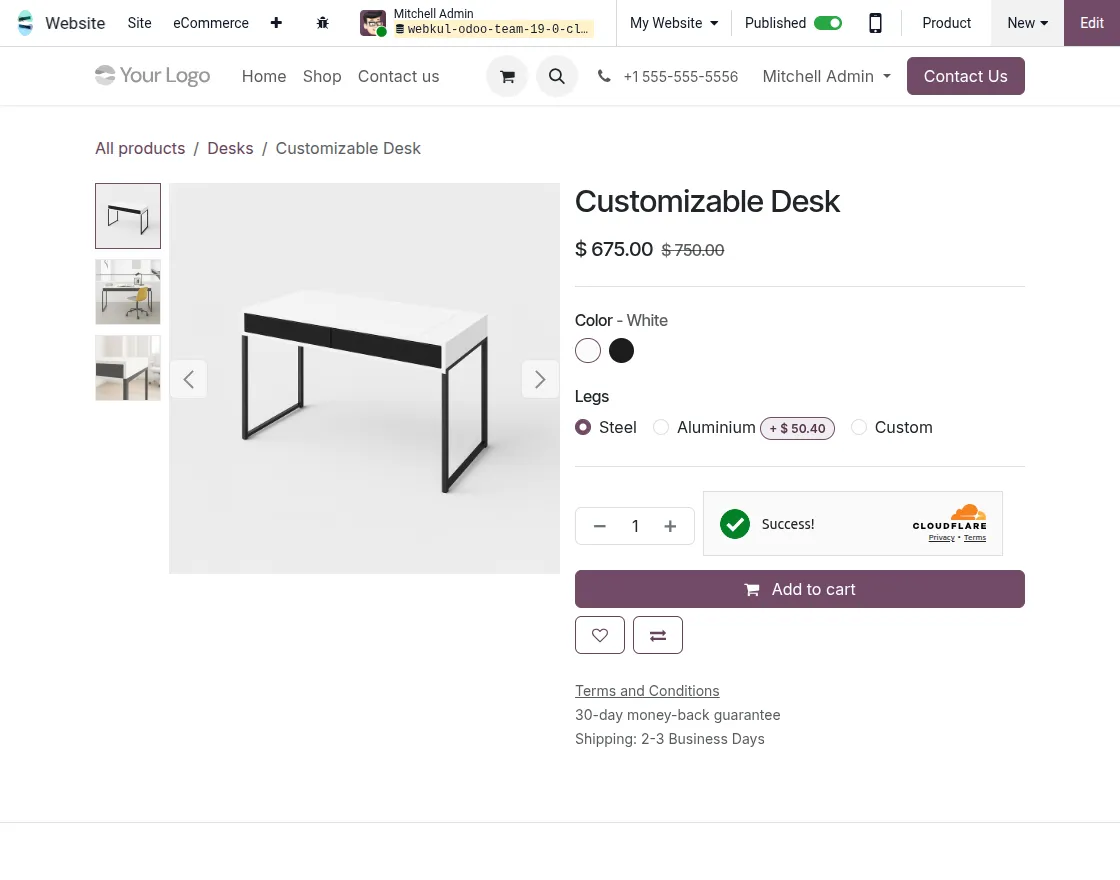
5. Apply Cloudflare Turnstile Authentication on Add to Cart to stop bots from creating fake carts and orders.
Need Help?
Hope you find the guide helpful! Please feel free to share your feedback in the comments below.
If you still have any issues/queries, please create a ticket at the UV Desk.
I hope this helps. In case of any further queries, contact us at our support mail.
Thanks for paying attention!!
Current Product Version - 1.0.1
Supported Framework Version - Odoo 16, 15, 14


Be the first to comment.