INTRODUCTION
Odoo Inventory Valuation Reports help users view, download, and understand stock value using simple and well-structured reports.
This module provides clear inventory valuation details in PDF and XLS formats.
It helps track stock movement, incoming items, outgoing items, and current inventory.
Odoo Inventory Valuation Reports add a dedicated menu under Inventory Reports.
From there, users can generate reports quickly with just a few clicks.
FEATURES
- Easy inventory valuation reports
- Select multiple warehouses
- Support for multiple inventory locations
- Stock valuation by date
- Download reports in PDF format
- Download reports in XLS format
- Easy tracking of stock movement
- Simple and user-friendly wizard
INSTALLATION
- Once you purchase the App from Webkul store, you will receive a link to download module’s zip file.
- Extract the file on your system after download finishes. As a result, you will be able to see a folder named- ‘wk_stock_valuation_reports
- Copy and paste this folder inside your Odoo Add-Ons path.
- Now, open Odoo App and click on the Settings menu. Here, click on Activate Developer Mode.
- Then, open Apps menu and click on ‘Update Modules List.’
- In the search bar, remove all the filters and search ‘wk_stock_valuation_reports’
- You will be able to see module in the search results. Click on ‘Install’ to install it.
WORKFLOW
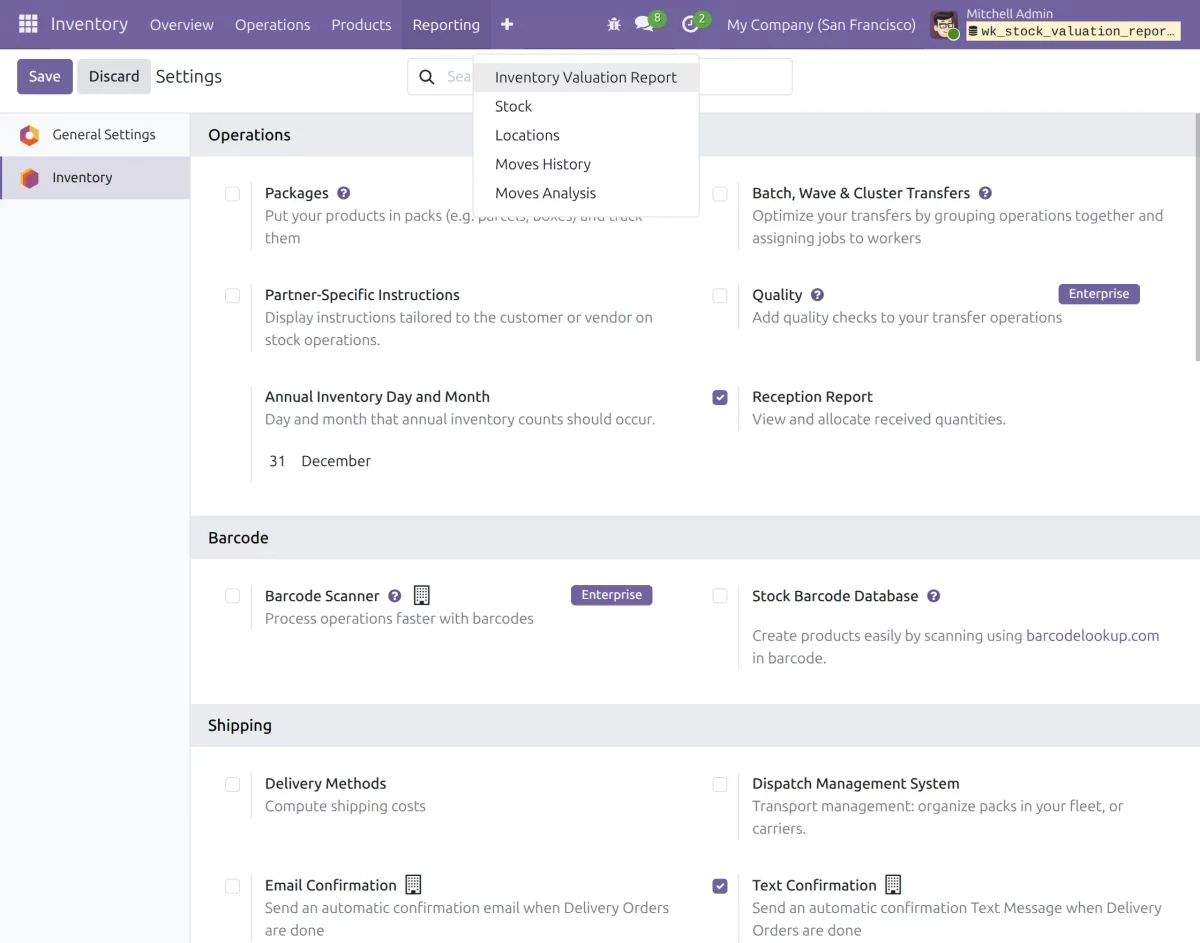
1. Inventory Valuation Wizard
The module adds a new menu under Inventory Reports.
When the menu is selected, the report wizard opens, allowing users to begin the report generation process easily.
2. Wizard Entry and Configuration
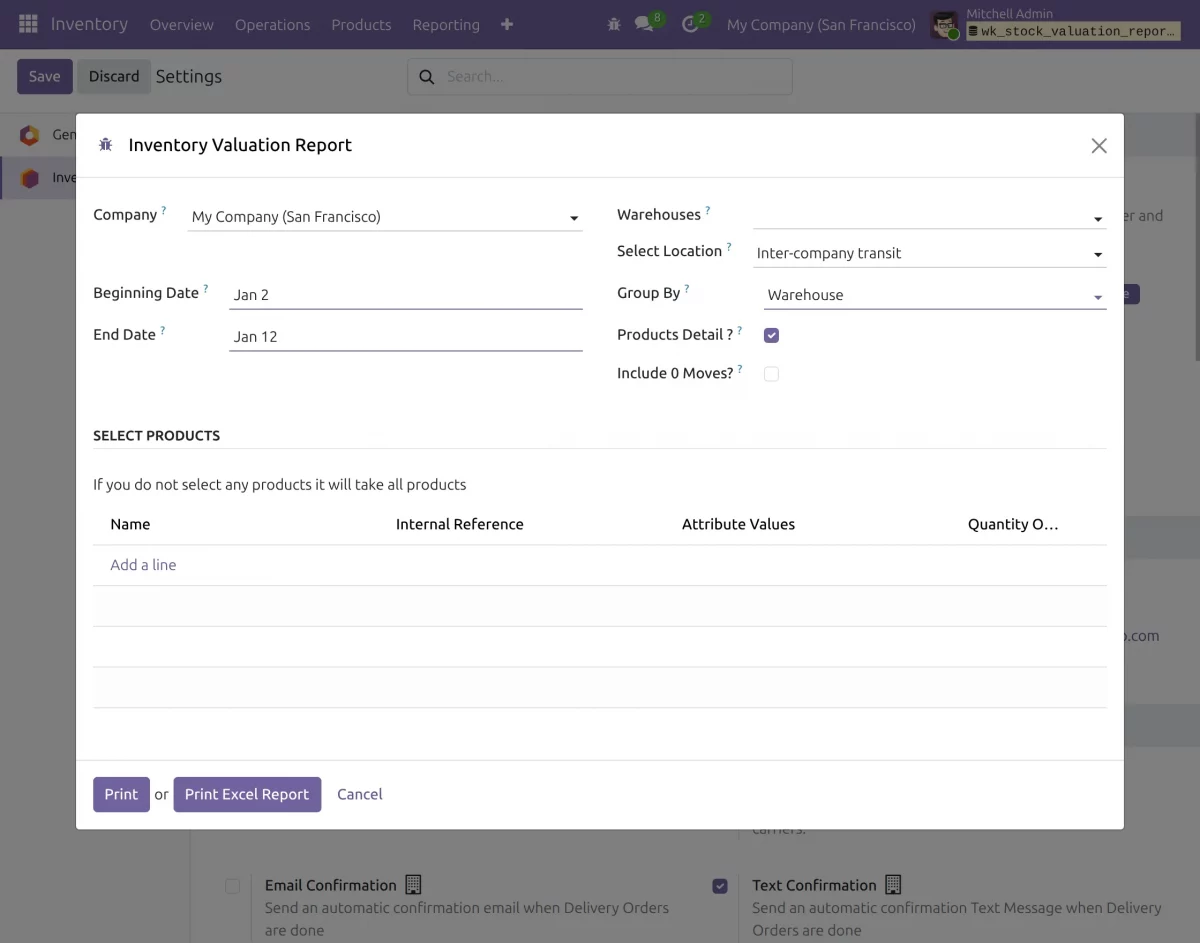
Users enter the wizard and provide the required details for the report.
This step helps define the report parameters before generating the final output.
3. Download Report (PDF or XLS)
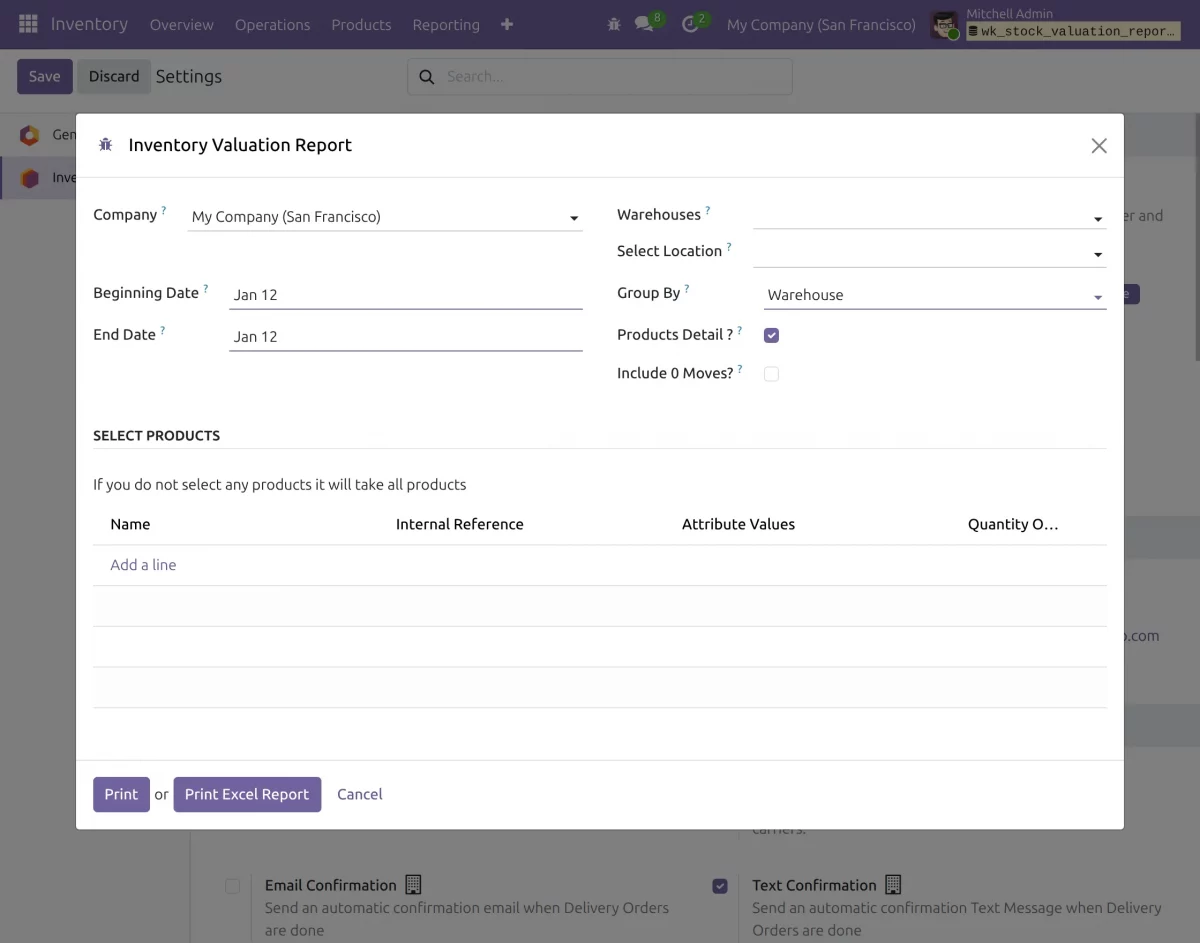
After completing the wizard entry, users can download the report.
The report is available in both PDF and XLS formats for easy viewing and data analysis.
NEED HELP?
Hope you find guide helpful! Please feel free to share your feedback in the comments below.
If you still have any issues/queries, please create a ticket at the UV Desk.
I hope this helps. In case of any further queries, contact us at our support mail.
Thanks for paying attention!!
Current Product Version - 15, 16, 17, 18, 19
Supported Framework Version - 1.0.0


Be the first to comment.